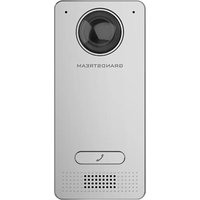
GDS3712 - Intercom GRANDSTREAM - Free user manual and instructions
Find the device manual for free GDS3712 GRANDSTREAM in PDF.


| Product Type | Video Door Phone |
| Brand | Grandstream |
| Model | GDS3712 |
| Power Supply | PoE IEEE 802.3af Class 3 (12.95W) or DC 12V 1A |
| Operating Temperature | -30°C to 60°C (3 min warm-up if below -30°C) |
| Storage Temperature | -35°C to 60°C |
| Humidity | 10-90% RH non-condensing |
| Network Connectivity | Ethernet RJ45 with PoE |
| Additional Interfaces | RS485, Wiegand, alarm I/O, electric lock output |
| Camera Resolution | 2 megapixels (estimated) |
| Mounting | Surface wall mount (flush mount possible with optional kit) |
| Material | Metal (estimated) |
| Main Functions | Video door phone, access control, alarms, PoE |
| Cleaning | With a soft dry cloth |
| Security | Anti-tamper, HTTPS connection, random default password |
| Package Contents | Quick installation guide, back cover, screws, hex key, silicone plugs |
| Default IP Configuration | DHCP; if no DHCP, static IP 192.168.1.168 after 5 min |
| Required Accessories | Ethernet cable Cat5e or Cat6, screwdriver, universal pliers |
Frequently Asked Questions - GDS3712 GRANDSTREAM
User questions about GDS3712 GRANDSTREAM
0 question about this device. Answer the ones you know or ask your own.
Ask a new question about this device
Download the instructions for your Intercom in PDF format for free! Find your manual GDS3712 - GRANDSTREAM and take your electronic device back in hand. On this page are published all the documents necessary for the use of your device. GDS3712 by GRANDSTREAM.
USER MANUAL GDS3712 GRANDSTREAM
Grandstream Networks, Inc.
126 Brookline Ave, 3rd Floor
Boston, MA 02215. USA
Tel: +1 (617) 566 - 9300
natural_image
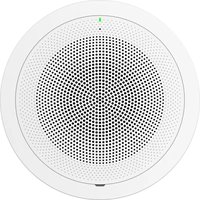
Front view of a white brand stream phone with a circular lens and control buttons (no visible text beyond branding)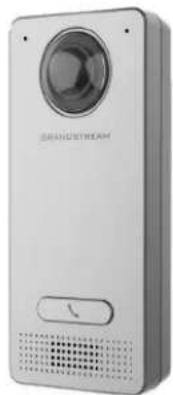
natural_image
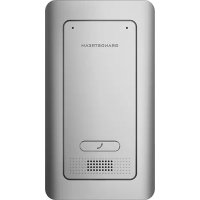
Exterior view of a modern digital camera with a circular lens and control buttons (no visible text or symbols)GDS3712
Intercom Access System
Quick Installation Guide
For Warranty and RMA information, please visit www.grandstream.com
Content
English....1
简体中文....10
Español....19
Français....28
Deutsch....37
Italiano....46
Русский....55
Português.... 64
Polski....73
PRECAUTIONS
- Do not attempt to disassemble or modify the device.
- Strictly follow the requirement of power source.
- Do not expose this device to temperatures out the range of -30^ to 60^ for operating and -35^ to 60^ for storage
- If the temperature is under -30 degree, the device will take about 3 minutes to heat up itself before booting and operating.
- Do not expose this device to environments outside of the following humidity range: 10-90% RH (non-condensing).
- Please strictly follow the instruction to install or hire professionals to install properly.
PACKAGE CONTENTS
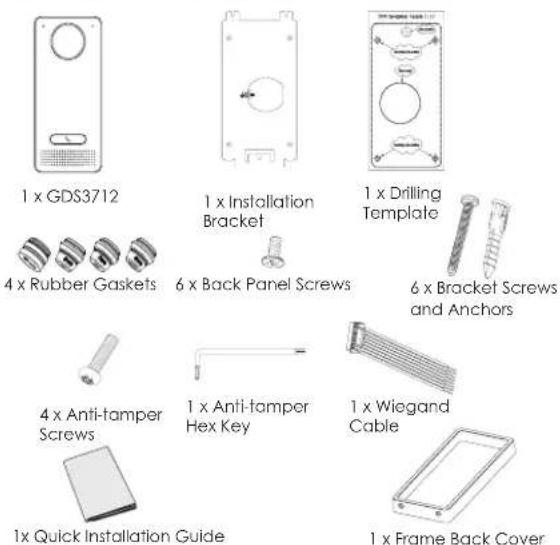
\~1\~\~2\~
MOUNTING GDS3712
On-Wall (Surface) Mounting
Step 1:
Refer to the "drilling template" to drill holes at targeted place on wall then mount the installation bracket using the four screws and anchors provided (screwdriver not provided). Connect and tighten "Ground" wire to the bracket ground marked with printed icon.
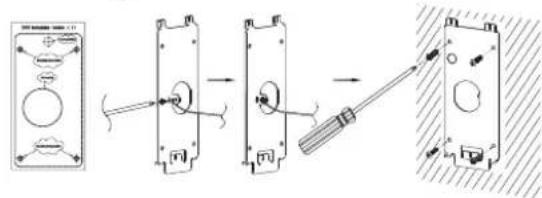
Step 2:
Pull Cat5e or Cat6 cable (not provided) through the rubber gasket selecting the correct size and the back cover panel piece, please refer to GDS3712 WIRING TABLE at the end of QIG for Pin connections.
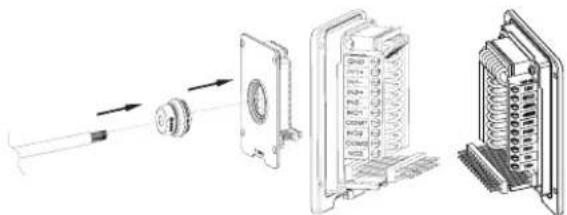
Note:
Needle nose plier highly recommended and 2.5mm flat screwdriver required (not provided). Stripping outer plastic shield of the cable in less than 2 inches suggested. Do NOT leave bare metal outside the socket by over stripping the inner plastic shield of the wires.
Step 3:
Make sure the "Back Cover Frame" is in place, the wired back cover panel is good. Flush the back cover panel piece with the whole back surface of device, tighten it using the screws provided.
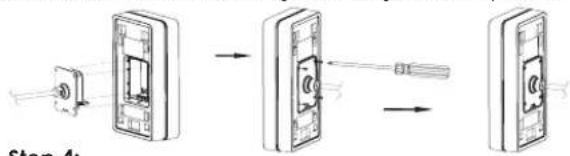
Step 4:
Take out the two preinstalled anti-tamper screws using the hex key provided. Carefully align the GDS3712 to the metal bracket on wall, press and pull the GDS3712 down to the right position.
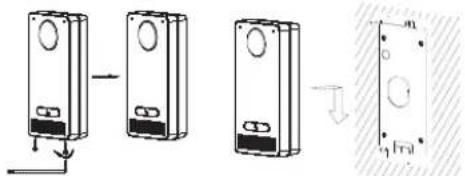
Step 5:
Install the two anti-tamper screws back using the hex key provided (do NOT over tighten the screws). Cover the two screw holes on the bottom of "Back Cover Frame" piece using the two silicon plugs provided. Final check and finish the installation.
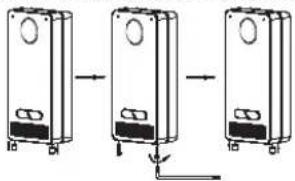
In-Wall (Embedded) Mounting
Please refer to the "In-Wall (Embedded) Mouting Kit", which can be purchased separately from Grandstream.
\~3\~ \~4\~
CONNECTING THE GDS3712
Refer to the illustration below and follow the instructions on the next page.
POWER OFF GDS3712 when connecting wires or inserting/removing the back cover panel piece!
Option A:
RJ45 Ethernet Cable to (Class 3) Power over Ethernet (PoE) Switch.
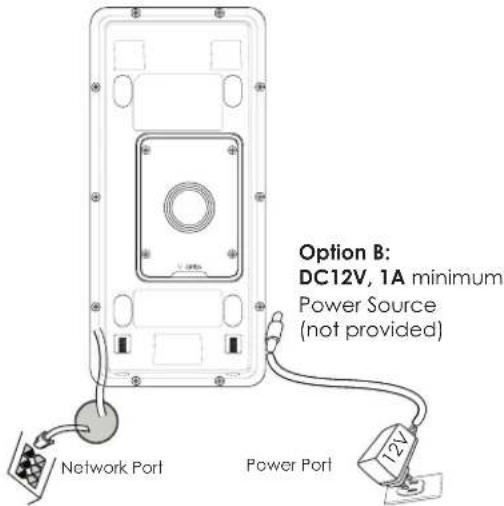
Note:
Choose Option A if using PoE switch (Class 3); OR: Option B if using 3rd party power source.
Option A
Plug an RJ45 Ethernet cable into the (Class 3) Power over Ethernet(PoE) switch.
Option B
Step 1:
Select an external DC12V, minimum 1A power source (not provided). Wire correctly the "+,-" cable of the power into the "12V, GND" connector of the GDS3712 socket (refer to the previous mounting page for instruction). Connect the power source.
Step 2:
Plug an RJ45 Ethernet cable into a network switch/hub or router.
Note:
Please refer to "Step 2" of "MOUNTING GDS3712" and "GDS3712 WIRING TABLE" at the end of QIG for all the wiring and connection illustration and instructions.
GDS3712 CONFIGURATION
The GDS3712 is by default configured to obtain the IP address from DHCP server where the unit is located.
In order to know which IP address is assigned to your GDS3712, please use GS_Search tool as illustrated in following steps.
Note:
If no DHCP server is available, the GDS3712 default IP address (after 5 minutes DHCP timeout) is 192.168.1.168.
Step 1: Download and install GS_Search tool:
http://www.grandstream.com/support/tools
Step 2: Run the Grandstream GS_Search tool on a computer connected to same network/DHCP server.
Step 3: Click on button to start device detection.
Step 4: The detected devices will appear in the output field as below.
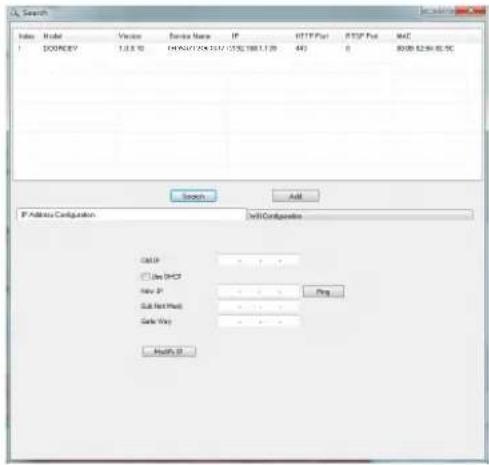
Step 5: Open the web browser and type the displayed IP address of GDS3712 with leading https:// to access the web GUI. (For security reasons, the default web access of GDS3712 is using HTTPS and port 443.)
Step 6: Enter username and password to login.
(The default administrator username is "admin" and the default random password can be found at the sticker on the GDS3712).
Note: For security reasons, make sure to change the default admin password from System Settings > User Management.
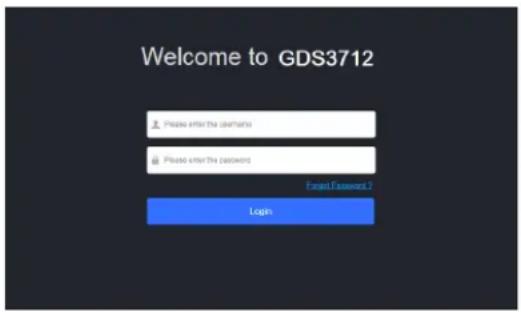
Step 7: After login into the webGUI, click the left side menu in the web interface for more detailed and advanced configuration.
The GNU GPL license terms are incorporated into the device firmware and can be accessed via the Web user interface of the device at my_device_ip/gpl_license. It can also be accessed here: https://www.grandstream.com/legal/open-source-software
To obtain a CD with GPL source code information please submit a written request to: info@grandstream.com
GDS3712 WIRING TABLE
| Jack Pin Signal Function | ||
| J2(Basic)3.81mm | 1 TX+ (Orange/White) | Ethernet,PoE 802.3af Class3.12.95W |
| 2 TX- (Orange) | ||
| 3 RX+ (Green/White) | ||
| 4 RX- (Green) | ||
| 5 PoE_SP2 (Blue + Blue/White) | ||
| 6 PoE_SP1 (Brown + Brown/White) | ||
| 7 RS485_B | RS485 | |
| 8 RS485_A | ||
| 9 GND | Power Supply | |
| 10 I2V | ||
| J3(Avanced)3.81mm | 1 GND Alarm GND | |
| 2 ALARM1_IN+ | Alarm IN | |
| 3 ALARM1_IN- | ||
| 4 ALARM2_IN+ | ||
| 5 ALARM2_IN- | ||
| 6 NO1 | Alarm Out | |
| 7 COM1 | ||
| 8 NO2 | Electric Lock9 COM2 | |
| 10 NC2 | ||
| J4(Special)2.0mm | 1 GND (Black) Wiegand Power | GND |
| 2 WG_D1_OUT (Orange) | Wiegand Output Signal | |
| 3 WG_D0_OUT (Brown) | ||
| 4 LED (Blue) | Wiegand Output LED Signal | |
| 5 WG_D1_IN (White) | Wiegand Input Signal | |
| 6 WG_D0_IN (Green) | ||
| 7 BEEP (Yellow) | Wiegand Output BEEP Signal | |
| 8 5V (Red) Wiegand Power Output | put | |
For more details regarding GDS3712 wiring, please refer to User Manual.
| Electric Lock | Confection2 | Door | ||||
| Type Power On Power Off NC2 | NO2 COM2 | Normal Status | ||||
| Fail Safe | Lock Open | ■ ■ | Lock | |||
| ■ ■ | Open | |||||
| Fail Secure | Open Lock | ■ ■ | Lock | |||
| ■ ■ | Open | |||||
| NOTE:* Please select the correct wiring based on different electric strike/lock and the normal status of door.* Electric Magnetic Lock will work at Fall Safe mode ONLY. | ||||||
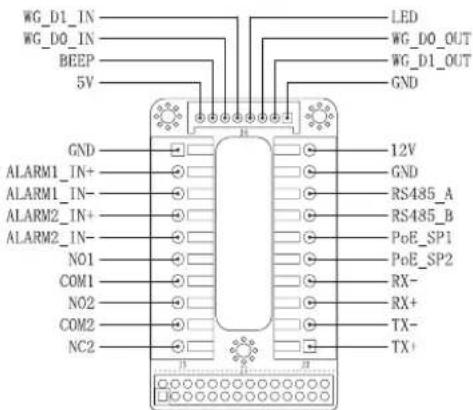
Note:
1) Power PoE_SP1, PoE_SP2 with DC, the voltage range is 48V\~57V, no polarity.
2) Power with PoE the cable wiring:
• PoE_SP1, brown and brown/white binding
- PoE_SP2, blue and blue/white binding
3) DC Power could be correctly sourced from qualified PoE Injector.
This product is covered by one or more of the U.S. patents (and any foreign patent counterparts thereto) identified at www.cmspatents.com.
ZH
注意事项
步骤2:
注意事项:
步骤 5:
墙内(嵌入式)安装
Paso 2:
Nota:
Paso 5:
Remarque:
Etape 4:
Etape 5:
Montage Encastrement Mural
Plug an RJ45 Ethernet cable into a network switch/hub or router.
Remarque:
Schnitt 2:
Schritt 5:
Unterputzmontage
natural_image
Exploded view diagram of a mechanical assembly showing internal components and assembly steps (no text or labels)Aviso:
Passo 5:
- Content
- PRECAUTIONS
- MOUNTING GDS3712
- On-Wall (Surface) Mounting
- Step 1:
- Step 2:
- Note:
- Step 3:
- Step 4:
- Step 5:
- In-Wall (Embedded) Mounting
- CONNECTING THE GDS3712
- Option A:
- Option A
- Option B
- GDS3712 CONFIGURATION
- ZH
- 注意事项
- 墙内(嵌入式)安装
- Paso 2:
- Nota:
- Remarque:
- Etape 4:
- Etape 5:
- Montage Encastrement Mural
- Schnitt 2:
- Schritt 5:
- Unterputzmontage
- Aviso:
- Passo 5:
Brand : GRANDSTREAM
Model : GDS3712
Category : Intercom