Vevor Y486 - Label printer

Y486 - Label printer Vevor - Free user manual and instructions

Find the device manual for free Y486 Vevor in PDF.
📄 352 pages English EN Download 💬 AI Question
Notice Vevor Y486 - page 10
Pick your language and provide your email: we'll send you a specifically translated version.

User questions about Y486 Vevor

0 question about this device. Answer the ones you know or ask your own.

Ask a new question about this device

The email remains private: it is only used to notify you if someone responds to your question.

No questions yet. Be the first to ask one.

Download the instructions for your Label printer in PDF format for free! Find your manual Y486 - Vevor and take your electronic device back in hand. On this page are published all the documents necessary for the use of your device. Y486 by Vevor.

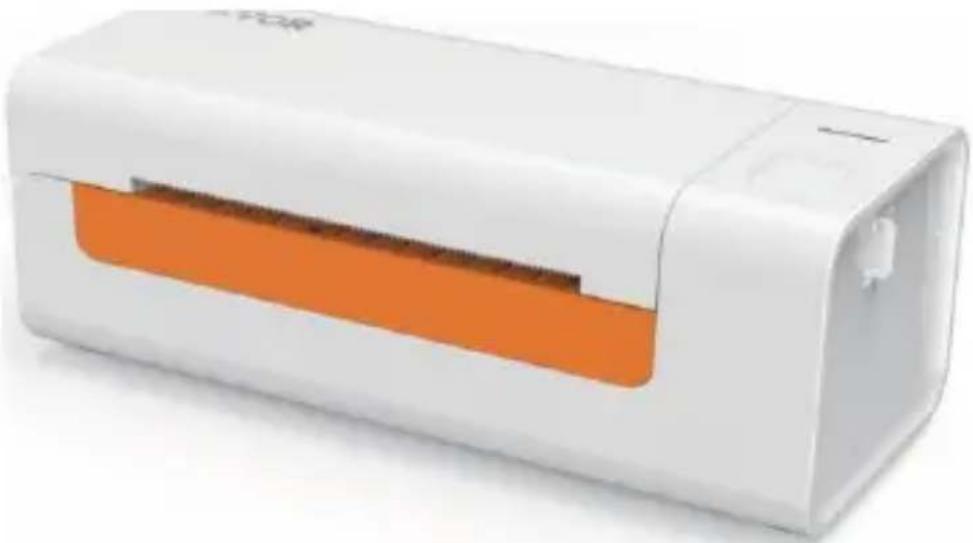
USER MANUAL Y486 Vevor

natural_image White and orange electric shaver device (no visible text or symbols)

NEED HELP? CONTACT US!

Have product questions? Need technical support? Please feel free to contact us:

Vevor Y486 - NEED HELP? CONTACT US! - 1

CustomerService@vevor.com

This is the original instruction, please read all manual instructions carefully before operating. VEVOR reserves clear interpretation of our user manual. The appearance of the product shall be subject to the product you received. Please forgive us that we won't inform you again if there is any technology or software updates on our product.

CONTENTS

  1. Introduction....01
  2. Item Overview 02
  3. Connect to PC/MAC 03
    4.Label Setup 05
    5.Driver Installation 07
  4. MacOS & Windows Printing Setup ....11
  5. Wireless installation....15
    8.User tips 17
  6. LED status....18
  7. Feeder Button Instructions....19
  8. Safety Notices 20
  9. Maintenance....20
  10. Specifications....21

INTRODUCTION

Congratulations on your purchase of Vevor Printer. Vevor is your loyal business partner offering commercial solutions to batch labels printing.

Please take a moment to read this user guide as incorrect operation may result in unsatisfactory print quality, reduced user experience, or even damage to your printer or injury.

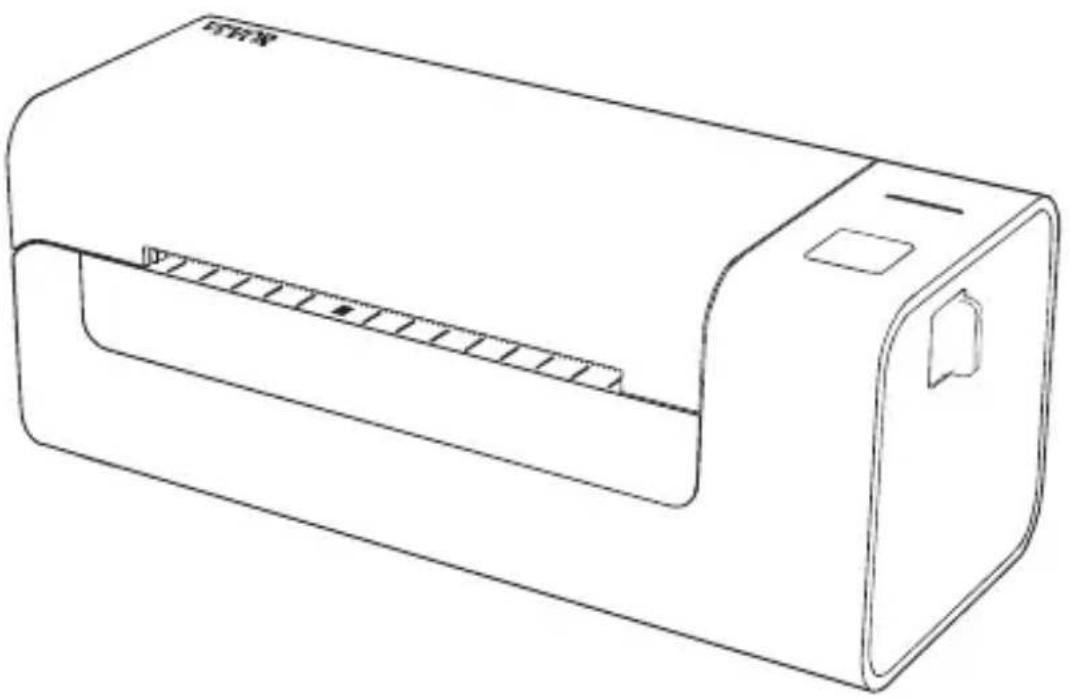
VEVOR Y486/Y486BT is a thermal label printer which uses thermal label media without ink, toner and ribbon. It can print various labels for logistics, pricing, barcodes, QR codes, shipping address, badges, etc.

Original instructions for Thermal Label Printer, please read all manual instructions carefully before operating. VEVOR reserves clear interpretation of our user manual. The appearance of the product shall be subject to the product you received. Please forgive us that we won't inform you again if there is any technology or software updates on our product.

ITEM OVERVIEW

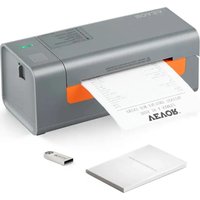
Packing List:

1x VEVOR Label Printer 1x User Guide 1x Service Card

1x Power Cable and Adapter 1x USB Stick(Contains drivers for MacOS & Windows)

1x USB 2.0 to USB C Adapter 30x Free Fanfold Labels

1x USB 2.0 Printer Cable
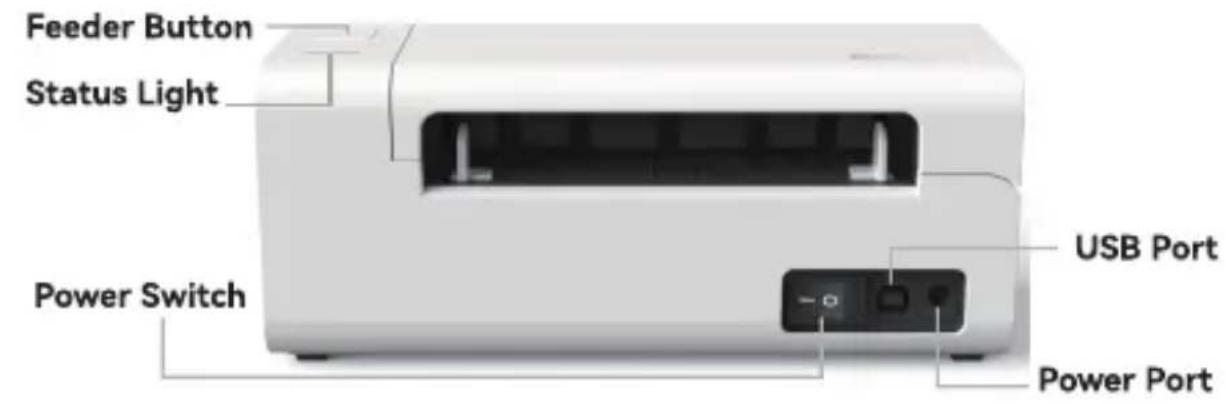
Vevor Y486 - Packing List: - 1

text_image Feeder Button Status Light Power Switch USB Port Power Port

Vevor Y486 - Packing List: - 2

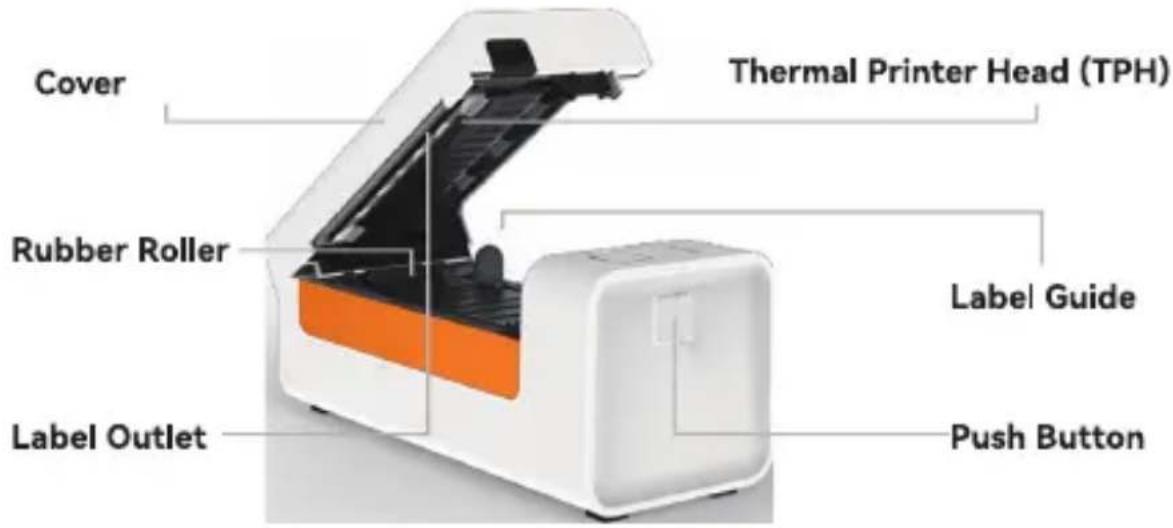
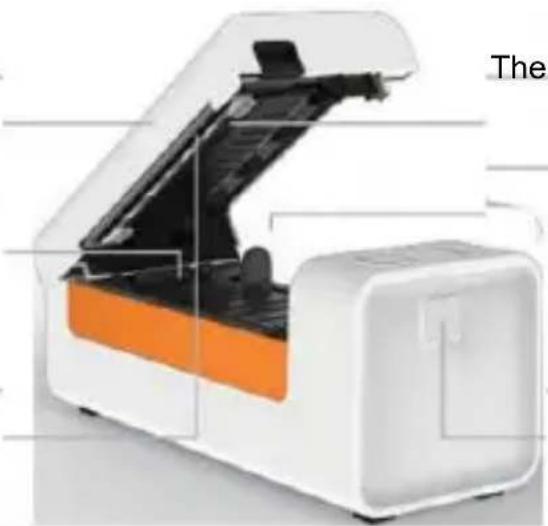
text_image Cover Thermal Printer Head (TPH) Rubber Roller Label Outlet Label Guide Push Button

Vevor Y486 - Packing List: - 3

natural_image Black triangular warning symbol with exclamation mark (no text or numbers)

Thermal printer head (TPH) may be very hot. Please do not touch the printer head or parts around it after printing.

CONNECT TO YOUR PC/MAC

  1. Ensure the power is OFF (Press down "O" means Power OFF)
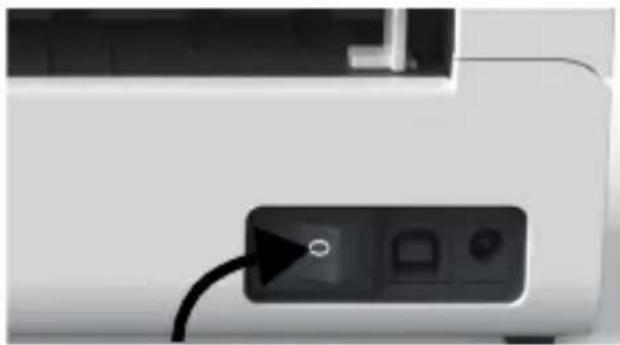
Vevor Y486 - CONNECT TO YOUR PC/MAC - 1

natural_image Close-up of a printer's front panel showing a black button with a white circular symbol and two small icons, connected by a cable (no text or labels visible)
  1. Connect the USB cable.

(Special Note: For Windows users, please connect the same USB port on your computer to aviod producing unwanted duplicates of Vevor printer in your system).
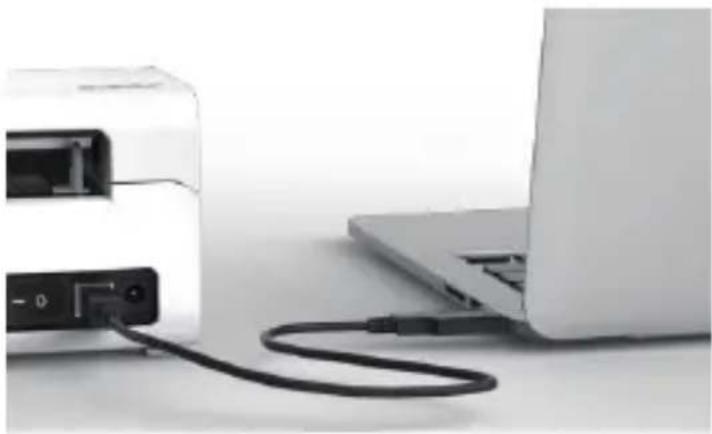
Vevor Y486 - CONNECT TO YOUR PC/MAC - 2

natural_image Close-up of a laptop connected to a USB cable with a power adapter, next to a white printer (no visible text or symbols)
  1. Make sure the power adapter is tightly connected, then connect the power cable to the printer's power port and the electrical sockets.
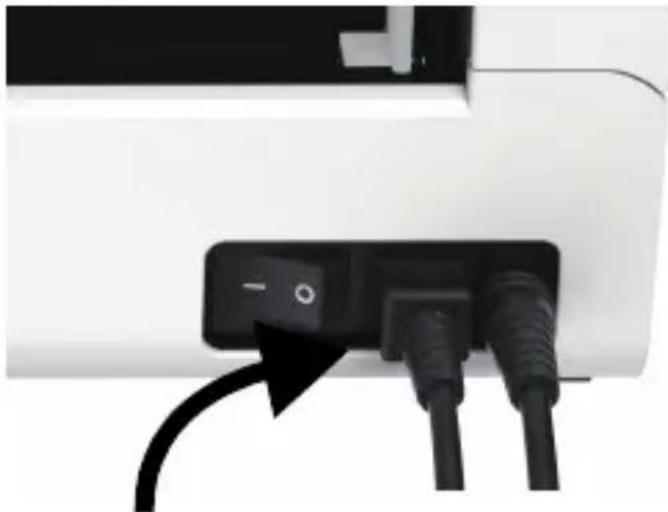
Vevor Y486 - CONNECT TO YOUR PC/MAC - 3

natural_image Close-up of a white electronic device with black cables and a black power button (no text or symbols visible)
  1. Turn the power ON (Press down "-" means Power ON), now you will see the top feeder button flashing.
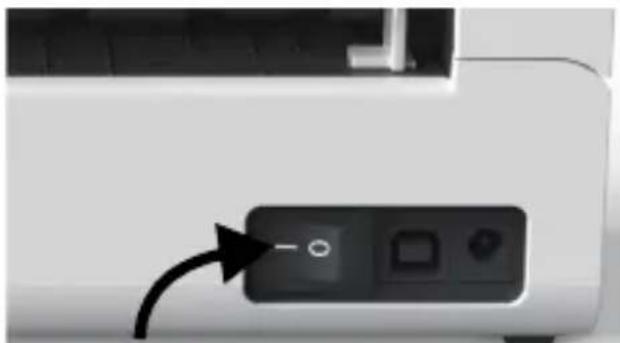

Vevor Y486 - CONNECT TO YOUR PC/MAC - 4

natural_image Close-up of a printer's front panel showing a black button with an arrow pointing to it, no visible text or symbols.

Vevor Y486 - CONNECT TO YOUR PC/MAC - 5

Must turn off the switch before you plugging the power cable into power port each time or it may cause sparks!

LABEL SETUP

Vevor is capable of working with labels in various sizes, and it needs to learn your label properties before its first use.

To initiate Automatic Label Identification and run Intelligent Label Study, please follow these steps:

1.Power On

Turn on the power and wait for about 5 seconds until the printer is initialized.

2. Automatic Label Identification

Insert the label from the backside of the printer, the printer will grab the label and move back and forth, then stop with the green light on. Not a single label will be wasted during this procedure.

It's suggested to adjust the label guide to match the width of the label if necessary before the label is pushed in.
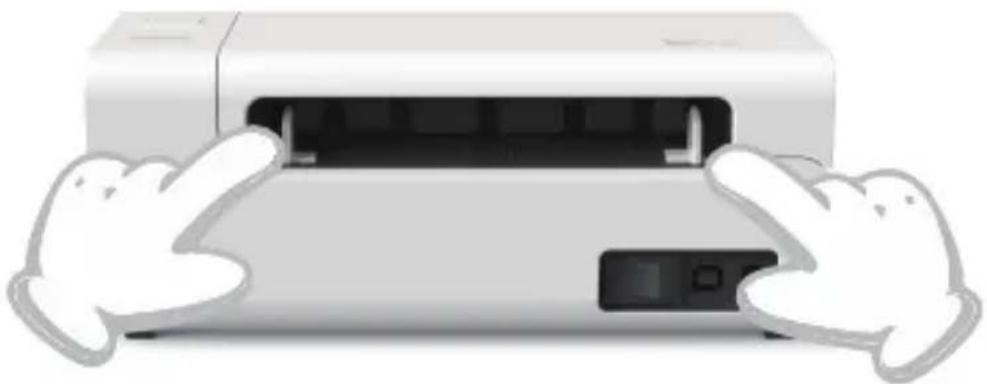
Vevor Y486 - Automatic Label Identification - 1

natural_image Illustration of a printer with hands holding its side panel (no text or symbols visible)

3. Intelligent Label Study

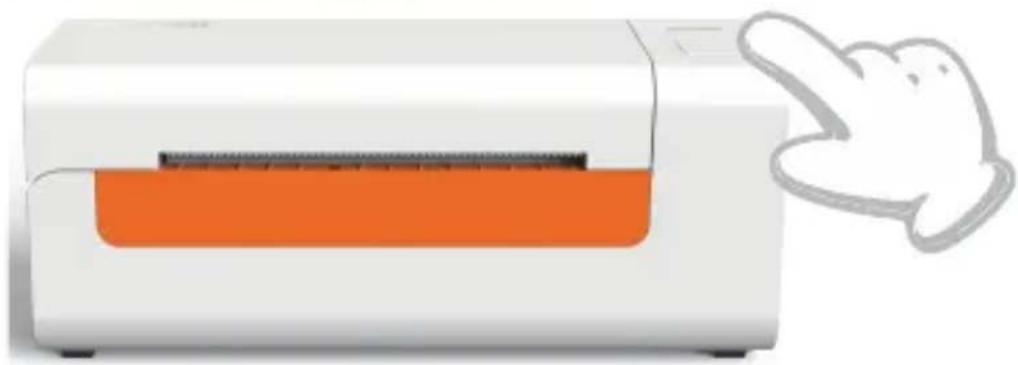
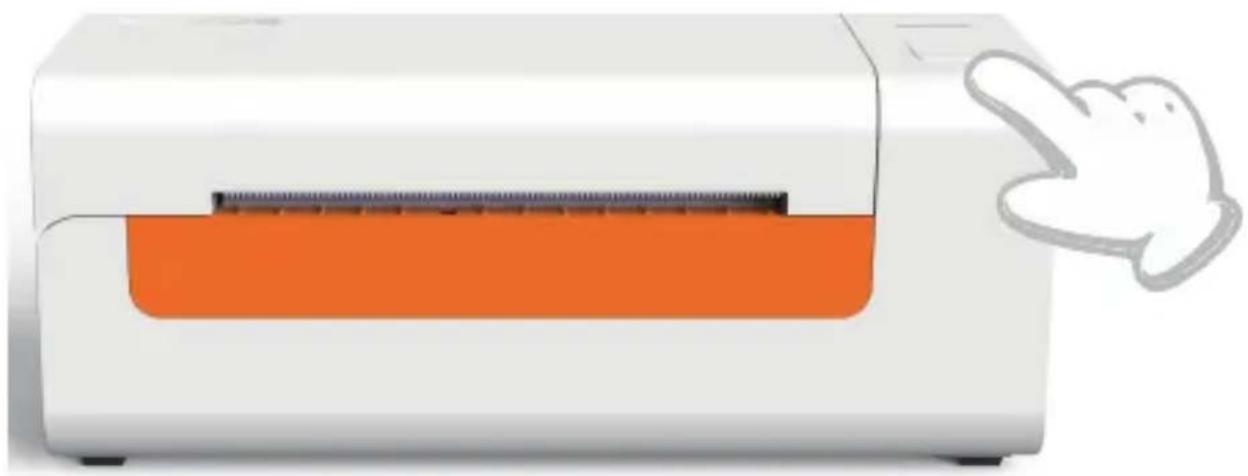
Press and hold the feeder button for about 3 seconds until you hear one beep then release, the label will move back and forth several times to study the label size, then you can start printing.
Vevor Y486 - Intelligent Label Study - 1

natural_image White and orange electronic device with a pointing hand gesture (no text or symbols visible)

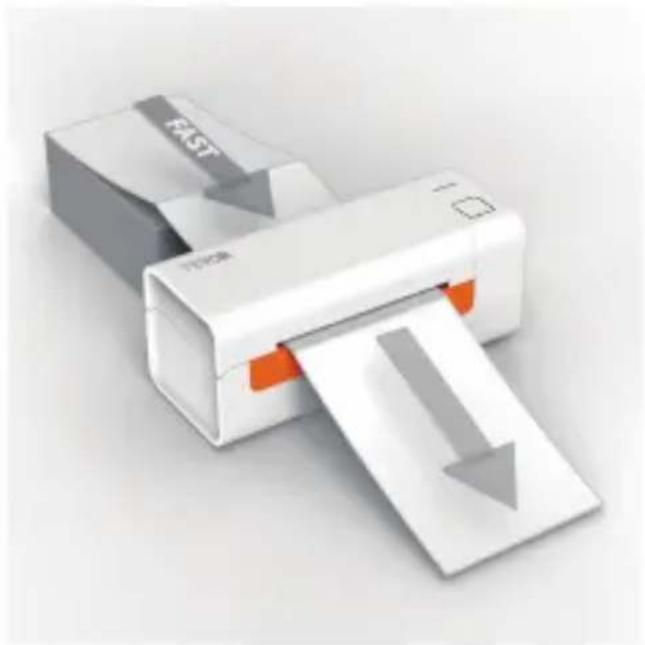
Since the printer needs to measure the length of the thermal paper, a stack of labels with at least 3 sheets is required to complete the process.
Vevor Y486 - Intelligent Label Study - 2

natural_image 3D illustration of a white paper printer with an orange handle emitting a paper sheet, emitting a downward arrow (no text or symbols)

DRIVER INSTALLATION

5.1 Driver Installation for MacOS

Please download the driver for Vevor Y486/Y486BT from our official website https://www.vevor.com/pages/download-center-label-printer, or find it from the USB stick that comes with the package.

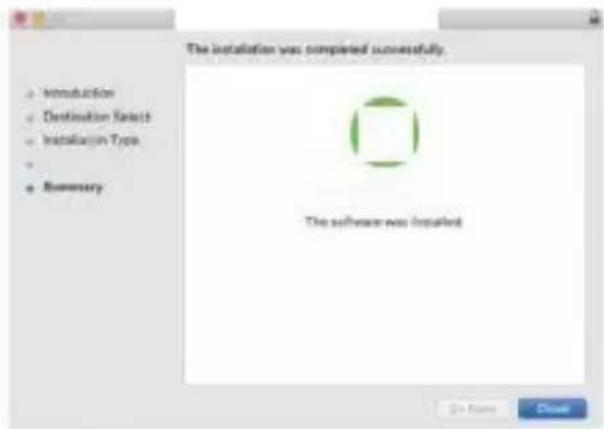
  1. Double-click the file "Vevor-Mac-Driver-Latest.pkg".
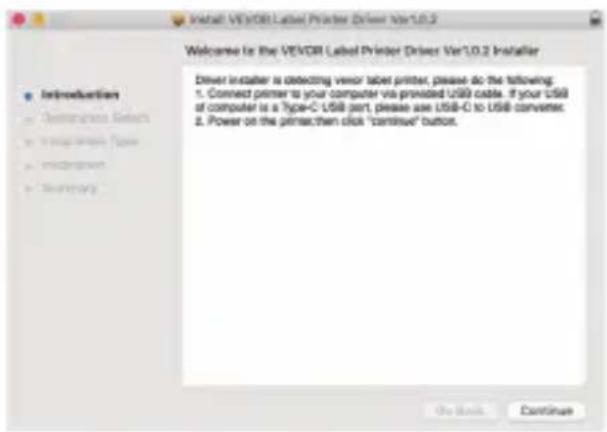
  2. Click "Continue" and follow the on screen instructions.
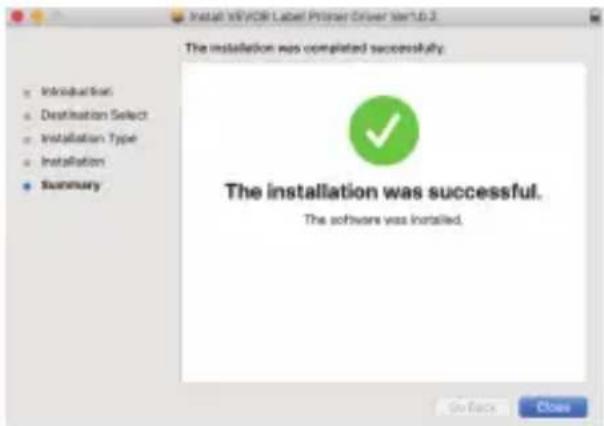
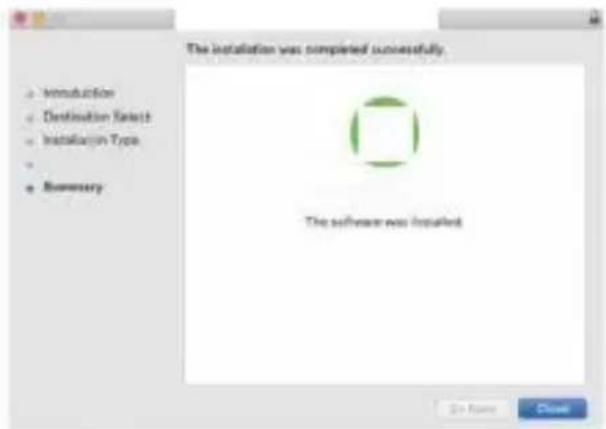
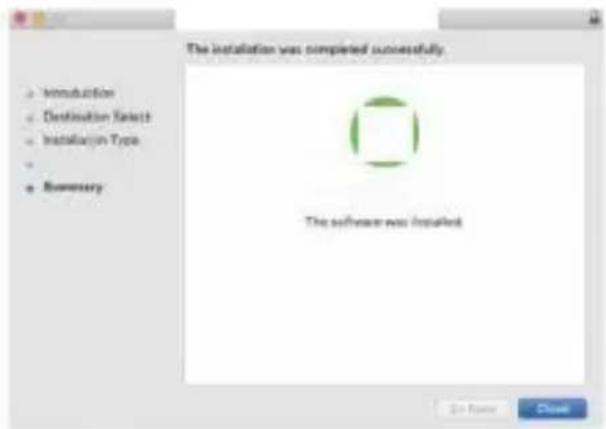
    3.Click"Close"to finish.

Vevor Y486 - Driver Installation for MacOS - 1

text_image Install VERXOR Label Printer Driver Ver1.0.2 Welcome to the VERXOR Label Printer Driver Ver1.0.2 Installer Driver installer is detecting vencer label printer, please do the following: 1. Connect primer to your computer via provided USB cable. If your USB of computer is a Type-C USB port, please use USB-C to USB converter. 2. Power on the primarchen click "continue" button.

Vevor Y486 - Driver Installation for MacOS - 2

text_image Install XV/OR Label Provider Driver Start.2 The installation was completed successfully. Introductory Destination Select Installation Type Installation Summary The installation was successful. The software was installed. SeFace Close

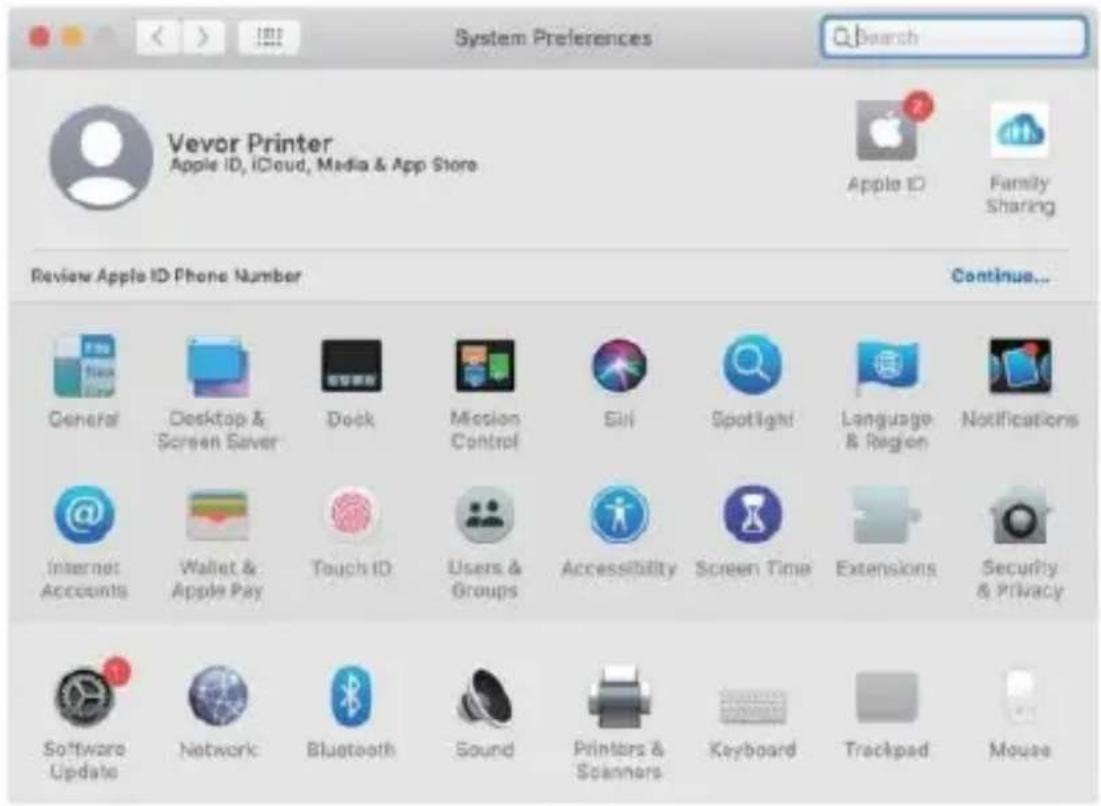
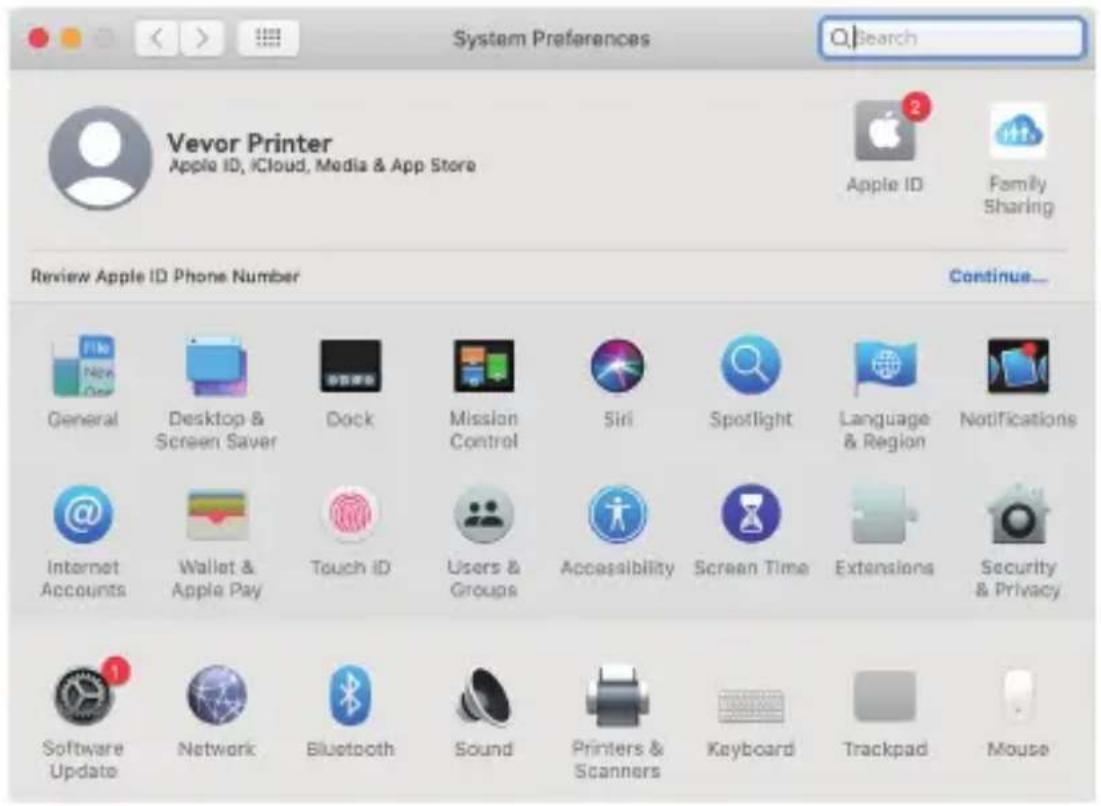
4.Open "System Preferences", and click "Printers & Scanners".
Vevor Y486 - Driver Installation for MacOS - 3

text_image System Preferences Search Vevor Printer Apple ID, iCloud, Media & App Store Apple ID Family Sharing Review Apple ID Phone Number Continue... General Desktop & Screen Saver Dock Mission Control Siri Spotlight Language & Region Notifications Internet Accounts Wallet & Apple Pay Touch iD Users & Groups Accessibility Screen Time Extensions Security & Privacy Software Update Network Bluetooth Sound Printers & Scanners Keyboard Trackpad Mouse

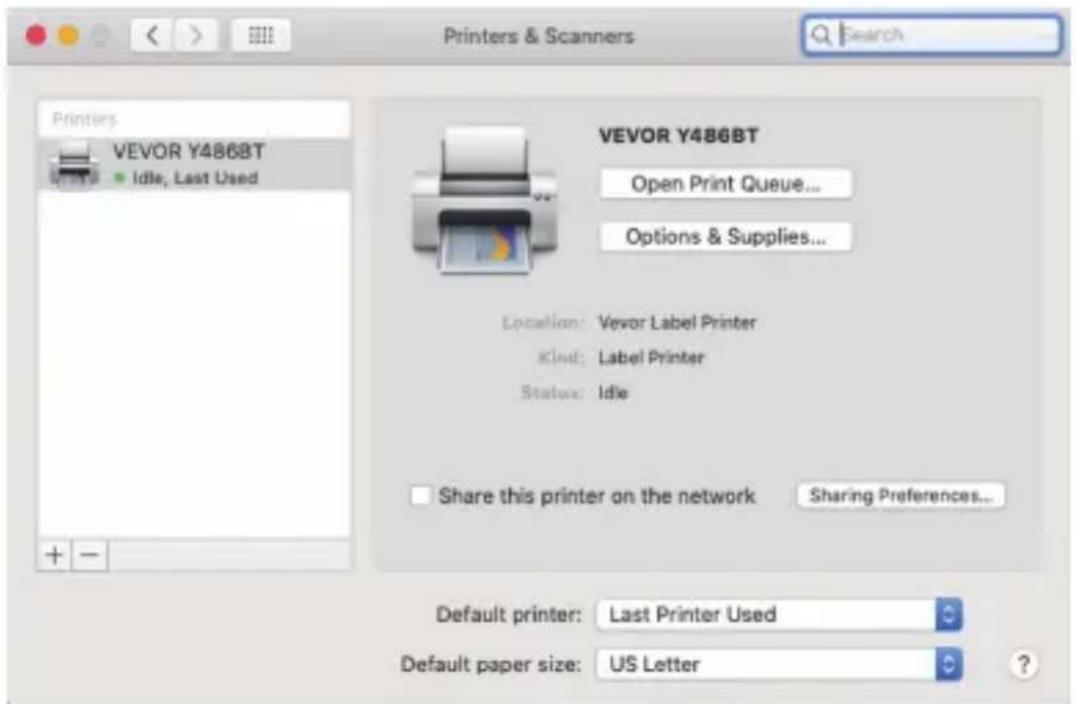
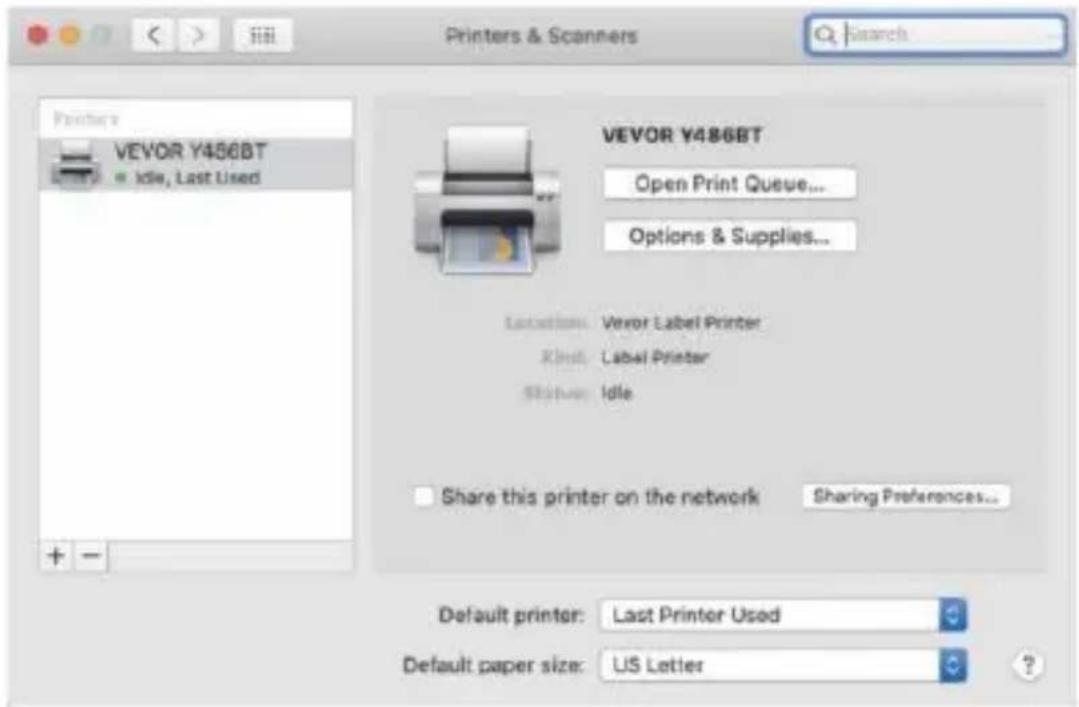
5.Power on the printer, you will see "VEVOR Y486/Y486BT" in the list, Now you can print labels.

Vevor Y486 - Driver Installation for MacOS - 4

text_image Printers & Scanners Search Printers VEVOR Y486BT Idle, Last Used VEVOR Y486BT Open Print Queue... Options & Supplies... Location: Vevor Label Printer Kind: Label Printer Status: Idle Share this printer on the network Sharing Preferences... Default printer: Last Printer Used Default paper size: US Letter

5.2 Driver Installation for Windows

Please download the driver for Vevor Y486/Y486BT from our official website https://www.vevor.com/pages/download-center-label-printer, or find it from the USB stick that comes with the package.

  1. Open the "Vevor-Windows-Driver-Latest.exe" file with a double-click to start the installation process.

If the file is named "Vevor-Windows-Driver-Latest.zip", you need to decompress it to the .exe file.

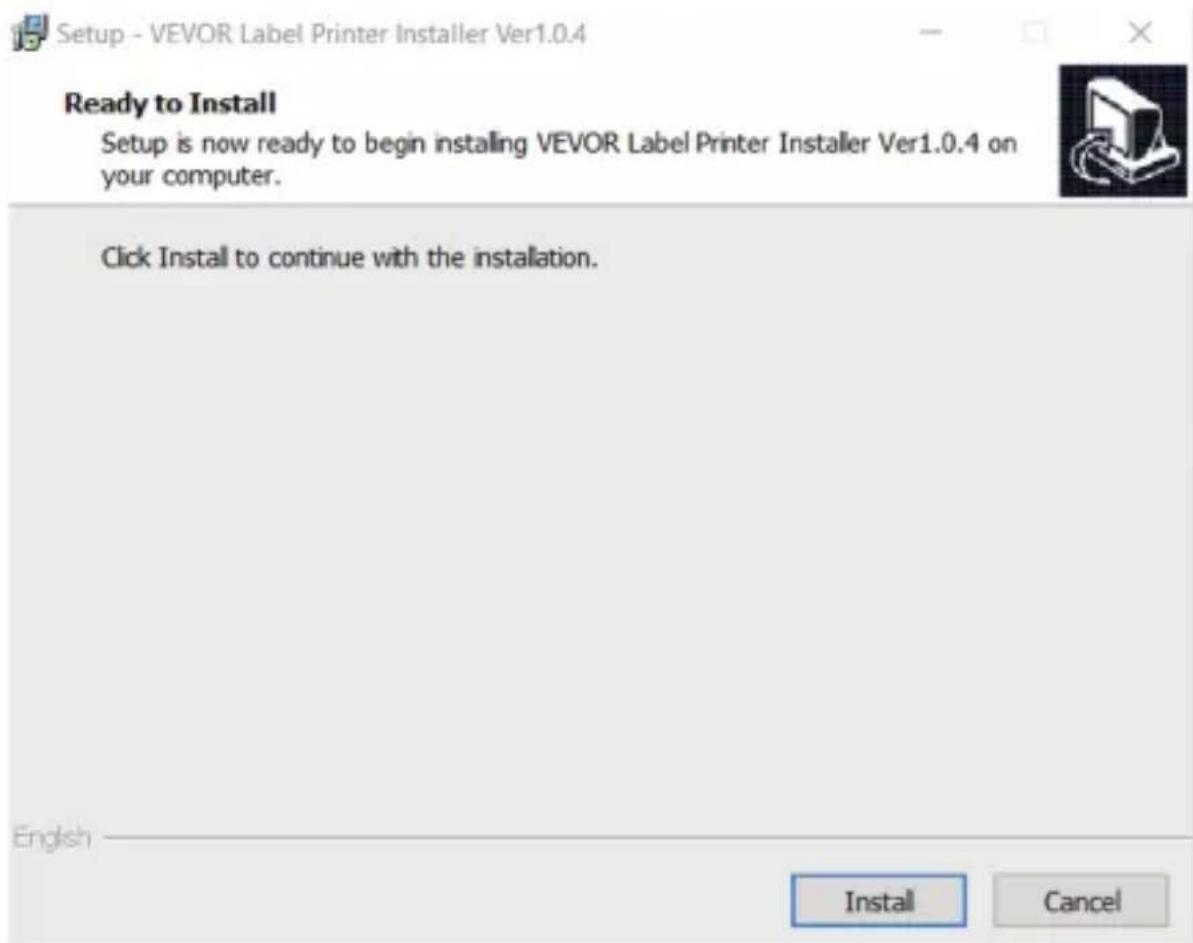
  1. Click "Install" and follow the onscreen instructions.

Vevor Y486 - Driver Installation for Windows - 1

text_image Setup - VEVOR Label Printer Installer Ver1.0.4 Ready to Install Setup is now ready to begin installing VEVOR Label Printer Installer Ver1.0.4 on your computer. Click Install to continue with the installation. English Install Cancel

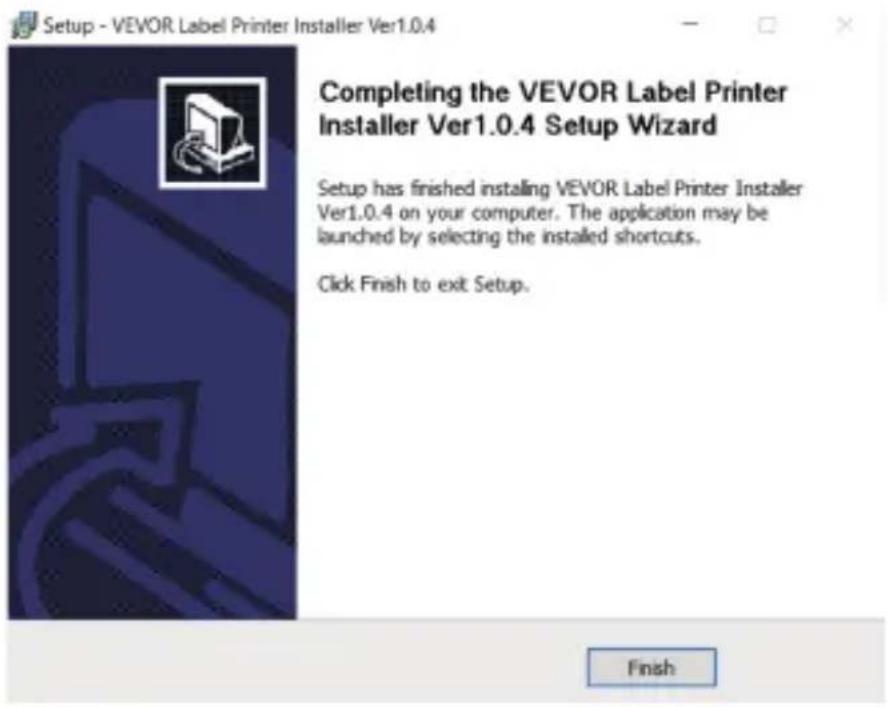
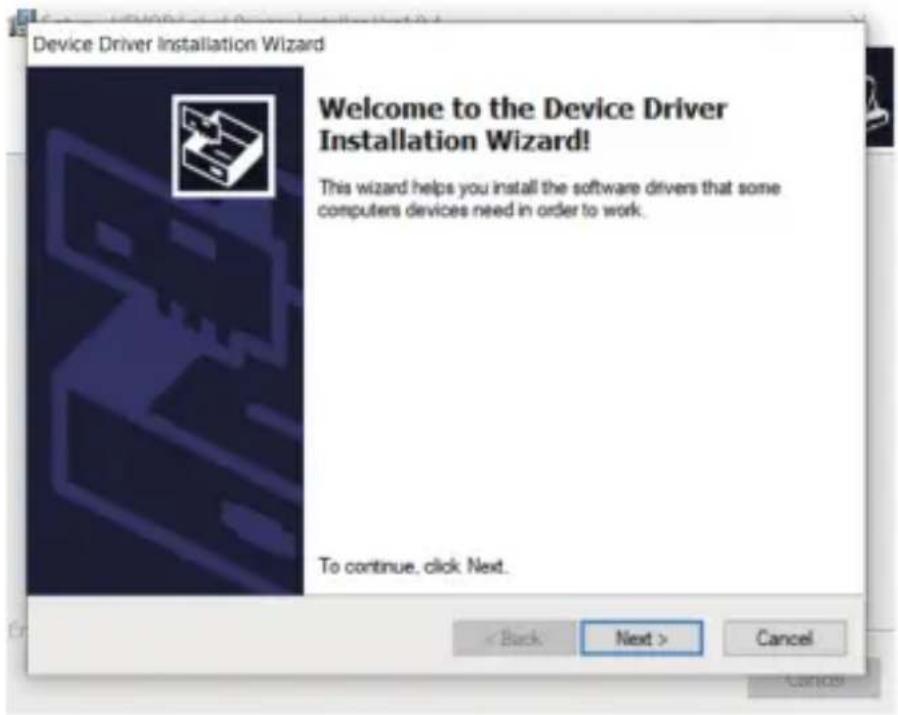
3.Click "Next" and "finish" to complete the driver installation.
Vevor Y486 - Driver Installation for Windows - 2

text_image Device Driver Installation Wizard Welcome to the Device Driver Installation Wizard! This wizard helps you install the software drivers that some computers devices need in order to work. To continue. click Next.

Vevor Y486 - Driver Installation for Windows - 3

text_image Setup - VEVOR Label Printer Installer Ver1.0.4 Completing the VEVOR Label Printer Installer Ver1.0.4 Setup Wizard Setup has finished installing VEVOR Label Printer Installer Ver1.0.4 on your computer. The application may be launched by selecting the installed shortcuts. Click Finish to exit Setup. Finish

MACOS & WINDOWS PRINTING SETUP

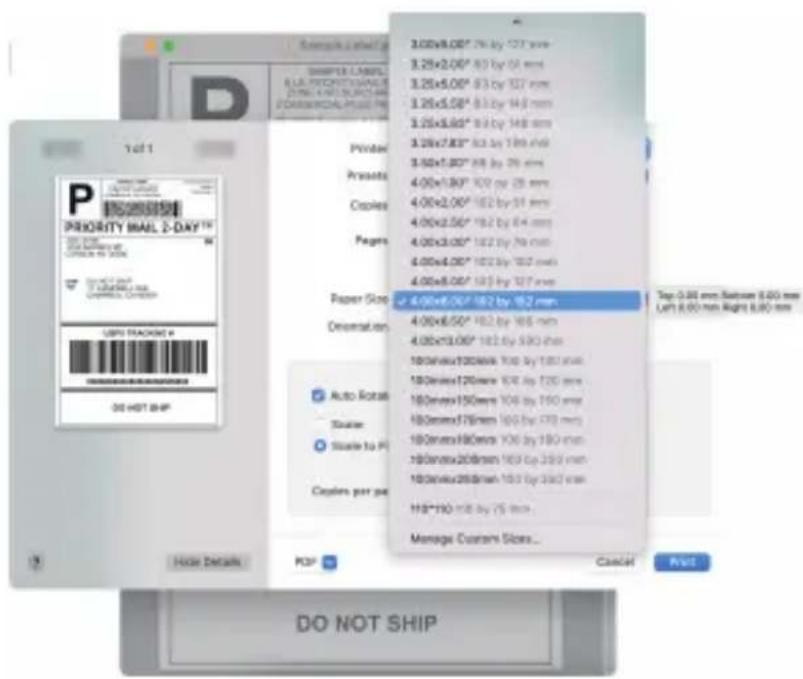
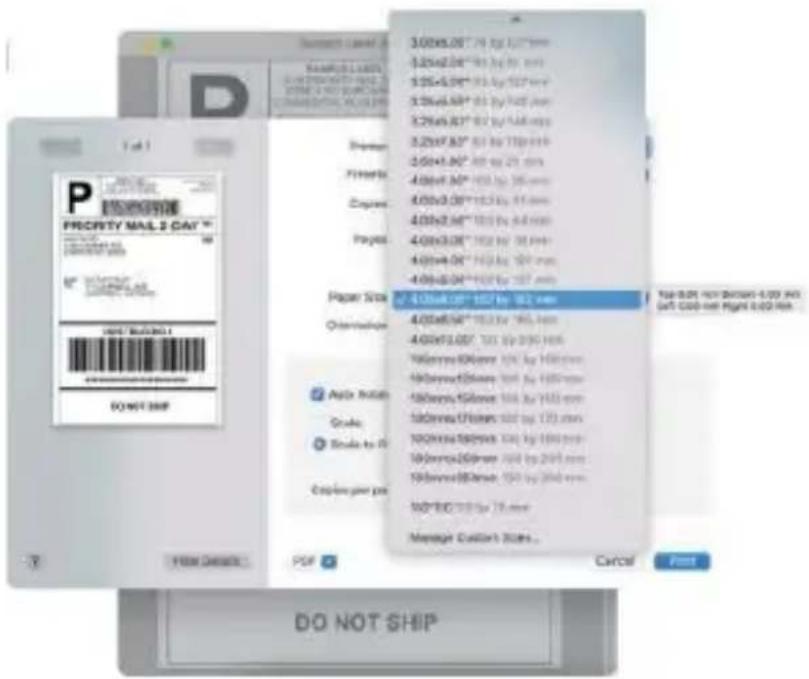
Vevor Y486/Y486BT is set for the most popular size of 4x6 inches (102 x 152mm) by default, therefore you need to make sure that the "Paper Size" is appropriately set in your computer, and corresponding with the label papers you are using. Please set as follows:

6.1 MacOS Printing Setup

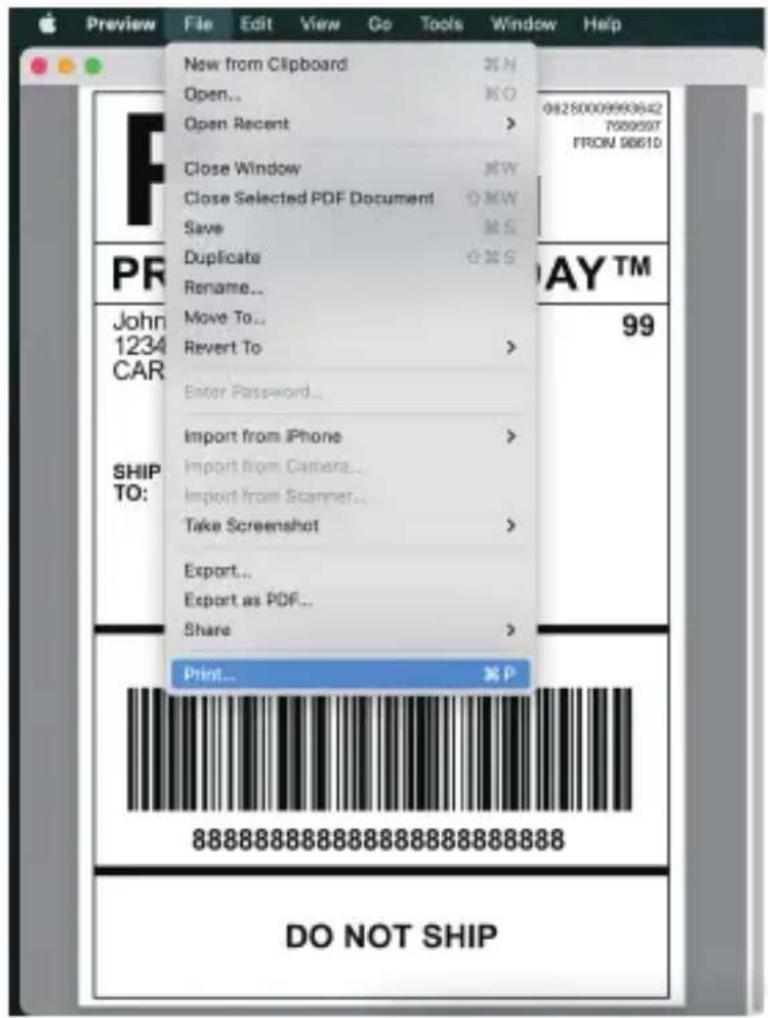
1.Open the PDF file named "Sample Label.pdf" which can be found in USB stick;

Select "File"→"Print" (take Preview as an example).

Vevor Y486 - MacOS Printing Setup - 1

text_image Preview File Edit View Go Tools Window Help New from Clipboard Open... Open Recent Close Window Close Selected PDF Document Save Duplicate Rename... Move To... Revert To Enter Password... Import from iPhone Import from Camera... Import from Scanner... Take Screenshot Export... Export as PDF... Share Print... P 08250009993642 700999T FROM 9861D PAY TM 99 SHIP TO: 88888888888888888888888 DO NOT SHIP
  1. Choose 4.00x6.00" under "Paper Size" drop-down menu.

Vevor Y486 - MacOS Printing Setup - 2

text_image 1st 1 PRIORITY MAIL 2-DAY™ 3.00x8.00" 76 by 127 mm 3.25x2.00" 83 by 54 mm 3.25x5.00" 83 by 127 mm 3.25x5.50" 83 by 149 mm 3.25x8.00" 83 by 148 mm 3.25x7.80" 83 by 189 mm 3.50x1.80" 88 by 26 mm 4.00x1.80" 107 by 26 mm 4.00x2.00" 102 by 51 mm 4.00x2.50" 102 by 64 mm 4.00x3.00" 102 by 79 mm 4.00x4.00" 102 by 102 mm 4.00x8.00" 103 by 127 mm Paper Store 4.00x8.00" 182 by 152 mm Orientation 4.00x8.50" 182 by 165 mm 4.00x13.00" 182 by 530 mm 180mm x 130mm x 106 by 150 mm 180mm x 120mm x 94 by 126 mm 180mm x 150mm x 106 by 150 mm 180mm x 176mm x 106 by 179 mm 180mm x 180mm x 106 by 180 mm 180mm x 208mm x 163 by 319 mm 180mm x 258mm x 163 by 332 mm 115*110 m/s by 75 mm Manage Custom Store... Top: 0.35 mm Bottom: 6.65 mm Left: 6.65 mm Right: 6.65 mm DO NOT SHIP
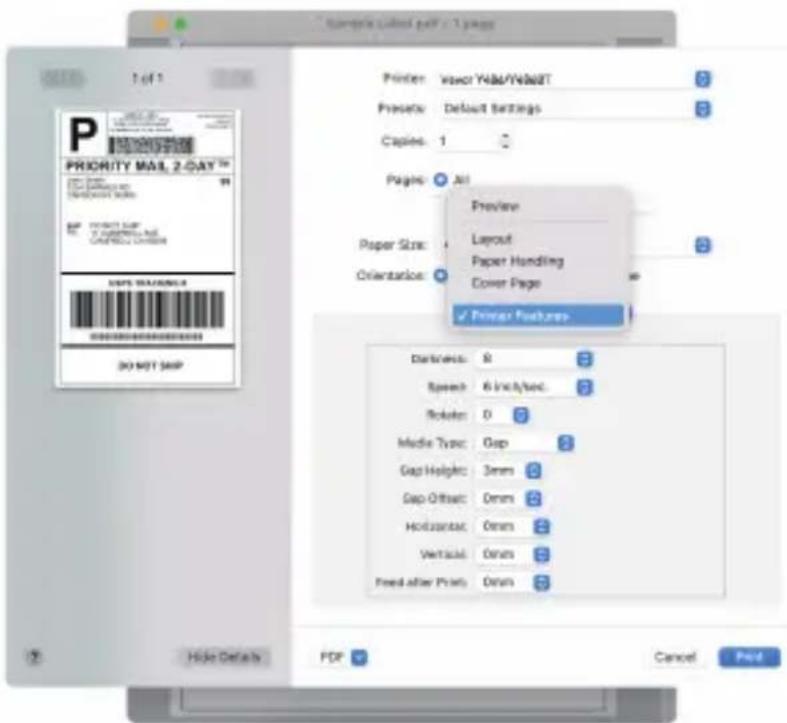
  1. Select "Printer Features", then change the settings of printer, e.g. Speed, Darkness, Rotate.

Vevor Y486 - MacOS Printing Setup - 3

text_image Sample: Linked page - 1 page PRIORITY MAIL 2 DAY™ 1 of 1 Printer: Vaser Yield/ValveIT Preview: Default Settings Copies: 1 Pages: All Preview Layout Paper Handling Cover Page Paper Size: Orientation: ✓ Printer Features Distance: 8 Slope: 6 inch/sec Balance: 0 Media Type: Gap Gap Height: 3mm Gap Offset: 0mm Horizontally: 0mm Vertical: 0mm Fixed after Print: 0mm OK NOT SKIP Hide Details PDF Cancel Post

6.2 Windows Printer Setup

Take Windows 10 as an example:

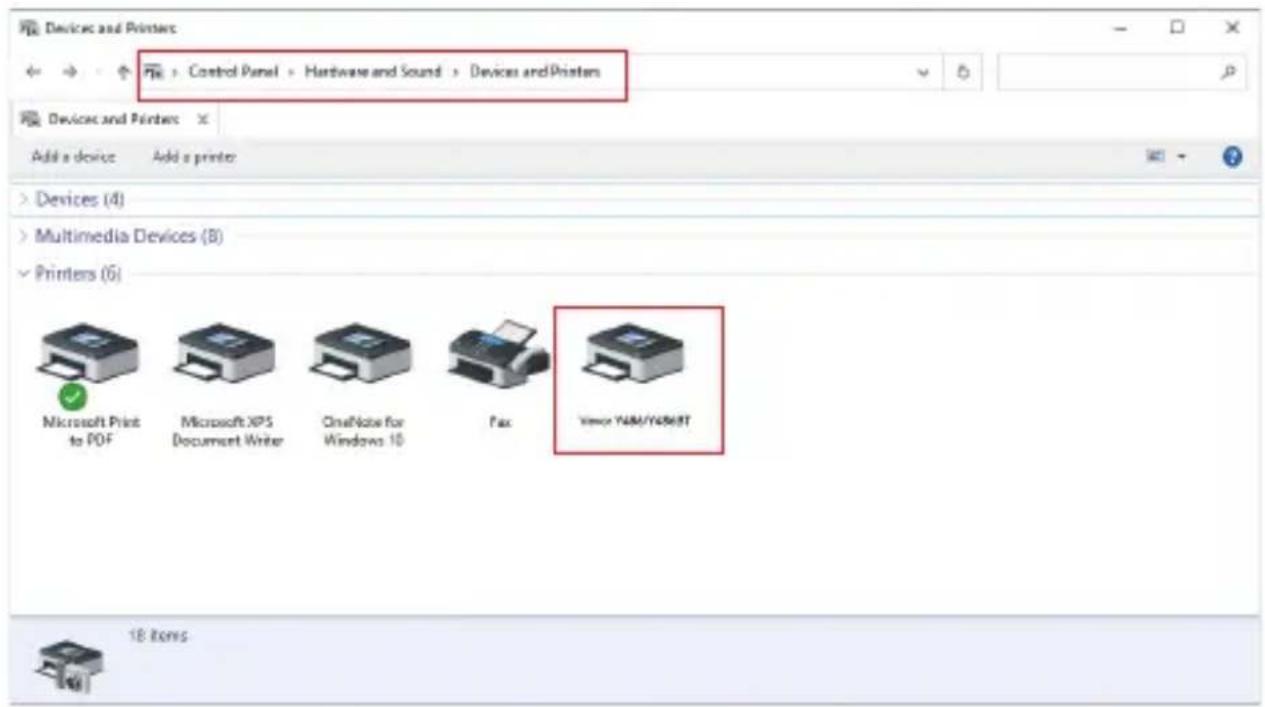
  1. Find "Vevor Y486/Y486BT" along the path: Control Panel→Hardware and Sound→Devices and Printers

Vevor Y486 - Windows Printer Setup - 1

text_image Devices and Printers Control Panel > Hardware and Sound > Devices and Printers Add a device Add a printer > Devices (4) > Multimedia Devices (B) Printers (6) Microsoft Print to PDF Microsoft XPS Document Writer OneNote for Windows 10 Fax View YMM/Y4568T 18 Items

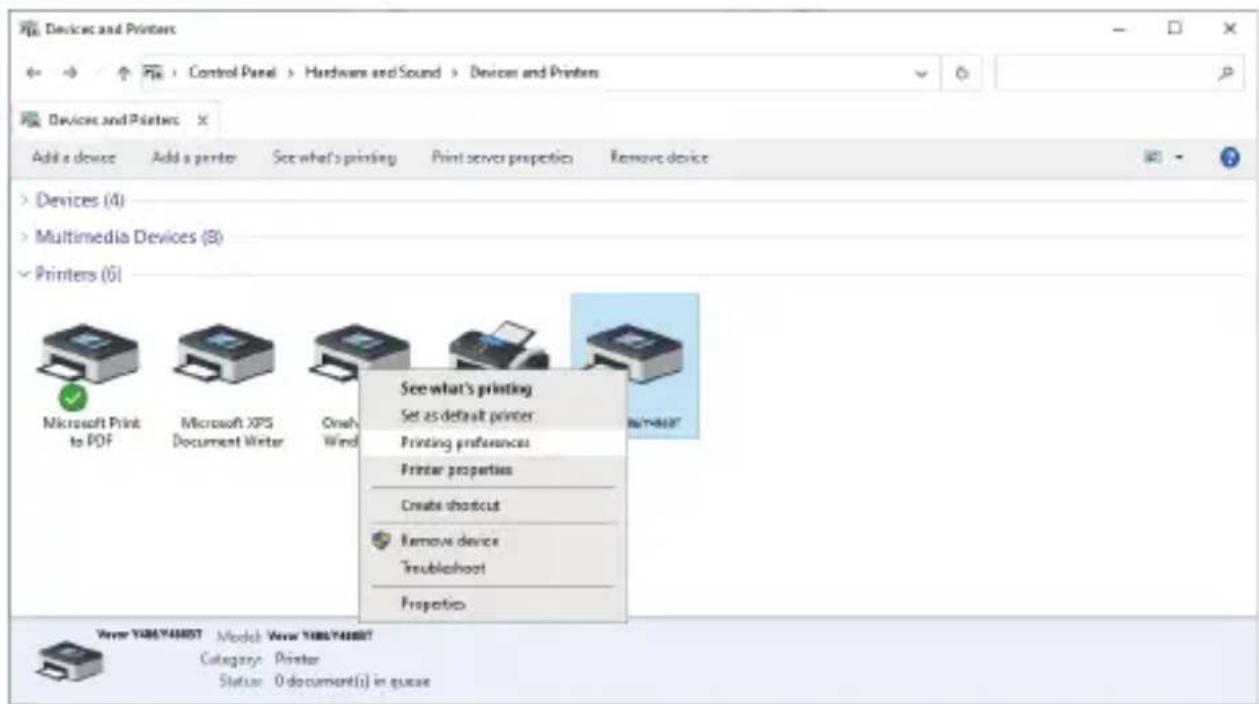
2. Right click on "Vevor Y486/Y486BT", choose "Printing Preference".

Vevor Y486 - Right click on "Vevor Y486/Y486BT", choose "Printing Preference". - 1

text_image Devices and Printers Control Panel > Hardware and Sound > Devices and Printers Devices and Printers Add a device Add a printer See what's printing Print server properties Remove device > Devices (4) > Multimedia Devices (8) > Printers (6) Microsoft Print to PDF Microsoft XPS Document Writer Oney Wind See what's printing Set as default printer Printing preferences Printer properties Create shortcut Remove device Troubleshoot Proprio View Y06Y44007 Model View Y06Y44007 Category Printer Status: 0 document(s) in queue
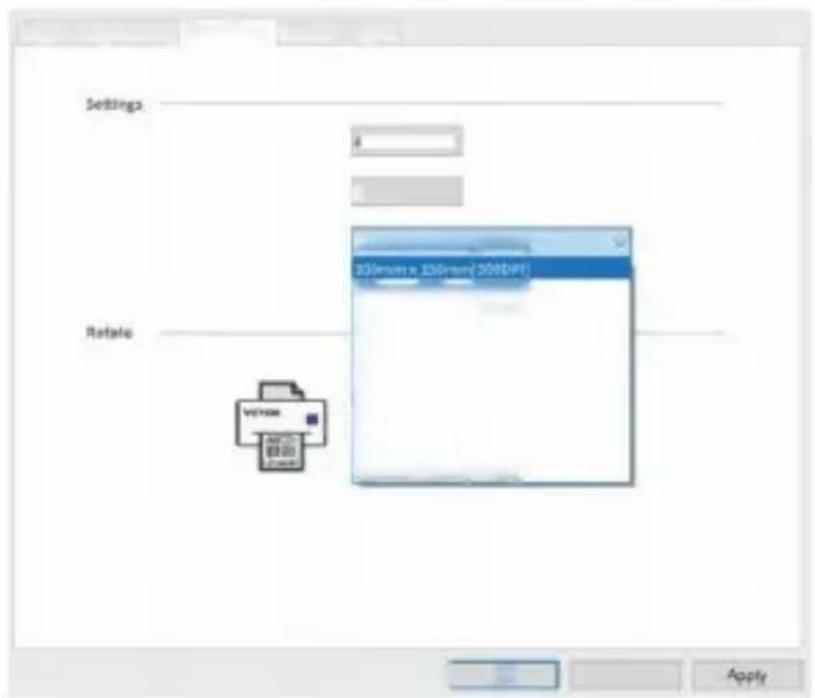
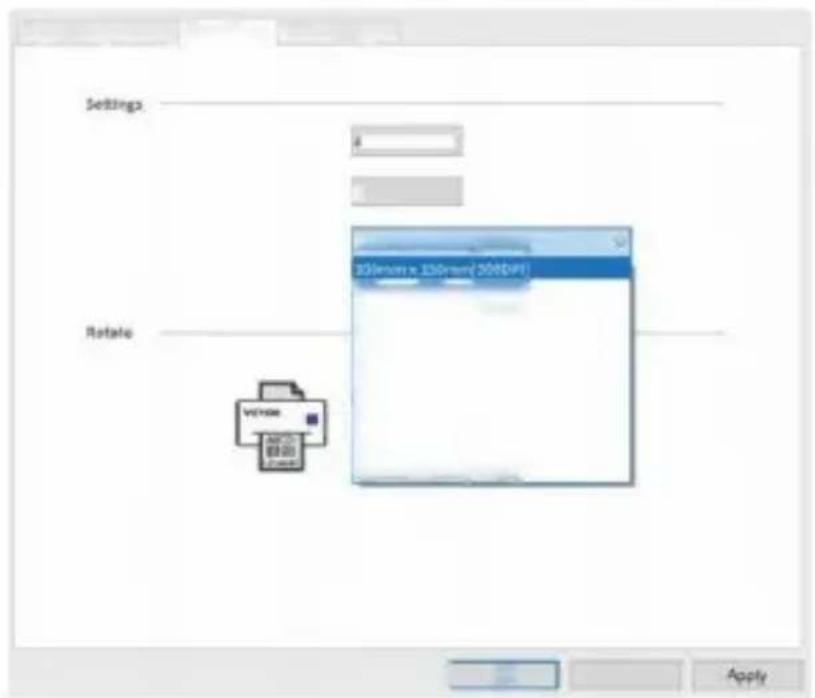
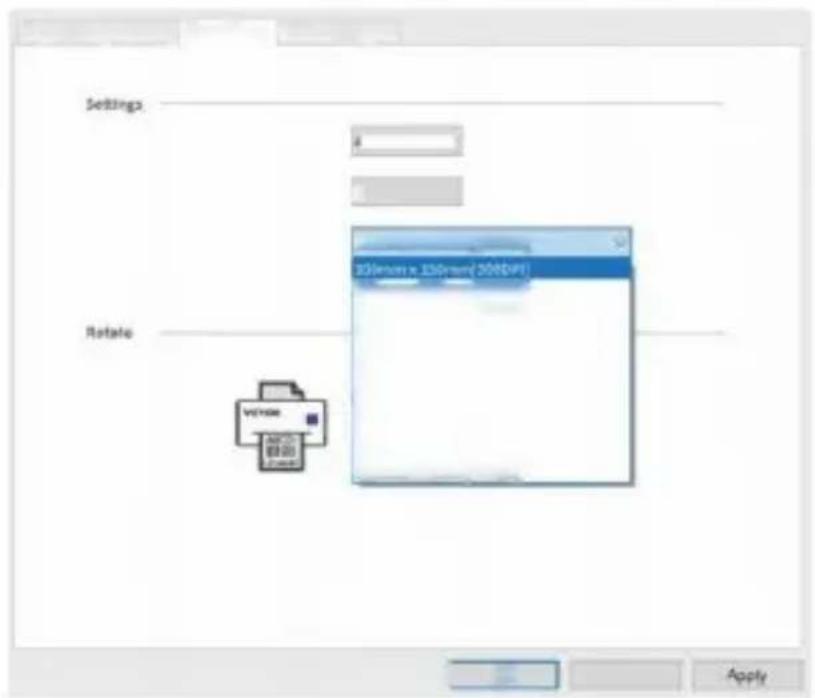
  1. Click "Page Setup" and choose the proper size of your label, and make sure the chosen size is corresponding to the label paper you are about to use.

Vevor Y486 - Right click on "Vevor Y486/Y486BT", choose "Printing Preference". - 2

text_image VEVOR Printing Preferences Layout Paper Quality Page Setup Halftone Option Settings Print Speed: 4 Print Density: 8 Paper Name: 100mm x 150mm[300DP] 100mm x 150mm[300DP] 100mm x 180mm[300DP] 100mm x 190mm[300DP] 100mm x 200mm[300DP] 100mm x 210mm[300DP] 105mm x 145mm[300DP] 105mm x 150mm[300DP] 105mm x 190mm[300DP] 105mm x 200mm[300DP] 105mm x 210mm[300DP] 78mm x 130mm[300DP] Rotate vence ○ Landscape 180 OK Cancel Apply

WIRELESS INSTALLATION

Wireless function only works with Y486BT.

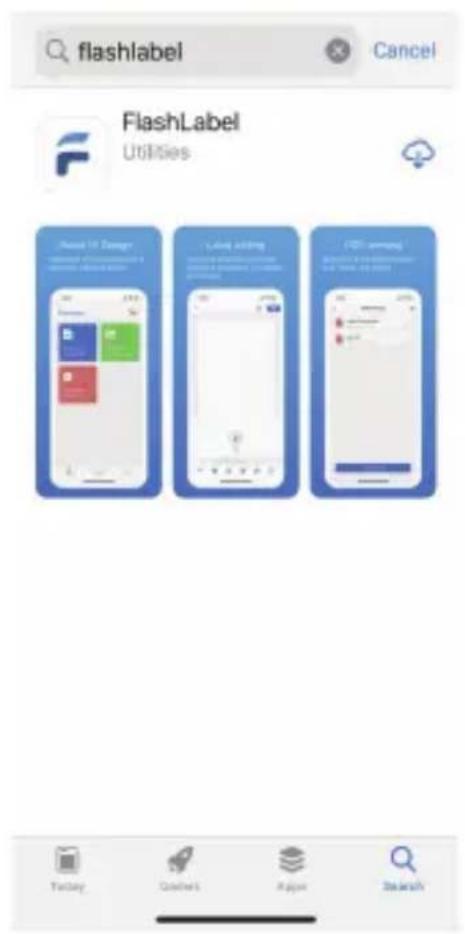
  1. Please search and download "FlashLabel" on App Store (IOS) or GooglePlay (Android), and then follow the remainder of the app. You can also scan QRCode below to download APP.

Vevor Y486 - WIRELESS INSTALLATION - 1

Vevor Y486 - WIRELESS INSTALLATION - 2

text_image QR code image containing encoded data, no visible human-readable text

iOS

Vevor Y486 - WIRELESS INSTALLATION - 3

text_image QR code image containing encoded data, no visible human-readable text

Android

2.Open "FlashLabel" run the app and click the red printer symbol on the upper right to use device Wireless.

  1. Connect Wireless to pair the printer. (Different printers have different device names to avoid connected wrong.)

App Store

FlashLabel

Vevor Y486 - WIRELESS INSTALLATION - 4

Vevor Y486 - WIRELESS INSTALLATION - 5

Open PDF

Edit and print PDF

Vevor Y486 - WIRELESS INSTALLATION - 6

Print picture

End and print pictures

Vevor Y486 - WIRELESS INSTALLATION - 7

New Label

Create your label

Vevor Y486 - WIRELESS INSTALLATION - 8

text_image Connect device Current device Not currently connected Other device Y4068T_3989-BLE Connect Click to find

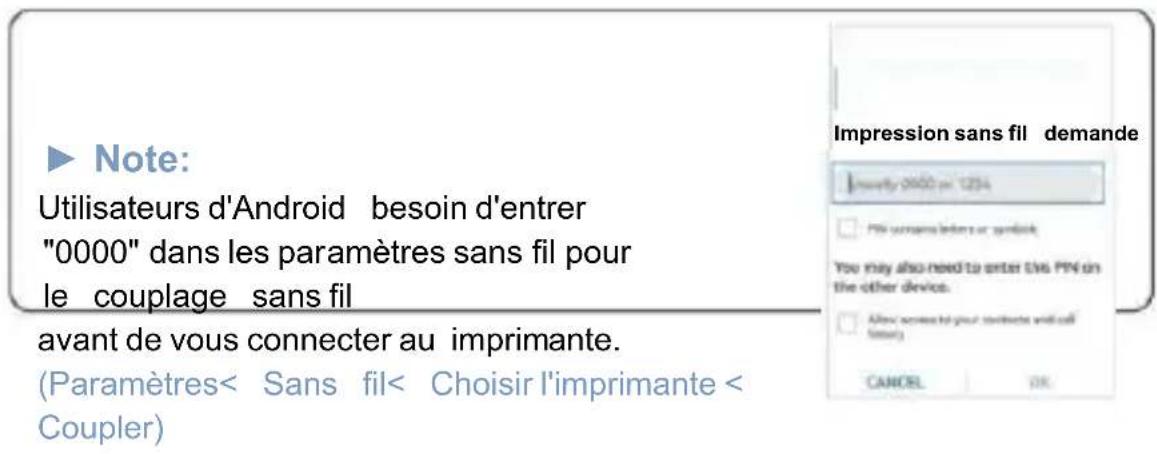
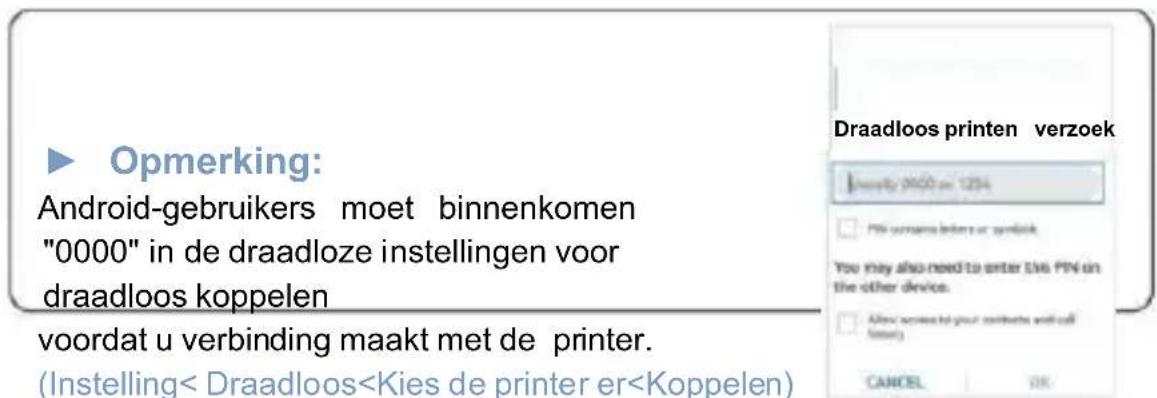
Note:

Android users need to enter "0000" in the Wireless settings for Wireless pairing before connecting to the printer.

(Setting< Wireless<Choose the printer<Pair)

Wireless Printing request

usually 0000 or 1234

Vevor Y486 - Note: - 1

PIN contains letters or symbols

You may also need to enter this PIN on the other device.

Allow access to your contacts and call history

CANCEL

OK

  1. Load the file to print(PDF, Photo, Customize labels can be printed).

USER TIPS

  1. When you load the labels, the peeling-off side should face up. Or it would cause printing blank.
  2. Make sure there are no particles on the surface of labels to avoid damages to the TPH (Thermal Printer Head).
  3. For Windows users, please keep using the same USB Port on your computer to avoid producing unexpected duplicated copies of the printer on your computer.
  4. The label size of the Vevor Y486/Y486BT printer is default to 4x6" (102mm x 152mm). Each time you change different label sizes, please run the Intelligent Label Study process before printing.
  5. In case labels keep coming out unexpectedly, just press the feeder button to pause the printer, and clear the printing job from your computer.
  6. If there are white spots on printed labels, it indicates that the printer head needs cleaning. Stop printing, and clean the TPH (Thermal Printer Head) after cooling to avoid burns.
  7. When the label is jammed accidentally, please open the lid and take out the jammed labels slowly and patiently. The printer will resume after cleaning.

If you have any other issues, please contact us via the following methods: Email: CustomerService@vevor.com

LED STATUS

Light StatusDescriptionSolution
GreenNormal(You are ready to print.)
BlueWireless connectedYou are ready to print using wireless(Applicable to Y486BT only).
Flashing Red Fast (Every second)This happens when the cover is not closed.Close the lid properly
Flashing Red Slowly (Every 2 seconds)This happens due to paper shortage.Load Labels
Flashing Red and Green (Every second)This happens when the printer head is overheated.Wait until it cools down, the printing job will resume itself.
Light off & Buzzer rangLow voltageSwitch to 24V adapter

If you have any other issues, please contact us via the following methods: Email: CustomerService@vevor.com

FEDDER BUTTON INSTRUCTIONS

  1. Press once: Feed a blank page / Pause / Resume

(1) When the printer is in ready status and there are no holding jobs, press the feeder button once, the printer will feed a blank page.
(2) When the printer is running, press once will pause the job, press once again will resume the job. (Although it is not recommended, if you want to urgently stop an unwanted printing task, you may turn off the power directly and don't forget to cancel the print task from the computer at the same time).
2. Press and hold the feeder button for about 3 seconds until you hear one beep, Vevor will run the Intelligent Label Study process. This process is recommended each time you change the label sizes.
3. Press and hold the feeder button for about 5 seconds until you hear two beeps. Vevor will print a technical test page. If the test page looks good, it indicates that the printer head is working properly.
4. Press and hold the feeder button for about 15 seconds until you hear three beeps. This will reset the printer to the factory setting. This process is harmless to the printer and can be used if you want the printer to recover from an unknown error.

Vevor Y486 - FEDDER BUTTON INSTRUCTIONS - 1

natural_image Illustration of a white and orange printer with a pointing hand gesture (no text or symbols)

SAFETY NOTICES

  1. DO NOT touch the printer head after use.
  2. DO NOT disassemble or repair the unit by yourself.
  3. USE ONLY approved accessories.
  4. Keep the printer away from water, fire, or other objects that could destroy the components.
  5. Keep the printer away from children.
  6. DO NOT use the printer if you find any irregularities which could result in electrocution or fire.
  7. Please unplug the power when not in use for a long time.

MAINTENANCE

Printer Head Cleaning Steps:

(1) Please make sure that the printer is powered off and cooling down before cleaning;
(2) Push the Push Button on the left side to open the printer lid;
(3) Use the Printer Head Cleaning Wipes to gently apply onto the Thermal Printer Head(no water or other liquid should be applied).

SPECIFICATIONS

ModelY486/Y486BT
Printing MethodDirect Thermal
InterfacesUSB Cable
Resolution203dpi
Max Printing Speed150mm/s
Power Adapter24V/2.5A
N. weight2.75lbs/1.25kg
G. weight3.48 lbs/1.58kg
TPH Printing Life30km
Paper Width40-110mm(±2mm)
Paper Thickness0.06-0.25mm
Paper HeightNO Limitations
Storage EnvironmentTemperature: -20 to 80 °CHumidity: 5-95%(non condensing)
Operating EnvironmentTemperature: -10 to 50 °CHumidity: 10-90%(non condensing)
DimensionsL200*W79*H83mm

DISPOSAL

This product is subject to the provisions of European Directive 2012/19/EC. The symbol showing a wheelie bin crossed through indicates that the product requires separate refuse collection in the European Union. This applies to the product and all accessories marked with this symbol. Products marked as such may not be discarded with normal domestic waste, but must be taken to a collection point for recycling electrical and electronic devices.

Vevor Y486 - DISPOSAL - 1

PAY ATTENTION TO

Pay attention to: This device complies with Part 15 of the FCC Rules. Operation is subject to the following two conditions:(1)This device may not cause harmful interference, and (2)this device must accept any interference received, including interference that may cause undesired operation.

EU Importer: WAITCHX

Address: 2 Holywell Lane, London, England, EC2A 3ET

UKREP

EUREP UK LTD UNIT 2264, 100 OCK STREET, ABINGDON OXFORDSHIRE ENGLAND OX14 5DH

ECREP

EUREP GmbH Unterlettenweg 1a, 85051 Ingolstadt, Germany

VEVOR®

Vevor Y486 - VEVOR® - 1

natural_image Line drawing of a rectangular electronic device with internal slots and a handle (no text or symbols)

Manufacturer: Xiamen Print Future Technology Co., LTD.

ADDRESS: Area C, Room 502, No.17 kengping Road, Guan Kou Town, Jimei District, Xiamen City

Enjoy your printing!

If you have any questions, issues or concerns about this product, please contact VEVOR for support.

E-mail: CustomerService@vevor.com

VEVOR®

E-mail: CustomerService@vevor.com

VEVOR®

TOUGH TOOLS, HALF PRICE

VEVOR Y486/Y486BT

INSTRUKCJA

UŻYTKOWNIKA

VEVOR®

TOUGH TOOLS, HALF PRICE

Vevor Y486 - VEVOR® - 1

natural_image White and orange handheld device casing (no visible text or symbols)

POTRZEBOWAĆ POMOC? KONTAKT NAS!

www.vevor.com/support

text_image F - USB Port Power Port

Vevor Y486 - POTRZEBOWAĆ POMOC? KONTAKT NAS! - 1

natural_image Blank gray image with no visible content, text, or symbols

POŁĄCZ SIĘ Z Komputer/M AC

natural_image Close-up of a printer's front panel showing a black cable inserted into a black button with two buttons (no visible text or symbols)
  1. Połącz Kabel USB.
natural_image Blank white rectangular image with black border (no text or symbols)

Vevor Y486 - POŁĄCZ SIĘ Z Komputer/M AC - 1

natural_image Blank white image with a thin gray border and two vertical black lines on the left side (no text or symbols)
natural_image Close-up of a black electrical plug with two black cables, no visible text or symbols
natural_image Close-up of a printer's front panel showing a black arrow pointing to a control button (no text or symbols visible)

Vevor Y486 - POŁĄCZ SIĘ Z Komputer/M AC - 2

natural_image Pure geometric lines forming a partial rectangle with no text, numbers, or symbols

Vevor Y486 - POŁĄCZ SIĘ Z Komputer/M AC - 3

natural_image Blank white rectangular frame with black border (no text or symbols)

Vevor Y486 - POŁĄCZ SIĘ Z Komputer/M AC - 4

natural_image Blank gray image with no visible content, text, or symbols

KONFIGURACJA ETYKIETY

natural_image Illustration of hands opening a printer into a slot (no text or symbols visible)

Vevor Y486 - KONFIGURACJA ETYKIETY - 1

natural_image Simple horizontal line with two curved ends, no text or symbols present
natural_image White and orange printer with a pointing hand icon (no text or symbols)
natural_image Two white paper airplanes with orange buttons and a downward arrow, no visible text or symbols on the main objects.

Vevor Y486 - KONFIGURACJA ETYKIETY - 2

natural_image Blank white image with no visible content, text, or symbols

Vevor Y486 - KONFIGURACJA ETYKIETY - 3

natural_image Blank white image with no visible content, text, or symbols

KIEROWCA INSTALACJA

natural_image Blank white image with no visible content, text, or symbols

Vevor Y486 - KIEROWCA INSTALACJA - 1

text_image The installation was completed successfully. - Introduction - Destination Select - Installation Type - - Summary The software was installed
text_image Printers & Scanners Search Printers VEVOR Y486BT Idle, Last Used VEVOR Y486BT Open Print Queue... Options & Supplies... Locations: Veror Label Printer Kind: Label Printer Shinen: Idle Share this printer on the network Sharing Preferences... Default printer: Last Printer Used Default paper size: US Letter
text_image Setup - VEVOR Label Printer Installer Ver1.0.4 Ready to Install Setup is now ready to begin installing VEVOR Label Printer Installer Ver1.0.4 on your computer. Click Install to continue with the installation. English Install Cancel
text_image Device Driver Installation Wizard Welcome to the Device Driver Installation Wizard! This wizard helps you install the software drivers that some computers devices need in order to work. To continue, click Next.
natural_image Abstract graphic with a computer monitor and curved arrow, no text or symbols present
text_image Preview File Edit View Go Tools Window Help New from Clipboard Open... Open Recent > Close Window Close Selected PDF Document Save Duplicate Rename... Move To... Revart To > Enter Password... Import from iPhone Import from Camera Import from Scanning Take Screenshot Export... Export as PDF... Share > Print... 签P DO NOT SHIP

Vevor Y486 - KIEROWCA INSTALACJA - 2

natural_image Blank white image with no visible content, text, or symbols

Vevor Y486 - KIEROWCA INSTALACJA - 3

natural_image Blank white image with a thin black border (no text or symbols)
text_image DO NOT SHIP Property MAIL 2 CAT * 3.00x5.00" 79 kg / 12" mm 3.25x4.24" 86 kg / 10" mm 3.25-4.24" 83 kg / 12" mm 3.25x4.50" 81 kg / 14" mm 3.25x4.82" 82 kg / 14" mm 3.25x4.82" 81 kg / 11" kg / 10" 3.50x4.90" 88 kg / 21 mm 4.00x4.30" 103 kg / 36 mm 4.00x4.00" 103 kg / 51 mm 4.00x2.50" 103 kg / 64 mm 4.00x3.00" 103 kg / 88 mm 4.00x4.00" 103 kg / 99 mm 4.00x4.04" 103 kg / 117 mm Paper Size: v 4/3/6x4.08" x 527 by 962 mm Ordering: 4/3/6x4.54" x 527 by 962 mm Auto Install: 4/3/6x4.54" x 527 by 962 mm Grate: 100mm x 100mm x 100kg by 100mm Grate to PC: 100mm x 100mm x 100kg by 100mm Create your pos: 100mm x 100mm x 100kg by 100mm Message Custom's Notes... Cancel Find
text_image PRIORITY MAIL 3-DAY Printer: Yover 740U/740UST Printers: Default Settings Diaries: 1 Page: All Preview Layout Paper Handling Cover Page Persim Features Balance: 8 Spread: 6 inches Rotate: 0 Media Type: Copy Sup Invert: 2mm Deep Offset: 0mm Horizontal: 0mm Vertical: 0mm Fixed after Print: 0mm OK Cancel Help
text_image Devices and Printers Control Panel > Hardware and Sound > Devices and Printers Devices and Printers Add a device Add a printer See what's printing Print server proportion Remove device > Devices (4) > Multimedia Devices (8) w Drukarki (6) Microsoft Post to PDF Microsoft JPS Document Writer Drawn Wind See what's printing Set as default printer Printing preferences Printer properties Create shortcut Remove device Troubleshoot Properties User:\WINDOWS\CAD\Model: Never\dadets\2007\2008\3\Categories: Printer Status: O:\document(0) in queue
  1. Kliknij „Strona”

„Konfiguracja“ i

text_image Devices and Printers Control Panel > Hardware and Sound > Devices and Printers Devices and Printers Add a device Add a power See what's printing Print server proportion Remove device > Devices (4) > Multimedia Devices (8) Microsoft Print to PDF Microsoft JPS Document Writer Clean Wind See what's printing Set as default printer Printing preferences: Printer properties: Create dropout Remove device Troubleshoot Properties Voxie Y106/Y400F: Model View 5406/Y400F Category Printer Status: D:\document(0) in queue

Vevor Y486 - KIEROWCA INSTALACJA - 4

text_image Settings Rotate 250mm x 120mm (200dpi) Apply
text_image QR code with embedded icons for platforms including Netflix, Google, Amazon, and Search

Vevor Y486 - KIEROWCA INSTALACJA - 5

text_image QR code image containing encoded data, no visible human-readable text

https://apps.apple .c om/cn/:

https://play.google.com/stor

iOS

Android

Vevor Y486 - KIEROWCA INSTALACJA - 6

text_image FlashLabel Utilities

15

Vevor Y486 - KIEROWCA INSTALACJA - 7

text_image QR code image containing encoded data, no visible human-readable text

Vevor Y486 - KIEROWCA INSTALACJA - 8

natural_image Blank white image with no visible content, text, or symbols

Vevor Y486 - KIEROWCA INSTALACJA - 9

text_image QR code image containing encoded data, no visible human-readable text
text_image < Podłącz urządzenie Current device Not currently connected Other device Y40007_2009-816 Connect Click to find Drukowanie bezprzewodowe wniosek Modify 0600 yr 1254 PIN contains letters or symbols You may also need to enter this PIN on the other device. Allow some to your contacts and call Notes CANCEL OK

Notatka:

natural_image Illustration of a white cylindrical object with an orange base and a gray handle, pointing to the right (no text or symbols)

19

Vevor Y486 - Notatka: - 1

natural_image White cylindrical object with a horizontal line at the bottom, isolated on white background (no text or symbols)

BEZPIECZEŃSTWO POWIADOMIENIA

natural_image Blank white image with no visible content, text, or symbols

Vevor Y486 - BEZPIECZEŃSTWO POWIADOMIENIA - 1

natural_image Blank gray image with no visible content, text, or symbols

SPECYFIKACJE

natural_image Blank white image with no visible content, text, or symbols

SPRZEDAŻ

natural_image Two empty rectangular boxes with no text or symbols inside, arranged vertically (no text or symbols)

Vevor Y486 - SPRZEDAŻ - 1

natural_image Line drawing of a rectangular electronic device with slots and ventilation slots (no text or symbols)
natural_image White and orange handheld device casing (no visible text or symbols)

BRAUCHEN HELFEN? KONTAKT UNS!

www.vevor.com/support

text_image Power Port

Vevor Y486 - BRAUCHEN HELFEN? KONTAKT UNS! - 1

natural_image Blank gray image with no visible content, text, or symbols

VERBINDEN SIE SICH MIT IHREM PC/M A

natural_image Close-up of a printer's cable with a black connector and two buttons (no visible text or symbols)
natural_image Close-up of a printer connected to a laptop via cable (no visible text or symbols)

Vevor Y486 - VERBINDEN SIE SICH MIT IHREM PC/M A - 1

natural_image Blank white rectangular frame with black border (no text or symbols)

Vevor Y486 - VERBINDEN SIE SICH MIT IHREM PC/M A - 2

natural_image Blank white image with a thin gray border and two vertical black lines on the left side (no text or symbols)
natural_image Close-up of a white electronic device with black cables and a power plug (no visible text or symbols)
natural_image Close-up of a printer's front panel showing a black control button with an arrow pointing to it (no text or symbols visible)
natural_image Pure geometric lines forming a V-shape with no text, numbers, or symbols

Vevor Y486 - VERBINDEN SIE SICH MIT IHREM PC/M A - 3

natural_image Blank white rectangular frame with black border (no text or symbols)

Vevor Y486 - VERBINDEN SIE SICH MIT IHREM PC/M A - 4

natural_image Blank gray image with no visible content, text, or symbols

ETIKETTEN-SETUP

natural_image Illustration of hands opening a printer into a slot (no text or symbols visible)

Vevor Y486 - ETIKETTEN-SETUP - 1

natural_image Simple horizontal line with two curved ends, no text or symbols present

3.Intelligent Label-Studie

natural_image Illustration of a white and orange printer with a pointing hand gesture (no text or symbols)
natural_image 3D illustration of a white paper printer with orange buttons emitting a white sheet, showing a downward arrow (no text or symbols)

Vevor Y486 - 3.Intelligent Label-Studie - 1

natural_image Blank white image with no visible content, text, or symbols

Vevor Y486 - 3.Intelligent Label-Studie - 2

natural_image Blank white image with no visible content, text, or symbols

TREIBER INSTALLATION

text_image Bildschirm Anweisungen. Welcome to the VEGOR Label Printer Driver Ver1.6.2 Installer Driver retailer is detecting several-label printer, please do the following: 1. Consult printer to your computer via provider USB table. If your USB of computer to a Type-C USB port, please use USB-C to USB converter 2. Power on the printer click "continual" button.
text_image Install VE/DR Label Printer Drive Ver1.2 The installation was completed successfully. Installation Destination Select Installation Type Summary Die Installation war erfolgreich . The software was installed.

Vevor Y486 - TREIBER INSTALLATION - 1

natural_image Blank white image with no visible content, text, or symbols

Vevor Y486 - TREIBER INSTALLATION - 2

natural_image Blank white image with no visible content, text, or symbols

Vevor Y486 - TREIBER INSTALLATION - 3

text_image The installation was completed successfully. - Introduction - Destination Select - Installation Type - - Summary The software was installed
text_image Printers & Scanners Search Printers VEVOR Y486BT Idle, Last Used VEVOR Y486BT Open Print Queue... Options & Supplies... Locations: Veror Label Printer Kind: Label Printer Shinen: Idle Share this printer on the network Sharing Preferences... Default printer: Last Printer Used Default paper size: US Letter

Setup is now ready to begin installing VEVOR Label Printer Installer Ver1.0.4 on your computer.

Vevor Y486 - TREIBER INSTALLATION - 4

Click Install to continue with the installation.

English

Install

Cancel

09

text_image Device Driver Installation Wizard Welcome to the Device Driver Installation Wizard! This wizard helps you install the software drivers that some computers devices need in order to work. To continue, click Next.

Vevor Y486 - TREIBER INSTALLATION - 5

text_image Preview File Edit View Go Tools Window Help New from Clipboard Open... Open Recent > Close Window Close Selected PDF Document Save Duplicate Rename... Move To... Revart To > Enter Password... Import from iPhone Import from Camera Import from Scanning Take Screenshot Export... Export as PDF... Share > Print... 签P DO NOT SHIP

Vevor Y486 - TREIBER INSTALLATION - 6

natural_image Blank white image with no visible content, text, or symbols

Vevor Y486 - TREIBER INSTALLATION - 7

natural_image Blank white image with a thin black border (no text or symbols)
text_image 3.00x5.00" 76 by 127 mm 3.25x4.04" 84 by 127 mm 3.05-4.04" 83 by 127 mm 3.25x4.04" 81 by 142 mm 3.25x4.03" 82 by 146 mm 3.25x4.03" 81 by 119 mm 3.50x4.00" 87 by 25 mm 4.00x4.00" 103 by 26 mm 4.00x4.00" 103 by 37 mm 4.00x4.00" 103 by 48 mm 4.00x4.00" 102 by 58 mm 4.00x4.00" 102 by 60 mm 4.00x4.00" 102 by 767 mm 4.00x4.00" 102 by 867 mm 4.00x4.00" 102 by 967 mm 4.00x4.00" 102 by 1067 mm 4.00x4.00" 102 by 1167 mm 4.00x4.00" 102 by 1267 mm 4.00x4.00" 102 by 1367 mm 4.00x4.00" 102 by 1467 mm 4.00x4.00" 102 by 1567 mm 4.00x4.00" 102 by 1667 mm 4.00x4.00" 102 by 1767 mm 4.00x4.00" 102 by 1867 mm 4.00x4.00" 102 by 1967 mm 4.00x4.00" 102 by 2067 mm 4.00x4.00" 102 by 2167 mm 4.00x4.00" 102 by 2267 mm 4.00x4.00" 102 by 2367 mm 4.00x4.00" 102 by 2467 mm 4.00x4.00" 102 by 2567 mm 4.00x4.00" 102 by 2667 mm 4.00x4.00" 102 by 2767 mm 4.00x4.00" 102 by 2867 mm 4.00x4.00" 102 by 2967 mm 4.00x4.00" 102 by 3067 mm 4.00x4.00" 102 by 3167 mm 4.00x4.00" 102 by 3267 mm 4.00x4.00" 102 by 3367 mm 4.00x4.00" 102 by 3467 mm 4.00x4.00" 102 by 3567 mm 4.00x4.00" 102 by 3667 mm 4.00x4.00" 102 by 3767 mm 4.00x4.00" 1OBO Box: Yes/No DO NOT-SHIP
text_image P rimer 1 of 1 P rimer: Newer YASU/YADUST P rimer: Default Settings Dias: 1 Page: All Preview Paper Size: Lancet Paper Handling Cover Page Orientation: Print Features Dimensions: 0 Spread: 6 inches Rotate: 0 Media Type: Color Gap Height: 2mm Deep Offset: 2mm Horizontal: 2mm Vertical: 2mm Fool after Print: 2mm Hide Defaults PDF Cancel Post

12

text_image Devices and Printers Control Panel > Hardware and Sound > Devices and Printers Devices and Printers Add a device Add a printer See what's printing Print server proportion Remove device > Devices (4) > Multimedia Devices (8) gegen Drucker (6) Microsoft Post to PDF Microsoft JPS Document Writer Creation Wind See what's printing Set as default printer Printing preferences Printer properties Create shortcut Remove device Troubleshoot Properties User YI05Y4000* Model: User YI05Y4007 Categories Printer Status: O:\document(0) in queue
text_image Devices and Printers Control Panel > Hardware and Sound > Devices and Printers Devices and Printers Add a device Add a power See what's printing Print server proportion Remove device > Devices (4) > Multimedia Devices (8) Microsoft Print to PDF Microsoft JPS Document Writer Clean Wind See what's printing Set as default printer Printing preferences: Printer properties: Create dropout Remove device Troubleshoot Properties Voxie Y106/Y400F: Model: Voxie 5406/Y400F Category: Printer Status: D:\document(1) in queue

Vevor Y486 - TREIBER INSTALLATION - 8

text_image Settings Rotate 250mm x 120mm (200dpi) Apply

DRAHTLOSE INSTALLATION

text_image https://apps.apple.com/cn/ap iOS

Vevor Y486 - DRAHTLOSE INSTALLATION - 1

text_image https://play.google.com/store

Android

Vevor Y486 - DRAHTLOSE INSTALLATION - 2

text_image FlashLabel Utilities

Vevor Y486 - DRAHTLOSE INSTALLATION - 3

text_image Two QR codes, one plain and one patterned with varying border colors.
text_image < Gerät verbinden Current device Not currently connected Other device YARNET_0009-RLB Current Click to find

Vevor Y486 - DRAHTLOSE INSTALLATION - 4

natural_image Illustration of a white cylindrical object with an orange base and a gray handle, pointing to the right (no text or symbols)

19

Vevor Y486 - DRAHTLOSE INSTALLATION - 5

natural_image White rectangular object with a horizontal line and small protrusions, isolated on white background (no text or symbols)

SICHERHEIT HINWEISE

natural_image Blank white image with no visible content, text, or symbols

Vevor Y486 - SICHERHEIT HINWEISE - 1

natural_image Blank gray image with no visible content, text, or symbols

Spezifikationen

natural_image Blank white image with no visible content, text, or symbols

ENTSORGUNG

ABINGDON, OXFORDSHIRE ENGL UND OX14 5DH

ECRE

EUREP GmbH

Unterlettenweg 1a, 85051 Ingolstadt

t, Deutschland

Vevor Y486 - ENTSORGUNG - 1

natural_image Line drawing of a rectangular electronic device with slots and ventilation slots (no text or symbols)
natural_image White and orange handheld device casing (no visible text or symbols)

BESOIN AIDE? CONTACT NOUS!

text_image USB Port Power Port

Cover

text_image F - USB Port Power Port

Vevor Y486 - BESOIN AIDE? CONTACT NOUS! - 1

natural_image Blank gray image with no visible content, text, or symbols

CONNECTEZ-VOUS À VOTRE PC/M AC

natural_image Close-up of a printer's cable with a black connector and two buttons (no visible text or symbols)
natural_image Close-up of a printer connected to a laptop via cable (no visible text or symbols)

Vevor Y486 - CONNECTEZ-VOUS À VOTRE PC/M AC - 1

natural_image Blank white rectangular frame with black border (no text or symbols)

Vevor Y486 - CONNECTEZ-VOUS À VOTRE PC/M AC - 2

natural_image Blank white image with a thin gray border and two vertical black lines on the left side (no text or symbols)
natural_image Close-up of a printer's front panel showing a black cable with an orange button labeled '—' (no readable text or symbols beyond the button)
natural_image Pure architectural floor plan lines without any text, numbers, or symbols

Vevor Y486 - CONNECTEZ-VOUS À VOTRE PC/M AC - 3

natural_image Blank white rectangular frame with black border (no text or symbols)

Vevor Y486 - CONNECTEZ-VOUS À VOTRE PC/M AC - 4

natural_image Blank gray image with no visible content, text, or symbols

CONFIGURATION DE L'ÉTIQUETTE

natural_image Illustration of a printer with hands holding its side panel (no text or symbols visible)

Vevor Y486 - CONFIGURATION DE L'ÉTIQUETTE - 1

natural_image Blank white image with no visible content, text, or symbols

Vevor Y486 - CONFIGURATION DE L'ÉTIQUETTE - 2

natural_image Simple horizontal line with two curved ends, no text or symbols present
natural_image Illustration of a white and orange printer with a pointing hand gesture (no text or symbols)
natural_image 3D illustration of a white paper printer with orange buttons emitting a white sheet, showing a downward arrow (no text or symbols)

Vevor Y486 - CONFIGURATION DE L'ÉTIQUETTE - 3

natural_image Blank white image with no visible content, text, or symbols

Vevor Y486 - CONFIGURATION DE L'ÉTIQUETTE - 4

natural_image Blank white image with no visible content, text, or symbols

CONDUCTEUR INSTALLATION

text_image Irecran Instructions. Initiate VEGOR Label Printer Driver: Vst1.6.2 Welcome to the VEGOR Label Printer Driver: Vst1.6.2 Installer Driver installer is detecting several-label printer, please do for following: 1. Consult printer to your computer via provided USB table. If your USB of computer is a Type-C USB port, please use USB-C to USB converter 2. Power on the primerships click "continual" button.
natural_image Blank white image with no visible content, text, or symbols

Vevor Y486 - CONDUCTEUR INSTALLATION - 1

natural_image Blank white image with no visible content, text, or symbols

Vevor Y486 - CONDUCTEUR INSTALLATION - 2

text_image The installation was completed successfully. - Introduction - Destination Select - Installation Type - - Summary The software was installed
text_image Printers & Scanners Search Printers VEVOR Y486BT Idle, Last Used VEVOR Y486BT Open Print Queue... Options & Supplies... Locations: Veror Label Printer Kind: Label Printer Shinen: Idle Share this printer on the network Sharing Preferences... Default printer: Last Printer Used Default paper size: US Letter
text_image Setup - VEVOR Label Printer Installer Ver1.0.4 Ready to Install Setup is now ready to begin installing VEVOR Label Printer Installer Ver1.0.4 on your computer. Click Install to continue with the installation. English Install Cancel

Vevor Y486 - CONDUCTEUR INSTALLATION - 3

natural_image Blank white image with a faint gray rectangular border at the top (no text or symbols)
text_image Device Driver Installation Wizard Welcome to the Device Driver Installation Wizard! This wizard helps you install the software drivers that some computers devices need in order to work. To continue, click Next.
natural_image Abstract graphic with a computer monitor and curved arrow, no text or symbols present
text_image Preview File Edit View Go Tools Window Help New from Clipboard Open... Open Recent Close Window Close Selected PDF Document Save Duplicate Rename... Move To... Revart To Enter Passwords... Import from iPhone Import from Camera Import from Searcher Take Screenshot Export... Export as PDF... Share Print... ASP 04250000000042 7089607 FROM 96619 PAY TM 99 SHIP TO: 88888888888888888888888 DO NOT SHIP

Vevor Y486 - CONDUCTEUR INSTALLATION - 4

natural_image Blank white image with no visible content, text, or symbols

Vevor Y486 - CONDUCTEUR INSTALLATION - 5

natural_image Blank white image with a thin black border (no text or symbols)
text_image 3.00x5.00" 76 by 127 mm 3.25x4.04" 84 by 127 mm 3.05-4.04" 83 by 127 mm 3.25x4.04" 81 by 142 mm 3.25x4.03" 82 by 146 mm 3.25x4.03" 81 by 119 mm 3.50x4.00" 87 by 25 mm 4.00x4.00" 103 by 26 mm 4.00x4.00" 103 by 37 mm 4.00x4.00" 103 by 48 mm 4.00x4.00" 102 by 58 mm 4.00x4.00" 102 by 60 mm 4.00x4.00" 102 by 767 mm 4.00x4.00" 102 by 867 mm 4.00x4.00" 102 by 967 mm 4.00x4.00" 102 by 1067 mm 4.00x4.00" 102 by 1167 mm 4.00x4.00" 102 by 1267 mm 4.00x4.00" 102 by 1367 mm 4.00x4.00" 102 by 1467 mm 4.00x4.00" 102 by 1567 mm 4.00x4.00" 102 by 1667 mm 4.00x4.00" 102 by 1767 mm 4.00x4.00" 102 by 1867 mm 4.00x4.00" 102 by 1967 mm 4.00x4.00" 102 by 2067 mm 4.00x4.00" 102 by 2167 mm 4.00x4.00" 102 by 2267 mm 4.00x4.00" 102 by 2367 mm 4.00x4.00" 102 by 2467 mm 4.00x4.00" 102 by 2567 mm 4.00x4.00" 102 by 2667 mm 4.00x4.00" 102 by 2767 mm 4.00x4.00" 102 by 2867 mm 4.00x4.00" 102 by 2967 mm 4.00x4.00" 102 by 3067 mm 4.00x4.00" 102 by 3167 mm 4.00x4.00" 102 by 3267 mm 4.00x4.00" 102 by 3367 mm 4.00x4.00" 102 by 3467 mm 4.00x4.00" 102 by 3567 mm 4.00x4.00" 102 by 3667 mm 4.00x4.00" 102 by 3767 mm 4.00x4.00" 1OBO Box: Yes/No DO NOT-SHIP
text_image P rimer 1 of 1 P rimer: Newer YASU/YADUST P rimer: Default Settings Dias: 1 Page: All Preview Paper Size: Lancet Paper Handling Cover Page Orientation: Print Features Dimensions: 0 Spread: 6 inches Rotate: 0 Media Type: Color Gap Height: 2mm Deep Offset: 2mm Horizontal: 2mm Vertical: 2mm Fool after Print: 2mm Hide Defaults PDF Cancel Post

12

text_image Devices and Printers Control Panel > Hardware and Sound > Devices and Printers Devices and Printers Add a device Add a printer Appareils W Multimédia Appareils (3) Imprimantes (6) Microsoft Paint to PDF Microsoft XP5 Document Write OneNote for Windows 10 Fax Visual100.VU08T 18 articles
text_image Devices and Printers Control Panel > Hardware and Sound > Devices and Printers Devices and Printers Add a device Add a printer See what's printing Print server proportion Remove device > Devices (4) > Multimedia Devices (8) v Imprimantes (6) Microsoft Post to PDF Microsoft JPS Document Writer Creation Wind See what's printing Set as default printer Printing preferences Printer properties Create shortcut Remove device Troubleshoot Properties User:\WINDOWS\Software\Model: Never 100%100%ST Categories Printer Status: Oudocument(0) in queue
text_image Devices and Printers Control Panel > Hardware and Sound > Devices and Printers Devices and Printers Add a device Add a power See what's printing Print server proportion Remove device > Devices (4) > Multimedia Devices (8) Microsoft Print to PDF Microsoft JPS Document Writer Clean Wind Print properties See what's printing Set as default printer Printing preferences: Printer properties Create dropout Remove device Troubleshoot Properties Voxie Y106/Y400F Model: Voxie Y400GT Category Printer Status: D:\document(0) in queue

Vevor Y486 - CONDUCTEUR INSTALLATION - 6

text_image Settings Rotate 250mm x 120mm (200dpi) Apply

INSTALLATION SANS FIL

text_image Q. flashlabel Q Annuler FlashLabel Utilities- Non

Vevor Y486 - INSTALLATION SANS FIL - 1

text_image https://apps.apple.com/cn/ap iOS

Vevor Y486 - INSTALLATION SANS FIL - 2

text_image Today Game Agree Search

Vevor Y486 - INSTALLATION SANS FIL - 3

text_image https://play.google.com/store

Androïde

Vevor Y486 - INSTALLATION SANS FIL - 4

text_image FlashLabel Utilities

Vevor Y486 - INSTALLATION SANS FIL - 5

text_image Two QR codes, one plain and one patterned with varying border colors.
text_image < Connector l'appareil Current device Not currently connected Other device YAMNET_0004-015 Current Click to find

Vevor Y486 - INSTALLATION SANS FIL - 6

natural_image Illustration of a white cylindrical object with an orange base and a gray handle, pointing to the right (no text or symbols)

19

Vevor Y486 - INSTALLATION SANS FIL - 7

natural_image White rectangular object with a horizontal line and small protrusions, isolated on white background (no text or symbols)

SÉCURITÉ AVIS

natural_image Blank white image with no visible content, text, or symbols

Vevor Y486 - SÉCURITÉ AVIS - 1

natural_image Blank gray image with no visible content, text, or symbols

CARACTÉRISTIQUES

natural_image Blank white image with no visible content, text, or symbols

ÉLIMINATION

natural_image Line drawing of a rectangular electronic device with slots and ventilation slots (no text or symbols)

Fabricant : Xiamen Imprimer Technologie du futur Cie., SARL.

natural_image White and orange handheld device casing (no visible text or symbols)

BEHOEFTE HULP? CONTACT ONS!

text_image USB Port Lower Port

Cover

Thermisch Printerkop (TPH-nummer)

Rubber Rol

Label Outle

Vevor Y486 - BEHOEFTE HULP? CONTACT ONS! - 1

text_image Ther

Label Gids

Duw Knop

Vevor Y486 - BEHOEFTE HULP? CONTACT ONS! - 2

text_image Power Port

Vevor Y486 - BEHOEFTE HULP? CONTACT ONS! - 3

natural_image Blank gray image with no visible content, text, or symbols

VERBINDING MET UW PC/M- wisselstroom

natural_image Close-up of a printer's cable with a black connector and two buttons (no visible text or symbols)
  1. Sluit de USB-kabel.
natural_image Close-up of a printer connected to a laptop via cable (no visible text or symbols)

Vevor Y486 - VERBINDING MET UW PC/M- wisselstroom - 1

natural_image Blank white rectangular frame with black border (no text or symbols)

Vevor Y486 - VERBINDING MET UW PC/M- wisselstroom - 2

natural_image Blank white image with a thin gray border and two vertical black lines on the left side (no text or symbols)
natural_image Close-up of a black electrical plug with two black cables, no visible text or symbols
natural_image Close-up of a printer's front panel showing a black arrow pointing to a button labeled with an 'O' (no text or symbols on the device itself)

Vevor Y486 - VERBINDING MET UW PC/M- wisselstroom - 3

natural_image Pure geometric lines forming a V-shape with no text, numbers, or symbols

Vevor Y486 - VERBINDING MET UW PC/M- wisselstroom - 4

natural_image Blank white rectangular frame with black border (no text or symbols)

Vevor Y486 - VERBINDING MET UW PC/M- wisselstroom - 5

natural_image Blank gray image with no visible content, text, or symbols

LABELINSTELLING

natural_image Illustration of a printer with hands holding its side panel (no text or symbols visible)

Vevor Y486 - LABELINSTELLING - 1

natural_image Blank white image with no visible content, text, or symbols

Vevor Y486 - LABELINSTELLING - 2

natural_image Simple horizontal line with two curved ends, no text or symbols present

3. Intelligent Labelstudie

natural_image White and orange printer with a pointing hand icon (no text or symbols)
natural_image Two white paper airplanes with orange buttons and a downward arrow, no visible text or symbols on the main objects.

Vevor Y486 - Intelligent Labelstudie - 1

natural_image Blank white image with no visible content, text, or symbols

Vevor Y486 - Intelligent Labelstudie - 2

natural_image Blank white image with no visible content, text, or symbols

BESTUURDER INSTALLATIE

text_image Instructies. Welcome to the VEGOR Label Printer Driver Vst1.6.2 Installer Driver installer is detecting server-label printer, please do the following: 1. Consult printer to your computer via provider USB radio. If your USB of computer to a Type-C USB port, please use USB-C to USB converter 2. Power on the printer ship click "continual" button.
text_image Install VEXOR Letter Printer Drive Ver1.6.2 The installation was completed successfully. - Introduction - Destination Select - Installation Type - Summary Installatie De installatie is succesvol verlopen. The software was installed.

Vevor Y486 - BESTUURDER INSTALLATIE - 1

natural_image Blank white image with no visible content, text, or symbols

Vevor Y486 - BESTUURDER INSTALLATIE - 2

natural_image Blank white image with no visible content, text, or symbols

Vevor Y486 - BESTUURDER INSTALLATIE - 3

text_image The installation was completed successfully. - Introduction - Destination Select - Installation Type - - Summary The software was installed

40pen"Systeem Voorkeuren",en klik "Printers & Scanners".

Vevor Y486 - BESTUURDER INSTALLATIE - 4

text_image System Preferences Search Vevor Printer Apple ID, iCloud, Media & App Store Apple ID Family Sharing Review Apple ID Phone Number Continue... General Desktop & Screen Server Dock Mission Control Sidi Spotlight Language & Region Notifications Internet Accounts Wallet & Apple Pay Touch ID Users & Groups Accessibility Screen Time Extensions Security & Privacy Software Update Network Bluetooth Sound Printers & Scanners Keyboard Trackpad Mouse
  1. Schakel de printer in, u ziet "VEVOR " Y 486/Y486BT" in de lijst, Nu kunt u afdrukken etiketten.

Vevor Y486 - BESTUURDER INSTALLATIE - 5

text_image Printers & Scanners Search Printers VEVOR Y486BT Idle, Last Used VEVOR Y486BT Open Print Queue... Options & Supplies... Locations: Veror Label Printer Kind: Label Printer Shinen: Idle Share this printer on the network Sharing Preferences... Default printer: Last Printer Used Default paper size: US Letter
text_image Setup - VEVOR Label Printer Installer Ver1.0.4 Ready to Install Setup is now ready to begin installing VEVOR Label Printer Installer Ver1.0.4 on your computer. Click Install to continue with the installation. English Install Cancel
text_image Device Driver Installation Wizard Welcome to the Device Driver Installation Wizard! This wizard helps you install the software drivers that some computers devices need in order to work. To continue, click Next.

Instellen - VEVOR Label Printer installeren Ver1.0.4

Vevor Y486 - BESTUURDER INSTALLATIE - 6

natural_image Illustration of a computer monitor with an icon of a desktop computer (no text or symbols)
text_image Preview File Edit View Go Tools Window Help New from Clipboard Open... Open Recent > Close Window Close Selected PDF Document Save Duplicate Rename... Move To... Revart To > Enter Password... Import from iPhone Import from Camera Import from Scanning Take Screenshot Export... Export as PDF... Share > Print... 签P DO NOT SHIP

Vevor Y486 - BESTUURDER INSTALLATIE - 7

natural_image Blank white image with no visible content, text, or symbols

Vevor Y486 - BESTUURDER INSTALLATIE - 8

natural_image Blank white image with a thin black border (no text or symbols)
  1. Kies 4,00x6,00" onder "Papierformaat " dropdown-menu menu.

Vevor Y486 - BESTUURDER INSTALLATIE - 9

text_image 3.025x1.07" 74 kg / 12" mm 3.25x4.24" 86 kg / 16" mm 3.35-4.54" 83 kg / 12" mm 3.56x4.69" 81 kg / 14" mm 3.25x4.87" 82 kg / 14" mm 3.25x7.87" 81 kg / 110 kg / 19 3.50x4.90" 88 kg / 21 mm 4.00x4.90" 103 kg / 36 mm 4.00x4.90" 103 kg / 41 mm 4.00x2.96" 103 kg / 44 mm 4.00x3.06" 103 kg / 50 mm 4.00x4.06" 103 kg / 50 mm 4.00x4.04" 103 kg / 57 mm Paper Size: x 4125x107 x 527 kg / 82 mm Ordering: 4.025x1.56" 103 kg / 96 mm 4.00x3.05" 103 kg / 106 mm 100mm x 100mm x 100 kg / 100mm 100mm x 100mm x 100 kg / 100mm 100mm x 100mm x 100 kg / 100mm 100mm x 100mm x 100 kg / 123 mm Auto Install: 100mm x 100mm x 100 kg / 100mm Scale: Scale to 25 Scale to 25 Options per pack: 100mm x 100mm x 100 kg / 295 mm 100mm x 100mm x 100 kg / 295 mm 100mm x 100mm x 100 kg / 295 mm Message Custom's Sizes... Cancel Find DO NOT SHIP
text_image PRIORITY MAIL 3-DAY File Edit View Insert Help Printer: Yoccy 740U/740UST Printets: Default Settings Counties: 1 Pages: All Paper Size: Layout Paper Handling Cover Page Orientation: ✓ Print Features Distance: 6 Spread: 6 inches/week Rotate: 0 Media Type: Copy Gap Height: 2mm Gap Offset: 0mm Horizontal: 0mm Vertical: 0mm Fixed after Print: 0mm OK Cancel Stop Preview Preview Layout Paper handling Cover Page

6.2 Vensters Printerinstellingen

text_image Devices and Printers Control Panel > Hardware and Sound > Devices and Printers Devices and Printers Add a device Add a printer See what's printing Print server proportion Remove device > Devices (4) > Multimedia Devices (8) v Drukkers (6) Microsoft Post to PDF Microsoft JPS Document Writer Clean Wind See what's printing Set as default printer Printing preferences Printer properties Create shortcut Remove device Troubleshoot Properties User:\WINDOWS\CAD\Model: Never\dadets\2007\2008\3\Categories: Printer Status: O:\document(0) in queue
text_image Devices and Printers Control Panel > Hardware and Sound > Devices and Printers Devices and Printers Add a device Add a power See what's printing Print server proportion Remove device > Devices (4) > Multimedia Devices (8) Microsoft Print to PDF Microsoft JPS Document Writer Clean Wind See what's printing Set as default printer Printing preferences: Printer properties: Create dropout Remove device Troubleshoot Properties Voxie Y106/Y400F: Model: Voxie 5406/Y400F Category: Printer Status: D:\document(0) in queue

Vevor Y486 - Vensters Printerinstellingen - 1

text_image Settings Rotate 250mm x 120mm (200dpi) Apply

DRAADLOZE INSTALLATIE

text_image https://apps.apple.com/cn/ap iOS

Vevor Y486 - DRAADLOZE INSTALLATIE - 1

text_image https://play.google.com/store

Androïde

Vevor Y486 - DRAADLOZE INSTALLATIE - 2

natural_image Blank white image with no visible content, text, or symbols

Vevor Y486 - DRAADLOZE INSTALLATIE - 3

text_image FlashLabel Utilities

Vevor Y486 - DRAADLOZE INSTALLATIE - 4

text_image Two QR codes, one plain and one patterned with black lines.
text_image < Apparaat verbinden Current device Not currently connected Other device YARNET_0009-RLB Couchet Click to find

Vevor Y486 - DRAADLOZE INSTALLATIE - 5

text_image Opmerking: Android-gebruikers moet binnenkomen "0000" in de draadloze instellingen voor draadloos koppelen voordat u verbinding maakt met de printer. (Instelling< Draadloos 4. Laad het bestand naar afdrukken (PDF, Foto, Labels aanpassen kan ![](images/794645a4f68fa8f9788122caf65e25583df43a67644da0e17d06ccffd585fd5b.jpg)

GEBRUIKERSTIPS

1. Als je Laad de etiketten, de kant die loslaat moet naar omhoog. Of Het zou veroorzaken afdrukken leeg. 2. Zorg ervoor dat er geen deeltjes op de oppervlak van etiketten naar Voorkom schade aan de TPH (Thermische Printer Hoofd). 3. Voor Windows gebruikers, blijf alsjeblieft met behulp van dezelfde USB Poort op uw computer naar voorkomen produceren onverwacht geduplicateerd kopieën van de printer op uw computer. 4. Het etiketformaat van de Vevor Y486/Y486BT printer is standaard tot 4x6" (102mm x 152 mm). Elke keer dat u verschillende labelformaten wijzigt, voert u de volgende stappen uit: Intelligent Label Studieproces vóór erts afdrukken. 5. In geval van etiketten blijf maar komen onverwachts, zomaar druk op de feederknop om pauzeer de printer, en wis de afdruktaak van uw computer. 6. Als er witte vlekken op zitten gedrukt etiketten, het geeft aan Dat de Printerkop moet worden schoongemaakt. Stop afdrukken en schoonmaken van de TPH (Thermische Printerkop) na afkoeling tot voorkomen brandwonden. 7. Wanneer de label is per ongeluk vastgelopen, open het deksel en haal de vastgelopen etiketten langzaam en geduldig. De printer zal na het reinigen hervatten. Als u nog andere problemen heeft, neem contact op ons via de volgend methoden: E-mail: CustomerService@vev\_of.com LED-STATUS
LichtstatusBeschrijvingOplossing
GroenteNormaal(Jij bent klaar om afdrukken)
BlauwDraadloos verbondenJij bent klaar om afdrukken met behulp van draadloos (van toepassing naar Y 486 BT alleen ).
Knipperend Rood Snel(Elke seconde)Dit gebeurt wanneer de dekking is niet geslotenSluit de deksel op de juiste manier
Knipperend Rood LangzaamDit gebeurt vanwege naLaden Etiketten
(Elke 2 seconden)papiertekort.
Knipperend Rood En GroenteDit gebeurt wanneer deWachten tot het koelt
(Elke seconde)printer hoofd is oververhit.naar beneden, de afdrukken functie zullen cv zelf.
Licht uit & ZoemerLage spanningOverschakelen naar 24
adapter belde Als u nog andere problemen heeft, neem contact op ons via de volgende methoden: E-mail: Custo merService@vevor.com 18

VOEDSEL KNOP INSTRUCTIES

1. Eén keer drukken: Geef een leeg pagina / Pauze / Cv (1) Wanneer de printer is in gereedheidsstatus En daar Zijn Nee taken vasthouden, druk eenmaal op de invoerknop, de printer zal invoeren A leeg pagina. (2) Wanneer de printer draait, druk eenmaal zal pauze de baan, Als u nogmaals op drukt, wordt de taak hervat. (Hoewel het is niet aanbevolen, als u dringend een ongewenste afdrukken taak, Jij kunnen Schakel de stroom direct uit en vergeet niet te annuleren de afdrukken taak van de computer bij de dezelfde tijd). 2. H o u d de knop 'betalen' ongeveer 1 seconde ingedrukt 3 seconden totdat jij hoor een pieptoon, Vevor zal de Intelligent Label Studieproces. Dit proces wordt aanbevolen elke keer dat u verander de label maten. 3. H o u d de feederknop ongeveer 1 seconde ingedrukt 5 seconden totdat jij hoor twee pieptonen. Vevor zal een technische testpagina afdrukken. Als de test pagina ziet er goed uit, het geeft aan dat de printerkop is aan het werk op de juiste manier. 4. Houd de voederknop ongeveer 1 seconde ingedrukt 15 seconden totdat jij hoor drie pieptonen. Dit zal de printer naar de fabriek instelling. Dit proces is onschadelijk voor de printer en kan zijn gebruikt als je wilt dat printer om te herstellen van een onbekend fout. ![](images/0eb544711a4d5f01c3bbbf319878c4092cd37ec3abed623cc24807bb36db9996.jpg)
natural_image Illustration of a white cylindrical object with an orange base and a gray handle, pointing to the right (no text or symbols)
19 ![](images/7187f7b3f0c1d9cb9b18147d91f8a1f09dc90cecd05e2e4dce20291e5d89d091.jpg)
natural_image White cylindrical object with a horizontal line at the bottom, isolated on white background (no text or symbols)

VEILIGHEID KENNISGEVINGEN

1. DOEN NIET aanraken printkop na gebruik. 2. DOEN NIET demonteren of repareren eenheid alleen. 3. GEBRUIK ALLEEN goedgekeurde accessoires. 4. Houd de printer uit de buurt van water, vuur of andere voorwerpen die vernietig de componenten. 5. Houd de Houd de printer buiten bereik van kinderen. 6. Gebruik de printer NIET als u eventuele onregelmatigheden vinden die zou kunnen resulteren in elektrocutie of vuur. 7. Alsjeblieft trek de stekker uit het stopcontact kracht wanneer niet al lange tijd in gebruik.

ONDERHOUD

Printerkop Schoonmaak Stappen:

(1) Alsjeblieft Zorg ervoor dat de printer is aangedreven uit en koeling omlaag vóór het schoonmaken; (2) Duw de Duw Knop aan de linkerkant om open de printer levend ; (3) Gebruik de Reinigingsdoekjes voor de printerkop om voorzichtig toepassen Thermisch Printer Hoofd (geen water of andere vloeistof mag worden toe ![](images/df9a0fe0b3c52749e7bcf8e995e6b1087ef17af5df8f8a0c44875c1ef1e5cf16.jpg)
natural_image Blank white image with no visible content, text, or symbols
![](images/332ba0f115b59974722b3513e9ac9b90cd0929e21d9da2874d945ba6738a2d16.jpg)
natural_image Blank gray image with no visible content, text, or symbols

SPECIFICATIES

ModelY486/Y486BT
Afdrukken MethodeDirecte thermische
InterfacesUSB Kabel
Oplossing203dpi
Maximaal Afdruksnelheid150 mm/s
Stroomadapter24V/2,5A
N. gewicht2,75 pond/1,25 kg
G. gewicht3.48 pond/1,58 kg
TPH Afdrukken Leven30 km
Papierbreedte40-110 mm (± 2 mm)
Papierdikte0,06-0,25 mm
Papier HoogteNEE Beperkingen
Opslag OmgevingTemperatuur: -20 tot 80Luchtvochtigheid:5-95% (nietcondenserend)
Bediening OmgevingTemperatuur: -10 tot 50Vochtigheid: 10-90% (nietcondenserend)
Afmetingen Lengte 200\*B79\*H83mm ![](images/d088ec37725691c3861295fcfd6324aaad36c290d2cfec3f23c50c89aed6b5ca.jpg)
natural_image Blank white image with no visible content, text, or symbols

BESCHIKBAARHEID

Dit product is onderworpen aan de bepalingen van de Europese Richtlijn 2012/ 19/ EC. Het symbool met een doorgestreepte kliko-afvalbak geeft aan dat de product vereist gescheiden afvalinzameling in de Europese Unie. Dit geldt voor het product en alle accessoires gemarkeerd met dit symbool. Producten als zodanig gemarkeerd kunnen mag niet met het normale huisvuil worden weggegooid, maar moet worden ingeleverd naar A verzameling punt voor recyclen elektrische en elektronische apparaten. ![](images/70f5caf2f32caf9fe5fe979070f08095c7a0c4ceb81f9bb6c8ba5dd87e52f00e.jpg)

LET OP

Let op: Dit apparaat voldoet aan Deel 15 van de FCC Regels. De werking is onderworpen aan de volgende twee voorwaarden: (1) Dit apparaat kan niet veroorzaken schadelijk interferentie, en (2) dit apparaat moet accepteren elk interferentie ontvangen, met inbegrip van interferentie die kan leiden tot ongewenst operatie. ![](images/f6bb0f86b57c4e44885c2fbc3d72877ff4273686eb5bd2547026037bb268a009.jpg) EU Importeur: WAITCHX Adres: 250 bis boulevard Saint -Germain 75007 Parijs Verenigd Koninkrijk Importeur: VRIJ STEMMING BEPERKT Adres: 2 Heilige bron Rijstrook, Londen, Engeland, EG 2A 3ET
Verenigd
EUREP Verenigd Koninkrijk BEPERKT Koninkrijk OCK HERHALING ABINGDON OXFORDSHIRE ENGELS EN OX14 5DH
ECRE
EUREP Besloten vennootschap Onderlinge weg 1a, 85051 Ingolstad t, Duitsland ![](images/1fe8243e268d5bf870bfdff93619e893b7dab12634eda8c00fbec2b7da338b9b.jpg)
natural_image Line drawing of a rectangular electronic device with slots and ventilation slots (no text or symbols)
Fabrikant : Xiamen Afdrukken Toekomstige Technologie Co., BEDRIJF ADRES: Gebied C, Kamer 502, Nr. 17 kengping Weg, GuanKou Stad, Jimei DistrictJXiamen Stad

Veel plezier met printen!

Als u vragen heeft, problemen of zorgen over dit product, neem dan contact op met VEVOR voor ondersteuning. E-mail : Klantenservice@vevor.com

VEVOR®

TOUGH TOOLS, HALF PRICE

VEVOR Y486/Y486BT ANVÄNDARGUIDE

VEVOR®

TOUGH TOOLS, HALF PRICE ![](images/ddf72674c20ed5c062e470b9d875d63cf1465b51ca3362f723b73966136b7f5b.jpg)
natural_image White and orange handheld device casing (no visible text or symbols)

BEHOV HJÄLP? KONTAKTA USA!

Ha produkt frågor? Behov teknisk stöd? Behaga känsla gratis till kontakta oss: Teknisk support och e-garanticertifikat www.vevor.com/support Detta är den ursprungliga instruktionen, läs alla instruktioner noggrant innan du använder den. VEVORförbehåller sig tydlig tolkning av vår användarmanual. Produktens utseende ska vara föremål för produkten du fått. Förlåt oss att vi inte kommer att informera dig igen om det finns någon teknik eller programvara uppdateringar på vår produkt.

INNEHÅLL

1. Inledning ....01 2. Objekt Översikt.... 02 3. Anslut till PC/MAC.... 03 4. Etikettinställningar.... 05 5. Förare Installation.... 07 6. MacOS & Windows Utskrift Inställning 11 7. Trådlös installation.... 15 8. Användartips.... 17 9. LED status .... 18 10. Matarknapp Instruktioner.... 19 11.Säkerhet Meddelanden 20 12. Underhåll 20 13. Specifikationer.... 21

INTRODUKTION

Grattis till ditt köp av Vevor Printer. Vev eller är din lojal affärspartner som erbjuder kommersiella lösningar till batch etiketter utskrift. Vänligen ta en ögonblick till läs detta bruksanvisning som felaktig funktion kan bli resultatet i otillfredsställande utskriftskvalitet, minskad användarupplevelse, eller även skada på din skrivare eller skada. VEVOR Y486/Y486BT är en termisk etikettutskrift som använder termisk etikettmedia utan bläck, toner och band. Det kan det skriva ut olika etiketter för logistik, prissättning, streckkoder, QR-koder, leveransadress, märken, etc. Original instruktioner för Thermal Etikett Skriv ut läs all manual instruktionerna noggrant innan användning. VEVO R reserver rensa tolkning av vår användarmanual. Utseendet på produkten ska vara föremål för producera dig mottagen. Förlåt oss att vi inte gör det informera dig igen om det finns jag är vilken teknik eller programvara som helst uppdateringar på vår produkt.

ARTIKELÖVERSIKT

Förpackning Lista:

IxVEVOR Märka Skrivare Ixanvändarguide 1x Service 1x Driva Kabel och Adapter Kort 1x USB Stick (Innehåller förare forMacOS& 1xUSB 2.0 till USBC Adapter Windows) 30x Gratis Fanfold Etiketter 1x USB 2.0 Skrivarkabel ![](images/0be0f110841b3e917ff5ad348674c5f7f1b16b473e6cf4fb17cc270911242155.jpg)
text_image Feeder Button Status Light Power Switch USB Port Power Port
![](images/40d711c979140864b088f534cb5188aa45dd0a7b9c38c7cc9b4ac901e2c1a031.jpg)
text_image Cover Termisk Skrivarhuvud (TPH) Gummi Roller Märka Label Outle Guide Tryck Knapp
Termisk skrivarhuvud (TPH) maj vara mycket h ot. Snälla gör det inte röra skrivare huvud eller delar runt om det efter utskrift. 02 ![](images/a28fcb93f8c62cc19d1821e923ebe9509906f3771471eebd0dcf440b03951930.jpg)
text_image F - USB Port Power Port
![](images/c4ecd1cff6df3c336691bc765ec7de4cb1d724f0af2d51a03bd155c3326f0550.jpg)
natural_image Blank gray image with no visible content, text, or symbols

ANSLUTA TILL DIN PC/M AC

1. Se till att strömmen är AV(Tryck ner "O" betyder Stäng av) ![](images/98bddb6ff087dd5494cd828a35e20d42f4f5d15e4a01ce4401d0b81a58bc5dba.jpg)
natural_image Close-up of a printer's cable with a black connector and two buttons (no visible text or symbols)
2. Anslut USB-kabel. (Särskild Notera: För Windows användare, vänligen anslut samma USB-port på din dator r till aviod producerar oönskade dubbletter av Vevor-skrivaren i ditt system). ![](images/d70c5d516e08972d11a46bf366430f7322dfb48e6131e81557f07dcb38829077.jpg)
natural_image Close-up of a printer connected to a laptop via cable (no visible text or symbols)
![](images/52361b32c72beb09d3e1fb7e6a20b7ce205f5c1ab5c677cf74830c19f55dd96e.jpg)
natural_image Blank white rectangular frame with black border (no text or symbols)
![](images/1bff5225cafcd35de243c34d45f253a21ed0702fdd0e59e9a2150495d154cfe5.jpg)
natural_image Blank white image with a thin gray border and two vertical black lines on the left side (no text or symbols)
3. Se till att strömmen adapter är tätt ansluten, anslut sedan strömkabel till skrivarna driva' hamn och det elektriska uttaget ts. ![](images/e1a48533f743366e259c1ad94f97d9d1ec4f3bf54d44261f9cfa307fbe6832dc.jpg)
natural_image Close-up of a black electrical plug with two black cables, no visible text or symbols
4. Vrid på ström PÅ (Tryck på "nedåt Driva PÅ), nu kommer du att se den övre matarknappen blinka. ![](images/058b1513a495b630fe759bcf71675279e97dcdb72c6948cb210a5177a25f76f8.jpg)
natural_image Close-up of a printer's front panel showing a black cable with an arrow pointing to a button (no text or symbols visible)
![](images/46dc26131f295a240e9e8675260d3c2973fa9b65a614d405dfe2232edf9cd869.jpg) Måste stänga av strömbrytaren före dig pluggning de strömkabel i strömport varje tid eller det maj orsaka gnistor!

ETIKETTSINSTÄLLNING

Vevor kan arbeta med etiketter i olika storlekar, och det behov till lär dig din etikett fastigheter innan dess första använda. För att initiera Automat ic Märka Identifiering och körning Intelligent Märka Studera, följ dessa steg:

1. Kraft På

Sväng på de driva och vänta på om 5 sekunder tills de skrivare är initieras.

2. Automatisk Märka Identifiering

Infoga de märka från de baksida av skrivare, de skrivaren kommer hugg de märka och flytta tillbaka och vidare, sedan sluta med de grön Lätt på. Inte en enda etikett kommer vara bortkastade under th är förfarande. Dess föreslog till justera de märka guide till match bredden av märka om så behövs före märka är tryckte i. ![](images/f94ae2363dfd2c9c7446073f4e8b4116b097bd9c9178e09e4fc0e7a6f369fc61.jpg)
natural_image Illustration of a printer with hands holding its side panel (no text or symbols visible)
![](images/5393d78e8742ad3a575bafce5d57c6158dab3d5fa2222d748373b31edb30e2e9.jpg)
natural_image Blank white image with no visible content, text, or symbols
![](images/f9f68fcbb415ce9e8c79680db7ce76fd744cd58ff5ef440de7c574c1f536d531.jpg)
natural_image Simple horizontal line with two curved ends, no text or symbols present

3. Intelligent Etikettstudie

Tryck på och håll ned matningsknappen i cirka 3 sekunder tills du hör ett pip då släppa, labbet el kommer flytta fram och tillbaka flera gånger för att studera etikettens storlek, sedan du burk start utskrift. ![](images/314d25e118765ded82cfa5648ccb6a3e1d0a235052eb8448ce634a9a22ee4414.jpg)
natural_image White and orange printer with a pointing hand icon (no text or symbols)
Sedan skrivare behöver o mäta längden på termisk papper, en bunt etiketter med kl minst 3 ark är krävs för att slutföra behandla. ![](images/9d69a412ff4797ac924ed8ac0d97bd1a48164f29f145cee7578f67e683006ed1.jpg)
natural_image Illustration of a white paper printer with an orange scroll and a gray downward arrow, no text or symbols present.

FÖRARE INSTALLATION

5.1 Drivrutin Installation för MacOS

Ladda ner drivrutinen för Vevor Y486/Y486B T från vår officiella webbplats https://www.vevor.com/pages/do wnload- center-etikett-skrivare, eller hitta det från USB stick k som kommer med paket. 1. Dubbelklicka på filen "Vevor-Mac-Driver-Latest.pk g". 2. Klicka på "Fortsätt" och följ på skärmen instruktioner. ![](images/62927466f289e02144d03ff623eca996b3ac341f590a466c4610ed3fd81d6e0f.jpg)
text_image Welcome to the VEXOR Label Printer Driver Ver1.6.2 Installer Driver retailer is detecting seven-label printer, please do the following: 1. Consult printer by your computer via provider USB table. If your USB of computer is a Type-C USB port, please use USB-C to USB converter. 2. Power on the printer click "continue" button.
3. Klicka på "Stäng" för att avsluta. ![](images/445cfc283b4efa0fb9c0fd8be38ad3c8d84a55dd242b4459f13cfc683d657a93.jpg)
text_image Install VEOR Label Pointer Drive Ver1.2.2 The installation was completed successfully. Installation Destination Select Installation Type Installation Summary Installationen var framgångsrik . The software was installed.
![](images/f898ba48bbd89794aea5769be79253376d1c71f5e6dfc79851776ca7adb0113a.jpg)
natural_image Blank white image with no visible content, text, or symbols
![](images/8b566abeee8f6e2351aa423e8c6d51fedc12f322ea5d81dbdb507de64e052a26.jpg)
natural_image Blank white image with no visible content, text, or symbols
![](images/4399929a9587b14fdc682e1f84159741d48bf11494f5e0d4941ae3201241b4e8.jpg)
text_image The installation was completed successfully. - Introduction - Destination Select - Installation Type - - Summary The software was installed
40pen" System preferenser", och klicka skörare och skannrar". ![](images/cd09c736a09e240a20172335dde05507cd8e0447c6ee4b7021f0bd201fb05d53.jpg)
text_image System Preferences Search Vevor Printer Apple ID, iCloud, Media & App Store Apple ID Family Sharing Review Apple ID Phone Number Continue... General Desktop & Screen Server Dock Mission Control Sidi Spotlight Language & Region Notifications Internet Accounts Wallet & Apple Pay Touch ID Users & Groups Accessibility Screen Time Extensions Security & Privacy Software Update Network Bluetooth Sound Printers & Scanners Keyboard Trackpad Mouse
5. Slå på skrivaren, du kommer att se "VEVOR Y 486/Y486BT" i de lista, nu kan du skriva ut etiketter. ![](images/e6ffc63bc5c4f85530feac0c2b453371bf74f7e22827b16028827f1a12437d33.jpg)
text_image Printers & Scanners Search Printers VEVOR Y486BT Idle, Last Used VEVOR Y486BT Open Print Queue... Options & Supplies... Locations: Veror Label Printer Kind: Label Printer Shinen: Idle Share this printer on the network Sharing Preferences... Default printer: Last Printer Used Default paper size: US Letter

5.2 Förare Installation för Windows

Ladda ner drivrutinen för Vevor Y486/Y486B T från vår officiella webbplats https://www.vevor.com/pages/dow\_nload-center-etikett-skrivare, eller hitta det från USB-minne som kommer med paket. 1. Öppna "Vevor-Windows-Driver-Latestexe" fil med ett dubbelklick för att starta installationen behandla. Om de filen heter "Vevo r-Windows-Driver-Latest.zip", du behov till dekomprimera det till .exe-fil. 2. Klicka på "Installera" och följ anvisningarna o nskärm instruktioner. ![](images/8401fb7a474187769ae82083b38d995ca10b7a1dde3d222e3be4b7b09f76a22f.jpg)
text_image Setup - VEVOR Label Printer Installer Ver1.0.4 Ready to Install Setup is now ready to begin installing VEVOR Label Printer Installer Ver1.0.4 on your computer. Click Install to continue with the installation. English Install Cancel
3. Klicka på "Nästa" och "slutför" för att slutföra installationen av drivrutinen. ![](images/7178684584908b2c97bb97c7886b870c3c133442bf77774083ccbba1275971cd.jpg)
text_image Device Driver Installation Wizard Welcome to the Device Driver Installation Wizard! This wizard helps you install the software drivers that some computers devices need in order to work. To continue, click Next.
Inställning - VEVOR Märka Installationsprogram för skrivare Ver1.0.4 ![](images/bf878f322ed8cb7a70f6d8ce9ebfb05c125a6c44d39bd792530cb53900bb81cc.jpg)
natural_image Abstract graphic with a computer icon and curved arrow, no text or symbols present
Slutför VEVOR Märka Installationsguide för skrivare Ver1.0.4 Inställning har avslutat hstaing VEVOR Märka Skrivarinstallation Verl.0.4 på din dator. Applikationen kan startas genom att välja hstaled genvägar. Ock Avsluta till utgång Inställning. Finish ![](images/2b9604e106683ef8986137d2b82d2960629d27fa484464f89dc28d31bfef9a24.jpg)
text_image 過 Finish

MACOS & WINDOWS UTSKRIFTSINSTÄLLNINGAI

Vevor Y486/Y486BT är inställd för mest populär storlek på 4x6 tum (10 x 152 mm) som standard, där innan du behöver se till att "Papper Storlek" är korrekt inställd i din dator och motsvarande märka papper du är använder. Ställ in enligt följande:

6.1 MacOS Utskriftsinställningar

I.Öppna PDF-fil med namnet "Sample Label.pdf som finns i USB stick; Välj "Arkiv"->"Skriv ut" (ta Förhandsgranska som en exempel). ![](images/515831803d09bb41f1a8e40d4a080c4fbf43302f46dd8ef8c01e4d1db1d01276.jpg)
text_image Preview File Edit View Go Tools Window Help New from Clipboard Open... Open Recent Close Window Close Selected PDF Document Save Duplicate Rename... Move To... Revert To Enter Password... Import from iPhase Import from Camera... Import from Scanning... Take Screenshot Export... Export as PDF... Share Print... NEP DO NOT SHIP
2. Välj 4,00x6,00" under "Pappersstorlek e" rullgardinsmenyn meny. ![](images/39802ad29e396ee253cba2a2de443c881352c9a8ac6c077d409d5903f4091a50.jpg)
text_image DO NOT SHIP Property MAIL 2 CAT * 3.00x5.00" 79 kg / 12" mm 3.25x4.24" 86 kg / 10" mm 3.25+5.04" 83 kg / 12" mm 3.25x4.58" 81 kg / 14" mm 3.25x4.83" 82 kg / 14" mm 3.25x4.83" 81 kg / 11" kg / 10" 3.50x4.90" 80 kg / 21 mm 4.00x4.30" 103 kg / 36 mm 4.00x4.00" 103 kg / 51 mm 4.00x2.56" 103 kg / 64 mm 4.00x3.08" 103 kg / 88 mm 4.00x4.00" 103 kg / 99 mm 4.00x4.04" 103 kg / 117 mm Paper Size: v-4/25x4.08" x527 by 962 mm Ordering: 4/25x4.54" x527 by 962 mm Auto Install: 4/25x4.54" x527 by 962 mm Grate: 100mm x100mm x10 kg / 100mm Grate to JV: 100mm x100mm x10 kg / 100mm Create your job: 100mm x100mm x10 kg / 100mm Message Custom's Notes... Cancel Find
3. Välj "Skrivare Funktioner", ändra sedan inställningarna för skrivaren, till exempel Hastighet, Mörker, Rotera. ![](images/5d69744adf46670a802b7935460126e511d74be0434baa86a2006de5df416517.jpg)
text_image TITLE: 3x4x5x6x7x8x9 1 x 1 PRIORITY MAIL 3-DAY File Type: 12.00000000000000000000000000000000000000000000000000000000000000000000000000000000 PROJET: Yoccy 743U/743USET Projet: Default Settings Diodes: 1 Page: All Preview Layout Paper Handling Cover Page Paper Size: 1 Orientation: ✓ PLOTUM FEATURES Distance: 6 Spread: 6 inches/week Rotate: 0 Media Type: Copy Gap Height: 2mm Gap Offset: 2mm Horizontal: 2mm Vertical: 2mm Fixed after Print: 2mm OK Cancel Finish Details POP Cancel Post

6.2 Windows Skrivarinställningar

Ta Windows 10 som en exempel: 1. Hitta "Vevor Y486/Y486BT" längs med sökväg: Kontroll Panel^Hårdvara och SoundcRDevices och Skrivare ![](images/9f2cdfd6804b48f1b941bd0d1faeab2cf1c8343a77b4407bad2f5457d099b599.jpg)
text_image Devices and Printers Control Panel > Hardware and Sound > Devices and Printers Add e device Add a printer > Enheter W > Multimedia Enheter (3) ✓ Skrivare (6) Microsoft Paint to PDF Microsoft XP5 Document Writer OneNote for Windows 10 Fax User\YUBS.YUBSET 18 föremål
2. Högerklicka på "Vevor Y486/Y486BT", välj "Utskrift P referens". ![](images/57386057e9bc201b3e10fa0cab492b98933b2097b1ff767eaea210fa1ddc7e02.jpg)
text_image Devices and Printers Control Panel > Hardware and Sound > Devices and Printers Add a device Add a power See what's printing Print server proportion Remove devices > Devices (4) > Multimedia Devices (8) v Skrivare (6) Microsoft Post to PDF Microsoft JPS Document Writer Craw Wind See what's printing Set as default printer Printing preferences Printer properties Create shortcut Remove device Troubleshoot Properties User Y100Y400Y* Model: View 1400/Y400Y Category: Printer Status: Disdocument(); in queue
\# VEVOR Utskrift Preferenser X 3. Klicka på "Sida Setup" o välja rätt storlek av din etikett och göra säker de utvalda storlek är motsvarande märka papper du handlar om till använda. ![](images/32ebfd1ca7dd4240c6b07fc6f948697ebc8fa4450137bb599b41f19b80cf98a9.jpg)
text_image Layout Papper/Kvalitet Sidinställning Halvton Alternativ Settings Utskriftshastighet: 4 v Skriva ut Densitet: 8 ▼ Papper Namn: 100mm x15 0mm[300DPI] Rotate 100mm x210mm[300DPII 105mm x 145mm[300DP 105 mm x 150 mm (300 DPIj 105mm x 190mm[300DP 105mm x 200mm[300DP 105 mm x 210 mm [300 DPI] 76mm x 130mm(300DPI. O Landskap 180 OK Avboka
![](images/1f30558f97ec5d3f7f03a943888acab8231f67d92e7fe11b88adbae8d2d4c539.jpg)
text_image Devices and Printers Control Panel > Hardware and Sound > Devices and Printers Devices and Printers Add a device Add a power See what's printing Print server proportion Remove device > Devices (4) > Multimedia Devices (8) Microsoft Print to PDF Microsoft JPS Document Writer Clean Wind See what's printing Set as default printer Printing preferences: Printer properties: Create dropout Remove device Troubleshoot Properties Voxie Y106/Y400F: Model: Voxie 5406/Y400F Category: Printer Status: D:\document(1) in queue
![](images/5afa882cb946e0ea4d65e26df13545ee945f9f60a89c9c56b5b474fe27754d87.jpg)
text_image Settings Rotate 250mm x 120mm (200dpi) Apply

TRÅDLÖS INSTALLATION

Trådlös funktion fungerar endast med Y486 BT. 1. Vänligen sök och ladda ner "F lashLabel" på App Store (IOS) eller GooglePlay (Android), och följ sedan resten av appen. Du kan också skanna QRCode nedan w till ladda ner APR ![](images/f7b49240a3cb38071cd32547f997f9b670d39da77e1a6df5aae21d650d406a32.jpg)
text_image Q. flashlabel Q Avbryt FlashLabel Utilities 或
![](images/91da7e7297287771431f4dbb93a1593f13e2167be9df740ad500a52c894abe93.jpg)
text_image https:// iOS
![](images/85fa3789cd9d073e8f85c14450a4cfa03448f13ae80accf77da82b14153786f1.jpg)
text_image https://play.google
Android s.apple om/cn/ap .com/stc ![](images/9d28fc80f5ff4ccc33467bb51a83cffc2c43b909129b95bf3111c50e91f8d18c.jpg)
natural_image Blank white image with no visible content, text, or symbols
![](images/aec073c60c3512e0446016394084cc6d607ae958deea9a11795770cf9734281c.jpg)
text_image FlashLabel Utilities
![](images/23254238498fcd5dc5cf8a6900c555c031400143fc53d9f7208b64cc2a15a521.jpg)
text_image Two QR codes, one plain and one patterned with black lines.
2,0 penna "FlashLabel" köra app och klick de röd skrivare symbol på de övre rätt för att använda enheten trådlös. ![](images/f708985903f740eb8f92c96f7749bfc9445f09aca1307fb4d3274385525dfb1a.jpg)
text_image FlashLabel * PDF Open PDF E&L and print PDF Print picture E&L copyprint pictures New Label Create your label
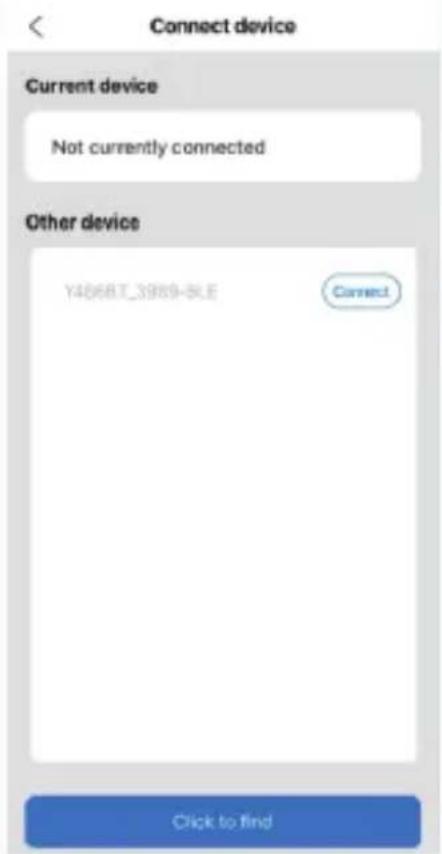
3. Anslut trådlöst för att para ihop trycka 「. ( Annorlunda skrivare ha annan enhet namn till undvik ansluten fel.) ![](images/93bed8930878999202ae3de464bf469109030e699fd3e61ceae00ee8019cd382.jpg)
text_image < Anslut enheten Current device Not currently connected Other device Current_tawp-634 Click to find
![](images/3f3cb58920315d8cf602e7bb04354e42a8ecc7e4b18dc072e88303da56ee02f2.jpg)
text_image Notera: Android-användare behöver komma in "0000" i Trådlös inställningar för Trådlös parning innan du ansluter till skrivare. (Inställning< Trådlös 4. Ladda filen till print (PDF, Foto, Anpassa etiketter kan vara tryckt). ![](images/db517700eb7d0907f366629cd549346116ecd2cf4175308fb883c1279e4269b2.jpg)

ANVÄNDARTIPS

1. När du ladda etiketterna, den avdragna sidan ska vara vänd upp. Eller det skulle orsaka utskrift tom. 2. Se till att det finns inga partiklar på de yta av etiketter till undvik skador på TPH (Thermal Skrivare Huvud). 3. För Windows användare, snälla behåll använder samma USB Port på din dator till undvika producerar oväntad duplicerat kopior av de skrivare på din dator. 4. Etikettstorleken på Vevor Y486/Y486BT-skrivaren är fel till 4x6" (102 mm x 152 mm). Varje gång du ändrar olika etikettstorlekar, vänligen kör Intelligent Etikett Studieprocess före utskrift. 5. I falletiketter fortsätt komma ut oväntat, bara tryck på matarknappen för att pausa skrivaren och rensa utskriftsjobb från din dator. 6. Om det finns vita fläckar på tryckt etiketter, det indikerar att de skrivarhuvudet behöver rengöras. Stopp skriva ut och rengöra TPH (Termisk Skrivarhuvud) efter kylning till undvika brännskador. 7. När märka har fastnat på samma sätt, öppna locket och ta ut det fastnade etiketter långsamt och tålmodigt. Skrivaren kommer att återupptas efter rengöring. Om du har några andra problem, vänligen kontakta oss via de följande metoder: E-post: CustomerService@vev or.com

LED STATUS

LjusstatusBeskrivningLösning
GrönNormal(Du är redo att skriva
BlåTrådlöst anslutenDu är redo att skriva använder trådlöst (tillämpligt till Y 486 E endast ).
Blinkande Röd Snabb (Varannan)Detta händer när de locket är inte stängd.Stäng lock ordentligt
Blinkande Röd Långsam (Var 2 sekunder)Detta händer förfallen ti pappersbrist.Ladda Etiketter
Blinkande Röd och Grö (Varannan)Detta händer när skrivare huvud är överhettad.Vänta tills det svalnar ner, den utskrift jobb vilja resume sig.
Ljus av & Summer ringdeLåg spänningByt till 24V adapter
Om du har några andra problem, vänligen kontakta oss via de följande metoder: E-post: Custom merService@vevor.com

FEDDER KNAPP INSTRUKTIONER

1. Tryck en gång: Mata a tom sida / Pausa / Resume (1) När skrivaren är i redo status och det är inga håller jobb, tryck på matarknappen en gång, så matar skrivaren a tom sida. (2) När skrivaren är igång, tryck en gång kommer paus jobbet, tryck en gång till för att återuppta jobbet. (Även om gh det är det inte rekommenderad, om du akut vill stoppa en oönskad tryckning uppgift, du maj stäng av strömmen direkt och glöm inte att avbryta den e skriva ut uppgift från dator på de samma tid). 2. Tryck och håll ned avgiftsknappen i ungefär 3 sekunder tills du hör ett pip, Vevor kommer köra Intelligent Etikettstudieprocess. Denna process rekommenderas varje gång du byt märka storlekar. 3. Tryck och håll ned matningsknappen i ungefär 5 sekunder tills du hör två pip. Vevor kommer skriva ut en teknisk testsida. Om testet sida ser bra ut, det indikerar att skrivarhuvud arbetar ordentligt. 4. Tryck och håll ned matarknappen i ungefär 15 sekunder tills du hör tre pip. Detta kommer att återställa skrivare till fabriken miljö. Detta behandla är ofarlig för skrivaren och kan vara begagnad om du vill ha skrivare att återställa från en okänd fel. ![](images/3b7b94fae913ce35712365dd7b937260304b4e6f5b9812d969e2b846c1be28c4.jpg)
natural_image Illustration of a white printer with an orange cover and a gray speech bubble pointing to it (no text or symbols)

SÄKERHET MEDDELANDEN

1. DO Rör INTE vid skrivarhuvud efter använda. 2. DO Plocka INTE isär eller reparera enhet själv. 3. ANVÄND ENDAST godkända tillbehör. 4. Behåll skrivaren borta från vatten, eld eller andra föremål som kan förstör komponenterna. 5. Behåll skrivaren borta från barn. 6. ANVÄND INTE skrivaren om du hitta eventuella oegentligheter kunde resultera i elstöt eller eld. 7. Behaga koppla ur makt när inte används under lång tid.

UNDERHÅLL

Skrivarhuvud Rengöring Steg: (1) Behaga se till att skrivaren är drivs av och kyl- ner före rengöring; (2) Tryck på Tryck Knapp på vänster sida till öppna de skrivare li d; (3) Använd Rengöring av skrivarhuvuden för att försiktigt tillämpas på Termisk Skrivare Huvud (inget vatten eller annan vätska bör tillämpas). SPECIFIKATIONER
ModellY486/Y486BT
Utskrift MetodDirekt termisk
GränssnittUSB Kabel
Upplösning203 dpi
Max Utskriftshastighet150 mm/s
Strömadapter24V/2,5A
N. vikt2,75 lbs/1,25 kg
G. vikt3,48 lbs/1,58 kg
TPH Utskrift Liv30 km
Pappersbredd40-110 mm (±2 mm)
Papperstjocklek0,06-0,25 mm
Papper HöjdINGA Begränsningar
Lagring MiljöTemperatur: -20 till 80Luftfuktighet: 5-95 % (ej kondenserande)
Drift MiljöTemperatur: -10 till 50Fuktighet: 10-90% (ej kondenserande)
kondenserande)
Mått L200\*B79\*H83mm ![](images/b5768e1e370640dfa61bb37236a92b5fddc9f664b640e8828b9c07d9ad8024a9.jpg)
natural_image Blank white image with no visible content, text, or symbols

FÖRFOGANDE

Detta produkten är föremål för e bestämmelser i europeiska Direktiv 2012/ 19/ EC. Symbolen som visar en papperskorg som korsas igenom indikerar att produkt kräver separat sophämtning i Europeiska Union. Detta gäller produkten och allt tillbehör märkt med detta symbol. Produkter markerade som sådana maj får inte slängas tillsammans med vanligt hushållsavfall, utan måste tas till a samling punkt för återvinning elektriska och elektroniska enheter. ![](images/5dfc664c8a0e621d80a9d1a48854d52daa595c92047ff65415060464d2c82f7b.jpg)

UPPMÄRKSAMMA

Var uppmärksam på: Denna enhet överensstämmer med Del 15 av FCC Regler. Driften är föremål för följande två villkor: (1)Denna enhet kanske inte orsakar skadlig störningar, och (2)denna enhet måste acceptera några interferens mottagna, inklusive störningar som kan orsaka oönskade drift. ![](images/795d8ec894953fe9e6b6588600820a267c14312d924453f1ecb2b0f4d834f385.jpg) ![](images/2af1f56adb0a2278a00ed362899e5ded5dd68bba172d6e0d9a1ec8a9e4213d99.jpg)
natural_image Blank gray image with no visible content, text, or symbols
EU Importör: WAITCHX Adress: 250 bis boulevard Saint -Germain 75007 Paris Storbritannien Importör: GRATIS HUMÖR LTD Adress: 2 Holywell Körfält, London, England, EC 2A 3ET
Storbrita
EUREP Storbritannien LTD nnien REP ABINGDON OXFORDSHIRE ENGL OCH OX14 5DH
ECRE
EUREP GmbH Unterlettenweg 1a, 85051 Ingolstad t, Tyskland ![](images/1b4b975aeca163e83befcb699fcb88e2c1995e4b0e6f34ce7352a7c19e1c8d99.jpg)
natural_image Line drawing of a rectangular electronic device with slots and ventilation slots (no text or symbols)
Tillverkare : Xiamen Skriva ut Future Technology Co., LTD. ADRESS: Område C,Rum502,No.17 kengping Road, GuanKou Town, Jimei DistrictjXiamen City

Njut av ditt tryck!

Om du har några frågor, problem eller farhågor om detta produkt, kontakta VEVOR för support. E-post: CustomerService@vevor.com

VEVOR®

TOUGH TOOLS, HALF PRICE

Vevor Y486/Y486BT GUÍADELUSUARIO

VEVOR®

TOUGH TOOLS, HALF PRICE ![](images/91af7fae096de483c4cca9351ce11595f3d6a0744d9f3587d941794d86f52830.jpg)
natural_image White and orange handheld device casing (no visible text or symbols)

NECESIDAD ¿AYUDA? CONTACTO ¡A NOSOTROS!

Tener producto ¿preguntas? Necesidad técnico ¿apoyo? Por favor sentir gratis a contacto a nosotros: Soporte técnico y certificado de garantía electrónica www.vevor.com/support Estas son las instrucciones originales, lea atentamente todas las instrucciones del manual antes de operar. VEVORSe reserva el derecho de interpretar nuestro manual de usuario. La apariencia del producto estará sujeta a El producto que recibiste. Por favor, perdónanos por no informarte nuevamente si hay alguna tecnología o software actualizaciones en Nuestro producto.

CONTENIDO

1. Introducción 01 2. Artículo Descripción general.... 02 3. Conectarse a PC/MAC 03 4. Configuración de la etiqueta.... 05 5. Conductor Instalación.... 07 6. MacOS y Windows Impresión Configuración 11 7. Instalación inalámbrica.... 15 8. Consejos para el usuario.... 17 9. LED estado .... 18 10. Botón de alimentación Instrucciones.... 19 11.Seguridad Avisos 20 12. Mantenimiento .....20 13. Presupuesto.... 21

INTRODUCCIÓN

Felicitaciones por su compra de la impresora Vevor. Vev o es su Socio comercial leal que ofrece soluciones comerciales a granel. etiquetas impresión. Por favor, tómate un momento para Lee esto guía del usuario como Operación incorrecta Puede resultar en insatisfactorialidad de impresión, experiencia de usuario reducida o incluso daños a su impresora o lesión. Vevor Y486/Y486BT es una impresora de etiquetas térmica que utiliza térmico medios de etiqueta sin tinta, tóner y cinta. Puede Imprima varia etiquetas para logística, precios, códigos de barras, códigos QR, dirección de envío, insignias, etc. Original Instrucciones para Thermal Etiqueta PrintecPor favor lea todo el manual instrucciones cuidadosamente antes de operar. VEVO R se reserva el de modificarlas . claro interpretación de nuestro manual de usuario. La apariencia del El producto deberá estar sujeto a la producto tu recibió. Por favor perdónanos por no poder hacerlo. informarle nuevamente Si hay ¿ Es cualquier tecnología o software? actualizaciones sobre nuestro producto.

DESCRIPCIÓN GENERAL DEL ARTÍCULO

Embalaje Lista:

ixVEVOR Etiqueta Impresora 1x Fuerza Cable y Adaptador 1xUSB 2.0 A USBC Adaptador 1x USB 2.0 Cable de impresora Guía del usuario de lx 1x Servicio Tarjeta 1x USB Palo(Contiene Conductores para MacOS& Ventanas) 30x Gratis Abanico plegable Etiquetas ![](images/ab3c3dbb91746f3367f154959711a12b79d0d9d2302244f91fa77623e939a73d.jpg)
text_image Feeder Button Status Light Power Switch USB Port Power Port
![](images/3b19617a5fed5fe6b49749d3ce7fdd5ccf707b6b9ccff8d488525c95b4e23608.jpg)
text_image Cover Goma Rodillo Label Outle Térmico Cabezal de impresora (TPH) Etiqueta Guía Empujar Botón
![](images/9e7c239bfd3d8a6c29c3918036327333c32470035124c257f0518d09f26056da.jpg) Térmico cabezal de impresión (TPH) puede ser muy caliente. Por favor hazlo No toques el impresora cabeza o partes alrededor eso despues impresión. 02 ![](images/c9622624ba133146f418983c99b1e309f6b91b996381982b7f34e5430378d422.jpg)
text_image F - USB Port Power Port
![](images/6fc71e54cab54ff3e6f7d08adae587b708aef6cdb4fd290221f81eb9bd40e369.jpg)
natural_image Blank gray image with no visible content, text, or symbols

CONECTA CON TU PC/M CA

1. Asegúrese de que La energía está apagada (presione "O" significa Apaga ![](images/9e4eb55592374a38c4fe4ca23e1d227a29a3eb00c9a73f3531f78c8f61b61085.jpg)
natural_image Close-up of a printer's cable with a black connector and two buttons (no visible text or symbols)
2. Conectar el Cable USB. (Especial Nota: Para Windows usuarios, Conecte el mismo puerto USB en su computadora para evitar productor no deseado duplicados de la impresora Vevor en su sistema). ![](images/265560e9002b9147f1a04581986e53754702f9250b459d30e946943a3e9a5357.jpg)
natural_image Close-up of a printer connected to a laptop via cable (no visible text or symbols)
![](images/0291495e524ae698c7c671cb7a3550df46f771e202699aa8d37e860a6a99081d.jpg)
natural_image Blank white rectangular frame with black border (no text or symbols)
![](images/c9d2cb966b0db53b29446916dadf69f2e3db1daded0e14fafa3bcb39cdae77f9.jpg)
natural_image Blank white image with a thin gray border and two vertical black lines on the left side (no text or symbols)
3. Asegúrese de que la alimentación adaptador es estrechamente conectado, Luego conecta el Cable de alimentación a las impresoras fuerza puerto y las tomas eléctricas. ![](images/759cfb64ecd9b416c2074c453f64740057a30a446e49010dc819a863a1f756a5.jpg)
natural_image Close-up of a black electrical plug with two black cables, no visible text or symbols
4. Girar el ENCENDIDO (Presionar hacia abajo significa Fuerza ENCENDIDO), ahora verá el botón del alimentador superior parpadeando. ![](images/254acccfa0ac7ef111f9209be93c141b70fe28cfea2a2593f23ee9fd0e81f194.jpg)
natural_image Close-up of a printer's front panel showing a black cable with an orange button labeled '—' (no readable text or symbols beyond the button)
Debe apagar el interruptor Antes de ti tapando el cable de alimentación en puerto de alimentación cada tiempo o eso puede causa ¡moscas! 04 ![](images/c7dea0789feb9ef80f1741f0298cd010ca42868e40b8fb05ac35e0528f9d6192.jpg)
natural_image Pure architectural floor plan lines without any text, numbers, or symbols
![](images/2fbfa30e0f0757b6b03d5e310d3cd5f0dee748f4667ef339040b3e28b0702ec6.jpg)
natural_image Blank white rectangular frame with black border (no text or symbols)
![](images/3d9c07a4c44090ad7b8919a1c336f4903d99dd9f5e824de38d188991934f2d8e.jpg)
natural_image Blank gray image with no visible content, text, or symbols

CONFIGURACIÓN DE ETIQUETA

Vevor es capaz de trabajar con etiquetas en varios tamaños, y él necesidades a Aprende tu etiqueta propiedades antes de su primera usar. Para iniciar Automático Etiqueta Identificación y ejecución Inteligente Etiqueta Estudiar, Por favor siga estos pasos:

1. Poder En

Doblar en el fuerza y esperar acerca de 5 artículos de segunda clase hasta el impresora es inicializado.

2. Automático Etiqueta Identificación

Insertar el etiqueta de el trasero del impresora, el La impresora lo hará agarrar el etiqueta y mover atrás y adelante, entonces Parar con el verde luz encendido. Ni una sola etiqueta lo hará ser desperdiciado durante esto procedimiento. Es sugerido a ajustar el etiqueta guía a fósforo El ancho del etiqueta Si es necesario Antes de la etiqueta es empujado en. ![](images/23e0ca24afefb4ab46b6b9892b78bac9b7705090ff10896e4cf5f96c2575cc1b.jpg)
natural_image Illustration of a printer with hands holding its side panel (no text or symbols visible)
![](images/bd132935755a60a5978d3feb82e5edb58550a9988e9854819cf3e11b513c58ab.jpg)
natural_image Blank white image with no visible content, text, or symbols
![](images/a1ed1a76811597ce4c6604a70cc6925c9f629c727c97277c8c87342c15fdd10b.jpg)
natural_image Simple horizontal line with two curved ends, no text or symbols present

3. inteligente Estudio de etiquetas

Prensa y Mantenga presionado el botón de alimentación durante aproximadamente 3 segundos hasta tú escucha un pitido entonces liberación, el laboratorio lo hará mover de aquí para allí varias veces para estudiar el tamaño de la etiqueta, entonces tú poder comenzar impresión. ![](images/d800d54550d32ca75dd68a2bff3670e7d40c1230a618526e1671bf2c4dda88d8.jpg)
natural_image Illustration of a white and orange printer with a pointing hand gesture (no text or symbols)
Desde el impresora necesita a medir el longitud de la térmico papel, una pila de etiquetas con al menos al menos 3 hojas es requerido | Completar el proceso. ![](images/2706b0198f8927a2e7f19c9affb9990c1d081d41329f3a93de9ff9da4c2fb590.jpg)
natural_image 3D rendering of a white paper printer with orange buttons and a gray arrow indicating downward motion (no text or symbols)
06 ![](images/2254e53a1680ebbc0fe9ae0eac47331a2fc0a39b9ecb0aba2af3d6e21274610c.jpg)
natural_image Blank white image with no visible content, text, or symbols

CONDUCTOR INSTALACIÓN

5.1 Conductor Instalación para Sistema operativo Mac

Descargue el controlador para Vevor Y486/Y486B T desde nuestro web oficial https://www.vevor.com/pages/download-impresora de etiquetas central,o Encuéntralo desde el Memoria USB que viene incluida con el paquete. 1. Haga doble clic en el archivo "Vevor-Mac-Driver-Latest.pk g". 2. Haga clic en "Continuar" y siga La en pantalla instrucciones. ![](images/22d1a5adf19b3626a716fe668ca23f011c02ce8e816d478b41c123fb27893830.jpg)
text_image Instrucciones. Install VEGOR Label Printer Driver: Ver1.6.2 Welcome to the VEGOR Label Printer Driver: Ver1.6.2 Installer Driver installer is detecting seven-label printer, please do for following: 1. Consult printer to your computer via provided USB table. If your USB of computer is a Type-C USB port, please use USB-C to USB converter 2. Power on the printers click "continual" button.
3. Haga clic en "Cerrar" para finalizar. ![](images/5150c08c3f3a53dcef82bbcfc6a58b9eba4decb43897f239caa09518644df9e2.jpg)
text_image Installación La instalación fue exitosa . The software was installed
![](images/3981bba1fdcef0ea853d2a72854fc88ddb6191828fea5dbed61331f82b8f1a1f.jpg)
natural_image Blank white image with no visible content, text, or symbols
![](images/b0555b15ec91df2a2a03679436d8de265b03f32c33b9f3e631591d452bb72ea9.jpg)
natural_image Blank white image with no visible content, text, or symbols
![](images/c8748faf222c6c3bcaeeb8aad848395a51ed5b5e3792336cdd95548dfb7e420d.jpg)
text_image The installation was completed successfully. - Introduction - Destination Select - Installation Type - - Summary The software was installed
Sistema "40pen" Preferencias", y haga clic en y escáneres". ![](images/a0d3df13157311e78d2c0699e1c8cf92873864764e59b874791eb79165c39bd5.jpg)
text_image System Preferences Search Vevor Printer Apple ID, iCloud, Media & App Store Apple ID Family Sharing Review Apple ID Phone Number Continue... General Desktop & Screen Server Dock Mission Control Sidi Spotlight Language & Region Notifications Internet Accounts Wallet & Apple Pay Touch ID Users & Groups Accessibility Screen Time Extensions Security & Privacy Software Update Network Bluetooth Sound Printers & Scanners Keyboard Trackpad Mouse
5. Encienda la impresora, verá "VEVOR Y486 /Y486BT" en el lista, Ahora puedes imprimir etiquetas. ![](images/bcfbf3166a7f4bae7e1c8c639bf125418ed517ea35d34f342e3cdce2fd7455b8.jpg)
text_image Printers & Scanners Search Printers VEVOR Y486BT Idle, Last Used VEVOR Y486BT Open Print Queue... Options & Supplies... Locations: Veror Label Printer Kind: Label Printer Shinen: Idle Share this printer on the network Sharing Preferences... Default printer: Last Printer Used Default paper size: US Letter

5.2 Conductor Instalación para Windows

Descargue el controlador para Vevor Y486/Y486B T desde nuestro sitio web oficial https://www.vevor.com/pages/download- impresora de etiquetas central,o encontrar Es desde el Memoria USB que viene con el paquete. 1. Abra el "Vevor-Windows-Driver-Latestexe" archivo con Haga doble clic para iniciar la instalación . proceso. Si el El archivo se llama "Vevo r-Windows-Driver-Latest.zip", tú necesidad a descomprimir él hacia Archivo .exe. 2. Haga clic en "Instalar" y siga las instrucciones. En pantalla instrucc ![](images/2344fbc5b06a2c340762f6ca5b8a02813b9cefe1694b9f7c38b20c66ba2506ec.jpg)
text_image Setup - VEVOR Label Printer Installer Ver1.0.4 Ready to Install Setup is now ready to begin installing VEVOR Label Printer Installer Ver1.0.4 on your computer. Click Install to continue with the installation. English Install Cancel
![](images/937a0b2a81836490b0950944a0341fcca7247e7ba102c3f2ac5ae99dcd66efc6.jpg)
natural_image Blank white image with a faint gray rectangular border and no visible text, symbols, or graphics.
3. Haga clic en "Haga clic en "Siguiente" y "Finalizar" para completar la insta controlador. ![](images/1fbc8f9c0010e2f1ddd0bd828ea9a207405cb53290c5c7a655a00d5612da7486.jpg)
text_image Device Driver Installation Wizard Welcome to the Device Driver Installation Wizard! This wizard helps you install the software drivers that some computers devices need in order to work. To continue, click Next.
![](images/7a31ec1021f568cd28a22f65c74fd811be26fadc331e488315f76bd885fefa49.jpg)
text_image Configuración - VEVOR
Etiqueta Instalador de impresora versión 1.0.4 Completando el VEVOR Etiqueta Asistente de instalación de Printer Installer Ver1.0.4 Configuración ha terminado mantenimiento VEVOR Etiqueta Instalador de impresoras Verl.0.4 en su computadora. La aplicación puede se iniciará seleccionando el hstaled Atajos. Acabado Ock a salida Configuración. Finish ![](images/3466c52418d0fec87e242548424949e7093b08cbae009eee006613f9cc37be20.jpg)
text_image 過 Finish

MACOS Y WINDOWS CONFIGURACIÓN DE IMPRESIÓN

Vevor Y486/Y486BT está configurado para mayoría Tamaño popular de 4x6 pulgadas (102 x 152 mm) de forma predeterminada, por lo tanto, Necesitar Asegúrese de que el "Papel Tamaño" está configurado apropiadamente en su computadora, y correspondiente con el etiqueta papeles que eres usando. Por favor configure lo siguiente:

6.1 Sistema operativo Mac Configuración de impresión

I. Abrir el Archivo PDF llamado "Muestra Etiqueta.pdf que se puede encontrar en USB palo; Seleccione "Archivo"->"Imprimir" (tome Vista previa como una ejemplo). ![](images/230a98d34d43d2f2548c3d765003bb522a853fdc42dbb4c2404c67bf97f32e09.jpg)
text_image Preview File Edit View Go Tools Window Help New from Clipboard Open... Open Recent Close Window Close Selected PDF Document Save Duplicate Rename... Move To... Revert To Enter Password... Import from iPhone Import from Camera... Import from Scanner... Take Screenshot Export... Export as PDF... Share Print... 按 P DO NOT SHIP
2. Elija 4,00 x 6,00" bajo "Tamaño del papel " desplegable menú. ![](images/2fc6991c1ca5cab1826c634ed3ea65be86eb4a4c98bfa8131777aa6c641bd702.jpg)
text_image DO NOT SHIP Property MAIL 2 CAT * 3.00x5.00" 79 kg / 12" mm 3.25x4.24" 86 kg / 10" mm 3.25+5.04" 83 kg / 12" mm 3.25x4.58" 81 kg / 14" mm 3.25x4.83" 82 kg / 14" mm 3.25x4.83" 81 kg / 11" kg / 10" 3.50x4.90" 80 kg / 21 mm 4.00x4.30" 103 kg / 36 mm 4.00x4.00" 103 kg / 51 mm 4.00x2.56" 103 kg / 64 mm 4.00x3.08" 103 kg / 88 mm 4.00x4.00" 103 kg / 99 mm 4.00x4.04" 103 kg / 117 mm Paper Size: v-4/25x4.08" x527 by 962 mm Ordering: 4/25x4.54" x527 by 962 mm Auto Install: 4/25x4.54" x527 by 962 mm Grate: 100mm x100mm x10 kg / 100mm Grate to JV: 100mm x100mm x10 kg / 100mm Create your job: 100mm x100mm x10 kg / 100mm Message Custom's Notes... Cancel Find
3. Seleccione "Impresora" Características", luego cambie la configuración de la impresora, p.ej Velocidad, Oscuridad, Girar. ![](images/d03dd78809eebe80da70b98ef7fd90959d456fff0fb67eac53d68e3155c229ef.jpg)
text_image PRIORITY MAIL 3-DAY Printer: Yover 740U/740UST Printers: Default Settings Diaries: 1 Page: All Preview Layout Paper Handling Cover Page Persim Features Balance: 8 Spread: 6 inches Rotate: 0 Media Type: Copy Sup Invert: 2mm Deep Offset: 0mm Horizontal: 0mm Vertical: 0mm Fixed after Print: 0mm OK Cancel Help

6.2 Ventanas Configuración de la impresora

Tomar Windows 10 como un ejemplo: 1. Encuentre "Vevor Y486/Y486BT" a lo largo de Ruta: Control Panel^Herrajes y SouncRDevices y Impresoras ![](images/40bf8b314f7a1eaf5bbcaac0e0faf3f87e2b4cd1066e60e6a9f25c7f2eb37067.jpg)
text_image Devices and Printers Control Panel > Hardware and Sound > Devices and Printers Add e devices Add a printer > Dispositivos W > Multimedia Dispositivos (3) Impresoras (6) Microsoft Paint to PDF Microsoft XP5 Document Writer OneNote for Windows 10 Fax VisualYU85YU68ET 18 elementos
2. Haga clic derecho en "Vevor Y486/Y486BT", seleccione "Imprimir" Pre". ![](images/6bf9120e5165184ada60602c0e109e198cba8a13d42088c7246b140b5919ea44.jpg)
text_image Devices and Printers Control Panel > Hardware and Sound > Devices and Printers Devices and Printers Add a device Add a printer See what's printing Print server proportion Remove device > Devices (4) > Multimedia Devices (8) en Impresoras (6) Microsoft Post to PDF Microsoft JPS Document Writer Creation Wind See what's printing Set as default printer Printing preferences Printer properties Create shortcut Remove device Troubleshoot Properties User:\WINDOWS\Software\ Model: Never 100%100%ST Categories Printer Status: O:\document(0) in queue
3. Haga clic en "Página Configuración" y Elige lo adecuado tamaño de tu etiqueta, y hacer seguro El elegido tamaño es correspondiente a la etiqueta papel del que se trata a usar. ![](images/f524e080d6694c4cd3f38ec34a6813c19cce110a6d9cebb60b8c91e7cb93f576.jpg)
text_image #VEVOR Impresión Preferencias X Diseño Papel/Calidad Configuración de página Semitono Opción Settings Velocidad de impresión: 4v Imprimir Densidad: 8 ▼ Rotate Papel Nombre: 100 mm x15 0 mm [300 DPI] 100 mm x 210 mm [300 DPI] 105mm x 145mm[300DP] 105 mm x 150 mm (300 DP) 105mm x 190mm[300DP] 105mm x 200mm[300DP] 105 mm x 210 mm [300 ppp] 76mm x 130mm(300DPI) Oh Paisaje 180 Apply
![](images/c1cbcd0b3aa827539c4bed9f855e15a7ffeca3166755cc2b4e74cff1eefc5e67.jpg)
text_image Devices and Printers Control Panel > Hardware and Sound > Devices and Printers Devices and Printers Add a device Add a power See what's printing Print server proportion Remove device > Devices (4) > Multimedia Devices (8) Microsoft Print to PDF Microsoft JPS Document Writer Clean Wind See what's printing Set as default printer Printing preferences: Printer properties: Create dropout Remove device Troubleshoot Properties Voxie Y106/Y400F: Model: Voxie 5406/Y400F Category: Printer Status: D:\document(1) in queue
![](images/ebbf1011580bc033742d32cbb6bbb212126756df20b15c856c9c417f42a0bc73.jpg)
text_image Settings Rotate 250mm x 120mm (200dpi) Apply

INSTALACIÓN INALÁMBRICA

La función inalámbrica solo funciona con Y486 BT. 1. Busque y descargue "FlashLabel" en la App Store. (IOS) oGooglePlay (Android) y luego sigue el resto de la aplicación. También puedes escanear el código QR abajo a Descargar APR ![](images/444f28dcf8632431d76b1465211d317434f2fb11f3f88a94f989f153385eb6d7.jpg)
text_image Q. etiqueta flash Q Cancel FlashLabel Utilities Su
![](images/b9d3ad930348df8881e3d4cfb90bc18cb812084705b9e13ceb243bc42d4e1bb4.jpg)
text_image https://apps.apple.com/cn/ap iOS
![](images/c62f03ad81bba6f70d1ab405d855a7138cfade08638bc5e5469a1687316eaa7e.jpg)
text_image https://play.google.com/store
Androide ![](images/e47773547cbd8f7d10b8d0a7cb3be2168f3197114988a32a4938b69cf5a713d1.jpg)
natural_image Blank white image with no visible content, text, or symbols
![](images/d491c41831ff8b044a0a5ca9d0662ee05dc6b3a28bc5aee895692b74e8642372.jpg)
text_image FlashLabel Utilities
![](images/4d32914a2290c758364fa86de54840744157632f01a78ff8dfe984304368cf3a.jpg)
text_image Two QR codes, one plain and one patterned with black lines.
2.0pluma "Etiqueta Flash" ejecutar el aplicación y hacer clic el rojo impresora símbolo en el superior bien para utilizar el dispositivo inalámbrico. ![](images/14002e95d857656915f0ea97f309f86d37ffa34ab8572b4fab356167017dc6c9.jpg)
text_image Etiqueta Flash pag*) PDF Open PDF EW and pre PDF Print picture Fid and pre pictures New Label Create your label
3. Conecte la conexión inalámbrica para emparejar el imprimir 「. ( Diferente impresoras tener dispositivo diferente nombres a Evite conexiones incorrectas.) ![](images/48d139a81accd5d85c4dd6b7d7050495c15a7173ce8ad324151c23cfa5d5c432.jpg)
text_image < Conectar dispositivo Current device Not currently connected Other device TARGET SHAP-RLG Connect Click to find
![](images/cb1194312f40cef92d122379f10d2601b3a31d76c3b91651a0566922e965f01d.jpg)
text_image Nota: Usuarios de Android Necesita entrar "0000" En la configuración inalámbrica para emparejamiento inalámbrico Antes de conectarse a la impresora. (Configuración< Inalámbrico< Seleccionar impresora < Emparejar) Impresión inalámbrica pedido OK Cancel
4. Cargue el archivo a Imprimir (PDF, foto, etiquetas personalizadas se p impreso). ![](images/064f7ba945aaabcaee77e56ba7ff4d5fc3213026096ba8b9de8fc82361561588.jpg)

CONSEJOS PARA EL USUARIO

1. Cuando tu Cargue las etiquetas, el lado que se despega debe quedar hacia arriba. O él causaría impresión blanco. 2. Asegúrese de que haya Sin partículas en el superficie de etiquetas a evitar daños al TPH (sistema térmico) Impresora Cabeza). 3. Para Windows usuarios, Por favor, manténgalo usando el mismo USB Puerto en tu computadora a evitar productor inesperado duplicado copias de el impresora en su computadora. 4. El tamaño de etiqueta de la impresora Vevor Y486/Y486BT es por defecto hasta 4x6" (102 mm x 152 mm). Cada vez que cambie diferentes tamaños de etiquetas, ejecute el Inteligente Proceso de estudio de etiquetas antes impresión. 5. En caso de etiquetas Sigue saliendo inesperadamente, justo Presione el botón de alimentación para pausar el impresora y borre el trabajo de impresión desde su computadora. 6. Si hay manchas blancas en impreso etiquetas, es indica eso el El cabezal de la impresora necesita limpieza. Detenerse impresión y limpieza del TPH (Térmico Cabezal de impresora) después de enfriarse a evitar quemaduras. 7. Cuando el etiqueta se atasca accidentalmente, Por favor abra la tapa y saque el atascado. etiquetas lentamente y con paciencia. La impresora se reanudará después de la limpieza. Si tienes otros problemas, Por favor póngase en contacto nosotros vía el siguiente métodos: Correo electrónico: CustomerService@vev\_or.com ESTADO DEL LED
Estado de la luzDescripciónSolución
VerdeNormal(Eres preparado para imprimir)
AzulBrillante Rojo RápidoConectado de forma inalámbricaEste sucede cuando elEres preparado para imprimirusando conexióninalámbrica (aplicable)Y 486 BT solo ).Cerrar el tapaadecuadamente
(Uno de cada dos)Brillante Rojo Despacio(Cada 2 artículos de segunda clase)Brillante Rojo y Verde(Uno de cada dos)La cubierta es no cerraEste sucede pendiente escasez de papel.Carga Etiquetas
sonó Si tienes otros problemas, Por favor póngase en contacto nosotros vía el siguientes métodos: Correo electrónico: Custo merService@vevor.com
18

FEDERACIÓN BOTÓN INSTRUCCIONES

1. Presione una vez: Alimentar a un blanco página / Pausa / Reanudar (1) Cuando el La impresora es En estado listo y allá son No Para retener trabajos, presione el botón de alimentación una vez, la impresora alimentará a blanco página. (2) Cuando el La impresora está funcionando, Presione una vez pausa El trabajo, Presione una vez más para reanudar el trabajo. (Aunque es no recomendado, Si desea detener urgentemente un evento no deseado Impresión tarea, tú puede Apaga la corriente directamente y no olvides cancelar. el imprimir tarea desde computadora en el mismo tiempo). 2. Mantenga presionado el botón de alimentación durante aproximadamente 3 artículos de segunda clase hasta que tu escucha un pitido, Vevor lo hará ejecutar el Inteligente Proceso de estudio de etiquetas. Este proceso se recomienda cada vez que cambiar el etiqueta tamaños. 3. Mantenga presionado el botón del alimentador durante aproximadamente 5 artículos de segunda clase hasta que tu escucha dos pitidos. Vevor lo hará imprimir una página de prueba técnica. Si la prueba página se ve bien, se ve bien indica que el cabezal de impresora esta trabajando adecuadamente. 4. Mantenga presionado el botón de alimentación durante aproximadamente 15 artículos de segunda clase hasta que tu Escucha tres pitidos. Esto restablecerá el impresora a la fabrica configuración. Este proceso es inofensivo para la impresora y puede ser usado Si quieres el impresora para recuperarse de un desconocido error. ![](images/df73ced3b60f2ebbf3a3856229b274df4bd669be613a5c96a19c85a7b75661a1.jpg)
natural_image Illustration of a white cylindrical object with an orange base and a gray handle, pointing to the right (no text or symbols)
19 ![](images/2fb8f646a1fafe66e0f50951a9ed602bb48f35a248bcbdf394aac28ee8c3a8bf.jpg)
natural_image White rectangular object with a horizontal line and small protrusions, isolated on white background (no text or symbols)

SEGURIDAD AVISOS

1. HACER NO toque el cabezal de impresión después usar. 2. HACER NO desmonte ni repare el unidad por ti mismo 3. UTILICE ÚNICAMENTE accesorios aprobados. 4. Mantener el impresora lejos del agua, fuego u otros objetos que puedan destruir los componentes. 5. Mantener el Mantenga la impresora fuera del alcance de los niños. 6. NO utilice la impresora si Encuentra cualquier irregularidad que podría Resultar en electrocución o fuego. 7. Por favor Desconecte el poder cuando no En uso durante mucho tiempo.

MANTENIMIENTO

Cabezal de impresora Limpieza Pasos: (1) Por favor Asegúrese de que la impresora esté motorizado Apagado y enfriamiento abajo antes de limpiar; (2) Empuja el Empujar Botón en el lado izquierdo para abierto el impresora (3) Utilice el Toallitas limpiadoras de cabezales de impresora para limpiar sua aplicar sobre el Térmico Impresora Cabeza (no debe contener agua ni ningún otro líquido aplicará). ![](images/032db52c20ede043e5995e5bff765185c333211e5c7ee412e20be16b36d286b8.jpg)
natural_image Blank white image with no visible content, text, or symbols
![](images/f882efd4ba1463af52d58a1e41cb3c76b39d7456e9b9716d4750207fa96c302b.jpg)
natural_image Blank gray image with no visible content, text, or symbols

PRESUPUESTO

ModeloY486/Y486BT
Impresión MétodoTérmica directa
InterfacesUSB Cable
Resolución203 ppp
Máximo Velocidad de impres150 mm/s
Adaptador de corriente24 V/2,5 A
N. peso2,75 libras/1,25 kg
G. peso3.48 libras/1,58 kg
TPH Impresión Vida30 kilómetros
Ancho del papel40-110 mm (±2 mm)
Grosor del papel0,06-0,25 mm
Papel AlturaNO Limitaciones
Almacenamiento AmbienteTemperatura: -20 a 80 Humedad: 5-95% (sin condensación)
Operante AmbienteTemperatura: -10 a 50 Humedad: 10-90% (sin condensación)
Dimensiones Largo 200 x Ancho 79 Alto 83 mm ![](images/fac254279bf95142b041d357414b9cf5b0c514ffff6cf3470f418d9aab5b01b1.jpg)
natural_image Blank white image with no visible content, text, or symbols

DESECHO

Este El producto está sujeto a la disposiciones de la Unión Europea Directiva 19/2012 CE. El símbolo que muestra un contenedor de basura con ruedas tachado indica que el producto requiere recogida selectiva de residuos en el europeo Unión. Esto se aplica al producto y a todos los accesorios marcado con este símbolo. Productos marcado como tal puede No debe desecharse con la basura doméstica normal, sino que debe llevarse consigo. a a recopilación punto para reciclaje dispositivos eléctricos y electrónicos. ![](images/c69cd90e20bc904eaa1238a52b401f91a801b757d93e20e9ba588bbdb66c9c9f.jpg)

PRESTE ATENCIÓN A

Preste atención a: Este dispositivo cumple con Parte 15 de los Comisión Federal de Comunicaciones (FCC) Reglas. El funcionamiento está sujeto a las dos condiciones siguientes: (1) Este dispositivo Puede que no cause dañino interferencia, y (2) este dispositivo debe aceptar cualquier interferencia recibida, incluidas las interferencias que puedan causar no deseado operación. ![](images/1f1cdd12e3b96fa3bad90b3bf4180c8bd424863e9a13cf5e46dc6b1ae6f66a30.jpg) UE Importador: WAITCHX Dirección: 250 bis boulevard Saint -Germain 75007 París Reino Unido Importador: GRATIS ÁNIMO LIMITADO Dirección: 2 Pozo sagrado Carril, Londres, Inglaterra, CE 2A 3ET ![](images/d41ce2c6d780a9d4b6d973fa54328dae378f4682365049a91e0f05dec028251d.jpg)
text_image ReinoUni
Eurepe Reino Unido LIMITADO do REPS UNT 226,100 DCK STREE ABINGDON OXFORDSHIRE INGLES Y OXICO 14 5DH
ECRE
Eurepe Sociedad Limitada Camino inferior 1a, 85051 Ingolstad t, Alemania ![](images/de4aba920c7caa73adaee74c0b2dc30b1b4c37cc26ebfb72eefe9e942594cf44.jpg)
natural_image Line drawing of a rectangular electronic device with slots and ventilation slots (no text or symbols)
Fabricante : Xiamen Imprimir Compañía de tecnología del futuro, LIMITADO. DIRECCIÓN: Área C, Sala 502, No.17 Kengping Carretera, ciudad de GuanKou, Jimei Distrito de la ciudad de Xiamen

¡Disfruta de tu impresión!

Si tienes alguna pregunta, Problemas o inquietudes sobre este producto, comuníquese con VEVOR para obtener asistencia. Correo electrónico: CustomerService@vevor.com

VEVOR®

TOUGH TOOLS, HALF PRICE

VEVOR Y486/Y486BT GUIDAPERL'UTENTE

VEVOR®

TOUGH TOOLS, HALF PRICE ![](images/bb148077086a4e859477614f2e5300faa9f0f4e4d63732d2d06c65eaccefd36f.jpg)
natural_image White and orange handheld device casing (no visible text or symbols)

BISOGNO AIUTO? CONTATTO NOI!

Avere prodotto domande? Bisogno tecnico supporto? Per favore Tatto gratuito A contatto noi: Supporto tecnico e certificato di garanzia elettronica www.vevor.com/support Questa è l'istruzione originale, si prega di leggere attentamente tutte le istruzioni del manuale prima di utilizzare. VEVORsi riserva la chiara interpretazione del nostro manuale utente. L'aspetto del prodotto sarà soggetto a il prodotto che hai ricevuto. Perdonaci se non ti informeremo più se ci sarà qualche tecnologia O software aggiornamenti su il nostro prodotto.

CONTENUTO

1. Introduzione 01 2. Articolo Panoramica.... 02 3. Connettiti a Per PC/MAC 03 4. Impostazione etichetta.... 05 5. Autista Installazione.... 07 6. MacOS e Windows Stampa Impostazione 11 7. Installazione wireless.... 15 8. Suggerimenti per l'utente.... 17 9. LED stato .... 18 10. Pulsante alimentatore Istruzioni.... 19 11. Sicurezza Avvisi 20 12. Manutenzione ....20 13. Specifiche.... 21

INTRODUZIONE

Congratulazioni per l'acquisto della stampante Vevor. Vev o è il tuo partner commerciale fedele che offre soluzioni commerciali a lotti etichette stampa. Per favore, prendi un momento di leggi questo guida utente come operazione non corretta può risultare In insoddisfaceralità di stampa, esperienza utente ridotta o Anche danni alla stampante o infortunio. VEVOR Y486/Y486BT è una stampante termica per etichette che utilizza termico etichettare il supporto senza inchiostro, toner e nastro. Può stampare varie etichette per la logistica, i prezzi, codici a barre, codici indirizzo di spedizione, badge, ecc. Originale istruzioni per Termico Etichetta Printec, per favore leggi tutto il manuale attentamente le istruzioni prima di procedere all'uso. VEVO R si riserva interpretazione del nostro manuale utente. L'aspetto del il prodotto deve essere soggetto al prodotto t te ricevuto. Per favore perdonaci se non lo faremo informarti di nuovo se c'è è una tecnologia o un software aggiornamenti sul nostro prodotto.

PANORAMICA DELL'ARTICOLO

Imballaggio Lista:

IxVEVOR Etichetta Stampante Guida utente lx 1x Servizio 1x Energia Cavo E Carta 1x USB Bastone(Contiene autisti per Adattatore 1xUSB 2.0 a MacOS& Finestre) 30 volte Gratuito Pieghevole USBC Adattatore 1x USB 2.0 Etichette Cavostampante ![](images/aa2936b6a04b08bb8f5c60bb91e2c0d8a63acf7eddf518e20bbabf4d0994abe1.jpg) Feeder Button Status Light Power Switch ![](images/8d303c7bf595344b0289db3b1a933b21e549caa52bcf2399b1e48b84725568d3.jpg)
text_image USB Port Power Port
Cover Termico Testina di stampa (TPH) Gomma Rullo Label Outle ![](images/6141331fdee251b51bf48a36b0080dbfed3110888e4fe6517839b917cd28c4f0.jpg)
text_image Terr
Etichetta Guida Spingere Pulsante ![](images/123824b7ad091dc77c83d5cb71089fb44f7b7ea80893bb518638b741ce257b4e.jpg)
text_image Termico testina di stampa (TPH) Maggio essere molto caldo . Per favore, fallo non toccare il stampante testa o
Termico testina di stampa (TPH) Maggio essere molto caldo. Per favore, fallo non toccare il stampante testa o parti intorno dopo di lui stampa. 02 ![](images/5f16ec41d769d07984a80bc911af5c6dc3a19a3bbf3d022e657d5192d9a5fd39.jpg)
text_image F - USB Port Power Port
![](images/4b1bdd0c3ed0f7a6f6c44b1437c6b82e9c28392373d2b6fcc172bf16297e79ff.jpg)
natural_image Blank gray image with no visible content, text, or symbols

CONNETTITI AL TUO PC/MAC AC

1. Assicurarsi che l'alimentazione è SPENTA (premere "O" significa Spegnimen ![](images/1fae3b92e80ac0c75390d5abc391b0bef72fd076bff5a338972cae74ea292027.jpg)
natural_image Close-up of a printer's cable with a black connector and two buttons (no visible text or symbols)
2. Collegare il Cavo USB. (Speciale Nota: Per Windows utenti, si prega di collegare la stessa porta USB del computer per evitare produrre indesiderato duplicati della stampante Vevor nel tuo sistema). ![](images/156ba2460850b9ef3e01476822d2ecb5ed18d03a8503510c1572769b5759f2a7.jpg)
natural_image Close-up of a printer connected to a laptop via cable (no visible text or symbols)
![](images/500653042e486e6006f0603ba13db68f62b21e0adff87f921edcdf71f359acd3.jpg)
natural_image Blank white rectangular frame with black border (no text or symbols)
![](images/f0a9694a786db28cca981101d2019747db584beb20034ac4aa50ad955e621d5f.jpg)
natural_image Blank white image with a thin gray border and two vertical black lines on the left side (no text or symbols)
3. Assicurarsi che l'alimentazione adattatore È strettamente collegato, quindi collegare il cavo di alimentazione per le stampanti energia porta e le prese elettriche. ![](images/45df1ab154e8481fd0a58b4a8d2429a4169ede82afe3345e9a2c4b78090329c8.jpg)
natural_image Close-up of a black electrical plug with two black cables plugged into a white socket (no visible text or symbols)
4. Girare il accensione (Premere verso il basso significa Energia ON), ora vedrai lampeggiare il pulsante dell'alimentatore superiore. ![](images/3bb41b0f952fd45cc06af0f3701747264073020ee7659d5aeb21624c62997a2f.jpg)
natural_image Close-up of a printer's front panel showing a black control switch with an arrow pointing to it, no visible text or symbols.
Bisogna spegnere l'interruttore prima di te tappare IL cavo di alimentazione in porta di alimentazione ogni tempo o esso Maggio causa scintille! 04 ![](images/f65ce3b5d43d3f0f0eb2ae8a4fb9ac045c90f1eb19287914cab7ff425dc67e52.jpg)
natural_image Pure architectural floor plan lines without any text, numbers, or symbols
![](images/98ffd20b6b09c2f4703ce96cff1ac0d11cebd72b292e43c21d1c1cc1a2958747.jpg)
natural_image Blank white rectangular frame with black border (no text or symbols)
![](images/d63d1dbade55ef24e5f4c34bb40e089838620df7c4dc2b81317486fb4f543f77.jpg)
natural_image Blank gray image with no visible content, text, or symbols

IMPOSTAZIONE DELL'ETICHETTA

Vevor è in grado di lavorare con etichette in vario dimensioni, E Esso esigenze A impara la tua etichetta proprietà prima del suo primo utilizzo. Per avviare Automat ic Etichetta Identificazione e corsa Intelligente Etichetta Studio, si prega di seguire questi passaggi:

1. Potere SU

Giro SU IL energia e aspettare Di 5 secondi Fino a IL stampante È inizializzato.

2. Automatico Etichetta Identificazione

Inserire IL etichetta da IL didietro del stampante, IL la stampante lo farà preda IL etichetta E mossa Indietro E via, Poi fermati con IL verde leggero su. Non una sola etichetta sarà essere sprecato durante questo procedura. Suo suggerito A regolare IL etichetta guida A incontro la larghezza del etichetta se necessario prima del etichetta È spinto In. ![](images/4c2f1a7ece52aff5cbec9768e98d4b2e269c08a3c203043e09d0886ec2c5db40.jpg)
natural_image Illustration of a printer with hands holding its side panel (no text or symbols visible)
![](images/347ac4d5cdd2399bc1e45c6766654c556f08b5775c4e060ca4abee6bf4281428.jpg)
natural_image Blank white image with no visible content, text, or symbols
![](images/6dcbaf88872614db49fd37fb4377de5a5ddebb9bd1008c690d626b03fd3c1e42.jpg)
natural_image Simple horizontal line with two curved ends, no text or symbols present

3. Intelligente Studio dell'etichetta

Premere e tenere premuto il pulsante dell'alimentatore per circa 3 secondi Fino a Voi senti un segnale acustico quindi rilascio, il laboratorio el mossa avanti e indietro più volte per studiare la dimensione dell'etichetta , Poi Voi Potere inizio stampa. ![](images/cab65b39970b18304f041ff2e46586362669745dde7f0849bc0d8847963cb08d.jpg)
natural_image White and orange printer with a pointing hand icon (no text or symbols)
Dal momento che il stampante ha bisogno di misurare il lunghezza de termico carta, una pila di etichette con a almeno 3 fogli È richiesto i completare il processo. ![](images/bd357e0cbd1aedaef7472899c16b60ccbbe77f634c810448ab08d6573707e80e.jpg)
natural_image 3D illustration of a white paper printer with orange buttons and a gray downward arrow, no text or symbols present.
![](images/3f8f706e82b709a472483b6b490789589a0dd4ec29d8b6260e156fa658fc232b.jpg)
natural_image Blank white image with no visible content, text, or symbols
![](images/d0ae6d91d7fd85fe6ea6a7513e3701a5221b4cb0cd67186e6485113fa927cf7e.jpg)
natural_image Blank white image with no visible content, text, or symbols

AUTISTA INSTALLAZIONE

5.1 Conducente Installazione per MacOS

Scarica il driver per Vevor Y486/Y486B T dal nostro sito ufficiale https://www.vevor.com/pages/do\_wnload-stampante-etichetta-centrale, o trovalo dal Chiavetta USB in dotazione con il pacchetto. 1. Fare doppio clic sul file "Vevor-Mac-Driver-Latest.pk g". 2. Fare clic su "Continua" e seguire sullo schermo istruzioni. ![](images/a1f77c31d7cb2817667eff441b7d5de6d4389474fcca211984e01ca3f0d21291.jpg)
text_image Istruzioni. Initiate VEGOR Label Printer Driver: Var1.6.2 Welcome to the VEGOR Label Printer Driver: Var1.6.2 Installer Driver retailer is detecting server-label printer, please do for following: 1. Consult printer to your computer via provided USB table. If your USB of computer is a Type-C USB port, please use USB-C to USB converter 2. Power on the printer click "continual" button.
3. Fare clic su "Chiudi" per terminare. ![](images/0e5b59d0794d536bb0de812d1f0878fa35839b293cdc6484de21c0660bacd060.jpg)
text_image Install VEXOR Label Pointer Drive Ver1.2.2 The installation was completed successfully. L'installazione è riuscita . The software was installed.
![](images/a19ff6f2710a963f61794dc90778881095c4632a081afc45ef6ff836a1a6111b.jpg)
natural_image Blank white image with no visible content, text, or symbols
![](images/a6083e43da7a3d64398788819225947eccc252480b424cd2dd3f7e1b6e0a27bb.jpg)
natural_image Blank white image with no visible content, text, or symbols
![](images/0adc694e7c54f6676c24b3b2d57d82fc13ee4b4f2ca835f1e5eb58f373c4db59.jpg)
text_image The installation was completed successfully. - Introduction - Destination Select - Installation Type - - Summary The software was installed
Sistema 40pen Preferenze"e fare clic"Stampanti e scanner". ![](images/6482dc701eba55fe3449056e07aab83e0b904bb4a7fafcd3fbf842cfe67138ea.jpg)
text_image System Preferences Search Vevor Printer Apple ID, iCloud, Media & App Store Apple ID Family Sharing Review Apple ID Phone Number Continue... General Desktop & Screen Server Dock Mission Control Sidi Spotlight Language & Region Notifications Internet Accounts Wallet & Apple Pay Touch ID Users & Groups Accessibility Screen Time Extensions Security & Privacy Software Update Network Bluetooth Sound Printers & Scanners Keyboard Trackpad Mouse
5.Accendi la stampante, vedrai "VEVOR " Y 486/Y486BT" In IL elenco, ora puoi stampa etichette. ![](images/472f83928b3de084791c3e05308a62502e8036edc8caebd53993e3ae4bddef85.jpg)
text_image Printers & Scanners Search Printers VEVOR Y486BT Idle, Last Used VEVOR Y486BT Open Print Queue... Options & Supplies... Locations: Veror Label Printer Kind: Label Printer Shinen: Idle Share this printer on the network Sharing Preferences... Default printer: Last Printer Used Default paper size: US Letter

5.2 Autista Installazione per Windows

Scarica il driver per Vevor Y486/Y486B T dal nostro sito Web ufficiale https://www.vevor.com/pages/dow\_nload-stampante-etichetta-centrale, o Trovare da il Chiavetta USB in dotazione con il pacchetto. 1. Aprire il "Vevor-Windows-Driver-Latestexe" file con un doppio clic per avviare l' installazione processo. Se IL il file è denominato "Vevo r-Windows-Driver-Latest.zip", Voi Bisogno A decomprimere Esso al File .exe. 2. Fare clic su "Installa" e seguire le istruzioni sullo schermo istruzioni ![](images/d730b5eb31734eadffd2ae901b732788688dee7afdf3f48414cd2ef6ab3d5300.jpg)
text_image Setup - VEVOR Label Printer Installer Ver1.0.4 Ready to Install Setup is now ready to begin installing VEVOR Label Printer Installer Ver1.0.4 on your computer. Click Install to continue with the installation. English Install Cancel
3.Fare clic su "Fare clic su "Avanti" e "Fine" per completare l' installazione d ![](images/f50901bcee8d8954ae654f62f30da1b0ff5b43ab768a287db375f6d386ab918e.jpg)
text_image Device Driver Installation Wizard Welcome to the Device Driver Installation Wizard! This wizard helps you install the software drivers that some computers devices need in order to work. To continue, click Next.
Impostazione - VEVOR Etichetta Installatore stampante Ver1.0.4 ![](images/37d955d1926d5fb0d059bf476759cc0187aa78ad2fe7547e237425a8697126b2.jpg)
natural_image Abstract graphic with a computer monitor and curved arrow, no text or symbols present
Completamento del VEVOR Etichetta Ins ta lla zi one guidata di Printer Installer Ver1.0.4 Impostare ha finito mantenendo VEVOR Etichetta stampante Verl.0.4 sul tuo computer. L'applicazione potrebbe essere avviato selezionando hstaled scorciatoie. Finitura Ock a Uscita Impostare. Programma di installazione Finish ![](images/0576e0b5f04f66884a08e1126c96312e10e2e8c452bb7249f5cd7fb6ba85890a.jpg)
text_image 過 Finish

MACOS e WINDOWS IMPOSTAZIONE DI STAMF

Vevor Y486/Y486BT è impostato per il maggior parte dimensione popolare di 4x6 pollici (102 x 152 mm) per impostazione predefinita, quindi bisogno di assicurarsi che il "Carta Misurare" è impostato in modo appropriato nel tuo computer e corrispondente con il etichetta documenti che sei utilizzando. Si prega di impostare come segue:

6.1 MacOS Impostazione di stampa

I. Aprire il File PDF denominato "Campione Label.pdf che può essere trovato In USB bastone; Selezionare "File"->"Stampa" (prendi Anteprima come un esempio). ![](images/7a6eabf3dcdcb015d35a2b339d5f7a37adc67d3be222acd797d54b1f1c1bf865.jpg)
text_image Preview File Edit View Go Tools Window Help New from Clipboard Open... Open Recent > Close Window Close Selected PDF Document Save Duplicate Rename... Move To... Revart To > Enter Password... Import from iPhone Import from Camera Import from Scanning Take Screenshot Export... Export as PDF... Share > Print... 签P DO NOT SHIP
![](images/aad915866f46b6a89b173f002ec4f167611203d9c6b93289fb95f9b3dc3a6e48.jpg)
natural_image Blank white image with no visible content, text, or symbols
![](images/e22c39fa79f4ec0a05f5ee84f7054d3992bee5b9e3d794e8bb851183857ead2f.jpg)
natural_image Blank white image with a thin black border (no text or symbols)
2. Scegli 4.00x6.00" Sotto "Formato della carta " cadere in picchiata ma ![](images/1780b18fcea770249a1ee2da94458a7b3c4385494dec005bc8e378e9f42602d7.jpg)
text_image 3.00x5.05" 76 by 127 mm 3.25x4.04" 84 by 127 mm 3.05-4.04" 83 by 127 mm 3.25x4.04" 81 by 142 mm 3.25x4.03" 82 by 146 mm 3.25x4.03" 81 by 119 mm 3.50x4.02" 87 by 25 mm 4.00x4.02" 103 by 26 mm 4.00x4.02" 103 by 37 mm 4.00x4.02" 103 by 48 mm 4.00x4.02" 102 by 78 mm 4.00x4.02" 102 by 100 mm 4.00x4.02" 102 by 157 mm P raper Size 4.00x4.02" 102 by 162 mm 4.00x4.02" 102 by 166 mm 4.00x4.02" 102 by 196 mm 100mm x 100mm x 100 by 196 mm 100mm x 100mm x 100 by 196 mm 100mm x 100mm x 100 by 196 mm 100mm x 100mm x 100 by 196 mm 100mm x 100mm x 100 by 205 mm 100mm x 100mm x 100 by 206 mm 100% x 100% x 15 mm Message Custom's Store... Cancel Add DO NOT-SHIP
3. Seleziona "Stampante" Caratteristiche", quindi modificare le impostazioni della stampante, per esempio Velocità, Oscurità, Ruotare. ![](images/4e9cc70fa0a7d21cd0bd905de1f58073342f53eb085a6e5d3c93ab050bf949c0.jpg)
text_image P rimer 1 of 1 P rimer: Newer YASU/YADUST P rimer: Default Settings Dias: 1 Page: All Preview Paper Size: Lancet Paper Handling Cover Page Orientation: Print Features Dimensions: 0 Spread: 6 inches Rotate: 0 Media Type: Color Gap Height: 2mm Deep Offset: 2mm Horizontal: 2mm Vertical: 2mm Fool after Print: 2mm Hide Defaults PDF Cancel Post
12

6.2 Finestre Impostazione della stampante

Prendi Windows 10 come un esempio: 1. Trova "Vevor Y486/Y486BT" lungo il percorso: Controllo Pannello^Hardware e dispositivi Soundr e Stampanti ![](images/7f3525c9e8ee34c4c9d83d726409c1b2fd046d06f56f8883e8904f47f89f3784.jpg)
text_image Devices and Printers Control Panel > Hardware and Sound > Devices and Printers Add e device Add a printer > Dispositivi W > Multimedia Dispositivi (3) Stampanti (6) Microsoft Paint to PDF Microsoft XP5 Document Writer OneNote for Windows 10 Fax User YUBS.YUBSET 18 elementl
2. Fare clic con il tasto destro del mouse su "Vevor Y486/Y486BT", sc "Stampa" Riferimento P". ![](images/4378b9e7dd644e024d19025253b69aebaa667a950e770c88f8b0afe08d84b5a1.jpg)
text_image Devices and Printers Control Panel > Hardware and Sound > Devices and Printers Add a device Add a printer Show what's printing Print server properties Remove device > Devices (4) > Multimedia Devices (8) la Stampanti (6) Microsoft Post to PDF Microsoft JPS Document Writer Clean Wind See what's printing Set as default printer Printing preferences Printer properties Create checkout Remove device Doubleboot Properties Voror 100%+000* Model: Vver 100%+000*T Category Printer Details Ondustment(s) in queue
3. Fare clic su "Pagina" Impostazione" e scegliere quello giusto misurare Di la tua etichetta e Fare Sicuro il prescelto misurare È corrispondente al etichetta carta di cui ti stai occupando A utilizzo. ![](images/7ded826fac9f73a1065d5d6178a1cd2352e81acb78a797b19a29bdaee5370bae.jpg)
text_image

VEVOR Stampa Preferenze X

Layout Carta/Qualità Pagina Impostata Mezzitoni Opzione Settings Velocità di stampa: volte Stampa Densità: 8 Carta Nome: 100mm x15 0mm[300DPI] 100mm x 150mm[300DPI] 100mm x210mm[300DPI] 105mm x 145mm[300DP] 105mm x 150mm (300DPI)] 105mm x 190mm[300DP] 105mm x 200mm[300DP] 105 mm x 210 mm [300 DPI] 76mm x 130mm(300DPI) Lo Paesaggio 180 Apply
![](images/919699ac0fd5a0ec89b60effff20ee505089cee25f33ae583be025622104859f.jpg)
text_image Devices and Printers Control Panel > Hardware and Sound > Devices and Printers Devices and Printers Add a device Add a power See what's printing Print server proportion Remove device > Devices (4) > Multimedia Devices (8) Microsoft Print to PDF Microsoft JPS Document Writer Clean Wind See what's printing Set as default printer Printing preferences: Printer properties: Create dropout Remove device Troubleshoot Properties Voxie Y106/Y400F: Model: Voxie 5406/Y400F Category: Printer Status: D:\document(0) in queue
![](images/5bc70582cdda0f42cac493d1dbcf8ee3de97cb9a59c87f5f0747b44558b2ffdb.jpg)
text_image Settings Rotate 250mm x 120mm (200dpi) Apply

INSTALLAZIONE WIRELESS

La funzione wireless funziona solo con Y486 BT. 1. Cerca e scarica "F lashLabel" sull'App Store (IOS) oGooglePlay (Android), e poi segui il resto dell'app. Puoi anche scansionare il QRCode sotto a Scarica APR Q. etichetta flash Q Annulla ![](images/96bf035d9d035406f9d7b5f4a7dfb28ecdf48b9baa5d0ef565d1757822a8fcc1.jpg) FlashLabel Utilities ![](images/58c42808780986552e6906d49327e40d7eb2d228cb326dd8cfd29149926feabe.jpg) Avan ti ![](images/2b5ca15845342829e30de5ec0e2ac335122c564b2016061a7be7dea704cd8e64.jpg)
text_image QR code with accompanying icons for Search, Camera, Image, and Search functions
![](images/3371566af16d4b6765b0ba99a31d4f1c12ccbdcc53553c358c62e1e629ab456e.jpg)
text_image QR code image containing encoded data, no visible human-readable text
https://apps.apple.com/cn/: https://play.google.com/stor iOS Android ![](images/d9f4cf15de8d5a5f58b5a4659c808476397caa0f2b735ada4bdfa3bc0248eacc.jpg)
text_image FlashLabel Utilities
15 ![](images/d1de9a87be6caf800877876d3fabb5c1800f1670c8dab86be198e75253ef554b.jpg)
text_image QR code image containing encoded data, no visible human-readable text
![](images/ee7235280cecd9b0a4e0ccf93dcf25710942d39fa92f00df303292ebae7e3c69.jpg)
natural_image Blank white image with no visible content, text, or symbols
![](images/110a1a6bb44eb4981ded3423a96b385231aa40f3f52632425e62197183b57682.jpg)
text_image QR code image containing encoded data, no visible human-readable text
2.0pen "Etichetta Flash" eseguire il applicazione E clic IL rosso stampante simbolo SU IL superiore Giusto per utilizzare il dispositivo Wireless. 3. Collegare in modalità wireless per associare il stampata . ( Diverso stampanti Avere dispositivo diverso nomi a evitare connessioni sbagliate.) ![](images/4f347a6241faf5f0e76d444a66bd25127865b03f183f5b008a9b34dea7d86b5f.jpg)
text_image Etichetta Flash P*) PDF Open PDF EW and print PDF Print picture Full and print pictures New Label Create your label
![](images/567c49f0283eb7f0dab2de1815eafc0e686d69f4799b6cf56d02d2ea8c3c3667.jpg)
text_image < Connetti dispositivo Current device Not currently connected Other device YANETE_0009-016 Couchet Click to find
![](images/4d3bb7726f41021568d1b58cbb0171c74cc2e5ae300fc9ec13be7037880c7888.jpg)
text_image Nota: Utenti Android bisogna entrare "0000" nelle impostazioni Wireless per l'associazione Wireless prima di connettersi al stampante. (Impostazione< Wireless 4. Caricare il file su stampa(PDF, Foto, Le etichette personalizzate possono stampato). ![](images/6b9cfeefa2c8ed9b9ba0eee00001d7e8428ae7a3ad5f9da81889e7695b301c00.jpg)

SUGGERIMENTI PER L'UTENTE

1. Quando tu caricare le etichette, il lato staccabile deve essere rivolto verso su. O Esso causerebbe stampa vuoto. 2. Assicurati che ci siano nessuna particella su IL superficie Di etichette A evitare danni al TPH (Termico Stampante Testa). 3. Per Windows utenti, per favore tieni usando lo stesso USB Porta sul tuo computer A Evitare produrre inaspettato duplicato copie Di IL stampante sul tuo computer. 4. La dimensione dell'etichetta della stampante Vevor Y486/Y486BT è predefinito a 4x6" (102mm x 152 mm). Ogni volta che si modificano le dimensioni delle etichette, eseguire il Intelligente Etichettare il processo di studio prima stampa. 5. In caso di etichette continua a uscire inaspettatamente, semplicemente premere il pulsante dell'alimentatore per mettere in pausa il stampante e cancellare il stampa lavoro dal tuo computer. 6. Se ci sono macchie bianche su stampato etichette, esso indica Quello IL la testina della stampante necessita di pulizia. Stop stampa e pulisci il TPH (Termico Testina di stampa) dopo il raffreddamento Evitare ustioni. 7. Quando il etichetta si è inceppato accidentalmente, per favore aprì il coperchio e togli il pezzo inceppato etichette lentamente e pazientemente. La stampante riprenderà dopo la pulizia. Se hai altri problemi, per favore contattaci noi tramite IL seguente metodi: E-mail: CustomerService@vev\_or.com

STATO LED

Stato della luceDescrizioneSoluzione
VerdeNormale(Sei pronto a stampa)
BluConnessione wirelessSei pronto a stampa utilizzando la connessione wireless (applicabile A E 486 soltanto ).
Lampeggiante Rosso VeloceQuesto succede Quando ILChiudere il coperchio correttamente
(Ogni secondo)Lampeggiante Rosso Lentamente(Ogni 2 secondi)la copertura è non ChiQuesto succede dovuto carenza di carta.Carico Etichette
Lampeggiante Rosso E Verde(Ogni secondo)Questo succede quando stampanteAspettare Fino a si raffredda giù, il stampa lavoro
Leggero spento e Cical ha sugnatoTesta È surriscaldato.Bassa tensioneVolere riprendere si.Passare all'adattatore (24 V

FEDERATORE PULSANTE ISTRUZIONI

1. Premere una volta: Nutrire un vuoto pagina / Pausa / Riprendere (1) Quando il la stampante è in stato pronto E Là Sono NO in attesa dei lavori, premere una volta il pulsante dell'alimentatore, la stampante alimenterà UN vuoto pagina. (2) Quando il la stampante è in funzione, premere una volta pausa il lavoro, premere ancora una volta per riprendere il lavoro. (Sebben e è non raccomandato, se vuoi fermare urgentemente un evento indesiderato stampa compito, Voi Maggio spegni direttamente l'alimentazione e non dimenticare di annullare IL stampa compito dal computer A IL Stesso tempo). 2. Premere e tenere premuto il pulsante di alimentazione per circa 3 secondi finché tu senti un segnale acustico, Vevor lo farà eseguire il Intelligente Processo di studio delle etichette. Questo processo è consigliato ogni volta che cambiare il etichetta dimensioni. 3. Premere e tenere premuto il pulsante dell'alimentatore per circa 5 secondi finché tu senti due segnali acustici. Vevor stampare una pagina di prova tecnica. Se il test pagina sembra buono, indica che il testina di stampa sta lavorando correttamente. 4. Premere e tenere premuto il pulsante dell'alimentatore per circa 15 secondi finché tu sentire tre segnali acustici. Questo ripristinerà il stampante in fabbrica collocamento. Questo processo È innocuo per la stampante e può Essere usato se vuoi il stampante per il ripristino da un sconosciuto errore. ![](images/87910922ca87ab345e909b509af63c415c14c5c85b935f48f3635412a15e6d9f.jpg)
natural_image Illustration of a white cylindrical object with an orange base and a gray handle, pointing to the right (no text or symbols)
19 ![](images/2c187a274cebb1e71bbc5b0ff5b321ece42576a6250408d7b82ec8119c33784f.jpg)
natural_image White rectangular object with a horizontal line and small protrusions on the left side, against a plain white background (no text or symbols)

SICUREZZA AVVISI

1. FARE NON toccare il testina di stampa Dopo utilizzo. 2. FARE NON smontare o riparare il unità da solo. 3. UTILIZZARE SOLO accessori approvati. 4. Mantieni il stampante lontano da acqua, fuoco o altri oggetti che potrebbero distruggere i componenti. 5. Mantieni il stampante lontano dalla portata dei bambini. 6. NON utilizzare la stampante se trovare eventuali irregolarità che Potevo provocare elettrocuzione o fuoco. 7. Per favore staccare la spina potere quando non in uso da molto tempo

MANUTENZIONE

Testina di stampa Pulizia Passaggi: (1) Per favore assicurarsi che la stampante sia alimentato spento e raffreddamento giù prima della pulizia; (2) Spingere il Spingere Pulsante sul lato sinistro per aprire IL stampante io (3) Utilizzare il Salviette per la pulizia della testina della stampante per fare domanda a sul Termico Stampante Testa (non deve essere aggiunta acqua o altri liquidi applicato). ![](images/5fe06f433b7e0adb700869e047f440e31edea03f355b71f375f661c2f2f65b89.jpg)
natural_image Blank white image with no visible content, text, or symbols
![](images/b2000fbe55abccc1360c7da7db6b31708b69d3db82cb803eeadf808aa1917313.jpg)
natural_image Blank gray image with no visible content, text, or symbols
SPECIFICHE
ModelloModello Y486/Y486BT
Stampa MetodoTermico diretto
InterfacceUSB Cavo
Risoluzione203dpi
Massimo Velocità di stampa150 mm/secondo
Adattatore di alimentazione24V/2,5A
N. peso2,75 libbre/1,25 kg
G. peso3.48 libbre/1,58 kg
TPH Stampa Vita30 chilometri
Larghezza della carta40-110 mm (± 2 mm)
Spessore della carta0,06-0,25 mm
Carta AltezzaNO Limitazioni
Magazzinaggio AmbienteTemperatura: da -20 a 8Umidità: 5-95%(senza condensa)
Operativo AmbienteTemperatura: da -10 a 5Umidità: 10-90%(senza condensa)
DimensioniL200*W79*H83mm
![](images/760271197bab8ea7bf8706bc90d1222ecf1945bcd46381de46a33b6926fb4af1.jpg)
natural_image Blank white image with no visible content, text, or symbols

DISPOSIZIONE

Questo il prodotto è soggetto a disposizioni della Comunità Europea Direttiva 2012/ 19/ CE. Il simbolo raffigurante un bidone della spazzatura barrato indica che il prodotto richiede la raccolta differenziata dei rifiuti nel europeo Unione. Ciò vale per il prodotto e per tutti accessori contrassegnato con Questo simbolo. Prodotti contrassegnato come tale Maggio non vanno smaltiti insieme ai normali rifiuti domestici, ma vanno smaltiti A UN collezione punto per riciclaggio dispositivi elettrici ed elettronici. ![](images/195444c76c6374a19e4e1b86333ca118d7d2ad4aeb0adc982c0f273765e68025.jpg)

PRESTARE ATTENZIONE A

Prestare attenzione a: Questo dispositivo è conforme a Parte 15 del Commissione federale delle comunicazioni Regole. Il funzionamento è soggetto alle due condizioni seguenti: (1) Questo dispositivo non può causare dannoso interferenza, e (2) questo dispositivo deve accettare Qualunque interferenza ricevuto, comprese le interferenze che possono causare indesiderato operazione. ![](images/1fe2a6efbede33e45843ae1181593c7b8b0d788493ddbff36b35c0b863eaf244.jpg) Unione Europea Importatore: WAITCHX Indirizzo: 250 bis boulevard Saint -Germain 75007 Parigi Regno Unito Importatore: GRATUITO UMORE Società a responsabilità limitata Indirizzo: 2 Pozzo Santo Sentiero, Londra, Inghilterra, CE 2A 3ET
RegnoUn
Eurep Regno Unito Società a responsabilità limitata ito RAPPRESENTANTE ABINGDON OXFORDSHIRE INGLESE E OX14 5DH
ECRE
Eurep Società a responsabilità limitata Unterlettenweg 1a, 85051 Ingolstad , Germania ![](images/02cae8337595ccaaba5c926572e6493845afa37c56831bd8f57a4339a22d2116.jpg)
natural_image Line drawing of a rectangular electronic device with slots and ventilation slots (no text or symbols)

Produttore : Xiamen Stampa Società di tecnologia futura, SOCIETÀ LIMITATA

INDIRIZZO: Area C, Stanza 502, No. 17 Kengping Strada, città di GuanKou, Jimei DistrettojCittà di Xiamen

Buona stampa!

Se hai domande, problemi o preoccupazioni su Questo prodotto, contattare VEVOR per assistenza. E-mail: CustomerService@vevor.com
Table of contents Click a title to access it
Manual assistant
Powered by Anthropic
Waiting for your message
Product information

Brand : Vevor

Model : Y486

Category : Label printer