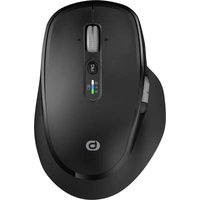
EM-10 - Mouse Essentiel B - Free user manual and instructions
Find the device manual for free EM-10 Essentiel B in PDF.


| Brand | Essentiel B |
| Model | EM-10 |
| Product Type | Ergonomic wireless mouse |
| Dimensions (L x W x H) | 122 x 83 x 49 mm |
| Weight | Not specified (lightweight, approx. 100 g estimated) |
| Power | Rechargeable lithium-ion battery 3.7 V 300 mAh (1.11 Wh) |
| Battery Life | Rechargeable via USB-C, red light during charging, turns off when fully charged |
| Connectivity | 2.4 GHz wireless (USB-A/USB-C receiver) and Bluetooth 4.0 (dual connection) |
| Range | Up to 10 m |
| Resolution (DPI) | 1000 / 1600 / 2400 dpi (adjustable via DPI button) |
| Number of buttons | 6 buttons + clickable scroll wheel |
| Additional buttons | Previous page and next page |
| Sensor | Optical |
| Radio frequency | 2402 to 2480 MHz |
| Transmitted power | ≤ 2 mW |
| Compatible operating systems | Windows 7/8/10+, macOS 10.10+, Android 4.3+, iOS 13+ (Bluetooth) |
| Package contents | Mouse, USB-A/USB-C receiver, USB-C charging cable, manual |
| Maintenance and cleaning | Clean with a slightly damp, lint-free cloth; do not use solvents |
| Safety | Do not disassemble, avoid exposure to water, do not use near flammable gases or in hospitals/airplanes |
| Recycling | Built-in battery and product subject to WEEE regulations; dispose at a store or recycling center |
| Warranty | Valid from purchase date (receipt), does not cover damage from improper installation or normal wear |
Frequently Asked Questions - EM-10 Essentiel B
User questions about EM-10 Essentiel B
0 question about this device. Answer the ones you know or ask your own.
Ask a new question about this device
Download the instructions for your Mouse in PDF format for free! Find your manual EM-10 - Essentiel B and take your electronic device back in hand. On this page are published all the documents necessary for the use of your device. EM-10 by Essentiel B.
USER MANUAL EM-10 Essentiel B
natural_image
Close-up of a black computer mouse with a vertical control panel and indicator lights (no visible text or symbols)Notice d'utilisation / User guide / Instrucciones de uso / Bedienungsanleitung / Gebruiksaanwijzing
consignes d'usage
instructions for use
Before using the device for the first time, please read these safety instructions carefully and keep them for future reference.
Do not tamper with the mouse.
Never place the mouse near a window where it could be exposed to direct sunlight. Do not place it in any area that could be subjected to splashes of water.
Never put heavy objects on top of the mouse.
Avoid subjecting the mouse to excessive vibration or impacts.
Clean the outer surface of the mouse by wiping with a mild cleaning product.
Your mouse uses Bluetooth* technology. It transmits and receives HF radio electric frequencies in the 2.4 GHz range. These emissions can interfere with the operation of various electronic devices. To prevent accidents, turn off your mouse when you are in the following locations:
- where flammable gas is present, in a hospital, train, plane or petrol station,
- near automatic doors or fire alarms
If you have a pacemaker or other prosthesis, ask your doctor for advice.
The receiver has an operating radius of approximately 10 metres. The communication range may vary depending on obstacles (person, metal, wall, etc.) or the electromagnetic environment.

Damage may be caused if harsh cleaning products are used such as petrol or alcohol, or if liquids are allowed to penetrate into the mouse.
Ergonomics
Repetitive movements, especially those involving the same sets of muscles and joints may cause musculoskeletal injury. Typical symptoms include pain in the fingers, elbow or back of the neck. To prevent RSI, we recommend the following:
That your workstation is laid out in an ergonomic way.
The keyboard and mouse should be positioned in such a way that your arms and wrists lie at right angles to your body, and that they are extended.
Take short breaks, if necessary accompanied by stretching exercises.
Change your body position often.
Battery recycling

This device contains an internal lithium battery that may explode or release hazardous chemicals. To reduce the risk of
fire or burns, never disassemble, crush, or puncture the battery.
Do not dispose of the battery with household waste.
To protect the environment, dispose of the battery in accordance with current regulations.
Declaration of conformity
I, the undersigned, Sourcing & Creation, declare that the Essentiel b EM-10-SF wireless mouse type of radio equipment complies with Directive 2014/53/EU.
The full text of the EU declaration of conformity is available at the following address:
https://www.boulanger.com/info/assistance
natural_image
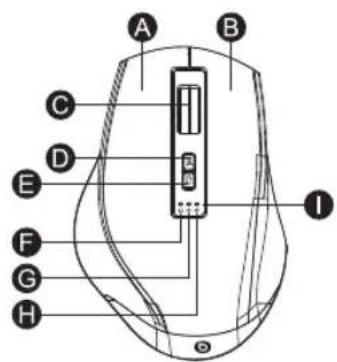
Technical line drawing of a car body with labeled points N and O (no text or symbols beyond labels)| A | Clic gauche Left button Linkermuisknop Linko Maustaste Botón izquierdo | |||
| B | Clic droit Right button Rechtermuisknop Rechte Maustate Botón derecho | |||
| C | Molette de défilament Scroll wheel Scrollwiel Scrollrad Botón rueda | |||
| D | Bouton DPI DPI button DPI knop DPI-Taste Botón DPI | |||
| E | Bouton de changement de mode Mode switch button Mode-knop Mode-Taste Botón Mode | |||
| F | Voyant USB USB indicator USB-LED USB-LED LED de USB | |||
| G | Voyant BT1 BT1 indicator BT1-LED BT1-LED LED de BT1 | |||
| H | Voyant BT2 BT2 indicator BT2-LED BT2-LED LED de BT2 | |||
| I | Voyant de charge Charging indicator Laad-LED LED-Ladeanzeige LED de carga | |||
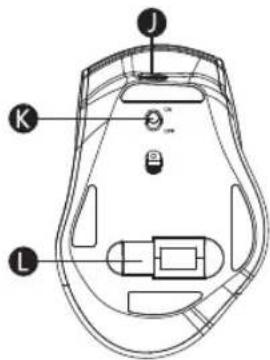
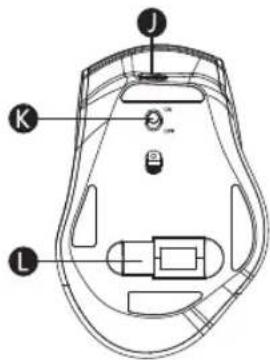
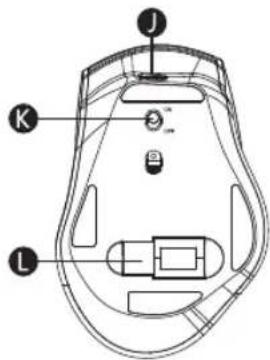
| J | Port de charge USB-C USB-C Charging port USB-C laadpoort USB-C Ladeanschluss Puerto de carga USB-C | |||
| K | Interrupteur marche/arret Power switch Aan/uit-schakelaar Ein-/Ausschalter Conmutador de encendido/apagado | |||
| L | Compartiment du récepteur USB USB slot USB-ontvangeropslag USB-Empfängerfach Almacenamiento de receptor USB | |||
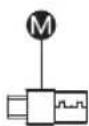
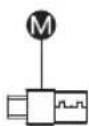
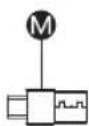
| M | Récepteur USB/USB-C USB/USB-C receiver USB/USB-C ontvanger USB/USB-C-Empfänger Receptor USB/USB-C | |||
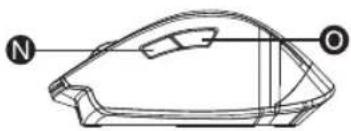
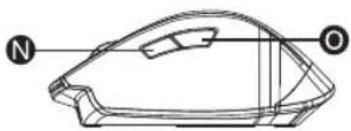
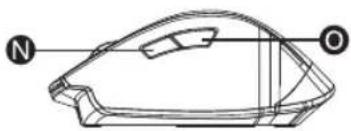
| N | Touche Page suivante Forward Knop Volgende Vor-Taste Botón de avance | |||
| O | Touche Page précédente Back Knop Vorige Zurück-Taste Botón de retroceso |
Technical specifications
Button count: 6 buttons and scroll wheel click
Built-in rechargeable battery: Li-ion, 3.7V
300mAh 1.11Wh
Sensor: optical
Resolution: 1000/1600/2400 dpi
Dimensions (L x W x H): 122 x 83 x 49 mm
Input Voltage: 5V DC
Max current consumption on input: 200mA
2.4GHz transmission
Working distance: up to 10 m
Operating voltage: 3.7 V ---
Operating current: 13 mA
Operating systems (available USB-A or USB-C port):
- Windows XP, Windows 7, Windows 8, Windows 10 and later
• Mac OS X 10.10 or later
Frequency range: 2402MHZ-2480MHZ
Power emitted: ≤2mW
Bluetooth transmission:
Working distance: up to 10 m
Bluetooth version: 4.0
Operating voltage: 3.7 V ---
Operating current: 13 mA
Operating systems (Bluetooth enable device):
• Windows 8, Windows 10 and later
• Mac OS X 10.10 or later
- Android 4.3 or later
Frequency range: 2402MHZ-2480MHZ
Power emitted: ≤2mW
Package contents
1 x Wireless mouse
1 x USB-A/USB-C receiver
1 x USB-C charging cable
1 x User guide
charging
The mouse has a built-in battery. When the battery is low, the battery indicator flashes.
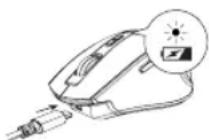
- Insert the USB-C plug of the supplied USB-C charging cable to the USB-C port on the mouse, and the USB-A plug to the USB port on your computer.
- When charging, the battery indicator turns red. When fully charged, the red battery indicator turns off.
connecting the mouse by the usb receiver
Using the supplied USB receiver, you can establish the wireless connection of the mouse to your computer. The USB receiver is preloaded in the receiver dock at the bottom of the mouse.
- Remove the USB receiver from the receiver dock at the bottom of the mouse. The receiver has USB-A plug and USB-C plug.
-
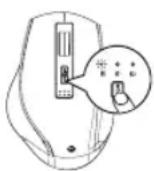
Turn the mouse on. Slide the ON/OFF switch at the bottom of the mouse to "ON" position.
-
Select the USB mode. Press the MODE button until the USB indicator lights up.
- Insert the USB-A plug of the receiver to the USB-A port on your computer, or the USB-C plug of the receiver to the USB-C port on your computer.
- The mouse is now wirelessly connected to your computer. You can control your computer by using the controls on the mouse.
NOTE: For convenient storage, put the USB receiver back in the receiver dock at the bottom of the mouse when not in use.
connecting the mouse through bluetooth
Before first use, paring the mouse with the computer is needed. Pairing is a one-time setup that allows your mouse and computer to communicate wirelessly with each other.
Activating Bluetooth pairing mode
Activate the Bluetooth pairing mode on the mouse to pair the mouse with a Bluetooth device.
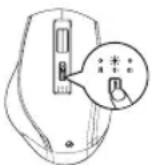
- Turn the mouse on. Slide the ON/OFF switch at the bottom of the mouse to "ON" position.
- Select Bluetooth mode. Press the MODE button until Bluetooth 1 or Bluetooth 2 indicator lights up and flashes.
- Press and hold the MODE button for more than 3 seconds until the Bluetooth 1 or Bluetooth 2 indicator flashes at a faster rate.
This indicates that the Bluetooth pairing mode is activated on the mouse.
Follow the steps below to pair the mouse with a computer (Windows or Mac) or mobile phone (iOS or Android)
A) Windows PC
Note: The following steps of the Windows
PC pairing with the mouse use Windows 10 system as example.
- Activate Bluetooth pairing mode on the mouse. When the Bluetooth pairing mode is activated, the Bluetooth 1 or Bluetooth 2 indicator flashes quickly.
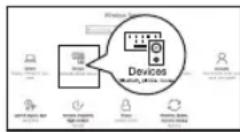
- Access
option on your computer.
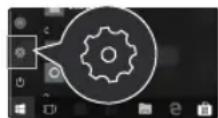
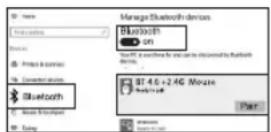
- Access
on your computer.
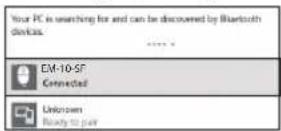
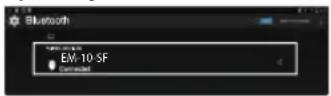
- Select "EM-10-SF" from the Bluetooth device list to start pairing with the mouse.
- When you see "EM-10-SF Connected", the mouse is paired with your computer. The Bluetooth 1 or Bluetooth 2 indicator stops
flashing quickly.
B) Mac PC
Note: The following steps of the Mac PC pairing with the mouse use Mac OS X system as example.
-
Activate Bluetooth pairing mode on the mouse. When the Bluetooth pairing mode is activated, the Bluetooth 1 or Bluetooth 2 indicator flashes quickly.
-
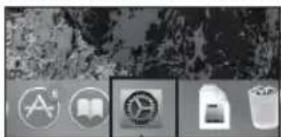
Access
under Apple menu on your computer.
- Click
to activate Bluetooth function on your computer.
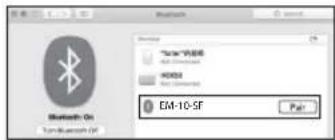
- Select "EM-10-SF" from the Bluetooth device list to start pairing with the mouse. When the computer is paired with the mouse, the Bluetooth 1 or Bluetooth 2 indicator stops flashing quickly.
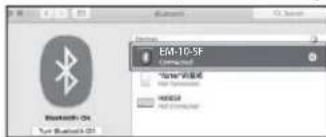
C) iOS device (only for iOS 13 or above)
-
Activate Bluetooth pairing mode on the mouse. When the Bluetooth pairing mode is activated, the Bluetooth 1 or Bluetooth 2 indicator flashes quickly.
-
Select
under the Settings and select .
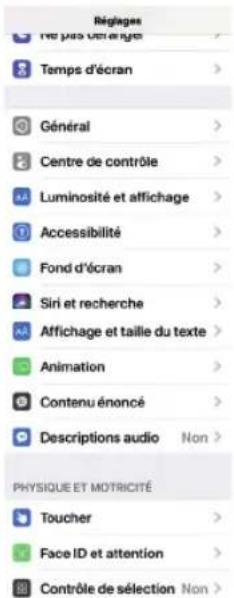
- Select
and enable its function.
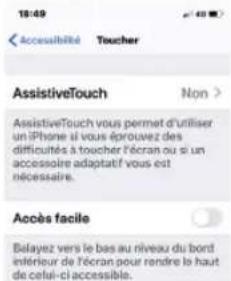
- Select "EM-10-SF" from the Bluetooth device list to start pairing.
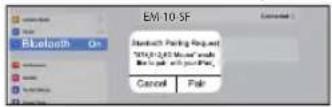
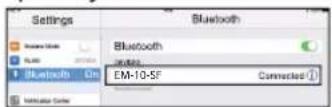
- When the mouse is successfully connected, information "EM-10-SF Connected" will appear. The Bluetooth 1 or Bluetooth 2 indicator stops flashing quickly.
D) Android device
-
Activate Bluetooth pairing mode on the mouse. When the Bluetooth pairing mode is activated, the Bluetooth 1 or Bluetooth 2 indicator flashes quickly.
-
Access
and Enable Bluetooth function.
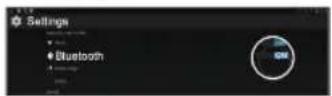
- Select "EM-10-SF" from the Bluetooth device list to start pairing.
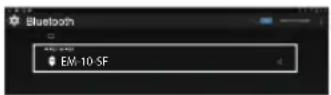
- When the mouse is successfully connected, information "EM-10-SF Connected" will appear. The Bluetooth 1 or Bluetooth 2 indicator stops flashing quickly.
notes for using the mouse
- The mouse can be used on most surfaces.
- Avoid clear, glossy, or intricately patterned surfaces. Non-reflective, opaque surfaces without repetitive patterns work best.
-
Avoid using the mouse on a metal surface. Metals, such as iron, aluminum or copper, shield the radio frequency transmission and may slow down the mouse sonor's response time or cause the mouse to fail temporarily.
-
To maximize battery life, it is recommended you use the mouse on a white or light color surface.
- If you do not use the mouse, switch it off.
dpi switch
The mouse supports 1000 dpi, 1600 dpi, 2400 dpi. Press the DPI button to switch the settings. The default setting is 1600 dpi.
mode switching
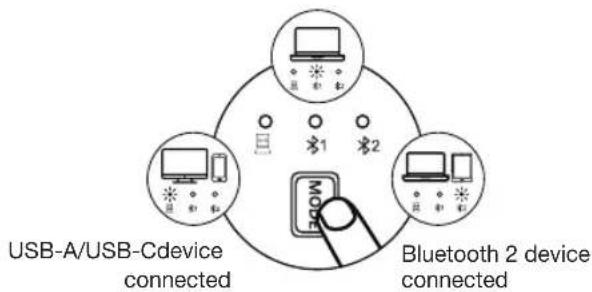
- The mouse can connect to two Bluetooth and one USB devices.
- You can switch connection between three computers or tablets (with either Bluetooth or USB-based wireless). Only one device can be controlled at a time.
- Use the MODE button to switch control on different devices which are connected to the mouse.
Bluetooth 1 device connected
care and cleaning
- To clean the outside of your mouse, use a lint-free cloth that has been lightly moistened with water.
- Do not get moisture in any openings or use aerosol sprays, solvents, or abrasives.
- Do not immerse in water.
troubleshooting
The mouse does not work.
- Check that the USB receiver is firmly connected to the USB port of your computer.
- Check the Bluetooth connection.
- Check whether the low power indicator on the top of the mouse flashes. If the indicator flashes, it is likely that the batteries are discharged. Recharge the battery.
- Ensure that the mouse is within the best operational working distance from the USB receiver.
- Change the mouse's surface. Metals, such as iron, aluminium or copper, shield the radio frequency transmission and may slow down the mouse presenter's response time or cause the mouse to fail temporarily.
natural_image
Technical line drawing of a car body part with labeled points N and O (no text or symbols beyond labels)| A | Clic gauche Left button Linkermuisknop Linko Maustaste Botón izquierdo | |
| B | Clic droit Right button Rechtermuisknop Rechte Maustate Botón derecho | |
| C | Molette de défillement Scroll wheel Scrollwiel Scrollrad Botón rueda | |
| D | Bouton DPI DPI button DPI knop DPI-Taste Botón DPI | |
| E | Bouton de changement de mode Mode switch button Mode-knop Mode-Taste Botón Mode | |
| F | Voyant USB USB indicator USB-LED USB-LED LED de USB | |
| G | Voyant BT1 BT1 indicator BT1-LED BT1-LED LED de BT1 | |
| H | Voyant BT2 BT2 indicator BT2-LED BT2-LED LED de BT2 | |
| I | Voyant de charge Charging indicator Laad-LED LED-Ladeanzeige LED de carga | |
| J | Port de charge USB-C USB-C Charging port USB-C laadpoort USB-C Ladeanschluss Puerto de carga USB-C | |
| K | Interrupteur marche/amêt Power switch Aan/uil-schakelaar Ein-/Ausschalter Conmutador de encendido/apagado | |
| L | Compartiment du récepteur USB USB slot USB-ontvangeropslag USB-Empfängerfach Almacenamiento de receptor USB | |
| M | Récepteur USB/USB-C USB/USB-C receiver USB/USB-C ontvanger USB/USB-C-Empfänger Receptor USB/USB-C | |
| N | Touche Page suivante Forward Knop Volgende Vor-Taste Botón de avance | |
| O | Touche Page précédente Back Knop Vorige Zurück-Taste Botón de retroceso |
Bluetooth-Version: 4,0
natural_image
Technical line drawing of a car body part with labeled points N and O (no text or symbols beyond labels)| A | Clic gauche Left button Linkermuiskknop Linko Maustaste Botón izquierdo | |
| B | Clic droit Right button Rechtermuiskknop Rechte Maustate Botón derecho | |
| C | Molette de défillement Scroll wheel Scrollwiel Scrollrad Botón rueda | |
| D | Bouton DPI DPI button DPI knop DPI-Taste Botón DPI | |
| E | Bouton de changement de mode Mode switch button Mode-knop Mode-Taste Botón Mode | |
| F | Voyant USB USB indicator USB-LED USB-LED LED de USB | |
| G | Voyant BT1 BT1 indicator BT1-LED BT1-LED LED de BT1 | |
| H | Voyant BT2 BT2 indicator BT2-LED BT2-LED LED de BT2 | |
| I | Voyant de charge Charging indicator Laad-LED LED-Ladeanzeige LED de carga | |
| J | Port de charge USB-C USB-C Charging port USB-C laadpoort USB-C Ladeanschluss Puerto de carga USB-C | |
| K | Interrupteur marche/amêt Power switch Aan/uit-schakelaar Ein-/Ausschalter Conmutador de encendido/apagado | |
| L | Compartiment du récepteur USB USB slot USB-ontvangoropslag USB-Empfängerfach Almacenamiento de receptor USB | |
| M | Récepteur USB/USB-C USB/USB-C receiver USB/USB-C ontvanger USB/USB-C-Empfänger Receptor USB/USB-C | |
| N | Touche Page suivante Forward Knop Volgende Vor-Taste Botón de avance | |
| O | Touche Page précédente Back Knop Vorige Zurück-Taste Botón de retroceso |
Technische specificaties
The power delivered by the charger must be between min 0.1 Watts required by the radio equipment, and max 0.5 Watts in order to achieve the maximum charging speed.
All information, designs, drawings and pictures in this document are the property of SOURCING & CREATION. SOURCING & CREATION reserves all rights to its brands, designs and information. Any copy and reproduction through any means shall be deemed and considered as counterfeiting.
Protection of the environment
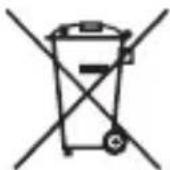
This symbol attached to the product means that it is an appliance whose disposal is subject to the directive on waste from electrical and electronic equipment (WEEE). This appliance may not in any way be treated as household waste and must be subject to a specific type of removal for this type of waste. Recycling and recovery systems are available in your area (waste removal) and by distributors. By taking your appliance at its end of life to a recycling facility, you will contribute to environmental conservation and prevent any harm to your health.


Tested in our laboratories
Warranty valid from the date of purchase (receipt as proof of purchase). This warranty does not cover defects or damage caused by improper set up, incorrect use, or normal wear and tear of this product.