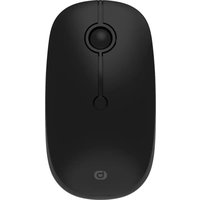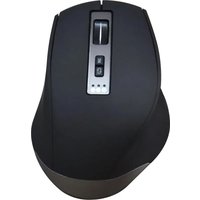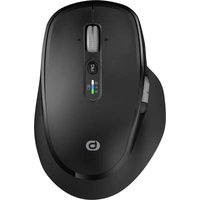
ME_DW - Mouse Essentiel B - Free user manual and instructions
Find the device manual for free ME_DW Essentiel B in PDF.


User questions about ME_DW Essentiel B
0 question about this device. Answer the ones you know or ask your own.
Ask a new question about this device
Download the instructions for your Mouse in PDF format for free! Find your manual ME_DW - Essentiel B and take your electronic device back in hand. On this page are published all the documents necessary for the use of your device. ME_DW by Essentiel B.
USER MANUAL ME_DW Essentiel B
natural_image
Close-up of a black computer mouse with a scroll wheel and control knob (no visible text or symbols)Notice d'utilisation / User guide / Bedienungsanleitung / Gebruiksaanwijzing
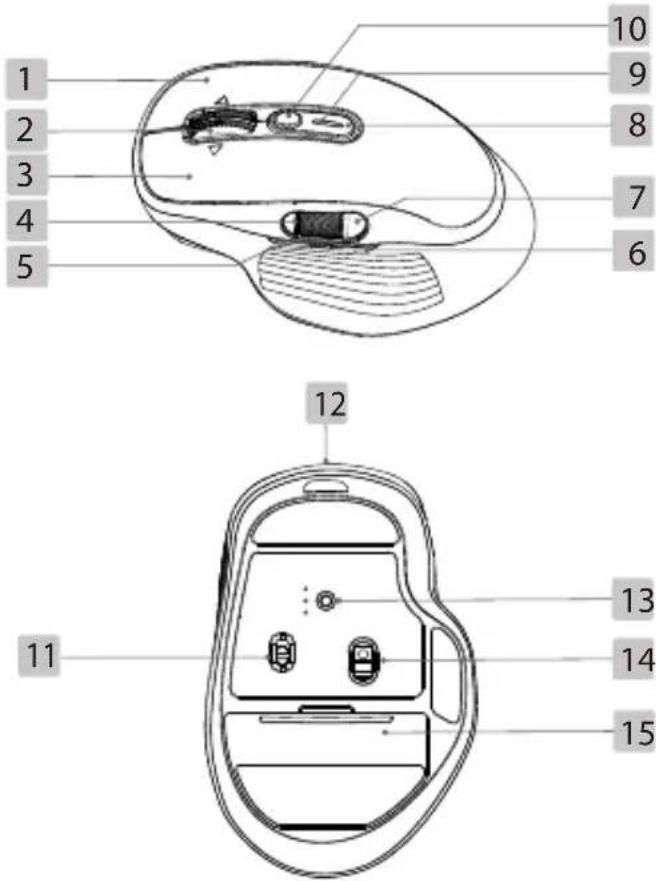
| FR EN DE NL | ||||
| 1 | Bouton droit Right button Rechte Taste Rechtermuisknop | |||
| 2 | Molette centrale | Centre wheel Mittleres Scrollrad | Centraal scrollwieltje | |
| 3 | Bouton gauche Left button Linke Taste Linkermuisknop | |||
| 4 | Molette latérale Side wheel Seitliches Scrollrad | Scrollwieltje aan de zijkant | ||
| 5 | Bouton Avant | Forward button | Vorwärtstaste Knop Voor | |
| 6 | Bouton Arrière | Back button | Rückwärtstaste | Knop Achter |
| 7 | Bouton de raccourci bureau | Desktop shortcut button | Desktop-Verknüpfungstaste | Sneltoets bureaublad |
| 8 | Bouton de sélection du mode de fonctionnement | Mode selector button | Auswahlschalter für den Betriebsmodus | Keuzeknop van de werkingsmodus |
| 9 | Témoin lumineux | Indicator light | Kontrollleuchte Signaallampje | |
| 10 | Bouton de sélection DPI | DPI selector button | DPI-Auswahltaste DPI-keuzeknop | |
| 11 | Bouton marche/arrêt | ON/OFF button | Ein-/Aus-Schalter Aan/uit-knop | |
| 12 | Port de charge USB-C | USB-C charging port | USB-C-Ladeanschluss | USB-C-oplaadpoort |
| 13 | Bouton d'inversion des fonctions des molettes | Button for reversing wheel functions | Taste zum Umkehren der Radfunktionen | Knop om de functies van de scrollwieltjes om te keren |
| 14 | Capteur optique | Optical sensor | Optischer Sensor | Optische sensor |
| 15 | Logement du dongle USB | USB dongle slot | Steckplatz für den USB-Dongle | Vak voor USB-dongle |
votre produit
natural_image
Technical line drawing of a computer mouse with a close-up view showing internal components (no text or symbols)natural_image
Line drawing of a medical device with a hand holding a small object (no text or symbols)natural_image
Line drawing of a computer mouse with a button and handle, no text or symbols presentConnexion de la souris via Bluetooth
natural_image
Line drawing of a computer mouse with a scroll wheel and control buttons (no text or symbols)natural_image
Diagram of a cable connector with a magnified inset showing internal components (no text or symbols)UTILISATION DE LA MOLETTE MULTI-DIRECTIONNELLE CENTRALE
natural_image
Line drawing of a stylized car or vehicle with no visible text, numbers, or symbolsnatural_image
Line drawing of a mechanical device with a circular component and a labeled component (no text or symbols)UTILISATION DES BOUTONS AVANT/ARRIÈRE
natural_image
Cross-sectional diagram of a curved mechanical component with internal components (no text or symbols)INVERSION DES FONCTIONS DES MOLETTES
natural_image
Line drawing of a car door with two seats and a circular dial indicator (no text or symbols)DECLARATION DE CONFORMITÉ
Number of buttons 7 buttons and 2 wheels (1 central multidirectional wheel + 1 side wheel)
Connectivity Wireless mouse with Bluetooth 5.0 connectivity & 2.4GHz USB-A dongle
Rechargeable built-in battery Lithium-ion, 3.7 V 500 mAh
Sensor Optical, Sigma 8920
DPI sensitivity 1000/1600/2400/3200/4800
Dimensions (L x W x H) 11.5 x 7.6 x 4.3 cm
Weight 112±3 g
Input voltage 5 V
Compatibility Windows and Mac
Max input current consumption 20 mA
Mouse button lifespan 10 million clicks
Battery life 140 hours
Charging time 4 hours
2.4 GHz transmission
• Operating range: up to 10 m max
• Operating voltage: 3.7 V
• Operating current: 3.5 mA
- Compatibility: 2.4 G: Windows XP, Windows 7, Windows 8, Windows 10, Windows 11 and later versions; Mac OS X 10.5 and later versions
• Transmitted power: ≤ 0.214 mW
• Frequency range: 2402 MHz to 2480 MHz
Bluetooth transmission:
• Operating range: up to 10 m max
- Bluetooth versions: 5.1
• Operating voltage: 3.7 V
• Operating current: 3.5 mA
- Operating system (Bluetooth 5.1-enabled device): Windows 8, Windows 10, Windows 11 and later versions; Mac OS X 10.5 and later versions
• Transmitted power: < 2.3 mW
• Frequency range: 2402MHz to 2480MHz
Box contents
1 wireless rechargeable mouse
1 USB-A receiver
1 x 1.5 m cable
1 Instruction manual
charging
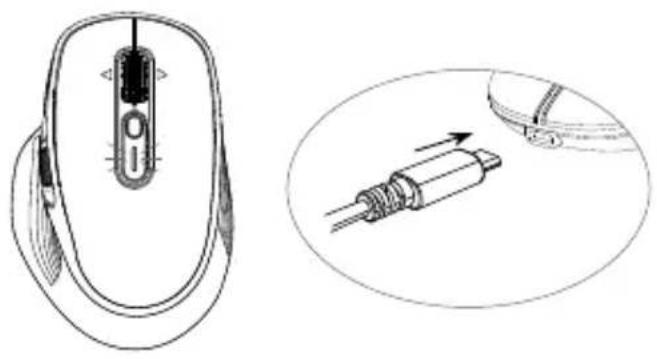
The mouse has a built-in battery. When the charge level is low, the indicator light flashes red.
natural_image
Technical line drawing of a computer mouse with a close-up view showing internal components (no text or symbols)- Insert the USB-C end of the charging cable into the USB-C port on the mouse and the other end into a free port on your computer or a mains adapter.
- During charging, the battery indicator light is red. Once the mouse is fully charged, the battery indicator light goes out.
- Charging time is 4 hours maximum depending on battery level.
connections
Connecting the mouse via the USB-A receiver
With the USB-A receiver supplied, you can establish a wireless connection between the mouse and your computer. The USB-A receiver is stored in the slot on the back of the mouse.
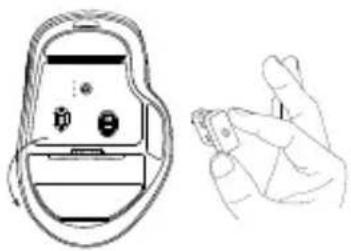
- Remove the cover from the receiver/dongle slot on the back of the mouse. Remove the USB-A receiver from its slot. Replace the cover.
natural_image
Line drawing of a medical device with a hand holding a small object (no text or symbols)- Insert the USB-A receiver into a free USB port on your computer. The mouse will connect automatically.
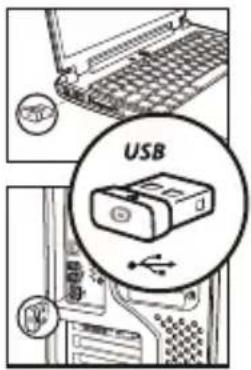
- Switch on the mouse. Slide the on/off switch on the back of the mouse to the "ON" position.
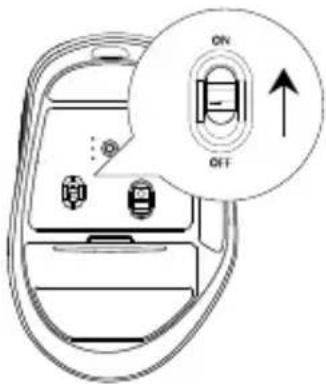
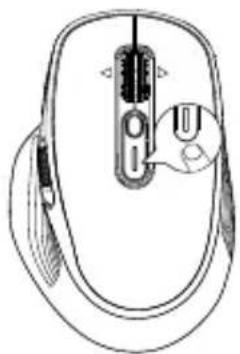
- Select USB-A mode. Press the mode selector button until the indicator light turns white.
natural_image
Line drawing of a computer mouse with a close-up inset showing the internal structure (no text or symbols)- The mouse is now wirelessly connected to your computer. You can control your computer using the mouse.
COMMENTS:
- for easy storage, return the USB-A receiver to the slot on the back of the mouse when not in use.
- in the event of malfunction, you can pair the mouse and dongle again: press the mode selector button for 3 seconds to activate pairing mode. The light flashes quickly and pairing takes place automatically.
Connecting the mouse via Bluetooth
Before the first Bluetooth use, the mouse must be paired with the computer. Pairing is a one-off operation that enables your mouse and computer to communicate wirelessly with each other.
Furthermore, your mouse has 2 Bluetooth channels, so it can be connected to 2 Bluetooth devices.
- Switch on the mouse. Slide the on/off switch on the back of the mouse to the "ON" position.
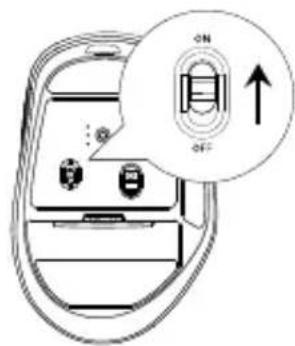
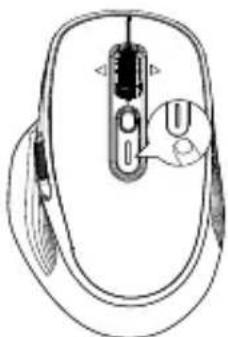
- Select the Bluetooth channel you wish to use: BT1 or BT2. Press the mode selector button until the indicator light turns blue (BT1) or green (BT2).
natural_image
Line drawing of a computer mouse with a handle and scroll, showing no text or symbols- Press and hold the mode selector button for 3 seconds until the light flashes quickly.
The mouse's Bluetooth pairing mode is now activated. The connection between the mouse and your device should be automatic.
Windows PC
Note: the following steps for pairing a Windows PC with the mouse are based on a Windows 10 system as an example.
- Go to
, then on your computer. - Go to
. Select - Select "ME_DW BT1" or "ME_DW BT2" from the list of Bluetooth devices.
- Once pairing is complete, the device should be listed as connected.
using the mouse
Notes on use
• The mouse can be used on most surfaces.
- Avoid light, shiny or intricately patterned surfaces. Non-reflective, opaque surfaces without repetitive patterns are the most effective.
- Avoid using the mouse on metal surfaces. Metals such as iron, aluminium or copper block the transmission of radio waves and can slow down the mouse sensor's response time or cause temporary mouse failure.
- When you are not using the mouse, switch it off.
Using the controls
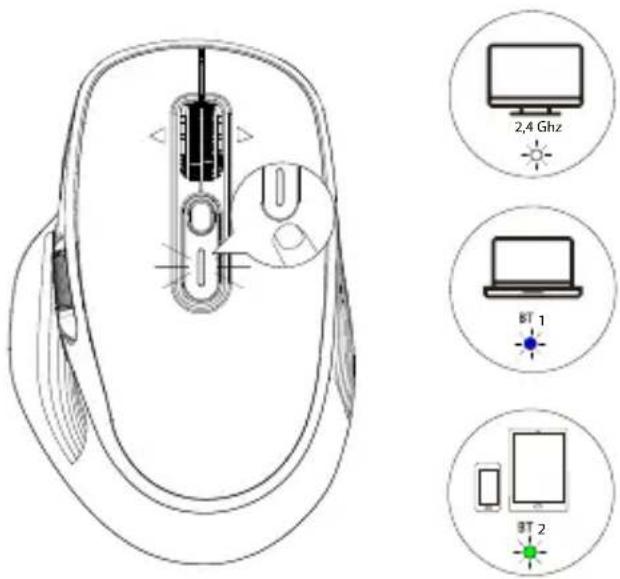
MODE CHANGE
- The mouse can connect to two Bluetooth devices (BT1/ BT2 channels) and one device via the USB-A dongle (2.4 GHz channel).
- You can switch the connection between the three computers or tablets (wireless via Bluetooth or via the USB-A dongle). NOTE: you can only control one device at a time.
Use the mode selector button to switch between the various devices connected to the mouse.
Selection is possible in this order:
2.4 Ghz - BT1 - BT2
The colour of the indicator light is:
White - blue - green
SENSITIVITY ADJUSTMENT
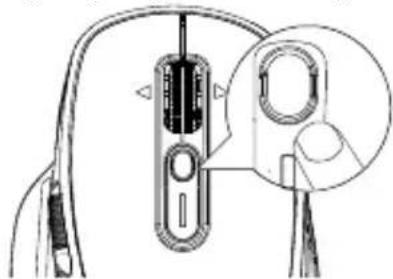
The mouse supports 1000, 1600, 2400, 3200, 4800 DPI settings.
Click on the DPI button on the mouse to switch between DPI settings.
natural_image
Diagram of a mechanical device with a magnified inset showing a circular component (no text or symbols)USING THE CENTRAL MULTIDIRECTIONAL WHEEL
The mouse has a multidirectional wheel located between the left and right buttons. It can be moved up, down, left and right.
 | Scroll up |
 | Scroll down |
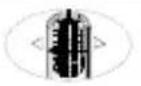 | Zoom out |
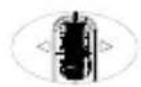 | Zoom in |
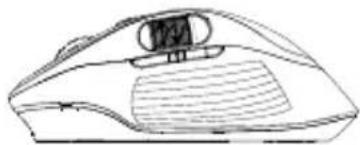
The mouse has a side wheel on the left-hand side. It can be moved up and down.
Roll the wheel up/down to move the cursor from left to right in a file.
natural_image
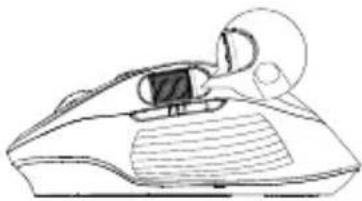
Line drawing of a mechanical component or device with no visible text or symbolsThe button to the right of the side wheel takes you to your computer's desktop.
natural_image
Line drawing of a mechanical device with a central component and surrounding components (no text or symbols)USING THE FORWARD/BACK BUTTONS
The mouse has two side buttons located under the side wheel. Their purpose is forward and back navigation.
natural_image
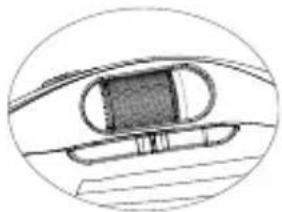
Diagram of a curved mechanical component with a rectangular block inside, enclosed in a circular boundary (no text or symbols)REVERSING WHEEL FUNCTIONS
The mouse allows you to reverse the functions of the side wheel (moving from left to right) and the left and right clicks of the central multidirectional wheel (zoom in/out).
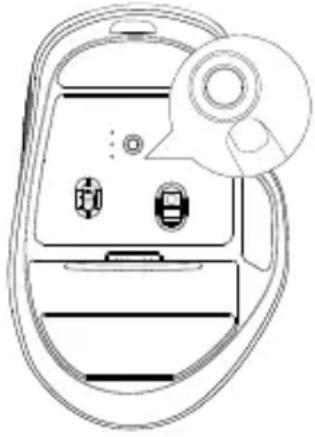
Press the red button under the mouse to reverse these functions.
Use the side wheel to zoom in and out, and the left and right clicks on the central wheel to move from left to right in a file.
natural_image
Line drawing of a car interior with two cars and a doorbell icon (no text or symbols)maintenance and upkeep
• To clean your mouse, use a slightly damp, lint-free cloth.
- Do not allow water to penetrate the openings and do not use aerosols, solvents or abrasive products.
- Do not immerse the mouse in water.
troubleshooting
The mouse is not working.
- Make sure the USB receiver is connected to the USB port on your computer.
- Check the Bluetooth connection.
- Check whether the low battery indicator light is flashing. If the indicator light is flashing, the battery is probably flat. Recharge the battery.
- Make sure the mouse is at an optimal operating distance from the USB receiver.
- Use the mouse on another surface if it malfunctions. Metals such as iron, aluminium or copper act as a shield on the transmission of radio frequencies and can slow down the mouse's response time or temporarily stop its operation.
- When the mouse has not been used for some time, it goes into standby mode. If the mouse does not activate again after this, press the mode selector button.
DECLARATION OF CONFORMITY
The undersigned, Sourcing & Création, hereby declares that Essentiel B ME_DW radio electric equipment complies with Directive 2014/53/EU. The full text of the EU declaration of conformity is available from the following Internet address:
https://www.boulanger.com/info/assistance
Ihr Produkt
Technische Merkmale
natural_image
Line drawing of a computer mouse with a close-up view showing the internal components (no text or symbols)natural_image
Line drawing of a medical device with a close-up of its hand holding a small object (no text or symbols present)natural_image
Line drawing of a computer mouse with a button and handle, no text or symbols presentnatural_image
Line drawing of a computer mouse with a scroll wheel and control buttons (no text or symbols)natural_image
Technical diagram of a cable connector with a magnified inset showing internal components (no text or symbols)VERWENDUNG DES MITTLEREN MULTIDIREKTIONALEN SCROLLRADS
natural_image
Line drawing of a stylized white object resembling a computer mouse or device, with no visible text or symbols.natural_image
Line drawing of a mechanical device with a circular component and a central screen (no text or symbols)natural_image
Diagram of a mechanical component with a rectangular block inside a curved housing, enclosed in an oval boundary (no text or symbols)FUNKTIONSUMKEHR DER SCROLLRÄDER
natural_image
Line drawing of a handheld device with two ports and a circular dial indicator (no text or symbols)natural_image
Diagram showing a computer mouse with a close-up of its internal cable being inserted into a terminal device (no text or symbols present)natural_image
Line drawing of a medical device with a hand holding a small object (no text or symbols)natural_image
Line drawing of a computer mouse with a handle and control panel (no text or symbols)natural_image
Line drawing of a computer mouse with a scroll wheel and control buttons (no text or symbols)natural_image
Diagram of a cable connector with a magnified inset showing internal components (no text or symbols)GEBRUIK VAN HET CENTRALE MULTIDIRECTIONELE SCROLLWIELTJE
natural_image
Line drawing of a futuristic electronic device with a screen and ventilation slots (no text or symbols)
natural_image
Line drawing of a mechanical device with a circular component and a central component (no text or symbols)DE KNOPPEN NAAR VOREN/NAAR ACHTEREN GEBRUIKEN
natural_image
Diagram of a vehicle's rearview mirror and dashboard (no text or symbols)OMKERING VAN DE FUNCTIES VAN DE SCROLLWIELTJES
natural_image
Line drawing of a car interior with two seats and a circular dial indicator (no text or symbols)onderhoud
The power delivered by the charger must be between min 0,1 Watt required by the radio equipment, and max 0,8 Watts in order to achieve the maximum charging speed.
All information, designs, drawings and pictures in this document are the property of SOURCING & CREATION. SOURCING & CREATION reserves all rights to its brands, designs and information. Any copy and reproduction through any means shall be deemed and considered as counterfeiting.
Protection of the environment
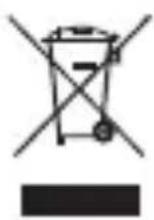
This symbol attached to the product means that it is an appliance whose disposal is subject to the directive on waste from electrical and electronic equipment (WEEE). This
appliance may not in any way be treated as household waste and must be subject to a specific type of removal for this type of waste. Recycling and recovery systems are available in your area (waste removal) and by distributors. By taking your appliance at its end of life to a recycling facility, you will contribute to environmental conservation and prevent any harm to your health.
Umweltschutz
\* Tested in our laboratories
Warranty valid from the date of purchase (receipt as proof of purchase). This warranty does not cover defects or damage caused by improper set up, incorrect use, or normal wear and tear of this product.
\* In unseren Labors getestet
natural_image
Symbolic icon of a person walking with arrows, enclosed in a circle (no text or numbers)
CE
essentiel

SERVICE RELATION
CLIENTS /
Customer Relations
Department /
Kundenservice /
Klantenafdeling
Avenue de la Motte
CS 80137
59811 Lesquin cedex
Art. 8011848
Ref. ME_DW