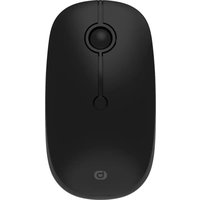
USER MANUAL M-11-SF Essentiel B
natural_image
Black computer mouse with silver bezel and black handle, isolated on white background (no text or symbols)
Notice d'utilisation / User guide /
Bedienungsanleitung / Gebruiksaanwijzing
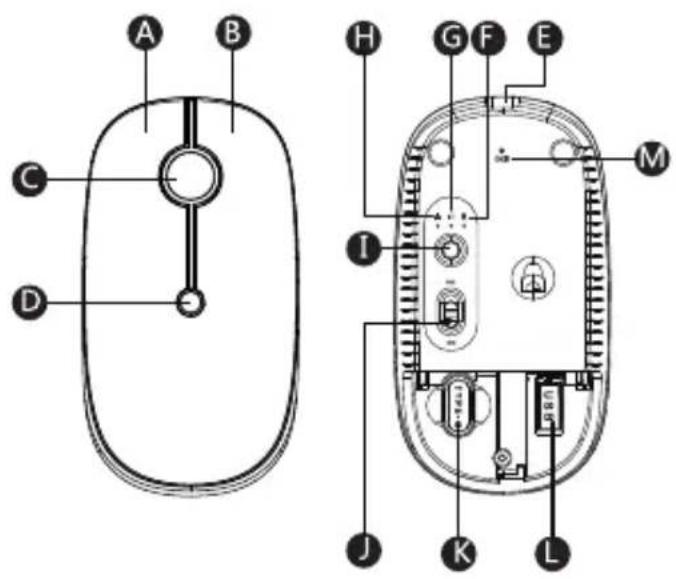
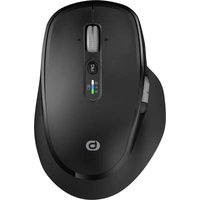
| A | Bouton gauche Left button Linke Taste Linkerknop | | |
| B | Bouton droit Right button Rechte Taste Rechterknop | | |
| C | Molette de défilement Scroll wheel Scroll-Rad Scrollwiel | | |
| D | Bouton DPI DPI button DPI-Taste DPI-knop | | |
| E | Port de chargement USB-C USB-C charging port USB-C Ladeans-chluss USB-C-oplaadpoort | | |
| F | Voyant de connexion USB-A USB-A connection indicator Anzeige USB-A-Verbindung USB-A-verbindings-indicator | | |
| G | Voyant de connexion Bluetooth USB-C connection indicator Bluetooth-Verbindung Bluetooth-verbindings-indicator | | |
| H | Voyant de connexion USB-C connection indicator USB-C-Verbindung USB-C-verbindings-indicator | | |
| I | Bouton de mode USB-C / Bluetooth / USB-A USB-C / Bluetooth/ USB-A Bluetooth mode button USB-C / Bluetooth/ USB-A Bluetooth mode button USB-A Bluetooth | | |
| J | Interrupteur de marche/arrêt ON/OFF power switch EIN/AUS-Schalter AAN/UIT-schakelaar | | |
| K | Récepteur USB-C USB-C receiver USB-C-Empfänger USB-C-ontvanger | | |
| L | Récepteur USB-A USB-A receiver USB-A-Empfänger USB-A-ontvanger | | |
| M | Voyants de batterie faible et de charge Low power and charging indicators Anzeigen für niedrige Ladung und Laden Lage energie en oplaad-indicatoren | | |
votre produit
natural_image
Diagram showing a computer mouse with a close-up view of its internal components (no text or symbols present)
natural_image
Hand inserting a plug into a device (no text or symbols visible)
natural_image
Diagram of a device with labeled ports and a magnified inset showing a circular component (no text or symbols)
natural_image
Icon showing a gear inside a circle, with no visible text or symbols
- Accédez à .
flowchart
graph TD
    A["Server"] --> B["Device"]
    B --> C["Desktop"]
    B --> D["Mobile Device"]
    B --> E["Smart Control"]
    B --> F["Data Storage"]
    B --> G["Network Management"]
    style A fill:#f9f,stroke:#333
    style B fill:#ccf,stroke:#333
    style C fill:#cfc,stroke:#333
    style D fill:#fcc,stroke:#333
    style E fill:#cff,stroke:#333
    style F fill:#ffc,stroke:#333
    style G fill:#cfc,stroke:#333
natural_image
Hand holding a device with a button and indicator lights (no visible text or symbols)
natural_image
Three electronic devices shown in sequence: smartphone, tablet, and laptop, each with a lock icon below (no text or symbols)
| Number of buttons | 3 buttons and clickable scroll wheel |
| Rechargeable built-in battery | Lithium-ion, 3.7 V 300 mAh1.11 Wh |
| Sensor Optical | |
| Resolution 1000/1600/2400 PPP (dots per inch) |
| Dimensions (L x W x H) | 110x60x32 mm |
| Input voltage 5 V | --- |
| Maximum input current consumption | 200 mA |
| Charging time 2 hours |
2.4 GHz transmission
- Operating range: up to 10 m max.
• Operating voltage: 3.7 V ---
• Operating current: 6 mA
• Operating frequency range: 250 Hz
- Compatibility: 2.4 G: Windows XP, Windows 7, Windows 8, Windows 10, Windows 11 and later versions; Mac OS X 10.5 and later versions
• Emitted power: ≤ 2 mW
• Frequency range: 2402 MHz to 2480 MHz
Bluetooth transmission:
• Operating range: up to 10 m max.
- Bluetooth version: 3.0 / 5.0
• Operating voltage: 3.7 V ---
• Operating current: 5.5 mA
- Operating system (3.0 Bluetooth-enabled device): Windows XP, Windows 7, Windows 8, Windows 10, Windows 11 and later versions; Mac OS X 10.5 and later versions
- Operating system (5.0 Bluetooth-enabled device): Windows 8, Windows 10, Windows 11 and later versions; Mac OS X 10.5 and later versions
• Emitted power: < 18.5 mW
• Frequency range: 2402 MHz to 2480 MHz
Box contents
1 wireless rechargeable mouse
1 USB-C receiver
1 USB-A receiver
1 USB-C to USB-C cable
1 Instruction manual
charging
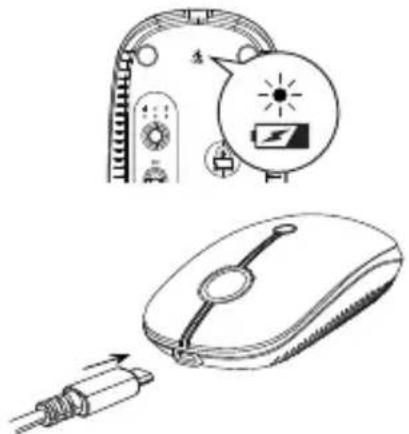
The mouse has a built-in battery. When the charge level is low, the battery indicator light flashes.
natural_image
Illustration of a computer mouse and its electrical switch, showing the circuit board and battery symbol (no text or labels)
- Insert one end of the USB-C cable supplied into the USB-C port on the mouse and the other USB-C end into the USB-C port on your device.
- During charging, the battery indicator light is red. Once the mouse is fully charged, the battery indicator light goes out.
- Charging time is 2 hours maximum depending on battery level.
connections
Connecting the mouse via the USB-A receiver
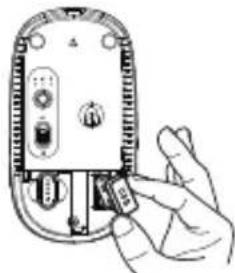
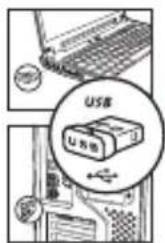
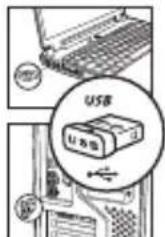
With the USB-A receiver supplied, you can establish a wireless connection between the device and your computer. The USB-A receiver is stored in the slot on the back of the mouse.
- Slide the receiver cover downwards. Remove the USB-A receiver from its slot on the back of the mouse. Put the receiver cover back in place and slide it upwards.
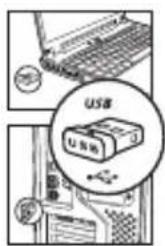
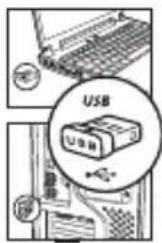
- Insert the USB-A receiver into a free USB port on your computer. The mouse will connect automatically.
natural_image
Hand inserting a small electronic component into a device housing (no text or symbols visible)
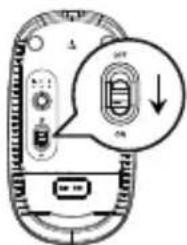
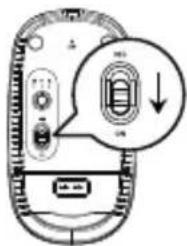
- Switch on the mouse. Slide the on/off switch on the back of the mouse to the "ON" position.
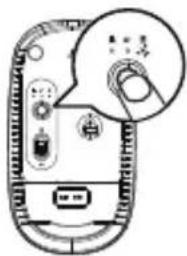
- Select USB-A mode. Press the USB-A/USB-C/Bluetooth mode button until the USB-A connection indicator lights up red.
natural_image
Diagram of a device with labeled ports and a magnified inset showing a circular component (no text or symbols)
- The mouse is now wirelessly connected to your computer. You can control your computer using the mouse.
NOTE: for easy storage, return the USB-A receiver to the slot on the back of the mouse when not in use.
Connecting the mouse via Bluetooth
Before using the mouse for the first time, it must be paired with the computer. Pairing is a one-off operation that enables your mouse and computer to communicate wirelessly with each other.
Activating Bluetooth pairing mode
- Switch on the mouse. Slide the on/off switch on the back of the mouse to the "ON" position.
-
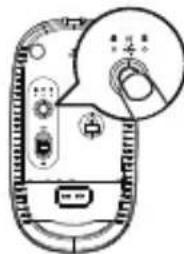
Select Bluetooth mode. Press the mode button until the Bluetooth indicator lights up and flashes.
-
Press and hold the mode button for more than 5 seconds until the Bluetooth indicator flashes faster.
The mouse's Bluetooth pairing mode is now activated.
Windows PC
Note: the following steps for pairing a Windows PC with the mouse are based on a Windows 8 system as an example.
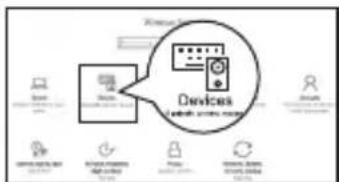
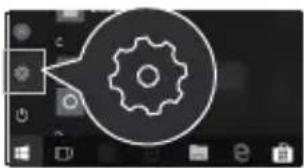
- Access on your computer.
natural_image
Icon showing a gear inside a software interface (no text or symbols)
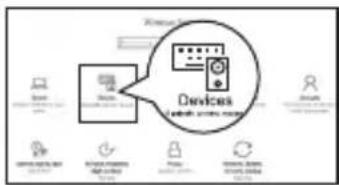
- Go to .
flowchart
graph TD
    A["Server"] --> B["Device"]
    B --> C["Database"]
    C --> D["Component"]
    D --> E["Storage"]
    E --> F["Data"]
    F --> G["Application"]
    G --> H["Software"]
    H --> I["External"]
- If the system cannot find the mouse, select "M-11-SF" from the list of Bluetooth devices.
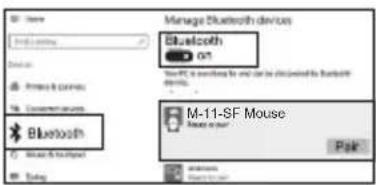
- Once pairing is complete, the device should be listed as connected.
Connecting the mouse via the USB-C receiver
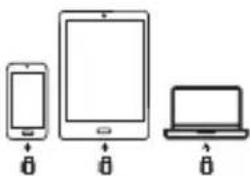
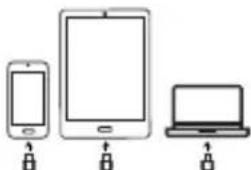
With the USB-C receiver supplied, you can establish a wireless connection from the mouse to your computer, mobile phone or tablet. The USB-C receiver is stored in the slot provided on the back of the mouse.
-
Slide the receiver cover downwards. Remove the USB-C receiver from its slot on the back of the mouse. Put the receiver cover back in place and slide it upwards.
-
Insert the USB-C receiver into a free USB port on your computer, mobile phone or tablet. The mouse will connect automatically.
-
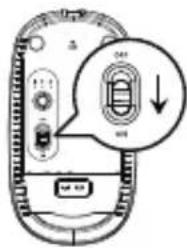
Switch on the mouse. Slide the on/off switch on the back of the mouse to the "ON" position.

natural_image
Hand holding a device with buttons and a pointer (no visible text or symbols)
natural_image
Three electronic devices shown in line drawings: smartphone, tablet, and laptop, each with a lock icon (no text or symbols)
- Select USB-C mode. Press the USB-A/USB-C/Bluetooth mode button until the USB-C connection indicator lights up green.
- The mouse is now wirelessly connected to your computer. You can control your computer using the mouse.
NOTE: For easy storage, return the USB-A receiver to the slot on the back of the mouse when not in use.
notes on using the mouse
- The mouse can be used on most surfaces.
- Avoid light, shiny or intricately patterned surfaces. Non-reflective, opaque surfaces without repetitive patterns are the most effective.
- Avoid using the mouse on metal surfaces. Metals such as iron, aluminium or copper block the transmission of radio waves and can slow down the mouse sensor's response time or cause temporary mouse failure.
- To optimise battery life, we recommend using the mouse on a white or light-coloured surface.
- When you are not using the mouse, switch it off.
adjusting the resolution
The mouse supports 1000 DPI, 1600 DPI and 2400 DPI settings.
Click on the DPI button on the mouse once to switch from 1000 DPI to 1600 DPI; click again to return to 2400 DPI.
mode change
- The mouse can connect to one Bluetooth device and two USB devices.
- You can switch the connection between three computers or tablets (wireless via Bluetooth or USB).
NOTE: you can only control one device at a time.
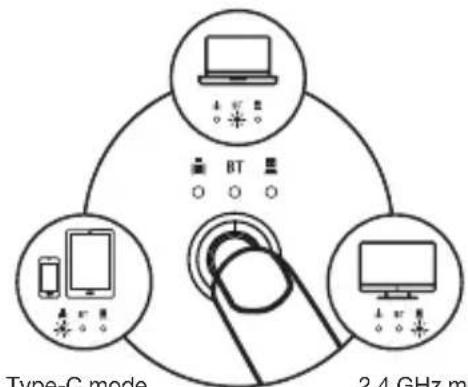
- Use the USB-A/USB-C/Bluetooth mode button to switch between the various devices connected to the mouse.
- Depending on your choice, press the USB-A/USB-C/Bluetooth mode button to switch to the desired connection.
BT mode
The indicator light is blue
flowchart
graph TD
    A["Device 1"] --> B["Type-C mode"]
    C["Device 2"] --> B
    D["Device 3"] --> B
    B --> E["2.4 GHz m"]
Type-C mode
The indicator light is green
2.4 GHz mode
The indicator light is red
maintenance and upkeep
- To clean your mouse, use a slightly damp, lint-free cloth.
- Do not allow water to penetrate the openings and do not use aerosols, solvents or abrasive products.
- Do not immerse the mouse in water.
troubleshooting
The mouse is not working.
• Make sure the USB receiver is connected to the USB port on your computer.
- Check the Bluetooth connection.
- Check if the low battery indicator light on the back of the mouse is flashing. If the indicator light is flashing, the battery is probably flat. Recharge the battery.
- Make sure the mouse is at an optimal operating distance from the USB receiver.
- Use the mouse on another surface if it malfunctions. Metals such as iron, aluminium or copper act as a shield on the transmission of radio frequencies and can slow down the mouse's response time or temporarily stop its operation.
- When the mouse has not been used for some time, the battery-saving standby mode is activated. If the mouse does not activate again after this, press the USB-A/USB-C/Bluetooth mode button.
Ihr Produkt
Technische Merkmale
natural_image
Hand inserting a component into a device (no text or symbols visible)
natural_image
Icon showing a gear inside a circle, with no text or symbols present
natural_image
Hand holding a device with a button and indicator lights (no text or symbols visible)
natural_image
Three electronic devices shown in line drawings: smartphone, tablet, and laptop, each with a lock icon below (no text or symbols)
natural_image
Technical illustration of a computer mouse with a close-up view showing its internal components and wiring (no text or symbols present)
natural_image
Hand inserting a plug into a device component (no text or symbols visible)
natural_image
Diagram of a device with labeled ports and a magnified inset showing a circular component (no text or symbols)
natural_image
Diagram of a device with a dial indicator and control buttons (no text or symbols)
natural_image
Icon showing a gear inside a circle, with no visible text or symbols
natural_image
Hand holding a device with a knob and control buttons (no visible text or symbols)
natural_image
Three devices shown in line drawings: smartphone, tablet, and laptop with lock icons (no text or symbols)

resolutie-instelling
The power delivered by the charger must be between min 0.02 Watts required by the radio equipment, and max 1.5 Watts in order to achieve the maximum charging speed.
All information, designs, drawings and pictures in this document are the property of SOURCING & CREATION. SOURCING & CREATION reserves all rights to its brands, designs and information. Any copy and reproduction through any means shall be deemed and considered as counterfeiting.
Protection of the environment
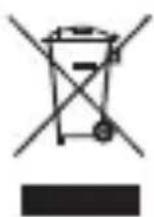
This symbol attached to the product means that it is an appliance whose disposal is subject to the directive on waste from electrical and electronic equipment (WEEE). This
appliance may not in any way be treated as household waste and must be subject to a specific type of removal for this type of waste. Recycling and recovery systems are available in your area (waste removal) and by distributors. By taking your appliance at its end of life to a recycling facility, you will contribute to environmental conservation and prevent any harm to your health.
Umweltschutz
\* Tested in our laboratories
Warranty valid from the date of purchase (receipt as proof of purchase). This warranty does not cover defects or damage caused by improper set up, incorrect use, or normal wear and tear of this product.
\* In unseren Labors getestet
natural_image
Symbolic icon of a person walking with arrows, enclosed in a circle (no text or numbers)
CE
essentiel

SERVICE RELATION
CLIENTS /
Customer Relations
Department /
Kundenservice /
Klantenafdeling
Avenue de la Motte
CS 80137
59811 Lesquin cedex
Art. 8011708
Ref. M-11-SF