Narrow Box Core i3 - Compact computer CSL - Free user manual and instructions
Find the device manual for free Narrow Box Core i3 CSL in PDF.


| Product Type | Compact Computer |
| Processor | Intel® Core™ i3-N305, 8 cores, 1.8 GHz (max. 3.8 GHz) |
| Memory | 1× SO-DIMM DDR4, max. 3200 MHz, up to 32 GB (depending on configuration) |
| Storage | 1× SSD M.2 PCIe 2280 + 1× SSD SATA 2,5" (depending on configuration) |
| Graphics | Intel® UHD Graphics, max. 1.25 GHz, 4K@60Hz |
| Network Connectivity | Gigabit LAN (RJ45), Wi-Fi 6 (802.11ax) up to 1200 Mbit/s (5 GHz), Bluetooth 5.2 |
| USB Ports | 1× USB 3.2 Type-C (5 Gbit/s), 2× USB 3.2 Type-A (5 Gbit/s) |
| Video Outputs | 1× HDMI 2.0 (4K@60Hz), 1× DisplayPort 1.2 (4K@60Hz) |
| Audio | 3.5 mm combo jack (input/output), HD audio via HDMI |
| Power Supply | DC power adapter 12 V / 4 A (48 W) |
| Operating System | Compatible with Windows 10, Windows 11, Linux (depending on model) |
| Security | Kensington lock for theft protection |
| Maintenance | Annual dusting with compressed air through the slots |
| Repairability | SSD upgrade accessible (opening with plastic tool recommended) |
| Box Contents | Narrow Box Core i3, 12V/4A power adapter, HDMI cable, instruction manual |
Frequently Asked Questions - Narrow Box Core i3 CSL
User questions about Narrow Box Core i3 CSL
0 question about this device. Answer the ones you know or ask your own.
Ask a new question about this device
Download the instructions for your Compact computer in PDF format for free! Find your manual Narrow Box Core i3 - CSL and take your electronic device back in hand. On this page are published all the documents necessary for the use of your device. Narrow Box Core i3 by CSL.
USER MANUAL Narrow Box Core i3 CSL
natural_image
Line drawing of a rectangular electronic device with ports and ventilation slots (no text or symbols)CSL Narrow Box Core™ i3
natural_image
Interior view of a black electronic device showing internal components and a close-up of a device with an arrow indicating a connection point (no text or symbols visible)natural_image
Interior view of a black electronic device showing internal components and ventilation slots (no text or symbols visible)natural_image
Close-up of a black electronic device showing internal components and a highlighted rectangular component (no text or symbols visible)Congratulations on your purchase of a PC system by CSL!
Thank you for choosing a product from CSL Computer. This device has been manufactured according to the latest technical standards and will hopefully give you many years of pleasure.
Please read the instructions in this manual carefully.
1 Scope of delivery
• CSL Narrow Box Core™ i3
• DC 12 V / 4 A power adapter
- HDMI cable
- User manual
If your delivery is not complete despite our quality control, please contact us as soon as possible, at the latest within 14 days.
2 Instructions for correct setup of your PC
Please keep this manual near your PC for convenient reference. The manual should be handed over to the new owner if the PC is sold. The drivers for your purchased PC can be downloaded from the service area of CSL Computer GmbH www.csl-computer.com
3 Operational Safety
Please contact our customer service if cables are scorched or damaged. Never operate the PC with a defective cable! Because a cable cannot be repaired under any circumstances.
For this purpose, use the power adapter included in the scope of supply. The power adapter has the following specifications: DC 12 V / 4 A
3.1 Connect PC by cable
Lay the cables in such a way that you cannot step on them or trip over them. And do not place any objects on the cables. Please connect your PC by wire in the switched off state. Only certain cables can be connected by cable in switched-on state, e.g., USB and Firewire (IEEE1394) devices. Please refer to the instructions for the peripherals.
Please note: Initial setup is not possible with Bluetooth input devices. Please use the USB keyboard/mouse and use your Bluetooth devices only after the Mini-PC has been set up.
4 Customer support
If you have any queries regarding the commissioning of the computer, please contact our telephone hotline at +49 511 - 76 900 100 or send us an e-mail at: shop@csl-computer.com
5 Safety instructions
Please observe the following precautions to ensure your own safety and the operational safety of the PC:
- If the PC is not in use for a longer period of time, switch it off.
• To avoid the risk of an electric shock do not use the PC during a thunderstorm - Do not insert any objects into the openings of the housing.
- Do not allow any liquid to get on or into the PC
- Clean the PC with a soft, dry and lint-free cloth. Do not use any liquid cleaning agents. These may contain flammable substances.
- Do not place the PC near heaters and other sources of heat. Do not block the ventilation openings!
- Do not place the PC in a cabinet, rack or similar structure
- Do not use the PC when housing parts have been removed
• Static electricity may damage the sensitive components of the PC.
To avoid this, static electricity must be discharged from your body. To do this, simply touch a metal surface before touching components in the system.
6 Care instructions
Please note that the PC can accumulate interior dust. This may lead to malfunctions during operation.
We recommend cleaning the inside of the computer about once a year with compressed air (can be found in electronics stores or online) via the ventilation slots.
7 Overview
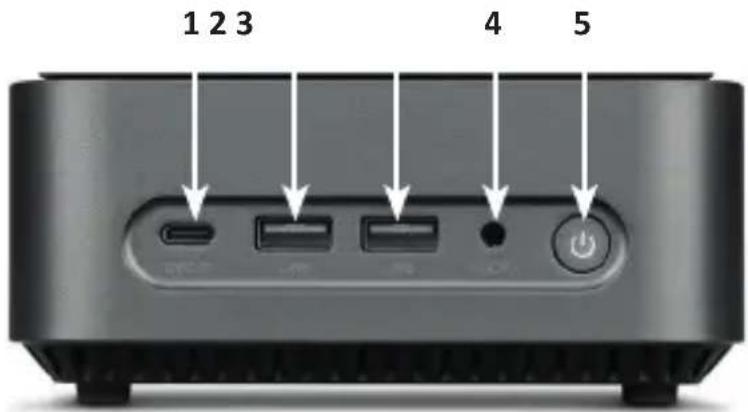
Front side:
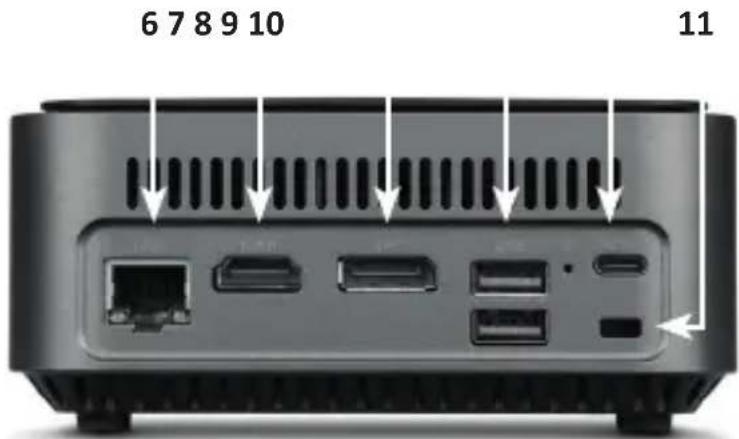
Back side:
| 1 USB 3.2 | Typ-C Supports data | transfers at up to 5Gbit/s. |
| 2 + 3 + 9 | USB 3.2 Typ-A Supports data transfer at up to 5Gbit/s. | |
| 4 3,5 mm | audio Combined audio IN / OUT port, e.g. for microphones, headphones, headsets, etc. | |
| 5 ON / OFF | button + reset | On and off switch for the Narrow Box. For reset function press and hold this button for 10 seconds. |
| 6 RJ45 LAN | For wired integration into a network via LAN cable. | |
| 7 HDMI | Complies with HDMI 2.0 standard, supports 4K@60Hz image output and audio transmissions. | |
| 8 DisplayPort | Complies with DisplayPortTM 1.2 standard, supports UHD 4K image output as well as multi-stream transport and audio transfers. | |
| 10 Power | connector For use with a USB-C power adapter DC 12V / 4A, 48 watts. | |
| 11 Kensington Lock | For theft-proofing the Narrow Box using a Kensington lock. | |
8 Technical data
| Processor Intel® CoreTM i3-N305, 8× 1800 MHz,burst frequency max. 3800 MHz | |
| Memory 1× SO-DIMM DDR4, max. 3200 MHz, max. 32 GB RAMConfiguration depending on model | |
| SSD • 1× 2280 M.2 PCIe• 1× 2,5“ SATA SSDConfiguration depending on model | |
| Graphics Intel® UHD Graphics, max. 1250 MHz, 4K@60Hz | |
| Audio Onboard 5.1 HD-Audiocontroller• 5.1 HD-Sound via HDMI• Stereo-Sound via 3,5 mm Audio OUT | |
| Network Gigabit LAN (10/100/1000 Mbit/s) | |
| Wireless • Realtek® RTL8852BE Wi-Fi 6, IEEE 802.11a/b/g/n/ac/ax2.4 GHz: max. 600 Mbit/s5 GHz: max. 1200 Mbit/s• Bluetooth® 5.2 | |
| Operating system Compatible with Windows 10, Windows 11, LinuxPre-installed operating system model-dependent |
9 Upgrade with M.2 PCIe SSD
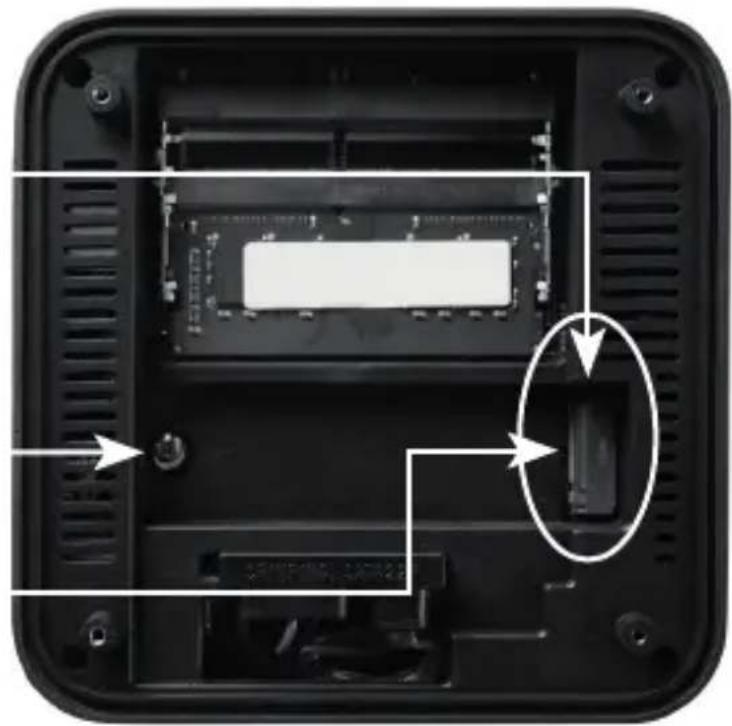
The CSL Narrow Box Core™ i3 provides the upgrade options for M.2 PCIe SSD in format 2280 and a 2,5" SATA SSD. The ports for the SSDs are located inside the case. To carry out an upgrade, remove the four external housing screws on the underside of the Narrow Box.
Please note - important instruction!
Please only use appropriate plastic tool to open the housing!
The use of metal tool, e.g., a screwdriver, may damage the housing and void the guarantee claims.
9.1 Installation of M.2 PCIe SSD
1) The M.2 slot is located next to the working memory.
2) Loosen the locking screw.
3) Carefully insert M.2 PCIe SSD in the port.
4) Press the M.2 PCIe SSD into a horizontal position.
5) Fix the M.2 PCIe SSD with locking screw.
6) Close the housing.
1) The M.2 memory slot is located here.
2) Loosen the locking screw.
3) Carefully insert the M.2 PCIe SSD into the connector.
4) Slide the M.2 PCIe SSD into the horizontal position.
5) Secure the M.2 PCIe SSD with the locking screw.
6) Close the case.
natural_image
Interior view of a black electronic device showing internal components and a close-up of a rectangular component with an arrow indicating a connection point (no text or symbols visible)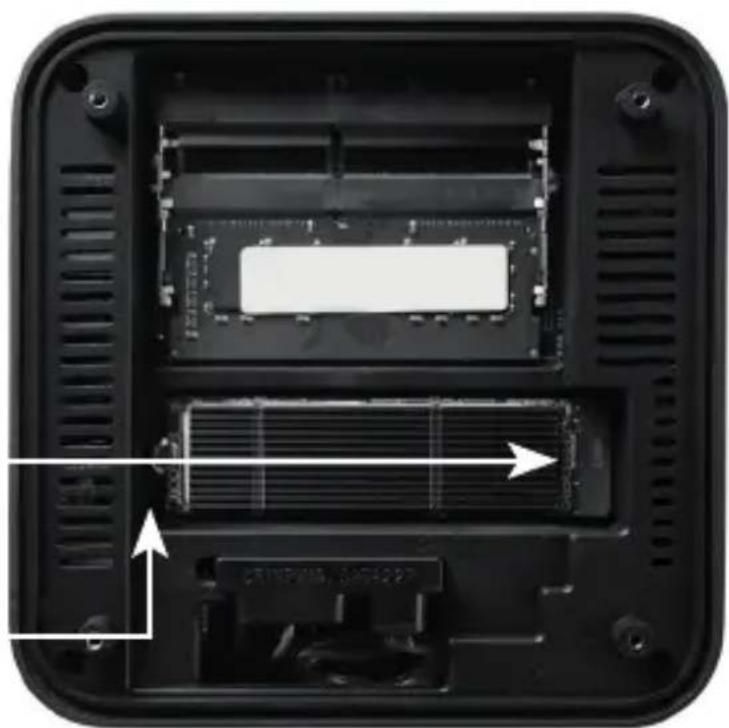
natural_image
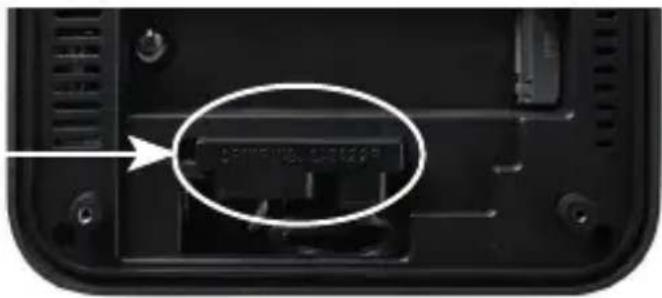
Interior view of a black electronic device showing internal components and ventilation slots (no text or symbols visible)SATA power and data connector
natural_image
Close-up of a black electronic device rear panel showing internal components and a highlighted rectangular component (no text or symbols visible)10 Assembly of feet
The feet included in the scope of delivery can be used to ensure a secure stand for the Narrow Box Premium. For this purpose, glue the feet on the underside in the corresponding areas on the housing screws.
Please note: The feet must be removed to access the housing screws and open the Narrow Box.
11 Instructions for installation and recovery of Windows®
11.1 General instructions for installation of Windows® operating systems
Please install only full versions of Windows 10/Windows 11. Recovery versions of other PC systems do not work.
11.2 Microsoft Windows® activation
In order to be able to use your operating system without restrictions, you must activate it with Microsoft®. The type of activation depends on which Windows version you have purchased for your system. The product key is stored on your system's motherboard and no command prompt is displayed. If you are connected to the Internet, the product is automatically activated.
11.3 Restoring the delivery state
Windows 11
From the existing operating system:
- Open the "Windows Settings"
- Click on "System" and subsequently on "Recovery".
- Click under the point "Reset this PC" on "Reset PC".
- Select between "Keep my files" or "Remove everything" in the following window and follow the further instructions.
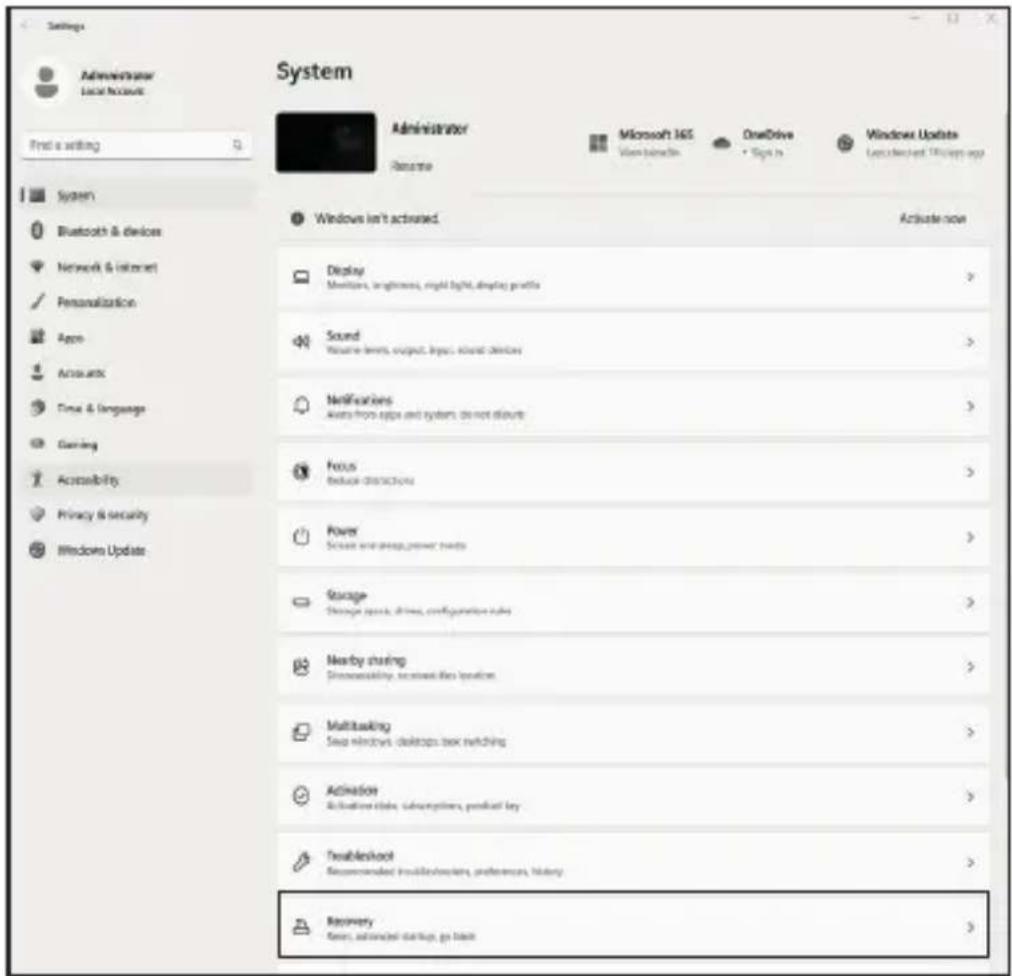
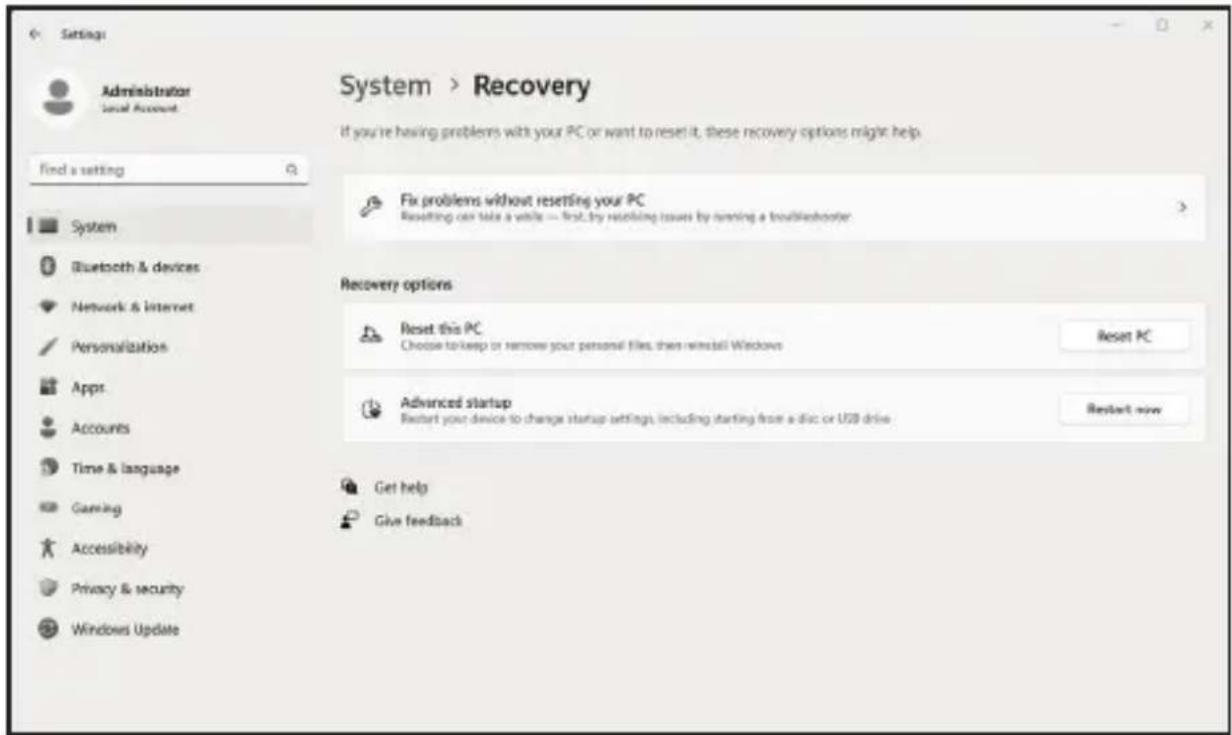
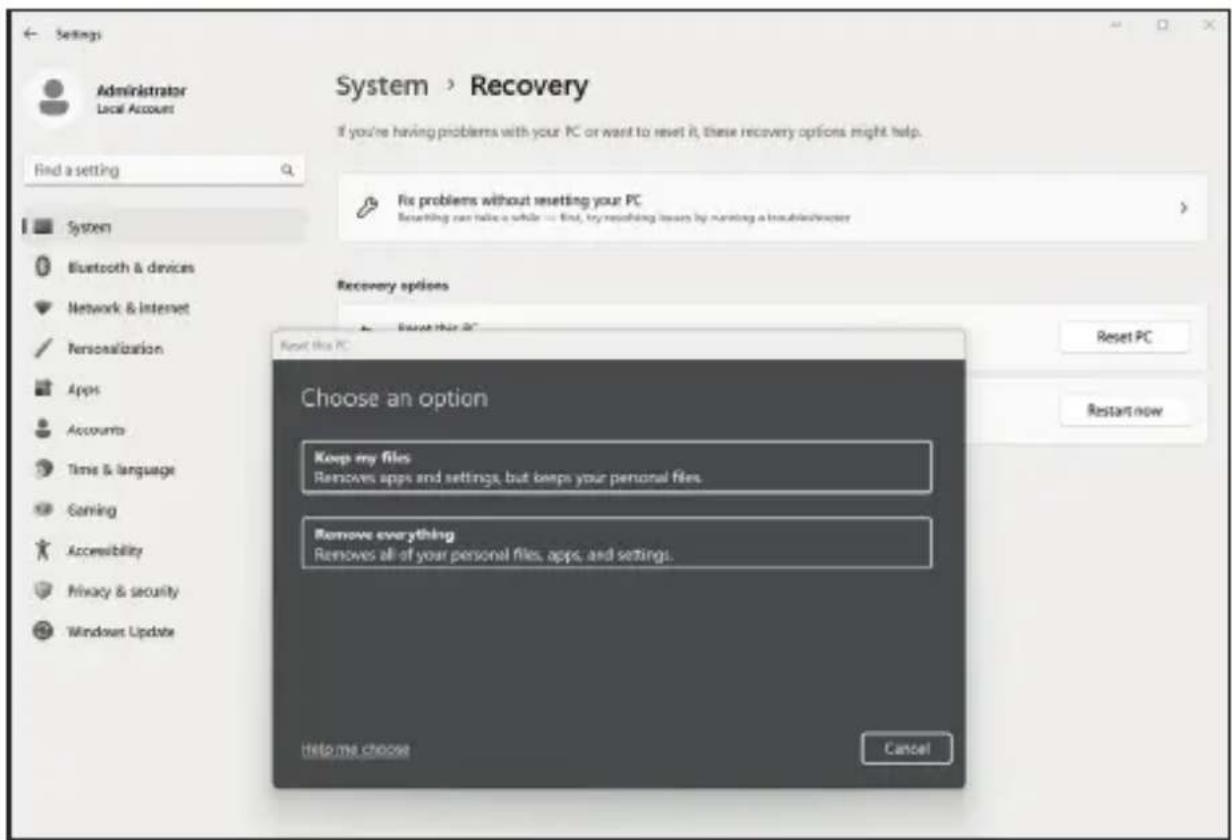
Windows 11
- Open the settings via the start menu or press Win+I.
- Navigate to System >Restore.
- Click on Reset.
- Select either Keep my files or Remove everything.
- Choose between Cloud Download and Local Reinstall.
- Click Next if you agree with the settings. If you want to remove all files and clean up the drive, click Change settings and check Purge data.
- Click Reset.
- Follow the instructions to complete the reinstallation.
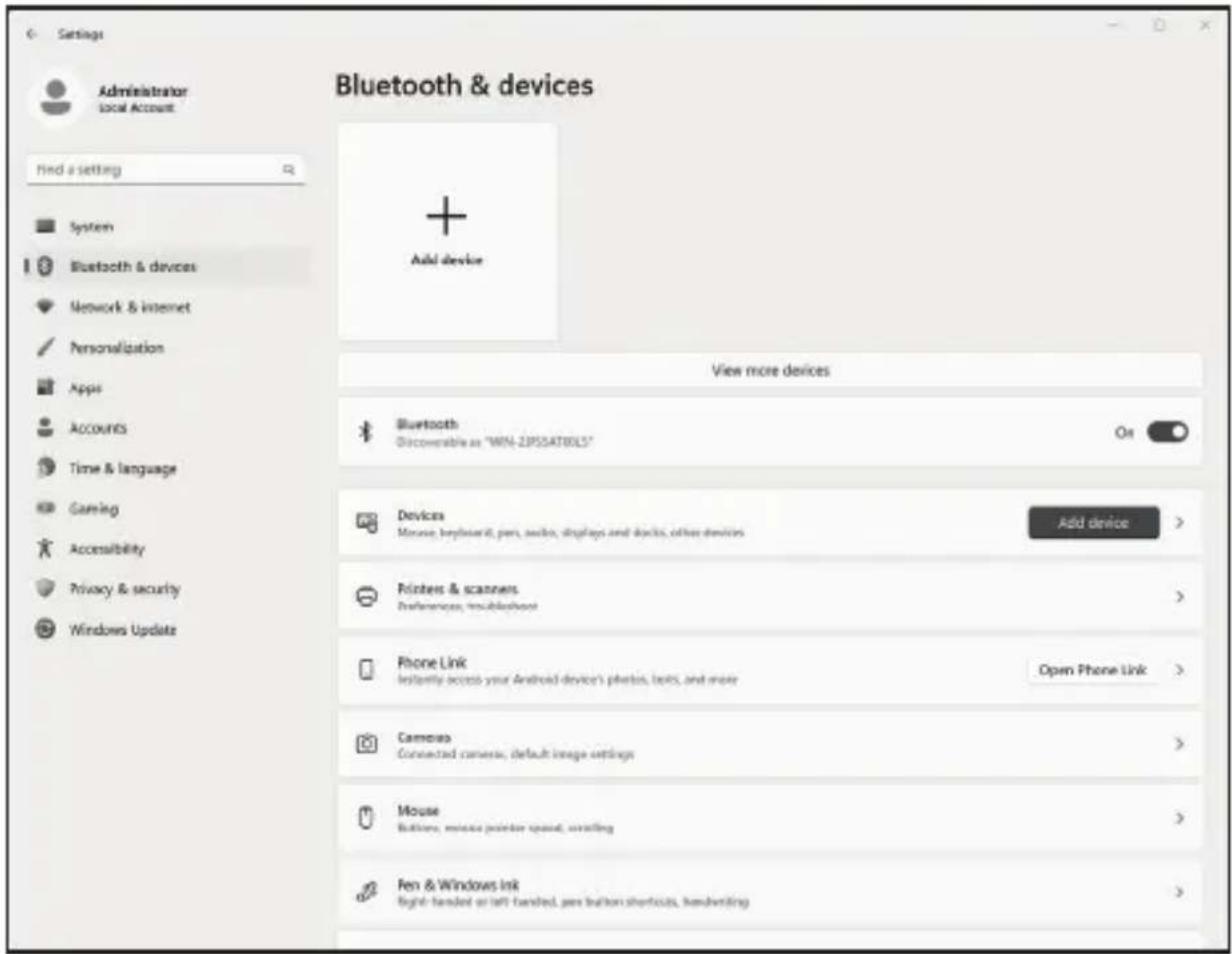
12 Establishing a Bluetooth connection
Follow the procedure given below to establish a Bluetooth connection with your desired device:
Open the Bluetooth settings on your computer, right-click on the Bluetooth icon in the taskbar and then click on "Add Bluetooth device."

Then open the Bluetooth settings. Now activate the Bluetooth connection on the device you want to connect to and make this device visible. Then this device appears in the Bluetooth settings and can be connected with this PC.
13 Safety instructions and disclaimer
Never try to open the device to carry out repairs or modifications. Avoid contact with the mains voltage. Do not short-circuit the product. The device is not approved for outdoor use. Therefore please use it only in dry surroundings.
Protect it from high humidity, water and snow. Do not expose the device to high temperatures.
Do not expose the device to sudden changes in temperature or heavy vibrations, as this could damage the electronic components.
Check the device for damage before use. The device should not be used if it has been subject to impact or has been damaged in some other manner.
Please comply with the local regulations and restrictions. Do not use the device for purposes other than those described in the user manual. This product is not a
toy. Keep it out of the reach of children or mentally disabled persons. Any repair or modification to the device not carried out by the original supplier will void any warranty and guarantee claims.
The device should be used only by persons who have read and understood this user manual. The specifications of the device may be changed without special prior notice.
14 Disposal instructions
In line with the European WEEE directive, electrical and electronic devices should not be disposed of along with domestic waste. Their components have to be sent separately for recycling or disposal, as improper disposal of toxic and dangerous components may permanently damage the environment.
According to the electrical and electronic equipment act (ElektroG), you are obliged (as a consumer) to return (free of charge) all electrical and electronic devices to the manufacturer, the point of sale, or public collection points at the end of their service life.
The relevant local laws regulate the details in this regard. The symbol on the product, in the user manual or/and the packaging refers to these regulations. With this manner of sorting, recycling and disposal of used devices, you make an important contribution towards protecting our environment.
14.1 Instructions for battery disposal
In conjunction with the sale of batteries along with the supply of devices that include batteries, the supplier is obliged to point out the following to the customer:
The customer is legally obliged to return used batteries. He can return used batteries which the supplier offers or has offered as new batteries in his assortment free of charge to the supplier's dispatch warehouse (shipping address). The symbols shown on the batteries mean the following: Pb = battery contains more than 0.004 percent lead by weight, Cd = battery contains more than 0.002 percent Cadmium by weight, Hg = battery contains more than 0.0005 percent mercury by weight.

WEEE Guideline: 2012/19/EU WEEE Register no.: DE 94495668
The company CSL Computer GmbH hereby certifies that the device 91314 complies with the fundamental requirements and the other relevant stipulations of the guideline 2014/30/EU (EMC), 2014/35/EU (low voltage), 2014/53/EU (RED) and RoHS 2011/65/EU. A complete conformity statement can be obtained from: CSL Computer GmbH, Hanseatenstr. 34, 30853 Langenhagen, Germany
natural_image
Back view of a black electronic device rear panel showing ports, connectors, and ventilation slots (no text or symbols visible)natural_image
Interior view of a black electronic device showing internal components and a close-up of a connector (no text or symbols visible)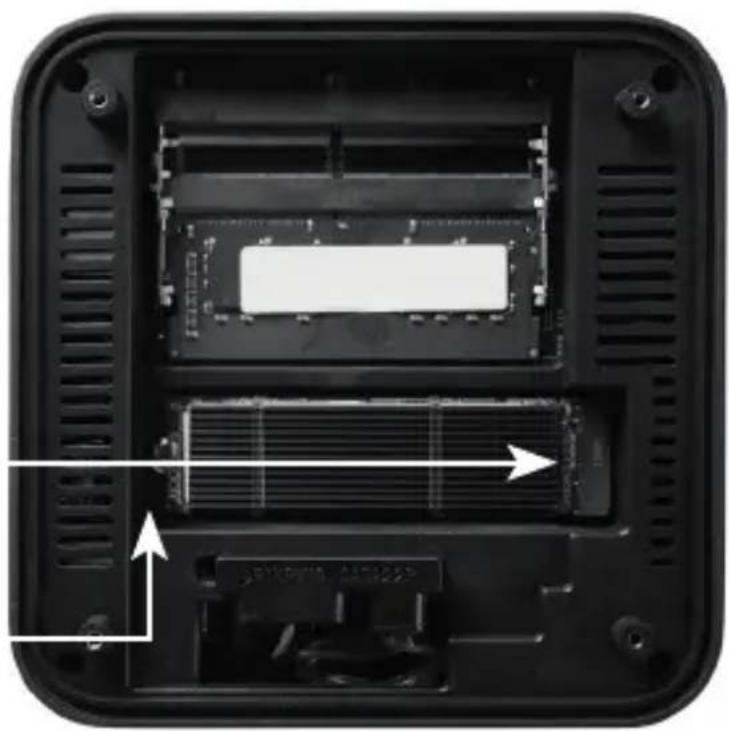
natural_image
Interior view of a black electronic device showing internal components and ventilation slots (no text or symbols visible)natural_image
Close-up of a black electronic device showing internal components and a highlighted rectangular component (no text or symbols visible)natural_image
Interior view of a black electronic device showing internal components and a close-up of a connector (no text or symbols visible)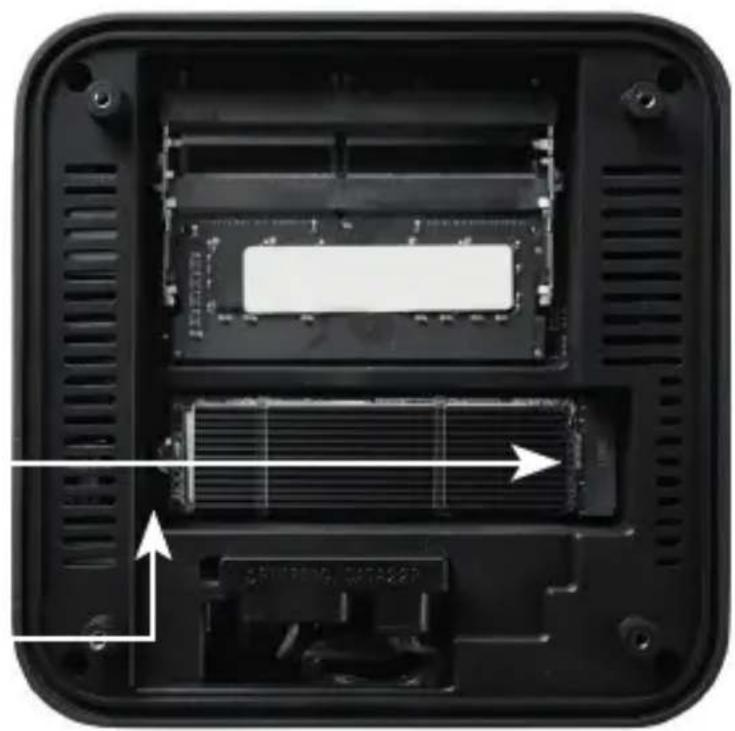
natural_image
Interior view of a black electronic device showing internal components and ventilation slots (no text or symbols visible)natural_image
Close-up of a black electronic device rear panel showing internal components and a highlighted internal component (no text or symbols visible)natural_image
Interior view of a black electronic device showing internal components and a close-up of a connector (no text or symbols visible)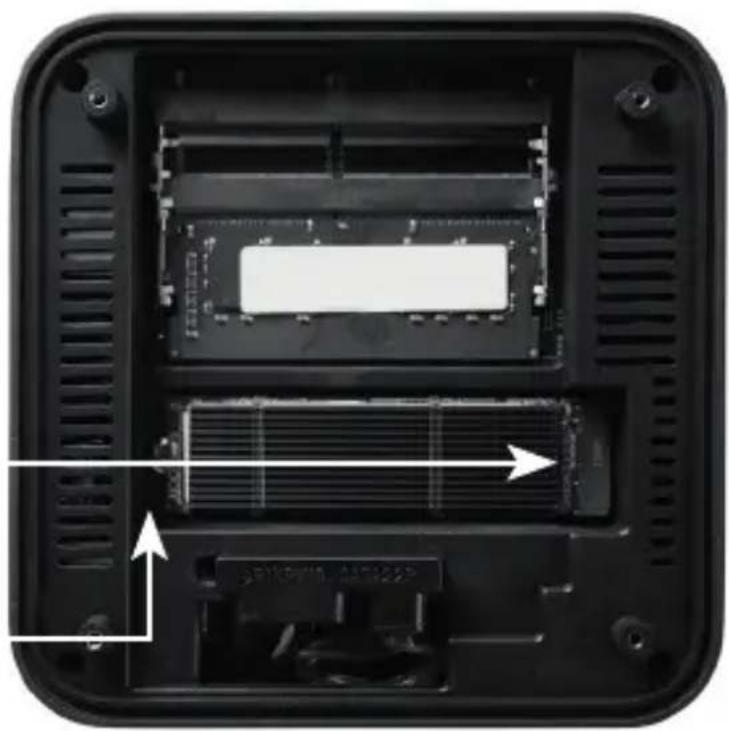
natural_image
Interior view of a black electronic device showing internal components and ventilation slots (no text or symbols visible)natural_image
Close-up of a black electronic device showing a component with an arrow pointing to it, no visible text or symbols.natural_image
Interior view of a computer monitor case showing internal components and a close-up of the internal card slot (no text or symbols visible)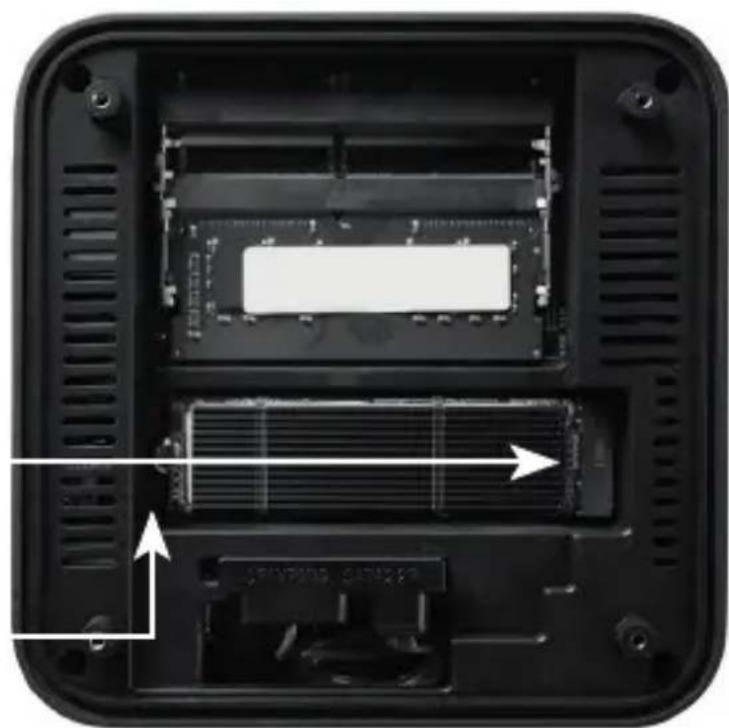
natural_image
Interior view of a black electronic device showing internal components and ventilation slots (no text or symbols visible)natural_image
Close-up of a black electronic device rear panel showing internal components and a highlighted internal component (no text or symbols visible)natural_image
Interior view of a computer monitor case showing internal components and a close-up of the internal portion with an arrow indicating a location (no text or symbols visible)natural_image
Interior view of a black electronic device showing internal components and ventilation slots (no text or symbols visible)natural_image
Close-up of a black electronic device showing internal components and a highlighted rectangular component (no text or symbols visible)10 Montaż nóżek
www.csl-computer.com