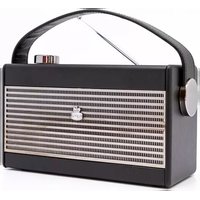
Pocket DAB+ - Radio GPO - Free user manual and instructions
Find the device manual for free Pocket DAB+ GPO in PDF.


User questions about Pocket DAB+ GPO
0 question about this device. Answer the ones you know or ask your own.
Ask a new question about this device
Download the instructions for your Radio in PDF format for free! Find your manual Pocket DAB+ - GPO and take your electronic device back in hand. On this page are published all the documents necessary for the use of your device. Pocket DAB+ by GPO.
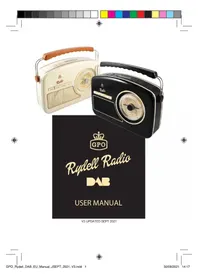
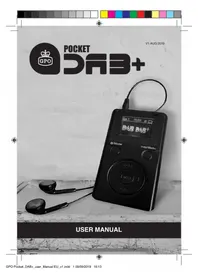
USER MANUAL Pocket DAB+ GPO
natural_image
Color palette bar with grayscale shades and a central crosshair symbol (no text or labels)

natural_image
Simple black square with two horizontal lines and one vertical line, no text or symbols present
CONTENT
English 5
German 19
French 33
Dutch 47
Italian 61


3

text_image
GPO Pocket_DAB+_user_Manual EU_v1.indd 4 09/09/2019 16:13
text_image
ENGLISH GPO Pocket_DAB+_user_Manual EU_v1.indd 5 09/09/2019 16:13Introduction
Thanks for purchasing the GPO DB-317 Pocket DAB & FM Radio. This compact portable radio can store 10 FM channel presets and 10 DAB channel presets allowing you to access your favourite radio stations on the move.
Includes:
1x Pocket DAB & FM Radio
1x Charging Cable
1x Headphones
1x Hand Strap
Before using your Pocket DAB & FM Radio for the first time, make sure you read these instructions and keep them safe for future reference.
NOTE: The USB cable is compatible with a 5V/1A mains adaptor. Please check your adaptor before using it with this unit.
Control Locations
text_image
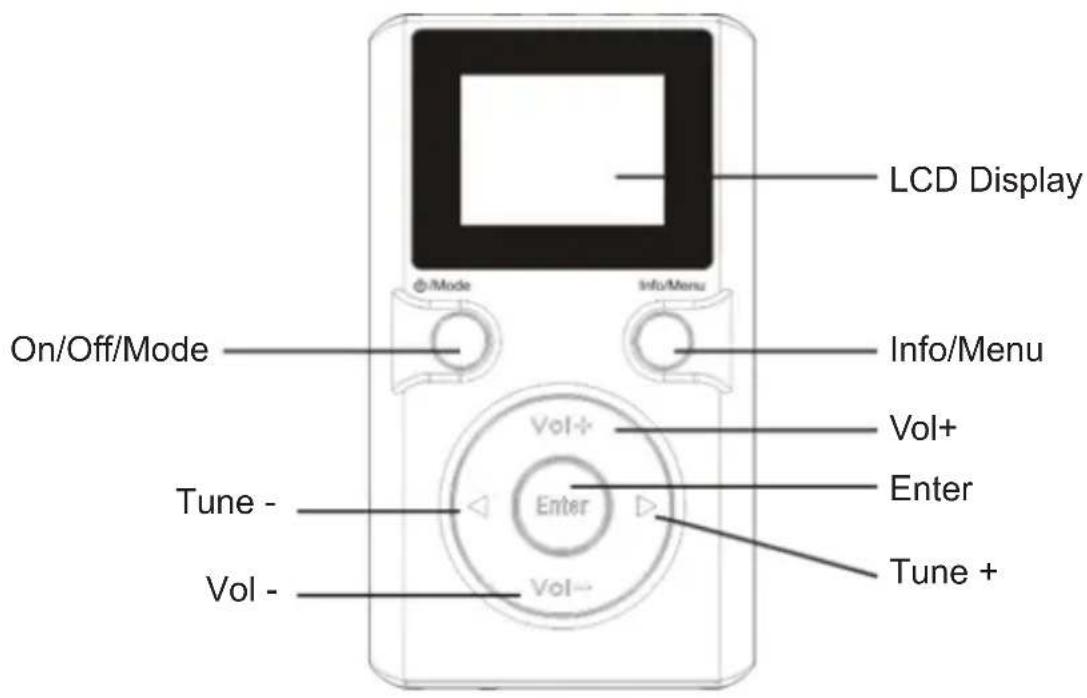
LCD Display On/Off/Mode Info/Menu Vol+ Enter Tune - Vol - Vol-+1-3 Quick Presets
text_image
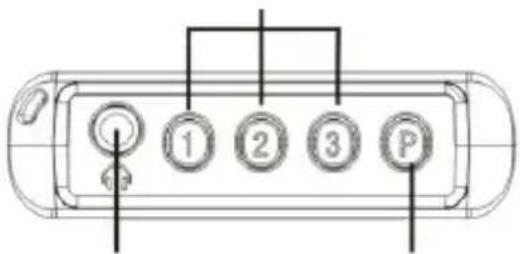
1 2 3 PPreset +Headphone port
Micro USB Charge Port
text_image
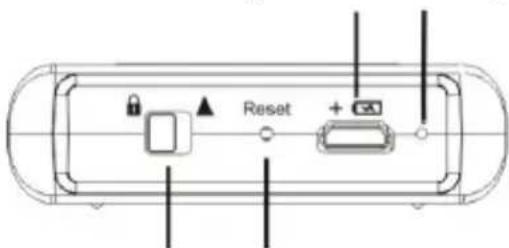
ResetLock Key Reset Hold
Charging Light Indicator
Charging the Radio
To charge the radio, connect it to a PC or laptop USB port, or a 5V1/A mains adaptor using the provided charging cable. The unit's charging light will turn on during charging, and turn off when fully charged.
On/Off Mode
Turning the unit on: Press and hold the ON/OFF/MODE button to turn the radio on.
Turning the unit off: Press and hold the ON/OFF/MODE button until the LCD display shows "Good Bye!"
Switching unit modes: Briefly press the ON/OFF/MODE button once to switch to DAB or FM mode.
Switching to DAB Mode will automatically set the radio's time and date.
DAB Mode
Listening to DAB radio
- Connect the headphones to the headphone jack and fully extend them.
- Turn the unit on. The first time the unit is powered on, it will scan for DAB stations.
- Switch to DAB mode by tapping the ON/OFF/MODE button until the LCD screen displays "DAB DAB+"
- Use the Tune +/- button to find the correct station and press ENTER to select it.
- Adjust the volume using the volume button.
Saving DAB Stations
Up to ten stations can be saved. Three as quick store stations, and a further seven as additional preset stations.
- Find the station you wish to save.
- To save as a quick store (preset 1-3), press and hold one of the 1-3 preset buttons.
- To save as preset 4-10, press and hold the Preset button to enter preset mode.
- Use the Tune or Vol buttons to select the desired preset number, and press ENTER.
Switching to a Preset DAB Station
- To switch to one of the quick store stations, press your chosen Preset button.
- To switch to another preset station, press the Preset button to enter recall mode and use the Tune or Vol buttons to scroll through your presets.
- Press ENTER to switch to your chosen preset station.
DAB Information
To review DAB station information, press the INFO/MENU button and use Tune or Vol to scroll through the station information.
Updating DAB Stations
If you need to retune your DAB stations, press and hold the ENTER button while the unit is set to DAB mode. The LCD display will show "Scanning" and the DAB channel list will be updated.
DAB Menu
Your Pocket DAB & FM Radio provides a range of features under the DAB menu. Press and hold INFO/MENU to bring up the menu, use Tune or Vol to scroll through the options, and press ENTER to select the required feature.
Pressing INFO/MENU a second time will close the menu.
DAB Menu Options
Preset List > Channel List > Local Scan > Manual Tune > Region > DRC > Sort > System Setup
Preset List & Channel List
You can use the menu function to recall a preset channel, as is described above.
Local Scan
You can use Local Scan to scan for new DAB channels, as is described above.
Manual Tune
If you can't find your preferred channel using the automatic scan, you can manually tune your DAB channels. After selecting manual tune from this menu by pressing ENTER, use Tune or Vol to scroll through the available stations and press ENTER again to select your desired station.
Region
Your radio should automatically select your region. To select it manually, after selecting region from this menu by pressing ENTER, use the Tune or Vol controls to choose from Europe, UK or Korea, and press ENTER again to select your region and automatically re-scan for channels.
DRC
Some stations use a Dynamic Range Compression (DRC) feature, which can affect sound quality. After selecting DRC from this menu by pressing ENTER, use the Tune or Vol controls to choose from Off, On (Half) and On (Full) before pressing ENTER again to confirm your preferences.
Sort
You can re-order the way DAB stations are shown by either frequency or channel name by selecting Sort from the menu. After pressing ENTER to access the Sort function, use the Tune or Vol buttons to choose between Frequency and Alphanumeric.
FM Mode
Listening to FM radio
- Connect the headphones to the headphone jack and fully extend them.
- Turn the unit on.
- Switch to FM mode by tapping the ON/OFF/MODE button until the LCD screen displays "FM R-D-S"
- Use the Tune +/- button to find the correct station and press ENTER to select it. Tapping the Tune button adjusts the frequency by 0.05MHz. Holding it will automatically find the next strong signal.
- Adjust the volume using the volume button.
Saving FM Stations
Up to ten stations can be saved. Three as quick store stations, and a further seven as additional preset stations.
- Find the station you wish to save.
- To save as a quick store (preset 1-3), press and hold one of the 1-3 preset buttons.
- To save as preset 4-10, press and hold the Preset button to enter preset mode.
- Use the Tune or Vol buttons to select the desired preset number, and press ENTER.
Switching to a Preset FM Station
- To switch to one of the quick store stations, press your chosen Preset button.
- To switch to another preset station, press the Preset button to enter recall mode and use the Tune or Vol buttons to scroll through your presets.
- Press ENTER to switch to your chosen preset station.

Creating a 30 FM Channel List
Your pocket DAB & FM Radio can automatically find and store up to 30 of the strongest FM Channels available in your current location. In order to do this, set your radio to FM mode and:
- Press and hold the ENTER button. The LCD display will show "Scanning" as it works through the frequency range. Any strong signals will be found and saved.
- After the full range has been scanned, the LCD display will show "Found" and the number of saved channels.
- Press and hold INFO/MENU to enter the menu list, and use the Tune or Vol buttons to navigate to Channel List. Press Enter to display all found channels.
-
Use the Tune or Vol buttons to scroll through the list of available stations.
-
Pressing ENTER while listening to an FM station will switch between Channel List mode and manual tuning mode.
FM Channel Information
While in FM mode, press the INFO/Menu button and use the Tune or Vol buttons to scroll through the available channel information.
FM Menu
Your Pocket DAB & FM Radio provides a range of features under the FM menu. Press and hold INFO/MENU to bring up the menu, use Tune or Vol to scroll through the options, and press ENTER to select the required feature.
Pressing INFO/MENU a second time will close the menu.
FM Menu Options
Preset List > Channel List > Auto Search > Clear All List > Scan Setting
Audio Setting > System Setup
Preset List & Channel List
You can use the menu function to recall a preset channel, as is described above.
Auto Search
You can use Auto Search to find and store FM stations, as described above.
Clear All List
To clear all saved FM stations from your radio, select this option from the menu by pressing ENTER. The LCD display will show “Clear All restored FM Stations?” on the display. Use Vol or Tune to select YES and press ENTER to confirm, or select NO and press ENTER to return to the previous menu.
Scan Setting
Your radio will automatically nd and store stations with a strong signal. To switch to nding all available stations, including those with poor signal strength, select this option. The LCD display will show “Strong Stations Only?” on the display. Use Vol or Tune to select YES and press ENTER to keep this setting, or select NO and press ENTER to allow your radio to search for weaker signals.
Audio Setting
Select this option to choose between Stereo and Mono audio. The LCD display will show “Mono Only?” on the display. Use Vol or Tune to select YES and press ENTER to keep this setting, or select NO and press ENTER to switch to Stereo sound.
System Setup
System Setup can be selected from either the DAB menu or the FM menu as described above.
When selecting System Setup, you may choose from the following options:
Set Power Off Time > Time Setup > Language > Brightness > Backlight Timeout > Reset All > Device Information > Signal Status
Set Power Off Time
Using the Tune or Vol button, you can set the device to automatically turn the radio off after 5, 15, 30, 45, 60, 90 or 120 minutes. To disable this feature, select Disable.
Pressing ENTER confirms your chosen power off time.
Time Setup
Your radio will automatically update the date and time when scanning for DAB stations.
Selecting "Display Time & Date" using the ENTER button will show the current date and time.
Selecting "Set Time & Date" allows you to switch from Time Sync (which automatically sets the date and time) to "Manual Set" (which allows you to manually set the date and time):
- Use the Tune or Vol button to select Manual Set and press ENTER to set the date and time.
- Use the Tune or Vol button to scroll to the correct year and press enter.
- Repeat this for the month step, and finally the date.
- You can now use the Tune or Vol buttons to set the correct hour and minute. Pressing ENTER will save the chosen time.
Language
Selecting Language allows you to choose between English, German, French and Italian using the Vol or Tune buttons. Press ENTER to confirm your chosen language.
Brightness
Selecting Brightness allows you to set the LCD brightness to one of nine levels using the Tune or Vol buttons. Press ENTER to confirm your chosen brightness.
Blacklight Timeout
Selecting Backlight Timeout allows you to set the amount of time before the LCD screen dims when not in use. Use Vol or Tune to choose from:
Always on > 5 > 10 > 30 > 60 (Seconds)
Press ENTER to confirm your chosen duration.
Reset All
WARNING: Selecting this function will reset your device and remove all saved presets. We recommend only using this function if your DAB

natural_image
Color palette bar with grayscale swatches and a central crosshair symbol (no text or labels)signal is poor after re-scanning for stations.
Selecting Reset All allows you to clear your device of all saved channels and presets. The LCD screen will display "Proceed?" Select YES and press ENTER to confirm the reset, or NO and press ENTER to return to the previous menu.
Device Information
This option will display information on your device's model name, APP and software.
Signal Status
This option will display the RSSI data that indicates the current DAB or FM signal status.



natural_image
Color palette bar with grayscale shades and a central crosshair symbol (no text or labels)

natural_image
Abstract geometric shape with a black square and intersecting lines (no text or symbols)
text_image
GPO Pocket_DAB+_user_Manual EU_v1.indd 18 09/09/2019 16:13
text_image
GERMAN 19 GPO Pocket_DAB+_user_Manual EU_v1.indd 19 09/09/2019 16:13Einführung
natural_image
Color palette bar with grayscale swatches and a central crosshair symbol (no text or labels)Signalstatus
natural_image
Color palette bar with grayscale shades and a central crosshair symbol (no text or labels)

text_image
45
text_image
GPO Pocket_DAB+_user_Manual EU_v1.indd 46 09/09/2019 16:13
text_image
DUTCH 47 GPO Pocket_DAB+_user_Manual EU_v1.indd 47 09/09/2019 16:13Inleiding
natural_image
Color palette bar with grayscale shades and a central crosshair symbol (no text or labels)

text_image
59
text_image
GPO Pocket_DAB+_user_Manual EU_v1.indd 60 09/09/2019 16:13
text_image
ITALIAN 61 GPO Pocket_DAB+_user_Manual EU_v1.indd 61 09/09/2019 16:13Introduzione
1x Radio tascabile DAB e FM
1x cavo di ricarica
1x Cuffie
1x Cinturino da polso
natural_image
Color palette bar with grayscale shades and a central crosshair symbol (no text or labels)

text_image
73
natural_image
Color palette bar with grayscale shades and a central crosshair symbol (no text or labels)

text_image
74

natural_image
Color palette bar with grayscale shades and a central crosshair symbol (no text or labels)

text_image
75EN
Hereby ProtelX, declares that this equipment (GPO Pocket DAB+) is in compliance with the essential requirements and other relevant provisions of Directive, you can access a copy of this certificate on www.gporetro.com/Certificate-of-Conformity
DE
ProTelX Ltd, Unit 6, Park 17 Industrial Estate, Moss Lane, Whitefield, Manchester, M45 8FJ UK