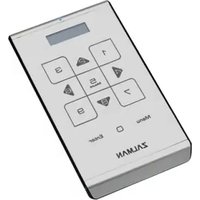
ZM-VE500 - Remote control ZALMAN - Free user manual and instructions
Find the device manual for free ZM-VE500 ZALMAN in PDF.



| Product Type | External hard drive enclosure with LCD screen and touchpad |
| Dimensions | 130 x 80 x 15 mm (estimated) |
| Weight | Approximately 150 g (without hard drive) |
| Power | Via USB 3.0 port (bus-powered) |
| Interface | USB 3.0 (backward compatible with USB 2.0) |
| Main Functions | External hard drive, virtual optical drive (ISO), hardware encryption, write protection, disk information display (temperature, status) |
| Screen | LCD display panel listing ISO files and menus |
| Touchpad | Navigation and selection of files and menus |
| Encryption | Enable/disable with password (4-8 digits), built-in encryption |
| Write Protection | Enable/disable via menu to protect against viruses |
| Operating Modes | Dual mode (HDD + CD-ROM), optical drive mode, hard drive mode |
| Disk Compatibility | 2.5-inch SATA hard drives |
| ISO File Formats | ISO files in the "_iso" folder at the root of the drive |
| Maintenance and Cleaning | Clean with a soft, dry cloth; do not use solvents or abrasive products |
| Safety | Protection against electrostatic discharge; do not touch the circuit with bare hands |
| Spare Parts and Repairability | Screwdriver and screws provided; no official spare parts; warranty void if unauthorized disassembly |
| Firmware Update | Download from www.zalman.com; update via device menu |
| General Information | Brand: ZALMAN, Model: ZM-VE500, Warranty: conditional, Country of origin: not specified |
Frequently Asked Questions - ZM-VE500 ZALMAN
User questions about ZM-VE500 ZALMAN
0 question about this device. Answer the ones you know or ask your own.
Ask a new question about this device
Download the instructions for your Remote control in PDF format for free! Find your manual ZM-VE500 - ZALMAN and take your electronic device back in hand. On this page are published all the documents necessary for the use of your device. ZM-VE500 by ZALMAN.
USER MANUAL ZM-VE500 ZALMAN
- Please download the latest firmware and each language quick guide. from www.zalman.com.
1 Reminder

1. Information
■ This manual is for handling and using ZM-VE500.
■ Please read "Caution" before using the device.
- Please check "Troubleshooting" when issue occurs.
Be sure to always back up important data
■ The external HDD manufacturer is not responsible for any data stored in the external HDD not liable for any emotional or physical damages caused due to data loss.
Do not arbitrarily disassemble.
■ If you disassemble the product or remove/damage the stickers and/or labels attached on the product, you cannot receive the warranty service.
Caution: Electrostatic
■ Do NOT touch the circuit with bare hands. The chip controlling the ZM-VE500's virtual CD-ROM is a electrostatic sensitive part. ZM-VE500 may not operate properly if the circuit is damaged by the electrostatic discharge.
※ Visit official homepage (www.zalman.com) to download firmware upgrades and ZM-VE500 User Guide.
※ This User Guide is subject to change without prior notice to users in order to enhance the product features and to apply the firmware upgrade.

2. Components (Components may be changed without notice.)
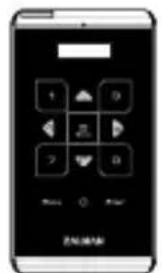
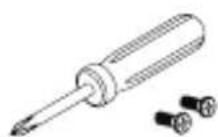
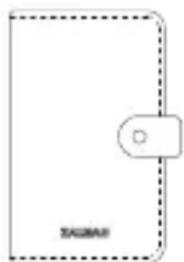
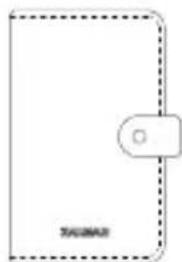
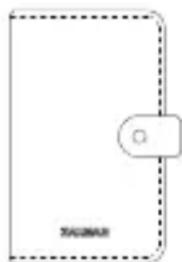
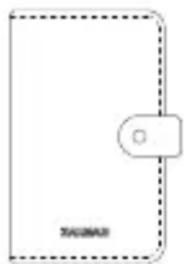
ZM-VE500 Pouch Screw Driver & Bolts 2pcs
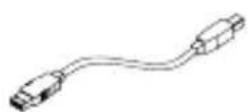
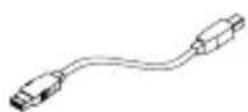
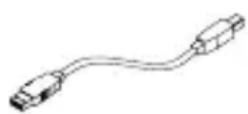
USB 3.0 Cable

3. Name of Parts
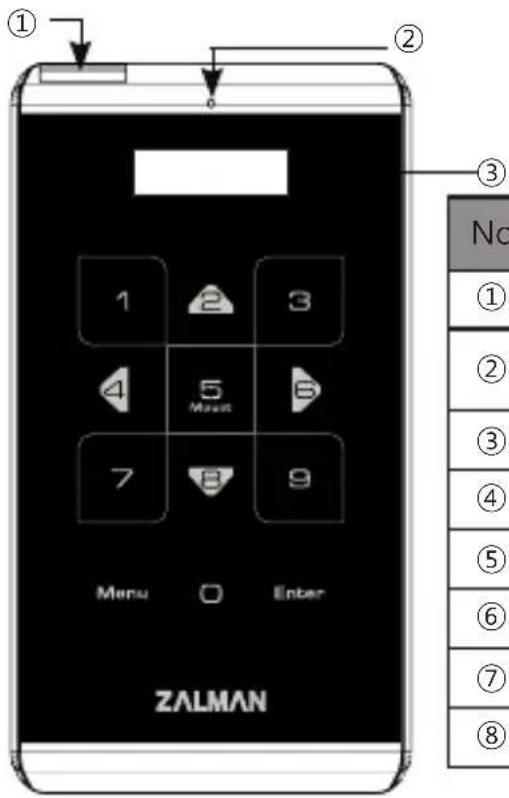
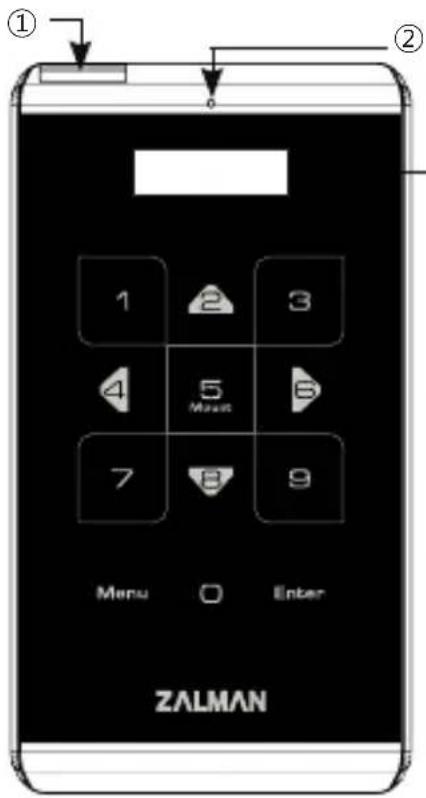
| No. | Part Name |
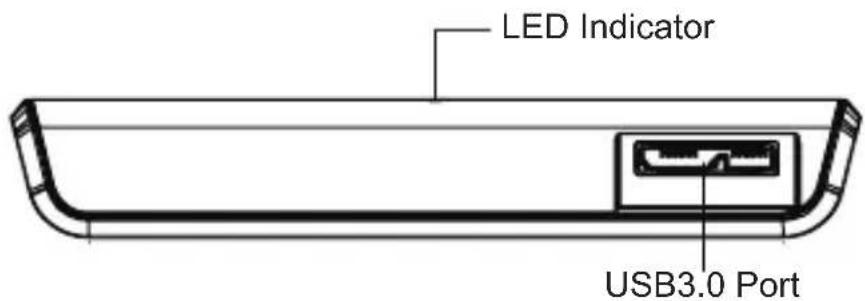
| 1 | USB 3.0 Port :USB 3.0 Cable Port |
| 2 | LED Indicator: Read / Write LED lighting (Blue LED: USB3.0, White LED: USB2.0) |
| 3 | LCD Display Panel: File list and Menu |
| 4 | Touch Panel: Select file and Control menu |
| 5 | Enter : "Enter" and "Select" |
| 6 | Menu : Enter/ Exit "Menu mode " |
| 7 | 5 : Mount / Unmount Virtual ODD |
| 8 | Update ISO file list (after copying iso file) |

4. Specification (It may be changed without notice.)
| Model Spec. | ZM-VE500 |
| Case Material Aluminum alloy, Acryl, Poly carbonates (PC) | |
| Weight 91g (except Hard disk) | |
| Dimensions 146 x 80.8 x 14 (L x W x H / mm) | |
| Interface USB 3.0/2.0/1.1 SATA I /II/III | |
| Maximum Transfer Rate | 5Gbps |
| Power | DC5V(USB Power), 2.5" Hard disk |
| Support OS | Window XP / Linux 2.6 / MAC OS X 1.0.0 or higher |

5. System Minimum Requirement
Intel Pentium / 350MHz or higher CPU
■ Memory 60MB or higher
■ System should have USB CD booting bios
(Most of PC manufactured before 2003 doesn't support CD-ROM booting)

6. General Features
■ Encryption function is available through device's touch panel
■ Does not need application program installation.
■ Has normal external HDD function.
■ External CD-ROM function (or CD/DVD/BD changer) with ISO file instead of CD/DVD/BD disk.
■ iso File names are shown in display panel. And the files can be navigated through ∧ / ∨ on the touch pad.
■ Can check hard disk condition such as internal temperature or health level.
■ Has write protect function. It protects from unexpected virus attack.
■ If you do not have access to enter Stand by mode for 15 minutes.
■ Firmware can be updated with update program. and Each language quick guide please download it from www.zalman.com

Case Assembly

1. Enclosed Parts
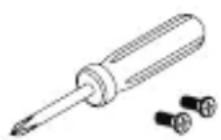
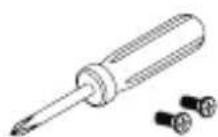
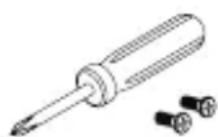
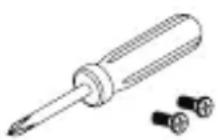
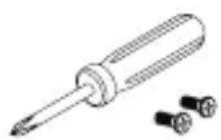
■ Screw driver
■ Screw 2EA

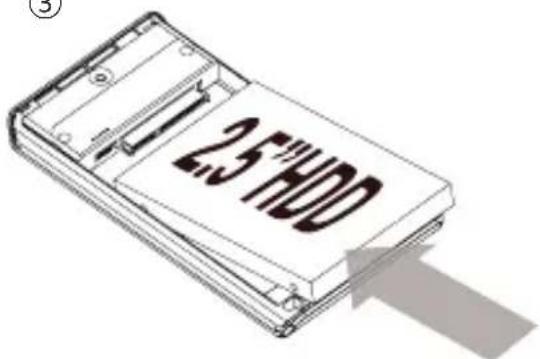
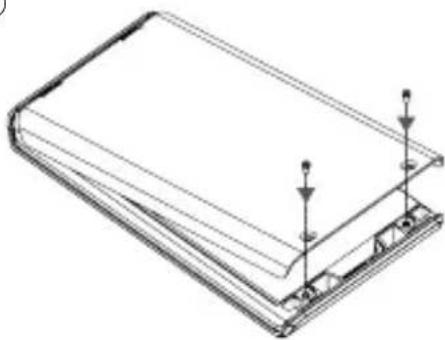
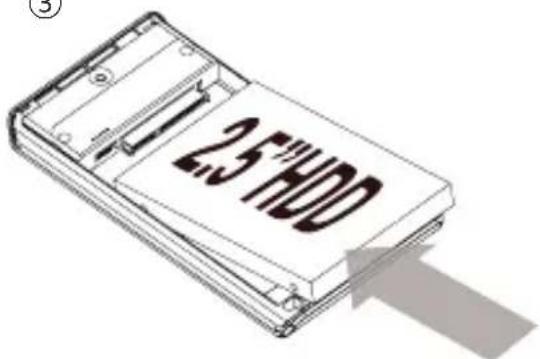
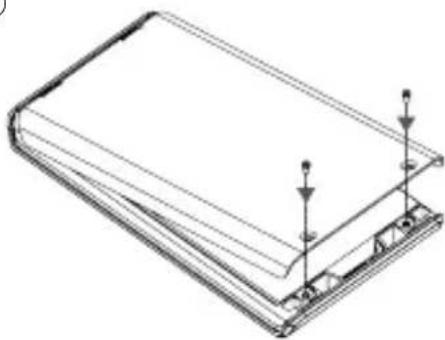
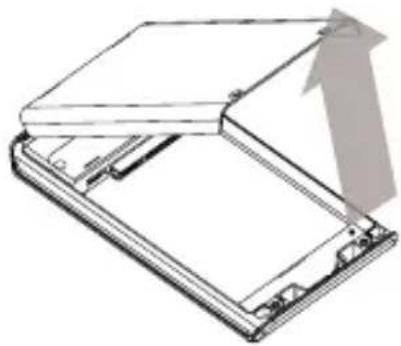
2. Assembly Order
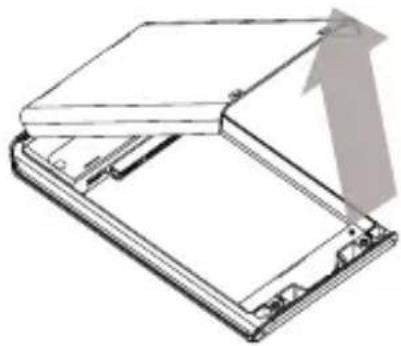
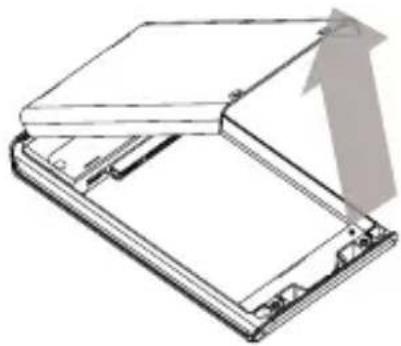
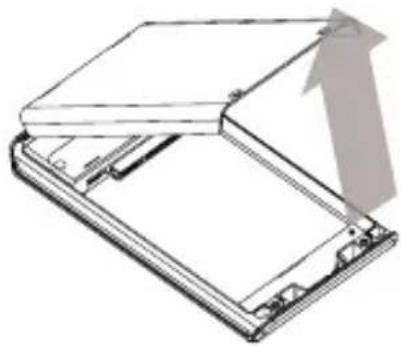
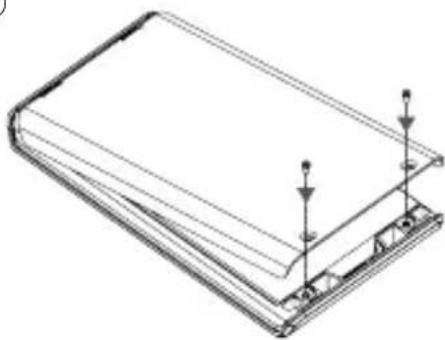
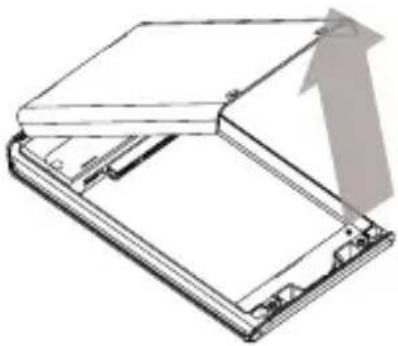
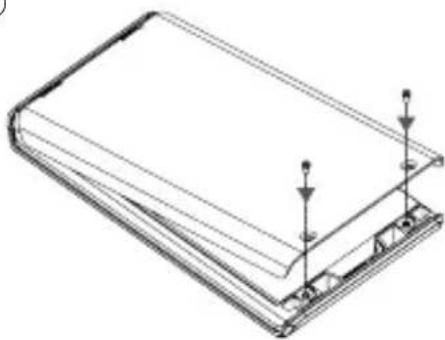
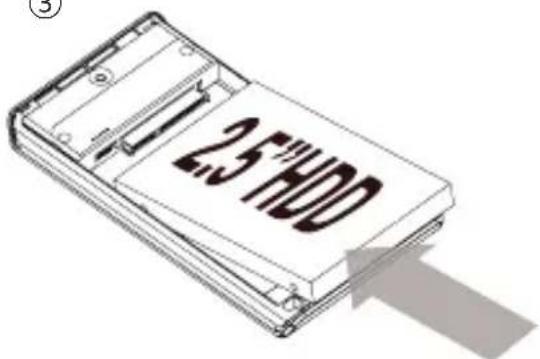
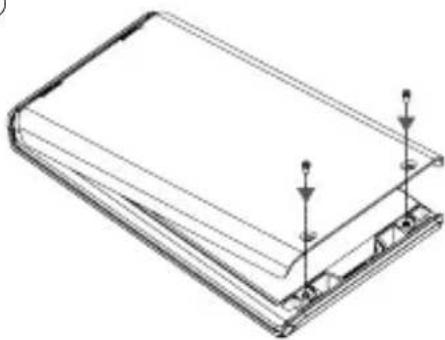
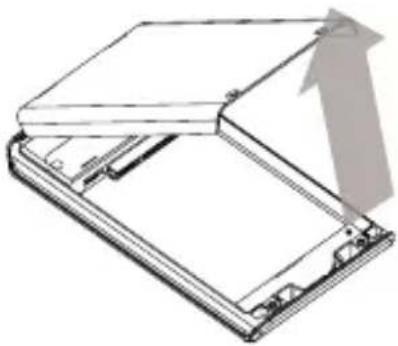
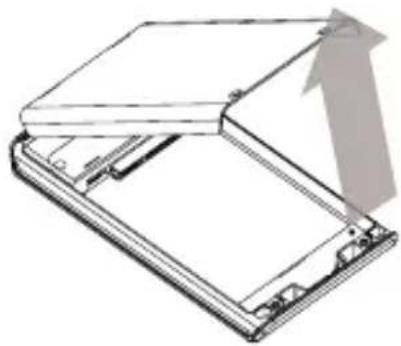
① Detach 2 screws from rear aluminum cover
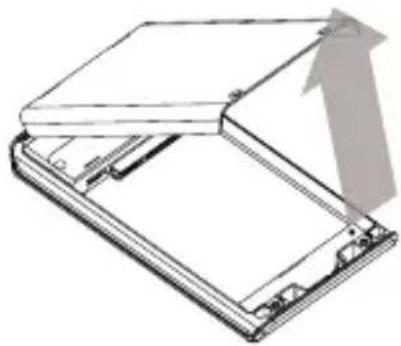
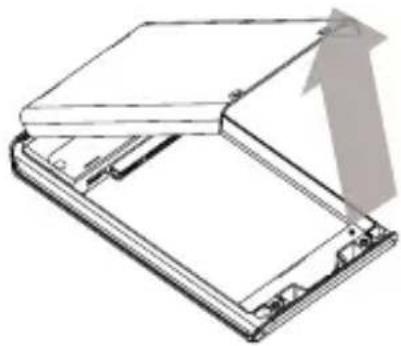
② Take out aluminum cover
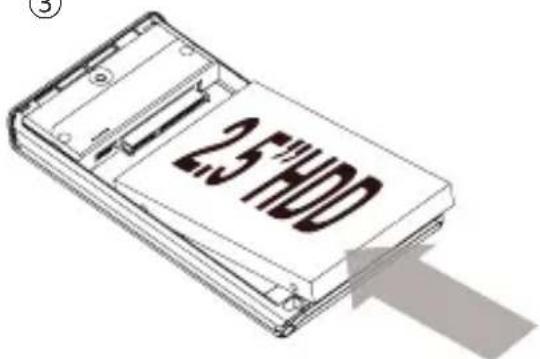
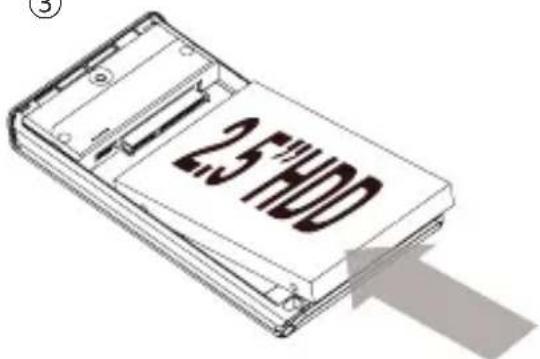
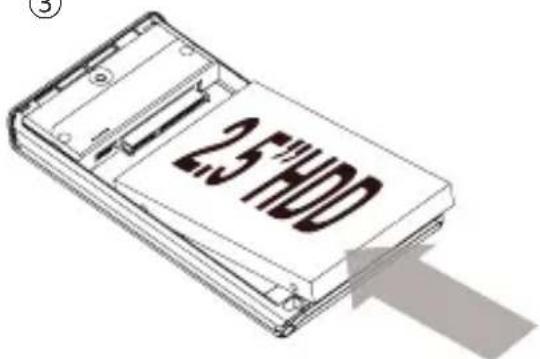
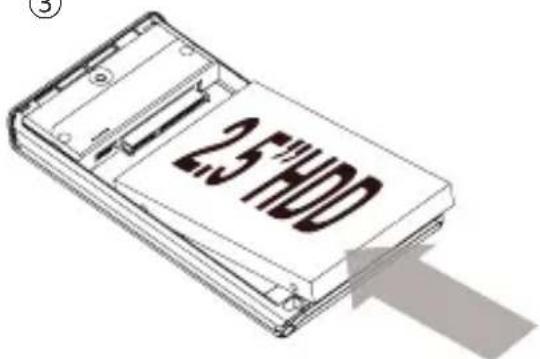
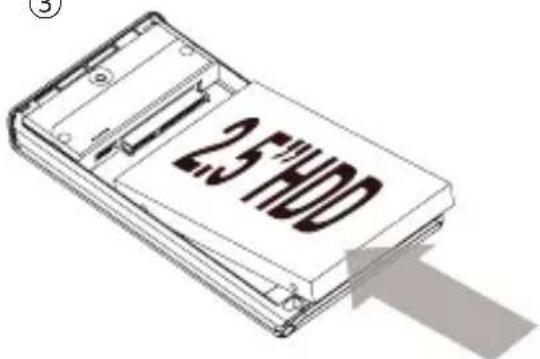
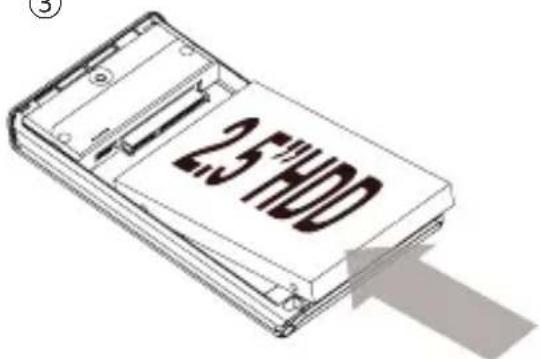
③ Insert 2.5" Hard disk to the main body
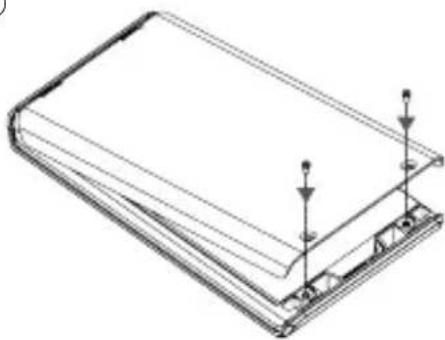
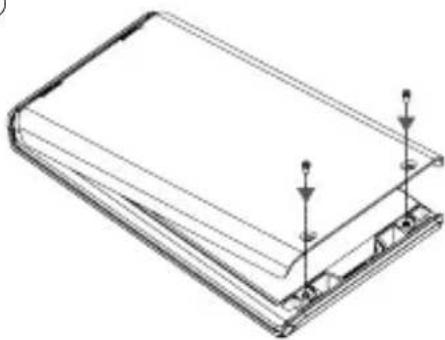
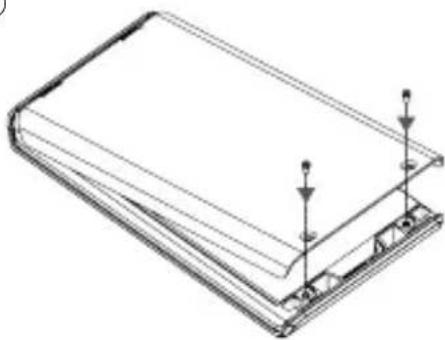
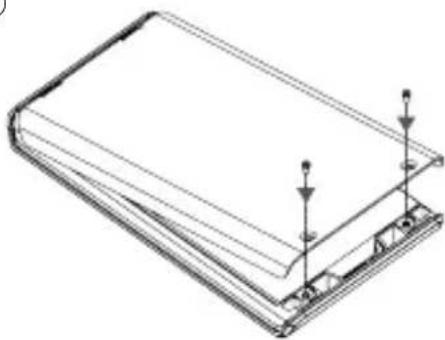
④ Tighten 2 screws to the aluminum cover
①

natural_image
Isometric line drawing of a rectangular object with three upward-pointing arrows at the base (no text or symbols)②
natural_image
Line drawing of a mechanical device with an upward arrow indicating motion or force (no text or symbols)③
④
natural_image
Isometric line drawing of a layered structure with support beams and arrows, no text or symbols present3 Connect with USB
1. Connecting to PC
- Connect device to PC's USB port using enclosed USB cable.
4 Display
1. Display and Icon
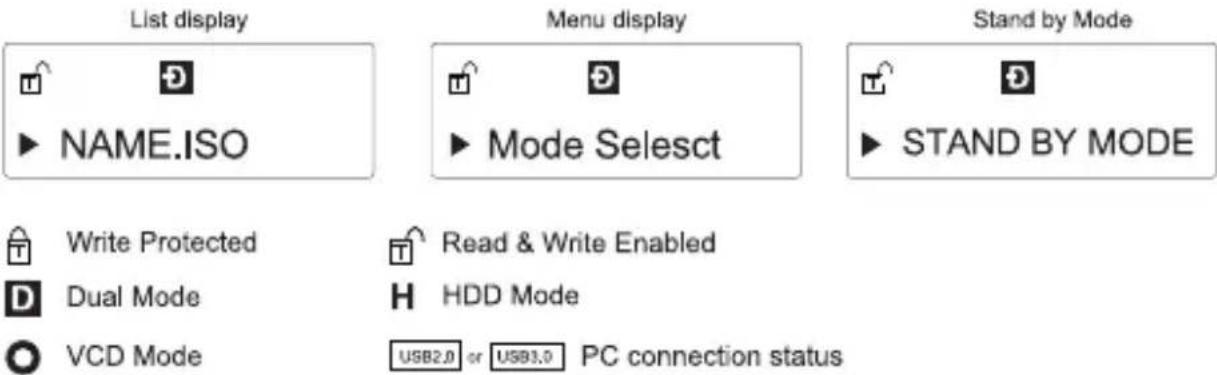
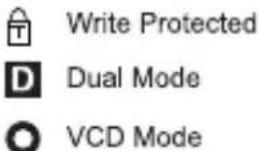
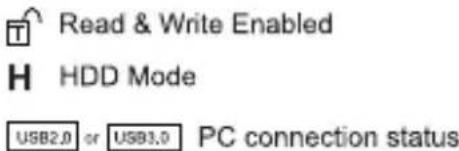
2. Functional description
To enter Menu mode, touch "Menu" on touch panel
5 Encryption
In menu mode, find Encryption option (Encryption is disabled when released)
- To use Encryption, touch "Enter" to enter "Encryption" and "Enable Encryption"
▶ Encryption
▶ Enable Encryption
- Please confirm all the data will be gone.
Data will be lost!
-
Yes 2. No
-
Type password (4\~8 numbers), and type again to confirm it.
Input Password
Confime Password
-
Enable setting is completed, and initialize and format disk on OS.
-
To change password, then use "Change password"
-
To hide password, then use "Hide Password" Although use this function, password is still existed, and it is useful when OS installing.
-
Disable Encryption: Totally delete encryption function.
Data will be lost!
-
Yes
-
No
Confirm Again
-
Yes
-
No
-
Disable setting is completed, and initialize and format disk on OS.
Please beware that all the data in the hard disk will be lost when Enable / Disable Encryption.
- When Encryption is enabled, if wrong password is typed 3 times in a row, then need to reconnect device.
6 Virtual CD-ROM
■ To use Virtual ODD, iso file must be located in the “_iso” folder of device.
■ After finding iso file with ^ / v, touch "5" to load / unload it.
■ External HDD or CD-ROM may not be recognized according to current mode state
1. Main Menu
| Mode Select Setting Device mode | |
| Encryption Enable/Disable Password, Change password, Reset Encryption | |
| Set W-protection Enable/Disable Write Protection | |
| Information Check HDD information and firmware version | |
| Exit | Exit Menu (backup button can be used to exit) |
2. Mode Select ("◎" is shown in selected mode)
| Dual Mode Both of external HDD and CD-ROM are recognized. | |
| ODD Mode | External CD-ROM is recognized.(Useful when installing OS) |
| HDD Mode | External HDD is recognized.(Useful when connected to other devices except PC) |
3. Encryption
| Enable Encryption | Setting Encryption. All the existed data will be lost after setting |
| Disable Encryption | Disable Encryption. All the existed data will be lost after setting |
4. Set W-Protection
| Disable W-P Data | read/write is available |
| Eable W-P Data R | read-only mode, and write protected |
5. Information
| HDD Temp Display internal HDD temperature |
| HDD Health If display BAD, please backup data and check HDD |
| HDD Serial Display internal HDD Brand and serial number |
| Firmware ver. Display device firmware version |
| Exit Exit Information |
ZALMAN
WWW.ZALMAN.COM
Guide Rapide
ZM-VE500
Français


4. Specification (It may be changed without notice.)
| Model Spec. | ZM-VE500 |
| Matériau du boîtier Alliage d'aluminium, Acryl, Polycarbonates (PC) | |
| Poids 91g (sauf le disque dur) | |
| Dimensions 146 x 80.8 x 14 (L x W x H / mm) | |
| Interface USB 3.0/2.0/1.1 SATA I /II/III | |
| Taux de transfert maximal | 5Gbps |
| Puissance | DC5V(Pussance USB), Disque dur 2,5" |
| Systèmes d'exploitation | Window XP / Linux 2.6 / MAC OS X 1.0.0 or higher |

natural_image
Isometric line drawing of a rectangular object with two upward-pointing arrows on its sides (no text or symbols)②
natural_image
Line drawing of a mechanical device with an upward arrow indicating motion or force (no text or symbols)③
④
natural_image
Isometric line drawing of a layered structure with support beams and arrows, no text or symbols present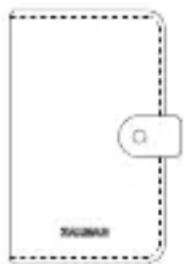
natural_image
Isometric line drawing of a rectangular object with three upward-pointing arrows on its top surface (no text or symbols)②
natural_image
Line drawing of a mechanical device with an upward arrow indicating motion or force (no text or symbols)③
④
natural_image
Isometric line drawing of a layered structure with support beams and arrows indicating forces or connections (no text or symbols)Menu display Stand by Mode


Mode Selesct


STAND BY MODE
4. Specification (It may be changed without notice.)
| Espf. \Modelo | ZM-VE500 |
| Material de la caja Aleación de aluminio, acrílico, policarbonatos (PC) | |
| Peso 91 g (excepto el disco duro) | |
| Dimensiones 146 x 80.8 x 14 (L x W x H / mm) | |
| Interfaz USB 3.0/2.0/1.1 SATA I /II/III | |
| Taux de transfert maximal | 5Gbps |
| Puissance | DC5V(Pussance USB), Disque dur 2,5" |
| Sistemas Operativos | Windows XP / Linux 2.6 / MAC OS X 1.0.0 o mayor |

natural_image
Isometric line drawing of a rectangular object with two upward-pointing arrows on its top surface (no text or symbols)②
natural_image
Line drawing of a mechanical device with an upward arrow indicating motion or force (no text or symbols)③
④
natural_image
Isometric line drawing of a layered structure with support beams and arrows indicating forces or connections (no text or symbols)3 Conexión al USB
1. Conexión a la PC

natural_image
Isometric line drawing of a rectangular object with two upward-pointing arrows on its sides (no text or symbols)②
natural_image
Line drawing of a mechanical device with an upward arrow indicating motion or force (no text or symbols)③
④
natural_image
Isometric line drawing of a layered structure with support beams and arrows indicating forces or connections (no text or symbols)Please beware that all the data in the hard disk will be lost when Enable / Disable Encryption.
ZM-VE500 Pouch Screw Driver & Bolts 2pcs
USB 3.0 Cable
3. 各部名称

| No. | Part Name |
| 1 | USB 3.0 Port :USB 3.0 Cable Port |
| 2 | LED Indicator: Read / Write LED lighting (Blue LED: USB3.0, White LED: USB2.0) |
| 3 | LCD Display Panel: File list and Menu |
| 4 | Touch Panel: Select file and Control menu |
| 5 | Enter : "Enter" and "Select" |
| 6 | Menu : Enter/ Exit "Menu mode " |
| 7 | 5 : Mount / Unmount Virtual ODD |
| 8 | Update ISO file list (after copying iso file) |
natural_image
Isometric line drawing of a rectangular object with three upward-pointing arrows at the base (no text or symbols)②
natural_image
Line drawing of a mechanical device with an upward arrow indicating motion or force (no text or symbols)③
④
natural_image
Isometric line drawing of a layered structure with support beams and arrows indicating forces or connections (no text or symbols)3 USB接続
1. PCに接続
natural_image
Isometric line drawing of a rectangular object with two upward-pointing arrows and a small dot on the base (no text or symbols)②
natural_image
Line drawing of a mechanical device with an upward arrow indicating motion or force (no text or symbols)③
④
natural_image
Isometric line drawing of a layered structure with support beams and arrows indicating forces or connections (no text or symbols)3 Połączenie USB

4 Wyświetlacz

Write Protected Read & Write Enabled

Dual Mode
Write Enabled

VCD Mode
H HDD Mode
USB2.0 or USB3.0 PCconnection status

2. Opis funkcji
(2 pedaços)
ZM-VE500 Bolsa Chave de fenda & parafusos
Guia Rápida
Cabo USB 3.0

3. Nome das peças
natural_image
Isometric line drawing of a rectangular object with three upward-pointing arrows on its top surface (no text or symbols)②
natural_image
Line drawing of a mechanical device with an upward arrow indicating motion or force (no text or symbols)③
④
natural_image
Isometric line drawing of a layered structure with support beams and arrows, no text or symbols present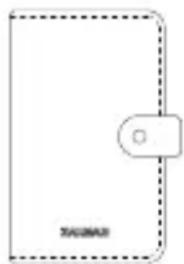
natural_image
Isometric line drawing of a rectangular object with two upward-pointing arrows on its top surface (no text or symbols)②
natural_image
Line drawing of a mechanical device with an upward arrow indicating motion or force (no text or symbols)③
④
natural_image
Isometric line drawing of a layered structure with support beams and arrows, no text or symbols present3 Connetti tramite USB

Write Protected Read & Write Enabled

Dual Mode
Write Enabled

VCD Mode
H HDD Mode
USB2.0 or USB3.0 PC connection status

- Reminder
- Information
- Be sure to always back up important data
- Do not arbitrarily disassemble.
- Caution: Electrostatic
- Components (Components may be changed without notice.)
- Name of Parts
- Specification (It may be changed without notice.)
- System Minimum Requirement
- General Features
- Case Assembly
- Enclosed Parts
- Assembly Order
- Connect with USB
- Connecting to PC
- Display
- Display and Icon
- Functional description
- Encryption
- Virtual CD-ROM
- Main Menu
- Mode Select ("◎" is shown in selected mode)
- Encryption
- Set W-Protection
- Information
- ZALMAN
- Guide Rapide
- Conexión al USB
- Conexión a la PC
- 各部名称
- USB接続
- PCに接続
- Połączenie USB
- Wyświetlacz
- Opis funkcji
- Nome das peças
- Connetti tramite USB
Brand : ZALMAN
Model : ZM-VE500
Category : Remote control