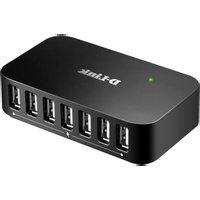
DUB-H7 - USB hub D-LINK - Free user manual and instructions
Find the device manual for free DUB-H7 D-LINK in PDF.


| Product Type | USB Hub |
| Brand | D-Link |
| Model | DUB-H7 |
| Number of USB ports | 7 (6 white ports + 1 black port with fast charging) |
| USB Compatibility | USB 2.0 and USB 1.1 |
| Power Supply | AC adapter (included) or USB bus |
| Fast charging mode | Yes, via the black port (iPad compatible) |
| Maximum current per white port | 500 mA |
| Maximum total current | 2 A |
| Supported operating systems | Windows, Mac, Linux (plug-and-play) |
| Maintenance and cleaning | Unplug the device before cleaning, use a soft dry cloth |
| Safety | Do not exceed the indicated current limits |
| Included software | iPad_Charge.exe program (downloadable from D-Link website) |
Frequently Asked Questions - DUB-H7 D-LINK
User questions about DUB-H7 D-LINK
0 question about this device. Answer the ones you know or ask your own.
Ask a new question about this device
Download the instructions for your USB hub in PDF format for free! Find your manual DUB-H7 - D-LINK and take your electronic device back in hand. On this page are published all the documents necessary for the use of your device. DUB-H7 by D-LINK.
USER MANUAL DUB-H7 D-LINK
If any of these items are missing from your packaging, contact your reseller.
PRODUCT SETUP
QUICK INSTALLATION
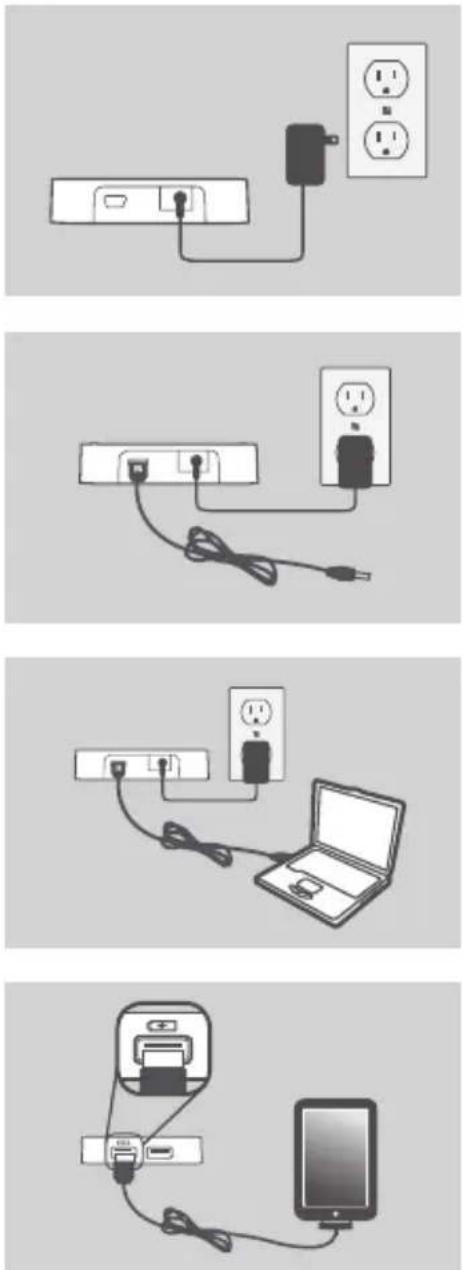
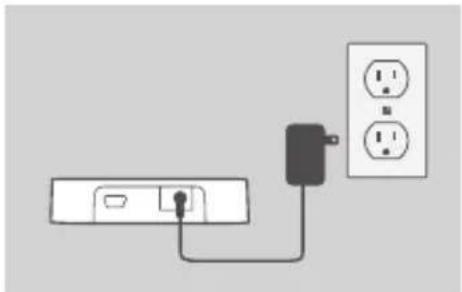
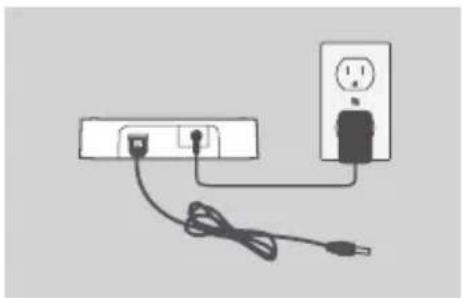
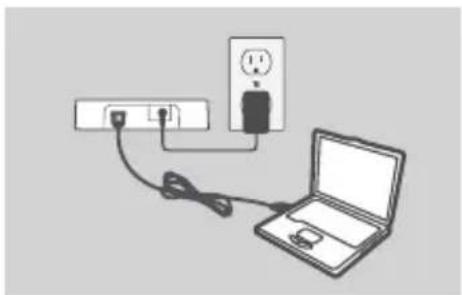
- Plug the power adapter into the connector located on the back of the DUB-H4. Plug the other end into a wall outlet. The LED on the DUB-H4 will turn green to indicate that the hub is receiving power.
Note: This step is optional, but required for Fast-Charge Mode. Please refer to the next page for more information.
-
Plug the smaller end of the included USB cable into the back of the DUB-H4.
-
Plug the rectangular end of the included USB cable into an available USB port on your computer.
-
Your computer will automatically detect and install the drivers for the DUB-H4. You may now connect USB 2.0 or USB 1.1 devices to any available USB port.
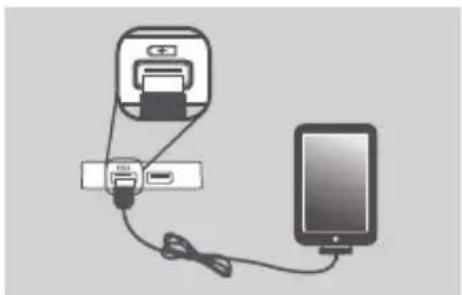
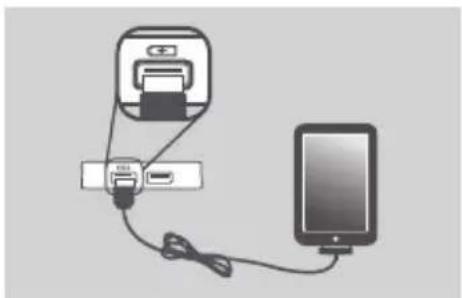
The black USB port with the battery icon is for connecting to an iPad ^® or other high-power device, and can quick-charge these devices when in Fast-Charge Mode. Please refer to the next page for more information.
Note: Power draw for devices connected to the white ports should not exceed 500 mA, and the combined power draw of all connected devices should not exceed 2 A.
iPAD® FAST-CHARGE MODE
CHANGING FROM STANDARD MODE TO FAST-CHARGE MODE
- Standard Mode: When the DUB-H4 is connected to a computer that is powered on, the DUB-H4 will enter Standard Mode. In this mode, a connected iPad ^ may display a "Not Charging" status, and will charge its battery very slowly. If the power adapter is not connected to the DUB-H4, the hub will draw power from your PC's USB port, affecting the speed and ability of your iPad ^ to charge its battery.
- Fast-Charge Mode: When the DUB-H4 is not connected to a computer or is connected to a computer that is powered off or in standby/sleep mode, the black USB port with the battery icon will supply additional power to effectively and quickly charge an iPad®. Please note that in order to use Fast-Charge Mode, the DUB-H4 must also be connected to the power adapter, and the LED on the hub must be lit green to indicate it is receiving power.
- If you have a Windows computer, you can use Fast-Charge Mode to quick charge your iPad® while your computer is powered on by running the iPad_Charge.exe program, which you can find and download from the DUB-H4 product support page on the www.dlink.com website. This will allow you use Fast Charge Mode to quick-charge an iPad® connected to the DUB-H4 regardless of whether the hub is connected to a computer that is powered on or not.
iPad ^® is a registered trademark of Apple Inc.
TROUBLESHOOTING
SETUP AND CONFIGURATION PROBLEMS
1. WHAT DO I DO IF MY COMPUTER DOES NOT DETECT MY DUB-H4?
Check and ensure that all cables and the power adapter is connected securely, and that the USB port on your computer is functioning correctly. If not, try connecting to a different USB port on your computer.
2. WHAT DO I DO IF I GET A "USB HUB CURRENT LIMIT EXCEEDED" MESSAGE IN MICROSOFT WINDOWS?
Make sure that the power draw of for devices connected to the white ports does not exceed 500 mA, and that the combined power draw of all connected devices does not exceed 2 A. If a port becomes overloaded, this message will appear on your computer. Reset the DUB-H4 by disconnecting both the power adapter and the USB cable connecting the DUB-H4 to your computer for 5 seconds before plugging both cables back in.
3. WHAT DO I DO IF MY IPAD ^® OR SIMILAR DEVICE, DOES NOT CHARGE?
Make sure your device is plugged into the black USB port with the battery icon and that the power adapter is connected to the DUB-H4. If your iPad displays a "Not Charging" status, it will charge at a slow rate. To quick charge your device, you will need to use Fast-Charge Mode. Refer to the previous page for more information.
4. WHY ISN'T MY PC'S KEYBOARD/MOUSE BOOT FEATURE WORKING THROUGH THE DUB-H4?
Make sure your USB keyboard and/or mouse are connected to the white ports on the DUB-H4 and not the black port with the battery icon.
TECHNICAL SUPPORT
dlink.com/support
LIEFERUMFANG
PACKUNGSINHALT
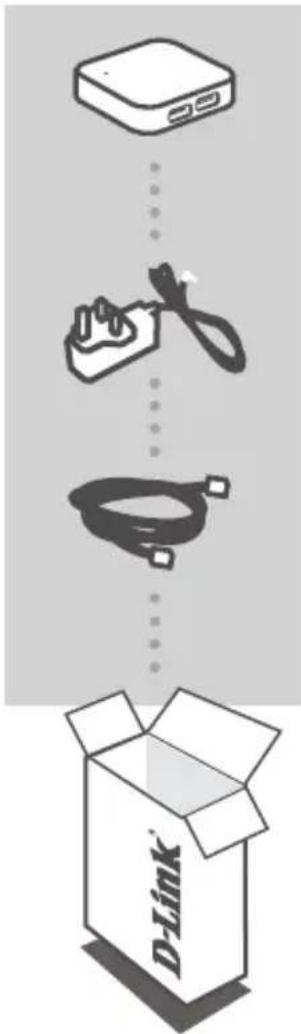
4-PORT HI-SPEED USB 2.0 HUB DUB-H4
STECKERNETZTEIL
USB 2.0-KABEL
CONFIGURATION DU PRODUIT
INSTALLATION RAPIDE
natural_image
Simple line drawing of a power outlet connected to a switch and two electrical outlets (no text or symbols)natural_image
Simple line drawing of a power outlet connected to a plug, with cable and plug (no text or symbols)natural_image
Simple line drawing of a laptop connected to a power outlet and cable, with no text or symbols present.natural_image
Diagram showing a printer connected to a smartphone via cable (no text or symbols present)natural_image
Simple line drawing of a power outlet connected to a switch and two electrical outlets (no text or symbols)natural_image
Simple line drawing of a power outlet connected to a plug, with cable and plug (no text or symbols)natural_image
Simple line drawing of a laptop connected to a power outlet and cable, with no text or symbols present.natural_image
Diagram showing a printer connected to a smartphone via cable (no text or symbols present)natural_image
Simple line drawing of a power outlet connected to a switch and two electrical outlets (no text or symbols)natural_image
Simple line drawing of a plug-in socket connected to an electrical outlet (no text or symbols)natural_image
Simple line drawing of a laptop connected to a power outlet and cable, with no text or symbols present.natural_image
Diagram showing a printer connected to a smartphone via cable (no text or symbols present)natural_image
Simple line drawing of a power outlet connected to a switch and two electrical outlets (no text or symbols)natural_image
Simple line drawing of a plug-in socket connected to an electrical outlet (no text or symbols)natural_image
Simple line drawing of a laptop connected to a wall-mounted power outlet (no text or symbols)natural_image
Diagram showing a device connected to a smartphone via cable, with no visible text or symbols.natural_image
Simple line drawing of a power outlet connected to a switch and two electrical outlets (no text or symbols)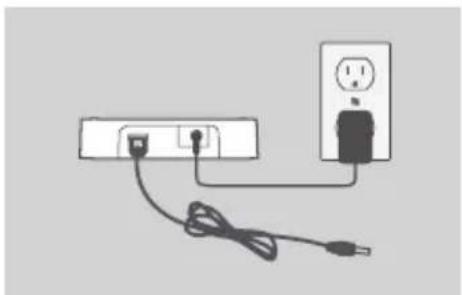
natural_image
Simple line drawing of a power outlet connected to a plug, with cable and plug (no text or symbols)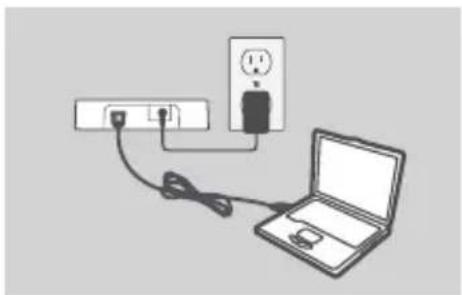
natural_image
Simple line drawing of a laptop connected to a power outlet and cable, with no text or symbols present.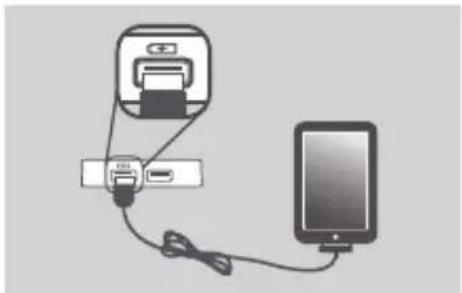
natural_image
Illustration of a printer connected to a tablet via cable (no text or symbols)natural_image
Simple line drawing of a power outlet connected to a switch and a wall-mounted socket (no text or symbols)natural_image
Simple line drawing of a power outlet connected to a plug and cable (no text or symbols)natural_image
Simple line drawing of a laptop connected to a power outlet and cable, with no text or symbols present.natural_image
Diagram showing a printer connected to a smartphone via cable (no text or symbols present)natural_image
Simple line drawing of a power outlet connected to a switch and a wall-mounted socket (no text or symbols)natural_image
Simple line drawing of a power outlet connected to a plug and cable (no text or symbols)natural_image
Simple line drawing of a laptop connected to a power outlet and cable, with no text or symbols present.natural_image
Diagram showing a printer connected to a smartphone via cable (no text or symbols present)natural_image
Simple line drawing of a power outlet connected to a switch and two electrical outlets (no text or symbols)natural_image
Simple line drawing of a power outlet connected to a plug, with cable and plug (no text or symbols)natural_image
Simple line drawing of a laptop connected to a power outlet and cable, with no text or symbols present.- Sett den rektangulære enden av den medfølgende USB-kabelen i en ledig USB-port på datamaskinen.
natural_image
Diagram showing a printer connected to a smartphone via cable (no text or symbols present)natural_image
Simple line drawing of a power outlet connected to a switch and a wall-mounted socket (no text or symbols)natural_image
Simple line drawing of a power outlet connected to a plug and cable (no text or symbols)natural_image
Simple line drawing of a laptop connected to a power outlet and a wall-mounted plug (no text or symbols)natural_image
Illustration of a printer connected to a smartphone via cable (no text or symbols)natural_image
Simple line drawing of a power outlet connected to a switch and a wall-mounted socket (no text or symbols)natural_image
Simple line drawing of a power outlet connected to a plug, with cable and socket (no text or symbols)natural_image
Simple line drawing of a laptop connected to a power outlet and cable, with no text or symbols present.natural_image
Diagram showing a printer connected to a smartphone via cable (no text or symbols present)natural_image
Simple line drawing of a power outlet connected to a switch and two electrical outlets (no text or symbols)natural_image
Simple line drawing of a power outlet connected to a plug and cable (no text or symbols)natural_image
Simple line drawing of a laptop connected to a power outlet and cable, with no text or symbols present.natural_image
Illustration of a mobile device connected to a smartphone via cable (no text or symbols)natural_image
Simple line drawing of a power outlet connected to a switch and two electrical outlets (no text or symbols)natural_image
Simple line drawing of a power outlet connected to a plug and cable (no text or symbols)natural_image
Simple line drawing of a laptop connected to a power outlet and cable, with no text or symbols present.natural_image
Diagram showing a printer connected to a smartphone via cable (no text or symbols present)natural_image
Simple line drawing of a power outlet connected to a switch and two electrical outlets (no text or symbols)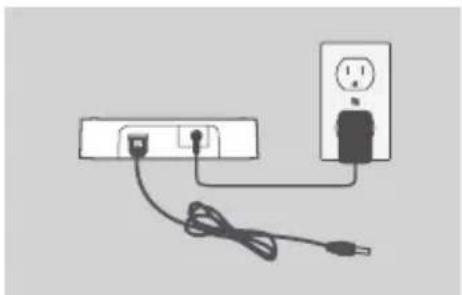
natural_image
Simple line drawing of a power outlet connected to a plug, with cable and plug (no text or symbols)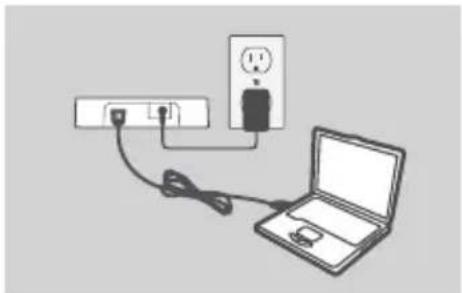
natural_image
Simple line drawing of a laptop connected to a wall-mounted power outlet and plug, with no text or symbols present.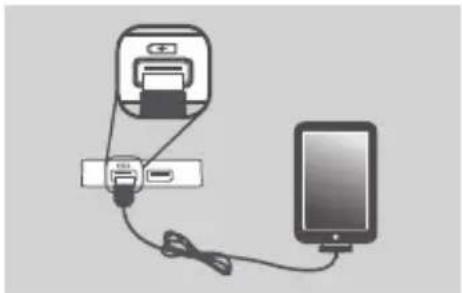
natural_image
Illustration of a printer connected to a tablet via cable (no text or symbols)natural_image
Simple line drawing of a power outlet connected to a switch and a wall-mounted socket (no text or symbols)- Priključite strujni adapter na priključnicu na poleđini uređaja DUB-H4. Drugi kraj priključite na zidnu utičnicu. Zasvijetlit će kontrolna lampica uređaja DUB-H4 označavajući da je uključeno napajanje čvorišta.
Napomena: Ovaj je korak opcijski, ali potreban je za način brzog punjenja. Više informacija potražite na sljedećoj stranici.
natural_image
Simple line drawing of a power outlet connected to a plug, with cable and socket (no text or symbols)- Manji kraj priloženog USB kabela priključite na poleđinu uređaja DUB-H4.
natural_image
Simple line drawing of a laptop connected to a power outlet and cable, with no text or symbols present.natural_image
Diagram showing a printer connected to a smartphone via cable (no text or symbols present)natural_image
Simple line drawing of a power outlet connected to a switch and a wall-mounted socket (no text or symbols)natural_image
Simple line drawing of a power outlet connected to a plug and cable (no text or symbols)natural_image
Simple line drawing of a laptop connected to a power outlet and cable, with no text or symbols present.- Vključite kvadratni konec priloženega kabla USB v prosta vrata USB na računalniku.
natural_image
Diagram showing a printer connected to a smartphone via cable (no text or symbols present)- PRODUCT SETUP
- QUICK INSTALLATION
- iPAD® FAST-CHARGE MODE
- CHANGING FROM STANDARD MODE TO FAST-CHARGE MODE
- TROUBLESHOOTING
- WHAT DO I DO IF MY COMPUTER DOES NOT DETECT MY DUB-H4?
- WHAT DO I DO IF I GET A "USB HUB CURRENT LIMIT EXCEEDED" MESSAGE IN MICROSOFT WINDOWS?
- WHAT DO I DO IF MY IPAD ® OR SIMILAR DEVICE, DOES NOT CHARGE?
- WHY ISN'T MY PC'S KEYBOARD/MOUSE BOOT FEATURE WORKING THROUGH THE DUB-H4?
- LIEFERUMFANG
- CONFIGURATION DU PRODUIT
- INSTALLATION RAPIDE
Brand : D-LINK
Model : DUB-H7
Category : USB hub