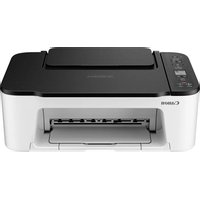
CANON PIXMA TS3452 - Printer

PIXMA TS3452 - Printer CANON - Free user manual and instructions

Find the device manual for free PIXMA TS3452 CANON in PDF.

📄 76 pages English EN Download 💬 AI Question
Notice CANON PIXMA TS3452 - page 3

User questions about PIXMA TS3452 CANON

0 question about this device. Answer the ones you know or ask your own.

Ask a new question about this device

The email remains private: it is only used to notify you if someone responds to your question.

No questions yet. Be the first to ask one.

Download the instructions for your Printer in PDF format for free! Find your manual PIXMA TS3452 - CANON and take your electronic device back in hand. On this page are published all the documents necessary for the use of your device. PIXMA TS3452 by CANON.

USER MANUAL PIXMA TS3452 CANON

Read Safety and Important Information (addendum) first.

natural_image Icon showing a printer with a paper airplane and a document, symbolizing file transfer or sync (no text present)

Installing the Printer......page 1

natural_image Two white icons: a laptop and a smartphone, on a solid red background (no text or symbols)

Connecting to a Computer, Smartphone or Tablet...... page 4
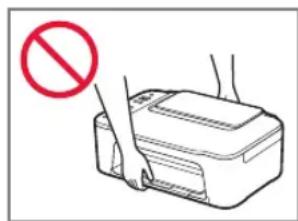
natural_image Line drawing of a printer with hands holding the lid (no text or symbols)

CANON PIXMA TS3452 - 1

text_image Diagram showing a printer with a prohibition symbol, indicating no usage or prohibition of the printer.

Setting Up the Printer

CANON PIXMA TS3452 - Setting Up the Printer - 1

For Setup, visit the URL

https://ij.start.canon/TS3450

or scan the code with your mobile device

CANON PIXMA TS3452 - https://ij.start.canon/TS3450 - 1

- Follow the instructions below if you do not have an internet connection.

1. Box Contents

• FINE cartridges

CANON PIXMA TS3452 - Box Contents - 1
Color Black

Power Cord
• Safety and Important Information
• Getting Started (this manual)

2. Removing Packing Materials
CANON PIXMA TS3452 - Removing Packing Materials - 1

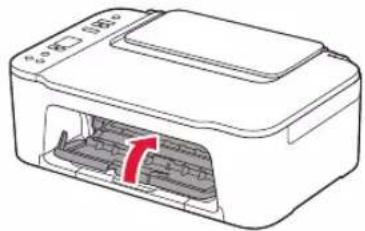
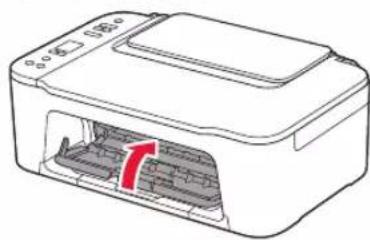
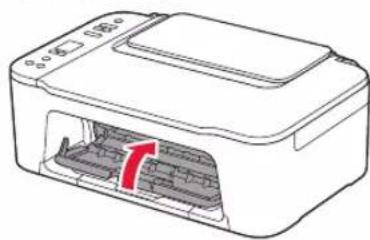
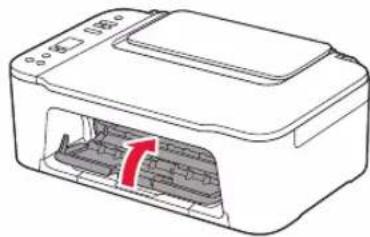
1 Remove the orange tape on the right and open the cover.
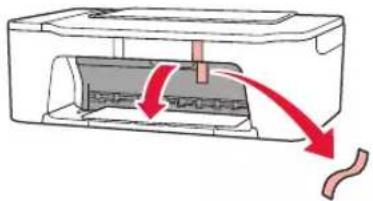
CANON PIXMA TS3452 - Removing Packing Materials - 2

natural_image Diagram of a printer with red arrows indicating compression or disassembly process (no text or symbols)

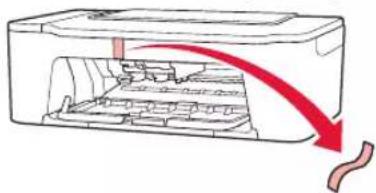
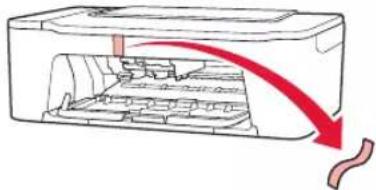
2 Remove the orange tape on the left.
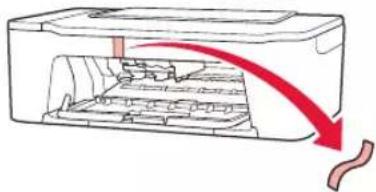
CANON PIXMA TS3452 - Removing Packing Materials - 3

natural_image Diagram of a printer with internal structure and red arrow indicating motion (no text or symbols)

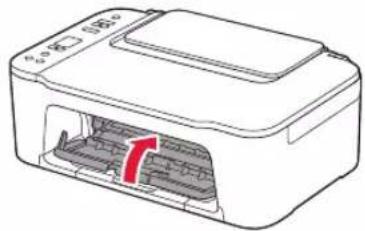
3 Close the cover.

CANON PIXMA TS3452 - Removing Packing Materials - 4

natural_image Diagram of a printer with internal structure and red arrow indicating rotation (no text or symbols)

3. Turning on the Printer

CANON PIXMA TS3452 - Turning on the Printer - 1

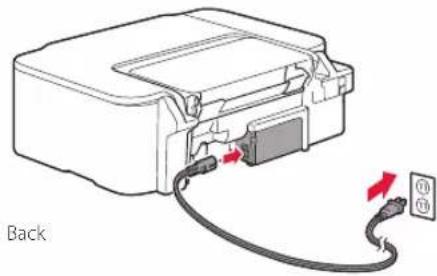
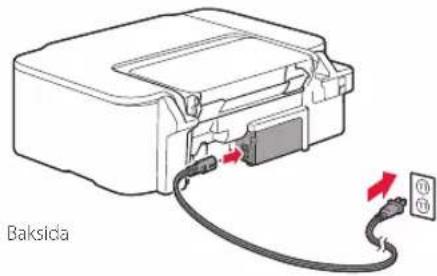
1 Connect the power cord.

CANON PIXMA TS3452 - Turning on the Printer - 2

natural_image Diagram of a device with cable and connector, showing internal components and directional arrows (no text or symbols)

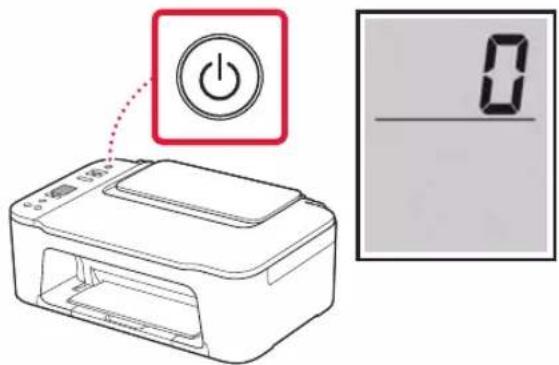
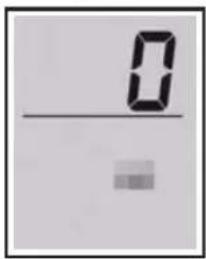
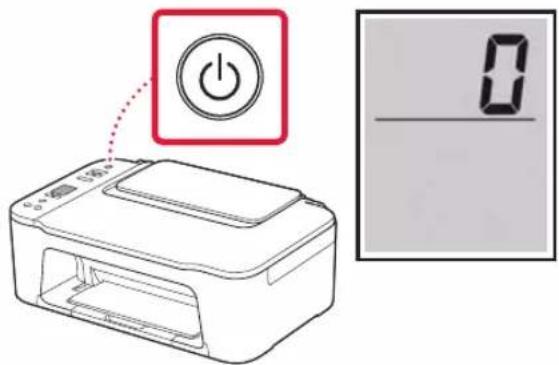
2 Press the ON button.

CANON PIXMA TS3452 - Turning on the Printer - 3

text_image Diagram showing a printer with a power button and a 0-segment display, likely illustrating a digital control or status.

CANON PIXMA TS3452 - Turning on the Printer - 4

If another screen appears, see "If any of the following screens appear" on page 3 and follow the instructions.

Setting Up the Printer

4. Installing the FINE Cartridges
CANON PIXMA TS3452 - Installing the FINE Cartridges - 1

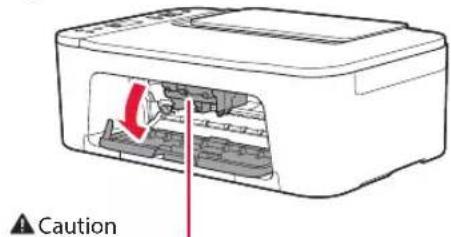
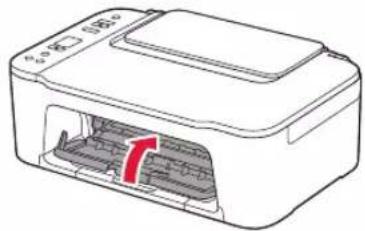
1 Open the cover.

CANON PIXMA TS3452 - Open the cover. - 1

text_image Caution

Do not touch the FINE cartridge holder until it stops moving.

2 Lower the ink cartridge lock lever on the left-hand side.
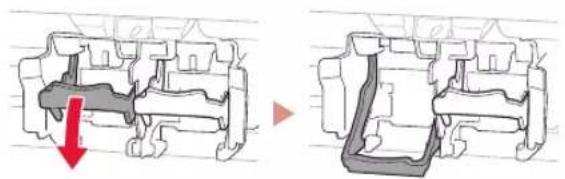
CANON PIXMA TS3452 - Lower the ink cartridge lock lever on the left-hand side. - 1

natural_image Diagram showing a mechanical component before and after disassembly, with no visible text or symbols

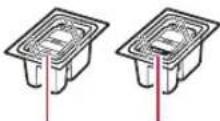
3 Remove the Color FINE cartridge from the package and remove the protective tape.
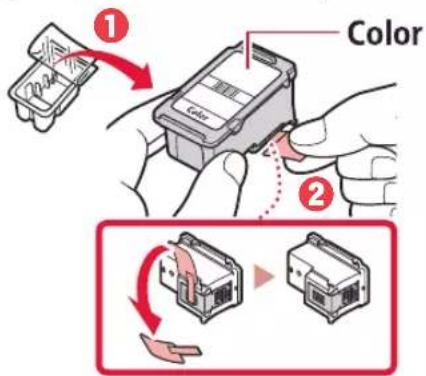
CANON PIXMA TS3452 - Remove the Color FINE cartridge from the package and remove the protective tape. - 1

text_image ① Color ②

Important

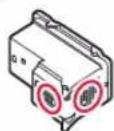
  • Do not touch the ink on the protective tape. It could stain your hands or surrounding objects.
  • Do not touch the areas shown in the figure. Otherwise, the printer may not print correctly.
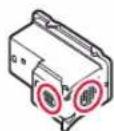
CANON PIXMA TS3452 - Important - 1

4 Insert the Color FINE cartridge in the FINE cartridge holder.
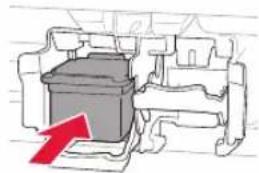
CANON PIXMA TS3452 - Insert the Color FINE cartridge in the FINE cartridge holder. - 1

natural_image Diagram of a mechanical component with a red arrow indicating direction (no text or symbols)

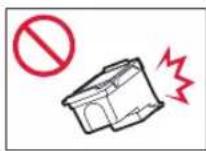
Important

Do not bump the FINE cartridge. Doing so may cause a malfunction.
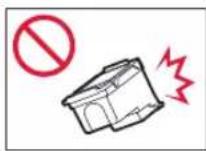
CANON PIXMA TS3452 - Important - 1

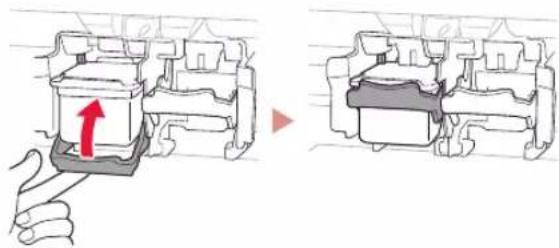
5 Raise the ink cartridge lock lever.
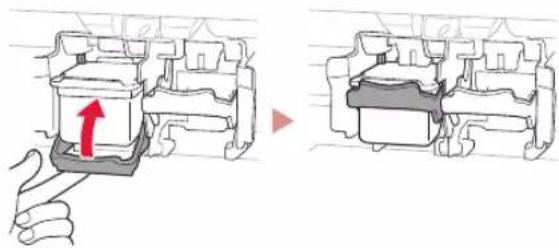
CANON PIXMA TS3452 - Raise the ink cartridge lock lever. - 1

text_image Diagram showing a hand pressing a component with a red arrow indicating direction, alongside a close-up of the component's internal structure.

6 Repeat steps 2 to 5 and install the Black FINE cartridge on the right-hand side.
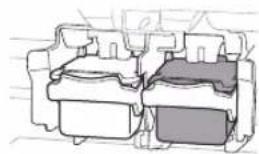
CANON PIXMA TS3452 - Repeat steps 2 to 5 and install the Black FINE cartridge on the right-hand side. - 1

natural_image Technical line drawing of a mechanical component with three stacked parts (no text or symbols)

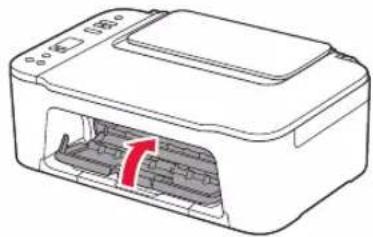
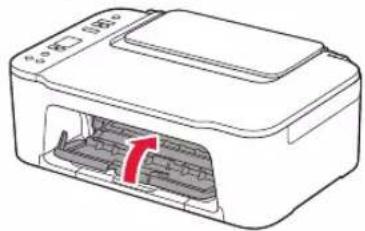
7 Close the cover.

CANON PIXMA TS3452 - Close the cover. - 1

natural_image Line drawing of a printer with internal structure and red arrow indicating rotation (no text or symbols)

8 Check that the following screen appears.
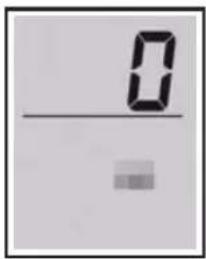
CANON PIXMA TS3452 - Check that the following screen appears. - 1

text_image 0 —

Important

If E > 0 > 4 appears on the screen, see "If any of the following screens appear" on page 3 and follow the instructions.

Select the connection method that best matches how you will use the printer.

• To use the printer without connecting to any other devices

→ Setup is now complete.

• To use the printer connecting to a computer or smartphone

→ Proceed to the next page.

CANON PIXMA TS3452 - Important - 1

If any of the following screens appear
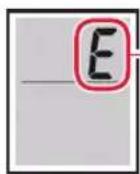
CANON PIXMA TS3452 - If any of the following screens appear - 1

Numbers or letters

Check the screen, and then follow the corresponding instructions below.

CANON PIXMA TS3452 - If any of the following screens appear - 2

Install the FINE cartridges.

→ "4. Installing the FINE Cartridges" on page 2

CANON PIXMA TS3452 - If any of the following screens appear - 3

Protective material remaining.

→ "2. Removing Packing Materials" on page 1

CANON PIXMA TS3452 - If any of the following screens appear - 4

FINE cartridges are not installed correctly.

→ "4. Installing the FINE Cartridges" on page 2

For all other cases, refer to the Online Manual.

Setting Up the Printer

What device are you connecting?

CANON PIXMA TS3452 - Setting Up the Printer - 1

Computer Smartphone
CANON PIXMA TS3452 - Setting Up the Printer - 2
Computer and smartphone

CANON PIXMA TS3452 - Setting Up the Printer - 3

5-a

Connecting to a Computer

If you are using multiple computers, perform these steps on each computer.
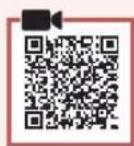
CANON PIXMA TS3452 - Connecting to a Computer - 1

1 Access the Canon website from your computer.

CANON PIXMA TS3452 - Connecting to a Computer - 2

https://ij.start.canon

2 Select Set Up.
3 Enter your printer's model name and click Go.
4 Click Start.
5 Click (B) Connecting to a Computer/Smartphone.

• The following steps are for Windows users.

6 Click Download.
7 Run the downloaded file.

• Follow the on-screen instructions.
• These operations may take some time.
- To connect to a smartphone as well, see "5-b. Connecting to a Smartphone" on page 5.

5-b

Connecting to a Smartphone

If you are using multiple smartphones, perform these steps on each smartphone.

CANON PIXMA TS3452 - Connecting to a Smartphone - 1

1 Install the "Canon PRINT Inkjet/SELPHY" app on your smartphone.
CANON PIXMA TS3452 - Connecting to a Smartphone - 2

- Search for "Canon PRINT" in App Store, or Google Play.

- Access the Canon website to download the app.

CANON PIXMA TS3452 - Connecting to a Smartphone - 3

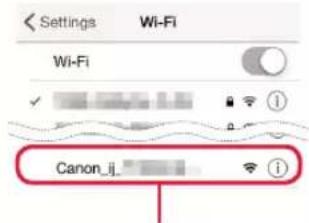
2 Open your smartphone's Wi-Fi settings. Check that the network name (SSID) that starts with "Canon_ij_" appears.

(Example of iOS screen)
CANON PIXMA TS3452 - Connecting to a Smartphone - 4

CANON PIXMA TS3452 - Connecting to a Smartphone - 5

text_image Settings Wi-Fi Wi-Fi Canon_ij

The network name (SSID) that starts with "Canon_ij_"

  • If "Canon_ij_" appears - Proceed to step 3.
  • If "Canon_ij_" does not appear - Proceed to step

3 Tap the network name (SSID) that starts with "Canon_ij_".
4 Open the installed app, and follow the on-screen instructions in the app to add your printer.
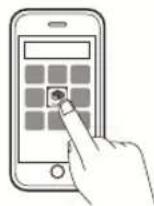
CANON PIXMA TS3452 - Connecting to a Smartphone - 6

Once you have added your printer, you can print from your smartphone.

To print photos, see "Loading Paper" on page 6.

Loading Paper

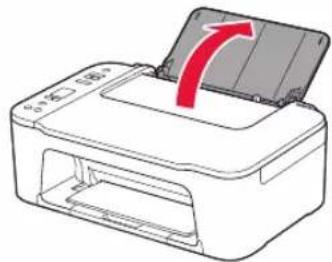
1 Open the paper support.

CANON PIXMA TS3452 - Loading Paper - 1

natural_image Illustration of a printer with a red arrow indicating the paper's edge, showing no text or symbols on the device itself.

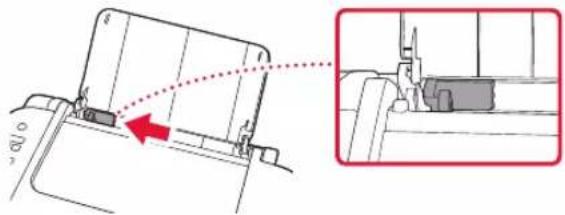
2 Slide the paper guide to the left.

CANON PIXMA TS3452 - Loading Paper - 2

natural_image Technical diagram showing a mechanical component with an arrow indicating direction, alongside a close-up view of a device (no text or symbols present)

3 Load several sheets of paper against the right edge with the print side facing up and align the paper guide to the width of the paper.
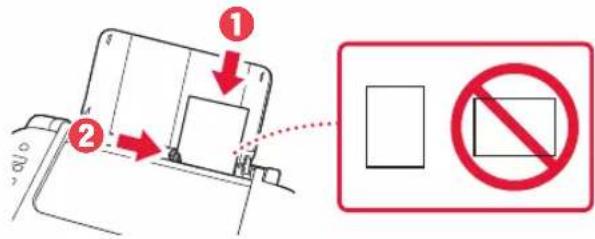
CANON PIXMA TS3452 - Loading Paper - 3

text_image Diagram showing two labeled components (① and ②) with arrows indicating movement, alongside a prohibition symbol.

4 Press the Paper Select button, select a paper size, and then press the OK button.
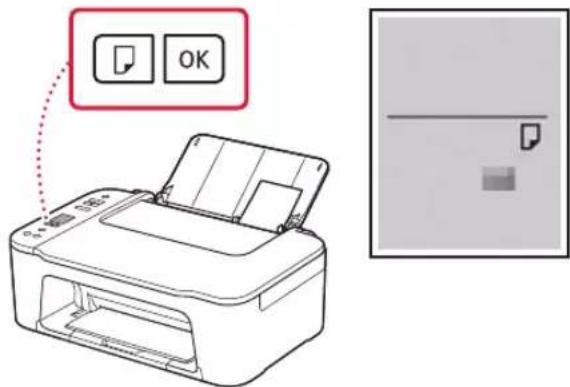
CANON PIXMA TS3452 - Loading Paper - 4

text_image Diagram showing printer operation with 'OK' button and blank sheet, alongside a separate image of a printer.

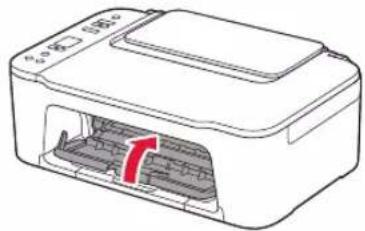
5 Extend the paper output tray, and open the output tray extension.
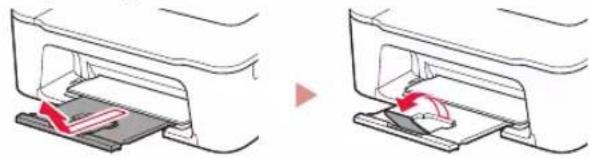
CANON PIXMA TS3452 - Loading Paper - 5

natural_image Two-step diagram showing a printer's internal structure before and after assembly, with no visible text or symbols.

- Look at it from the side to confirm it looks like the diagram.
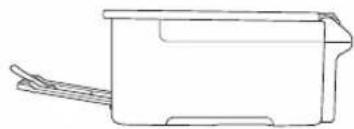
CANON PIXMA TS3452 - Loading Paper - 6

natural_image Line drawing of a mechanical component or housing with handle and base (no text or symbols)

If Print Results Are Unsatisfactory

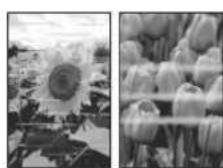
Perform Print Head Alignment if straight lines are crooked or colors are inconsistent, or print results are otherwise not what you expected.

For details, click Maintenance on the Online Manual and refer to If Printing Is Faint or Uneven > Aligning the Print Head. Refer to the back cover for how to access the Online Manual.

■ Lines Are Misaligned
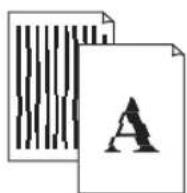
CANON PIXMA TS3452 - If Print Results Are Unsatisfactory - 1

■ Uneven or Streaked Colors

CANON PIXMA TS3452 - If Print Results Are Unsatisfactory - 2

Configuration de l'imprimante

CANON PIXMA TS3452 - Configuration de l'imprimante - 1

natural_image Diagram of a printer with red arrows indicating process flow (no text or symbols)
natural_image Diagram of a printer internal structure with red arrows indicating flow direction (no text or symbols)

3 Fermez le capot.

CANON PIXMA TS3452 - Configuration de l'imprimante - 2

natural_image Diagram of a printer with internal structure and red arrow indicating rotation (no text or symbols)
text_image Diagram showing a printer with a power button and a 0-segment display, likely illustrating a power control or status change.

Important

text_image Attention
natural_image Diagram showing a mechanical component before and after disassembly, with a red arrow indicating the process (no text or symbols present)
text_image ① Color ②

Important

natural_image Diagram of a mechanical component with a red arrow indicating direction (no text or symbols)

Important

text_image Diagram showing a hand pressing a component with a red arrow indicating direction, alongside a close-up of the component being rotated.
natural_image Diagram of a mechanical component with two stacked parts, one highlighted in gray (no text or symbols)

7 Fermez le capot.

CANON PIXMA TS3452 - Fermez le capot. - 1

natural_image Diagram of a printer with internal structure and red arrow indicating rotation (no text or symbols)
natural_image Illustration of a printer with an open lid and red arrow indicating rotation (no text or symbols)
natural_image Mechanical assembly diagram showing a component being inserted into a housing, with a red arrow indicating the direction of movement (no text or symbols present)
text_image Diagram showing a device with two labeled arrows and a prohibition symbol, indicating no movement or restriction.
text_image Diagram showing printer operation with OK button and blank sheet, alongside a separate image of a printer's paper sheet.
natural_image Diagram showing two steps of a printer or printer device with a red arrow indicating rotation, no text or symbols present.
natural_image Line drawing of a rectangular container with side handles (no text or symbols)
natural_image Diagram of a printer with red arrows indicating process flow (no text or symbols)
natural_image Diagram of a printer internal structure with a red arrow indicating flow direction (no text or symbols)
natural_image Diagram of a printer with internal structure and red arrow indicating a component (no text or symbols)
text_image Diagram showing a printer with a power button and a 0-segment display, likely illustrating a power control or status change.

Wichtig

natural_image Diagram showing two views of a mechanical component with a red arrow indicating a downward motion (no text or symbols present)
text_image ① Color ②

Wichtig

natural_image Diagram of a mechanical component with a red arrow indicating direction (no text or symbols present)

Wichtig

text_image Diagram showing a hand pressing a component with a red arrow indicating the direction, alongside a close-up of the component's internal structure.
natural_image Cross-sectional diagram of a mechanical component with layered sections (no text or symbols)
natural_image Line drawing of a printer with internal structure and a red arrow indicating a flow or movement (no text or symbols)
natural_image Illustration of a printer with an open lid and red arrow indicating rotation (no text or symbols)
natural_image Mechanical assembly diagram showing a component being inserted into a housing, with an inset close-up highlighting the connection (no text or symbols present)
text_image Diagram showing two steps of installing a device with a prohibition symbol, labeled with arrows and a red dashed line.
text_image Diagram showing printer operation with 'OK' button and file icon, alongside a blank document preview
natural_image Two-step diagram showing a printer's internal structure before and after assembly, with no visible text or symbols.
natural_image Line drawing of a rectangular container with side handles (no text or symbols)
natural_image Diagram of a printer with red arrows indicating process flow (no text or symbols)
natural_image Diagram of a printer internal structure with red arrows indicating flow direction (no text or symbols)

3 Sluit de klep.

CANON PIXMA TS3452 - Wichtig - 1

natural_image Diagram of a printer with internal structure and red arrow indicating rotation (no text or symbols)

3. De printer inschakelen

CANON PIXMA TS3452 - De printer inschakelen - 1

text_image Diagram showing a printer with a power button and a 0-segment display, likely illustrating a digital control or status.

Belangrijk

natural_image Two mechanical component diagrams showing internal structures with a red arrow indicating a specific section (no text or symbols present)
text_image ① Color ②

Belangrijk

natural_image Diagram of a mechanical component with a red arrow indicating direction (no text or symbols)

Belangrijk

text_image Diagram showing a hand pressing a component with a red arrow indicating the direction, before and after modification.
natural_image Line drawing of a printer with internal structure and red arrow indicating rotation (no text or symbols)

→ De installatie is nu voltooid.

natural_image Illustration of a printer with an open lid and red arrow indicating rotation (no text or symbols)
natural_image Technical diagram showing a mechanical component with an arrow indicating direction, alongside a magnified inset of a device (no text or symbols present)
text_image Diagram showing a device with two labeled arrows and a prohibition symbol, indicating no movement or restriction.
text_image Diagram showing printer operation with OK button and blank sheet, alongside a separate image of a printer's paper sheet.
natural_image Diagram showing two views of a printer's internal structure before and after assembly, with no visible text or symbols.
natural_image Line drawing of a rectangular container with side handles (no text or symbols)
natural_image Diagram of a printer with red arrows indicating process flow (no text or symbols)
natural_image Diagram of a printer internal structure with a red arrow indicating flow direction (no text or symbols)
natural_image Diagram of a printer with internal structure and red arrow indicating rotation (no text or symbols)
text_image Diagram showing a printer with a power button and a digital display showing 0

Importante

natural_image Diagram showing a mechanical component before and after assembly, with no visible text or symbols.
text_image ① Color ②

Importante

natural_image Diagram of a mechanical component with a red arrow indicating direction (no text or symbols)

Importante

text_image Diagram showing a hand pressing a component with a red arrow indicating direction, alongside a close-up of the component's side view.
natural_image Technical line drawing of a mechanical component with no visible text or symbols
natural_image Line drawing of a printer with internal structure and red arrow indicating rotation (no text or symbols)

Computer Smartphone
CANON PIXMA TS3452 - Importante - 1
Computer e smartphone

CANON PIXMA TS3452 - Importante - 2

5-a

natural_image Illustration of a printer with an open lid and red arrow indicating rotation (no text or symbols)
natural_image Technical diagram showing a mechanical component with an arrow indicating direction, alongside a magnified inset of a device (no text or symbols present)
text_image Diagram showing a device with two labeled arrows and a prohibition symbol, indicating no movement or restriction.
text_image Diagram showing printer operation with 'OK' button and file icon, alongside a blank document preview
natural_image Diagram showing two views of a printer's internal structure before and after assembly, with no visible text or symbols.
natural_image Line drawing of a rectangular container with side handles (no text or symbols)
natural_image Diagram of a printer with red arrows indicating process flow (no text or symbols)

2 Remova a fita laranja à esquerda.

CANON PIXMA TS3452 - 5-a - 1

natural_image Diagram of a printer internal structure with red arrows indicating flow direction (no text or symbols)

3 Feche a tampa.

CANON PIXMA TS3452 - 5-a - 2

natural_image Diagram of a printer with internal structure and red arrow indicating rotation (no text or symbols)

3. Ligando a impressora

CANON PIXMA TS3452 - Ligando a impressora - 1

text_image Diagram showing a printer with a power button and a 0-segment display, likely illustrating a digital control or status.

CANON PIXMA TS3452 - Ligando a impressora - 2

natural_image Diagram showing two mechanical component cross-sections with red arrows indicating a downward motion (no text or symbols)
text_image ① Color ②

Importante

natural_image Diagram of a mechanical component with a red arrow indicating direction (no text or symbols)

Importante

text_image Diagram showing a hand pressing a component with a red arrow indicating direction, alongside a close-up of the component's internal structure.
natural_image Technical line drawing of a mechanical component with no visible text or symbols

7 Feche a tampa.

CANON PIXMA TS3452 - Feche a tampa. - 1

natural_image Line drawing of a printer with internal structure and red arrow indicating rotation (no text or symbols)

8 Verifique se a tela a seguir aparece.

CANON PIXMA TS3452 - Verifique se a tela a seguir aparece. - 1

text_image 0 —

Importante

natural_image Illustration of a printer with a red arrow indicating the paper's edge, showing no text or symbols on the device itself.
natural_image Technical diagram of a mechanical assembly with a red arrow indicating a process or connection, no visible text or symbols.
text_image Diagram showing two labeled components (① and ②) with arrows indicating movement, alongside a prohibition symbol.
text_image Diagram showing a printer with two icons labeled 'OK' and a blank page with a horizontal line, alongside a separate image of a printer.
natural_image Two-step diagram showing a printer's internal structure before and after assembly, with no text or symbols present.
natural_image Line drawing of a rectangular container with side handles (no text or symbols)
natural_image Diagram of a printer with red arrows indicating process flow (no text or symbols)
natural_image Diagram of a printer internal structure with red arrows indicating flow direction (no text or symbols)
natural_image Diagram of a printer with internal structure and paperclip, showing no text or symbols

3. Encender la impresora

CANON PIXMA TS3452 - Encender la impresora - 1

text_image Diagram showing a printer with a power button and a 0-segment display, likely illustrating a digital status or status change.

Importante

natural_image Diagram showing a mechanical component before and after disassembly, with no visible text or symbols
text_image ① Color ②

Importante

natural_image Diagram of a mechanical component with a red arrow indicating direction (no text or symbols present)

Importante

text_image Diagram showing a hand pressing a plastic component with an upward arrow, alongside its side view with a red arrow indicating force or direction.
natural_image Cross-sectional diagram of a mechanical component with layered sections (no text or symbols)
natural_image Line drawing of a printer with internal structure and red arrow indicating rotation (no text or symbols)
natural_image Illustration of a printer with an open lid and red arrow indicating rotation (no text or symbols)
natural_image Technical diagram of a mechanical assembly with a red arrow indicating a process or connection, no visible text or symbols.
text_image Diagram showing two labeled components (① and ②) with arrows indicating movement, alongside a prohibition symbol.
text_image Diagram showing printer operation with 'OK' button and blank sheet, alongside a close-up of the paper's print area.
natural_image Two-step diagram showing a printer's internal structure before and after assembly, with no visible text or symbols.
natural_image Line drawing of a rectangular container with side handles (no text or symbols)
natural_image Diagram of a printer with red arrows indicating process flow (no text or symbols)
natural_image Diagram of a printer internal structure with red arrows indicating flow direction (no text or symbols)
natural_image Diagram of a printer with internal structure and red arrow indicating rotation (no text or symbols)
text_image Diagram showing a printer with a power button and a 0-segment display, likely illustrating a digital control or status.

Σημαντικό

natural_image Diagram showing two views of a mechanical component with a red arrow indicating a downward motion (no text or symbols present)
text_image ① Color ②

Σημαντικό

natural_image Diagram of a mechanical component with a red arrow indicating direction (no text or symbols present)

Σημαντικό

text_image Diagram showing a hand pressing a component with a red arrow indicating direction, alongside a close-up of the component's side view.
natural_image Cross-sectional diagram of a mechanical component with layered sections (no text or symbols)
natural_image Line drawing of a printer with internal structure and red arrow indicating rotation (no text or symbols)
natural_image Illustration of a printer with an open lid and red arrow indicating rotation (no text or symbols)
natural_image Technical diagram of a mechanical assembly with a red arrow indicating a process or connection, no visible text or symbols.
text_image Diagram showing a device with labeled components and a prohibition sign, indicating no restrictions on the device.
text_image Diagram showing a printer with two icons labeled 'OK' and a blank page with a horizontal line, alongside a separate image of a printer.
natural_image Diagram showing two views of a printer or printer holder with red arrows indicating motion (no text or symbols present)
natural_image Line drawing of a rectangular container with side handles (no text or symbols)
natural_image Diagram of a printer with red arrows indicating process flow (no text or symbols)
natural_image Diagram of a printer with internal structure and red arrow indicating flow direction (no text or symbols)

3 Stäng luckan.

CANON PIXMA TS3452 - Σημαντικό - 1

natural_image Diagram of a printer with internal structure and red arrow indicating rotation (no text or symbols)

3. Slå på skrivaren

CANON PIXMA TS3452 - Slå på skrivaren - 1

1 Anslut strömkabeln.

CANON PIXMA TS3452 - Slå på skrivaren - 2

text_image Baksica

2 Tryck på PÅ (ON).

CANON PIXMA TS3452 - Slå på skrivaren - 3

text_image Diagram showing a printer with a power button and a digital display showing 0

CANON PIXMA TS3452 - Slå på skrivaren - 4

natural_image Diagram showing a mechanical component before and after assembly, with no visible text or symbols
text_image ① Color ②

Viktigt!

natural_image Diagram of a mechanical component with a red arrow indicating direction (no text or symbols)

Viktigt!

text_image Diagram showing a hand pressing a component with a red arrow indicating direction, alongside a close-up of the component's internal structure.
natural_image Line drawing of a printer with internal structure and red arrow indicating rotation (no text or symbols)
natural_image Illustration of a printer with a red arrow indicating rotation or compression (no text or symbols)
natural_image Mechanical assembly diagram showing a component being inserted into a housing, with an inset close-up highlighting the internal structure (no text or symbols present)
text_image Diagram showing two labeled components (① and ②) with arrows pointing to a device, alongside a prohibition symbol.
text_image Diagram showing printer operation with 'OK' button and blank sheet, alongside a separate image of a printer.
natural_image Diagram showing two views of a printer's opening with arrows indicating motion (no text or symbols)
natural_image Line drawing of a rectangular container with a side handle and a curved side outlet (no text or symbols)
natural_image Diagram of a printer with red arrows indicating process flow (no text or symbols)

2 Fjern den oransje tapen på venstre side.

CANON PIXMA TS3452 - Viktigt! - 1

natural_image Diagram of a printer internal structure with red arrows indicating flow direction (no text or symbols)

3 Lukk dekselet.

CANON PIXMA TS3452 - Viktigt! - 2

natural_image Diagram of a printer with internal structure and red arrow indicating rotation (no text or symbols)

3. Slå på skriveren

CANON PIXMA TS3452 - Slå på skriveren - 1

text_image Diagram showing a printer with a power button and a 0-10 scale display, alongside its schematic view.

CANON PIXMA TS3452 - Slå på skriveren - 2

natural_image Diagram showing a mechanical component before and after disassembly, with no visible text or symbols
text_image ① Color ②

Viktig!

  • Ikke berør blekket på den beskyttende tapen. Det kan sette flekker på hendene dine eller andre gjenstander.
  • Ikke berør områdene som er vist på figuren. Skriveren vil ellers ikke kunne skrive ut riktig.

CANON PIXMA TS3452 - Viktig! - 1

natural_image Diagram of a mechanical component with a red arrow indicating direction (no text or symbols)

Viktig!

Ikke dunk på FINE-kassetten. Dette kan føre til at det oppstår en feil.

CANON PIXMA TS3452 - Viktig! - 1

5 Hev läsehendelen for blekkassetter.

CANON PIXMA TS3452 - Hev läsehendelen for blekkassetter. - 1

text_image Diagram showing a hand pressing a component with a red arrow indicating direction, alongside a close-up of the component's internal structure.
natural_image Technical line drawing of a mechanical component with three stacked parts (no text or symbols)

7 Lukk dekselet.

CANON PIXMA TS3452 - Lukk dekselet. - 1

natural_image Line drawing of a printer with internal structure and red arrow indicating rotation (no text or symbols)
natural_image Illustration of a printer with an open lid and red arrow indicating rotation (no text or symbols)
natural_image Technical diagram of a mechanical component with an arrow indicating direction, showing internal structure and assembly (no text or symbols)
text_image Diagram showing two labeled components (① and ②) with arrows indicating movement, alongside a prohibition symbol.
text_image Diagram showing a printer with two icons labeled 'OK' and a blank page with a horizontal line, alongside a separate image of a printer.
natural_image Diagram showing two views of a printer or printer holder with red arrows indicating motion (no text or symbols present)
natural_image Line drawing of a rectangular container with a side handle and a curved side outlet (no text or symbols)
natural_image Diagram of a printer with red arrows indicating compression or disassembly process (no text or symbols)
natural_image Diagram of a printer internal structure with red arrows indicating flow direction (no text or symbols)

3 Luk dækslet.

CANON PIXMA TS3452 - Lukk dekselet. - 2

natural_image Diagram of a printer with internal structure and red arrow indicating rotation (no text or symbols)

3. Tænd printeren

CANON PIXMA TS3452 - Tænd printeren - 1

text_image Diagram showing a printer with a power button and a 0-16gment display, likely illustrating a power control or status change.

CANON PIXMA TS3452 - Tænd printeren - 2

natural_image Diagram showing a mechanical component before and after assembly, with no visible text or symbols
text_image ① Color ②

Vigtigt

natural_image Diagram of a mechanical component with a red arrow indicating direction (no text or symbols)

Vigtigt

text_image Diagram showing a hand pressing a component with a red arrow indicating direction, alongside a close-up of the component's internal structure.
natural_image Cross-sectional diagram of a mechanical component with layered parts (no text or symbols)

7 Luk dækslet.

CANON PIXMA TS3452 - Luk dækslet. - 1

natural_image Line drawing of a printer with internal structure and red arrow indicating rotation (no text or symbols)
natural_image Illustration of a printer with an open lid and red arrow indicating rotation (no text or symbols)
natural_image Technical diagram of a mechanical assembly with a red arrow indicating a specific component (no text or symbols present)
text_image Diagram showing two labeled components (① and ②) with arrows indicating movement, alongside a prohibition symbol.
text_image Diagram showing printer operation with 'OK' button and file icon, alongside a blank image panel
natural_image Diagram showing two steps of a printer or printer device with red arrows indicating motion, no text or symbols present.
natural_image Line drawing of a rectangular container with side handles (no text or symbols)
natural_image Diagram of a printer with red arrows indicating process flow (no text or symbols)
natural_image Diagram of a printer internal structure with red arrows indicating flow direction (no text or symbols)

3 Sulje kansi.

CANON PIXMA TS3452 - Luk dækslet. - 2

natural_image Line drawing of a printer with internal structure and red arrow indicating a component (no text or symbols)
text_image Diagram showing a printer with a power button and a 0-segment display, likely illustrating a digital control or status.

CANON PIXMA TS3452 - Luk dækslet. - 3

natural_image Diagram showing a mechanical component before and after disassembly, with no visible text or symbols
text_image ① Color ②

Tärkeää

natural_image Diagram of a mechanical component with a red arrow indicating direction (no text or symbols)

Tärkeää

text_image Diagram showing a hand pressing a plastic component with an upward arrow, alongside its side view with a gray component.
natural_image Cross-sectional diagram of a mechanical component with layered sections (no text or symbols)

7 Sulje kansi.

CANON PIXMA TS3452 - Sulje kansi. - 1

natural_image Diagram of a printer with internal structure and red arrow indicating rotation (no text or symbols)
natural_image Illustration of a printer with an open lid and red arrow indicating rotation (no text or symbols)
natural_image Technical diagram of a mechanical assembly with a red arrow indicating direction, showing no text or symbols.
text_image Diagram showing a device with labeled components and a prohibition symbol, likely illustrating a mechanical or electrical hazard.
text_image Diagram showing printer operation with 'OK' button and blank sheet, alongside a close-up of the paper's print area.
natural_image Two-step diagram showing a printer's internal structure before and after assembly, with no visible text or symbols.
natural_image Line drawing of a mechanical component or housing with handle and base (no text or symbols)
  • Windows is a trademark or registered trademark of Microsoft Corporation in the U.S. and/or other countries.
  • App Store is a trademark of Apple Inc., registered in the U.S. and other countries.
    • Google Play is a registered trademark of Google LLC.

Marques

natural_image Red icon showing a globe with a question mark on a laptop, symbolizing global inquiry or search (no text present)
text_image https://ij.start.canon
Manual assistant
Powered by Anthropic
Waiting for your message
Product information

Brand : CANON

Model : PIXMA TS3452

Category : Printer