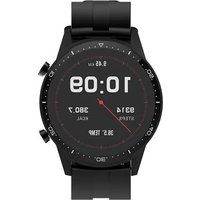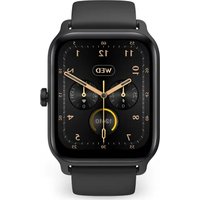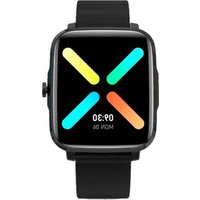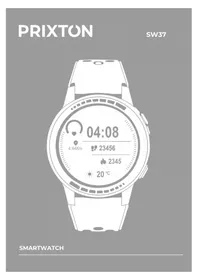
SW37 - Sports Watch Prixton - Free user manual and instructions
Find the device manual for free SW37 Prixton in PDF.


| Product type | Connected sports watch with GPS |
| Model | SW37 |
| Brand | Prixton |
| Case dimensions (approx.) | 45 mm diameter, 12 mm thickness |
| Weight (approx.) | 50 g |
| Display | Color touchscreen, resistive |
| Power supply | Rechargeable lithium-ion battery (2-hour full charge) |
| Battery life | Approximately 5 days in normal use (estimation) |
| Wireless connectivity | Bluetooth 3.0 + 4.0 (compatible iOS 11.0+, Android 5.0+) |
| Built-in sensors | Accelerometer, heart rate monitor, barometer, altimeter, compass |
| Sports functions | Running (indoor/outdoor), cycling, climbing, marathon, pedometer, calories |
| Health functions | Heart rate, blood pressure, breathing exercise, sleep tracking |
| Connected functions | Notifications, music control, remote camera, weather, calendar |
| Bluetooth calls | Yes (via Bluetooth 3.0, built-in speaker) |
| Companion app | SMART-TIME PRO (iOS and Android) |
| Supported languages | Multilingual menu (FR, DE, EN, ES, IT, NL, PT, etc.) |
| Power saving mode | Automatic (battery < 10%) or manual |
| Alarms | Up to 8 alarms, sedentary reminder |
| Warranty | 2 years from date of purchase |
| Cleaning and maintenance | Clean the charger before each charge; avoid exposure to stagnant water |
| Safety | Compliant with directive 2014/53/EU |
Frequently Asked Questions - SW37 Prixton
User questions about SW37 Prixton
0 question about this device. Answer the ones you know or ask your own.
Ask a new question about this device
Download the instructions for your Sports Watch in PDF format for free! Find your manual SW37 - Prixton and take your electronic device back in hand. On this page are published all the documents necessary for the use of your device. SW37 by Prixton.
USER MANUAL SW37 Prixton
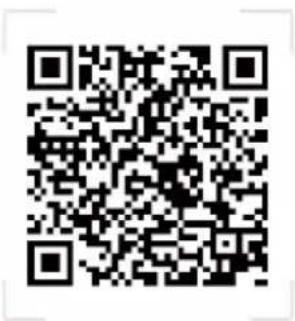
App Store: SMART-TIME PRO
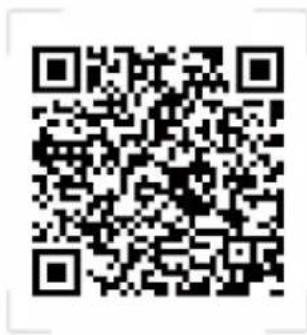
Google Play: SMART-TIME PRO
flowchart
graph LR
    A["Home Screen State"] --> B["Connected State"]
    B --> C["Searching"]
    B --> D["Cancel"]
natural_image
Close-up of a gray smartwatch with a circular dial and handle, no visible text or symbols on the device itself.Funciones
1. Selector
bar
| Time | Value | |---|---| | 0 | 55 | | 1 | 100 | | 2 | 100 | | 3 | 100 | | 4 | 100 | | 5 | 100 | | 6 | 100 | | 7 | 100 | | 8 | 100 | | 9 | 100 | | 10 | 100 | | 11 | 100 | | 12 | 100 | | 13 | 100 | | 14 | 100 | | 15 | 100 | | 16 | 100 | | 17 | 100 | | 18 | 100 | | 19 | 100 | | 20 | 100 | | 21 | 100 | | 22 | 100 | | 23 | 100 | | 24 | 100 | | 25 | 100 | | 26 | 100 | | 27 | 100 | | 28 | 100 | | 29 | 100 | | 30 | 100 | | 31 | 100 | | 32 | 100 | | 33 | 100 | | 34 | 100 | | High | 105 |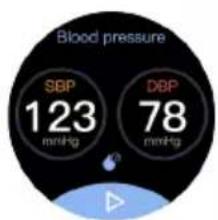
pie
| Value | Label | |---|---| | 12345 | Step | | 12.8 | Kcal | | 2875 | Kcal |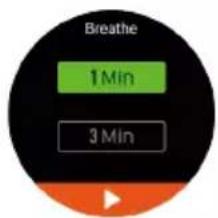
natural_image
Smartwatch with digital display showing phone call and signal icons (no readable text or symbols)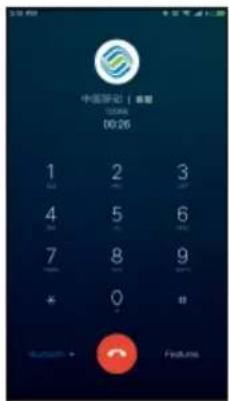
- Notificación
Welcome to use SW37, this is an GPS sports smart watch which helps you meet your activity goals.
The box includes:
• Smartwatch SW37
- User manual
- Charging cable
Setting up your SW37
First download & install the app SMART-TIME PRO, and create an account to make sure the watch can synchronize the data it collects with the app. The app is where you can set goals, analyze your goals, see historical trends and keep up with friends, and much more. Connecting smart watch through mobile phone
SMART-TIME PRO APP supports the operating system of iOS 11.0 and Android 5.0, as well as BT3.0 and 4.0. It is available for more than 150 mobile devices.
- Turn on Bluetooth on the watch and mobile.
- Download APP
App Store: SMART-TIME PRO
Google Play: SMART-TIME PRO
- After install the App, register and log in account according to a series of instructions.
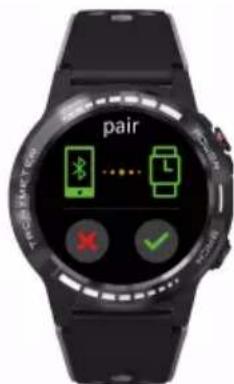
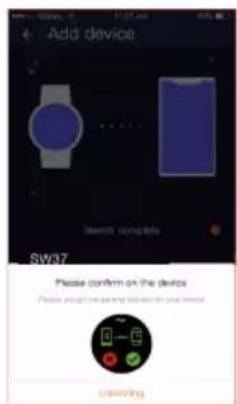
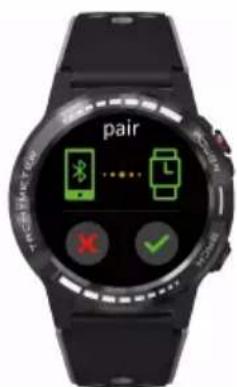
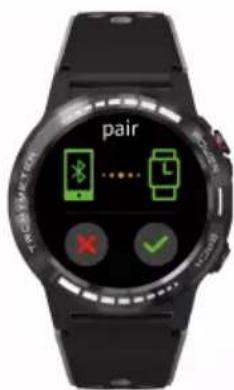
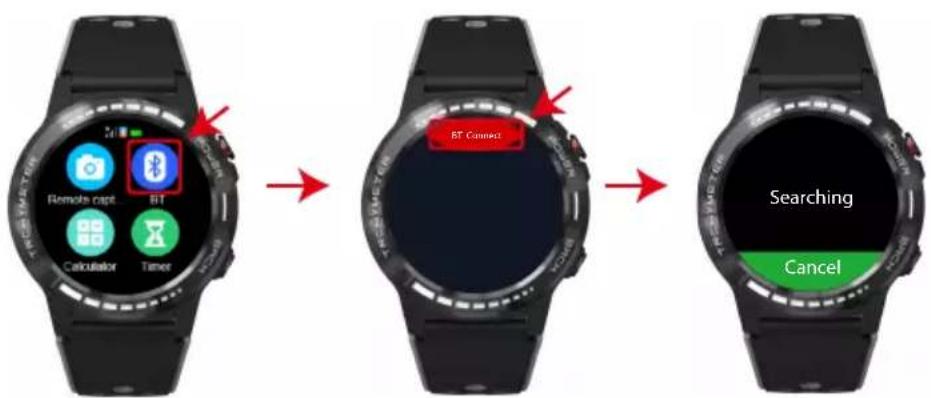
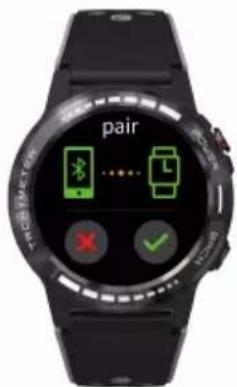
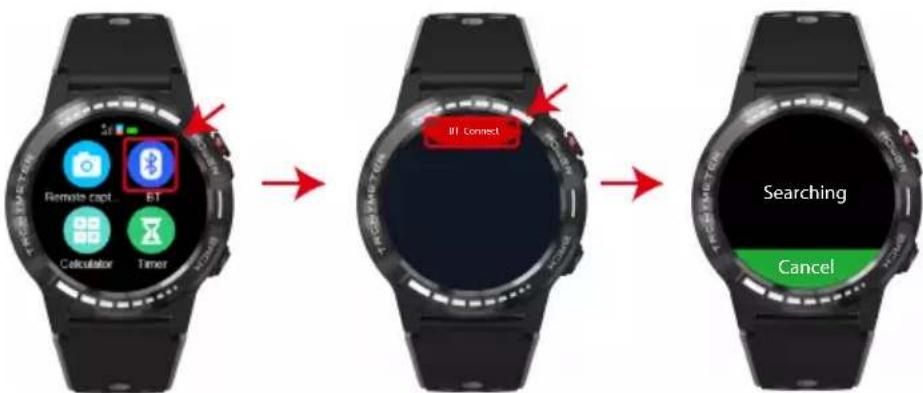
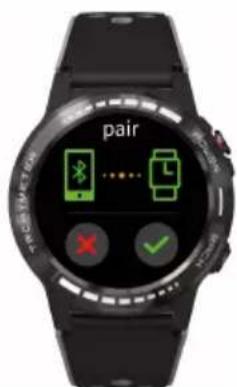
- Continue following the onscreen instructions to connect or pair your smart watch to your mobile device.Pairing make sure that the watch and mobile device can communicate with each other(sync their data). Open APP> Device> Add a new device> Choose SW37.
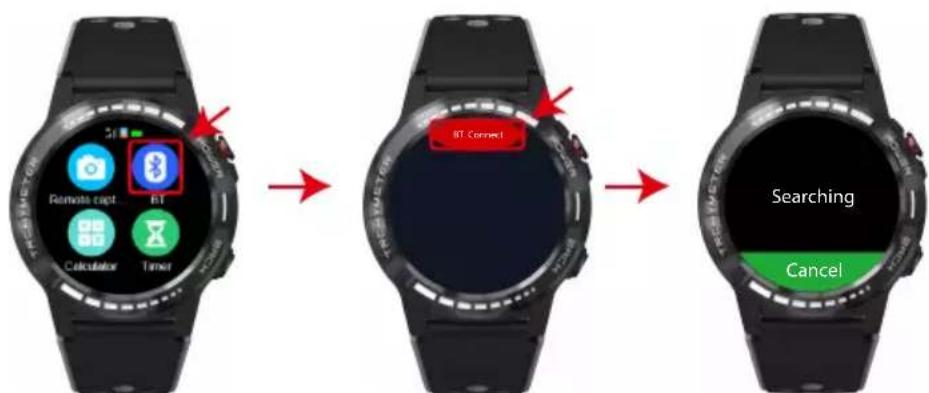
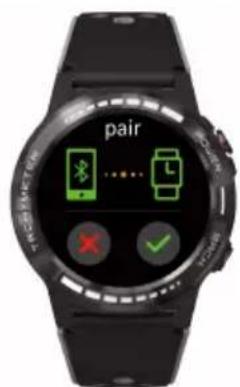
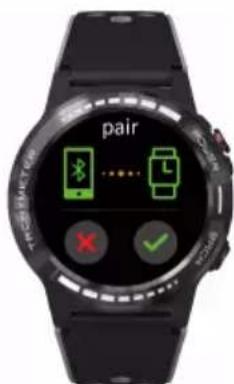
- Select the Bluetooth name SW37 with the strongest signal from the list. Then the watch will show, click to confirm pairing 📋. Then you will see the Bluetooth icon on the left top on the watch is blue and you have connected the Bluetooth 4.0 ✪. 6.(For iphone user,please switch on Bluetooth from the settinginterface)
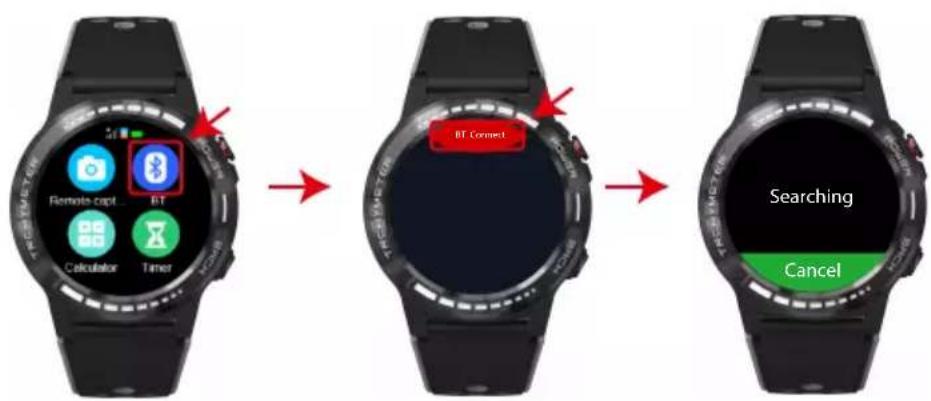
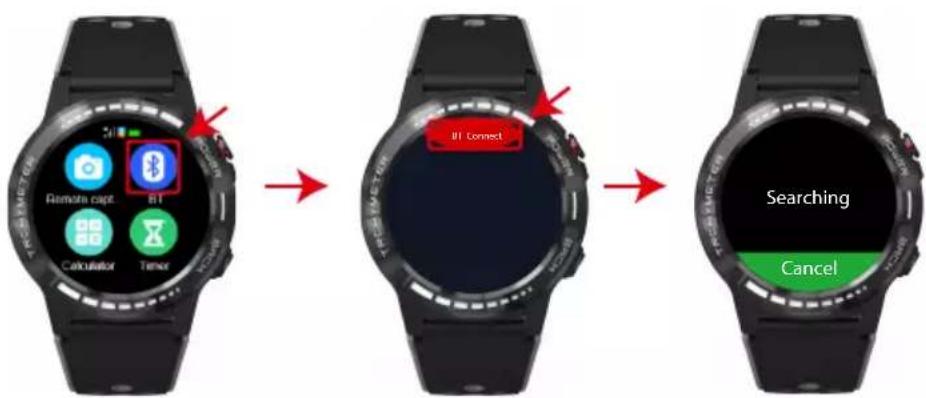
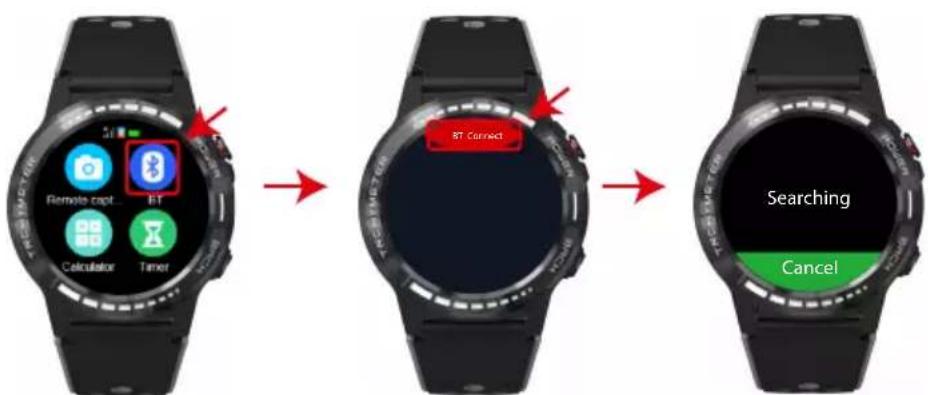
Open'BT'on the watch>>search new device>> Select your phone Bluetooth name from the list that you search out on the watch.
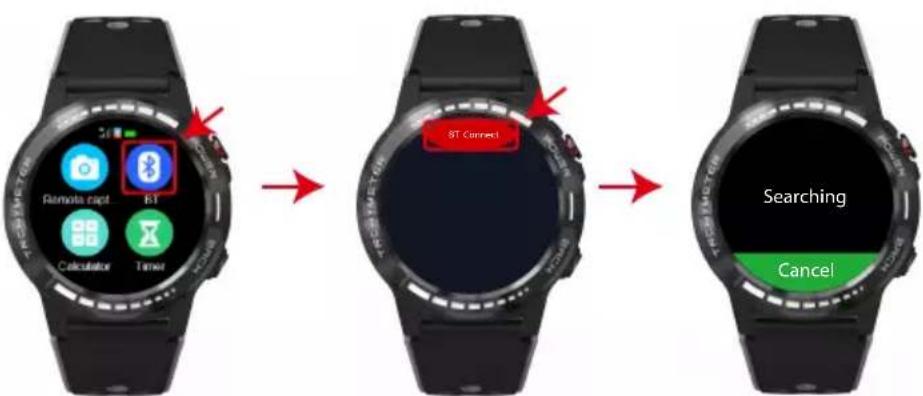
flowchart
graph LR
    A["Remote capture"] --> B["Calculator"]
    B --> C["Timer"]
    D["BT Connect"] --> E["Searching"]
    F["Cancel"] --> G["Searching"]
For Android users, it will automatically pop up a bluetooth pairing request. On the phone and click pair.
The BT icon on the left top on the watch will become blue and orange that means BT3.0 and 4.0 are bound successfully.(Note: 3.0 is used for call)
- When the phone gets a prompt of Bluetooth pairing request, click PAIR. The BT icon on the left top on the watch will become blue and orange.
(You need to use Android 5.0 or above version and iOS 11.0 or above version.Android and iOS device support different functions.A watch just pair with one mobile, if you want to pair another phone,please cancel the current pairing.)
Charging illustration
Charging:
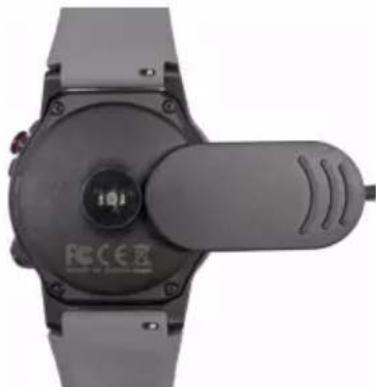
Turn the watch over, align and attach the charging pins to the magnets four gold prongs. You will see the charging icon on the watch screen after about 6s. Charging fully may take 2 hours. You will see the battery icon is full if the watch have been fully charged. Please clean the charge interface before charging for fear that the remaining sweat erode gold metal contact or other risks.
natural_image
Top-down view of a smartwatch with a rotary knob and control panel (no visible text or symbols)Functions
1.Switch dial
On the home page of watch, long press to access the different dial plates, then you are able to slid around to choose what you like.
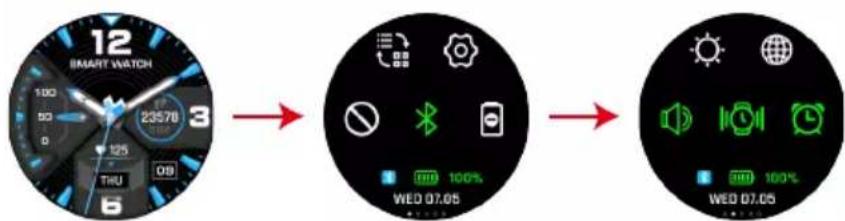
2.Fast key switch
Sliding the dial plate to enter into fast key interface, then you can set BT3.0 , volume, language, background, settings, vibration, luminance, gesture, subject, alarm clock, clock and airplane mode.
- Multisport mode
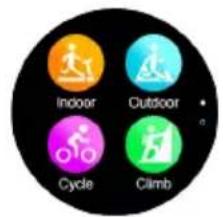
--Pressing the down button, you can enter the sports mode quickly, or you can enter it from main menu --->Sport mode. SW37 smart watch support different kinds of sports, including indoor running. Out door running, biking, climbing, marathon and more.
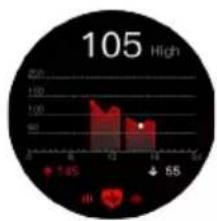
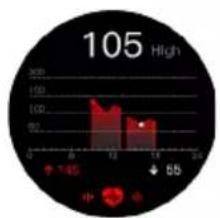
- Heart rate
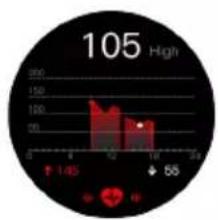
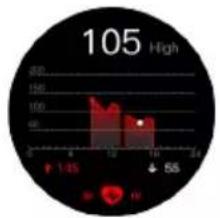
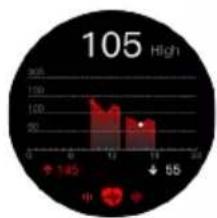
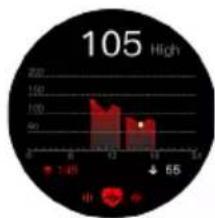
--Sliding left the watch interface, you can enter the heart rate interface quickly, or you can enter it from main menu ---> Heart rate. Wear the watch in a right way. Open the heart rate function on the watch, measure it by manual.
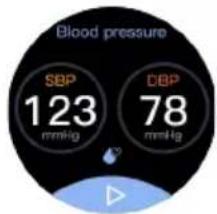
5.Blood pressure
--Enter into main menu ---> Health
---blood pressure. Wear the watch in a right way, and open the blood pressure function on the watch measure it by manual.
6.Pedometer
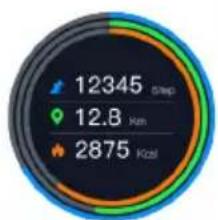
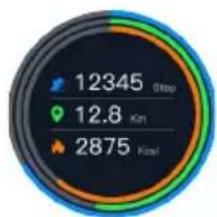
--Sliding left the watch interface, you can check the steps, heart rate, calories and distance of the current day. Or you can check the heart rate from main menu ---> Pedometer.
7.Breath training
--Sliding up the watch interface to enter the menu-breath training, choose the different time quantum according to your needs.
8.Shortcuts
--Slide the home page up, you will see in order of: pedometer details > heart rate > barometric pressure > altitude > compass. Slide the home page down, you will see in order of: shortcuts>calendar>weather.
Making phone calls
--1.Sports version only supports Bluetooth calling instead of inserting SIM card.
2.There are two versions to support making phone calls: When Bluetooth
3.0 be bound successfully, the voice is came out from the watch by default.
You can switch the phone to answer or dial by below method.
-
Turn off the Bluetooth 3.0 on the quick setting page.
-
Switch the sound by speaker or phone on the mobile.
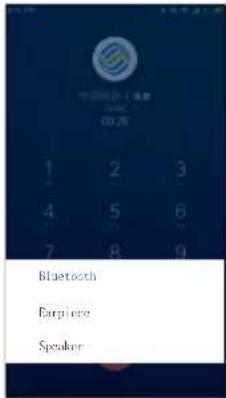
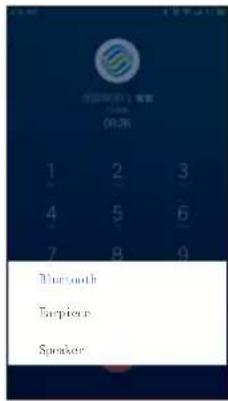
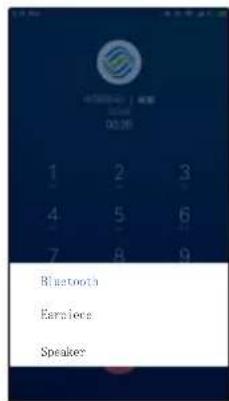
To switch between your watch and your phone during phone calls, perform the following operations:
1) On the call screen of your phone, select Bluetooth to use your watch for the call.
2) Select Speaker or Headset earpiece to use your phone for the call.
Notice :
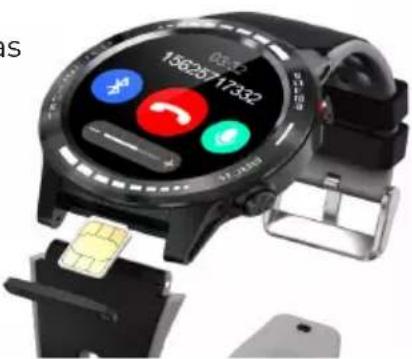
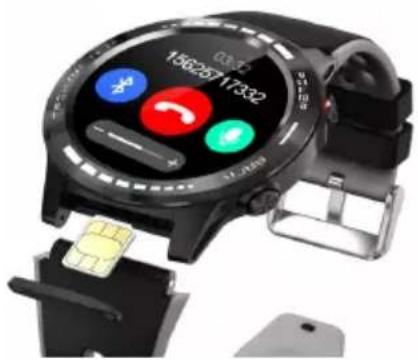
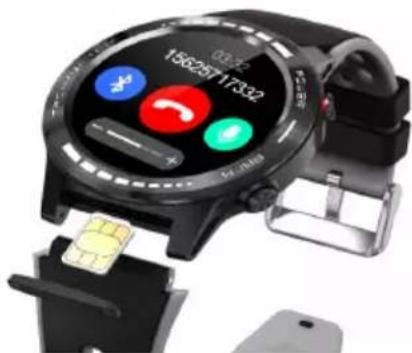
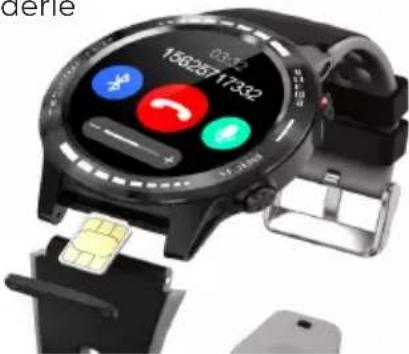
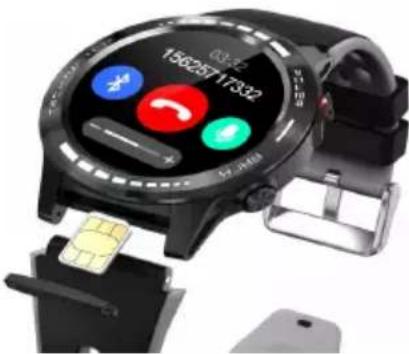
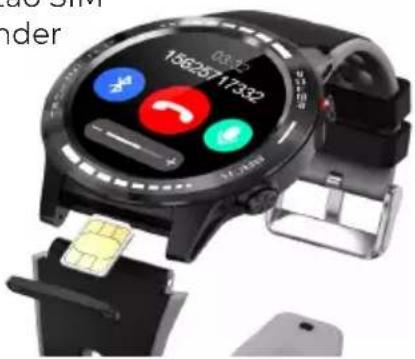
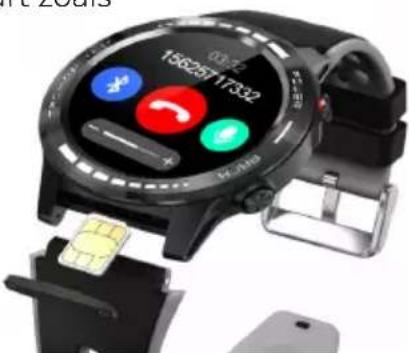
If your watch is the version with SIM card, insert the SIM card according to the illustration, then you can make or answer phone calls separately (only support Miro
SIM card).
line
| Value | |-------| | 105 |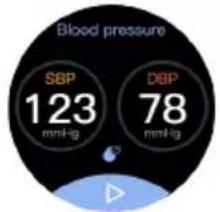
pie
Blood pressure | Category | Value | |---|---| | SBP | 123 | | DBP | 78 | mmHg ↓ → ↓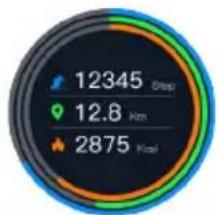
other
| Metric | Value | | :--- | :--- | | Step | 12345 | | Kcal | 2875 | | Path | 12.8 km |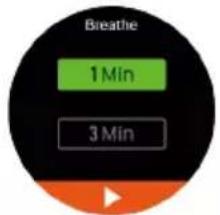
natural_image
Smartwatch with digital display showing app icons and status bar (no readable text or symbols)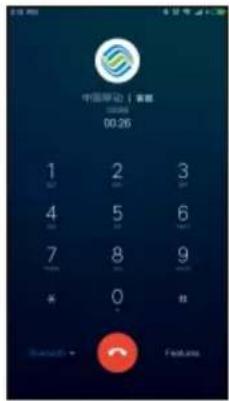
- Notification
--The left side of the dial interface enters into the menu-notification, you can view the message pushed on the mobile phone, and you can switch the message reminder on the APP.
- Music control
--Sliding up the watch interface to enter the menu-music control, then you can play your music on the watch.
- Sleep monitor
--The watch will track your sleep when you're wearing it to sleep. And you can check your sleep details on the app after sync the sleep data to app.
- Remote capture
--This feature can remote control the mobile camera to take pictures.
- Sedentary
--Sitting too long is not good for health. You can set the time on the watch or app to remind you to move.
- Alarm
--You can set the alarm on the watch or app, maximum 8 alarms.
- Find phone/Find device
When the watch and phone is under connection:
- Click"Find phone" on the watch, you will hear the phone ring.
- Click" Find device" on APP, you will hear the watch ring.
17.Motion
-
Flip to mute incoming call.
-
Flip to mute alarm.
-
Wake-up gesture.
-
Shaking switch main menu.
-
Shake to answer the call.
-
Tools
1.Timer
2.Stopwatch
3.Calculator
4.Weather
5.Calendar
-
Low power mode
-
It will enter low power mode automatically when the power is lower than 10%.
-
You can enter low power mode manually by quick switch interface.
(In this mode, the bluetooth function is turned off and only the time display, alarm clock, steps and sleep recording are supported.)
Troubleshooting
Heart-rate signal missing
SW37 continuously monitor your heart rate while you're exercising and throughout the day. Occasionally the heart rate tracker may have difficulty in finding a good signal. If you're not getting a heart rate signal, first make sure you're wearing your watch correctly, either moving it higher or lower on your wrist or tightening or loosening the band. After holding your arm still and straight for a short wait, you should see your heart rate again.
Bluetooth issue
iOS phone:
If the phone cannot be paired with the watch, check if there is an SW37 signal in "Settings"- "Blue-tooth". If yes, it means there is no problem with the Bluetooth signal. Please check whether the watch has been paired with other phones and unbind it. iOS users also need to go to "Settings" - "Bluetooth" - "Forget the device" on the phone, then pair again.
Android phone:
Android users, if you bind the device with the app, and you find the device is disconnected with the phone or can not receive the notification alert after you keep the app in the background for a period of time or after lock the screen, please check if you use a security management software to prohibit the app running in the background. Please make sure that you allow the app running in the background even after lock the screen in order to avoid affecting your experience.
About GPS:
Gps Only work in open area, If you want to open GPS please far away high building and trees, which will block satellite, With Bluetooth connected with APP will help find GPS satellites fast.
Warranty Policy
This product is guaranteed for 2 years from the date of purchase. When you have a problem that you can not solve, you must access the web www.prixton.com and click on the contact option to send us your assistance form.
These technical and electrical specifications are those of typical units and may be changed without prior notice in order to provide improved equipment.
Simplified EU Declaration of Conformity
We, La Trastienda Digital located in Avenida Cervantes 49, módulo 25, Basauri 48970, Bizkaia hereby declare that the following goods, imported and selling at European market:
| BRAND | MODEL DESCRIPTION | CATEGORY | |
| PRIXTON | SW37 | SMARTWATCH | WEARABLES |
Are in compliance with the EC Council Directive of 2014/53/EU (EM DIRECTIVE) and harmonized standards and with the board of the 16th of April 2014.
The complete text of the UE Declaration of conformity is available anytime at this website address:
www.prixton.com
LA TRASTIENDA DIGITAL
Introduction
App Store: SMART-TIME PRO
Google Play: SMART-TIME PRO
flowchart
graph LR
    A["Remote capture"] --> B["Calculator"]
    B --> C["Timer"]
    D["BT Connect"] --> E["Searching"]
    F["Cancel"] --> G["Searching"]
natural_image
Close-up of a smartwatch with a rotary knob and control knob (no visible text or symbols)Fonctions
1. Switch dial

bar
| Time | Value | |---|---| | 6 | 105 | | 12 | 130 | | 10 | 110 |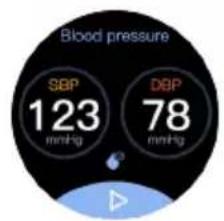
pie
Blood pressure | Category | Value | |---|---| | SBP | 123 | | DBP | 78 | mmHg (Estimated from visual scale) |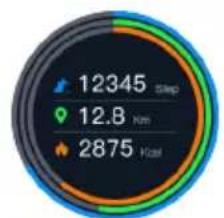
other
| Metric | Value | | :--- | :--- | | Sleep | 12345 | | Travel | 12.8 | | Food | 2875 |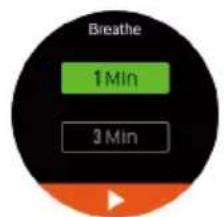
natural_image
Smartwatch with digital display showing status LEDs and function buttons (no readable text or symbols)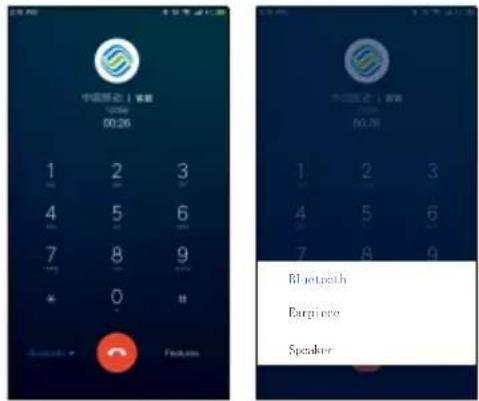
- Notification
Sitting too long is not good for health. You can set the time on the watch or app to remind you to move.
- Alarme
App Store: SMART-TIME PRO
Google Play: SMART-TIME PRO
flowchart
graph LR
    A["Home Screen State"] --> B["Remote Cap"]
    A --> C["Calculator"]
    A --> D["Tuner"]
    B --> E["BT Connect"]
    C --> E
    D --> E
    E --> F["Searching"]
    E --> G["Cancel"]
natural_image
Close-up of a black and gray electronic device with a circular dial and handle, no visible text or symbols.Funzioni
1.Selettore
line
| Time | Value | |------|-------| | 12 | 105 | | 19 | 55 |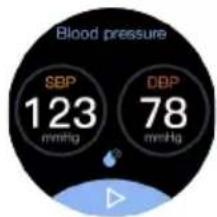
pie
| Metric | Value | |---|---| | 12345 (Stop) | 12345 | | 12.8 Km | 12.8 | | 2875 (Km) | 2875 |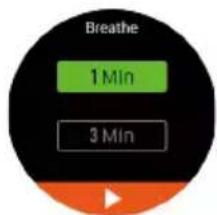
natural_image
Smartwatch with digital display showing status LEDs and phone icons (no readable text or symbols)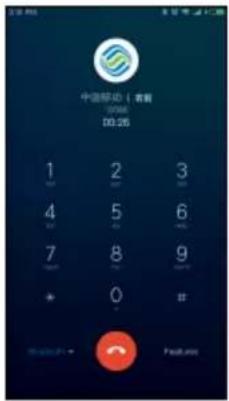
App Store: SMART-TIME PRO
Google Play: SMART-TIME PRO
flowchart
graph LR
    A["Remote capture"] --> B["BT"]
    B --> C["Calculator"]
    B --> D["Timer"]
    E["IIT Connect"] --> F["Searching"]
    G["Cancel"] --> H["Searching"]
natural_image
Close-up of a smartwatch with a circular dial and a handle, showing no visible text or symbols.Funktionen
1. Selektor
line
| Time | Value | |------|-------| | 0 | 100 | | 12 | 100 | | 18 | 90 |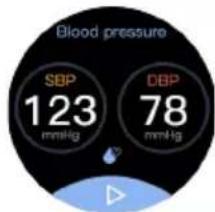
pie
Blood pressure | Category | Value | |---|---| | SBP | 123 | | DBP | 78 | mmHg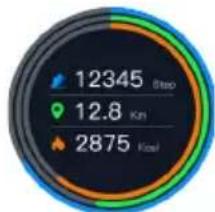
other
| Metric | Value | |---|---| | Step | 12345 | | KPI | 12.8 | | Kool | 2875 |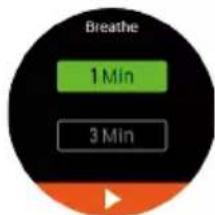
natural_image
Smartwatch with digital display showing status LEDs and app icons (no readable text or symbols)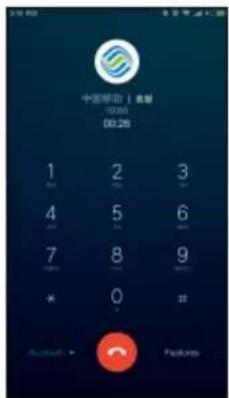
- Benachrichtigung
App Store: SMART-TIME PRO
Google Play: SMART-TIME PRO
flowchart
graph LR
    A["Home Screen"] --> B["Connect with I1"]
    B --> C["Help to search"]
    C --> D["Cancel with I1"]
natural_image
Close-up of a gray electronic device with a circular dial and handle, no visible text or symbols on the device itself.Funções
1.Seletor
pie
Blood pressure | Category | Value | |---|---| | SBP | 123 | | DBP | 78 | mmHg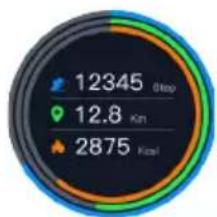
other
| Metric | Value | |---|---| | Marker 1 | 12345 | | Marker 2 | 12.8 | | Marker 3 | 2875 |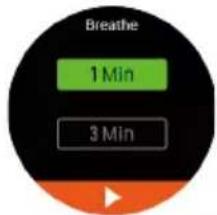
natural_image
Smartwatch with digital display showing app icons and status bar (no readable text or symbols)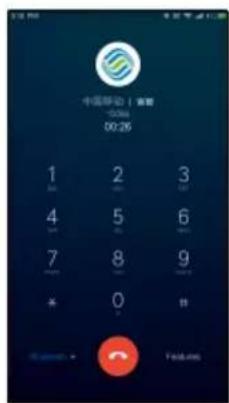
10. Notificação
App Store: SMART-TIME PRO
Google Play: SMART-TIME PRO
flowchart
graph LR
    A["Home Screen State"] --> B["Remote Cap"]
    A --> C["Calculator"]
    A --> D["Timer"]
    B --> E["State Switch"]
    C --> E
    D --> E
    E --> F["CT Connect"]
    E --> G["Cancel"]
natural_image
Top-down view of a smartwatch with a circular dial and handle, showing no visible text or symbols on the device itself.Functions
- Selectie menu
bar
| Metric | Value | |---|---| | High | 105 | | Low | 55 |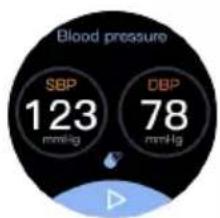
pie
Blood pressure | Category | Value | |---|---| | SBP | 123 | | DBP | 78 | mmHg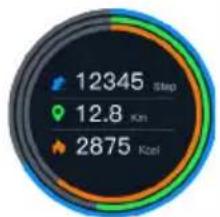
other
| Metric | Value | |---|---| | Step | 12345 | | Kei | 12.8 | | Kei | 2875 |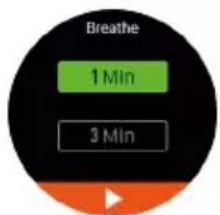
natural_image
Smartwatch with digital display showing phone call icons and status bar (no readable text or symbols)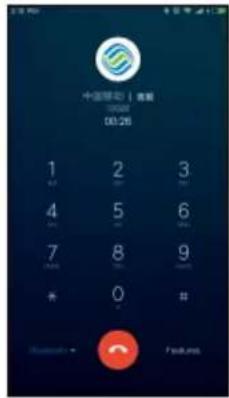
- Meldingen