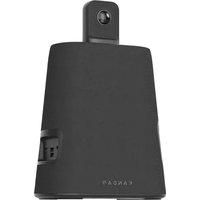
Meeting Ultra Standard - Video conferencing system KanDao - Free user manual and instructions
Find the device manual for free Meeting Ultra Standard KanDao in PDF.



| Product Type | All-in-one video conferencing system |
| Brand | KanDao |
| Model | Meeting Ultra Standard |
| Dimensions (W x D x H) | 215 x 121 x 327 mm |
| Weight | 2161 g (approx.) |
| Power Supply | AC adapter: input AC 100-240V, output DC 15V 3A; PoE compatible (IEEE 802.3bt) |
| Camera Resolution | 3840x2160@30fps, 1920x1080@30fps, 1280x720@30fps |
| Video Formats | MJPEG, H264 |
| Microphones | 8 MEMS microphones, range 5.5 m, sensitivity -38dB±1dB@1kHz |
| Network Connectivity | Gigabit Ethernet (RJ45) with PoE, Wi-Fi 6 (2.4G+5G), Bluetooth 5.0 |
| Ports | USB-C (power) x1, USB-C (audio/video) x1, USB-A x3, HDMI OUT 2.1 x2, HDMI IN 2.0 x1, micro SD slot |
| Video Output | HDMI OUT 1 and 2 for external monitors; USB-C for use as a webcam |
| Internal Storage | 64 GB |
| Memory Card | Micro SD up to 1 TB (FAT32/exFAT) |
| Operating Modes | Host mode (standalone with Android), USB mode (webcam), Daisy-Chaining mode (multi-device) |
| Software Compatibility | Teams, Zoom, Tencent Meeting, Google Meet, Skype, DingTalk, etc. |
| Smart Features | Speaker tracking, Gallery view, 360° panoramic view, Blocked zone, Angle lock |
| Screen Sharing | AirPlay, Miracast, Link sharing, IP screen sharing |
| Remote Control | Included, uses 2 AAA batteries, Bluetooth connection |
| Mounting | 1/4 inch thread for tripod, Kensington security slot |
| Operating System | Android (built-in) |
Frequently Asked Questions - Meeting Ultra Standard KanDao
User questions about Meeting Ultra Standard KanDao
0 question about this device. Answer the ones you know or ask your own.
Ask a new question about this device
Download the instructions for your Video conferencing system in PDF format for free! Find your manual Meeting Ultra Standard - KanDao and take your electronic device back in hand. On this page are published all the documents necessary for the use of your device. Meeting Ultra Standard by KanDao.
USER MANUAL Meeting Ultra Standard KanDao
Kandao Meeting Ultra Standard
Manual / 说明书 / 說明書 / 取扱説明書 / 설명서 / Mode d'emploi de / Bedienungsanleitung für / Manuale di istruzioni di / Manual de instrucciones de / Lietošanas pamācība
V3.0
KANDAQ

I.Product Profile
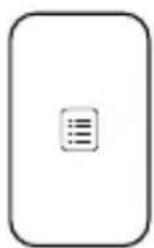
Packing list
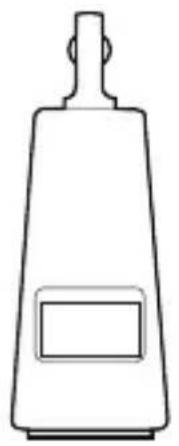
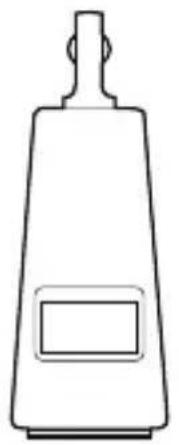
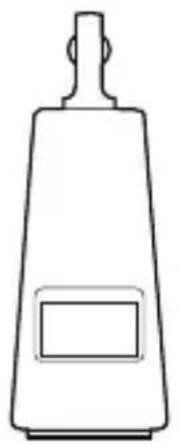
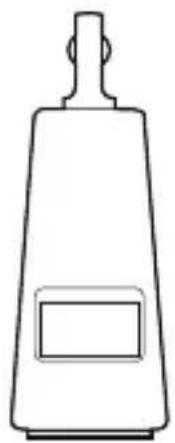
Kandao Meeting Ultra Standard

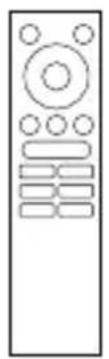
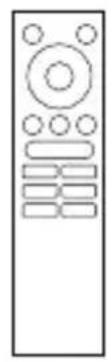
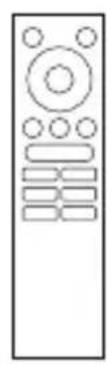
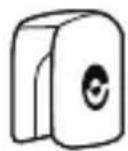
Remote controller

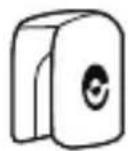
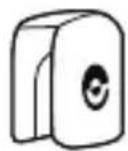
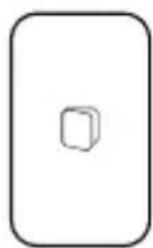
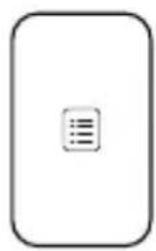
Lens cap

Quick start guide

Warranty card
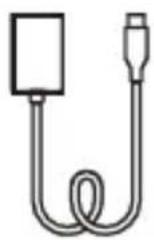
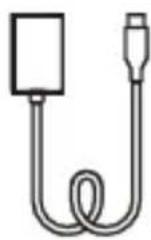
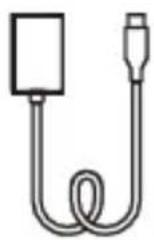
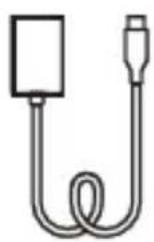
65-watt adapter
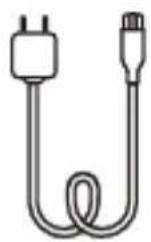
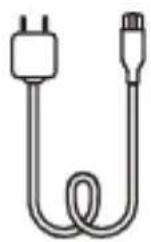
Power cord
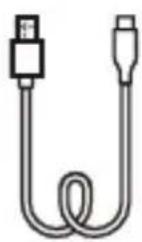
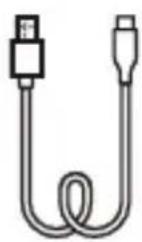
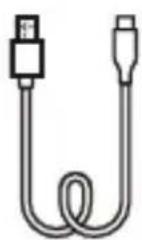
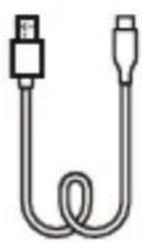
Data cable
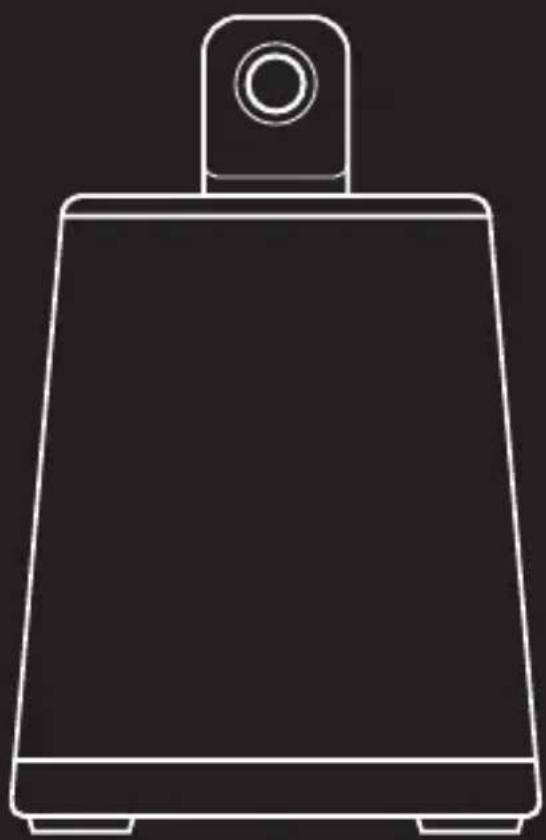
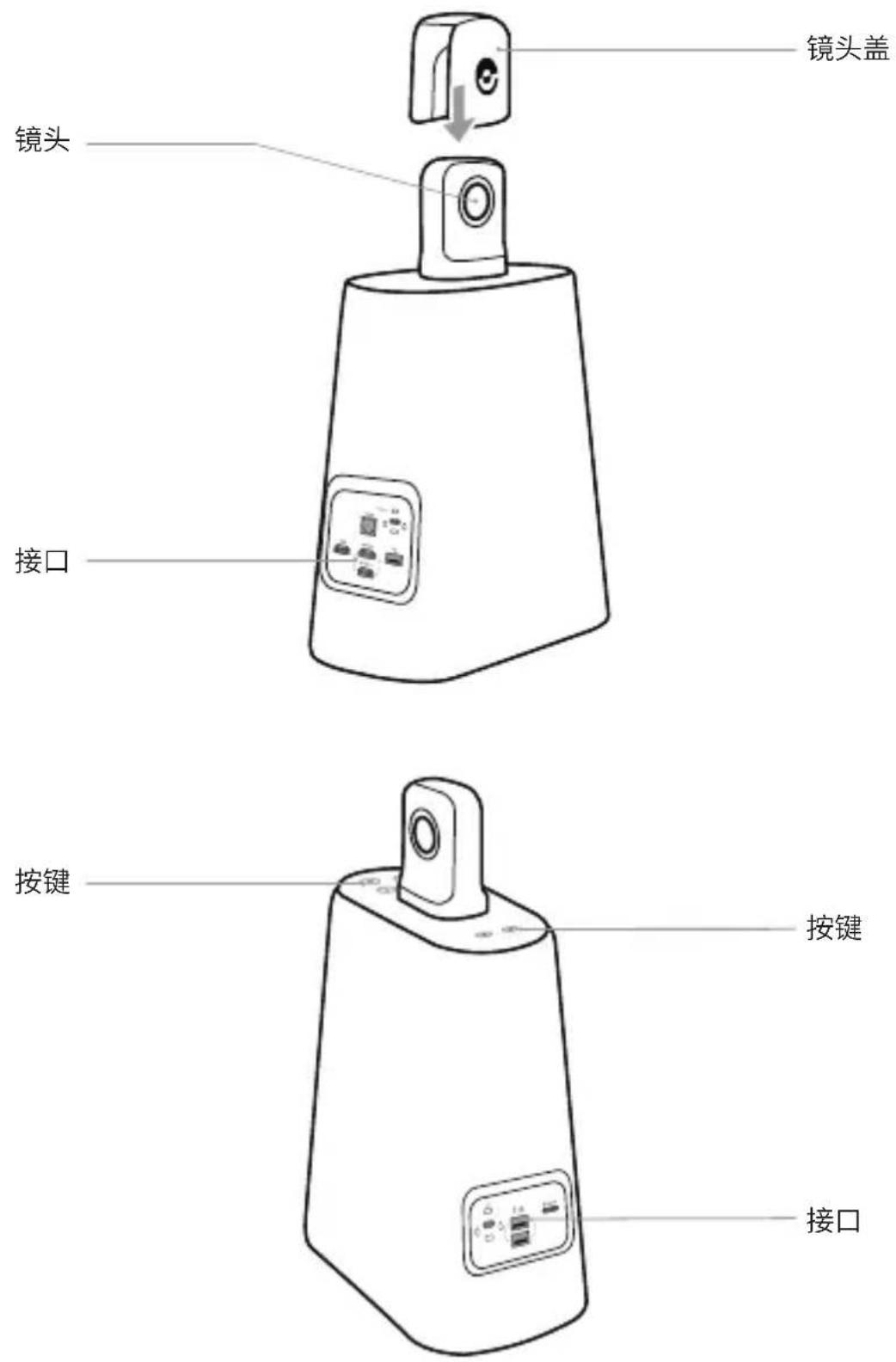
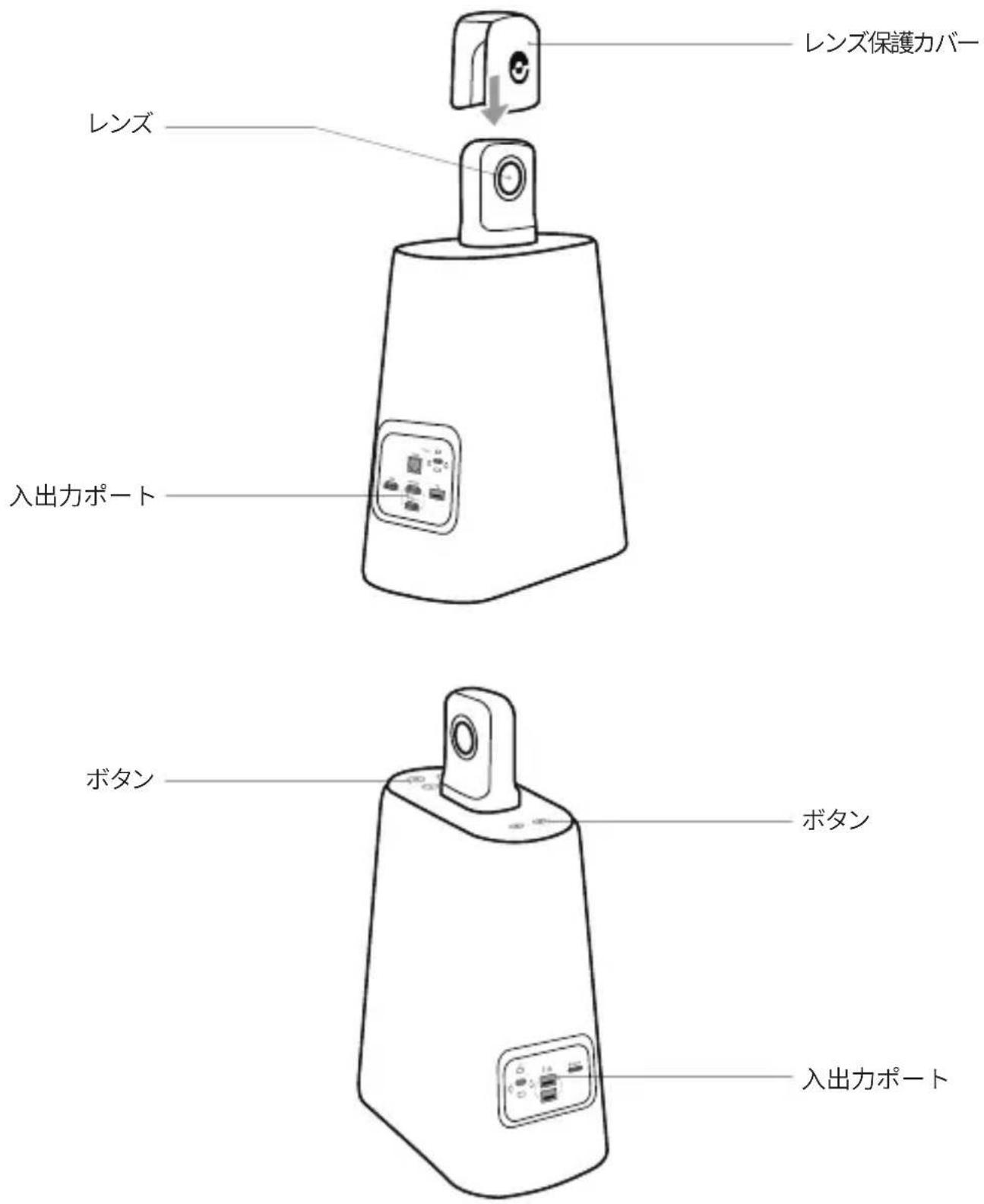
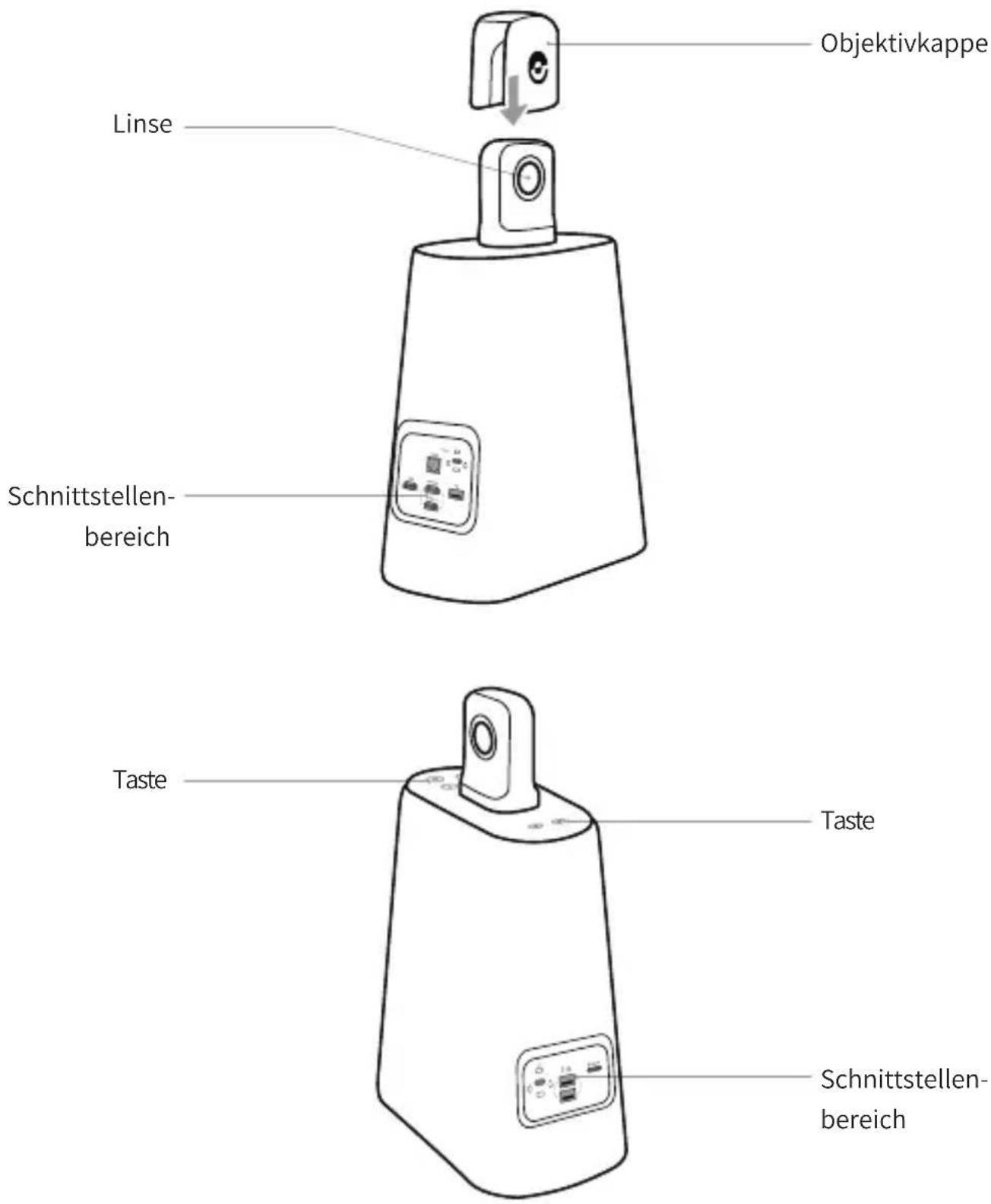
Names of Parts

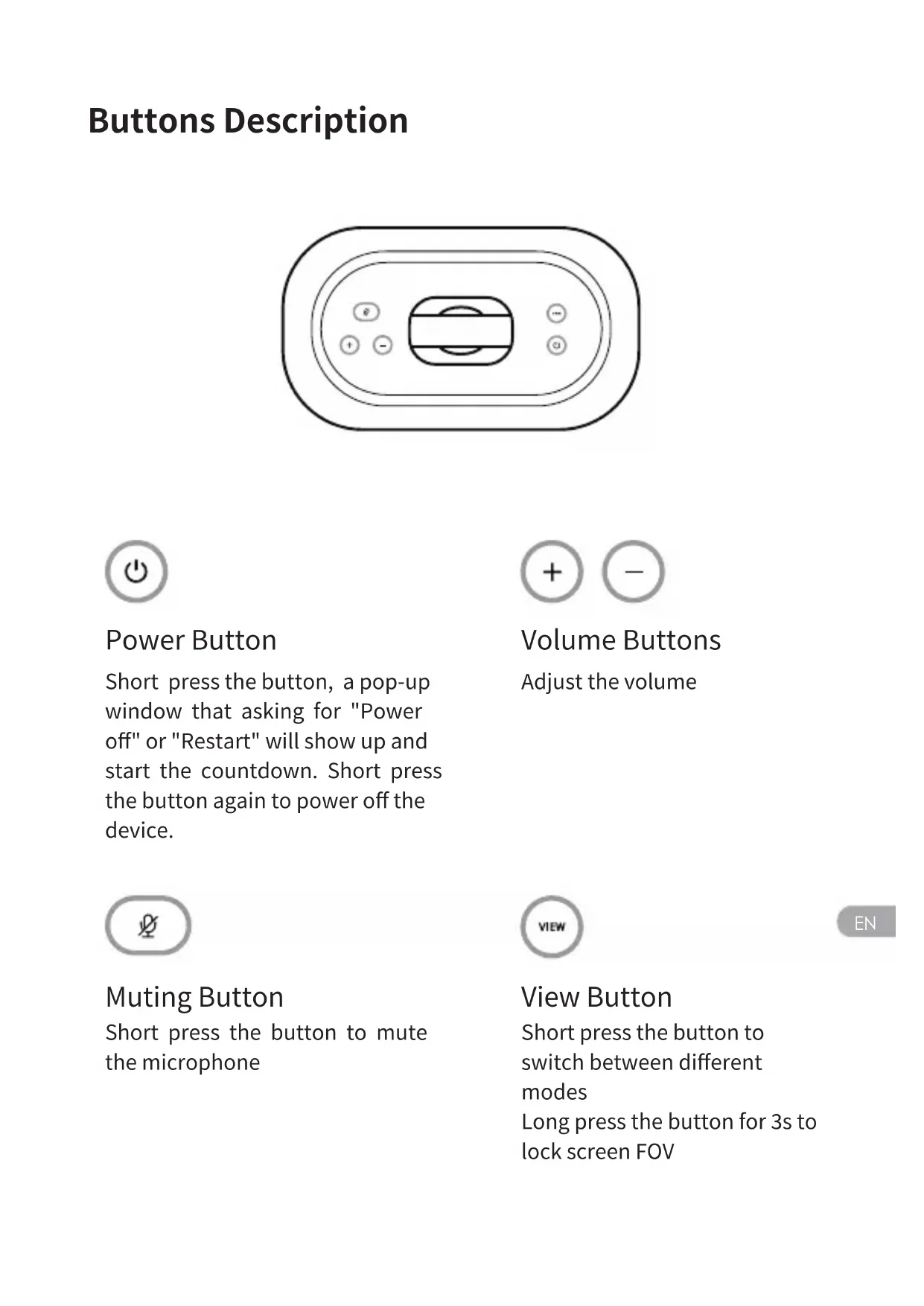
Buttons Description
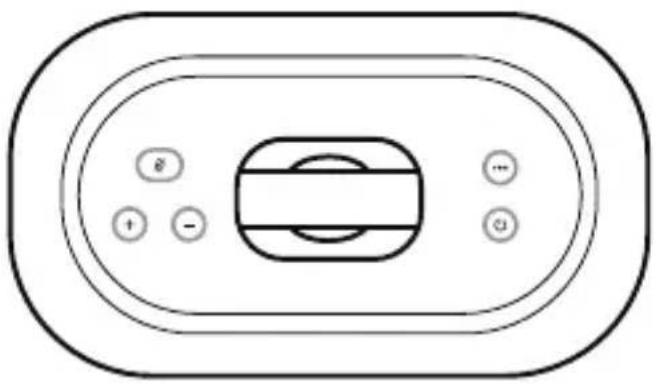

Power Button
Short press the button, a pop-up window that asking for "Power off" or "Restart" will show up and start the countdown. Short press the button again to power off the device.
Muting Button
Short press the button to mute the microphone

Volume Buttons
Adjust the volume

View Button
Short press the button to switch between different modes Long press the button for 3s to lock screen FOV
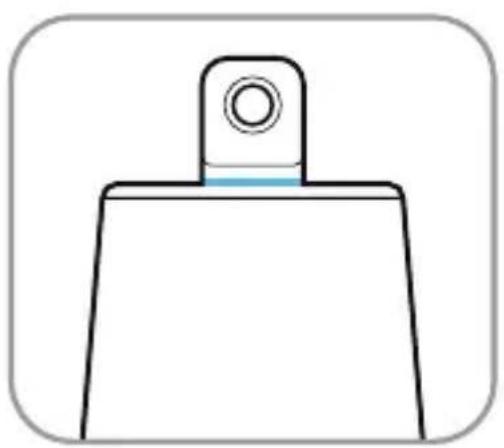
Indicator Lights Description
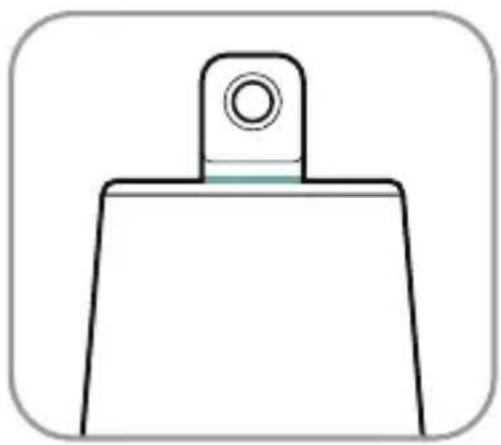

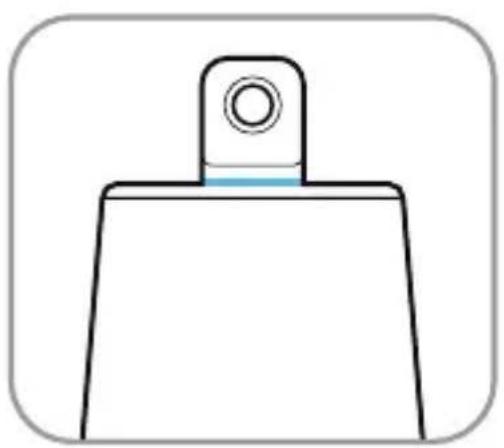
Blinking Green
The device is turning on or upgrading
Solid Green
Ready to use


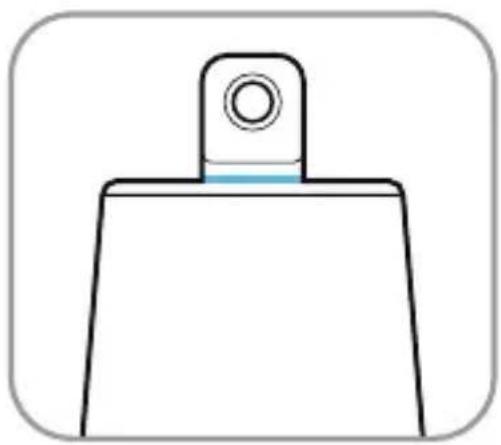
Solid Blue
Camera is working
Blinking Blue
Recording
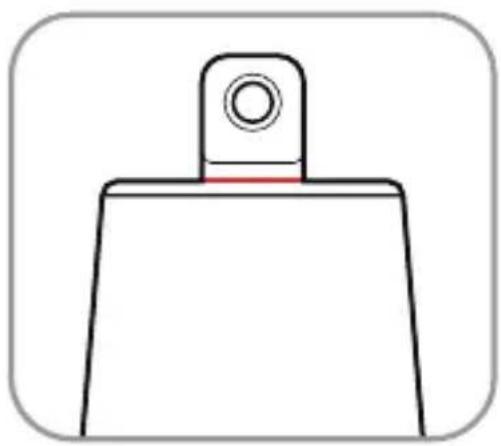

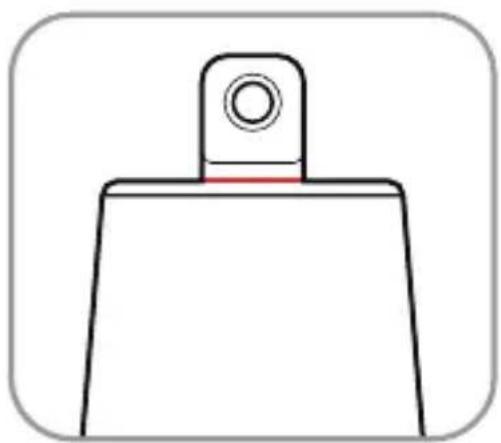
Solid Red
Microphone on mute
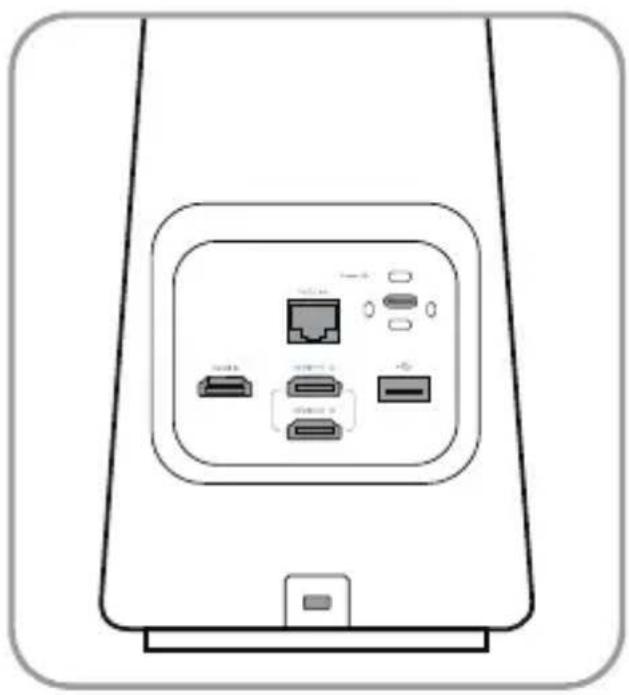
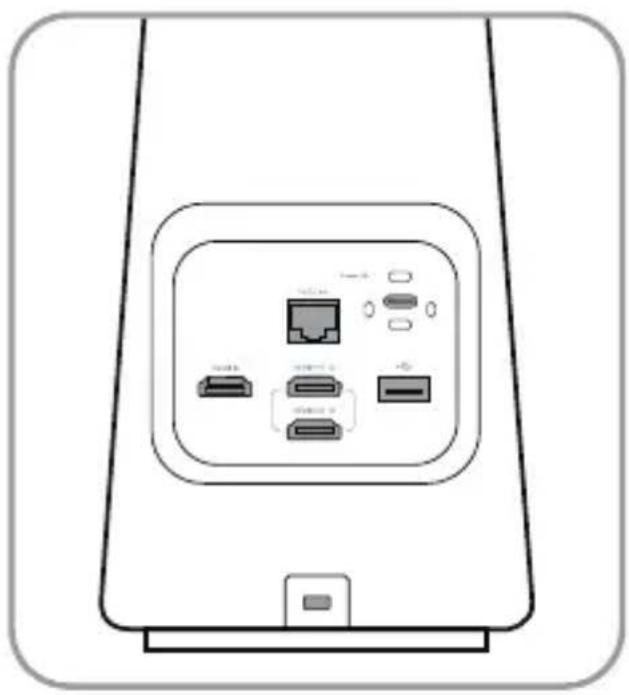
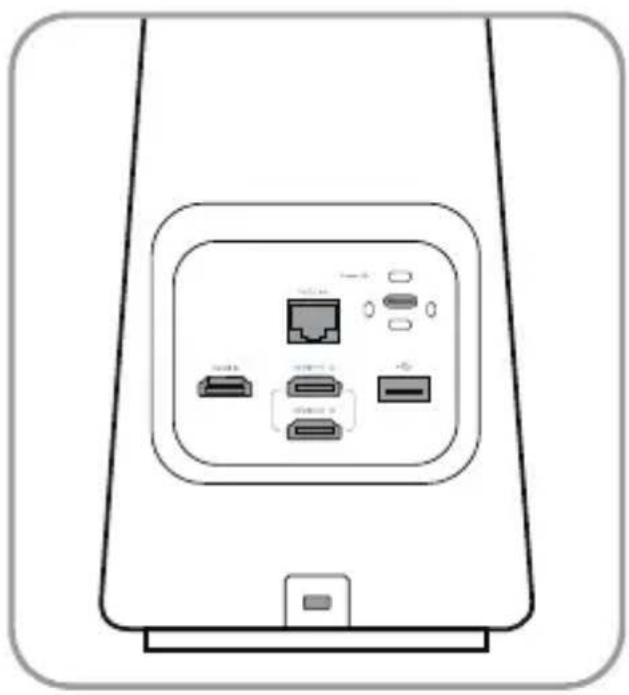
Input/Output Ports Description
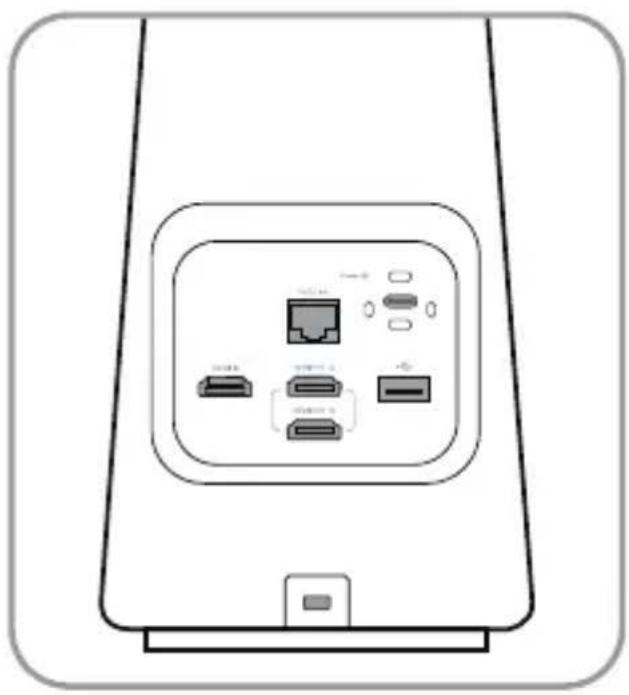
PoE/LAN
Ethernet Port
Connect the Ethernet for PoE
Power
USB-C Power Port
For power supply
HDMI IN
HDMI IN
Connect the computer and share the screen
USB-A Port
For mouse or keyboard connection
HDMI OUT ① / HDMI OUT ②
HDMI OUT
Connect the monitor/TV to output images

Kensington Security Lock
For preventing theft
EN
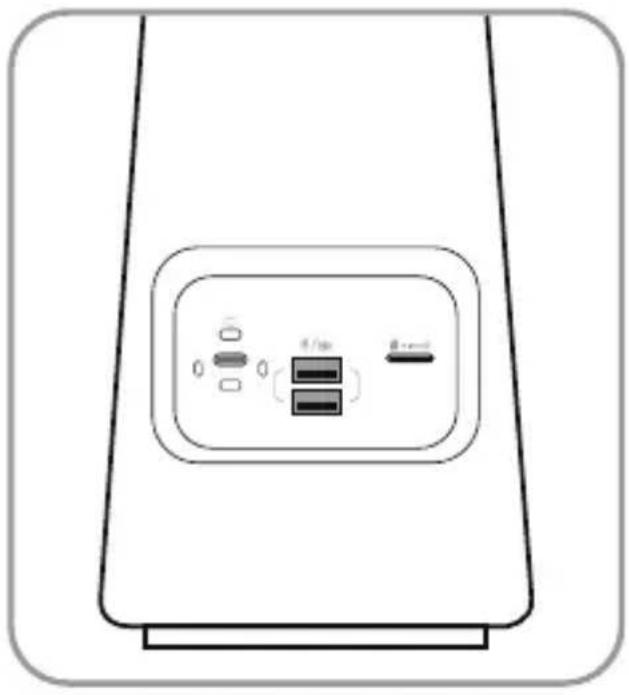

USB-C Audio/Video Output
Enable the webcam, microphone, and speaker after connecting the PC

USB-A Port
For mouse or keyboard connection

micro SD
Micro SD Card Slot
Micro SD card in FAT32 or exFat format is supported (Maximum 1TGB)
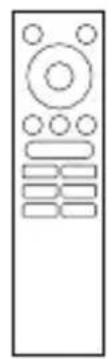
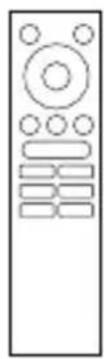
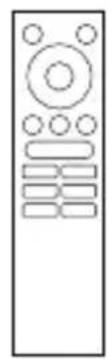
Remote Controller Description
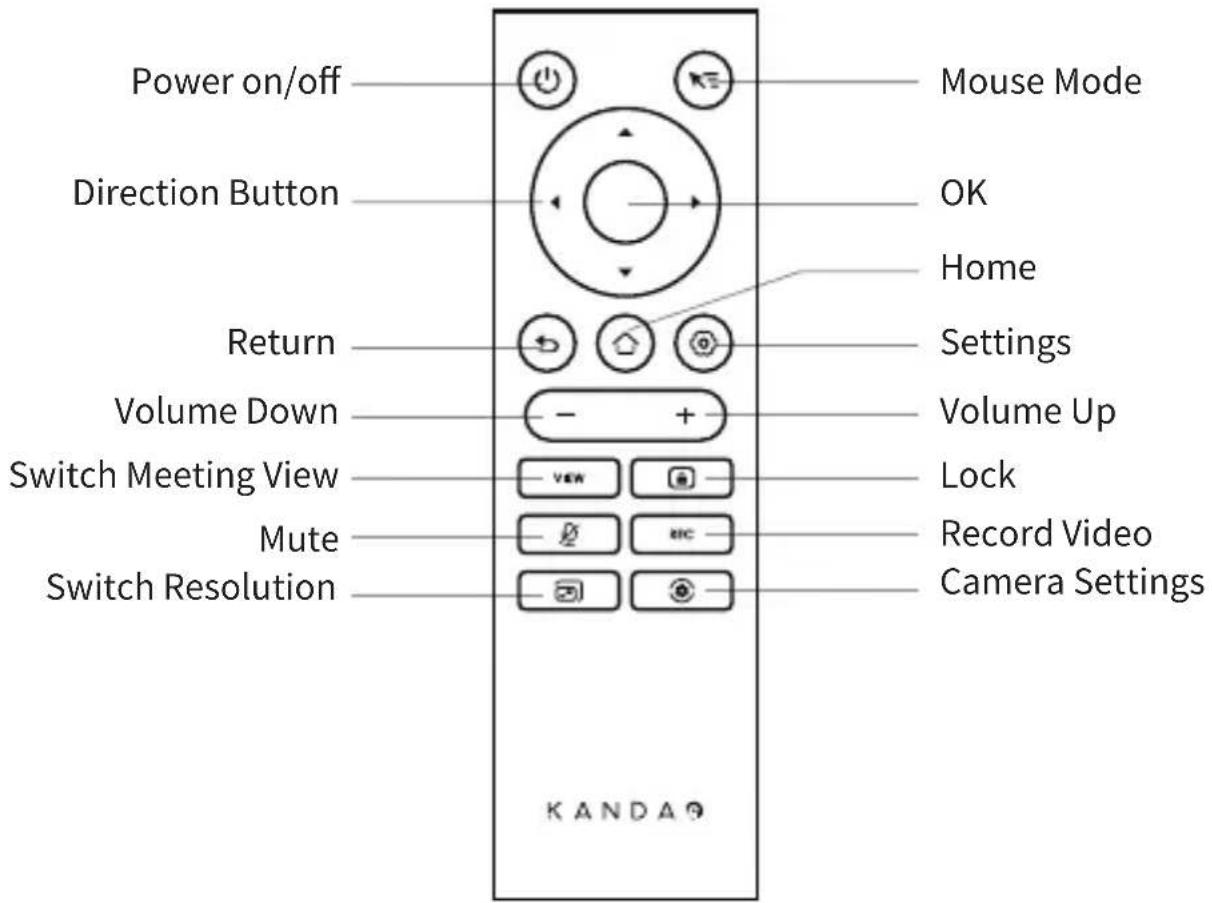
*Notes
- Power supply: 2 * AAA battery
-
If the remote controller doesn't work and cannot be connected, you can connect a mouse to the "USB-A" port. Then, go to "Settings" - "Bluetooth" - "Currently Connected" to disconnect the paired remote controller. After that, long press the pairing button on the remote controller.
-
Short press the "Mouse Mode" 🔍 on the upper right of the remote controller, and a cursor 🔍 will appear on the screen. Then, the remote can be used as a mouse to work with the "OK" button.
-
When the mouse mode is on, the "Direction Button" and the "Power" button of the remote will be unavailable. You should exit the "Mouse Mode" if you want to use features such as standby and shutdown.
II. Standalone Mode Introduction
Preparations
Use the power cord to connect the USB-C power port and the power adapter, or use the network cable to connect the Ethernet port of Meeting Ultra Standard and a PoE router or switch.
*Notes
To mirror the screen onto the TV/monitor, you can use the HDMI cable to connect the TV/monitor with Kandao Meeting Ultra Standard through the HDMI OUT port. (HDMI cable is not provided).
Power-on
Meeting Ultra Standard will automatically turn on when connected to the power adapter.

EN
![graph TD A["Person 1"] --> B["Person 2"] C["Person 3"] --> D["Person 4"] E["Person 5"] --> F["Person 6"] G["Person 7"] --> H["Person 8"] I["Person 9"] --> J["Person 10"] K["Person 11"] --> L["Person 12"] M["Person 13"] --> N["Person 14"] O["Person 15"] --> P["Person 16"] Q["Person 17"] --> R["Person…](/content/2026/04/655492/images/323a93302a3092dcc03d4c5ddd3207da6d6311b13b350b6639cc29a72907471f.jpg)
Remote Controller Pairing
-
Simultaneously long press the "OK" and "Volume -" buttons for about 5 seconds until the indicator light blinks.
-
The indicator light is off after pairing successfully.
*Notes
After the first successful pairing, every time the user press any button on the remote will automatically connect the device.
Network Connection
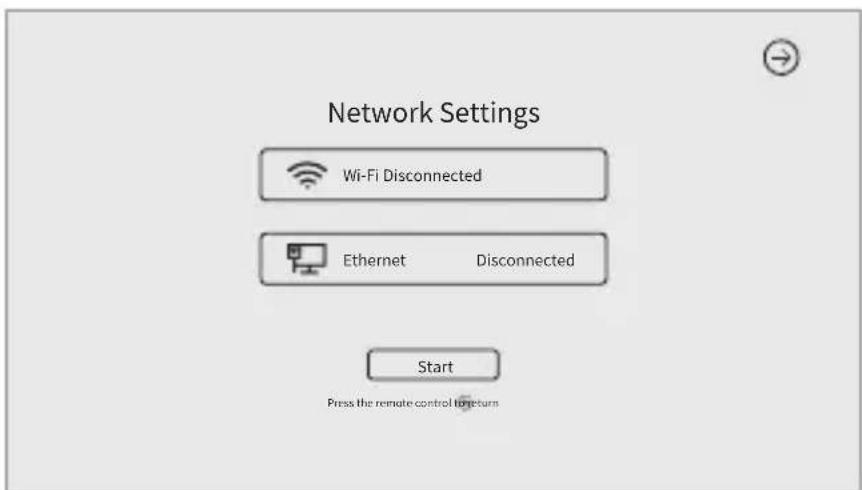
Wired network connection: Connect the network cable to the Ethernet port of Kandao Meeting Ultra, and then configure the wired network information in "System Initial Boot" or "Settings", such as DHCP, static IP, and network proxy and so on.
Wireless network connection: Configure and connect the wireless network in "System Initial Boot" or "Settings", including DHCP, static IP, network proxy, etc.
Start the Conference
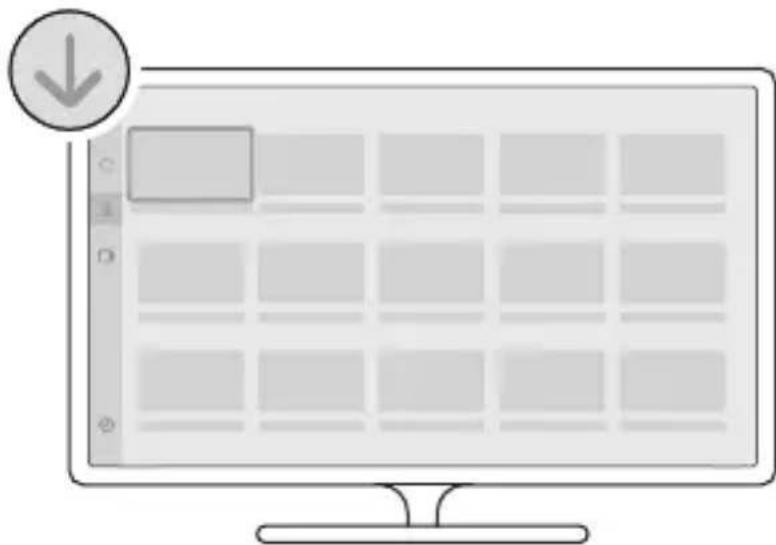
① Download and install video conferencing software (Tencent Meeting, DingTalk, Skype, Zoom, Google Meet, Teams, etc.) from the App store
② Go back to the Home Page to run a video conferencing software and start a remote conference.
Power-off
Short press the "Power Button" on the device or the remote controller 🔊, and then a pop-up window that asking for "Power off" or "Restart" will show up and start the countdown. Short press the "Power Button" again or the "OK" button on the remote to power off the device.
Record a Conference
Use Kandao Meeting Ultra Standard as a video recording device to record the conference locally. The recorded file will be saved to the Micro SD card.
- Open the "Camera Tool" application on Home Page.
- Short press the "Rec" button on the remote controller or long press the "Mute" button on the device for about 3 seconds to start recording
- Repeat the step2 to stop recording.
*Notes
- You can use the conference software to record an online conference.
- The user should exit the conference software before recording the offline conference.
- Micro SD card needs to be inserted (support FAT32 or exFat format, maximum 1TGB) before recording.
- The user may only adjust the resolution when the recording is stopped.

Enter the Conference via Link
- Start screen mirroring in "Settings" - "Screen Mirroring".
- Make sure Kandao Meeting Ultra Standard and the computer (Mac/Windows system) are on the same LAN.
- Enter the shared IP address in the computer's browser, enter the conference link in the webpage, and press "Enter" to quickly enter the conference.
*Notes
When joining a meeting through this link, the screen mirroring through IP address will stop.

Screen Mirroring
Through IP Address
- Start screen mirroring in "Settings" - "Screen Mirroring".
- Make sure Kandao Meeting Ultra Standard and the computer (Mac/Windows system) are on the same LAN.
- Enter the shared address in the computer's browser to start wireless screen mirroring.
*Notes
Audio sharing is not supported when screen mirroring through IP address.
Airplay
- Go to the "Settings" menu and select "Screen Mirroring".
- Make sure Kandao Meeting Pro and your IOS devices are on the same LAN.
- Tap the "Airplay" icon on your Mac/iPad/iPhone and select Kandao Meeting Ultra Standard.
Miracast
- Go to the "Settings" menu and select "Screen Mirroring".
- Make sure Kandao Meeting Pro and your IOS devices are on the same LAN.
- Miracast on different platforms:
a. For the Windows system, press "Win" + "K", and select Kandao Meeting Ultra Standard.
b. For Android system, turn on "Cast" on your Android devices, and select Kandao Meeting Ultra Standard.
*Notes
The wireless screen mirroring may have different names on different mobile terminals. You may call the mobile terminal manufacturer for more information.
Share Screen in a Conference
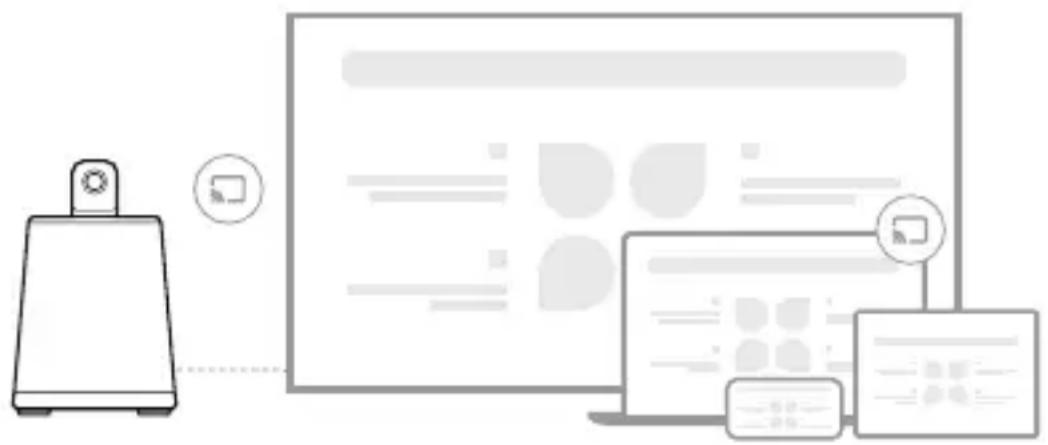
Wireless screen mirroring
- Enable the built-in screen sharing function of video conference software.
- Select "Wireless Screen Mirroring" in the prompt window.
- Follow the instruction of AirPlay or Miracast in [Screen Mirroring]. Then the screen will be shared with online attendees.
Wired screen mirroring
- Enable the built-in screen sharing function of video conference software.
- Select "HDMI IN Screen Mirroring" in the prompt window.
- Connect Kandao Meeting Ultra and the computer that needs to be shared through HDMI IN port according to the prompt of "HDMI IN Screen Mirroring". Then the screen will be shared with online attendees.
Camera Settings
Go to "Settings" and select "Camera Settings" to adjust the camera settings, such as Smart Conference Views (global view, gallery view, speaker view), Screen Lock Mode, 360° Panoramic View, Ignore Zone, and Video (EV, video inversion, video flip, resolution, tracking sensitivity).
Smart Conference Views
- Global View: A 360-degree field will be displayed.
![graph TD A["Node 1"] --> B["Central Processing Unit"] C["Node 2"] --> B D["Node 3"] --> B E["Node 4"] --> B F["Node 5"] --> B G["Node 6"] --> B H["Node 7"] --> B I["Node 8"] --> B B --> J["Output"] style B fill:#f9f,stroke:#333](/content/2026/04/655492/images/fec1afaaded989edc961cec008317cb13bb6c3dfb1ec819a60675dadab85641a.jpg)
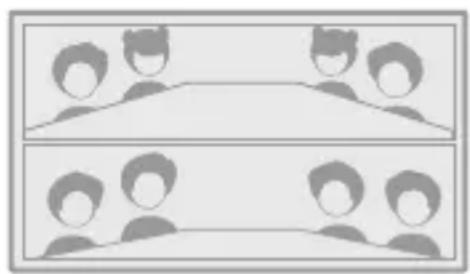
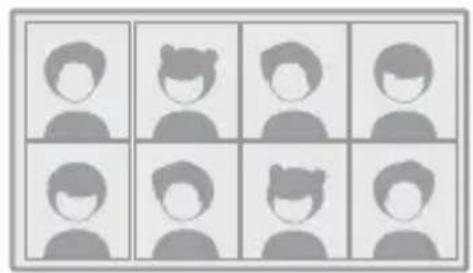
2. Gallery View:
a. Auto: The attendees will be evenly displayed with the speaker highlighted in a layout for one to eight persons.
b. 1-8 Layout: The attendees will be evenly displayed with the speaker highlighted in a layout selected by the user.
![graph TD A["Device 1"] --> C["A=0"] B["Device 2"] --> C D["Device 3"] --> C E["Device 4"] --> C F["Device 5"] --> C G["Device 6"] --> C H["Device 7"] --> C I["Device 8"] --> C J["Device 9"] --> C K["Device 10"] --> C](/content/2026/04/655492/images/ea2ea3fc99365e0197e0329be9626360a0876260d6a5487246427c39dfdd99e1.jpg)
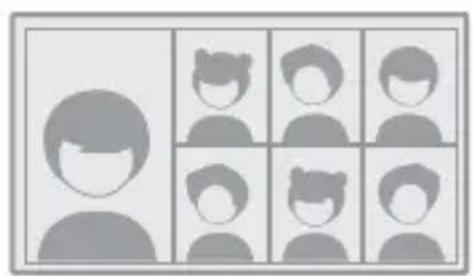
3. Speaker View:
a. Auto: The speaker will be highlighted in a window layout for one to seven persons, with the remaining non-speaking attendees evenly displayed.
b. 1-7 Layout: The speaker will be highlighted in a window layout selected by the user, with the remaining non-speaking attendees evenly displayed.
![graph TD A["Device 1"] --> D["Central Device"] B["Device 2"] --> D C["Device 3"] --> D E["Device 4"] --> D F["Device 5"] --> D G["Device 6"] --> D H["Device 7"] --> D I["Device 8"] --> D J["Device 9"] --> D K["Device 10"] --> D L["Device 11"] --> D M["Device 12"] --> D N["Device 13"] --> D O["Device…](/content/2026/04/655492/images/f015575fb7b5b900869b5961f42f06f6c4ec52d9aac67ba9870604a9b3964ebe.jpg)
EN
Screen Lock Mode
The user may control the view angle and zoom in/out with the remote controller.
- How to use: When in a video conference, short press the "Lock" button of the remote controller, and a "Lock" icon will show up in the bottom left corner of the screen, so will a blue selection box.
- Select a view window: Press the "Left" and "Right" direction buttons of the remote control to select a window, press the "OK" button to adjust the view window, and then the selection box will be white.
- Adjust the view angle:
a. Adjust the angle with the "Direction" buttons on the remote controller and zoom in/out with the "Volume +/-" buttons
b. Press the "OK" button on the remote controller to finish the adjustment.
*Notes
- The current mode will remain locked and remember the viewing angle until the next manual unlocking.
- In Screen Lock Mode, screen control by the mouse will be disabled.
360-degree Panorama
When it is on, a 360-degree panoramic view will appear at the top of the screen.

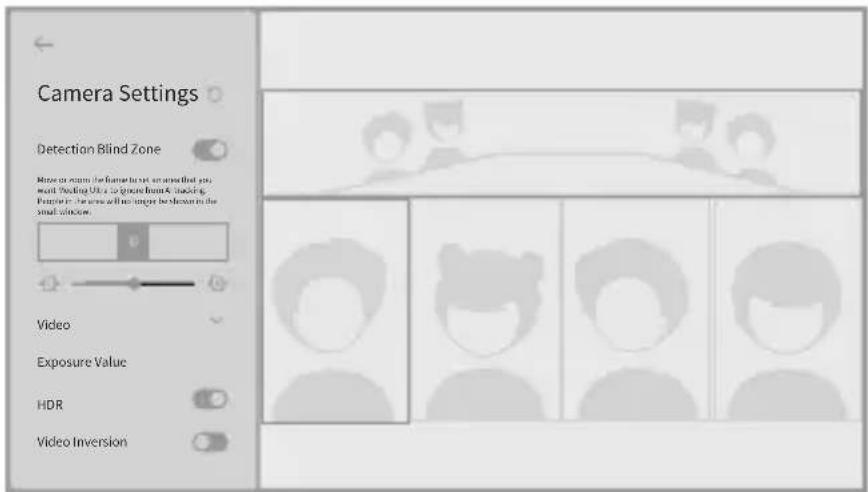
Ignore Zone
When it is on, a "Ignore Zone" will appear in the bottom left of the screen and the system will cease displaying the image of the ignore zone. The ignore zone will also be marked with shades in the 360-degree panoramic window. This function is suitable for blocking screens, external speakers, or doorways with pedestrians passing by.
Video
- EV: Adjust the exposure value to adapt to different brightness environment. Press the "Settings" button on the remote controller to adjust the exposure value in a video conference.
- Video Inversion: When it is on, the view will be inverted. This setting applies to scenarios where the device is installed upside down.
- Video Flip: When it is on, the view will be flipped horizontally. This setting applies to the conferencing software with mirroring function.
- Resolution: Switch the resolution.
- Tracking Sensitivity: Adjust the speed of intelligent switching between tracking targets in the Smart Conference Views.
*Notes
Some of the camera's parameters will be synchronized to the "USB Mode" once set. See the following "III. Instructions for the USB Mode" for more information.

EN
Mic Noise Reduction
Adjust the noise suppression level for the meeting you're currently in.
Screen Extension
When it is on, different pictures from the same source may be displayed on multiple screens. If the HDMI OUT port of the device is connected to one or two monitors, the system will pop up a window every time the application is opened to ask the user which monitor does the user want to display the application on.

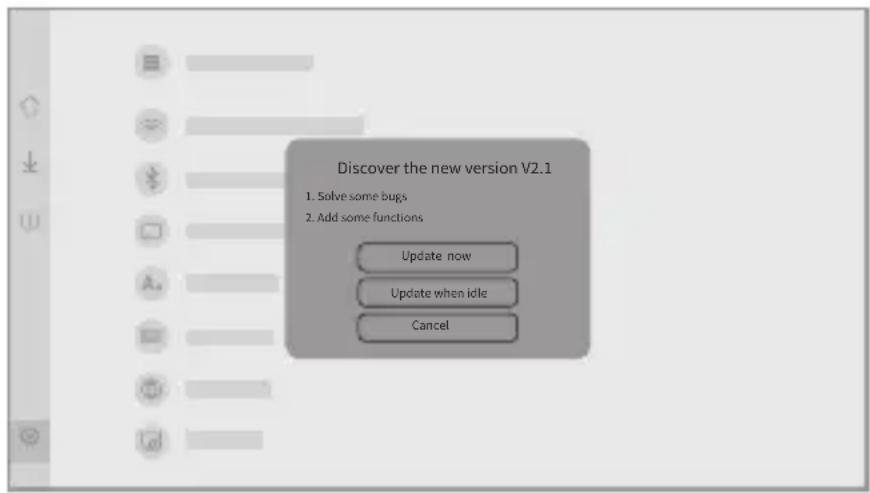
System Upgrade
After networking the device and enabling its automatic detection, the system will ask the user whether to upgrade the system when a new firmware is detected. The user may also go to the "Settings", select "System Upgrade", and choose to automatically download and update firmware when the device is idle.
Settings Menu
- Storage: View the storage space and the stored files.
- Network: Set the Wi Fi and the Ethernet, including DHCP, static IP, network proxy, etc.
- Bluetooth: Turn the Bluetooth on or off, and pair Bluetooth devices.
- Screen Mirroring: Turn on or off the wireless screen mirroring function and view the operating instructions of screen mirroring.
- Language: Set the system language.
- Keyboard: Set the type of external keyboard.
- Timezone: Set the system time zone.
- System update: Upgrade the firmware.
- My device: View the information of the device.
- Sound: Adjust the volume of microphone and speaker.
- Camera settings: Set the smart tracking modes, screen lock mode, 360-degree panorama, detection blind zone, video inversion mode, exposure compensation, video flip, resolution, tracking sensitivity, etc.
- Screen extension: Enable or disable the screen extension function.
- Regulatory: View the certification.
- Reset: Reset account information and restore factory settings.

III.Instructions for the USB Mode
Preparations
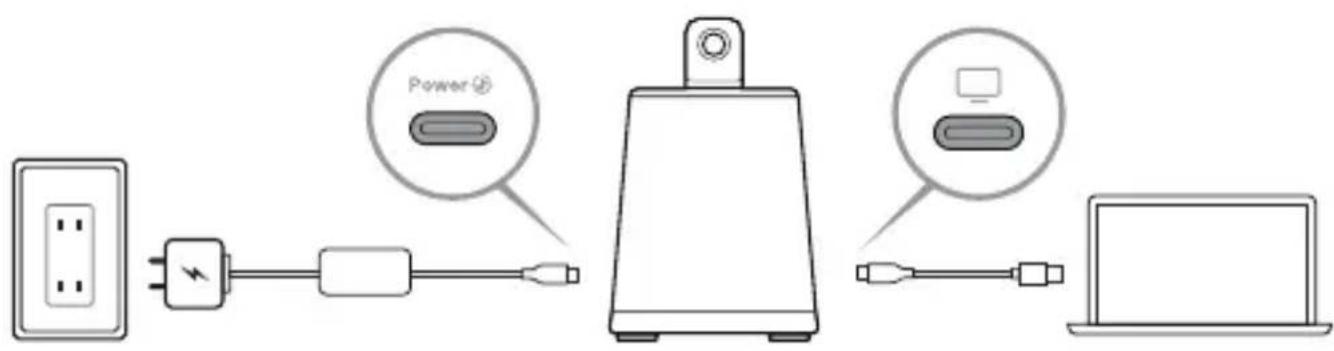
- Use the power cord to connect the USB-C power port and the power adapter.
- Use the data cable to connect the USB-C A/V output port and the computer.
*Notes
Both the power port and the A/V output port are compatible with USB-C. Misconnection will result in the device's startup failure or malfunction.
Power-on
Kandao Meeting Ultra Standard will automatically turn on when connected to the power adapter.
![graph TD A["User Device"] --> B["Server"] C["User Device"] --> B D["User Device"] --> B E["User Device"] --> B F["User Device"] --> B G["User Device"] --> B H["User Device"] --> B I["User Device"] --> B J["User Device"] --> B K["User Device"] --> B L["User Device"] --> B M["User Device"] --> B N["Us…](/content/2026/04/655492/images/3d1423688c16239eb13ceced77cfa0b801940557e1924b6e081787c611d4a303.jpg)
EN
Remote Controller Pairing
- Long press the "OK" and "Volume -" buttons on the remote controller for about 5 s until the indicator light blinks.
- The indicator light is off after pairing successfully
*Notes
After the first successful pairing, by pressing any key on the remote can wake up the automatically connection next time.
Start the Conference
① Open a video conference software (Tencent Meeting, DingTalk, Skype, Zoom, Google Meet, Teams, etc.) to start the remote video conference.
② Select Kandao Meeting Ultra Standard as the microphone/speaker/camera device for the conference. The solid blue light indicates that the camera is working.

*Notes
- The "USB Mode" is plug-and-play. No additional software or driver is required.
- When the screen is abnormal (such as stretching, blank screen, etc.), the user can long press the "Resolution Switch" button on the remote controller for 5 s or tap the "Resolution Switch" button in the camera settings of the device to switch the USB output resolution.
- In the USB Mode, the user may enable H.264 encoding in "Settings" - "Video" - "Encoding Format".
Sleep Mode
Short press the "Power 🔊" button on the device or remote controller to enter the Sleep Mode. Short press the button again to wake up the device.
Power-off
The camera keeps working in the USB Mode. To turn it off, the user may disconnect the computer and the device, and then press the "Power ⏻ " button on the device or the remote controller.
V. How to Use Daisy-Chaining
Standalone Mode
Kandao Meeting Ultra + Kandao Meeting Ultra Standard
Also supports Kandao Meeting Ultra + Kandao Meeting Ultra;
Kandao Meeting Ultra Standard + Kandao Meeting Ultra Standard
![graph LR A["Host Device"] -->|or| B["POE"] B --> C["Client Device"] C -->|or| D["POE"] C --> E["USB A"] C --> F["USB C"] style A fill:#f9f,stroke:#333 style B fill:#ccf,stroke:#333 style C fill:#cfc,stroke:#333 style D fill:#fcc,stroke:#333 style E fill:#cff,stroke:#333 style F fill:#ffc,stroke:#333](/content/2026/04/655492/images/25440511a57fe2ac56a5cfc51ceaac0f61299e8684b703ad061a15d6fe76ddd7.jpg)
USB Mode
Kandao Meeting Ultra + Kandao Meeting Ultra Standard
Also supports Kandao Meeting Ultra + Kandao Meeting Ultra;
Kandao Meeting Ultra Standard + Kandao Meeting Ultra Standard
![graph LR A["PD"] -->|or| B["Host Device"] C["POE"] -->|or| B B --> D["USB A"] D --> E["Distance ≥ 1.5 m"] E --> F["USB C"] F --> G["Client Device"] G --> H["PD or POE"] H --> I["EN"]](/content/2026/04/655492/images/b6a4a7a4267aaccb52e83c2436a7073182c62dfccf0651ff9dc025075a8a5119.jpg)
IV. Description of Conference Views and Resolution
Conference Views
The system will save the parameters of smart conference views, screen lock mode, 360-degree panorama, ignore zone, and video settings set by the user in the Standalone Mode or the USB Mode, and apply them to all conferences.
Resolution
- Standalone Mode: The device provides 4K, 1080p, 720p resolution options for the conference App. The app will automatically set the resolution based on the network and the app membership permissions. Some conference apps need to be set manually.
- Recording: Set the video resolution as 4K or 1080p before recording.
- USB Mode: The output resolution is 1080p by default. The user can switch the resolution to 4K or 720p in the settings menu.
- Preview: The preview resolution is fixed at 1080p.
VI. Tech Specifications
Main Device
| Length | 215 mm |
| Width | 121 mm |
| Height | 327 mm |
| Weight | 2,161 g (approx.) |
Remote controller
| Height | 160 mm |
| Width | 42 mm |
| Thickness | 21 mm |
Compatibility
| Compatible system | Windows 7 or above, or MacOS 10.8 or above |
| Compatible platform | Teams, Zoom, Tencent Meeting, Google Meet, GotoMeeting, Skype, BlueJeans, Ding Talk, Slack, ViLiN-HD video conference, Polycom, StarLeaf, HUAWEI CLOUD Meeting, Wochang Cloud Meeting, Cisco Webex, Tianyi Cloud Meeting, etc. |
Camera
| Resolution @ | 3840*2160@30fps /1920*1080@30fps / |
| Frame Rate | 1280*720@30fps |
| Editing format | MJPEG / H264 |
Microphone
| Quantity | 8 * omnidirectional beamforming microphones |
| Pickup range | 5.5 m |
| Sensitivity | -38Db+/-1db@1KHz |
| AEC(echo cancellation) | Supported |
| Voice enhancement | Supported |
| Noise cancellation | Supported |
Speaker
10WPower
Port
| USB C | USB Type C Out * 1: USB 3.1, connect to computer for transmitting audio/video (USB camera mode)USB Type C In * 1: Power port for connecting power supply |
| Ethernet | Ethernet port (RJ45) * 1: Gigabit Ethernet port for wired network transmission and PoE power supply |
| USB A | USB A port * 3: for connecting mouse, keyboard and other external devices |
| HDMI | HDMI OUT * 2: HDMI2.1 used to output the screen to the monitor/TV;HDMI IN * 1: HDMI2.0 used to input videos and share the screen of the other computer; |
| Wi-Fi | 2.4G+5G, Wi-Fi 6 |
| Bluetooth | Bluetooth 5.0 |
| Lock hole | Supported |
| Screw hole | 1/4 inches |
Storage
| Built-in storage | 64G |
| Micro SD card | Support FAT32 and exFat format (up to 1TGB) |
Power supply
| Power adapter | Input: AC100-240V 50/60Hz 0.45A MaxOutput: DC 15V 3A |
| PoE | IEEE802.3bt is supported; 44-58V 1A |
VII. Network and Security
This device uses the following network ports to enable related conferencing features:
443/TCP: HTTPS/TLS encrypted web service for PC access to screen casting.
1234/UDP: Meeting screen casting service - iOS casting.
1900/UDP: Simple Service Discovery Protocol (SSDP), used for Meeting screen casting - iOS casting.
38651/TCP: Meeting screen casting service - iOS casting.
1934/TCP: Kandao Meeting Omni time synchronization.
8080/TCP: Communication between Kandao Meeting Omni and Omni software.
8081/UDP: Communication between Kandao Meeting Omni and Omni software.
8554/TCP: RTSP video streaming between Kandao Meeting Omni and Omni software.
* Log in to the following website for the updates of this document: https://www.kandaovr.com/user-guide
* Contact Technology Support via Email : service@kandaovr.com

一、产品说明
包装清单

Kandao Meeting Ultra Standard
遥控器
镜头保护盖

快速入门指南
保修卡
65W 适配器
电源线
数据线
部件说明

电源键

绿灯闪烁
正在开机或系统正在升级
绿灯常亮
准备就绪

蓝灯常亮
摄像头正在工作中
蓝灯闪烁
正在录像

红灯常亮
麦克风静音中
接口说明
PoE/LAN
以太网口

USB-C音视频输出
![graph TD A["Computer"] --> B["Device 1"] A --> C["Device 2"] A --> D["Device 3"] A --> E["Device 4"] A --> F["Device 5"] A --> G["Device 6"] A --> H["Device 7"] A --> I["Device 8"] A --> J["Device 9"] A --> K["Device 10"]](/content/2026/04/655492/images/52ac9acbf5654ce6cc1c9f2f52fcc4bd8ec2090dd3d11436a9c29871b94167a7.jpg)
配对遥控器
关机
传输会议链接
会议中共享屏幕
无线投屏
CN
2. 画廊视图:
3. 演讲者视图:
锁定模式
屏蔽区
![graph TD A["User Device"] --> B["Data Transfer Unit"] B --> C["Central Processing Unit"] C --> D["User Device"] D --> E["Data Transfer Unit"] E --> F["User Device"] F --> G["Data Transfer Unit"] G --> H["User Device"] H --> I["Data Transfer Unit"] I --> J["User Device"] J --> K["Data Transfer Unit"]…](/content/2026/04/655492/images/d47478a8af56e53da02c044742aadc82b3a1d18785b2ad1807dfa2a8be07599c.jpg)
CN
配对遥控器
*注意事项
* Contact Technology Support via Email :
service@kandaovr.com
一、產品說明
包裝清單

Kandao Meeting Ultra Standard
遥控器
鏡頭保護蓋
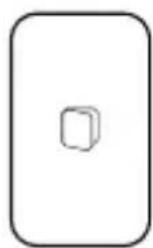
快速使用指南

保修卡
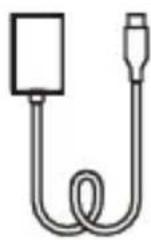
65瓦適配器

電源線

數據線
部件说明
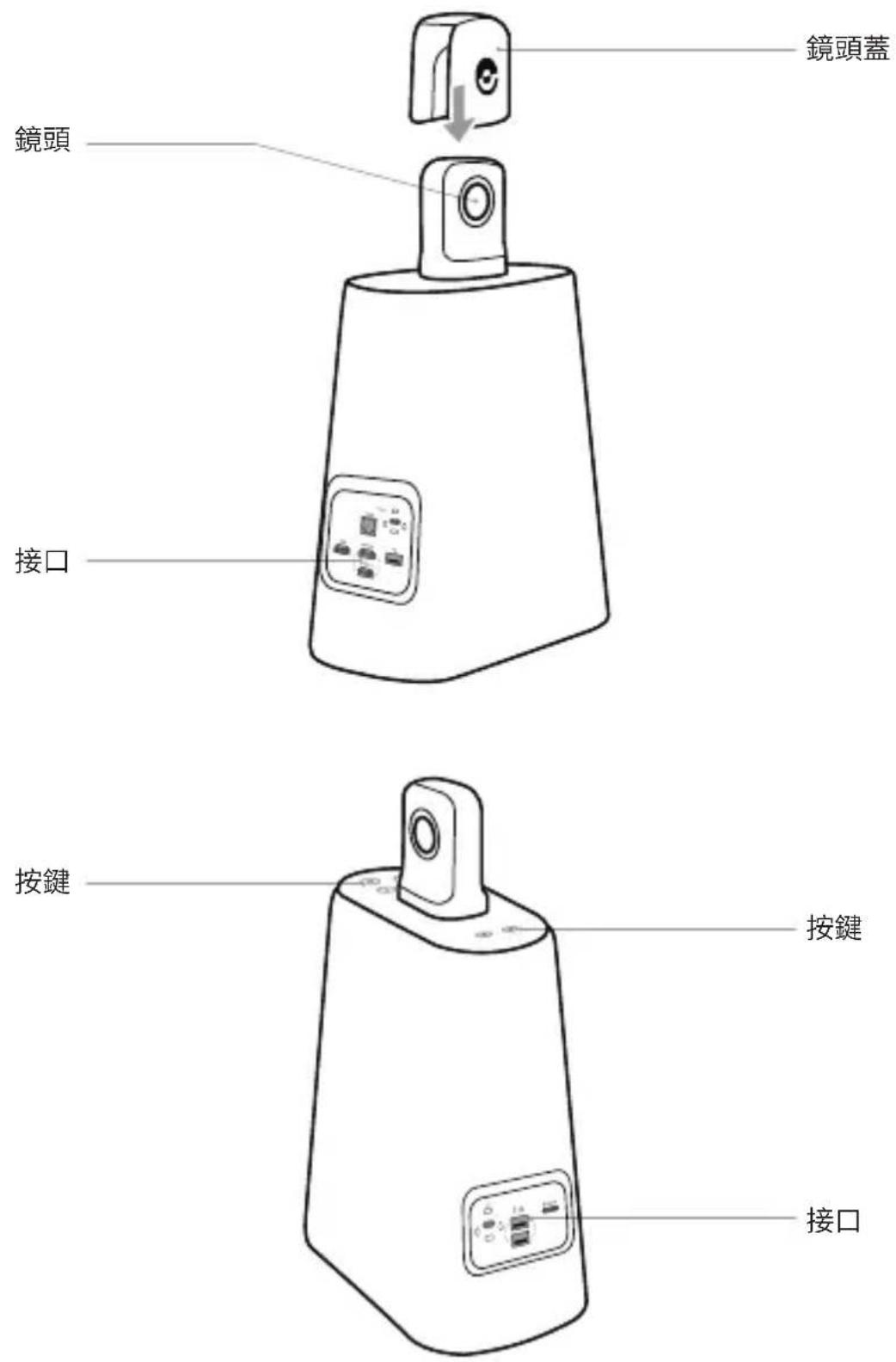

電源鍵

綠燈閃爍
正在開機或系統正在升級
綠燈常亮
準備就緒
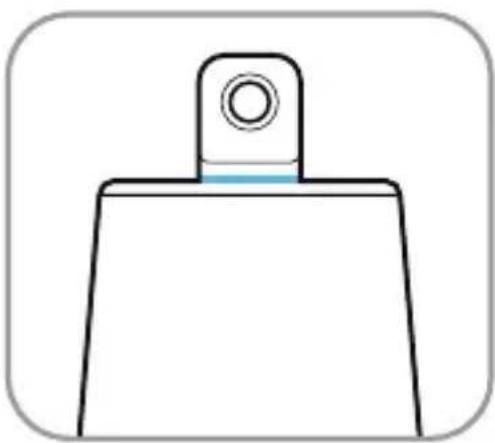

藍燈常亮
攝像頭正在工作中
藍燈閃爍
正在錄影


紅燈常亮
麥克風靜音中
接口說明
PoE/LAN
乙太網口

USB-C音視頻輸出
![graph TD A["User Icon"] --> B["Device 1"] A --> C["Device 2"] A --> D["Device 3"] A --> E["Device 4"] A --> F["Device 5"] A --> G["Device 6"] A --> H["Device 7"] A --> I["Device 8"] A --> J["Device 9"] A --> K["Device 10"]](/content/2026/04/655492/images/de59ce7db2a0817037c8bc8687e9b21a931f398137d9c1d8f5fc366c76a03372.jpg)
配對遙控器
關機
傳輸會議鏈接
會議中共享屏幕
無線投屏
2. 畫廊視圖:
3. 演講者視圖:
鎖定模式
屏蔽區
配對遙控器
*注意事項
* Contact Technology Support via Email :
service@kandaovr.com


一、製品紹介
梱包リスト

Kandao Meeting Ultra Standard
リモコン

レンズ保護カバー

クイックスタートガイド

保証カード

65W電源アダプター

電源ケーブル
USBケーブル
各部品説明

電源ボタン


緑インジケーター点滅
起動中またはシステムがアップ
グレード中
緑インジケーター点灯
準備完了

青インジケーター点灯
カメラ動作中
青インジケータ一点滅
錄画中

赤インジケーター点灯
マイクがミュートにさ れて います
入出力ポート説明
PoE/LAN
Ethernetポート

USB-C音声ビデオ出力ポート
パソコンと接続用で、オーディオの出
力/入力やビデオ出力に接続用

USB-Aポート
マウス/キーボードの接続用

Micro SDカードスロット
![graph TD A["Monitor"] --> B["Level 1"] B --> C["Level 2"] C --> D["Level 3"] D --> E["Level 4"] E --> F["Level 5"] F --> G["Level 6"] G --> H["Level 7"] H --> I["Level 8"] I --> J["Level 9"] J --> K["Level 10"] K --> L["Level 11"] L --> M["Level 12"] M --> N["Level 13"] N --> O["Level 14"] O --> P["…](/content/2026/04/655492/images/23e3ba700e25ee8206ee92649888ff11d6a8030e9b07b760d6f15949fdaa0557.jpg)
リモコンをペアリング
電源を切る
会議招待リンクを入力
会議中画面共有
ワイヤレス画面共有
2. ギャラリービュー:
3. スピーカービュー:
画面ロック
検出ブラインドゾーン
![graph TD A["User Device"] --> B["Server"] C["User Device"] --> B D["User Device"] --> B E["User Device"] --> B F["User Device"] --> B G["User Device"] --> B H["User Device"] --> B I["User Device"] --> B J["User Device"] --> B K["User Device"] --> B L["User Device"] --> B M["User Device"] --> B N["Us…](/content/2026/04/655492/images/4b317eda1c33e107e0c729dda65f4f65ff0e8ac5612d77f54b7f46a1a04550a9.jpg)
リモコンをペアリング
I. 제품설명
포장 리스트
Kandao Meeting Ultra Standard
리모컨
캡홀더
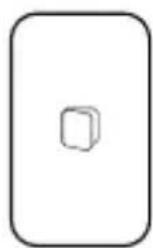
빠른 사용 지침서
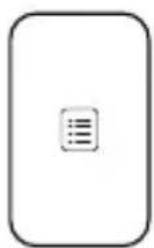
보증장

65W 어댑터
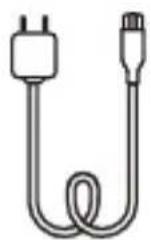
전원선
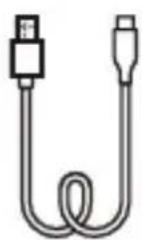
데이터 케이블
부품설명


전원 키


녹색불 깜박임
전원이 켜지거나 시스템이
업그레이드 중
녹색불 항상 켜짐
준비 완료

파란불 항상 켜짐
카메라가 작동 중
파란불 깜박임
녹화 중

빨간불 항상 켜짐
마이크 음소거 중
인터페이스 설명

PoE/LAN
이더넷 포트
이더넷을 케이블로 연결하고 동시에
이더넷을 통해 기기에 전원을
공급(PoE)할 수 있음.
Power
USB-C 전원
전원 어댑터와 전원선을 통해
기기에 전원 공급
HDMI IN
HDMI IN

USB-C음 비디오 출력
꺼짐
회의 링크 전송
회의중 스크린 공유
무선 미러링
2. 갤러리 보기:
3. 강연자 보기:
록 모드
차폐 영역
*주의사항
* Contact Technology Support via Email :
service@kandaovr.com

I.Fiche produit
Liste de colisage
Kandao Meeting Ultra Standard
Télécommande
Carte de garantie
65W Adaptateur


Signal vert clignote

Signal bleu

Signal rouge
Muet
Description d' interfaces

PoE/LAN
Port Ethernet

Arrêter
2. Vue galerie:
Mode verrouillage
Zone bloquée
![graph TD A["User Device"] --> B["Process Unit"] B --> C["User Device"] C --> D["User Device"] D --> E["User Device"] E --> F["User Device"] F --> G["User Device"] G --> H["User Device"] H --> I["User Device"] I --> J["User Device"] J --> K["User Device"] K --> L["User Device"] L --> M["User Device"]…](/content/2026/04/655492/images/c22d86fafbca98924a5cfd42e7140113802e2d61a975a3c502f6b47dc4190743.jpg)
*Remarque
Amélioration Support
vocaleÉlimination Support du bruit
Hautparleur
10WPuissance
Interface
Kandao Meeting Ultra Standard
Fernbedienung
Garantiekarte
65-Watt-Adapter

Netzkabel
Datenkabel
Bauteilbeschreibung

Hauptschalter


Grünes Licht blinkt
PoE/LAN
Ethernet-Anschluss

2. Galerieansicht:
3. Sprecheransicht:
Sperrmodus
![graph TD A["User Interface"] --> B["Device"] B --> C["Server"] C --> D["User Interface"] D --> E["Device"] E --> F["Server"] F --> G["User Interface"] G --> H["Device"] H --> I["Server"] I --> J["User Interface"] J --> K["Device"] K --> L["Server"] L --> M["User Interface"] M --> N["Device"] N --> O…](/content/2026/04/655492/images/7c41c4fe064ab1ee478193f9bbb36fef73d47b3fc6b1d33c4930f4a9f8f84cf7.jpg)
* Hinweis
* Contact Technology Support via Email :
service@kandaovr.com


Kandao Meeting Ultra Standard
Telecomando

Copri-obiettivo
Guida Rapida



PoE/LAN
Porta Ethernet
![graph TD A["Power"] --> B["Switch"] B --> C["Device with Monitor"] D["HDMI OUT"] --> E["Switch"] E --> F["Computer monitor"] G["User Devices"] --> H["Room with Smartphones"] H --> I["Desktop with USB"] I --> J["Server with Smartphones"]](/content/2026/04/655492/images/933bb3da2429ca48b17f8da5f1077ed75b3bcdc917ff0bad91a9b7f658bdcec7.jpg)
Spegnimento
2. Vista galleria:
Modalità di blocco
Zona dello schermo
*Precauzioni
Kandao Meeting Ultra Standard

Control remoto
Guía de uso rápido
Tarjeta de garantía


Tecla de encendido


PoE/LAN
Puerto de Ethernet

Salida de audio y video USB-C
Apagar la máquina
Modo de bloqueo
Área de máscara
*Precauciones
I. Produkta profils
Iepakojuma saturs
Kandao Meeting Ultra standarts

Tālvadības pults
Objektīva vāciņš

leslēgšanas poga

Mirgo zaļā krāsā


PoE/LAN
Ethernet ports
Pievienojiet Ethernet PoE
Power
USB-C strāvas ports
Enerğijas padevei
HDMI IN
HDMI IN

USB-C audio/video izeja
Izslēgt
levadiet konferences saiti
Share Screen videokonference
2. Gallery View:
Ignorēt zonu
![graph TD A["User 1"] --> B["User 2"] B --> C["User 3"] C --> D["User 4"] D --> E["User 5"] E --> F["User 6"] F --> G["User 7"] G --> H["User 8"] H --> I["User 9"] I --> J["User 10"] J --> K["User 11"] K --> L["User 12"] L --> M["User 13"] M --> N["User 14"] N --> O["User 15"] O --> P["User 16"] P --…](/content/2026/04/655492/images/f680ce8d9154c8a8dd60825c99f2f953ca38eef588d5426cc3213be960db0cd4.jpg)
*Piezīmes
FCC compliance statement
This device complies with Part 15 of the FCC Rules. Operation is subject to the following two conditions: (1) this device may not cause harmful interference, and (2) this device must accept any interference received, including interference that may cause undesired operation.
changes or modifications not expressly approved by the party responsible for compliance could void the user’s authority to operate the equipment.
This equipment has been tested and found to comply with the limits for a Class B digital device, pursuant to Part 15 of the FCC Rules. These limits are designed to provide reasonable protection against harmful interference in a residential installation. This equipment generates, uses and can radiate radio frequency energy and, if not installed and used in accordance with the instructions, may cause harmful interference to radio communications. However, there is no guarantee that interference will not occur in a particular installation. If this equipment does cause harmful interference to radio or television reception, which can be determined by turning the equipment off and on, the user is encouraged to try to correct the interference by one or more of the following measures:
-- Reorient or relocate the receiving antenna.
-- Increase the separation between the equipment and receiver.
-- Connect the equipment into an outlet on a circuit different from that to which the receiver is connected.
-- Consult the dealer or an experienced radio/TV technician for help.
FCC Radiation Exposure statement
This equipment complies with FCC radiation exposure limits set forth for an uncontrolled environment. This equipment should be installed and operated with minimum distance 20cm between the radiator and your body. This transmitter must not be co-located or operating in conjunction with any other antenna or transmitter.

CAUTION
– Risk of explosion if the battery is replaced by an incorrect type
- disposal of a battery into fire or a hot oven, or mechanically crushing or cutting of a battery, that can result in an explosion;
– leaving a battery in an extremely high temperature surrounding environment that can result in an explosion or the leakage of flammable liquid or gas;
- a battery subjected to extremely low air pressure that may result in an explosion or the leakage of flammable liquid or gas.
低功率射頻器材技術規範:
Manufacturer: KanDao Technology Co., Ltd.
Address: 503, Building 1, Dayun Soft Parts Town, No. 8288, Longgang Avenue, Heao Community, Yuanshan Street, Longgang District, Shenzhen
制造商: 深圳看到科技有限公司


- KANDAO MEETING ULTRA STANDARD
- I.PRODUCT PROFILE
- PACKING LIST
- NAMES OF PARTS
- BUTTONS DESCRIPTION
- POWER BUTTON
- MUTING BUTTON
- VOLUME BUTTONS
- VIEW BUTTON
- INDICATOR LIGHTS DESCRIPTION
- INPUT/OUTPUT PORTS DESCRIPTION
- POE/LAN
- POWER
- HDMI IN
- HDMI OUT ① / HDMI OUT ②
- USB-C AUDIO/VIDEO OUTPUT
- USB-A PORT
- MICRO SD CARD SLOT
- REMOTE CONTROLLER DESCRIPTION
- NOTES
- STANDALONE MODE INTRODUCTION
- PREPARATIONS
- POWER-ON
- REMOTE CONTROLLER PAIRING
- NETWORK CONNECTION
- START THE CONFERENCE
- POWER-OFF
- RECORD A CONFERENCE
- ENTER THE CONFERENCE VIA LINK
- SCREEN MIRRORING
- THROUGH IP ADDRESS
- AIRPLAY
- MIRACAST
- SHARE SCREEN IN A CONFERENCE
- WIRELESS SCREEN MIRRORING
- WIRED SCREEN MIRRORING
- CAMERA SETTINGS
- SMART CONFERENCE VIEWS
- GALLERY VIEW
- SPEAKER VIEW
- SCREEN LOCK MODE
- 360-DEGREE PANORAMA
- IGNORE ZONE
- VIDEO
- MIC NOISE REDUCTION
- SCREEN EXTENSION
- SYSTEM UPGRADE
- SETTINGS MENU
- III.INSTRUCTIONS FOR THE USB MODE
- SLEEP MODE
- HOW TO USE DAISY-CHAINING
- STANDALONE MODE
- USB MODE
- DESCRIPTION OF CONFERENCE VIEWS AND RESOLUTION
- CONFERENCE VIEWS
- RESOLUTION
- TECH SPECIFICATIONS
- NETWORK AND SECURITY
- 一、产品说明
- 包装清单
- 部件说明
- 接口说明
- 以太网口
- USB-C音视频输出
- 配对遥控器
- 关机
- 传输会议链接
- 会议中共享屏幕
- 无线投屏
- 画廊视图:
- 演讲者视图:
- 锁定模式
- 屏蔽区
- 注意事项
- 一、產品說明
- 包裝清單
- 接口說明
- 乙太網口
- USB-C音視頻輸出
- 配對遙控器
- 關機
- 傳輸會議鏈接
- 會議中共享屏幕
- 無線投屏
- 畫廊視圖:
- 演講者視圖:
- 鎖定模式
- 屏蔽區
- 注意事項
- 一、製品紹介
- 梱包リスト
- 各部品説明
- 電源ボタン
- 入出力ポート説明
- リモコンをペアリング
- 電源を切る
- 会議招待リンクを入力
- 会議中画面共有
- ワイヤレス画面共有
- ギャラリービュー
- スピーカービュー
- 画面ロック
- 検出ブラインドゾーン
- 제품설명
- 포장 리스트
- 부품설명
- 인터페이스 설명
- 꺼짐
- 회의 링크 전송
- 회의중 스크린 공유
- 무선 미러링
- 갤러리 보기
- 강연자 보기
- 록 모드
- 차폐 영역
- 주의사항
- I.FICHE PRODUIT
- LISTE DE COLISAGE
- DESCRIPTION D' INTERFACES
- PORT ETHERNET
- ARRÊTER
- VUE GALERIE
- MODE VERROUILLAGE
- ZONE BLOQUÉE
- REMARQUE
- HAUTPARLEUR
- BAUTEILBESCHREIBUNG
- HAUPTSCHALTER
- ETHERNET-ANSCHLUSS
- GALERIEANSICHT
- SPRECHERANSICHT
- SPERRMODUS
- HINWEIS
- PORTA ETHERNET
- SPEGNIMENTO
- VISTA GALLERIA
- MODALITÀ DI BLOCCO
- ZONA DELLO SCHERMO
- PRECAUZIONI
- TECLA DE ENCENDIDO
- PUERTO DE ETHERNET
- SALIDA DE AUDIO Y VIDEO USB-C
- APAGAR LA MÁQUINA
- MODO DE BLOQUEO
- ÁREA DE MÁSCARA
- PRECAUCIONES
- PRODUKTA PROFILS
- IEPAKOJUMA SATURS
- LESLĒGŠANAS POGA
- USB-C AUDIO/VIDEO IZEJA
- IZSLĒGT
- LEVADIET KONFERENCES SAITI
- SHARE SCREEN VIDEOKONFERENCE
- IGNORĒT ZONU
- PIEZĪMES
- FCC COMPLIANCE STATEMENT
- FCC RADIATION EXPOSURE STATEMENT
- CAUTION
- 低功率射頻器材技術規範:
Brand : KanDao
Model : Meeting Ultra Standard
Category : Video conferencing system