Obsidian Go - Camera KanDao - Free user manual and instructions
Find the device manual for free Obsidian Go KanDao in PDF.


| Product Type | 360° Camera |
| Brand | KanDao |
| Model | Obsidian Go |
| Dimensions | 85 x 70 x 30 mm (approx.) |
| Weight | 130 g (approx.) |
| Power Source | Built-in rechargeable Li-ion battery |
| Charging | USB-C (5V/2A) |
| Battery Life | Approximately 60 minutes of continuous recording |
| Video Resolution | 5.7K (5760x2880) @ 30fps |
| Photo Resolution | 18 MP (stitched) |
| Video Format | MP4 (H.264/H.265) |
| Lenses | Two fisheye lenses, F2.0 aperture |
| Field of View | 360° x 360° (fully spherical) |
| Stabilization | 6-axis gyro stabilization |
| Connectivity | Wi-Fi 802.11ac (2.4/5 GHz), Bluetooth 5.0 |
| Storage | MicroSD card (up to 256 GB, Class 10/U3) |
| Water Resistance | Not waterproof; IPX4 splash resistant (estimated) |
| Maintenance | Clean lenses with a soft, lint-free cloth; store in dry place |
| Safety Warnings | Do not disassemble; avoid exposure to extreme temperatures; keep away from water |
| Spare Parts / Repairability | Not user-serviceable; contact KanDao support for repairs |
| General Information | Release year: 2020; includes carrying case, USB cable, and quick start guide |
Frequently Asked Questions - Obsidian Go KanDao
User questions about Obsidian Go KanDao
0 question about this device. Answer the ones you know or ask your own.
Ask a new question about this device
Download the instructions for your Camera in PDF format for free! Find your manual Obsidian Go - KanDao and take your electronic device back in hand. On this page are published all the documents necessary for the use of your device. Obsidian Go by KanDao.
USER MANUAL Obsidian Go KanDao
Operate with Remote 7

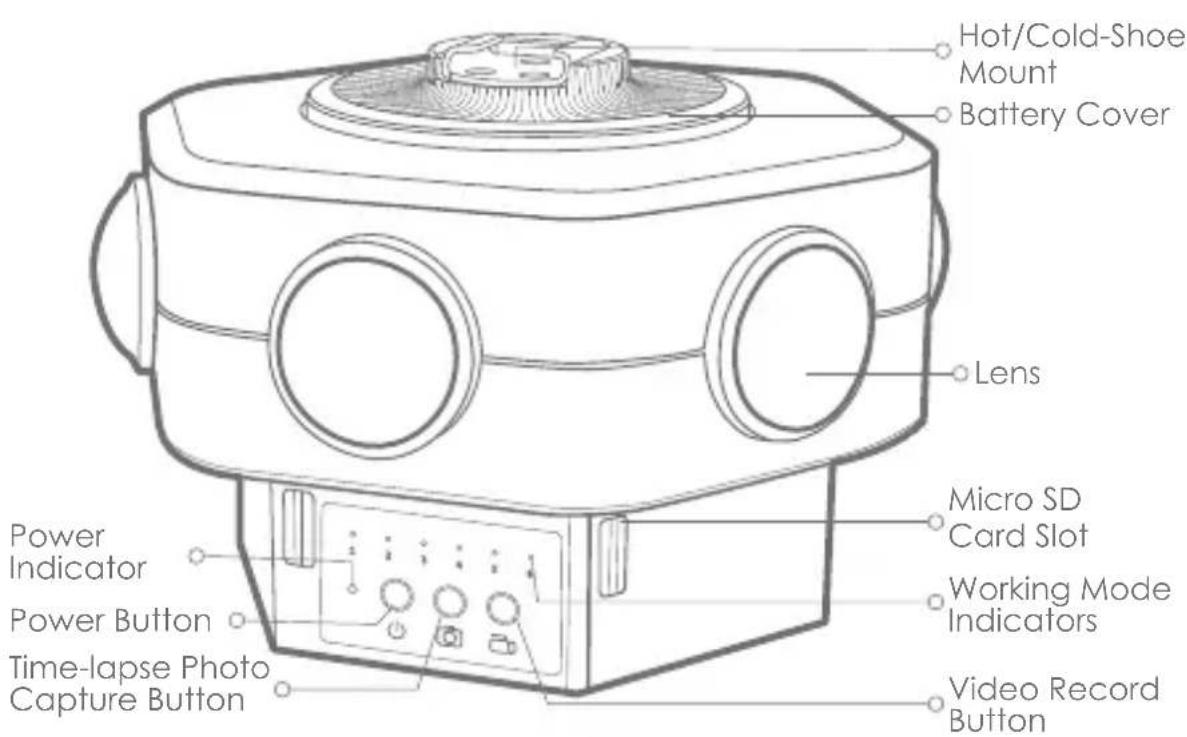
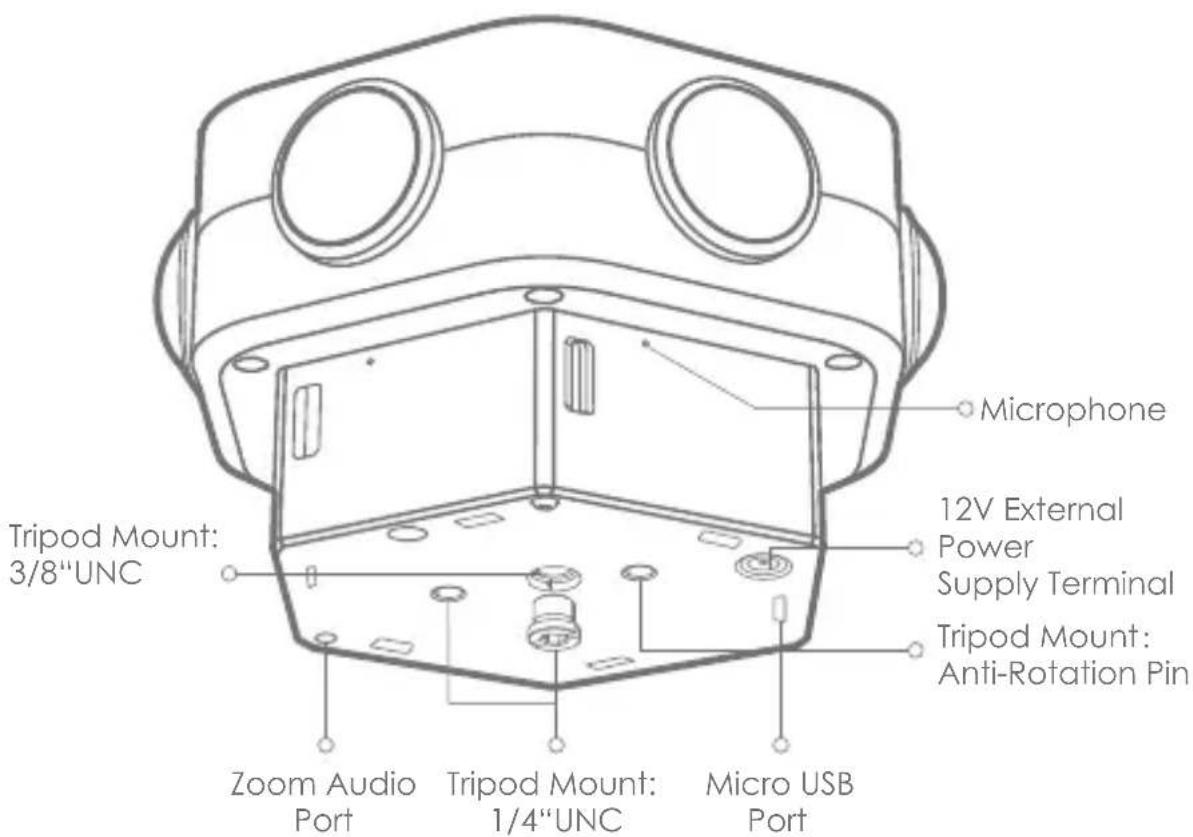
Name of Parts
Introduction to camera parts
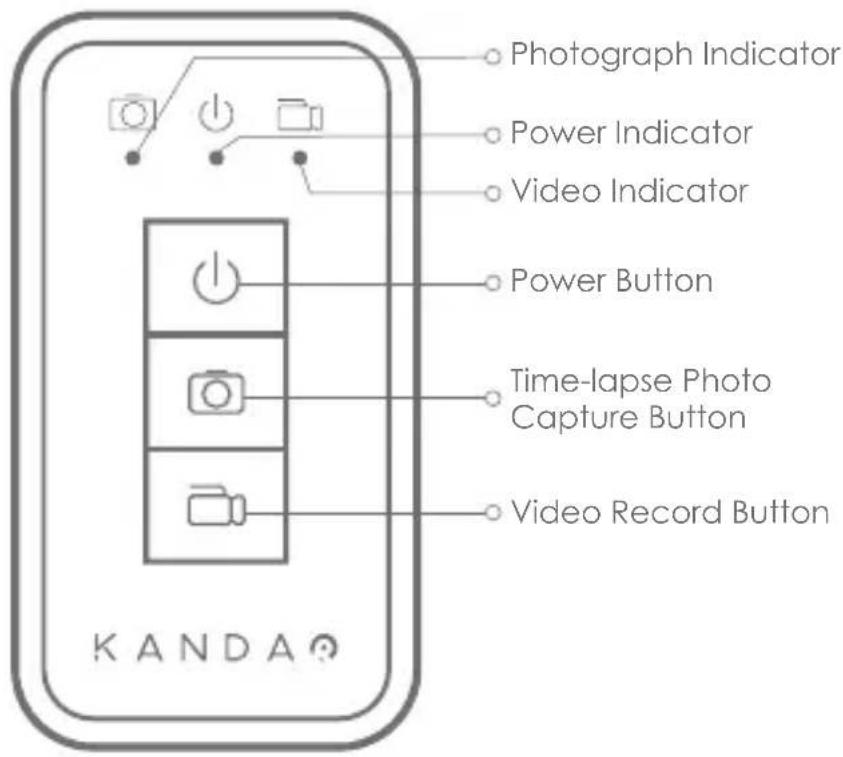
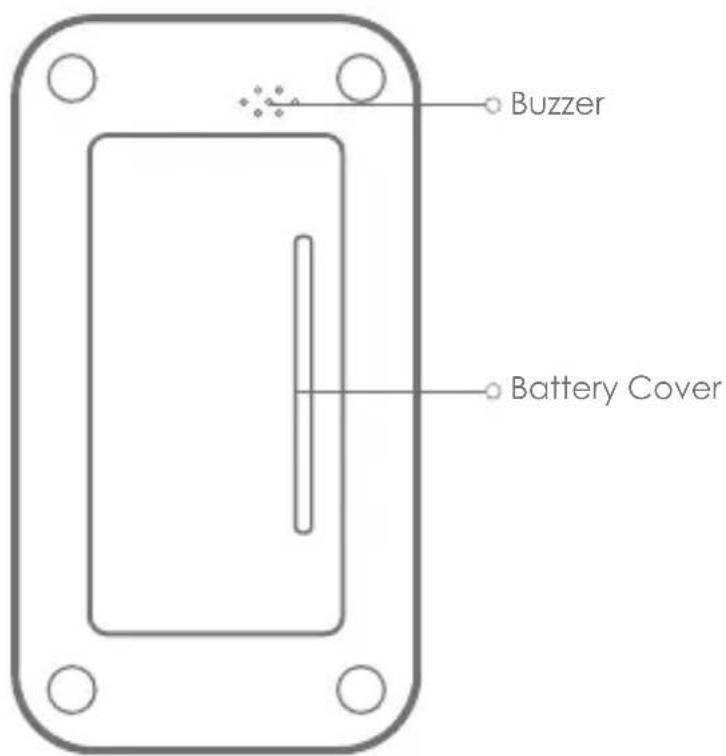
Introduction to camera remote control parts
Specification Parameters
| Model Obsidian GO | |
| Video Format | MOV |
| Weight (Camera+Battery) | 1015 g |
| Recording Media | Micro SD Card (Maximum 128G) |
| Video Coding Format | H.264 |
| Working Voltage | Battery 7.4V, Adapter 12V |
| Power | 10.5W |
| Frame Rate | 30 fps |
| Working Temperature | -10 ~ 40 °C |
| Working Humidity | 10~90% RH |
| Storage Temperature | -40 ~ 80 °C |
| Storage Humidity | 5~90% RH |
| Frequency Range | 2404MHz-2476MHz |
| Max Output Power | 3.5dBm for Remote Control0.2dBm for Camera |
| Software Version | MP_VER.01.00.13_20170830 |
| Hardware Version | Mainboard: KSA_6_S206_V1.2Power Strip: KSA_6_S206_POWER_V1.3 |

Video
| Model | Video Resolution | Frame Rate (fps) | Single-lens Resolution |
| Obsidian GO | 3840 x 3840 | 30 | 1728 x 1728 |

Photo
| Model Photo Resolution Single-lens Resolution | ||
| 7680 x 7680 | 4608 x 3456Obsidian GO | |
Importers
Company Name: Vrperception
Address: VR Perception Rebenstrasse 338307 Effretikon Switzerland
Package Contents
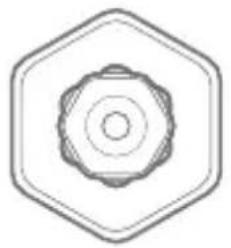
natural_image
Simple geometric diagram of a hexagonal nut with concentric circles (no text or symbols)Camera

natural_image
Simple line drawing of a battery inside a hexagonal frame (no text or symbols)Carrying CaseObsidian GO
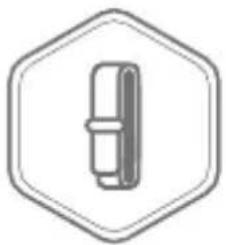
natural_image
Simple line drawing of a mechanical component inside a hexagonal frame (no text or symbols)Shoulder Strap

natural_image
Icon of a closed book inside a hexagon, no text or symbols presentManual

natural_image
Simple geometric diagram with a hexagon and a central square (no text or symbols)Lens Cleaning Cloths

natural_image
Simple line drawing of a vertical line inside a hexagon (no text or symbols)Sync Control Cable for Zoom H2n Handy Recorder(spatial sound)
natural_image
Simple geometric diagram with a hexagon enclosing a rectangle containing three vertical lines (no text or symbols)Remote Control Remote Control
natural_image
Simple line drawing of two batteries inside a hexagonal border (no text or symbols)Batteries

natural_image
Simple line drawing of a battery inside a hexagonal frame (no text or symbols)* Adapter

natural_image
Simple line drawing of a rectangular object inside a hexagon (no text or symbols)
natural_image
Simple line drawing of a vertical cylindrical object inside a hexagon (no text or symbols)* Lens Cleaning PenBatteries LP-E6 Card Reader USB 3.0

natural_image
Simple line drawing of a bottle inside a hexagon (no text or symbols)(*Optional)
Using the Camera

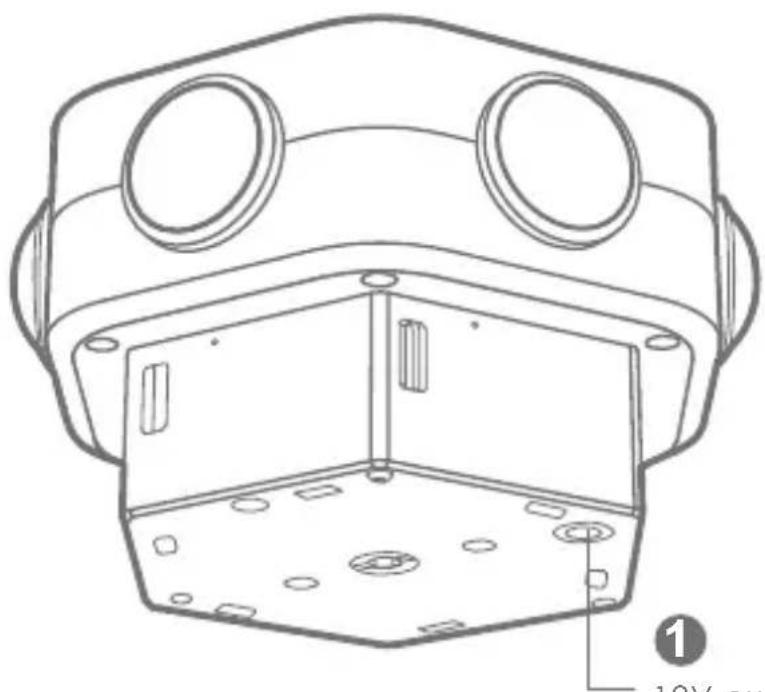
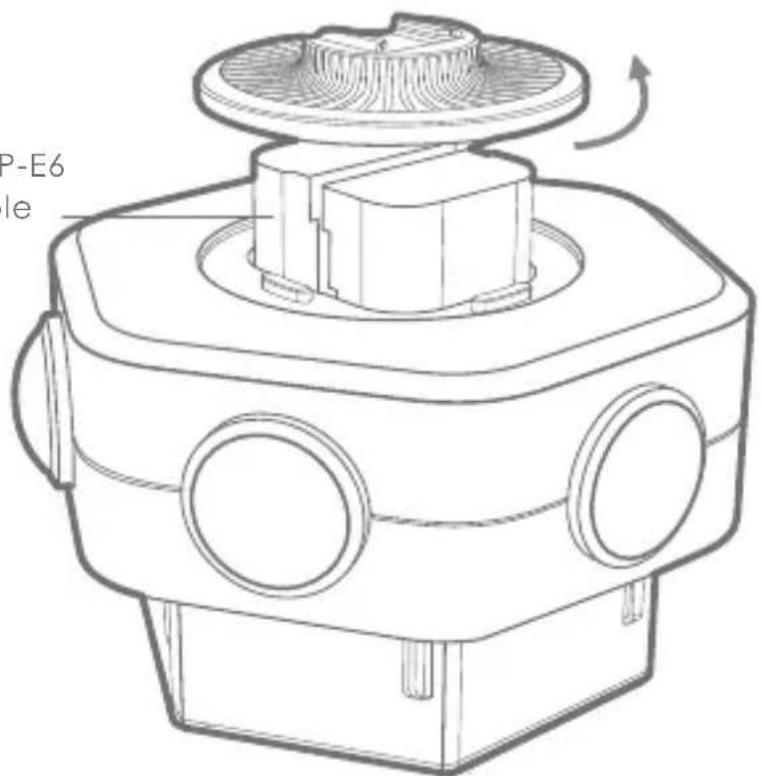
Power the Camera using one of the following ways
natural_image
Technical line drawing of a mechanical housing or enclosure with two circular openings and a hexagonal base (no text or symbols)1
12V external
power supply
2
2 X Canon LP-E6 or compatible batteries
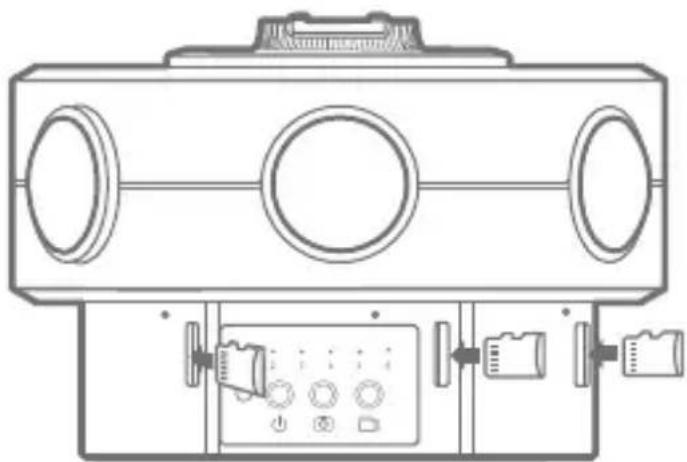
Insert Micro SD cards
Insert all six Micro SD cards into the slots. U3 (USH-I) cards are required.
natural_image
Technical line drawing of a portable electronic device with three circular ports and control panel (no text or symbols)Power on / off
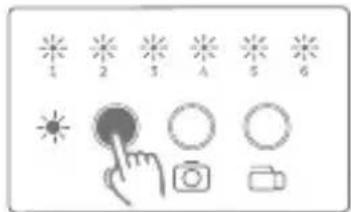
Power on: Press the [Power Button], if the camera turns on normally, the power indicator lamp emits red, and the six [Working Mode Indicators] emit blue.
Power off: Press and hold [Power Button] until all [Working Mode Indicators] turn off, then the camera is powered off.
Photograph & Video-record
Photograph: Press the [Time-lapse Photo Capture Button] to capture a photo. And the default mode is 10-second time-lapse, press [Time-lapse Photo Capture Button] again to stop. The blue [Working Mode Indicators] will flash one time in the process.
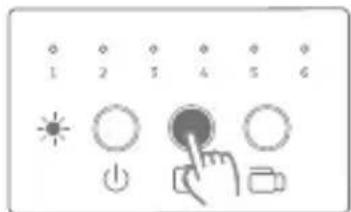
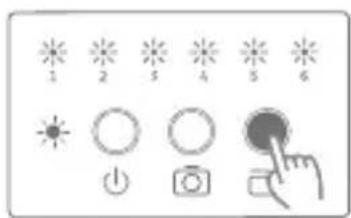
Video-record: Press the [Video Record Button] to record video. Press the button again to stop recording. All [Working Mode Indicators] will flash for 4 seconds before the recording starts. During the recording process, [Working Mode Indicators] will flash slowly.
Operate with Remote Control
Install the battery & connect with camera
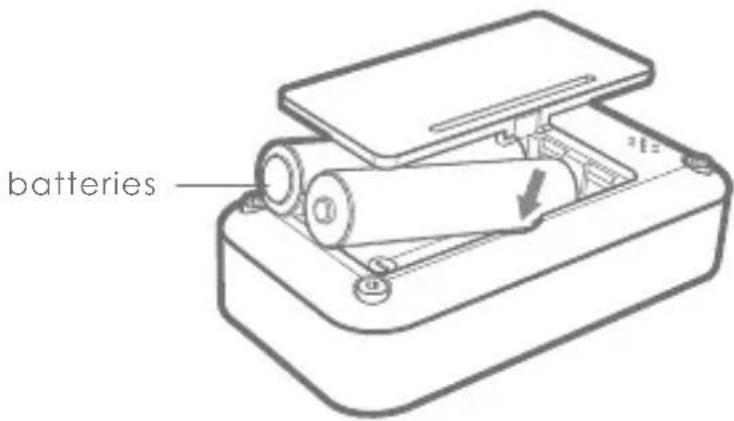
Install the battery: Open the battery door and insert 2 AAA batteries.
Connect with camera: Switch on camera first, then press any button on the remote control to start connecting, during this process Power Indicator will flash slowly, and then go off after the connection is done.
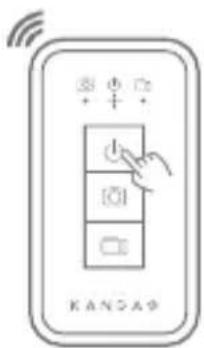
Photograph & Video-record by remote control
Photograph: Press the [Time-lapse Photo Capture Button] 📄 on remote control, the [Buzzer] will respond and [Power Indicator] will flash once. After that, the camera comes into 10-second time-lapse mode, [Photograph Indicator] on remote control will flash slowly, press [Time-lapse Photo Capture Button] again to stop shooting.
Video-record: Press the [Video Record Button] 📄 on the remote control, the [Buzzer] will respond and [Power Indicator] will flash once. During the recording process, [Video Indicator] on the remote control will flash slowly. Press [Video Record Button] again to end recording.
Power off by remote control
Press and hold [Power Button] ⏻ on remote control to switch off the camera, the remote control is dormant and all lights would turn off. Press any button can turn it on again.
Indicator lamp description

Slow flash Quick flash


Camera is on but disconnected with remote control

Taking a photograph

Recording a video


Camera is in dormancy

Low power/ camera is on abnormal status


An error has occurred during taking a photograph


An error has occurred during recording a video
Reminder:
- In a normal working status, once a button is pressed on remote control, [Power Indicator] and [Buzzer] will both respond.
- If the camera is in abnormal status, all indicator lamps on the remote control will flash quickly.
Safe Handling Precautions
- Avoid condensation and freeze -- When moving the camera from one extreme temperature to another, keep your camera in sealed plastic bags to prevent condensation. Allow time for equipment to adjust to temperature change before removing from the plastic bag.
- Avoid snow -- Be careful that snowflakes can easily scratch the lens. To prevent camera circuits from being damaged by melting snow, please turn off the camera and pull out the battery immediately.
- Avoid dust -- Please use and store the camera in a clean environment. When using the camera outdoors, be careful not to allow dust or sand scratch the camera. Please use blower brush, or lens tissue to remove dust from the lens. Never use alcohol or any volatile liquid to clean the camera.
- Avoid moisture -- Avoid using the camera in high humidity conditions. Remove and store the battery in a dry box when not using the camera.
- Avoid shake -- Do not bang or subject the camera to strong impacts. Do not put the extra objects attached with the camera into the package (for example, forget to remove the quick release plate), which will increase the possibility of lens damage when shaking and vibration.
- Never place the camera close to magnets, motors or other devices that generate strong electromagnetic fields. Exposure to strong magnetic fields may cause malfunctions or corrupt image data.
- Memory cards are small, thin and easy to break, so keep them in a special box when not using and make sure the metal contacts are clean and shiny. Avoid storing the cards with data in areas exposed to strong magnetic fields or electromagnetic radiation or high temperature.
- Don't charge the battery inside the camera for a long time, unplug the external power cable when not using the camera.
- Do not bump or rub the lens.
- Do not use camera beyond the normal power supply range.
- Do not take the camera apart or try to repair any of the electronics yourself.
- Avoid foreign objects or liquids inside the camera.
FCC Special Statement
FCC Regulatory Information
Warning: Changes or modifications not expressly approved by the party responsible for compliance could void the user's authority to operate the equipment.
Note: This equipment has been tested and found to comply with the limits for a Class B digital device, pursuant to Part 15 of the FCC Rules. These limits are designed to provide reasonable protection against harmful interference in a residential installation. This equipment generates, uses and can radiate radio frequency energy and, if not installed and used in accordance with the instructions, may cause harmful interference to radio communications. However, there is no guarantee that interference will not occur in a particular installation. If this equipment does cause harmful interference to radio or television reception, which can be determined by turning the equipment off and on, the user is encouraged to try to correct the interference by one or more of the following measures:
-- Reorient or relocate the receiving antenna.
-- Increase the separation between the equipment and receiver.
-- Connect the equipment into an outlet on a circuit different from that to which the receiver is connected.
-- Consult the dealer or an experienced radio/TV technician for help.
RF Exposure
This equipment complies with FCC radiation exposure limits set forth for an uncontrolled environment. This equipment should be installed and operated with minimum distance 20cm between the radiator and your body. This transmitter must not be co-located or operating in conjunction with any other antenna or transmitter.
KANDAO
www.kandaovr.com
Kandao is a high tech company committed to virtual reality with a strong mixed of mission and passion to build the best VR camera for the mass. The co-founders and core team members of Kandao graduated from top universities and have either/both technical and/or commercial backgrounds in leading technology organization such as Tencent, Huawei, Philips, Sharp and other well-known enterprises. With strong research, development, and operational capabilities, Kandao builds the word's first portable high quality 3D 360 camera and are creating more fascinating VR technologies.
+86-400-832-1900
service@kandaovr.com
Unit 5D, Block M7, SinoSteel Building, Nanshan, Shenzhen, China
FC CE
This device complies with Part 15 of the FCC Rules. Operation is subject to the following two conditions: (1) this device may not cause harmful interference, and (2) this device must accept any interference received, including interference that may cause undesired operation.

- Name of Parts
- Specification Parameters
- Importers
- Package Contents
- Using the Camera
- 1
- 2
- Insert Micro SD cards
- Power on / off
- Photograph & Video-record
- Operate with Remote Control
- Install the battery & connect with camera
- Photograph & Video-record by remote control
- Power off by remote control
- Indicator lamp description
- Slow flash Quick flash
- Reminder:
- Safe Handling Precautions
- FCC Special Statement
- FCC Regulatory Information
- RF Exposure
- KANDAO
- FC CE
Brand : KanDao
Model : Obsidian Go
Category : Camera