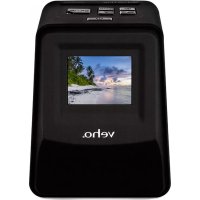
Smartfix VFS-014-SF - To scan Veho - Free user manual and instructions
Find the device manual for free Smartfix VFS-014-SF Veho in PDF.


User questions about Smartfix VFS-014-SF Veho
0 question about this device. Answer the ones you know or ask your own.
Ask a new question about this device
Download the instructions for your To scan in PDF format for free! Find your manual Smartfix VFS-014-SF - Veho and take your electronic device back in hand. On this page are published all the documents necessary for the use of your device. Smartfix VFS-014-SF by Veho.
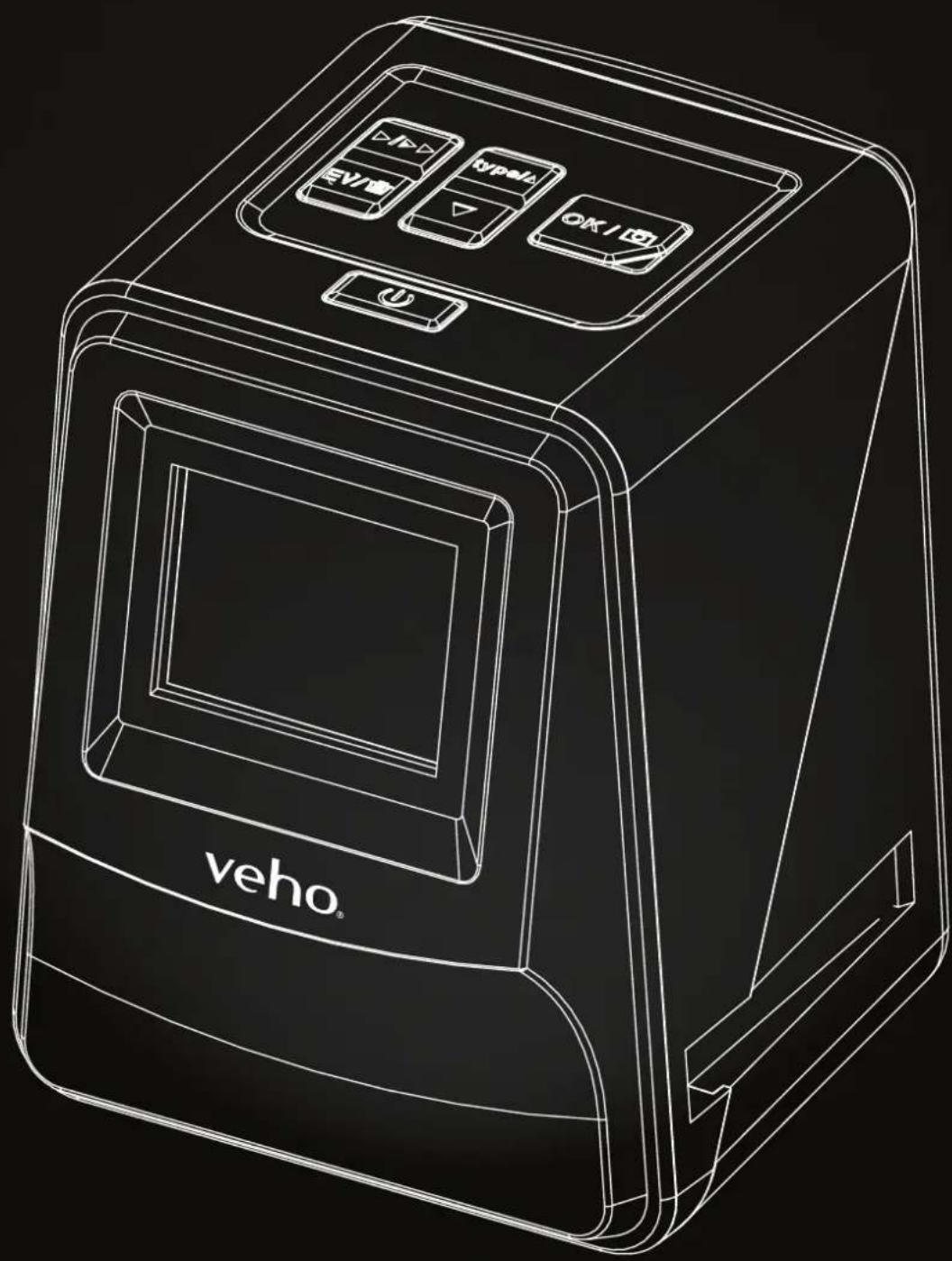
USER MANUAL Smartfix VFS-014-SF Veho
Negative & Slider Scanner
text_image
VEHO typeA OK / B UEnglishCon
English 03
Français 13
Deutsche 23
Italiano 34
Português 44
Español 54
русский 64
日本語 74
中文 84
1. What's in the box?
Veho Smartfix SF-1 Scanner
135 slider tray
135 negative tray
110 negative tray
126 negative tray
Cleaning brush
USB-A to Mini-B USB cable
3.5mm jack to yellow RCA cable
Lithium-ion battery
Multi-Lingual user manual
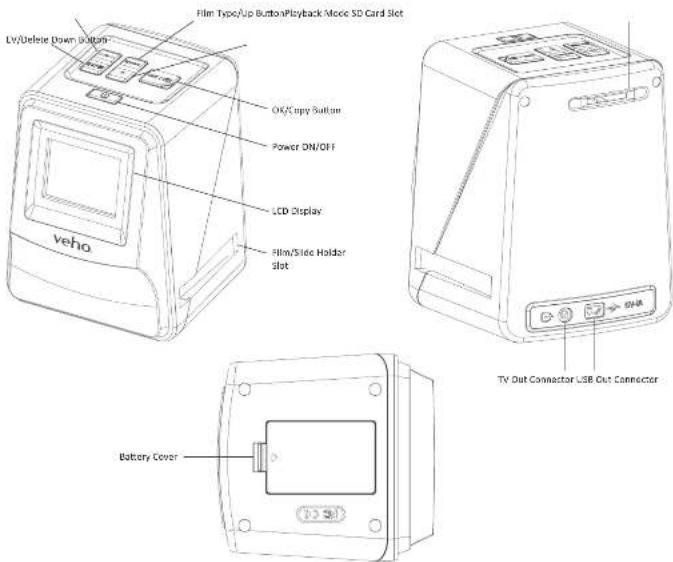
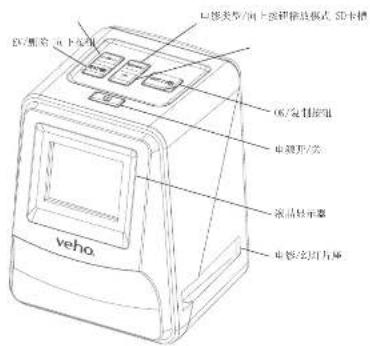
- Controls
text_image
Film Type/Up Button/Playback Mode SD Card Slot LV/Delete Down Button OK/Copy Button Power DN/OFF LCD Display Film/Side Holder slot veho Battery Cover TV Out Connector USB Cut Connector3. Installing and charging the battery
text_image
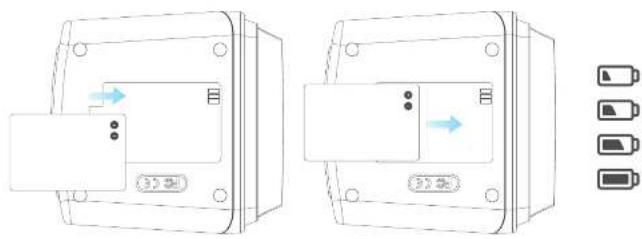
Technical diagram showing two views of a device with labeled buttons and battery icons, likely illustrating a mechanical or electrical component assembly.- Insert the battery into the base of the scanner.
- Connect the Mini-B USB cable to the rear of the scanner, then plug the other end of the USB cable into a USB port on a computer or 5V/1A AC Adaptor.
- When charging, a red LED will light up. When the battery is fully charged, the red LED will turn off.
4. Status LED
Red The Veho Scanner is turned off and the battery is charging. Purple The Veho Scanner is turned on and the battery is charging. Blue The Veho Scanner is turned on.
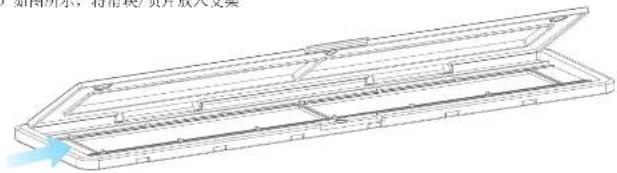
5. Inserting Slides or Negatives into the holder
- Place the holder so the glossy side faces up.
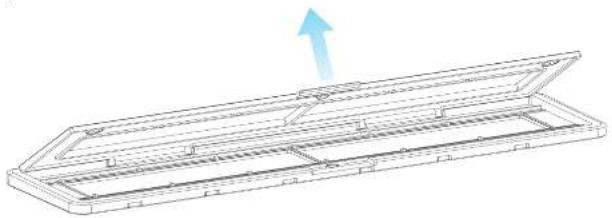
- Open the holder as illustrated.
natural_image
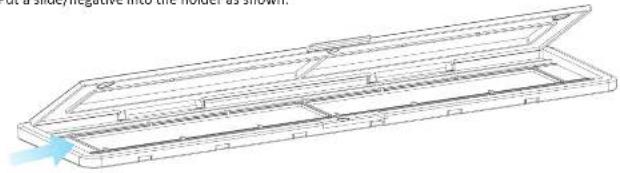
Technical line drawing of a mechanical component with an upward arrow indicating motion (no text or symbols)- Put a slide/negative into the holder as shown.
text_image
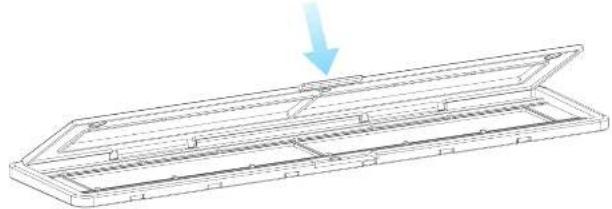
at a slide, negative into the holder as shown.- Close the holder, making sure that the tray closes correctly.
natural_image
Technical line drawing of a rectangular device with internal components and a blue arrow indicating downward motion (no text or symbols)6. Using the VFS-014-FS
- Insert an SD card into the scanner, following the illustration on the rear of the scanner.
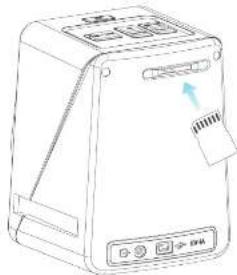
natural_image
Line drawing of a portable electronic device with ports and a paper clip (no text or symbols)EnglishEng
- Press the power button to turn the power on.
- Press the Film Type button to select the correct mode for the slide/negative in the holder.
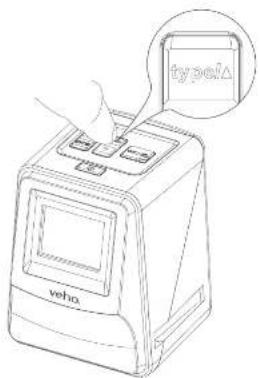
text_image
typoia veho
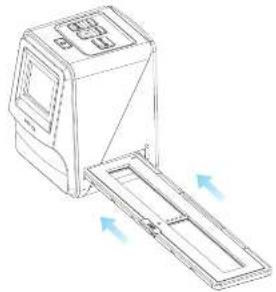
- Insert the slide/negative holder into the right hand side of the scanner, as indicated by the ▲ symbol on the scanner and the slide/negative holder.
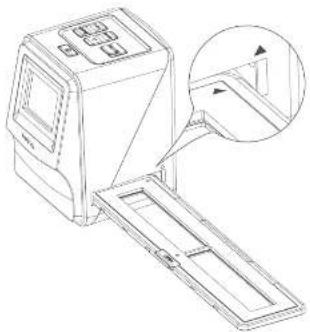
natural_image
Technical line drawing of a mechanical device with an inset close-up view showing internal components (no text or symbols)- Align the slide/negative holder in the scanner using the LCD screen on the front.
- Press the copy button to scan the slide/negative into a digital image. To get the best result, wait for 3-4 seconds for the scanner to adjust the brightness for each slide/negative before pressing the copy button.
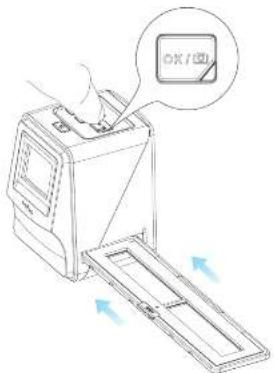
text_image
OK/图- After the brightness has automatically been set, you can manually adjust the exposure of the image before scanning. Press the EV/Delete Button to adjust the exposure Value (EV), then use the Up to Down button to adjust from +2EV to -2EV in increments of 0.5. The value of EV adjustment is shown at the bottom of the LCD screen.
- Once you have scanned the first image in the holder, move the holder to the next position and repeat until you need to put new slides/negatives into the holder.
natural_image
Line drawing of a medical scanner device with directional arrows indicating movement or force (no text or symbols)English
English
Please note: To save power, the Veho Scanner will go to sleep mode after 3 minutes of being inactive. You can come out of sleep mode by pressing any button on the scanner.
If the VehoScanner is in active for 6 minutes, it will turn off automatically.
7. Playback mode
- YoucanusePlaybackmodetoviewtheimagesthatyouhavescannedontotheSDcard.
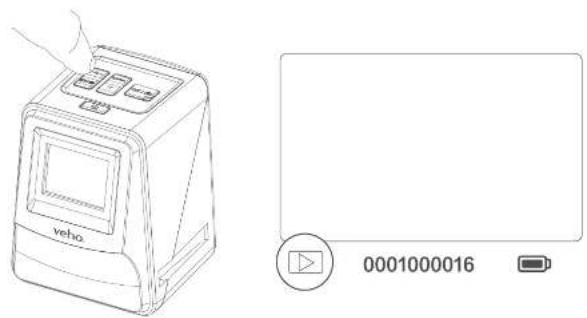
- PressthePlaybackbuttontoenterplaybackmode:
natural_image
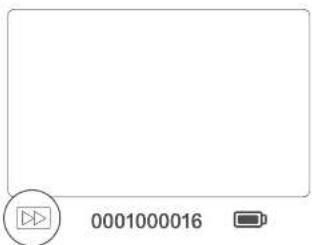
Line drawing of a vehicle charging station with a battery icon and control panel (no text or symbols on the device itself)3.PresstheUporDownbuttontochangetheselectedimage. 4.Pressthe playbackbuttonagaintoenterslideshowmode.
text_image
0001000016- PressthePlaybackbuttonagaintogobacktoscanningmode.
8. Deleting images
- Enter Playback mode, then select the image you want to delete.
- Press the Delete button once, then Okay to delete the selected image.
- Press the Delete button twice, then Okay to delete all images.
- Press the Delete button three times then press the Okay button to format the SD card.
Please note: formatting the SD card will remove all files from the SD card, not just the images saved by the scanner.
9. Connecting the scanner to a computer.
- PlugtheUSBcableintotherearofthescannerandtoaUSBportonthecomputer.
2.PressthePowerbuttontoturnthescanneron.
- Use the Upor Down button to select Yes or No and press Okay.
- Select Yes to view the files on your computer, the SD card will appear as a removable disc
in "My Computer" or "This PC" for Windows users or on your desktop for Macintosh users. - Select No to use the scanner to scan slides/negatives while charging from a USB port.
10. Viewing images on a TV
The scanner is compatible with Mac and Windows operating systems, allowing you to copy the files directly from the SD card in the scanner without using a USB card reader. There is no software included or required to use the scanner on either operating system.
-
Set the TV to the correct input, and then connect the scanner to the TV using the 3.5mm jack to yellow RCA cable.
-
Turn the scanner on.
-
Press the Playback button.
-
Use the Up or Down button then the Okay button to select PAL or NTSC to match your region.
-
Press the Up or Down button to change the selected image.
-
Press the Playback button again to start a slideshow. You can use the Up or Down button
to pause a slideshow, then press the Playback button to resume the slideshow.
11. Safety information and specifications
Specifications
Image Sensor 1/2.33" 14 Mega CMOS Sensor,
| Preview and Review | 2.4" Color LCD Display |
| Lens Specification | F=4.8, f=12.95mm |
| Color Balance | Automatic |
| Exposure Control | Automatic & Manual adjustment |
English
English
Support Film Size Auto Cropping 135 Negative & Slide (3:2)
110 Negative (4:3) (optional)
126 Negative (1:1) (optional)
Support Film Type Auto Converting 135 Slide
Color Negative Film (135, 110 & 126)
Black & White Negative Film
Focusing Fixed Focus
EV adjustment + - 2.0 EV
PC Interface USB 2.0
Image Format 135 Negative 3:2 Ratio
110 Negative 4:3 Ratio
126 Negative 1:1 Ratio
Light Source 3 white LED
Power From USB port, Li-ion 3.7V/1050mAh Battery,
TV System NTSC and PAL
Dimension 14.4 (H) x 11.6 (W) x 11.9 (L) cm
Icons & Indicators
| Battery Full | |
| Battery 2/3 | |
| Battery 1/3 | |
| Battery Empty | |
| 135 Slide | |
| 135 Negative Film | |
| B/W | B/W 135 Negative Film |
| 110 | 110 Negative Film |
| 126 | 126 Negative Film |
| PC#SD LINK? | PC-SD-Card Selection |
| PC#SD | PC-SD-Card Link-Connected |
| TV#SD NTSC PML | TV System Selection |
| +0.0EV | EV Compensation indicator |
| 0888 | FV Compensation |
| Available number take in SD card |
| Delete? | Delete One | |
| Delete All? | Delete All | |
| Format? | Format SD Card | |
| Yes | Yes | |
| No | No | |
| X | Card Error | |
| 0% | Card Full | |
| ∅ | Card Lock | |
| ▷ | Playback Mode | |
| ▷▷ | Slide Show | |
| ☒ | Wait |
System Requirements
PC System Requirements
Pentium® P4 1.6GHz or equivalent AMD Athlon
Free USB2.0 port
512MB RAM
500MB free hard disk space
1024 x 768 pixel colour monitor
CD-ROM drive
Windows® XP Service Pack II / Vista™, 32/64 bits
Windows 7/Windows 8/Windows 10
Mac System Requirements
PowerPC G5 or Intel Core Duo processor recommended
Free USB2.0 port
768MB RAM
500MB free hard disk space
1024 x 768 colour monitor
CD-ROM drive
Mac 10.5 \~ Up

This symbol on the product or in the instructions means that your electrical and electronic equipment should be disposed at the end of its life separately from your household waste. There are separate collection systems for recycling in the EU. For more information, please contact the local authority or your retailer where you purchased the product.
Before using the VFS-014-SF (Vehro Scanner), please ensure that you read and understand the safety precautions described below. Always ensure that the VFS-014-SF is operated correctly.
Never operate the VFS-014-5F inside of an aircraft or anywhere else where operation of such devices is restricted. Improper use creates the risk of serious accident.
Do not try to open the case of the VTS-014-5F or attempt to modify the VTS-014-5F in any way. High-voltage internal components create the risk of electric shock when exposed. Maintenance and repairs should be performed only by authorised service providers.
Keep the VFS 014 SF away from water and other liquids. Do not use the VFS 014 SF with wet hands. Never use the VFS 014 SF in the rain or snow. Moisture creates the danger of fire and electric shock.
Keep the VFS-014-SF and its accessories out of the reach of children and animals to prevent accidents or damage to the VFS-014-SF.
The VFS-D14-SF may become slightly warm during use. This is normal and does not indicate malfunction.
If the exterior of the VFS-014-SF needs cleaning, wipe it with a soft, dry cloth.
If you notice smoke or a strange odour coming from the VFS 014 SF, turn the power off immediately. Take the VFS 014 SF to the nearest authorised service centre for repairing. Never attempt to repair the VFS 014 SF on your own.
Use only the recommended power accessories. Use of power sources not expressly recommended for the VFS-014-SF may lead to overheating, distortion of the equipment, fire, electrical shock or other hazards.
FCC Notice
This equipment has been tested and found to comply with the limits for a Class B Digitise device, pursuant to Part 25 of the FCC Rules. These limits are designed to provide reasonable protection against harmful interference in a residential installation. This equipment generates, uses and can radiate radio frequency energy. If not installed and used in accordance with the instruction, it may cause harmful interference to radio communication. However, there is no guarantee that interference will not occur in a particular installation. If this equipment does cause harmful interference to radio or television reception, which can be determined by turning the equipment on to off, the user is encouraged to try to correct the interference by one or more the following suggestion.
FrançaisEng
• Reorient or relocate the receiving antenna.
- Increase the distance between the equipment and the receiver.
- Connect the equipment to a different power outlet other than the one where the receiver is connected.
- Consult an experienced television or radio technician for help.
To comply with the limits for a Class B Digitise device, pursuant to Part 15 of the FCC Rules, this device must only be installed on computer equipment certified to comply with the Class B limits.
This unit may contain a microcomputer for signal processing and control function. In very rare situations, severe interference, noise from an external source, or static electricity may cause it to lock up. In the unlikely event that this should happen, turn off the unit, wait at least five seconds, and then turn it back on again.
CAUTION
Other Veho Products
natural_image
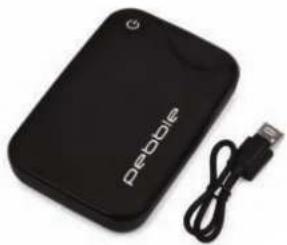
Black portable electronic device with USB cable and 'Pebble' branding (no additional text or symbols visible)Pebble P1 10,400mAh Portable Charger VPP-007-P1
natural_image
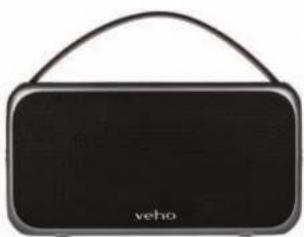
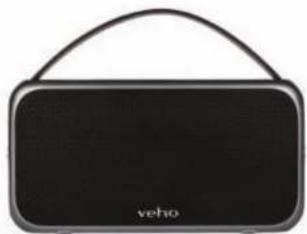
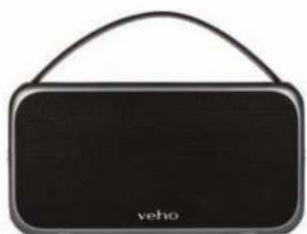
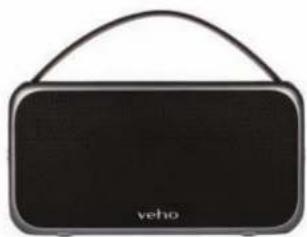
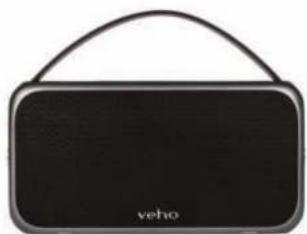
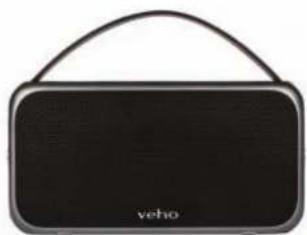
Black rectangular electronic device with a curved handle and 'veho' logo on the front (no additional text or symbols visible)M7 Bluetooth Wireless Speaker VSS-014-M7
natural_image
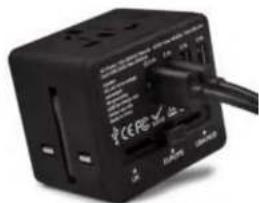
Black electronic device with indicator lights and a cable, no visible text or symbols on the device bodyUSB Travel Adapter VAA-200-TA1
text_image
Diagram showing two views of a device with labeled buttons and battery icons, likely illustrating a digital interface or control mechanism.natural_image
Technical line drawing of a mechanical component with an upward arrow indicating motion (no text or symbols)natural_image
Technical line drawing of a rectangular frame with an open lid and internal structure, showing a blue arrow pointing downward (no text or symbols)natural_image
Line drawing of a portable electronic device with a label and control buttons (no readable text or symbols)FrançaisFrari
natural_image
Technical line drawing of a mechanical device with an inset showing a close-up view of a component (no text or symbols present)natural_image
Line drawing of a mechanical device with directional arrows indicating motion (no text or symbols)natural_image
Line drawing of a beige Veho printer with control panel and control buttons, alongside a blank screen (no text or symbols on device)natural_image
Black Pebble device with USB cable and power cord (no visible text or symbols on body)Pebble P1 10,400mAh Portable Charger VPP-007-P1
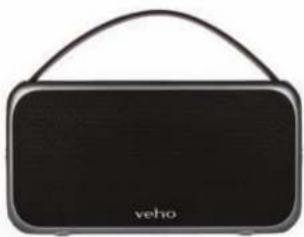
M7 Bluetooth Wireless Speaker
VSS-014-M7
natural_image
Black rectangular electronic device with a curved handle, labeled 'veho' at the bottom (no other text or symbols visible)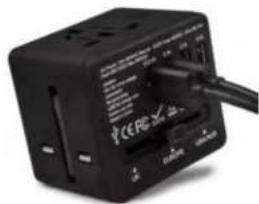
text_image
PCCRE 200VUSB Travel Adapter VAA-200-TAI
text_image
Diagram showing two views of a device with labeled buttons and battery icons, likely illustrating a camera or display system.natural_image
Technical line drawing of a mechanical component with an upward arrow indicating motion (no text or symbols)natural_image
Technical line drawing of a rectangular frame with an open lid and internal structure, showing a blue arrow pointing downward (no text or symbols)natural_image
Line drawing of a portable electronic device with control panel and indicator lights (no text or symbols)DeutscheDeu
text_image
typed veha
natural_image
Technical line drawing of a mechanical device with an inset showing a close-up view of a component (no text or symbols present)natural_image
Line drawing of a mechanical device with directional arrows indicating movement or force (no text or symbols)natural_image
Line drawing of a vehicle charging station with a hand inserting a button (no text or symbols)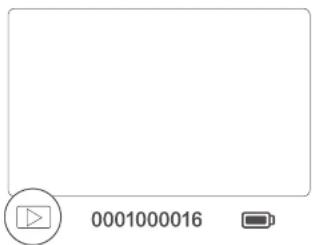
text_image
0001000016- Löschen von Bildern
natural_image
Black Pebble portable electronic device with USB cable (no visible text or symbols)M7 Bluetooth Wireless Speaker
VSS-014-M7
Pebble P1 10,400mAh Portable Charger VPP-007-P1
natural_image
Black rectangular electronic device with a curved handle, labeled 'veho' at the bottom (no other text or symbols visible)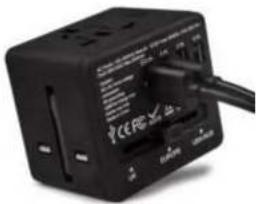
text_image
CCR0 24USB Travel Adapter VAA 200 TA1
natural_image
Technical line drawing of two identical electronic components with directional arrows and battery icons (no text or symbols)natural_image
Technical line drawing of a rectangular device with internal components and an upward arrow indicating motion (no text or symbols)Italianoltali
natural_image
Technical line drawing of a rectangular device with internal components and a blue arrow indicating downward motion (no text or symbols)natural_image
Line drawing of a portable electronic device with ports and a paper clip (no text or symbols)natural_image
Technical line drawing of a mechanical device with an inset magnified view showing internal components (no text or symbols)natural_image
Line drawing of a mechanical device with directional arrows indicating movement or force (no text or symbols)natural_image
Line drawing of a vintage Volvo POS scanner device (no text or symbols on the device body)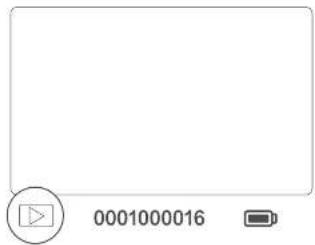
text_image
0001000016natural_image
Black Pebble device with USB cable and external connector (no visible text or symbols)Pebble P1 10,400mAh Portable Charger VPP-007-P1
M7 Bluetooth Wireless Speaker
VSS-014-M7
natural_image
Black rectangular electronic device with a curved handle and 'veho' logo on the front (no additional text or symbols visible)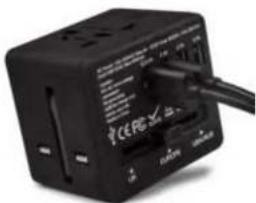
text_image
Black electronic device with visible control buttons and a cable inserted, showing text labels like 'CCR' and 'NAM'.USB Travel Adapter VAA-200-TA1
Português
Português
natural_image
Technical line drawing of two identical electronic components with directional arrows and battery icons (no text or symbols)natural_image
Technical line drawing of a rectangular device with internal components and an upward arrow indicating motion (no text or symbols)PortuguêsPort
natural_image
Technical line drawing of a mechanical component with an arrow indicating downward motion (no text or symbols)6. Usando o VFS-014-FS
natural_image
Line drawing of a device with a paper feed and control panel (no text or symbols)natural_image
Technical line drawing of a mechanical device with an inset showing a cross-section view (no text or symbols)PortuguêsPort
natural_image
Line drawing of a mechanical device with directional arrows indicating movement or force (no text or symbols)natural_image
Line drawing of a vintage office scanner with ports and a digital display (no text or symbols)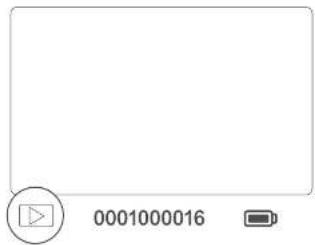
text_image
0001000016natural_image
Black portable electronic device with USB cable and 'Debbie' branding (no visible text beyond branding)Pebble P1 10,400mAh Portable Charger VPP-007-P1
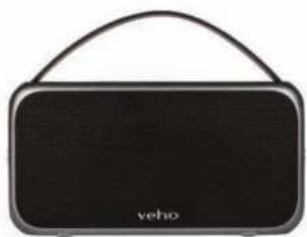
M7 Bluetooth Wireless Speaker
VSS-014-M7
natural_image
Black rectangular electronic device with a curved handle, labeled 'veho' at the bottom (no other text or symbols visible)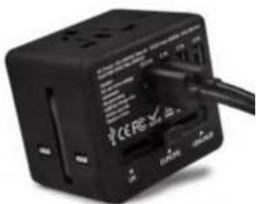
natural_image
Close-up of a black electronic device with a cable inserted, showing ports and labels (no readable text or symbols)USB Travel Adapter VAA-200-TA1
natural_image
Technical line drawing of two identical electronic components with directional arrows and battery icons (no text or symbols)natural_image
Technical line drawing of a rectangular device with an upward arrow indicating motion or force (no text or symbols present)EspañolEspa
natural_image
Technical line drawing of a mechanical component with an arrow indicating downward motion (no text or symbols)natural_image
Line drawing of a device with a paper feed and control panel (no text or symbols)natural_image
Technical line drawing of a mechanical device with an inset showing a cross-section view (no text or symbols)natural_image
Line drawing of a mechanical device with directional arrows indicating movement or force (no text or symbols)natural_image
Line drawing of a vintage Volvo POS scanner with handle and control panel (no text or symbols on device)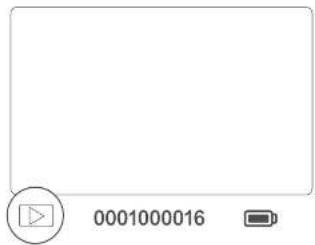
text_image
0001000016natural_image
Black Pebble portable electronic device with USB cable (no visible text or symbols)Pebble P1 10,400mAh Portable Charger VPP-007-P1
M7 Bluetooth Wireless Speaker
VSS-014-M7
natural_image
Black rectangular electronic device with a curved handle and 'veho' logo on the front (no additional text or symbols visible)
text_image
PCE RE 4.0 CableUSB Travel Adapter VAA-200-TAI
natural_image
Technical line drawing of two identical electronic device modules with control buttons and battery icons (no text or symbols)natural_image
Technical line drawing of a rectangular device with internal structure and an upward arrow indicator (no text or symbols)русскийрус
natural_image
Technical line drawing of a mechanical component with an arrow indicating downward motion (no text or symbols)natural_image
Line drawing of a device with a paper feed and control panel (no text or symbols)natural_image
Technical line drawing of a mechanical device with an inset close-up view showing internal components (no text or symbols)text_image
Diagram showing a device scanning a QR code with an icon and directional arrows indicating scanning process.natural_image
Line drawing of a mechanical device with directional arrows indicating movement or force (no text or symbols)natural_image
Line drawing of a vintage office typewriter with front panel and buttons (no text or symbols)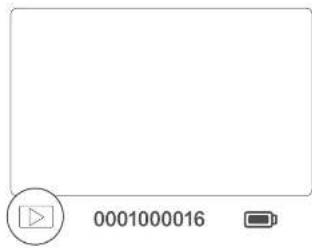
text_image
0001000016natural_image
Technical line drawing of two electronic device modules with buttons and indicators, no readable text or symbols present.natural_image
Technical line drawing of a rectangular device with internal components and an upward arrow indicating motion (no text or symbols)日本語日本
natural_image
Technical line drawing of a rectangular electronic component with internal channels and a blue arrow indicating direction (no text or symbols)natural_image
Technical line drawing of a rectangular frame with internal partitions and a downward arrow indicating compression (no text or symbols)6. VFS-014-FSを使用する
natural_image
Line drawing of a portable electronic device with a paper clip and control buttons (no text or symbols)natural_image
Technical line drawing of a mechanical device with an inset magnified view showing internal components (no text or symbols)natural_image
Line drawing of a mechanical device with a blue arrow indicating direction (no text or symbols)ご注意ください:
natural_image
Line drawing of a vintage Volvo brand printer with front panel and control buttons (no text or symbols on device body)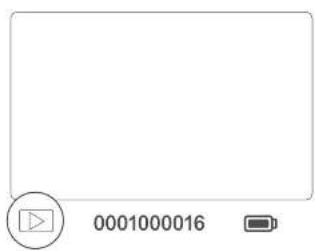
text_image
0001000016natural_image
Black portable electronic device with USB cable, no visible text or symbols on bodyVSS-014-M7
Pebble P1 10,400mAh Portable Charger
VPP-007-P1
M7 Bluetooth Wireless Speaker
natural_image
Black rectangular electronic device with a curved handle and 'veho' logo on the front (no additional text or symbols visible)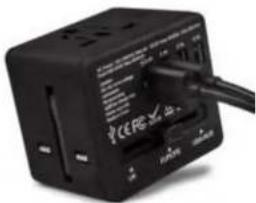
natural_image
Close-up of a black electronic device with indicator lights and ports, no visible text or symbols on the device itself.USB Travel Adapter
VAA-200-TA1
中文
中文
1. 盒子里有什么?
Veho Smartfix SF 1 扫描仪
135滑块托盘
135负托盘
110负托盘
126负托盘
清洁刷
USB-A至Mini-B USB电缆
3.5mm插座到黄色RCA电缆
钾离子电池
快速入门指南
2. 控制
natural_image
Technical line drawing of two electronic device modules with buttons and indicators, no readable text or symbols present.natural_image
Technical line drawing of a rectangular electronic component with an upward arrow indicating motion (no text or symbols)中文
中文
3)如图所示,将滑块/负片放入支架
natural_image
Technical line drawing of a rectangular device with internal components and a blue arrow indicating downward motion (no text or symbols)- 使用VFS-014-FS
natural_image
Line drawing of a portable electronic device with a paper clip and control buttons (no text or symbols)natural_image
Technical line drawing of a mechanical device with an inset magnified view showing internal components (no text or symbols)中文
中文
text_image
Diagram showing a device with a labeled control panel and directional arrows indicating movement or flow.natural_image
Line drawing of a mechanical device with a blue arrow indicating direction (no text or symbols)请注意
natural_image
Line drawing of a vintage-style device resembling a washing machine with buttons and a label 'volvo' (no text or symbols on the device itself)
text_image
00010000164)再次按播放按钮进入幻灯片模式
text_image
00010000165)再次按播放按钮返回扫描模式。
中文
中文
8. 删除图像
natural_image
Black Pebble electronic device with USB cable and power cord (no visible text or symbols)Pebble P1 10,400mAh Portable Charger VPP-007-P1
M7 Bluetooth Wireless Speaker
VSS-014-M7
natural_image
Black rectangular electronic device with a curved handle and 'veho' logo on the front (no additional text or symbols visible)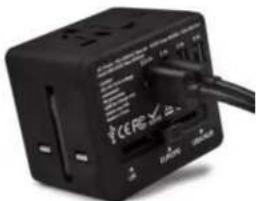
text_image
ICE RE 2000USB Travel Adapter VAA-200-TA1
veho®
veho-world.com