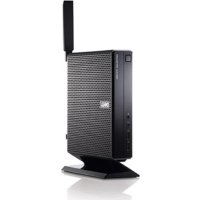
OptiPlex FX160 - Thin client DELL - Free user manual and instructions
Find the device manual for free OptiPlex FX160 DELL in PDF.



| Brand | Dell |
| Model | OptiPlex FX160 |
| Product Type | Thin Client |
| Operating System | Microsoft Windows XP Embedded or SUSE Linux Enterprise Thin Client |
| Internal Storage | Flash card or internal hard drive |
| Power Supply | External power adapter (65 W typical) |
| USB Ports | Multiple USB 2.0 ports |
| Network Connectivity | PXE-compatible network interface |
| Main Features | Thin client for virtualization, system image update via bootable DVD or USB key, automated deployment via Altiris |
| Maintenance and Cleaning | Disconnect the device before cleaning. Use a soft, dry cloth. Do not use abrasive or liquid products. |
| Security | Back up data before any system image replacement operation. Follow the precautions in the guide to avoid hardware damage or data loss. |
| Spare Parts and Repairability | Replaceable flash card/internal hard drive. Use compatible Dell components. System image replacement requires a specific DVD or USB key. |
| General Information | Model DC01T. Guide publication date: August 2008. Revision A01. Reference H310K. |
Frequently Asked Questions - OptiPlex FX160 DELL
User questions about OptiPlex FX160 DELL
0 question about this device. Answer the ones you know or ask your own.
Ask a new question about this device
Download the instructions for your Thin client in PDF format for free! Find your manual OptiPlex FX160 - DELL and take your electronic device back in hand. On this page are published all the documents necessary for the use of your device. OptiPlex FX160 by DELL.
USER MANUAL OptiPlex FX160 DELL
Dell™ OptiPlex™ FX160 Re-Imaging Guide
Model DC01T
Notes, Notices, and Cautions

NOTE: A NOTE indicates important information that helps you make better use of your computer.

NOTICE: A NOTICE indicates either potential damage to hardware or loss of data and tells you how to avoid the problem.

CAUTION: A CAUTION indicates a potential for property damage, personal injury, or death.
If you purchased a Dell ^™ n Series computer, any references in this document to Microsoft ^® Windows ^® operating systems are not applicable.
Information in this document is subject to change without notice.
© 2008 Dell Inc. All rights reserved.
Reproduction of these materials in any manner whatsoever without the written permission of Dell Inc. is strictly forbidden.
Trademarks used in this text: Dell, the DELL logo, and OptiPlex are trademarks of Dell Inc.; Microsoft, Windows, Windows Vista, and the Windows Vista start button are either trademarks or registered trademarks of Microsoft Corporation in the United States and/or other countries.
Other trademarks and trade names may be used in this document to refer to either the entities claiming the marks and names or their products. Dell Inc. disclaims any proprietary interest in trademarks and trade names other than its own.
Model DC01T
August 2008 P/N H310K Rev. A01
Dell™ OptiPlex™ FX160 Re-Imaging Guide
The Dell OptiPlex FX160 computer with an internal flash card hard drive is preloaded with either a Microsoft ^® Windows ^® XP Embedded or SUSE ^® Linux Enterprise Thin Client (SLETC) operating system. However, when system updates are released, or special configurations are required, the internal FX160 flash card or hard drive can be re-imaged.
Re-Imaging the FX160 Computer With Microsoft Windows
For the FX160 Windows XP Embedded operating system, updates are provided on a bootable DVD. Booting the FX160 computer from the DVD opens a utility that writes the FX160 flash card. Additional software, such as drivers for a wireless card, are loaded separately.
The DVD update disk can be transferred to a bootable USB flash drive using a Windows system with Microsoft Windows Automation Installation Kit (WAIK) software. The update can then installed on the FX160 flash card when booting the FX160 computer from the USB flash drive.
Re-Imaging an FX160 Computer With the Update DVD

CAUTION: Re-imaging your FX160 computer will erase all data from the hard drive or flash card. Back up your system to an external device before re-imaging your computer.
1 Power off the FX160 computer.
2 Attach an external USB DVD reader drive to the FX160 computer.
3 Power on the FX160 computer. When the BIOS window options list appears (in the upper right-corner of the screen) press
4 In the Boot Device selection window, use the arrow keys to highlight the DVD drive you attached.
5 Insert the bootable Windows update DVD into the DVD reader and press Enter. A Windows Preinstallation Environment (PE) system will initialize.
6 To save the current FX160 system image, click the Capture System Image button and follow the prompts to write the system image to an external device. When the capture operation completes, the imaging tool window reappears.

NOTICE: By default, all existing files are erased and system images are installed on the first available boot drive as configured in the BIOS System Boot Device Priority. Back up your system to an external device before re-imaging your computer
7 To install a new system image, click the Install System Image button. In the browse window, select the system image to install, then click Install.
8 When the installation completes, restart the system, booting from the drive that was imaged.
Re-Imaging an FX160 Computer With the a Bootable USB Flash Drive (UFD)
The FX160 computer can be re-imaged with a bootable Windows PE RAM Disk on a UFD. This UFD is built manually.
Create a Bootable Windows UFD Device

CAUTION: Re-imaging your FX160 computer will erase all data from the hard drive or flash card. Back up your system to an external device before re-imaging your computer.
What you will need:
- A workstation computer with Microsoft Vista or Microsoft XP that provides all tools and source files.
- Access to a computer running Windows Vista or a Windows PE session.
- A UFD device. The size of the UFD device must be at least 64MB larger than your Windows PE image plus any additional files that you include.
• FX160 Windows update DVD.
Use the Copype . cmd script to create a bootable Windows PE RAM disk on a UFD device. With Windows PE RAM a computer can be restarted for deployment or recovery.

NOTE: Ensure that you have sufficient memory to support the size of your Windows PE image and any additional applications.

NOTE: For additional information about this procedure, see the Windows Preinstallation Environment User Guide sections "Include a Custom Script in a Windows PE Image" and "Walkthrough: Create a Custom Windows PE Image". This information is part of the help system of the WAIK software.
1 Download and install the latest version of Microsoft WAIK software onto the workstation computer.

NOTE: The download file is very large (about 1GB).
2 Click Start, point to All Programs, point to Windows OPK or Windows AIK, and then click Windows PE Tools Command Prompt.

NOTE: Opening the command prompt window automatically sets environment variables to point to all the necessary tools. By default, all tools are installed at C:\Program Files\
3 At the command prompt, run the command:
copype.cmd x86 <dest>
where
c:\winpe_x86. This script creates the
\winpe_x86
\winpe_x86\ISO
\winpe_x86\mount
4 At the command prompt, mount the base Windows PE image (Winpe.wim) to the \mount directory by using ImageX:
imagex /mountrw c:\winpe_x86\winpe.wim 1
c:\winpe_x86\mount
5 Copy the following files from the update DVD to the
\winpe_x86\mount\windows\system32\ directory:
winpeshl.ini
DellImageDeploy.exe
Comctl32.dll
Oledlg.dll
Wimgapi.dll

NOTE: Image preparation, performed in the next step, is not required for the Dell Image Deployment tool. Skipping this step allows future updates to be added to your image by simply remounting boot.wim and copying the update files to the correct directories.
6 Prepare the image with the peimg /prep command. This command removes non-installed packages from the image to reduce the size of the final image:
peimg /prep c:\winpe_x86\mount\Windows
7 Commit the changes to the original image file (Winpe.wim) using the ImageX /unmount option with the /commit option:
imagex /unmount c:\winpe_x86\mount /commit
8 Replace the default Boot.wim in the \winpe_x86\ISO directory with your new customized image. The image must be called Boot.wim.

CAUTION: When a UFD device is formatted, all files on the device are erased.
9 Prepare the UFD device. Use Diskpart to format the UFD with a Windows Vista or Windows PE environment.
a Within a Windows Vista operating system or Windows PE session, insert your UFD device.
b Format the entire UFD as a single FAT32 drive. The following example assumes the UFD is disk 1. Open a command window and enter the following:
diskpart
select disk 1
clean
create partition primary size=<size of device>
select partition 1
active
format fs=fat32
assign
exit
10 On the workstation computer, copy the entire \winpe_x86\ISO directory to the UFD device. You can create the directory structure manually, or use xcopy to replicate the entire structure and contents of \ISO. If using xcopy, enter:
xcopy c:\winpe_x86\iso*.* /s /e /f f:\
where c is the letter of your technician computer hard disk and f is the letter of the UFD device.
11 Remove the UFD device from the technician computer.
Re-Imaging Windows on the FX160 Computer With a UFD Device

CAUTION: Re-imaging your FX160 computer will erase all data from the hard drive or flash card. Back up your system to an external device before re-imaging your computer.
1 Power off the FX160 computer.
2 Plug the UFD device with the bootable Windows XP Embedded image update into a USB port.
3 Power on the FX160 computer. When the BIOS window options list appears (in the upper right-corner of the screen) press
4 In the Boot Device selection window, use the arrow keys to highlight the UFD device with the Windows XP Embedded image update, then press
5 To save the current FX160 system image, click the Capture System Image button and follow the prompts to save the system image to an external device. When the capture operation completes, the imaging tool window reappears.

CAUTION: By default, all existing files are erased and system images are installed on the first available boot drive as configured in the BIOS System Boot Device Priority. Back up your system to an external device before re-imaging your computer.
6 To install a new system image, click the Install System Image button. In the browse window, select the system image to install, then click Install.
7 When the installation completes, restart the system, booting from the drive that was imaged.
Re-Imaging the FX160 Computer With SUSE Linux Enterprise Thin Client
The FX160 computer can be re-imaged with an SLETC update using a bootable USB flash drive built with the update CD and either a Linux or Windows computer system. After the FX160 computer is booted to the USB flash drive, the Thin Client Imaging utility is used to copy SLETC to the FX160 flash card (hard drive). The minimum size for the USB flash drive is 512MB.
Create a Linux Bootable USB Flash Drive With Linux
The update CD provided includes these three files:
- Documentation (*.pdf).
- SLETC update file (*.raw). The name of this file reflects the revision level of SLETC.
- Windows USB flash drive image installer ( USBDiskImageTool.exe).
Only the update file is needed to build the bootable USB flash drive.

CAUTION: This procedure formats the UFD device used to load the system image. All files on the device are erased.

CAUTION: Some of the commands entered in this procedure are performed with administrative privileges. Use extreme care to prevent typing errors, which could result in serious damage to your Linux operating system.
1 On the Linux desktop, open a terminal window.
2 If not logged in as a "root" user, enter the command:
3 Mount the CD-ROM containing the SLETC update. Many Linux distributions mount the CD automatically when it is loaded. For this procedure, it is assumed that the CD is mounted as:
su -
/media/Novell_SLETC_for_Dell
4 Insert a USB flash drive into a USB port.
5 Determine whether or not the USB flash drive is mounted:
a Enter: mount
b Examine the output to determine if the USB flash drive is mounted.
c If the drive is mounted, unmount the drive:
umount
where is the device name of the USB flash drive.
6 Determine the device name of your USB flash drive:
a If the USB flash drive was automatically mounted (and subsequently unmounted), use the device name assigned by Linux in the steps below.
b If the USB flash drive was not previously mounted, generate a dmesg log to show the newly connected devices.
Enter:
dmesg
Examine the log messages to determine the device name for the USB flash drive.
7 Write the image from the CD-ROM to the USB flash drive:
dd bs=1M if=
where
/media/Novell_SLETC_for_Dell/Novell-SLETC-10-SP2-1-for-Dell.raw), and is the device name of the USB flash drive.
8 When the write operation is complete, remove the USB flash drive from the Linux system and use it to re-image the FX160 computer (see
"Re-Imaging SLETC on an FX160 Computer With a USB Flash Drive" on page 10).
Create a Linux Bootable USB Flash Drive With Windows
The update CD provided includes these three files:
- Documentation (*.pdf)
- SLETC update file (*.raw). The name of this file reflects the revision level of SLETC.
- Windows USB flash drive image installer ( USBDiskImageTool.exe)
To create the bootable USB flash drive with WWindows, use the program USBDiskImageTool.exe to write the SLETC file to the USB flash drive:

NOTE: The Windows operating system used to build the bootable USB flash drive must include Microsoft .NET Framework v2.0 or later.

CAUTION: This procedure formats the USB flash drive used to load the system image. All files on the drive are erased.
1 On a system running Windows XP or Windows Vista, insert the SLETC update CD into a CD-ROM drive, and the USB flash drive into a USB port.
2 Open an Explorer window that shows the contents of the update CD.
3 Find and open USBDiskImageTool.exe. If using Windows Vista, respond appropriately to User Access Control messages to continue.
4 In the USB Disk Image Tool window, click the Browse button and select the SLETC update file on the update CD.
5 In the field Choose a USB device, use the pull-down menu to select the USB flash drive.
6 Click Write Disk Image to initiate the write operation. Allow the Write... and Verify.. operations to complete fully before removing the USB flash drive.
7 When the message Disk was imaged successfully message appears, click Close.
8 Remove the USB flash drive and the update CD from the Windows system.
Re-Imaging SLETC on an FX160 Computer With a USB Flash Drive

CAUTION: Re-imaging your FX160 computer will erase all data from the hard drive or flash card. Back up your system to an external device before re-imaging your computer.
1 Shut down the operating system and power off the computer.
2 Insert the bootable flash drive with the SLETC image into a USB port.
3 Power on the FX160 computer.
4 When the BIOS window options list appears (in the upper right-corner of the screen) press
5 In the Boot Device selection window, use the arrow keys to highlight the USB flash drive with the SLETC image, then press
6 Allow the SLETC operating system finish booting, then click the Computer button on the desktop. In the window that opens:
a Click More Applications.
b Click Thin Client Image.
7 In the Thin Client Image window:
a Find the Target pull-down menu and select Hard Drive.

CAUTION: When the disk image is being written, do not perform other operations with your computer.
b Click and hold the Install Image button for one second to initiate the write operation.
c In the Warning window, clickErase and Install Image. A Thin Client Image Tool window will open.
d When the write disk image operation completes, the Thin Client Image Tool window closes.
e Close the Thin Client Imager window.
8 Shut down the computer.
9 Remove the bootable USB device from the computer.
10 Boot the system using the internal flash card.
Automated Deployment
The installed image in the FX160 computer includes a deployment server agent that interacts with an Altiris Deployment Server, providing an environment for the automated deployment of system updates including system image, application software, BIOS updates and configuration, etc.
The FX160 computer includes a Preboot Execution Environment (PXE) capable network interface. However, for improved security Dell advises that systems setup for automated deployment are configured to use an automation partition instead of PXE.
Documentation for Altiris software can be found at:
http://www.altiris.com/Support/Documentation.aspx
Your FX160 system is licensed to use the Altiris Deployment Server.
Dell™ OptiPlex™ FX160
重新映像指南
型号 DC01T
注、注意和警告

/media/Novell_SLETC_for_Dell
/media/Novell_SLETC_for_Dell
Augustus 2008 P/N H310K Rev. A01
winpeshl.ini
DellImageDeploy.exe
Comctl32.dll
Oledlg.dll
Wimgapi.dll

select partition 1
active
format fs=fat32
assign
exit
/media/Novell_SLETC_for_Dell
winpeshl.ini
DellImageDeploy.exe
Comctl32.dll
Oledlg.dll
Wimgapi.dll
winpeshl.ini
DellImageDeploy.exe
Comctl32.dll
Oledlg.dll
Wimgapi.dll

Agosto 2008 P/N H310K Rev. A01
create partition primary size=<size of device>
select partition 1
active
format fs=fat32
assign
exit
© 2008 Dell Inc. All rights reserved.
winpeshl.ini
DellImageDeploy.exe
Comctl32.dll
Oledlg.dll
Wimgapi.dll

winpeshl.ini
DellImageDeploy.exe
Comctl32.dll
Oledlg.dll
Wimgapi.dll

Agosto de 2008 N/P H310K Rev. A01
winpeshl.ini
DellImageDeploy.exe
Comctl32.dll
Oledlg.dll
Wimgapi.dll

winpeshl.ini
DellImageDeploy.exe
Comctl32.dll
Oledlg.dll
Wimgapi.dll


- Dell™ OptiPlex™ FX160 Re-Imaging Guide
- Notes, Notices, and Cautions
- Re-Imaging the FX160 Computer With Microsoft Windows
- Re-Imaging an FX160 Computer With the Update DVD
- Re-Imaging an FX160 Computer With the a Bootable USB Flash Drive (UFD)
- Create a Bootable Windows UFD Device
- CAUTION: When a UFD device is formatted, all files on the device are erased.
- Re-Imaging Windows on the FX160 Computer With a UFD Device
- Re-Imaging the FX160 Computer With SUSE Linux Enterprise Thin Client
- Create a Linux Bootable USB Flash Drive With Linux
- Create a Linux Bootable USB Flash Drive With Windows
- CAUTION: This procedure formats the USB flash drive used to load the system image. All files on the drive are erased.
- Re-Imaging SLETC on an FX160 Computer With a USB Flash Drive
- CAUTION: Re-imaging your FX160 computer will erase all data from the hard drive or flash card. Back up your system to an external device before re-imaging your computer.
- CAUTION: When the disk image is being written, do not perform other operations with your computer.
- Automated Deployment
- Dell™ OptiPlex™ FX160
- 重新映像指南
- 注、注意和警告
Brand : DELL
Model : OptiPlex FX160
Category : Thin client