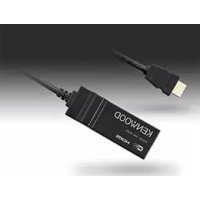
KCAWL100 - WiFi antenna KENWOOD - Free user manual and instructions
Find the device manual for free KCAWL100 KENWOOD in PDF.



| Brand | Kenwood |
| Model | KCAWL100 |
| Product Type | WiFi Antenna (wireless display adapter) |
| Dimensions (W × H × D) | 99 mm × 32 mm × 11 mm |
| Power Supply | 14.4 V DC (10.5 to 16 V allowable), max current 250 mA |
| Connectivity | HDMI type A (version 1.3a), USB I/F (5V, 500 mA) |
| WiFi Standards | IEEE 802.11 a/b/g/n, dual-band 2.4 GHz and 5 GHz |
| Max Transfer Rate | 11a: 54 Mbps, 11b: 11 Mbps, 11g: 54 Mbps, 11n: 65 Mbps |
| Main Functions | Wireless screen mirroring (Miracast), Wireless Link mode (UPnP), Internet connection via access point |
| Compatibility | Android devices 4.2+ compatible with Miracast or Wireless Link |
| Maximum Resolution | 1920 × 1080p |
| Operating Temperature Range | -10°C to +60°C |
| Maintenance and Cleaning | Clean with a dry cloth; do not use solvents, thinners, or insecticides |
| Safety | Do not install near the steering wheel or airbags; stop the vehicle before any complex operation; do not handle the smartphone while driving |
| Spare Parts and Repairability | 5A fuse (replacement by a professional); no other details provided |
| General Information | Manufacturer: JVC KENWOOD Corporation; compliance with R&TTE 1999/5/EC and RoHS 2011/65/EU |
Frequently Asked Questions - KCAWL100 KENWOOD
User questions about KCAWL100 KENWOOD
0 question about this device. Answer the ones you know or ask your own.
Ask a new question about this device
Download the instructions for your WiFi antenna in PDF format for free! Find your manual KCAWL100 - KENWOOD and take your electronic device back in hand. On this page are published all the documents necessary for the use of your device. KCAWL100 by KENWOOD.
USER MANUAL KCAWL100 KENWOOD
Wireless Display Adapter
INSTRUCTION MANUAL
MANUAL DE INSTRUÇÕES
Trademarks and licenses 3
Connection/Installation 4
Connecting the adapter ....4
Operating a device using wireless connection ....5
Checking compatible devices ....5
Mirroring the Android device screen to the AV receiver
—Miracast mode ....5
Playing content of the Android device on the AV receiver
—Wireless Link mode 6
To switch the connection mode on the adapter ....8
Resetting the adapter ....8
References......8
Troubleshooting......8
Specifications....9
Updated information (the latest Instruction Manual, system updates, new functions, etc.) is available from http://www.kenwood.com/cs/ce/.
Before Use
IMPORTANT
To ensure proper use, please read through this manual before using this product. It is especially important that you read and observe WARNINGS and CAUTIONS in this manual. Please keep the manual in a safe and accessible place for future reference.
WARNINGS
To prevent accidents and damage
- DO NOT install any adapter or wire any cable in a location where;
– it may obstruct the steering wheel and gearshift lever operations.
– it may obstruct the operation of safety devices such as air bags.
– it may obstruct visibility.
- DO NOT operate the smartphone while driving.
For connection and installation
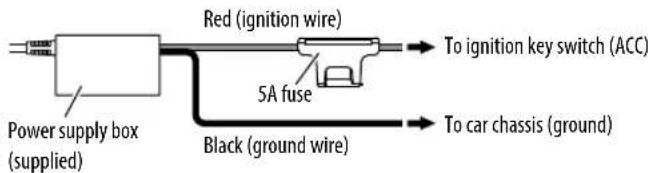
- If you connect the ignition wire (red) of the power supply box to the car chassis (ground), you may cause a short circuit, that in turn may start a fire. Always connect such wires to the power source running through the fuse box.
- Do not cut out the fuse from the ignition wire (red) of the power supply box. The power supply must be connected to the wires via the fuse.
- Do not install the adapter in a location enclosed with metallic materials. Otherwise, the reception via Wi-Fi connection may become poor.
- This adapter has been designed exclusively for use with Kenwood AV receivers. Do not use this adapter with any other AV receiver.
Before use
CAUTIONS
For connection and installation
- Mounting and wiring this product requires skills and experience. For best safety, leave the mounting and wiring work to professionals.
- Make sure to ground the power supply box to a negative 12 V DC power supply.
- Do not install the adapter in a spot exposed to direct sunlight or excessive heat or humidity. Also avoid places with too much dust or the possibility of water splashing.
- If the fuse blows, first make sure the wires are not touching to cause a short circuit, then replace the old fuse with one with the same rating.
For safety
Stop the car before performing any complicated operations.
Temperature inside the car...
- If you have parked the car for a long time in hot or cold weather, wait until the temperature in the car becomes normal before using the adapter.
Maintenance
- Do not use any solvents (for example, thinner, benzine, etc.), detergents, or insecticides. Doing so may damage the adapter.
- Changes or modifications not approved by us may void the user's authority to operate the equipment.
Trademarks and licenses
- Android and Google Play are trademarks of Google Inc.
- The Wi-Fi CERTIFIED Logo is a certification mark of the Wi-Fi Alliance.
- The terms HDMI and HDMI High-Definition Multimedia Interface, and the HDMI logo are trademarks or registered trademarks of HDMI Licensing LLC in the United States and other countries.
Connection/Installation
Connecting the adapter
When connecting the adapter to the AV receiver, refer also to the instruction manual supplied with the AV receiver.
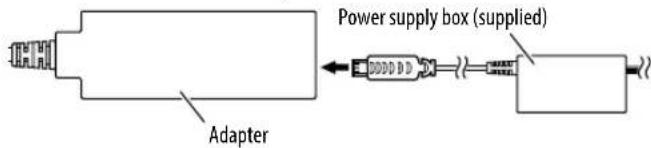
1 Connect the power supply box to the adapter.
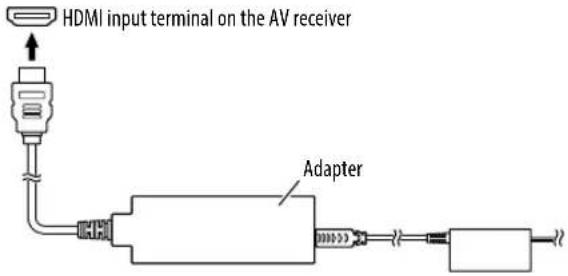
2 Connect the adapter to the HDMI input terminal on the AV receiver.
3 Fix the adapter and the connector of the power supply box using the soft tape to protect the adapter and its connection.
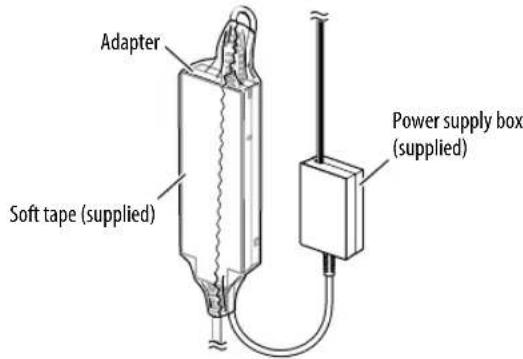
4 Connect the power supply box to the vehicle.
Checking compatible devices
You can use the following devices with the adapter.
- For Wireless Mirroring mode (see below): Android devices compatible with Wireless Mirroring function (Android 4.2 or later).
- You can display the same screen displayed on the Android device on the AV receiver.
- For Wireless Link mode (see pages 6 and 7): Android devices compatible with Wireless Link
- You can play content stored on the Android device on the AV receiver.
– With the Wireless Link mode, you can also display content from the Internet by using another device as an access point.
Mirroring the Android device screen to the AV receiver—Wireless Mirroring mode
1 Turn on the AV receiver and select the HDMI input for the source on the AV receiver.
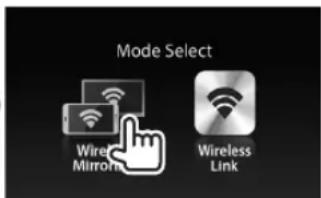
2 Switch the connection mode to "Wireless Mirroring".
- If you cannot select the connection mode on the AV receiver, perform the operation on the adapter. (Page 8)
- If the connection mode is "Wireless Mirroring", go to step 3.
On the AV receiver:
Connection mode
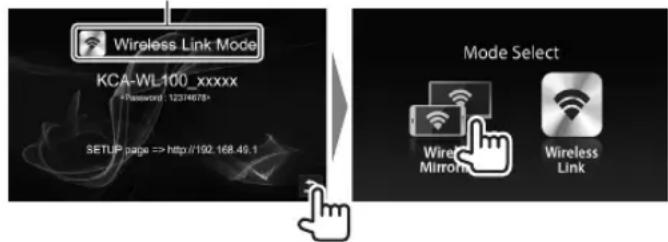
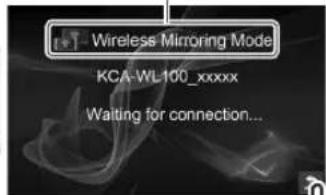
3 Operate the Android device to activate Wireless
Mirroring, and then select "KCA-WL100_XXXXX (identification number)" as the adapter to use.
- Wireless Mirroring may be called Wireless Display, Screen Mirroring, AllShare Cast, etc., depending on the manufacturer.
- The settings on the Android device differ depending on the device type. For details, refer to the instruction manual supplied with your Android device.
When the connection is established, "Ready to display" is displayed on the AV receiver.
The same screen is displayed on the both the Android device and the AV receiver.
Operating a device using wireless connection
Playing content of the Android device on the AV receiver—Wireless Link mode
To play content stored on the Android device on the AV receiver
1 Turn on the AV receiver and select the HDMI input for the source on the AV receiver connected with the adapter.
2 Switch the connection mode to "Wireless Link".
- If you cannot select the connection mode on the AV receiver, perform the operation on the adapter. (Page 8)
- Once the connection is established between the Android device and the adapter, you can also switch the connection mode from the Android device. (Page 7)
- If the connection mode is "Wireless Link", go to step 3.
On the AV receiver:
Connection mode
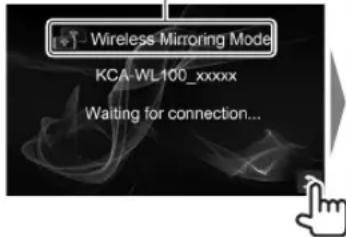
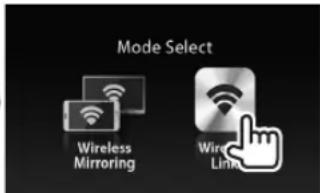
3 Operate the Android device to connect the device with "KCA-WL100_XXXXX (identification number)" via Wi-Fi. Enter the password if required (initial: "12345678").
4 Operate the Android device to start an application compatible with UPnP (Universal Plug and Play), then play the content.
- For applications compatible with UPnP, search on Google Play.
The playback screen is displayed on the AV receiver.
Operating a device using wireless connection
To display content from the Internet
You can display content from Internet using an Android device by connecting the adapter to the access point.
- You need an access point (such as a device other than the Android device connected via Wi-Fi with tethering activated) to use the Internet.
1 Perform steps 1 to 3 in "To play content stored on the Android device on the AV receiver" (Page 6) to connect the device to the AV receiver via Wi-Fi.
2 Open the browser on the connected device and access http://192.168.49.1. The setting screen is displayed.
3 Touch the icon. The access point search screen is displayed.
4 Select "Scan" to display the available AP SSID (access point) list, then select the AP SSID to use. - Enter the password if required.
- When the connection is established...
- On the AV receiver: "Connected to AP" is displayed on the AV receiver.
- On the Android device: The selected AP SSID is added to the "Saved Access Points" list and "Connected" is displayed.
To change the password
You can change the password for connecting the Android device with the adapter.
1 Perform steps 1 to 3 in "To play content stored on the Android device on the AV receiver" (Page 6) to connect the device to the AV receiver via Wi-Fi.
2 Open the browser on the connected device and access http://192.168.49.1.
The setting screen is displayed.
3 Enter the password in the input area beside the icon, then select "Submit".
To switch the connection mode on the Android device
You can switch the connection mode between "Wireless Link" and "Wireless Mirroring" from the Android device.
1 Perform steps 1 to 3 in "To play content stored on the Android device on the AV receiver" (Page 6) to connect the device to the AV receiver via Wi-Fi.
2 Open the browser on the connected Android device and access http://192.168.49.1.
The setting screen is displayed.
3 Touch the icon.
Each time you touch the icon, the connection mode is switched.
Operating a device using a software connection
To switch the connection mode on the adapter
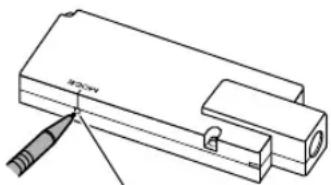
For some AV receivers, the connection mode cannot be selected on the AV receiver. Use the mode switch/reset button on the adapter to switch the connection mode between "Wireless Mirroring" and "Wireless Link".
natural_image
Technical line drawing of a mechanical component with a tool and mounting bracket (no text or symbols)Mode switch/reset button
• Each time you press the button, the connection mode is switched.
Resetting the adapter
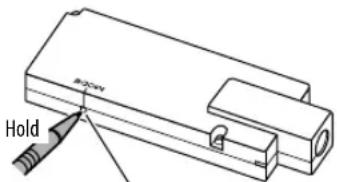
If the adapter fails to operate properly, press and hold the mode switch/reset button.
Mode switch/reset button
The settings are initialized. (The password is reset to "12345678".)
Troubleshooting
What appears to be trouble is not always serious. Check the following points before calling a service center.
- For operations with the Android devices connecting via Wi-Fi, refer also to the instruction manuals supplied with the devices.
The playback screen is unstable.
- Check whether there is any obstructions between the adapter and the Android device. - Shorten the distance between the adapter and the Android device.
"No Signal" is displayed on the AV receiver.
- Connect the adapter to the AV receiver firmly. - Connect the power supply box to the adapter firmly.
The connection between the Android device and adapter is disconnected during playback.
- Energy save function is working on the connected Android device. Deactivate the energy save function.
The adapter cannot be found on the Wi-Fi or AP SSID list.
- Shorten the distance between the adapter and the device.
You cannot connect to the Internet.
- For some Android devices, Internet connection via Wi-Fi or 3G network cannot be established while connecting to the adapter.
You forgot the password for connection.
- Try the initial password "12345678."
- Reset the adapter. (See the left column.)
References
Specifications
| Wi-Fi Section |
| IEEE Standard 802.11 a/b/g/n |
| Frequency Range Dual Band (2.4 GHz/5 GHz) |
| Channels |
| 2.4 GHz Auto (1–13 ch) |
| 5 GHz Auto (149, 153, 157, 161 ch) |
| Transfer rates (MAX) 11a: 54 Mbps/ 11b: 11 Mbps/11g: 54 Mbps/11n: 65 Mbps |
| Output Power 11a: 13 dBm±1.5 dB/11b: 16 dBm±1.5 dB/11g: 15 dBm±1.5 dB/11n: 14 dBm±1.5 dB |
HDMI
| Connector Type Type A | |
| Version | 1.3a |
| Maximum Resolution 1920 x 1080p | |
USB I/F Section
| Maximum Power Supply Current DC 5 V = 500 mA |
General
| Operating Voltage 14.4 V (10.5 V to 16 V allowable) | |
| Maximum Current Consumption 250 mA | |
| Dimensions (W × H × D) 99 mm x 32 mm x 11 mm | |
| Operational Temperature Range -10°C to +60°C | |
| Weight | |
| Main unit | 54 g |
Design and specifications are subject to change without notice.
Table des matieres
Avant to
natural_image
Technical line drawing of a mechanical component with a tool inserted (no text or symbols)Appareil principal 54 g
AV-Receiver — Wireless-Link-Modus ....6
natural_image
Technical line drawing of a mechanical component with a tool inserted (no text or symbols)natural_image
Technical line drawing of a mechanical component with a tool inserted (no text or symbols)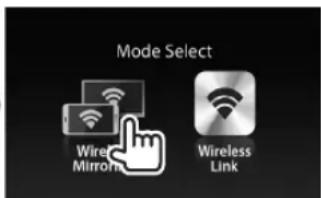

natural_image
Technical line drawing of a mechanical component with a tool and mounting bracket (no text or symbols)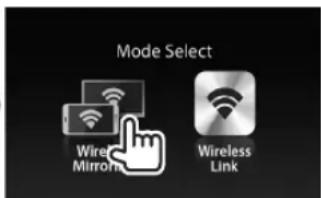
natural_image
Technical line drawing of a mechanical component with a tool and mounting bracket (no text or symbols)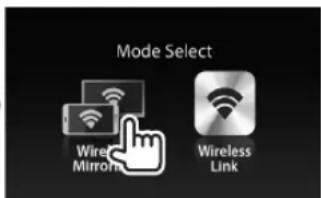
natural_image
Technical line drawing of a mechanical component with a tool inserted (no text or symbols)Dimensões (L × A × P) 99 mm × 32 mm × 11 mm
Intervalo da temperatura de funcionamento
-10ircC a + 60ircC
Peso

natural_image
Technical line drawing of a mechanical component with a threaded rod and mounting bracket (no text or symbols)natural_image
Technical line drawing of a mechanical component with a tool and mounting bracket (no text or symbols)模式切换/重设键
- 每次您按该键,连接模式会进行切换。
重设适配器
Declaration of Conformity with regard to the R&TTE Directive 1999/5/EC
Declaration of Conformity with regard to the RoHS Directive 2011/65/EU
Manufacturer:
JVC KENWOOD Corporation
3-12 Moriya-cho, Kanagawa-ku, Yokohama-shi, Kanagawa, 221-0022, Japan
EU Representative:
JVCKENWOOD NEDERLAND B.V.
Amsterdamseweg 37, 1422 AC UITHOORN,
The Netherlands
Hereby, JVC KENWOOD declares that this unit "KCA-WL100" is in compliance with the essential requirements and other relevant provisions of Directive 1999/5/EC.
Français
Information on Disposal of Old Electrical and Electronic Equipment and Batteries (applicable for countries that have adopted separate waste collection systems)
Products and batteries with the symbol (crossed-out wheeled bin) cannot be disposed as household waste.
Old electrical and electronic equipment and batteries should be recycled at a facility capable of handling these items and their waste byproducts.
Contact your local authority for details in locating a recycle facility nearest to you.
Proper recycling and waste disposal will help conserve resources whilst preventing detrimental effects on our health and the environment.
Notice: The sign "Pb" below the symbol for batteries indicates that this battery contains lead.
5......Wireless Mirroring —

"Connected" وتم عرض "Saved Access Points"
natural_image
Technical line drawing of a mechanical component with a tool inserted (no text or symbols)- Connection/Installation 4
- Operating a device using wireless connection ....5
- References......8
- Before Use
- IMPORTANT
- WARNINGS
- To prevent accidents and damage
- For connection and installation
- CAUTIONS
- For safety
- Temperature inside the car...
- Maintenance
- Trademarks and licenses
- Connection/Installation
- Connecting the adapter
- Checking compatible devices
- Mirroring the Android device screen to the AV receiver—Wireless Mirroring mode
- Operating a device using wireless connection
- Playing content of the Android device on the AV receiver—Wireless Link mode
- To play content stored on the Android device on the AV receiver
- To display content from the Internet
- To change the password
- To switch the connection mode on the Android device
- Operating a device using a software connection
- To switch the connection mode on the adapter
- Resetting the adapter
- Troubleshooting
- The playback screen is unstable.
- "No Signal" is displayed on the AV receiver.
- The connection between the Android device and adapter is disconnected during playback.
- The adapter cannot be found on the Wi-Fi or AP SSID list.
- You cannot connect to the Internet.
- You forgot the password for connection.
- References
- Table des matieres
- Avant to
- 重设适配器
- Français
- Information on Disposal of Old Electrical and Electronic Equipment and Batteries (applicable for countries that have adopted separate waste collection systems)
Brand : KENWOOD
Model : KCAWL100
Category : WiFi antenna