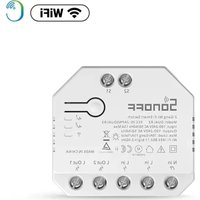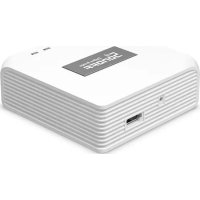
ZigBee Bridge - Smart Home Sonoff - Free user manual and instructions
Find the device manual for free ZigBee Bridge Sonoff in PDF.


Pick your language and provide your email: we'll send you a specifically translated version.
| Product Type | ZigBee Bridge |
| Brand | Sonoff |
| Model | ZigBee Bridge |
| Dimensions (approx.) | 7 x 7 x 2 cm |
| Weight | 30 g |
| Power Supply | USB 5 V (cable included) |
| Protocol | ZigBee 3.0 |
| Wireless Range | Up to 30 m indoors |
| Compatible Devices | Sonoff and other brand ZigBee devices |
| Required App | eWeLink (iOS / Android) |
| Voice Assistant | Compatible with Alexa and Google Assistant |
| Main Functions | Remote control, automations, scenes, sharing |
| Installation | Via QR code and eWeLink app |
| Max Number of Devices | Up to 32 ZigBee devices |
| Maintenance and Cleaning | Dust with a dry cloth |
| Safety | Do not expose to water or excessive humidity |
| Operating Temperature | 0°C to 40°C |
| Spare parts / Repairability | Standard USB cable optional; device not user-serviceable |
| Warranty | 2 years (depending on retailer) |
Frequently Asked Questions - ZigBee Bridge Sonoff
How to pair the Sonoff ZigBee Bridge with the eWeLink app?
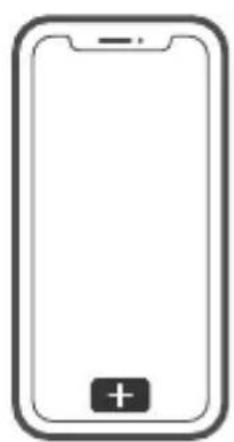
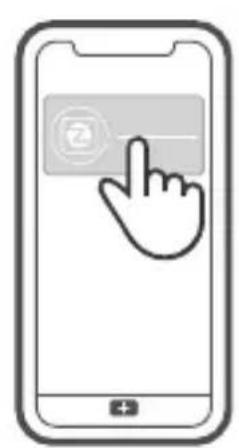
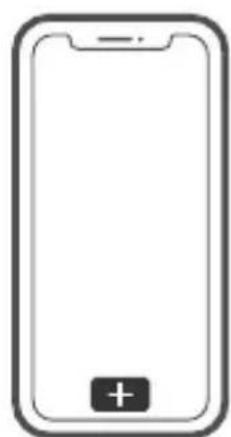
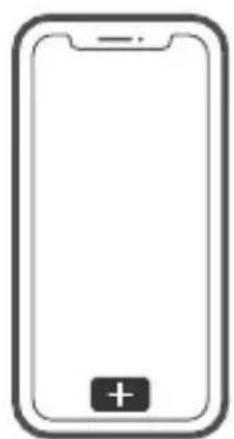
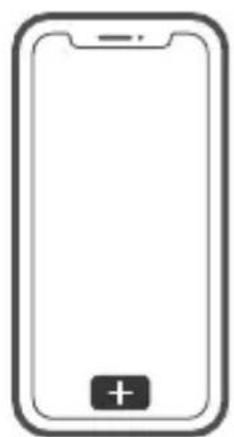
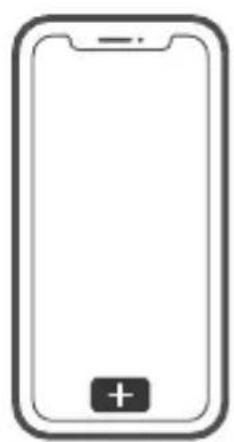
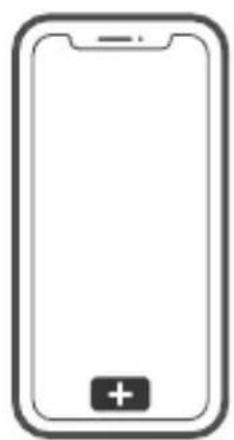
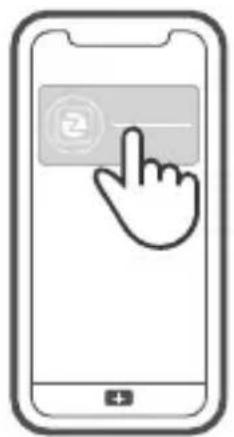
Download the eWeLink app, create an account, then press + and scan the QR code provided on the manual or the box. Follow the instructions in the app.
Which ZigBee devices are compatible with this bridge?
The bridge works with all Sonoff ZigBee 3.0 devices and many compatible brands (e.g., door/window sensors, switches, plugs). Check the compatibility list on the official website.
What is the range of the ZigBee Bridge?
Indoors, the range is about 30 meters in open space. Obstacles (walls, furniture) may reduce this distance.
Can the bridge be used without an internet connection?
No, a Wi-Fi and internet connection is required for remote control via the eWeLink app. Local (Bluetooth control) is not supported.
How to reset the ZigBee Bridge?
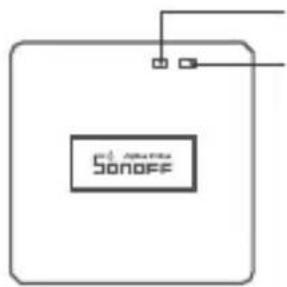
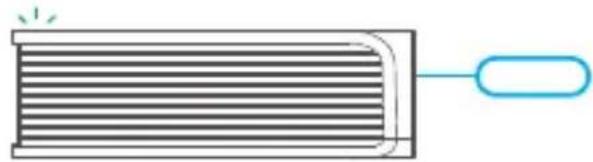
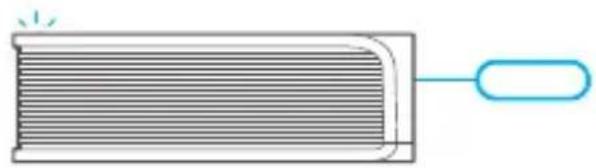
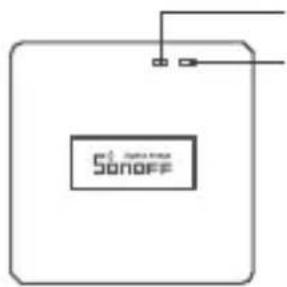
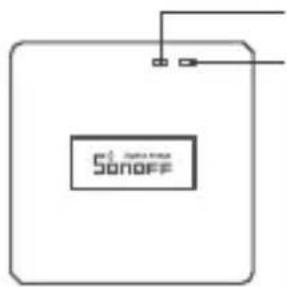
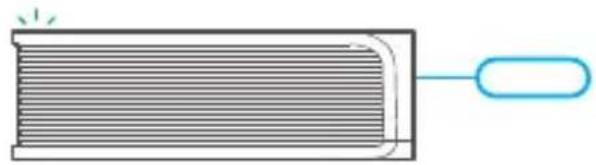
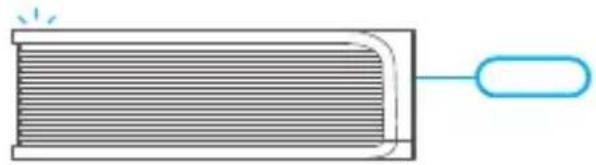
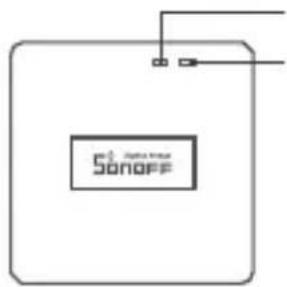
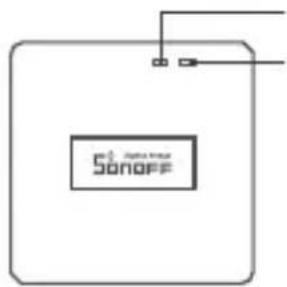
Press and hold the reset button (located on the back) for 5 seconds until the LED blinks rapidly. Release and follow the pairing procedure.
Is the bridge compatible with Alexa or Google Assistant?
Yes, after linking with eWeLink, enable the Sonoff skill in Alexa or Google Home. You can then control your devices by voice.
How many devices can be connected at most?
The bridge can handle up to 32 ZigBee devices simultaneously. For more, use multiple bridges.
What to do if a ZigBee device does not connect?
Check that the device is in pairing mode (usually by power cycling it). Bring it closer to the bridge and try again. If the problem persists, reset the bridge.
Is the ZigBee Bridge compatible with third-party home automation systems?
Officially, it works via the eWeLink app. However, open gateways like Home Assistant can control it via community plugins.
What is the battery life in case of a power outage?
The bridge has no internal battery; it resets on restart. Scenarios and automations are saved on the eWeLink cloud.
User questions about ZigBee Bridge Sonoff
0 question about this device. Answer the ones you know or ask your own.
Ask a new question about this device
No questions yet. Be the first to ask one.
Download the instructions for your Smart Home in PDF format for free! Find your manual ZigBee Bridge - Sonoff and take your electronic device back in hand. On this page are published all the documents necessary for the use of your device. ZigBee Bridge by Sonoff.
USER MANUAL ZigBee Bridge Sonoff
text_image
e support Works with everything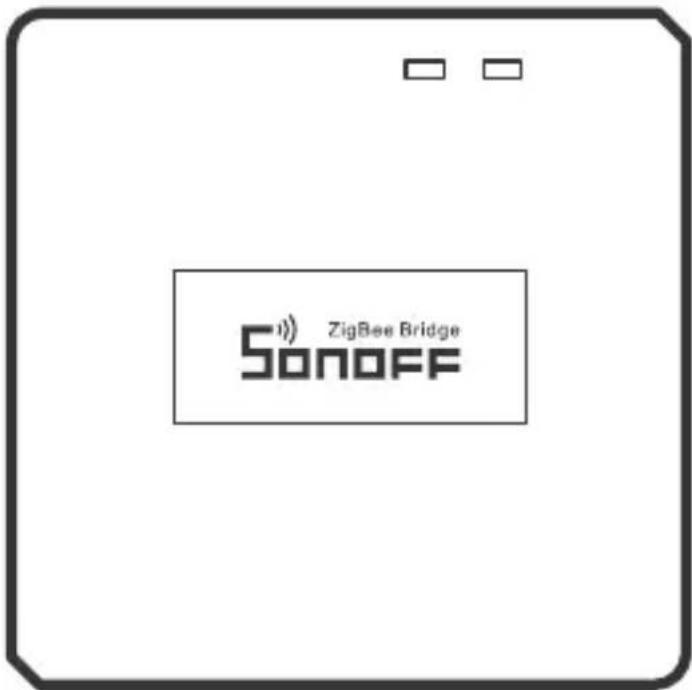
text_image
ZigBee Bridge Sonoff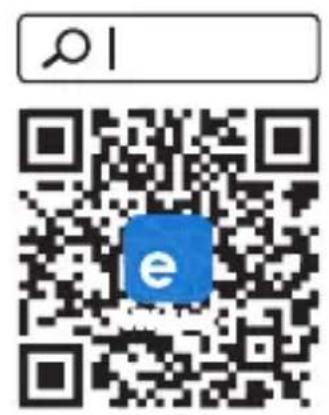
text_image
QR code with a blue 'e' logo and a magnifying glass icon above it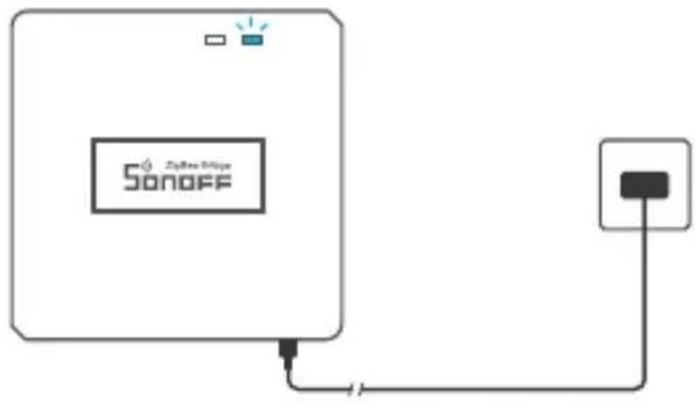
text_image
Sonoff ZyRoo Edge①
natural_image
Simple line drawing of a smartphone with a plus button at the bottom (no text or symbols)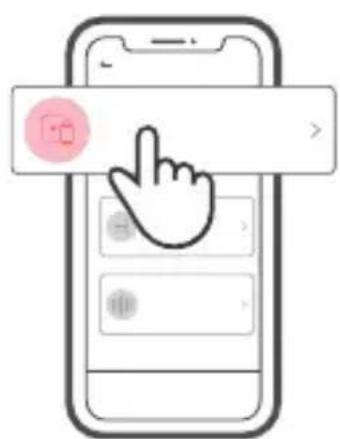
text_image
Mobile app interface screenshot showing a hand cursor clicking on a screen with a circular icon labeled '10' and navigation buttons below.
natural_image
Illustration of a smartphone with a hand cursor clicking the button (no text or symbols)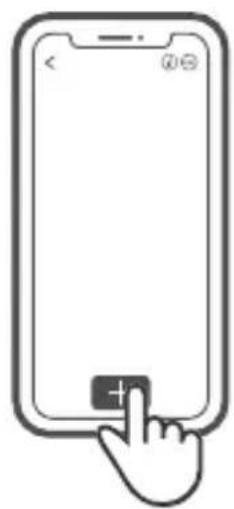
natural_image
Line drawing of a smartphone with a hand cursor clicking the button (no text or symbols)①
| --- | |
text_image
5d Sonoff Sonoff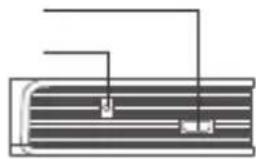
natural_image
Pure diagram of a heat exchanger or cooling unit with no text, numbers, or symbols①
!
①
natural_image
Simple line drawing of a heat exchanger with a handle and heat sink (no text or symbols)①
natural_image
Simple line drawing of a rectangular object with horizontal lines and a handle, no text or symbols present.!
text_image
Download on the App Store GET IT ON Google Play
text_image
QR code with a blue square logo containing the letter 'e' in the center.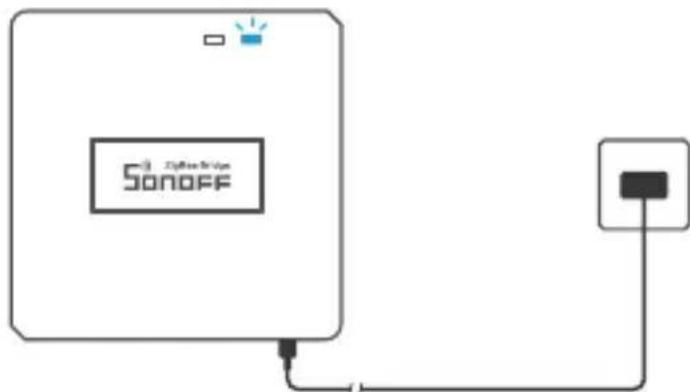
text_image
Sonoff①
natural_image
Simple line drawing of a smartphone with a plus button at the bottom (no text or symbols)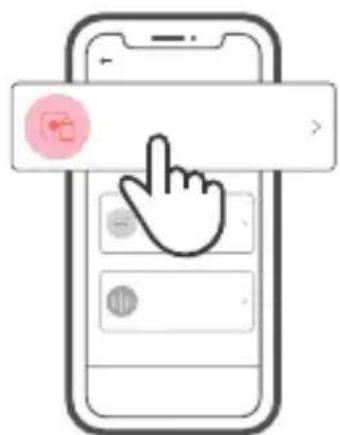
text_image
Mobile app interface screenshot showing a hand cursor clicking a button on a screen, with a pink circular icon and navigation buttons visible.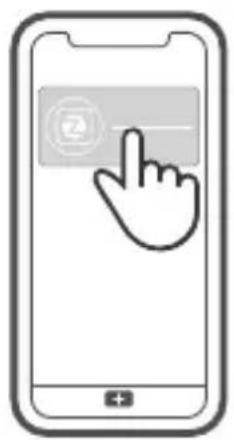
natural_image
Illustration of a smartphone with a hand cursor clicking the button (no text or symbols)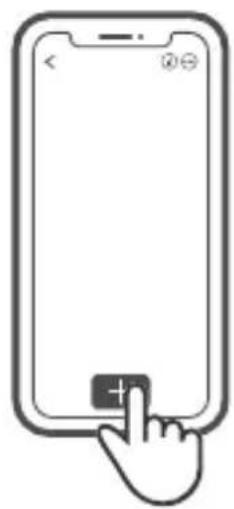
natural_image
Line drawing of a hand pressing a button on a smartphone screen (no text or symbols)!
| - - - - | |
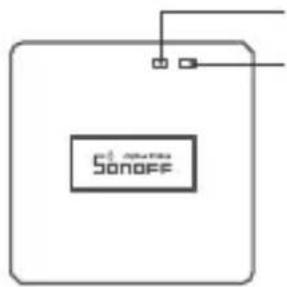
text_image
Sonoff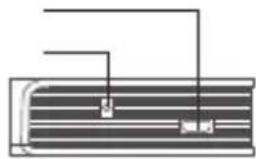
natural_image
Pure diagram of a heat exchanger or cooling unit with no text, numbers, or symbols①
①
!
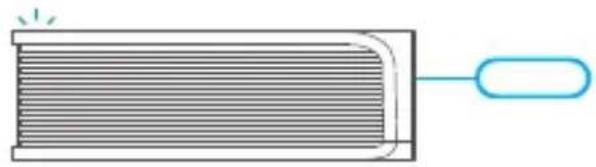
natural_image
Simple line drawing of a rectangular object with horizontal lines and a blue handle, no text or symbols present.!
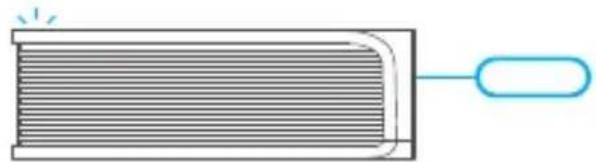
natural_image
Simple line drawing of a rectangular object with horizontal lines and a small oval end, no text or symbols present.①
text_image
Download on the App Store GET IT ON Google Play
text_image
QR code with central blue square containing white lowercase 'e' logo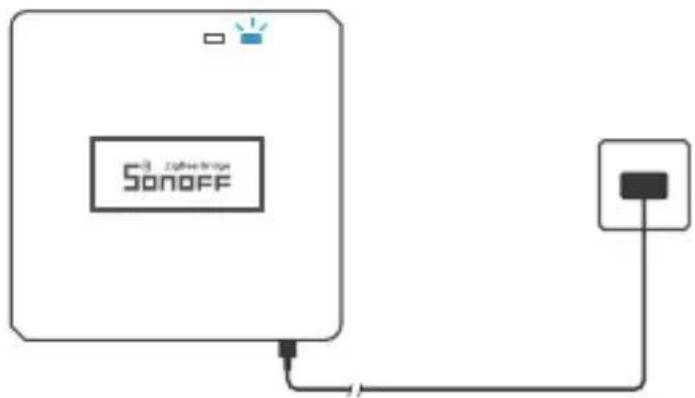
text_image
Sonoff①
natural_image
Simple line drawing of a smartphone with a plus button at the bottom (no text or symbols)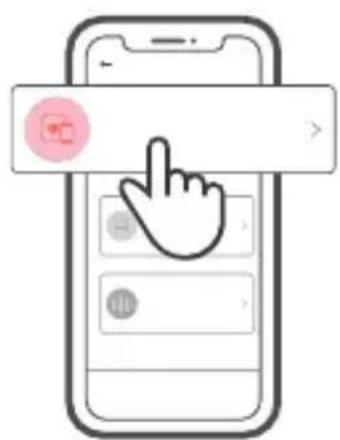
text_image
Mobile app interface screenshot showing a hand cursor clicking a button on a screen, with a pink circular icon labeled 'QQ' in the top-left corner.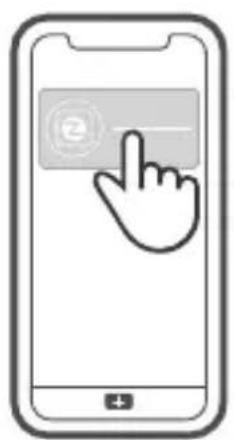
natural_image
Illustration of a smartphone with a hand cursor clicking the button (no text or symbols)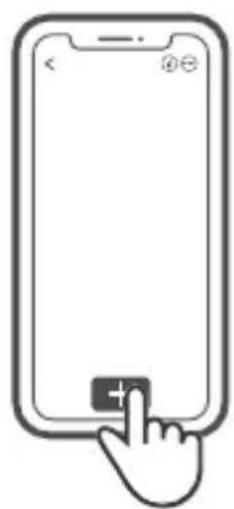
natural_image
Line drawing of a smartphone with a hand cursor pointing at the button (no text or symbols)

natural_image
Pure diagram of a heat exchanger or cooling unit with no text, numbers, or symbols①
①
①
natural_image
Simple line drawing of a heat exchanger with a handle and cooling effect (no text or symbols)①
natural_image
Simple line drawing of a rectangular object with horizontal lines and a handle, no text or symbols present.①
text_image
Download on the App Store GET IT ON Google Play
text_image
QR code with a blue square logo containing the letter 'e' in the center.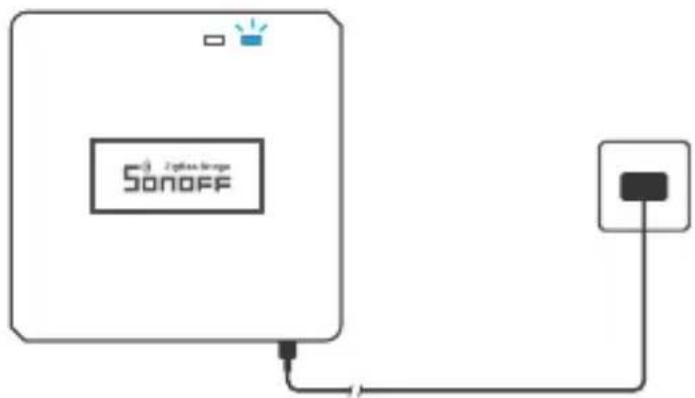
text_image
Sonoff Sonoff
natural_image
Simple line drawing of a smartphone with a plus button at the bottom (no text or symbols)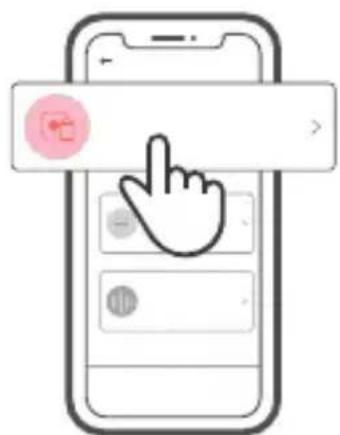
text_image
Mobile app interface screenshot showing a hand cursor clicking a button on a smartphone screen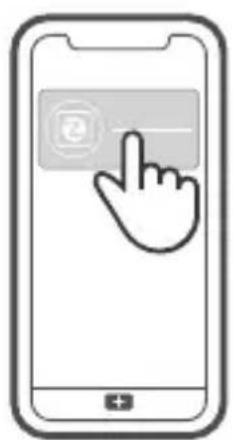
natural_image
Illustration of a smartphone with a hand cursor clicking the button (no text or symbols)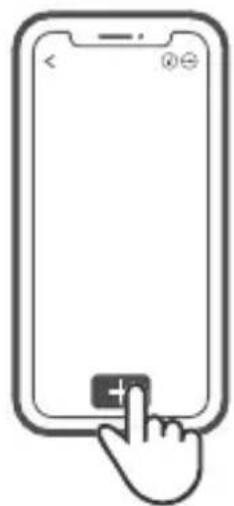
natural_image
Line drawing of a hand pressing a button on a smartphone screen (no text or symbols)①
| - | |
text_image
Sonoff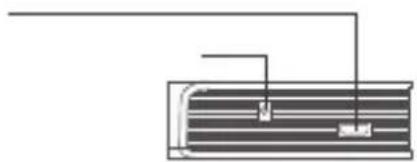
natural_image
Pure diagram of a heat exchanger or cooling unit with no text, numbers, or symbols①
①
①
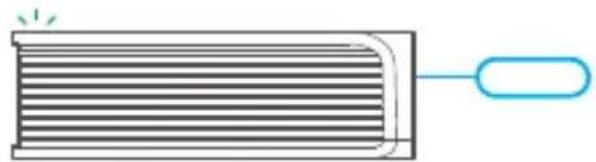
natural_image
Simple line drawing of a heat exchanger with a handle and cooling effect (no text or symbols)①
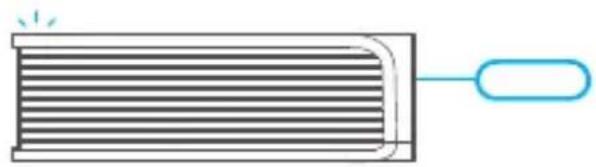
natural_image
Simple line drawing of a heat exchanger with a handle and heat source (no text or symbols)!
text_image
Download on the App Store GET IT ON Google Play
text_image
QR code with a blue square logo containing the letter 'e' in the center.
text_image
Sonoff 21000000000①
natural_image
Simple line drawing of a smartphone with a plus button at the bottom (no text or symbols)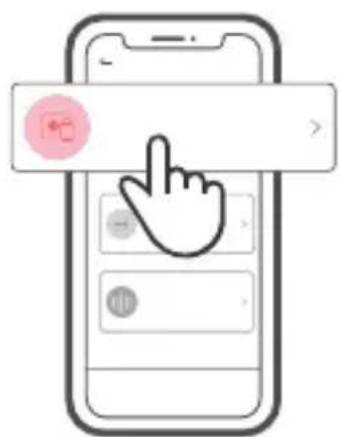
text_image
Mobile app interface screenshot showing a hand cursor clicking a button on a smartphone screen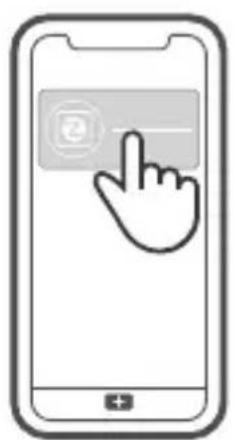
natural_image
Illustration of a smartphone with a hand cursor clicking the button (no text or symbols)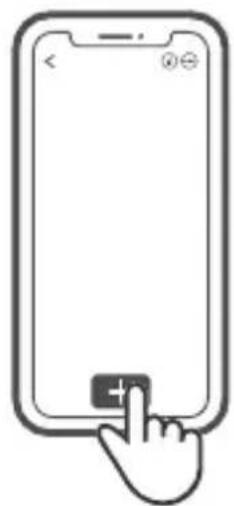
natural_image
Line drawing of a hand pressing a button on a smartphone screen (no text or symbols)

| == | |
text_image
Sonoff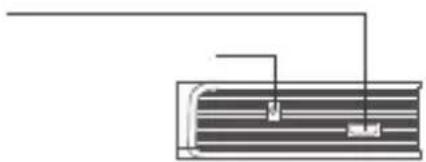
natural_image
Pure diagram of a heat exchanger or cooling unit with no text, numbers, or symbols①
①
①
natural_image
Simple line drawing of a heat exchanger with a handle and cooling effect (no text or symbols)!
natural_image
Simple line drawing of a rectangular object with horizontal lines and a handle, no text or symbols present.①
text_image
Download on the App Store GET IT ON Google Play
text_image
QR code with a blue square logo containing the letter 'e' in the center.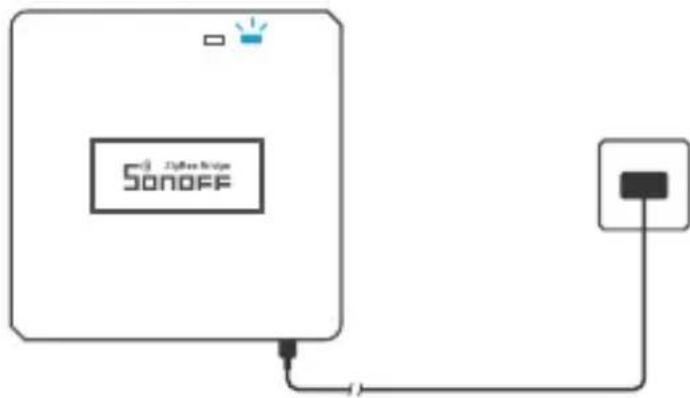
text_image
Sonoff Sonoff!
natural_image
Simple line drawing of a smartphone with a plus button at the bottom (no text or symbols)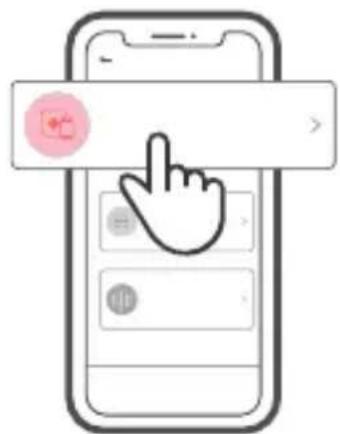
text_image
Mobile app interface screenshot showing a hand cursor clicking on a screen with a circular icon and navigation buttons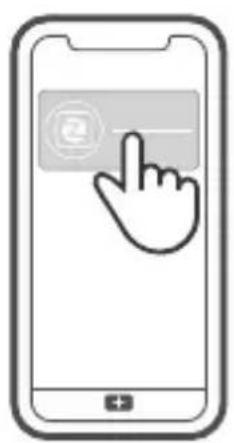
natural_image
Illustration of a smartphone with a hand cursor clicking the button (no text or symbols)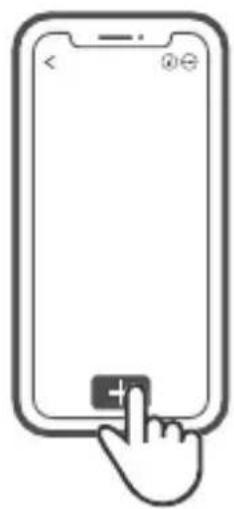
natural_image
Line drawing of a hand pressing a button on a smartphone screen (no text or symbols)①
| == | |
text_image
Sonoff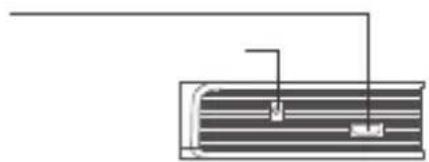
natural_image
Pure diagram of a heat exchanger or cooling unit with no text, numbers, or symbols①
!
①
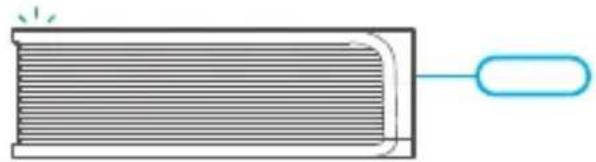
natural_image
Simple line drawing of a heat exchanger with a handle and cooling fins (no text or symbols)①
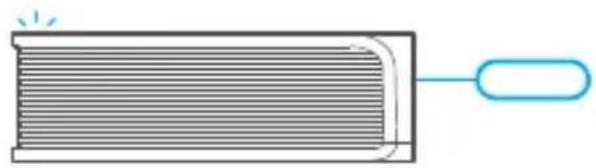
natural_image
Simple line drawing of a rectangular object with horizontal lines and a small oval end, no text or symbols present.

text_image
QR code with central blue square containing white lowercase 'e' logo
text_image
Sonoff 2nd Base Sonoff①
natural_image
Simple line drawing of a smartphone with a plus button at the bottom (no text or symbols)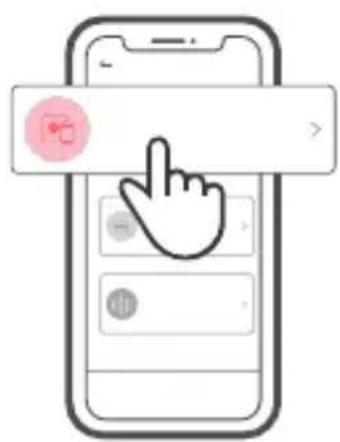
text_image
Mobile app interface screenshot showing a hand cursor clicking a button on a smartphone screen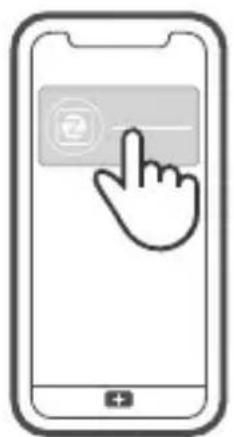
natural_image
Illustration of a smartphone with a hand cursor clicking the button (no text or symbols)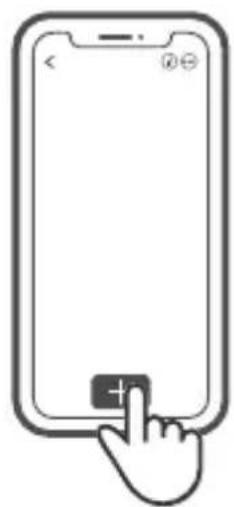
natural_image
Line drawing of a smartphone with a hand cursor clicking the button (no text or symbols)

| == | |
text_image
Sonoff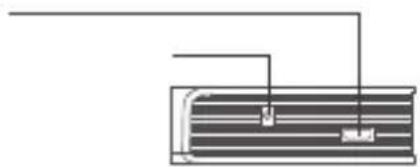
natural_image
Pure electrical circuit lines without any symbols①
!
①
natural_image
Simple line drawing of a heat exchanger with a handle and cooling effect (no text or symbols)①
natural_image
Simple line drawing of a heat exchanger with a handle and cooling effect (no text or symbols)①
text_image
Download on the App Store GET IT ON Google Play
text_image
QR code with central blue square containing white lowercase 'e' logo
text_image
Sonoff 2000000000000000000000000000000000000000000000000000000000000000000000000000000000000①
natural_image
Simple line drawing of a smartphone with a plus button at the bottom (no text or symbols)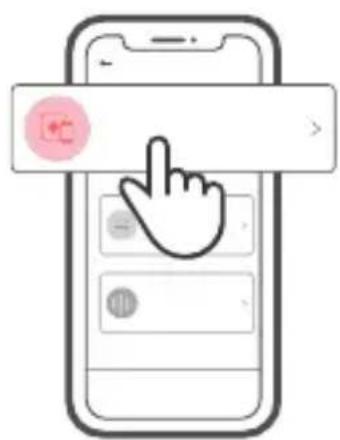
text_image
Mobile app interface screenshot showing a hand cursor clicking a button on a smartphone screen

natural_image
Illustration of a smartphone with a hand cursor clicking the button (no text or symbols)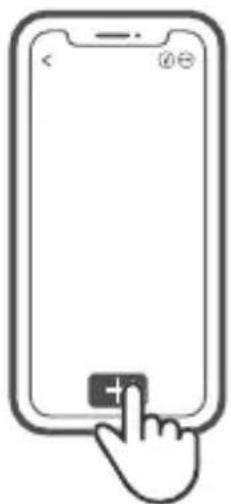
natural_image
Line drawing of a smartphone with a hand cursor clicking the button (no text or symbols)①
| == | |
text_image
Sonoff
natural_image
Pure diagram of a rectangular container with internal lines and a small inset showing a small object, no text or symbols present.①
①
①
natural_image
Simple line drawing of a rectangular object with horizontal lines and a blue handle extending from its side (no text or symbols)①
natural_image
Simple line drawing of a heat exchanger with a handle and cooling fins (no text or symbols)①