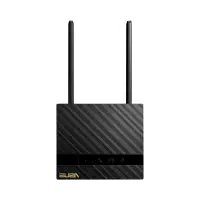
4GN16 - Wireless Router ASUS - Free user manual and instructions
Find the device manual for free 4GN16 ASUS in PDF.

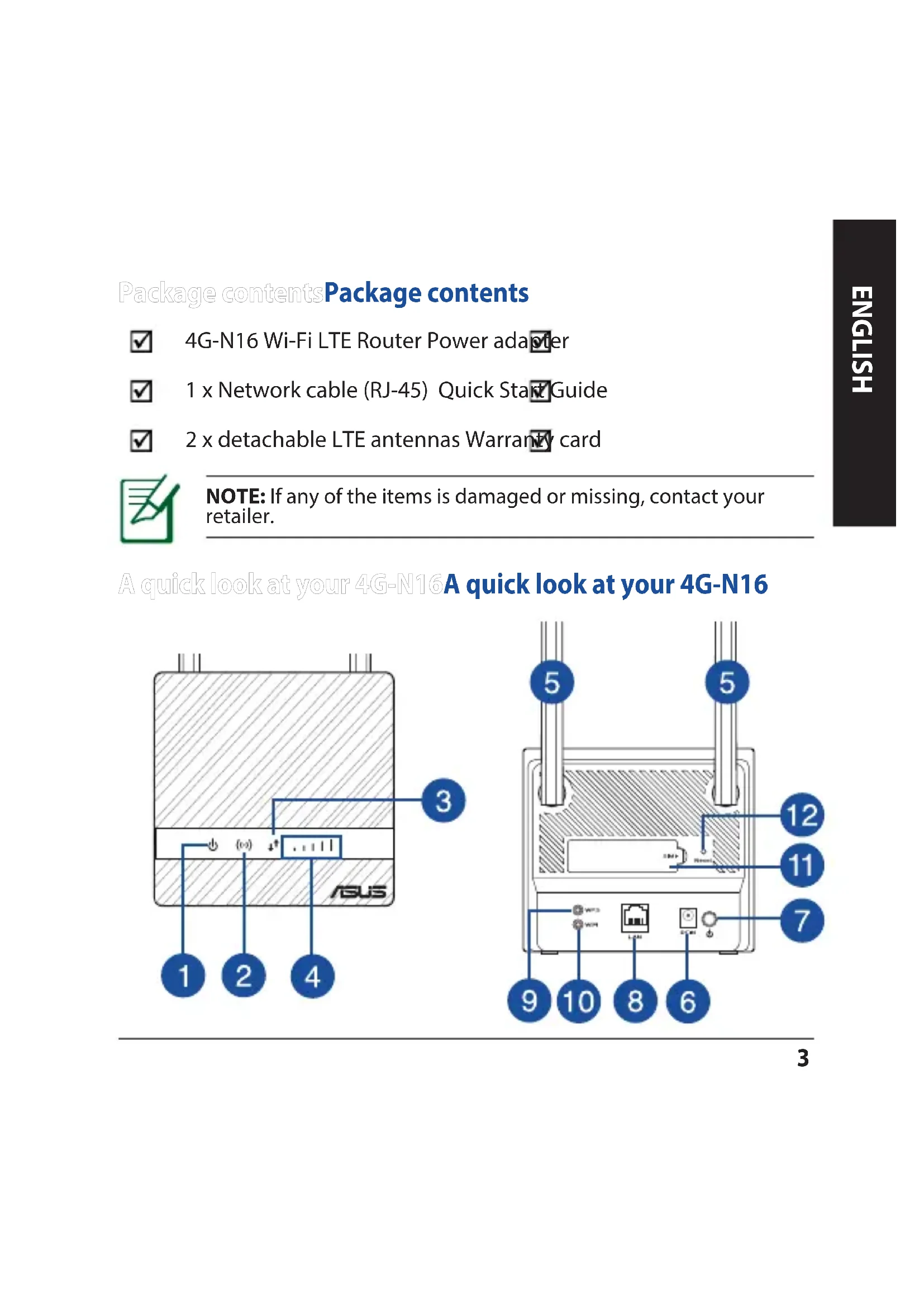


| Product Type | 4G LTE Wireless Router |
| Brand | ASUS |
| Model | 4GN16 |
| Wi-Fi Standards | IEEE 802.11b/g/n (2,4 GHz) |
| Max Wi-Fi Speed | 150 Mbps |
| Supported Mobile Bands | 4G/LTE, 3G/WCDMA |
| Ports | 1 port Ethernet RJ-45 10/100 Base-T |
| Antennas | 2 removable LTE antennas |
| SIM Card Type | Micro SIM/USIM (3FF) |
| Power Supply | 12V DC, 0.5A (power adapter included) |
| Operating Temperature | -10°C to 40°C |
| Storage Temperature | -20°C to 65°C |
| Operating Humidity | ≤ 90% |
| Storage Humidity | ≤ 95% |
| Buttons | Power, WPS, Wi-Fi, Reset |
| LEDs | Power, 2.4GHz band, 4G/LTE Internet, 3G/4G signal |
| Default IP Address | 192.168.50.1 |
| Default Credentials | admin / admin |
| Wi-Fi Security | WPA/WPA2, WPS |
| Network Features | DHCP, NAT, Firewall, Port Forwarding |
| Maintenance | Clean with a soft, dry cloth. Avoid moisture. |
| Package Contents | Router, power adapter, RJ-45 cable, 2 LTE antennas, quick start guide, warranty card |
Frequently Asked Questions - 4GN16 ASUS
User questions about 4GN16 ASUS
0 question about this device. Answer the ones you know or ask your own.
Ask a new question about this device
Download the instructions for your Wireless Router in PDF format for free! Find your manual 4GN16 - ASUS and take your electronic device back in hand. On this page are published all the documents necessary for the use of your device. 4GN16 by ASUS.
USER MANUAL 4GN16 ASUS
U23606 / Revised Edition v3 / April 2024
This QSG contains these languages:
English 3
BbIrapckn 12
Hrvatski 17
Cestina 22
Dansk 27
Nederland 32
Eesti 37
Francais 42
Suomi. 47
Deutsch 52
Eaivká 57
Magyar 62
Italiano 67
Lietuviu 72
Latviešu 77
Norsk. 82
Portugues. 87
Polski 92
PUCCKN 97
Romana 102
Espanol. 107
Srprski 112
Slovenský 117
Slovenszina 122
Svenska 127
Türkce 132
ykpaiHcbKa 137
142
Hb0y 147
Package contents Package contents
4G-N16 Wi-Fi LTE RouterPoweradapter
1 x Network cable (RJ-45) Quick Start Guide
2x detachable LTE antennas Warranty card

NOTE: If any of the items is damaged or missing, contact your retailer.
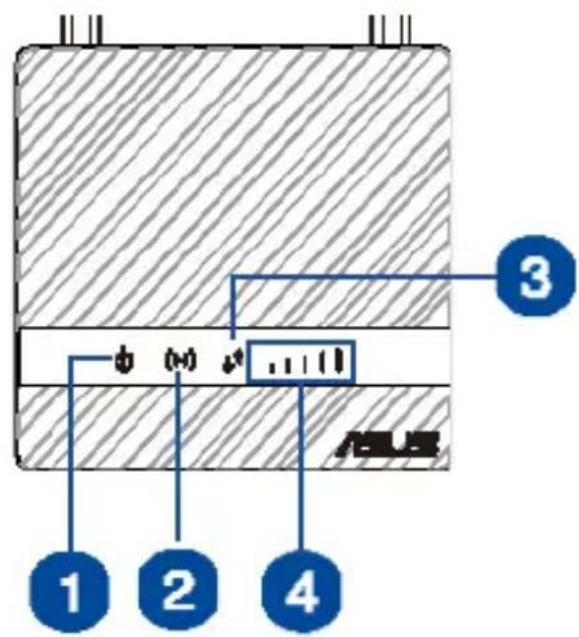
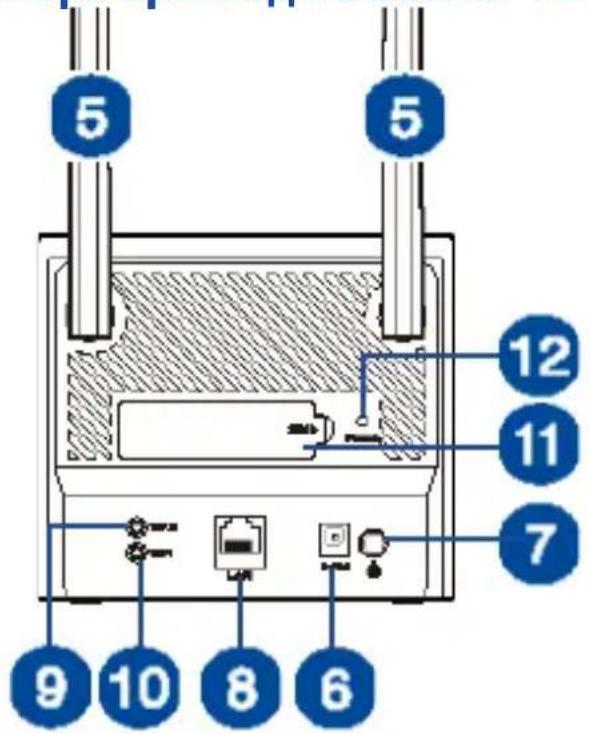
A quick look at your 4G-N16A quick look at your 4G-N16
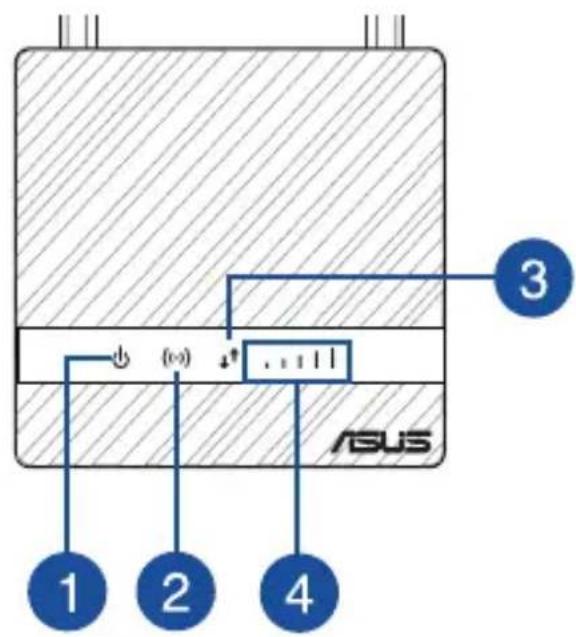

| 1. Power LED 7. Power button | |
| 2. 2.4GHz LED 8. LAN port | |
| 3. 4G/LTE Internet LED 9. WPS button | |
| 4. 3G/4G signal LED 10. WiFi button | |
| 5. Detachable LTE antennas 11. SIM card slot | |
| 6. Power (DC-IN) port 12. Reset button |
Installing your router Installing your router
1. Prepare the setup requirements.
To set up your wireless network, you need to meet the following requirements:
- A Micro SIM/USIM card with WCDMA and LTE subscription

CAUTION!
- Use only a standard Micro SIM/USIM card on your router.
-
Always insert the Micro SIM adapter with Nano SIM card. The Micro SIM adapter might get stuck if it is inserted alone.
-
A computer with Ethernet RJ-45 (LAN) port (10Base-T/100Base-TX) or a Wi-Fi-enabled device with a 2.4 GHz 802.11 b/g/n wireless interface
- Web browser such as Internet Explorer, Firefox, Safari, or Google Chrome
2. Connect your LTE wireless router.
IMPORTANT! Use a wired connection when setting up your wireless router to avoid possible setup problems.

WARNING!
- The power supply cord(s) must be plugged into socket-outlet(s) that is /are provided with a suitable earth ground. Connect the equipment only to a nearby socket outlet that is easily accessible.
- If the Adapter is broken, do not try to fix it by yourself. Contact a qualified service technician or your retailer.
DO NOT use damaged power cords, accessories, or other peripherals.
DO NOT mount this equipment higher than 2 meters. - Use this product in environments with ambient temperatures between 0^ (32^) and 40^ (104^) .
Wired connection
NOTE: You can use either a straight-through cable or a crossover cable for wired connection.
- Insert your Micro SIM card and install the LTE antennas before powering on your router. Connect the network cable from your computer to the yellow Ethernet port on your router.
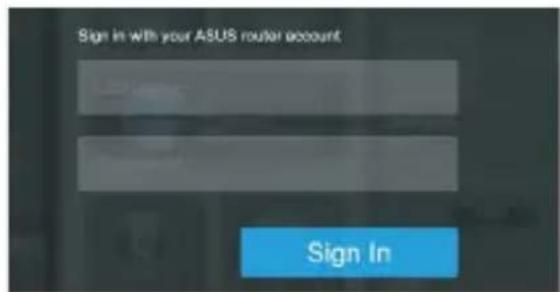
- The web GUI launches automatically when you open a web browser. If it does not auto-launch, enter http://www.asusrouter.com
- Set up a password for your router to prevent unauthorized access.

Wireless connection
- Insert your Micro SIM card and install the LTE antennas before powering on your router.
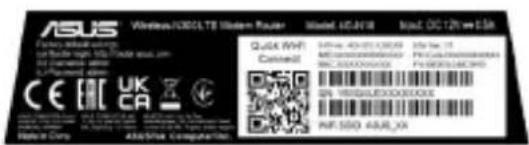
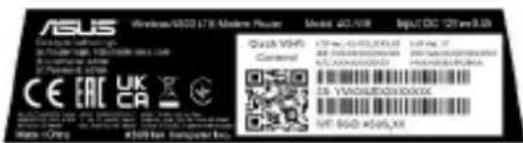
- Connect to the network name (SSID) shown on the product label on the back side of the router. For better network security, change to a uniqueSSID and assign a password.
Wi-Fi Name (SSID): ASUS_XX
-
XX refers to the last two digits of 2.4GHz MAC address. You can find it on the label on the back of your router.
-
Once connected, the web GUI launches automatically when you open a web browser. If it does not auto-launch, enter http://www.asusrouter.com.
- Set up a password for your router to prevent unauthorized access.
NOTE: For details on connecting to a wireless network, refer to the WLAN adapter's user manual.
3. Quick Internet Setup (QIS) with Auto-detection.
The Quick Internet Setup (QIS) function guides you in quickly setting up your Internet connection.
NOTE: When setting the Internet connection for the first time, press the Reset button on your wireless router to reset it to its factory default settings.
To use QIS with auto-detection:
- Launch a web browser. You will be redirected to the ASUS Setup Wizard (Quick Internet Setup). If not, key in http://www.asusrouter.com manually.
- The wireless router automatically detects if your ISP connection type is Dynamic IP, PPPoE, PPTP and L2TP. Key in the necessary information for your ISP connection type.
IMPORTANT! Obtain the necessary information from your ISP about the Internet connection type.
NOTES:
- The auto-detection of your ISP connection type takes place when you configure the wireless router for the first time or when your wireless router is reset to its default settings.
-
If QIS failed to detect your Internet connection type, click Manual Setting and manually configure your connection settings.
-
Assign the wireless network name (SSID) and security key for your 2.4GHz and 5GHz wireless connection. Click Apply when done.
- On the Login Information Setup page, change the router's login password to prevent unauthorized access to your wireless router.
NOTE: The wireless router's login username and password is different from the 2.4GHz/5GHz network name (SSID) and security key. The wireless router's login username and password allows you to log into your wireless router's Web GUI to configure your wireless router's settings. The 2.4GHz/5GHz network name (SSID) and security key allows Wi-Fi devices to log in and connect to your 2.4GHz/5GHz network.
4. Set up your LTE wireless router.
- Your router automatically detects your ISP's settings and APN profile. If the 3G/4G signal LEDs become solid blue, you can start surfing the Internet.

- The 3G/4G signal LEDs will not light up if your router fails to detect your ISP's settings successfully. Please key in the wireless router's default IP address 192.168.50.1/ or http://www.asusrouter.com on your web browser.
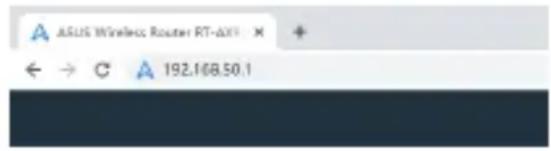
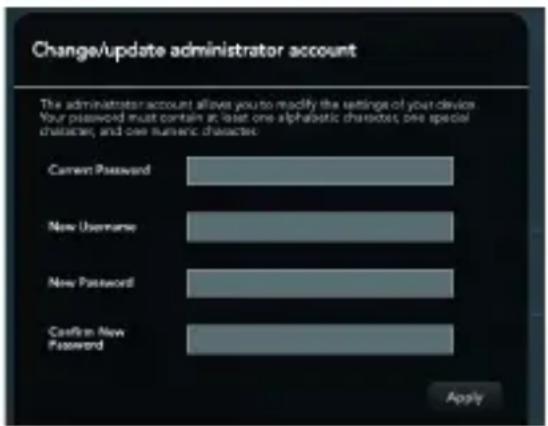
- Follow the Setup Wizard to change the username and password.
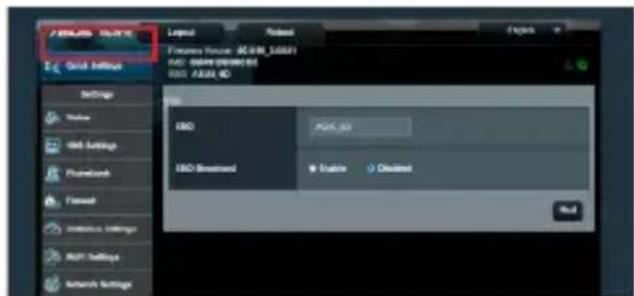
- From the main dashboard, click Quick Settings and follow the on-screen instructions to finish the setup process.
- If you want to connect to the Internet via Wi-Fi, connect to the wireless network name (SSID) found on the label at the bottom of the router and enter the Wi-Fi key when required.
FAQ FAQ
- Where can I find more information about the wireless router?
- Online FAQ site: https://www.asus.com/support/faq/1049537/
- Technical support site: https://www.asus.com/support
| DC Power adapter DC Output: +12V with max. 0.5A current | |||
| Operating Temperature -10~40 °C Storage -20~65 | °C | ||
| Operating Humidity ≤ 90% Storage ≤ 95% | |||
bbyp3 nperepeBbp3 nperepe

Mapspytn3atop 4G-N16 Wi-Fi LTE

3axpaHbaua aanTep

1xMpexkoB ka6eI (RJ-45) PbKOBOCTBO 3a 6bp3 CTapT

2xOCTpaHReMnLTEaHTeHn TaHcNoHHa KapTa

3A6EJIEXKKA: Ako HЯков OT KOMNoHENTe e NOBpeDeH nII nnCBA, CBpXKeTe ce c Baunr TbproBcKn npedCTaBtEn.
btpnperneHaBaun4G-N16Bbp3 npereHa Baun4G-N16
2. Set up your LTE wireless router.
- Insert your Micro SIM card and install the LTE antennas before powering on your router. Connect the network cable from your computer to the yellow Ethernet port on your router.

Instalar o routerInstalar o router
1. Preparar os requisitos de instalacao.
- If you want to connect to the Internet via Wi-Fi, connect to the wireless network name (SSID) found on the label at the bottom of the router and enter the Wi-Fi key when required.
Sik Sorulan Sorular (SSS'lar) Sik Sorulan Sorular (SSS'lar)

Nanoe EMM nanor with adaptor
http://support.asus.com/faq:
https://www.asus.com/support/
https://www.asus.com/support:
"nnn nn n nn yon 17 by ytn" y07 dwn nn nnnn nn nnnn .
| DC 5x6n0.5A n | |||
| °C~20- | °C~10-10x65 | n | |
| 110x95% ≥ | 90% ≥ | n | |
- This QSG contains these languages:
- Package contents Package contents
- A quick look at your 4G-N16A quick look at your 4G-N16
- Installing your router Installing your router
- Prepare the setup requirements.
- CAUTION!
- Connect your LTE wireless router.
- WARNING!
- Wired connection
- Wireless connection
- Quick Internet Setup (QIS) with Auto-detection.
- To use QIS with auto-detection:
- NOTES:
- Set up your LTE wireless router.
- FAQ FAQ
- bbyp3 nperepeBbp3 nperepe
- btpnperneHaBaun4G-N16Bbp3 npereHa Baun4G-N16
- Set up your LTE wireless router.
- Instalar o routerInstalar o router
- Preparar os requisitos de instalacao.
- Sik Sorulan Sorular (SSS'lar) Sik Sorulan Sorular (SSS'lar)
Brand : ASUS
Model : 4GN16
Category : Wireless Router