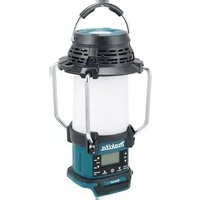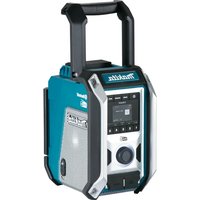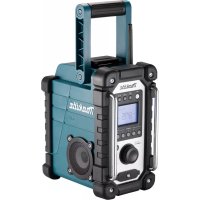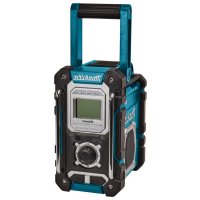
DMR108N - Radio MAKITA - Free user manual and instructions
Find the device manual for free DMR108N MAKITA in PDF.



User questions about DMR108N MAKITA
0 question about this device. Answer the ones you know or ask your own.
Ask a new question about this device
Download the instructions for your Radio in PDF format for free! Find your manual DMR108N - MAKITA and take your electronic device back in hand. On this page are published all the documents necessary for the use of your device. DMR108N by MAKITA.
USER MANUAL DMR108N MAKITA
natural_image
Technical line drawing of a mechanical device with no visible text or symbols
Bluetooth®
text_image
1 2 3 4 5 6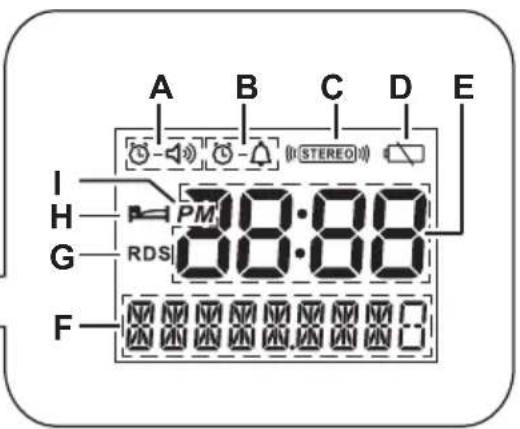
text_image
A B C D E I H PM 38:88 G RDS 38:88 F
text_image
7 8910 16 Nettsy 11 12 13 15 AUDIANT USB 14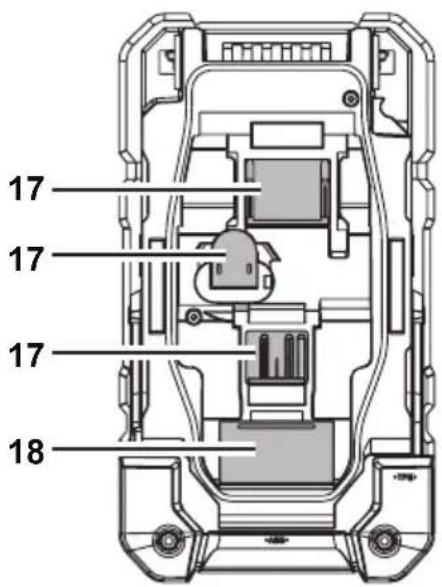
text_image
17 17 17 18
natural_image
Diagram showing two views of a device with arrows indicating movement, no text or symbols present2
text_image
LXT3
text_image
CXT4
natural_image
Technical line drawing of a mechanical device with no visible text or symbols5
text_image
CXT 1 26
text_image
LXT 1 27
natural_image
Technical illustration of a mechanical device with an inset showing a close-up of a component (no text or symbols present)8
natural_image
Mechanical assembly diagram showing a lever mechanism with directional arrows indicating motion (no text or symbols)9
text_image
5 1410
ENGLISH
(Original instructions)
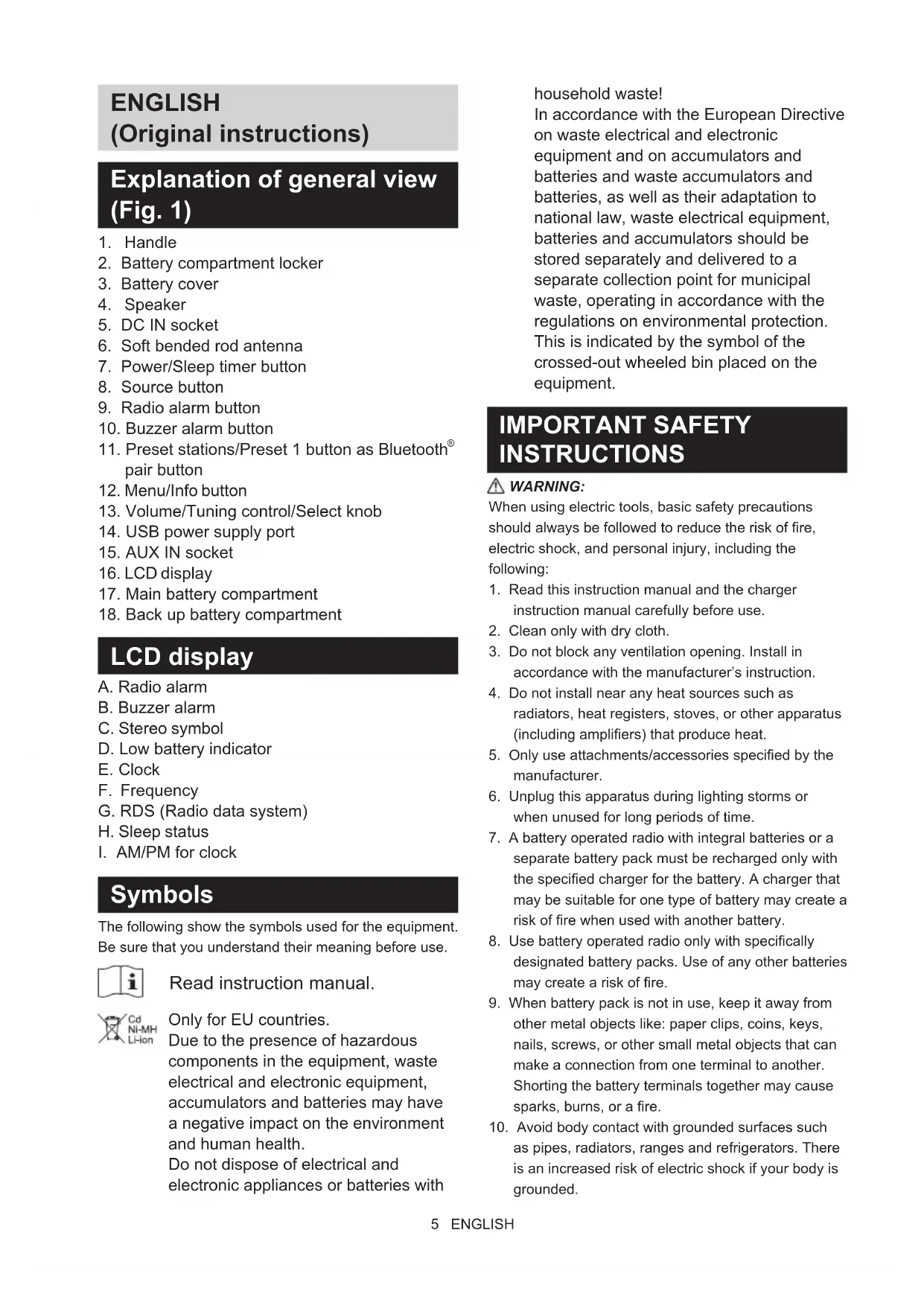
Explanation of general view (Fig. 1)
- Handle
- Battery compartment locker
- Battery cover
- Speaker
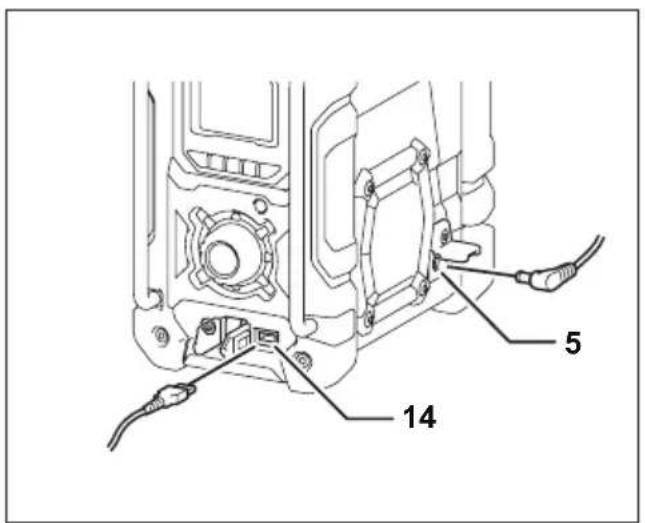
- DC IN socket
- Soft bended rod antenna
- Power/Sleep timer button
- Source button
- Radio alarm button
- Buzzer alarm button
- Preset stations/Preset 1 button as Bluetooth® pair button
- Menu/Info button
- Volume/Tuning control/Select knob
- USB power supply port
- AUX IN socket
- LCD display
- Main battery compartment
- Back up battery compartment
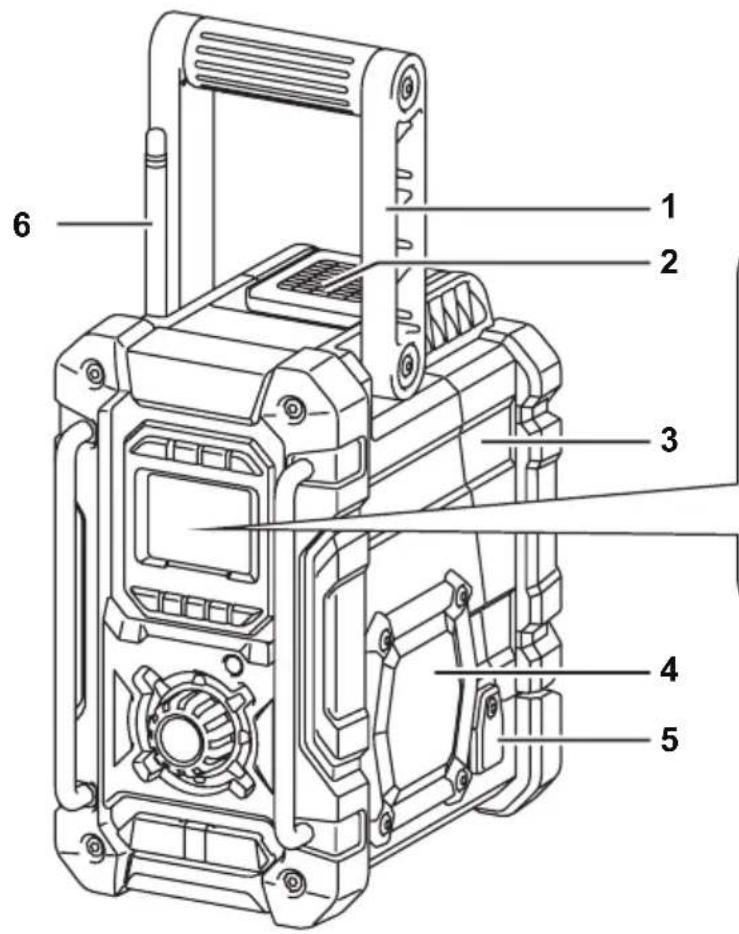
LCD display
A. Radio alarm
B. Buzzer alarm
C. Stereo symbol
D. Low battery indicator
E. Clock
F. Frequency
G. RDS (Radio data system)
H. Sleep status
I. AM/PM for clock
Symbols
The following show the symbols used for the equipment. Be sure that you understand their meaning before use.

Read instruction manual.
Only for EU countries.
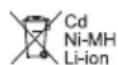
Due to the presence of hazardous components in the equipment, waste electrical and electronic equipment, accumulators and batteries may have a negative impact on the environment and human health.
Do not dispose of electrical and electronic appliances or batteries with
household waste!
In accordance with the European Directive on waste electrical and electronic equipment and on accumulators and batteries and waste accumulators and batteries, as well as their adaptation to national law, waste electrical equipment, batteries and accumulators should be stored separately and delivered to a separate collection point for municipal waste, operating in accordance with the regulations on environmental protection. This is indicated by the symbol of the crossed-out wheeled bin placed on the equipment.
IMPORTANT SAFETY INSTRUCTIONS
WARNING:
When using electric tools, basic safety precautions should always be followed to reduce the risk of fire, electric shock, and personal injury, including the following:
- Read this instruction manual and the charger instruction manual carefully before use.
- Clean only with dry cloth.
- Do not block any ventilation opening. Install in accordance with the manufacturer's instruction.
- Do not install near any heat sources such as radiators, heat registers, stoves, or other apparatus (including amplifiers) that produce heat.
- Only use attachments/accessories specified by the manufacturer.
- Unplug this apparatus during lighting storms or when unused for long periods of time.
- A battery operated radio with integral batteries or a separate battery pack must be recharged only with the specified charger for the battery. A charger that may be suitable for one type of battery may create a risk of fire when used with another battery.
- Use battery operated radio only with specifically designated battery packs. Use of any other batteries may create a risk of fire.
- When battery pack is not in use, keep it away from other metal objects like: paper clips, coins, keys, nails, screws, or other small metal objects that can make a connection from one terminal to another. Shorting the battery terminals together may cause sparks, burns, or a fire.
-
Avoid body contact with grounded surfaces such as pipes, radiators, ranges and refrigerators. There is an increased risk of electric shock if your body is grounded.
-
Under abusive conditions, liquid may be ejected from the battery; avoid contact. If contact accidentally occurs, flush with water. If liquid contacts eyes, additionally seek medical help. Liquid ejected from the battery may cause irritation or burns.
- Do not use a battery pack or tool that is damaged or modified. Damaged or modified batteries may exhibit unpredictable behavior resulting in fire, EXPLOSION or risk of injury.
- Do not expose a battery pack or tool to fire or excessive temperature. Exposure to fire or temperature above 130^ C may cause explosion.
- Follow all charging instructions and do not charge the battery pack or tool outside the temperature range specified in the instructions. Charging improperly or at temperatures outside the specified range may damage the BATTERY and increase the risk of fire.
SAVE THESE INSTRUCTIONS
SPECIFIC SAFETY RULES FOR BATTERY CARTRIDGE
- Before using battery cartridge, read all instructions and cautionary markings on (1) battery charger, (2) battery, and (3) product using battery.
- Do not disassemble battery cartridge.
- If operating time has become excessively shorter, stop operating immediately. It may result in a risk of overheating, possible burns and even an explosion.
- If electrolyte gets into your eyes, rinse them out with clear water and seek medical attention right away. It may result in loss of your eyesight.
- Do not short the battery cartridge:
(1) Do not touch the terminals with any conductive material.
(2) Avoid storing battery cartridge in a container with other metal objects such as nails, coins, etc.
(3) Do not expose battery cartridge to water or rain. A battery short can cause a large current flow, overheating, possible burns and even a breakdown.
- Do not store and use the tool and battery cartridge in locations where the temperature may reach or exceed 50^ C ( 122^ F).
- Do not incinerate the battery cartridge even if it is severely damaged or is completely worn out. The battery cartridge can explode in a fire.
-
Do not nail, cut, crush, throw, drop the battery cartridge, or hit against a hard object to the battery cartridge. Such conduct may result in a fire, excessive heat, or explosion.
-
Do not use a damaged battery.
- To avoid risk, the manual of replaceable the battery should be read before use. And the max discharging current of the battery should be greater than or equal to 8A.
- The contained lithium-ion batteries are subject to the Dangerous Goods Legislation requirements.
- When disposing the battery cartridge, remove it from the tool and dispose of it in a safe place. Follow your local regulations relating to disposal of battery.
- Use the batteries only with the products specified by Makita. Installing the batteries to non-compliant products may result in a fire, excessive heat, explosion, or leak of electrolyte.
- If the tool is not used for a long period of time, the battery must be removed from the tool.
- During and after use, the battery cartridge may take on heat which can cause burns or low temperature burns.
- Do not touch the terminal of the tool immediately after use as it may get hot enough to cause burns.
- Do not allow chips, dust, or soil stuck into the terminals, holes, and grooves of the battery cartridge. It may result in poor performance or breakdown of the tool or battery cartridge.
- Unless the tool supports the use near a high-voltage electrical power lines, do not use the battery cartridge near a high-voltage electrical power lines. It may result in a malfunction or breakdown of the tool or battery cartridge.
- Keep the battery away from children.
CAUTION:
- Danger of explosion if battery is incorrectly replaced.
- Replace only with the same or equivalent type.
- Only use genuine Makita batteries. Use of non-genuine Makita batteries, or batteries that have been altered, may result in the battery bursting causing fires personal injury and damage. It will also void the Makita warranty for the Makita tool and charger.
Tips for maintaining maximum battery life
- Charge the battery cartridge before completely discharged. Always stop tool operation and charge the battery cartridge when you notice less tool power.
- Never recharge a fully charged battery cartridge. Overcharging shortens the battery service life.
- Charge the battery cartridge with room temperature at 10^ C - 40^ C ( 50^ F - 104^ F). Let a hot battery cartridge cool down before charging it.
-
When not using the battery cartridge, remove it from the tool or the charger.
-
Charge the battery cartridge if you do not use it for a long period (more than six months).
Battery Installation
Note:
Keeping back up batteries inside the compartment prevent stored data in preset memories from being lost.
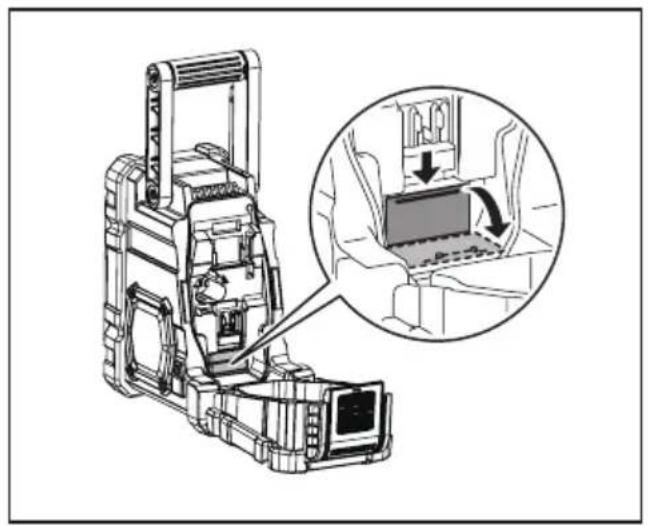
Back up battery Installation (Fig. 2 & 8)
- Pull out the battery compartment locker to release battery compartment. There are main battery pack compartment and back up battery compartment.
- Remove back up battery compartment cover and insert 2 fresh UM-3 (AA sizes). Make sure the batteries are with correct polarity as shown inside the compartment. Replace the battery cover.
- After back up batteries are inserted, insert the main battery pack to power radio. The suitable battery packs for this radio listed as the following table.
OPERATING TIME
* The suitable battery packs for this radio listed as the following table.
* The following table indicates the operating time on a single charge in Radio mode.
| Battery capacity | Battery Cartridge Voltage | At speaker output = 50mW + 50mW (unit: Hour) (Approximately) | |||
| 10.8V - 12V max 1 | 4.4V 18V Radio/AUX | In Bluetooth® with USB charging | |||
| 1.3Ah | BL1013BL1014 | 8.0 1.5 | |||
| 1.5Ah | BL1016 9.0 2.0 | ||||
| BL1415N 8.0 | 2.0 | ||||
| BL1815N 8.5 | 2.5 | ||||
| 2.0Ah | BL1021B 12.0 | 2.5 | |||
| BL1820B 11.0 | 3.5 | ||||
| 3.0Ah | BL1430B | 13.0 4.0 | |||
| BL1830B | 16.0 5.0 | ||||
| 4.0Ah | BL1041B | 24.0 5.0 | |||
| BL1440 | 21.0 5.5 | ||||
| BL1840B | 22.0 7.0 | ||||
| 5.0Ah | BL1850B | 28.0 9.0 | |||
| 6.0Ah | BL1460B 28.0 | 8.0 | |||
| BL1860B | 34.0 | 11.0 | |||
☐ : Cluster Battery
: Slide Battery
WARNING:
Only use the battery cartridges listed above. Use of any other battery cartridges may cause injury and/or fire.
Note:
- Table regarding to the battery operating time above is for reference. The actual operating time may differ with the type of the battery, charging condition, or usage environment.
- Some of the battery cartridges listed above may not be available depending on your region of residence.
INSTALLATION AND POWER SUPPLY
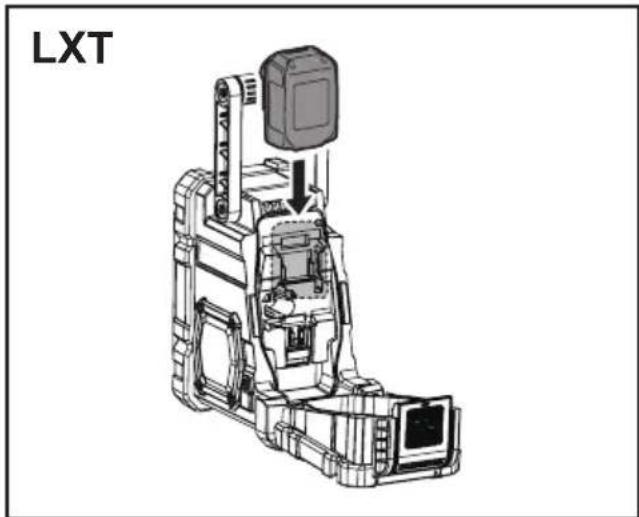
Installing or removing Slide battery cartridge (Fig. 3 & 4)
- Always switch off the tool before installing or removing of the battery cartridge.
- Hold the tool and the battery cartridge firmly when installing or removing battery cartridge.
- To install the battery cartridge, align the tongue on the battery cartridge with the groove in the housing and slip it into place. Always insert it all the way until it locks in place with a little click.
- If you can see the red indicator on the upper side of the button, it is not locked completely. Install it fully until the red indicator cannot be seen. If not, it may accidentally fall out of the tool, causing injury to you or someone around you.
- Do not use force when inserting the battery cartridge. If the cartridge does not slide in easily, it is not being inserted correctly.
- To remove the battery cartridge, withdraw it from the tool while sliding the button on the front of the cartridge or pressing the buttons on both sides of the cartridge.
- Be careful not to pinch your fingers when opening or closing the battery cover.
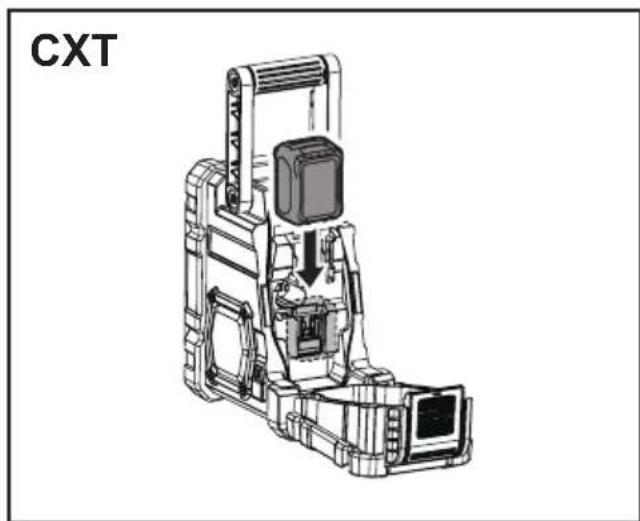
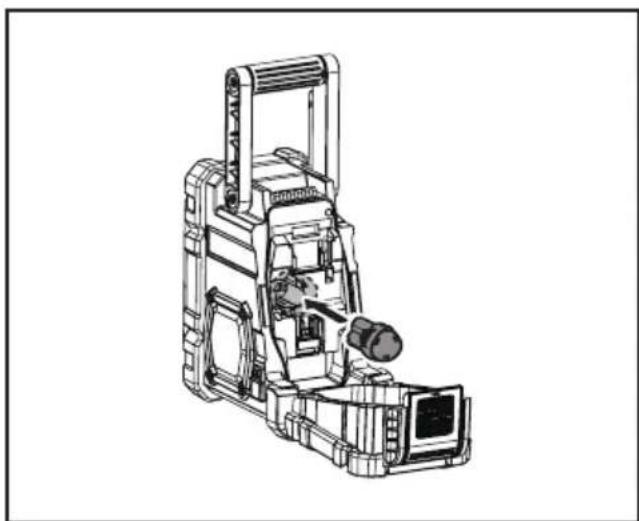
Installing or removing Cluster battery cartridge (Fig. 5)
- To insert the battery cartridge, align the tongue on the battery cartridge with the grove in the housing and slip it into place.
- To remove the battery cartridge, take the battery out of the terminal while pressing the buttons on the side of cartridge.
Return the battery compartment locker to the original position.
Reduced power, distortion, "stuttering sound" or when both low battery sign and "POWERFAIL" appear on the display are all the signs that the main battery pack needs to replace.
Note:
The battery pack can't be charged via the supplied AC power adaptor.
When low battery sign appears and an "EMPTY" keeps on flashing is the time to replace the back up batteries.
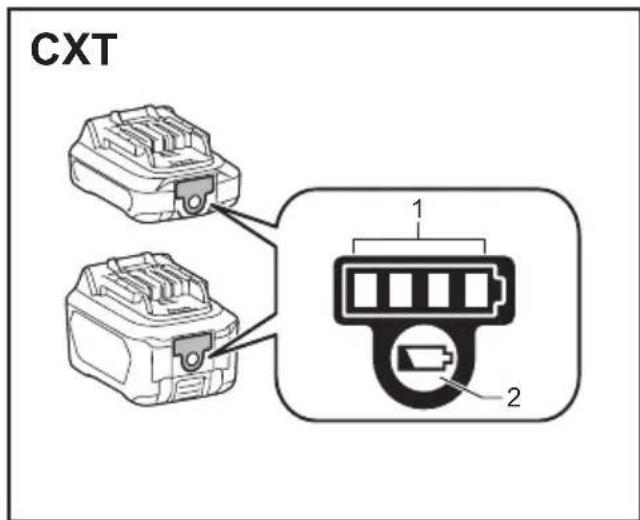
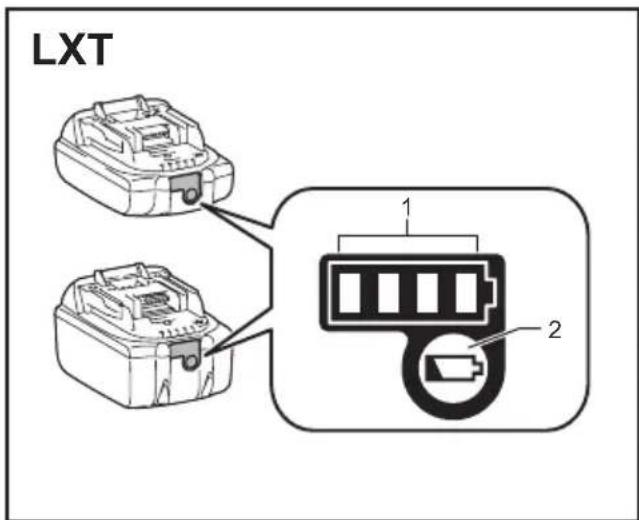
Indicating the remaining battery capacity (Fig. 6 & 7)
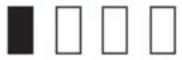
- Indicator lamps 2. Check button Only for battery cartridges with "B" at the end of the model number
Press the check button on the battery cartridge to indicate the remaining battery capacity. The indicator lamps light up for few seconds.
| Indicator lamps | Remaining capacity | ||
| Lighted Off Blinking | 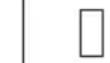 | ||
 | 75% to 100% | ||
 | 50% to 75% | ||
 | 25% to 50% | ||
 | 0% to 25% | ||
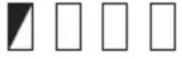 (For LXT battery cartridges only) (For LXT battery cartridges only) | Charge the battery | ||
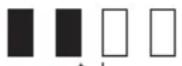 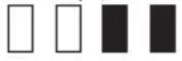 (For LXT battery cartridges only) (For LXT battery cartridges only) | The battery may have malfunctioned | ||
015658
Note:
- Depending on the conditions of use and the ambient temperature, the indication may differ slightly from the actual capacity.
- The first (far left) indicator lamp will brink when the battery protection system works. (For LXT battery cartridges only)
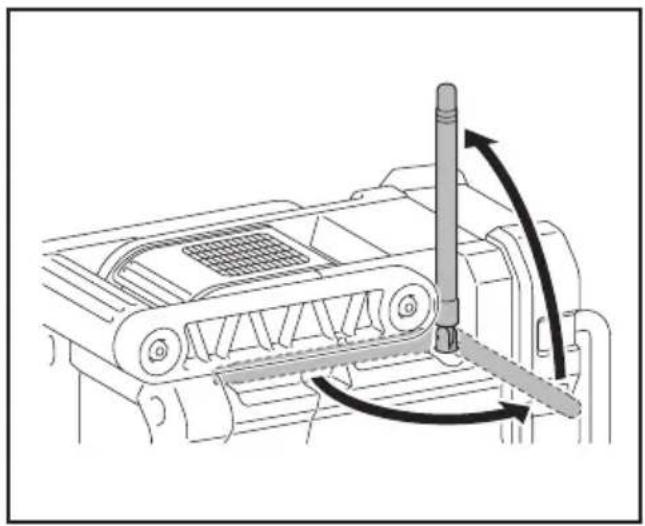
Using the soft bended rod antenna (Fig. 9)
Straight up the soft bended rod antenna as shown in the figure.
Using Supplied AC power adaptor (Fig. 10)
Remove the rubber protector and insert the adaptor plug into the DC socket on the left side of the radio. Plug the adaptor into a standard mains socket outlet. Whenever the adaptor is used, the battery pack is automatically disconnected. The AC adaptor should be disconnected from the main supply when not in use.
Note:
When your radio has any interference in AM band by its adaptor, please move your radio away from its AC adaptor over 30cm.
OPERATION
- Press the Power button to switch on your radio.
-
Press the Source button ☐ to select AM or FM radio mode.
-
Press and hold the Tuning control knob 📋 to carry out an auto-tune. Your radio will scan up the AM/FM band from the currently displayed frequency and will stop scanning automatically when it finds a station of sufficient strength.
-
After a few seconds the display will update. The display will show the frequency of the signal found.
-
To find other station, press and hold the Tuning control knob 📋 as before.
-
When the end of the waveband is reached your radio will recommence tuning from the opposite end of the waveband.
-
Rotate the Tuning control knob ⚙ to adjust the sound level as required. Note:
-
While adjusting the volume, make sure the FM/AM is NOT flashing on the screen.
-
If AM/FM is flashing on the screen, it allows you to tune the stations manually (see the section of "Manual tuning – AM/FM" for more detail).
-
To switch off your radio press the Power button
Manual tuning – AM/FM
-
Press the Power button to switch on your radio.
-
Press the Source button ☐ to select AM or FM radio mode.
-
Press the Tuning control knob 📋 and you will see the FM or AM is flashing on the display. Note:
-
FM/AM will flash approx. 10 seconds. Within this period, only manual tuning is allowed.
-
If volume adjustment is desired while FM/AM is flashing, press the Tuning control knob to stop the flash and you can rotate the Tuning control knob to adjust sound level.
-
Rotate the Tuning control knob 📍 to tune to a station.
-
When the end of the waveband is reached your radio will recommence tuning from the opposite end of the waveband.
-
Use the Tuning control knob ☐ to adjust the sound level as required.
Presetting stations in AM/FM mode
There are 5 preset stations each for AM and FM radio. They are used in the same way for each waveband.
- Press the Power button to switch on your radio.
- Press the Source button ☐ to select the desired waveband. Tune to the required radio station as previously described.
- Press and hold the required Preset button (1 to 5) until the display shows "P4" for example after the frequency. The station will be stored using the preset number. Repeat this procedure for the remaining presets as you wish.
- Preset stations which have already been stored may be overwritten by following the above procedure if required.
Display modes - FM
Your radio has a range of display options for FM radio mode.
- Repeatedly press the Menu/Info button 📄 to view the RDS information of the station you are listening to.
a. Station name Displays the name if the station being listened to.
b. Program type Displays the type of station being listened to such as Pop, Classic, News, etc.
c. Radio text Displays radio text message such as new items etc.
d. Year/Day Displays the year and day of the week according to the date setting of your radio.
e. Date/Day Displays the date and day of the week according to the date setting of your radio.
f. Frequency Displays the frequency of the FM for the station listened to.
If the FM radio station being listened to has a weak signal some hiss may be audible. It is possible to reduce this hiss by forcing the radio to play the station in mono rather than stereo.
-
Press the Power button 📄 as needed to select the FM band and tune to the desired FM station as previously stated.
-
Press and hold Menu/Info button Ⓞ to enter the menu setting.
-
Rotate the Tuning control knob until the FM Auto/mono setting shows on the display. If the setting is Auto press the Tuning control knob to switch to Mono mode to reduce the hiss. Press the Tuning control knob to select the option.
Recalling a preset in AM/FM mode
- Press the Power button to switch on your radio.
- Press the Source button SOURCE to select AM or FM radio mode.
- Momentarily press the required Preset button to cause your radio to tune to one of the stations stored in the preset memory.
Setting the time and date format
The clock display used in stand-by mode and on the playing mode screens can be set to different format. The selected format is then also used when setting the alarms.
- Press and hold the Menu/Info button 📄 to enter the menu setting.
- Rotate the Tuning control knob 📋 until "CLOCK xxH" appears on the display and press the Tuning control knob 🔒 to enter the setting. You will see the time format begins to flash.
- Rotate the Tuning control knob ☐ to select either 12 or 24 hour format. Press the Tuning control knob ☐ to confirm your choice of clock format. Note:
If the 12 hour clock format is chosen, the radio will then use the 12 hour clock for the setting.
- Press and hold the Menu/Info button 📄 → to enter the menu setting.
- Rotate the Tuning control knob 📋 until a date (e.g. THU APR 3) appears on the display and press the Tuning control knob 🔒 to enter the setting. You will see the date format begins to flash.
- Rotate the Tuning control knob 📋 to select the desired date format. Press the Tuning control knob 📋 to confirm your choice.
Setting the clock time and date

- Press and hold the Menu/Info button
- Rotate the Tuning control knob 🎨 until “CLOCK ADJ” appears on the display. Press the Tuning control knob 🔗 to enter the setting.
- The hour setting on the display will begin flashing. Rotate the Tuning control knob to ☐ select the desired hour, and press the Tuning control knob to confirm the setting. Then rotate the Tuning control knob to select the desired minute, and press the Tuning control knob to confirm the setting.
- Rotate the Tuning control knob 📋 until "DATE ADJ" appears on the display. Press the Tuning control knob 🔒 to enter the setting.
- Rotate the Tuning control knob 📋 to select the desired year and press the Tuning control knob 📋 to confirm the setting. Then rotate the Tuning control
knob ☐ select the desired month, and press the Tuning control knob ☐ to confirm the setting. Then rotate the Tuning control knob ☐ to select the desired date and press the Tuning control knob ☐ to confirm the setting.
Radio Data System (RDS)
When you set the clock time using the RDS function, your radio will synchronize its clock time whenever it tunes to a radio station using RDS with CT signals.
- When tuning to a station transmitting RDS data, press and hold the Menu/Info button Ⓞ
-
Rotate the Tuning control knob 📋 until "RDS CT" and a clock symbol appear on the display. Press the Tuning control knob 🔒 to enter the setting.
-
Rotate the Tuning control knob 📋 until "RDS CT" appears on the display. Press the Tuning control knob 📋 to confirm the setting. The clock time of the radio will set up automatically according to the RDS data received.
-
When the action is completed, the RDS icon will appear on the LCD display indicating the radio time is RDS clock time. The radio clock time will be valid for 5 days each time the radio time is synchronized with RDS CT.
Setting the alarm clock
Your radio has two alarms which can each be set to wake you to AM/FM radio or buzzer alarm. The alarms may be set while the unit is in standby mode or while playing.
a. Setting radio alarm time:
- The radio alarm can be set either when radio is on or off.
- Press and hold the radio alarm button 📋- 🔍, the radio alarm symbol and the display hour will flash along with a beep.
- During radio alarm symbol ☑-☐ flashes, rotate Tuning control knob ☐ to select the hour and press Tuning control knob ☐ again to confirm hour setting. Then rotate the Tuning control knob ☐ to select the minute and press Tuning control knob ☐ to confirm minute setting.
- Rotate the Tuning control knob and the display will show the frequency options for the alarm.
The alarm options are as follows:
ONCE – the alarm will sound once
DAILY – the alarm will sound everyday
WEEKDAY – the alarm will sound only on weekdays WEEKEND – the alarm will sound only at weekends
Press the Tuning control knob to confirm the setting.
- During radio alarm symbol is flashing, rotate Tuning control knob ☐ to select desired wake-up band and
station, then press Tuning control knob to confirm the selection.
- Rotate Tuning control knob 📍 to select the desired volume and press Tuning control knob 📍 to confirm the volume. Radio alarm setting is now completed.
Note:
If new radio alarm station is not selected, it will select the last alarm station.
Note:
If the selected AM/FM alarm station is not available when the alarm is sounding, the buzzer alarm will be used instead.
b. Setting HWS (Humane Wake System) buzzer alarm:
A beep tone will activate when selecting the HWS buzzer alarm.
The alarm beep will sound shorter every 15 seconds for one minute followed by one minute silence before repeating the cycle.
- The buzzer alarm can be set either when the radio is on or off.
- Press and hold the buzzer alarm button ⏻-△, the symbol and the display hour will flash along with a beep.
-
During buzzer alarm symbol ⚙-△ flashes, rotate Tuning control knob 🎨 to select the hour and press Tuning control knob 🎨 again to confirm hour setting. Then rotate the Tuning control knob 🎨 to select the minute and press Tuning control knob 🎨 to confirm minute setting.
-
Rotate the Tuning control knob and the display will show the frequency options for the alarm.
The alarm options are as follows:
ONCE – the alarm will sound once
DAILY – the alarm will sound everyday
WEEKDAY – the alarm will sound only on weekdays
WEEKEND – the alarm will sound only at weekends
Press the Tuning control knob to confirm the setting.
Note:
There is no volume adjustment for buzzer alarm.
When the alarm sounds
To cancel a sounding alarm, press the Power button
Disabling/cancelling alarms
To disable an active alarm, either press the Power button ⏻, or press and hold the corresponding alarm button to cancel the alarm.
Snooze
- When the alarm sounds, press any button other than
the Power button will silence the alarm for 5 minutes. "SNOOZE" will appear on the display.
-
To adjust the silence time for the snooze timer, press and hold the Menu/Info button Ⓞ to enter the menu setting.
-
Rotate the Tuning control knob 📋 until "SNOOZE X" appears on the display, then press the Tuning control knob 🔒 to enter the setting. Rotate the Tuning control knob 🔒 to adjust the silence time from 5, 10, 15 and 20 minutes for the snooze timer.
-
To cancel the snooze timer while the alarm is suspended, press the Power button
Sleep timer
Your radio can be set to turn off automatically after a preset time has elapsed. The Sleep Timer setting can be adjusted between 60, 45, 30, 15, 120 and 90 minutes.
- Press and hold the Power button 📄 to enter the Sleep Timer setting. "SLEEP XX" will show on the display.
- Keep holding the Power button 📄 and the Sleep Timer options will start switching on the display. Stop until the desired Sleep Timer setting appears on the display. The setting will be saved and the LCD will return to normal display.
- Your radio will switch off automatically after the preset Sleep Timer has elapsed. The Sleep Timer icon will show on the display indicating an active Sleep Timer.
- To cancel the Sleep Timer function before the preset time has elapsed, simply press the Power button to turn the unit off manually.
Loudness
You can get compensation on lower and higher frequency for your radio by adjusting the loudness function.
- Press and hold the Menu/Info button Ⓞ to enter the menu setting.
- Rotate the Tuning control knob until "LOUD ON" or "LOUD OFF" appears on the display. Press the
Tuning control knob 📋 to enter the setting. - Rotate the Tuning control knob 📋 to choose ON to turn on the loudness function, then press the Tuning control knob 📋 to confirm the setting.
- To turn off the loudness function, select OFF and press the Tuning control knob ☐ to confirm the setting.
AUXILIARY INPUT SOCKET
A 3.5mm Auxiliary input socket is provided at the front of your radio to permit an audio signal to be fed into the unit from an external audio device such as a MP3 or CD player.
- Connect an external audio source (for example, MP3 or CD player) to the AUX IN socket.
- Press the Power button to switch on your radio.
- Repeatedly press and release the Source button until "AUX1" is displayed.
- To have the better sound quality, we recommend setting the volume to more than two-thirds level on your audio device and then adjust the volume on the radio as required.
Note:
Audio cord is not included as standard accessories.
AUX can't be activated as alarm source.
Listening to Bluetooth® music
You need to pair your Bluetooth ^® device with your radio before you can auto-link to play/stream Bluetooth music through your radio. Paring creates a permanent “bond” so two devices can always recognize each other.
Pairing your Bluetooth ^® device
- Press the Source button to select Bluetooth function. "BT READY" will be shown on the display and "READY" will flash with every 2 seconds interval.
- Activate Bluetooth ^® on your device according to the device's user manual to allow the paring procedure.
- Press and release the Pair button 📋, then “BT PAIR” will be shown on the display and it will flash with 1 second interval. You can start the search of your radio on your Bluetooth® device. Once the name of your radio is appeared on your Bluetooth® device, press the item in your Bluetooth® list. With some old type mobiles (versions earlier than BT2.1 Bluetooth® device), you may need to input the pass code “0000”.
- Your Bluetooth ^® device will be linked with the radio.
- Once connected, "BLUETOOTH" will remain on the display and the backlight will be dim-out in 10 seconds.
You can now play the music in your Bluetooth ^® -enabled device via your radio.
Playing Bluetooth ^® device which has already paired
- Press the Source button to select Bluetooth function. "BT READY" will be shown on the display and "READY" will flash with every 2 seconds interval.
- Search and link the radio on your Bluetooth ^® device. Some device may link with the radio automatically. You can now play the music in your Bluetooth ^® -enabled device via your radio.
Note:
- The radio can pair with 8 Bluetooth devices at most. When you pair Bluetooth ^® devices more than this
number, pairing history will be overwritten from the oldest pairing history.
- If there are 2 Bluetooth devices searching for your radio, it will show its availability on both devices.
- If your Bluetooth® device is temporarily disconnected to your radio, then you need to manually reconnect your device again to the radio.
- If the name of your radio is appeared on your Bluetooth® device list but your device cannot connect with it, please delete the item name of your radio from your list and pair the device with your radio again following the steps described previously.
- The effective operation range between the radio and the paired device is approximately 10 meters (30 feet).
- Any obstacle between the radio and the device can reduce the operational range.
Disconnecting your Bluetooth ^® device
Press and hold the Pair button for 2-3 seconds to disconnect with your Bluetooth® device. "BLUETOOTH" will disappear from the display indicating deactivation of Bluetooth®.
Charging with USB power supply port (Fig. 10)
There is the USB port at the front side of the radio. You can charge USB device trough the USB port.
- Connect the USB device, such as iPod, MP3, or CD player, with USB cable available in the market.
- Press the Power button 📄 to switch on your radio.
- No matter if the radio is AC powered or battery powered, the radio can charge the USB device when the radio is switched on and in FM radio mode, or BT mode, or AUX mode, which is appeared when an external audio source is connected.
Note:
You cannot charge USB devices during AM mode because radio signal reception becomes extremely poor when charging USB device.
- The maximum volume of the output power speaker will decrease when your USB is charging.
- The USB socket can provide max 1A 5V of electrical current.
Important:
- Before connecting USB device to the charger, always backup your data of USB device. Otherwise your data may lose by any possibility.
- The charger may not supply power to some USB devices.
-
When not using or after charging, remove the USB cable and close the cover.
-
Do not connect power source to USB port. Otherwise there is risk of fire. The USB port is only intended for charging lower voltage device. Always place the cover onto the USB port when not charging the lower voltage device.
- Do not insert a nail, wire, etc. into USB power supply port. Otherwise a circuit short may cause smoke and fire.
- Do not connect this USB socket with your PC USB port, as it is highly possible that it may cause breakdown of the units.
MAINTENANCE

CAUTION:
Never use gasoline, benzine, thinner, alcohol or the like. Discoloration, deformation or cracks may result.
Specifications
| Power Requirements | |
| AC power adaptor | DC 12V/1,200mA,center pin positive |
| Battery | UM-3 (AA size) x 2 for back upCluster battery: 10.8VSlide battery: 10.8V - 18V |
| Frequency coverage | FM 87.50-108 MHz(0.05MHz/step)AM (MW) 522-1,710 kHz(9kHz/step) |
| Bluetooth®(The Bluetooth® word mark and logos are registered trademarks owned by Bluetooth SIG, Inc.) | |
| Bluetooth® version 5.0 | |
| Bluetooth® profiles A2 | DP/SCMS-T |
| Transmission power | Bluetooth® specification power Class 2 |
| Transmission range | Max. 10m (varies according to usage conditions) |
| Supported codec SBC | |
| Compatible Bluetooth® profile | A2DP |
| Maximum radio-frequency power | BT EDR: 1.71dBm |
| Circuit feature | |
| Loudspeaker 3.5inches | 8ohm x 2 |
| Output Power | 10.8V: 1.2W x 214.4V: 2.2W x 218V: 3.5W x 2 |
| Input terminal 3.5mm | dia. (AUX IN) |
| Antenna system | FM: soft bended rod antennaAM: bar antenna |
| Dimension(W x H x D) in mm | 282 x 163 x 294mm |
| Weight 4.3Kg (Without battery) | |