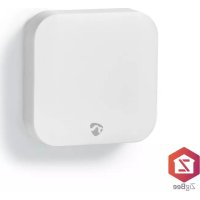
Zigbee ZBWS10WT - Controller NEDIS - Free user manual and instructions
Find the device manual for free Zigbee ZBWS10WT NEDIS in PDF.



| Product type | Zigbee wireless smart button |
| Brand | Nedis |
| Model | ZBWS10WT |
| Category | Controller |
| Dimensions (L x W x H) | 50 x 50 x 14 mm |
| Power supply | CR2032 button cell battery |
| Battery life | Approximately 1 year |
| Connectivity | Zigbee (requires Nedis SmartLife gateway) |
| Available commands | Single press, double press, long press |
| Intended use | Indoor only |
| Operating temperature range | -10 °C to +50 °C |
| Maximum operating humidity | 95% RH |
| Battery type | Replaceable CR2032 button cell battery |
| Installation | Wall mounting with screw (included) |
| Package contents | Button, battery, screw, battery cover |
| LED indicator | Yes, for pairing status |
| App compatibility | Nedis SmartLife (iOS, Android) |
| Certifications | CE |
| Maintenance and cleaning | Clean with a dry cloth, do not use chemicals |
| Repairability | Battery replacement only, no repairable parts |
| Safety | Keep out of reach of children, risk of battery ingestion, interference with medical implants |
Frequently Asked Questions - Zigbee ZBWS10WT NEDIS
User questions about Zigbee ZBWS10WT NEDIS
0 question about this device. Answer the ones you know or ask your own.
Ask a new question about this device
Download the instructions for your Controller in PDF format for free! Find your manual Zigbee ZBWS10WT - NEDIS and take your electronic device back in hand. On this page are published all the documents necessary for the use of your device. Zigbee ZBWS10WT by NEDIS.
USER MANUAL Zigbee ZBWS10WT NEDIS
Works with Nedis SmartLife
ZBWS10WT
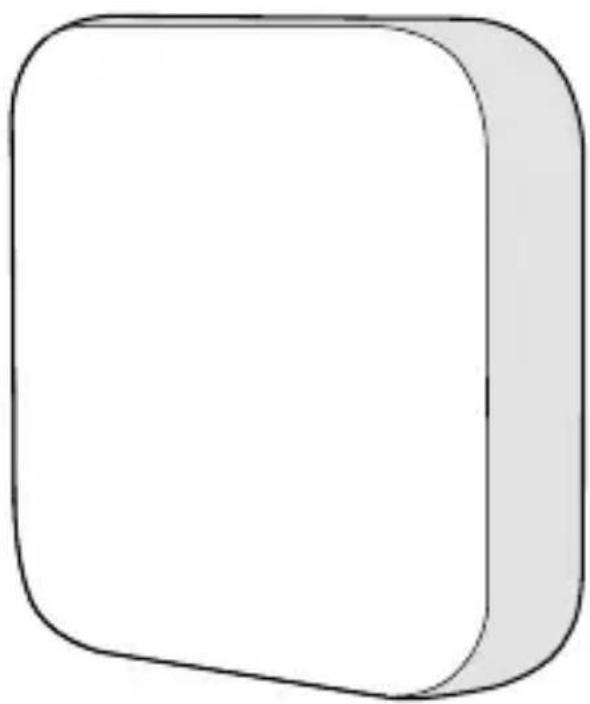
natural_image
Simple 3D rounded square shape with no text or symbols
Quick start guide 3

Kurzanleitung
8

EN
Quick start guide
Zigbee Smart Button
ZBWS10WT
Intended use
The Nedis ZBWS10WT is a wireless, battery powered smart button.
With this button you can control linked products from the Nedis SmartLife product line.
You can connect the product wirelessly to the Nedis SmartLife app via the Zigbee gateway.
The button has three different commands: single tap, double tap and long press.
When you have connected the product to the app, you can link the three commands of the Zigbee Wireless Wall Switch to your other Nedis SmartLife products and control them.
The product is intended for indoor use only. The product is not intended for professional use. Any modification of the product may have consequences for safety, warranty and proper functioning.
Specifications
| Product Zigbee Smart Button | |
| Article number ZBWS10WT | |
| Dimensions (l x w x h) 50 x 50 x 14 mm | |
| Type of battery CR2032 button cell battery | |
| Battery lifetime 1 year | |
| Commands Single tap/double tap/long press | |
| Temperature range -10 °C - +50 °C | |
| Operating humidity Maximum 95 % RH | |
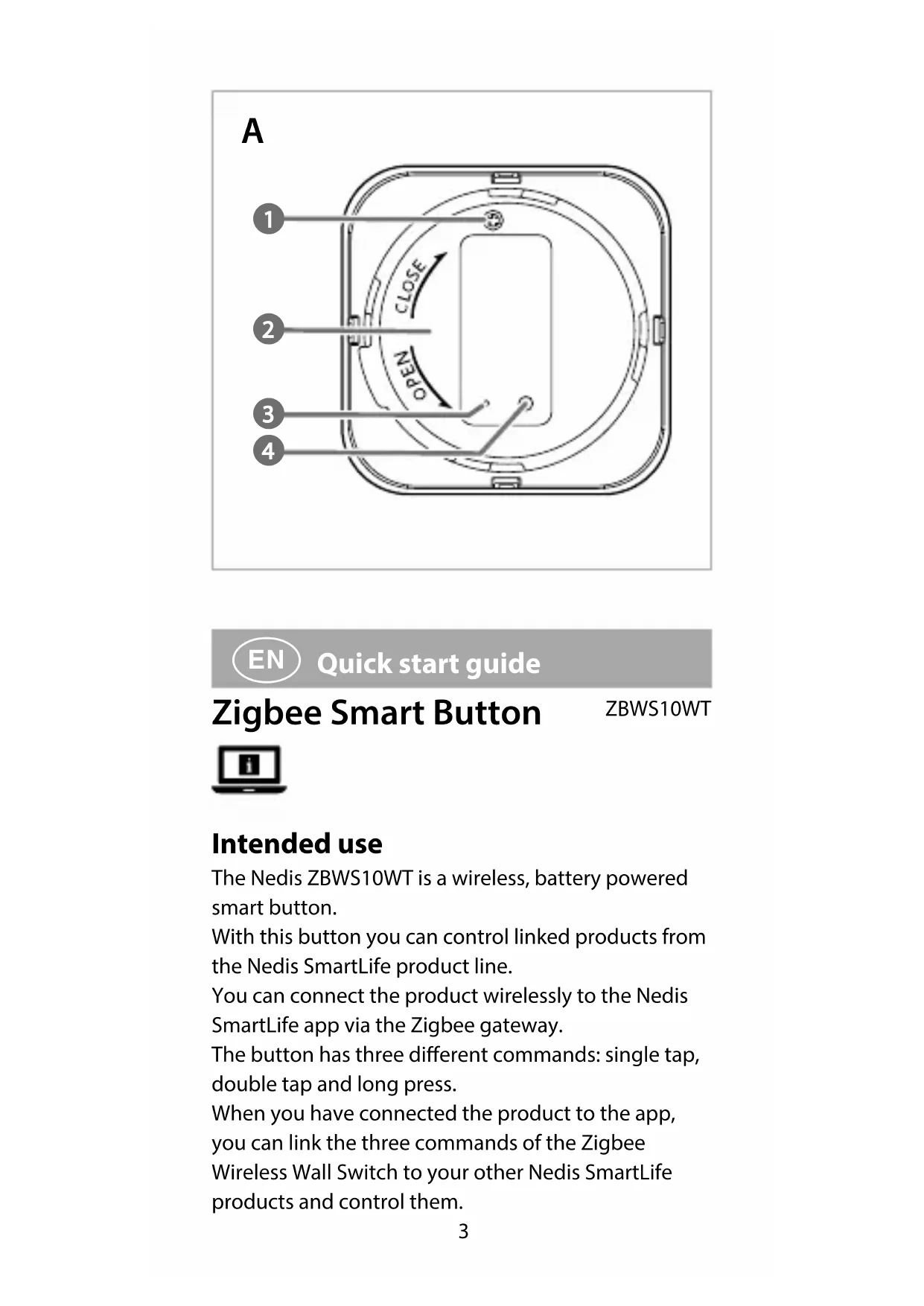
Main parts (image A)
1 Screw
3 LED light
2 Battery cover
4 Reset button
Safety instructions
WARNING
- Ensure you have fully read and understood the instructions in this document before you install or use the product. Keep the packaging and this document for future reference.
- Only use the product as described in this document.
- Do not use the product if a part is damaged or defective. Replace a damaged or defective product immediately.
- Do not drop the product and avoid bumping.
- Do not expose the product to water or moisture.
- This product may only be serviced by a qualified technician for maintenance to reduce the risk of electric shock.
- Children should be supervised to ensure that they do not play with the product.
- Do not dismantle, open or shred secondary cells or batteries.
- In the event of a cell leaking, do not allow the liquid to come in contact with the skin or eyes. If contact has been made, wash the affected area with copious amounts of water and seek medical advice.
- Always keep button cell batteries, both full and empty, out of reach of children to avoid the chance of swallowing. Dispose of used batteries immediately and safely. Button cell batteries can cause serious internal chemical burns in as little as two hours when swallowed. Keep in mind that the first symptoms may look like child diseases like coughing or drooling. Seek immediate medical attention when you suspect that batteries have been swallowed.
- Some wireless products may interfere with implantable medical devices and other medical equipment, such as pacemakers, cochlear implants and hearing aids. Consult the manufacturer of your medical equipment for more information.
- Do not use the product at locations where the use of wireless devices is prohibited due to potential interference with other electronic devices, which may cause safety hazards.
Placing the batteries
-
Remove the screw A 1 with a screwdriver.
-
Rotate the battery cover A ② counterclockwise to open the battery compartment.
-
Place the battery inside. Observe the plus (+) and minus (−) marks on the battery and product and ensure correct placement.
The product automatically switches on. - Place the battery cover and rotate A 2 clockwise to close the battery compartment.
- Fasten 12 by screwing A 1 back in.
Connecting to the Zigbee gateway
Make sure the Zigbee gateway is connected to the Nedis SmartLife app.
For information on how to connect the gateway to the app, consult the manual of the gateway.
- Open the Nedis Smartlife app on your phone. Select the Zigbee gateway to enter the gateway interface.
- Tap Add subdevice.
The app asks if the product is in pairing mode. LED light A 3 blinks to indicate pairing mode is active.
- Press LED already Blink if 13 is blinking.
If A3 is not blinking, activate the pairing mode manually. Press and hold the reset button A4 for 5 seconds.
The status indicator LED A3 starts blinking to indicate pairing mode is active.
After a few seconds, the product appears on the interface.
- Rename the product by tapping above the current name.
- Tap Done to confirm and save the connection.
Programming buttons
The product has three commands: single tap, double tap and long press. Each command can be assigned to a different action for a linked Nedis SmartLife product.
- Open the Nedis Smartlife app on your phone.
-
Tap Smart scenes at the bottom of the home screen.
-
Tap Automation to open the automation interface.
- Tap + in the top right corner.
- Choose one of the commands in the app under Condition.
- Specify what you want the command to do with a linked Nedis SmartLife product.
- Tap Save.
Removing the product from the app
- Open the Smart Button interface in the app.
- Tap the pencil icon in the top right corner.
- Tap Remove Device.
Declaration of Conformity
We, NEDIS, as manufacturer, declare that product ZBWS10WT from the brand Nedis, produced in China was tested according to all relevant CE standards / regulations and passed all tests.
The complete Declaration of Conformity (+ safety datasheet if applicable) can be found and downloaded via http://webshop.nedis.com For other compliant-related information, please contact customer service desk for support:
via website: http://www.nedis.com
via e-mail: service@nedis.com
NEDIS B.V., De Tweeling 28,
5215 MC 's-Hertogenbosch, THE NETHERLANDS
Zigbee Smart Button
ZBWS10WT
The Netherlands 12/21
Brand : NEDIS
Model : Zigbee ZBWS10WT
Category : Controller