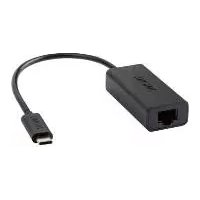
TUCA A1 - USB adapter TRONIC - Free user manual and instructions
Find the device manual for free TUCA A1 TRONIC in PDF.


| Brand | Tronic |
| Model | TUCA A1 |
| Product type | USB-C Adapter (Multifunction Hub) |
| Dimensions (L x W x H) | Approx. 58 x 40 x 15 mm |
| Weight | Approx. 33 g |
| Power input (USB-C PD) | 5 – 20 V ⎓, 5 A max (100 W max in pass-through mode) |
| Hub power consumption | Approx. 10 W |
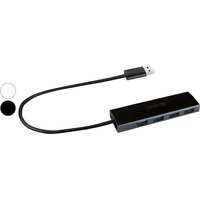
| Available ports | 1 x USB-A 3.0, 1 x HDMI (4K@30Hz), 1 x USB-C PD input, 1 x USB-C input (fixed cable 15 cm) |
| USB-A data rate | Up to 5 Gbps (USB 3.0, backward compatible with USB 2.0/1.1) |
| USB-A output current | 1.5 A max |
| Maximum HDMI resolution | 4K UHD (3840 x 2160) at 30 Hz |
| Compatible operating systems | Windows 7/8/10, Mac OS X v10.2 or higher |
| System requirements | USB 3.1 Type-C / Thunderbolt 3 port |
| Operating temperature | 5 – 35 °C |
| Storage temperature | 0 – 45 °C |
| Allowable humidity | 0 – 70 % (non-condensing) |
| Care and cleaning | Unplug before cleaning; use a soft, dry cloth; avoid abrasive products or solvents |
| Safety | Do not open; avoid moisture; do not cover during use; keep out of reach of children |
| Spare parts and repairability | No user-serviceable parts; repair by qualified personnel only |
| Warranty | 3 years from date of purchase |
| Article number (IAN) | 387372_2104 |
| Package contents | 1 USB-C adapter, 1 user manual |
Frequently Asked Questions - TUCA A1 TRONIC
User questions about TUCA A1 TRONIC
0 question about this device. Answer the ones you know or ask your own.
Ask a new question about this device
Download the instructions for your USB adapter in PDF format for free! Find your manual TUCA A1 - TRONIC and take your electronic device back in hand. On this page are published all the documents necessary for the use of your device. TUCA A1 by TRONIC.
USER MANUAL TUCA A1 TRONIC
USB-C ADAPTOR Operation and Safety Notes
FR BE
Operation and Safety Notes Page 29
FR / BE
Warnings and symbols used ...... Page 30
Introduction Page 32
Intended use......Page 32
Trademark notice......Page 33
Scope of delivery....Page 33
Safety notices ...... Page 34
Parts description...... Page 38
Technical data Page 38
Before use ...... Page 40
Operation and use......Page 41
Troubleshooting......Page 44
Storage during non-use......Page 46
Cleaning and care......Page 46
Disposal Page 46
Warranty and service ...... Page 48
Warranty Page 48
Warranty claim procedure ...... Page 49
Service Page 49
| Warnings and symbols usedThe symbols shown are used in these instructions for use, on the packaging and on the unit: | |
 | DANGER! This symbol with the signal word “DANGER” indicates a hazard with a high level of risk which, if not avoided, will result in serious injury or death. |
 | WARNING! This symbol with the signal word “WARNING” indicates a hazard with a medium level of risk which, if not avoided, could result in serious injury or death. |
 | CAUTION! This symbol with the signal word “CAUTION” indicates a hazard with a low level of risk which, if not avoided, could result in minor or moderate injury. |
 | ATTENTION! This symbol with the signal word" ATTENTION" indicates a potential property damage, if not avoided, could result in property damage. |
 | NOTE: This symbol with the signal word "NOTE" provides additional useful information. |
 | Direct current / voltage |
 | This symbol means that the operating instructions must be observed before using the product. |
 | CE mark indicates conformity with relevant EU directives applicable for this product. |
USB-C ADAPTOR
●Introduction
We congratulate you on the purchase of your new product. You have chosen a high quality product. The instructions for use are part of the product. They contain important information concerning safety, use and disposal. Before using the product, please familiarise yourself with all of the safety information and instructions for use. Only use the product as described and for the specified applications. If you pass the product on to anyone else, please ensure that you also pass on all the documentation with it.
Intendeduse
This USB-C ADAPTOR(hereinafter called "product") is an Information Technology device. This product is for converting the single USB-C port of your computer or mobile devices into a USB-C input port for connecting power adapter for charging, a USB-A 3.0 port for data transfer and a HDMI port for connecting your device with an external high definition display. This product may only be used privately and not for industrial or commercial purposes. Furthermore, this product may not be used in tropical
climates. Any other use is considered improper. Any claims resulting from improper use or due to unauthorised modification of the product will be considered un-warranted. Any such use is at your own risk. Only use the product as described in the present user's manual.
•Trademarknotice
- USB is a registered trademark of USB Implementers Forum, Inc.
- The TRONIC trademark and trade name is the property of their respective owners.
- Thunderbolt and the Thunderbolt Logo are trademarks of Intel Corporation in the U.S and/or other countries.
- Windowsis a registered trademark of Microsoft Corporation in the United States and other countries.
- Any other names and products may be trademarks or registered trademarks of their respective owners.
- Scope of delivery
1 USB-C adaptor
1 Instructions for use
●Safetynotices
Before using the product, please familiarize yourself with all of the safety instructions and instructions for use! When passing this product on to others, please also include all the documents!
⚠ WARNING! DANGER TO LIFE AND RISK OF ACCIDENT FOR INFANTS AND CHILDREN!
DANGER!
Risk of suffocation!
Never leave children unsupervised with the packaging material. The packaging material poses a suffocation hazard. Children frequently underestimate the dangers. The packaging material is not a toy.
This appliance can be used by children aged from 8 years and above and persons with reduced physical, sensory or mental capabilities or lack of experience and knowledge if they have been given supervision or instruction concerning use of the appliance in a safe way and understand the hazards involved. Children shall not play with the appliance.
Cleaning and user maintenance shall not be made by children without supervision. The product is not a toy.

ATTENTION!
Risk of property damage
- This product does not contain any parts which can be serviced by the user.
- Keep the product away from moisture, dripping and splash water!
- Do not place burning candles or other open fire on or near to the product.
- Check the product before every use! Discontinue use if any damage to the product or the charging cable is detected!
- If you notice smoke or unusual noise or odour, unplug the product immediately.
- Sudden temperature changes may cause condensation inside the product. In this case, allow the product to acclimate for some time before using it again to prevent short circuits!
- Do not operate the product near heat sources, e.g. radiators or other devices emitting heat!
- Do not throw the product into fire and do not expose to high temperatures.

CAUTION!
Do not try to open the product! It has no internal parts requiring maintenance.
- It is necessary to repair the product if they have been damaged in any way, for example, if the housing is damaged, if liquid or objects have penetrated the product or if the product has been exposed to rain or moisture.
- Repair work is also required if the product is not working properly or has been dropped. If smoke is produced, or there are any unusual sounds or smells, disconnect the product immediately. In such cases, the product should not be used until they have been inspected by authorised service personnel. Only have the product repaired by qualified personnel. Never open the housing of the product.

WARNING! Ensure that:
- no direct heat sources (e.g. heating) can affect the product
• the product is not exposed to bright artificial light
- any contact with splashed and dripping water and corrosive liquids is avoided and the product are not operated in the vicinity of
water. In particular, the product should never be submerged in liquid; do not place any vessels filled with liquid, for example, vases or drinks, on or near the product
- the product are not used in the immediate vicinity of magnetic fields (e.g. speakers)
- no fire sources (e.g. burning candles) are placed on or near the product
- no foreign objects penetrate the product
- the product are never subjected to extreme temperature fluctuations as this could result in condensation and electrical short circuits. If the product were subjected to extreme temperature fluctuations, however, wait (approx. 2 hours) until the product have reached ambient temperature before use
- the product are never subjected to excessive shocks and vibrations
- when using an optional USB power supply, its operating instructions are observed
- connected cables are always laid in such a manner that nobody can step on them or trip over them. There is a risk of injury
- no objects are placed on a connected cable and cables are not connected over sharp edges because they could be damaged.
- the product must not be covered during use.
●Partsdescription
Please refer to the fold out page.
1 USB 3.0 Type-A port
2 HDMI output port
3 USB Type-C PD input port
4 USB-C adaptor
5 USB Type-C input plug
●Technical data
General
USB Type-C input plug 5 voltage / current: 5 V ——, 900 mA
USB Type-C input cable length: Approx. 15 cm
Operating temperature: 5 - 35 °C
Storage temperature: 0 - 45 °C
Humidity (no condensation): 0 - 70 %
Dimensions:
Approx. 58 x 40 x 15 mm
Weight:
Approx. 33 g
System Requirements
- Computer, tablet or smartphones with USB 3.1 Type-C / Thunderbolt™ 3 Computer Port
- Operating systems: Windows 7 / 8 / 10 or Mac OS X v10.2 or above
• HDMI cable with HDMI 1.4 specifications
USB 3.0 Type-A port
USB specifications:
USB 3.0 (Backwards compatible with USB 2.0 and 1.1)
Data transfer rate:
Up to 5 Gbps
USB output voltage:
5 V ——, + / - 5 %
USB output current:
Max. 1.5 A
USB Type-C Power Delivery PD 2.0 Input
Input voltage / current:
5 -20 V ---, 5 A max. (up to 100 W pass-through charging, minus approx. 10 W for hub operation)
HDMI ouput port
Display resolution:
- Up to 4K Ultra High Definition (UHD) resolutions (3840 x 2160 @ 30Hz)
- Backward compatible with 1440p / 1080p / 720p / 480p / 360p @ 50/60Hz
The specification and design may be changed without notification
●Before use
Note: All parts have to be unpacked and the packaging material has to be removed completely. Before use, verify the package contents are complete and undamaged!
Operation and use
Product setup
- Plug the USB Type-C input plug 5 into an available USB Type-C / Thunderbolt port on your computer or mobile device.
i Note:
- This product is compatible with Thunderbolt 3^TM . Please make sure that the host USB-C port on your computer or mobile device complies with the USB 3.0/3.1 specification.
- The product must not be covered during use.
Using USB-C Power Delivery input
- Charge your computer or mobile device by plugging the USB-C PD power adapter (not included) into the USB Type-C PD input port 3.
i Note:
- The USB Type-C PD input port 3 is only for charging USB-C laptops or mobile devices whose USB-C Port supports USB Power Delivery (PD).
- The up to 100 W charging speed can only be achieved when used with a 100 W rated USB-C PD cable (not included) in combination with 100 W rated type-C PD power adapter (not included). Also approx. 10 W will be consumed by the hub for operation.
Using the USB 3.0 Type-A ports
- Connect your smartphone, tablet, mouse, keyboard, hard drive or other USB peripherals via the USB 3.0 Type-A port 1 and transfer data between your computer and connected devices.
i Note:
- Charging from USB 3.0 Type-A output port 1 may NOT work for some devices. Please check the manufacturer's requirement of the devices you connect.
- In order to achieve maximum performance of the USB 3.0 Type-A port 1, your computer system, peripherals, and cables must all support USB 3.0.
- For maximum performance, the connected devices should not exceed a max current of 1.5 A, otherwise connections may become unstable or disconnect entirely.
- The USB 3.0 Type-A port 1 will sync but not charge tablets and other devices which require a higher power input.
Using HDMI output port
- Connect to your UHDTV, PC monitor or projector with an HDMI 1.4 cable (not included) via the HDMI output port 2 and watch videos from your USB-C laptop on
your TV, monitor, projector or other HDMI-enabled devices.
Note:
- A 4K capable display and a 4K capable HDMI cable are required to achieve 3840 x 2160 resolution.
- This product supports UHD resolution up to 4k x 2k @ 30Hz.
⚠️ DANGER! Disconnecting the product from your computer or mobile device
- Before disconnecting a USB device / memory card from the product, ensure that the data transfer has completed.
- Always disconnect the connected USB devices / memory cards via your operating system's eject function before physically disconnecting the USB devices / memory cards from the product or the product (with connected USB devices / memory cards) from your computer. Incorrect disconnection could result in data loss or damage to the USB devices/ memory cards.
- For some USB peripherals that need to install a driver before use, you will receive the driver with the purchase of the device or from the device manufacturer.
●Troubleshooting
● = Problem
● = Cause
= Solution
● The product is not detected by your PC.
It may be that the product is not connected properly.
○ Check that it is connected to your PC properly.
The product may not be compatible with your PC or mobile device.
○ Check whether your computer or mobile device match the system requirements as stated in "System Requirements" in the "Technical Specifications" of this user manual.
- No video output after connecting the product with your PC and your external display.
It may be that the product, your PC and your external display are not connected properly.
○ Check the connection again.
The HDMI cable is broken.
○ Replace with another HDMI cable and try again.
The preset display resolution of your PC is too high which is outside the range of the compatible resolution of your external display.
○ Lower the display resolution of your PC to match the compatible resolution of your external display.
The PC is charging slowly.
● Charging cable is damaged.
○ Check your charging cable to see whether there are any damages.
☐ Ensure that the correct wattage power adapter is used for charging your PC. Please refer to your device specification and manual for more information regarding the charging of your device.
●Storage during non-use
- Store the product in a dry dust-free location, protected from direct sunlight.
●Cleaning and care
- Unplug the product before cleaning and remove all plugs!
- No acid, chafing or solvent cleaning agents should be used or the product can be damaged.
- Only clean the outside of the product using a soft, dry cloth!
- At persistent soiling, a mild cleaning agent can be used.
●Disposal
Packaging:
The packaging is made of environmentally friendly materials, which may be disposed of through your local recycling facilities.

Observe the marking of the packaging materials for waste separation, which are marked with abbreviations (a) and numbers (b)
with following meaning: 1 - 7: plastics / 20 - 22: paper and fibreboard / 80 - 98: composite materials.
Product:

Contact your local refuse disposal authority for more details of how to dispose of your worn-out product.
The adjacent symbol of a crossed out dustbin on wheels indicates this product is subject to Directive 2012/19/EU. This directive states at the end of the life this product must not be disposed of through regular household refuse but must be returned to special collection sites, recycling depots or waste management companies.
This disposal is free of charge to you.
Protect the environment and dispose of properly.

The product is recyclable, subject to extended manufacturer responsibility, and collected separately. an be obtained from your local authority.
●Warranty and service
Warranty
The product has been manufactured to strict quality guidelines and meticulously examined before delivery. In the event of product defects you have legal rights against the retailer of this product. Your legal rights are not limited in any way by our warranty detailed below.
The warranty for this product is 3 years from the date of purchase. The warranty period begins on the date of purchase. Please keep the original sales receipt in a safe location. This document is required as your proof of purchase.
Should this product show any fault in materials or manufacture within 3 years from the date of purchase, we will repair or replace it – at our choice – free of charge to you. This warranty becomes void if the product has been damaged, or used or maintained improperly.
The warranty applies to defects in material or manufacture. This warranty does not cover product parts subject to normal wear, thus possibly considered consumables (e.g. batteries) or for damage to fragile parts, e.g. switches, rechargeable batteries or glass parts.
●Warranty claim procedure
To ensure quick processing of your case, please observe the following instructions:
Please have the till receipt and the item number (IAN 387372_2104) available as proof of purchase.
You will find the item number on the rating plate, an engraving, on the front page of the instructions for use (bottom left), or as a sticker on the rear or bottom of the product.
If functional or other defects occur, please contact the service department listed either by telephone or by e-mail.
You can return a defective product to us free of charge to the service address that will be provided to you. Ensure that you enclose the proof of purchase (till receipt) and information about what the defect is and when it occurred.
Service
GB Service Great Britain
Tel.: 08000569216
E-Mail: owim@lidl.co.uk
IE Service Ireland
Tel.: 1800 200736
E-Mail: owim@lidl.ie