AWE05EU - Other computer accessories TARGUS - Free user manual and instructions
Find the device manual for free AWE05EU TARGUS in PDF.



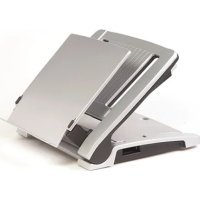
| Product Type | Ergonomic laptop desk stand |
| Brand | Targus |
| Model | AWE05EU |
| Recommended Use | Replace a desktop computer with a laptop |
| Main Functions | Adjustable tilt, integrated document holder, compartment for docking station or hub, cable management |
| Compatibility | Targus docking stations and OEM modules (IBM, Toshiba, HP) |
| Security | Compatible with security cable (notch lock or video port lock) |
| Tilt Angle | Adjustable via side buttons |
| Document Holder | Integrated, tilt adjustable with detent buttons |
| Cable Management | Integrated cable organizer for a tidy workspace |
| Storage Compartment | For Targus docking station or hub, with removable cover |
| Warranty | 2 years against material and manufacturing defects |
| Product Registration | Recommended at http://www.targus.com/registration.asp |
| Technical Support | Website and phone numbers by country (see manual) |
| Country of Origin | United States (Targus Group International, Inc., Anaheim, CA) |
Frequently Asked Questions - AWE05EU TARGUS
User questions about AWE05EU TARGUS
0 question about this device. Answer the ones you know or ask your own.
Ask a new question about this device
Download the instructions for your Other computer accessories in PDF format for free! Find your manual AWE05EU - TARGUS and take your electronic device back in hand. On this page are published all the documents necessary for the use of your device. AWE05EU by TARGUS.
USER MANUAL AWE05EU TARGUS
Ergo D-Pro™ desktop stand for notebooks

USERGUIDE
Table of Contents
English
Targus Ergo D-Pro™ Desktop Stand for Notebooks. 3
Deutsch
Ergo D-Pro™ Desktopstandner fur Notebooks von Targus 16
Espanol
Congratulations on your purchase of the Targus Ergo D-Pro Desktop Stand for Notebooks. The D-Pro is a unique, ergonomically correct desktop notebook stand that allows a notebook computer to be comfortably used as a desktop replacement. The D-Pro provides a compartment for storage of a Targus Mobile Docking Station or hub and cable management for a tidy workspace.
The D-Pro incorporates a patent pending document holder. This document holder is designed to create a functional workspace with an optimal viewing distance between documents, screen and keyboard.
Setting Up The D-Pro
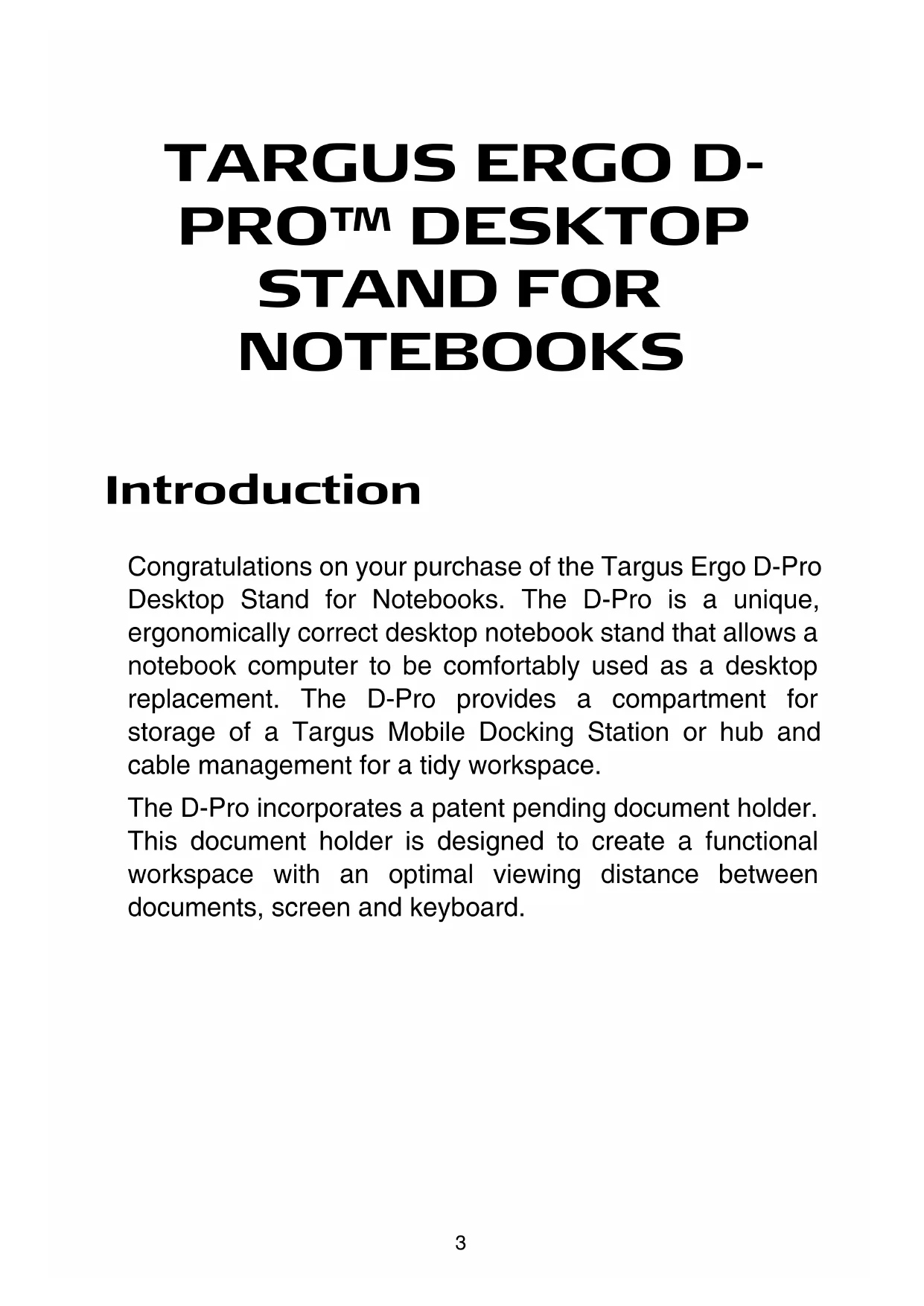
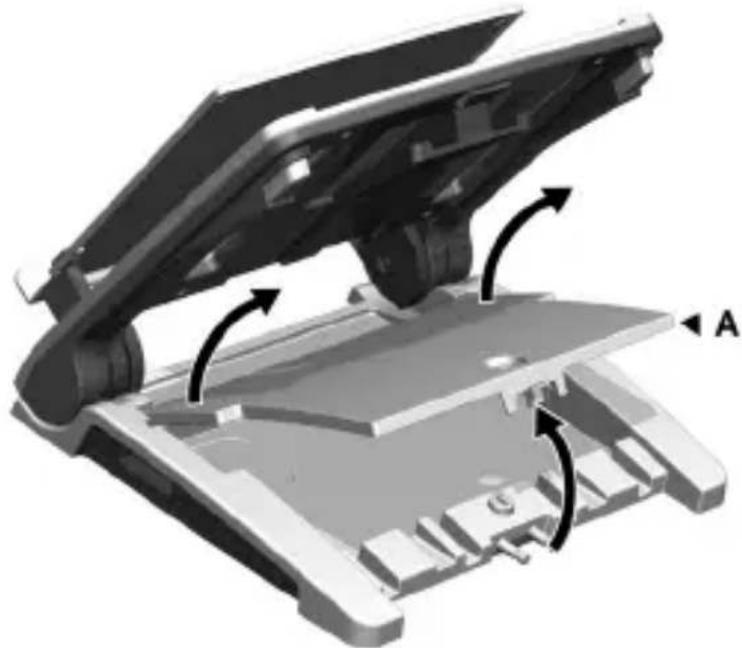
1 Press buttons (A) on both sides to raise the D-Pro to desired angle.
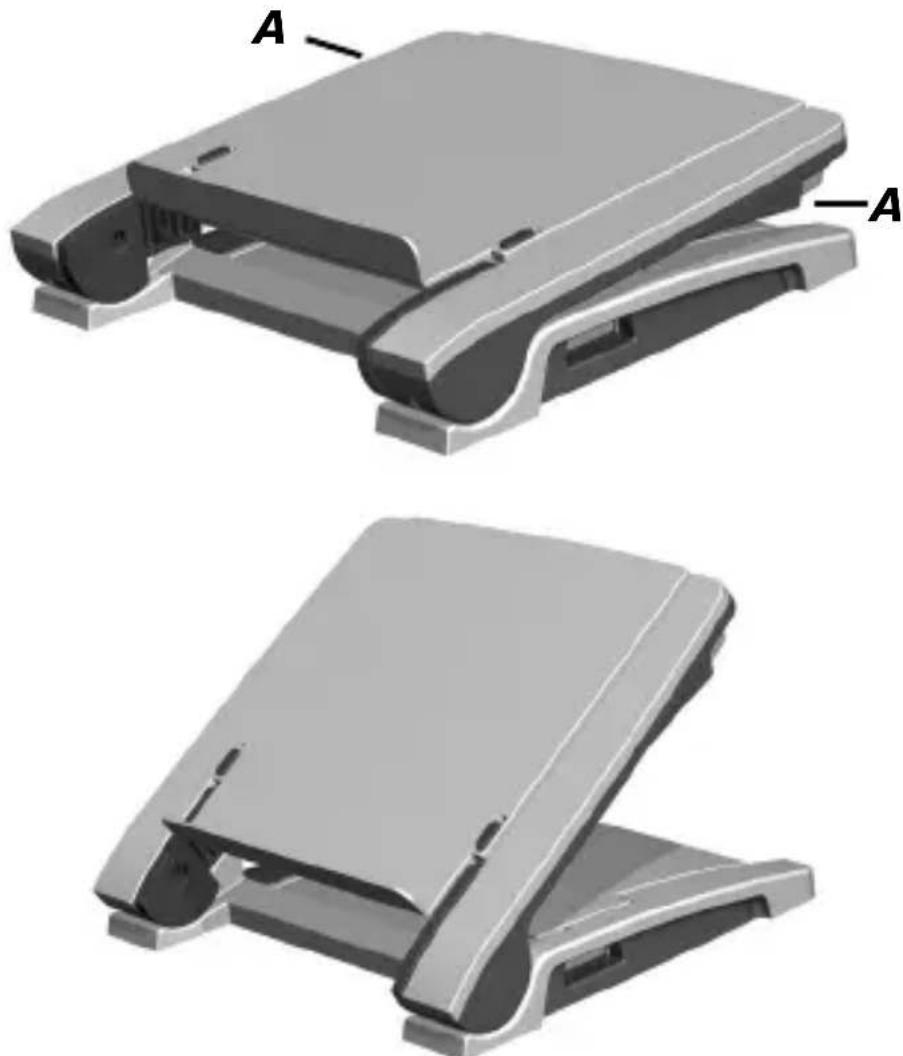
2 Open the document holder and flip it towards you.
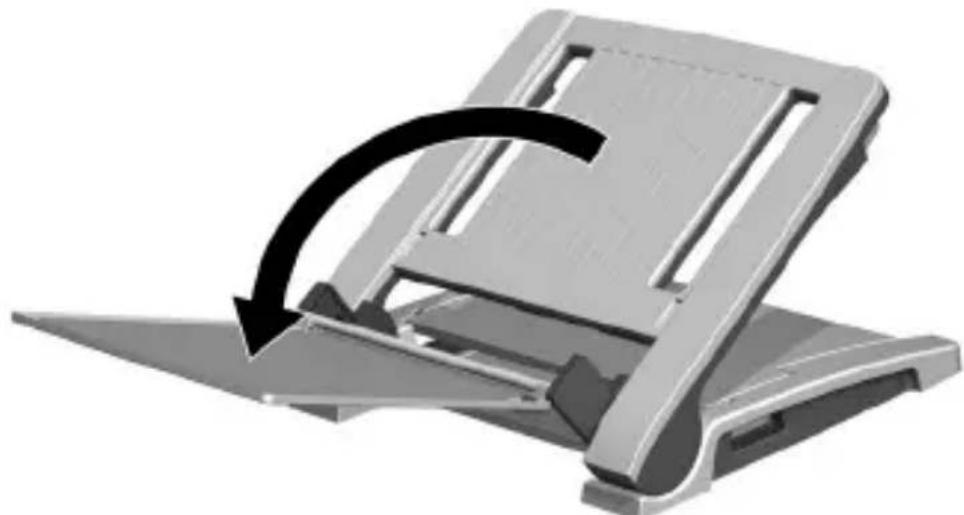
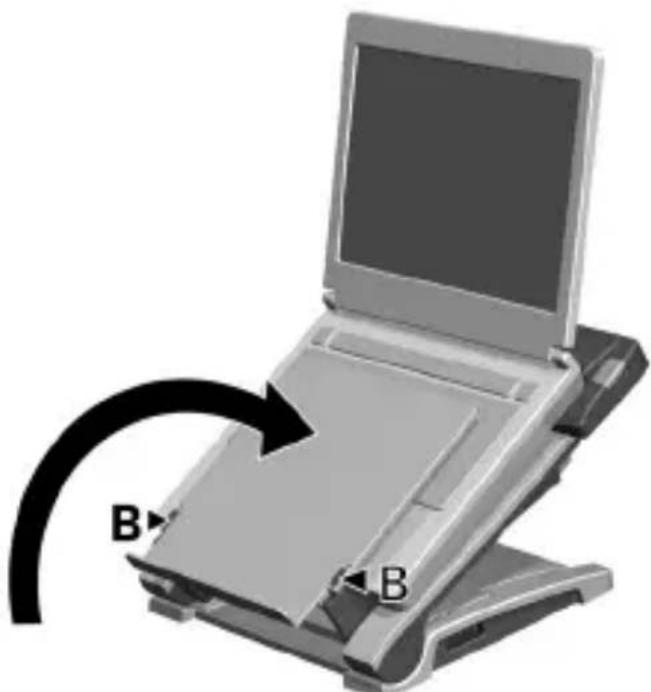
3 Check that the D-Pro is assembled correctly and carefully place your notebook on the stand as shown.
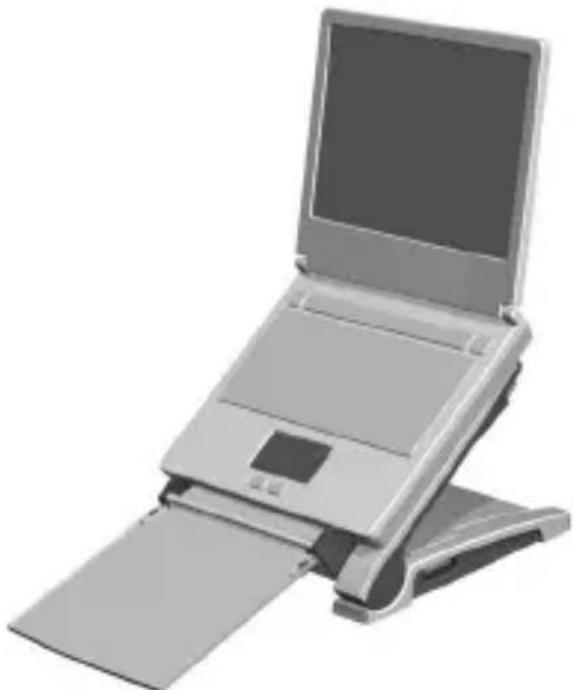
4 Fold the document holder up into place. Adjust the inclination of the document holder by using the shift buttons (B). Attach your external mouse and keyboard and you're ready to work efficiently and ergonomically.
Cable Management
Without Targus Mobile Docking Station
1 Remove compartment cover (A).
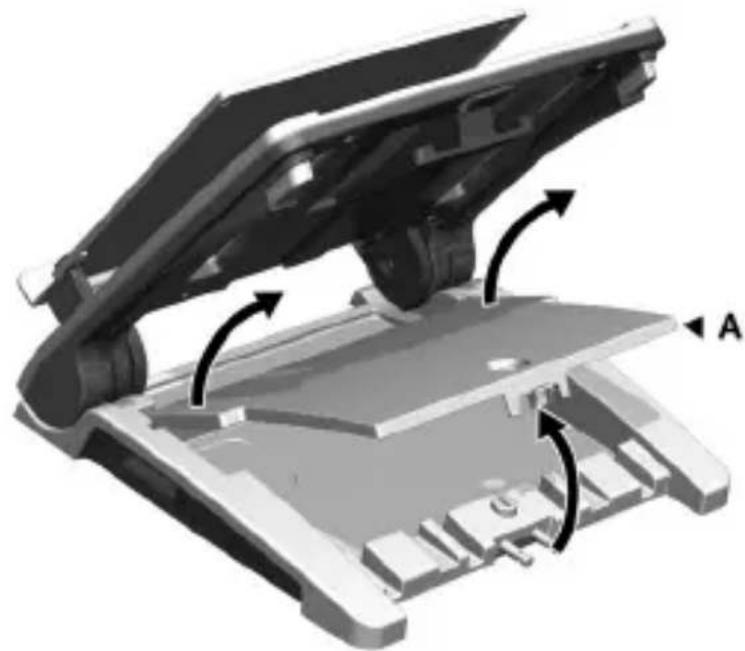
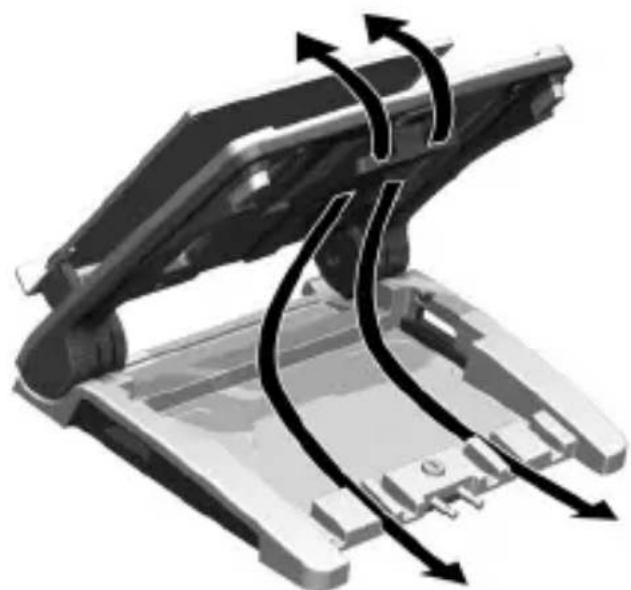
2 Guide cables through as indicated and reinstall compartment cover.
With Targus Mobile Docking Station
1 Remove compartment cover (A).
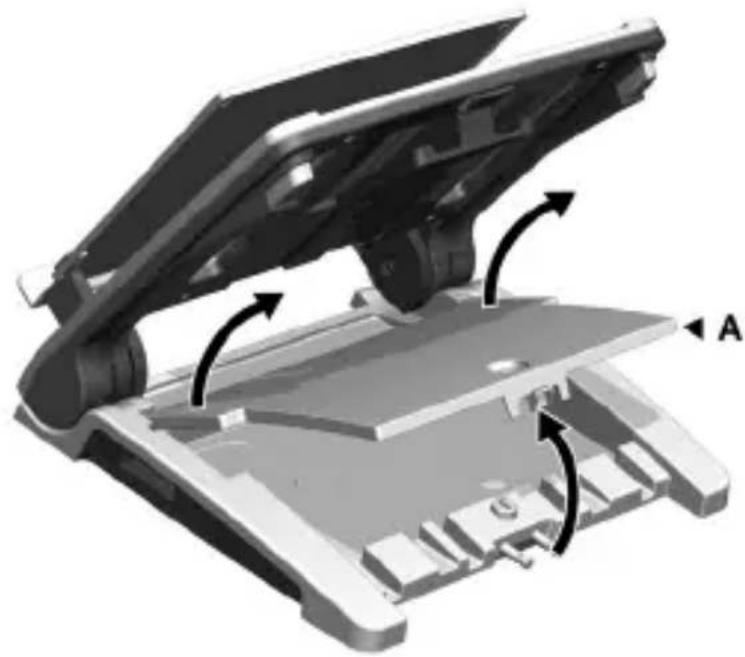
2 Place the Mobile Docking Station in the cavity.
3 Guide cables through (B) and connect them to the docking station.
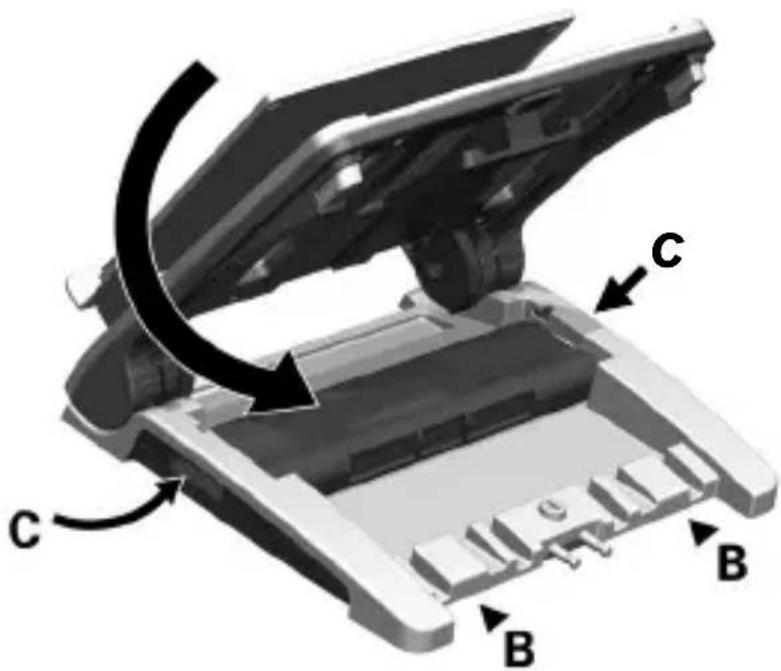
4 Connect your notebook and power supply at (C).
5 Replace compartment cover.
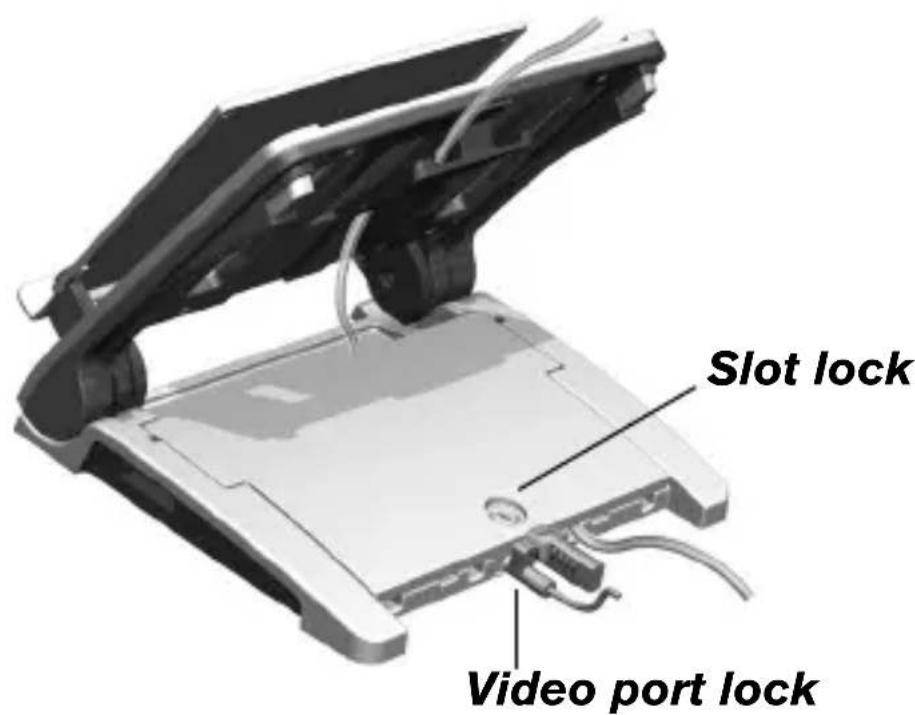
Connecting a Security Cable
The D-Pro offers two options for securing your notebook and peripherals; a slot lock or video port lock.
Follow the usage instructions included with your security cable.
Port Replicator Module
The Port Replicator Module (PRM) allows you to mount your OEM docking station to the D-Pro.
Attention IBM & Toshiba Users
Your docking station may be positioned and attached to the PRM with the screw rivets that are provided. Attach your docking station to the PRM by screwing the two rivets into the PRM plate and docking station before securing to the D-Pro with the knobs.
Alternatively you may use the hook and loop fasteners provided. For instructions, please go to "Outlining the Height" on page 10.
1 Place the PRM onto the D-Pro and screw the knobs onto the plate.
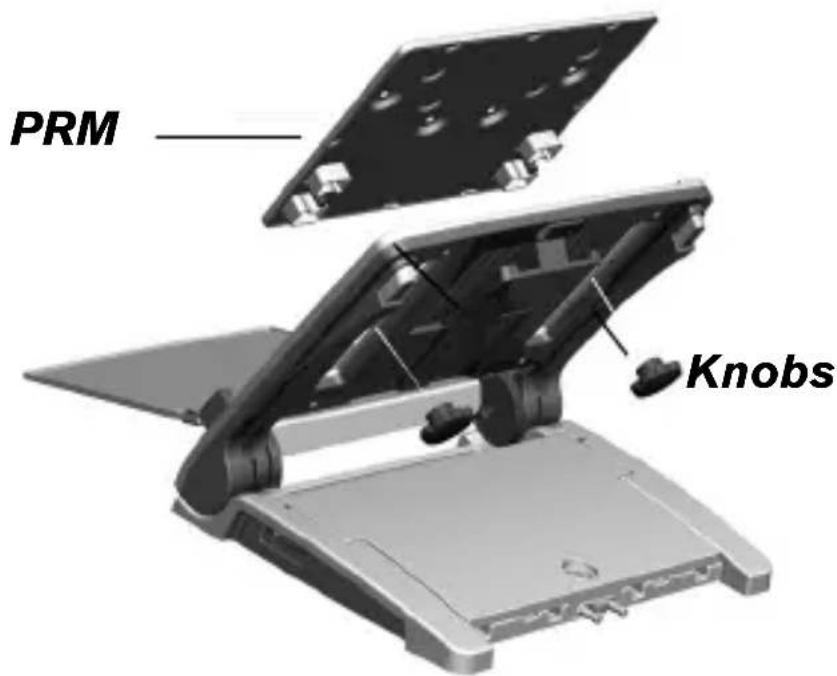
2 Connect your notebook first to your docking station and place them together onto the D-Pro, making sure your notebook is supported at (B) and centred.
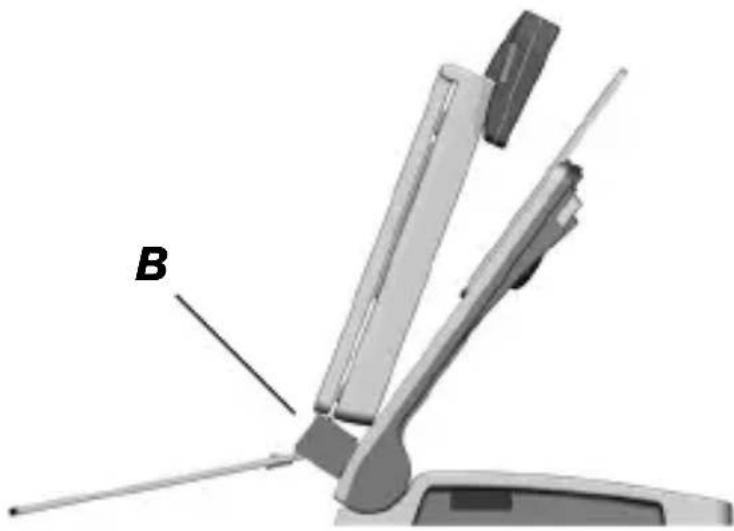
3 Use the knobs to position the PRM after determining the proper position to attach the docking station according to the outlining instructions below.
Outlining the Height
Refer to the instructions for your model of docking station:
IBM Thinkpad Dock II: Line up the holes on the back of your docking station with the holes on the back of the PRM at (D).
HP DC 367B port replicator: Line up the top of your port replicator with the indication lines on the PRM at (E).
Toshiba Advanced port replicator II and III: Line up the top of your port replicator with the indication lines on the PRM at (F).
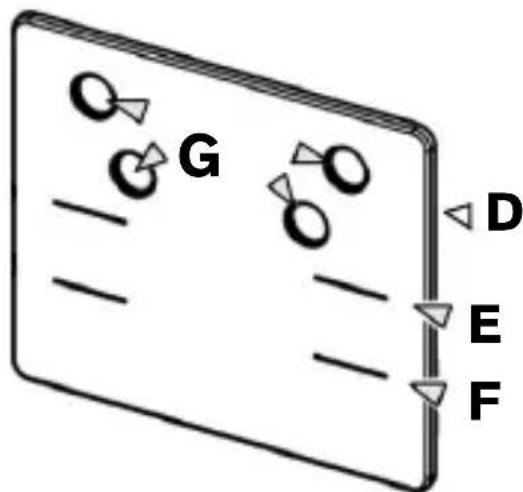
Port Replicator Module (PRM)
The position where the docking station is to be attached to the PRM is now determined.
If you have used the screw rivets to secure your docking station, your installation is complete once you secure the PRM to the D-Pro.
Using the Hook & Loop Fasteners
1 Remove the plastic covering from the four hook and loop fasteners at (G) on the PRM. With the front of the notebook resting on (B), carefully and firmly push the
docking station onto the PRM and hold for at least 20 seconds.
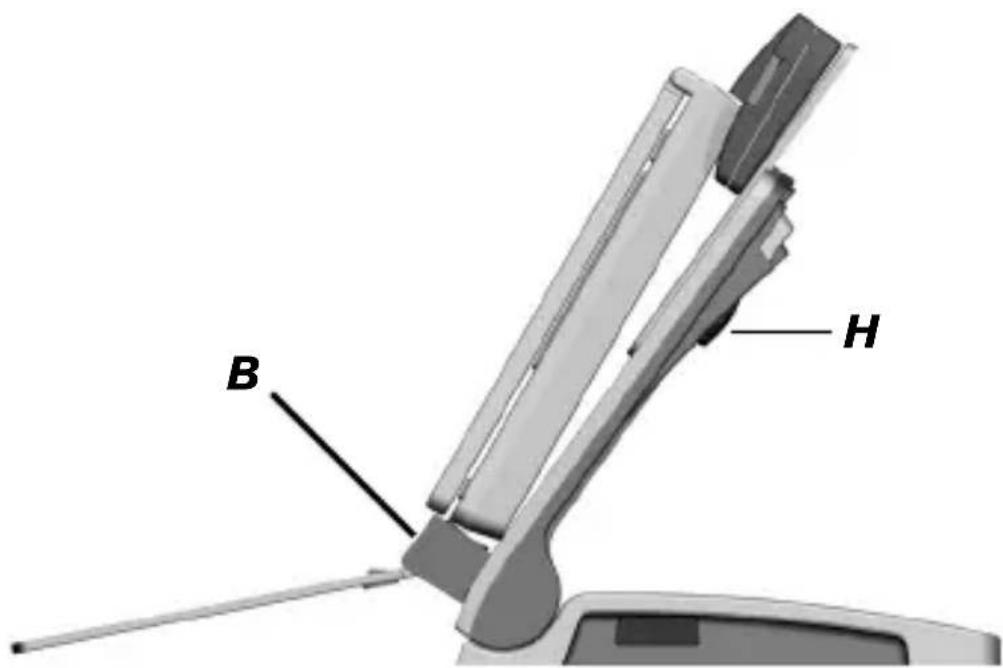
2 The docking station is now attached to the PRM and the notebook screen should be positioned at the centre of the D-Pro.
Your notebook workstation is ready for use.

NOTE: THE POSITION OF THE DOCKING STATION CAN BE ADJUSTED TO SUIT SMALLER OR LARGER NOTEBOOKS BY ADJUSTING THE HEIGHT OF THE PRM USING THE TWO KNOBS AT (H).
Ergonomic Guidelines
The following guidelines will help you to create a comfortable and ergonomic working environment.
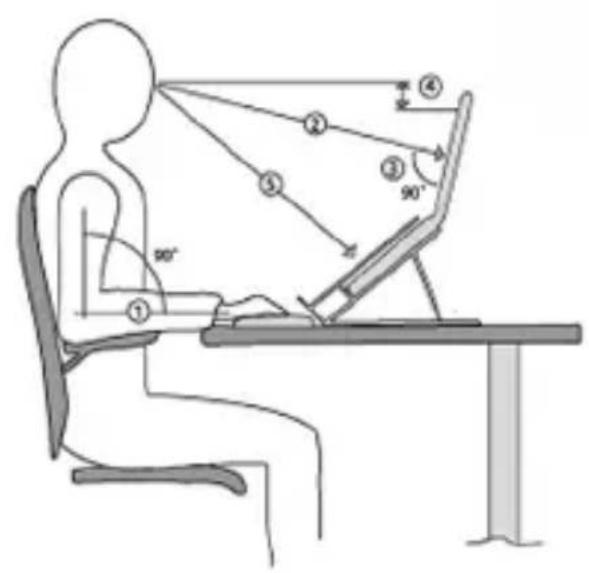
1 Adjust the armrest of your chair such that it is level with the height of the table or keyboard. In this position, your shoulders should be relaxed;
2 Adjust the screen distance; usually between 50-90 cm, so that you can comfortably read the display;
3 Angle the screen so that it is vertical (90 degree angle to your line of sight);
4 Ensure the top of the screen is at eye level or just below;
5 When working with documents, use the in-line document holder between the screen and the keyboard.
Technical Support
For technical questions, please visit:
Internet:
English http://www.targus.com/uk/support.asp
German http://www.targus.com/de/support.asp
Spanish http://www.targus.com/sp/support.asp
Italian http://www.targus.com/it/support.asp
Our knowledgeable staff is also available to answer your questions through one of the following telephone numbers.
Austria 01 795 676 42
Belgium 02-717-2451
Denmark +45 35 25 87 51
Finland 0922948016
France 01-6453-9151
Germany 0211-6579-1151
Italy 02-4827-1151
Netherlands 02 0504 0671
Norway 022577729
Portugal +351 21 415 4123
Spain 91 745 6221
Sweden 08-751-4058
Switzerland 01-212-0007
United Kingdom 020-7744-0330
Eastern Europe & others +31 0 20 5040671
Product Registration
Targus recommends that you register your Targus accessory shortly after purchasing it. To register your Targus accessory, go to: http://www.targus.com/registration.asp
You will need to provide your full name, email address, phone number, and company information (if applicable).
Warranty
Targus warrants this product to be free from defects in materials and workmanship for two years. If your Targus accessory is found to be defective within that time, we will promptly repair or replace it. This warranty does not cover accidental damage, wear and tear, or consequential or incidental loss. Under no conditions is Targus liable for loss of, or damage to a computer; nor loss of, or damage to, programs, records, or data; nor any consequential or incidental damages, even if Targus has been informed of their possibility. This warranty does not affect your statutory rights.
Product Registration: http://www.targus.com/registration.asp
Targus Recycling Directive
At the end of this product's useful life please dispose at an appropriate recycling collection point provided in your country. Targus recycling policy is available for viewing at:
http://www.targus.com/recycling.
Features and specifications subject to change without notice. All other trademarks are the property of their respective owners. © 2006, Targus Group International, Inc. and Targus, Inc., Anaheim, CA 92806 USA.
ERGO D-PROTM DESKTOPSTÄNDER FÜR NOTEBOOKS VON TARGUS
Einführung
English http://www.targus.com/uk/support.asp
Italian 02-4827-1151
Niederlande 02 0504 0671
Norwegen 022577729
Portugal +351 21 415 4123
Spanien 91 745 6221
http://www.targus.com/recycling.
Characteristicas y specificationsujetasacambiossinprevioaviso.Lasdemasmarcascomercialessonpropidaddesustitularesrespectivos. 念 2006,TargusGroupInternational,Inc.yTargus,Inc.,Anaheim,CA92806USA.
SUPPORT DE BUREAU ERGO DPROTMPOUR ORDINATEURS PORTABLES DE TARGUS
Introduction
1 Retirez le couvercle du compartment (A).
Italian http://www.targus.com/it/support.asp
http://www.targus.com/recycling.
Senza Docking Station Portatile Targus
Con Docking Station Portatile Targus
Inglese http://www.targus.com/uk/support.asp
TARGUS ERGO D-PROTM BUREAUSTANDAARD VOOR NOTEBOOKS
Inleiding
Productregistration op: http://www.targus.com/registration.asp
Targus Recycling Directive
Alemão http://www.targus.com/de/support.asp
Espanhol http://www.targus.com/sp/support.asp
Italiano http://www.targus.com/it/support.asp
Onoxpo人身ol especializado está也是非常disponivel para responderasisasusqestoesatravesdeum dos seguintenesnumeros de telephone.
Visit our Website at www.targus.com
Features and specifications subject to change without notice.
©2006 Targus Group International, Inc. and Targus, Inc.
AWE05EU/410-0260-003A