ACP50CA - Other computer accessories TARGUS - Free user manual and instructions
Find the device manual for free ACP50CA TARGUS in PDF.


| Product type | Mobile docking station with video |
| Brand | Targus |
| Model | ACP50CA |
| Video connectors | 1x VGA 15-pin (max 1600x1200, 16-bit) |
| Network connectors | 1x Ethernet RJ-45 10/100 |
| USB ports | 2x USB 2.0 (white, 500 mA) + 2x USB power ports (black, up to 1 A) |
| Audio connectors | 1x stereo output 3.5 mm (green), 1x microphone input 3.5 mm |
| Serial port | 1x RS232 |
| Power supply | AC adapter (required, included) |
| Compatible operating systems | Windows 2000 SP2 or higher, Windows XP SP1 or higher, Windows Vista |
| Minimum system requirements | Intel Pentium or equivalent processor, USB 2.0 port, CD-ROM drive |
| Always On function | Continuous power on black USB ports even when the computer is turned off or in sleep mode |
| Heat dissipation | By natural convection thanks to the raised stand |
| Electrical protection | Overvoltage protection device on each USB port |
| Package contents | Docking station, high-speed USB 2.0 cable, installation CD, AC adapter |
| Warranty | 1 year against defects in materials and workmanship |
Frequently Asked Questions - ACP50CA TARGUS
User questions about ACP50CA TARGUS
0 question about this device. Answer the ones you know or ask your own.
Ask a new question about this device
Download the instructions for your Other computer accessories in PDF format for free! Find your manual ACP50CA - TARGUS and take your electronic device back in hand. On this page are published all the documents necessary for the use of your device. ACP50CA by TARGUS.
USER MANUAL ACP50CA TARGUS
Mobile Docking Station with Video 3
Français
Congratulations on your purchase of the Targus Mobile Docking Station with Video. This portable expansion module allows you to connect through a single USB connection up to 4 USB devices, monitor, network (Ethernet/LAN) connection, speakers, microphone and a serial device.
The docking station also offers Targus Always On technology, Targus Power Port providing twice the USB spec for high power devices, and USB ports that are widely spaced for larger adapters. Targus Always ON provides power to the USB ports even when the notebook is shut-down, disconnected from the docking station or in hibernate/stand-by mode. This allows USB devices that charge via the USB port to keep charging under any circumstance.
Features
Heat dissipation by natural convection:
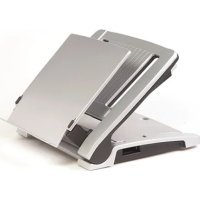
Place the back edge of your laptop on the rubber pads of the Docking Station. Most laptops dissipate heat through the bottom and the more air that's allowed to flow under the bottom, the better chance that heat will dissipate by natural convection.
Comfort
The raised platform provides a more comfortable position for hands and increased airflow for better cooling.
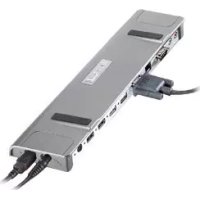
The Docking Station provides the following ports:
- 15-pin VGA (supports up to 1600 × 1200 at 16 bit color)
- Two 3.5 mm Audio: (1) stereo out and (1) microphone in
- RS232 serial
- RJ-45 Ethernet 10/100
- Two USB 2.0 (White)
- Two USB Power Ports (Black) - providing up to 1Amp
Package Contents
In addition to this user's guide, the package contains:
- Targus Mobile Docking Station with Video
- High-speed USB 2.0 upstream cable
- Driver software CD
- AC power adapter (required)
System Requirements
Hardware
- PC with an Intel Pentium processor or equivalent
- CD-ROM drive
-
USB version 2.0 port
-
AC power source (AC adapter required)

NOTE: WHEN CONNECTED TO A USB VERSION 1.1 PORT ON YOUR COMPUTER, THE DOCKING STATION'S PERFORMANCE LEVEL WILL BE LESS THAN OPTIMAL AND THE VIDEO PORT WILL NOT FUNCTION PROPERLY. FOR BEST RESULTS, CONNECT IT TO A USB VERSION 2.0 PORT.
Operating System
- Windows® 2000 Service Pack 2 or greater
- Windows®XP Service Pack 1 or greater
- Windows Vista

NOTE: TO DOWNLOAD LATEST SERVICE PACKS, PLEASE VISIT YOUR COMPUTER MANUFACTURER'S WEBSITE OR MICROSOFT'S DOWNLOAD CENTER:
http://support.microsoft.com
Installing the Device and Drivers
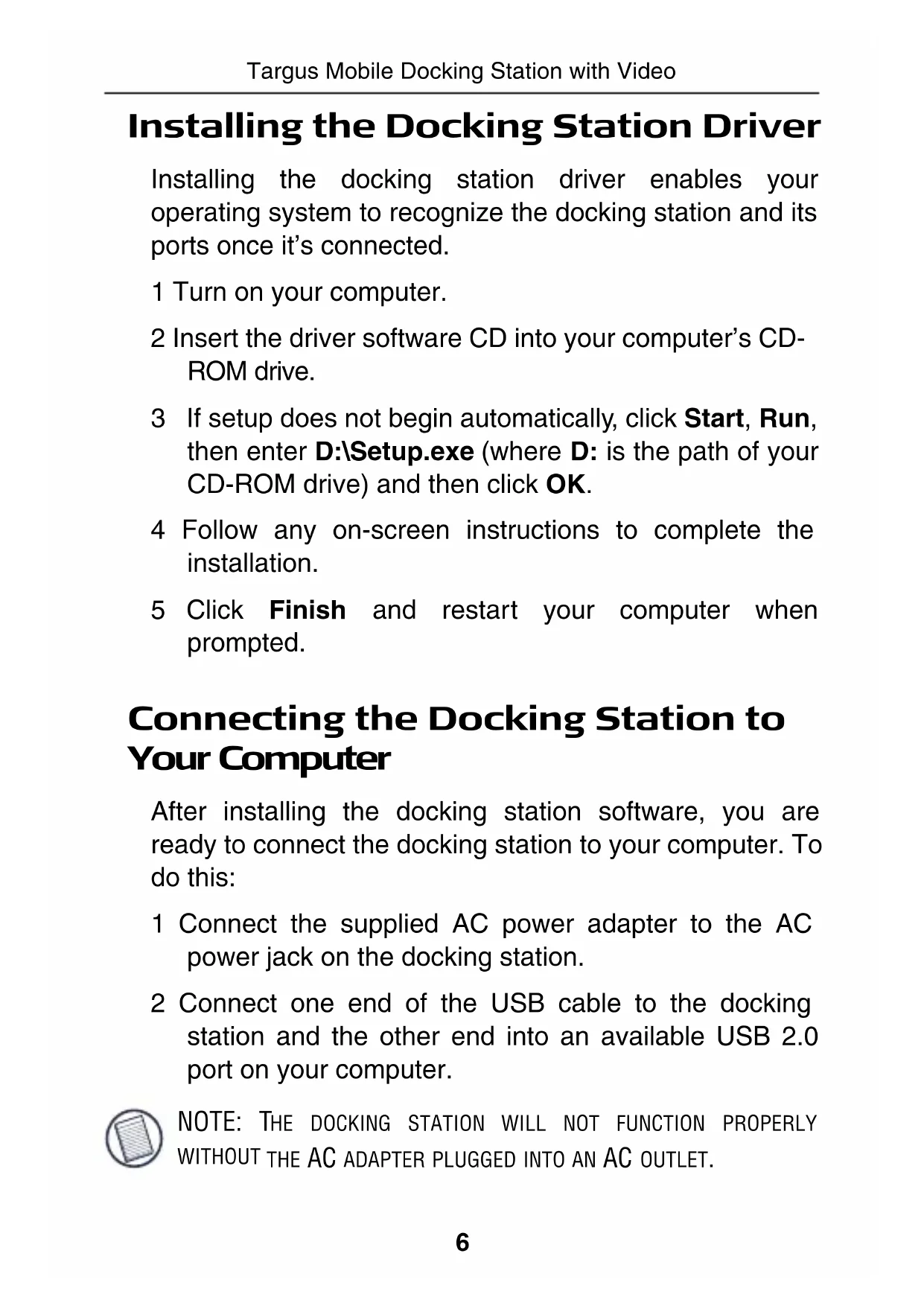
To use the Targus Docking Station, you must first install the driver onto your computer. Connect the docking station to your computer and Windows plug-and-play will install the hardware drivers for each port.

WARNING: YOU MUST INSTALL THE DOCKING STATION SOFTWARE BEFORE CONNECTING IT TO YOUR COMPUTER. OTHERWISE, THE DOCKING STATION WILL NOT WORK PROPERLY.
Installing the Docking Station Driver
Installing the docking station driver enables your operating system to recognize the docking station and its ports once it's connected.
1 Turn on your computer.
2 Insert the driver software CD into your computer's CD-ROM drive.
3 If setup does not begin automatically, click Start, Run, then enter D:\Setup.exe (where D: is the path of your CD-ROM drive) and then click OK.
4 Follow any on-screen instructions to complete the installation.
5 Click Finish and restart your computer when prompted.
Connecting the Docking Station to Your Computer
After installing the docking station software, you are ready to connect the docking station to your computer. To do this:
1 Connect the supplied AC power adapter to the AC power jack on the docking station.
2 Connect one end of the USB cable to the docking station and the other end into an available USB 2.0 port on your computer.

NOTE: THE DOCKING STATION WILL NOT FUNCTION PROPERLY WITHOUT THE AC ADAPTER PLUGGED INTO AN AC OUTLET.
DO NOT CONNECT ANY DEVICES TO THE DOCKING STATION UNTIL THE INSTALLATION IS COMPLETED.
Installing the Default Device Drivers
Once you connect the docking station to your computer, the default drivers begin installing for each of the ports.
Some hardware devices may prompt you to install the drivers.
To install the drivers:
1 Select Install the software automatically (Recommended) and click Next.
The Found New Hardware Wizard program begins installing the hardware drivers.
The Completing the Found New Hardware Wizard screen appears.
2 C l i c k Finish and repeat as needed for each devi
3 Restart your computer.
LED Status Indicator Lights
Once all device drivers are installed, the USB LED status indicator lights on the back of the docking station glow and you can connect devices to the docking station.
-
Green Tx light illuminates when connected to a network and the yellow Rx light flashes when data is transmitting to or from the network.
-
USB lights will glow when the docking station is connected to your computer.
- Always ON LED glows green when button is depressed.
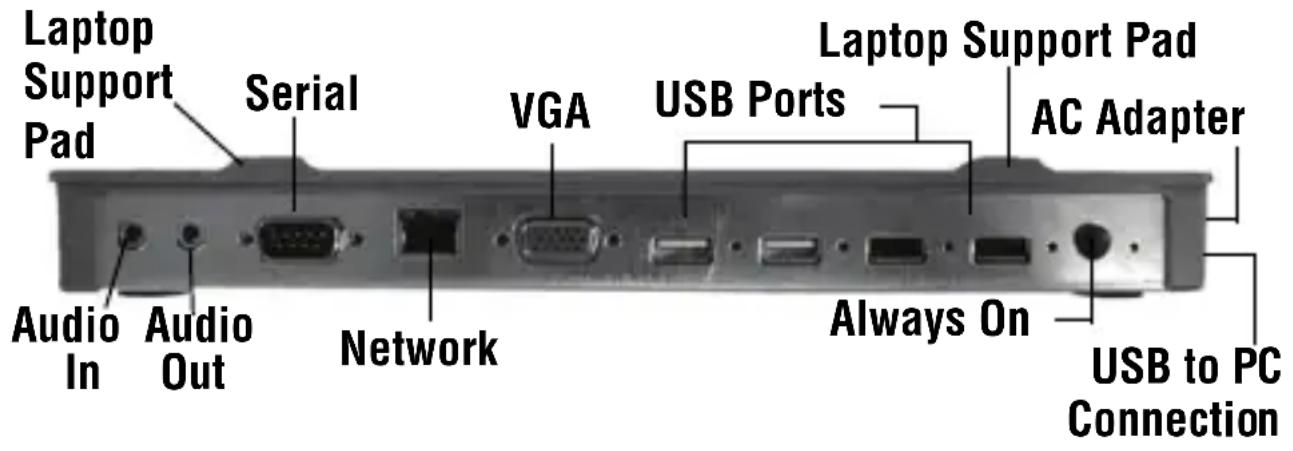
Docking Station Ports
Connecting New Devices
To avoid possible damage when connecting a new device, do not force the cable connector into the port on the docking station. If the cable connector does not attach smoothly, turn the connector over and try attaching it again.
Connecting a Serial Mouse
To connect a serial mouse, attach the cable connector to the serial port on the docking station.
Connecting and Configuring a Serial Modem
To connect a serial modem:
1 Attach the cable connector to the serial port on the docking station.
2 Install the modem software driver according to the instructions that come with the device.
3 When prompted to select the port, choose the Serial USB (COMx), where x is the COM port number assigned by your operating system.
Connecting a PDA
1 Attach the cable connector to the serial port on the docking station.
2 Verify that the COM port setting, in either your HotSync® or ActiveSync® software, matches the setting on the docking station.
To verify the COM port setting on the docking station, refer to "Verifying Devices are Installed" on page 16.
To verify the COM port setting on your PDA, refer to the documentation that came with it.
Connecting to a Local Area Network
To connect an ethernet cable with RJ-45 connect, attach the cable connector to the ethernet/network port on the docking station. Additional procedures to connect to an actual network depend on the type of network you are
using. Contact your network administrator for detailed instructions.
Connecting a USB Device
To connect a USB device, plug it into a USB port on the docking station and follow the additional instructions provided with the device.
All four USB ports meet USB hi-speed requirements by providing 480Mbps through-put and 500mA of power. However, the two black USB ports have two unique features. See "Targus Always On" on page 14 for more details.
The white USB ports are high-speed ports that provide standard 500mA of power. The black USB power ports are high-speed ports that provide up to 1Amp.
Connecting and Configuring an Audio Device
1 Plug your headphones or speakers into the green 3.5 mm Audio Out port on the docking station.
2 To connect a microphone, plug it into the mono Audio In port.
3 To enable your headphones or speakers:
a For Windows 2000, click Start, Settings, Control Panel, and then open the Sounds and Multimedia folder. Select the Audio tab. Under Sound Playback, change Preferred Device to USB Audio from the drop down list.
Click Apply, then click OK.
b For Windows XP, go to the Control Panel and choose Sound and Audio. Select the Audio tab. Under Sound Playback, change Preferred Device to USB Audio from the drop down list.
Click Apply, then click OK.
c For Windows Vista, go to the Control Panel and select Sound. Under the Playback tab, check that C-Media USB Headphone Set is set as the default. If it is, click OK. If it isn't, select C-Media USB Headphone Set, click Set Default, then click OK.
4 Make sure the volume is not set to MUTE.

NOTE: AUDIO DEVICES WILL NOT WORK SIMULTANEOUSLY ON THE PORT STATION AND THE HOST COMPUTER.

CAUTION: ALL AUDIO OR MULTIMEDIA APPLICATIONS MUST BE TERMINATED BEFORE SWITCHING BETWEEN THE PORT STATION AUDIO OUTPUT AND THE HOST COMPUTER AUDIO OUTPUT.
Connecting to a Monitor or LCD
Any monitor or LCD connected to the video port of the docking station will be limited to a maximum resolution of 1600 × 1200 , 16-bit color.

NOTE: THE MAXIMUM RESOLUTION OF 1600 x 1200 IS ONLY SUPPORTED IF THE MONITOR OR LCD IS PLUGGED INTO THE DOCKING STATION BEFORE CONNECTING THE DOCKING STATION TO THE NOTEBOOK. IF THE MONITOR OR LCD IS PLUGGED INTO THE DOCKING STATION AFTER THE DOCKING STATION IS CONNECTED TO THE NOTEBOOK, THE RESOLUTION IS SET TO 1024 x 768.
Video Menu Options
Video menu options can be accessed by right-clicking on the Targus Display icon in the system tray or through the Windows Display Properties.
The only menu option not accessible through Windows Display Properties is Mirror. This must be accessed through the Targus Display icon.
Primary: You are using a monitor or LCD (not your notebook screen) as your primary screen.
Extended: You are using your notebook screen as your primary display and your monitor or LCD is a secondary screen.
Mirror: You are using your notebook screen as your primary display and your monitor or LCD replicates your notebook screen.
Off: You are using your notebook screen as your primary display and your monitor or LCD is turned off.
| Notebook Screen | Secondary Monitor or LCD | |
| Primary: Off On | ||
| Extended: On On | ||
| Mirror: On On | ||
| Off: On Off | ||
Resolution: Changing resolution from the Targus utility will only affect the monitor connected to the docking
station video port. Video output will support the following resolutions and color quality:
640 × 480 : 8, 16, 32 bit color depth
800 × 600 : 8, 16, 32 bit color depth
1024 x 768: 8, 16, 32 bit color depth
1152 x 864: 8, 16, 32 bit color depth
1280 × 768: 8, 16, 32 bit color depth
1280 × 800 : 8, 16, 32 bit color depth
1280 × 960 : 8, 16, 32 bit color depth
1280 x 1024: 8,16, 32 bit color depth
1400 x 1050: 8, 16 bit color depth
1440 × 900: 8, 16, 32 bit color depth
1600 x 1200: 8, 16 bit color depth
Close: Removes the Targus video utility icon from the system tray. The icon can be replaced from the Start Menu or from the shortcut on your desktop.
Global Suspend Mode
When your computer is in suspend mode, the docking station also enters suspend mode to avoid power consumption. When your computer wakes up, the docking station wakes up automatically.
Targus Always On
Press the Targus Always On button to enable the black USB ports to continue providing power even when the laptop is powered down or disconnected from the docking station. This allows you to charge the batteries of any USB rechargeable accessory you may have connected.
Using USB Devices That Require More Power
Some devices, which use large amounts of power, such as printers and optical drives, should be plugged into the USB Power Ports. These ports will provide up to 1000mA of power - double the power on standard USB ports.
Product Limitations
Some devices may halt temporarily when a high data transfer is occurring. For example, your mouse may respond slowly while a graphic print job is printing or while you are experiencing heavy network traffic.
We recommend the following guidelines:
- Do not transfer data to or from multiple high-speed devices, such as a digital camera or scanner, at the same time.
- If speed degradation does occur, close other programs that use a USB device to improve device performance.
Troubleshooting
Device Not Working
-
Make sure that the device is fully inserted into the correct port on the docking station.
-
Plug the device into a different port on the docking station. If it still doesn't work, test the device by connecting it directly to your computer.
-
Verify that you ran the Setup or Install program for the device.
-
Make sure that the device appears in Device Manager. For more information refer to "Verifying Devices are Installed" on page 16.
-
Disconnect all devices from the docking station and reconnect them, one at a time. Check that each device works before plugging in the next one.
-
Each USB port is equipped with over-current protection. Should a USB device draw more current than the USB port can supply, the port will shut down. To re-enable the port, unplug the device and go to Device Manager or to the message in the system tray and choose the Reset option. You can then plug the device back into the USB port. If a shut down reoccurs, check the power requirements of the device.
Verifying Devices are Installed
You can view the devices installed on the docking station from the Device Manager window in System Properties.
Right-click My Computer, Properties, then click the Hardware tab, and then the Device Manager button.
From the Device Manager window, expand the following:
- Display Adapters — displays Targus USB 2.0 VGA Dock Device
- Human Interface Devices — displays keyboards and pointing devices: mice, trackballs, and joysticks
- Network Adapters — displays ADM851X USB to Fast Ethernet Adapter
- Ports (COM & LPT) — Serial On USB Port [COMx]
- Sound, Video and Game Controllers — displays C-Media USB Headphone Set
- Universal Serial Bus Controllers — displays the other devices installed for the docking station and generic hub.
Verifying a Serial Modem Connection
When attaching a modem to the serial (RS232) port, verify that the port assigned to your modem is Serial USB (COMx), where x is the number of the COM port.
If the operating system does not detect automatically that your modem is assigned to Serial USB (COMx), run the Hardware Wizard again and choose Select from the list instead of Autodetect. Then, select Serial USB (COMx) as the COM port.
Error Message on Your PDA
If the error message "Connection Not Established" appears on your PDA, check that the COM port setting in either your HotSync or ActiveSync software matches the setting on the docking station. See "Verifying Devices are Installed" on page 16 to verify the COM port setting on the docking station.
Some older versions of the Palm® Desktop software are not compatible with the USB to Serial conversion. Please contact your PDA vendor for software updates.
Video
Can I get a higher resolution on my monitor?
- No, resolution is set at 1600 × 1200 , 16-bit color.
Can disk I/O functions such as, extensive reading and writing to an external hard drive or DVD, degrade video functionality?
- Yes. Since all data has to pass through a single USB connection, you may notice some degradation of your video performance. Video performance will return when disk read/write decreases or stops.
Technical Support
For technical questions, please visit:
Internet: http://www.targus.com/support.asp
E-Mail: info.cn@targus.com
Product Registration
Targus recommends that you register your Targus accessory shortly after purchasing it. To register your Targus accessory, go to:
http://www.targus.com/registration.asp
You will need to provide your full name, email address, country of residence and product information.
Warranty
Targus warrants this product to be free from defects in materials and workmanship for one year. If your Targus accessory is found to be defective within that time, we will promptly repair or replace it. This warranty does not cover accidental damage, wear and tear, or consequential or incidental loss. Under no conditions is Targus liable for loss of, or damage to a computer; nor loss of, or damage to, programs, records, or data; nor any consequential or incidental damages, even if Targus has been informed of their possibility. This warranty does not affect your statutory rights.
Regulatory Compliance
This device complies with Part 15 of the FCC Rules. Operation is subject to the following two conditions: (1) This device may not cause harmful interference, and (2) This device must accept any interference received, including interference that may cause undesired operation.
FCC Statement
Tested to Comply
This equipment has been tested and found to comply with the limits of a Class B digital device, pursuant to Part 15 of the FCC Rules. These limits are designed to provide reasonable protection
against harmful interference in a residential installation. This equipment generates, uses, and can radiate radio frequency energy and if not installed and used in accordance with the instructions, may cause harmful interference to radio communications. However, there is no guarantee that interference will not occur in a particular installation.
If this equipment does cause harmful interference to radio or television reception, which can be determined by turning the equipment off and on, the user is encouraged to try to correct the interference by one or more of the following measures:
- Reorient or relocate the receiving antenna;
- Increase the separation between the equipment and receiver;
- Move the computer away from the receiver;
- Connect the equipment into an outlet on a circuit different from that to which the receiver is connected.
Changes or modifications not authorized by the party responsible for compliance could void the user's authority to operate this product.
Microsoft, Windows, and Windows Vista are either registered trademarks or trademarks of Microsoft Corporation in the United States and/or other countries. All trademarks and registered trademarks are the properties of their respective owners. All rights reserved.