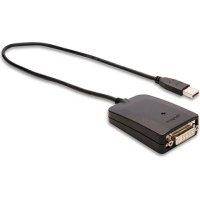
ACA11EUZ - Docking station TARGUS - Free user manual and instructions
Find the device manual for free ACA11EUZ TARGUS in PDF.



| Product Type | USB 2.0 multi-display adapter |
| Brand | Targus |
| Model | ACA11EUZ |
| Operating System Compatibility | Windows XP SP3, Windows Vista SP1, Windows 7 |
| Connectivity | USB 2.0 (mini-B) |
| Maximum Resolution | 2048 x 1152 pixels (32-bit) |
| Video Outputs | 1 x DVI-I (with DVI to VGA adapter included) |
| Power | Via USB port (bus-powered) |
| Dimensions (estimated) | 100 x 60 x 20 mm |
| Weight (estimated) | 50 g |
| Box Contents | Adapter, mini installation CD, user manual, DVI to VGA adapter |
| Main Functions | Screen extension or mirror, support for a second monitor |
| Software | DisplayLink driver with automatic update |
| Maintenance and Cleaning | Clean with a soft, dry cloth. Do not use liquid products. |
| Safety | Install the software before connecting the adapter. Do not force connections. |
| Spare Parts | Replaceable DVI to VGA adapter |
| Repairability | Not user-serviceable. Contact technical support. |
| General Information | Limited warranty (see manual). Designed to add an external display. |
Frequently Asked Questions - ACA11EUZ TARGUS
User questions about ACA11EUZ TARGUS
0 question about this device. Answer the ones you know or ask your own.
Ask a new question about this device
Download the instructions for your Docking station in PDF format for free! Find your manual ACA11EUZ - TARGUS and take your electronic device back in hand. On this page are published all the documents necessary for the use of your device. ACA11EUZ by TARGUS.
USER MANUAL ACA11EUZ TARGUS
©2010 Manufactured or Imported by Targus Europe Ltd., Hourslow, Middlesex, TW4 5DZ, UK. All rights reserved. Targus is either a registered trademark or trademark of Targus Group International, Inc. in the United States and/or other countries. Features and specifications are subject to change without notice. All trademarks and registered trademarks are the property of their respective owners.
Targus® USB 2.0 MULTI - MONITOR ADAPTER
User Guide
Targus USB 2.0 Multi - Monitor Adapter
Table of Contents
GB-English
USB 2.0 MULTI - MONITOR ADAPTER ....3
DE-Deutsch
USB 2.0 MULTI-MONITOR ADAPTER....23
ES-Español
ADAPTADOR USB 2.0 MULTI MONITOR ....43
FR - Français
ADAPTATEUR USB 2.0 MULTI-ÉCRAN 63
IT - Italiano
ADATTATORE MONITOR USB 2.0 MULTI ....83
NL - Nederlands
USB 2.0 MULTI - MONITOR ADAPTER ....103
PT - Português
ADAPTADOR MULTI-MONITOR USB 2.0....123
Targus USB 2.0 Multi - Monitor Adapter
GB - Introduction
Thank you for your purchase of the USB 2.0 Multi - Monitor Adapter.
Package Contents
In addition to this user guide, the package contains:
• USB 2.0 Multi - Monitor Adapter
• Driver software CD (mini CD)
- User Guide
• DVI to VGA adaptor
System Requirements
Hardware
- PC with an Intel® Pentium® processor or equivalent
• USB version 2.0 port
• CD-ROM drive (support mini CD)
Operating System
• Mircosoft Windows® XP with Service Pack 3
• Mircosoft Windows Vista® with Service Pack 1
- Mircosoft Windows ^ 7
Targus USB 2.0 Multi - Monitor Adapter
Installing the Device and Drivers
To use the monitor adaptor, you must first install the driver onto your computer. Then, connect the monitor adaptor to your computer and Windows plug-and-play will install the hardware drivers for each port.

WARNING: YOU MUST INSTALL THE ADAPTOR SOFTWARE BEFORE CONNECTING IT TO YOUR COMPUTER. OTHERWISE, THE ADAPTOR WILL NOT WORK PROPERLY.
Installing the Monitor Adaptor
Installing the adaptor driver enables your operating system to recognize the adaptor once it's connected.
1 Turn on your computer.
2 Insert the driver software CD into your computer's CD-ROM drive.
If setup does not begin automatically, click Start, Run, and enter D:\Setup.exe (where D: is the path of your CD-ROM drive) and then click OK.
3 Follow any on-screen instructions to complete the installation.
4 Click Finish and restart your computer when prompted.
Targus USB 2.0 Multi - Monitor Adapter
Connecting the Monitor Adaptor to Your Computer
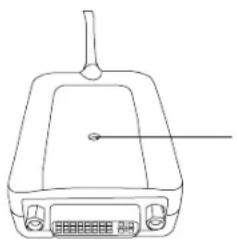
After installing the Monitor Adaptor software, you are ready to connect the Adaptor to your computer. Connect one end of the USB cable to the adaptor and the other end into an available USB 2.0 port on your computer.

DO NOT CONNECT ANY DEVICES TO THE ADAPTOR UNTIL THE INSTALLATION IS COMPLETED.
natural_image
Line drawing of a rectangular electronic device with a handle and control buttons (no text or symbols)• A green light will be ON when the adaptor is functioning
Multi - Monitor Adapter
To avoid possible damage when connecting a new device, do not force the cable connector into the port on the adaptor. If the cable connector does not attach smoothly, turn the connector over and try attaching it again.
Targus USB 2.0 Multi - Monitor Adapter
Connecting to a Monitor or LCD
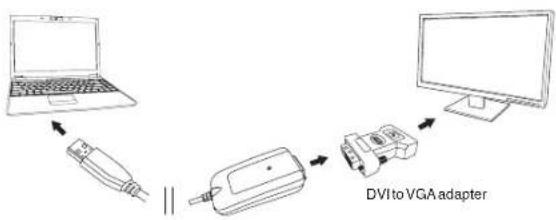
Any monitor or LCD connected to the video port of the adaptor will be limited to a maximum resolution of 2048 x 1152 at 32 bit color

NOTE: THE MAXIMUM RESOLUTION OF 2045 x 1152 IS ONLY SUPPORTED IF THE MONITOR OR LCD IS PLUGGED INTO THE ADAPTOR BEFORE CONNECTING THE ADAPTOR TO THE NOTEBOOK, IF THE MONITOR OR LCD IS PLUGGED INTO THE ADAPTOR AFTER THE ADAPTOR IS CONNECTED TO THE NOTEBOOK, THE RESOLUTION IS SET TO 1024 X 768.
flowchart
graph TD
    A["Laptop"] -->|USB Cable| B["Analog Devices"]
    B --> C["USB Port"]
    C --> D["Computer"]
Targus USB 2.0 Multi - Monitor Adapter
Controlling the Display using Adaptor's Video Menu Options
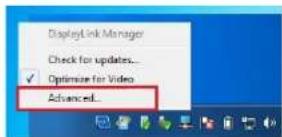
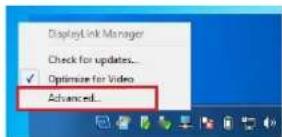
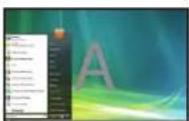
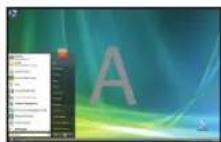
Video menu options can be accessed by right-clicking on the Adaptor icon in the system tray or through the Windows Display Properties.
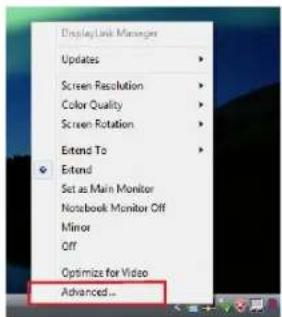
Windows XP / Windows Vista
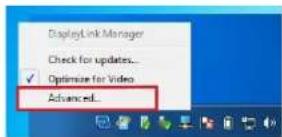
Windows 7
Targus USB 2.0 Multi - Monitor Adapter
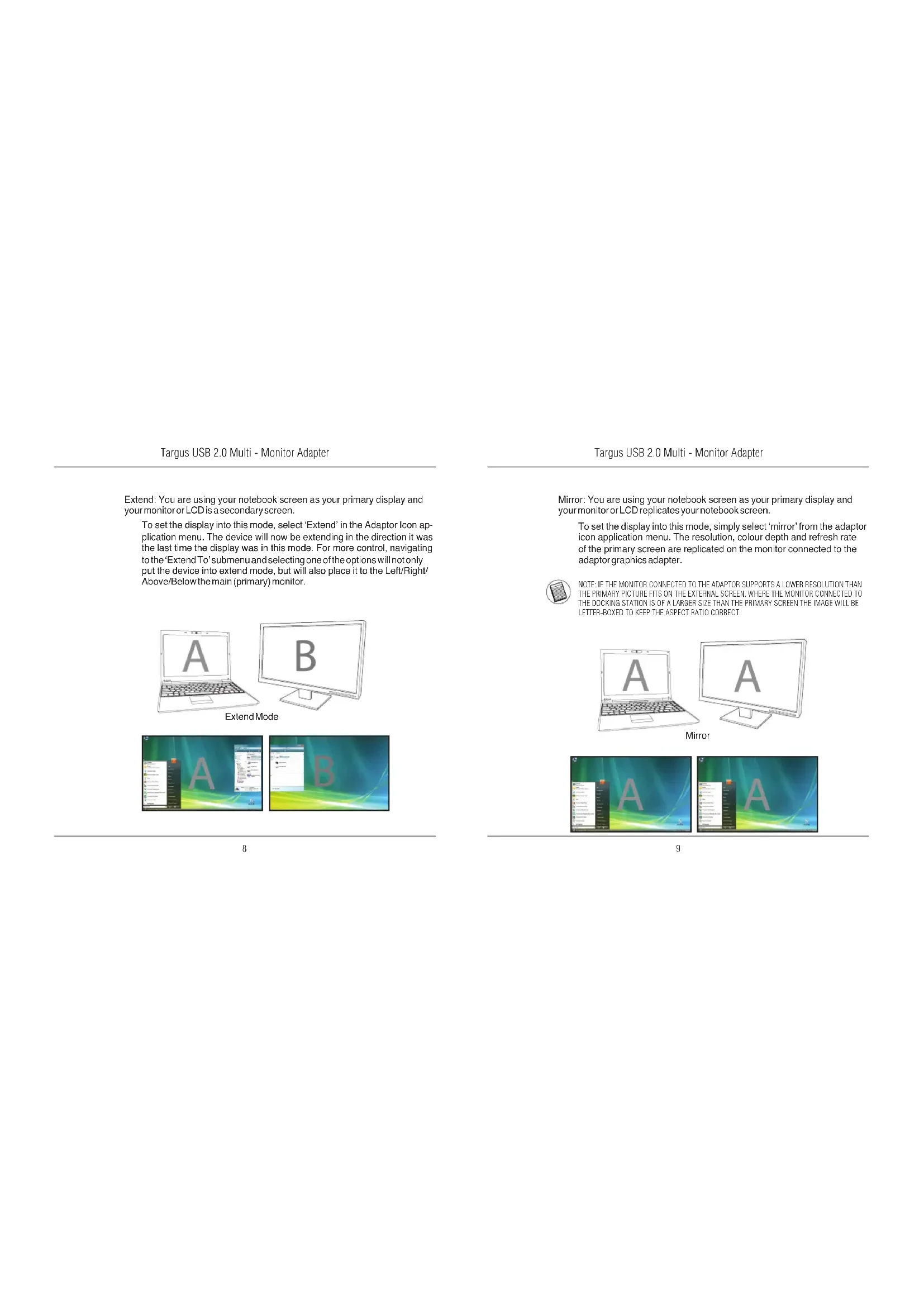
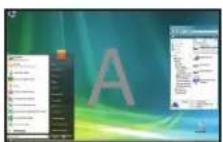
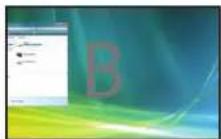
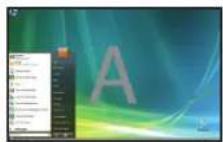
Extend: You are using your notebook screen as your primary display and your monitor or LCD is a secondary screen.
To set the display into this mode, select 'Extend' in the Adaptor Icon application menu. The device will now be extending in the direction it was the last time the display was in this mode. For more control, navigating to the 'Extend To' submenu and selecting one of the options will not only put the device into extend mode, but will also place it to the Left/Right/Above/Below the main (primary) monitor.
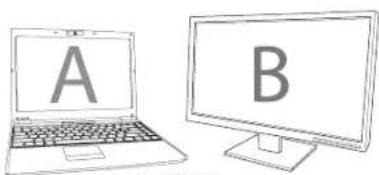
Extend Mode
Targus USB 2.0 Multi - Monitor Adapter
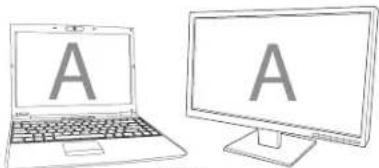
Mirror: You are using your notebook screen as your primary display and your monitor or LCD replicates your notebook screen.
To set the display into this mode, simply select 'mirror' from the adaptor icon application menu. The resolution, colour depth and refresh rate of the primary screen are replicated on the monitor connected to the adaptor graphics adapter.

NOTE: IF THE MONITOR CONNECTED TO THE ADAPTOR SUPPORTS A LOWER RESOLUTION THAN THE PRIMARY PICTURE FITS ON THE EXTERNAL SCREEN, WHERE THE MONITOR CONNECTED TO THE DOCKING STATION IS OF A LARGER SIZE THAN THE PRIMARY SCREEN THE IMAGE WILL BE LETTER-BOXED TO KEEP THE ASPECT RATIO CORRECT.
natural_image
Two laptops, one open showing 'A' and the other closed showing 'A', both with blank screens (no text or symbols on screens)Mirror
Targus USB 2.0 Multi - Monitor Adapter
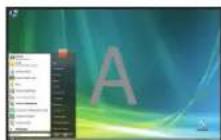
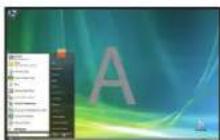
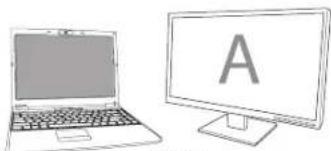
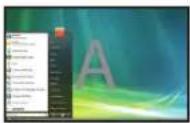
Primary (Notebook Monitor Off): You are using your monitor or LCD as your primary display and your notebook screen is turned off. To set the display into this mode, simply select 'notebook monitor off' from the adapter icon application monitor.
natural_image
Line drawing of a laptop and a computer monitor (no text or symbols)Primary

Targus USB 2.0 Multi - Monitor Adapter
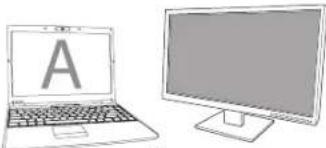
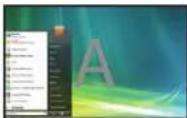
Off: You are using your notebook screen as your primary display and your monitor or LCD is turned off.
natural_image
Illustration of a laptop and a computer monitor, both without any text or symbolsOff


Targus USB 2.0 Multi - Monitor Adapter
Controlling the Display using Windows Display Properties (for Windows XP and Vista)
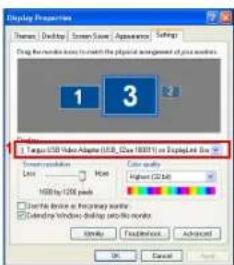
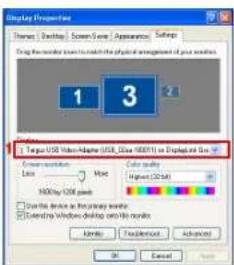
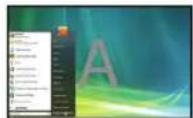
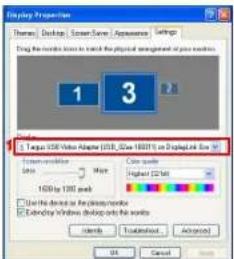
Adaptor's video setting can also be configured from the Windows Display Properties dialog box. To do this on Windows Vista, right click on the desktop, click on "Personalize" and then select the 'Display Settings' link. The corresponding feature is available in Windows XP by right clicking on the desktop, selecting 'Properties' and then navigating to the 'Settings' tab.
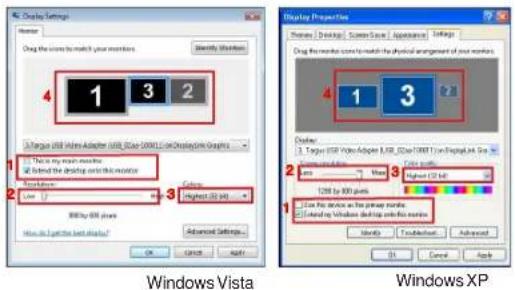
Figure 1
Targus USB 2.0 Multi - Monitor Adapter
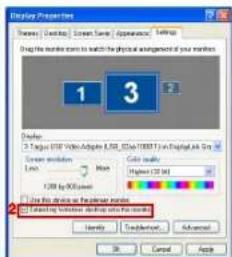
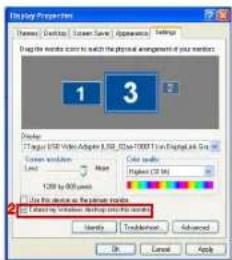
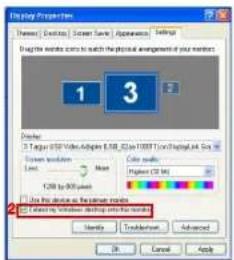
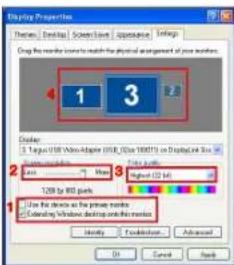
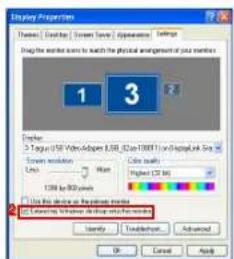
Extend Mode: To set the display into this mode, check the box marked 'Extend my Windows desktop onto this monitor' (1 in Figure 1). Arrange screen resolution and colour quality using the appropriate controls (2 and 3), and arrange its position with respect to the other monitors on the extended desktop in using the drag area (4).
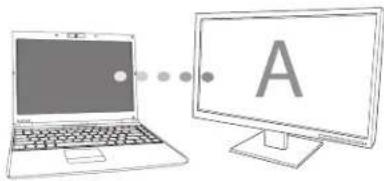
Mirror Mode: To set the display into mirror mode, simply uncheck the box marked 'Extend the desktop onto this monitor' (1 in Figure 1 on previous page.). Setting the Primary Display: To make the monitor attached to the Adaptor as the primary display, follow the instructions below:
natural_image
Illustration of a laptop connected to a computer monitor labeled 'A' (no text or symbols on the devices themselves)Targus USB 2.0 Multi - Monitor Adapter
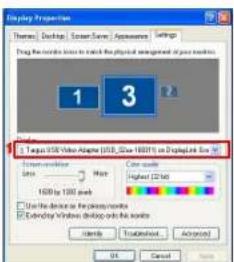
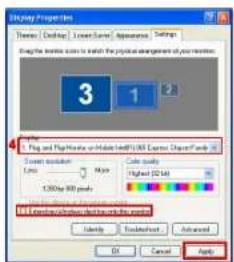
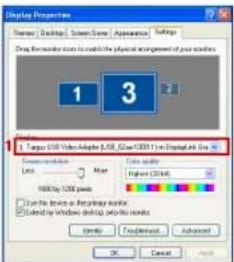
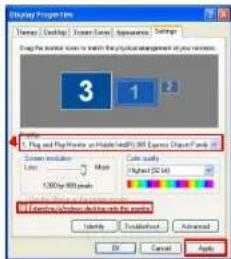
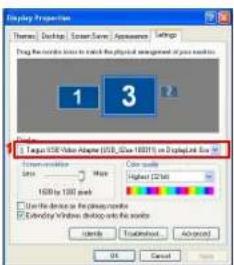
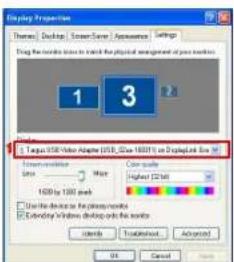
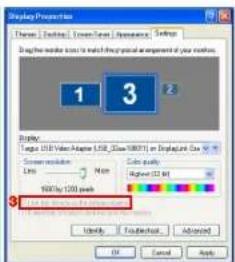
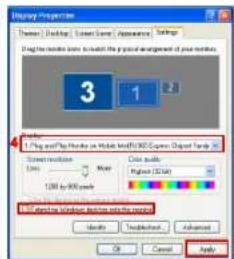
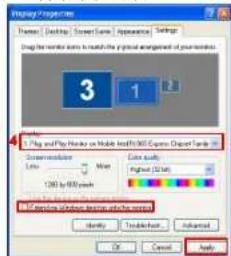
- In Display Properties window, using the drop down list, select the monitor that is attached to the Adaptor.
![Display Settings Monitor Display Wizard to watch your monitors. Identify Options 1 3 2 1. Use USB Film Adapter USB Chain (USB) on Display/USB Shorts [ ] Include the USB icon. [ ] Include the USB icon. [ ] Include the USB icon. [ ] Include the USB icon. [ ] Include the USB icon. [ ] Include the USB icon. [ ] Include the USB icon. [ ] Include the USB icon. [ ] Include the USB icon. [ ] Include the USB icon. [ ] Include the USB icon. [ ] Include the USB icon. [ ] Include the USB icon. [ ] Include 800 by 600 pixels [ ] Include the next display [ ] Include the next display [ ] Include the next display [ ] Include the next display [ ] Include the next display [ ] Include the next display [ ] Include the next display [ ] Include the next display [ ] Include the next display [ ] Include the next display [ ] Include the next display [ ] Include the next display [ ] Include the next display [ ] Include the next display [ ] Include the next display OK Cancel Apply](/content/2026/03/567152/images/5b555ff7bc1adafaf761f42427fd9e31daf07ce8fda5a1ffe26657ff05b98845.jpg)
Windows Vista
Windows XP
Targus USB 2.0 Multi - Monitor Adapter
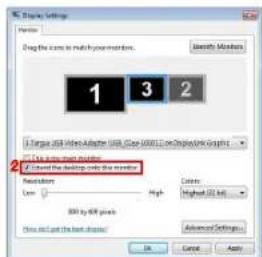
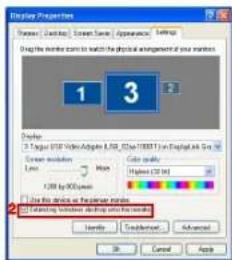
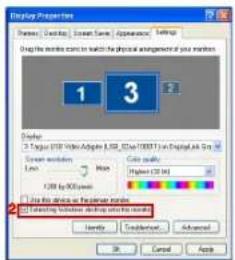
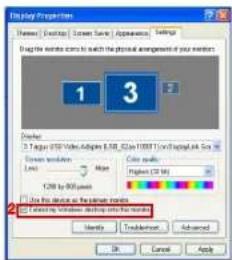
- After selecting the corresponding monitor, check the box next to "extend the desktop onto this monitor" (for Vista) or "extend my Windows desktop onto this monitor" (for XP).
Windows Vista
Windows XP
Targus USB 2.0 Multi - Monitor Adapter
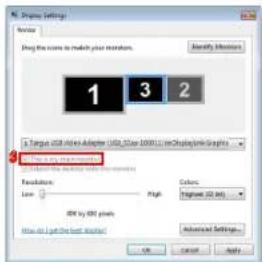
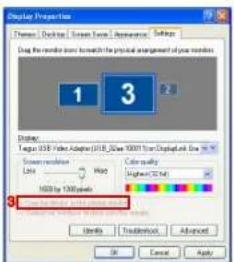
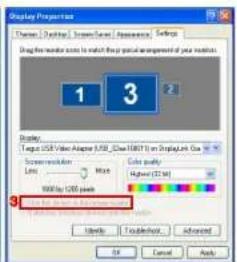
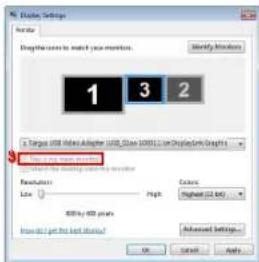
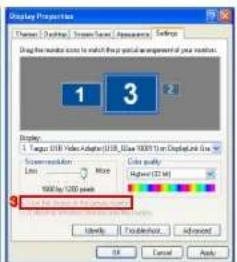
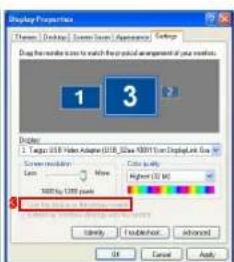
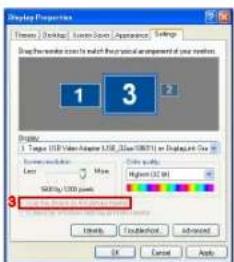
- Then, check the box next to "This is my main monitor" (for Vista) "Use this device as the primary monitor" (for XP).
Windows Vista
Windows XP
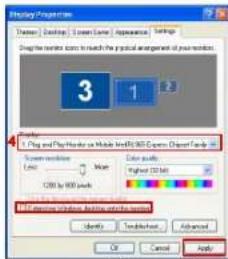
- Click "Apply".
Targus USB 2.0 Multi - Monitor Adapter
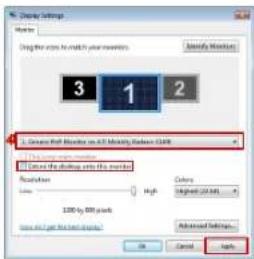
- Select the Laptop monitor using the drop down list and uncheck the box "extend the desktop onto this monitor" (for Vista) or "Extend my Windows desktop onto this monitor" (for XP) and click "Apply"
Windows Vista
Windows XP

NOTE: IT IS POSSIBLE TO WORK MORE CONVENIENTLY WITH A LAPTOP BY SETTING ITS ACTION ON LID CLOSED TO DO NOTHING AND SETTING THE DOCKING TO PRIMARY MODE. THE LAPTOP LID CAN THEN BE CLOSED AND THE LAPTOP USED WITH THE EXTERNAL KEYBOARD AND MOUSE.
The monitor attached to the Adaptor stays primary if the PC enters hi-bernate or suspend mode or is rebooted. If the Adaptor is detached, the laptop's display becomes primary again.
Upon reconnection, the monitor attached to the Adaptor will return to primary mode.
Targus USB 2.0 Multi - Monitor Adapter
Controlling the Display using Windows Display Properties (for Windows 7)
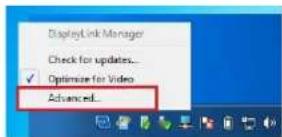
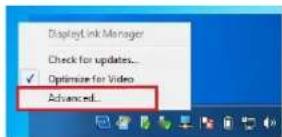
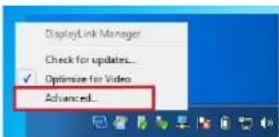
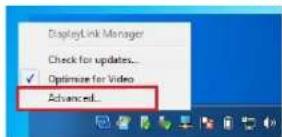
Adaptor's video setting can also be configured from the Windows Display Properties dialog box. To do this on Windows 7, right click on the desktop, click on "Personalize" and then select the 'Display' and then "Change display setting" link. Or right click on "Targus USB Video adapter" icon in the notification area and choose "advance".
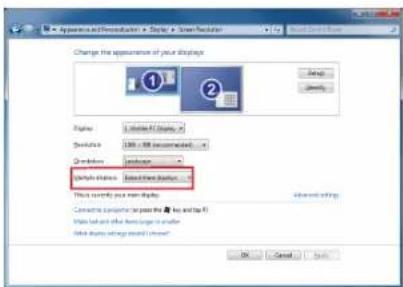
The various display output setting can be controlled by choosing the options provided in the "multiple display" drop-down list. Choose the desired setting and click "apply". The screen will refresh and confirm ok by selecting "keep changes".
Targus USB 2.0 Multi - Monitor Adapter
Automatic Updates
Automatic Updates is a product maintenance feature from DisplayLink. The automatic update mechanism ensures that the Adaptor's graphics Adapter has the most up-to-date drivers and software, providing the user with increased performance and stability.
Disconnecting the Adaptor
If the Adaptor is powered off or the USB cable is removed from the computer, the display blanks. All windows and icons will shift to the primary screen. On reconnection or powering up of the Adaptor, the display returns to the same mode as it was before disconnection. However, windows and icons that were previously on the screen will not be moved back.
Supported Resolution
| Resolution Refresh Ratesavailable at 32 bit | Resolution Refresh Ratesavailable at 32 bit | ||
| 640x4806067 | 727585 | 1280x8006075 | 85 |
| 720x4805060 | 1280x96060 | ||
| 768x5765060 | 1280x10246075 | ||
| 800x6005660 | 727585 | 1360x76860 | |
| 832x62475 | 1366x7686075 | 85 | |
| 800x48060 | 1400x105060 | ||
| 848x48060 | 1440x90060 | ||
| 1024x60060 | 1600x120060 | ||
| 1024x7686070 | 7285 | 1680x105060 | |
| 1152x86475 | 1920x10805060 | ||
| 1152x87075 | 1920x120060 | ||
| 1280x7205060 | 2048x115260 | ||
Actual support resolutions area depend on the support of connected monitor.
Troubleshooting
Device Not Working
- Make sure that the device is fully inserted into the correct port on the adaptor.
- Plug the device into a different port on the adaptor. If it still doesn't work, test the device by connecting it directly to your computer.
- Verify that you ran the Setup or Install program for the device.
- Make sure that the device appears in Device Manager. For more information refer to "Verifying Devices are Installed"
Verifying Devices are Installed
You can view the devices installed on the adaptor from the Device Manager window in System Properties. Right-click My Computer, Properties, then click the Hardware tab, and then the Device Manager button. From the Device Manager window, expand the following:
- Display Adapters:
- Displaylink Graphic Adapter (XP only)
- Displaylink Mirror Adapter (XP only)
• Network Adapters:
- High speed USB Ethernet Adapter
•Monitor
- Targus USB Video Adapter
Targus USB 2.0 Multi - Monitor Adapter
FAQ - DisplayLink
DisplayLink provides this support website to help answer questions. This may answer any questions you may have.
http://www.displaylink.com/support/index.php
Targus USB 2.0 Multi - Monitor Adapter
DE - Introduction
natural_image
Line drawing of a rectangular electronic device with a handle and control buttons (no text or symbols)Windows XP / Windows Vista
Windows 7
Targus USB 2.0 Multi - Monitor Adapter
Targus USB 2.0 Multi - Monitor Adapter
natural_image
Line drawing of a laptop and a computer monitor (no text or symbols)Primär
Targus USB 2.0 Multi - Monitor Adapter
natural_image
Illustration of a laptop and a computer monitor, both without any text or symbolsAus

Targus USB 2.0 Multi - Monitor Adapter
natural_image
Illustration of a laptop connected to a computer monitor with letter 'A' (no text or symbols on devices)Targus USB 2.0 Multi - Monitor Adapter
Windows Vista
Windows XP
Targus USB 2.0 Multi - Monitor Adapter
Windows Vista
Windows XP
Targus USB 2.0 Multi - Monitor Adapter
Windows Vista
Windows XP
Windows Vista
Windows XP

natural_image
Line drawing of a rectangular electronic device with a handle and control buttons (no text or symbols)Windows XP / Windows Vista
Windows 7
Targus USB 2.0 Multi - Monitor Adapter
natural_image
Illustration of a laptop and a computer monitor, both without any text or symbolsPantalla Principal

Targus USB 2.0 Multi - Monitor Adapter
natural_image
Illustration of a laptop and a computer monitor with letter 'A' on screen (no text or symbols beyond the label)Apagado

Targus USB 2.0 Multi - Monitor Adapter
natural_image
Illustration of a laptop connected to a computer monitor labeled 'A' (no text or symbols on the devices themselves)Targus USB 2.0 Multi - Monitor Adapter
Windows Vista
Windows XP
Targus USB 2.0 Multi - Monitor Adapter
Windows Vista
Windows XP
Targus USB 2.0 Multi - Monitor Adapter
- Seguidamente, marque la casilla junto a "Este es mi monitor principal" (para Vista) o "Utilice este dispositivo como monitor principal" (para XP)
Windows Vista
Windows XP
- Haga clic en "Aplicar"
Targus USB 2.0 Multi - Monitor Adapter
Windows Vista
Windows XP

NOTA: ES POSIBLE TRABAJAR MAS COMODAMENTE CON UN PORTÁTIL CONFIGURANDO SUS ACCIONES CON LA TAPA CERRADA "NO HACER NADA" Y CONFIGURAR EL ACOPLAMIENTO COMO MODO PRINCIPAL, LA TAPA DEL PORTÁTIL. PUEDE ENTonces CERRARSE Y UTILIZARSE CON EL TECLADO Y RATÓN EXTERNOS
natural_image
Line drawing of a rectangular electronic device with a handle and control buttons (no text or symbols)Windows XP / Windows Vista
Windows 7
Targus USB 2.0 Multi - Monitor Adapter
natural_image
Two laptops, one open and one closed, each displaying the letter 'A' (no text or symbols on screens)Option Mirror (Miroir)
Targus USB 2.0 Multi - Monitor Adapter
natural_image
Line drawing of a laptop and a computer monitor (no text or symbols)Écran principal

Targus USB 2.0 Multi - Monitor Adapter
natural_image
Illustration of two laptops, one with a large letter 'A' on its screen, the other with a blank screen (no text or symbols)Désactive


Targus USB 2.0 Multi - Monitor Adapter
natural_image
Illustration of a laptop connected to a computer monitor with an 'A' symbol (no text or labels present)Targus USB 2.0 Multi - Monitor Adapter
Windows Vista
Windows XP
Targus USB 2.0 Multi - Monitor Adapter
Windows Vista
Windows XP
Targus USB 2.0 Multi - Monitor Adapter
Windows Vista
Windows XP
Windows XP

REMARQUE : POUR TRAVAILLER PLUS AISÉMENT, CONFIGUREZ L'OPTION ÉCRAN FERMÉ DE L'ORDINATEUR PORTABLE SUR "DO NOTHING" (NE RIEN FAIRE) ET SELECTIONNEZ L'ÉCRAN DE L'ADAPTATEUR COMME ÉCRAN PRINCIPAL. VOUS POUVEZ MAINTENANT FERMER L'ÉCRAN DE L'ORDINATEUR PORTABLE ET TRAVAILLER AVEC UN ÉCRAN, UN CLAVIER ET UNE SOURIS EXTERNES.
natural_image
Line drawing of a rectangular electronic device with a handle and control buttons (no text or symbols)Windows XP / Windows Vista
Windows 7
Targus USB 2.0 Multi - Monitor Adapter
natural_image
Two laptops, one with a 'A' on screen and the other with 'A' on a stand (no text or symbols on screens)Aspecchio
Targus USB 2.0 Multi - Monitor Adapter
natural_image
Line drawing of a laptop and a computer monitor, both without any text or symbolsPrincipale

Targus USB 2.0 Multi - Monitor Adapter
natural_image
Illustration of two laptops and a computer monitor, both labeled 'A' with no visible text or symbols on the devices themselves.

Targus USB 2.0 Multi - Monitor Adapter
natural_image
Illustration of a laptop connected to a computer monitor with an 'A' symbol (no text or labels present)Targus USB 2.0 Multi - Monitor Adapter
Windows Vista
Windows XP
Targus USB 2.0 Multi - Monitor Adapter
Windows Vista
Windows XP
Targus USB 2.0 Multi - Monitor Adapter

NOTA: SI PUO LAVORARE IN MODO PIU CONFORTEVOLE CON IL NOTEBOOK A COPERCHIO CHIUSO IMPOSTANDOLO SU "NON FARE NIENTE" E IMPOSTANDO LA DOCKING STATION IN MODALITÀ PRINCIFALE. SI PUO A QUESTO PUNTO CHIUDERE IL COPERCHIO DEL COMPUTER E USARE IL NOTEBOOK CON TASTERA E MOUSE ESTERNI.
natural_image
Line drawing of a rectangular electronic device with a handle and control buttons (no text or symbols)Windows XP / Windows Vista
Windows 7
Targus USB 2.0 Multi - Monitor Adapter
natural_image
Illustration of a laptop and a computer monitor with letter A (no text or symbols on devices)Hoofdscherm

Targus USB 2.0 Multi - Monitor Adapter
natural_image
Illustration of a laptop and a computer monitor with letter 'A' on screen (no text or symbols beyond the label)Uit

Targus USB 2.0 Multi - Monitor Adapter
Windows Vista
Windows XP
Figuur 1
Targus USB 2.0 Multi - Monitor Adapter
natural_image
Illustration of a laptop connected to a computer monitor with an 'A' symbol (no text or labels present)Targus USB 2.0 Multi - Monitor Adapter
Windows Vista
Windows XP
Targus USB 2.0 Multi - Monitor Adapter
Windows Vista
Windows XP
Targus USB 2.0 Multi - Monitor Adapter
Windows Vista
Windows XP
- Klikop "Toepassen"
Targus USB 2.0 Multi - Monitor Adapter
Windows Vista
Windows XP

OPMERKING: HET IS MOGELLIK OM MET EEN LAPTOP COMFORTABELER TE WERKEN DOOR HET LAPTOPSCHERM TE SLUITEN OM "NIETS DOEN", EN VERVOLGENS DE ADAPTER NAAR HOOPDSCHERM- MODUS TE ZETTEN. DAN KAN HET LAPTOPSCHERM GESLOTEN WORDEN EN KAN DE LAPTOP GEBRUIKT WORDEN MET HET EXTERNE TOEISENBORD EN MUIS.
natural_image
Line drawing of a rectangular electronic device with a handle and control buttons (no text or symbols)Windows XP / Windows Vista
Windows 7
Targus USB 2.0 Multi - Monitor Adapter
natural_image
Two laptops displayed side by side, each with a large letter 'A' on its screen (no text or symbols beyond the letter)Mirror(Espelho)
Targus USB 2.0 Multi - Monitor Adapter
natural_image
Illustration of a laptop and a computer monitor with letter 'A' (no text or symbols on the devices themselves)

Targus USB 2.0 Multi - Monitor Adapter
Windows Vista
Windows XP
Figura 1
Targus USB 2.0 Multi - Monitor Adapter
natural_image
Illustration of a laptop connected to a computer monitor with letter 'A' (no text or symbols on devices)Targus USB 2.0 Multi - Monitor Adapter
Windows Vista
Windows XP
Targus USB 2.0 Multi - Monitor Adapter
Windows Vista
Windows XP
Targus USB 2.0 Multi - Monitor Adapter
Windows Vista
Windows XP
Windows Vista
Windows XP

- Targus® USB 2.0 MULTI - MONITOR ADAPTER
- Table of Contents
- GB - Introduction
- Package Contents
- System Requirements
- Installing the Device and Drivers
- Installing the Monitor Adaptor
- Connecting the Monitor Adaptor to Your Computer
- Connecting to a Monitor or LCD
- Controlling the Display using Adaptor's Video Menu Options
- Controlling the Display using Windows Display Properties (for Windows XP and Vista)
- Controlling the Display using Windows Display Properties (for Windows 7)
- Automatic Updates
- Disconnecting the Adaptor
- Troubleshooting
- Device Not Working
- Verifying Devices are Installed
- FAQ - DisplayLink
- DE - Introduction
Brand : TARGUS
Model : ACA11EUZ
Category : Docking station