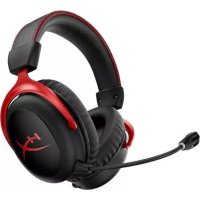
Cloud II Wireless - Headphones HYPERX - Free user manual and instructions
Find the device manual for free Cloud II Wireless HYPERX in PDF.



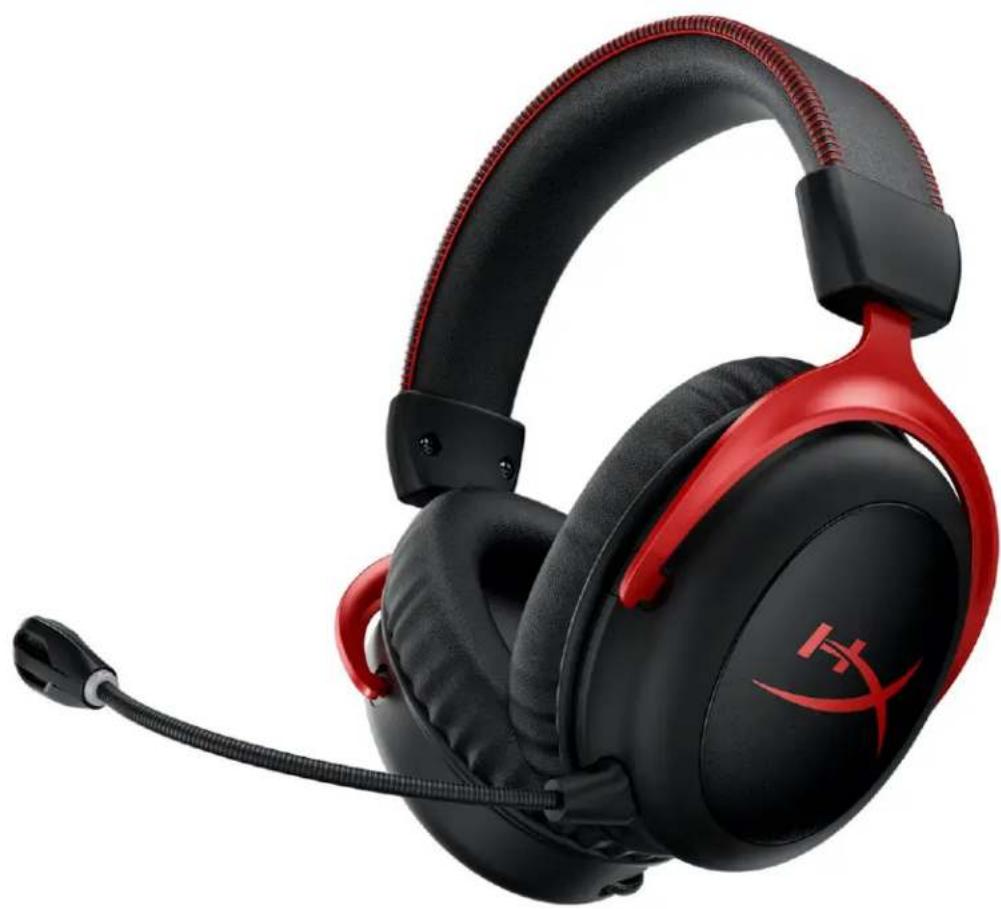
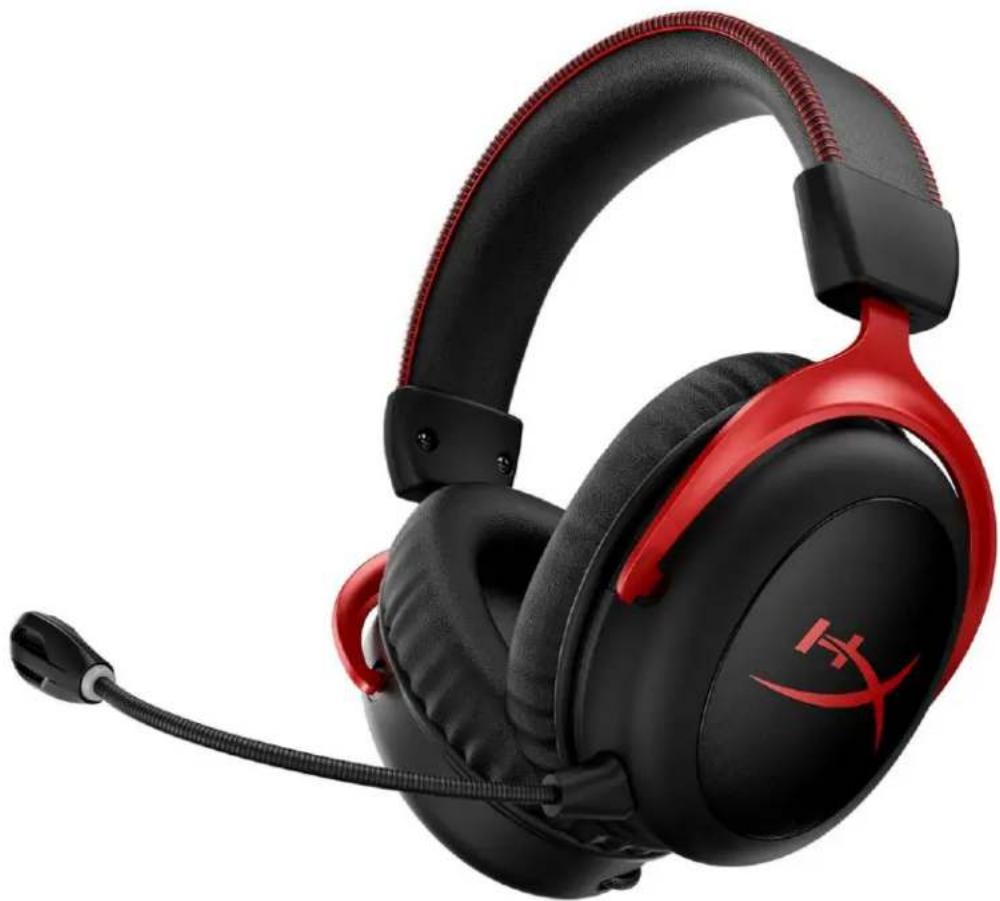
| Brand | HyperX |
| Model | Cloud II Wireless |
| Product type | Wireless gaming headset |
| Type | Circum-aural, closed |
| Driver | Dynamic, 53mm with neodymium magnets |
| Frequency response | 15 Hz - 20 kHz |
| Impedance | 60 Ω |
| Sound pressure level | 104 dB SPL/mW at 1 kHz |
| Total harmonic distortion | ≤ 1% |
| Weight (without microphone) | 300 g |
| Weight (with microphone) | 309 g |
| Microphone | Electret, bidirectional with noise cancellation |
| Microphone frequency response | 50 Hz - 6.8 kHz |
| Microphone sensitivity | -20 dBV (1 V/Pa at 1 kHz) |
| Battery life | 30 hours (at 50% volume) |
| Wireless range | Up to 20 m (2.4 GHz) |
| Wireless interface | USB 2.4 GHz adapter |
| Surround sound | 7.1 virtual (button activation) |
| Configuration software | HyperX NGENUITY |
| Charging | USB port (0.5m USB cable included) |
| Full charge time | Approximately 3 hours (estimated) |
| Maintenance and cleaning | Clean with a soft, dry cloth. Do not use liquids. |
| Safety | Avoid prolonged exposure to high volume to protect your hearing. |
| Replacement parts available | Detachable microphone, USB adapter, USB charging cable |
Frequently Asked Questions - Cloud II Wireless HYPERX
User questions about Cloud II Wireless HYPERX
0 question about this device. Answer the ones you know or ask your own.
Ask a new question about this device
Download the instructions for your Headphones in PDF format for free! Find your manual Cloud II Wireless - HYPERX and take your electronic device back in hand. On this page are published all the documents necessary for the use of your device. Cloud II Wireless by HYPERX.
USER MANUAL Cloud II Wireless HYPERX
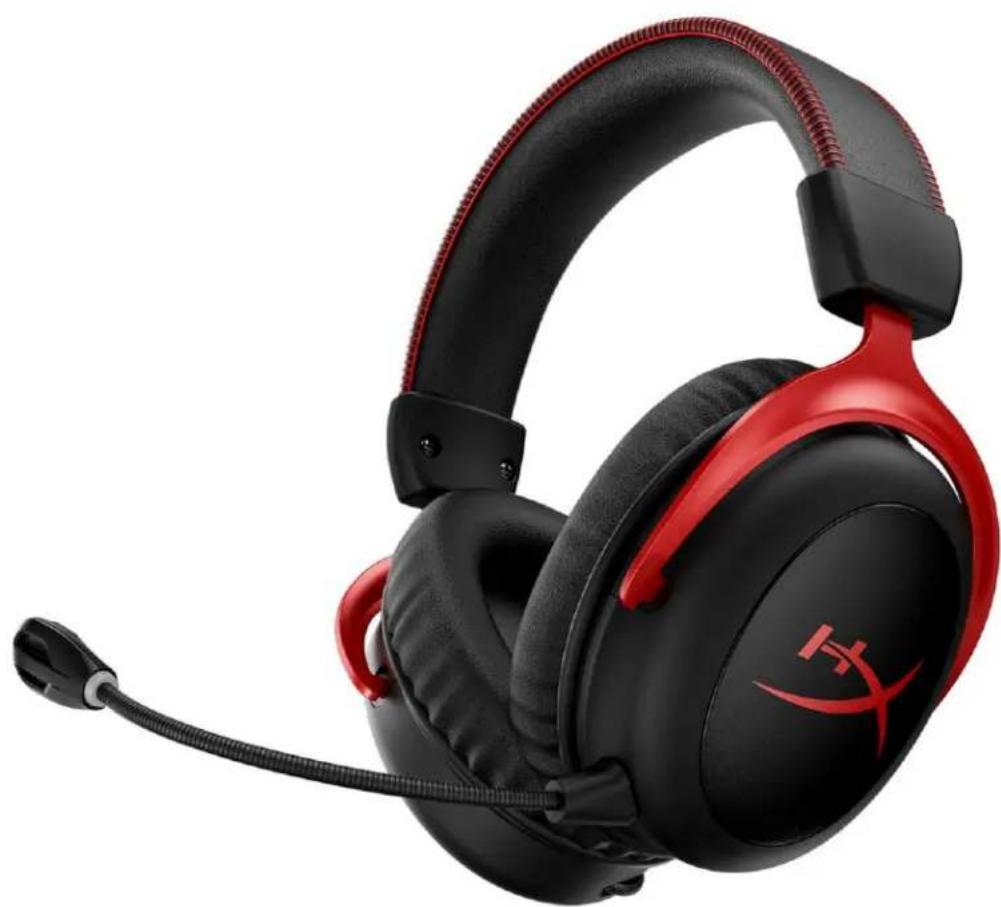
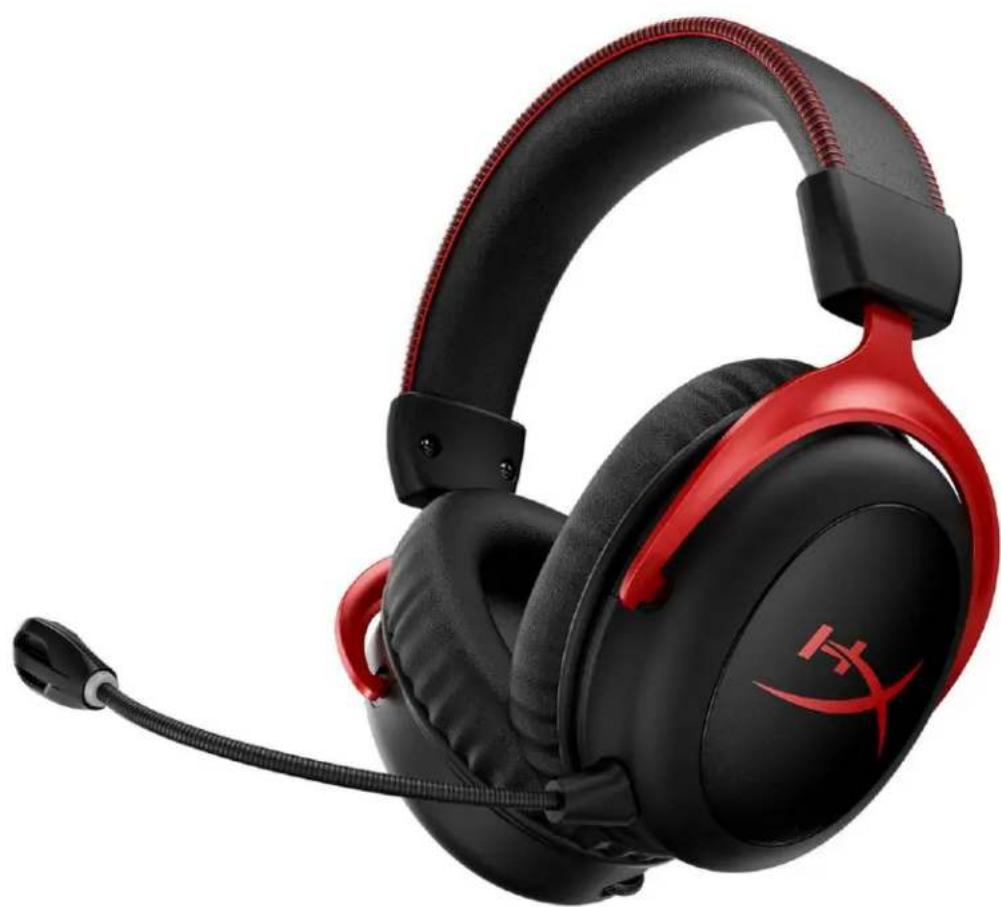
HyperX Cloud II Wireless
Find the language and latest documentation for your HyperX Cloud II Wireless here.
HyperX Cloud II Wireless Installation Guide
For instructions in English, Spanish, German, French, Italian, Portuguese, Polish, Russian, Turkish, Japanese, and Vietnamese.
Simplified Chinese......简体中文说明书
Traditional Chinese ....繁體中文說明
HyperX Cloud II Wireless
Part Numbers
HHSC2X-BA-RD/G
TABLE OF CONTENTS
Overview 3
Specifications 4
Setting up with PC 5
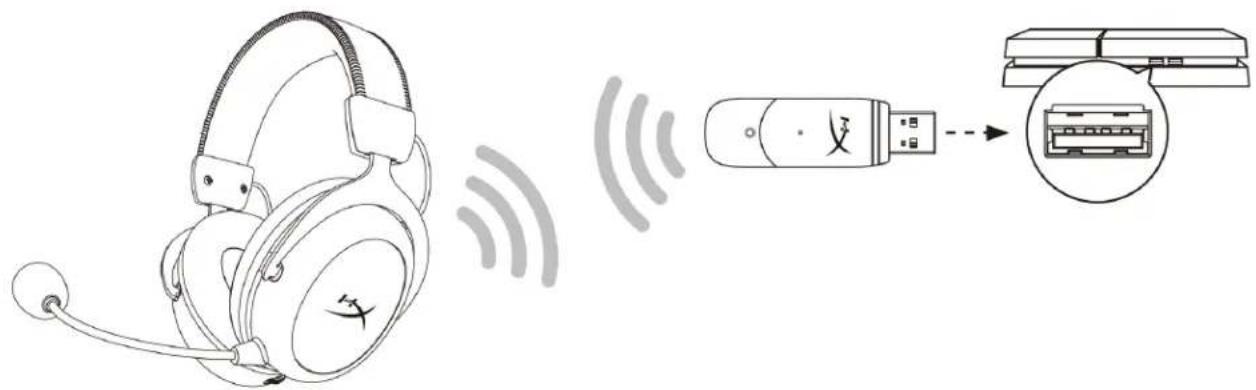
Setting up with PlayStation 4. 9
Controls 10
Mic mute / mic monitoring button. 10
Power button / 7.1 Surround Sound button 10
Volume wheel 11
Status LED 10
Charging the Headset 12
Wired charging 12
HyperX NGENUITY Software 12
Manually Pairing the Headset and USB Adapter 13
Overview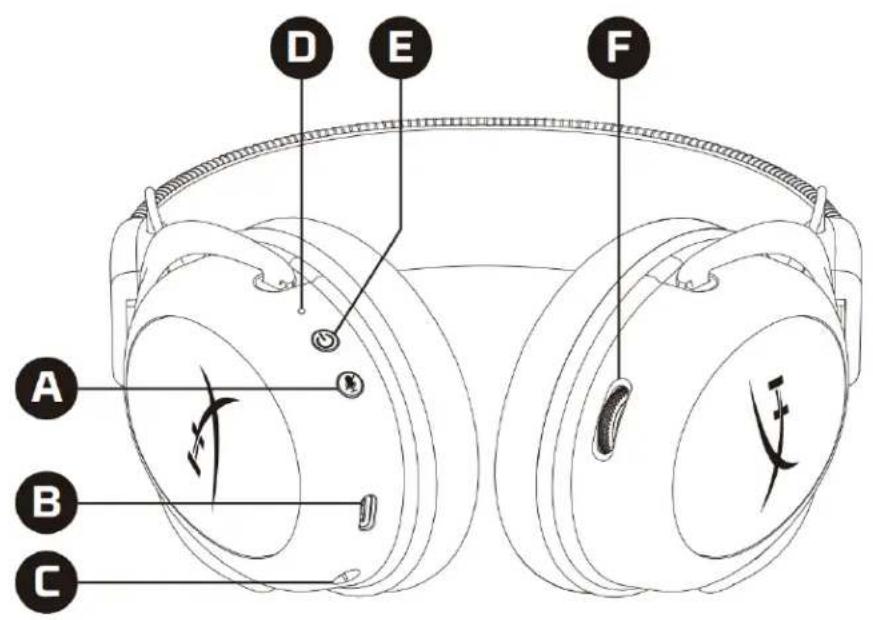
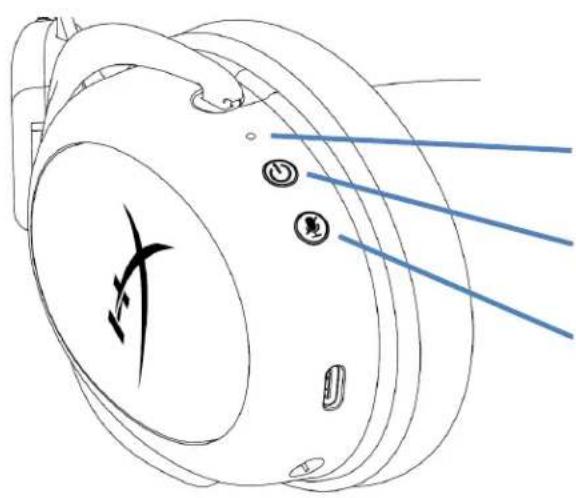
A. Mic mute / mic monitoring button B. USB charge port C. Microphone port D. Status LED E. Power / 7.1 Surround Sound button F. Volume wheel
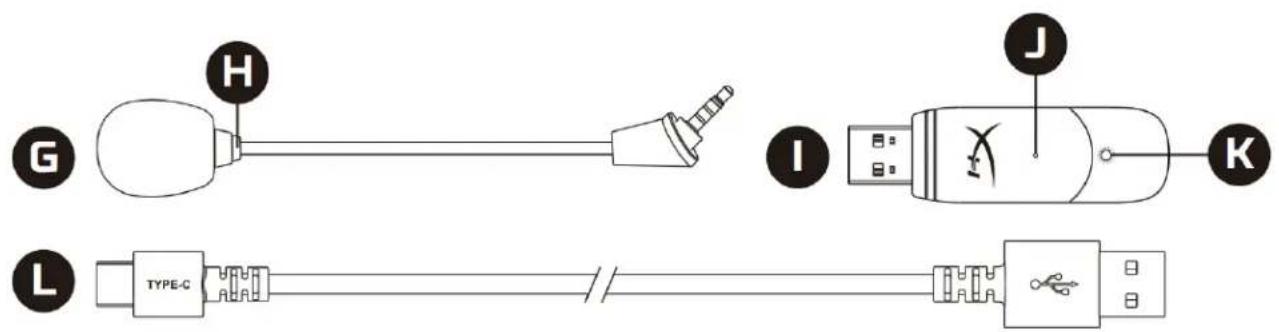
G. Detachable microphone H. Microphone mute LED
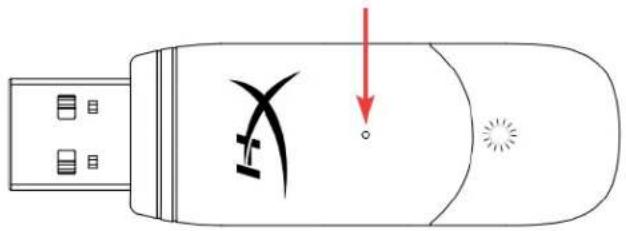
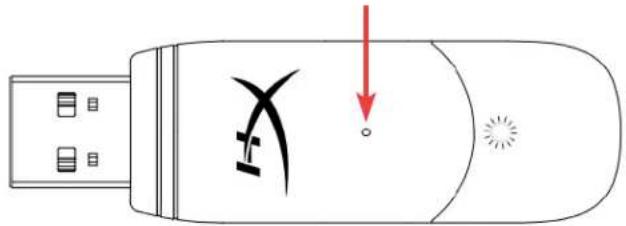
I. USB adapter J. Wireless pairing pin hole K. Wireless status LED L. USB charge cable
Specifications
Headphone
Driver: Dynamic, 53mm with neodymium magnets
Type: Circumaural, Closed back
Frequency response: 15Hz-20kHz
Impedance: 60 Ω
Sound pressure level: 104dBSPL/mW at 1kHz
T.H.D.: ≤ 1%
Weight: 300g
Weight with mic: 309g
Cable length and type: USB charge cable (0.5m)
Microphone
Element: Electret condenser microphone
Polar pattern: Bi-directional, Noise-cancelling
Frequency response: 50Hz - 6.8kHz
Sensitivity: -20dBV (1V/Pa at 1kHz)
Battery life*
30 hours
Wireless Range**
2.4 GHz
Up to 20 meters
*Tested at 50% headphone volume. Battery life varies depending upon the usage.
**Wireless range may vary due to environmental conditions.
Setting up with PC
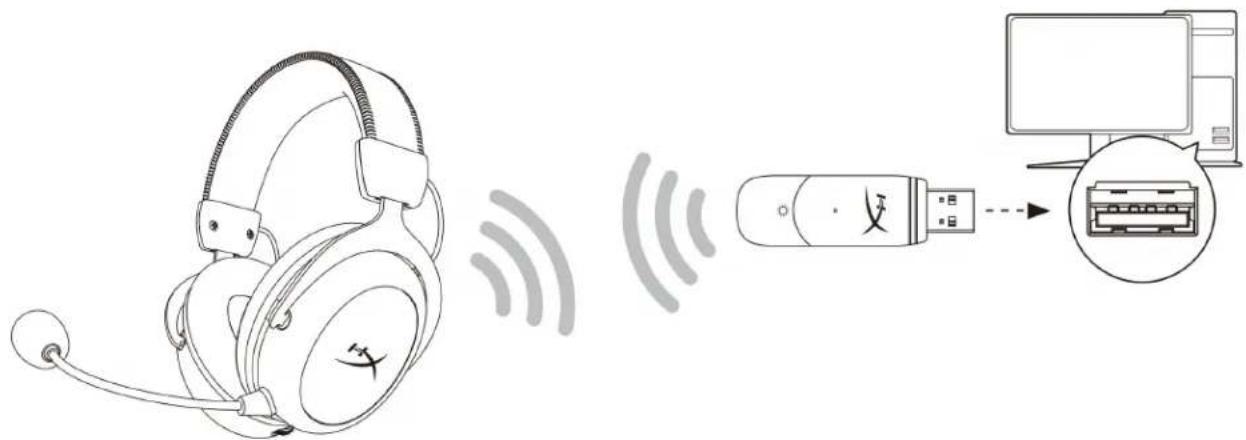
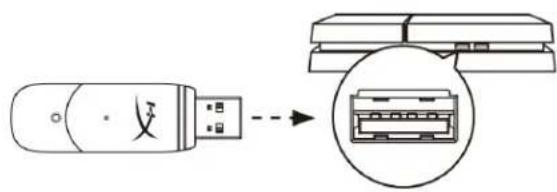
- Connect the wireless USB adapter to the PC.
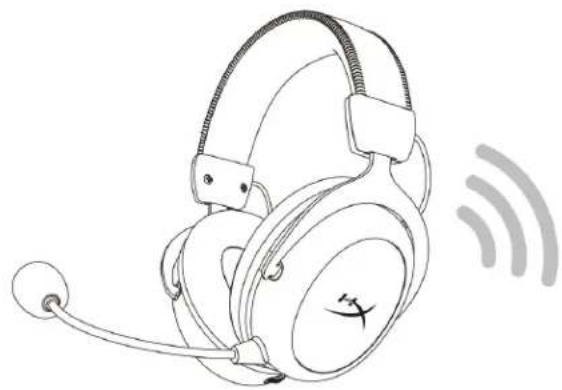
- Power on the headset.
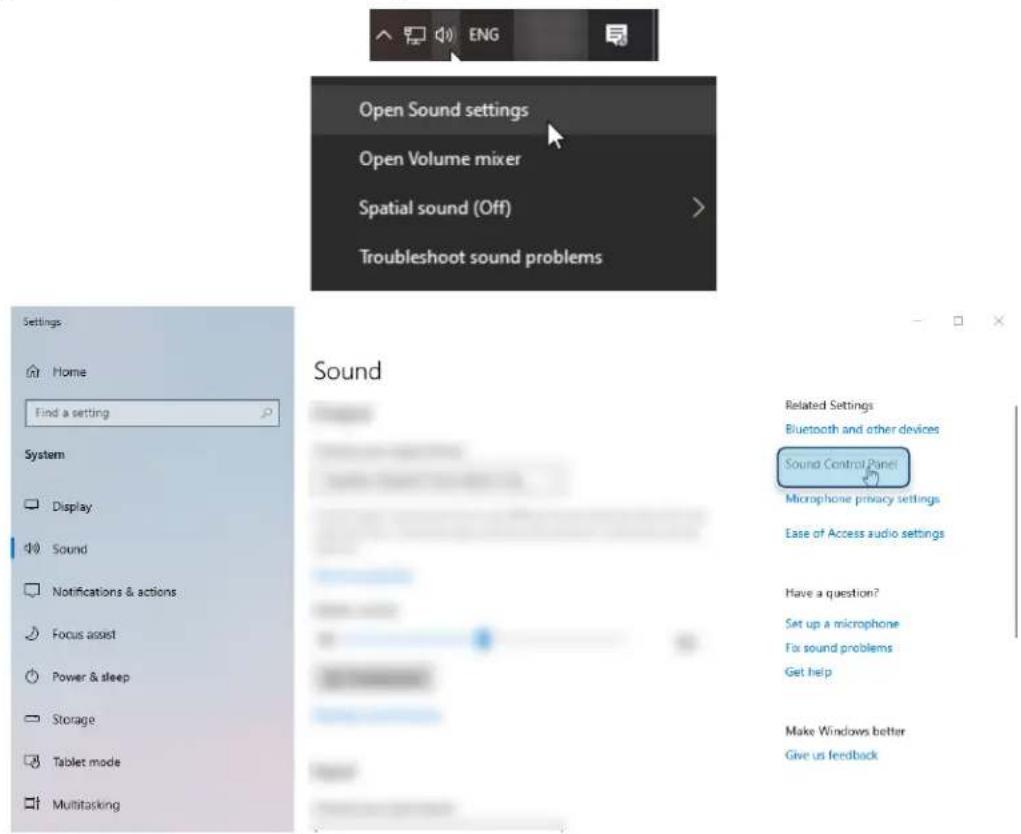
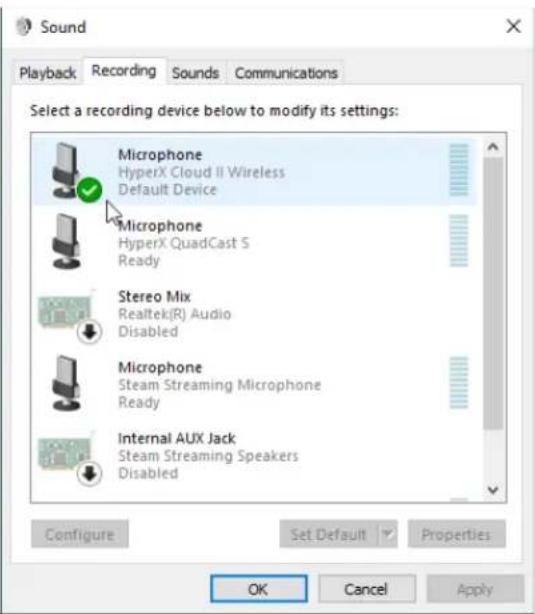
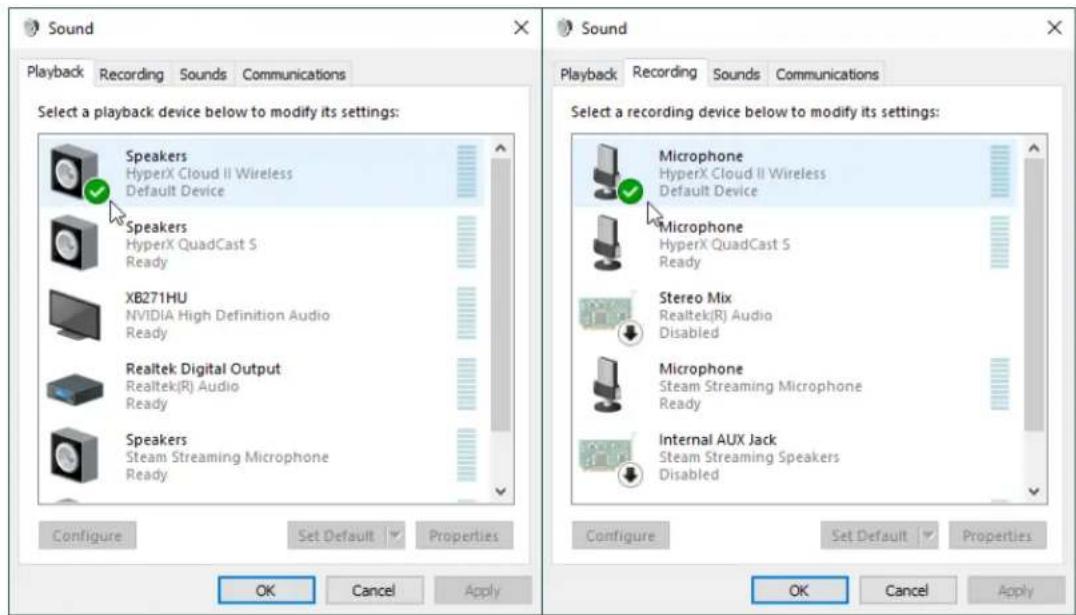
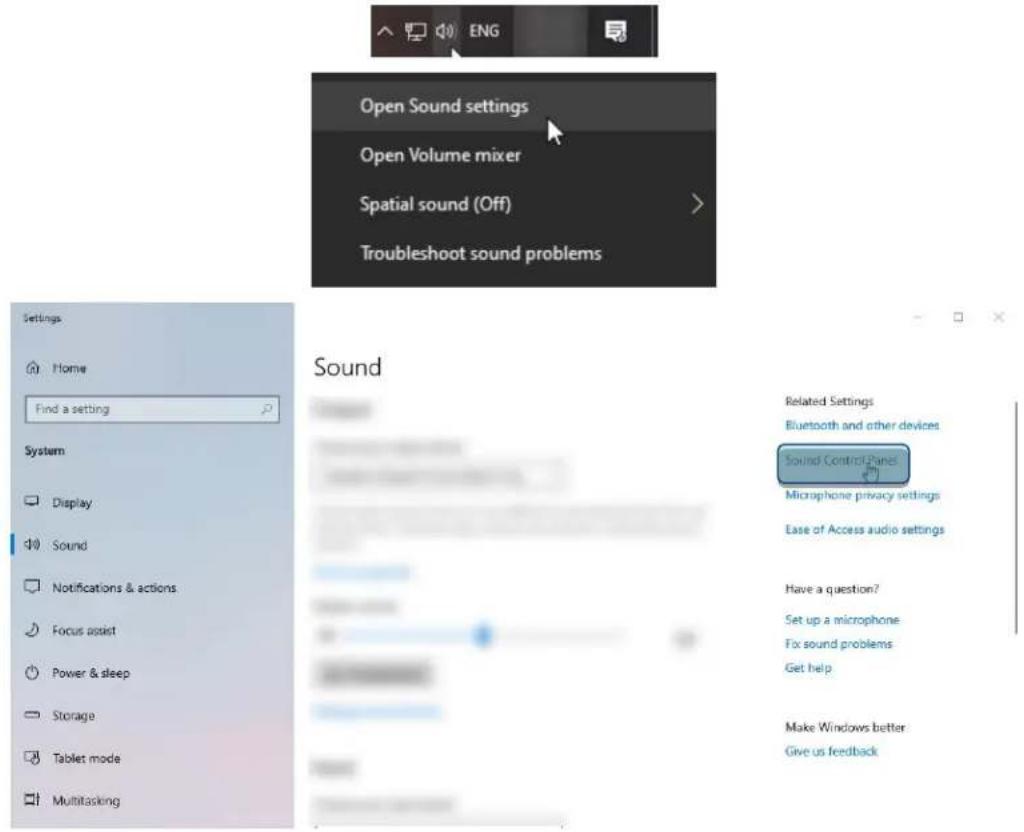
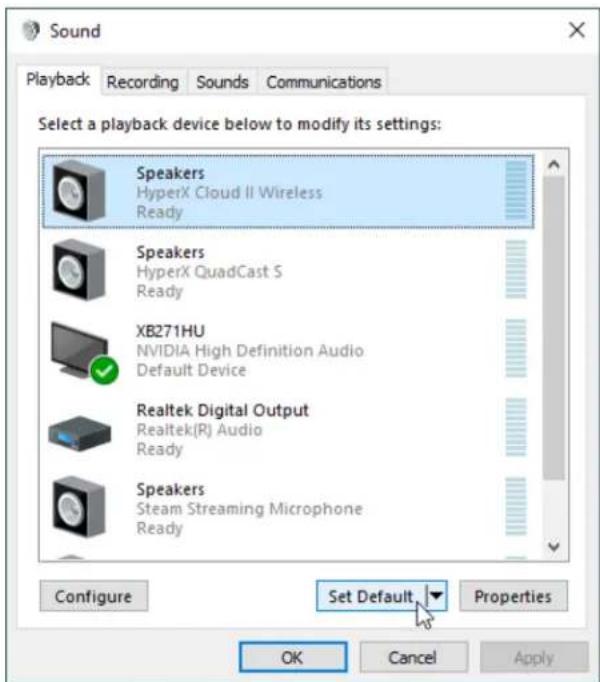
- Right click speaker icon > Select Open Sound settings > Select Sound Control Panel
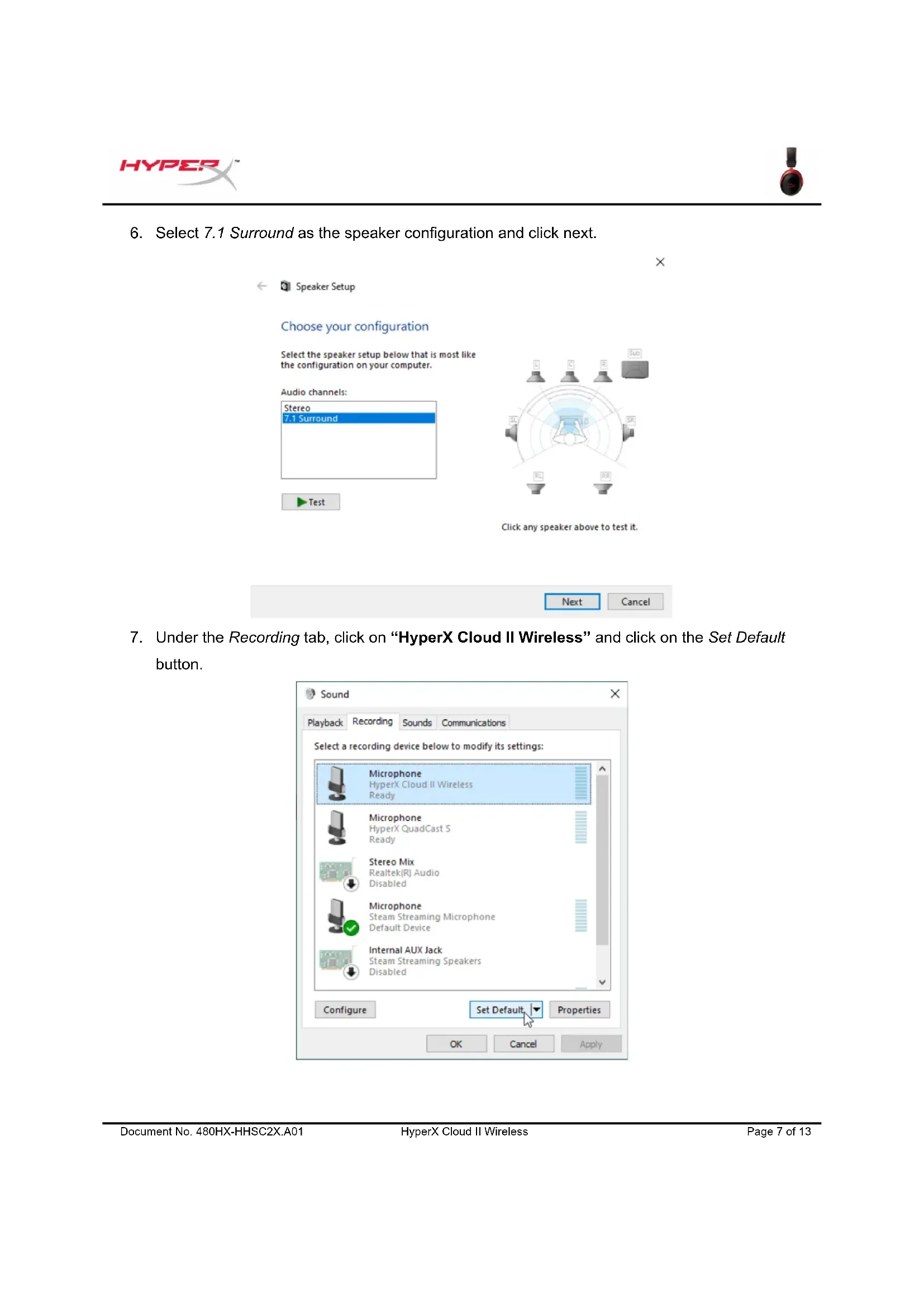
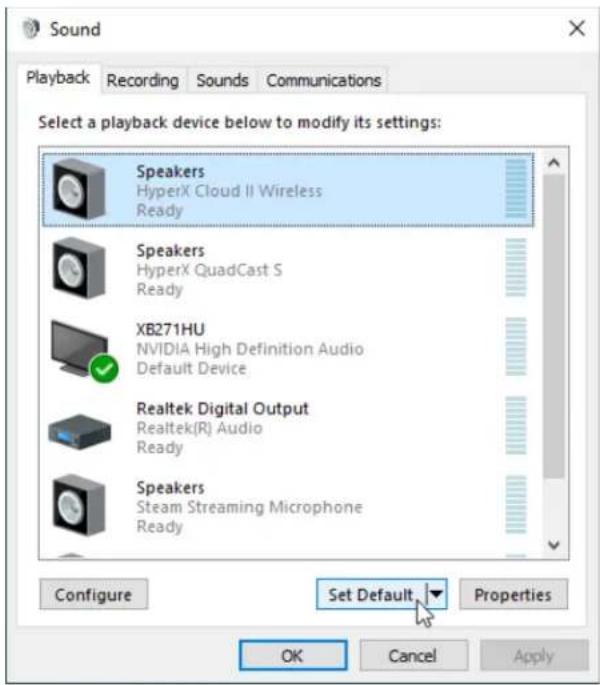
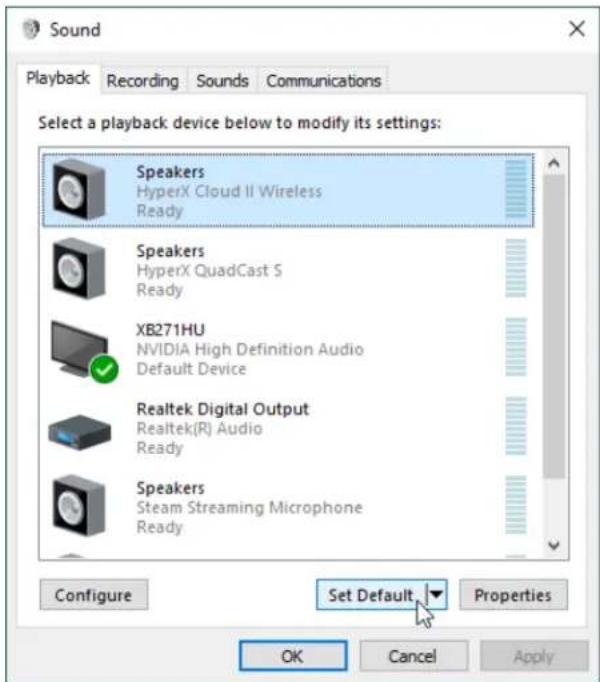
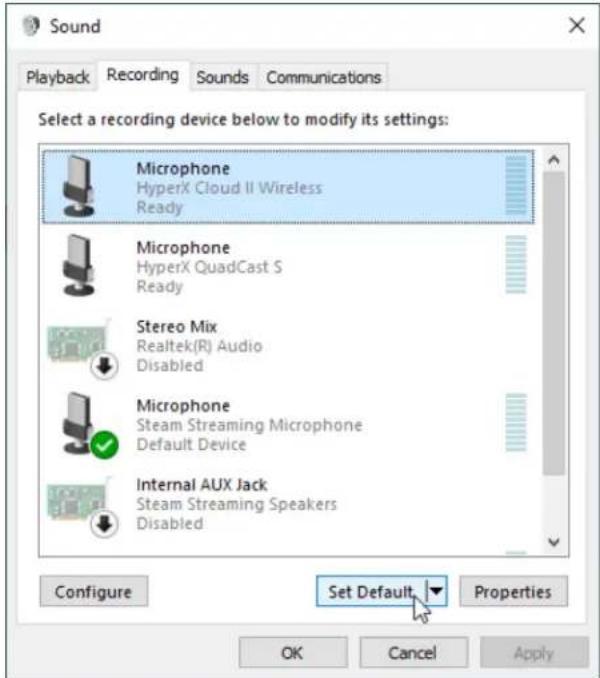
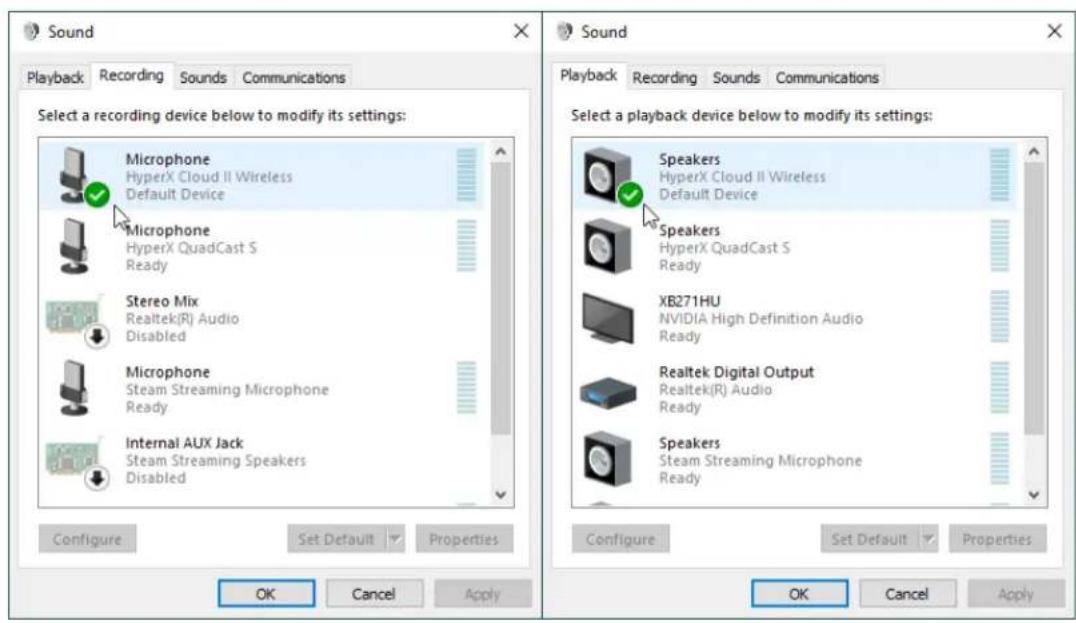
- Under the Playback tab, click on "HyperX Cloud II Wireless" and click on the Set Default button.
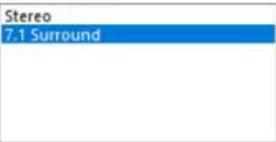
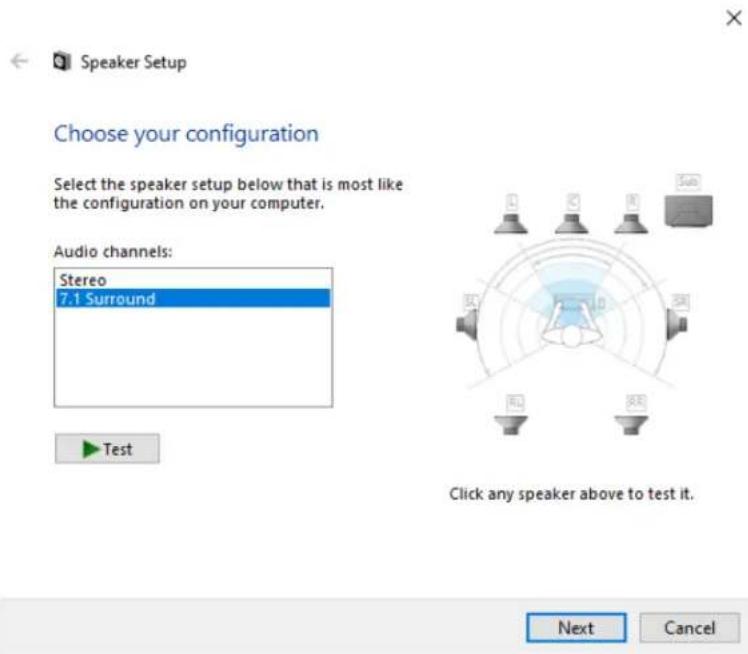
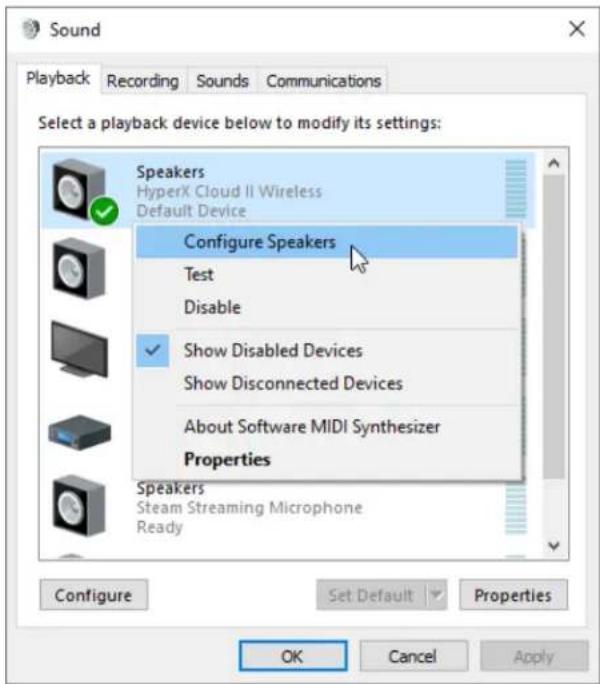
- Right click on "HyperX Cloud II Wireless" and click on Configure Speakers.
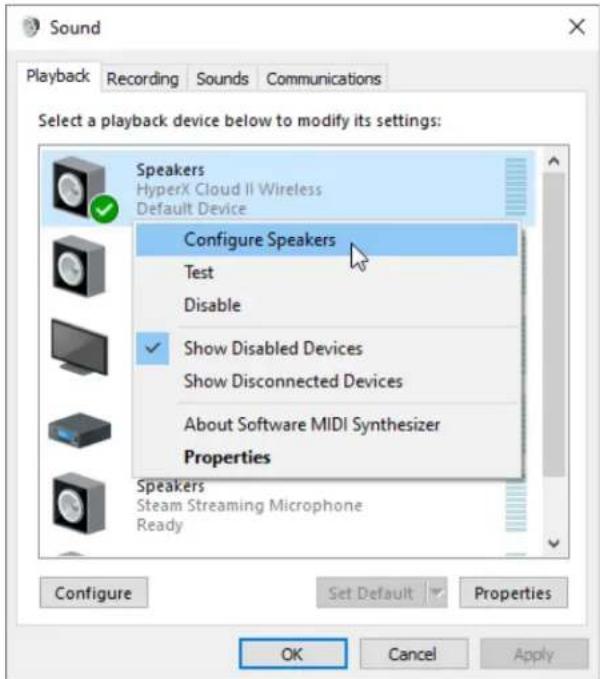
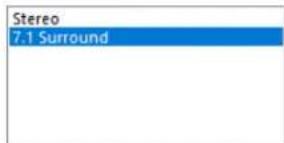
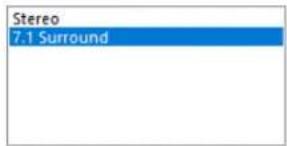
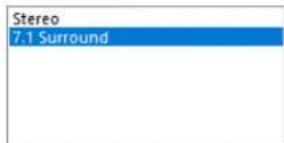
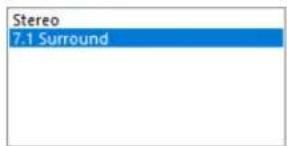
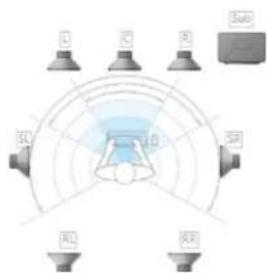
- Select 7.1 Surround as the speaker configuration and click next.
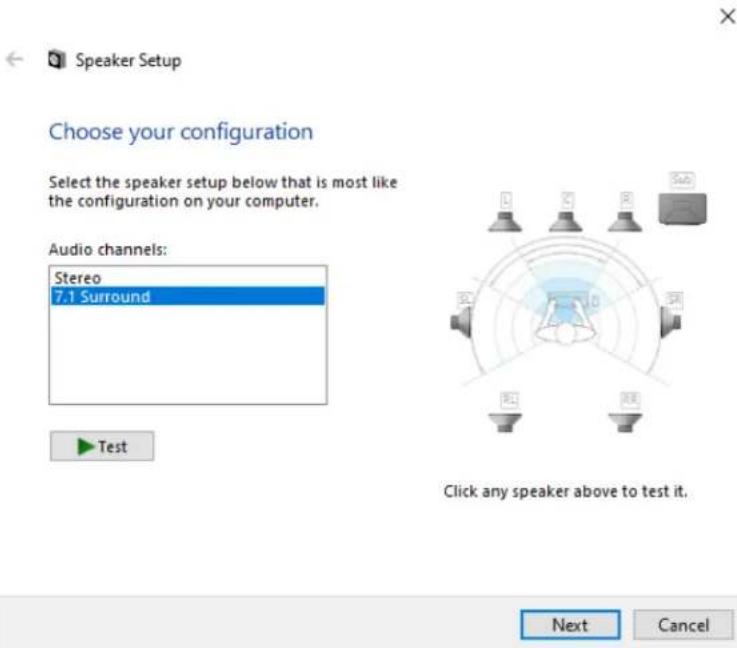
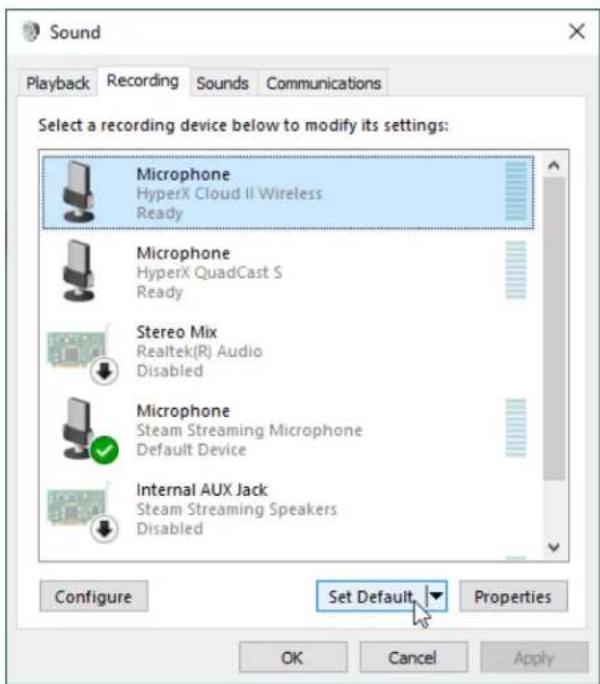
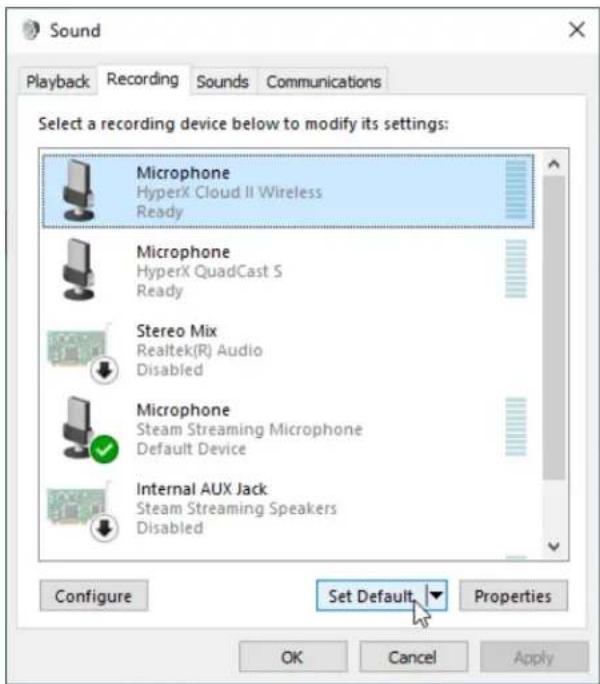
- Under the Recording tab, click on "HyperX Cloud II Wireless" and click on the Set Default button.
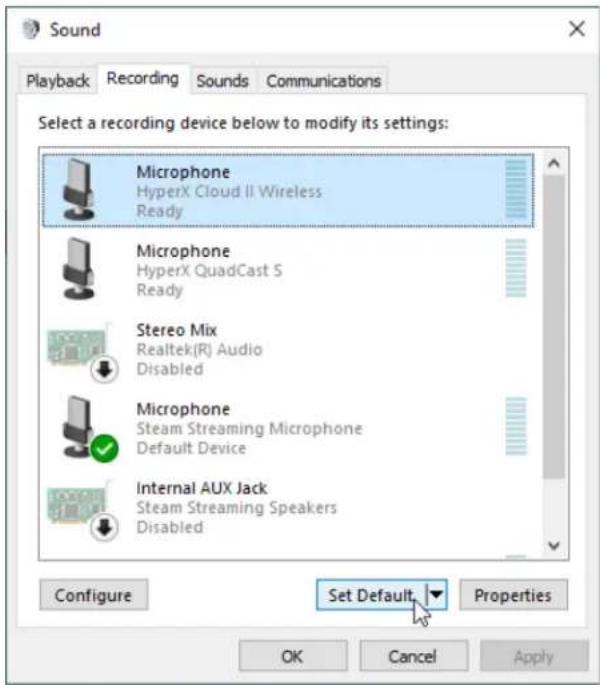
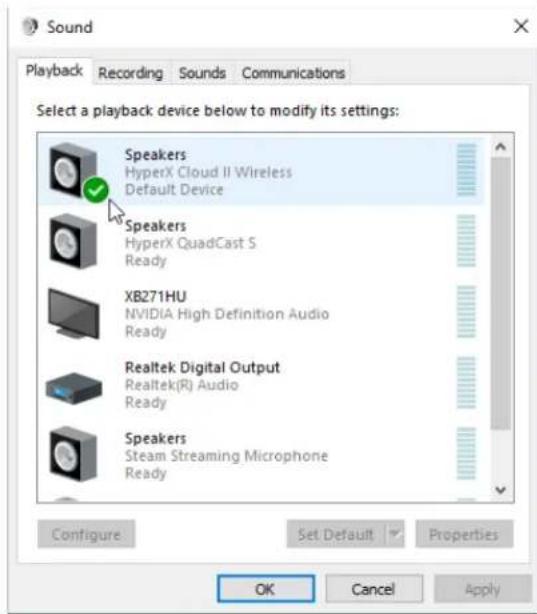
- Under the Playback tab, verify that "HyperX Cloud II Wireless" is set as Default Device and Default Communication Device. Under the Recording tab, verify that "HyperX Cloud II Wireless" is set as Default Device.
Setting up with PlayStation 4
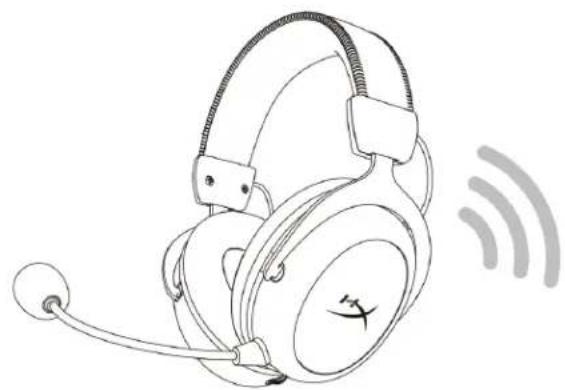
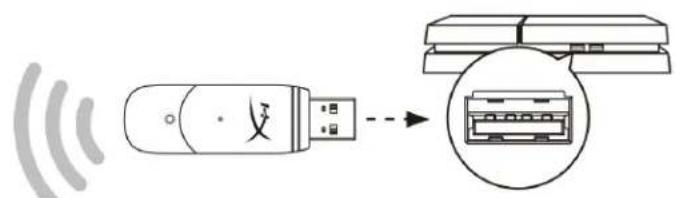
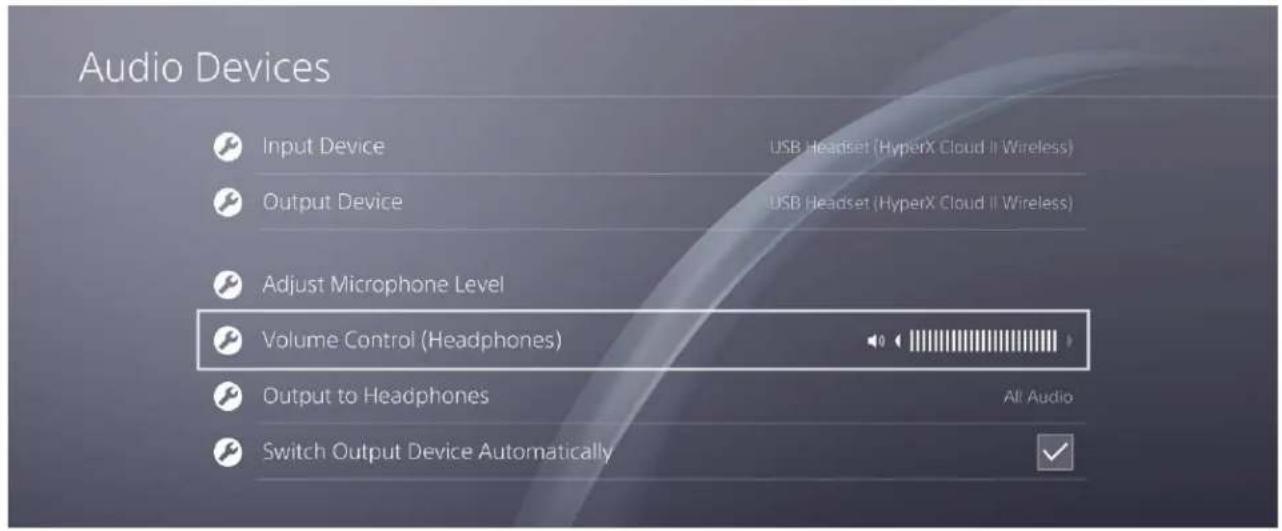
- Set Input Device to USB Headset (HyperX Cloud II Wireless)
- Set Output Device to USB Headset (HyperX Cloud II Wireless)
- Set Output to Headphones to All Audio
- Set Volume Control (Headphones) to maximum.
Audio Devices

Input Device
USB Headset (HyperX Cloud II Wireless)

Output Device
USB Headset (HyperX Cloud II Wireless)

Adjust Microphone Level

Volume Control (Headphones)


Output to Headphones

Switch Output Device Automatically
All Audio

Controls
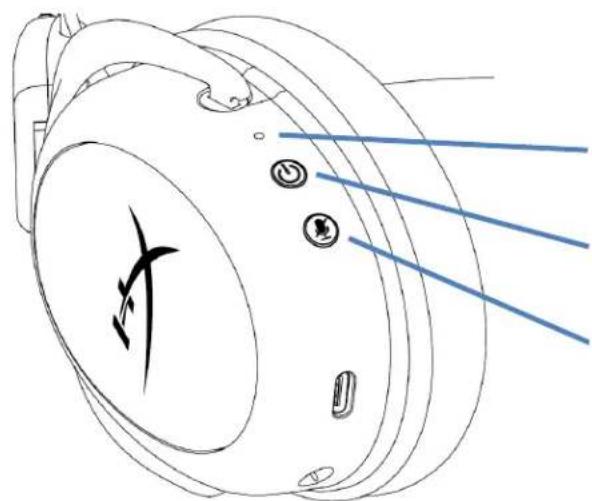
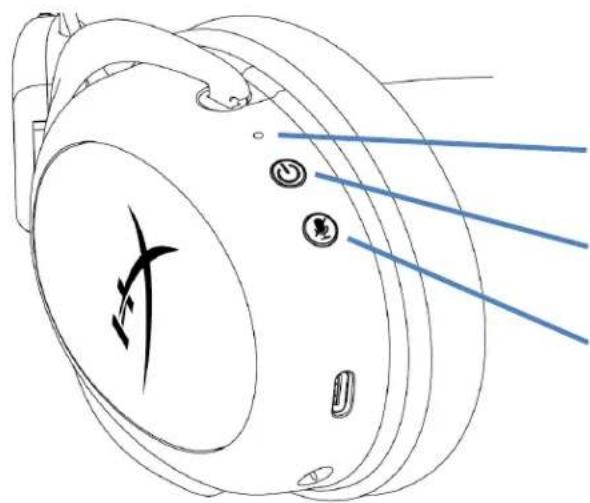
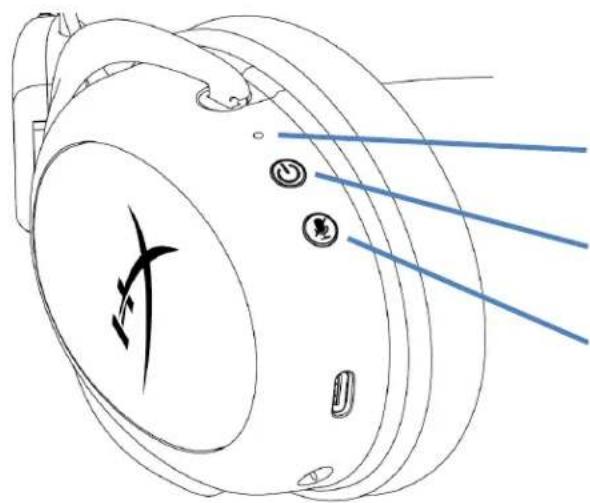
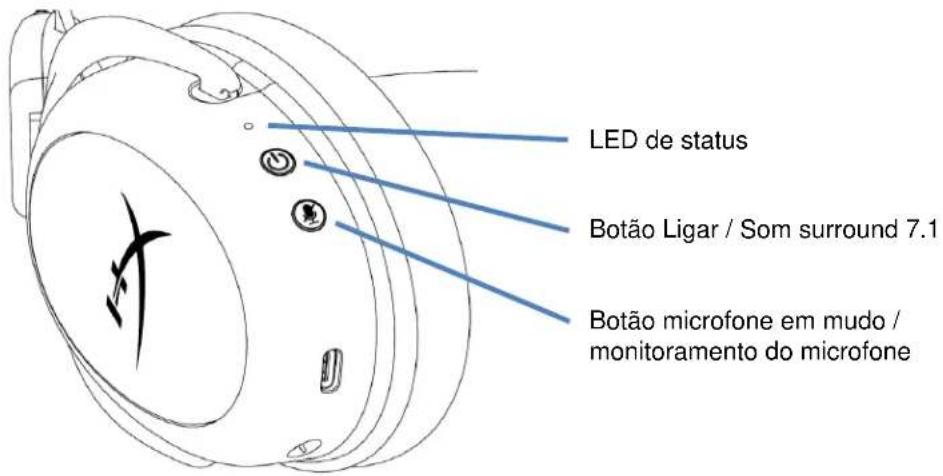
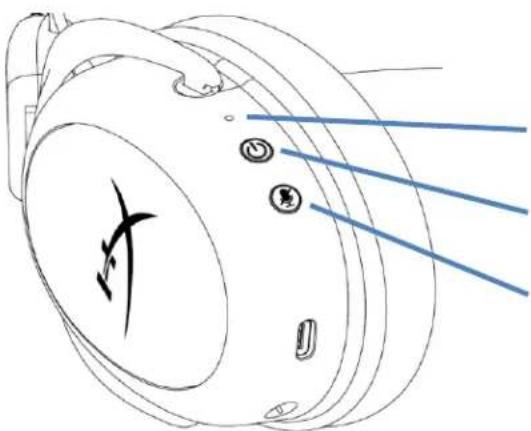
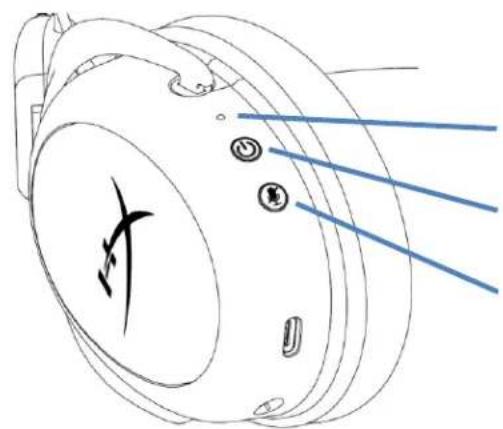
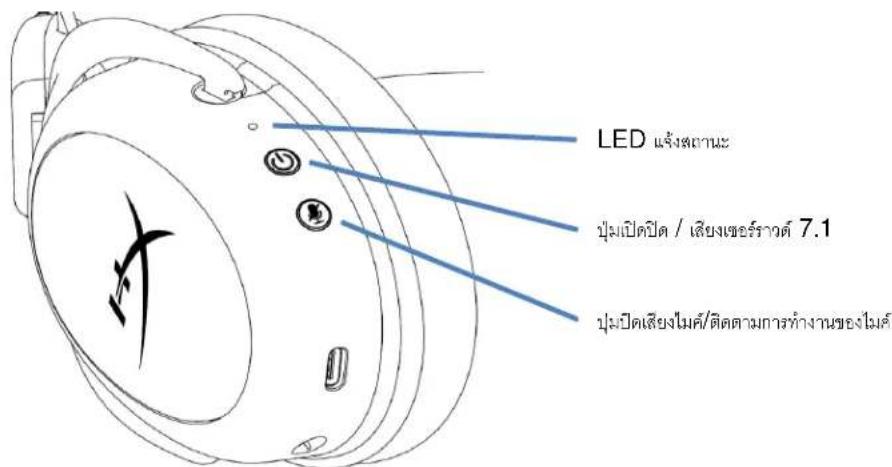
Status LED
Power / 7.1 Surround Sound button
Mic mute / mic monitoring button
Status LED
| Status | Battery Level | LED |
| Pairing | - | Flash green and red every 0.2s |
| Searching | - | Slow breathing green |
| Connected | 90% - 100% | Solid green |
| 15% - 90% | Blinking green | |
| < 15% | Blinking red |
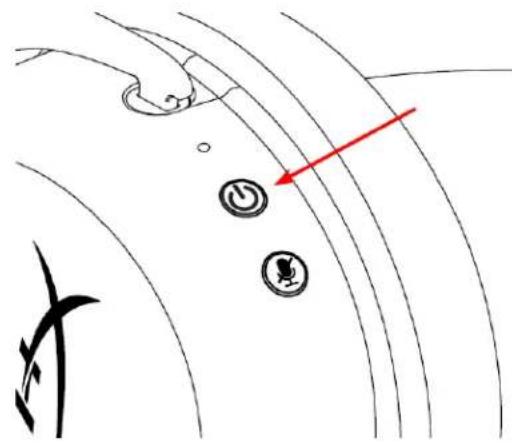
Power / 7.1 Surround Sound button
- Hold for 3 seconds to power headset on/off
- Press to toggle 7.1 Surround Sound * on/off
Virtual 7.1 surround sound outputs as a 2 channel stereo signal to be used with stereo headphones.
Mic mute / mic monitoring button
- Press to toggle mic mute on/off
LED On - Mic muted LED Off - Mic active
- Hold for 3 seconds to toggle mic monitoring on/off
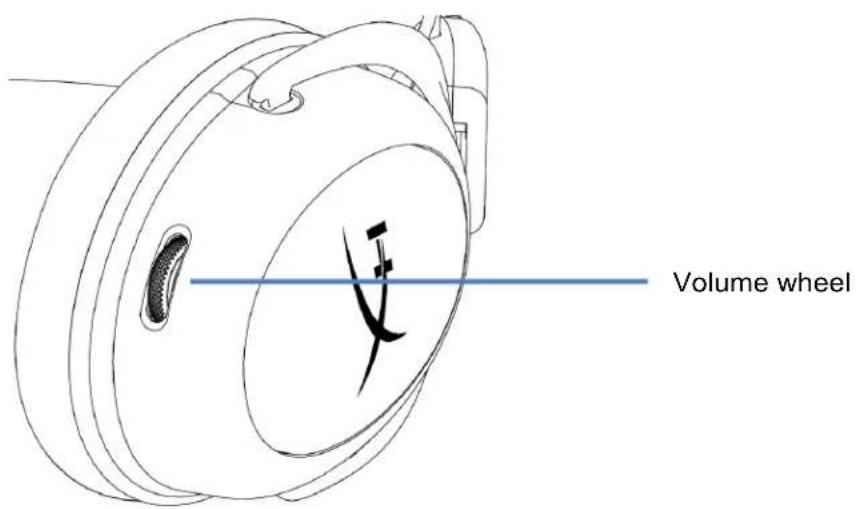
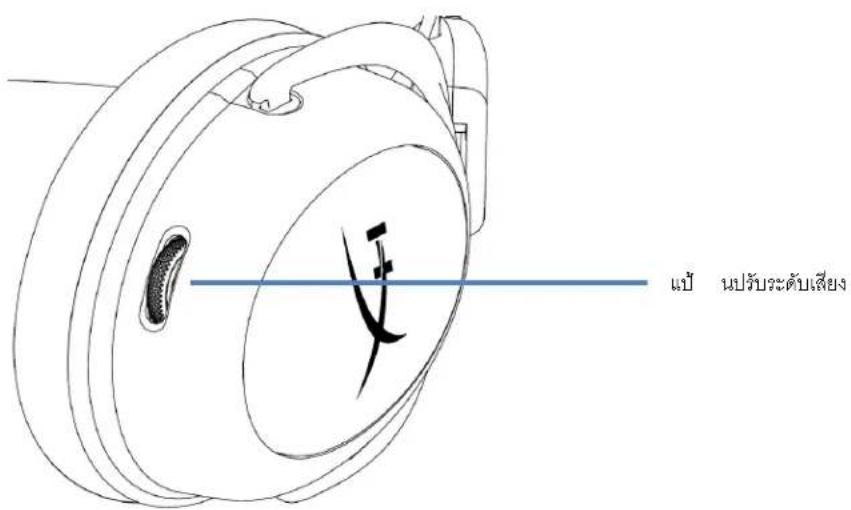
Volume wheel
- Scroll up and down to adjust volume level
WARNING: Permanent hearing damage can occur if a headset is used at high volumes for extended periods of time
Charging the Headset
It is recommended to fully charge your headset before first use.
When charging the headset, the headset status LED will indicate the current charge status.
| Status LED | Charge Status |
| Solid green | Fully charged |
| Breathing green | 15% - 99% battery level |
| Breathing red | < 15% battery level |
Wired charging
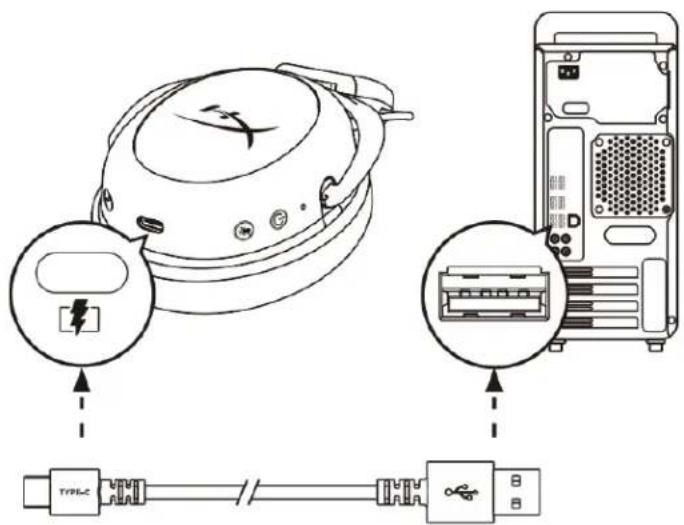
To charge the headset via wired, plug the headset to a USB port with the USB charge cable.
HyperX NGENUITY Software
Download NGENUITY software at: hyperxgaming.com/ngenuity

Manually Pairing the Headset and USB Adapter
The headset and USB adapter are automatically paired together out of the box. But if manual pairing is needed, follow the steps below to pair the headset and USB adapter.
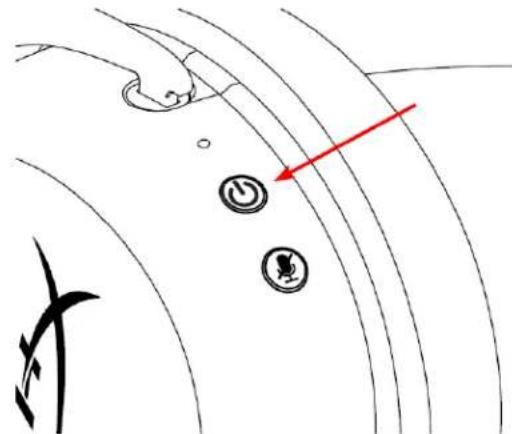
- While the headset is powered off, hold down the power button until the headset status LED starts blinking red/green rapidly. The headset is now in pairing mode.
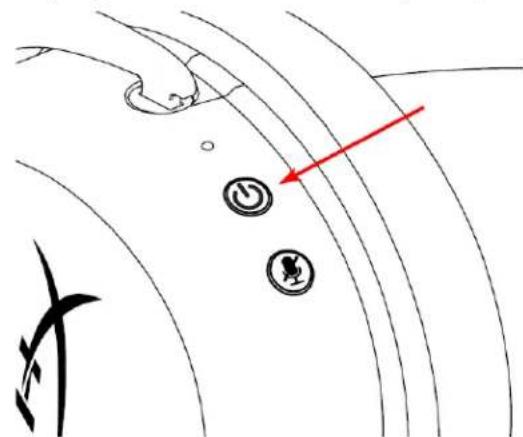
- While the USB adapter is plugged in, use a small tool (e.g. paper clip, SIM tray ejector, etc.) to hold down the button inside the pin hole until the USB adapter LED starts blinking rapidly. The USB adapter is now in pairing mode.
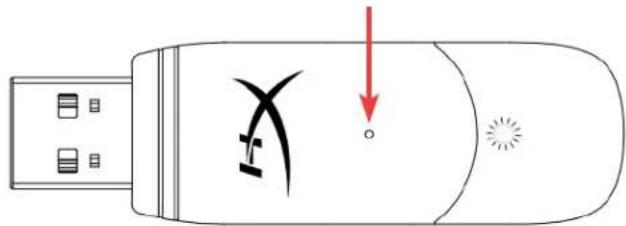
- Wait until both the headset LED and the USB adapter LED are solid. The headset and USB adapter are now paired together.
Questions or Setup Issues?
Contact the HyperX support team at: hyperxgaming.com/support/
HyperX Cloud II Wireless
Choose your configuration
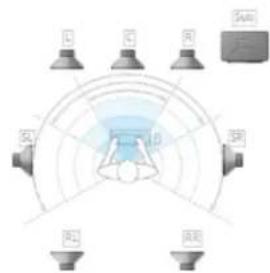
Select the speaker setup below that is most like the configuration on your computer.
Audio channels:
Test
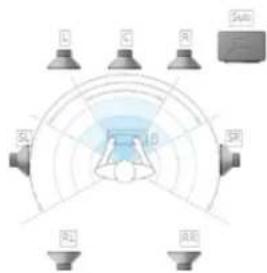
Click any speaker above to test it.
Next
Cancel
USB Headset (Hybrid Cloud Wireless)

Output Device
USB Headset (HyperX Cloud II Wireless)

Adjust Microphone Level

Volume Control (Headphones)


Output to Headphones
All Audio

Switch Output Device Automatically

Controls
Status LED
USB Headset (HyperX Cloud II Wireless)

Output Device
USB Headset (HyperX Cloud II Wireless)

Adjust Microphone Level

Volume Control [Headphones]


Output to Headphones
All Audio

Switch Output Device Automatically

Controls
Status LED
Power / 7.1 Surround Sound Button
Choose your configuration
Select the speaker setup below that is most likely to the configuration on your computer.
Audio channels:
Test
Click any speaker above to test it.

USB Headset (Hybrid Cloud Wireless)

Output Device
USB Headset (HyperX Cloud II Wireless)

Adjust Microphone Level

Volume Control (Headphones)


Output to Headphones
All Audio

Switch Output Device Automatically

Commands
LED status indicator
Power button/7.1 Surround Sound button
Power/Surround Sound 7.1 Button
Choose your configuration
Select the speaker setup below that is most like the configuration on your computer.
Audio channels:
Test
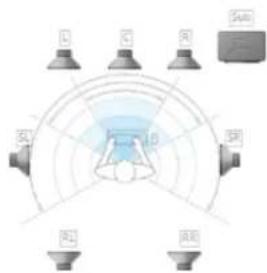
Click any speaker above to test it.
Next
Cancel
USB Headset (Hybrid Cloud Wireless)

Output Device
USB Headset (HyperX Cloud II Wireless)

Adjust Microphone Level

Volume Control (Headphones)


Output to Headphones

Switch Output Device Automatically
All Audio

Controls
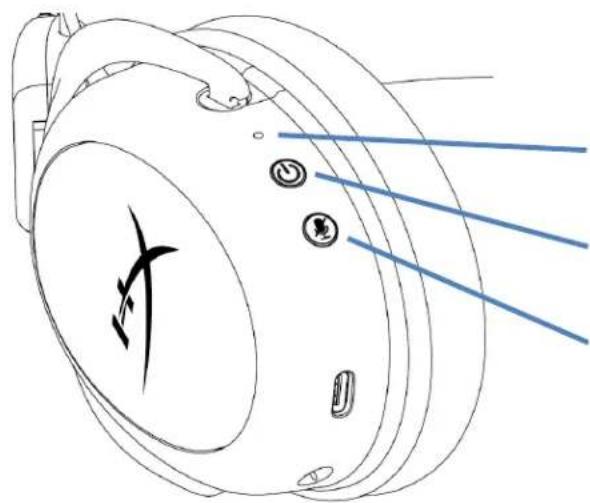
Status LEDs
Power Button / 7.1 Surround Audio
Choose your configuration
Select the speaker setup below that is most like the configuration on your computer.
Audio channels:
Test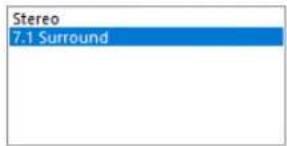
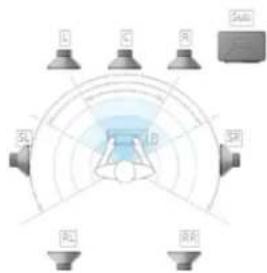
Click any speaker above to test it.
Cancel
USB Headset (Hybrid Cloud Wireless)

Output Device
USB Headset (HyperX Cloud II Wireless)

Adjust Microphone Level

Volume Control (Headphones)


Output to Headphones
All Audio

Switch Output Device Automatically

Controls
Status LED
H. Microphone mute button
I. USB adapter J. Contact microphone for pairing wireless device K. Status LED for wireless device L. USB cable for charging
Technical specifications
Headphones
Dynamic (53mm) with neodymium magnets
Type: Over-ear, closed
Frequency response: 15Hz-20kHz
Impedance: 60Ω
Sound pressure level: 104 dBSPL/mW at 1kHz
Total harmonic distortion: ≤ 1%
Microphone: 300 r
Microphone with holder: 309 r
Charging cable: USB charging cable (0.5 m)
Microphone
Element: electret condenser microphone
Directional pattern: cardioid, with suppression
Frequency response: 50 Hz - 6.8 kHz
Sensitivity: -20 dB (1 V/Pa at 1 kHz)
Battery life*
30 hours
Wireless connection range**
2.4 GHz
Up to 20 meters
- Testing was carried out at a headphone volume of 50%. Battery life depends on the intensity of use.
**The wireless connection range may vary depending on environmental conditions.
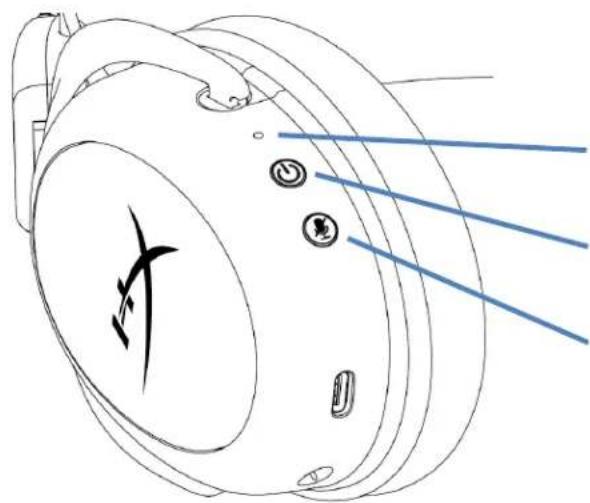
LED status indicator
Power / volume button 7.1
Mute / microphone recording button
LED status indicator
LED on. Microphone muted. LED off. Microphone enabled.
- Press and hold for 3 seconds to enable or disable microphone recording.
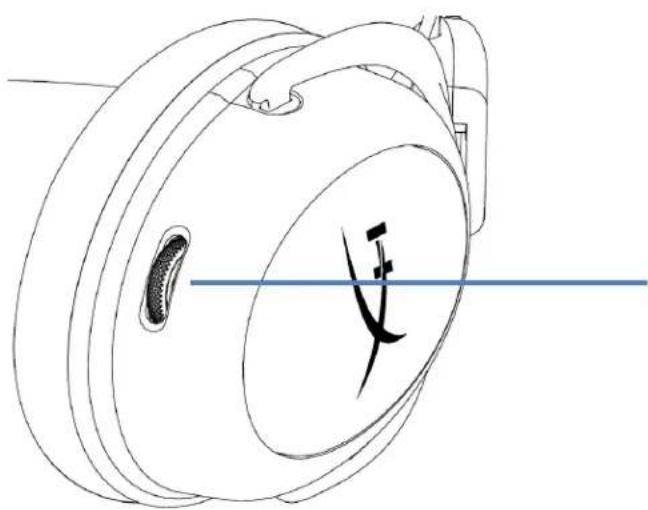
Volume control knob
Volume control knob
- Use the scroll up and down to adjust the volume level.
Warning. Using the headset at high volume for a prolonged period of time may lead to irreversible hearing damage.
Charging the headset
Before first use, it is recommended to fully charge the headset.
During charging, the LED indicator of the headset will show the current charging status.
- Wait until the headset and USB adapter LEDs stop blinking continuously.
The headset and USB adapter are now paired.
Questions or problems?
Contact HyperX technical support team at: hyperxgaming.com/support/.
HyperX Cloud II Wireless
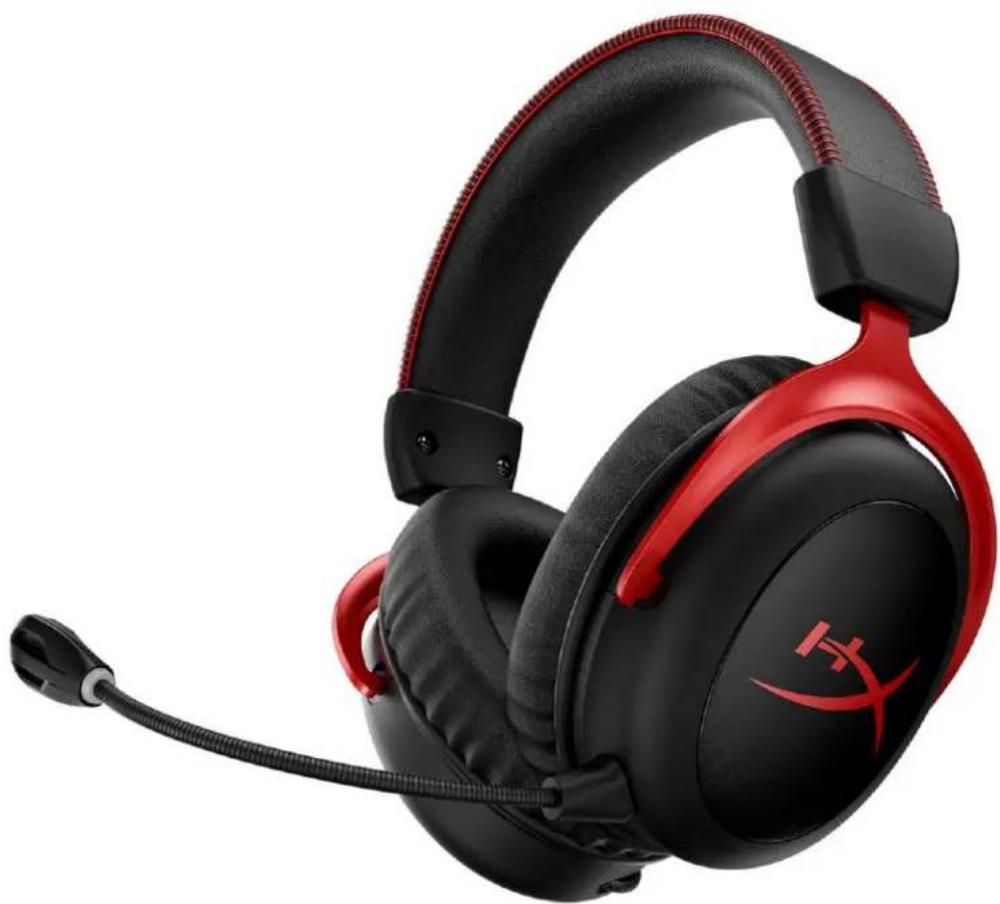
Part Numbers
HHSC2X-BA-RD/G
CONTENTS
Overview 3
Technical Specifications 4
PC Settings 5
PlayStation 4 Settings 9
Controls 10
Status LED 10
Power/7.1 Surround Sound Button 10
Choose your configuration
Select the speaker setup below that is most likely to the configuration on your computer.
Audio channels:
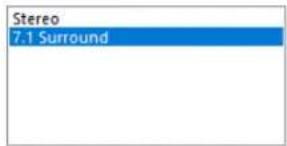
Test
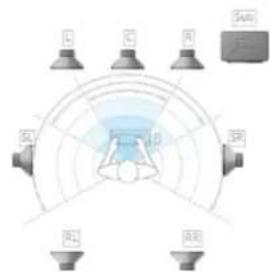
Click any speaker above to test it.

- In the Recording tab, click on "HyperX Cloud II Wireless" and then click the Set Default button.
USB Headset (Hybrid Cloud Wireless)

Output Device
USB Headset (HyperX Cloud II Wireless)

Adjust Microphone Level

Volume Control (Headphones)


Output to Headphones
All Audio

Switch Output Device Automatically

Controls
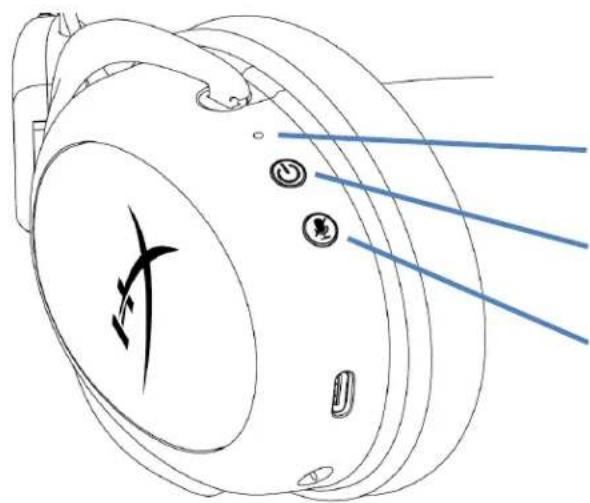
Status LED
Choose your configuration
Select the speaker setup below that is most like
the configuration on your computer
Audio channels:
Test
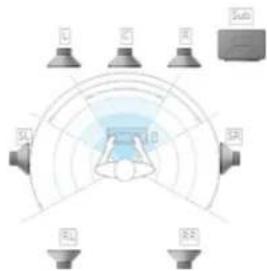
Click any speaker above to test it.
Next
Cancel
USB Headset (HyperX Cloud II Wireless)

Output Device
USB Headset (HyperCloud | Wireless)

Adjust Microphone Level

Volume Control (Headphones)


Output to Headphones
All Audio

Switch Output Device Automatically

Toro
Status LED
Power / 7.1 Surround Sound
Microphone Mute / Mic Monitor
Status LED
USB Headset (HyperX Cloud II Wireless)

Output Device
USB Headset (HyperX Cloud II Wireless)

Adjust Microphone Level

Volume Control (Headphones)


Output to Headphones
All Audio

Switch Output Device Automatically

Status LED
7.1 7.1.1
i
Figure 3.10
| 상품万元以上 | 버닝지수지 | LED |
| 체어름 | - | 0.2万元以上 naked-stock과 직원以上的 naked-stock |
| 相關Stock | - | 上述范围内 naked-stock是不同的 naked-stock |
| 展览会贓売 | 90% - 100% | naked-stock은 不는 naked-stock |
| 15% - 90% | naked-stock이로 naked-stock | |
| < 15% | naked-stock이로 naked-stock |
Section 7.1 Land Transportation Three Rhymes
3 7.1 Society
7.1 7.1.1
Kaya Kaka Bay
·
. LED seal - Ye's Ke page full seal LED
aRe Wai 1NGENUITY hxgaming.com/ngenuity

HTI 1
In people, such as:
https://hypergaming.com/support/
HyperX Cloud II Wireless
H
HHSC2X-BA-RD/G
3 4 m#n PC 5 PlayStation 4 9 aououu 10 LED 10 Journal/Interscience 7.1 10 10 11 12 12 HyperX NGENUITY 12 mssnnnneennnnnnnnnnnne USB
JW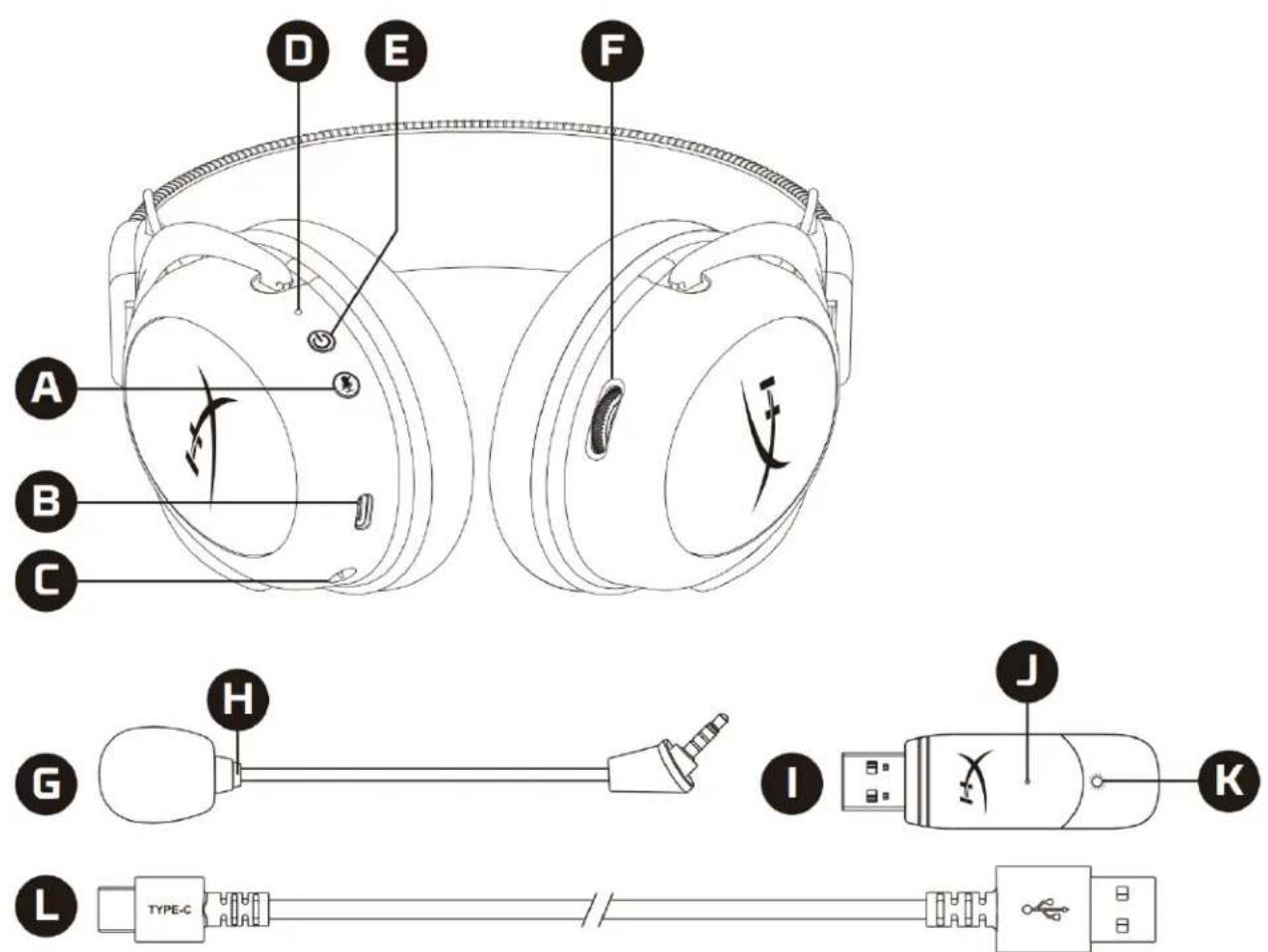
A. 与 n = 1 的 n ≠ 2 B. 250KB USB C. neapolitan D. LED E. 7.1 F.
G. Wurwunumwunum H. LED I. USB J. K. LED L. 1000 USB
7
i
15.2016: 53 191. wuJiHuaNnWnWnWnWnWnWnWnWnWn
L
15Hz-20kHz
60Ω
104dBSPL/mW 1kHz
T.H.D.: ≤ 1%
unn:300n.
unwnwneuln:309n.
USB (0.5 m)
Jainsiwu
- 7.1 Surround
- Recording "HyperX Cloud II Wireless" Set Default
- Playback "HyperX Cloud II Wireless" Default Device Default
Communication Device Recording "HyperX Cloud II Wireless" Default Device
PlayStation 4
- Input Device USB Headset (HyperX Cloud II Wireless)
- Output Device USB Headset (HyperX Cloud II Wireless)
- Output to Headphones All Audio
- Volume Control (Headphones)
Audio Devices

Input Device
USB Headset (HyperX Cloud II Wireless)

Output Device
USB Headset (HyperX Cloud II Wireless)

Adjust Microphone Level

Volume Control (Headphones)


Output to Headphones
All Audio

Switch Output Device Automatically

#
LED
| xxxxxx | xxxxxx | LED |
| xxxxxx | - | new大陆大陆大陆大陆0.2㎡ |
| xxxxxx | - | new大陆大陆大陆大陆 |
| xxxxxx | 90% - 100% | new大陆大陆大陆 |
| 15% - 90% | new大陆大陆大陆 | |
| < 15% | new大陆大陆大陆 |
7.1
7.1
7.1 4
1 20
new way
LED LED
NGENUITY: hyperxgaming.com/ngenuity

- LED USB
HyperX: hyperxgaming.com/support/
HyperX Cloud II Wireless
Product name
HHSC2X-BA-RD/G
Table of Contents 3 Overview 3 Specifications 4 Setting up the PC 5 Setting up with PlayStation 4 9 Control buttons 10 LED status 10 Power button / 7.1 surround sound 10 Mute button / microphone monitoring 10 Volume control 11 Charging the headset 12 Charging with cable 12 HyperX NGENUITY software 12 Pairing the headset and USB adapter manually 13
Overview
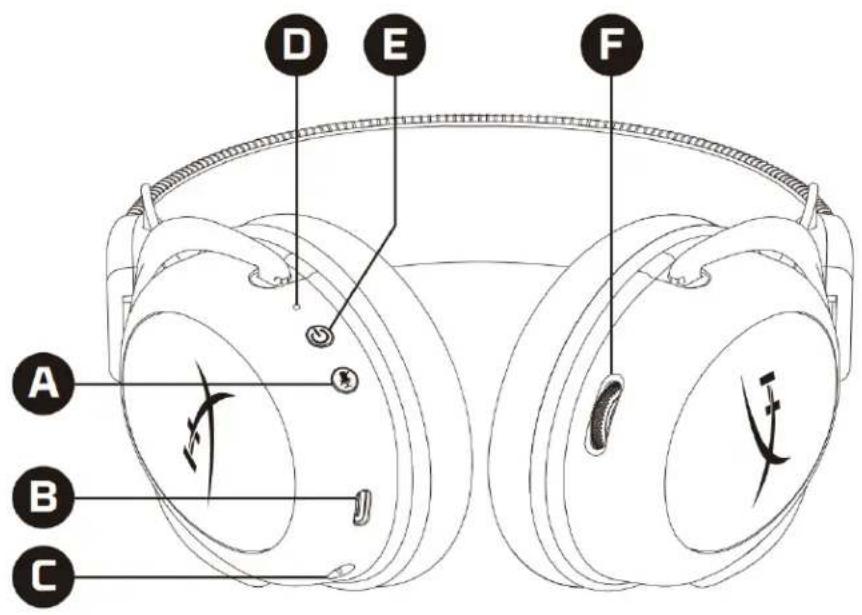
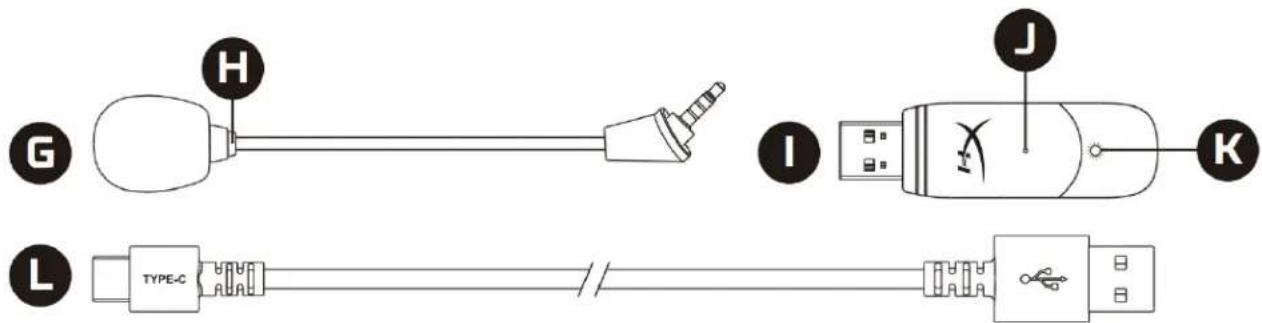
A. Mute button / microphone monitoring B. USB charging port C. Microphone port D. LED status E. Power button / 7.1 surround sound F. Volume control
G. Detachable microphone H. Microphone mute LED I. USB adapter J. Wireless connection port K. Wireless LED status L. USB charging cable
Specifications
Headset
Driver: Dynamic, 53mm with neodymium magnets
Type: Over-ear, closed back
Frequency response: 15Hz-20kHz
Impedance: 60Ω
Sound pressure level: 104dBSPL/mW at 1kHz
Microphone type: Bidirectional, noise-cancelling
Frequency response: 50Hz-6.8kHz
Sensitivity: -20dBV (1V/Pa at 0.1kHz)
Battery life*
30 hours
Wireless range**
2.4 GHz
Up to 20 meters
*Tested at 50% headphone volume. Battery life varies by usage.
**Wireless range may vary due to environmental conditions.
Setup with PC
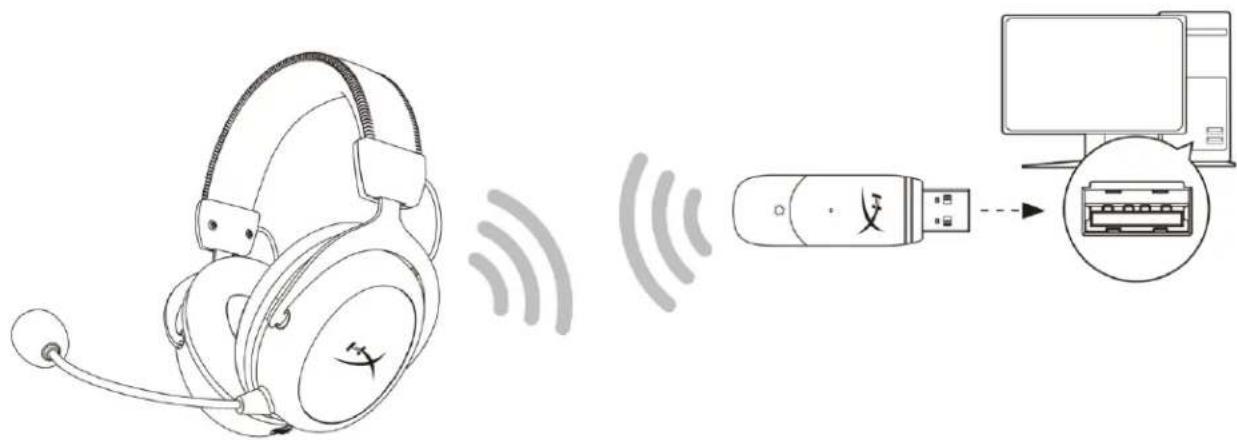
- Connect the USB wireless adapter to the PC.
- Turn on the headset.
- Right-click the speaker icon > Select Open Sound settings > Select Sound Control Panel
- In the Playback tab, click "HyperX Cloud II Wireless" and click Set Default.
- Right-click "HyperX Cloud II Wireless" and click Configure Speakers.
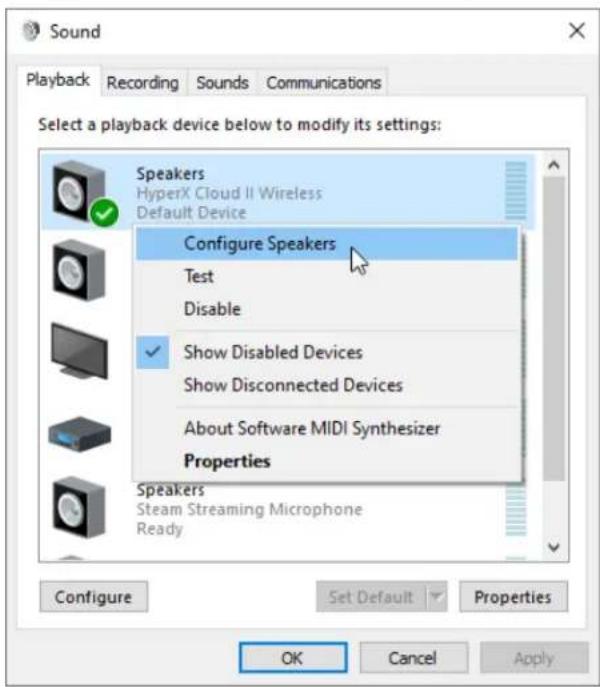
- Select 7.1 Surround as the speaker configuration and click Next.
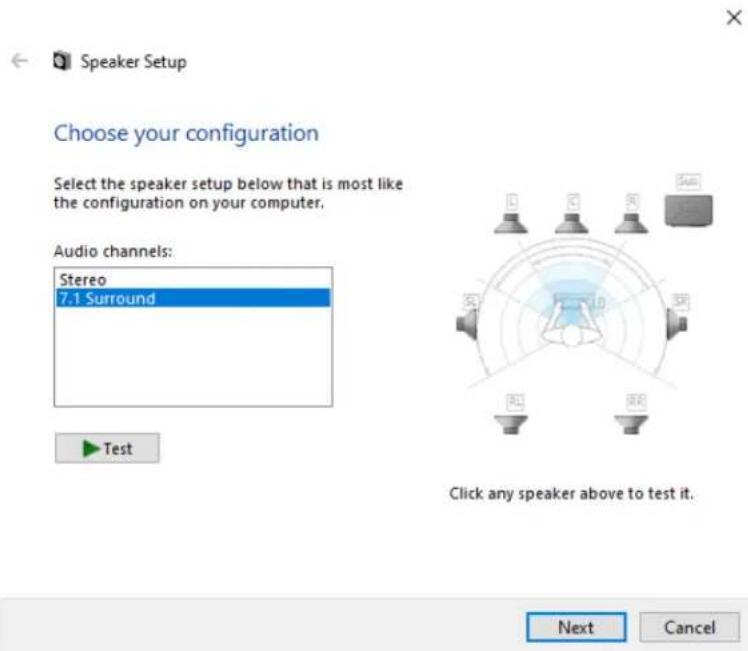
- In the Recording tab, click "HyperX Cloud II Wireless" and click Set Default.
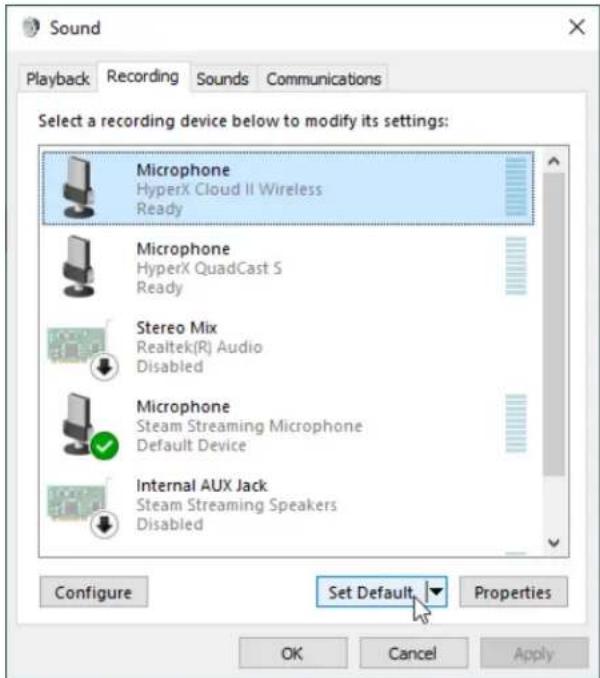
- In the Playback tab, confirm that "HyperX Cloud II Wireless" is set as the Default Device and Default Communication Device. In the Recording tab, confirm that "HyperX Cloud II Wireless" is set as the Default Device.
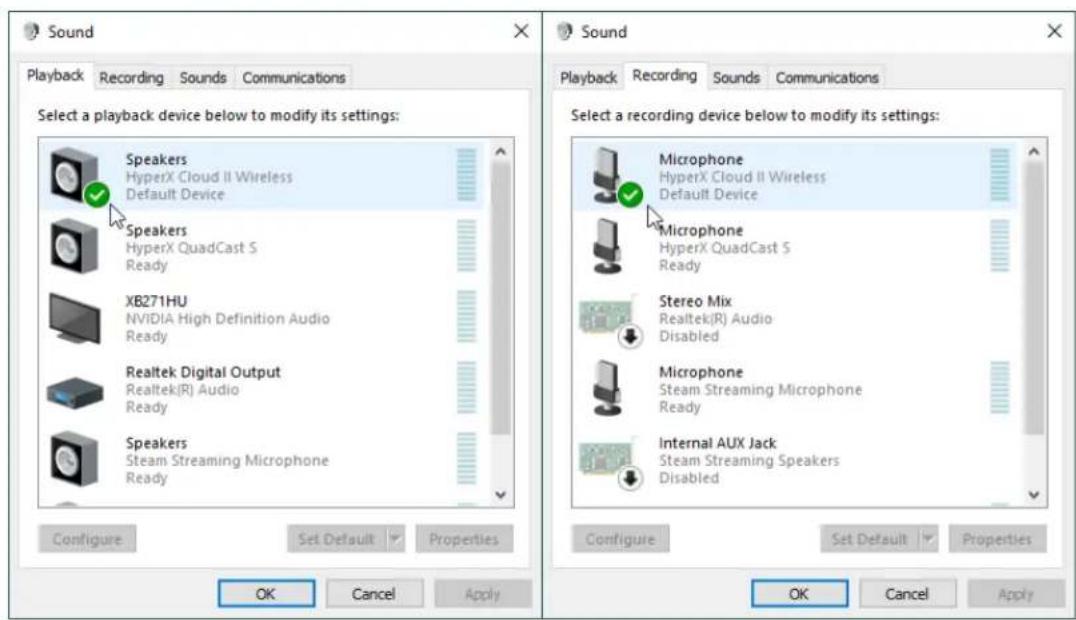
Setup with PlayStation 4

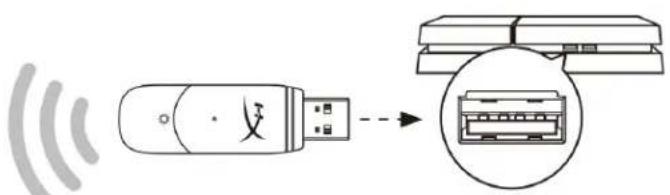
- Set Input Device to USB Headset (HyperX Cloud II Wireless)
- Set Output Device to USB Headset (HyperX Cloud II Wireless)
- Set Output to Headphones to All Audio
- Set Volume Control (Headphones) to maximum.
Audio Devices

Input Device
USB Headset (HyperX Cloud II Wireless)

Output Device
USB Headset (HyperX Cloud II Wireless)

Adjust Microphone Level

Volume Control (Headphones)


Output to Headphones
All Audio

Switch Output Device Automatically

Control
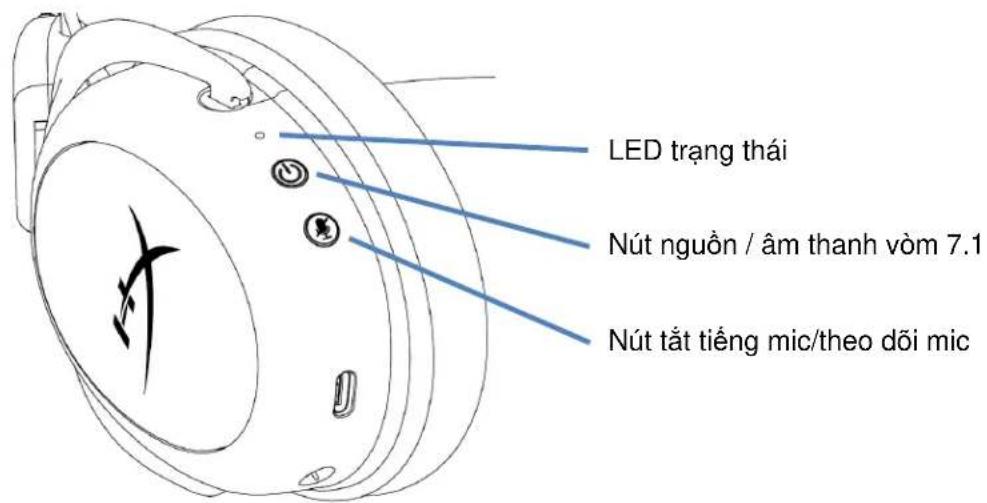
Status LED
USB Headset (HyperX Cloud II Wireless)

Output Device
USB Headset (HyperX Cloud II Wireless)

Adjust Microphone Level

Volume Control (Headphones)


Output to Headphones
All Audio

Switch Output Device Automatically

Controls
Status LED, Power/7.1 Surround Sound Button, Microphone Mute/Microphone Monitor Button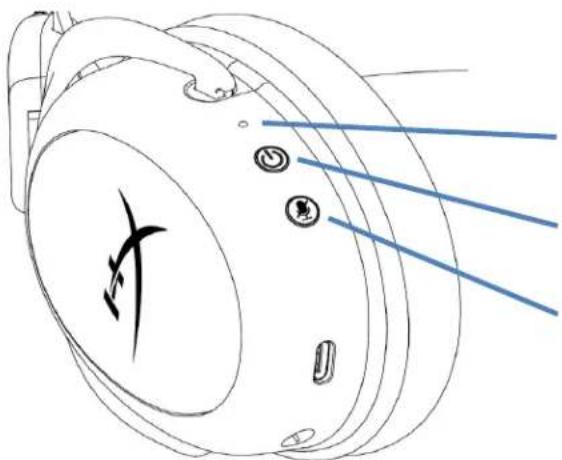
Status LED
USB Headset (HyperX Cloud II Wireless)

Output Device
USB Headset (HyperX Cloud II Wireless)

Adjust Microphone Level

Volume Control (Headphones)


Output to Headphones
All Audio

Switch Output Device Automatically

Control Functions
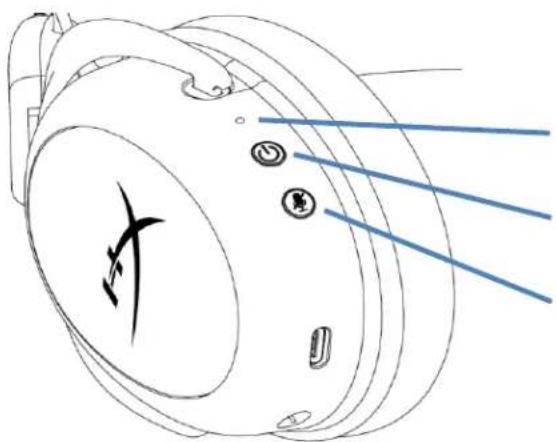
LED Status Indicator
Power/7.1 Surround Sound Button
Microphone Mute/Microphone Monitor (Sidetone) Button
LED Status Indicator
HyperX Cloud II Wireless
HyperX Cloud II Wireless 5
.6
X
Speaker Setup
Choose your configuration
Select the speaker setup below that is most like the configuration on your computer.
Audio channels:
Test
Click any speaker above to test it.
No
Cancel
"HyperX Cloud II Wireless"
HyperX Cloud II Wireless
PlayStation
(USB) (HyperX Cloud II Wireless 1.
(USB) (HyperX Cloud II Wireless 2.
- 0
4.
LED
7.1
CLLED
J 1
hyperxgaming.com/ngenuity: NGENUITY

USB
1
1
12
USBLEDCLALLED
12 USB
i 1
/hyperxgaming.com/support HyperX
- HYPERX CLOUD II WIRELESS
- HYPERX CLOUD II WIRELESS INSTALLATION GUIDE
- PART NUMBERS
- TABLE OF CONTENTS
- SPECIFICATIONS
- HEADPHONE
- MICROPHONE
- BATTERY LIFE
- WIRELESS RANGE
- SETTING UP WITH PC
- SETTING UP WITH PLAYSTATION 4
- AUDIO DEVICES
- CONTROLS
- STATUS LED
- POWER / 7.1 SURROUND SOUND BUTTON
- MIC MUTE / MIC MONITORING BUTTON
- VOLUME WHEEL
- CHARGING THE HEADSET
- WIRED CHARGING
- HYPERX NGENUITY SOFTWARE
- MANUALLY PAIRING THE HEADSET AND USB ADAPTER
- QUESTIONS OR SETUP ISSUES
- CHOOSE YOUR CONFIGURATION
- COMMANDS
- POWER/SURROUND SOUND 7.1 BUTTON
- TECHNICAL SPECIFICATIONS
- LED STATUS INDICATOR
- VOLUME CONTROL KNOB
- QUESTIONS OR PROBLEMS
- CONTENTS
- TORO
- FIGURE 3.10
- SECTION 7.1 LAND TRANSPORTATION THREE RHYMES
- KAYA KAKA BAY
- HTI 1
- 7
- JAINSIWU
- PLAYSTATION 4
- LED
- OVERVIEW
- HEADSET
- SETUP WITH PC
- SETUP WITH PLAYSTATION 4
- CONTROL
- CONTROL FUNCTIONS
- USB
Brand : HYPERX
Model : Cloud II Wireless
Category : Headphones