FH109313 - Heating Emerio - Free user manual and instructions
Find the device manual for free FH109313 Emerio in PDF.



| Product type | Connected electric heater with oscillation |
| Brand | Emerio |
| Model | FH109313 |
| Power supply | 220-240 V ~ 50/60 Hz |
| Power | 2000 W |
| Dimensions (approx.) | 40 × 20 × 60 cm |
| Weight (approx.) | 5 kg |
| Connectivity | WiFi (iOS 7.0+ and Android 4.0+) |
| Main functions | App control (on/off, oscillation, timer, temperature, low/high heat, ECO mode, consumption display) |
| Timer | Yes, adjustable via app |
| ECO mode | Yes |
| Display | Digital (temperature, timer, consumption) |
| Heating capacity | Up to 25 m² (estimate) |
| Noise level | Silent |
| Safety | Automatic shut-off in case of overheating |
| Maintenance | Unplug and clean with a soft dry cloth |
| Spare parts | Available via Emerio customer service |
| Warranty | 2 years |
| Package contents | Heater, instruction manual |
Frequently Asked Questions - FH109313 Emerio
User questions about FH109313 Emerio
0 question about this device. Answer the ones you know or ask your own.
Ask a new question about this device
Download the instructions for your Heating in PDF format for free! Find your manual FH109313 - Emerio and take your electronic device back in hand. On this page are published all the documents necessary for the use of your device. FH109313 by Emerio.
USER MANUAL FH109313 Emerio
TIPPS:
СЪВЕТИ:
Drugo mobilno povezivanje: provjerite da li mobilni telefon koristi istu Wi-Fi mrežu kao i grijalica.
SAVJETI:
Podatkovna mreža
U uslovima bez Wi-Fi mreže mobilni telefon se još uvijek može povezati s grijalicom. Najprije isključite postavke Wi-Fi mreže, a zatim otvorite podatkovnu mrežu (Proizvodom pokušajte upravljati u mreži 3G/4G.). Nakon otprilike 30 sekundi, mreža može potražiti uređaj. Uzimajući u obzir nestabilnost mreže 3G/4G, može doći do odgode od 1 - 2 sekunde, što je normalno. Podatkovnu mrežu treba koristiti na osnovu preduslova da je mobilni telefon prethodno bio povezan s grijalicom putem Wi-Fi mreže.
POUŽÍVÁNÍ WI-FI - Česky
Datová sít
Anden mobilforbindelse: Sørg for, at mobiltelefonen benytter den samme wi-fi-forbindelse som radiatoren.
TIP:
CONSEJOS:
VINKKEJÄ:
Conseils :
This product is equipped with a Wi-Fi function. You can download APP in your mobile phones and use it like the remote control. You can control the unit from long distance by setting the power on/off, oscillation function, timer, temperature, low heating power / high heating power, ECO function. You can also check the timer, set temperature, room temperature and energy consumption on your mobile phone.
1. Download APP
1) For Apple (Apple mobile operation system IOS 7.0 and above; iPhone 4 and above):
Open the "App store" software on your iPhone or iPad. Search "Emerio" and download it. This is free of charge.
2) For Android (Android mobile operation system 4.0 and above):
Open the "Google Play" software on your Android phone. Search "Emerio" and download it. This is free of charge.
- Press the WI-FI button on the back of the appliance for more than 5 seconds. The Wi-Fi function will be activated with icon "spidly flashing on the digital display.
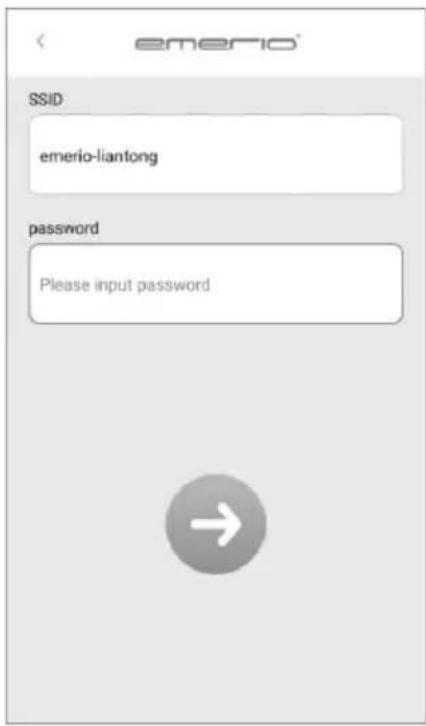
1) SSID & Password: Currently only support English and normal keyboard character, for Wi-Fi name and password please do not set with Chinese, Japanese, Spanish, Korean and other special characters.
2) Please ensure the heater is within the scope of the effective Wi-Fi signal; being closer to the Wi-Fi router is better.
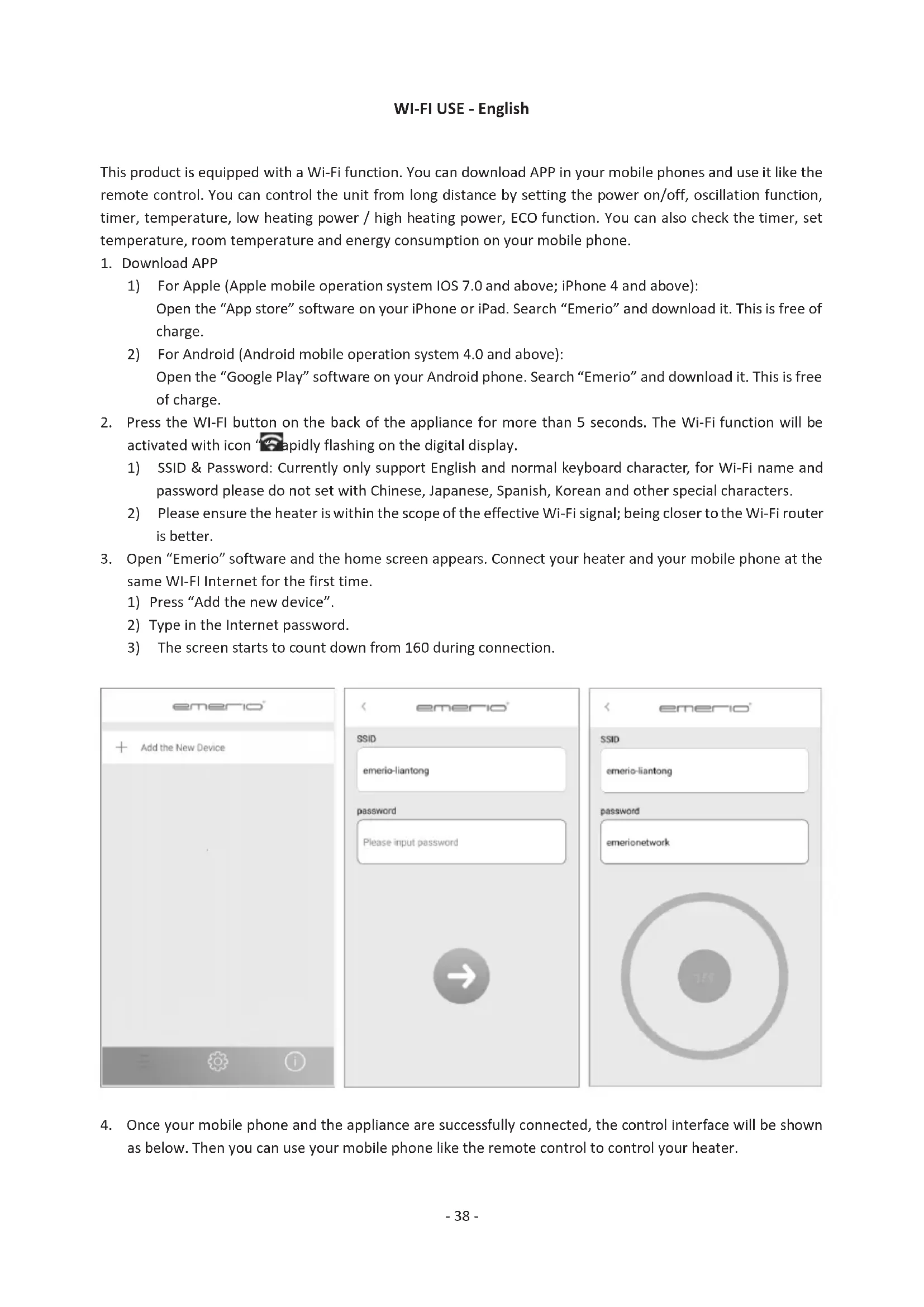
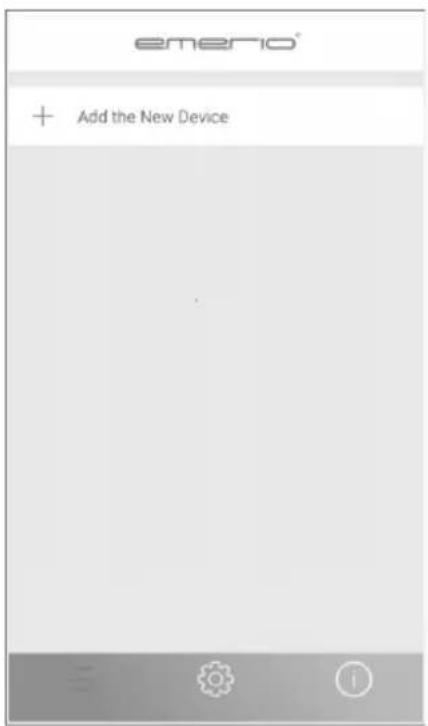
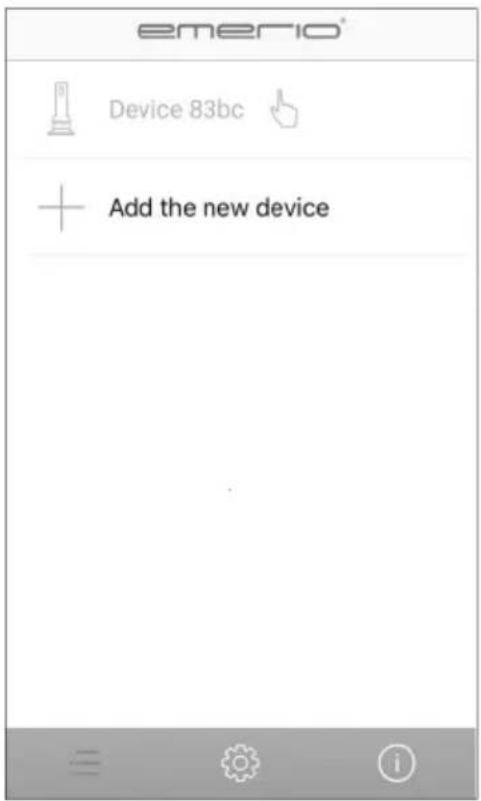
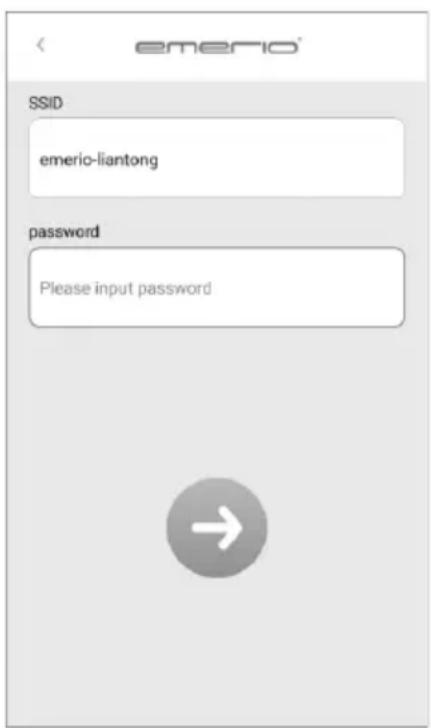
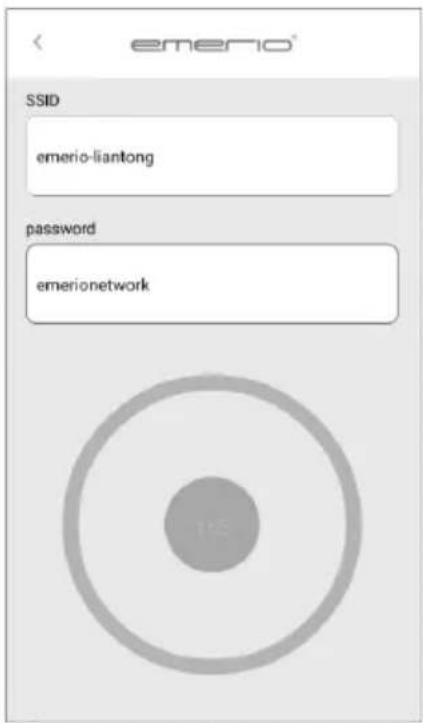
- Open "Emerio" software and the home screen appears. Connect your heater and your mobile phone at the same WI-FI Internet for the first time.
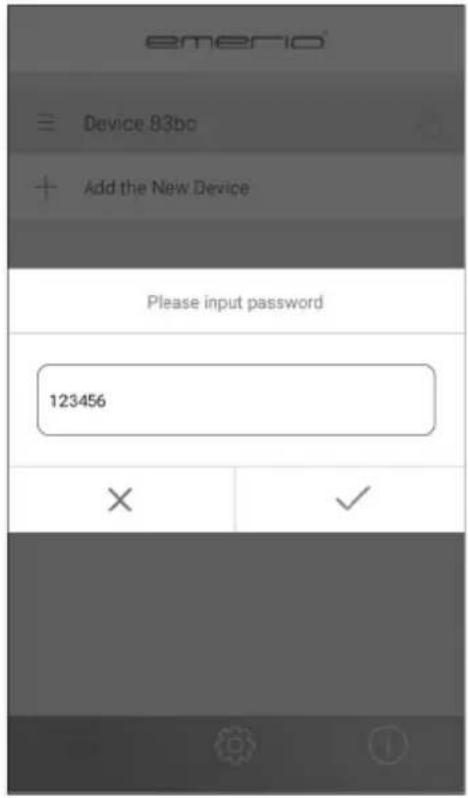
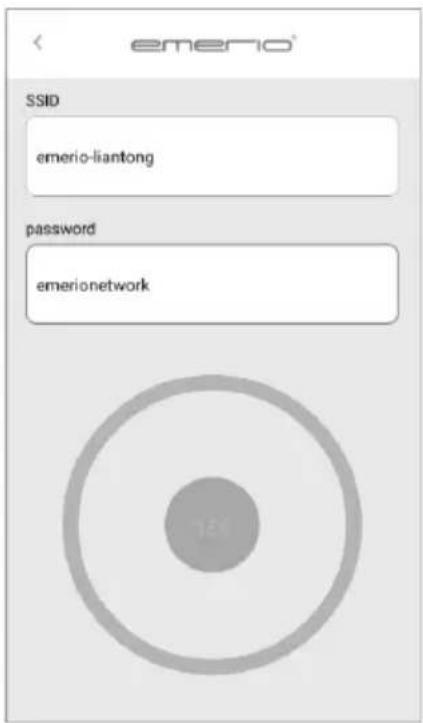
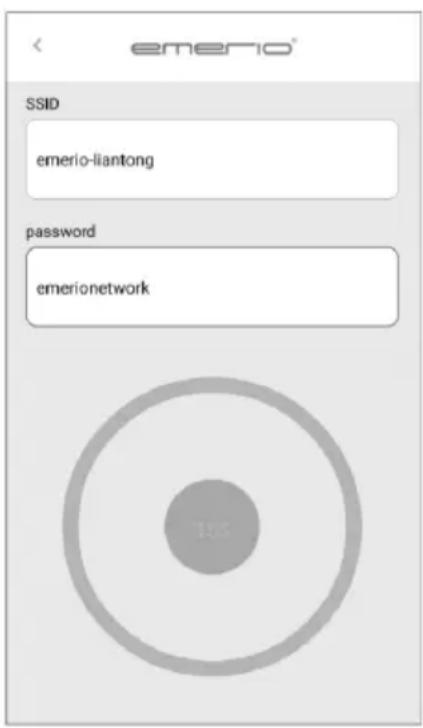
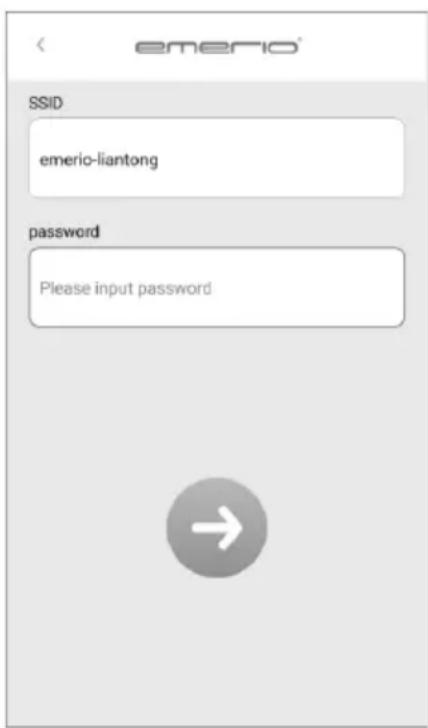
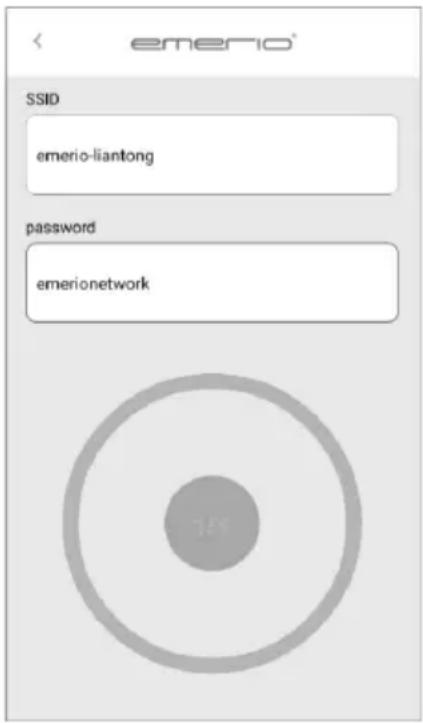
1) Press "Add the new device".
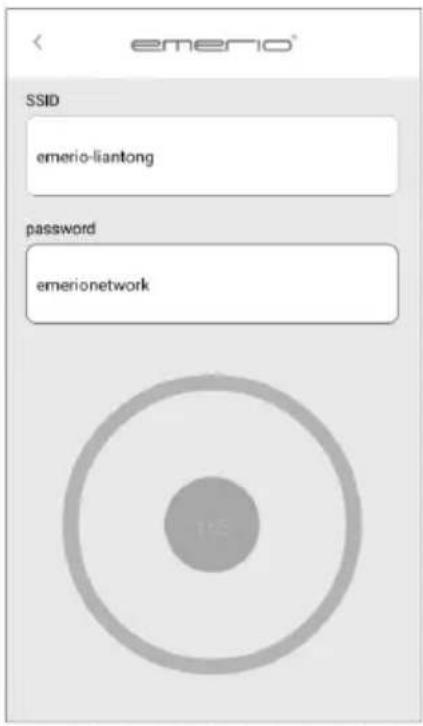
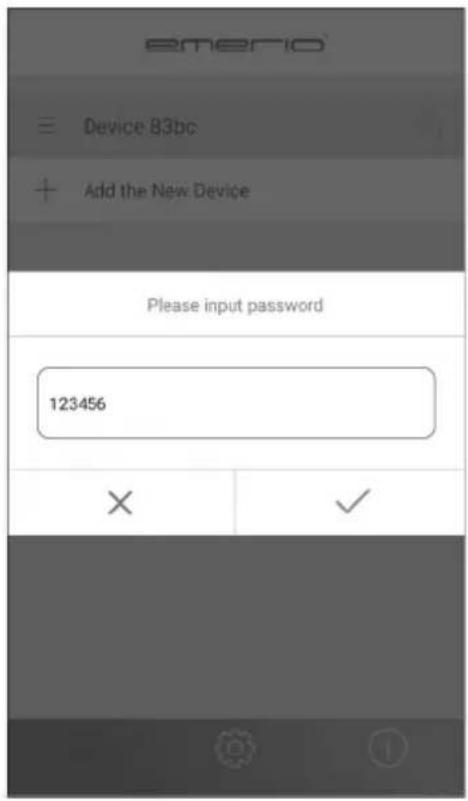
2) Type in the Internet password.
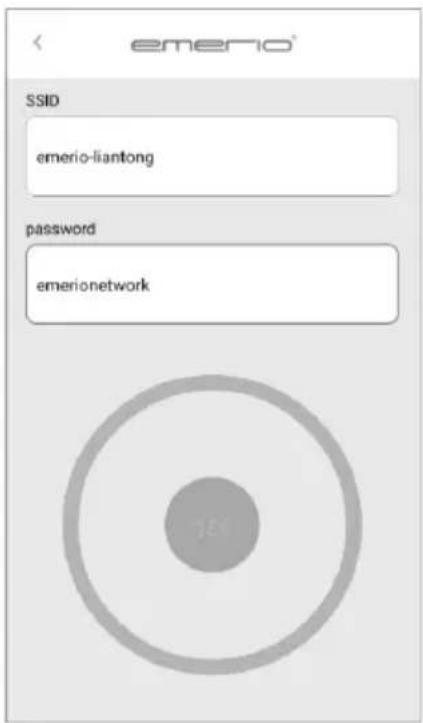
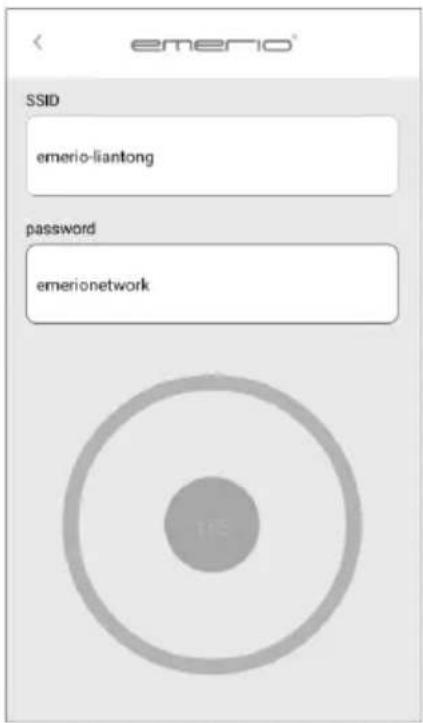
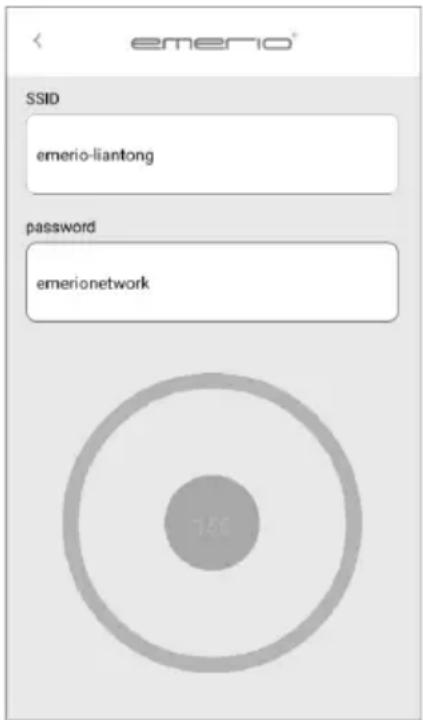
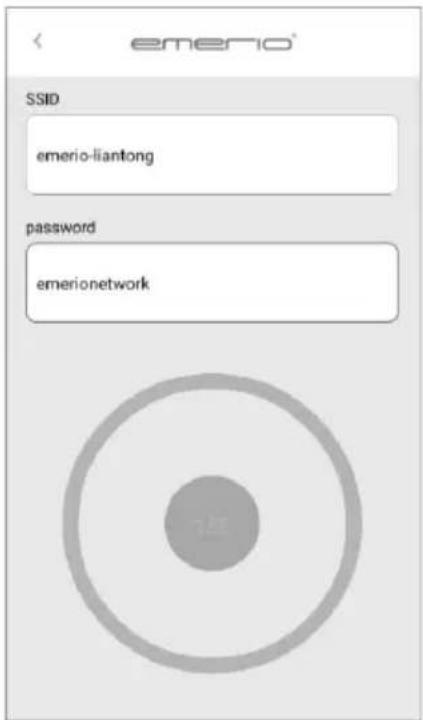
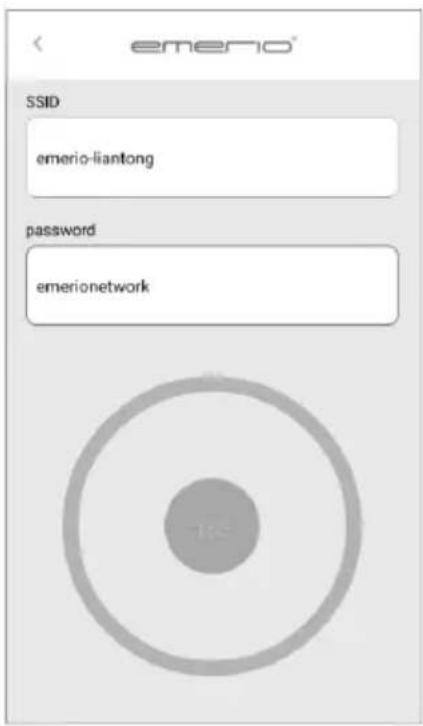
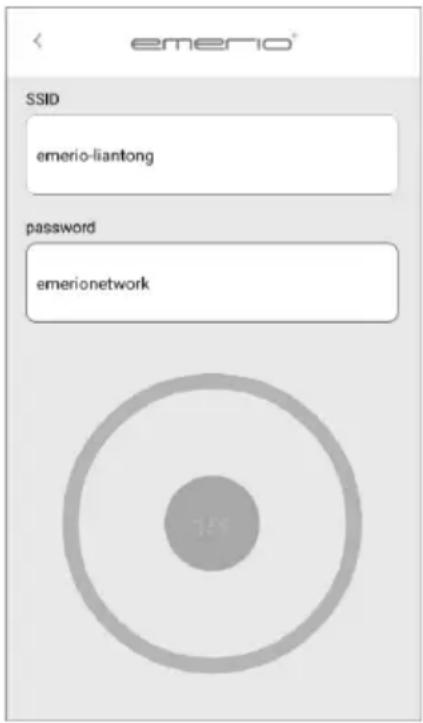
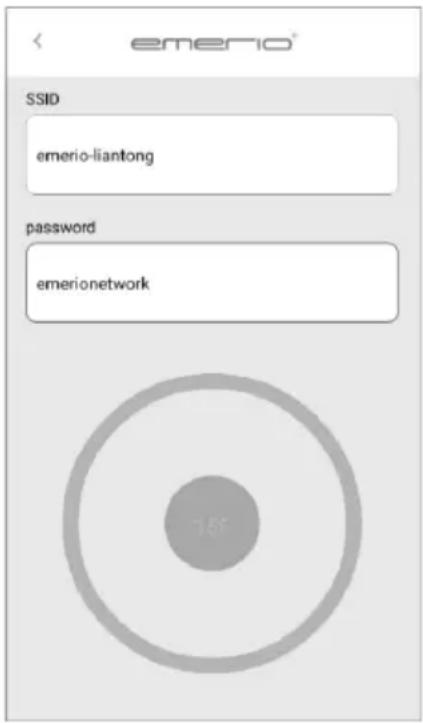
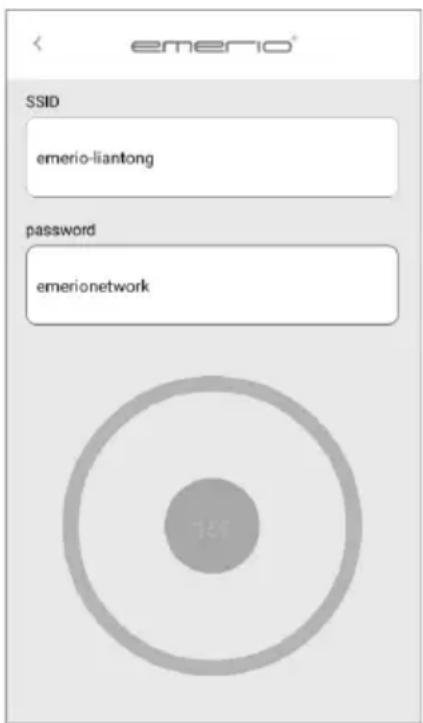
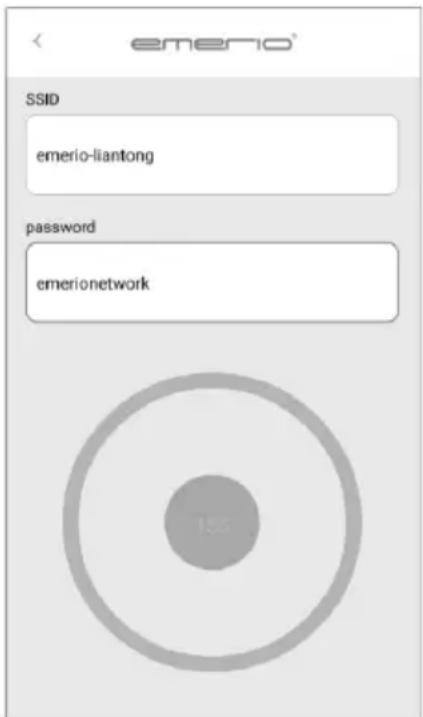
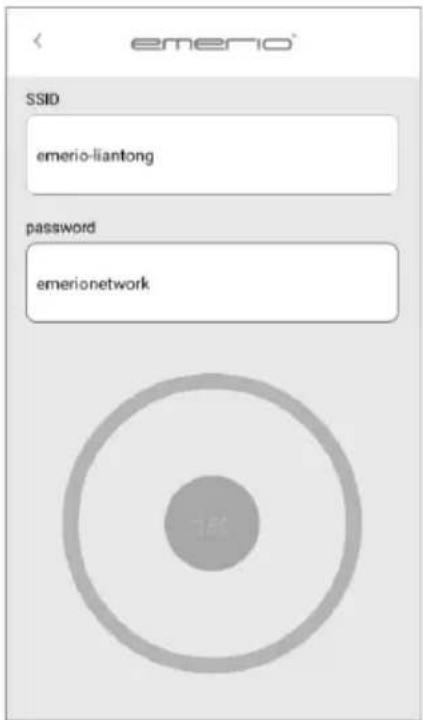
3) The screen starts to count down from 160 during connection.
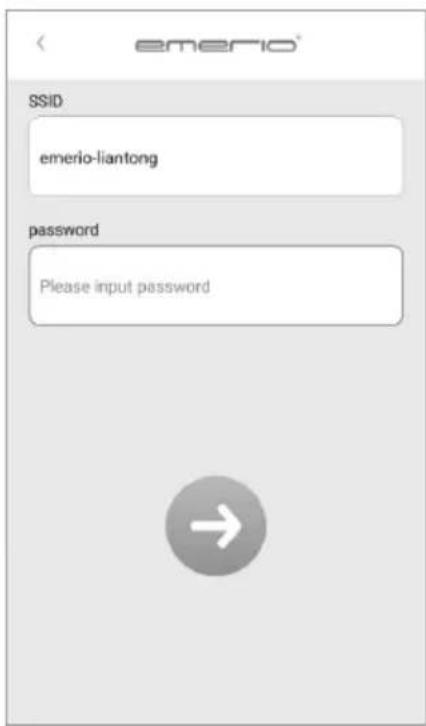
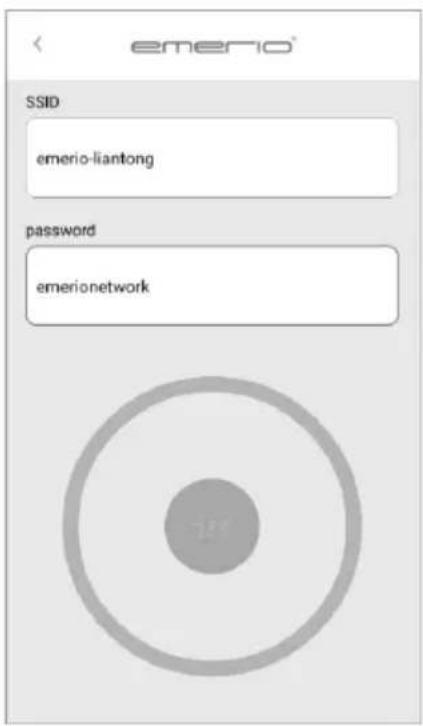
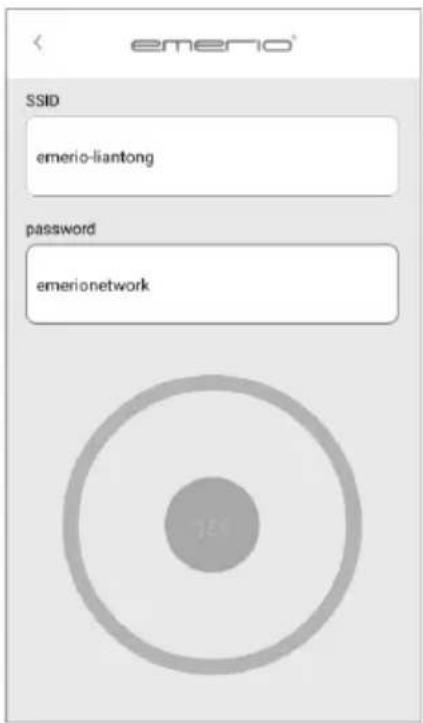
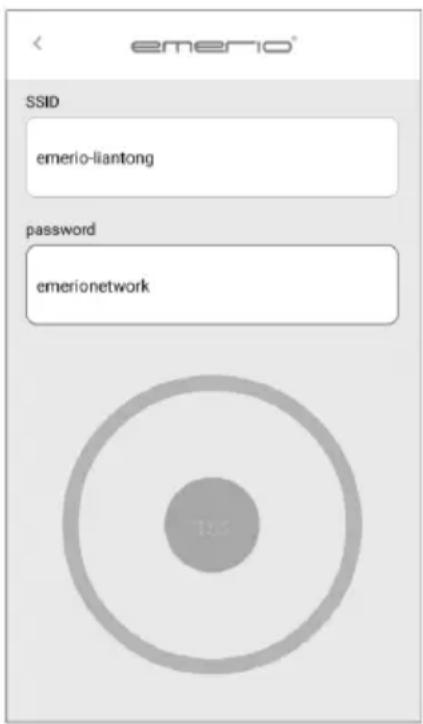
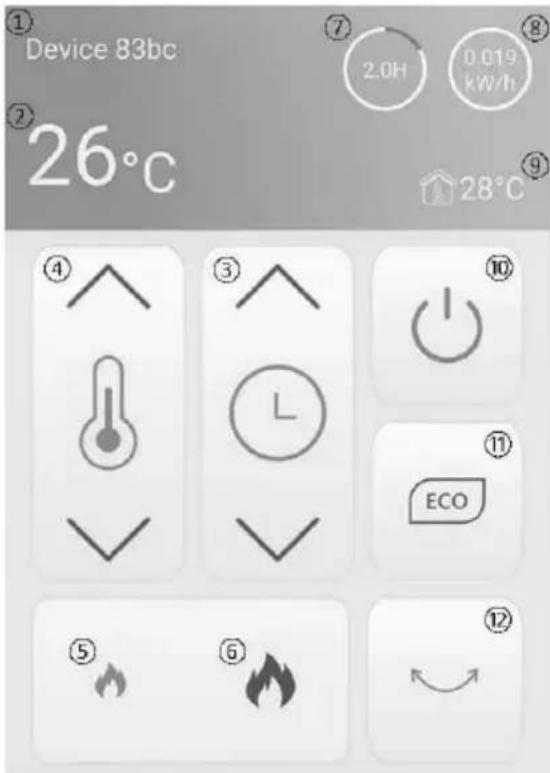
- Once your mobile phone and the appliance are successfully connected, the control interface will be shown as below. Then you can use your mobile phone like the remote control to control your heater.
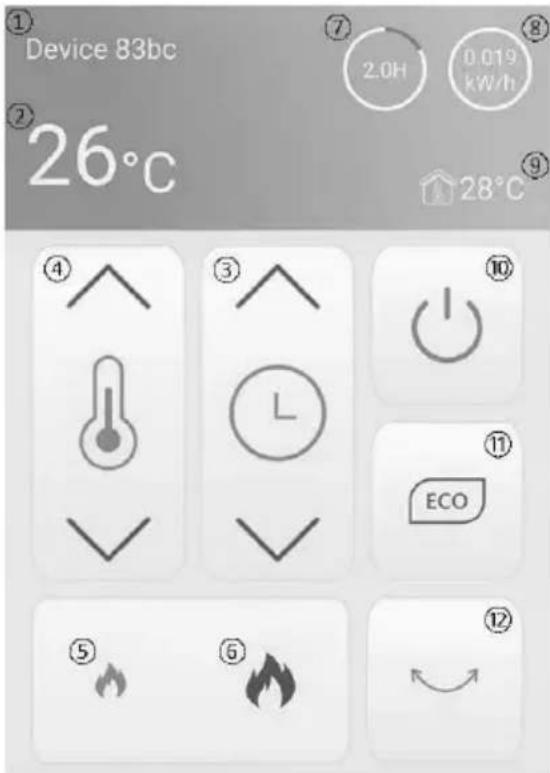
- Default device name
- Set temperature
- Timer adjustment
-
Temperature adjustment
-
Low heating power
- High heating power
- Set timer
-
Energy consumption
-
Room temperature
- On/off button
- ECO button
- Oscillation button
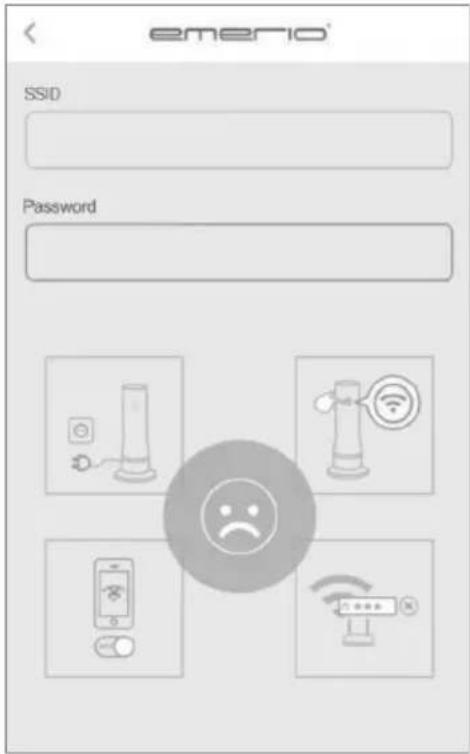
NOTE: If below interface appears, it means the connection is failed. Please check:
1) If your appliance is connected to the power socket;
2) If the WI-FI button is pressed;
3) If the WI-FI function of your mobile phone is activated;
4) If your WI-FI router is working properly.
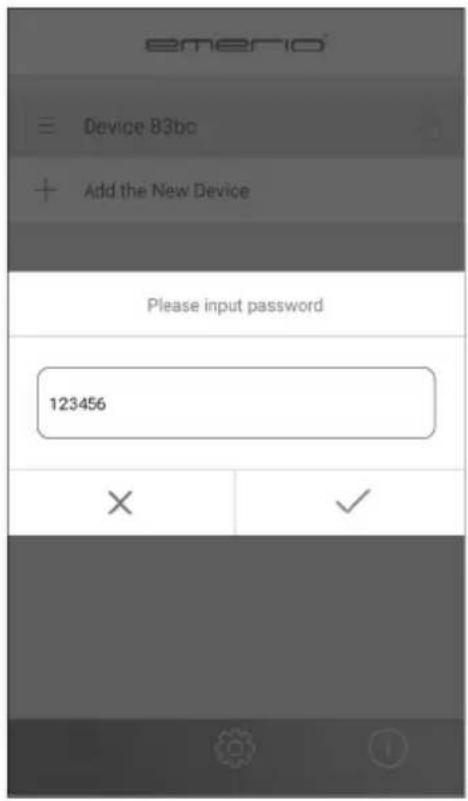
Other mobile connecting: Please make sure the mobile phone is using the same Wi-Fi as the heater.
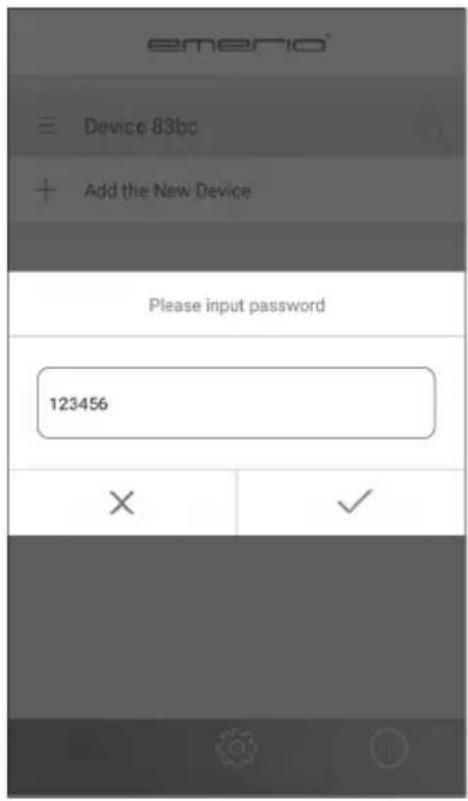
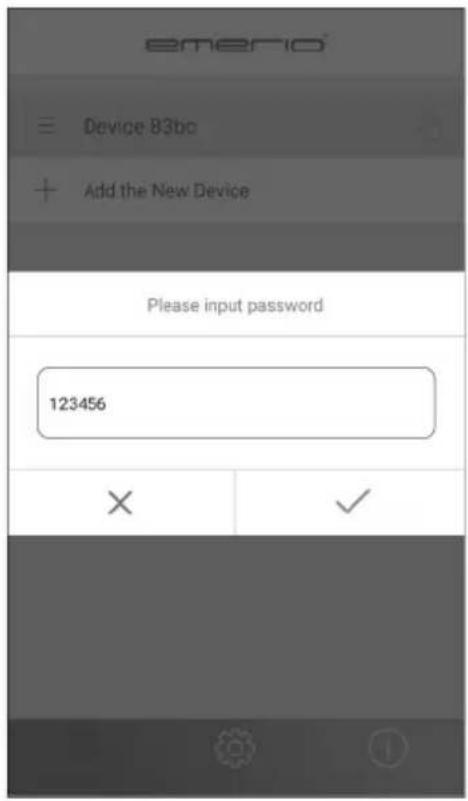
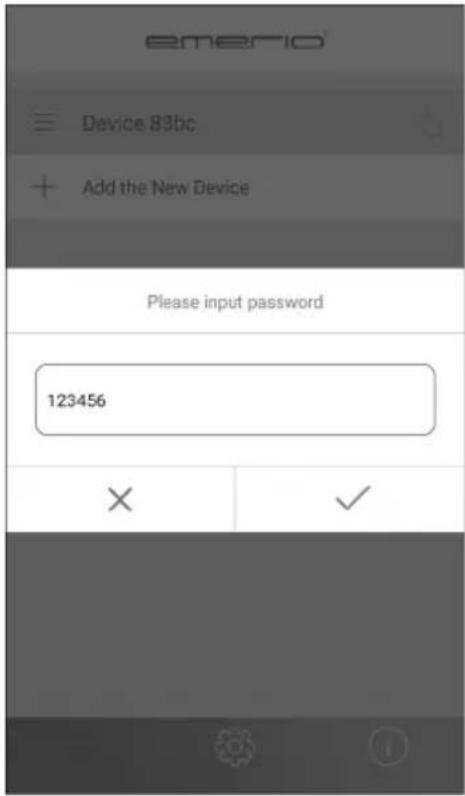
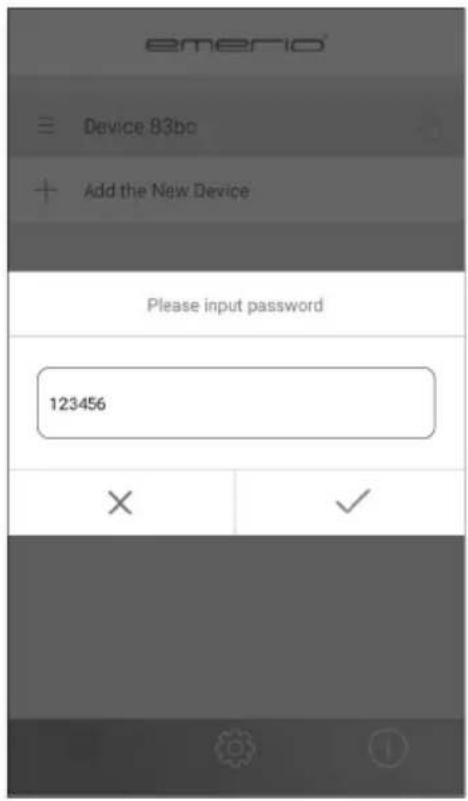
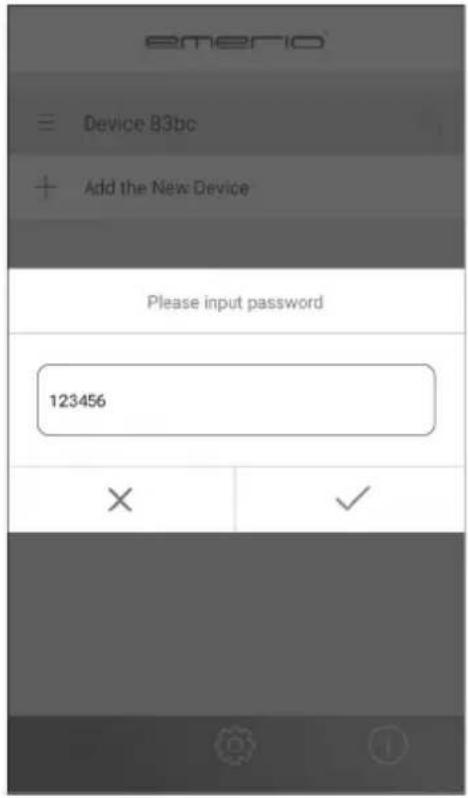
1) Install the APP and then open it. You will find the device with a little hand.
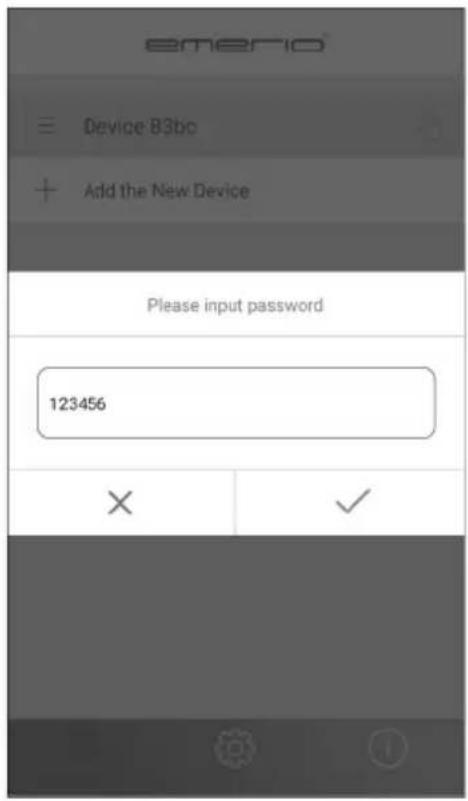
2) Touch the hand and input the default password for connecting: 123456.
TIPS:
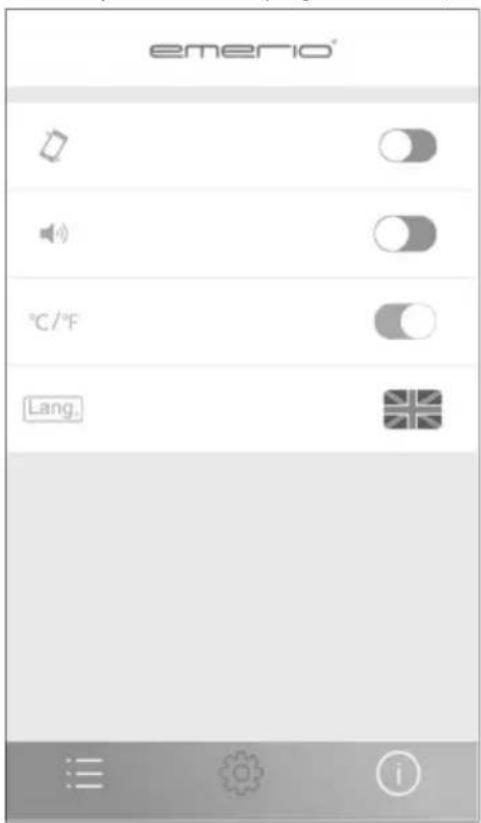
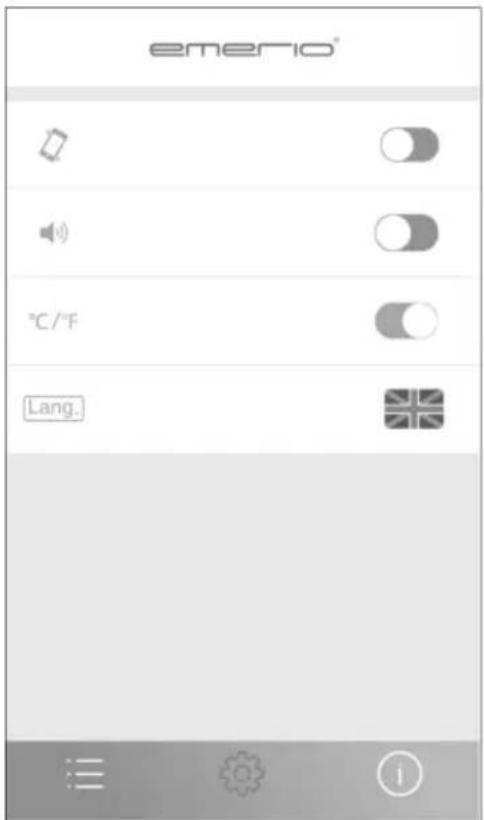
1) Press “💡” to switch to the interface to set the key sound (vibration / beep) of your mobile phone, temperature unit (degree Celsius / Fahrenheit) and languages.
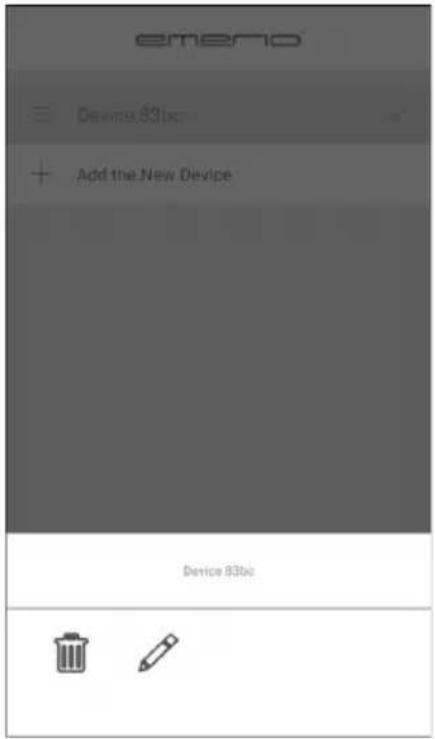
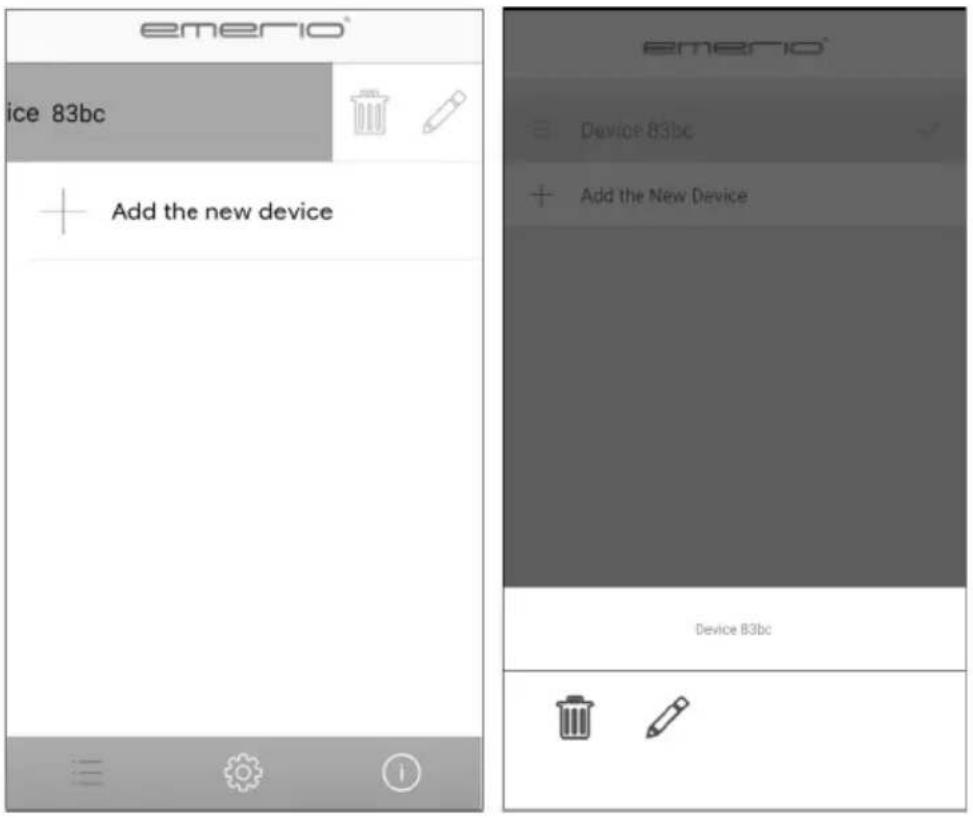
2) You can also delete you device by “☐”; change your device name and reset the default connection password by “.”
For Apple: Slide your finger on the device name from right to left. “ ” and “ ” will show on the screen. For Android: Long-press the device name, “” and “” will show on the screen.
Data network
In the condition without Wi-Fi supply, the mobile phone can still connect the heater. First turn off the Wi-Fi setting and then open the data network (Please try to control the product under 3G/4G network.). After approximately 30s, it can search out the device. Considering the unsteadiness of 3G/4G, it might has 1-2s delay, which is normal. Data network shall be used based on the condition that the mobile phone has connected with the heater through Wi-Fi before.
KORIŠTENJE FUNKCIJE WI-FI - Hrvatski
Ovaj je proizvod opremljen funkcijom Wi-Fi mreže. APLIKACIJU možete preuzeti na svoje mobilne telefone i koristiti ih kao daljinski upravljač. Jedinicom možete upravljati iz velike udaljenosti pomoću postavke uključivanja/isključivanja napajanja, funkcije oscilacije, uklopnog sata, temperature, male snage grijanja/velike snage grijanja, ECO funkcije. Na svom mobilnom telefonu možete provjeriti i uklojni sat, podešenu temperaturu, sobnu temperaturu i potrošnju energije.
1. Preuzimanje APLIKACIJE
1) Za Apple (mobilni operacijski sustav Apple IOS 7.0 i noviji; iPhone 4 i noviji):
otvorite softver "App store" na svom uređaju iPhone ili iPad. Potražite "Emerio" i preuzmite ga. Aplikacija je besplatna.
2) Za Android (mobilni operacijski sustav Android 4.0 i noviji):
otvorite softver "Google Play" na svom Android telefonu. Potražite "Emerio" i preuzmite ga. Aplikacija je besplatna.
- Pritisnite tipku WI-FI na poledini aparata dulje od 5 sekundi. Funkcija Wi-Fi aktivirat će se s ikonom “☐” koja brzo treperi na digitalnom zaslonu.
1) SSID i lozinka: trenutačno podržava samo engleska slova i uobičajene znakove tipkovnice. Za naziv Wi-Fi mreže i lozinku ne koristite kineska, japanska, španjolska, korejska slova i druge posebne znakove.
2) Pobrinite se da se grijalica nalazi u opsegu efikasnog signala Wi-Fi mreže; bolje je ako se grijalica nalazi bliže Wi-Fi usmjerivaču.
- Otvorite softver "Emerio" i pojavit će se početni zaslon. Svoju grijalicu i mobilni telefon prvi put povežite na isti WI-FI internet.
1) Pritisnite opciju "Add the new device" (Dodaj novi uređaj).
2) Unesite lozinku za internet.
Drugo mobilno povezivanje: provjerite koristi li mobilni telefon istu Wi-Fi mrežu kao i grijalica.
SAVJETI:
Adathálózat:
RÁDLEGGINGAR:
Gagna net
WI-FI LIETOŠANA - Latviski
PADOMI.
TIPS:

- Posle uspešnog povezivanja mobilnog telefona i aparata, prikazaće se kontrolni interfejs, kako je prikazano u nastavku. Zatim svoj mobilni telefon možete da koristite kao daljinski upravljač za upravljanje grejalicom.
- Naziv zadanog uređaja
- Podešena temperatura
- Podešavanje tajmera
- Podešavanje temperature
-
Mala snaga grejanja
-
Velika snaga grejanja
- Podešeni tajmer
- Potrošnja energije
- Sobna temperatura
- Taster za
Drugo mobilno povezivanje: proverite da li mobilni telefon koristi istu Wi-Fi mrežu kao i grejalica.
SAVETI:
1) Pritisnite simbol “☐” da biste prešli na interfejs za nameštanje zvuka tastera (vibracija/zvuk) mobilnog telefona, jedinice temperature (stepeni Celzijusa/Farenhajta) i jezika.
2) Možete i da izbrišete svoj uređaj pomoću simbola “☐”; promenite naziv svog uređaja i resetujete zadanu lozinku za povezivanje pomoću simbola “☐”.
POUŽÍVANIE WI-FI - Slovensky
RADY:
Datanätverk
İPUÇLARI:

- TIPPS:
- СЪВЕТИ:
- SAVJETI:
- Podatkovna mreža
- POUŽÍVÁNÍ WI-FI - Česky
- Datová sít
- TIP:
- CONSEJOS:
- VINKKEJÄ:
- Conseils :
- Download APP
- NOTE: If below interface appears, it means the connection is failed. Please check:
- TIPS:
- Data network
- KORIŠTENJE FUNKCIJE WI-FI - Hrvatski
- Preuzimanje APLIKACIJE
- Adathálózat:
- RÁDLEGGINGAR:
- Gagna net
- WI-FI LIETOŠANA - Latviski
- PADOMI.
- SAVETI:
- POUŽÍVANIE WI-FI - Slovensky
- RADY:
- Datanätverk
- İPUÇLARI:
Brand : Emerio
Model : FH109313
Category : Heating