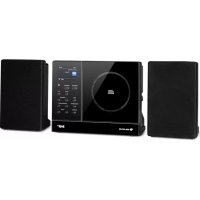
Connect Vertical - Radio Auna - Free user manual and instructions
Find the device manual for free Connect Vertical Auna in PDF.


User questions about Connect Vertical Auna
0 question about this device. Answer the ones you know or ask your own.
Ask a new question about this device
Download the instructions for your Radio in PDF format for free! Find your manual Connect Vertical - Auna and take your electronic device back in hand. On this page are published all the documents necessary for the use of your device. Connect Vertical by Auna.
USER MANUAL Connect Vertical Auna
text_image
QR code with embedded text 'Zu' and 'e' visible below itINHALT
Technische Daten 4
text_image
19 10.4-14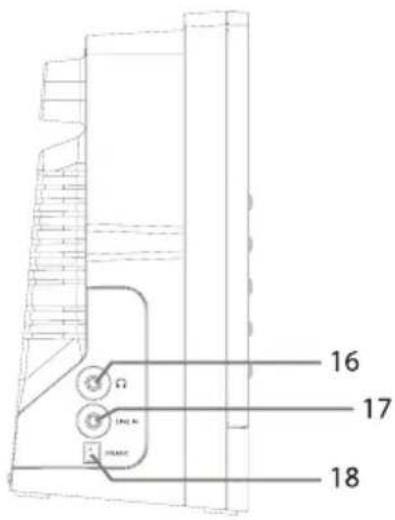
text_image
16 17 18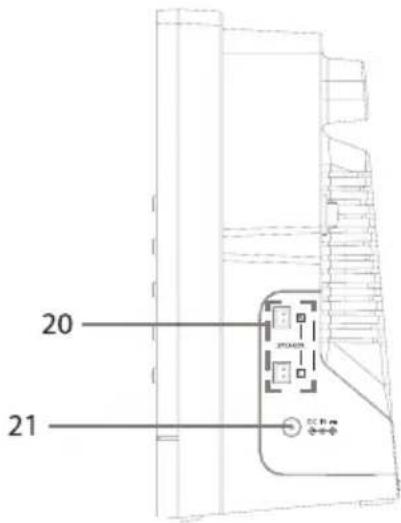
text_image
20 21text_image
Diagram illustrating the process of battery charging and discharging in a beaker, showing charge distribution before and after discharge.text_image
IPD STRAWING STRAWING 30° 30° Max. 4 mZeit/Datum (Time/Date)
https://www.spotify.com/connect/third-party-licenses
https://www.spotify.com/connect/third-party-licenses
Member of Berlin Brands Group
Handwerkerstr. 11
15366 Dahlwitz-Hoppegarten
Deutschland
natural_image
Symbol of a trash bin crossed with a diagonal line, representing no waste or discharge (no text or labels)Congratulations on purchasing this equipment. Please read this manual carefully and of the following hints on installation and use to avoid technical damages. Any failure caused by ignoring the items and cautions mentioned in the operation and installation instructions are not covered by our warranty and any liability. Scan the QR code to get access to the latest user manual and other information about the product
text_image
take takeCONTENTS
Technical Data 44
Safety Instructions 47
Unit Description 49
Remote Control 51
Assembly and Connections 54
Start 55
System Settings 58
Internetradio 62
Podcasts 64
Spotify Connect 65
DAB Operation 66
FM-Radio 69
CD Operation 71
USB Operation 73
BT-Operation 73
Net Remote 74
AUX Operation 75
Headphone Use 75
Sleep Setting 75
Setting the Alarm 76
Maintenance and Care 77
Disposal Considerations 79
Declaration of Conformity 79
TECHNICAL DATA
Item number 10034996 10034997
Audio
Speaker RMS Power 2 x 5 W RMS
Working Environment 0 - 35 °C
Temperature
Radio frequencies
FM radio 87.5 MHz - 108 MHz
DAB radio 174.928 - 239.200 MHz
WLAN specifications
Frequency band 2402–2484 MHz
Maximum radio-frequency power 19 dBm (EIRP)
BT Spezifikationen
Frequency band 2402–2480 MHz
Maximum radio-frequency power 4 dBm
Dimensions
Unit ca. 232 x 90 x 186 mm
Speakers ca. 120 x 80 x 186 mm
Weight
Unit 0.98 kg
Speakers 0.45 kg each
Power adaptor
| Manufacturer Dongguan Becky Electronics Tech Co, LTDYinyong Industrial Zone, Jinma Road, HengLi Town, Dongguan City, Guangdong Province, China | |
| Model identifier BQ30A-0903000-G | |
| Input voltage and AC frequency 100-240 V ~ 50/60 Hz (max. 800 mA) | |
| Output voltage 9 V | == |
| Output current 3.0 A | |
| Output power 27.0 W | |
| Average active efficiency 86.7 % | |
| Efficiency at low load (10 %) 85.0 % | |
| No-load power consumption | 0.09 W |
WARNUNG
 | CAUTION |  |
| RISK OF ELECTRIC SHOCKDO NOT OPEN | ||
| CAUTION: TO REDUCE THE RISK OF ELECTRIC SHOCK AND SERIOUS PERSONAL INJURY, DO NOT REMOVE ANY COVER. NO USER-SERVICABLE PARTS INSIDE. REFER SERVICING TO QUALIFIED SERVICE PERSONNEL ONLY | ||
| WARNING. TO REDUCE THE RISK OF FIRE OR ELECTRICAL SHOCK, DO NOT EXPOSE THIS PRODUCT TO WATER, RAIN OR MOISTURE. | ||
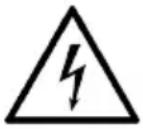 | The lightning flash with arrowhead symbol, within an equilateral triangle, is intended to alert theuser to the presence of uninsulated “dangerous voltage” within the unit’s enclosure that may be of sufficient magnitude to constitute a risk of electric shock. |
 | The exclamation point within an equilateral triangle is intended to alert the user to the presence of important operating and maintenance (servicing) instructions in the manual accompanying the unit. |
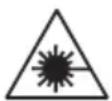
NVISIBLE LASER RADIATION WHEN OPEN AND INTERLOCK FAILED OR DEFEATED. AVOID DIRECT EXPOSURE TO LASER BEAN.
LASER SAFETY
This unit employs an optical laser beam system in the CD mechanism, designed with built-in safeguards. Do not attempt to disassemble, refer to qualified service personnel. Exposure to this invisible laser light beam may be harmful to the human eye. THIS IS A CLASS-1 LASER PRODUCT.USE OF CONTROLS, OR ADJUSTMENTS OR PROCEDURES OTHER THAN THOSE SPECIFIED HEREIN, MAY RESULT IN HAZARDOUS LASER LIGHT BEAM EXPOSURE.
SAFETY INSTRUCTIONS
Read all the instructions carefully before using the unit and keep them for future reference.
- Check that the voltage marked on the rating label matches your mains voltage.
- The unit must be placed on a flat stable surface and should not be subjected to vibrations.
- Do not place the unit on sloped or unstable surfaces as the unit may fall off or tip over.
- The mains socket must be located near the unit and should be easily accessible.
- Avoid extreme degrees of temperature, either hot or cold. Place the unit well away from heat sources such as radiators or gas/electric fires. Avoid exposure to direct sunlight and other sources of heat.
- Never place any type of candle or naked flame on the top of or near the unit.
- To reduce the risk of fire, electric shock or product damage, do not expose this unit to rain, moisture, dripping or splashing. No objects filled with liquids, such as vases, should be placed on the unit.
- If you spill any liquid into the unit, it can cause serious damage. Switch it off at the mains immediately. Withdraw the mains plug and consult your dealer.
- To prevent the risk of electric shock or fire hazard due to overheating, ensure that curtains and other materials do not obstruct the ventilation vents.
- Do not install or place this unit in a bookcase, built-in cabinet or in another confined space. Ensure that a minimum of 10cm should be kept around the unit for ventilation.
Safety
- Always disconnect the unit from the mains supply before connecting/disconnecting other devices or moving the unit.
- Unplug the unit from the mains socket during a lightning storm.
- This unit will become warm when used for a long period of time. This is normal and does not indicate a problem with the unit.
Mains Adapter
- Make sure the unit is not resting on top of the mains cable, as the weight of the unit may damage the cable and create a safety hazard.
- If the mains cable is damaged it must be replaced by the manufacturer, its service agent, or similarly qualified persons in order to avoid a hazard.
Interference
- Do not place the unit on or near appliances which may cause electromagnetic interference. If you do, it may adversely affect the operating performance of the unit, and cause a distorted sound.
Supervision
- Children should be supervised to ensure that they do not play with the unit.
- Never let anyone especially children push anything into the holes, slots or any other openings in the case - this could result in a fatal electric shock.
Service/Maintenance
- To reduce the risk of electric shock, do not remove screws. The unit does not contain any user serviceable parts.
- Leave all maintenance work to qualified personnel.
- Do not open any fixed covers as this may expose dangerous voltages.
- Ensure to unplug the unit from the mains socket before cleaning.
- Do not use any type of abrasive pad or abrasive cleaning solutions as these may damage the unit's surface.
- Do not use liquids to clean the unit.
UNIT DESCRIPTION
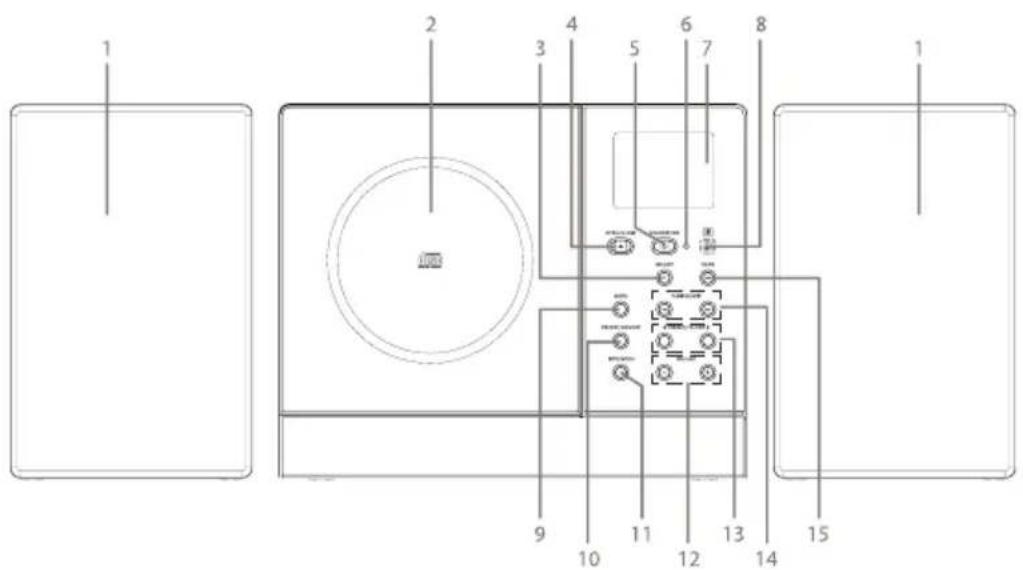
Front
text_image
1 2 3 4 5 6 7 8 9 10 11 12 13 14 15 11 Speaker
2 CD tray
3 Select button
4 Open/close button
5 Standby/on button
6 Indicator
7 Display
8 Remote control sensor
9 Mode button
10 Preset/Memory button
11 Info/Menu button
12 Volume -/+ button
13 Preset/Folder buttons
14 Tuning/Skip buttons
15 SCAN button
Back
text_image
19 10.4-14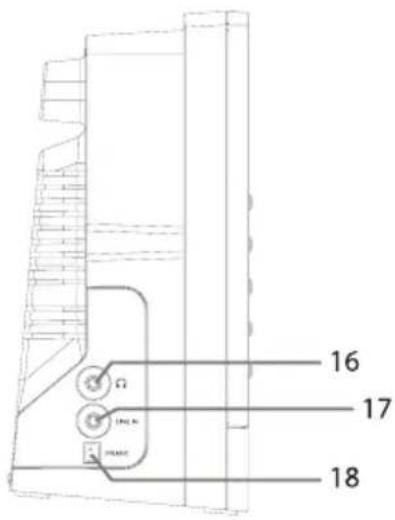
text_image
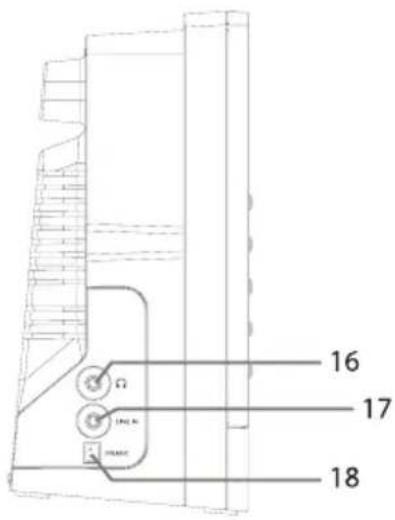
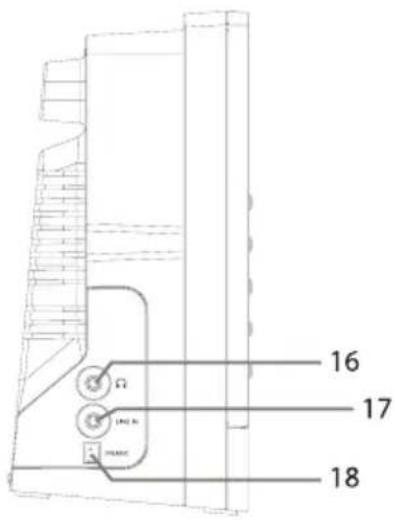
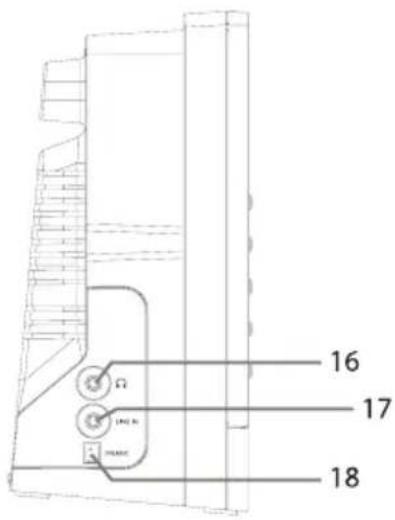
16 17 18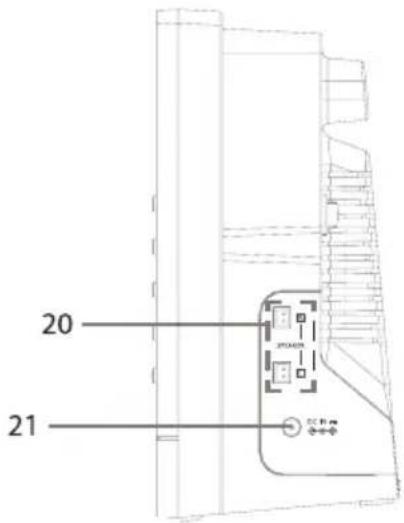
text_image
20 2116 Earphone socket
17 LINE IN socket
18 FM antenna socket
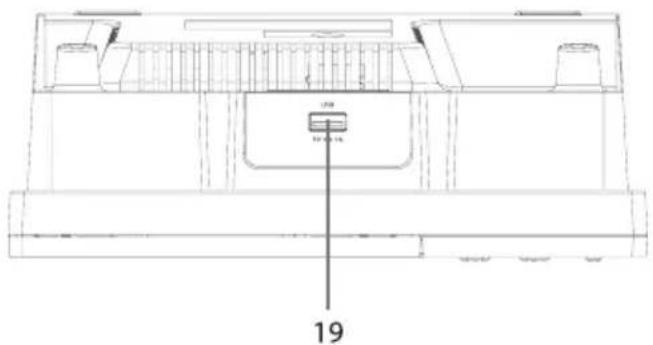
19 USB 5V DC 1A charging port
20 SPEAKER (L/R) sockets
21 DC input socket
Included
- Main unit
• 2 Speakers - Aerial
- Mains adapter
- Remote
- Instruction manual
text_image
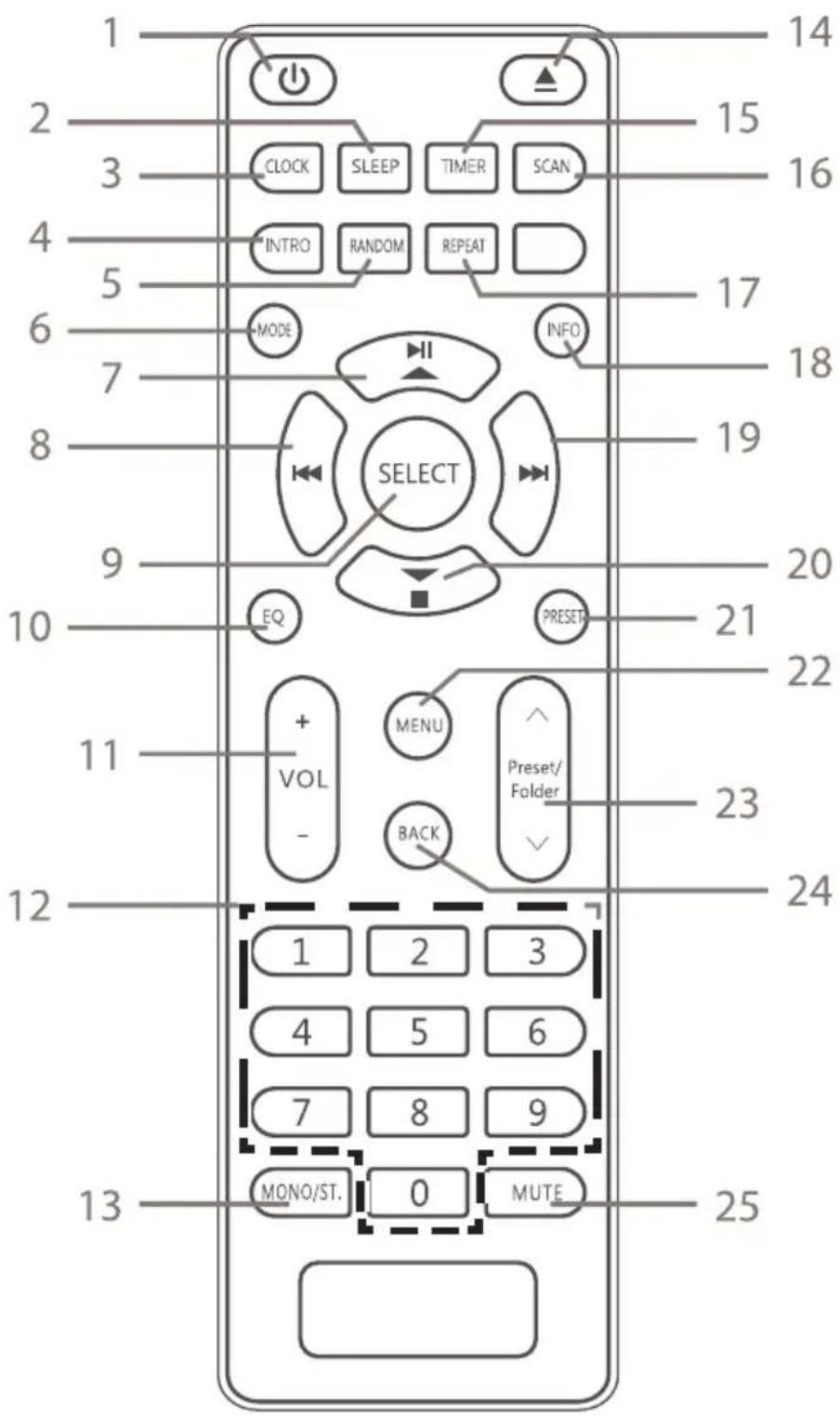
1 2 3 4 5 6 7 8 9 10 11 12 13 14 15 16 17 18 19 20 21 22 23 24 25 CLOCK SLEEP TIMER SCAN INTRO RANDOM REPEAT MODE INFO SELECT EQ PRESET MENU Preset/ Folder BACK + VOL - 1 2 3 4 5 6 7 8 9 MONO/ST. 0 MUTE| 1 STANDBY button | 14 Open/Close button |
| 2 SLEEP button | 15 TIMER button |
| 3 CLOCK button | 16 SCAN button |
| 4 INTRO button | 17 REPEAT button |
| 5 RANDOM button | 18 INFO button |
| 6 MODE button | 19 NEXT button |
| 7 PLAY PAUSE / UP button | 20 STOP/ DOWN button |
| 8 PREVIOUS button | 21 PRESET button |
| 9 SELECT button | 22 MENU button |
| 10 EQ button | 23 Preset/Folder/UP/DOWN . button |
| 11 VOL +/- button | |
| 12 Number buttons | 24 BACK button |
| 13 MONO/ST. button | 25 MUTE button |
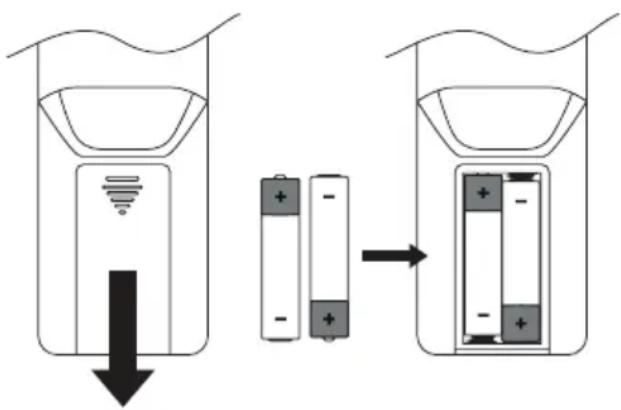
Battery replacement for the remote control
- Open the battery cover.
- Insert 2 x AAA 1.5V alkaline batteries (not included). Make sure to match the (+) and (-) ends of the battery with the (+) and (-) ends indicated in the battery compartment.
- Close the cover.
text_image
Diagram illustrating the process of battery charging and discharging in a beaker, showing charge distribution before and after discharge.Handling the battery
- Improper or incorrect use of batteries may cause corrosion or battery leakage, which could cause fire, personal injury or damage to property.
- Only use the battery type indicated in this manual.
- Do not dispose of the used battery as domestic waste. Dispose of it in accordance with local regulations.
- Remove the battery from the remote control when not in use for a long period of time, as corrosion or battery leakage may occur and result in physical injury, and/or property damage, and/or fire.
Remote Control Operation Range
Point the remote control at the unit no more than 4 metres from the remote control sensor and within 60^ of the front of the unit. The operating distance may vary depending on the brightness of the room..
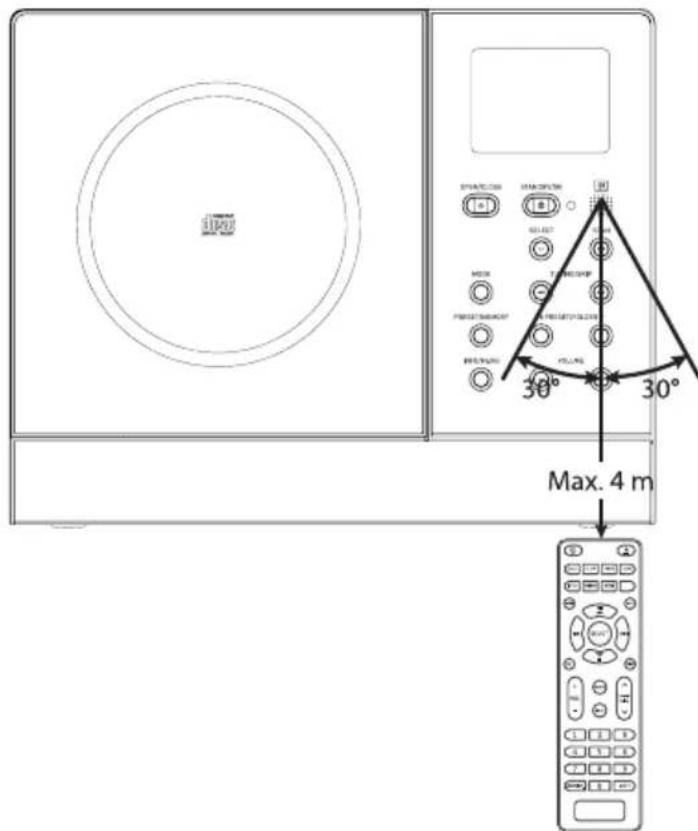
text_image
100 STRAWING 30° MAX. 4 m 30° PREFLECTIVE PREFLECTIVE PREFLECTIVE PREFLECTIVE PREFLECTIVE PREFLECTIVE PREFLECTIVE PREFLECTIVE PREFLECTIVE PREFLECTIVE PREFLECTIVE PREFLECTIVE PREFLECTIVE PREFLECTIVE PREFLECTIVE PREFLECTIVE PREFLECTIVE PREFLECTIVE PREFLECTIVE PREFLECTIVE PREFLECTIVER PREFLECTIVER PREFLECTIVER PREFLECTIVER PREFLECTIVER PREFLECTIVER PREFLECTIVER PREFLECTIVER PREFLECTIVER PREFLECTIVER PREFLECTIVER PREFLECTIVER PREFLECTIVER PREFLECTIVER PREFLECTIVER PREFLECTIVER PREFLECTIVER PREFLECTIVER PREFLECTIVER PREFLECTIVER PREFLECTIVATOR PREFLECTIVATOR PREFLECTIVATOR PREFLECTIVATOR PREFLECTIVATOR PREFLECTIVATOR PREFLECTIVATOR PREFLECTIVATOR PREFLECTIVATOR PREFLECTIVATOR PREFLECTIVATOR PREFLECTIVATOR PREFLECTIVATOR PREFLECTIVATOR PREFLECTIVATOR PREFLECTIVATOR PREFLECTIVATOR PREFECTIVATOR PREFECTIVATOR PREFECTIVATOR PREFECTIVATOR PREFECTIVATOR PREFECTIVATOR PREFECTIVATOR PREFECTIVATOR PREFECTIVATOR PREFECTIVATOR PREFECTIVATOR PREFECTIVATOR PREFECTIVATOR PREFECTIVATOR PREFECTIVATOR PREFECTIVATOR PREFECTIVATOR TYPICALS TYPICALS TYPICALS TYPICALS TYPICALS TYPICALS TYPICALS TYPICALS TYPICALS TYPICALS TYPICALS TYPICALS TYPICALS TYPICALS TYPICALS TYPICALS TYPICALS TYPICALS TYPICALS TYPICALS TYPICAL SOUTHERN TYPICAL SOUTHERN TYPICAL SOUTHERN TYPICAL SOUTHERN TYPICAL SOUTHERN TYPICAL SOUTHERN TYPICAL SOUTHERNASSEMBLY AND CONNECTIONS
- Place the main unit on a flat level surface.
- Position the speakers and fully unwind the speaker wires.
- Connect the right speaker cord to the R speaker socket on the right side of the main unit
- Connect the left speaker cord to the L speaker socket on the right side of the main unit.
- Fully unwind and extend the DAB/FM antenna wire.
- Unwind the mains adapter cable to its full length. Connect the end of the cable to the DC IN socket on right side of the unit and then connect the mains adapter to the mains socket. Make sure the mains adapter is firmly inserted into the mains socket. The unit is now ready to use.
- To switch the unit off completely, unplug the mains adapter from the mains socket.
Attention: Connecting the unit to any other power source may cause damage to the unit. -- Hold the power adaptor when plugging it into an outlet or unplugging it. Never pull or yank on the adaptor cable
Network Connection
This product only supports wireless network connection for network access and did not support wired LAN connection
- Check first of all whether the control lamps (LINK/ACT) of your LAN connection or your router light up.
- Proceed for the operation as described in the below "GETTING START". It is highly recommended to run through the setup wizard in the System Settings section.
Note: This unit cannot be connected to a standalone modem directly. A router or a modem incorporated with a router has to be used. Since there are various connection configurations, please follow the specifications and instructions of your telecommunication carrier, Internet service provider, and router setting guidebook.
START
Powering ON/OFF
When you first connect the unit to the mains socket, the unit will be in Standby mode after showing the welcome screen
- Press the STANDBY/ON button on unit or the on the remote control to switch the unit on.
- Press the STANDBY/ON button on unit or the q button on remote control to switch the unit back to standby mode.
When you first connect the unit to the mains socket, the Initial Set-Up wizard starts, you can run through this to configure settings for date/time and network. Once this has finished, your radio is ready to use. (Please refer to Initial Set-Up section for details)
Selecting modes
Press MODE repeatedly on the unit or on the remote to switch between Internet radio, Podcasts, Spotify, DAB, FM, CD, USB, BT and AUX in modes.
Alternatively,:
- Press and hold the INFO/MENU button on the unit or press the MENU button on remote control to access the menu.
- Press the ◀/▶ buttons on unit or press ▲/▼ buttons on remote control to select the main menu, then press the SELECT button on unit or remote control to confirm.
- Press the ◀/▶ buttons on unit or press ▲/▼ buttons on remote control to select the target mode, then press the SELECT button on unit or remote control to confirm.
When the unit is idle for approximately 15 minutes, it will automatically switch to standby. To switch the unit off completely, remove the mains plug from the main socket. Please turn the unit off completely to save energy when not in use.
Navigating the menu
- Press and hold the INFO/MENU button on the unit or press the MENU button on the remote to access the menu.
- Press the ◀/▶ buttons on unit or press ▲/▼ buttons on remote control to select your choice.
- Press the SELECT button on unit or remote control to confirm your selection.
Adjusting the Volume
- Press the VOLUME+/- buttons on the unit or press VOL +/- on the remote control to adjust the volume.
- If you wish to turn the sound off, press MUTE button on the remote control. Press MUTE button again or press VOL +/- on the remote control or Press the VOLUME+/- buttons on the unit to resume normal listening.
Initial Set-Up
When you first connect the unit to the mains socket, the display will show the welcome screen then turn to Standby mode. Press STANDBY/ON button on unit or ⏻ button on remote control to power on with Language menu shown up, press the ◀/▶ buttons on unit or press ▲/▼ buttons on remote control to select the language of your choice, then press the SELECT button on unit or remote control to confirm.
Then the privacy policy page will come up. Please visit the website mentioned in the page for the details of the privacy policy. Press the SELECT button on unit or remote control to accept for next step.
- To launch the initial Setup wizard, press the ◀/▶ buttons on unit or ▲/▼ buttons on remote control to select [YES], then press the SELECT button on unit or remote control to confirm.
- Press the ◄/▶ buttons on unit or ▲/▼ buttons on remote control to select the following options, then press the SELECT button on unit or remote control to confirm the setting.
| Date/Time 12/24 hour format 12-Stunden- oder 24-Stunden-Anzeige einstellen |
| Auto Update Choose how you want the time to be automatically updated.Update from DAB/ Update from FM/ Update from Network/ No update |
| Set timezone Select a time zone. (Only available when Auto update from Network is on.). |
| Daylight savings Select daylight savings. (Only available when Auto update from Network is on.). |
| Network settings Choose whether keep network connected.Yes/ No |
- The display will show "Network wizard scanning....". Your radio will now scan for your wireless network, this may take a few seconds then a list of all the wireless networks will appear on the screen. Press the ◄/▶ buttons on unit or ▲/▼ buttons on remote control to select your wireless network, then press the SELECT button on unit or remote control to confirm.
- Press the ◀/▶ buttons on unit or ▲/▼ buttons on remote control to select Push Button/Pin/ Skip WPS, then press the SELECT button on unit or remote control to confirm.
Connecting using the WPS button on your router
Connecting using the WPS (Wi-Fi Protected Setup) button on your router is a quick and easy way to connect your radio without having to type in a password.
If your router has a WPS button you will notice [WPS] at the front of your network name.
- Press the ◀/▶ buttons on unit or ▲/▼ buttons on remote control to select Push Button, then press the SELECT button on unit or remote control to confirm.
- You will now see a message on the screen telling you to press the WPS button on your router. Press the WPS button on your router. Check your routers instruction manual if you are unsure which button is the WPS button.
- Press the SELECT button on unit or remote control to confirm. Your radio will now connect to your router, this may take a few seconds.
Connecting using your wireless network password
If your router has not got a WPS button you will now be asked to enter your wireless network password, or you can select SKIP WPS which also take you to the password screen.
- Press the ◀/▶ buttons on unit or ▲/▼ buttons on remote control to select each letter/ number of your password. Then press the SELECT button on unit or remote control to enter the selected letter/number.
- When you have entered your password, press the ▲/▼ on the remote control, to select „OK“ on the right of the display.
- After your radio has connected, press the SELECT button on unit or remote control to exit the setup.
SYSTEM SETTINGS
Press and hold INFO/MENU button on unit or MENU button on remote control to display the menu. Press the ◀/▶▶ buttons on unit or ▲/▼ buttons on remote control to select System settings and then press the SELECT button on unit or remote control to confirm.
Equalizer
This system supports a variety of equalizers and sound effects..
- Press EQ button on remote control to access Equaliser menu.
- Alternatively, - During System settings mode, press
▲/▼ buttons to select Equaliser and then press SELECT button to confirm.
- The display will show : FLAT > CLASSIC > ROCK > POP > JAZZ
- Press ▲/▼, buttons to select and then press SELECT button to confirm.
Network
- During System Settings mode, press ▲/▼ buttons to select Network and press SELECT button to confirm.
- Press ▲/▼ buttons on remote control to select the following settings, and press SELECT button to confirm.
| Network wizard | SSID – select the desire wireless network. Rescan – Scan for available networks. Manual config – select wireless network with DHCP enable/disable. |
| PBC Wlan setup | Press the WPS button on the modem device that you wish to connect with. Press the SELECT button on unit or remote control to continue. |
| View settings Display the setting on the unit. | |
| Manual settings Select DHCP enable/disable. | |
| NetRemote PIN Setup | To define a PIN number to be entered before being able to connect to the unit remotely over a network. |
| Network profile View the connected network. | |
| Clear network | To delete the connected network memory in Network profile. |
| Keep network connected | To define whether remains connected to its network in Standby mode and when not in Network radio mode. This is necessary for remote operation. |
- Press the BACK button on the remote control to return back to the previous menu
Time/Date
The Time/Date can be automatically set once it has been connected to Internet, DAB or FM radio station with time/date information. You may also adjust the Time/Date manually.
Press the CLOCK button to access Time/Date menu. Alternatively, during System settings mode, press▲/▼, buttons to select Time/Date and press SELECT button to confirm. Press ▲/▼ buttons to select Set Time/Date and press SELECT button to confirm.
- The date digits will flash on the display.
- Press ▲/▼ buttons to adjust the day and press SELECT button to confirm.
- Repeat above Step (2) to set the Month/Year/Hour/Minute.
- The date and time settings are now completed.
For the other settings under Time/Date, press 12 / w / 3 / s buttons to select the following options and then press SELECT button to confirm
| Auto update | Update from DAB / FM / Network / No update |
| Set format 12 / 24 hour format. | |
| Set timezone | Select a time zone. (Only available when Auto update from Network is on.) |
| Daylight savings | Select daylight savings. (Only available when Auto update from Network is on.) |
Hint: The default auto time update setting is "Update from Network". If you would like to manual set the time, it is recommended to turn the Auto update function off.
Inactive Standby
Use the Inactive Standby to turn off the unit after a certain time in play mode.
- During System settings mode, press the ▲/▼ buttons to select Inactive Standby and press SELECT button to confirm.
- Press ▲/▼ buttons to select between Off, 2 hours, 4 hours, 5 hours and 6 hours. Press SELECT button to confirm.
Language
- During System settings mode, press ▲/▼ buttons to select Language and then press SELECT button to confirm.
- Press ▲/▼ buttons to change the display language of your choice.
- Press SELECT button to confirm.
Factory Reset
There may be times when you need to reset your unit back to the factory settings especially when you have moved house. If you experience reception problems you may want to reset and try again. If you move to canother part of the country and pick up the local and national DAB stations in that area, your previously tuned channels may no longer be available.
- During System settings mode, press ▲/▼ buttons to select Factory reset, and press SELECT button to confirm.
- Press ▲/▼ buttons to select [Yes], and press SELECT button to confirm. Or select [No] to cancel.
Software update
- During System settings mode, press ▲/▼ buttons to select Software update and then press SELECT button to confirm.
- Press ▲/▼ buttons to select Auto-check setting or Check now, and then press SELECT button to confirm.
Note: Before downloading software, ensure that the radio is plugged into a stable mains power connection. Interrupting the mains supply during software download can lead to functional disturbances and/or damage to the unit!
Setup Wizard
The setup wizard is available in the system settings section; you can run through this to configure settings for date/time and network. Once this has finished, your radio is ready to use.
Info
- During System settings mode, press 12 / w / 3 / s buttons to select Info and then press SELECT button to confirm.
- The software version, Radio ID and Friendly name will show on the display.
Privacy policy
To see the Privacy policy page, during System settings mode, press 12 / w / 3 / s buttons to select Privacy policy and then press SELECT button to confirm.
After Factory reset, you need to accept the Privacy policy again
Backlight
- During System settings mode, press ▲/▼ buttons to select Backlight and then press SELECT button to confirm.
- For the other settings under Backlight, press 12 / w / 3 / s buttons to select the following options and then press SELECT button to confirm.
| Timeout On / 10 sec / 20 sec / 30 sec / 45 sec / 60 sec /90 sec / 120 sec / 180 sec |
| ON level ON level High / Medium / Low |
| DIM level Medium / Low |
INTERNETRADIO
text_image
Internet RadioTo listen to internet radio your radio must be connected to the internet. Try to position your radio as close as possible to your router to get the best connection speeds. When Internet Radio mode is selected, the radio connects with the Frontier Silicon Internet radio portal to download a list of stations. Once a station is selected, the radio will connect directly to that station.
Press MODE repeatedly on the unit or on the remote to switch to Internet radio mode.
text_image
Save to Preset 1. [Not set] 2. [Not set] 3. [Not set] 4. [Not set] 5. [Not set]Station list
During Internet Radio mode, press and hold INFO/MENU button on unit or press MENU button on remote control to access the menu.
Press the ◀◀/▶◀ buttons on unit or ▲/▼ buttons on remote control to select [Station List] and press the SELECT button on unit or remote control to confirm. buttons on remote control to select [Station List] and press the SELECT button on unit or remote control to confirm.
When internet radio is restarted, the last listened stations is automatically selected. To return to [Station List], press BACK button on remote control..
If it is the first time listen internet radio, the radio will in [Station List].
- Press the ◀◀/▶◀ buttons on unit or ▲/▼ buttons on remote control to select from the following options, and then press the SELECT button on unit or remote control to confirm.
| "Countries" | You can search specifically for stations from your country. Within this scope, it will display |
| History local radio stations in your location. | |
| Search | You can select recently used station from that category with most recent stations |
| Location appeared at the top of the list. | |
| Popular | You can search stations using various keywords. The name and a description of your |
| Discover selected station will show on the display. | |
| You can select for stations from a list of countries available | |
| Select station from a list of the most popular internet stations from around the world. | |
| Select stations from various categories in the menu:Origin, Genre or Language. | |
Press BACK button on remote control can move back a menu level.
Preset Stations
The preset Internet radio stations are stored in the radio and cannot be accessed from other radios.
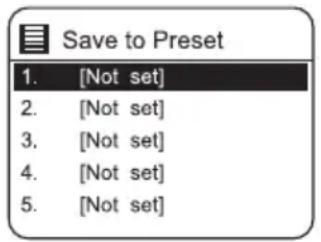
- In ON mode, press and hold the PRESET/MEMORY button on unit or PRESET button on remote control until the display shows the "Save to Preset".
- Select one of the 30 presets to store the current station by pressing the ◀/▶ buttons on unit or ▲/▼ buttons on remote control to select the number and press the SELECT button on unit or remote control.
Recalling a Stored Station
-
In ON mode, press the PRESET/MEMORY button on unit or PRESET button on remote control, and then press the ◀/▶ buttons on unit or ▲/▼ buttons on remote control to select the desired preset station.
-
Press the SELECT button on unit or remote control to confirm the selection. Alternatively, press PRESET/FOLDER buttons on unit or remote control to switch backwards/forwards through all stored preset stations.
NOTE: Operation of Preset and Recall stations are same for Internet Radio, Podcasts, DAB and FM.
PODCASTS
To listen to Podcasts your radio must be connected to the internet. Try to position your radio as close as possible to your router to get the best connection speeds. Press MODE repeatedly on the unit or on the remote to switch to Podcasts mode.
When radio is restarted, the last listened stations is automatically selected. To return to [Podcast List], press BACK button on remote control. If it is the first time you listen to the Podcasts radio, the radio will in [Podcast List].
- Press the ◀/▶ buttons on unit or ▲/▼ buttons on remote control to select from the following options, and then press the SELECT button on unit or remote control to confirm.
| "Countries" | You can search specifically for stations from your country. Within this scope, it will display local radio stations in your location. |
| Search | You can search stations using various keywords. The name and a description of your |
| Popular selected station will show on the display. | |
| Location | Select station from a list of the most popular internet stations from around the word. |
| Discover | You can select for stations from a list of countries available |
| Select stations from various categories in the menu: Origin, Genre or Language. | |
Press BACK button on remote control can move back a menu level.
Saving and recalling preset station
Refer to "Preset Stations" and "Recalling a Stored Station" under Internet Radio section for instruction.
SPOTIFY CONNECT
Your new device has Spotify Connect built in
Use your phone, tablet or computer as a remote control for Spotify. Go to spotify.com/connect to learn how.
text_image
Spotify®Licenses
The Spotify Software is subject to third party licenses found here:
https://www.spotify.com/connect/third-party-licenses
All listed brands are trademarks of their companies. Errors and omissions excepted, and subject to technical change. Our general terms of delivery and payment are applied.
DAB OPERATION
text_image
DAB RadioPress MODE on the unit or remote control repeatedly to select DAB radio. The unit will enter into the DAB mode and perform auto scan function. During the scan the display will show "Scanning..." together with a slide bar that indicates the progress of the scan and the amount of stations that have been found so far. Once the scan has finished, the unit will select the first alpha numerically found station. To explore the found stations, press the ◀/▶ buttons on unit or ▲/▼ abuttons on remote control to select and press the SELECT button on unit or remote control to confirm.
Station list
- During DAB mode, press MENU button to access DAB menu.
- Press ▲/▼ buttons to select "Station List" and then press SELECT button to confirm.
- A list of DAB stations will show on the display.
Auto Scan
Press SCAN button on unit or remote control to activate auto scan. Alternatively, press MENU button, and then press ▲/▼ buttons to select SCAN. Press SELECT button to confirm.
- The display will show "Scanning..." and a progress slide bar.
- All the stations that have been found will be stored automatically. To explore and listen to the found stations, press ▲/▼ buttons to select and the press SELECT button to confirm..
Manual Tuning
As well as the auto tune function, you can manually tune the receiver. This can help you when aligning your aerial or when adding stations that were missed while auto tuning.
- Press MENU on the remote to display the menu.
- Press 12 / w / 3 / s buttons to select Manual tune, and press SELECT button to confirm.
- The display will show the multiplex 5A to 13F.
- Press 12 / w / 3 / s buttons to select the channel, and press SELECT button to confirm.
- Now view the Station List and you will find any new radio stations that have been manually tuned in.
DAB Display Modes
Every time you press INFO/MENU button on unit or press INFO button on remote control, the display will show the following display modes:
DLS – Programme Type – Ensemble/Frequency – Signal error/Strength – Bit rate/Codec/Channels - Date.
DLS (Dynamic Label Segment)
This is a scrolling message giving real-time information, e.g. song titles, news headlines, etc.
Programme Type
This describes the "style" or "genre" of the programme that is being broadcast.
Ensemble Name/Frequency
This display the name of the multiplex that contains the station you are listening to and the frequency. A multiplex is a collection of radio stations that are bundled and transmitted on one frequency. There are national and local multiplexes. Local ones contain stations that are specific to that area.
Signal Error/ Signal Strength
The error is shown as a number. If the number is 0, it means the signal received is error free and the signal strength is strong. If the error rate is high, it is recommended to reposition the radio aerial or reposition the unit. The display will show a slide bar to indicate the signal strength, the stronger the signal, the longer the bar will be from left to right.
Bit Rate / Codec / Channels
The display will show the digital audio bit rate being received with additional information about the audio codec and channel configuration.
Date
This displays the current date provided automatically by the broadcaster.
Prune Invalid
You may remove all unavailable stations from the list.
- During DAB mode, press MENU button and press 12 / w / 3 / s buttons to select Prune invalid and press SELECT button to confirm.
- Press ▲/▼ buttons to select [ YES ] and press SELECT button to confirm. Or select [ NO ] to cancel.
DRC (Dynamic Range Compression)
If you are listening to music with high dynamic range in a noisy environment, you may wish to compress the audio dynamic range.
- During DAB mode, press MENU button and press ▲/▼ buttons to select DRC and press SELECT button to confirm.
- Press ▲/▼ buttons to select DRC high/low/off and press SELECT button to confirm the setting.
Station Order
You may wish to arrange the station listing order.
- During DAB mode, press MENU button and press 12 / w / 3 / s buttons to select Station Order and press SELECT button to confirm.
- Press 12 / w / 3 / s buttons to select Alphanumeric/Ensemble order and press SELECT button to confirm the setting.
Saving and Recalling Preset Station
Refer to "Preset Stations" and "Recalling a Stored Station" under Internet Radio section for instruction.
FM-RADIO
To switch the unit to FM mode, press MODE repeatedly on the device or on the remote to switch to FM mode. The display will show the frequency.
Auto scan
To switch the unit to FM mode, press MODE repeatedly on the device or on the remote to switch to FM mode. The display will show the frequency.
Manual Tuning
To search for FM stations manually, press the ◄/▶ buttons on unit or ▲/▼ buttons on remote control repeatedly until your desired frequency is reached.
With FM radio, it may be necessary to fine tune each station by pressing the ◀/▶ buttons on unit or ◀/▶ on the remote control. Each turn/press will adjust the frequency by 0.05 MHz. If reception is still poor, adjust the position of the aerial or try moving the radio to another location.
FM display modes
Every time you press INFO/MENU button on unit or press INFO button on the remote control, the display will show the following display modes an: Radio Text – Programme Type – Frequency – Date
RDS radio text
This is a scrolling message information about the current programme.
Programm type
This describes the "Style" or "Genre" of music that is being broadcast.
Station Name / Frequency
When an RDS station is received, the name of that station will be displayed, or if not the frequency will be displayed.
Date
This displays the current date provided automatically by the broadcaster.

FM Radio
Scan setting
- Press MENU button to access FM menu.
- Press ▲/▼ buttons to select Scan setting and then press SELECT button to confirm.
- Press ▲/▼ buttons to select [ Yes ] to receive strong signal only and then press SELECT button to confirm.
Audio setting
Press MONO/ST. button on remote control to toggle between the Stereo or Mono selection.
Alternatively,
- Press the MENU button to access the main menu.
- Press ▲/▼ buttons to select Audio setting and press SELECT button to confirm.
- Press ▲/▼ buttons to select [ YES ] to listen in mono only or [ NO ] to let the unit select Stereo or Mono automatically.
- Press SELECT button to confirm.
Saving and Recalling Preset Station
Refer to "Preset Stations" and "Recalling a Stored Station" under Internet Radio section for instruction.
CD OPERATION
Compatible disc types
| Disc Types Disc Logo Recorded | ||
| CD-R(CD Recordable) |  | Audio |
| CD-RW(CD Rewritable) |  | Audio |
| Audio CD(Compact Disc Digital Audio) |  | Audio |
Press MODE repeatedly on the unit or on the remote to select CD mode.
Playback
- Press the CD traye (▲), button on the unit or remote control to open the CD door.
- Place the CD with the label facing out into the CD compartment, and then close the CD door. The CD will playback automatically.
- If there is no disc or the disc can't be read, "No disc" will show on the display.
- When the playback is stopped, the total number of tracks will display on the display, then press the 1/2 button on unit or ▶II button on remote control to play the first track of CD/ MP3 disc automatically.
To pause playback: Press the ▶ II , button on remote control to pause the playback. And resume playback by pressing the button on the unit or on remote control again.
To stop playback: Press ■ button to stop playback.
Skipping to another track: Press ◀◀/▶◀ buttons on unit or remote control to skip backwards to the beginning of the track or previous track or skip forwards to the next track. Alternatively, press number keys in sequence on remote control can skip to the target track directly.
Press and hold ◀◀/▶◀ buttons on unit or remote control to perform fast forward/reverse playback.
When playing MP3 disc with music grouped in different folders, press PRESET/FOLDER buttons on unit or remote control can switch to next/previous folder.
Repeat Playback
- Press the REPEAT button on remote control repeatedly to choose a function.
 | It will play the current track repeatedly |
 | It will play all files in the current folder repeatedly (for data CDs only) |
 | It will play all tracks repeatedly |
- Press the REPEAT button on remote control once more again, the REPEAT function will turn off.
Random Playback
All tracks on the disc can be played in a random order.
- Press RANDOM button on the remote control. The ✗. indicator will show on the display. All tracks will be played randomly.
- Press ◀◀/▶▶ zum nächsten Titel in der Zufallswiedergabe springen.
- After all the tracks have played once, the playback will stop automatically.
- To cancel random playback, press RANDOM button during Random playback. Normal playback will resume.
Intro Playback
- Press INTRO on the remote control. The "Intro" indicator will show on the display. The unit will play the first 10 seconds of each track.
- Press INTRO on the remote control again to resume normal playback.
Programm erstellen
User can program up to 20 tracks in any desired order. And Programme mode is activated while in STOP mode.
- Press PRESET/MEMORY button on unit or PRESET button on remote control to enter programme mode.
- Press ◀◀/▶◀ buttons on unit or remote control to select the track that you want to preset.
- Press the SELECT button on unit or remote control to confirm the track.
- Repeat steps 2-3 to programme more tracks. Once it is completed, press the ▶II button on remote control to start playback of the programmed tracks.
Programme cancel: Press ■ button on unit or remote control twice, or open the disk tray and close it again to erase the memory.
USB OPERATION
- There is an USB socket located at the back of the unit. When a USB device is connected to the unit, press the MODE button on unit or remote control repeatedly to select USB mode.
- The unit will automatically playback the tracks.
- All playback features are the same as if you were playing an MP3 CD.
Note: The unit can only play MP3 file formats in USB operation. The unit can support USB devices with up to 32GB of memory. The unit may not compatible with all USB devices; this is not an indication of a problem of the unit.
Charge Your Device
You can charge your device through the USB socket on this unit with a USB cable (not supplied).
- The maximum current for USB charging is 1A.
- All devices for USB charging are not guaranteed.
BT-OPERATION
The unit has a BT function that can receive a signal within 8 meters. Pairing the unit with a BT device to listen to music:
- Press MODE repeatedly on the unit or on the remote to select BT Audio mode.
- If the unit is not paired with any BT device, the display will flash "BT".
- Activate your BT device and select the search mode.
- "Connect Vertical" will appear on your BT device list.
- Select "Connect Vertical" and enter "0000" for the password if necessary.
- To disconnect the BT function, switch to another function on the unit or disable the function from your BT device.
Playing Music via BT
You may need to adjust the volume on your radio and BT device.
- Press the 1/2 button on unit or the ▶ II button on remote control to play/pause music or
- Press ◀/▶ buttons on unit or remote control to skip to the previous/next track.

USB
Notes
- The operational range between the unit and the device is approximately 8 metres.
- For better signal reception, remove any obstacles between the unit and the BT device.
- This unit supports A2DP (Advanced Audio Distribution Profile) and AVRCP (Audio Video remote Control Profile) functions. This can only be paired with one BT device at one time.
- Compatibility with all devices and media types is not guaranteed.
- Some mobile phones with the BT function may connect and disconnect as you make and end calls. This is not an indication of a problem with your unit.
NET REMOTE
The device gives a feature of NetRemote by smartphone or tablet in iOS or Android system. By downloading the assigned app named UNDOK, you can view all the modes of Internet radio, Podcasts, Spotify, DAB, FM, CD, USB, BT and AUX in. Search UNDOK from Google Play or Apple Store for UNDOK app, and install it to your smartphone or tablet.
Before using the UNDOK app, make sure the device and the smartphone or tablet are in the same WiFi network. Launch the app.
The app initializes and scans for the device in the network. Tap the device to make the NetRemote connection.
Once the smartphone or tablet has already accessed the device, they will automatically connect the next time when you open the app again.
- Be aware that if another smartphone or tablet with the app in the same network has access with the device; the original connection will be cut off.
Note: When it is the first time that you connect the device to the unit, the app may ask you to enter the PIN. Default PIN is 1234. For details of changing the PIN for security, please refer to System Settings section: Network - NetRemote PIN Setup. Select your desired mode in the main page. You may then control the selected mode on your smartphone or tablet and on the device simultaneously.
AUX OPERATION
There is a "LINE IN" socket located at the left side of the unit. Analogue audio sound signals from other sources can be input to the unit through this socket.
- Connect the input to another audio device via an AUX cable (not included) with "LINE IN" socket.
- Press MODE repeatedly on the unit or on the remote to select AUX in mode.
- Press VOLUME +/- buttons on the unit or press VOL +/- on the remote control to adjust the volume for your desired sound output level.
- In AUX mode, operate your audio device directly for playback features.
HEADPHONE USE
Do not listen to music at high volume when using headphones. Doing so can cause permanent hearing impairment. Turn the tuner volume level to the lowest before using headphones.
- Only use headphones with a 3.5-mm jack plug.
- Insert the headphone connector in the headphone socket at the left side of the unit.
SLEEP SETTING
This function allows you to program the unit to turn to standby mode by itself after a set period of time.
- To activate the sleep function, press the SLEEP button on remote control repeatedly. The time will change in the below sequence on every press::Sleep OFF > 15MIN > 30MIN > 45MIN > 60MIN
- When your desired sleep time appears in the display, stop pressing the button and the sleep function will be activated in two seconds. the moon symbol will show on the display. Also the time remaining until switch off is being displayed next to the symbol in the display.
- When the sleep timer counts down to zero, the unit will turn to standby mode. To turn the sleep function off while the sleep timer is still counting down, repeat step (1)-(3) to select "SLEEP OFF". " " will disappear from the display.
- Press the SLEEP button once to show the sleep timer status on the display when it is turned on.
SETTING THE ALARM
- Press TIMER button on the remote control, the display shows "Alarm (1 or 2): Off [hh:mm]"..
Alternatively,
Press the MENU button on the remote to display the function main menu.
Press ▲/▼ buttons to select Main menu, and then press SELECT button to confirm.
Press ▲/▼ buttons to select Alarms, and then press SELECT button to enter Alarms menu.
-
Press ▲/▼ buttons to select the Alarm number (1 or 2) and then press SELECT button to start the setting of the following parameters.
-
Press ▲/▼ buttons to select then press SELECT button to confirm.
| Enable Off/ Daily/ | Once/ Weekends/ Weekdays |
| Time (Alarm On time) | |
| Mode Buzzer/ Internet radio/ DAB/ FM/ CD/ USB | |
| Preset Last Listened/ (Preset station) | |
| Volume Muted, 0-32 | |
| Save Save and confirm the alarm setting | |
Finally, select "Save" and press SELECT button to save the alarm setting.
When alarm is set, the alarm icon will appear on the display during standby mode.
To turn off the alarm when it sounds, press the STANDBY/ON button on unit, or press ⏻ or the TIMER button on the remote control.
Cancelling the alarm
- Press TIMER button on the remote control, the display shows "Alarm (1 or 2): On [hh:mm]".
- Press ▲/▼ buttons to select the Alarm number (1 or 2) and then press SELECT button to start the setting of the timer.
- Press ▲/▼ buttons to select "Enable" then press SELECT button to confirm.
- Press ▲/▼ buttons to select "Off" then press SELECT button to confirm.
- Finally, select "Save" and press SELECT button to save the setting.
MAINTENANCE AND CARE
Handling Discs
- Do not touch the playback side of the disc.
- Do not attach paper or tape to the disc.
Cleaning Discs
- Fingerprints and dust on the disc cause sound deterioration. Wipe the disc from the centre outwards with a cloth. Always keep the disc clean.
- If you cannot wipe off the dust with a soft cloth, wipe the disc lightly with a slightly moistened cloth and finish with a dry cloth.
- Do not use any type of solvent such as thinner, benzine, commercially available cleaners or antistatic spray. They may damage the disc.
Storing Discs
- Do not store discs in places subjected to direct sunlight or near heat sources.
- Do not store discs in places subjected to moisture and dust such as a bathroom or near a humidifier.
- Storing discs vertically in a case, stacking discs or placing objects on discs outside of their cases may cause warping.
Chal-Tec
Chal-Tec GmbH Wallstr. 15 10179 Berlin, Germany www.chal-tec.com
The Spotify software is subject to third party licenses found here:
https://www.spotify.com/connect/third-party-licenses
All listed brands are trademarks of their companies. Errors and omissions excepted, and subject to technical change. Our general terms of delivery and payment are applied.
natural_image
Symbol of a trash bin crossed with a diagonal line, no text or numbers presentIf there is a legal regulation for the disposal of electrical and electronic devices in your country, this symbol on the product or on the packaging indicates that this product must not be disposed of with household waste. Instead, it must be taken to a collection point for the recycling of electrical and electronic equipment. By disposing of it in accordance with the rules, you are protecting the environment and the health of your fellow human beings from negative consequences. For information about the recycling and disposal of this product, please contact your local authority or your household waste disposal service.
This product contains batteries. If there is a legal regulation for the disposal of batteries in your country, the batteries must not be disposed of with household waste. Find out about local regulations for disposing of batteries. By disposing of them in accordance with the rules, you are protecting the environment and the health of your fellow human beings from negative consequences.
DECLARATION OF CONFORMITY
CE UK CA
Manufacturer:
Chal-Tec GmbH, Wallstrasse 16, 10179 Berlin, Germany.
Importer for Great Britain:
Berlin Brands Group UK Ltd PO Box 1145 Oxford, OX1 9UW United Kingdom
Hereby, Chal-Tec GmbH declares that the radio equipment type Connect Vertical is in compliance with Directive 2014/53/EU. The full text of the EU declaration of conformity is available at the following internet address: use.berlin/10034996
For Great Britain: Hereby, Chal-Tec GmbH declares that the radio equipment type Connect Vertical is in compliance with the relevant statutory requirements. The full text of the declaration of conformity is available at the following internet address: use.berlin/10034996
Chère cliente, cher client,
text_image
QR code image containing encoded data, no visible human-readable textSOMMAIRE
Fiche technique 80
natural_image
Technical line drawing of a mechanical assembly with no visible text or symbols19
text_image
16 17 18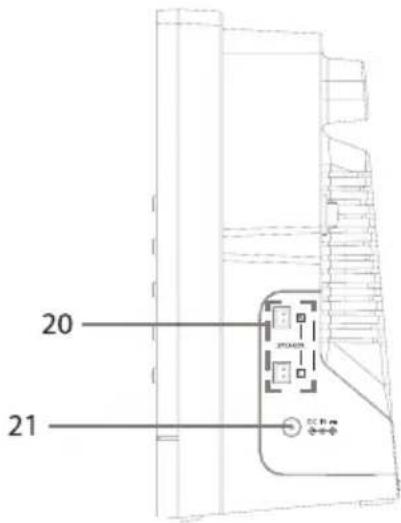
text_image
20 21text_image
Diagram illustrating the process of battery charging and discharging in a beaker, showing charge distribution before and after discharge.Manipulation des piles
text_image
100 STRAWING 30° MAX. 4 m 30° PUBS PUBS PUBS PUBS PUBS PUBS PUBS PUBS PUBS PUBS PUBS PUBS PUBS PUBS PUBS PUBS PUBS PUBS PUBS PUBS PUBS PUBS PUBS PUBS PUBS PUBB PUBB PUBB PUBB PUBB PUBB PUBB PUBB PUBB PUBB PUBB PUBB PUBB PUBB PUBB PUBB PUBB PUBB PUBB PUBB PUBB PUBB PUBB PUBB PUBB PUBBS PUBBS PUBBS PUBBS PUBBS PUBBS PUBBS PUBBS PUBBS PUBBS PUBBS PUBBS PUBBS PUBBS PUBBS PUBBS PUBBS PUBBS PUBBS PUBBS PUBBS PUBBS PUBBS PUBBS PUBBS PUBB PUBB PUBB PUBB PUBB PUBB PUBB PUBB PUBB PUBB PUBB PUBB PUBB PUBB PUBB PUBB PUBB PUBB PUBB PUBB PUBB PUBB PUBB PUBB PUBBEA B C D E F G H I N J K L M N O P Q R S T U V W X Y Z Y A X B X C X D X E X F X G X H X I X J X K X L X M X N X O X P X Q X R X S X T X U X V X W X X X Y X Z X A X B X C X D X E X F X G X H X I X J X K X L X M X N X O X P X Q X R X S X T X U X V X W X X Y X Z X A X B X C X D X E X F X G X H X I X J X K X L X M X N X O X P X Q X R X S X T X U X V X W X X Y X Z X A X B X C X D X E X F X G X H X I X J X K X L X M X N X O X P Ahttps://www.spotify.com/connect/third-party-licenses
natural_image
Symbol of a trash bin crossed out by a diagonal line, with no text or labels present.DÉCLARATION DE CONFORMITÉ

text_image
CE UK CAFabricant :
Chal-Tec GmbH, Wallstraße 16, 10179 Berlin, Allemagne.
text_image
QR code image containing encoded data, no visible human-readable textCONTENIDO
Datos técnicos 120
Radio DAB 174,928 - 239,200 MHz
natural_image
Technical line drawing of a mechanical assembly with no visible text or symbols19
text_image
16 17 18
text_image
20 2116 Conector para auriculares
17 Conector LINE-IN
18 Antena de FM
text_image
Diagram illustrating the process of battery charging and discharging in a beaker, showing charge distribution before and after discharge.Manejo de las pilas
text_image
100 STRAWING 30° MAX. 4 m 30° PUBS PUBS PUBS PUBS PUBS PUBS PUBS PUBS PUBS PUBS PUBS PUBS PUBS PUBS PUBS PUBS PUBS PUBS PUBS PUBS PUBS PUBS PUBS PUBS PUBS PUBB PUBB PUBB PUBB PUBB PUBB PUBB PUBB PUBB PUBB PUBB PUBB PUBB PUBB PUBB PUBB PUBB PUBB PUBB PUBB PUBB PUBB PUBB PUBB PUBB PUBBS PUBBS PUBBS PUBBS PUBBS PUBBS PUBBS PUBBS PUBBS PUBBS PUBBS PUBBS PUBBS PUBBS PUBBS PUBBS PUBBS PUBBS PUBBS PUBBS PUBBS PUBBS PUBBS PUBBS PUBBS PUBB PUBB PUBB PUBB PUBB PUBB PUBB PUBB PUBB PUBB PUBB PUBB PUBB PUBB PUBB PUBB PUBB PUBB PUBB PUBB PUBB PUBB PUBB PUBB PUBBEA B C D E F G H I N J K L M N O P Q R S T U V W X Y Z A D E F F G H I N J K L M N O P Q R S T U V W X Y Z A D E F F G H I N J K L M N O P Q R S T U V W X Y Z A D E F F G H I N J K L M N O P Q R S T U V W X Y Z A D E F F G H I N J K L M N O P Q R S T U V W X Y Y Z A D E F F G H I N J K L M N O P Q R S T U V W X Y Z A D E F F G H I N J K L M N O P Q R S T U V W X Y Z A D E F F G H I N J K L M N O P Q R S T U V W X Y Z A D E F F G H I N J K L M N O P Q R S S U V W X Y Z A D E F F F G H I N J K L M N O P Q R S S U V W X Y Z A D E F F F G H I N J K L M N O P Q R S S U V W X Y Z A D E F F F G H I N J K L M N O P Q R S S U V W X Y Z A D E F F F G H I N J K L M N O P Q R S S UV W X Y Z A D E F F F F G H I N J K L M N O P Q R S S U V W X Y Z A D E F F F F G H I N J K L M N O P Q R S S U V W X Y Z A D E F F F F G H I N J K L M N O P Q R S S U V W X Y Z A D E F F F F G H I N J K L M N O P Q R S S U V W X Y Z A D E F F F F G H I NJ K L M N O P Q R S S U V W X Y Z A D E F F F F G H I N J K L M N O P Q R S S U V W X Y Z A D E F F F F G H I N J K L M N O P Q R S S U V W X Y Z A D E F F F F G H I N J K L M N O P Q R S S U V W X YZ A D E F F F F G H I N J K L M N O P Q R S S U V W X Y Z A D E F F F F G H I N J K L M N O P Q R S S U V W X Y Z A D E F F F F G H I N J K L M N O P Q R S S U V W X Y Z A D E F F F F G H I N J K L M M N O P Q R S S U V W X Y Z A D E F F F F G H I N J K L M N O P Q R S S U V W X Y Z A D E F F F F G H I N J K L M N O P Q R S S U V W X Y Z A D E F F F F G H I N J K L M N O P Q R S S U V W X Y Z AD E F F F F F G H I N J K L M N O P Q R S S U V W X Y Z A D E F F F F G H I N J K L M N O P Q R S S U V W X Y Z A D E F F F F G H I N J K L M N O P Q R S S U V W X Y Z A D E F F F F G H I N J K L M N O PQ R S S U V W X Y Z A D E F F F F G H I N J K L M N O PQ R S S U V W X Y Z A D E F F F F G H I N J K L M N O PQ R S S U V W X Y Z A D E F F F F G H I N J K L M N O PQ R S S U V W X Y Z A D E F F F CPUESTA EN MARCHA Y USO
https://www.spotify.com/connect/third-party-licenses
natural_image
Symbol of a trash bin crossed out by a diagonal line, with no text or labels present.Berlin Brands Group UK Ltd
PO Box 1145
Oxford, OX1 9UW
United Kingdom
text_image
QR code image containing encoded data, no visible human-readable textINDICE
Dati tecnici 158
Radio DAB 174,928 - 239,200 MHz
Specifiche WLAN
natural_image
Technical line drawing of a mechanical assembly with no visible text or symbols19
text_image
16 17 18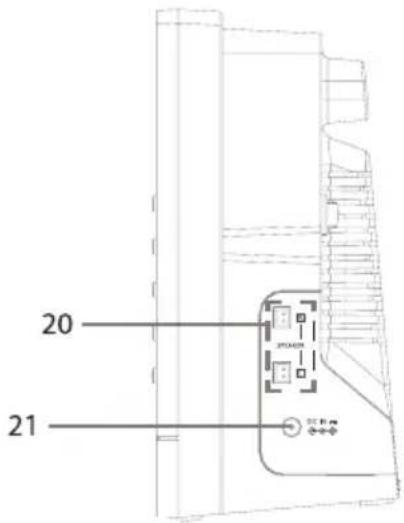
text_image
20 21text_image
Diagram illustrating the process of battery charging and discharging in a beaker, showing charge distribution before and after discharge.DLS (Dynamic Label Segment)
https://www.spotify.com/connect/third-party-licenses