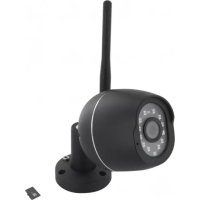
IPCAMFE03 - Surveillance Camera CHACON - Free user manual and instructions
Find the device manual for free IPCAMFE03 CHACON in PDF.



| Product type | Indoor IP surveillance camera |
| Brand | Chacon |
| Model | IPCAMFE03 |
| Resolution | HD 1080p (1920 x 1080) |
| Viewing angle | 100° (wide angle) |
| Night vision | Infrared up to 15 meters |
| Connectivity | Wi-Fi 802.11 b/g/n (2.4 GHz only) |
| Wi-Fi frequency | 2.4 GHz |
| Maximum radio frequency power | < 20 mW (EIRP) |
| Power supply | USB 12V / 1A (AC adapter included) |
| Operating temperature | -10°C to +50°C |
| Local storage | Micro SD card (Class 10, not included) for continuous recording up to 24h |
| Audio | Two-way audio (listen and speak via the app) |
| Detection | Motion detection and sound detection (adjustable sensitivity) |
| Main functions | Live view, recording, screenshots, intercom, sharing, 180° video rotation, push notifications |
| Reset | Reset button: hold down until beep |
| Dimensions | Approximately 10 x 7 x 7 cm (estimate) |
| Weight | Approximately 250 g (estimate) |
| Dedicated app | Chacon cam+ (free on iOS and Android) |
Frequently Asked Questions - IPCAMFE03 CHACON
User questions about IPCAMFE03 CHACON
0 question about this device. Answer the ones you know or ask your own.
Ask a new question about this device
Download the instructions for your Surveillance Camera in PDF format for free! Find your manual IPCAMFE03 - CHACON and take your electronic device back in hand. On this page are published all the documents necessary for the use of your device. IPCAMFE03 by CHACON.
USER MANUAL IPCAMFE03 CHACON
natural_image
Black camera with antenna and sensor module (no visible text or symbols)User manual / Mode d'emploi / Gebruiksaanwijzing / Manual de uso / Manual de instruções / Bedienungsanleitung / Manuale Utente / инструкции по использованию / Instrukcja obsługi / Kullanım kılavuzu / Manual de utilizare
CHACON
EN....3
FR....10
NL....17
ES....24
PT....31
DE 38
IT 45
RU 52
PL....59
TR....66
RO....73
EN
1. PRESENTATION
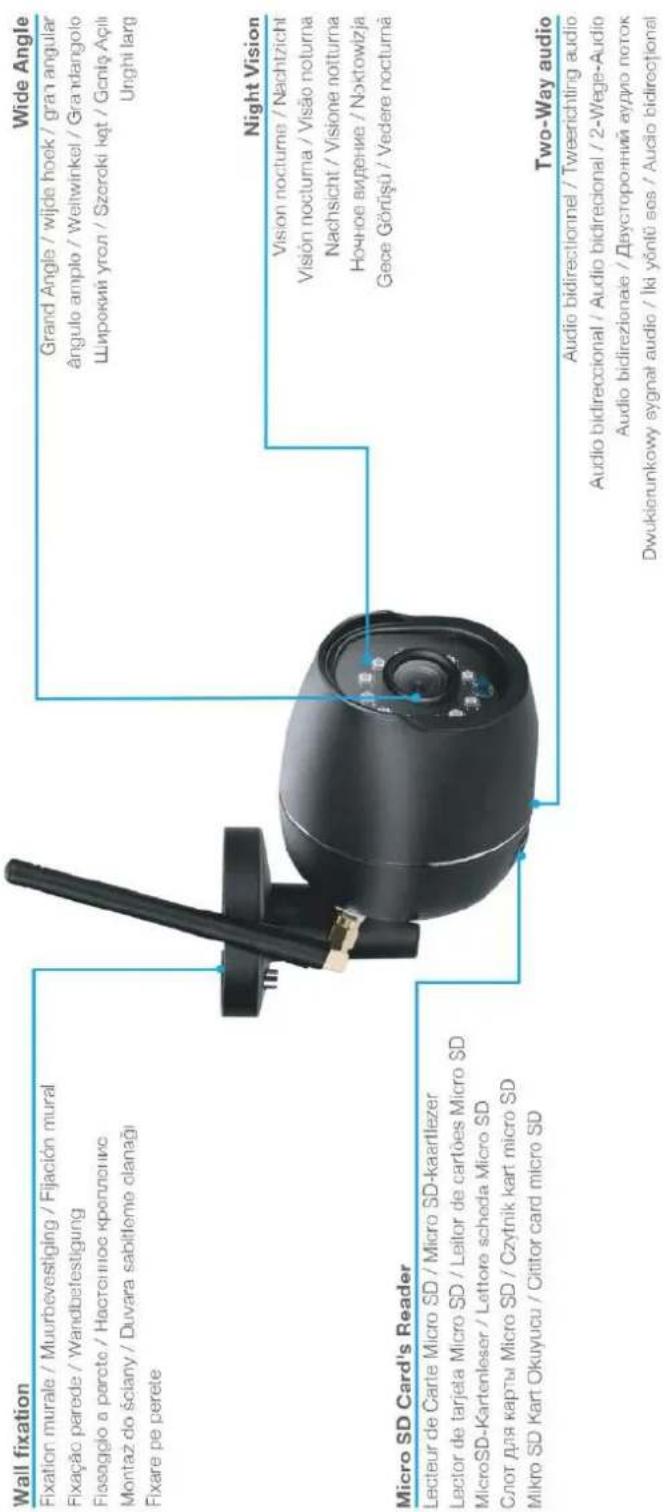
A. Description of the device
2. CONNECTING THE CAMERA
A. Download the application
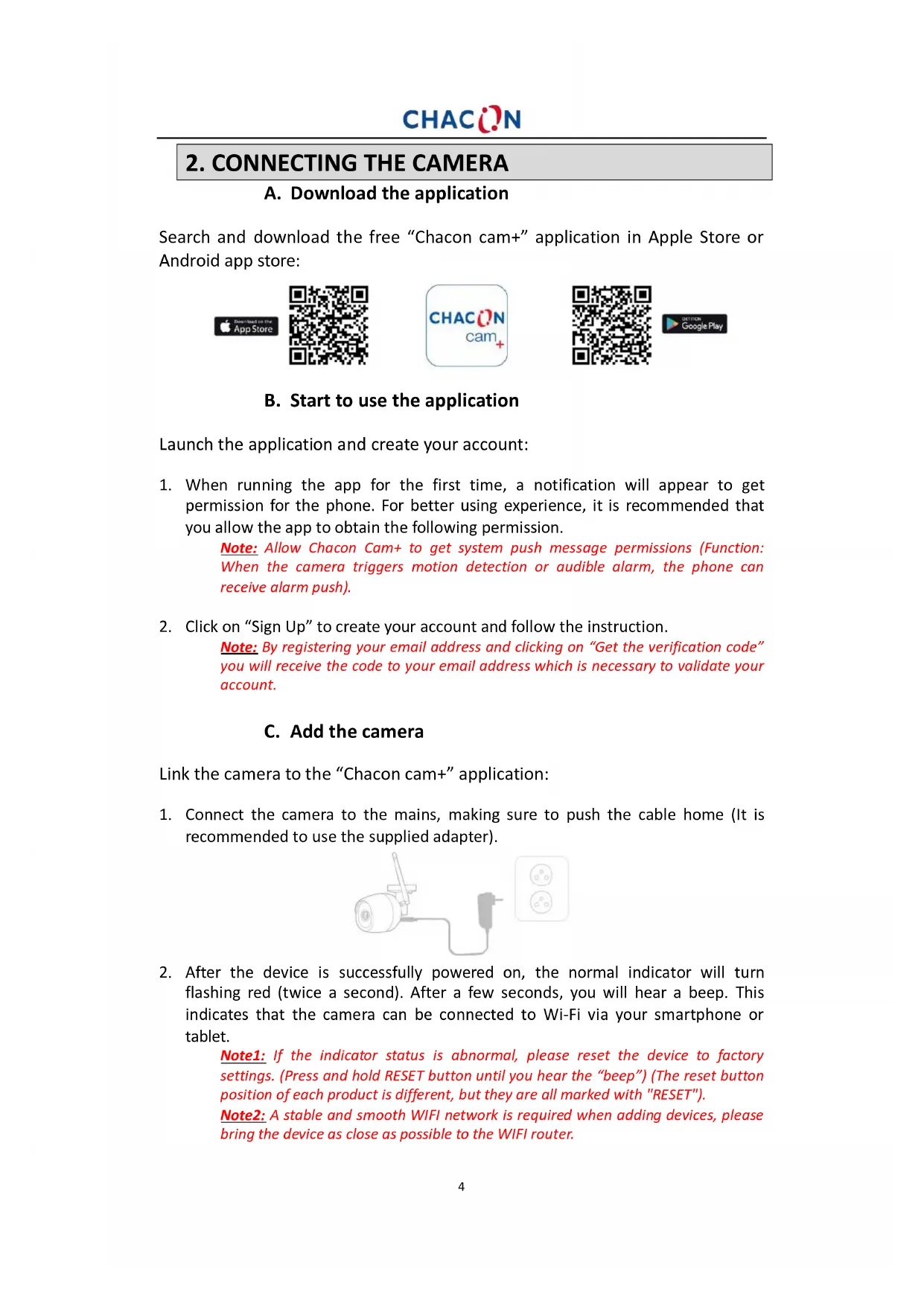
Search and download the free "Chacon cam+" application in Apple Store or Android app store:

B. Start to use the application
Launch the application and create your account:
- When running the app for the first time, a notification will appear to get permission for the phone. For better using experience, it is recommended that you allow the app to obtain the following permission.
Note: Allow Chacon Cam+ to get system push message permissions (Function: When the camera triggers motion detection or audible alarm, the phone can receive alarm push).
- Click on "Sign Up" to create your account and follow the instruction.
Note: By registering your email address and clicking on "Get the verification code" you will receive the code to your email address which is necessary to validate your account.
C. Add the camera
Link the camera to the "Chacon cam+" application:
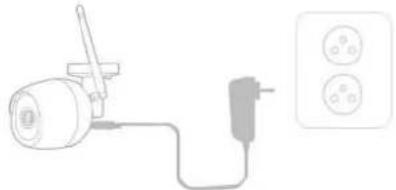
- Connect the camera to the mains, making sure to push the cable home (It is recommended to use the supplied adapter).
natural_image
Simple line drawing of a lamp connected to a power outlet (no text or symbols)- After the device is successfully powered on, the normal indicator will turn flashing red (twice a second). After a few seconds, you will hear a beep. This indicates that the camera can be connected to Wi-Fi via your smartphone or tablet.
Note1: If the indicator status is abnormal, please reset the device to factory settings. (Press and hold RESET button until you hear the "beep") (The reset button position of each product is different, but they are all marked with "RESET").
Note2: A stable and smooth WIFI network is required when adding devices, please bring the device as close as possible to the WIFI router.
Note3: This camera only supports 2.4GHz WIFI network. Before adding equipment, please ensure that your router supports 2.4GHz WIFI network, and the mobile phone is connected to 2.4GHz WIFI network.
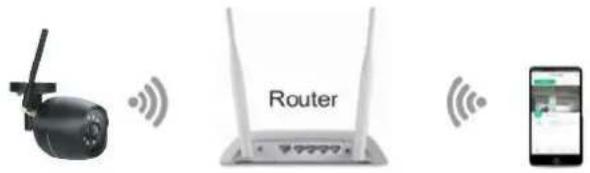
- Add the camera to the application by clicking to the “+”, choose the device to add and the select the way to proceed (Scan QR code or smart configuration). Then follow the instructions.
Note1: Make sure that the smartphone is well connected to the right Wi-Fi network. When you have to register the SSID, make sure you put the same Wi-Fi network and the right password.
Note2: If the device fails to be added, press and hold the reset button on the device to restore the device to the factory settings. After the device indicator flashes red slowly and you hear a "beep", try again to add the camera to the application.
Note3: A camera can only be added to one account. If the camera has been already added, it cannot be added on another account.
3. USE
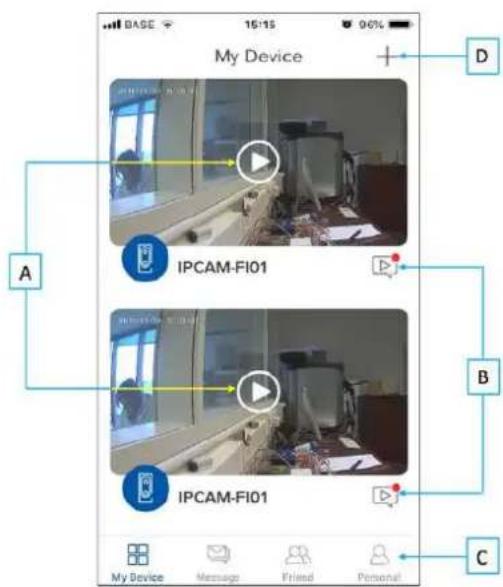
A: Camera interface
B: Motion detection alarm pictures
A: Camera setting: allow you to configure all functions of the camera:
Owner: person who manage the camera
SN: serial number of the camera
Share: manage the camera sharing
Note1: To share the camera to anyone, the new person needs firstly to create his own account in the application Chacon cam+. Then, click on "+" and register the new account with whom to share the camera.
Note2: For security reasons, the visitor accounts don't have all the rights to control the camera, some of the functions are unusable.
SD Card: manage the memory
Note1: Install a high-capacity micro-SD card (class 10) in the camera for continuous recording up to 24 hours.
Sleep mode: manage the turn on/off of the camera
Receive alarm message: need to active this function if you want to receive push notification on your smartphone when motion detection.
Note1: To receive the push notifications, you must enable the "Chacon cam+" notifications in the settings of your smartphone.
➢ Video flip: allow you to flip the image of your video by 180°.
➢ Motion: enable and disable the motion detection.
➢ Sound detection: enable and disable the sound detection. You can adjust the detection sensitivity (low, medium or high).
▶ Playback settings: To adjust the timing of a recorded video.
Version: version of the software.
➢ Delete camera: bin at the top right of the screen. Allow you to delete the camera.
B: Video of the camera:
Preview: live video.
▶ Playback: watch the recorded video.
C: Main parameters: depending of the device, you can manage the main functions of the camera (motion detection, turn on/off, share, light, take manual photo/video records, talk/listen, ...)
D: Back to previous page.
B. Motion detection alarm pictures
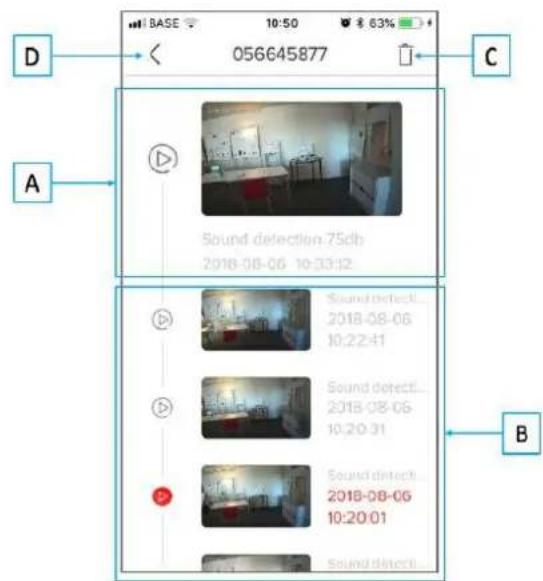
A: Last record. Click to the image to see video/picture, download, share to another application, person, ...
B: Previous records. Swipe your finger down to see all records. Click to the image to see video/picture, download, share to another application, person, ...
C: Delete records.
D: Back to previous Personal Homepage
C. Personal homepage
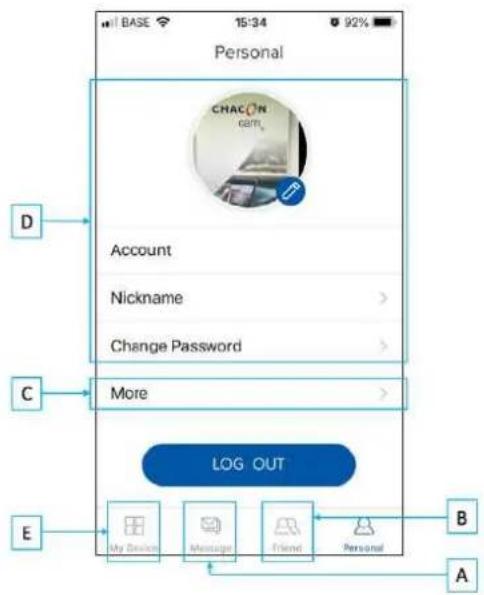
A: Message: click to see messages about alarm system or people with friends
B: Friend: invite new friend with whom you would like to share a camera, delete friends, manage which device you want to share.
C: More: other functions.
D: Account: allow you to manage your account (modify you personal picture, password, log out, ...)
E: Back to previous page.
4. RESETTING
To restore the camera's factory settings, press the camera's reset button and hold until you hear a beep.
Note1: If you wish to perform a complete reset (for new owner), please delete the camera from your account in the application first, and then perform a reset.
5. OTHERS
A. Hotline

www.chacon.be
B. Specification
➢ Resolution: HD 1080p (1920x1080)
View Angle: 100°
Night vision: 15 m
➢ Connection: Wi-Fi 802.11b /g /n
➢ Frequency: Wi-Fi 2.4 GHz
Max radio-frequency power: <20mW (EIRP)
Power supply: USB - 12V / 1A
Operating temperature: -10^ C / +50°C
C. Symbols

Direct current (DC)
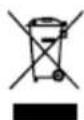
Don't throw batteries or out of order products with the household waste (garbage). The dangerous substances that they are likely to include may harm health or the environment.
Make your retailer take back these products or use the selective collect of garbage proposed by your city.
Hereby, Chacon, declares that the radio equipment type 'IPCAM-FE03' is in compliance with the Directive 2014/53/EU.
The full test of the EU declaration of conformity is available at the following Internet address: http://chacon.be/conformity

Chacon S.A.
Avenue Mercator 2 • 1300 Wavre
Belgium
FR
1. PRESENTATION
natural_image
Simple line drawing of a device connected to a power plug and a wall socket (no text or symbols)natural_image
Three wireless devices: a drone, a Router, and a smartphone with wireless signal icons (no text or symbols on devices)natural_image
Simple line drawing of a device connected to a plug and a socket (no text or symbols)natural_image
Three wireless devices: a drone, a Router, and a smartphone with a messaging app (no text or symbols visible on devices)natural_image
Simple line drawing of a device connected to a power outlet with two three-pin outlets (no text or symbols)natural_image
Three wireless devices: a drone, a Router, and a smartphone with a mobile app icon (no text or symbols on devices)natural_image
Simple line drawing of a lamp connected to a power plug and a wall socket (no text or symbols)natural_image
Simple line drawing of a remote control unit connected to a wall socket (no text or symbols)➢ Resolution: HD 1080p (1920x1080)
View Angle: 100°
Night vision: 15 m
➢ Connection: Wi-Fi 802.11b /g /n
Frequency: Wi-Fi 2.4 GHz
Max radio-frequency power: <20mW (EIRP)
Power supply: USB - 12V / 1A
Operating temperature: -10^ C / +50°C
C. Symbole

Gleichstrom (DC)
natural_image
Simple line drawing of a lamp connected to a power plug and a wall socket (no text or symbols)natural_image
Simple line drawing of a remote control unit connected to a wall-mounted power outlet (no text or symbols)natural_image
Simple line drawing of a lamp connected to a power plug and a wall socket (no text or symbols)natural_image
Three wireless devices: a drone, a Router, and a smartphone with wireless signal icons (no text or symbols on devices)natural_image
Simple line drawing of a lamp connected to a power plug and a wall socket (no text or symbols)natural_image
Simple line drawing of a lamp connected to a plug and a wall socket (no text or symbols)DC - Curent continuu (c.c.)