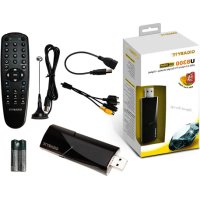
U8300 - TV receiver GIGABYTE - Free user manual and instructions
Find the device manual for free U8300 GIGABYTE in PDF.



| Product type | TV receiver (TV tuner) with VIVO software |
| Dimensions (approx.) | 120 x 80 x 20 mm |
| Weight (approx.) | 50 g |
| Power supply | Via USB port (5V) |
| Main functions | Digital TV reception (HDTV, H.264), analog TV, FM radio, scheduled recording, time shift, PIP/POP, multi-viewing, digital zoom 2X/3X/4X, screen and video capture, electronic program guide (EPG), teletext, subtitles, noise reduction, SAP, Composite/S-Video output |
| Recording formats | MPEG1, MPEG2, MPEG4, H.264, PSP, iPod, PS, TS |
| Connectivity | Antenna/cable input, Composite, S-Video, USB |
| Software compatibility | VIVO software (Windows) |
| Maintenance and cleaning | Use a soft, dry cloth. Do not use liquids. Unplug before cleaning. |
| Safety | Do not expose to moisture, extreme temperatures or shocks. Unplug during thunderstorms. |
| Spare parts and repairability | Contact Gigabyte customer service. Repair by a professional recommended. |
| General information | Brand Gigabyte, model U8300. Manual available in several languages. VIVO software included for TV and media management. |
Frequently Asked Questions - U8300 GIGABYTE
User questions about U8300 GIGABYTE
0 question about this device. Answer the ones you know or ask your own.
Ask a new question about this device
Download the instructions for your TV receiver in PDF format for free! Find your manual U8300 - GIGABYTE and take your electronic device back in hand. On this page are published all the documents necessary for the use of your device. U8300 by GIGABYTE.
USER MANUAL U8300 GIGABYTE
USB Hybrid TV Dongle
User's Manual
English
Deutsch
Français
Español
Русский
Türkçe
Polski
Česky
Português
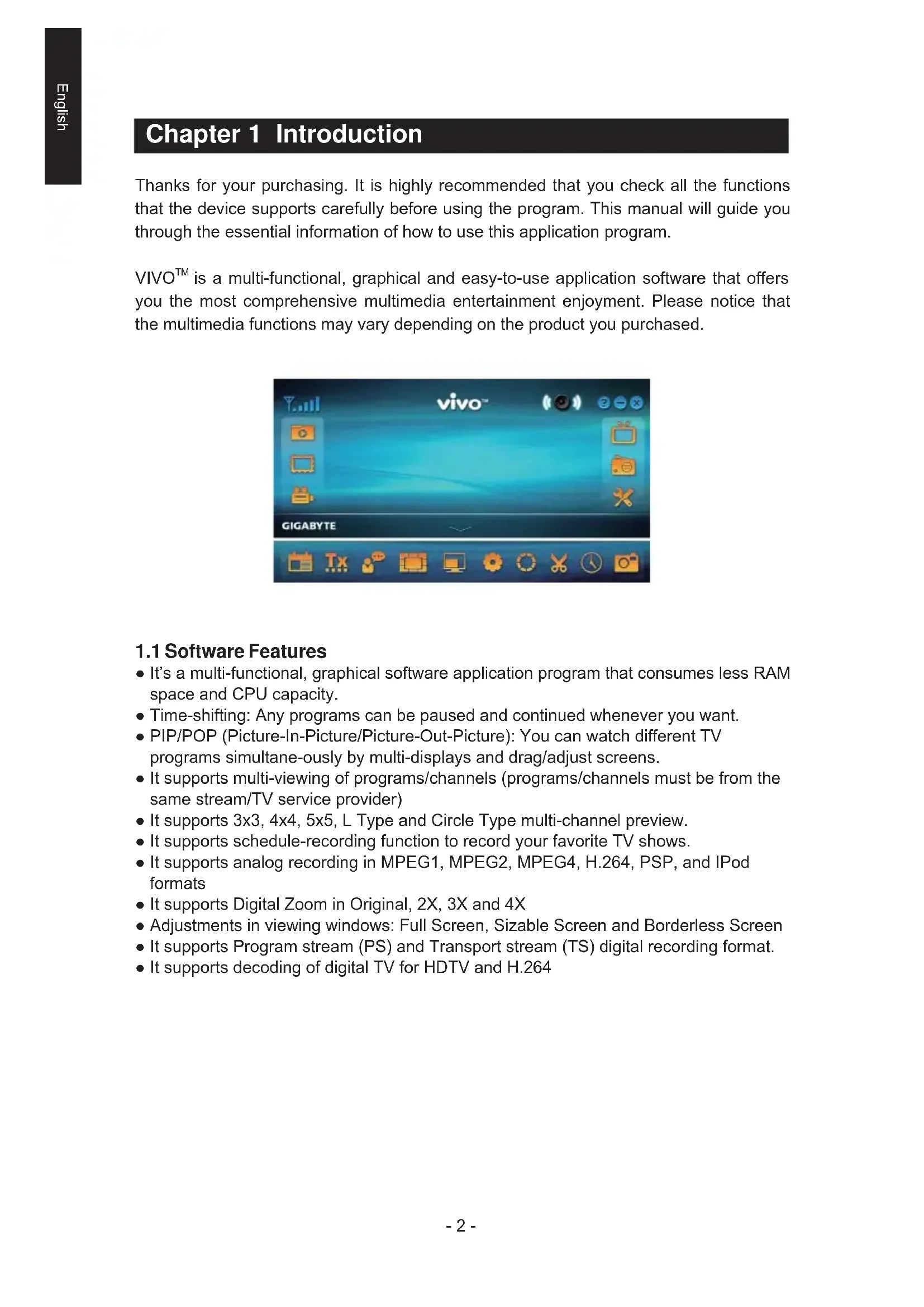
Chapter 1 Introduction
Thanks for your purchasing. It is highly recommended that you check all the functions that the device supports carefully before using the program. This manual will guide you through the essential information of how to use this application program.
VIVO ™ is a multi-functional, graphical and easy-to-use application software that offers you the most comprehensive multimedia entertainment enjoyment. Please notice that the multimedia functions may vary depending on the product you purchased.

1.1 Software Features
- It's a multi-functional, graphical software application program that consumes less RAM space and CPU capacity.
- Time-shifting: Any programs can be paused and continued whenever you want.
- PIP/POP (Picture-In-Picture/Picture-Out-Picture): You can watch different TV programs simultaneously by multi-displays and drag/adjust screens.
- It supports multi-viewing of programs/channels (programs/channels must be from the same stream/TV service provider)
- It supports 3x3, 4x4, 5x5, L Type and Circle Type multi-channel preview.
- It supports schedule-recording function to record your favorite TV shows.
- It supports analog recording in MPEG1, MPEG2, MPEG4, H.264, PSP, and IPod formats
- It supports Digital Zoom in Original, 2X, 3X and 4X
- Adjustments in viewing windows: Full Screen, Sizable Screen and Borderless Screen
- It supports Program stream (PS) and Transport stream (TS) digital recording format.
- It supports decoding of digital TV for HDTV and H.264
1.2 TV Setup
1.2.1 Channel Scanning
When you run VIVO ™ for the first time, the system will guide you through the necessary steps of chan-nel scanning.

- Please select the device type (e.g. digital, analog or hybrid) you purchased and click "Next".

- Select the signal source (the signal strength may vary depending on the product you purchased and the area you live), and click "Next".
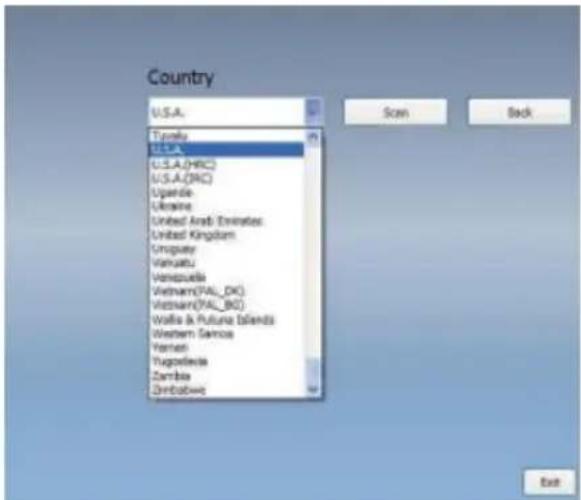
- Please select the country you live and then click "Channel Scan".
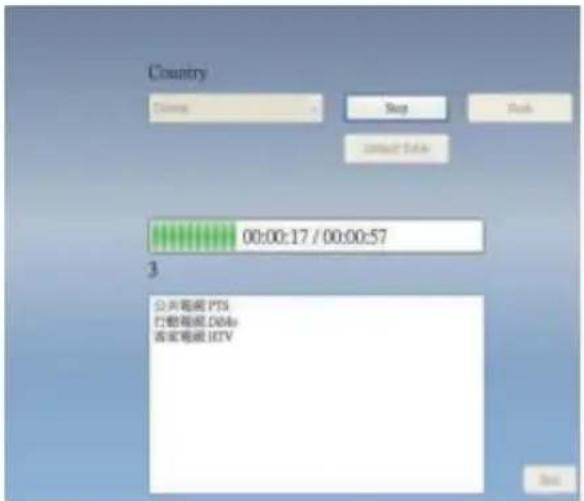
- Click "Exit" to finish the setup after the scanning is completed.
Note you may load default channel list to watch TV without the waiting time for channel scanning.
1.2.2 Source Input
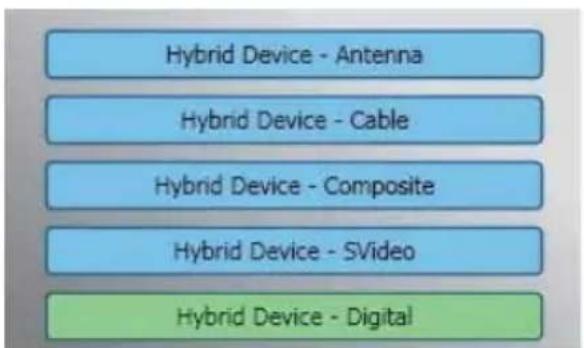
- Select your device and signal source such as Digital, Analog (Cable or Antenna), Video (Composite, S-Video). VIVO™ will import the signal source you select. It is recommended that you select the signal source that your device supports.
Antenna TV: If you choose Antenna TV, please make sure your antenna (for analog TV reception) is properly installed and is able to receive signals.
Cable TV: If you want to watch Cable TV, please ensure that you have properly plugged your analog (cable) TV cord to the wall outlet of your cable TV.
Video: If you want to watch DVD videos, it's available through the additional Composite, S-Video input. Please check if the device you have supports this function.
- IF you'd like to listen to FM radio, please click FM button directly. Please make sure that the product you purchased supports this function.
You can watch live Digital TV with VIVO TM Once you have done your initial setup (source input and channel scan), you can enjoy watching and recording TV program with this multi-functional software application.
Make sure your device supports digital signal in order to watch digital TV.
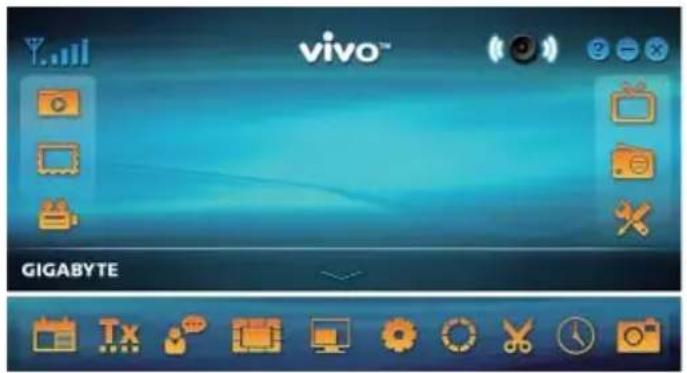
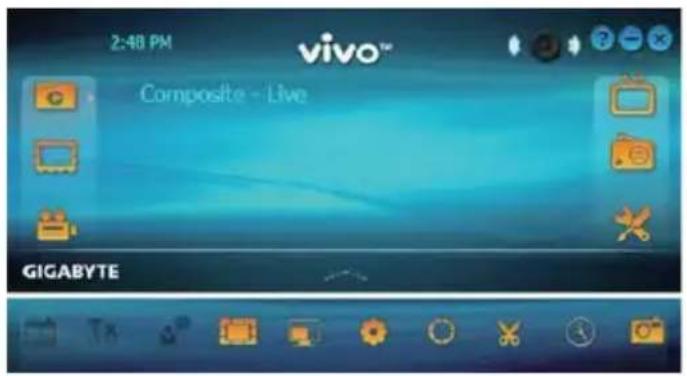
2.1 Main Panel
Buttons
| Exit | Minimize | About | Source Input |
| FM Mode | Setup | Playback | Photo |
| Schedule Recording | Open Bar | Audio Mode/ Mute | Mute Mode/ Audio |
| Left Audio | Right Audio |
Hotkey Bar
| EPG | Teletext | Subtitle | Channel preview |
| Display Ratio | OSD | Default Color | Capture |
| Time Shifting | Snapshot |
2.2 TV Panel

natural_image
Landscape view of a park with trees and a small structure, captured in an outdoor setting (no visible text or symbols)Control Buttons

Capture

Time-Shifting

Snapshot

Channel Preview

EPG

SAP

Display Ratio

Channel Down

Channel Up

Volume Down

Volume Up

Audio Mode/Mute
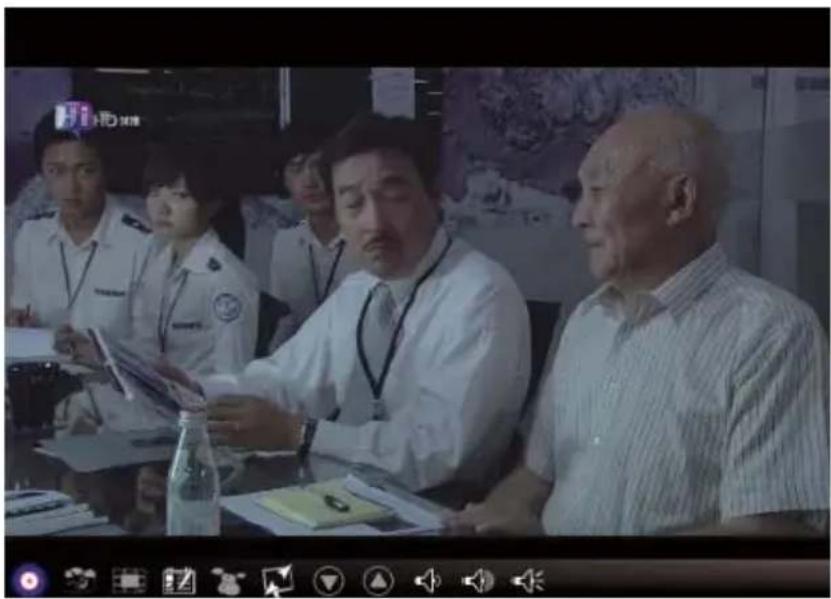
Capture: Click to capture the scenes you like. Once you capture the scene, it is saved in your Video Path.
natural_image
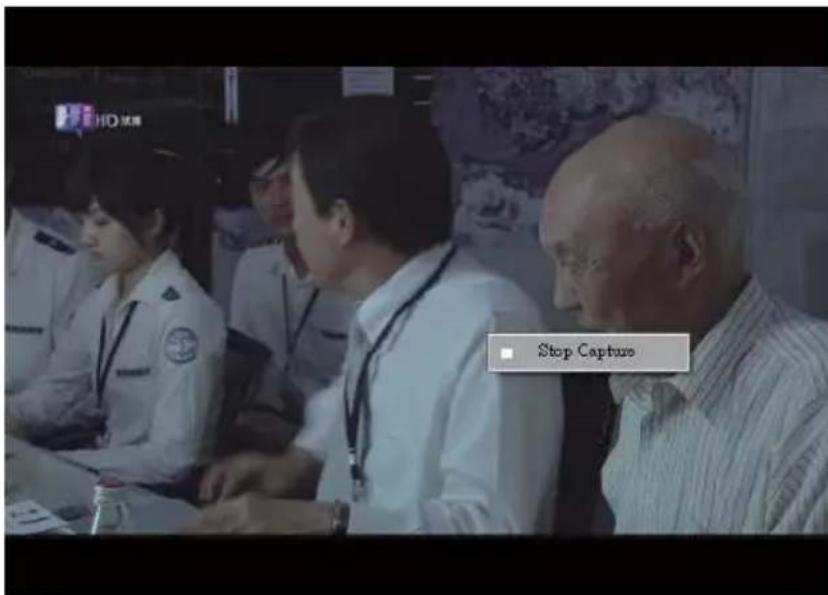
Group of people in a meeting setting, including uniformed officers and civilians, seated at tables with documents (no visible text or symbols)If you'd like to stop capture, click caption button again or right click on the screen and then enable "Stop Capture".
Time Shifting: This icon enables Time-shifting function once clicked. Time Shifting function records the TV program you are currently watching.
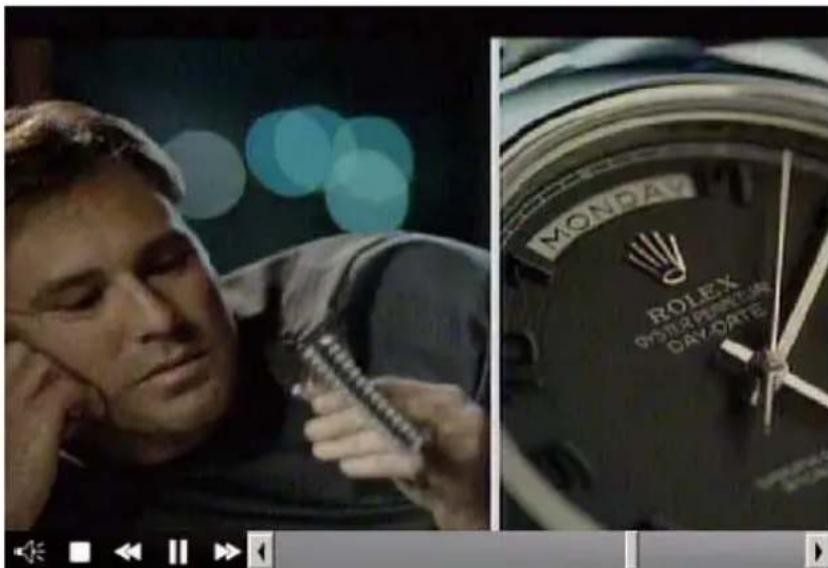
This function enables you to pause/fast-forward/rewind TV shows so you won't miss any part when you left the show for something else. Control buttons define as table below.

Audio Mode/Mute

Stop

Backward

Pause

Forward
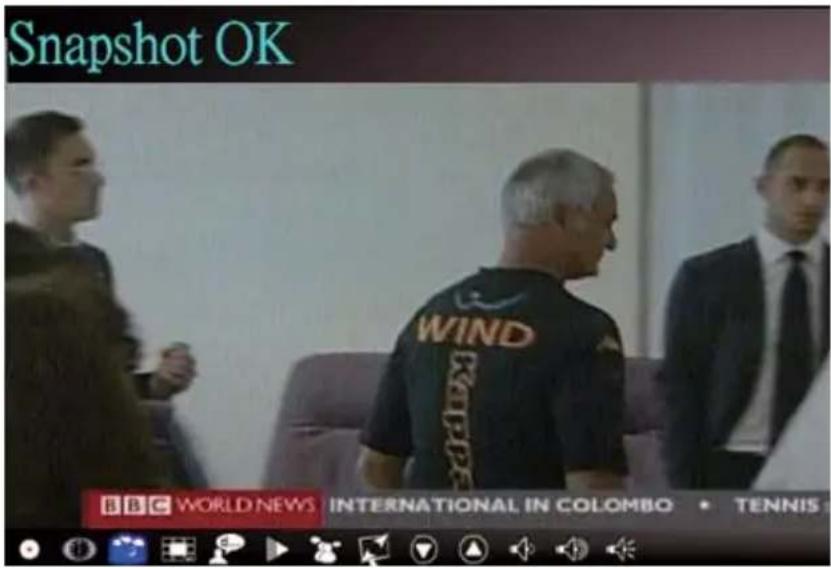
Snapshot: You can click the "Snapshot" icon to take snapshots. When the screen shows "Snapshot OK", it means the image has been successfully taken into your file folder as picture files.
Channel-preview: Channel list preview from the beginning. You can set preview format and interval in Setup page (Refers to Chapter 6).
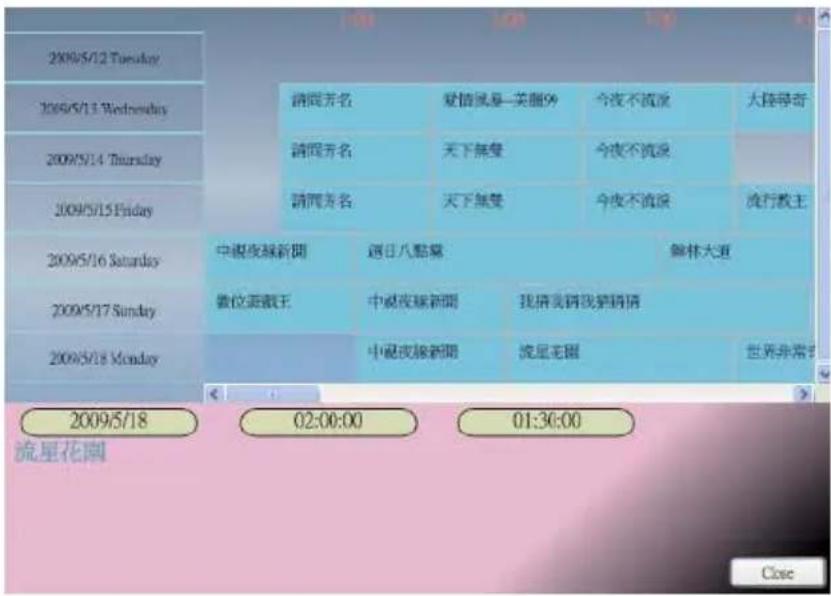
EPG: You can receive and view information of TV programs of each digital TV channel with this function.
SAP: Turn On/Off SAP sound (Depends on TV program provider)
Display Ratio: Change ratio base on a routine setting. (Free/4:3/16:9/Base on source)
Channel Down/UP: Select previous or next channel.
Volume Down/UP: Adjust TV volume to be loud or quiet
Audio/Mute Mode: Turn TV volume on or off.
2.3 The Tool Menu
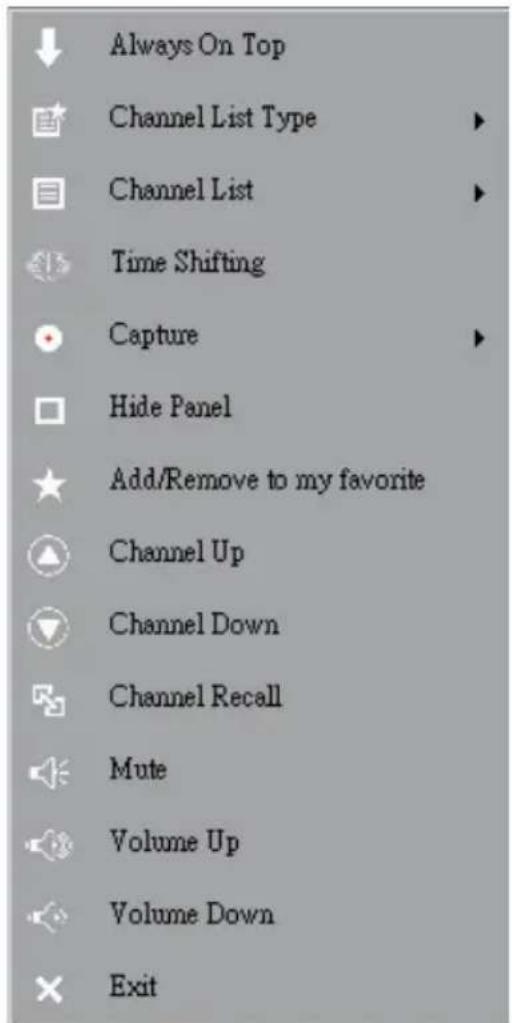
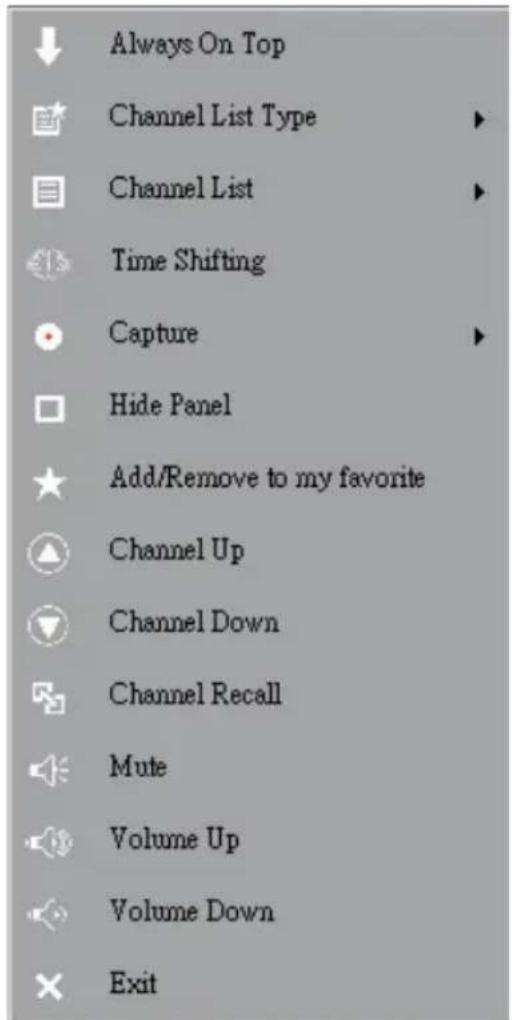
While you are watching digital TV on VIVO™, you can enable the Tool Menu with a mouse right-click. The Tool Menu allows you to access and activate functions of VIVO™, which provides you another option besides the icons on the interface.

Always On Top: Enables VIVO™ to remain on top of all other application windows. It is the same if you click on the “Always On Top” at the upper right corner of the regular TV mode window.
Display Ratio: You can adjust your display ratio when you move your mouse cursor to the arrow at the -as you click on the Display Ratio function icon on the interface.
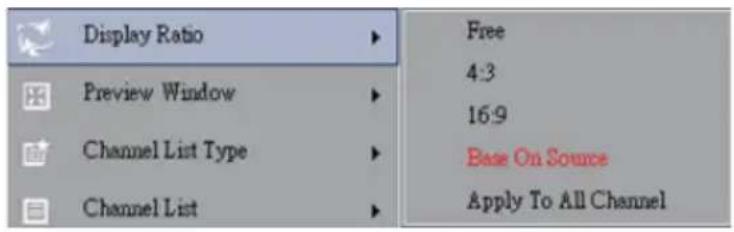
Free: The initial ratio when you start VIVO TM and you can adjust it by dragging the edge of the VIVO TM window.
Base On Source: The display ratio will be based on the signal source.
Apply To All Channels: If you select this option, the adjusted display ratio will be applied to all of your available channels.
Preview Window: You can change your TV viewing screen to Full Screen, Sizable Screen or Borderless Screen.

Channel List Type: There are two types of Channel List Type – Normal or My Favorite. You can select which type to load your channel list. It is the same as you do in the Channel Setting page. The default is Normal.

Channel List: Displays your available channels. It's the same as you open the Channel Setting.

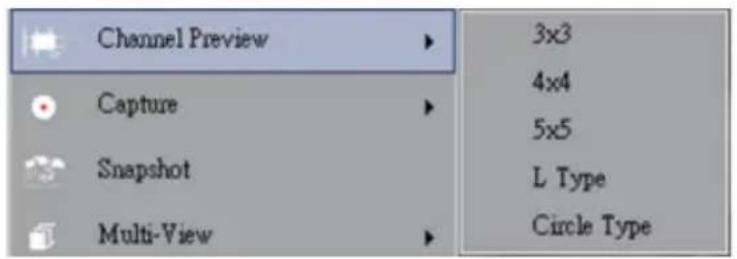
Channel Preview: You can decide which type of channel preview - 3x3, 4x4, 5x5, L Type or Circle Type.
Capture: You can choose to capture the TV scenes in TS or PS formats.

Time Shifting: Enable Time Shifting mode. It is the same as you click on the Time Shifting icon on the main interface.
Snapshot: Activate Snapshot function to take the Snapshot. You can also do the same if you click on the Snapshot icon on the main interface.
Multi-view: Allows you to multi-view channels/programs. Once you move your mouse cursor to the er-ror at the right, you can select "Start Multi-view". You can then watch multiple channels/programs that are from the same signal frequency at the same time.

Start Multi-view: When you activate Multi-view by selecting "Start Multi-view", notice that two other viewing screens appear within the main TV screen.
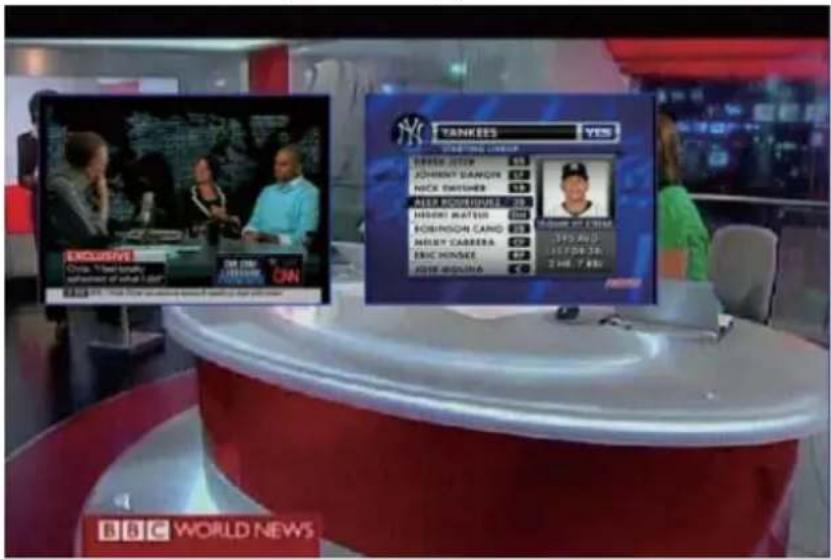
Note You can then drag the sub screens that were in the main viewing screen out. Those sub screens that were dragged out can be enlarged and relocated up to your viewing demands.

P.I.P/P.O.P: Once you activate Multi-view, you can enable multi-view in Picture-in-Picture/Picture-out-Picture mode.
Stop Multi-view: Select this option to stop Multi-view. Once you selected it, the two sub screens will go off.
EPG: The same as main panel.
SAP: The same as main panel.
Add/Remove to my favorite: Add a channel to My Favorite or remove a channel from My Favorite.
Channel Up: Go to the next channel on the channel list.
Channel Down: Go to the last channel on the channel list.
Channel Recall: Return to the previously accessed channel
Mute On: Enable/disable the mute function
Volume Up: Increase the volume
Volume Down: Decrease the volume
Hide Panel: Hide or show the control panel (the VIVO™ interface)
Exit: Close/Exit VIVO™ window
Chapter 3 Analog TV
You can watch live Analog TV with VIVO™. Once you have done your initial setup (source input and channel scan), you can enjoy watching and recording TV program with this multi-functional software ap-plication.
Note Make sure your device supports analog signal in order to watch analog TV.
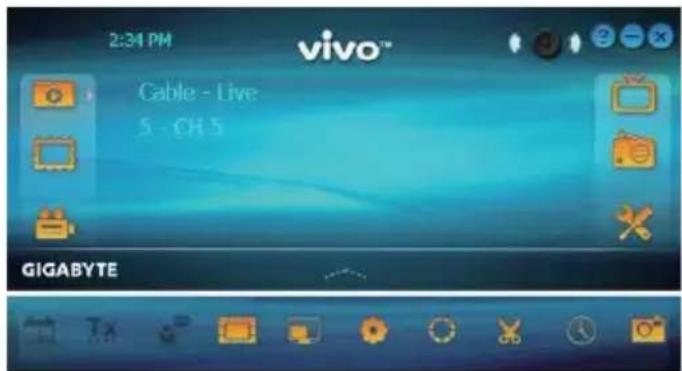
3.1 Main Panel

Buttons

Exit

Minimize

About

Source Input

FM Mode

Setup

Playback

Photo

Schedule Re-cording

Open Bar

Audio Mode/Mute

Mute Mode/Audio

Left Audio

Right Audio
Hotkey Bar

EPG(Disable)

Teletext (Disable)

Subtitle (Disable)

Channel Pre-view

Display Ratio

OSD

Default Color

Capture

Time Shifting

Snapshot
3.2 TV Panel

Control Buttons

Capture

Time-Shifting

Snapshot

Channel Preview

Close Caption

De-Noise SAP

Volume Down

Display Ratio

Channel Down

Channel Up

Volume Down

Volume Up

Audio Mode/Mute
Capture: Please refer to item 2.2 in Chapter 2.
Time Shifting: Please refer to item 2.2 in Chapter 2.
Snapshot: Please refer to item 2.2 in Chapter 2.
Channel-preview: Please refer to item 2.2 in Chapter 2.
Close Caption: Enable to turn on close caption.
De-Noise: To enable De-Noise function to make much clear Analog TV reception.
SAP: Please refer to item 2.2 in Chapter 2.
Display Ratio: Please refer to item 2.2 in Chapter 2.
Channel Down/UP: Please refer to item 2.2 in Chapter 2.
Volume Down/UP: Please refer to item 2.2 in Chapter 2.
Audio/Mute Mode: Please refer to item 2.2 in Chapter 2.
3.3 The Tool Menu
Please refer to item 2.3 in Chapter 2. There are few different between Digital TV and Analog TV mode.
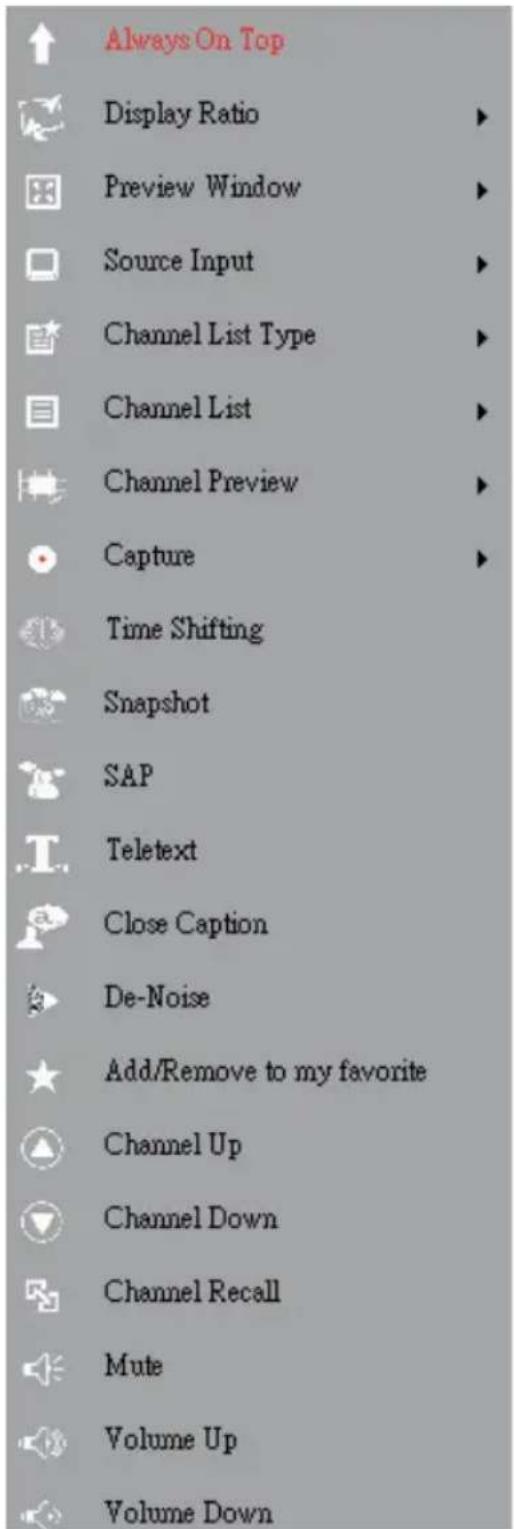
Close Caption: Helps you watch Analog TV with close caption assistance. This function will depend on TV program provider.
De-Noise: You can enable De-Noise function to enhance Analog TV quality.
Note Analog TV doesn't support Multi-View function due to the TV standard limitation.
Chapter 4 FM Radio
You can listen to live FM radio with VIVO™ Once you have done your initial setup (source input and channel scan), you can enjoy listening and recording radio program with this multi-functional software application.
Note Make sure your device supports analog signal in order to watch analog TV.
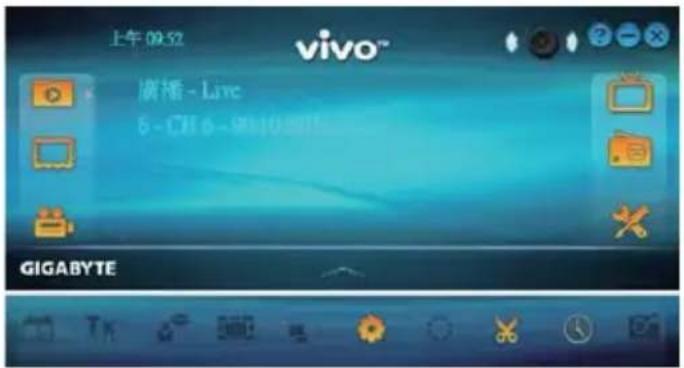
4.1 Main Panel
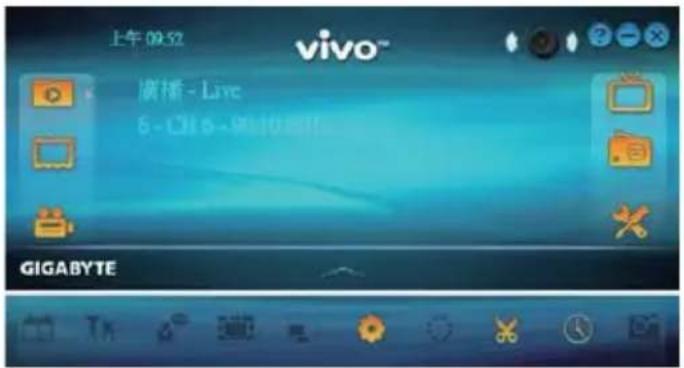
Buttons

Exit

Minimize

About

Source Input

FM Mode

Setup

Playback

Photo

Schedule Re-cording

Open Bar

Audio Mode/Mute

Mute Mode/Audio

Left Audio

Right Audio
Hotkey Bar

EPG(Disable)

Teletext (Disable)

Subtitle (Disable)

Channel Preview(Disable)

natural_image
Illustration of a speaker with musical notes and microphone on a blue gradient background (no text or symbols)Control Buttons

Capture

Time-Shifting

Reduce Fre- quency

Add Frequency

Channel Down

Channel Up

Volume Down

Volume Up

Audio Mode/Mute
Capture: Please refer to item 2.2 in Chapter 2.
Time Shifting: Please refer to item 2.2 in Chapter 2.
Reduce Frequency: Adjust radio frequency in minus.
Add Frequency: Adjust radio frequency in plus.
Channel Down/UP: Please refer to item 2.2 in Chapter 2.
Volume Down/UP: Please refer to item 2.2 in Chapter 2.
Audio/Mute Mode: Please refer to item 2.2 in Chapter 2.
4.3 The Tool Menu
Please refer to item 2.3 in Chapter 2. There are fewer options than TV mode and all functions remainder are the same.
Chapter 5 Video Input
You can import additional Video source to VIVO TM through Composite Video, S-Video input. Once you connect your device, Video source and PC together, VIVO TM will auto-detect source category. You can easily enjoy DVD or other multi-media by VIVO TM even record to your PC or laptop directly.
Note Make sure your device supports video input.
5.1 Main Panel

Buttons

Exit

Minimize

About

Source Input

FM Mode

Setup

Playback

Photo

Schedule Re-cording

Open Bar

Audio Mode/Mute

Mute Mode/Audio

Left Audio

Right Audio
Hotkey Bar

EPG(Disable)

Teletext (Disable)

Subtitle (Disable)

Channel Preview

Display Ratio

OSD

Default Color

Capture

Time Shifting

Snapshot
5.2 Video Panel
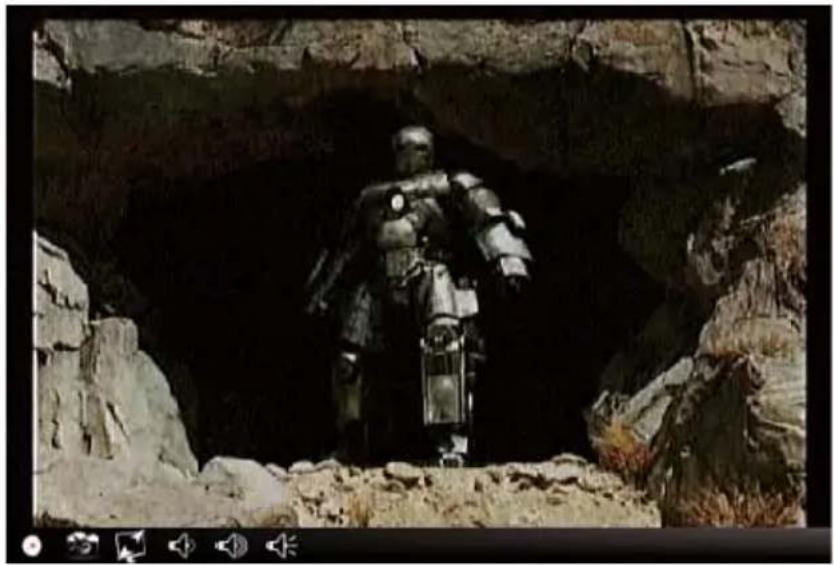
natural_image
Human figure standing inside a cave with rocky terrain (no visible text or symbols)Control Buttons

Capture

Time-Shifting

Reduce Fre- quency

Volume Down

Volume Up

Audio Mode/Mute
Capture: Please refer to item 2.2 in Chapter 2.
Snapshot: Please refer to item 2.2 in Chapter 2.
Display Ratio: Please refer to item 2.2 in Chapter 2.
Volume Down/UP: Please refer to item 2.2 in Chapter 2.
Audio/Mute Mode: Please refer to item 2.2 in Chapter 2.
5.3 The Tool Menu
Please refer to item 2.3 in Chapter 2. There are fewer options than TV mode and all functions remainder are the same.
Chapter 6 Playback
When you click on this icon, you can choose a recorded file for playback or a file from folders in your PC.
Note continuous fi le playback is available
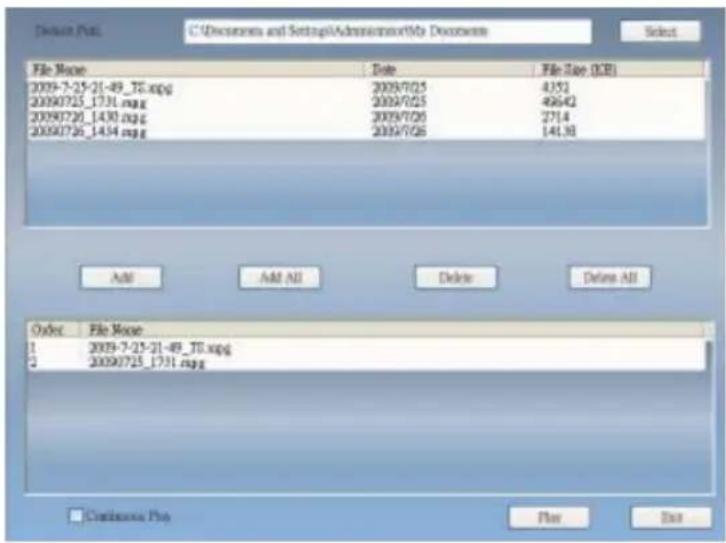
Add: add a selected file to the playlist at the bottom half of the window
Add All: add all the files to the playlist
Delete: delete a fi le from the playlist
Delete All: delete all the files on the playlist
Play: play the selected file that are on the playlist at the bottom half of Playback
Exit: exit Playback
When you selected a fi le for playback, VIVO™ will plays the video for you in another screen as illustrated below.
6.1 Control Buttons for Playback Mode:
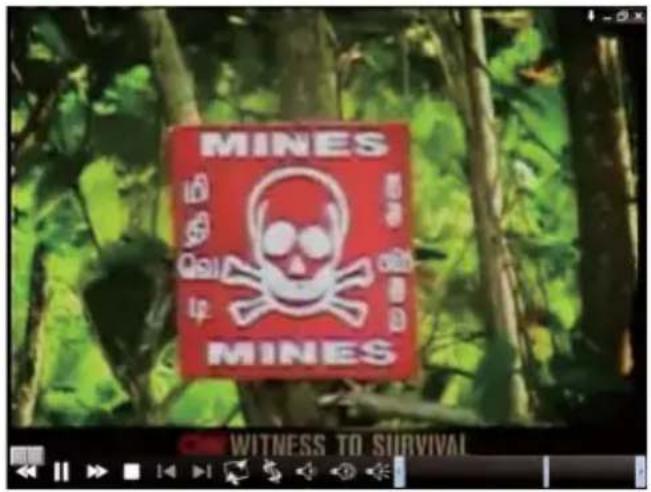

Backward

Play

Pause

Forward

Stop

Previous File

Next File

Repeat (on)

Repeat (off)

Display Ratio

Audio

Volume Up

Volume Down
Control Slide for Playback
Chapter 7 Setup
In VIVO ™ , you can simply make settings as your favorite in Setup page. Since VIVO ™ has been launched, click Setup button to access Setup page.

7.1 General Setting
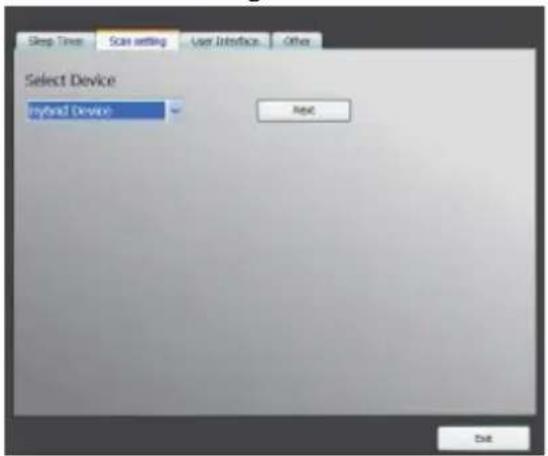
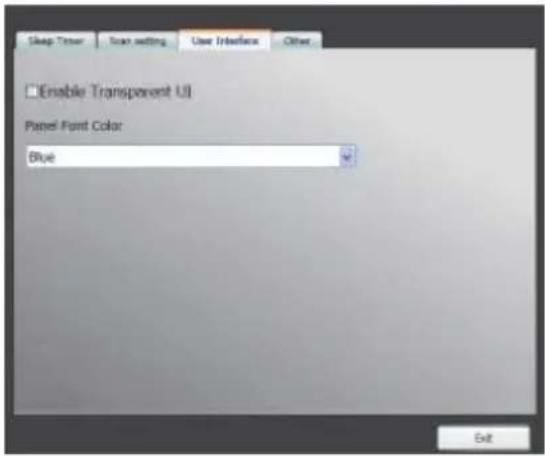
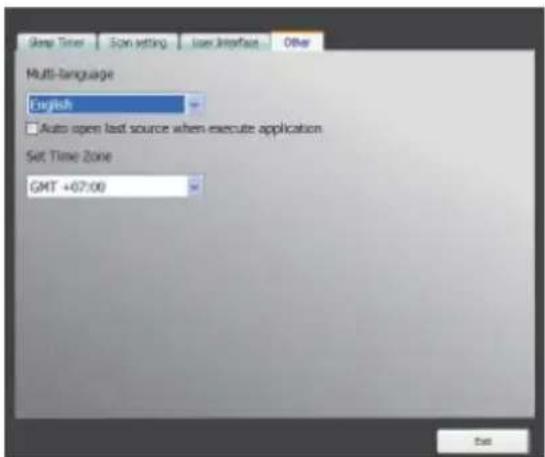
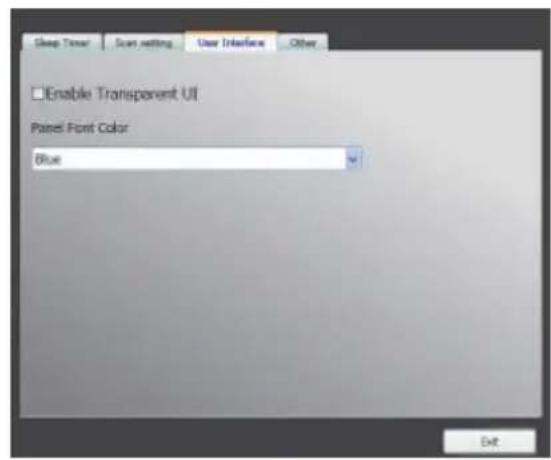
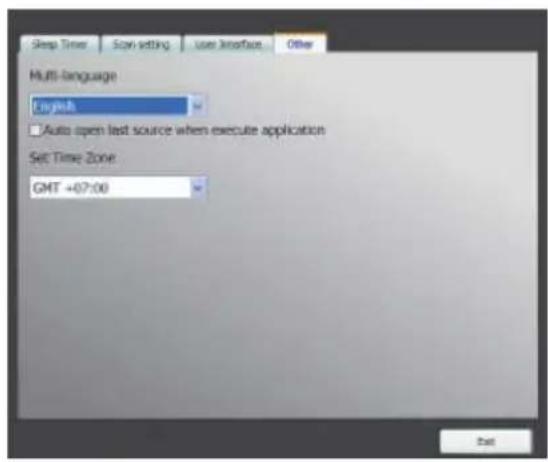
You can find Sleep Timer, Scan Setting, User Interface and Other, 4 options, in Setup page. Those can help you to improve your power saving, scanning adjustment, colorful UI and language and location.
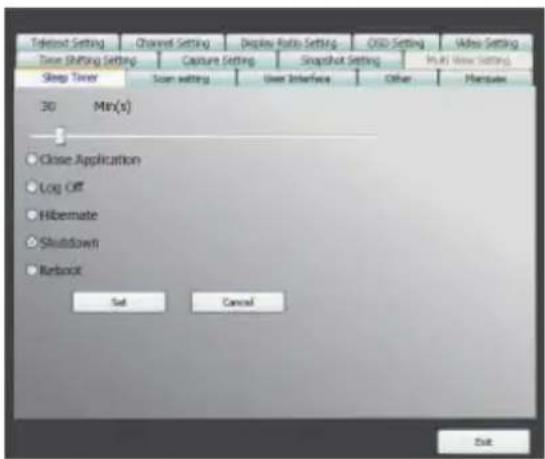
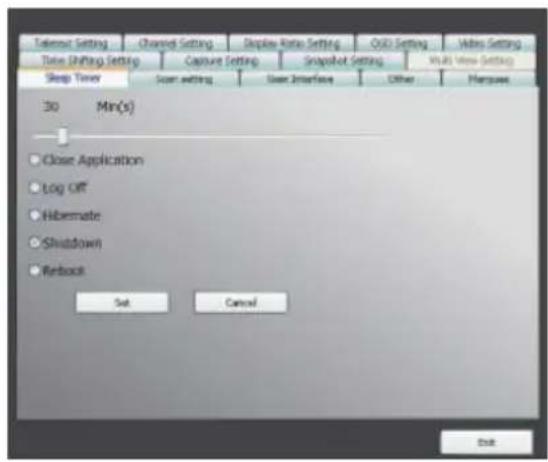
7.1.1 Sleep Timer
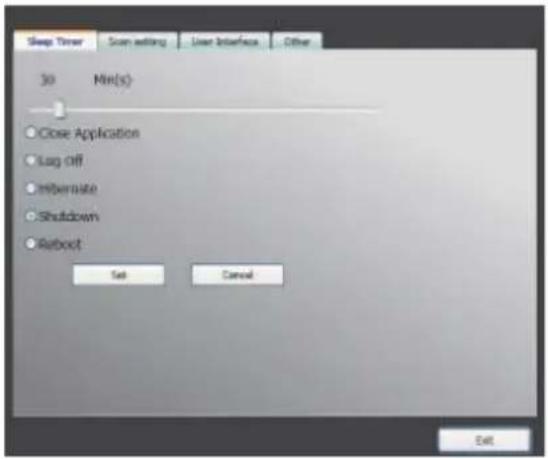
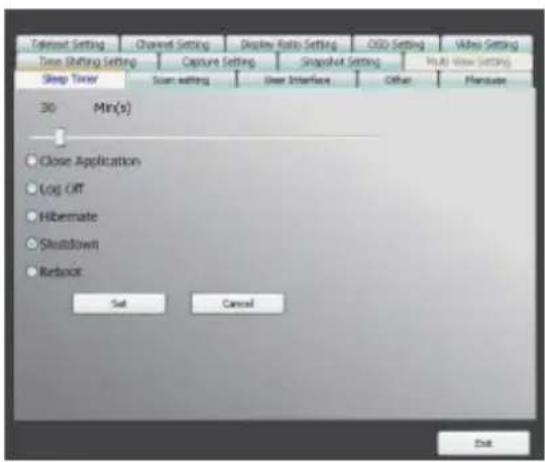
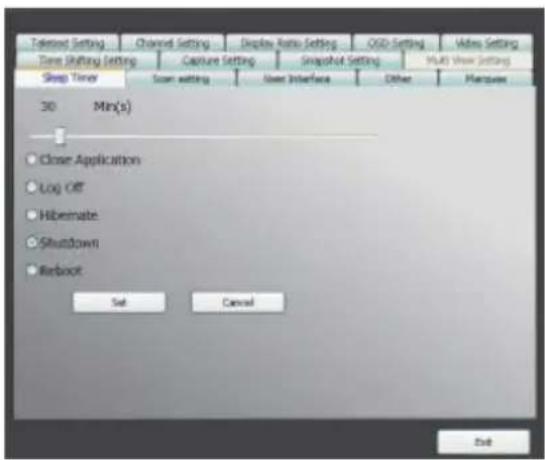
You might watch TV but get sleepy after minutes later or leave your TV for emergency. For any specific reason, you would like to ask VIVO™ to help you on something. There are 5 options, Close Application, Log off, Hibernate, Shutdown, and Reboot, for setting. Besides, you can move time shuttle left or right to adjust time period.
7.1.2 Scan Setting
7.1.3 User Interface
7.1.4 Other
7.2 Advanced Setting
You can not only find Sleep Timer, Scan Setting, User Interface and Other but Marquee, Time Shifting Setting, Capture Setting, Snapshot Setting, Multi View Setting, Teletext Setting, Channel Setting, Dis-play Ratio Setting, OSD Setting and Video Setting.

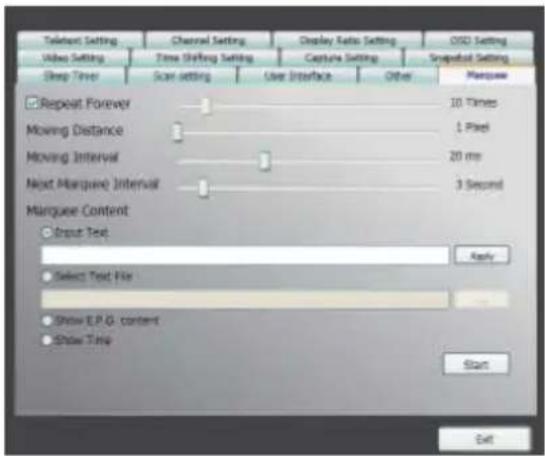
7.2.1 Marquee Setting
Here we can set the properties of the marquee such as moving distance, interval, the content, and so on.
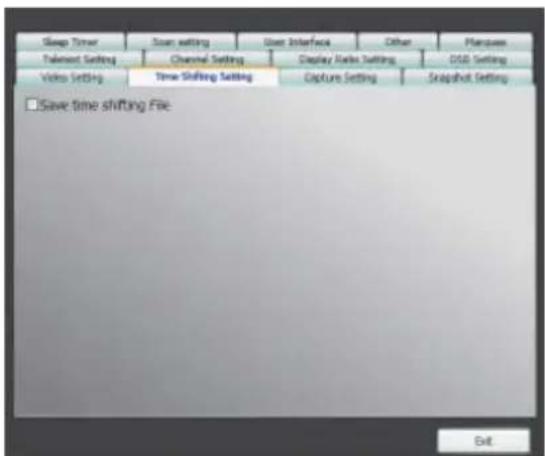
7.2.2 Time Shifting Setting
Here we can decide to save the fi le or not.
7.2.3 Capture Setting
Here we can set where to save the file, the captured file name, or set the capture stream type.

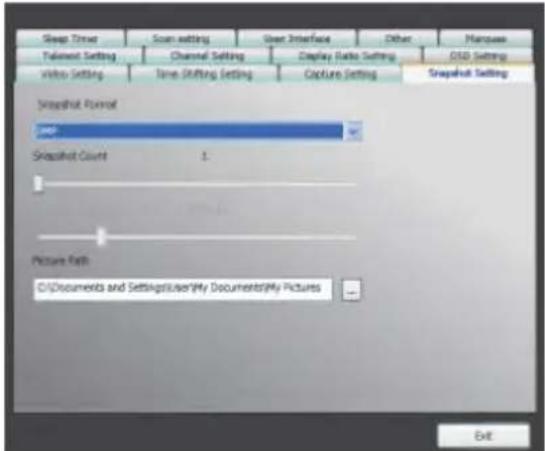
7.2.4 Snapshot Setting
Here we can set the snapshot file format, where to save the pics, and the how many pics will be saved when using the snapshot function.
7.2.5 Teletext Setting
Here we can input the teletext main page and sub page, or use the color button to switch teletext page.

7.2.6 Channel Setting
Here we can set the channel preview type, preview interval, channel group, and channel management.

7.2.7 Display Ratio Setting
Here we can set the display ratio and apply to all channels.

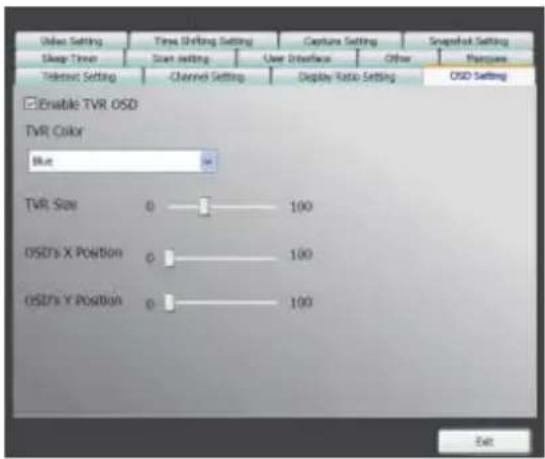
7.2.8 OSD Setting
Here we can set the OSD color, show or not, and adjust the position, the font color.
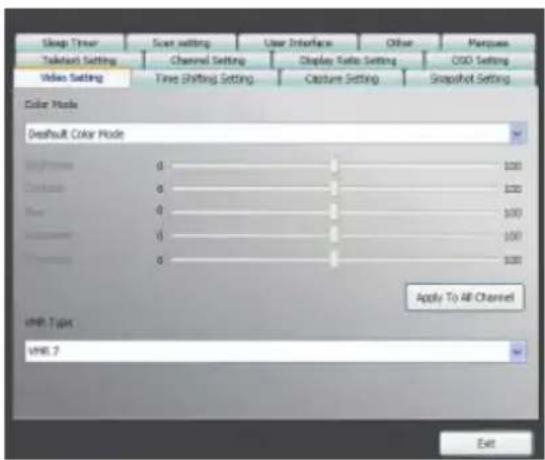
7.2.9 Video Setting
Here we can adjust the brightness, blue, red, contrast, saturation, the VMR type, and enable DxVA or not.
natural_image
Landscape view of a park with trees and grass, no visible text or symbolsnatural_image
Group of people in a meeting setting, including uniformed officers and civilians, seated at a table with documents (no visible text or symbols)natural_image
Illustration of a speaker with musical notes and microphone on a blue gradient background (no text or symbols)natural_image
Human robot standing inside a rocky cave or tunnel, no visible text or symbols7.1.1 Sleep Timer
7.1.4 Andere

7.2.2 Time Shift Einstellung
7.2.5 Teletext Einstellung
7.2.9 Video Setting
Here we can adjust the brightness, blue, red, contrast, saturation, the VMR type, and enable DxVA or not.
natural_image
Outdoor scene with trees and a bridge, no visible text or symbolsBoutons de contrôle

Enregistrement

Décalage temporel

Capture d'écran

natural_image
Illustration of a speaker with musical notes and microphone on a blue gradient background (no text or symbols)Boutons de contrôle

Enregistrement

Décalage temporel

natural_image
Human robot standing inside a cave with rocky terrain (no visible text or symbols)Boutons de contrôle

Enregistrement

Capture d'écran

Format d'affi chage

Volume -

Volume +

Mode Audio/Silence
Chapitre 6 Lecture
7.1.4 Autre

7.2.8 Réglages OSD
natural_image
Landscape view of a park with trees and a small bridge, no visible text or symbolsBotones de control

Captura

natural_image
Group of people in a meeting setting, including uniformed officers and civilians, seated at a table with documents (no visible text or symbols)natural_image
Illustration of a speaker with musical notes and microphone on a blue gradient background (no text or symbols)Botones de control

Capturar

natural_image
Human robot standing inside a cave with rocky terrain (no visible text or symbols)Botones de control

Capturar

Foto instantánea

7.1.4 Otro
natural_image
Outdoor scene with trees and a paved path, no visible text or symbolsКнопки управления

Захват

Сдвиг во Времени

Снимок

Предпросмотр

EPG

SAP

Размер экрана

Предыдущий канал

Следующий канал

Уменьшить звук

Увеличить звук

natural_image
Group of people in a meeting setting, including uniformed officers and civilians, seated at a table with documents (no visible text or symbols)Hide Panel: Hide or show the control panel (the VIVO™ interface)
Exit: Close/Exit VIVO TM window
natural_image
Illustration of a speaker with musical notes and microphone on a blue gradient background (no text or symbols)Кнопки управления

Захват

Сдвиг во Времени

Уменьшить частоту

Увеличить частоту

Предыдущий канал

Следующий канал

Уменьшить звук

Увеличить звук

natural_image
Human robot standing inside a cave with rocky terrain (no visible text or symbols)Кнопки управления

Захват


7.1.1 Таймер Сна
7.1.4 Прочее

7.2.8 Настройка OSD
natural_image
Landscape view of a park with trees and grass, no visible text or symbolsKontrol Düğmeleri

Yakala

Zaman Kaydırma

Ekran Resmi

Kanal Önizleme

EPG

SAP

Görüntü Oranı

Önceki Kanal

Sonraki Kanal

Sesi Kıs

Sesi Aç

Ses Açık/ Ses Kapalı
natural_image
Illustration of a speaker with musical notes and microphone on a blue gradient background (no text or symbols)Kontrol Düğmeleri

Yakala

Zaman Kaydırma

Frekansı Azalt

Frekansı Arttir

Önceki Kanal

Sonraki Kanal

Sesi Kıs Sesi Aç


Ses Açık/ Ses Kapalı
natural_image
Human robot standing inside a cave with rocky terrain (no visible text or symbols)Kontrol Düğmeleri

Yakala


Bölüm 6 Oynatma
7.1.1 Uyku Zaman Ayari
7.1.2 Tarama Ayari
7.1.4 Diğer
7.2.3 Yakalama Ayarı
7.2.5 Teletext Ayari
7.2.9 Video Ayarı
natural_image
Outdoor scene with trees and a paved path, no visible text or symbolsPrzyciski kontrolne
natural_image
Group of people in a meeting setting, including uniformed officers and elderly men, seated at a table with documents (no visible text or symbols)natural_image
Illustration of a speaker with musical notes and strings on a blue background (no text or symbols)Przyciski kontrolne

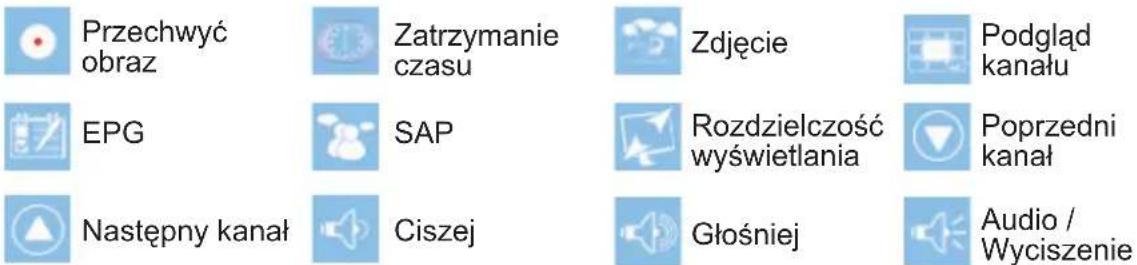
Przechwyć obraz

Zatrzymanie czasu

natural_image
Human figure standing inside a dimly lit cave with rocky walls (no visible text or symbols)Przyciski kontrolne

Przechwyć obraz

Zdjęcie

7.1.1 Sleep Timer
7.1.2 Scan Setting

7.1.3 User Interface
7.1.4 Other
7.2.5 Ustawienia teletextu - Teletext Setting
7.2.8 Ustawiania OSD – OSD Setting
7.2.9 Ustawienia Video - Video Setting
natural_image
Landscape view of a park with trees and grass, no visible text or symbolsOvládací tlačítka

Nahrát a uložit

Posun času

Okamžitý snímek

Přehrávání kanálu

EPG

SAP

Zobrazení poměru

O jeden kanál dolů

natural_image
Group of people in a meeting setting, including uniformed officers and elderly men, seated at a table with documents (no visible text or symbols)natural_image
Illustration of a speaker with musical notes and strings on a blue background (no text or symbols)Ovládací tlačítka

Nahrát a uložit

Posun času

Snížení frekvence

Zvýšení frekvence

O jeden kanál dolů

Kapitola 5 Video vstup
natural_image
Human figure standing inside a dimly lit cave with rocky walls (no visible text or symbols)Ovládací tlačítka

Nahrát a uložit

Okamžitý snímek

Zobrazení poměru

Snížení hlasitosti

Zvýšení hlasitosti

7.1.4 Ostatní
2.1 Painel Principal
Botões

Sair

Minimizar

Sobre

Entrada Fonte

Modo FM

Confi guração

Playback

Foto

natural_image
Outdoor scene with trees and a bridge, no visible text or symbolsBotões Controle

Captura

Troca de Horário

Instantâneo

Apresentação Canal

EPG

SAP

Relação Exibição

Canal para baixo

Canal para cima

Diminuir Volume

Aumentar volume

Modo áudio/ Mudo
natural_image
Group of people in a meeting setting, including uniformed officers and civilians, seated at a table with documents (no visible text or symbols)3.1 Painel Principal
Botões

Sair

Minimizar

Sobre

Entrada Fonte

Modo FM

Confi guração

Playback

Foto

4.1 Painel Principal
Botões

Sair

Minimizar

Sobre

Entrada Fonte

Modo FM

Confi guração

Playback

Foto

natural_image
Illustration of a speaker with musical notes and microphone on a blue background (no text or symbols)Botões Controle

Capturar

Troca de Horário

Reduzir Frequência

5.1 Painel Principal
Botões

Sair

Minimizar

Sobre

Entrada Fonte

Modo FM

Confi guração

Playback

Foto

natural_image
Human figure standing inside a cave with rocky terrain (no visible text or symbols)Botões Controle

Capturar

Instantâneo

Capítulo 6 Playback
7.1.4 Outro


- User's Manual
- Chapter 1 Introduction
- Software Features
- TV Setup
- Channel Scanning
- Source Input
- Main Panel
- TV Panel
- Control Buttons
- The Tool Menu
- Chapter 3 Analog TV
- Main Panel
- Buttons
- Hotkey Bar
- TV Panel
- The Tool Menu
- Chapter 4 FM Radio
- Main Panel
- The Tool Menu
- Chapter 5 Video Input
- Main Panel
- Video Panel
- The Tool Menu
- Chapter 6 Playback
- Control Buttons for Playback Mode:
- Chapter 7 Setup
- General Setting
- Sleep Timer
- Scan Setting
- User Interface
- Other
- Advanced Setting
- Marquee Setting
- Time Shifting Setting
- Capture Setting
- Snapshot Setting
- Teletext Setting
- Channel Setting
- Display Ratio Setting
- OSD Setting
- Video Setting
- Andere
- Time Shift Einstellung
- Teletext Einstellung
- Boutons de contrôle
- Chapitre 6 Lecture
- Autre
- Réglages OSD
- Botones de control
- Otro
- Кнопки управления
- Таймер Сна
- Прочее
- Настройка OSD
- Kontrol Düğmeleri
- Bölüm 6 Oynatma
- Uyku Zaman Ayari
- Tarama Ayari
- Diğer
- Yakalama Ayarı
- Teletext Ayari
- Video Ayarı
- Przyciski kontrolne
- Ustawienia teletextu - Teletext Setting
- Ustawiania OSD – OSD Setting
- Ustawienia Video - Video Setting
- Ovládací tlačítka
- Kapitola 5 Video vstup
- Ostatní
- Painel Principal
- Botões
- Botões Controle
- Painel Principal
- Painel Principal
- Painel Principal
- Capítulo 6 Playback
- Outro
Brand : GIGABYTE
Model : U8300
Category : TV receiver