
Zone 900 - Headphones LOGITECH - Free user manual and instructions
Find the device manual for free Zone 900 LOGITECH in PDF.
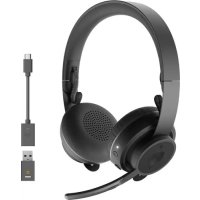

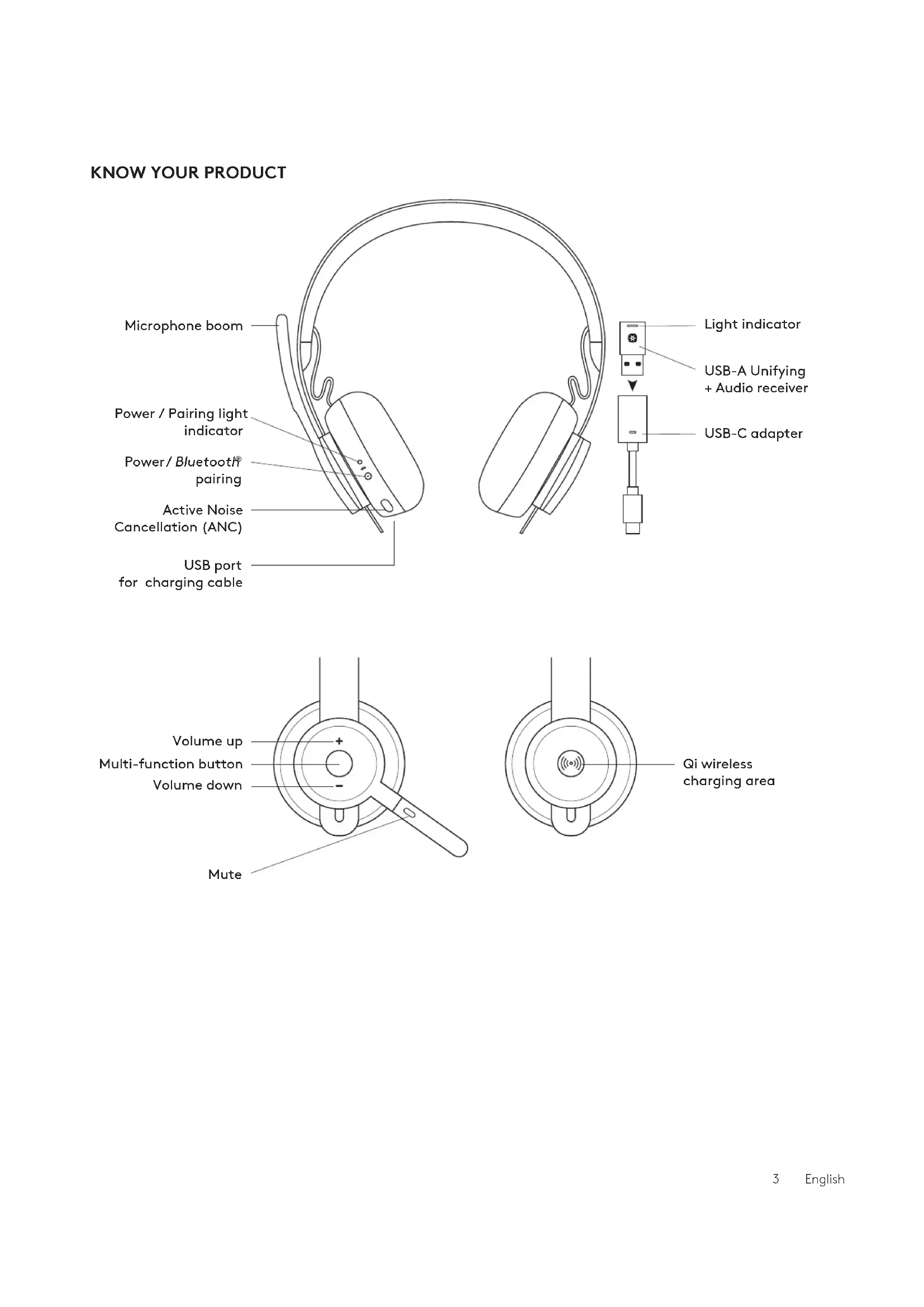


| Product type | Wireless audio headset |
| Brand | Logitech |
| Model | Zone 900 |
| Dimensions (headset) | 174.7 x 176.7 x 70.7 mm |
| Dimensions (ear cups) | 70.7 x 70.7 x 16.4 mm |
| Weight | 0.1808 kg |
| Power source | Rechargeable lithium-ion battery, charging via USB-C or Qi wireless charger (not included) |
| Talk time | 14 h (ANC on) / 15 h (ANC off) |
| Music play time | 14 h (ANC on) / 16 h (ANC off) |
| Microphone type | Two omnidirectional MEMS microphones |
| Frequency response (headset) | 30 ~ 13 kHz @ -10 dB (music), 100 ~ 8 kHz (conversation) |
| Frequency response (microphone) | 85 ~ 20 kHz @ -3 dB |
| Connectivity | Bluetooth 5.0, USB-A receiver (Unifying + audio), USB-C adapter included |
| Wireless range | Up to 30 m (open field) |
| Key features | Active noise cancellation (ANC), mute by flipping microphone, multifunction controls (volume, call, media), voice assistant, sidetone, adjustable sleep timer |
| Compatibility | Windows, Mac, Chrome, Android, iOS via USB-C, USB-A or Bluetooth |
| Package contents | Headset, USB-A Unifying + audio receiver, USB-C to A adapter, USB-A to USB-C charging cable (130 cm), carrying case, documentation |
| Customization software | Logi Tune (download at logitech.com/tune) |
| Warranty | Standard manufacturer warranty (not specified) |
Frequently Asked Questions - Zone 900 LOGITECH
User questions about Zone 900 LOGITECH
0 question about this device. Answer the ones you know or ask your own.
Ask a new question about this device
Download the instructions for your Headphones in PDF format for free! Find your manual Zone 900 - LOGITECH and take your electronic device back in hand. On this page are published all the documents necessary for the use of your device. Zone 900 by LOGITECH.
USER MANUAL Zone 900 LOGITECH
CONTENTS
English . . . . . . . . . . . . . . . . . . . . . . . . . . . . 3
Deutsch 11
Français 19
Italiano....27
Español....35
Português 43
Nederlands 51
Svenska. 59
Dansk. 67
Norsk....75
Suomi. 83
Ελληνικά. . . . . . . . . . . . . . . . 91
По-русски....99
Po polsku .....107
Hungarian ..... 115
Czech version ..... 123
Slovak ..... 131
Ukrainian ..... 139
Estonian ..... 147
Latvian ..... 155
Lithuanian ..... 163
Bulgarian ..... 171
Croatian ..... 179
Serbian ..... 187
Slovenian ..... 195
Romanian ..... 203
Turkish ..... 211
- Arabic
227
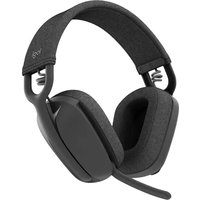
KNOW YOUR PRODUCT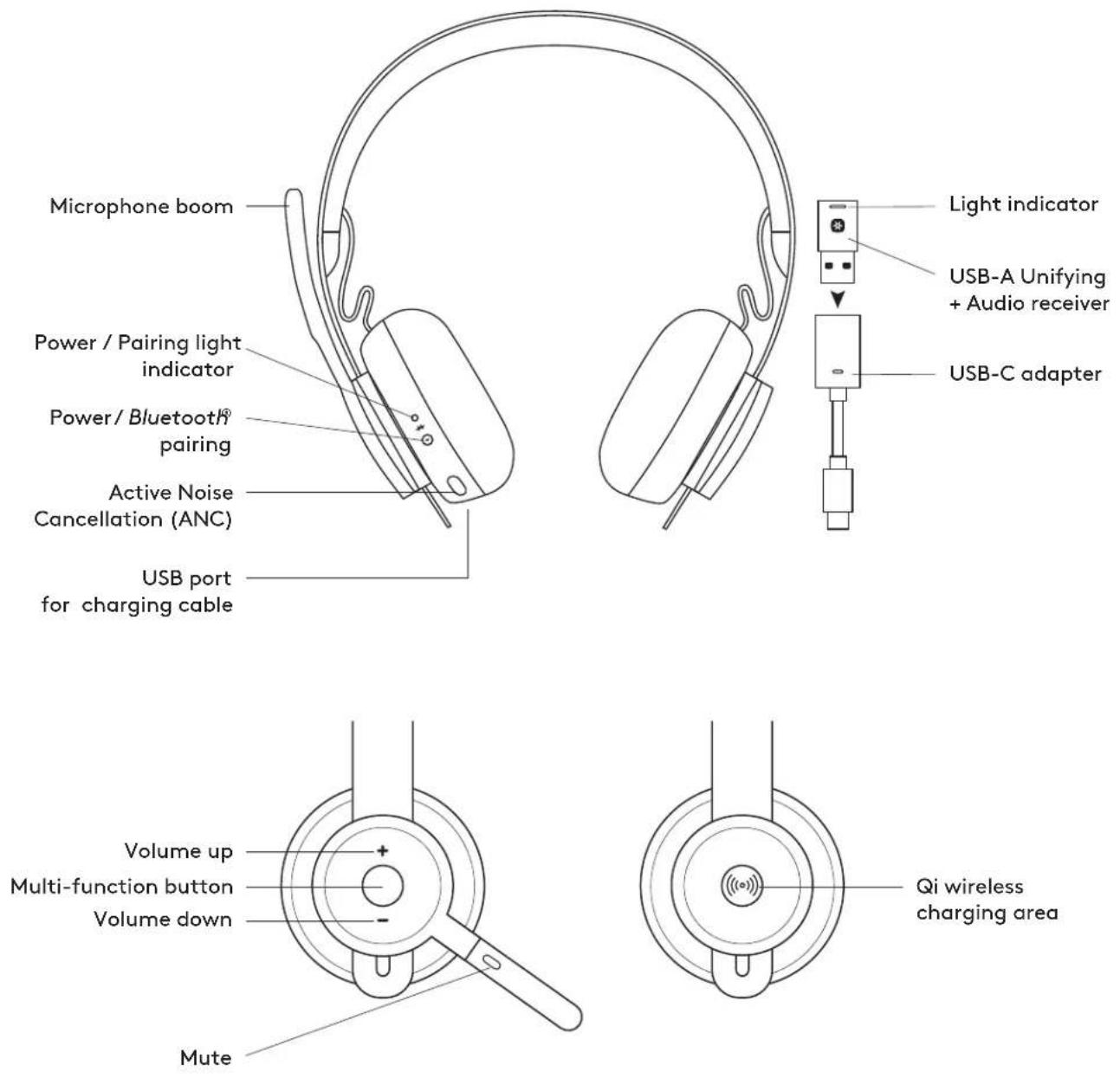
WHAT'S IN THE BOX
- Headset
- USB-A Unifying + audio receiver
- USB-C to A adapter
- USB-A to C charging cable
- Travel bag
- User documentation
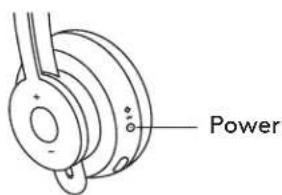
POWER ON/OFF
- Press power button for 1 second.
- Once powered on, light indicator turns white. If no device is connected, it will flash white slowly.
PAIRING VIA BLUETOOTH®
- Press power button for 2 seconds. Light indicator will flash white rapidly.
- Open Bluetooth® settings on your device.
- Select Logi Zone 900 in discoverable devices.
- Once successfully paired, the light indicator will turn solid white.

![graph LR A["Device with Bluetooth icon"] -->|2 sec.| B["Log Zone 900"] B --> C["Hand pointing to the lock"]](/content/2026/03/535306/images/e04eacef9d959a033aee441df89c806c66ff1a1b69d04c3f039cadaca7088644.jpg)
PAIRING HEADSET, KEYBOARD AND MICE VIA USB RECEIVER
![graph LR A["www.logitech.com/support/unifying"] --> B["USB-A"] B --> C["..."] C --> D["User Device"] D --> E["Advanced Next"] E --> F["OFF/ON"] F --> G["User Device"] G --> H["User Device"] H --> I["User Device"] I --> J["User Device"] J --> K["User Device"] K --> L["User Device"] L --> M["User Devi…](/content/2026/03/535306/images/80b969d20d214ee8cb2b56f98c024e0e3496b3240cfa786f55a8cc676de6772a.jpg)
- Download Logitech® Unifying Software at www.logitech.com/support/unifying
- USB-A
Insert the Zone 900 receiver into the computer USB-A port.
USB-C
Insert the USB-A receiver into the USB-C adapter. Then insert the adapter into the computer USB-C port.
- The Zone 900 headset is already paired to the receiver it ships with. Just power on the headset. Once successfully paired, the light indicator on the receiver will remain solid white. The light indicator on the headset will turn solid white.
- To pair mice and keyboard,
a. Open the software and continue clicking "Next" on the bottom right corner. If you already have other unifying receivers (with ✝go), please unplug them. b. Locate the OFF-ON slider on your mice and keyboard. Turn each device off and back on to restart your devices and finish pairing.
- If paired, please follow the on-screen prompt and test it out to confirm successful pairing.
- If pairing failed, please retry or refer to troubleshooting on our support page www.logitech.com/support/zone900
NOTE: You can pair up to 6 Logitech Unifying peripherals.
ADJUSTING HEADSET
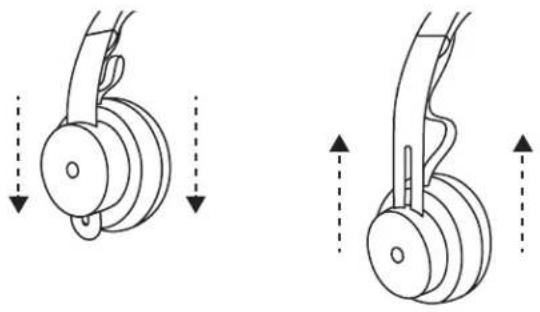
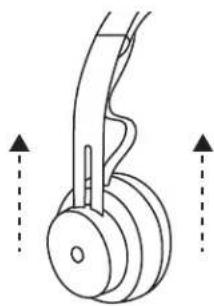
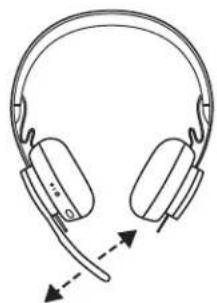
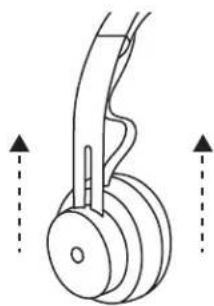
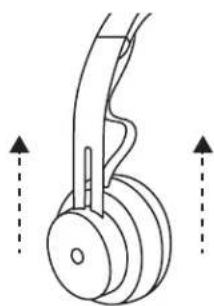
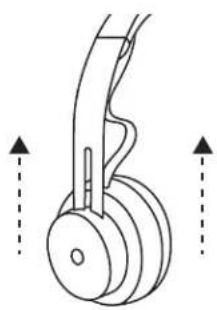
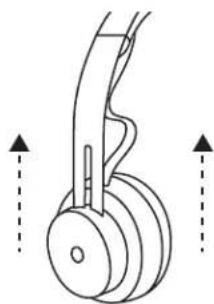
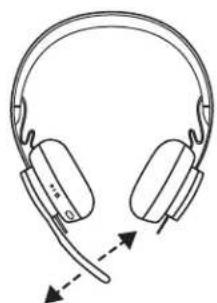
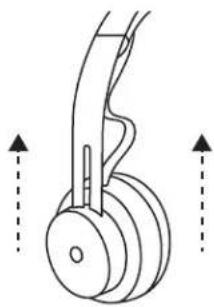
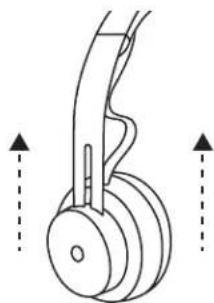
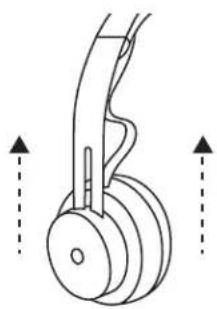
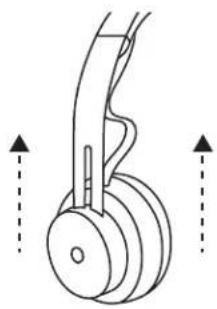
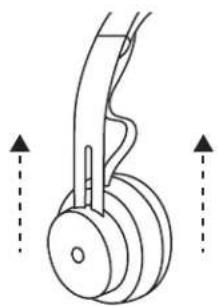
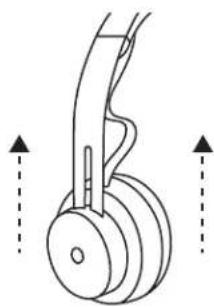
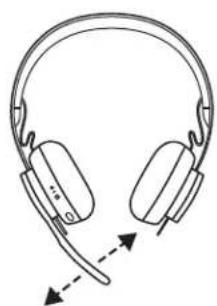
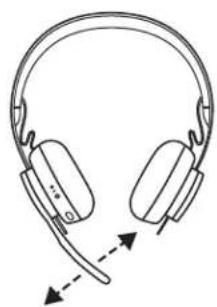
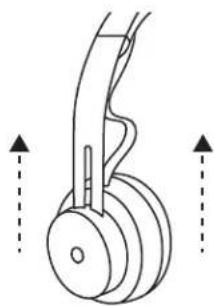
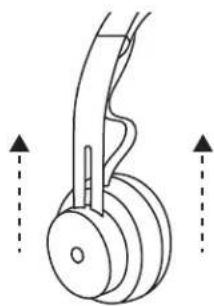
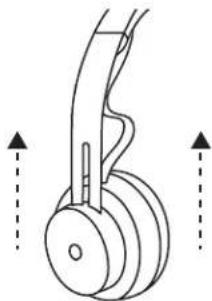
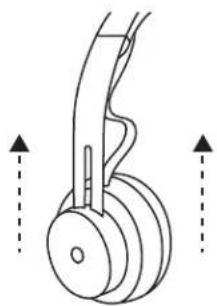
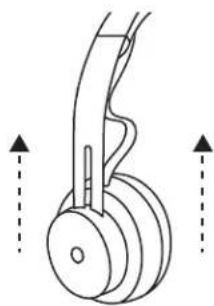
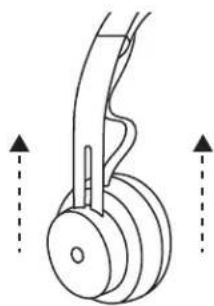
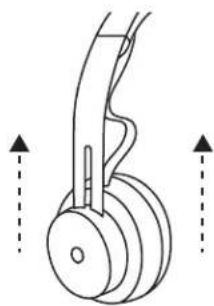
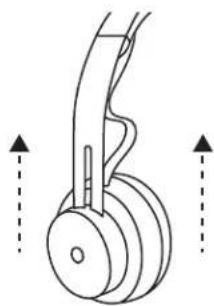
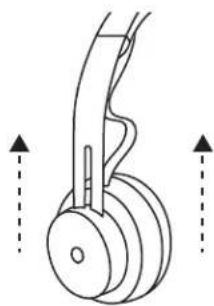
- Adjust the headset by sliding the earcups up and down the headband.
- It may be easier to adjust the headset on your head. Move the earcups up and down the headband until they sit comfortably on your ears.
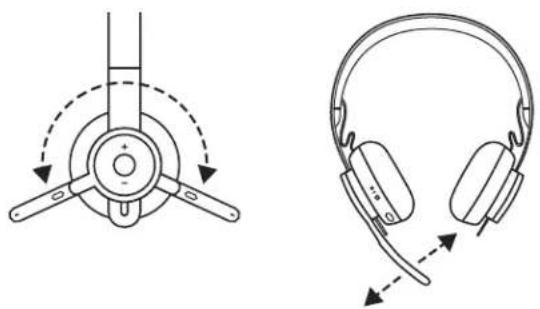
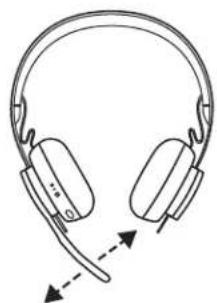
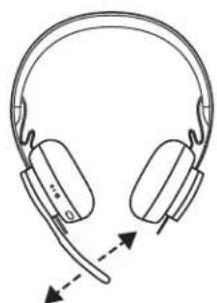
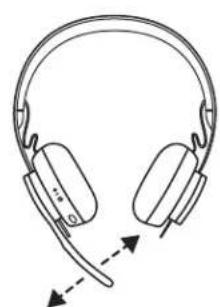
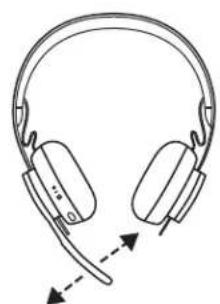
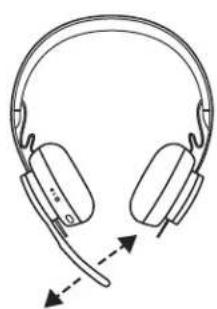
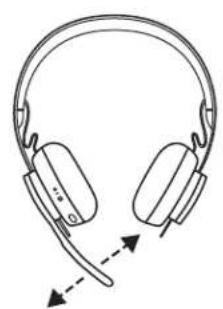
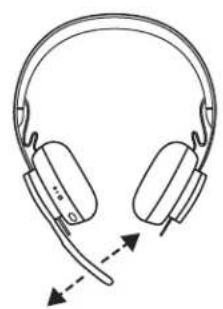
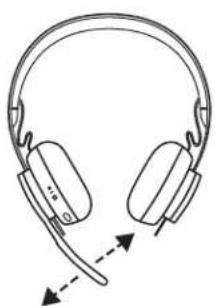
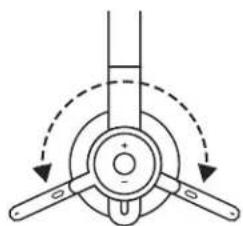
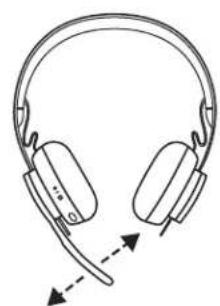
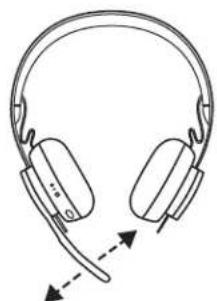
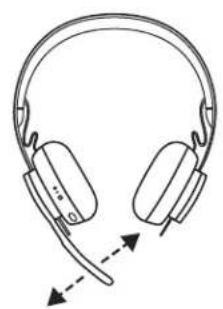
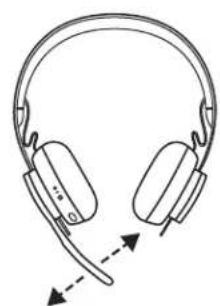
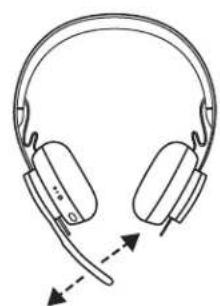
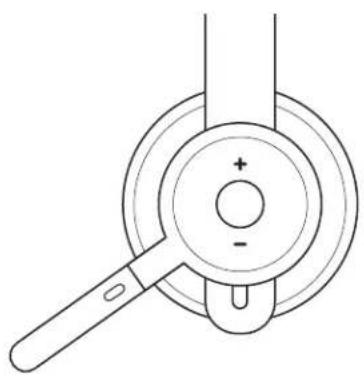
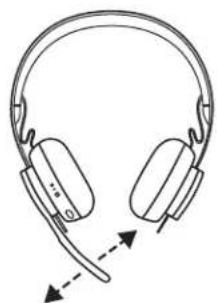
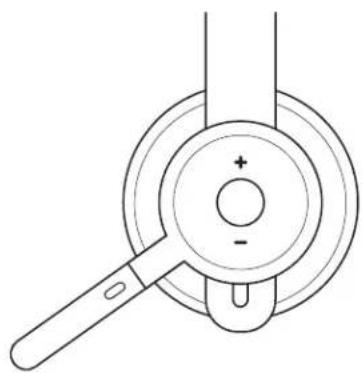
- Microphone boom rotates 270 degrees. Wear it on either left or right side. Audio channel will switch automatically, depending on the direction you are wearing the microphone.
- Flexible microphone boom — adjust boom location to capture voice better.
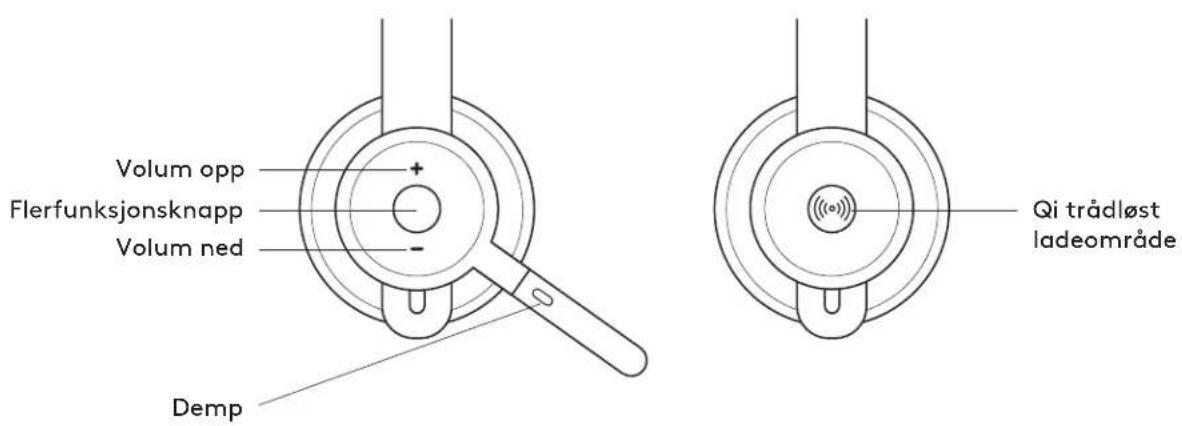
HEADSET CONTROLS
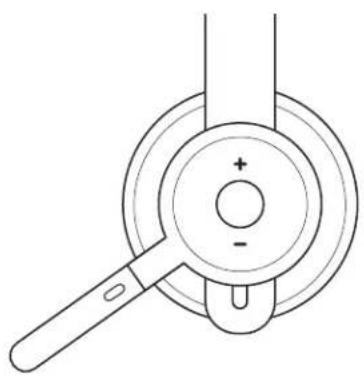
| Usage Button Action | |||
| Call controls | Answer / End call | Multi-function | Short press |
| Reject call 2 second press | |||
| Voice assistant Multi-function | 2 second press | ||
| Media controls | Play / Pause Multi-function Double press | ||
| Track forward | Multi-function and “+” | Short press | |
| Track backward | Multi-function and “-” | Short press | |
| Volume | Volume up | “+” | Short press |
| Volume down | “-” | Short press | |
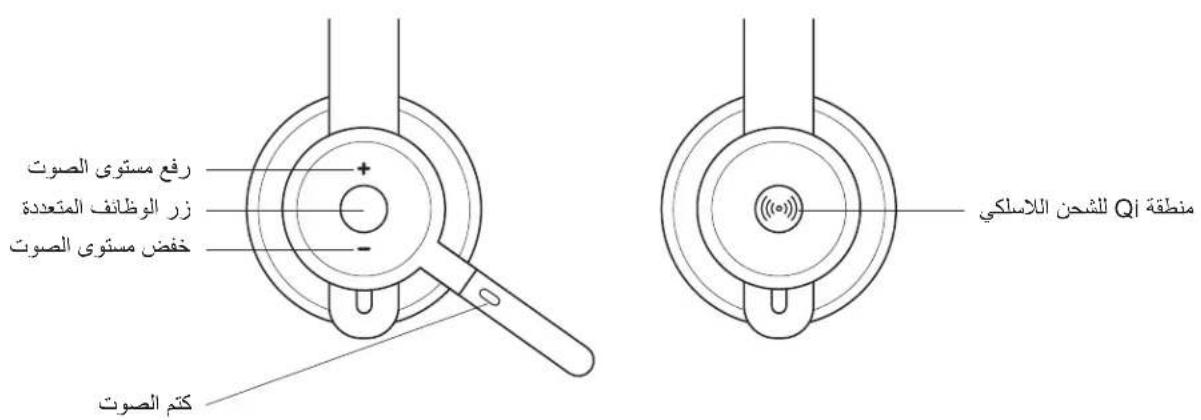
| Headset status | Check connectivity and battery life | “+” and “-” | Short press |
Note:
- Media control functionality depends on type of application.
- Call activities are always the first priority. When two devices are connected, the Bluetooth® connection will be prioritized over receiver. When two Bluetooth® devices are connected, the last active device will override the other.
Tip: Button customizations and Music EQ controls available on Logi Tune.
MUTE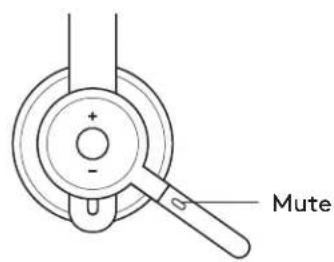
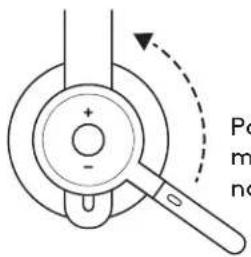
Move mic boom up to mute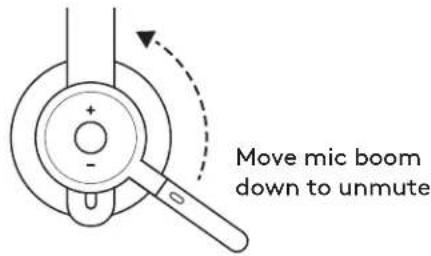
Voice notifications indicate when the microphone is on/off mute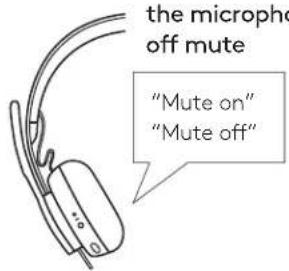
ACTIVE NOISE CANCELLATION (ANC)
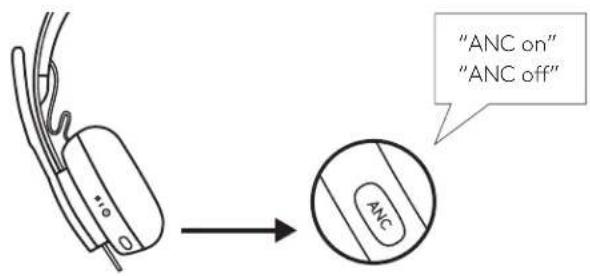
ANC blocks out the noise around you to help you concentrate on the task at hand.
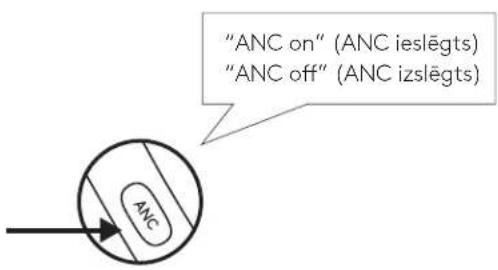
- Press the ANC button on the side of the earcup.
- There will be voice notifications when turning ANC on and off. These can be turned off in Logi Tune.
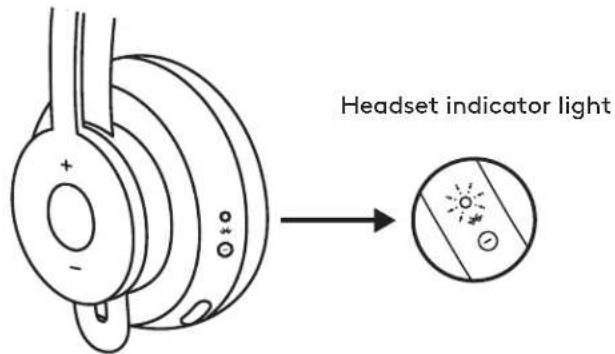
HEADSET LIGHT INDICATOR
| Light Status | ||
| White | Solid Powered on or fully charged | |
| Breathing Battery charging | ||
| Fast pulsing Bluetooth ® pairing mode | ||
| Slow pulsing No paired device | ||
| Red | Solid Low battery | |
| Fast pulsing Bluetooth ® pairing mode while low battery | ||
| Slow pulsing No paired device while low battery | ||
![graph LR A["Motor with +/- terminals"] --> B["Electric motor with battery"] B --> C["Low battery: red dot"] B --> D["Bluetooth® pairing mode while low battery: red dot with sun icon"] B --> E["No paired device: red dot with sun icon"] C --> F["Bluetooth® pairing mode"] D --> G["Battery charging: sun…](/content/2026/03/535306/images/ae32be20dfe16adbd35b94d825f8bb3babe34e44037b2afd129871ec0e41a443.jpg)
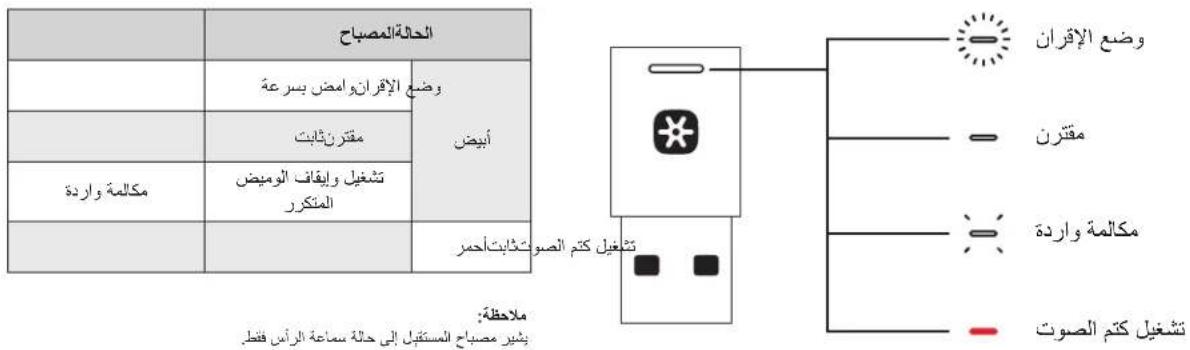
RECEIVER INDICATOR LIGHT
| Light Status | ||
| White | Fast flashing Pairing mode | |
| Solid Paired | ||
| Repeat flashing on and off | Incoming call | |
| Red Solid | Mute on | |
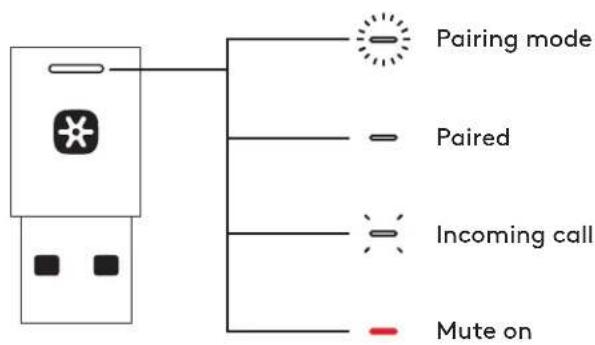
Note: Receiver light indicates headset status only.
CHARGING
Headset automatically powers off when left idle. Sleep timer can be changed in the Logi Tune.
Headset indicator light will turn RED when battery is low.
Charging via USB cable
- Plug the USB-C cable end into the USB-C port on the bottom of the earcup.
- Plug the USB-A end into the USB-A charging port on your computer or AC adapter.
- Indicator light will be a breathing white light for charging.
- Indicator light will be solid white when fully charged.
- 2 hours will fully charge the battery.
- 5 minutes will give you 1 hour of talk time.
- Headset can be used with receiver and Bluetooth ® paired while charging.
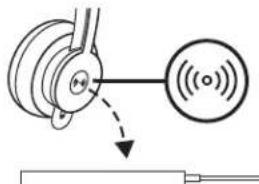
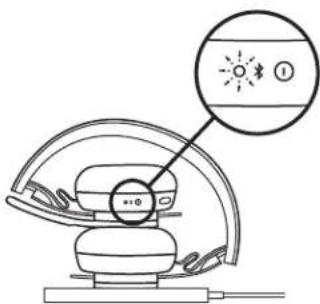
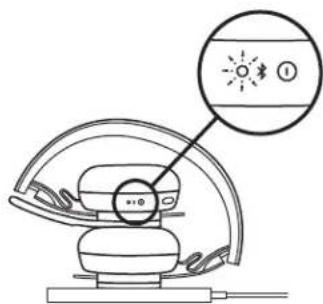
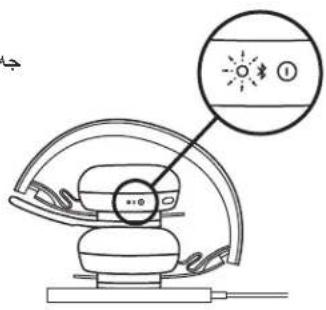
Charging via Qi wireless charger
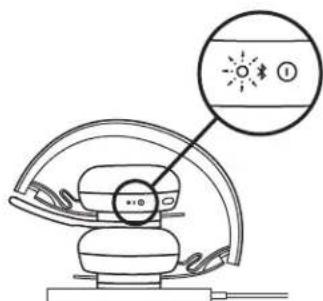
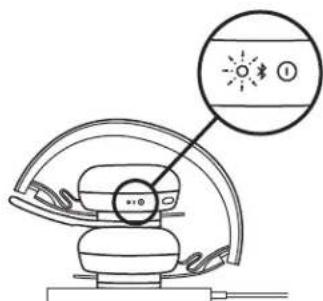
- Fold headset with the wireless charging icon on the earcup to the outside.
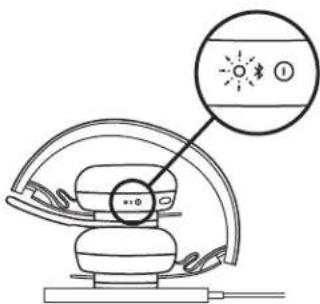
- Place earcup with wireless charging icon on top of any Qi wireless charging base.*
- Indicator light will be a breathing, white light when charging.
- Indicator light will be solid white when fully charged.
- 2 hours of charging fully charges the battery.
* Qi wireless charging base is not included.


LOGI TUNE APP
Install application
Download Logi Tune from www.logitech.com/tune
ADJUSTING SIDETONE
Sidetone lets you hear your own voice during conversations so you are aware of how loud you are talking. In Logi Tune, select the sidetone feature, and adjust the dial accordingly.
- A higher number means you hear more external sound.
- A lower number means you hear less external sound.
AUTO SLEEP TIMER
By default, your headset will automatically power off when not in use for one hour. Adjust the sleep timer in Logi Tune.
UPDATE YOUR HEADSET
It is recommended to update both your headset and receiver. To do so, download Logi Tune from www.logitech.com/tune
RESET YOUR HEADSET
To reset your headset back to its original state, power headset on, press and hold the ANC button and volume '-' button for 5 seconds. The headset is successfully reset when it powers off and indicator light turns off.
DIMENSIONS
HEADSET:
Height x Width x Depth: 174.7 x 176.7 x 70.7 mm
WEIGHT:
0.1808 Kg
EARPADS:
Height x Width x Depth: 70.7 x 70.7 x 16.4 mm
RECEIVER:
Height x Width x Depth: 35.5 x 16.2 x 5.3 mm
ADAPTER:
Height x Width x Depth: 106.7 x 17.5 x 10.1 mm
SYSTEM REQUIREMENTS
Works with common calling applications across almost all platforms and operating systems.
Works with Windows®, Mac, or Chrome™ based computer via USB-C, USB-A, Bluetooth® and iOS or Android™ Bluetooth® enabled devices.
TECHNICAL SPECIFICATIONS
Microphone Type: Omni-directional dual MEMS mic array
Frequency response (Headset): 30~13 kHz @ -10 dB (music mode), 100~8 kHz (talk mode)
Frequency response (Microphone): 85~20 kHz @-3 dB
Battery type: Built-in battery (Lithium ion)
Battery life (talk time): 14 hrs (ANC on), 15 hrs (ANC off)
Battery life (listening time): 14 hrs (ANC on), 16 hrs (ANC off)
Bluetooth® version: 5.0
Wireless range: Up to 30 m/100 ft (open field line of sight)
Qi Wireless charging enabled
USB-A to C charging cable: 4.25 ft (130 cm)
www.logitech.com/support/zone900
PRODUCT AT A GLANCE![graph LR A["www.logitech.com/support/unifying"] --> B["USB-A"] B --> C["..."] C --> D["User Device"] D --> E["Advanced Next"] E --> F["OFF/ON"] F --> G["User Interface"] G --> H["User Hand"] H --> I["User Button"] I --> J["User Interface Check"] J --> K["User Interface Sign"]](/content/2026/03/535306/images/0c338252ae6cbb7c28c5f4b3974e9f2cf21a2c6631542e645023124f31a66634.jpg)
HEADSET CONTROLS
Note:
Mute
LOGI TUNE APP
![graph LR A["User with Bluetooth icon"] --> B["2 sec."] B --> C["Logi Zone 900"] C --> D["Signal Detection"]](/content/2026/03/535306/images/6db330b9809056210b4cdd2e4d4597230ee64b1bff97689f933e05c37c0bcfb5.jpg)
PAIR THE HEADSET, KEYBOARD, AND MICE VIA A USB RECEIVER
![graph LR A["www.logitech.com/support/unifying"] --> B["USB-A"] B --> C["..."] C --> D["UNIFYING Advanced Next"] D --> E["OFF/ON"] E --> F["OK"] F --> G["✓"] C --> H["USB-C"] H --> I["+"] I --> J["+"] J --> K["+"] K --> L["+"] L --> M["+"] M --> N["+"] N --> O["+"] O --> P["+"] P --> Q["+"] Q --> R["…](/content/2026/03/535306/images/c31140de60812213374a27d23543f94f6e11aecba69cc8a7d09b0387b8980b69.jpg)
ADJUSTING THE MICROPHONE BOOM
HEADSET CONTROLS
Note:
Mute
LOGI TUNE APP
Install the app
- Download Logitech® Unifying Software from www.logitech.com/support/unifying
- USB-A
MICROPHONE BOOM ADJUSTMENT
HEADSET CONTROLS
Note:
LOGI TUNE APP
Bluetooth® version: 5.0
- Download Logitech® Unifying software from www.logitech.com/support/unifying
- USB-A
ADJUST THE MICROPHONE BOOM
HEADSET CONTROLS
Note:
HEADSET LED INDICATOR
- Download Logitech® Unifying Software at www.logitech.com/support/unifying
- USB-A
ADJUST THE MICROPHONE BOOM
Note:
No sound
LOGI TUNE APP
- Download Logitech® Unifying Software at www.logitech.com/support/unifying.
- USB-A
ADJUST THE MICROPHONE BOOM
HEADSET BUTTONS
Note:
Mute
Microphone arm lower to mute raise to unmute
LOGI TUNE APP
Install the app
Download Logi Tune from www.logitech.com/tune
ADJUST SIDETONE
- Download Logitech® Unifying software from www.logitech.com/support/unifying
- USB-A
ADJUST THE MICROPHONE ARM
HEADSET CONTROLS
LOGI TUNE APP
Install the application
WHAT'S IN THE BOX
ADJUSTING THE MICROPHONE ARM
HEADSET CONTROL BUTTONS
Note:
Microphone on/off
BATTERY INDICATOR
GET TO KNOW THE PRODUCT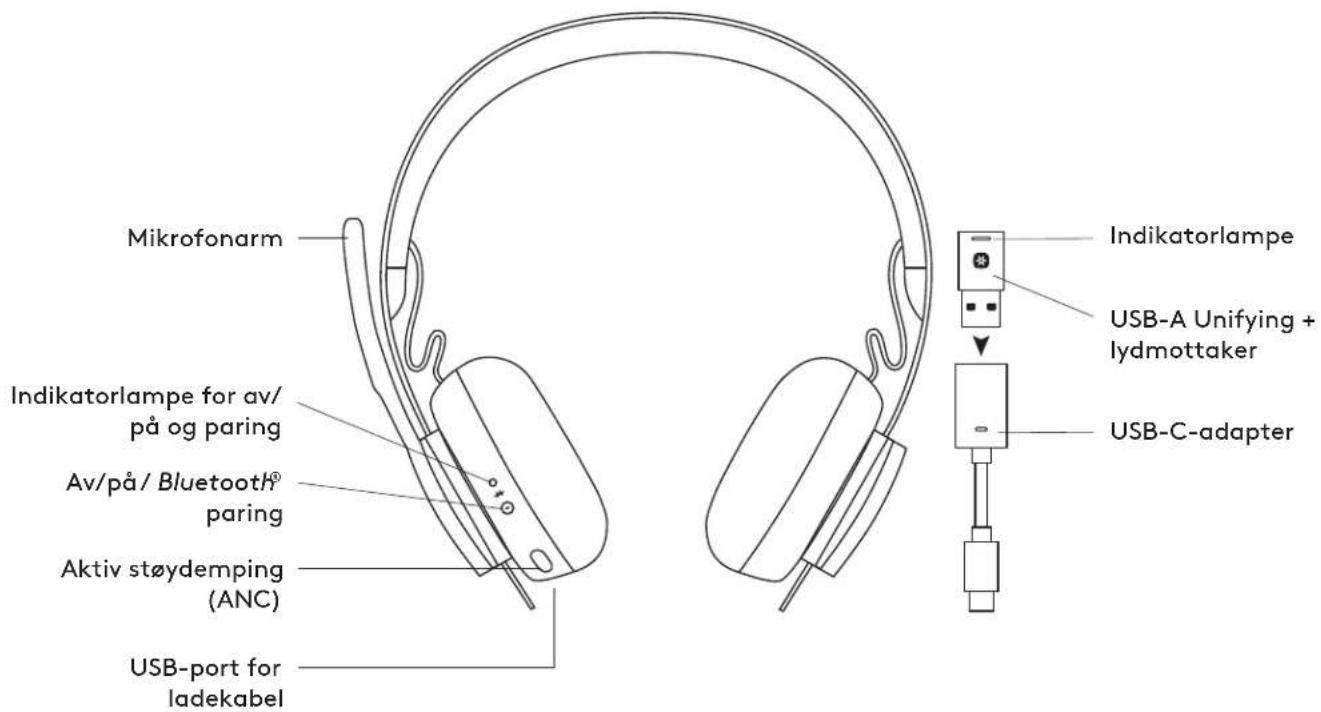
- Download Logitech® Unifying Software from www.logitech.com/support/unifying
- USB-A
Insert the Zone 900 receiver into the computer's USB-A port.
USB-C
Insert the USB-A receiver into the USB-C adapter. Then insert the adapter into the computer's USB-C port.
ADJUSTING THE MICROPHONE ARM
HEADSET CONTROLS
Note:
ACTIVE NOISE CANCELLING (ANC)
ADJUSTING THE MICROPHONE BOOM
HEADSET MICROPHONE CONTROLS
Note:
Mute
LOGI TUNE APP
Note:
LOGI TUNE APP
- Download Logitech* Unifying software at www.logitech.com/support/unifying.
- USB-A
Note.
ADJUSTING THE MICROPHONE BOOM
HEADSET CONTROLS
Note:
Mute
LOGI TUNE APP
PAIRING HEADSET, KEYBOARD, AND MOUSE VIA USB RECEIVER
![graph LR A["www.logitech.com/support/unifying"] --> B["USB-A"] B --> C["..."] C --> D["User Device"] D --> E["Advanced Next"] E --> F["OFF/ON"] F --> G["User Device"] G --> H["User Device"] H --> I["User Device"] I --> J["User Device"] J --> K["User Device"] K --> L["User Device"] L --> M["User Devi…](/content/2026/03/535306/images/3db1eef89fe7a08d97a1df79f9f41626b4a4032443713cd50a660a29fe26ac18.jpg)
HEADSET CONTROLS
Note:
Mute
LOGI TUNE APPLICATION
MICROPHONE BOOM SETUP
HEADSET CONTROLS
Note:
Mute
HEADSET INDICATOR
LOGI TUNE APPLICATION
Installing the application
- Download the Logitech® Unifying Software from www.logitech.com/support/unifying
- USB-A
Plug the Zone 900 receiver into a USB-A port on your computer.
USB-C
Plug the USB-A receiver into a USB-C adapter. Then plug the adapter into a USB-C port on your computer.
MICROPHONE BOOM SETUP
HEADSET CONTROLS
Note:
Mute
Move the microphone boom up to mute
LOGI TUNE APP

Notes
Mute
MICROPHONE ADJUSTMENT

HEADSET CONTROLS
Note.
Mute
LOGI TUNE APP
Installing the app
Download Logi Tune from www.logitech.com/tune
ADJUSTING YOUR VOICE FEEDBACK
HEADSET, KEYBOARD AND MOUSE CONNECTION USING USB RECEIVER
![graph LR A["www.logitech.com/support/unifying"] --> B["USB-A"] B --> C["..."] C --> D["User Device"] D --> E["Advanced Next"] E --> F["OFF/ON"] F --> G["User Device"] G --> H["User Device"] H --> I["User Device"] I --> J["User Device"] J --> K["User Device"] K --> L["User Device"] L --> M["User Devi…](/content/2026/03/535306/images/36b89be6067d7b6511b6e367f0f8420c1c99ce95be8ac8a8a2e99ef5e918bddd.jpg)
- Download the "Logitech® Unifying" software at www.logitech.com/support/unifying
- USB-A
MICROPHONE BOOM ADJUSTMENT
HEADSET CONTROLS
Note.
HEADSET LED INDICATOR
"LOGI TUNE" APP
GET TO KNOW YOUR PRODUCT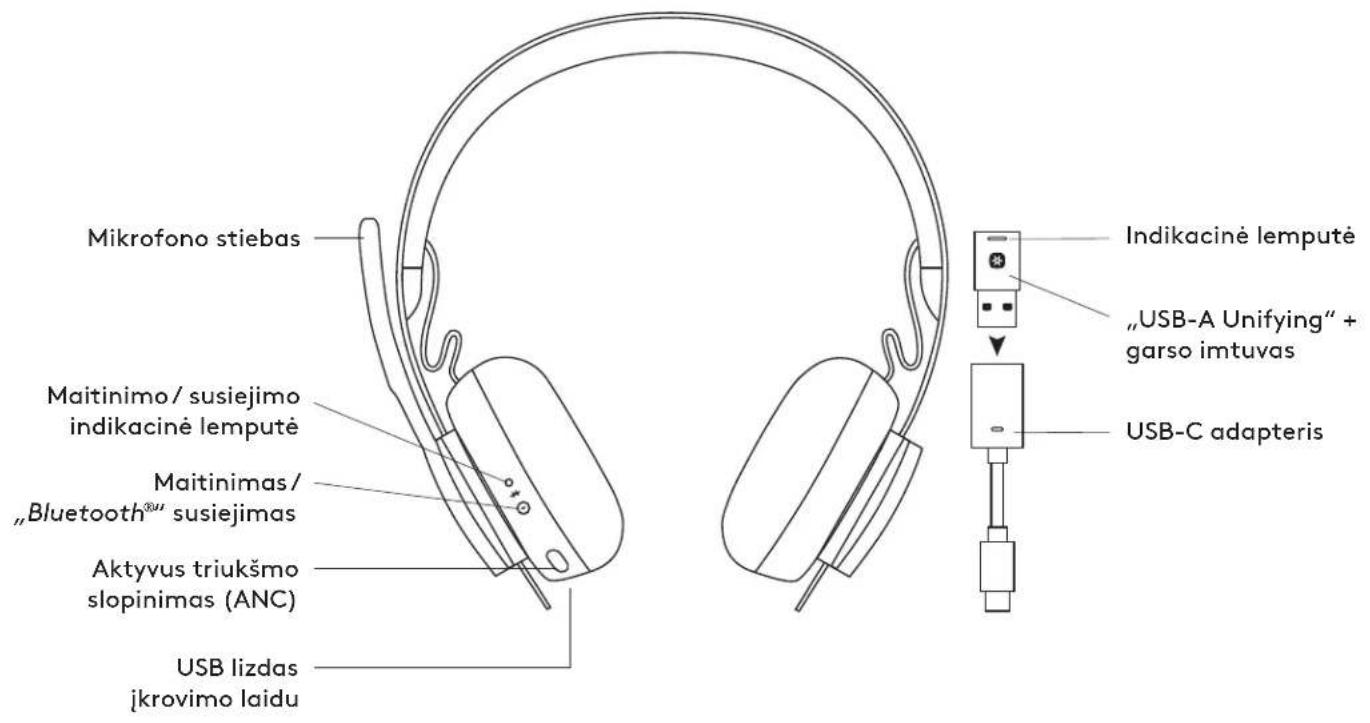
MICROPHONE BOOM ADJUSTMENT
HEADSET CONTROLS
Note:
Mute
"LOGI TUNE" APP
- Download the Logitech® Unifying Software at www.logitech.com/support/unifying.
- USB-A
Note:
Mute
- Download Logitech® Unifying software at www.logitech.com/support/unifying
- USB-A
ADJUSTING THE MICROPHONE BOOM
HEADSET CONTROLS
Note:
- Media control function depends on the type of application.
- Call activities always have the highest priority. When two devices are connected, connection via Bluetooth 8 will take precedence over the receiver. When two Bluetooth 8 devices are connected, the last active device will override the other.
Tip: Button customization and Music EQ control available in Logi Tune.
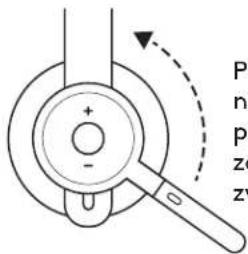
MUTE
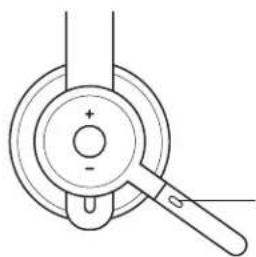
Mute
Move the microphone boom up to mute
PAIRING THE HEADSET, KEYBOARD, AND MOUSE VIA USB RECEIVER
![graph LR A["www.logitech.com/support/unifying"] --> B["USB-A"] B --> C["..."] C --> D["+"] C --> E["+"] C --> F["+"] D --> G["Desktop"] E --> H["Desktop"] F --> I["Desktop"] G --> J["Advanced Next"] H --> J I --> J J --> K["OFF/ON"] K --> L["+"] K --> M["+"] K --> N["+"] L --> O["Desktop"] M --> P["…](/content/2026/03/535306/images/cb099c59ea862e4d6b7a405b4dbfb2812c00d11033207de0f96a490cc05fe3d9.jpg)
- Download the Logitech® Unifying software from www.logitech.com/support/unifying
- USB-A
ADJUSTING THE MICROPHONE HOLDER
- The microphone holder rotates 270 degrees. Wear it on either the left or right side. The audio channel will automatically change, depending on the direction in which you wear the microphone.
- Flexible microphone holder – adjust the position of the holder to better transmit your voice.

HEADSET CONTROLS
| Korišćenje Dugme Radnja | |||
| Kontrole poziva | Javljanje/ prekidanje poziva | Multifunkcionalno | Kratak pritisak |
| Odbijanje poziva | Pritisak od 2 sekunde | ||
| Glasovni pomoćnik Multifunkcionalno | Pritisak od 2 sekunde | ||
| Medijske komande | Reprodukcija/ pauza | Multifunkcionalno Dvostruki pritisak | |
| Kretanje unapred | Multifunkcionalno i „+“ | Kratak pritisak | |
| Kretanje unazad | Multifunkcionalno i „-“ | Kratak pritisak | |
| Jačina zvuka | Pojačavanje zvuka | „+“ | Kratak pritisak |
| Utišavanje zvuka | „-“ | Kratak pritisak | |
| Status slušalica | Provera veze i trajanja baterije | „+“ i „-“ | Kratak pritisak |
Note:
- Media control functions depend on the type of application.
Mute
Move the microphone holder up to mute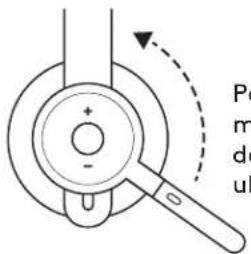
ADJUSTING THE MICROPHONE HOLDER

HEADSET CONTROLS
Note:
- Media control functionality depends on the type of application.
Mute
Move the microphone boom up to mute.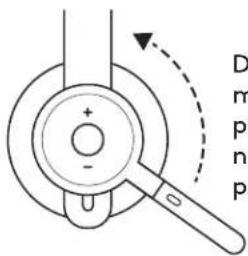
Move the microphone boom down to unmute.
LOGI TUNE APP
- Download the Logitech® Unifying software from: www.logitech.com/support/unifying
- USB-A
ADJUSTING THE MICROPHONE BOOM
HEADSET CONTROLS
Note:
- The functionality of the media controls depends on the type of application.
Mute unmute
LOGI TUNE APP
- Download the Logitech® Unifying software from: www.logitech.com/support/unifying
- USB-A
ADJUSTING THE MICROPHONE BOOM
HEADSET CONTROLS
Not:
LOGI TUNE APPLICATION
Installing the application
Download the Logi Tune application from www.logitech.com/tune
ADJUSTING THE SECONDARY TONE
Adjusting the microphone holder

Muting
Receiver indicator light
LOGI TUNE application
Installing the application
Download Logi Tune from www.logitech.com/tune
Adjusting the secondary tone
www.logitech.com/tune
www.logitech.com/support/unifying LogitechLogitech® Unifying
2 .USB-A
. USB-A
USB-C

Remove
| اللهاللهاللهاللهاللهاللهاللهاللهاللهاللهاللهاللهاللهاللهاللهاللهاللهاللهاللهاللهاللهاللهاللهاللهاللهاللهاللهاللهاللهاللهاللهاللهاللهاللهاللهاللهاللهاللهاللهاللهاللهاللهاللهاللهاللهاللهاللهاللهاللهاللهالLife | |||
| "اللهاللهاللهاللهاللهاللهاللهاللهاللهاللهاللهاللهاللهاللهاللهاللهاللهاللهاللهاللهاللهاللهاللهاللهاللهاللهاللهاللهاللهاللهاللهاللهاللهاللهاللهاللهاللهاللهاللهاللهاللهاللهاللهاللهاللهاللهاللهاللهاللهال Life | |||
| اللهاللهالLife | |||
| اللهالLife | |||
| اللهالLife | |||
| "—"الLife | |||
| الLife | |||
| "—" | |||
| الLife | |||
| "—" | |||
Remove
:
- Cover U.S.A.
* - Remove, Remove, Remove, Remove, Remove, Remove, Remove, Remove, Remove, Remove,
Remove
Remove
www.logitech.com/tune
Remove

- CONTENTS
- WHAT'S IN THE BOX
- POWER ON/OFF
- PAIRING VIA BLUETOOTH®
- PAIRING HEADSET, KEYBOARD AND MICE VIA USB RECEIVER
- ADJUSTING HEADSET
- HEADSET CONTROLS
- NOTE
- ACTIVE NOISE CANCELLATION (ANC)
- CHARGING
- CHARGING VIA USB CABLE
- CHARGING VIA QI WIRELESS CHARGER
- LOGI TUNE APP
- INSTALL APPLICATION
- ADJUSTING SIDETONE
- AUTO SLEEP TIMER
- UPDATE YOUR HEADSET
- RESET YOUR HEADSET
- DIMENSIONS
- HEADSET
- WEIGHT
- EARPADS
- RECEIVER
- ADAPTER
- SYSTEM REQUIREMENTS
- TECHNICAL SPECIFICATIONS
- PAIR THE HEADSET, KEYBOARD, AND MICE VIA A USB RECEIVER
- ADJUSTING THE MICROPHONE BOOM
- MICROPHONE BOOM ADJUSTMENT
- ADJUST THE MICROPHONE BOOM
- INSTALL THE APP
- ADJUST SIDETONE
- ADJUST THE MICROPHONE ARM
- INSTALL THE APPLICATION
- ADJUSTING THE MICROPHONE ARM
- HEADSET CONTROL BUTTONS
- ACTIVE NOISE CANCELLING (ANC)
- HEADSET MICROPHONE CONTROLS
- PAIRING HEADSET, KEYBOARD, AND MOUSE VIA USB RECEIVER
- LOGI TUNE APPLICATION
- MICROPHONE BOOM SETUP
- INSTALLING THE APPLICATION
- MOVE THE MICROPHONE BOOM UP TO MUTE
- NOTES
- MICROPHONE ADJUSTMENT
- INSTALLING THE APP
- ADJUSTING YOUR VOICE FEEDBACK
- HEADSET, KEYBOARD AND MOUSE CONNECTION USING USB RECEIVER
- LOGI TUNE" APP
- MUTE
- PAIRING THE HEADSET, KEYBOARD, AND MOUSE VIA USB RECEIVER
- ADJUSTING THE MICROPHONE HOLDER
- NOT
- ADJUSTING THE SECONDARY TONE
- REMOVE
Brand : LOGITECH
Model : Zone 900
Category : Headphones