Realimove AC7000 - Camcorder AGFA - Free user manual and instructions
Find the device manual for free Realimove AC7000 AGFA in PDF.



| Product Type | Camcorder |
| Brand | Agfa |
| Model | Realimove AC7000 |
| Dimensions | 65 x 24 x 43 mm |
| Weight | Approximately 100 g (estimated) |
| Power Supply | Rechargeable integrated lithium battery 3.7V |
| Screens | Front IPS 1.3-inch screen + Rear 2-inch screen |
| Photo Resolution | 16M (4608x3456), 12M, 8M, 5M, 2M |
| Video Resolution | 4K (3840x2160 30fps), 2.7K 30fps, 1080P 30/60fps, 720P 30/60/120fps |
| Storage Media | Micro SD card up to 64 GB, recommended speed ≥ C10 |
| File Formats | JPEG (photo), H.264 MP4 (video) |
| Connectivity | Wi-Fi, USB 2.0 |
| Menu Languages | English, French, German, Spanish, Italian, Portuguese, Dutch, Polish, Hungarian, Czech, Russian |
| Main Functions | Video recording, photo capture, slow motion, playback, webcam mode, settings |
| Maintenance and Cleaning | Clean with a soft, dry cloth, blow off dust, avoid organic solvents |
| Safety | Avoid water, sand, dust, and chemicals; keep dry and away from heat |
| Spare Parts and Repairability | Contact AGFA customer service at +33 (0) 1.85.49.10.26 |
Frequently Asked Questions - Realimove AC7000 AGFA
User questions about Realimove AC7000 AGFA
0 question about this device. Answer the ones you know or ask your own.
Ask a new question about this device
Download the instructions for your Camcorder in PDF format for free! Find your manual Realimove AC7000 - AGFA and take your electronic device back in hand. On this page are published all the documents necessary for the use of your device. Realimove AC7000 by AGFA.
USER MANUAL Realimove AC7000 AGFA
Action Camera
Realimove AC7000
User manual
Please read the precautions carefully before using this action camera for proper and safe operation, to optimize its performance and extend its life.
-
Before using the camera, insert a memory card which has been formatted beforehand.
-
Handle the camera with care and prevent water or sand particles from entering the camera when it is used on the beach or in the water, as water, sand particles, dust or other components containing salt may damage the internal system by causing rust.
-
Keep the camera apart from dust and chemical materials. Keep it rather in a cool, dry and well-ventilated place and avoid leaving it in a hot, moist or dusty environment.
-
Please check if the camera operates normally before making any recordings.
-
If dirt or stain is accumulated on the camera or on its lens, use soft, clean and dry rag to wipe it away gently. If the action camera or its lens is soiled by sand particles, blow them away gently. Do not use a stiff cloth to wipe the surface of the camera or its lens as this may scratch them.
-
If it is required to clean camera, firstly blow away the dust accumulated on its surface, and then wipe the camera gently with rag or tissue suitable to optical equipment. Do not use organic solvents, but rather prefer a product specifically dedicated to the cleaning of video cameras or photographic equipment.
-
Do not touch the lens surface with fingers.
-
Back up to a computer or removable disk the data saved on the memory card inserted in the camera before any use if there is almost no storage space left.
-
The external memory cards are manufactured from precise electronic components. Data may be lost or damaged under the following circumstances:
-
Improper use of the memory card.
-
The memory card is bent, scratched or already damaged.
-
Placing it under hot/moist environment or exposing it to sunshine directly.
-
Electrostatic or electromagnetic field exists around the memory card.
-
The memory card is taken out or power supply is interrupted when the camera is connected to a computer (i.e. during reading, data transfer or formatting).
-
Touching the metal contact surface of the memory card with fingers or a metallic object.
CAMERA OVERVIEW
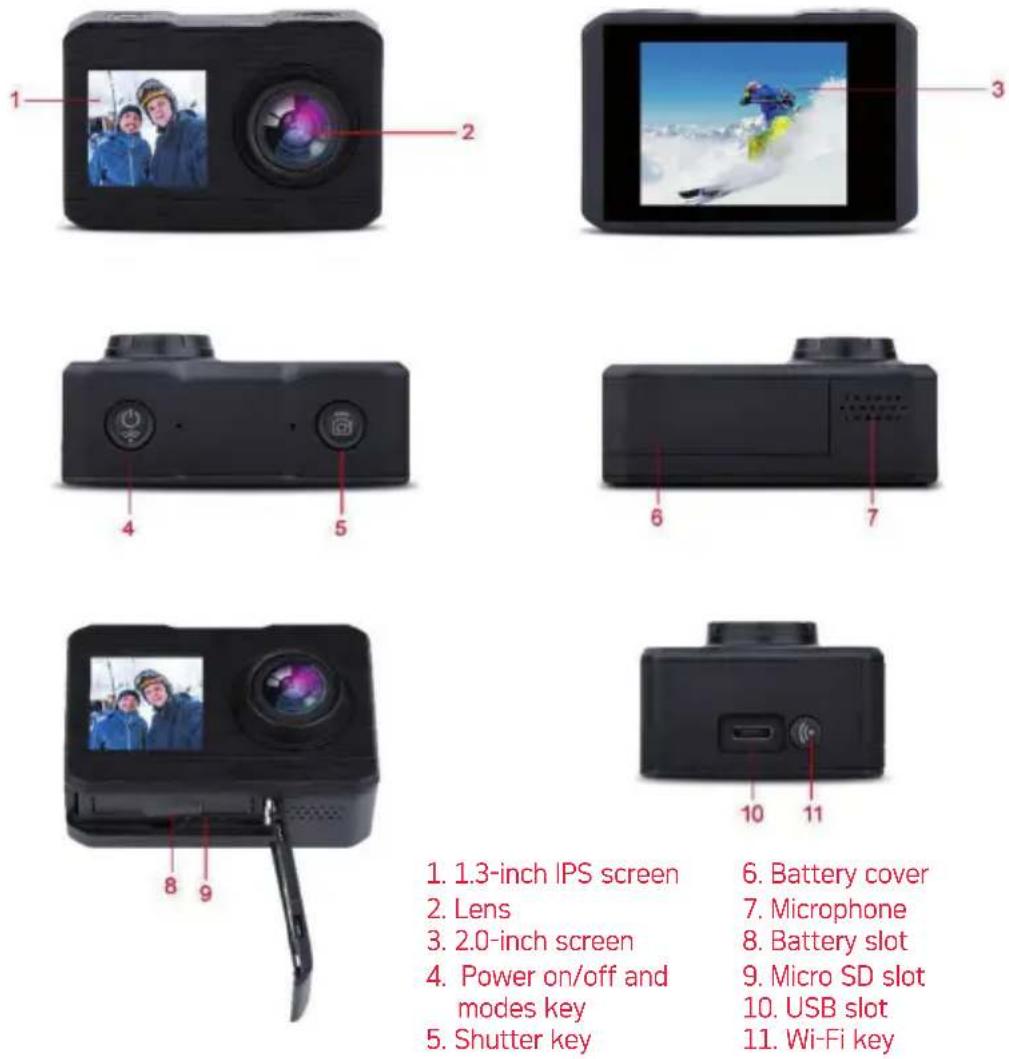
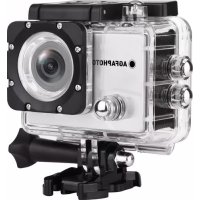
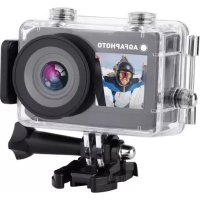
- 1.3-inch IPS screen
- Lens
- 2.0-inch screen
- Power on/off and modes key
-
Shutter key
-
Battery cover
- Microphone
- Battery slot
- Micro SD slot
- USB slot
- Wi-Fi key
CAMERA BUTTONS AND SLOTS
> Power on/off and modes key
- Press 2-3 seconds the power on/off key to turn on or off the camera.
- Once the camera is on, short press this same key to switch from one mode to the other: video, photo, slow motion, play back and settings.
> Shutter key
- In video mode, short press this key to start and finish video recording.
-
In photo mode, short press this key to take a photo.
-
In play back mode, short press this key to play a video, and long press this key to enter the delete file window.
- In setting mode, short press this key to confirm settings you set up.
> Wi-Fi key
- In video/photo/slow motion modes, short press this key to switch from front screen to back screen and long press this key to access the Wi-Fi function.
- In play back/setting modes, shortly press this key to view all saved files or to access the setting menu.
EN
> USB slot
Connect the camera to your computer with the USB cable, then three mode choices will be displayed:
- USB mode: USB mode can be used as card reader, so that you can copy and paste saved videos and photos from USB removable disk window displayed on your computer.
- Camera mode: the camera can be used as a webcam once connected to your computer.
- Charging mode: you can charge the camera by connecting it to your computer or a power source with an appropriate AC adaptor.
> Micro SD slot
The camera supports any type of micro SD card with a capacity of up to 64 GB. It is also recommended to use a micro SD card whose speed is above C10 and which has been formatted before being inserted into the camera.
MAIN FUNCTIONS
> Setting mode
Press power on/off key to select the setting mode, then press shutter key to enter the setting menu. Press power on/off key to choose the setting you want to modify, next press Wi-Fi key to enter its options, and finally press shutter key to confirm your choice.
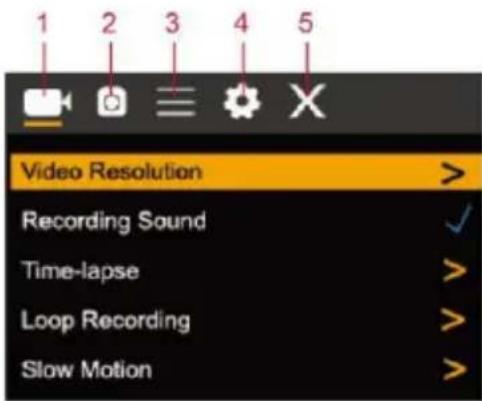
- Video mode 4. Other settings
- Photo mode 5. Exit
- General settings
Video mode
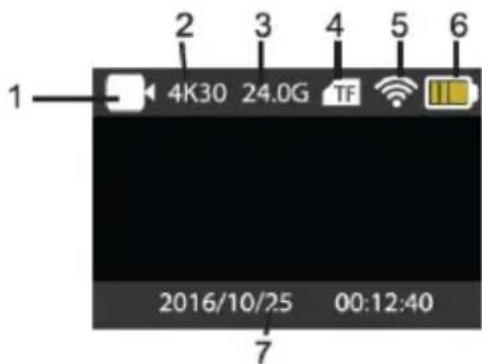
- Video mode
- Video resolution
- Micro SD card memory left
- Micro SD card status
- Wi-Fi status
- Battery capacity left
- Time and date
Photo mode
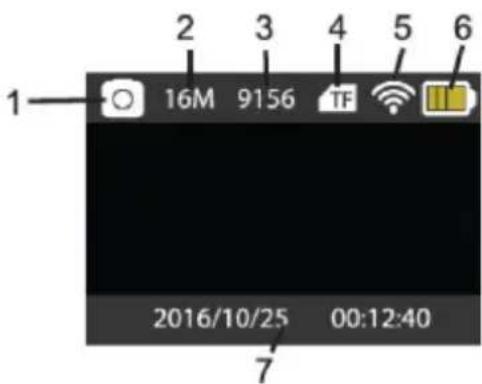
- Photo mode
- Photo resolution
- Photo quantity left
- Micro SD card status
- Wi-Fi status
- Battery capacity left
- Time and date
wi-Fi connection and aPP
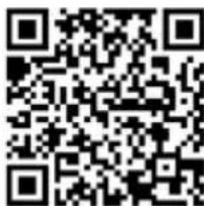
Download the "X-Sport pro" application via Google Play Store for Android smartphone or Apple App Store for iOS smartphone. You can also scan bellow QR codes to download the app:
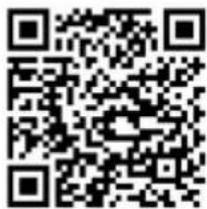
Android QR code
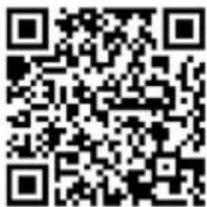
Apple iOS QR code
wi-Fi activation
In video/photo/slow motion modes, long press Wi-Fi key to activate the Wi-Fi connection. The camera will then display a window with the Wi-Fi network name "AGFA" and password "12345678". Search this network in your smartphone Wi-Fi settings and enter the password to properly connect the camera to your smartphone. Then open the app and start to have fun!
aPP oPeration screen
Once your smartphone is connected to the camera, press « Connect » to enter the app.
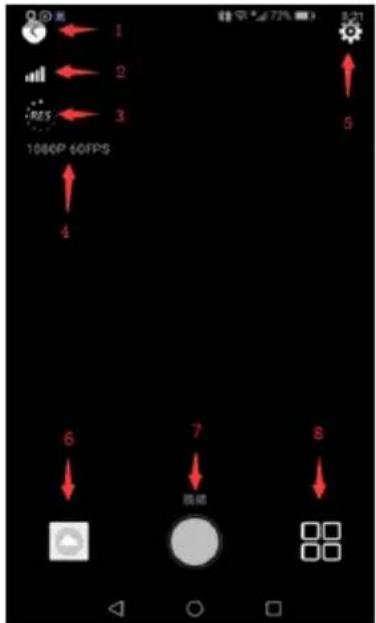
- Exit
- Wi-Fi signal
- Resolution setting
- Current resolution
- Camera setting
- Photo/video files
- Shutter key
- Chosen mode
SPECIFICATIONS
| Function modes | Video recording, photo, slow motion, playback and camera setting |
| LCD screens | 1.3-inch IPS front screen + 2-inch rear screen |
| Photo resolution | 16M (4608 x 3456), 12M (4000 x 3000), 8M (3264 x 2448), 5M (2592 x 1936), 2M (1600 x 1200) |
| Video resolution | 4K (3840 x 2160 30fps), 2.7K (30fps), 1080P (1920 x 1080 30fps), 1080P (1920 x 1080 60fps), 720P (1280 x 720 30fps), 720P (1280 x 720 60fps), 720P (1280 x 720 120fps) |
| Storage medium | Micro SD card (maximum 64 GB, speed above C10) |
| File format | JPEG H.264 (MP4) |
| USB port | 2.0 |
| Power supply | Built-in rechargeable lithium battery 3.7V |
| Menu language | English/French/German/Spanish/Italian/Portuguese/Dutch/Polish/Hungarian/Czech/Russian |
| Screensaver time | 10s/20s/30s |
| Computer system requirements | Windows XP Vista/7/8 Mac 10.8 |
| Dimensions | 65 x 24 x 43 mm |
PrécaUtions
CONNECTION WI-FI ET APPLICATION
QR-Code für Android
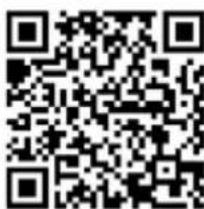
CONNESSIONE WI-FI E APP
Codice QR Android

Codice QR Apple iOS
ATTIVAZIONE WI-FI
Android QR-kód
Apple iOS QR-kód
WIFI BEKAPCSOLÁSA
natural_image
Solid red horizontal bar with no text or symbols
natural_image
Solid red horizontal bar with no text or symbols1 year limited warranty / garantie limitée un an /
1 Jahr eingeschränkte Garantie / garantía limitada de 1 año / garanzia limitada di 1 anno / garantía limitada de 1 ano /
1 jaar beperkte garantie / roczna ograniczona gwarancja /
1 év korlátozott garancia / omezená záruka 1 rok /
1 год ограниченной гарантии
Made in China

Notice of compliance for the European Union : products bearing the CE mark comply with the applicable European directives and associated harmonised European standards.
natural_image
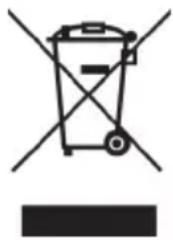
Symbol of a trash bin with crossed lines indicating no waste or discharge, and a solid black rectangle below (no text or labels)Disposal of waste equipment by users in the European Union: this symbol means that according to local laws and regulations, it is prohibited to dispose of this product with household waste. Instead, it is your responsibility to protect the environment and human health by handing over your used device to a designated collection point for the recycling of waste electrical and electronic equipment. For more information about where you can drop off your waste equipment for recycling, please contact your local city office, your household waste disposal service or the shop where you purchased the product.

After sales service / service après vente / Kundendienst / servicio postventa / servizio post vendita / serviço pós venda / dienst na verkoop / serwis posprzedażowy / értékesítés utáni szolgáltatás / poprodejní servis / послепродажное обслуживание :
@ : aftersaleservice@gtcompany.fr
Product manufactured for and distributed by :
GT COMPANY - 5 rue de la Galmy - 77700 Chessy -
France - +33 (0) 1.61.10.09.25 - www.gtcompany.fr
AgfaPhoto is used under license of Agfa-Gevaert NV. For this product a sub-license has been granted by AgfaPhoto Holding GmbH [www.agfaphoto.com]. Neither Agfa-Gevaert NV nor AgfaPhoto Holding GmbH manufacture this product or provide any product warranty or support. For service, support and warranty information, contact the distributor or manufacturer.