
ZVE10L - Camera SONY - Free user manual and instructions
Find the device manual for free ZVE10L SONY in PDF.
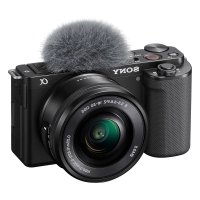



| Product Type | Interchangeable Lens Digital Camera |
| Brand | Sony |
| Model | ZVE10L (ZV-E10) |
| Lens Mount | Sony E-mount |
| Image Sensor | APS-C CMOS (23.5 × 15.6 mm), 24.2 effective megapixels |
| Screen | 7.5 cm (3.0 type) TFT touch screen |
| Dimensions (W × H × D) | 115.2 × 64.2 × 44.8 mm |
| Weight (with battery and card) | Approx. 343 g |
| Power Supply | Rechargeable battery NP-FW50 (7.2 V); AC adapter AC-UUD12/AC-UUE12 (100-240 V) |
| Power Consumption | 2.0 W |
| Video Recording | 4K Movies (XAVC S), slow/fast motion, Product Showcase effect |
| Continuous Shooting | Up to 11 fps (with AF tracking) |
| Wireless Connectivity | Wi-Fi 802.11 b/g/n (2.4 GHz); smartphone compatible via Imaging Edge Mobile |
| Storage Media | SD/SDHC/SDXC memory card, Memory Stick PRO Duo |
| Operating Temperature | 0 °C to 40 °C |
| Storage Temperature | -20 °C to 55 °C |
| Supplied Accessories | NP-FW50 battery, AC adapter, USB Type-C cable, windscreen, shoulder strap, body cap |
| Maintenance | Clean with a soft cloth; avoid direct sunlight exposure; keep out of reach of children |
| Safety | Do not look at the sun through the lens; avoid magnetic fields; do not use near medical devices |
| Repairability | Spare parts available through Sony network; repair by authorized center |
Frequently Asked Questions - ZVE10L SONY
User questions about ZVE10L SONY
0 question about this device. Answer the ones you know or ask your own.
Ask a new question about this device
Download the instructions for your Camera in PDF format for free! Find your manual ZVE10L - SONY and take your electronic device back in hand. On this page are published all the documents necessary for the use of your device. ZVE10L by SONY.
USER MANUAL ZVE10L SONY
https://www.sony.net/SonyInfo/Support/
SONY®
5-027-835-31(1)
ZV-E10
ZV-E10
"Help Guide" (Web manual)
Refer to "Help Guide" for in-depth instructions on the many functions of the camera.
https://rd1.sony.net/help/ilc/2070/h_zz/
E-mount
α
| Interchangeable Lens Digital Camera/Startup Guide GB |
| Appareil photo à objectif interchangeable/Guide de démarrage FR |
| Digitalkamera mit Wechselobjektiv/Einführungsanleitung DE |
| Cámara Digital de Lentes Intercambiables/Guía de inicio ES |
| Fotocamera digitale con obiettivo intercambiabile/Guida di avvio IT |
| Câmara Digital de Objetivas intercambiáveis/Guia de inicio PT |
| Digitale camera met verwisselbare lens/Beknopte gids NL |
| Aparat cyfrowy z wymiennymi obiektywami/Przewodnik uruchamiania PL |
| Цифровой фотоаппарат со сменным объективом/Руководство по началу работы RU |
| Цифрова камера зі змінним об'єктивом/Посібник із початку роботи UA |
| Digitalkamera med utbytbart objektiv/Startguide SE |
| Digitaalinen kamera vaihdettavalla objektiivilla/Aloitusopas FI |
| Digitalkamera med utskiftbart objektiv/Startveiledning NO |
| Digitalkamera med udskifteligt objektiv/Startvejledning DK |
5027835310
ZV-E10
About the manual for this camera
This guide describes the necessary preparations to start using the product, basic operations, etc. For details, refer to the "Help Guide" (web manual).
"Help Guide" (Web manual)
https://rd1.sony.net/help/ilc/2070/h_zz/
ZV-E10 Help Guide

Looking for valuable information, such as essential points on shooting
This website introduces convenient functions, ways of usage, and setting examples.
Refer to the website when you set up your camera.

Tutorials
https://www.sony.net/tutorial/zv/e10/
Preparations
Checking the supplied items
The number in parentheses indicates the number of pieces.
- Camera (1)
- AC Adaptor (1)
The type of the AC Adaptor may differ depending on the country/region.
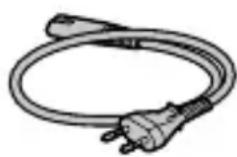
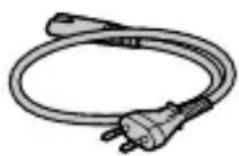
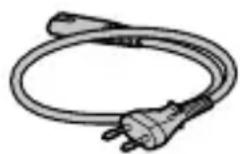
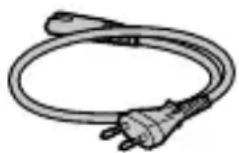
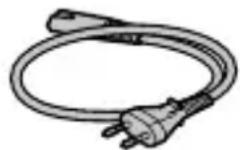
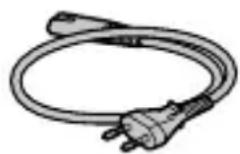
- Power cord (mains lead) (1)* (supplied in some countries/regions)
* Multiple power cords may be supplied with this equipment. Use the appropriate one that matches your country/region. See "Notes on use."
- Rechargeable battery pack NP-FW50 (1)
- USB Type-C® cable (USB 2.0) (1)
- Wind screen (1) (attached to the wind screen adaptor) • Wind screen adaptor (1)
- Shoulder strap (1)
- Body cap (1)*
* Only for the ZV-E10
- Startup Guide (this manual) (1) • Reference Guide (1)
Identifying parts
For details on identifying parts, refer to the following Help Guide URL:
https://rd1.sony.net/help/ilc/2070_parts/h_zz/
Inserting the battery pack (supplied)/memory card (sold separately) into the camera
Open the battery/memory card cover, and insert the battery pack and a memory card into the camera. Then, close the cover.
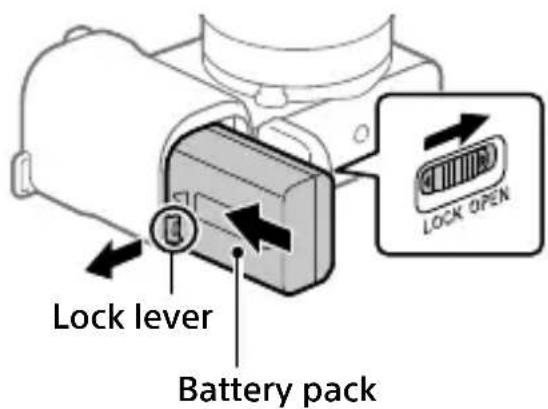
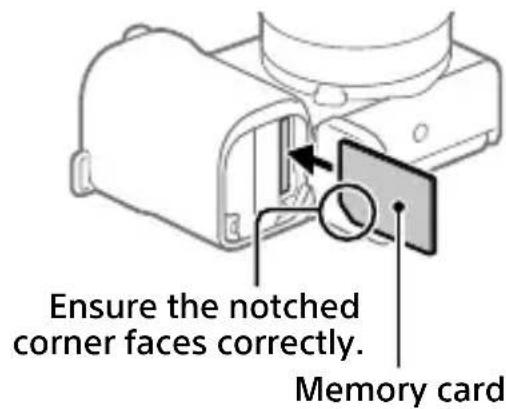
Battery pack
Make sure that the battery pack is facing in the correct direction, and insert it while pressing the battery lock lever.
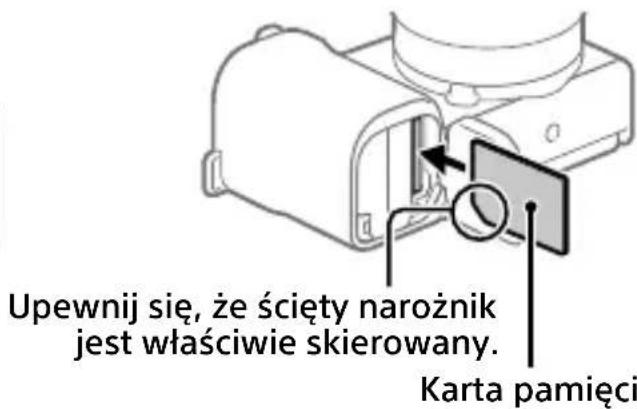
Memory card
Insert the memory card with the notched corner facing as illustrated.
This camera is compatible with SD memory cards and Memory Stick media. For details on the compatible memory cards, refer to the "Help Guide."
When you use a memory card with this camera for the first time, format the card using the camera in order to stabilize the performance of the memory card.
Note
- Formatting erases all data, including protected images and registered settings (M1 to M4). Once erased, this data cannot be restored. Save valuable data to a computer, etc. before formatting.
Charging the battery pack
1 Turn the power off.
If the camera is turned on, the battery pack will not be charged.
2 Connect the camera with the battery pack inserted to the AC Adaptor (supplied) using the USB cable (supplied), and connect the AC Adaptor to the wall outlet (wall socket).
The charge lamp will light up when charging starts. When the charge lamp turns off, charging is completed.
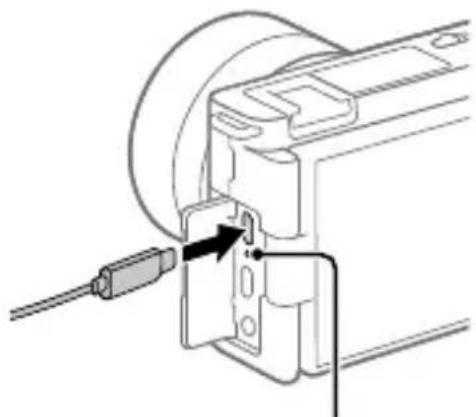
Charge lamp
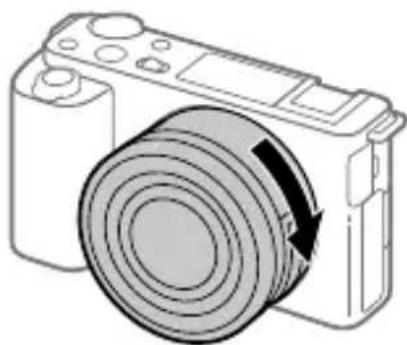
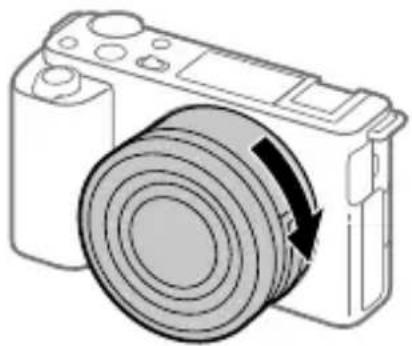
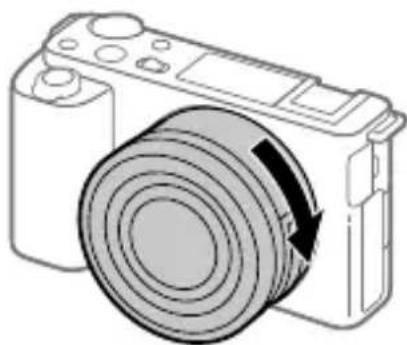
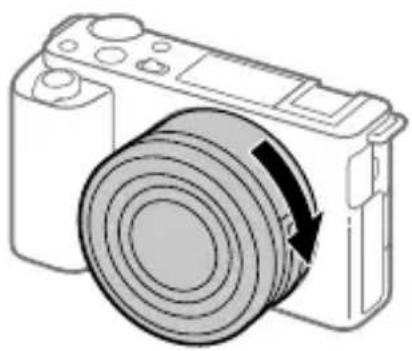
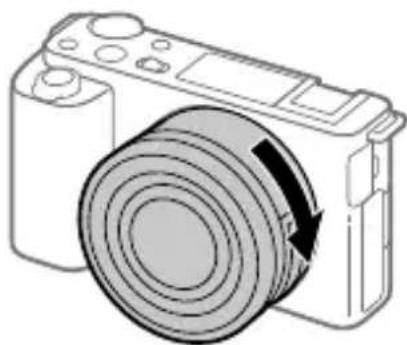
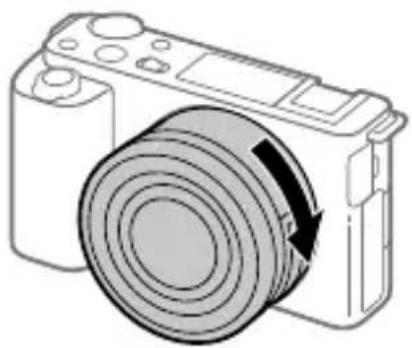
Attaching a lens
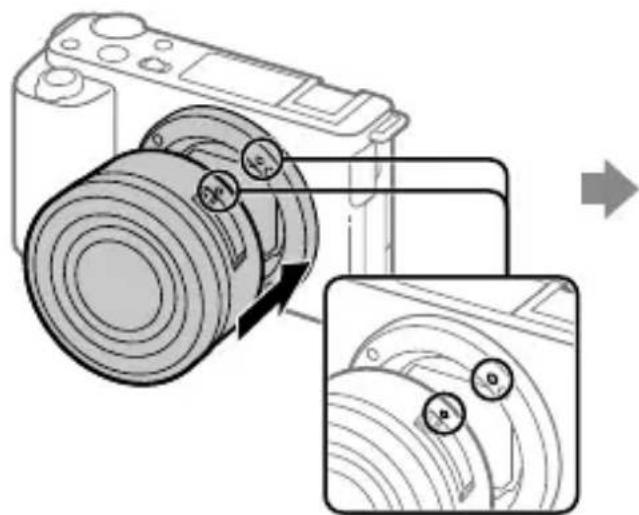
Mounting indexes
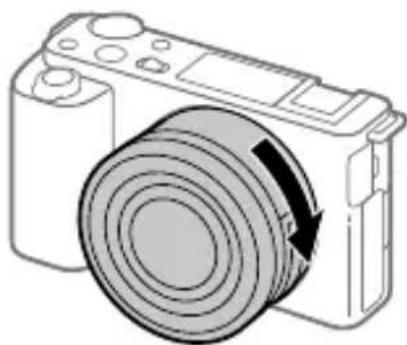
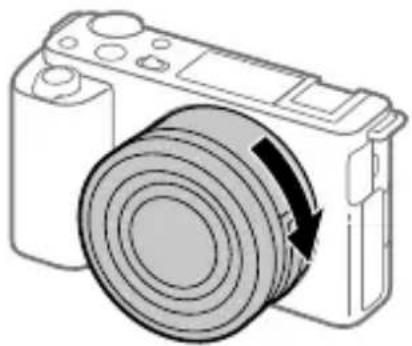
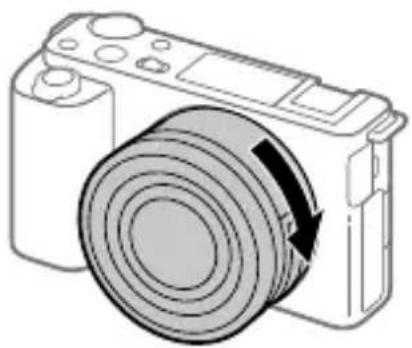
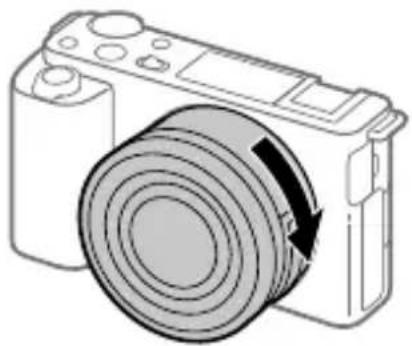
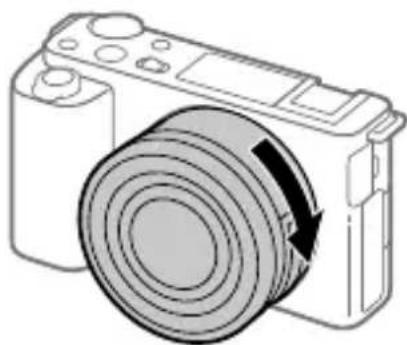
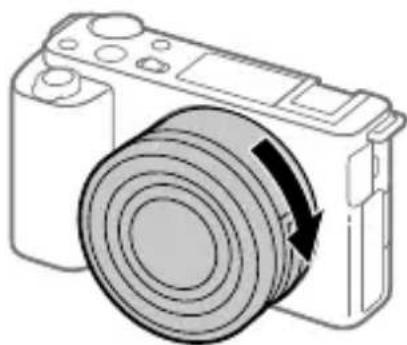
1 Remove the body cap from the camera and the rear lens cap from the rear of the lens. 2 Mount the lens by aligning the two white index marks (mounting indexes) on the lens and camera. 3 While pushing the lens lightly toward the camera, turn the lens slowly in the direction of the arrow until it clicks into the locked position.
Setting the language and the clock
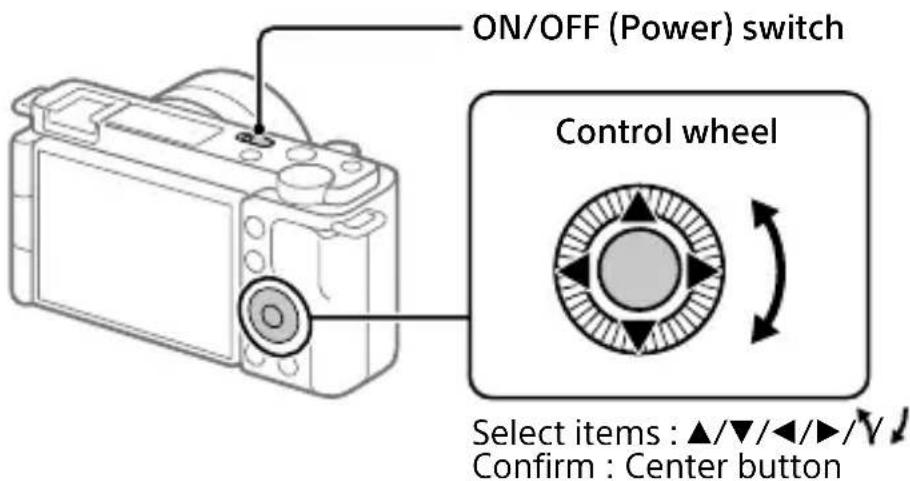
1 Set the ON/OFF (Power) switch to "ON" to turn on the camera. 2 Select the desired language and then press the center of the control wheel. 3 Make sure that [Enter] is selected on the screen and then press the center button. 4 Select the desired geographic location and then press the center button. 5 Set [Daylight Savings], [Date/Time], and [Date Format], and then select [Enter] and press the center button.
If you want to reconfigure the date/time or the area setting at a later point, select MENU → (Setup) → [Date/Time Setup] or [Area Setting].
Shooting
Shooting movies
1 Press the Still/Movie/S&Q button to select the movie recording mode.
Each time you press the button, the shooting mode switches in the order of still image shooting mode, movie recording mode, and slow-motion/quick-motion shooting mode.
2 Press the MENU button and select (camera Settings2) → [▶foot Mode] → the desired shooting mode.
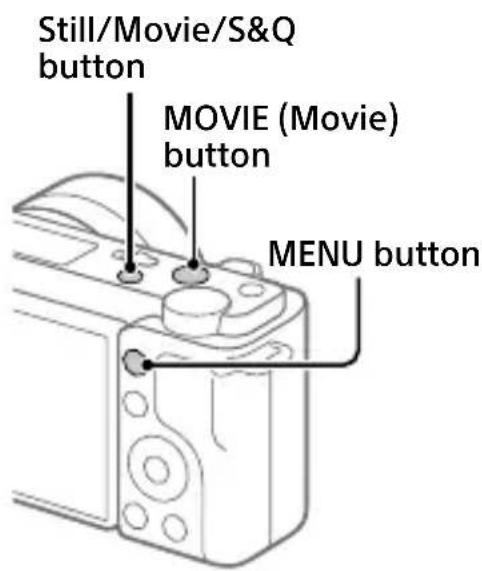
3 Press the MOVIE (Movie) button to start recording.
4 Press the MOVIE (Movie) button again to stop recording.
Hint
- The start/stop movie recording function is assigned to the MOVIE (Movie) button in the default settings. Even without switching shooting modes in Step 1, you can start movie recording from still image shooting mode by pressing the MOVIE (Movie) button.
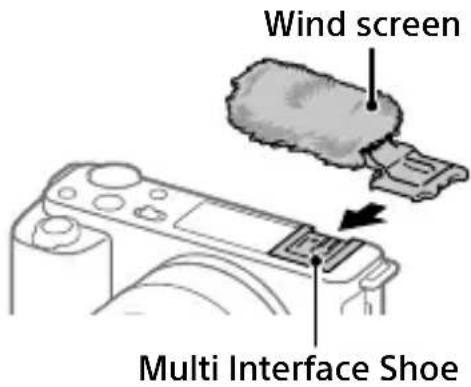
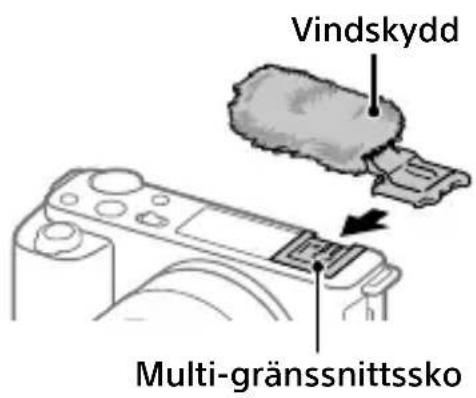
■ Using the wind screen (supplied)
Use the wind screen to reduce wind noise picked up by the internal microphone when recording a movie.
Attach the wind screen to the Multi Interface Shoe.
Shooting still images
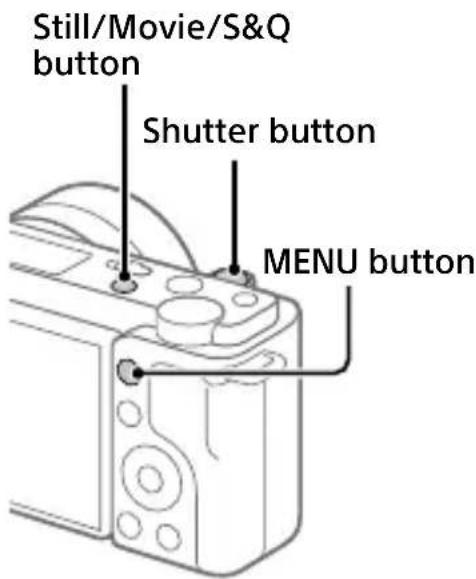
1 Press the Still/Movie/S&Q button to select the still image shooting mode.
Each time you press the button, the shooting mode switches in the order of still image shooting mode, movie recording mode, and slow-motion/quick-motion shooting mode.
2 Press the MENU button and select [Camera Settings1] → [Shoot Mode] → the desired shooting mode.
3 Press the shutter button halfway down to focus.
4 Press the shutter button all the way down.
| Viewing
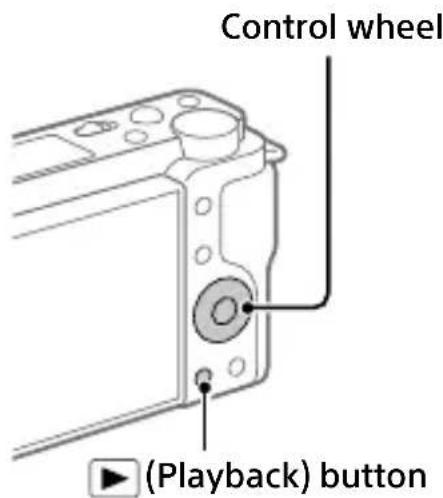
1 Press the (Playback) button to switch to the playback mode.
2 Select an image with the control wheel.
You can move to the previous image/ next image by pressing the left/right side of the control wheel. To start playing back a movie, press the center button on the control wheel.
Transferring images to a smartphone
You can transfer images to a smartphone by connecting the camera and a smartphone via Wi-Fi.
1 : Install Imaging Edge Mobile on your smartphone.
To connect the camera and your smartphone, Imaging Edge Mobile is required.
Install Imaging Edge Mobile to your smartphone in advance.
If Imaging Edge Mobile is already installed on your smartphone, be sure to update it to the latest version.
https://www.sony.net/iem/
2: Press the (Playback) button to switch to playback mode. Then press the Fn/ (Function/Send to Smartphone) button, and select images to transfer to the smartphone.
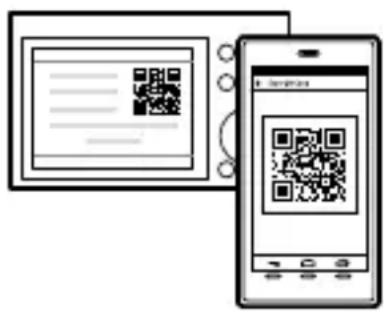
3: Use the QR Code to connect the camera and your smartphone.
①: Launch Imaging Edge Mobile on your smartphone, and select [Connect with a new camera]. ②: Scan the QR Code displayed on the camera while the [Connect using the camera QR Code] screen is displayed on the smartphone.
The camera and your smartphone will be connected, and images will be transferred.
When transferring images after the initial transfer, select the camera to be connected from the displayed camera list in Step 3-① above.
If you want to select images to transfer on the smartphone, or use the remote shooting function via smartphone, perform the following procedure.
Select MENU → Ⓗ (Network) → [Smartphone Connect] → [☐Connection] on the camera.
Then, launch Imaging Edge Mobile on your smartphone and connect the camera and your smartphone as described in Step 3 above.
Refer to the following support sites for information on how to transfer images:
https://www.sony.net/dics/iem22/
- For details on other connection methods, types of images that can be transferred, or how to use the smartphone as a remote commander to operate the camera, refer to the "Help Guide."
- The Wi-Fi functions introduced in this manual are not guaranteed to operate on all smartphones or tablets.
- The Wi-Fi functions of this camera are not available when connected to a public wireless LAN.
Editing movies on a smartphone
You can edit recorded movies by installing the Movie Edit add-on to your smartphone.
For details on installation and use, refer to the following URL:
https://www.sony.net/mead/
Managing and editing images on a computer
By connecting the camera to a computer using a USB cable or inserting the camera's memory card into the computer, you can import recorded images to the computer.
You can perform remote shooting from a computer, and adjust or develop RAW images recorded with the camera by using the software suite Imaging Edge Desktop.
For details on the computer software, refer to the following URL.
Notes on use
Refer to "Precautions" in the "Help Guide" as well.
Notes on handling the product
- This camera is designed to be dust-and moisture-resistant, but is not waterproof or dust-proof.
- Do not leave the lens exposed to a strong light source such as sunlight. Because of the lens's condensing function, doing so may cause smoke, fire, or a malfunction inside the camera body or the lens.
- If sunlight or other strong light enters the camera through the lens, it may focus inside the camera and cause smoke or fire. Attach the lens cap when storing the camera. When shooting with backlighting, keep the sun sufficiently far away from the angle of view. Even if it is slightly away from the angle of view, smoke or fire may still occur.
- Do not directly expose the lens to beams such as laser beams. That may damage the image sensor and cause the camera to malfunction.
- Do not look at sunlight or a strong light source through the lens when it is detached. This may result in unrecoverable damage to the eyes or cause a malfunction.
- This camera (including accessories) has magnet(s) which may interfere with pacemakers, programmable shunt valves for hydrocephalus treatment, or other medical devices. Do not place this camera close to persons who use such medical devices. Consult your doctor before using this camera if you use any such medical device.
- This camera is equipped with a magnetic sensor. If the camera is placed too close to a magnet or a device with an internal magnet, the lens may activate. Take care not to place the camera near any magnetic devices.
- Increase the volume gradually. Sudden loud noises can damage your ears. Be especially careful when listening to headphones.
- Do not leave the camera, the supplied accessories, or memory cards within the reach of infants. They may be accidentally swallowed. If this occurs, consult a doctor immediately.
Notes on the monitor
- The monitor is manufactured using extremely high-precision technology, and over 99.99% of the pixels are operational for effective use. However, there may be some small black dots and/or bright dots (white, red, blue or green in color) that constantly appear on the monitor. These are imperfections due to the manufacturing process and do not affect the recorded images in any way.
- If the monitor is damaged, stop using the camera immediately. The damaged parts may harm your hands, face, etc.
Notes on continuous shooting
During continuous shooting, the monitor may flash between the shooting screen and a black screen. If you keep watching the screen in this situation, you may experience uncomfortable symptoms such as feeling of unwellness. If you experience uncomfortable symptoms, stop using the camera, and consult your doctor as necessary.
Notes on recording for long periods of time or recording 4K movies
- The camera body and battery may become warm with use – this is normal.
- If the same part of your skin touches the camera for a long period of time while using the camera, even if the camera does not feel hot to you, it may cause symptoms of a low-temperature burn such as redness or blistering. Pay special attention in the following situations and use a tripod, etc.
- When using the camera in a high temperature environment
- When someone with poor circulation or impaired skin sensation uses the camera
- When using the camera with [Auto Power OFF Temp.] set to [High]
Notes on using a tripod
Use a tripod with a screw less than 5.5 mm (7/32 inches) long. Otherwise, you cannot firmly secure the camera, and damage to the camera may occur.
Sony lenses/accessories
Using this unit with products from other manufacturers may affect its performance, leading to accidents or malfunction.
Warning on copyrights
Television programs, films, videotapes, and other materials may be copyrighted. Unauthorized recording of such materials may be contrary to the provisions of the copyright laws.
Notes on location information
If you upload and share an image tagged with a location, you may accidentally reveal the information to a third party. To prevent third parties from obtaining your location information, set [Location Info. Link Set.] to [Off] before shooting images.
Notes on discarding or transferring this product to others
Before discarding or transferring this product to others, be sure to perform the following operation to protect private information.
- Select [Setting Reset] → [Initialize].
Notes on discarding or transferring a memory card to others
Executing [Format] or [Delete] on the camera or a computer may not completely delete the data on the memory card. Before transferring a memory card to others, we recommend that you delete the data completely using data deletion software. When discarding a memory card, we recommend that you physically destroy it.
Note on network functions
When you use network functions, unintended third parties on the network may access the camera, depending on the usage environment. For example, unauthorized access to the camera may occur in network environments to which another network device is connected or can connect without permission. Sony bears no responsibility for any loss or
damage caused by connecting to such network environments.
How to turn off wireless network functions (Wi-Fi, etc.) temporarily
When you board an airplane, etc., you can turn off all wireless network functions temporarily using [Airplane Mode].
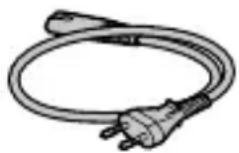
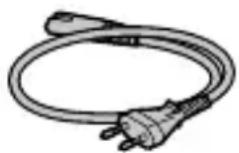
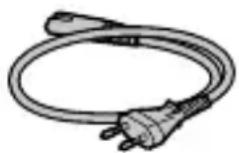
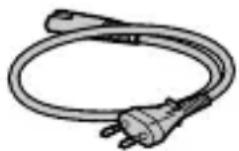
Power Cord
For the customers in the UK, Ireland, Malta, Cyprus and Saudi Arabia
Use the power cord (A).
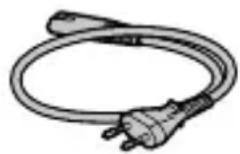
For safety reasons, the power cord (B) is not intended for above countries/regions and shall therefore not be used there.
For the customers in other EU countries/regions
Use the power cord (B).
(A) (B)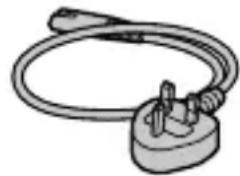
For Customers in the U.S.A.
For questions regarding your product or for the Sony Service Center nearest you, call 1-800-222-SONY (7669).
Supplier's Declaration of Conformity
Trade Name: SONY
Model: WW356015
Responsible Party: Sony Electronics Inc.
Address: 16535 Via Esprillo, San Diego, CA 92127 U.S.A.
Telephone Number: 858-942-2230
This device complies with part 15 of the FCC rules. Operation is subject to the following two conditions: (1) This device may not cause harmful interference, and (2) this device must accept any interference received, including interference that may cause undesired operation.
This device may not cause harmful interference, and (2) this device must accept any interference received, including interference that may cause undesired operation.
Specifications
Camera
[System]
Camera Type: Interchangeable Lens Digital Camera
Lens: Sony E-mount lens
[Image sensor]
Image format: APS-C size (23.5 mm × 15.6 mm), CMOS image sensor
Effective pixel number of camera: Approx. 24,200,000 pixels
Total pixel number of camera: Approx. 25,000,000 pixels
[Monitor]
7.5 cm (3.0 type) TFT drive, touch panel
[General]
Rated input: 7.2 V=, 2.0 W
Operating temperature: 0 to 40 °C (32 to 104 °F)
Storage temperature: -20 to 55 °C (-4 to 131 °F)
Dimensions (W/H/D) (Approx.): 115.2 × 64.2 × 44.8 mm 4 5/8 × 2 5/8 × 1 13/16 in.
Mass (Approx.): 343 g (12.1 oz) (including battery pack, SD Card)
[Wireless LAN]
Supported format: IEEE 802.11 b/g/n
Frequency band: 2.4 GHz
Security: WEP/WPA-PSK/WPA2-PSK
Connection method: Wi-Fi Protected Setup™ (WPS)/ Manual
Access method: Infrastructure mode
AC Adaptor AC-UUD12/AC-UUE12
Rated input: 100 - 240 V ∼, 50/60 Hz, 0.2 A
Rated output: 5 V, 1.5 A
Rechargeable battery pack NP-FW50
Rated voltage: 7.2 V
Maximum charge voltage: DC 8.4 V
Maximum charge current: 1.02 A
Design and specifications are subject to change without notice.
Trademarks
GB
• XAVC S and XAVC are registered trademarks of Sony Corporation. - USB Type-C® and USB-C® are registered trademarks of USB Implementers Forum. - Wi-Fi, the Wi-Fi logo and Wi-Fi Protected Setup are registered trademarks or trademarks of the Wi-Fi Alliance. • QR Code is a trademark of Denso Wave Inc. - In addition, system and product names used in this manual are, in general, trademarks or registered trademarks of their respective developers or manufacturers. However, the ™ or ® marks may not be used in all cases in this manual.
Additional information on this product and answers to frequently asked questions can be found at our Customer Support Website.
https://www.sony.net/
https://rd1.sony.net/help/ilc/2070/h_zz/
ZV-E10 Help Guide

Tutorials
https://www.sony.net/tutorial/zv/e10/
Preparations
https://rd1.sony.net/help/ilc/2070_parts/h_zz/
Mounting marks
https://www.sony.net/iem/
FR
https://www.sony.net/mead/
Specifications
Camera
[System]
Rechargeable battery
NP-FW50
https://rd1.sony.net/help/ilc/2070/h_zz/
ZV-E10
Help

Tutorials
https://www.sony.net/tutorial/zv/e10/
Preparations
https://rd1.sony.net/help/ilc/2070_parts/h_zz/
Mounting indexes
https://www.sony.net/iem/
DE
https://www.sony.net/mead/
Technical specifications
Camera
[System]
https://rd1.sony.net/help/ilc/2070/h_zz/
Tutorials
https://www.sony.net/tutorial/zv/e10/
Preparations
https://rd1.sony.net/help/ilc/2070_parts/h_zz/
Mount indices
https://www.sony.net/iem/
EN
https://www.sony.net/mead/
Specifications
Camera
[System]
https://rd1.sony.net/help/ilc/2070/h_zz/
ZV-E10 Guide
![SONY ZVE10L - [System] - 1](/content/2026/03/535174/images/349cf3908dabe2bef4dcd01caa33bb238420a9f08c67f325a2975cf1f777f8cf.jpg)
Tutorial
https://www.sony.net/tutorial/zv/e10/
Preparations
https://rd1.sony.net/help/ilc/2070_parts/h_zz/
Mounting indices
IT
https://www.sony.net/iem/
https://www.sony.net/mead/
Technical data
Camera
[System]
https://rd1.sony.net/help/ilc/2070/h_zz/
ZV-E10 Help Guide
![SONY ZVE10L - [System] - 1](/content/2026/03/535174/images/e3470ab256076506e470ef59c66ad0b2801c2f71b279ea6c6c313bf10328cef2.jpg)
Tutorials
https://www.sony.net/tutorial/zv/e10/
Preparations
https://rd1.sony.net/help/ilc/2070_parts/h_zz/
Mounting indexes
PT
https://www.sony.net/iem/
https://www.sony.net/mead/
Specifications
Camera
[System]
https://rd1.sony.net/help/ilc/2070/h_zz/
ZV-E10 Help Guide
![SONY ZVE10L - [System] - 1](/content/2026/03/535174/images/f0e7411bebb8b21ec2036dc54955ab1ab5da67082df00af75a642e6626df66e8.jpg)
Tutorial materials
https://www.sony.net/tutorial/zv/e10/
Preparations
NL
https://rd1.sony.net/help/ilc/2070_parts/h_zz/
Charging lamp
Attach a lens

Mounting marks
NL
https://www.sony.net/iem/
https://www.sony.net/mead/
Technical specifications
Camera
[System]
https://rd1.sony.net/help/ilc/2070/h_zz/
Tutorials
https://www.sony.net/tutorial/zv/e10/
Preparations
- Battery NP-FW50 (1)
https://rd1.sony.net/help/ilc/2070_parts/h_zz/
Mounting indicators
PL
https://www.sony.net/iem/
PL
https://www.sony.net/mead/
Specifications
Camera
[System]
https://rd1.sony.net/help/ilc/2070/h_zz/
Learning materials
https://www.sony.net/tutorial/zv/e10/
Preparation
https://rd1.sony.net/help/ilc/2070_parts/h_zz/
RU
Mounting mark
RU
https://www.sony.net/iem/
https://www.sony.net/mead/

https://rd1.sony.net/help/ilc/2070/h_zz/
ZV-E10 Help

Tutorials
https://www.sony.net/tutorial/zv/e10/
Preparation
https://rd1.sony.net/help/ilc/2070_parts/h_zz/
UA
UA
https://www.sony.net/iem/
UA
https://www.sony.net/mead/
https://rd1.sony.net/help/ilc/2070/h_zz/
ZV-E10 Help Guide

Manual
https://www.sony.net/tutorial/zv/e10/
Preparations
https://rd1.sony.net/help/ilc/2070_parts/h_zz/
SE
Mounting marks
https://www.sony.net/iem/
SE
https://www.sony.net/mead/
Technical specifications
Camera
[System]
Camera type: Digital camera with interchangeable lens
Lens: Sony E-mount lens
[Image sensor]
Image format: APS-C size (23.5 mm × 15.6 mm), CMOS image sensor
Effective number of camera pixels: Approx. 24,200,000 pixels
Total number of camera pixels: Approx. 25,000,000 pixels
[Monitor]
7.5 cm (3.0 in) TFT screen, touch panel
[General]
Rated input: 7.2 V = , 2.0 W
https://rd1.sony.net/help/ilc/2070/h_zz/
ZV-E10 User Guide
![SONY ZVE10L - [General] - 1](/content/2026/03/535174/images/dcf4044daf92ad611cfb71f695bca54ede9880b83450b6075e3b183c30ab490f.jpg)
Tutorials
https://www.sony.net/tutorial/zv/e10/
Preparation
https://rd1.sony.net/help/ilc/2070_parts/h_zz/
Mounting indexes
Viewing
https://www.sony.net/iem/
https://www.sony.net/mead/
Technical specifications
Camera
[System]
"Help Guide" (Internet manual)
https://rd1.sony.net/help/ilc/2070/h_zz/
Guides
https://www.sony.net/tutorial/zv/e10/
Preparation
Checking the supplied items
The number in parentheses indicates the quantity.
https://rd1.sony.net/help/ilc/2070_parts/h_zz/
NO
Insert the battery (included) / memory card (sold separately) into the camera
Mounting indexes
https://www.sony.net/iem/
https://www.sony.net/mead/
Managing and editing images on a computer
You can import images to the computer by connecting the camera to the computer with a USB cable or inserting the camera's memory card into the computer.
Specifications
Camera
[System]
Camera type: Digital camera with interchangeable lens
https://rd1.sony.net/help/ilc/2070/h_zz/
Guides
https://www.sony.net/tutorial/zv/e10/
Preparations
https://rd1.sony.net/help/ilc/2070_parts/h_zz/
DK
Mounting index

https://www.sony.net/iem/
https://www.sony.net/mead/
Specifications
Camera
[System]

- SONY®
- ZV-E
- ABOUT THE MANUAL FOR THIS CAMERA
- LOOKING FOR VALUABLE INFORMATION, SUCH AS ESSENTIAL POINTS ON SHOOTING
- PREPARATIONS
- CHECKING THE SUPPLIED ITEMS
- IDENTIFYING PARTS
- INSERTING THE BATTERY PACK (SUPPLIED)/MEMORY CARD (SOLD SEPARATELY) INTO THE CAMERA
- BATTERY PACK
- MEMORY CARD
- NOTE
- CHARGING THE BATTERY PACK
- TURN THE POWER OFF
- CONNECT THE CAMERA WITH THE BATTERY PACK INSERTED TO THE AC ADAPTOR (SUPPLIED) USING THE USB CABLE (SUPPLIED), AND CONNECT THE AC ADAPTOR TO THE WALL OUTLET (WALL SOCKET)
- ATTACHING A LENS
- SETTING THE LANGUAGE AND THE CLOCK
- SHOOTING
- SHOOTING MOVIES
- PRESS THE STILL/MOVIE/S&Q BUTTON TO SELECT THE MOVIE RECORDING MODE
- PRESS THE MENU BUTTON AND SELECT (CAMERA SETTINGS2) → [▶FOOT MODE] → THE DESIRED SHOOTING MODE
- PRESS THE MOVIE (MOVIE) BUTTON TO START RECORDING
- PRESS THE MOVIE (MOVIE) BUTTON AGAIN TO STOP RECORDING
- HINT
- USING THE WIND SCREEN (SUPPLIED)
- SHOOTING STILL IMAGES
- PRESS THE STILL/MOVIE/S&Q BUTTON TO SELECT THE STILL IMAGE SHOOTING MODE
- PRESS THE MENU BUTTON AND SELECT [CAMERA SETTINGS1] → [SHOOT MODE] → THE DESIRED SHOOTING MODE
- PRESS THE SHUTTER BUTTON HALFWAY DOWN TO FOCUS
- PRESS THE SHUTTER BUTTON ALL THE WAY DOWN
- VIEWING
- PRESS THE (PLAYBACK) BUTTON TO SWITCH TO THE PLAYBACK MODE
- SELECT AN IMAGE WITH THE CONTROL WHEEL
- TRANSFERRING IMAGES TO A SMARTPHONE
- INSTALL IMAGING EDGE MOBILE ON YOUR SMARTPHONE
- PRESS THE (PLAYBACK) BUTTON TO SWITCH TO PLAYBACK MODE. THEN PRESS THE FN/ (FUNCTION/SEND TO SMARTPHONE) BUTTON, AND SELECT IMAGES TO TRANSFER TO THE SMARTPHONE
- USE THE QR CODE TO CONNECT THE CAMERA AND YOUR SMARTPHONE
- EDITING MOVIES ON A SMARTPHONE
- MANAGING AND EDITING IMAGES ON A COMPUTER
- NOTES ON USE
- REFER TO "PRECAUTIONS" IN THE "HELP GUIDE" AS WELL
- NOTES ON HANDLING THE PRODUCT
- NOTES ON THE MONITOR
- NOTES ON CONTINUOUS SHOOTING
- NOTES ON RECORDING FOR LONG PERIODS OF TIME OR RECORDING 4K MOVIES
- NOTES ON USING A TRIPOD
- SONY LENSES/ACCESSORIES
- WARNING ON COPYRIGHTS
- NOTES ON LOCATION INFORMATION
- NOTES ON DISCARDING OR TRANSFERRING THIS PRODUCT TO OTHERS
- NOTES ON DISCARDING OR TRANSFERRING A MEMORY CARD TO OTHERS
- NOTE ON NETWORK FUNCTIONS
- HOW TO TURN OFF WIRELESS NETWORK FUNCTIONS (WI-FI, ETC.) TEMPORARILY
- POWER CORD
- FOR THE CUSTOMERS IN THE UK, IRELAND, MALTA, CYPRUS AND SAUDI ARABIA
- FOR THE CUSTOMERS IN OTHER EU COUNTRIES/REGIONS
- FOR CUSTOMERS IN THE U.S.A
- SUPPLIER'S DECLARATION OF CONFORMITY
- SPECIFICATIONS
- CAMERA
- [SYSTEM]
- [IMAGE SENSOR]
- [MONITOR]
- [GENERAL]
- [WIRELESS LAN]
- AC ADAPTOR AC-UUD12/AC-UUE
- RECHARGEABLE BATTERY PACK NP-FW
- TRADEMARKS
- RECHARGEABLE BATTERY
- NP-FW
- TECHNICAL SPECIFICATIONS
- TECHNICAL DATA
- ATTACH A LENS
- PREPARATION
- INSERT THE BATTERY (INCLUDED) / MEMORY CARD (SOLD SEPARATELY) INTO THE CAMERA
Brand : SONY
Model : ZVE10L
Category : Camera