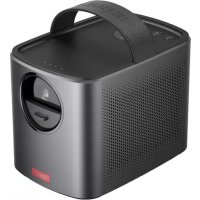
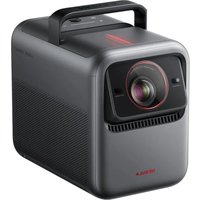
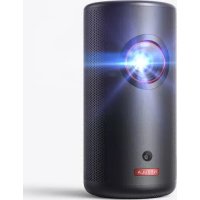
Mars II Pro - Projector NEBULA - Free user manual and instructions
Find the device manual for free Mars II Pro NEBULA in PDF.



| Product type | Portable DLP projector |
| Brand | Nebula |
| Model | Mars II Pro |
| Display technology | DLP 0.3 inch, 1280 x 720 pixels |
| Brightness | 500 ANSI lumens |
| Contrast ratio | 1000:1 |
| Projected image size | 30 to 150 inches |
| Projection ratio | 1.2 |
| Projection distance | 1 to 3 meters |
| Keystone correction | Automatic and manual |
| Focus | Automatic or manual |
| Power | AC adapter (DC input) or built-in Li-polymer battery 3350 mAh, 14.52 V |
| Video battery life | 3 hours |
| Music battery life | 30 hours |
| Speakers | 2 x 10 W |
| Connectivity | HDMI, USB 2.0, Bluetooth 4.2, Wi-Fi, 3.5 mm audio output |
| Wireless functions | Screen Cast (iOS/Android), Nebula Connect app |
| Dimensions (L x H x D) | 122 x 138 x 178 mm |
| Weight | 1483 g |
| Operating temperature | 0 to 35 °C |
| Remote control batteries | 2 x CR2032 (included) |
| Warranty | 12 months for hardware defects, 30 days satisfaction guaranteed or refund |
| Maintenance and cleaning | Soft lint-free cloth, lens cleaner |
| Safety | Do not look at the light beam; do not expose to moisture |
Frequently Asked Questions - Mars II Pro NEBULA
User questions about Mars II Pro NEBULA
0 question about this device. Answer the ones you know or ask your own.
Ask a new question about this device
Download the instructions for your Projector in PDF format for free! Find your manual Mars II Pro - NEBULA and take your electronic device back in hand. On this page are published all the documents necessary for the use of your device. Mars II Pro by NEBULA.
USER MANUAL Mars II Pro NEBULA
Read and understand all instructions before you use this device. Do not make any changes or settings that are not described in this manual. If physical injury, loss of data or damage is caused by failure to follow instructions, the warranty does not apply.
Setup
- To reduce the risk of fire and/or electric shock, do not expose the device to rain or moisture, and objects filled with liquids, such as vases, should not be placed on the device.
- Do not place the device on soft surfaces such as tablecloths or carpets as doing so could be a fire-hazard.
- Do not place the device in areas susceptible to excessive dust and dirt or near any appliance generating a strong magnetic field.
- To prevent overheating, do not block or clog the ventilation openings.
- Never place the device in a confined space. Always leave enough space around the device for ventilation.
- Protect the device against direct sunlight, heat, large temperature fluctuations and moisture.
- When the device runs for a long period of time and the surface becomes hot, shut it down and unplug the power cord. Resume operation only after the device has cooled.
- Always handle the device with care. Avoid touching the lens.
- Never place heavy or sharp objects on the device or the power cord.
- To avoid electric shock, do not disassemble.
- Only use attachments or accessories specified by the manufacturer.
- Avoid extreme vibration. It may damage the internal components.
- Do not allow children to handle the device without supervision.
- Under the following conditions, a layer of moisture can appear inside the device which can lead to malfunctions: a) if the device is moved from a cold to a warm area; b) after a cold room is heated; c) when the device is placed in a damp room. To avoid any moisture, seal the device in a plastic bag before moving it to another room, and wait for one to two hours before you take it out of the bag.
Power Supply
- Use only the provided power adapter.
- Power off the device before removing the power supply from the socket.
- Protect the power cord from being walked on or pinched, particularly at plugs, convenience receptacles, and the point where they exit from this device.
- Unplug this device if there are lightning storms or when unused for a long period of time.
- Where the power plug or an appliance coupler is used as the disconnect device, the disconnect device shall remain readily operable.
- Before you make or change any connections, ensure that all devices are disconnected from the power outlet.
- Never touch the power cable or the power connector with wet hands.
Hearing Safety
- To avoid hearing damage, do not listen for extended periods at high volume. Set the volume at a safe level.
Battery
- Do not replace the built-in battery yourself. Contact an authorized service center to replace it.
- The remote control contains coin type batteries which can be swallowed. Keep the batteries out of reach of children.
- Risk of explosion! Keep batteries away from heat, direct sunlight, or fire. Never discard batteries in fire.
- When the remote control is not used for a long period of time, remove the batteries.
- There is a danger of explosion if the battery is incorrectly replaced. Replace only with the same or equivalent type.
- Batteries contain chemical substances, they should be disposed of properly.
- Charge the device regularly. Do not store the device with a completely discharged battery.
Cleaning
- Power off the device and remove it from the power supply before cleaning the surface.
- Use a soft, lint-free cloth. Never use liquid, gaseous, or easily flammable cleansers (like sprays, abrasives, polishes, and alcohol).
- Do not use any liquid cleaning agents to clean the lens as they may damage the protective coating on the lens.
- Wipe over the surfaces gently. Be careful that you do not scratch the surfaces.
- Use lens cleaning paper to clean the lens of the projector.
Repairs
- Do not make any repairs to the device yourself. Only have your device repaired by an authorized service center.
- Improper maintenance can result in injuries or damage to the device.
Refer all servicing to qualified service personnel.
Caution:
- Possibly hazardous optical radiation emitted from this device.
- Do not stare at operating beam. The bright light may hurt your eyes.
What's Included

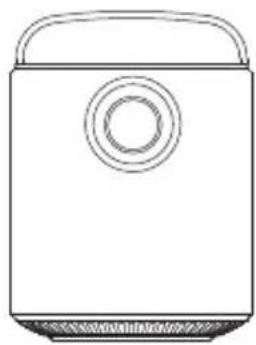
Main unit
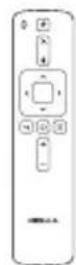
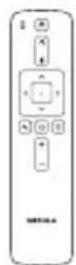
Remote control with batteries
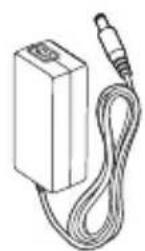
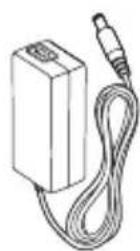
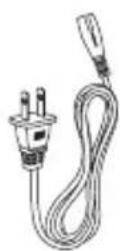
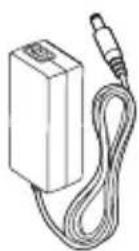
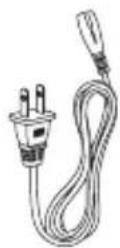
Power Adapter Power cord
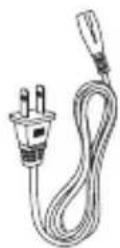
Manual
Overview
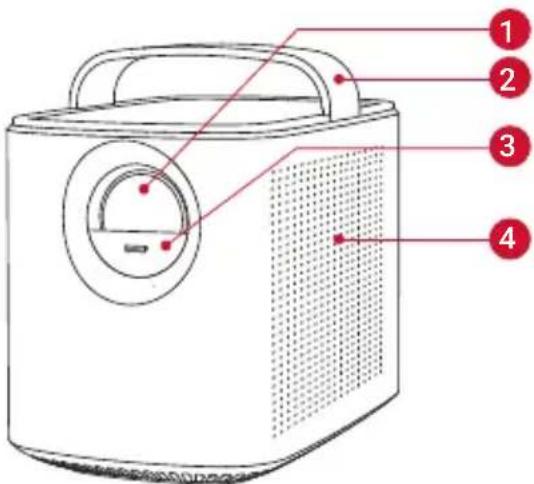
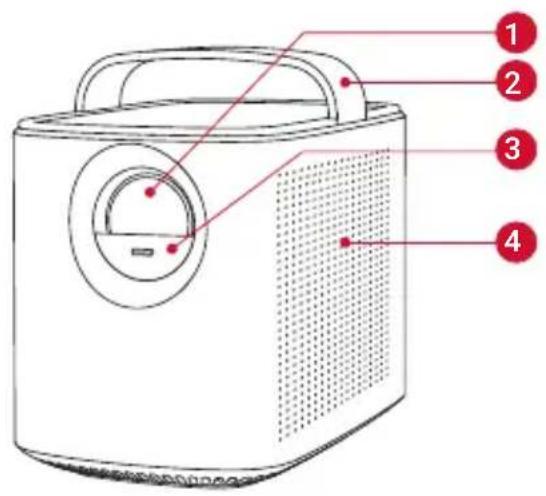
1. Front View
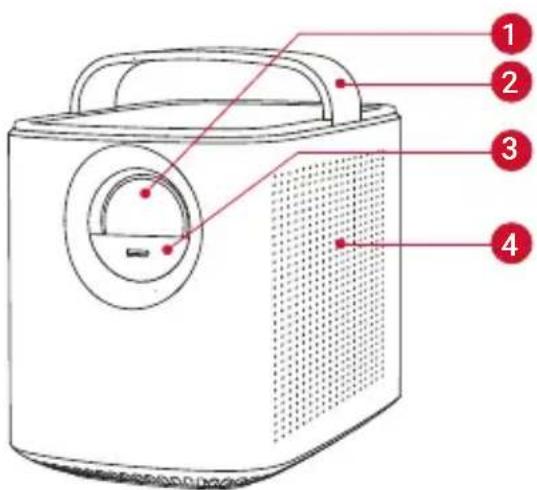
Lens
2 Handle
3 Lens cover
- Slide down to power on and automatically adjust focus
- Slide up to power off
4 Loudspeaker
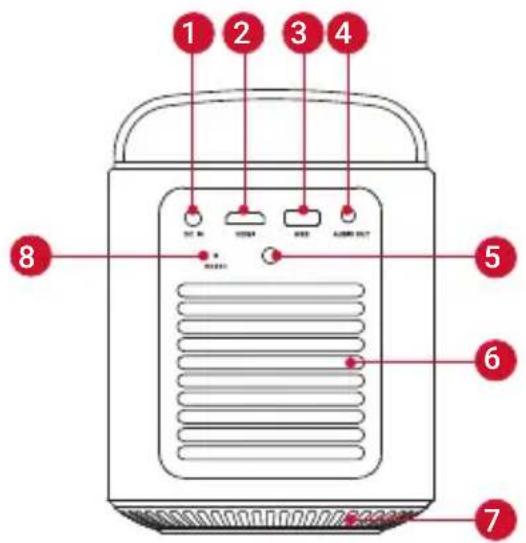
2. Rear View
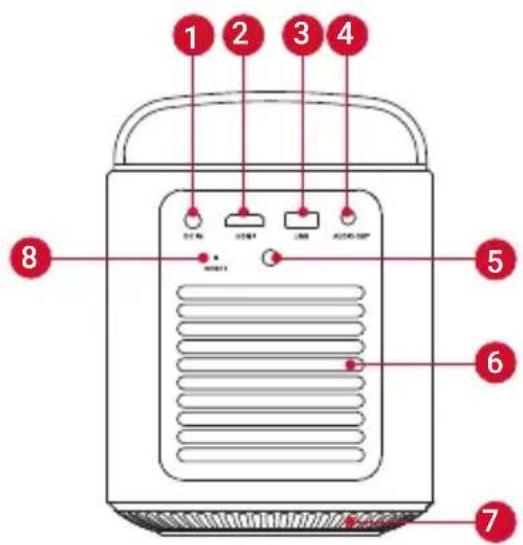
DC IN
- Connect to power supply
2 HDMI
- Connect to a playback device with HDMI output
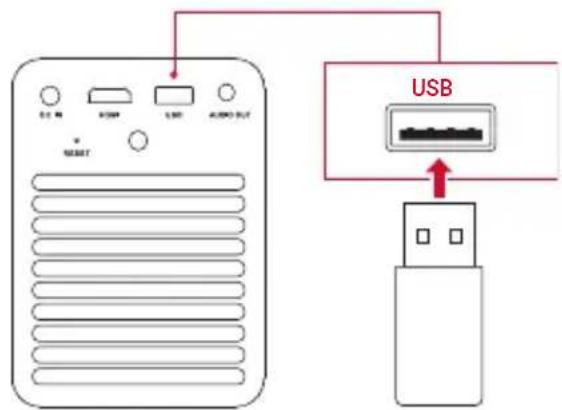
3 USB
- Connect to a USB storage device
- Charge a USB device as a power bank
4 AUDIO OUT
- Connect to a headphone or an external speaker
5 Infrared Receiver
6 Air ventilation (outlet)
7 Air ventilation (inlet)
8 RESET
- Press and hold for 3 seconds to reset
3. Top View

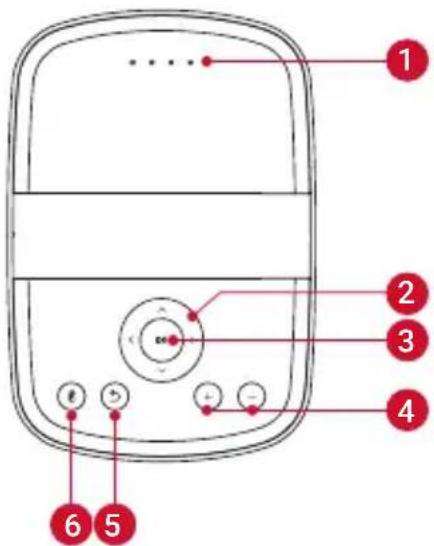
LED indicators
- Power level
2 Navigation buttons
- Navigate menus or adjust the selected contents
3 OK
-
Press to confirm a selection or entry
-
Pause / resume play
4 +/一
Volume up / down
5
- Return to the previous menu
6
- Press to enter/exit Bluetooth mode
- In standby mode, press to wake up the projector
4. Bottom View
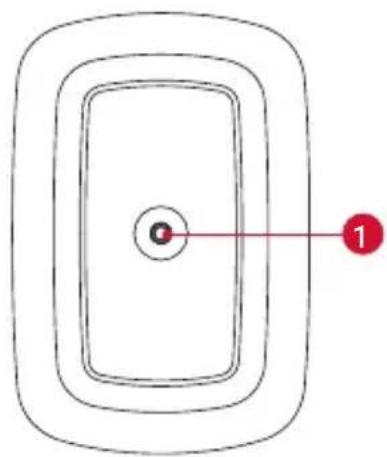

1/4" Tripod Socket
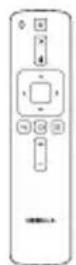
5. Remote Control
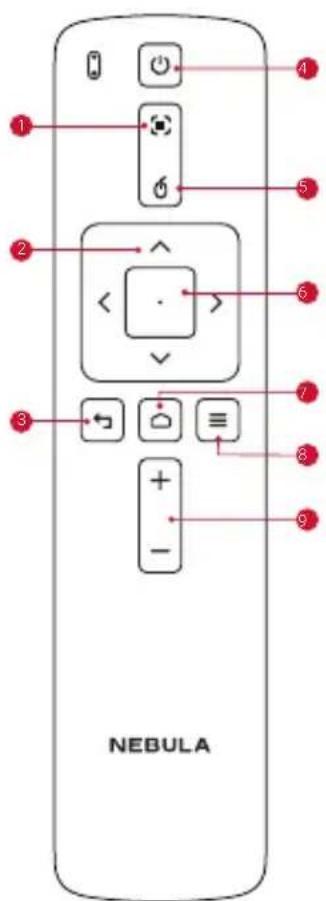
1 Adjust Focus
2 Navigation
3 Back
4 Power On / Off
5 Mouse mode
6 Confirm the selected content
Home
8 System Settings
9 Volume Up / Down
Getting Started
1. Placement
Place Mars II Pro on a stable, flat foundation in front of the projection surface. For the best results, the projection surface should be white and flat. The distance between the projector and the projection surface must be a minimum of 1 meter (39.4 inches) and a maximum of 3 meters (118 inches).
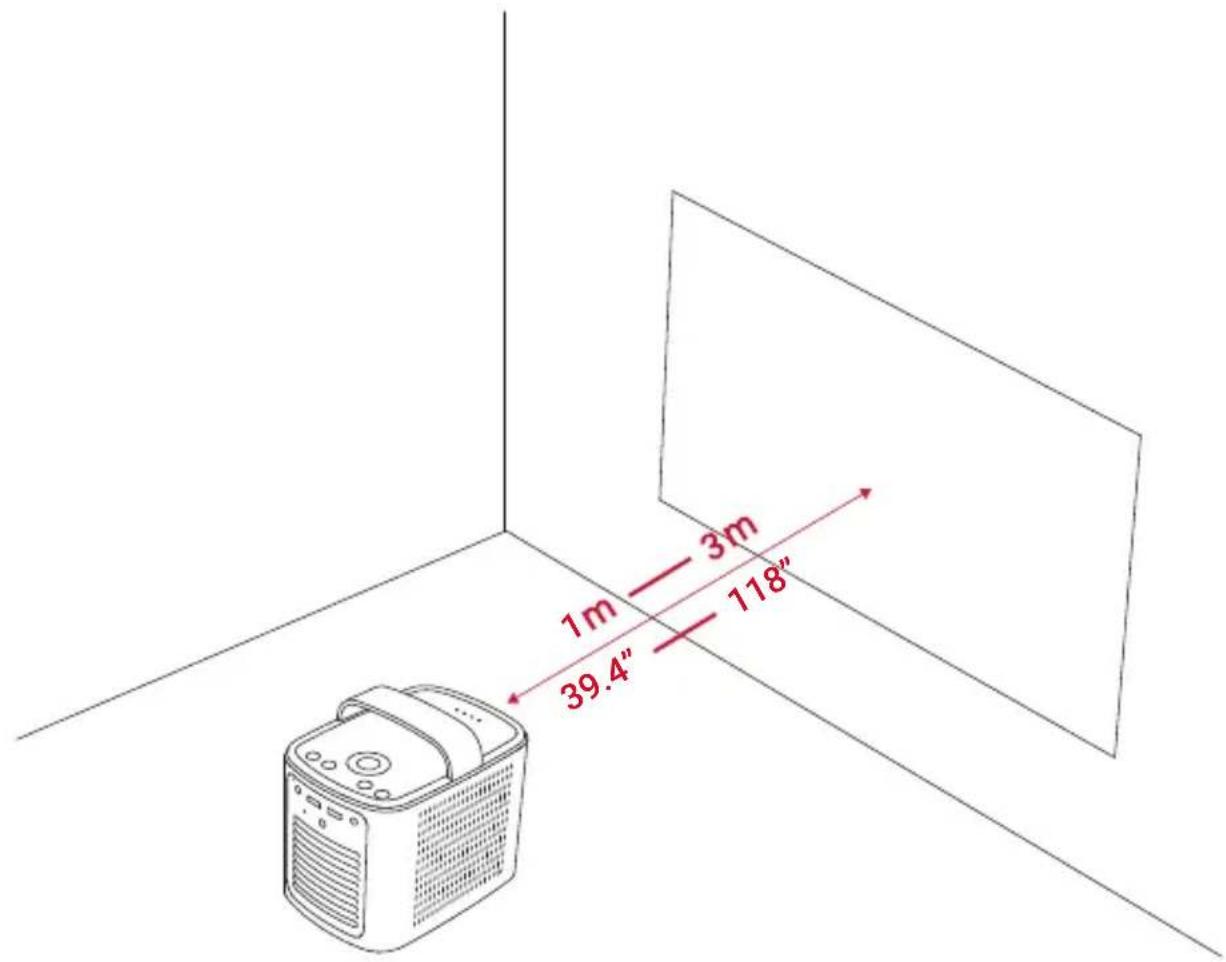

- It is unnecessary to tilt the projector towards the projection surface. You can correct the projection image with the built-in keystone correction.
- The distance between the projector and the projection surface determines the image size.
2. Prepare the Remote Control
① For first-time use, remove the plastic battery insulation tab to activate the remote control batteries.
② To replace the battery, slide off the battery compartment backplate to open the battery compartment, insert new batteries (matching the polarity (+/-) indicated), and close the battery compartment.
3. Get Started
(1) Fully charge the built-in battery before using for the first time.
② Connect the projector to the outlet by using the provided power adapter and power cord, the built-in battery will be charged and the LED indicators will light on.
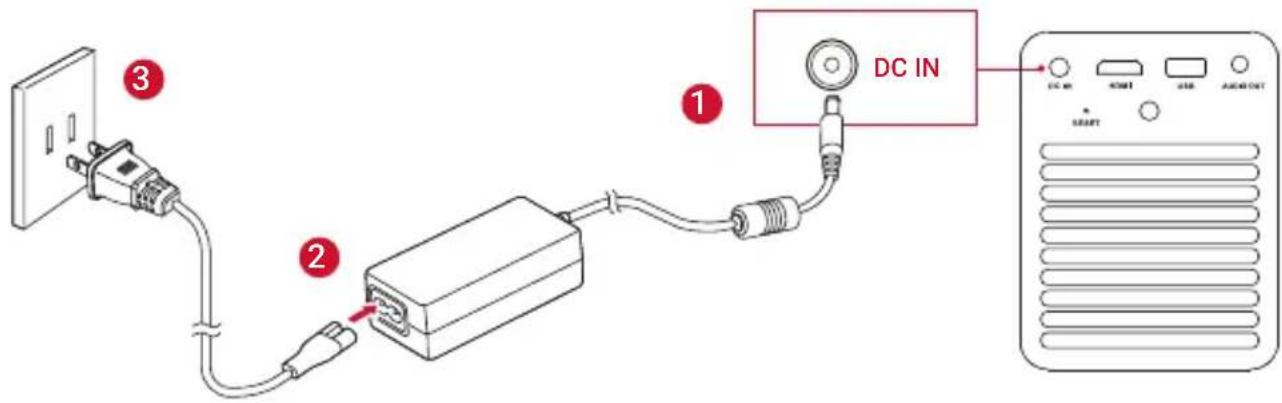
③ Slide down the lens cover, and the projector will automatically turn on. When the projector is in standby mode, you can also press on the remote control to turn it on.
(4) Angle the projector towards a suitable projection surface or wall.
(5) To focus the image, slightly move the projector to engage auto-focus or press and hold the on the remote control to manually adjust.
For first time use, follow the on-screen instructions to complete the basic set-up.
Nebula App
To easily control the projector, we recommend you to download the devoted Nebula App, Nebula Connect. Using this app, you can use your smartphone's keyboard to input text and control the projector by operating a mouse on the screen.
① Download the Nebula Connect app from the App Store (iOS devices) or Google Play (Android devices).
② Enable Bluetooth on your smartphone and select [Nebula] as the device to be connected.
③ Open the Nebula Connect app and follow the on-screen instructions to complete the connection setup.
Settings
Go through the set-up process when you turn on the projector for the first time.
1. Network
This projector can be connected to the Internet via a wireless (Wi-Fi) connection.
① On the home menu, select [Settings] > [Network] and press OK
② Follow the on-screen instructions to complete the network connection.
2. Bluetooth
Bluetooth Speaker Mode
You can use this projector as a standalone Bluetooth speaker.
① Press on the projector to switch to Bluetooth speaker mode.
② Enable Bluetooth on your smartphone and select [Nebula] as the device to be connected.
Projector Mode
You can connect Bluetooth headphones or a speaker to Mars II Pro while it's in projector mode.
① On the home menu, select [Settings] > [Bluetooth] and press OK
② Follow the on-screen instructions to complete the Bluetooth connection.
3. Projector
On the home menu, select [Settings] > [Projector], and press OK
| [Image Mode] [Auto] / [Standard Mode] / [Battery Mode] | |
| [Color Temperature] | [Normal] / [Cool] / [Warm] |
| [Auto Keystone Correction] | Enable / disable auto Keystone correction. |
| [Keystone Correction] | Manually make keystone correction. The default value is 0. |
| [Auto Focus] Enable / disable | e auto focus. |
| [Projector Mode] | [Front]: The device is located in front of the projection surface. |
| [Rear]: The device is located behind the projection surface. | |
| [Front Ceiling]: The device is hanging from the ceiling in an upside-down position. The image is rotated by 180 degrees. | |
| [Rear Ceiling]: The device is hanging from the ceiling in an upside-down position behind the projection surface. The image is rotated by 180 degrees and horizontally mirrored. | |
4. App Manager
① On the home menu, select [Settings] > [App Manager] and press OK.
② Select an app and check the current version, open or force stop, check the storage used, clear data or cache, or uninstall it.

When more than 3 apps are installed, you can select [All] at the bottom line of the home page to enter the [Apps] page. Select an app and press on the remote control, and then you can select [Move To Home] or [Uninstall].
5. Others
On the home menu, select [Settings] to find more setting options.
| [General] | |
| (Language] Select an on-screen display language. | |
| [Keypad Tone] Turn the keypad tone on/off. | |
| [Automatic Sleep Interval] | 5 min / 15 min / 30 min |
| [Background] Select a background. | |
| [Clear Cache] | Clear all the cached data stored on the projector. |
| [Date&Time] | |
| [Automatic Date&Time] Enable / disable automatic date and time. | |
| [Date] Manually set date. | |
| [Time] Manually set time. | |
| [Select time zone] Select the time zone. | |
| [Use 24-hour format] Select 24-hour format or 12-hour format. | |
| [Upgrade] | |
| [Check Update] | Check if it is the latest version. Follow the on-screen instructions to update the software version. |
| [About] | |
| [Recovery] All data on the built-in storage will be erased. | |
Using the Nebula Mars II Pro
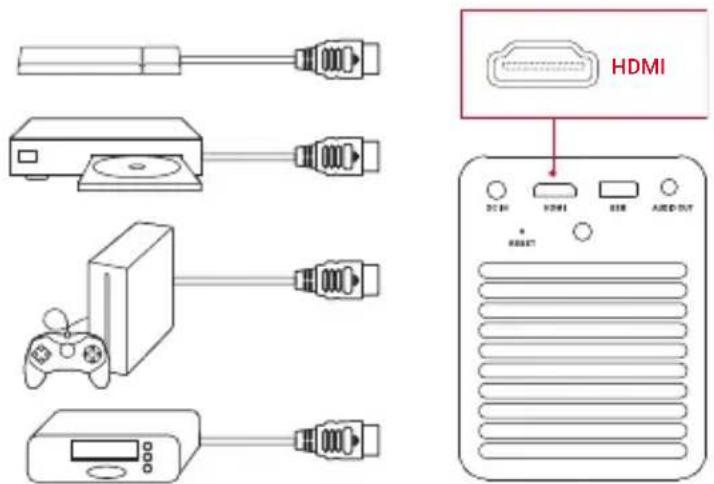
1. Connect to HDMI Playback Devices
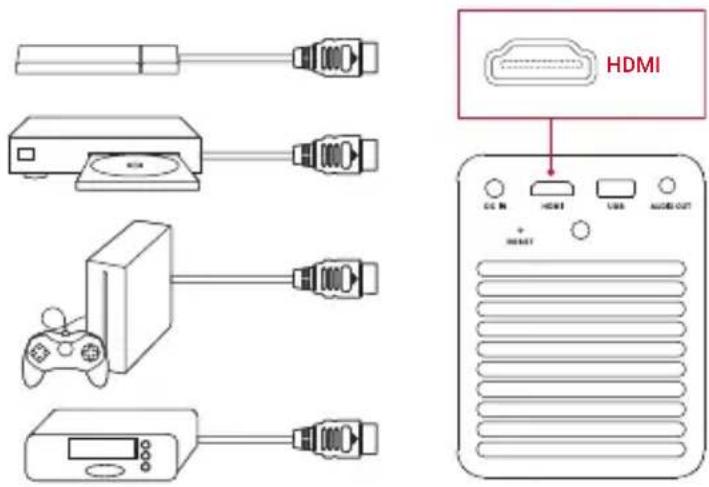
This projector supports connections with various HDMI playback devices such as TV stick, TV box, DVD player, set-top box (STB), game console or other devices.
① Connect this projector to an HDMI playback device with an HDMI cable (not provided).
(2) On the home menu, select [HDMI], and press OKt will automatically start the HDMI playback when connected to an HDMI playback device for the first time.)
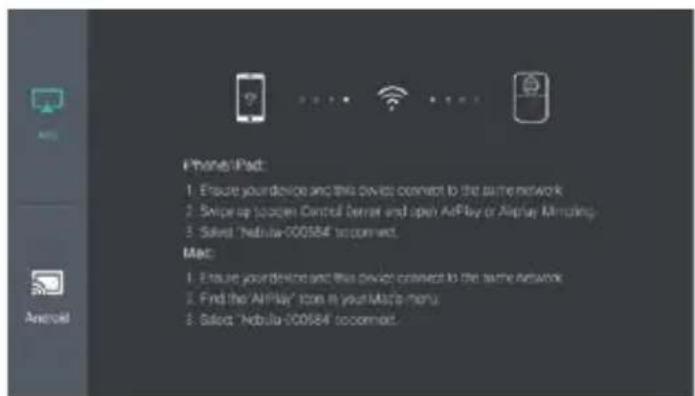
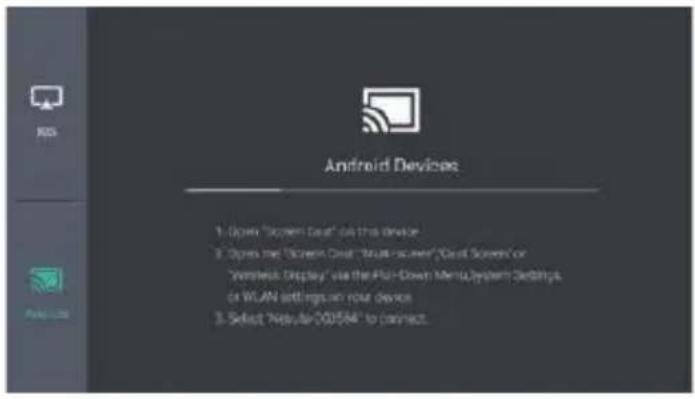
2. Screen Cast
You can wirelessly cast the screen of your smartphone or tablet onto the projection surface.
For iOS devices:
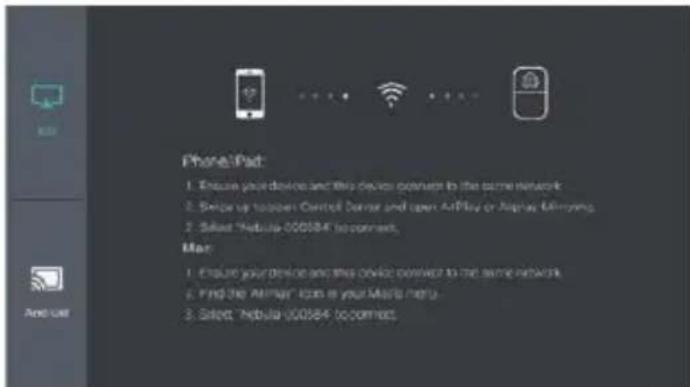
For Android devices:
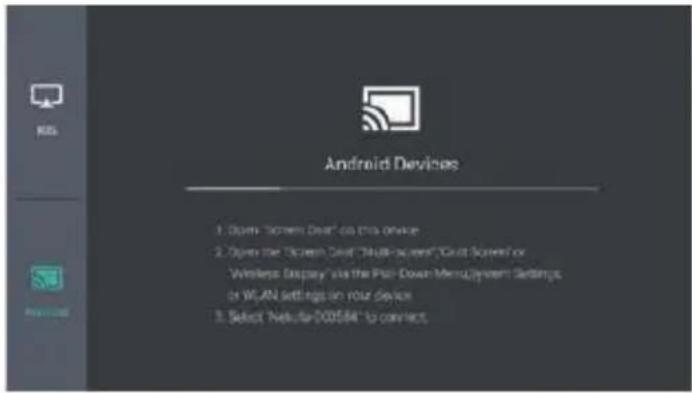

Certain content may be unavailable to be cast due to copyright restrictions. In this case, you can stream the content via the same app installed in your Nebula Mars II Pro.
3. Select an App
Once connected to a wireless network, you can access online services, enjoy movies, music, and pictures, and browse online. Apart from the pre-installed apps, you can also install additional apps from the Nebula Store or from a USB flash drive.
- On the home menu, select an Internet service from "Apps" or "Nebula Store".
- Press OK to confirm.
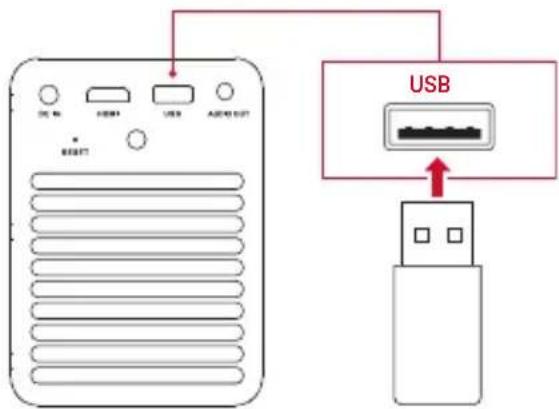
4. Connect to a USB Storage Device
With this projector, you can enjoy music, video, and pictures, or install apps that are stored on a USB 2.0 storage device by using the OTG cable (not provided).
(1) On the home menu, select [File Manager] and press OK.
(2) Select a file and then press OK
Specifications

Specifications are subject to change without notice.
Power supply: DC 19V -3A
Power consumption: < 57W
Standby power consumption: < 0.5W
Display technology: 0.3 inch 1280 × 720p DLP
Light source: RGB LED
Projection image size: 30 - 150 inch
Resolution: 1280 × 720 pixels
Brightness: 500 ANSI Lumens
Contrast ratio: 1000:1
Projection ratio: 1.2
Speaker drivers: 10 ~w × 2
Bluetooth: V4.2
Built-in battery type: Li-Polymer
Capacity: 3350 mAh 14.52V
Video play duration: 3 hours
Music play duration: 30 hours
Remote control batteries: CR2032 × 2
Operating temperature: 0^ to 35^ / 32^ to 95^
Operating humidity: 15% 85% (non-condensing)
Storage temperature and humidity: < 65^ C/149^ F, < 90% humidity
Dimension (W × H × D) : 122 × 138 × 178 ~mm / 4.8 × 5.4 × 7 in
Weight: 1,483 g / 52.3 oz
Troubleshooting
① Fail to power on by the remote control?
- Make sure that the device is connected to the power supply.
- Slide down the lens cover.
② Fail to power on by sliding down the lens cover?
- Make sure that the device is connected to the power supply.
- Slide up the lens cover and wait for 10 seconds, then try again.
③ The remote control doesn't work?
- Remove the battery insulation tab to activate the remote control batteries.
- Replace new batteries.
④ Blurred image?
- You can either slightly move the projector or press the navigation buttons to focus on the image.
(5) Reversed projection image?
- On the home menu, select [Settings] > [Projector mode] and switch to the correct state.
Notice

Declaration of Conformity
This product complies with the radio interference requirements of the European Community.
Hereby, Anker Innovations Limited. declares that this device is in compliance with the essential requirements and other relevant provisions of Directive 2014/53/EU. For the Declaration of Conformity, visit the Web site www.seenebula.com.
BT Maximum output power: 8 dBm;
BT Frequency band: 2402~2480 MHz;
Wi-Fi Max Output Power: 19 dBm (2.4G); 15 dBm (5G);
Wi-Fi Frequency Band: 2412~2472 MHz (2.4G); 5150~5250 MHz, 5725~5850 MHz (5G).
5150~5250 MHz can be used indoor only.
| AT | BE | BG | HR | CY | CZ | DK |
| EE | FI | FR | DE | EL | HU | IE |
| IT | LV | LT | LU | MT | NL | PL |
| PT | RO | SK | SI | ES | SE | UK |

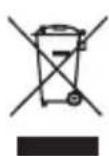
Your product is designed and manufactured with high quality materials and components, which can be recycled and reused.
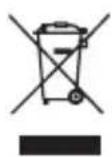
This symbol means the product must not be discarded as household waste, and should be delivered to an appropriate collection facility for recycling. Proper disposal and recycling helps protect natural resources, human health and the environment. For more information on disposal and recycling of this product, contact your local municipality, disposal service, or the shop where you bought this product.
This product complies with the radio interference requirements of the United Kingdom.
Declaration of Conformity
Hereby, Anker Innovations Limited declares that this device is in compliance with Radio Equipment
Regulations 2017(SI 2017/1206). The full text of the UK declaration of conformity is available at the following internet address:
Anker Technology (UK) Limited, GNR8, 49 Clarendon Road, Watford, Hertfordshire, WD17 1HP, United Kingdom
https://uk.seenebula.com
RF exposure information: The Maximum Permissible Exposure (MPE) level has been calculated based on a distance of d = 20 cm between the device and the human body. To maintain compliance with RF exposure requirement, use the product that maintains a 20 cm distance between the device and human body.
BT Maximum output power: 4.22 dBm;
BT Frequency band: 2402~2480 MHz;
Wi-Fi Max Output Power: 17.38 dBm (2.4G); 15.56 dBm (5G);
Wi-Fi Frequency Band: 2412~2472 MHz (2.4G); 5150~5250 MHz, 5725~5850 MHz (5G).
5150~5250 MHz can be used indoor only.
FCC Notice
This device complies with the FCC rules, Part 15. Operation is subject to the following two conditions: (1) This device may not cause harmful interference, and (2) This device must accept any interference received, including interference that may cause undesired operation.
Warning: Changes or modifications not expressly approved by the partly responsible for compliance could void the user's authority to operate the equipment.
Note: This equipment has been tested and found to comply with the limits for a Class B digital device, pursuant to part 15 of the FCC Rules. These limits are designed to provide reasonable protection against harmful interference in a residential installation.
This equipment generates, uses and can radiate radio frequency energy and, if not installed and used in accordance with the instruction manual, may cause harmful interference to radio communications. However, there is no guarantee that interference will not occur in a particular installation. If this equipment does cause harmful interference to radio or television reception, which can be determined by turning the equipment off and on, the user is encouraged to try to correct the interference by one or more of the following measures:
- Reorient or relocate the receiving antenna.
- Increase the separation between equipment and receiver.
- Connect the equipment into an outlet on a circuit different from that to which the receiver is connected.
- Consult the dealer or an experienced radio/TV technician for help.
FCC Radiation Exposure Statement:
This equipment complies with FCC radiation exposure limits set forth for an uncontrolled environment. This equipment should be installed and operated with a minimum distance of 20cm between the radiator and your body. This transmitter must not be co-located or operated in conjunction with any other antenna or transmitter.
Notice: Shielded cables
All connections to other computing devices must be made using shielded cables to maintain compliance with FCC regulations.
Notice (Canada)
This device complies with Industry Canada licence-exempt RSS standard(s). Operation is subject to the following two conditions:
this device may not cause interference, and this device must accept any interference, including interference that may cause undesired operation of the device.
This Class B digital apparatus complies with Canadian ICES-003.
The following importer is the responsible party:
Company Name: Fantasia Trading LLC
Address: 5350 Ontario Mills Pkwy, Suite 100, Ontario, CA 91764
Telephone:1-800-988-7973
Trademarks

HDMI, and HDMI logo and High-Definition Multimedia Interface are trademarks or registered trademarks of HDMI licensing LLC in the United States and other countries.

Bluetooth
The Bluetooth® word mark and logos are registered trademarks owned by the Bluetooth SIG, Inc. and any use of such marks by Anker Innovations Limited is under license. Other trademarks and tradenames are those of their respective owners.
Warranty
30-Day Money-Back Guarantee for Any Reason
You may return your undamaged product and packaging within 30 days of purchase to receive a FULL REFUND for any reason. If the reason for return isn't quality-related, the customer must pay for the return shipping.
12-Month Warranty for Quality-Related Issues
Nebula's products are warranted to be free from material and workmanship defects for 12 months from the date of purchase. Within this period, Nebula will provide a replacement and cover any return shipping costs for products that fail in normal use.
Please Note: Any provided shipping labels must be used within 20 days from the date they're issued by Nebula Support.
Anker Innovations Limited
Room 1318-19, Hollywood Plaza, 610 Nathan Road, Bangkok, Kowloon, Hong Kong
Rembedding with batteries
Ladegerät
Resolution: 1280 × 720 pixels
Alimentation: CC 19 V = 3 A
Consommation: < 57 W
Remote control with batteries
Power Adapter Power cord
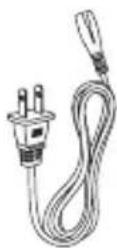
Manual
Genel Bakış
1. Önden Görünüm
Specifications are subject to change without notice.
Hereby, Anker Innovations Limited. declares that this device is in compliance with the essential requirements and other relevant provisions of Directive 2014/53/EU. For the Declaration of Conformity, visit the Web site www.seenebula.com.
BT Maximum output power: 8 dBm; BT Frequency band: 2402~2480 MHz;
Wi-Fi Max Output Power: 19 dBm (2.4G); 15 dBm (5G);
Wi-Fi Frequency Band: 2412~2472 MHz (2.4G); 5150~5250 MHz, 5725~5850 MHz (5G).
5150~5250 MHz can be used indoor only.
| AT | BE | BG | HR | CY | CZ | DK |
| EE | FI | FR | DE | EL | HU | IE |
| IT | LV | LT | LU | MT | NL | PL |
| PT | RO | SK | SI | ES | SE | UK |

Your product is designed and manufactured with high quality materials and components, which can be recycled and reused.
The following importer is the responsible party (contact for EU matters only).
Importer: Anker Technology (UK) Ltd
Importer Address: Suite B, Fairgate House, 205 Kings Road, Tyseley, Birmingham, B11 2AA, United Kingdom
FCC Notice
Warning: Changes or modifications not expressly approved by the partly responsible for compliance could void the user's authority to operate the equipment.
This equipment generates, uses and can radiate radio frequency energy and, if not installed and used in accordance with the instruction manual, may cause harmful interference to radio communications. Ancak, belli bir kurulumda girisim olusmayacagina dair bir garanti verilmez. If this equipment does cause harmful interference to radio or television reception, which can be determined by turning the equipment off and on, the user is encouraged to try to correct the interference by one or more of the following measures:
- Reorient or relocate the receiving antenna.
- Increase the separation between equipment and receiver.
- Connect the equipment into an outlet on a circuit different from that to which the receiver is connected.
- Consult the dealer or an experienced radio/TV technician for help.
FCC Radiation Exposure Statement:
Notice: Shielded cables
All connections to other computing devices must be made using shielded cables to maintain compliance with FCC regulations.
The following importer is the responsible party:
Sirket Adi: Fantasia Trading LLC
Address: 9155 Archibald Avenue, Suite 202, Rancho Cucamonga, CA 91730, USA
Telephone:1-909-484-1530
Ticari markalar

Anker Innovations Limited
Room 1318-19, Hollywood Plaza, 610 Nathan Road, Bangkok, Kowloon, Hong Kong
简体中文
安全须知
21 ≤ y_1
J 1
5 1
1
1
aJd Jlalb aai jIe Jgll 1
i g 11111111111111111 1 1 1 1 1 1 1 1
iIwcbllg yjglal jglal JyJyLc .aIbI 1. jglal 2
i j g. l a i d y i j e a Jalee
alba JaaJy .aJIbI sI
iJ 1
aill lalai jll clll g ll jll 8! pdd
.
·
()
aill p 1 aai y 1 o b i j no aai bll sll w .jglal lss no laic c jii gll abailg
.
.
.
j
.
.1
aaii jaii jaii jaii jaii jaii jaii jaii jaii jaii jaii jaii jaii jaii jaii jaii jaii jaii jaii jaii jaii jaii jaii jaii jaii jaii jaii jaii jaii jaii jaii jaii jaii jaii jali i
[1]

5
1
TIOIOU NUNN ANNN UINI
YUNN NIN 790 NXYIN 197 WONN NNI
OYNN TNI, NO IN NNT NNN NNN NIN
WONN DIXN ON NNT NITIN DYN
INX IN NIN 1910 INN IN NIN
. IN IN IN
XININ |IN, ININ |IN NIN YIN IN
. IN IN IN
NOIN |IN, NOIN |IN NIN YIN IN
. IN IN IN
NOIN |IN, NOIN |IN NIN YIN IN
. IN IN IN
. IN IN IN
n nn nnn nnn nnn nnn nnn nnn nnn nnn nnn nnn nnn nnn nnn nnn nnn nnn nnn nnn nnn nnn nnn nnn nnn nnn nnn nnn nnn nnn nnn nnn nnn nnn nnn nnn nnn nnn nnn nnn nnn nnn nnn nnn nnn nnn nnn nnn nnn nnn nnn
n710
y wiy i y .nny ninn nn 1x .nynnn ninn ninn ninn ninn ninn ninn ninn ninn ninn ninn ninn ninn ninn ninn ninn ninn ninn ninn ninn ninn ninn ninn ninn ninn ninn ninn ninn ninn ninn ninn ninn ninn ninn ninn ninn ninn ninn ninn ninn ninn ninn ninn ninn ninn ninn ninn ninn ninn ninn ninn nnnn nn.
y nn n 10n7 |X .i117 iNn nn n |V07 .n7 nnn n
17
19 197 nnon 790 nx 7n7n nn nnn .noun
n nn n7 1X .n 77 ,non n70 nn n7 7 on ,Ooon |x) n77 D7T X ra ,nD7nn
.(nniDn ,niv
nynnnn nn nnnnnnnnnnnnnnnnnnnnnnnnnnnnnnnnnnnnnnnnnnnnnnnnnnnnnnnnnnnnnnnnnnnnnnnnnnnnnnnnnnnnnnnnnnnnnnnnnnnnn
ywn ynnn nn nny
n nn nnnn nn nnnnnnnnnnnnnnnnnnnnnnnnnnnnnnnnnnnnnnnnnnnnnnnnnnnnnnnnnnnnnnnnnnnnnnnnnnnnnnnnnnnnnnnnnnnnnnnnnnnnn
.
nny nniy nny nnnnn
.
D
N 1
.
n7 n 7 n7 n7 n7 n7 n7
.
noin nniy nii,wn nn
:
.ion n'09ix n7 1797 hny nr won
y 7 y nn n nn nn nn nn nn nn nn nn nn nn nn nn nn nn nn nn nn nn nn nn nn nn nn nn nn nn nn nn nn nn nn nn nn nn nn nn nn nn nn nn nn nn nn nn nn nn nn nn nn nn nn nn nn nn nn nn nn nn nn nn nn nn nn nn nn nn nn nn nn nn nn nn nn nn nn nn nn nn nn nn nn nn nn nn nn nn nn
.7

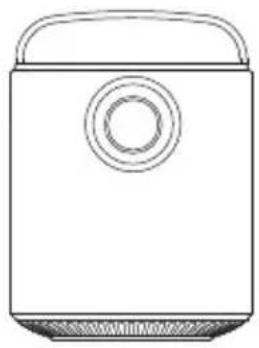
Main unit
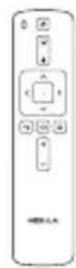
Remote control with batteries
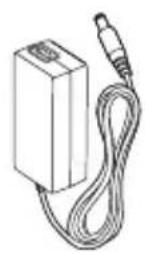
Power Adapter Power cord
Manual
70
nTn
NUTY

T

nuTYnn noon

Hnnonnn
TIPIN W UNIOIN
yynnn

nINXn
DC IN
nD790 7x 7an
HDMI 2
nwnn nnnn nnnn nnnn nnnn nnnn nnnn nnnn nnnn nnnn nnnn nnnn nnnn nnnn nnnn nnnn nnnn nnnn nnnn nnnn nnnn nnnn nnnn nnnn nnnn nnnn nnnn nnnn nnnn nnnn nnnn nnnn nnnn nnnn nnn
. [Nebula]
nnn n-yy y9i Nebula Connect nn nn n9 ③
.
n
y9 17nn nn nnnn nn nnnn nnnn nnnn
. (Wi-Fi) 1n7 n nn nn nn nn nn nn nn nn nn nn nn nn nn nn nn nn nn nn nn nn nn nn nn nn nn nn nn nn nn nn nn nn nn nn nn nn nn nn nn nn nn nn nn nn nn nn nn nn nn nn nn nn nn nn nn nn nn nn nn nn nn nn nn nn nn nn nn nn nn nn nn nn nn nn nn nn nn
.OKy yn? [nwn] < [nntan] nna,nn nn ①
n nn nn nn nn nn nn nn nn nn nn nn nn nn nn nn nn nn nn nn nn nn nn nn nn nn nn nn nn nn nn nn nn nn nn nn nn nn nn nn nn nn nn nn nn nn nn nn nn nn nn nn nn nn nn nn nn nn nn nn nn nn nn nn nn nn nn nn nn nn nn nn nn nn nn nn nn nn nn nn nn nn nn nn nn nn nn nn nn nn nn nn nn nn nn nn nn nn nn nn nn
Bluetooth
Bluetooth
Xnnu Bluetooth nnnn nn
Bluetooth 1
nwnnnn nnnn nnnn nnnn nnnn ②
. [Nebula]
n
XnMars II Pro n n n n n n n n n n n n n n n n n n n n n n n n n n n n n n n n n n
177n nn
.OK yyn [Bluetooth] < [nntan] n,nn ①
n nn nn nnnn nn nnnn nnnn ②
Bluetooth-7
n
OK yn, [n] < [nTn] n, n 9n
| [הכלה] | [הכלה] / [הכלה] / [הכלה] |
| [הכלה] | [הכלה] / [הכלה] |
| [הכלה] | . 'הכלה' ; [הכלה] / . 'הכלה' |
| [הכלה] | . 'הכלה' ; [הכלה] / . 'הכerea' |
| [הכerea] | . 'הכerea' ; [הכerea] / . 'הכerea' |
| [הכerea] | . 'הכerea' ; [הכerea] / . 'הכerea' |
| [הכerea] | . 'הכerea' ; [הכerea] / . 'הכerea' |
| [הכerea] | . 'הכerea' ; [הכerea] / . 'הכerea' |
| [הכerea ] | . 'הכerea' ; [הכerea] / . 'הכerea' |
| [הכerea] | . 'הכerea' ; [הכerea] / . 'הכerea' |
| [הכerea] | . 'הכerea' ; [הכerea] / . 'הכerea' |
| [הכerea] | . 'הכerea' ; [הכerea] / . ‘הכerea’ |
| [הכerea] | . 'הכerea' ; [הכerea] / . 'הכerea' |
| [הכerea] | . 'הכerea' ; [הכerea] / . 'הכerea' |
| [הכerea] | . 'הכerea' ; [הכerea] / . 'הכerea' |
| [הכerea] | . 'הכerea' 180-הכerea 180- |
| [הכerea] | . 'הכerea' 180-180- |
n79nn
yyn [nynn] < [nntn] n,nnn ①
.OK
,709n YX IN NN ,nONn noNn NNTAI DIU ②
IN INN IN DNN,INXINIONN N
non
n7 n, n7 3-n n7 n7 n7 n7 n7 n7 n7 [7n] n7n7 n7 n7 n7 n7. [n7n7 n7 n7 n7 n7 n7 .[n7n7 n7 n7 n7 n7 n7 n7 .[n7n7 n7

NIDONIINW
nntnn nnnn nn [nntan] nna nnnn
JIN901
| [הכלה] | |
| [הכלה] | .הכלההכלההכלההכלההכלההכ萘bethרִשׁבִעַהכלההכלההכ萘bethרִשׁבִעַהכ萘bethרִשׁבִעַהכ萘bethרִשׁבִעַהכ萘bethרִשׁבִעַהכ萘bethרִשׁבִעַהכ萘bethרִשׁבִעַהכ萘bethרִשׁבִעַהכ萘Bethרִשׁבִעַהכ萘bethרִשׁבִעַהכ萘bethרִשׁבִעַהכ萘bethרִשׁבִעַהכ萘bethרִשׁבִעַהכ萘bethרִשׁבִעַהכ萘bethרִschׂבִעַהכ萘bethרִschׂבִעַהכ萘bethרִschׂבִעַהכ萘bethרִschׂבִעַהכ萘bethרִschׂבִעַהכ萘bethרִschׂבִעַהכ萘bethרִschׂבִ oncַהכ萘bethרִschׂבִ oncַהכ萘bethרִschׂבִ oncַהכ萘bethרִschׂבִ oncַהכ萘bethרִschׂבִ oncַהכ萘bethרִschׂבִ oncַהכ萘bethרִschׂבִ oncַה憵הכ萘bethרִschׂבִ oncַה憵הכ萘bethרִschׂבִ oncַה憵ה %-הכ萘bethרִschׂבִ oncַה憵ה %-הכ萘bethרִschׂבִ oncַה憵ה %-הכ萘bethרִschׂבִ oncַה憵ה %-הכ萘bethרִschׂבִ oncַה憵ה %-הכ萘bethרִschׂבִ oncָה憵ה %-הכ萘bethרִschׂבִ oncָה憵ה %-הכ萘bethרִschׂבִ oncָה憵ה %-הכ萘bethרִschׂבִ oncָה憵ה %-הכ萘bethרִschׂבִ oncָה憵ה %-הכ萘bethרִschׂhbִ onc-הכ萘bethר-הכ萘bethר-הכ萘bethר-הכ萘bethר-הכ萘bethר-הכ萘bethר-הכ萘bethר-הכ萘bethר-הכ萘bethר-הכ萘bethר-הכ萘bethר-הכ萘bethר-הכ萘bethר-הכ萘bethר-הכ萘bethר-הכ萘bethר-הכ萘bethר-הכ...' |
| [הכלה] | |
| [הכלה] | .הכ的传统观念/概念/概念/概念/概念/概念/概念/概念/概念/概念/概念/概念/概念/概念/概念/概念/概念/概念/概念/概念/概念/概念/概念/概念/概念/概念/概念/概念/概念/概念/概念/概念/概念/概念/概念/概念/概念/概念/概念/概念/概念/概念/概念/概念/概念/概念/概念/概念/概念/概念/概念/的概念/概念/概念/概念/概念/概念/概念/概念/概念/概念/概念/概念/概念/概念/概念/概念/概念/概念/概念/概念/概念/概念/概念/概念/概念/概念/概念/概念/概念/概念/概念/概念/概念/概念/概念/概念/概念/概念/概念/概念/概念/概念/概念/概念/概念/概念/概念/概念/概念/概念/��论/概论/概论/概论/概论/概论/概论/概论/概论/概论/概论/概论/概论/概论/概论/概论/概论/概论/概论/概论/概论/概论/概论/概论/概论/概论/概论/概论/概论/概论/概论/概论/概论/概论/概論/概論/概論/概論/概論/概論/概論/概論/概論/概論/概論/概論/概論/概論/概論/概論/概論/概論/概論/概論/概論/概論/概論/概論/概論/概論/概論/概論/概論/概論/概論/概論/概論/概論 |
| [הכלה] | |
| [הכ的传统观念/概念/概念/概念/概念/概念/概念/概念/概念/概念/概念/概念/概念/概念/概念/概念/概念/概念/概念/概念/概念/概念/概念/概念/概念/概念/概念/概念/概念/概念/概念/概念/概念/概念/概念/概念/概念/概念/概念/概念/概念/概念/概念/概念/概念/概念/概念/概念/��论/概論/概論/概論/概論/概論/概論/概論/概論/概論/概論/概論/概論/概論/概論/概論/概論/概論/概論/概論/概論/概論/概論/概論/概論/概論/概論/概論/概論/概論/概論/概論/概論/概譜/概譜/概譜/概譜/概譜/概譜/概譜/概譜/概譜/概譜/概譜/概譜/概譜/概譜/概譜/概譜/概譜/概譜/概譜/概譜/概譜/概譜/概譜/概譜/概譜/概譆/概譜/概譜/概譜/概譜/概譜/概譜/概譜/概譜/概譜/概譜/概譜/概譜/概譜/概譜/概譜/概譜/概譜/概譜/概譜/概譜/概譜/概譜/概譜/概譜/概議/概譜/概譜/概譜/概譜/概譜/概譜/概譜/概譜/概譜/概譜/概譜/概譜/概譜/概譜/概譜/概譜/概譜/概譜/概譜/概譜/概譜/概譜/概譜/概譜/概譬/概譜/概譜/概譜/概譜/概譜/概譜/概譜/概譜/概譜/概譜/概譜/概譜/概譜/概譜/概譜/概譜/概譜/概譜/概譜/概譜/概譜/概譜/概譜/概譜/概譯/概譜/概譜/概譜/概譜/概譜/概譜/概譜/概譜/概譜/概譜/概譜/概譜/概譜/概譜/概譜/概譜/概譜/概譜/概譜/概譜/概譜/概譜/概譜/概譜/概譮/概譜/概譜/概譜/概譜/概譜/概譜/概譜/概譜/概譜/概譜/概譜/概譜/概譜/概譜/概譜/概譜/概譜/概譜/概譜/概譜/概譜/概譜/概譜/概譜/概譔/概譜/概譜/概譜/概譜/概譜/概譜/概譜/概譜/概譜/概譜/概譜/概譜/概譜/概譜/概譜/概譜/概譜/概譜/概譜/概譜/概譜/概譜/概譜/概譜/概譭/概譜/概譜/概譜/概譜/概譜/概譜/概譜/概譜/概譜/概譜/概譜/概譜/概譜/概譜/概譜/概譜/概譜/概譜/概譜/概譜/概譜/概譜/概譜/概譜/概譕/概譜/概譜/概譜/概譜/概譜/概譜/概譜/概譜/概譜/概譜/概譜/概譜/概譜/概譜/概譜/概譜/概譜/概譜/概譜/概譜/概譜/概譜/概譜/概譜/概譃/概譜/概譜/概譜/概譜/概譜/概譜/概譜/概譜/概譜/概譜/概譜/概譜/概譜/概譜/概譜/概譜/概譜/概譜/概譜/概譜/概譜/概譜/概譜/概譜/概譫/概譜/概譜/概譜/概譜/概譜/概譜/概譜/概譜/概譜/概譜/概譜/概譜/概譜/概譜/概譜/概譜/概譜/概譜/概譜/概譜/概譜/概譜/概譜/概譜/概譻/概譜/概譜/概譜/概譜/概譜/概譜/概譜/概譜/概譜/概譜/概譜/概譜/概譜/概譜/概譜/概譜/概譜/概譜/概譜/概譜/概譜/概譜/概譜/概譜/概�表/概譜/概譜/概譜/概譜/概譜/概譜/概譜/概譜/概譜/概譜/概譜/概譜/概譜/概譜/概譜/概譜/概譜/概譜/概譜/概譜/概譜/概譜/概譜/概譜/概譠/概譜/概譜/概譜/概譜/概譜/概譜/概譜/概譜/概譜/概譜/概譜/概譜/概譜/概譜/概譜/概譜/概譜/概譜/概譜/概譜/概譜/概譜/概譜/概譜/概警/概譜/概譜/概譜/概譜/概譜/概譜/概譜/概譜/概譜/概譜/概譜/概譜/概譜/概譜/概譜/概譜/概譜/概譜/概譜/概譜/概譜/概譜/概譜/概譜/概譪/概譜/概譜/概譜/概譜/概譜/概譜/概譜/概譜/概譜/概譜/概譜/概譜/概譜/概譜/概譜/概譜/概譜/概譜/概譜/概譜/概譜/概譜/概譜/概譜/概譈/概譜/概譜/概譜/概譜/概譜/概譜/概譜/概譜/概譜/概譜/概譜/概譜/概譜/概譜/概譜/概譜/概譜/概譜/概譜/概譜/概譜/概譜/概譜/概譜/概譐/概譜/概譜/概譜/概譜/概譜/概譜/概譜/概譜/概譜/概譜/概譜/概譜/概譜/概譜/概譜/概譜/概譜/概譜/概譜/概譜/概譜/概譜/概譜/概譜/概識/概譜/概譜/概譜/概譜/概譜/概譜/概譜/概譜/概譜/概譜/概譜/概譜/概譜/概譜/概譜/概譜/概譜/概譜/概譜/概譜/概譜/概譜/概譜/概譜/概譛/概譜/概譜/概譜/概譜/概譜/概譜/概譜/概譜/概譜/概譜/概譜/概譜/概譜/概譜/概譜/概譜/概譜/概譜/概譜/概譜/概譜/概譜/概譜/概譜/概譊/概譜/概譜/概譜/概譜/概譜/概譜/概譜/概譜/概譜/概譜/概譜/概譜/概譜/概譜/概譜/概譜/概譜/概譜/概譜/概譜/概譜/概譜/概譜/概譜/概譇/概譜/概譜/概譜/概譜/概譜/概譜/概譜/概譜/概譜/概譜/概譜/概譜/概譜/概譜/概譜/概譜/概譜/概譜/概譜/概譜/概譜/概譜/概譜/概譜/概譗/概譜/概譜/概譜/概譜/概譜/概譜/概譜/概譜/概譜/概譜/概譜/概譜/概譜/概譜/概譜/概譜/概譜/概譜/概譜/概譜/概譜/概譜/概譜/概譜/概譄/概譜/概譜/概譜/概譜/概譜/概譜/概譜/概譜/概譜/概譜/概譜/概譜/概譜/概譜/概譜/概譜/概譜/概譜/概譜/概譜/概譜/概譜/概譜/概譜/概�內 | |
Ok*It will yynH,[HDMI] n, n automatically start the HDMI playback when connected (.to an HDMI playback device for the first time
on n i7iX Donn 1970 on nx nnn nn nuun y n7i.01nX 19xoxn:ios
n nn nnn nnn nnn nnn nnn nnn nnn nnn nnn nnn nnn nnn nnn nnn nnn nnn nnn nnn nnn nnn nnn nnn nnn nnn nnn nnn nnn nnn nnn nnn nnn nnn nnn nnn nnn nnn nnn nnn nnn nnn nnn nnn nnn nnn nnn nnn nnn nnn nnn nnn nenn nnn nnn nnn nnn nnn nnn nnn nnn nnn nnn nnn nnn nnn nnn nnn nnn nnn nann nn nn nn nn nn nn nn nn nn nn nn nn nn nn nn nn nn nn nn nn nn nn nn nn nn nn nn nn nn nn nn nn nn nn nn nn nn nn nn nn nn nn nn nn nn nn nn nn nn nn nn nn nn nn nn nn nn nn nn nn nn nn nn nn nn nn nn nn nn nn nn nn nn nn nn nn nn nn nn nn nn nn nn nn nn nn nn nn

79
n nn nnnn nnnn nnnn nnnn nnnn nnnn nnnn nnnn nnnn nnnn nnnn nnnn nnnn nnnn nnnn nnnn nnnn nnnn nnnn nnnn nnnn nnnn nnnn nnnn nnnn nnnn nnnn nnnn nnnn nnnn nnnn nnnn nnnn nnnn nn. USB 1777777777777777777777777777777777777777777777777777777777777
USB IONN NNNN NNNN NNNN NNNN NNNN NNNN NNNN NNNN NNNN NNNN NNNN NNNN NNNN NNNN NNNN NNNN NNNN NNNN NNNN NNNN NNNN NNNN NNNN NNNN NNNN NNNN NNNN NNNN NNNN NNNN NNNN NNNN NNNN NNN

Specifications are subject to change without notice.
DC 19V --3A :nD p790
<57W:wnn
<0.5W:nnnn nn nn nn
1280 × 720p DLP y_ix 0.3: n i x n
RGB LED: Xn
yix 30-150 nnn nn
1280×720
500ANSILumens:
1000:1 :NnTnON
1.2 : n nn on
10w×2:
4.2 nona :Bluetooth
n19-n7 n710 10
3350 mAh 14.52V :n
niyu 3:ixi nyn
niyu 30: nTin nnyn
CR2032 × 2 :nun nio
95°F 32°F / 35°C 0°C : nynnynynnynn
(10 y 77) 15% 85% :nynnyin
nir < 65^ / 149^, < 90% :ionx nirn
4.8× /n^ 122× 138× 178:( n i x n i x n i)
YJX 5.4 X7
52.3 oz /'1,483:
nnynn
?n-wn nynx nn nn 1
. nnon 7907 nnnnn nnnu NTI
.uyyn noon nn non
nx non nnnn T-ny wonn nn yynn nn ②
?nuyn noon
.
n 10 nnn noon nn
.
?yin97 pinn-wn ③
nno n no n no n nn nnnnnnnnnnnnnnn
.1IN-07wn
.
?nuovion ninnn ④
Tn7 Tn nn nn 7 y n7 ix nnn nn nn nn n
.
?n nn nn nn ⑤
[1n] < [nT] n,
BT: w n ,BT: 8 dBm w n xin p90;2402~2480 MHz; (Wi-Fi: 19 dBm (2.4G); 15 dBm (5G w n xin p90 Wi-Fi: 2412~2472 MHz (2.4G); w n .(5150~5250 MHz, 5725~5850 MHz (5G .5150~5250 MHz w n .
| AT | BE | BG | HR | CY | CZ | DK |
| EE | FI | FR | DE | EL | HU | IE |
| IT | LV | LT | LU | MT | NL | PL |
| PT | RO | SK | SI | ES | SE | UK |
n nn nnnnnnnnnnnnnnnnnnnnnnnnnnnnnnnnnnnnnnnnnnnnnnnnnnnnnnnnnnnnnnnnnnnnnnnnnnnnnnnnnnnnnnnnnnnnnnnnnnnnnnnnn

n 109nn n nn n nn no nynnn nnn nnn nnn nnn nnn nnn nnn nnn nnn nnn nnn nnn nnn nnn nnn nnn nnn nnn nnn nnn nnn nnn nnn nnn nnn nnn nnn nnn nnn nnn nnn nnn nnn nnn nnn nnn nnn nnn nnn nnn nnn nnn nnn nnn nnn nnn nnn nnn nnn nnn nn nn nn nn nn nn nn nn nn nn nn nn nn nn nn nn nn nn nn nn nn nn nn nn nn nn nn nn nn nn nn nn nn nn nn nn nn nn nn nn nn nn nn nn nn nn nn nn nn nn nn nn nn nn nn nn nn nn nn nn nn nn nn nn nn nn nn nn nn nn nn nn nn nn nn nn nn nn nn nn nn nn nn nn nn nn nn nn nn nn nn nn nn nn nn nn
.
FCC nyTIN
(1) : 15 n n (2) p, npn n n n n n n n n n n n n n n n n n n n n n n n n n n n n n n n n n n n n n n n n n n n n n n n
ywnn nn nnnn nn nnnn nn nnnn nn nnnn nn nnnn nn nnnn nn nnnn nn nnnn nn nnnn nn nnnn nn nnnn nn nnnn nn nnnn nn nnnn nn nnnn nn nnnn nn nnnn nn nnnn nn nnnn nn nnnn nn nnnn nn nnnn nn nnnn nn nnnn nn nnnn nn nannn nn nnnn nn nnnn nn nnnn nn nnnn nn nnnn nn nnnn nn nnnn nn nnnn nn nnnn nn nnnn nn nnnn nn nnnn nn nnnn nn nnnn nn nnnn nn nnnn nn nnnn nn
:JINN D'ON NNN NNN NNN NNN IIN .NINN NNN 7U WTNN DIP IN WTNN II
.0777 Tn n nn n . 077nninnn nn n nn nn n
.
:FCC-n w nnnn nn nn FCC-n w nnnn nn nn nn nn nn nn nn nn nn nn nn nn nn nn nn nn nn nn nn nn nn nn nn nn nn nn nn nn nn nn nn nn nn nn nn nn nn nn nn nn nn nn nn nn nn nn nn nn nn nn nn nn nn nn nn nn nn nn nn nn nn nn nn nn nn nn nn nn nn nn nn nn nn nn nn nn nn nn nn nn nn nn nn nn nn nn nn nn nn nn nn nn nn nn nn nn nn nn nn nn nnnn nnnn nnnn nnnn nnnn nnnn nnnn nnnn nnnn nnnn nnnn nnnn nnnn nnnn nnnn nnnn nnnn nnnn nnnn nnnn nnnn nnnn nnnn nnnn nnnn nnnn nnnn nnnn nnnn nnnn nnnn nnnn nnnn nnnn
DIOON D:nyTIN
n nn nnnnnnnnn
n nn nn nn nn nn nn nn nn nn nn nn nn nn nn nn nn nn nn nn nn nn nn nn nn nn nn nn nn nn nn nn nn nn nn nn nn nn nn nn nn nn nn nn nn nn nn nn nn nn nn nn nn nn nn nn nn nn nn nn nn nn nn nn nn nn nn nn nn nn nn nn nn nn nn nn nn nn nn nn nn nn nn nn nn nn nn nn
.FCC-n
Xn nn Xn nn nnnnnnnnnnnnnnnnnnnnnnnnnnnnnnnnnnnnnnnnnnnnnnnnnnnnnnnnnnnnnnnnnnnnnnnnnnnnnnnnnnnnnnnnnnnnnnnnnnnnnnnnnnnnn
Fantasia Trading LLC:
Address: 5350 Ontario Mills Pkwy, Suite 100, Ontario, CA 91764
Telephone:1-800-988-7973
non
HDMI
HGH-DEFINITION MULTIMEDIA INTERFAGE
High-Definition Multimedia HDMI w HDMI non non non non Interface HDMI licensing LLC

Bluetooth
non no nno nno nnoo Bluetooth non -n nn nnnn nn nnnn .Bluetooth SIG, Inc ny Anker Innovations Limited .Anker Innovations Limited .non
Xnnu nO 30 n 900 nn7 nnn Xn nn7 n, Xnu nO nn Xn 900 nn n nn 7n Xnu nn nn nn nn nn nn nn nn nn nn nn nn nn nn nn nn nn nn nn nn nn nn nn nn nn nn nn nn nn nn nn nn nn nn nn nn nn nn nn nn nn nn nn nn nn nn nn nn nn nn nn nn nn nn nn nn nn nn nn nn nn nn nn nn nn nn nn nn nn nn nn nn nn nn nn nn nn nn nn nn nn nn nn nn nn nn nn nn nn nn nn nn nn nn nn nn nn nn nn nn nnnnnnnnnnnnnnnnnnnnnnnnnnnnnnnnnnnnnnnnnnnnnnnnnnnnnnnnnnnnnnnnnnnnnnnnnnnnnnnnnnnnnnnnnnnnnnnnnnnnnnnnnnnnnnnnnnnnnnnnnnnnn
Xnn nn nnn nn nn nn nn 12 nn nn nn nn nn nn nn nn nn nn nn nn nn nn nn nn nn nn nn nn nn nn nn nn nn nn nn nn nn nn nn nn nn nn nn nn nn nn nn nn nn nn nn nn nn nn nn nn nn nn nn nn nn nn nn nn nn nn nn nn nn nn nn nn nn nn nn nn nn nn nn nn nn nn nn nn nn nn nn nn nn nn nn nn nn nn nn nn nn nn nn nn nn nn nn nn nn nn nn nn gnnnn gnnnn gnnnn gnnnn gnnnn gnnnn gnnnn gnnnn gnnnn gnnnn gnnnn gnnnn gnnnn gnnnn gnnnn gnnnn gnnnn gnnnn gnnnn gnnnn gnnnn gnnnn gnnnn gnnnn gnnnn gnnnn gnnnn gnnnn gnnnn gnnnn gnnnn gnnnn gnnnn gnnnn gonnnn gnnnn gnnnn gnnnn gnnnn gnnnn gnnnn gnnnn gnnnn gnnnn gnnnn gnnnn gnnnn gnnnn gnnnn gnnnn gnnnn gnnnn gnennn gnnnn gnnnn gnnnn gnnnn gnnnn gnnnn gnnnn gnnnn gnnnn gnnnn gnnnn gnnnn gnnnn gnnnn gnnnn gnannn gnannn gnannn gnannn gnannn gnannn gnannn gnannn gnannn gnannn gnannn gnannn gnannn gnannn gnannn gnannn gnannn gnannn gnannn gnannn gnannn gnannn gnannn gnannn gnannn gnannn gnannn gnannn gnannn gnannn gnannn gnannn gnannn gnann
NEBULA
For FAQs and more information, please visit:
www.SeeNebula.com www.ankerjapan.com

support@anker.com

+1 (800) 988 7973 (US) Mon-Fri 6:15am - 5:00pm (PT)
+44 (0) 1604 936200 (UK) Mon-Fri 6:00 - 11:00 (GMT)
+49 (0) 69 9579 7960 (DE) Mo-Fr 8:00 - 16:00
Anker Innovations Limited. All rights reserved. NEBULA and the NEBULA logo are trademarks of Anker Innovations Limited, registered in the United States and other countries. All other trademarks are the property of their respective owners.
Model: D2323
- Setup
- Power Supply
- Hearing Safety
- Battery
- Cleaning
- Repairs
- Caution:
- What's Included
- Overview
- Front View
- Rear View
- Top View
- Bottom View
- Remote Control
- Getting Started
- Placement
- Prepare the Remote Control
- Get Started
- Nebula App
- Settings
- Network
- Bluetooth
- Bluetooth Speaker Mode
- Projector Mode
- Projector
- App Manager
- Others
- Using the Nebula Mars II Pro
- Connect to HDMI Playback Devices
- Screen Cast
- Select an App
- Connect to a USB Storage Device
- Specifications
- Troubleshooting
- Notice
- Declaration of Conformity
- FCC Notice
- FCC Radiation Exposure Statement:
- Notice: Shielded cables
- Trademarks
- Bluetooth
- Warranty
- 30-Day Money-Back Guarantee for Any Reason
- 12-Month Warranty for Quality-Related Issues
- Genel Bakış
- Önden Görünüm
- Ticari markalar
- 简体中文
- 安全须知
- NEBULA
Brand : NEBULA
Model : Mars II Pro
Category : Projector