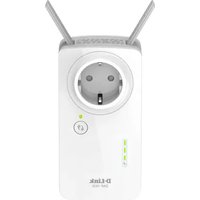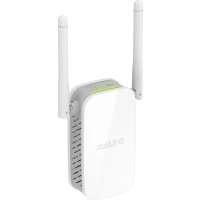
DAP1325 - Wifi repeater D-LINK - Free user manual and instructions
Find the device manual for free DAP1325 D-LINK in PDF.



| Product type | Wi-Fi Repeater |
| Brand | D-Link |
| Model | DAP1325 |
| Dimensions (approx.) | 80 x 50 x 30 mm |
| Weight (approx.) | 100 g |
| Power supply | Integrated power plug (100-240 V AC) |
| Wi-Fi standards | 802.11 b/g/n (2.4 GHz) |
| Maximum data rate | 300 Mbps |
| Main functions | Wi-Fi network extension, Access point mode, configuration via QRS Mobile app or web interface |
| Wireless security | WEP, WPA, WPA2 (TKIP/AES), WPS |
| Configuration | Via QRS Mobile app (iOS/Android) or web browser (http://dlinkap.local./) |
| LED indicators | Power, signal status (orange/green) |
| Reset button | Yes (hold 10 seconds) |
| Compatibility | Compatible with any standard Wi-Fi router |
| Maintenance and cleaning | Clean with a soft, dry cloth. Do not use liquid or abrasive products. |
| Safety instructions | Plug into an outlet near the router. Avoid humid or dusty environments. |
| Spare parts and repairability | No spare parts available. Device not user-serviceable. |
| General information | Manual available for download at notice-facile.com. Technical support on D-Link website. |
Frequently Asked Questions - DAP1325 D-LINK
User questions about DAP1325 D-LINK
0 question about this device. Answer the ones you know or ask your own.
Ask a new question about this device
Download the instructions for your Wifi repeater in PDF format for free! Find your manual DAP1325 - D-LINK and take your electronic device back in hand. On this page are published all the documents necessary for the use of your device. DAP1325 by D-LINK.
USER MANUAL DAP1325 D-LINK
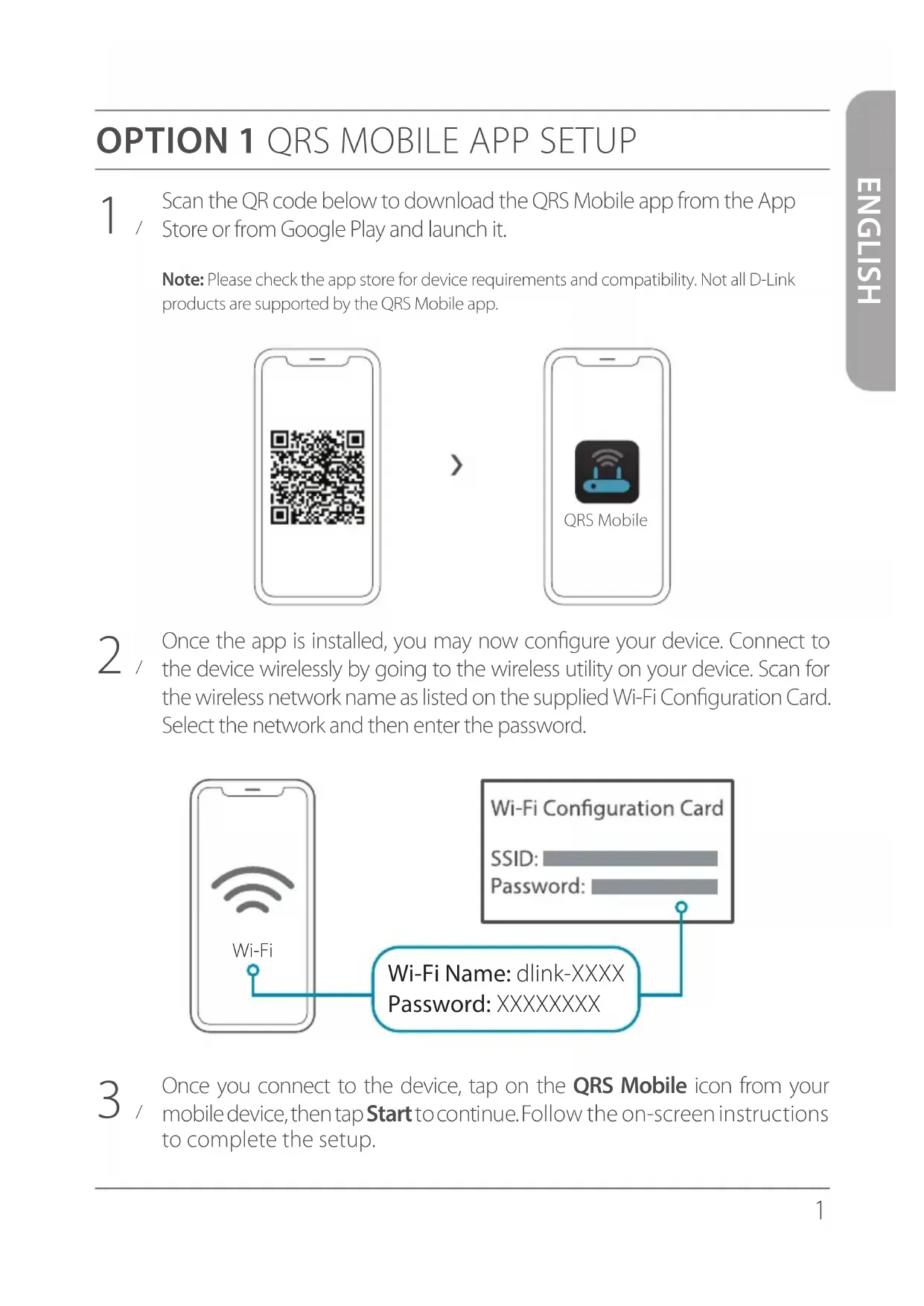
1 Scan the QR code below to download the QRS Mobile app from the App / Store or from Google Play and launch it.
Note: Please check the app store for device requirements and compatibility. Not all D-Link products are supported by the QRS Mobile app.

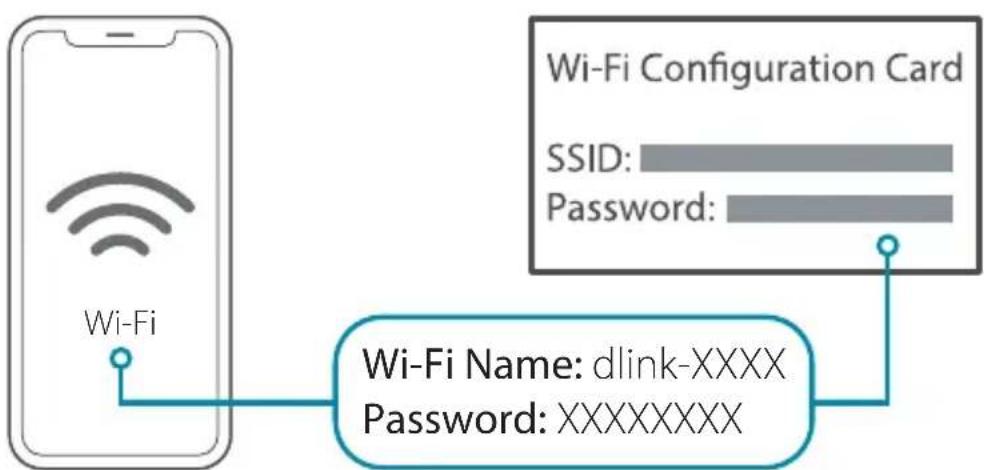
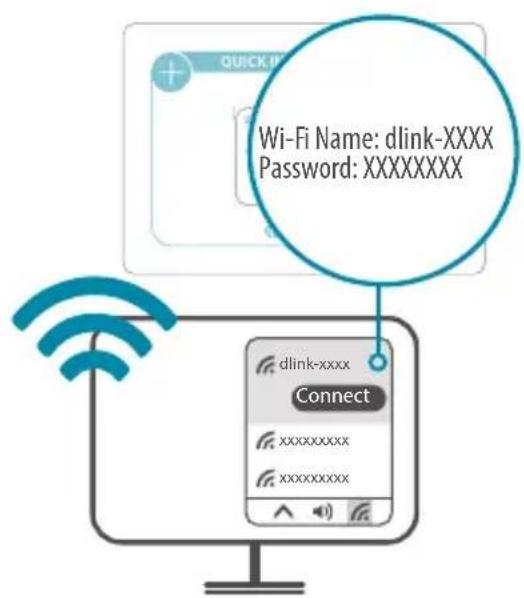
Once the app is installed, you may now configure your device. Connect to the device wirelessly by going to the wireless utility on your device. Scan for the wireless network name as listed on the supplied Wi-Fi Configuration Card. Select the network and then enter the password.
Once you connect to the device, tap on the QRS Mobile icon from your mobile device, then tap Start to continue. Follow the on-screen instructions to complete the setup.
OPTION 2 WEB BROWSER SETUP
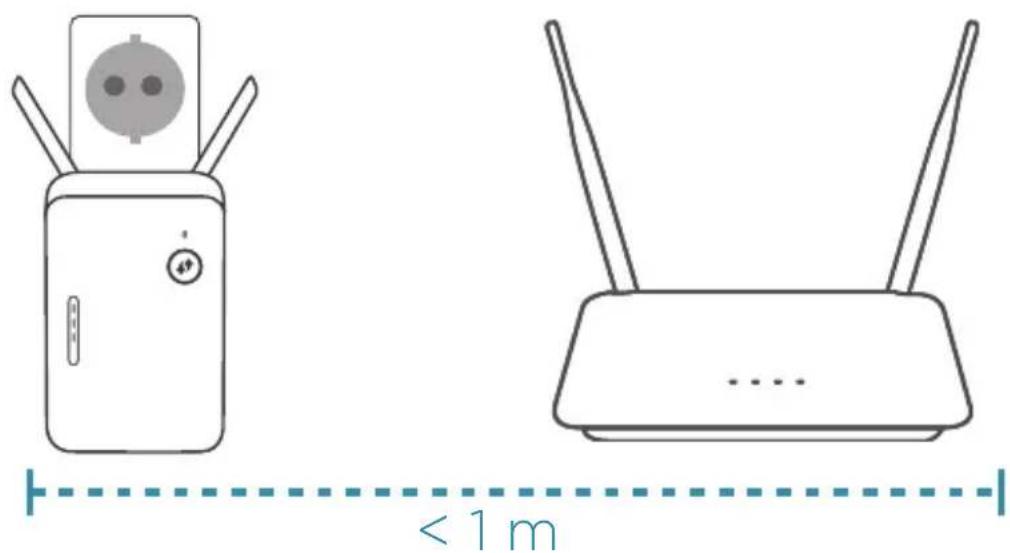
1 Plug the extender into a power source close to your router.
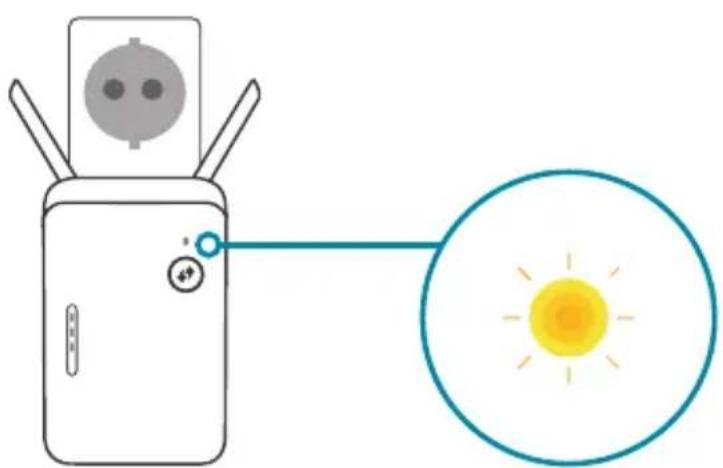
- Wait for the Power LED of the extender to start blinking amber.
Note: Please refer to the User Manual for device specific LED behaviour.
3 Connect your computer to the Wi-Fi name and password printed on the Quick Installation Card, or on the device label of the device.
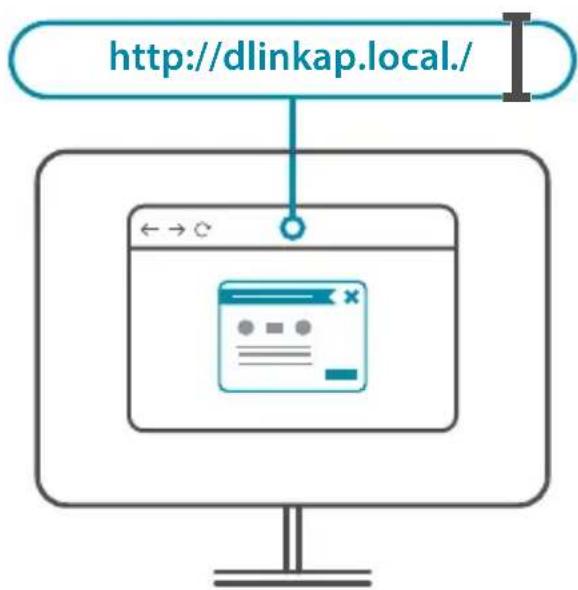
4 Type http://dlinkap.local./ into the address bar of a web browser. Follow the on-screen instructions to complete the setup.

ENJOY!
You're all good to go! Connect devices to your network using the Wi-Fi Name (SSID) and password that you created during the setup process.
PLACEMENT
Note: Please refer to the User Manual for device specific LED behaviour.

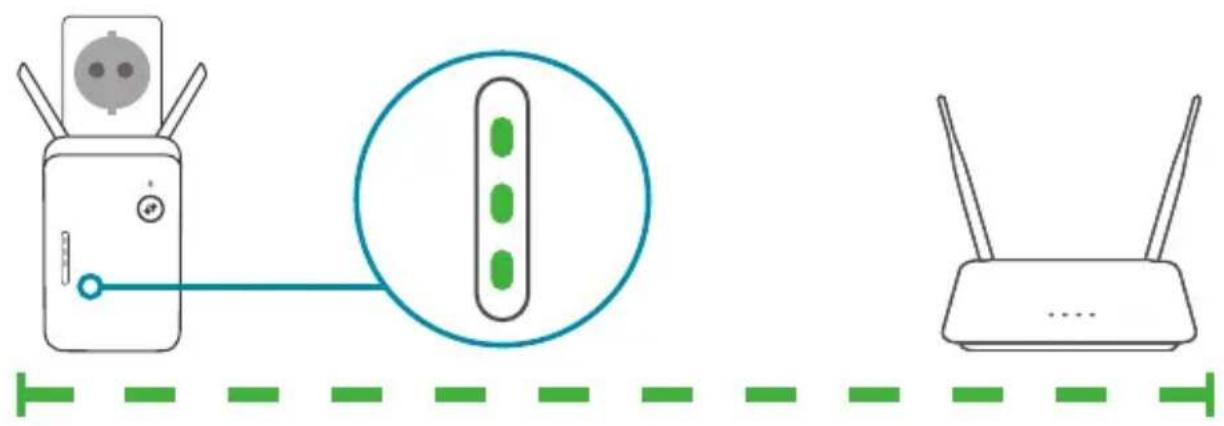
One amber bar indicates a weak signal. Move your extender closer to your router to improve signal quality. Make sure that your extender is placed in an open environment.
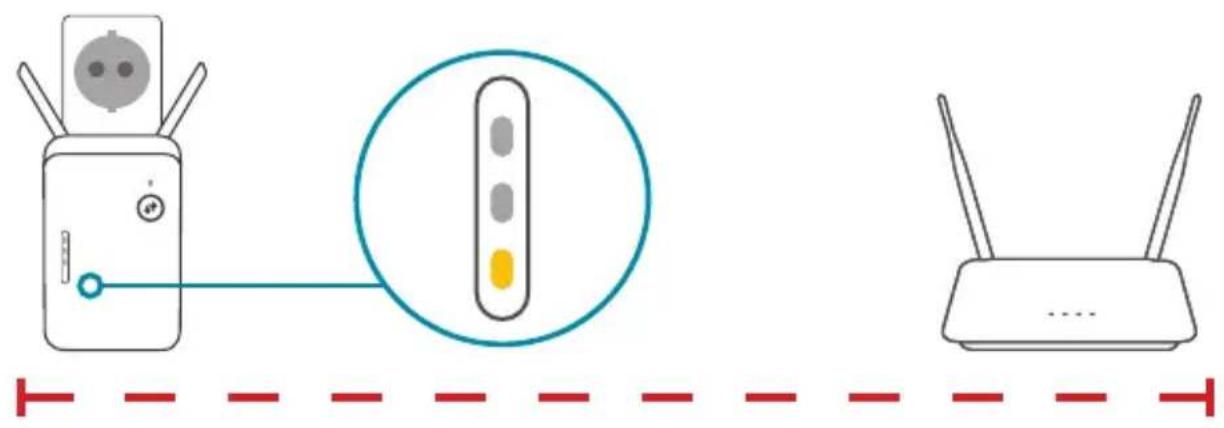
Place the extender in range of your router. Check the LED indicator on your extender to ensure a proper connection. Green bars indicate a strong signal.
Why can't I connect to my wireless router or my wireless connection drops?
Verify that your extender is within range of your router. Try plugging it into a location closer to the router and verify the Signal LED is solid green. Note that when extending a wireless signal from a router or access point, devices connected to the extender will not get the same speed/throughput as when connected directly to the router.
How do I change the wireless settings on my extender?
To change your Wi-Fi Network Name (SSID) and modify the security (Wi-Fi password), access the wireless settings via:
- The Wi-Fi section in the settings menu of the D-Link Wi-Fi app or
- Access the web-based configuration utility > Settings > Extender.
What if I forgot my extender's Admin password or want to reset my extender?
If you forgot your Admin password or want to reset your extender back to the factory default settings, press and hold the reset button on the bottom of the extender using a paper clip and release after a minimum of 10 seconds. The Status LED will turn red.
For technical support, product documentation and other information, please visit our website.
https://eu.dlink.com/support
OPTION 1 CONFIGURATION DE L'APPLICATION QRS MOBILE
https://eu.dlink.com/support
https://eu.dlink.com/support
OPTIE1 QRS MOBILE APP-INSTALLATIE
1 Scan de onderstaande QR-code om de QRS Mobile-app te downloaden van de App Store of Google Play en start de app op.
https://eu.dlink.com/support
MOZNOST1 NASTAVENÍ APLIKACE QRS MOBILE
https://eu.dlink.com/support
1. LEHETÖSEG QRS MOBILE ALKALMAZÁS TELEPÎTÉSE
https://eu.dlink.com/support
ALTERNATIV 1 KONFIGURING I QRS MOBILE-APP
https://eu.dlink.com/support
VAIHTOEHTO 1 QRS MOBILE-SOVELUKSEN ASEENNUS
https://eu.dlink.com/support
https://eu.dlink.com/support
ENIAOΓH 1 ΔIAMOPΦΩΣΗ ΘΕΦAPMΟΓΗ QRS MOBILE
https://eu.dlink.com/support
MOZNOST 1 NAMESTITEV APLIKACije QRS MOBILE
1 Skenirajte spodnjo kodo QR, da iz trgovine App Store ali Google Play / prenesete aplikacijo QRS Mobile in jo zaženete.
https://eu.dlink.com/support
OPTIUNEA 1 CONFIGURARE APLICATIE QRS MOBILE
https://eu.dlink.com/support