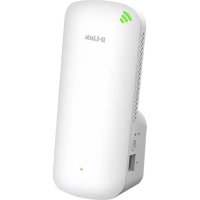
DAPX1860 - Wifi repeater D-LINK - Free user manual and instructions
Find the device manual for free DAPX1860 D-LINK in PDF.



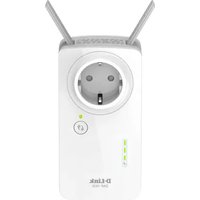
| Product Type | WiFi Extender |
| Brand | D-Link |
| Model | DAPX1860 |
| WiFi Standard | Wi-Fi 5 (802.11ac), dual band 2.4 GHz and 5 GHz |
| Maximum Theoretical Speed | Up to 1200 Mbps (300 Mbps on 2.4 GHz + 867 Mbps on 5 GHz) |
| Power Supply | Built-in power plug, 100-240V AC, 50/60 Hz |
| Power Consumption | 5 W (max) |
| Dimensions (W x D x H) | 80 x 55 x 35 mm |
| Weight | 120 g |
| Operating Temperature | 0 °C to 40 °C |
| Operating Humidity | 10 % to 90 % (non-condensing) |
| Wireless Security | WPA2-PSK, WPA3-PSK |
| Configuration | D-Link Wi-Fi App or web browser (http://dlinkap.local.) |
| LED Indicators | Power light and signal level bar (orange = weak, green = strong) |
| Reset Button | Yes, hold for 10 seconds to reset |
| Access Point Mode | Yes |
| Care and Cleaning | Clean with a soft dry cloth, do not use abrasive products |
| Electrical Safety | Do not open the casing, risk of electric shock |
| Spare Parts and Repairability | Product not user-serviceable, no spare parts available |
| Warranty | 2 years (excluding abnormal use) |
| General Information | Compliant with CE, FCC, RoHS standards |
Frequently Asked Questions - DAPX1860 D-LINK
User questions about DAPX1860 D-LINK
0 question about this device. Answer the ones you know or ask your own.
Ask a new question about this device
Download the instructions for your Wifi repeater in PDF format for free! Find your manual DAPX1860 - D-LINK and take your electronic device back in hand. On this page are published all the documents necessary for the use of your device. DAPX1860 by D-LINK.
USER MANUAL DAPX1860 D-LINK
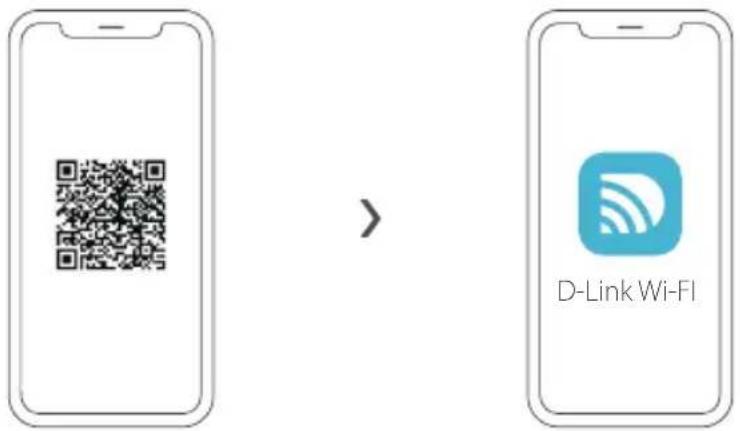
OPTION 1 D-LINK WI-FI APP SETUP
1,
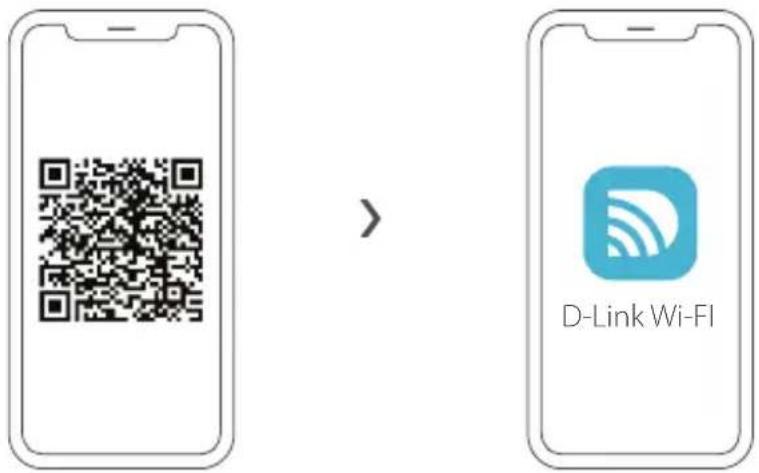
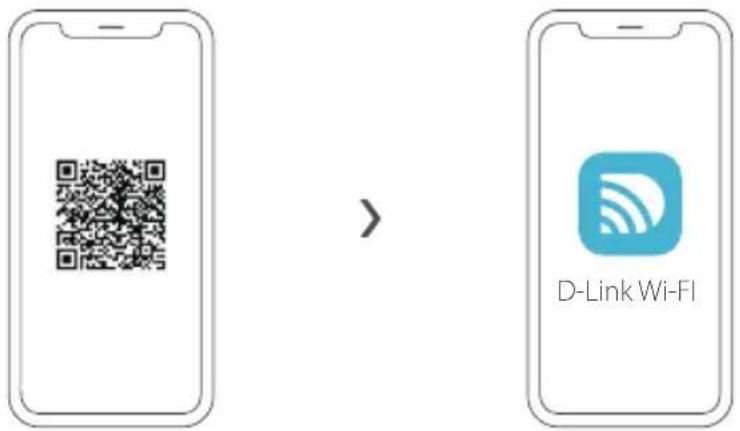
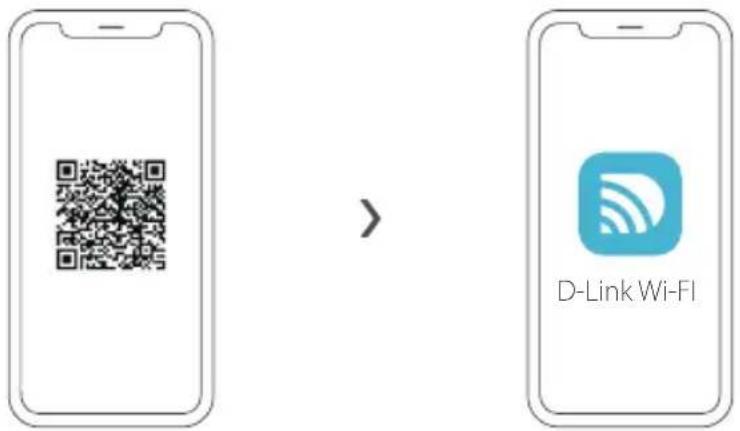
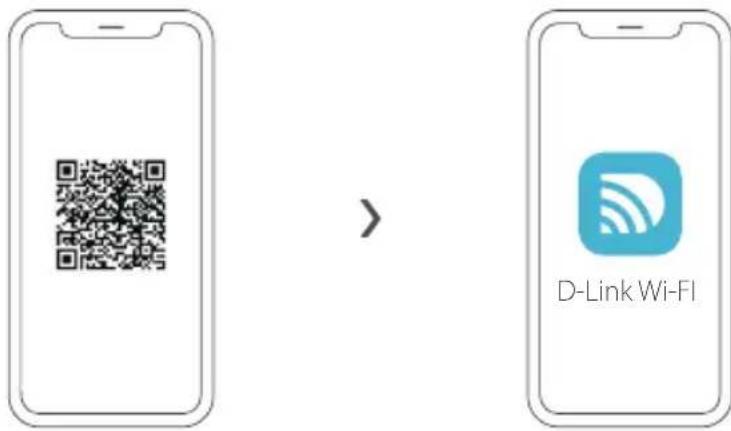
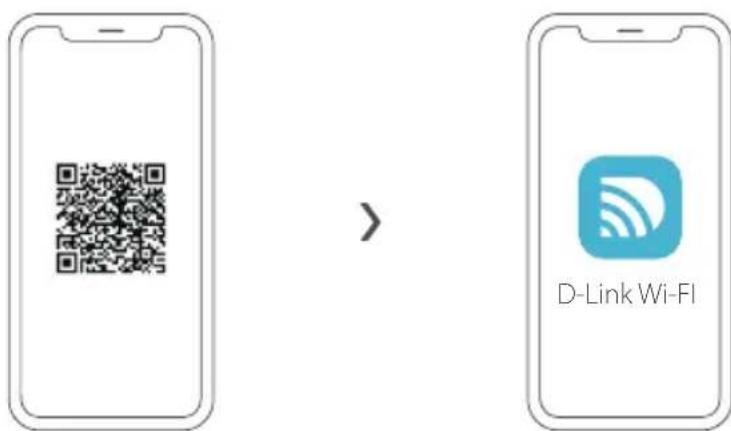
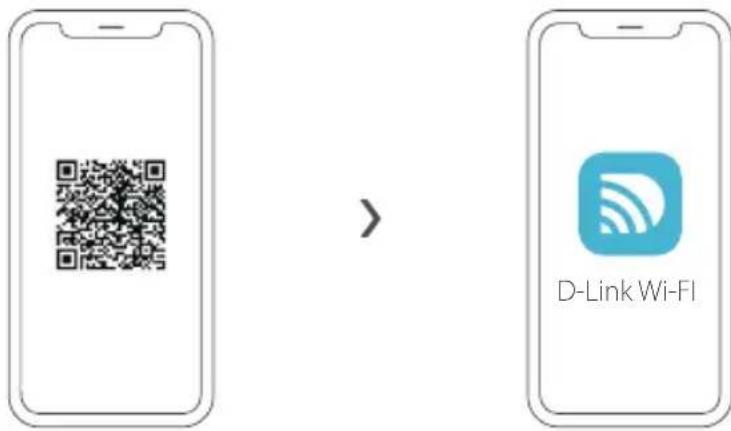
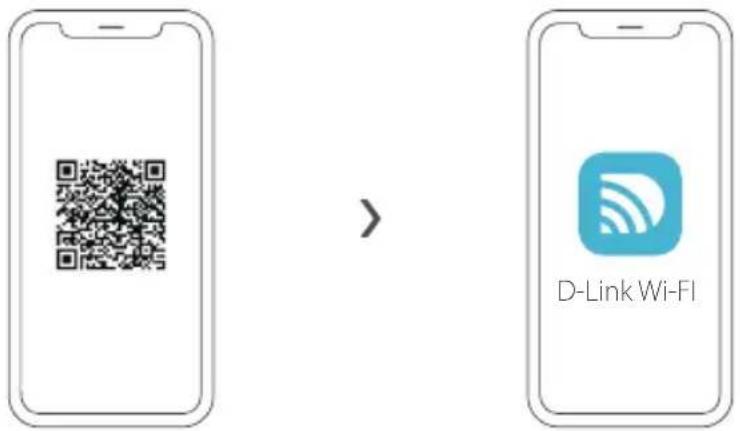
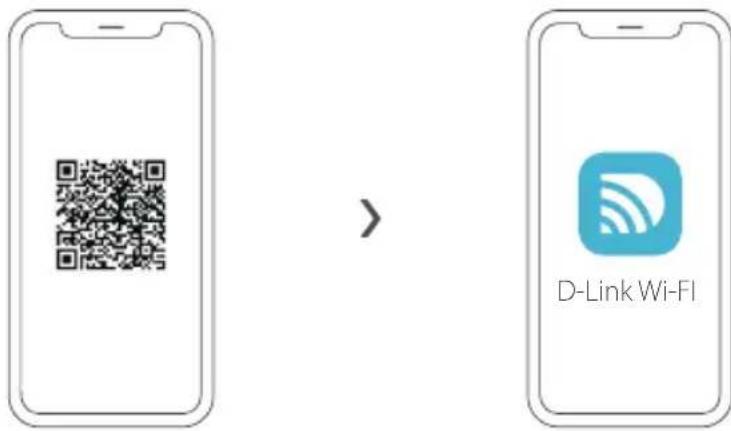
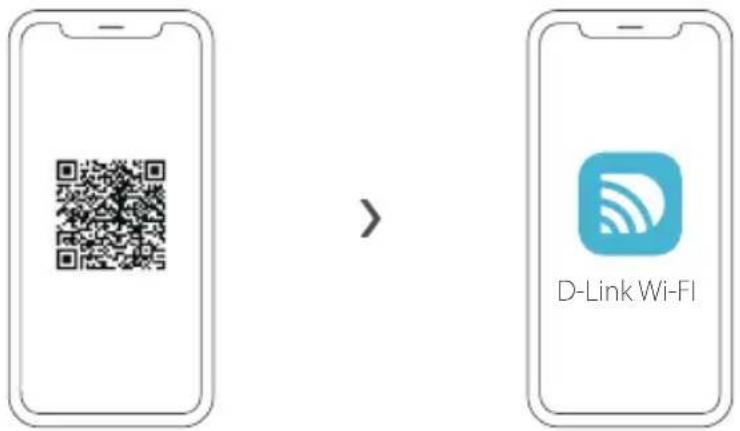
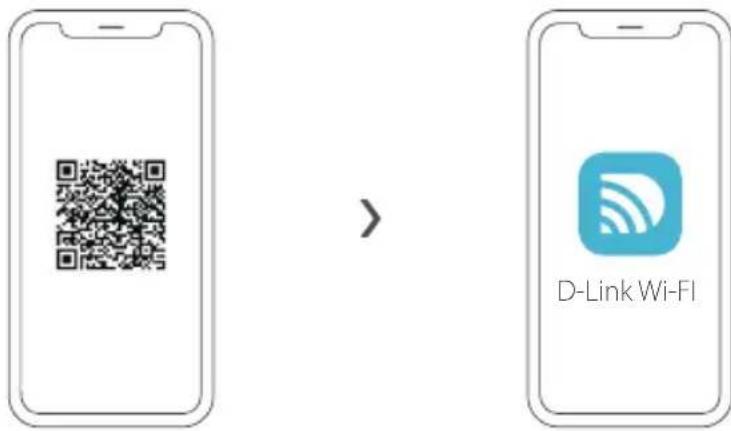
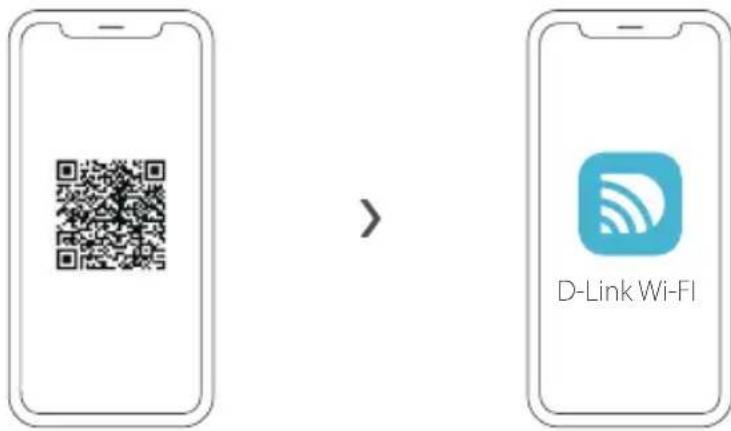
Scan the QR code above to download the D-Link Wi-Fi app from the App Store or from Google Play and launch it.
Note: Please check the app store for device requirements and compatibility. Not all D-Link products are supported by the D-Link Wi-Fi app.
2 ,
flowchart
graph TD
    A["Wi-Fi Access Card"] --> B["Quick Installation Card"]
    B --> C["Install New Device"]
    C --> D["Access Card Icon"]
    style A fill:#f9f,stroke:#333
    style B fill:#ccf,stroke:#333
    style C fill:#cfc,stroke:#333
    style D fill:#fcc,stroke:#333
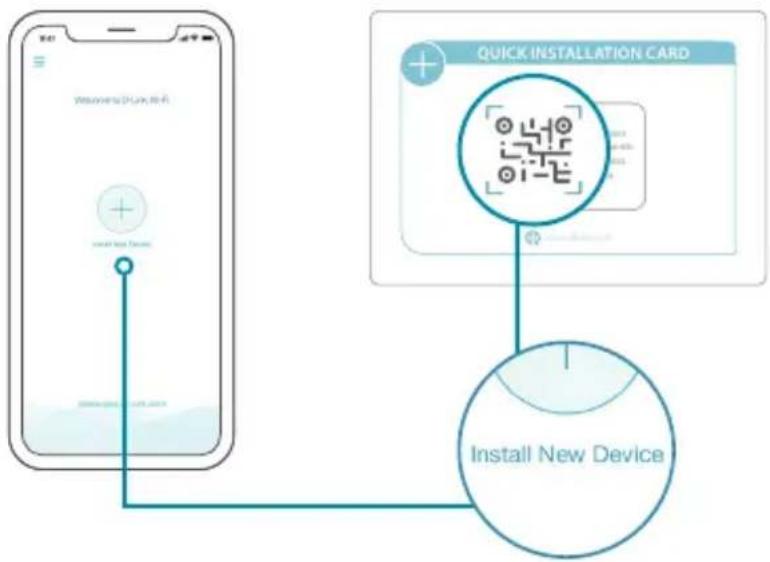
Tap Install New Device. Tap Scan the QR code. Scan the code on the Quick Installation Card provided in the packaging of your product. Follow the on-screen instructions to complete the setup.

ENJOY!
You're all good to go! Connect devices to your network using the Wi-Fi Name (SSID) and password that you created during the setup process.
OPTION 2 WEB BROWSER SETUP
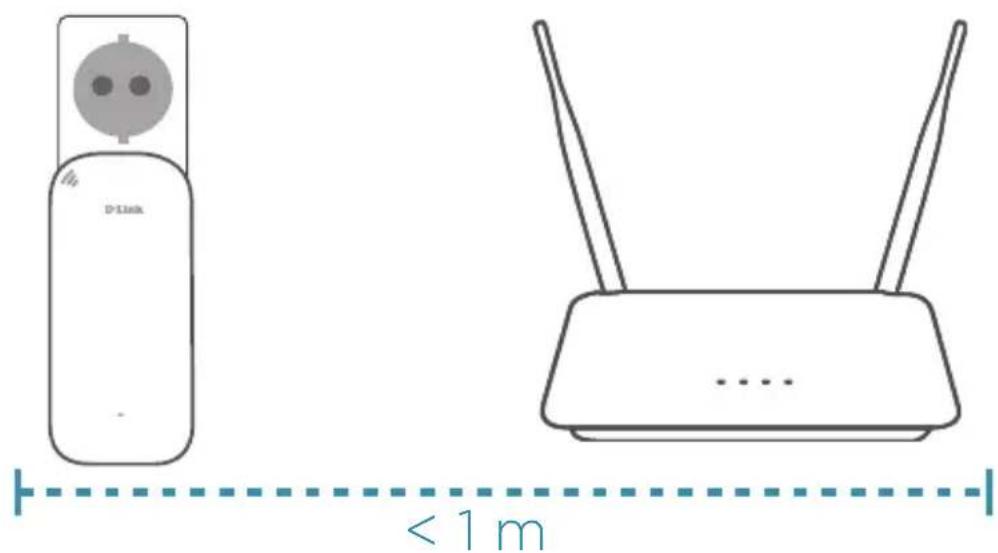
1, Plug the extender into a power source close to your router.
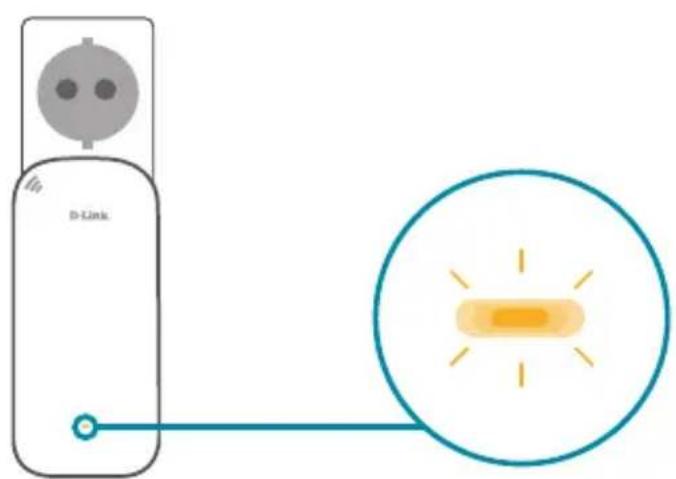
2, Wait for the Power LED of the extender to start blinking amber.
Note: Please refer to the User Manual for device specific LED behaviour.
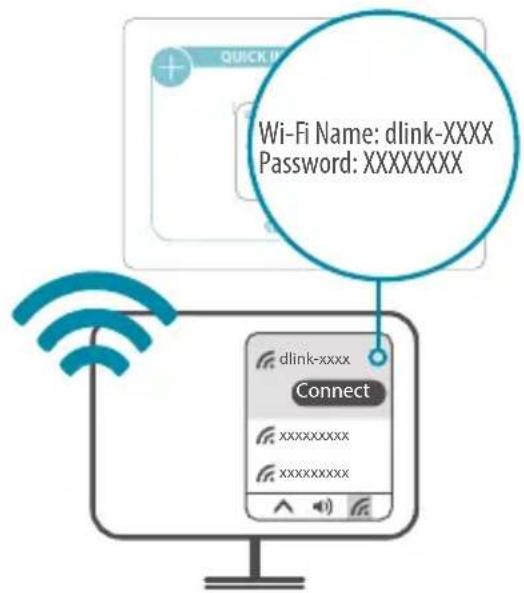
3 / Connect your computer to the Wi-Fi name and password printed on the Quick Installation Card, or on the device label of the device.
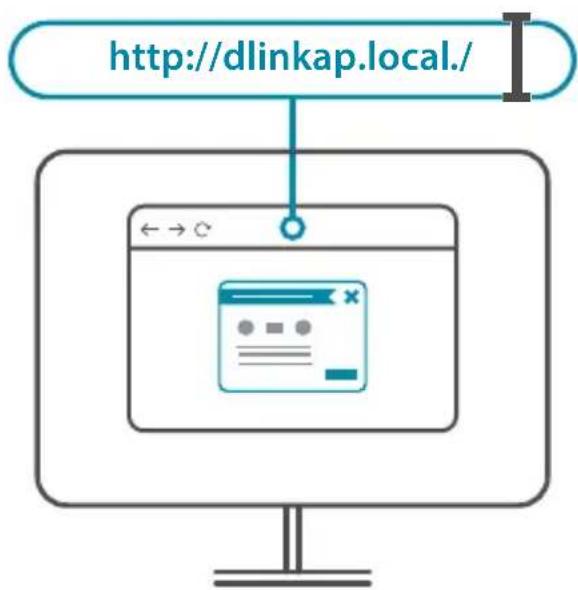
4 / Type http://dlinkap.local./ into the address bar of a web browser. Follow the on-screen instructions to complete the setup.
flowchart
graph TD
    A["http://dlinkap.local."] --> B["Browser Window"]
    B --> C["Browser Icon"]

ENJOY!
You're all good to go! Connect devices to your network using the Wi-Fi Name (SSID) and password that you created during the setup process.
PLACEMENT
Note: Please refer to the User Manual for device specific LED behaviour.

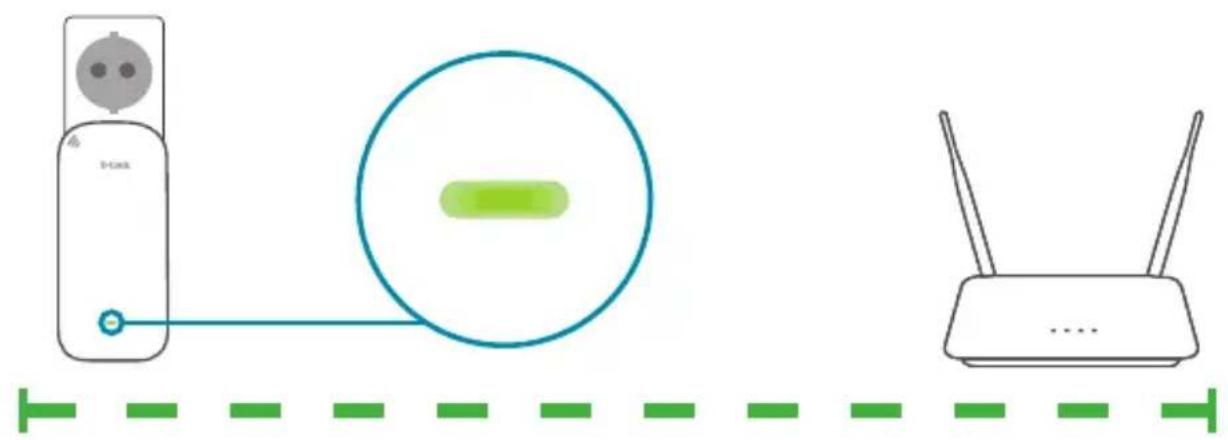
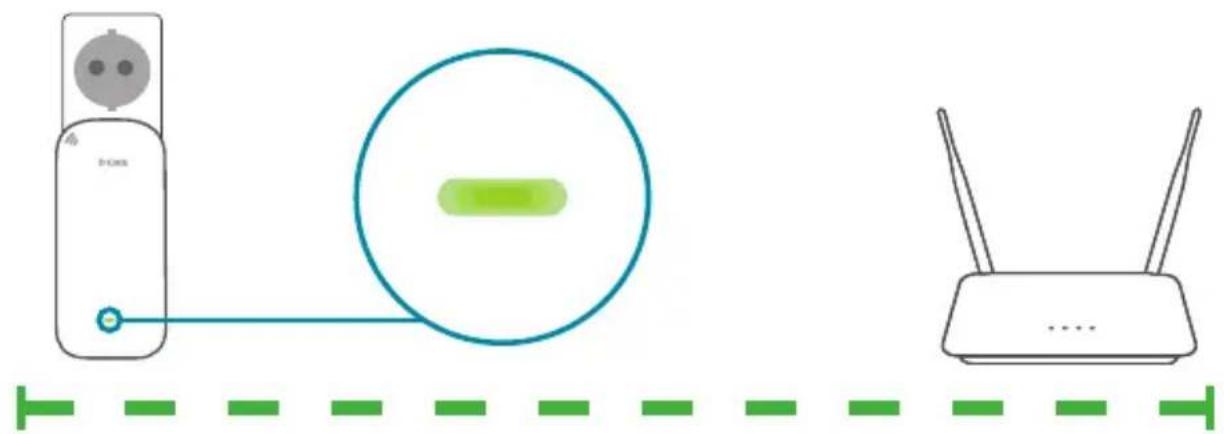
One amber bar indicates a weak signal. Move your extender closer to your router to improve signal quality. Make sure that your extender is placed in an open environment.
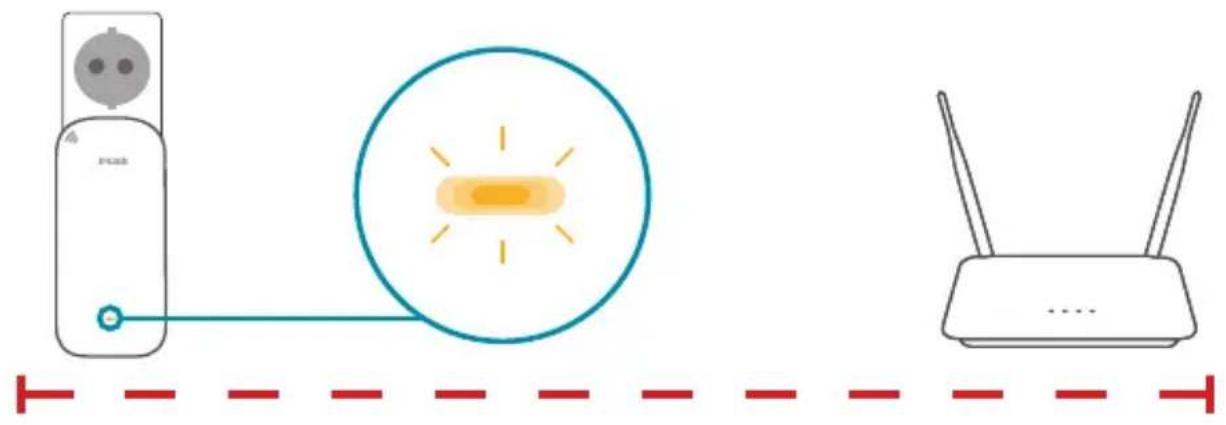

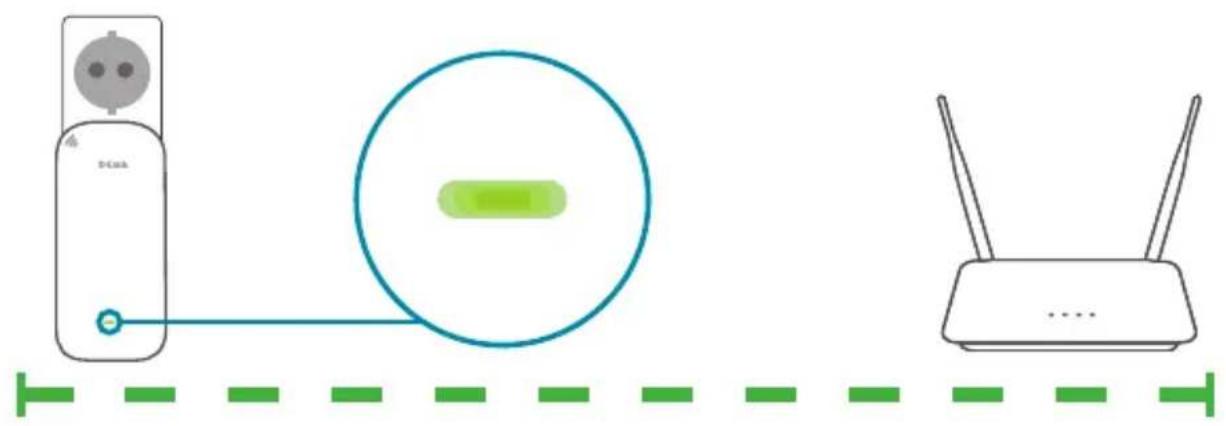
Place the extender in range of your router. Check the LED indicator on your extender to ensure a proper connection. Green bars indicate a strong signal.
natural_image
Diagram showing a DC power outlet connected to a circular device and a Wi-Fi router, with no text or symbols present.Why can't I connect to my wireless router or my wireless connection drops?
Verify that your extender is within range of your router. Try plugging it into a location closer to the router and verify the Signal LED is solid green. Note that when extending a wireless signal from a router or access point, devices connected to the extender will not get the same speed/throughput as when connected directly to the router.
How do I change the wireless settings on my extender?
To change your Wi-Fi Network Name (SSID) and modify the security (Wi-Fi password), access the wireless settings via:
- The Wi-Fi section in the settings menu of the D-Link Wi-Fi app or
- Access the web-based configuration utility > Settings > Extender.
What if I forgot my extender's Admin password or want to reset my extender?
If you forgot your Admin password or want to reset your extender back to the factory default settings, press and hold the reset button on the bottom of the extender using a paper clip and release after a minimum of 10 seconds. The Status LED will turn red.
For technical support, product documentation and other information, please visit our website.
natural_image
Diagram showing a D-Link device connected to a circular indicator light with an orange beam (no text or symbols)
https://eu.dlink.com/support
OPTION 1 CONFIGURATION VIA L'APPLICATION WI-FI D-LINK
1,
natural_image
Diagram showing a D-Link device connected to a circular icon with a lightbulb (no text or symbols)
https://eu.dlink.com/support
natural_image
Diagram showing a D-Link device connected to a circular indicator light with an orange beam (no text or symbols)https://eu.dlink.com/support

natural_image
Diagram showing a D-Link device connected to a circular icon with a green highlight, next to a wireless router (no text or symbols present)https://eu.dlink.com/support
OPTIE 1 D-LINK WI-FI APP SETUP
1 /
natural_image
Diagram showing a D-Link device connected to a circular device and a wireless router, with no text or symbols present.https://eu.dlink.com/support
OPCJA 1 KONFIGURACJA APLIKACJI D-LINK WI-FI
1 /

https://eu.dlink.com/support
MOŽNOST 1 NASTAVENÍ PROSTŘEDNICTVÍM APLIKACE D-LINK WI-FI
1,
natural_image
Diagram showing a D-Link device connected to a circular icon with a lightbulb (no text or symbols)natural_image
Diagram showing a B-Link device connected to a circular icon with a green highlight, next to a wireless router (no text or symbols present)https://eu.dlink.com/support
1. LEHETŐSÉG BEÁLLÍTÁS A D-LINK WI-FI ALKALMAZÁSSAL
1 /

https://eu.dlink.com/support
ALTERNATIV 1 KONFIGURERING | D-LINK WI-FI-APP
1 /

Plasser forlengeren innenfor ruterens rekkevidde. Kontroller LED-indikatoren på forlengeren for korrekt tilkobling. Grønne streker indikerer et sterkt signal.
natural_image
Diagram showing a T-Link device connected to a circular device and a wireless router, with no text or symbols present.https://eu.dlink.com/support
MULIGHED 1 OPSÄTNING AF D-LINK WI-FI APP
1 /
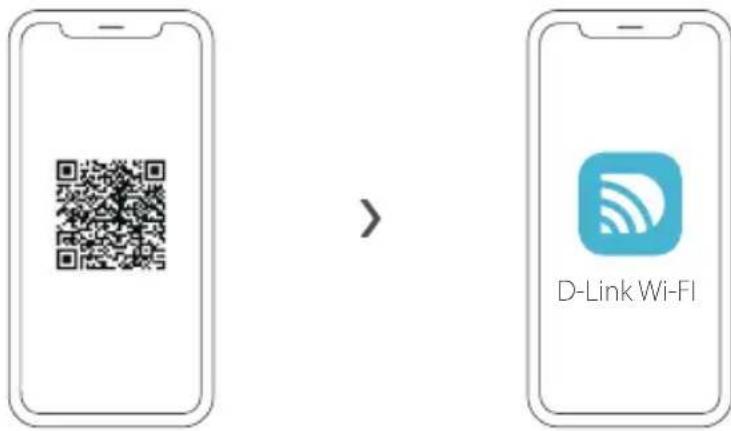
Scan QR-koden ovenfor for at downloade D-Link Wi-Fi-appen fra App Store eller Google Play og starte den.

natural_image
Diagram showing a D-Link device connected to a circular icon with a green button, and a wireless router with two antennas (no text or symbols)https://eu.dlink.com/support
VAIHTOEHTO 1 D-LINK WI-FI -SOVELLUKSEN ASENNUS
1 /

https://eu.dlink.com/support
ALTERNATIV 1 INSTALLATION AV D-LINK WI-FI-APP
1 /

natural_image
Diagram showing a router connected to a power outlet and a wireless router, with no text or symbols present.https://eu.dlink.com/support
natural_image
Illustration of a D-Link device connected to a circular icon with a lightbulb (no text or symbols)natural_image
Diagram showing three connected devices: a power outlet, a green circular device with a light green internal component, and a white router with two antennas (no text or symbols)https://eu.dlink.com/support

natural_image
Diagram showing a 3D printer connected to a circular device and a wireless router, with no text or symbols present.Skenirajte QR kod iznad ovog teksta kako biste preuzeli D-Link Wi-Fi aplikaciju iz trgovine App Store ili Google Play i pokrenite tu aplikaciju.
Napomena: Provjerite zahtjeve za uređaj i kompatibilnost u trgovini App Store. D-Link Wi-Fi aplikacija ne podržava sve D-Link proizvode.
2,
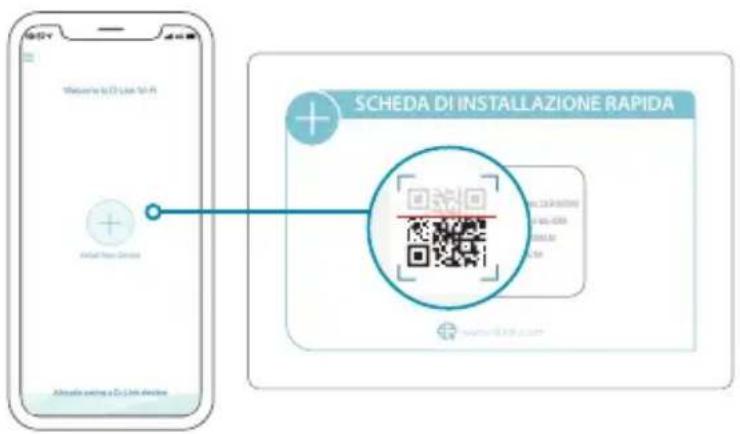
Dodirnite Instaliraj novi uređaj. Dodirnite Skeniraj QR kod. Skenirajte kod na kartici za brzu instalaciju isporučenoj u pakiranju vašeg proizvoda. Slijedite upute na zaslonu kako biste dovršili postavljanje.

UŽIVAJTE!
Sada ste spremni za akciju! Povežite uređaje na vašu mrežu koristeći naziv Wi-Fi mreže (SSID) i zaporku koju ste izradili tijekom postupka postavljanja.
OPCIJA 2 POSTAVLJANJE POMOĆU WEB PREGLEDNIKA

Postavite ekstender tako da bude u dometu usmjernika. Provjerite LED indikatore na ekstenderu kako biste osigurali pravilnu vezu. Zelene crte označavaju jak signal.
Zašto se ne mogu povezati sa svojim bežičnim usmjernikom ili zašto se moja bežična veza prekida?
https://eu.dlink.com/support
MOŽNOST 1 NAMESTITEV APLIKACIJE D-LINK WI-FI
1,

https://eu.dlink.com/support
OPTIUNEA 1 CONFIGURARE APL. D-LINK WI-FI
1 /

natural_image
Diagram showing a router connected via a cable to a circular device and a wireless router, with no text or symbols present.https://eu.dlink.com/support
ВАРИАНТ 1 НАСТРОЙКА НА ПРИЛОЖЕНИЕ D-LINK WI-FI
1,

natural_image
Diagram showing a power outlet connected to a circular device and a wireless router, with no text or symbols present.natural_image
Diagram showing a D-Link device connected to a circular icon with a lightbulb (no text or symbols)
https://eu.dlink.com/support
- OPTION 1 D-LINK WI-FI APP SETUP
- ENJOY!
- OPTION 2 WEB BROWSER SETUP
- PLACEMENT
- Why can't I connect to my wireless router or my wireless connection drops?
- How do I change the wireless settings on my extender?
- What if I forgot my extender's Admin password or want to reset my extender?
- OPTION 1 CONFIGURATION VIA L'APPLICATION WI-FI D-LINK
- OPTIE 1 D-LINK WI-FI APP SETUP
- OPCJA 1 KONFIGURACJA APLIKACJI D-LINK WI-FI
- MOŽNOST 1 NASTAVENÍ PROSTŘEDNICTVÍM APLIKACE D-LINK WI-FI
- LEHETŐSÉG BEÁLLÍTÁS A D-LINK WI-FI ALKALMAZÁSSAL
- ALTERNATIV 1 KONFIGURERING | D-LINK WI-FI-APP
- MULIGHED 1 OPSÄTNING AF D-LINK WI-FI APP
- VAIHTOEHTO 1 D-LINK WI-FI -SOVELLUKSEN ASENNUS
- ALTERNATIV 1 INSTALLATION AV D-LINK WI-FI-APP
- UŽIVAJTE!
- OPCIJA 2 POSTAVLJANJE POMOĆU WEB PREGLEDNIKA
- Zašto se ne mogu povezati sa svojim bežičnim usmjernikom ili zašto se moja bežična veza prekida?
- MOŽNOST 1 NAMESTITEV APLIKACIJE D-LINK WI-FI
- OPTIUNEA 1 CONFIGURARE APL. D-LINK WI-FI
- ВАРИАНТ 1 НАСТРОЙКА НА ПРИЛОЖЕНИЕ D-LINK WI-FI
Brand : D-LINK
Model : DAPX1860
Category : Wifi repeater