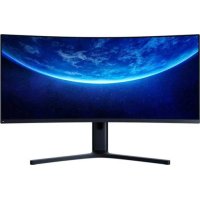
Mi Curved Gaming Monitor 34 - Monitor Xiaomi - Free user manual and instructions
Find the device manual for free Mi Curved Gaming Monitor 34 Xiaomi in PDF.



| Product Type | Curved Gaming Monitor |
| Brand | Xiaomi |
| Model | Mi Curved Gaming Monitor 34 |
| Reference | XMMNTWQ34 |
| Screen Size | 34 inches (86.36 cm) |
| Curvature | Curved (not specified) |
| Maximum Resolution | 3440 × 1440 (UltraWide QHD) |
| Refresh Rate | 144 Hz (DisplayPort), 100 Hz (HDMI) |
| Response Time | 4 ms (GTG) |
| Brightness | 300 cd/m² (typical) |
| Contrast Ratio | 3000:1 (typical) |
| Number of Colors | 16.7 million |
| Aspect Ratio | 21:9 |
| Connectivity | 2 × DisplayPort 1.4, 2 × HDMI 2.0, 3.5 mm audio jack |
| Power Supply | 100-240 V ~, 50/60 Hz, 2 A, 54 W (typical), 80 W max |
| Dimensions (with stand) | 810.39 (W) × 242.53 (D) × 520.61 (H) mm |
| Net Weight | 8 kg |
| VESA Compatibility | 100 × 100 mm (wall mount not included) |
| Main Features | Game Mode, FreeSync, Picture-by-Picture, Picture-in-Picture, Low Blue Light |
| Adjustments | Brightness, contrast, color temperature, gamma, aspect ratio, sharpness, response time |
| Care and Cleaning | Unplug before cleaning, use a soft dry cloth, do not use chemicals |
| Safety | Do not expose to moisture, do not block vents, use a suitable outlet |
| Spare Parts and Repairability | Contact Xiaomi after-sales service for any replacement |
| General Information | Manual available for download in PDF format, EU compliance, WEEE recycling |
Frequently Asked Questions - Mi Curved Gaming Monitor 34 Xiaomi
User questions about Mi Curved Gaming Monitor 34 Xiaomi
0 question about this device. Answer the ones you know or ask your own.
Ask a new question about this device
Download the instructions for your Monitor in PDF format for free! Find your manual Mi Curved Gaming Monitor 34 - Xiaomi and take your electronic device back in hand. On this page are published all the documents necessary for the use of your device. Mi Curved Gaming Monitor 34 by Xiaomi.
USER MANUAL Mi Curved Gaming Monitor 34 Xiaomi
Mi Curved Gaming Monitor 34" User Manual 1
Read this manual carefully before use, and retain it for future reference.
Contents
Product Overview 2
Monitor Overview 2
Package Contents 2
Installation 3
3
Cable Management 4
Wall Mount Installation 5
Instructions 6
Connections 6
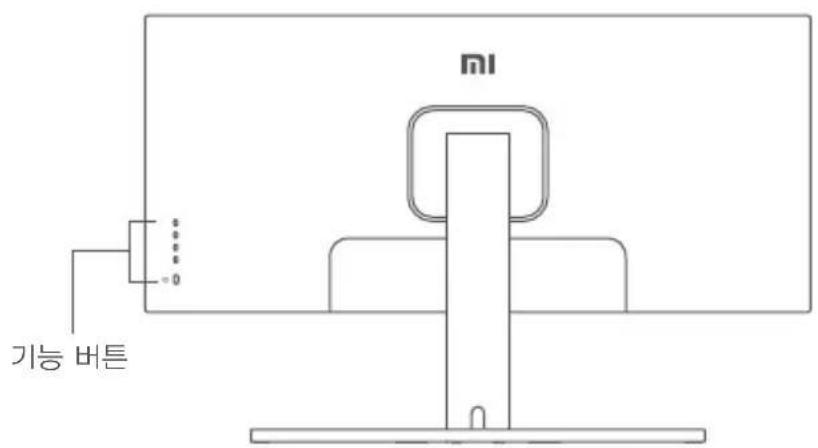
Button Description 7
On/Off Button 7
Indicator Status 7
Menu Description 8
Eye Health 10
Low Blue Light Description 10
Precautions 11
Troubleshooting 11
Specifications 12
Regulatory Compliance Information 13
Product Overview
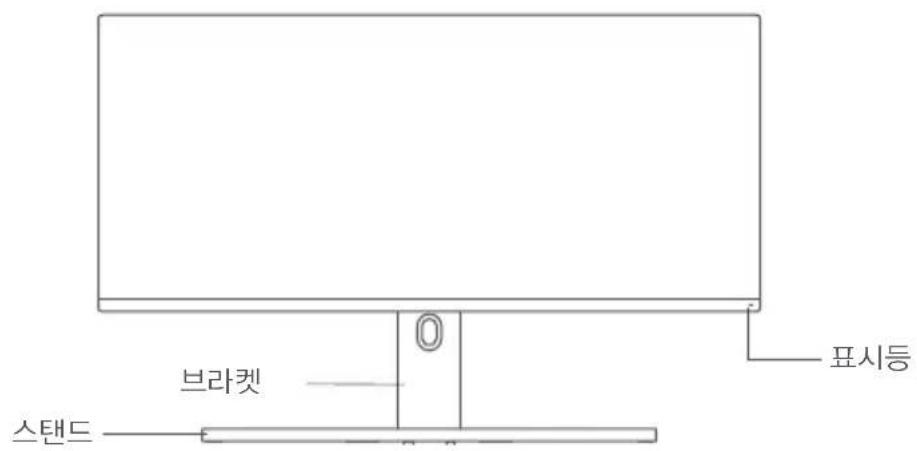
Monitor Overview
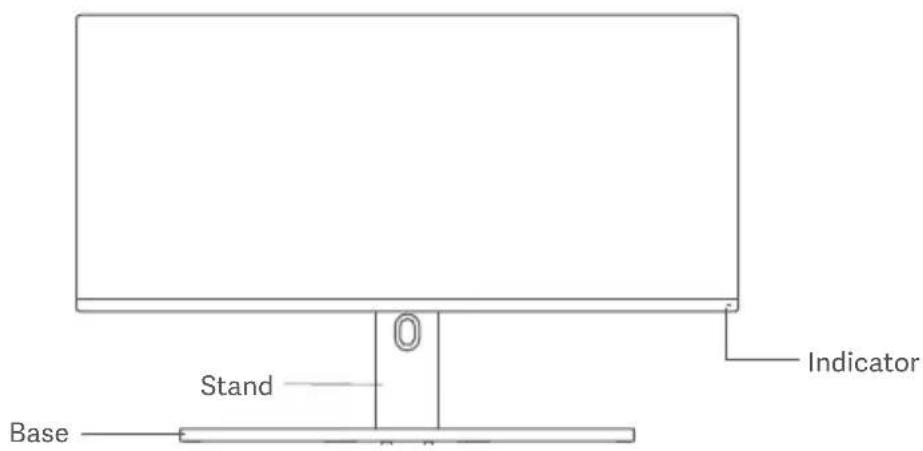
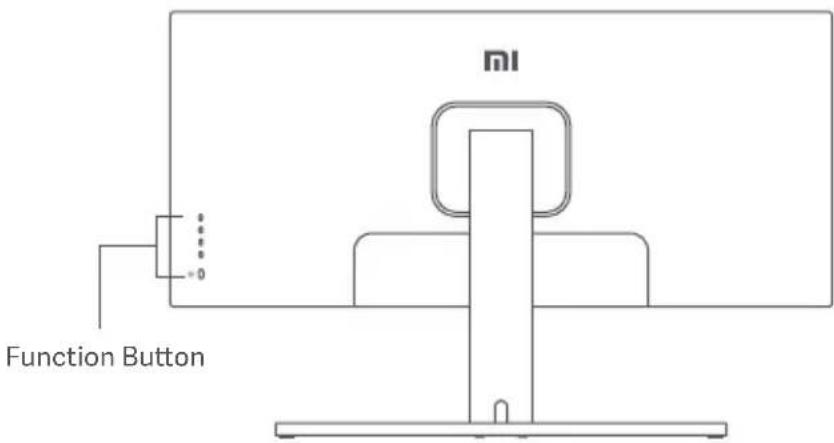
Package Contents
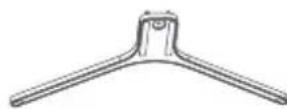
Base × 1
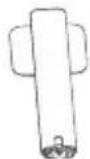
Stand × 1
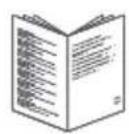
User Manual × 1 Monitor
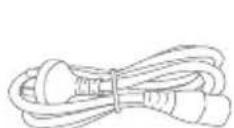
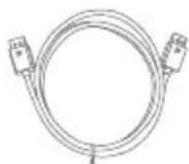


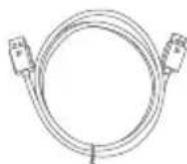
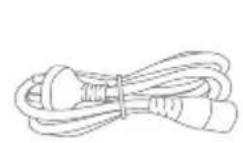
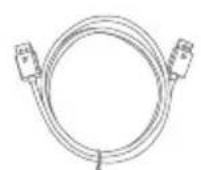
Power Cord × 1 DisplayPort Cable × 1 Hex Studs TAWB Barent × 1
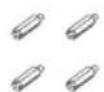
Screws × 4
Installation
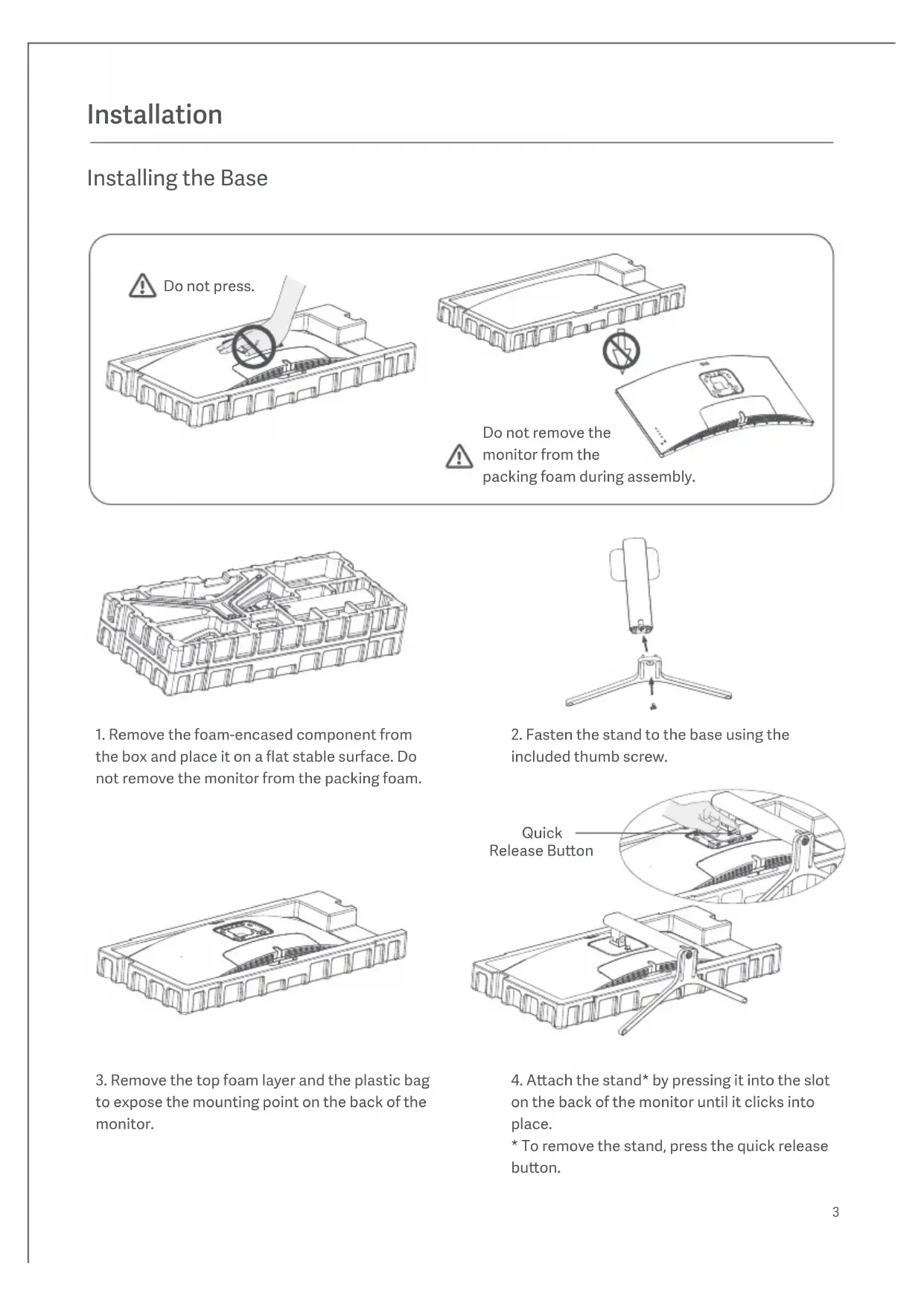
Installing the Base
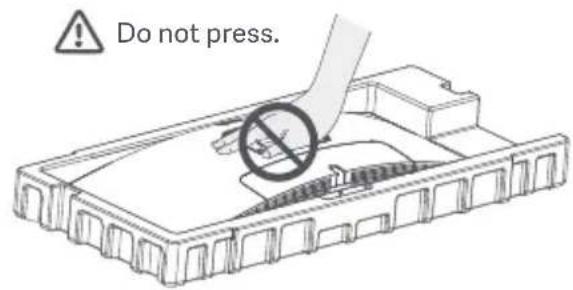

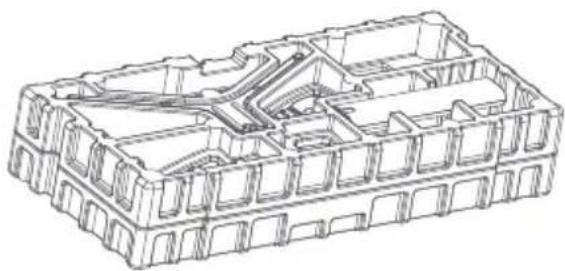
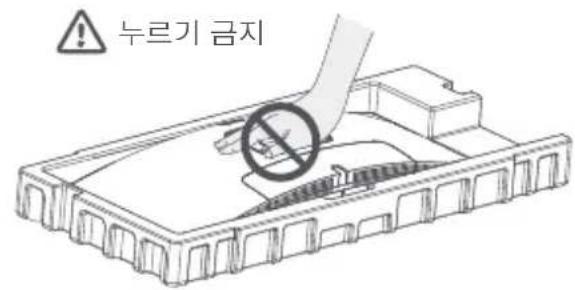
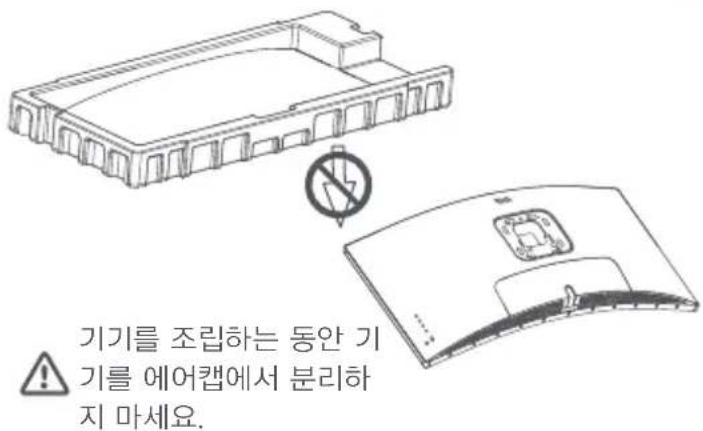
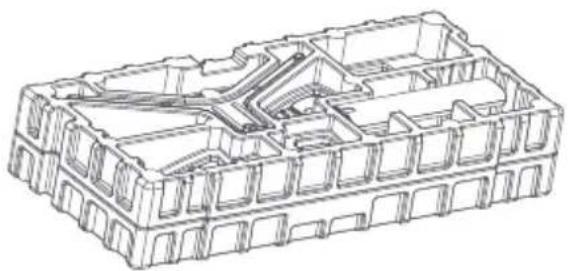
1. Remove the foam-encased component from the box and place it on a flat stable surface. Do not remove the monitor from the packing foam.
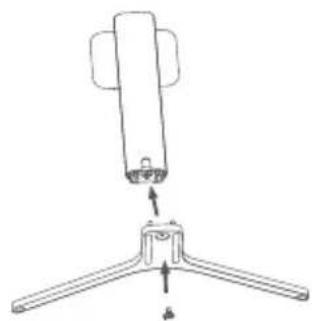
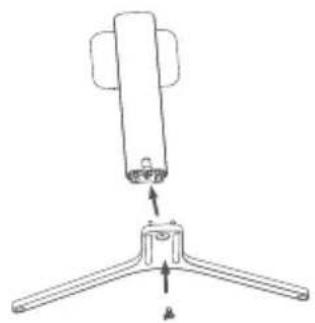
2. Fasten the stand to the base using the included thumb screw.
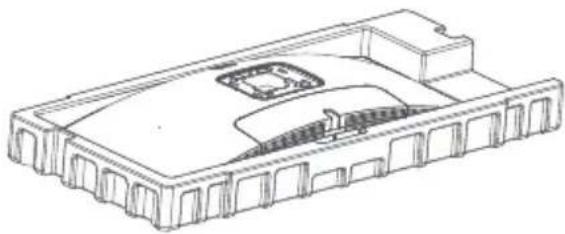

3. Remove the top foam layer and the plastic bag to expose the mounting point on the back of the monitor.
4. Attach the stand by pressing it into the slot on the back of the monitor until it clicks into place.
To remove the stand, press the quick release button.
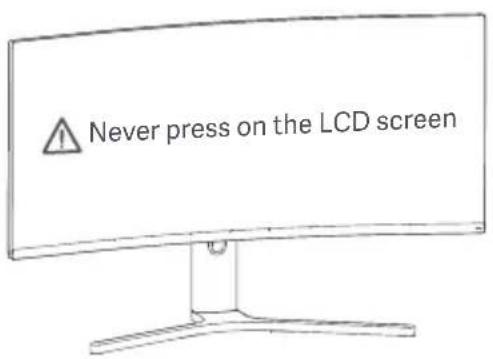
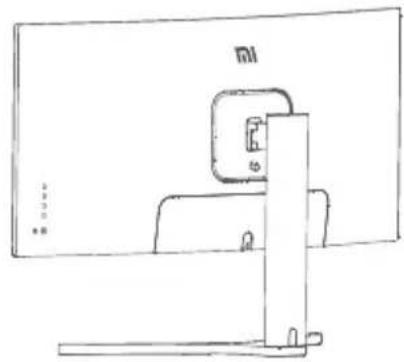
- Use both hands to carefully take out the fully assembled monitor and place it on a flat stable surface. Note: To avoid damaging the screen, be careful not to press on the LCD screen when standing it up.
Cable Management
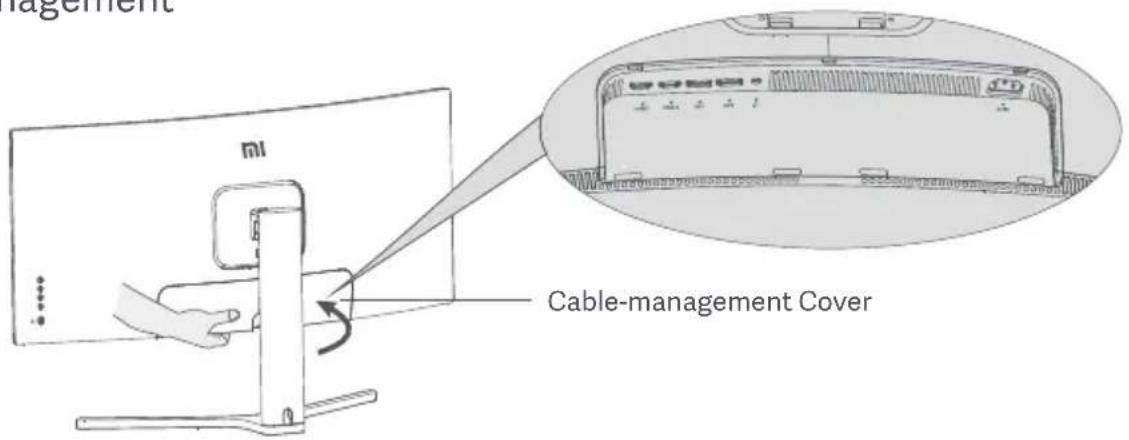
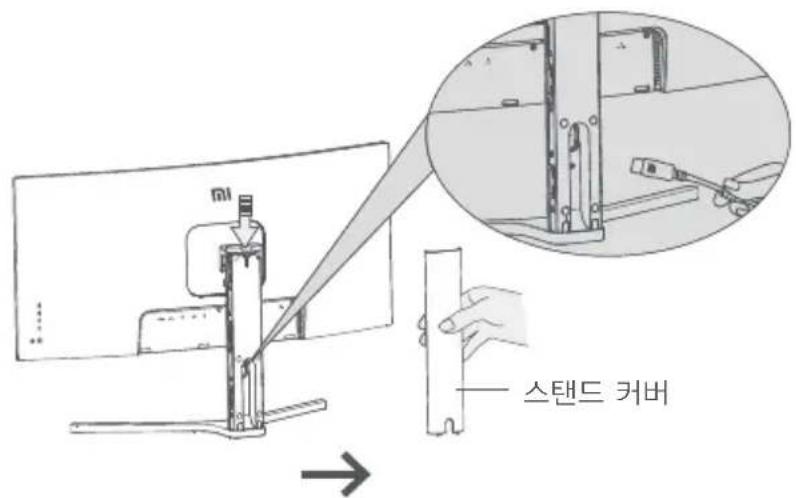
- Remove the monitor's cable-management cover and the stand's cover.
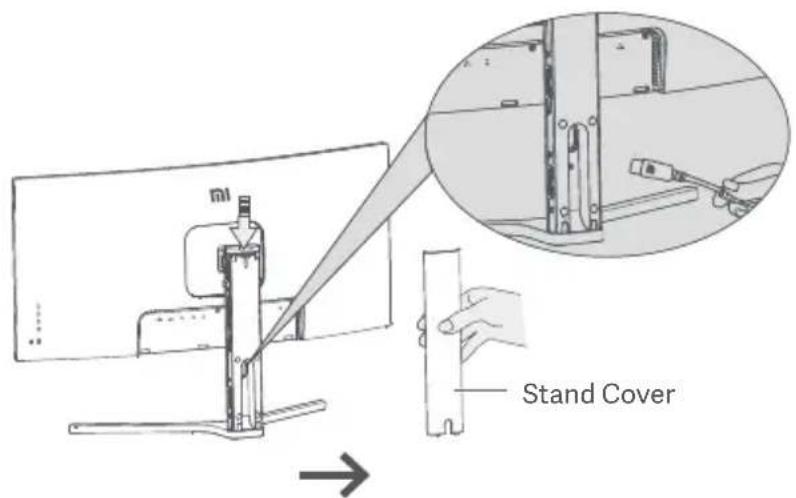
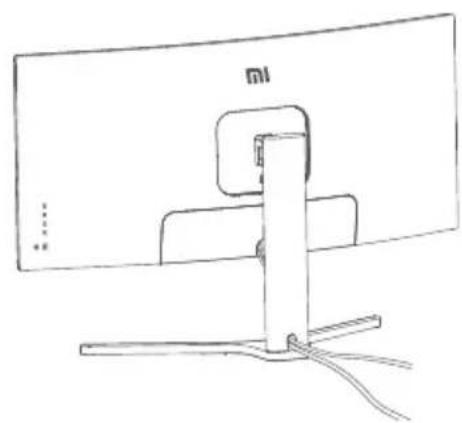
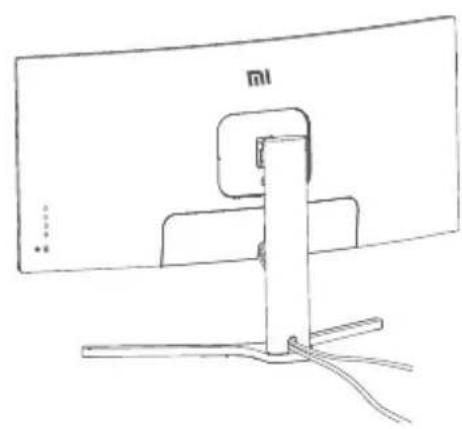
- Feed the power cord and the signal cable through the opening in the stand and connect them to the monitor. After all cables are in position, install both covers.
Note: The nameplate of this monitor is near the AC IN port, you can find it by removing the cable-management cover.
Wall Mount Installation
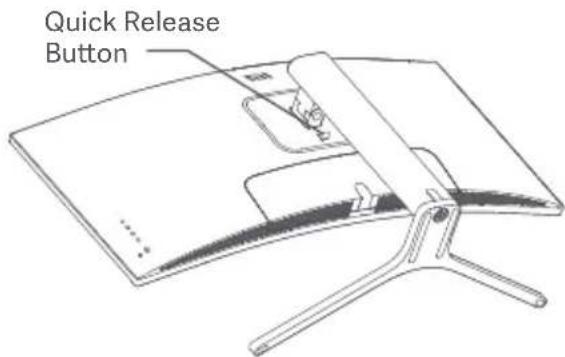
- Press the quick release button to remove the monitor's stand.
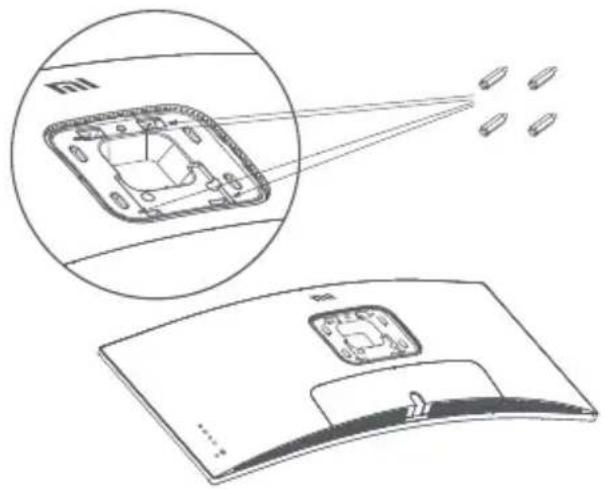
- Fasten the 4 hex studs to the back of the monitor in the positions indicated, then attach the wall mount (sold separately) to the hex studs (mounting holes are spaced 100 × 100 ~mm apart).
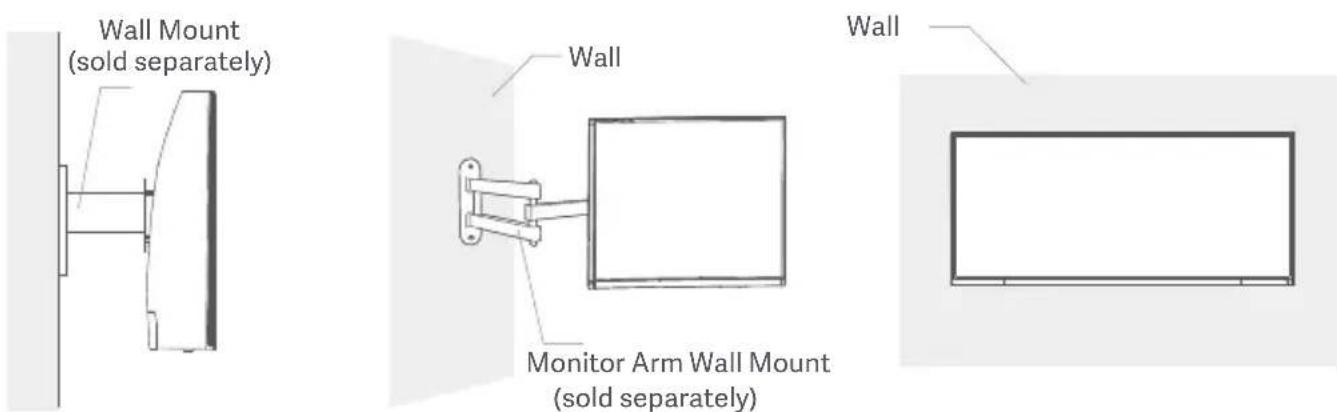
- Refer to the instructions of the wall mount to mount the monitor. Note: Do not press on the LCD screen during the mounting process to avoid damaging the screen.

Note: To reduce the risk of falling down, please properly install the wall-mount and take safety protection on the monitor to avoid any injury or damage. Do not place anything on top or hang anything from the wall-mount.
Connections
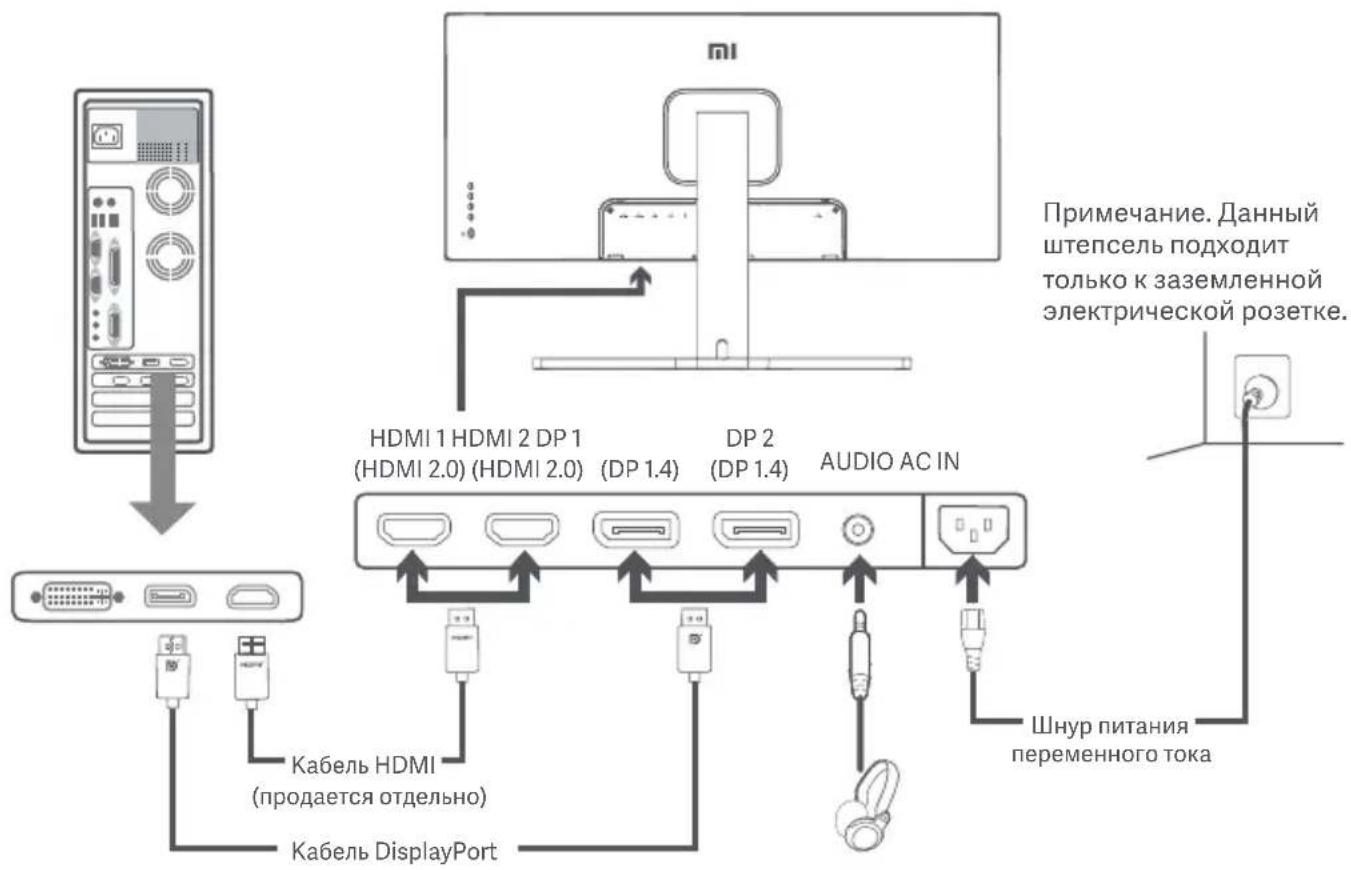
- Connecting the DisplayPort cable (only when using DisplayPort).
a. Make sure the monitor and the computer are both turned off.
b. Connect one end of the DisplayPort cable to the computer's DisplayPort output port, and the other end to one of the monitor's DisplayPort input ports.
- Connecting the HDMI cable (sold separately) (only when using HDMI).
a. Make sure the monitor and the computer are both turned off.
b. Connect one end of the HDMI cable to the computer's HDMI output port, and the other end to one of the monitor's HDMI input ports.
- Connect a headset or any 3.5mm compatible external audio device to the monitor's audio output port.
- Plug both the power cords of the computer and the monitor into a power outlet.

Note: If the power cord or DisplayPort cable is damaged, it must be replaced with a genuine power cord or DisplayPort cable purchased from the manufacturer or after-sales service department.
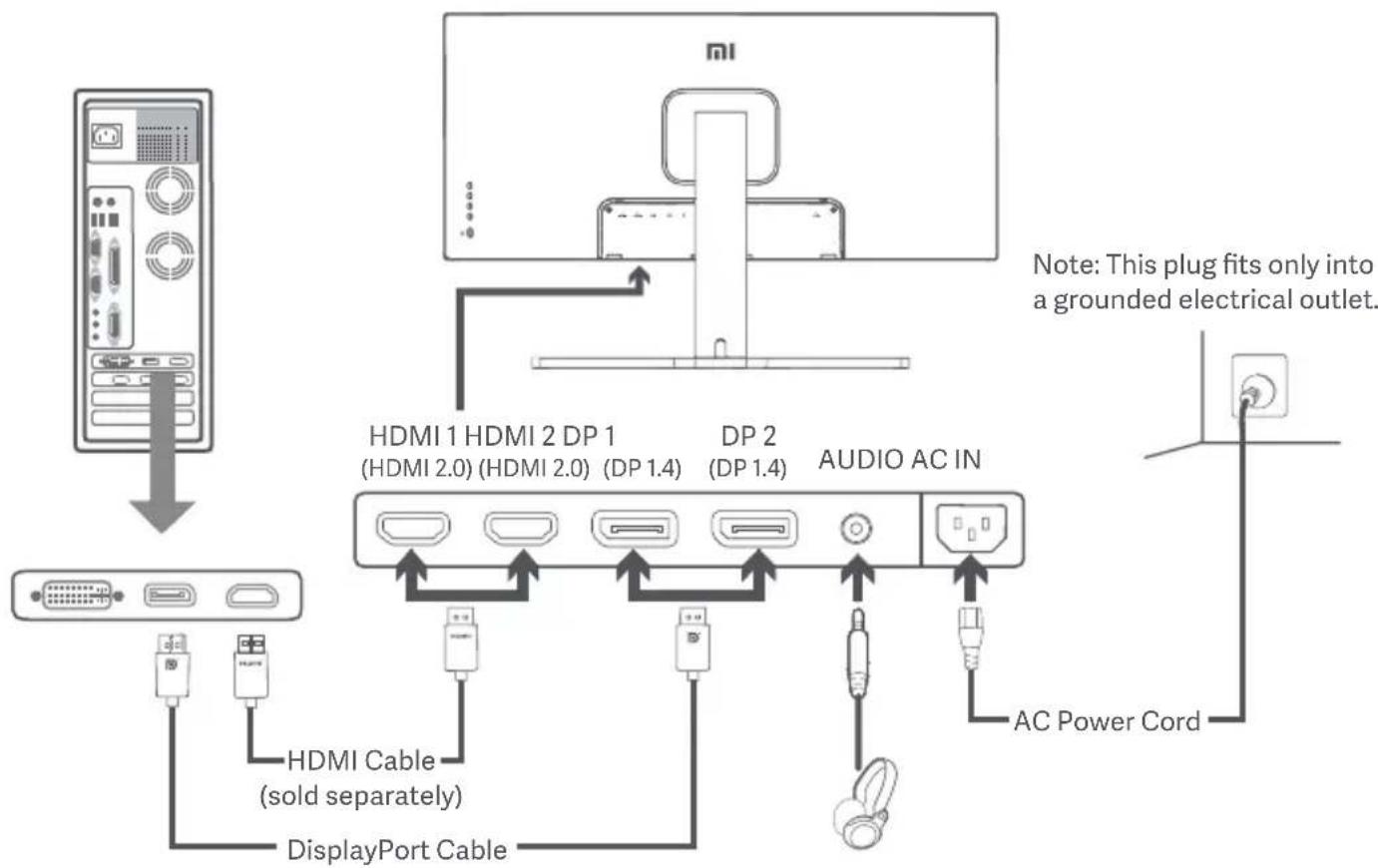

Note: The audio output port can only be used for audio output.
DisplayPort (1.4): 3440 × 1440 , max. refresh rate 144Hz .
HDMI (2.0): 3440 × 1440, max. refresh rate 100 Hz.
Button Description
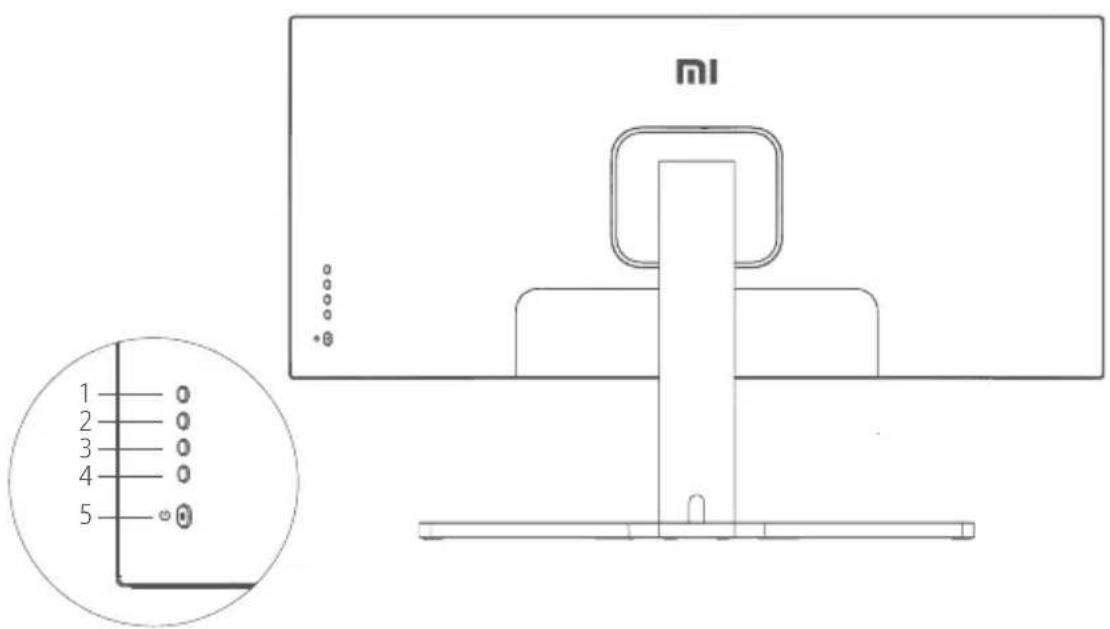
| Button Function | ||
| 1 | M | Menu/Select |
| 2 | ▲ | Up |
| 3 | ▼ | Down |
| 4 | E | Exit/Go Back |
| 5 | ◎ | On/Off |
On/Off Button
Press Turn On/Off
Indicator Status
Menu Description
| MI Monitor Standard Mode Enabled | ||
| Brightness/Contrast | Brightness | |
| Image | Dynamic Brightness | |
| Picture Quality Settings | Black Level | |
| Smart Mode | Contrast | |
| Window Settings | DCR | |
| Settings | ||
| Main Menu | Submenu Description | on Adjustable Range Default | ||
| Brightness/Contrast | Brightness | Adjust the monitor's brightness 0-100 80 | ||
| Dynamic Brightness | Adjust the monitor's dynamic brightness | On/Off | Off | |
| Black Level Adjust the monitor's black level 50 | 0-100 | |||
| Contrast | Adjust the monitor's contrast | 0-100 75 | ||
| DCR | Adjust the monitor's dynamic contrast ratio (DCR) | OffOn/Off | ||
| Image | Color Temperature | Adjust the monitor's color temperature | Standard/Warm/Cool/Custom | Standard |
| Hue | Adjust the monitor's hue | 0-100 50 | ||
| Saturation | Adjust the monitor's saturation | 0-100 | 50 | |
| Gamma | Adjust the monitor's gamma | 1.8/2.0/2.2/2.4/2.6 2.2 | ||
| Aspect Ratio | Adjust the monitor's aspect ratio | Full Screen/16:9/1:1/Auto | Full Screen | |
| PQ Settings | Sharpness | Adjust the monitor's sharpness | 0-100 50 | |
| Response Time | Adjust the monitor's response time | High/Medium/Low/Off Off | ||
| Noise Reduction | Adjust the monitor's noise reduction | High/Medium/Low/Off Off | ||
| Motion Response Time | Reduces motion blur at high refresh rates | OffOn/Off | ||
| Main Menu | Submenu Description | Adjustable Range Default | ||
| Smart Mode | Standard Mode Set to standard mode | Only one mode can be selected at a time | Standard Mode | |
| Eco Mode Set to eco mode | ||||
| Game Mode Set to game mode | ||||
| Movie Mode Set to movie mode | ||||
| Low Blue Light Mode | Set to low blue light mode | |||
| RTS | Set to RTS mode | |||
| Window Settings | Single Window | Only display the main window | Select an input source | Single Window |
| Picture-by-Picture (PBP) | Display two video inputs side by side | Window 1 Input SourceWindow 2 Input Source | ||
| Picture-in-Picture (PIP) | Display the main window and a subwindow | Window 1 Input SourceWindow 2 Input SourceWindow 2 PositionWindow 2 Size | ||
| Settings | Language | Select the menu language | English/Español/Pþscckn/Français/Italieno/Deutsch /Polski/韓국어 | English |
| Audio Input | Select an audio input source | HDMI 1/HDMI 2/ DP 1/DP 2 | / | |
| Volume | Adjust the monitor's volume | 0-100 50 | ||
| FreeSync | / | OffOn/Off | ||
| Information | Monitor information such as current resolution/input source | / | / | |
| Restore Factory Settings | / | / | / | |
Eye Health
To avoid eyestrain, or neck, arm, elbow, and shoulder pain caused by using the computer for a long time, please follow the suggestions listed below:
- Keep the monitor at a distance of 20–28 inches (approx. 50 - 70cm ) from your eyes.
- Blink more often to relieve eye fatigue when staring at the monitor.
- Give your eyes a 20-minute break after using the monitor for two hours.
Take your eyes off the monitor and look at something a certain distance away for at least 20 seconds. - Stretch your body to help relieve tension on the neck, arms, back, and shoulders.
Low Blue Light Description
In recent years, eye damage caused by blue light has attracted more and more attention. In general, the wavelength of blue light is 400 - 480nm , and the wavelength of harmful blue light is 415 - 455nm . This monitor has a function to help reduce your exposure to the blue light emission. You can enable the low blue light mode via the settings menu.
Precautions
- Do not use this monitor in damp or humid environments such as bathrooms, kitchens, basements, or near swimming pools.
- Make sure the monitor is placed on a stable surface. If the monitor falls down or is knocked over, it may cause personal injury or damage to the monitor.
- Store and use the monitor in a cool, dry, ventilated place. Keep the monitor away from radiation and heat sources.
- Do not cover or block the heat dissipation vents on the back of the monitor. Do not place the monitor on a bed, sofa, blanket, etc.
- The monitor's operating voltage range is indicated on a label on the back of the monitor. If you are unsure what voltage your power supply is, please contact the monitor's distributor or local power company.
- If you do not plan to use the monitor for a long period of time, unplug it from the electrical outlet so as to prevent possible damage from power surges or lightning strikes.
- Do not overload electrical outlets, as this may cause a fire or an electric shock.
- Do not insert any foreign objects into the monitor, as this may cause a short circuit which can lead to a fire or an electric shock.
- Do not attempt to disassemble or repair the monitor yourself to avoid the risk of an electric shock. If the monitor is not functioning properly, please contact our after-sales service department for assistance.
Do not excessively pull, twist, or bend the power cord.
Troubleshooting
| Issue Possible Causes | Solutions | |
| Unable to turn on No | power | Make sure the power cord is plugged in properly. Press the on/off button to turn on the monitor. |
| Image is dark | Brightness/ Contrast not adjusted properly | Adjust the brightness and contrast. |
| Image is jittery or has ripples | Interference | Keep the monitor away from electronic devices that may cause electrical interference. |
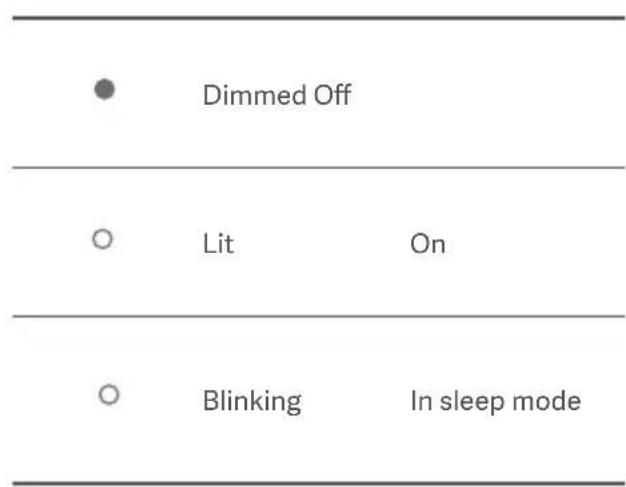
| The indicator is blinking, no image on the screen | No signal, entering sleep mode... | Turn on the computer. Make sure the computer's graphics card is working properly. Make sure the DisplayPort cable is plugged in properly. |
| Monitor displays: Out of range | Resolution is incorrect | Use the specified recommended resolution settings. |
Specifications
| Name | Mi Curved Gaming Monitor 34" |
| Model | XMMNTWQ34 |
| Rated Voltage | 100-240 V ~ |
| Rated Frequency | 50/60 Hz |
| Rated Current | 2 A |
| Rated Power | 54 W (TYP) , 80 W Max. |
| Screen Size | 34" |
| Viewable Image Size (Diagonal) | 86.36 cm |
| Dot Pitch | 0.07725 (H) × 0.23175 (V) |
| Brightness | 300 cd/m² (TYP) |
| Contrast | 3000:1 (TYP) |
| Color Gamut | 16.7 M |
| Aspect Ratio | 21:9 |
| Response Time | 4 ms (GTG) |
| Maximum Resolution | 3440 × 1440 |
| Recommended Resolution | 3440 × 1440 |
| Refresh Rate | 144 Hz |
| Item Dimensions | 810.39 (L) × 242.53 (W) × 520.61 (H) mm |
| Net Weight | 8 kg |
| Operating Temperature | 0°C to 45°C |
| Operating Humidity | 10-90% RH |
| Atmospheric Pressure | 86-106 kPa |
Regulatory Compliance Information
WEEE Disposal and Recycling Information
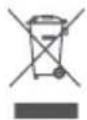
All products bearing this symbol are waste electrical and electronic equipment (WEEE as in directive 2012/19/EU) which should not be mixed with unsorted household waste. Instead, you should protect human health and the environment by handing over your waste equipment to a designated collection point for the recycling of waste electrical and electronic equipment, appointed by the government or local authorities. Correct disposal and recycling will help prevent potential negative consequences to the environment and human health. Please contact the installer or local authorities for more information about the location as well as terms and conditions of such collection points.
EU Declaration of Conformity

We, Xiaomi Communications Co., Ltd., hereby, declare that this equipment is in compliance with the applicable Directives and European Norms, and amendments. The full text of the EU declaration of conformity is available at the following internet address:
http://www.mi.com/global/service/support/declaration.html
For Product Information Sheet, please scan the QR code below.
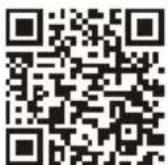
http://www.mi.com/global/service/support/declaration.html
PykoBOOCTBO noIb3OBaTeIa—1wT.


UHyp nntaHnra-1 wT. Ka6eIb
DisplayPort—1 wT.
PnXMMHOB BnHT CHaKaTHOJrOJOBKoJ
WectnrpaHbIe WtNΦTbI—4wT.
BnhtbI JnHaHcTeHHoro KpenneHn-4wT.
-1wT.
YCTaHOBka NOdCTaBKn 3JIeKTPoPITaHnIa
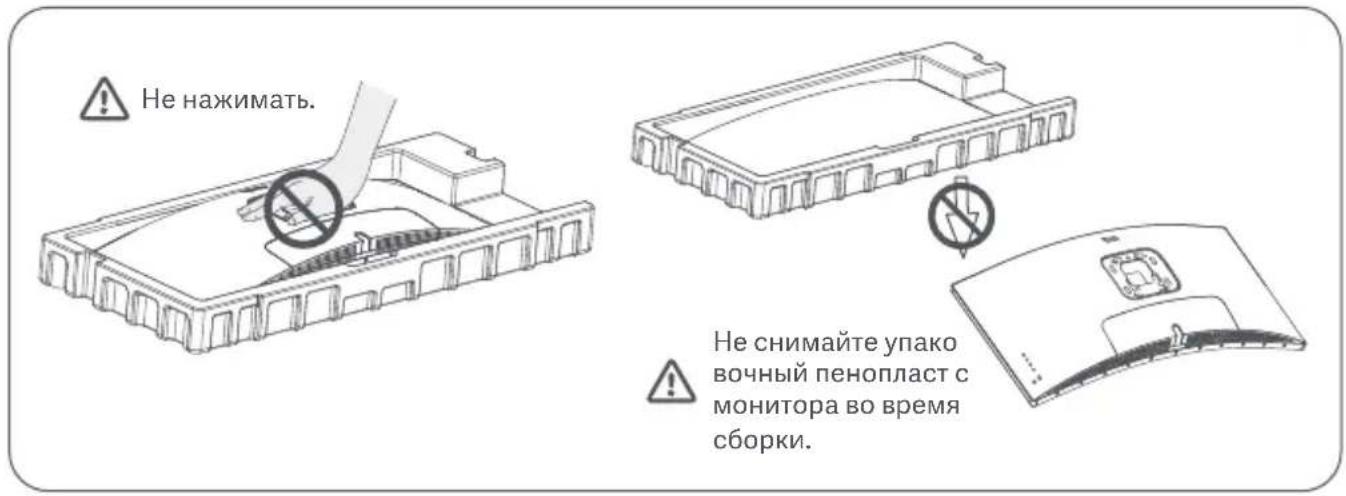
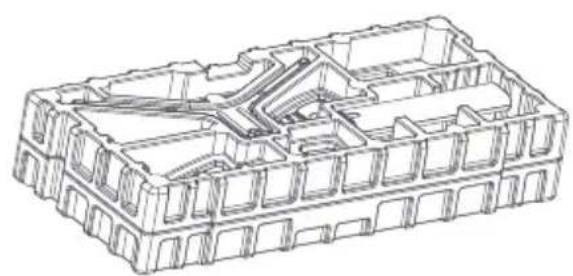
1.ДocTaHbTe n3 Kopo6Kn KOMnoHeHT B NeHOpJnactOBoY yNaKOBKe n pa3MeCTnte ero Ha POBHO YcToyHBOI NOBepxHocTn. He ChImaTe yNaKOBouHbI neHOpJnact C MOHITopa.
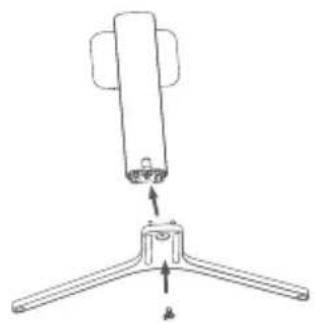
2.3akpenTe cToiKy Ha noctabke 3JIeKtponntaHnC NOMOUBIO pNIXMHOROBNHTA u3 KOMNNEKTA.
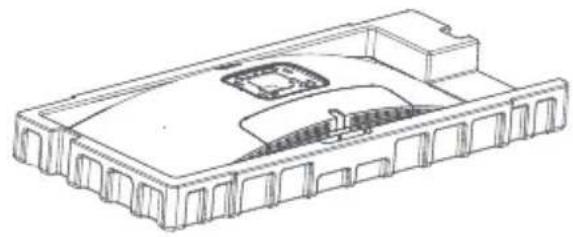
3. Chmnte BepxHn cNoi neHonnacta n naKeT, yTo6bI NOyHTb DOCTyn K TOUKe KpeJIeHn C o6paTHoN CTOpOHb MOHtOpa.
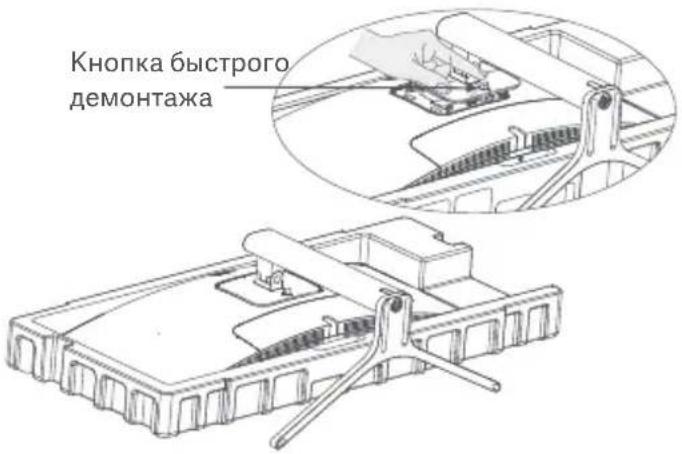
4.УTo6bI npKpeNtB cToiKy*, BCTaBbTe ee B na3 C o6paTHoI CTOpObl MOHITOPa I npJxMnTe Do ueyka.
*YTo6bI DEMoHTnPOBaTb CTOiKy, HaxMITE KHOJky 6bICTpOrO DEMoHTaKa.
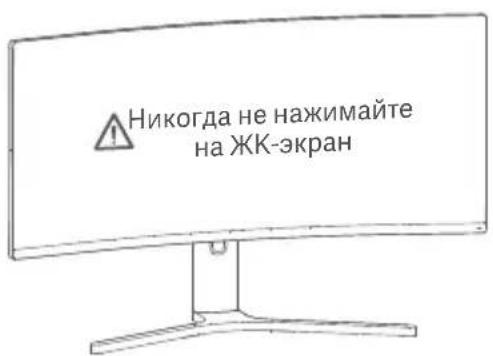
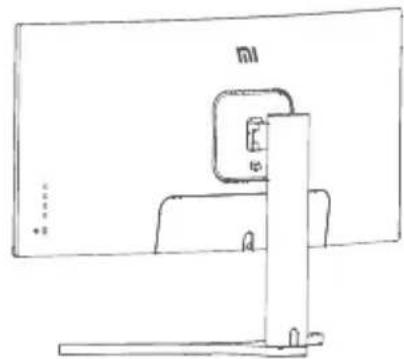
5.06eIMn pykamn aKKypaTHO BbHbTe NOHOCbIO CObpaHHbM MOHTOp yCTaHOBtE ero Ha pOBHOyctOuHBNOBepxHocTN.
IpmeHaHne.Bo n36eKaHne NOBpeXdHn 6yDbTe OCTOpXHbI, YTO6bI He HaxaTb Ha KK-ekpaH BO BpeMaYCTaHOBKn MOHTopA.
PoiKJIouHeNKea6eJ
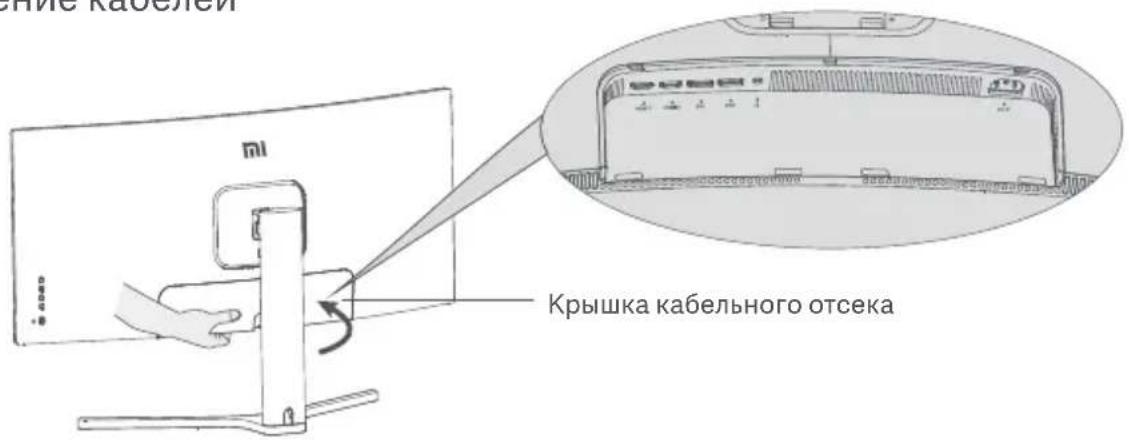
1.CHMMNTe KpbIshky Ka6ebIbHO OTeKa MOHITopa N KpbIshKy CTOnKn.
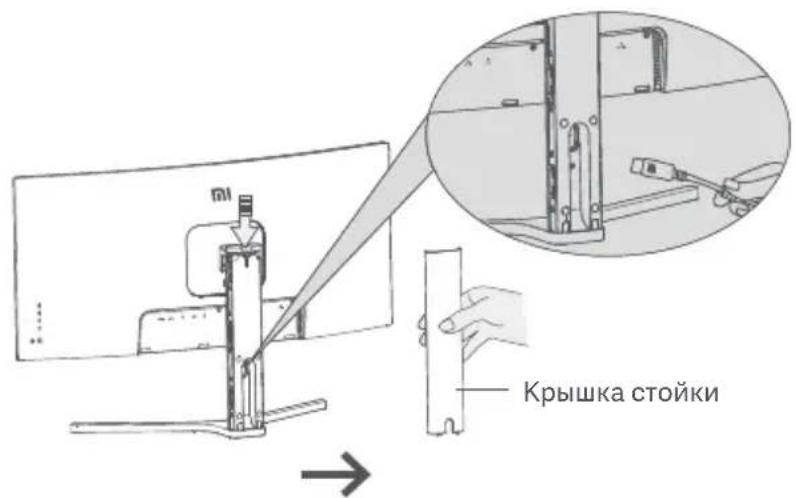
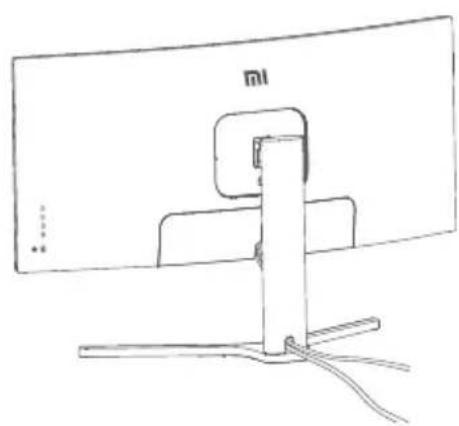
- Pponyctnte uHyp nHTaHnI cunHaJIbHbI KabeIb Upe3 OTBepCTne B CToIke I NpokJIouHITe INK MOHtOpY. IOnkJIouHb BCE Ka6eIN, BCTaBbTe KpbIuKN Ha MeCTO.
IpmeaHne. Ta6nUka c Ha3BaHnem 3TOro MOHTopa HaxOHTcra pAOM c pa3bEmOM dna NOKIOueHn IITaHnepemEHORo TOKa nO KpbIkwO Ka6eBHorO oTeKa.
YcTaHOBkaHaCTeHHoroKpePJIeHnIa
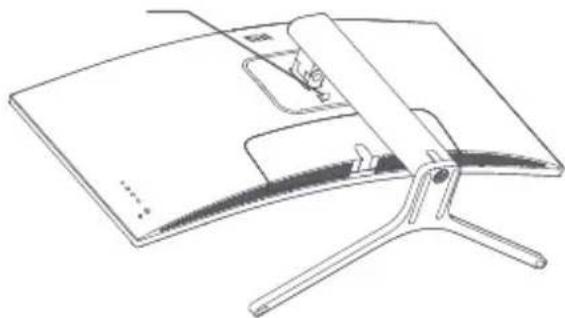
KhoNka 6bictporo demoHTaxa
- HaKMTe KHONKy 6bICTPOrO demoHTaKa, qTO6bl DEMOHNTnPoBaTb CTOnKy.
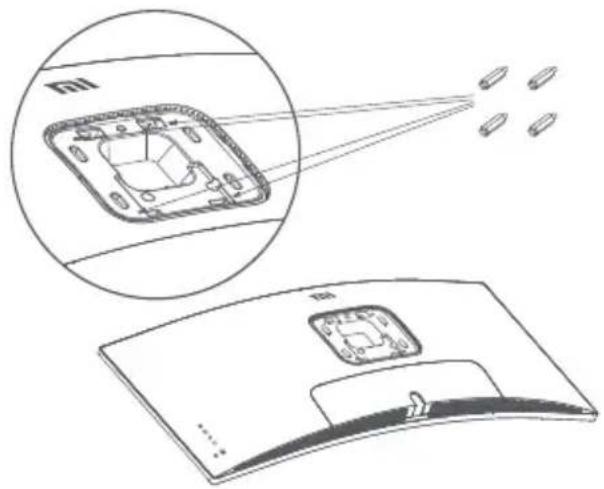
2.B 06o3HaueHHbIX TQkax C 6paTHOcTOpOHbI MOHTOPa 3aKpeNITE 4 WecTNrpaHbIX wTnΦTa,a 3aTeM npNKpeNITE K Hm HacteHHoe KpeJIeHne (npOdaETc OTeJbHo).MOHTaXHbI eOTBepCTn paCnoJoxHeHa paccToaHn 100 × 100 MM dpyr ot dpyra.
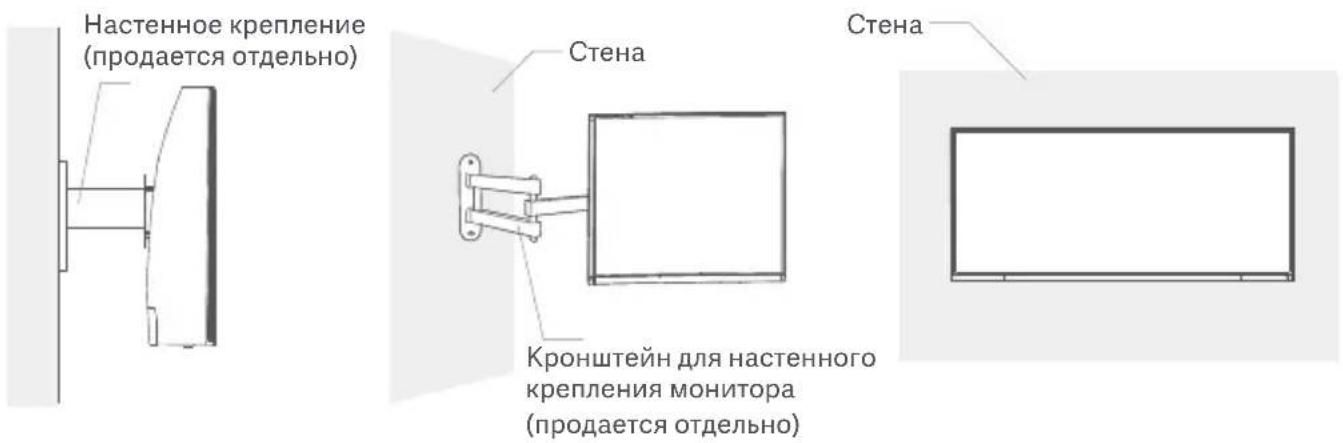
3.Cnedynte HNCTpykunmnoHacteHHOMy KpeIneHIOU,TO6blpNKpePNTb MOHTOp.
IpnmeuHne.Bo n36exaHne noBpeXdHn He haxmaite Ha KK-3kpan Bo BpemKpennHe MOnHTopa KCTHe.

IpimechaHne. YTo6bI CHn3ntb pNCK naDeHn, yCTaHOBtte HAcTeHHoe KpeJIeHne DoJXHbIM o6pa3OM n 3aunTITe MOHTOP BO n36eKahne TpaBM nnn NobpeKdEhn. Hnyeo He KlaIte n He BeaIte Ha HacTeHHoe KpeJIeHne.
IopKIOUeHnA
1.Подклоченke ka6eЯ DisplayPort (ToIbko npu ycIobn nCnoIb3ObaHn npoTa DisplayPort).
A. BыклioунTe MOHHTOp N KOMmbIoTeP.
6. Пордкюнге один конц кабел DisplayPort K Вьхону поту DisplayPort komьютета, a pyroй конц - К одуну ИЗ Вхоньх поту DisplayPort монитopa.
2.Поdkлioуени ka6eЯHDMI (npoDAaTc OTdJIbHO)(TOIbKO npu ycIOBn nCNoIb3OBAHn npTa HDMl).
A. BbIKJIQUHTe MOHITOp N KOMNbIbIOTep.
6. Порклоче одн кон ec kaбеля HDMI K BbixoHomy nopTu HDMI kOmnbTepa, a pyroK konec - K OndHomу n3 BXoHbIX nopToB HDMI moHITopa.
3.Подклоче rapнтупу плллбоe BHeшquee aydnoocpoiCTBO, coBmecTUMoe c pa3bemOM 3,5 MM, K BBIXOHMy aydnoonopTy MOHITopa.
4.ПодклioчnteшурьпнтаняКOMпьOTepаиMOHITOPaKpo3eTke.

IpimechaHne. Ecnn shHypr nHTAHn nn Ka6eB DisplayPort nobpeXKeH,ero Heo6xOIMo 3aMeHnTb Toblko opunHaJIbHbIM shHypom nn Ka6eHem, npno6peTeHHbIM y n3roTOBtTeJn B OTdJeNoCleIpndaXHoro o6cnyKuBaHH.

http://www.mi.com/global/service/support/declaration.html

Pression Allumer/eteindre
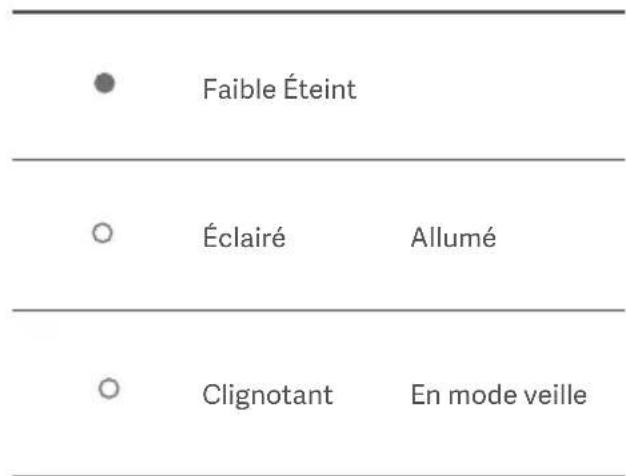
État duvoyant
Description du menu
http://www.mi.com/global/service/support/declaration.html
Installation and Wand
賊藻藻藻藻藻藻藻藻藻藻藻藻藻藻藻藻藻藻藻藻藻藻藻藻藻藻藻藻藻藻藻藻藻藻藻藻藻藻藻藻藻藻藻藻藻藻藻藻藻藻藻藻藻藻藻藻藻藻藻藻藻藻藻藻藻藻藻藻藻藻藻藻藻藻藻藻藻藻藻藻藻藻
目录
93
93
93
94
Stent3 94
Kaii# 95
96
97
97
98
98
印社等上 98
99
101
ROMU BILRURAIeIeIeIeMg 101
喜 102
102
基本相等 103
图注 104
读音 1
試測 呂
JG

[ \text{音} = \frac{\text{空}}{\text{空}} ]


× 1 DP
sT
将该函数调用到下面位置:
- Mnter Hnre Kbrs and stnrd kbrt to
- BralcKgMngmte hae 1n e 100000000000000000000000000000000000000000000000000000000000000000000000000
http://www.mi.com/global/service/support/declaration.htmlwherethoknihlup
Product Information Sheet是Ara的QR code将Skanh确知在中
Xiaomi Communications Co., Ltd.
Address: #019, 9th Floor, Building 6, 33 Xi'erqi Middle Road, Haidian District,
Beijing, China, 100085
For further information, please go to www.mi.com
Xiaomi Communications Co., Ltd.
Dirección: #019, 9th Floor, Building 6, 33 Xi'erqi Middle Road, Haidian District,
Beijing, China, 100085
Xiaomi Communications Co., Ltd.
Ampc: #019, 9th Floor, Building 6, 33 Xi'erqi Middle Road, Haidian District,
PeknH, KItai, 100085
YTo6bI NOnyUHTb DOnOJIHnTeJIbHyU INΦOpMaunU, nocetnte caT www.mi.com
Xiaomi Communications Co., Ltd.
Adresse : #019, 9th Floor, Building 6, 33 Xi'erqi Middle Road, Haidian District,
Beijing, Chine, 100085
Xiaomi Communications Co., Ltd.
Indirizzo: #019, 9th Floor, Building 6, 33 Xi'erqi Middle Road, Haidian District,
Pechino, Cina, 100085
Xiaomi Communications Co., Ltd.
Adresse: #019, 9th Floor, Building 6, 33 Xi'erqi Middle Road, Haidian District,
Beijing, China, 100085
Xiaomi Communications Co., Ltd.
Adres: #019, 9th Floor, Building 6, 33 Xi'erqi Middle Road, Haidian District,
Pekin, Chiny, 100085
Wiecej informaci: www.mi.com
Xiaomi Communications Co., Ltd.
JiuShu: #019, 9th Floor, Building 6, 33 Xi'erqi Middle Road, Haidian District,
Beijing, China, 100085