7000 Series XC7067 - Broom PHILIPS - Free user manual and instructions
Find the device manual for free 7000 Series XC7067 PHILIPS in PDF.



| Product type | Cordless stick vacuum |
| Brand | Philips |
| Model | 7000 Series XC7067 |
| Power supply | Rechargeable Li-Ion battery |
| Charging time | Approximately 6 hours |
| Power levels | 3 (Eco, Normal, Turbo) |
| Technologies | Automatic floor type recognition, front LED lighting, digital display |
| Included accessories | TriActive Smart LED brush, brush for delicate floors, PetPro nozzle, combination tool, soft brush, crevice tool, wall mount, adapter |
| Maintenance | Regular cleaning of filter, cyclone, and rotating brush; empty dust container after each use |
| Safety | Do not vacuum liquids; operating temperature: 5°C to 40°C |
| Spare parts | Filter XV1681/01, rotating brush CP0667/01 |
Frequently Asked Questions - 7000 Series XC7067 PHILIPS
User questions about 7000 Series XC7067 PHILIPS
0 question about this device. Answer the ones you know or ask your own.
Ask a new question about this device
Download the instructions for your Broom in PDF format for free! Find your manual 7000 Series XC7067 - PHILIPS and take your electronic device back in hand. On this page are published all the documents necessary for the use of your device. 7000 Series XC7067 by PHILIPS.
USER MANUAL 7000 Series XC7067 PHILIPS
natural_image
Black Philips 1900 electric vacuum cleaner with visible internal components and mounting base (no text or symbols on body)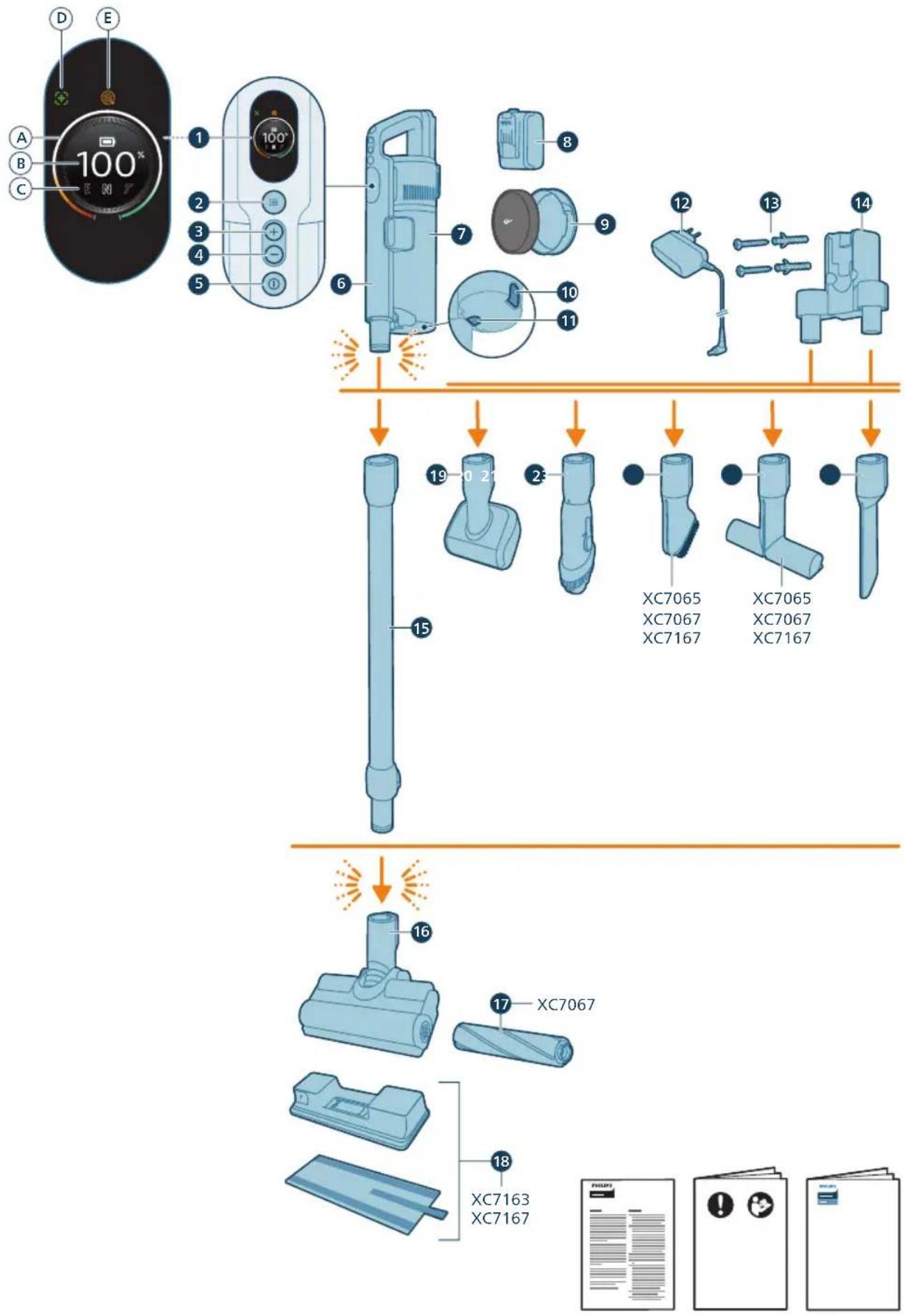
English 4
Čeština 38
Dansk 72
Deutsch 107
Eesti 143
Español 177
Français 212
Hrvatski 247
Italiano 281
Latviešu 316
Lietuviškai 351
Magyar 385
Nederlands 420
Norsk 455
Polski 489
Português 524
Română 559
Shqip 594
Slovenščina 629
Slovensky 663
Srpski 697
Suomi 731
Svenska 765
Türkçe 799
Ελληνικά 833
Български 869
Македонски 905
Русский 941
Українська 977
Қазақша 1012
Contents
Introduction 4
General description 4
Before first use 5
Installing the wall mount 5
Storing the accessories on the wall mount 6
Preparing for use 7
Using the appliance 8
Assembling the appliance 8
Vacuuming soft and hard floors 8
Vacuuming while mopping hard floors 9
Versatile usage and accessories 12
Customizations and additional information 16
After use – Maintenance 18
Frequent maintenance after each cleaning cycle 18
Periodic maintenance intermittently 21
Replacement 30
User interface signals and their meaning 31
Troubleshooting 33
Dry cleaning 33
Wet cleaning 37
Introduction
Thank you for buying this product! To fully benefit from the support that we offer, register your product at www.philips.com/mycordlessvacuum-7000s.
General description
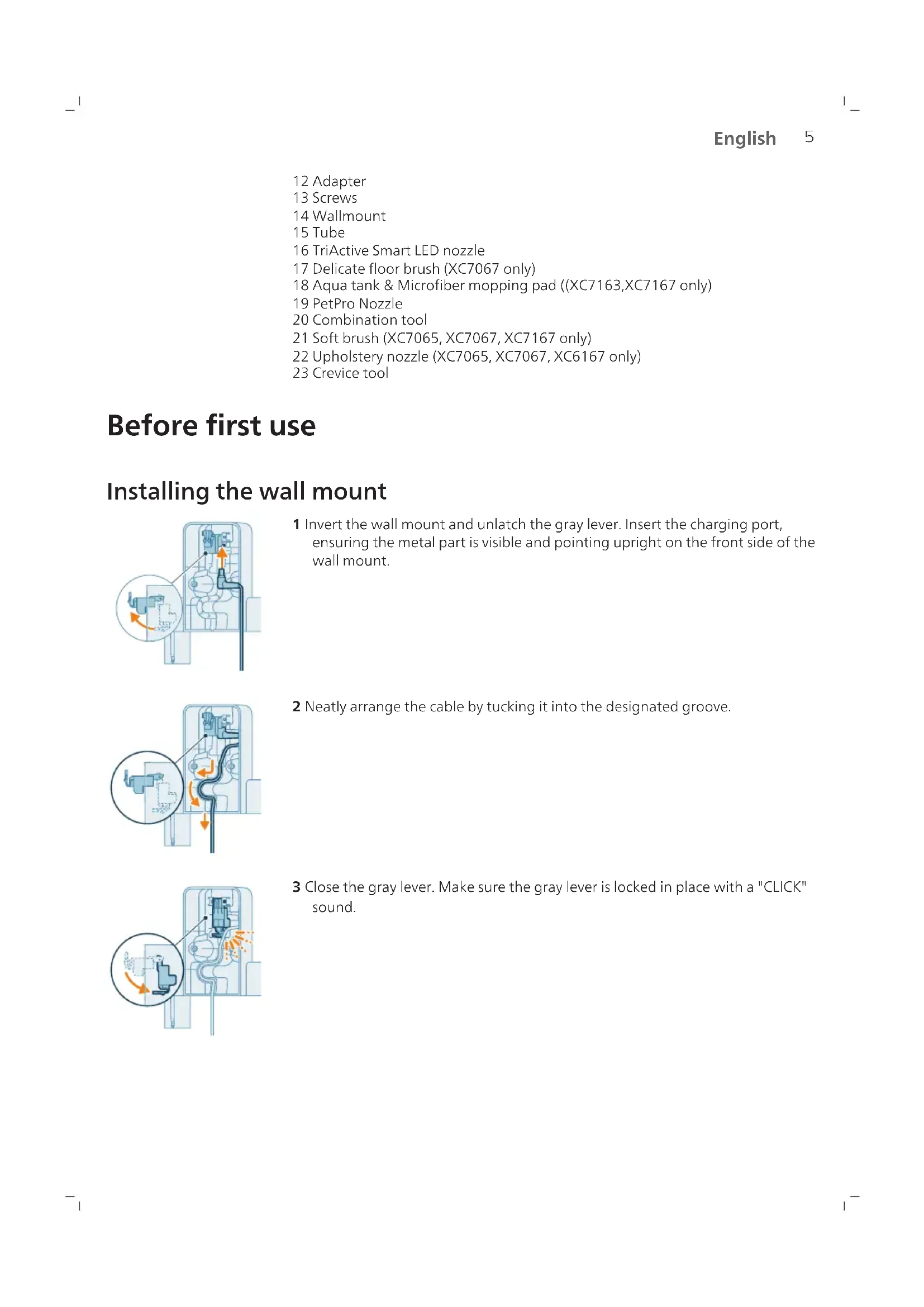
1 Digital display
a Ring indicator of battery level
b Percentage of battery level
c Selected power level
d 'Floor Type Recognition feature activated' icon
e Filter cleaning reminder icon
2 Menu/Confirm button
3 + Button
4 - Button
5 On/off button
6 Handheld
7 Dust bucket
8 Battery
9 Replacement filter
10 Easy empty button
11 Dust bucket release button
12 Adapter
13 Screws
14 Wallmount
15 Tube
16 TriActive Smart LED nozzle
17 Delicate floor brush (XC7067 only)
18 Aqua tank & Microfiber mopping pad ((XC7163,XC7167 only)
19 PetPro Nozzle
20 Combination tool
21 Soft brush (XC7065, XC7067, XC7167 only)
22 Upholstery nozzle (XC7065, XC7067, XC6167 only)
23 Crevice tool
Before first use
Installing the wall mount
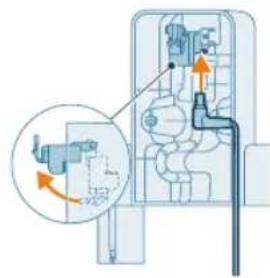
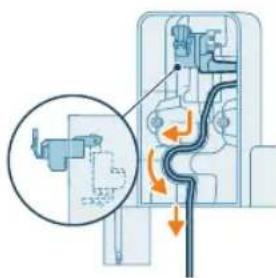
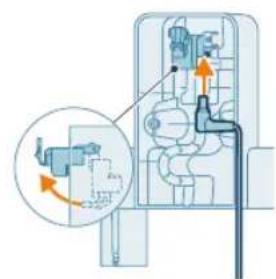
1 Invert the wall mount and unlatch the gray lever. Insert the charging port, ensuring the metal part is visible and pointing upright on the front side of the wall mount.
natural_image
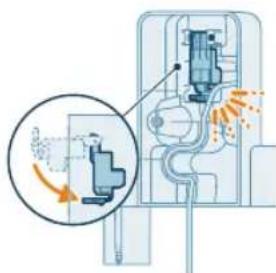
Diagram of a mechanical or electrical component with directional arrows and a magnified inset showing internal flow paths (no text or symbols)2 Neatly arrange the cable by tucking it into the designated groove.
natural_image
Diagram of a mechanical device with internal components and airflow indicators (no text or symbols)3 Close the gray lever. Make sure the gray lever is locked in place with a "CLICK" sound.
6 English
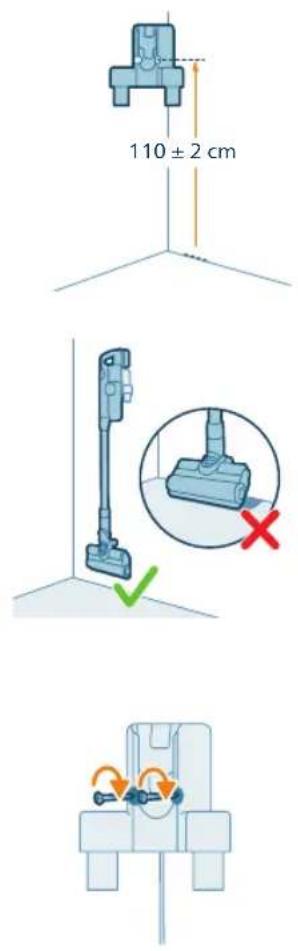
4 Securely affix the wall mount to your preferred position on the wall, ensuring that the mounting screw holes are approximately 110 cm from the floor.
Caution: Be careful when you drill holes in the wall to fasten the wall mount, to avoid the risk of electric shock.
i Note: Verify that the placement of the wall mount allows the entire appliance to hang on the wall without the nozzle coming into contact with the floor.
5 Once you have determined the optimal position and height for storing and charging your appliance, firmly tighten the screws to secure the wall mount in place.
Storing the accessories on the wall mount
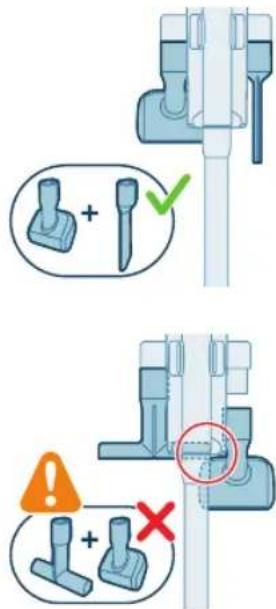
All accessories can be stored on the wallmount with exception of combining PetPro Nozzle & Upholstery tool.
i Note: Be cautious that the PetPro Nozzle and the Upholstery tool could not be stored on the wall mount together.
Preparing for use
natural_image
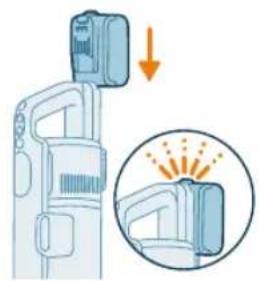
Illustration of a spray gun with a magnified inset showing the impact of light (no text or symbols present)The appliance is equipped with a Li-Ion battery. Charging from empty to full takes about 6 hours.
1 Attach the battery pack to the main body of the appliance, ensuring a secure connection that's confirmed with a "CLICK" sound.
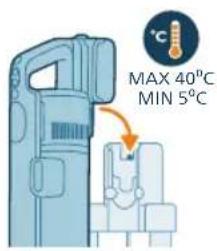
2 Charge your appliance by placing it onto the assembled wall mount.
⚠ Warning: Store and charge the appliance at a temperature above 5 °C and below 40 °C.
natural_image
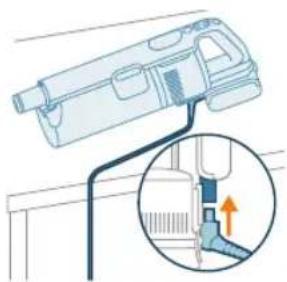
Diagram of a mechanical device with a close-up inset showing a pipe connection (no text or symbols)i Note: You can also place the handheld on a level and stable surface, and directly connect the charging cable to the appliance.
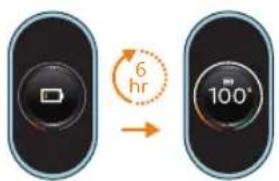
3 The appliance is designed to reach a complete charge within 6 hours. You can monitor the charging progress on the screen. When the appliance is fully charged, the value 100% lights up on the screen. After a few minutes, the display will switch off.
8 English
Using the appliance
Assembling the appliance
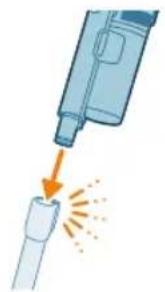
natural_image
Illustration of a spray gun dispensing liquid into a tube with an arrow indicating motion (no text or symbols)1 Attach the handheld to the tube. Confirm the attachment with a "CLICK" sound.
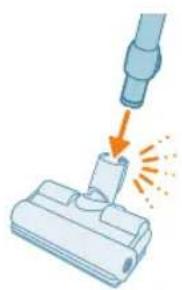
natural_image
Illustration of a robotic arm cutting a component with motion lines indicating motion (no text or symbols)2 Attach the tube to the nozzle. Confirm the attachment with a "CLICK" sound.
Vacuuming soft and hard floors
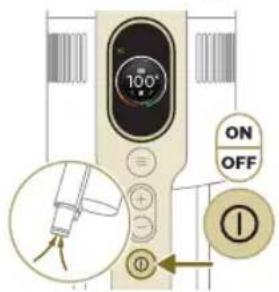
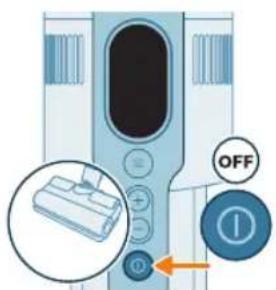
1 Press the on/off button to switch on the appliance.
i Note: To switch off the appliance, press the on/off button again.
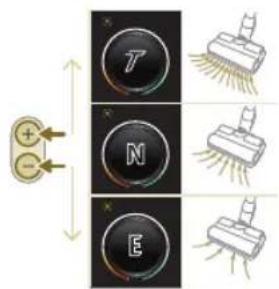
2 Use the + and - buttons to toggle through three different power settings.
T - turbo mode
N - normal mode
E - eco mode

natural_image
Illustration of a person using a vacuum cleaner on tiled floor, with orange arrows indicating motion (no text or symbols)3 You can clean on hard or soft floors with the vacuum cleaner.
natural_image
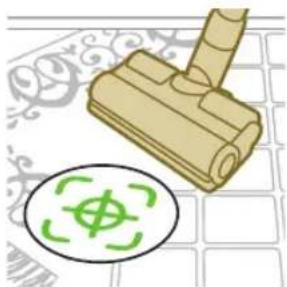
Illustration of a wooden screwdriver with a green circular symbol on a grid background (no text or symbols)i With Floor Type Recognition enabled, the appliance recognizes the floor type and automatically optimizes its performance within the power settings you have selected. To disable this feature, check how to customize settings below.
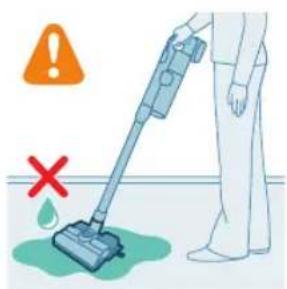
Warning: Do not vacuum up water or other liquids.
natural_image
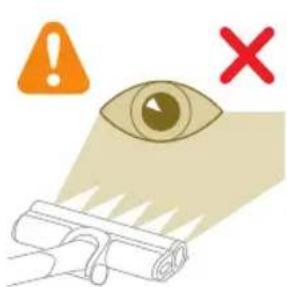
Illustration of an eye with warning symbols (anxiety, no protection) and a cross mark, no text or labels present.Caution: Do not look directly into the illuminated LEDs or point the LEDs at someone's eyes. The LED light is very bright.
Vacuuming while mopping hard floors
Caution: Only use the aqua tank on hard floors with a water-resistant top coat (such as linoleum, enameled tiles and varnished parquet) and stone floors (such as marble). If your floor has not been treated to make it water-resistant, check with the manufacturer if you can use water to clean it. Do not use the aqua tank on hard floors of which the water-resistant top coat is damaged.
i Note: Do not use the aqua tank to clean carpets.
English
natural_image
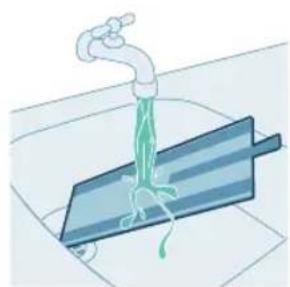
Illustration of a faucet pouring liquid into a blue rectangular tank (no text or symbols)i Note: Do not move the appliance with aqua tank assembled sideways, as this leaves water traces. Only move forwards and backwards.
1 Pre-wet the microfiber mopping pad with water before use.
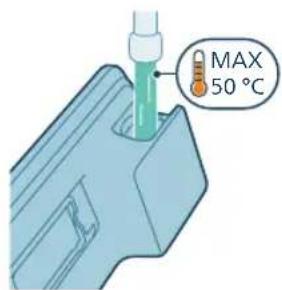
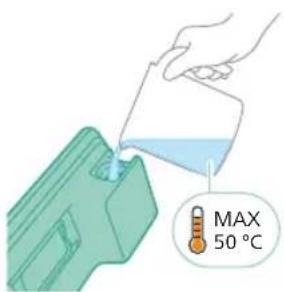
2 Fill the tank with water, ensuring the water temperature does not exceed 50^ C.
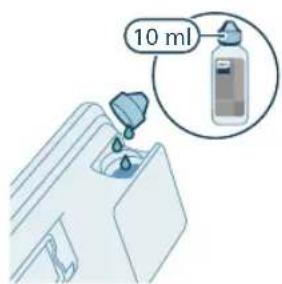
3 (Optional) If you wish to add a liquid floor cleaner into the aqua tank, opt for a low-foaming or non-foaming variety that can be diluted. We recommend the XV1792 Philips Floor Cleaner. Add only a few drops of the liquid cleaner to the water.
natural_image
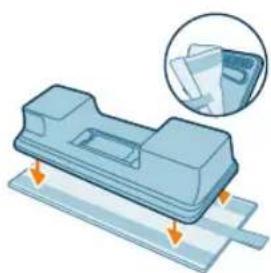
Illustration of a mechanical component with arrows indicating motion, no text or symbols present4 Secure the microfiber mopping pad underneath the aqua tank. Align the velcro straps under the aqua tank and behind the cloth.
natural_image
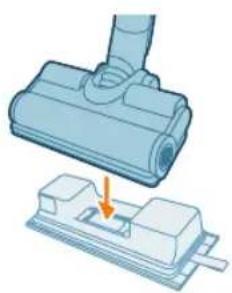
Illustration of a mechanical component being inserted into a base, showing a downward arrow (no text or symbols present)5 Attach the prepared aqua tank to the aqua nozzle and you're set to begin.
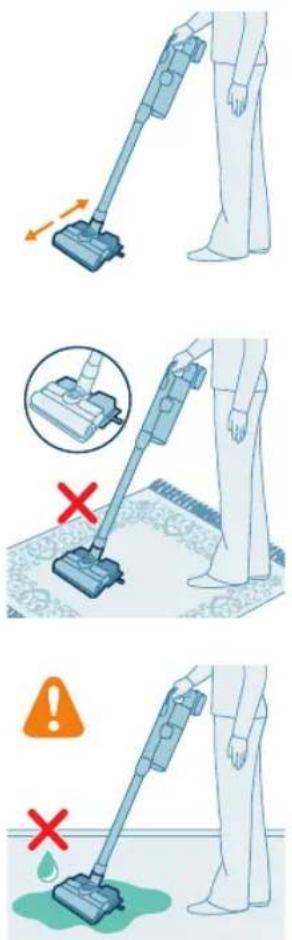
6 Press the on/off button to switch on the appliance. You can effectively clean hard floors with the attached aqua module on the nozzle.
i Note: The aqua module is not suitable for soft floors like carpet.
Caution: The aqua module should not be used to pick up water puddles.
Tips and other important information
- It is not necessary to vacuum the floor before mopping, as the Vacuum & Mop set-up actively wet-cleans your hard floor to capture all kinds of dirt, including liquids and stains. On carpets and rugs, use the Vacuum only set-up.
- The appliance can leave a small puddle of water on the floor if you do not move the appliance while switching it off. You can reduce the size of the puddle by moving the appliance while switching it off. If needed, you can remove the last drops with a cloth.
Usage restrictions
- The Vacuum & Mop set-up is suitable for vacuuming and mopping all types of hard floors, except uncoated wooden floors.
- The Vacuum & Mop set-up is intended for regular cleaning of hard floors. Always follow the cleaning instructions for your hard floor when you use this appliance.
- If you want to add a liquid floor cleaner other than XV1792 Philips Floor Cleaner to the water in the clean aqua tank, make sure that you use a low-foaming or non-foaming liquid floor cleaner that can be diluted in water like XV1792 Philips Floor Cleaner.
- As the clean aqua tank has a capacity of 250 ml, you only have to add a few drops (max 10ml) of liquid floor cleaner to the water.
12 English
- If you use the Vacuum & Mop set-up on linoleum floors, only do so on linoleum floors that are properly affixed to prevent linoleum from being drawn into the nozzle.
- If you move/lift the appliance over a carpet or rug when it is switched off, wastewater droplets may end up on your carpet or rug.
- Do not push the appliance over the floor grilles of convector heaters. As the appliance cannot pick up water that comes out of the nozzle when you move it over the grille, water ends up at the bottom of the convector pit.
- While cleaning, do not lift the nozzle from the floor or move the nozzle sideways, and do not make strong turns, as this leaves water traces. Only move forwards and backwards.
i Note: The operating time depends on the power level used during cleaning.
Versatile usage and accessories
Warning: When using any accessory, do not vacuum up water or other liquids.
Caution: Do not look directly into the illuminated LEDs or point the LEDs at someone's eyes. The LED light is very bright.
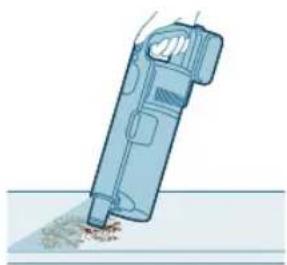
Using the handheld
You can use the handheld directly without any cleaning tool to vacuum up dusts.
natural_image
Illustration of a mechanical device with a handle and base, partially submerged in liquid (no text or symbols visible)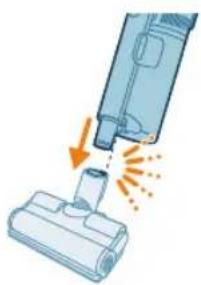
natural_image
Illustration of a vacuum cleaner emitting exhaust smoke from a bottle (no text or symbols)Using the nozzle
1 Attach the nozzle directly to the handheld.
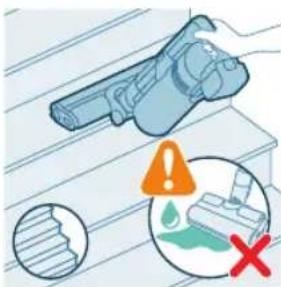
2 This combination is for cleaning dynamic surface height, such as stair case.
Using the PetPro Nozzle
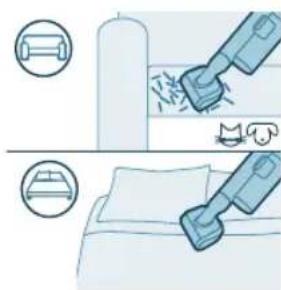
The PetPro Nozzle effectively removes pet hair and small messes like crumbs, and is ideal for soft surfaces such as beds and couches.
natural_image
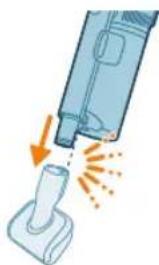
Illustration of a vacuum cleaner emitting exhaust from a bottle (no text or symbols)To attach the PetPro Nozzle, insert the tube of the handheld into the PetPro Nozzle. Adjust the power setting to match your cleaning needs.

natural_image
Illustration of a screwdriver and a cylindrical component (no text or symbols)Using the crevice tool
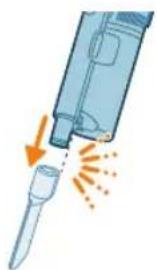
Crevice tool can be used for cleaning tight, narrow spaces like between couch cushions, along baseboards, or in car interiors.
natural_image
Illustration of a handheld device emitting exhaust heat, showing airflow direction (no text or symbols)To attach the crevice tool, insert the tube or handheld into the crevice tool.
English
natural_image
Illustration of a spiderweb being held by two tools, showing step-by-step assembly (no text or symbols)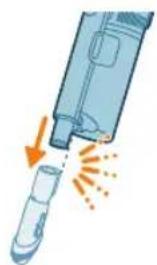
natural_image
Illustration of a medical or laboratory device with an arrow indicating compression or disassembly (no text or symbols present)Using the combination tool
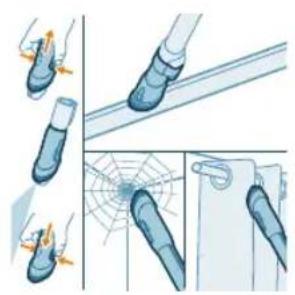
The combination tool has a soft brush to clean spiderwebs or delicate surfaces like curtains and a narrow nozzle for tight or hard-to-reach spots like window frames.
To attach the combination tool, insert the tube or handheld into the combination tool.
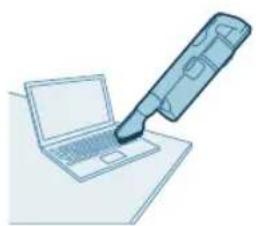
Using the soft brush
Soft brush gently cleans fragile or delicate surfaces like lampshades, blinds, and screens. It's included in models XC7065, XC7067 and XC7167.
natural_image
Illustration of a laptop with a pen and eraser, no text or symbols present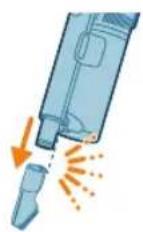
To attach the soft brush, insert the tube or handheld into the soft brush.
natural_image
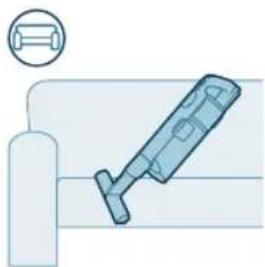
Illustration of a medical device with a magnified inset showing a cylindrical object (no text or symbols)Using the upholstery tool
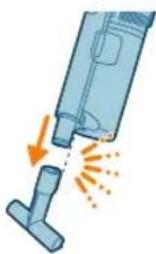
Upholstery tool cleans soft fabric furniture like sofas, cushions, and chairs. It's included in models XC7065, XC7067 and XC7167.
natural_image
Illustration of a blue vacuum cleaner emitting exhaust flames, with no text or symbols present.To attach the upholstery tool, insert the tube or handheld into the upholstery tool.
Using the Delicate Floor brush
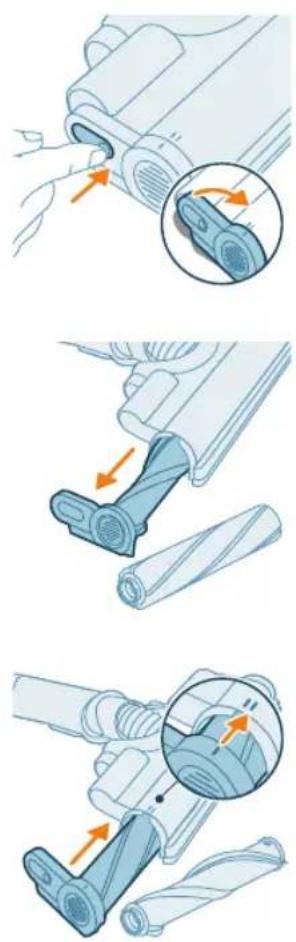
Delicate Floor brush is the soft brush with grey and orange material and can be used to gently clean delicate hard floor types like cork, hard wood and natural stone. It's included in XC7067.
To replace the brush, follow the below steps:
natural_image
Three-step diagram showing mechanical assembly steps with arrows indicating motion (no text or symbols)1 To access the brush, locate the button on the side of the nozzle. Press it and rotate to open. Gently remove the brush and the side cap of the nozzle.
2 Pull the brush out of the side cover with force. Remove the side cap from the original brush roll and cap in onto the Delicate Floor brush.
3 Insert the Delicate Floor brush back to the side cover with force, please make sure the brush is firmly installed. When reassembling, ensure proper alignment of the brush.
natural_image
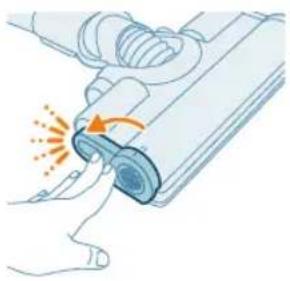
Illustration of a hand pressing down on a device with a glowing arrow indicating motion (no text or symbols)4 Lock the brush by securing it until you hear a "CLICK" sound.
Customizations and additional information

The appliance is equipped with various options to customize and monitor in the menu.
1 To access the menu settings, press the menu button.
2 Toggle through the options using the + and - buttons. These options include adjusting illumination, enabling or disabling Floor Type Recognition, accessing additional information about your appliance, and returning to the previous screen.
3 Once your desired option is highlighted, confirm your choice by pressing the menu button again.

natural_image
Circular icon with a white lightbulb symbol and radiating lines, representing an idea or illumination (no text or symbols)Modify the illumination brightness
Press the menu button and toggle to the illumination feature. Confirm by pressing the menu button again.
To modify the illumination brightness, toggle through the available levels and confirm by pressing the menu button.

natural_image
Circular icon with a downward arrow and green checkmark, no text or symbols present.Floor Type Recognition
Press the menu button and toggle to the Floor Type Recognition feature. Confirm by pressing the menu button again.
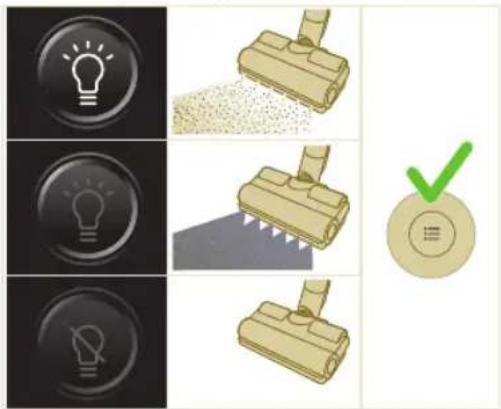
In the Floor Type Recognition screen, toggle this function and confirm your decision by pressing the menu button. When successfully enabled, a green icon will appear at the upper left corner of the display after you go back to the main screen.
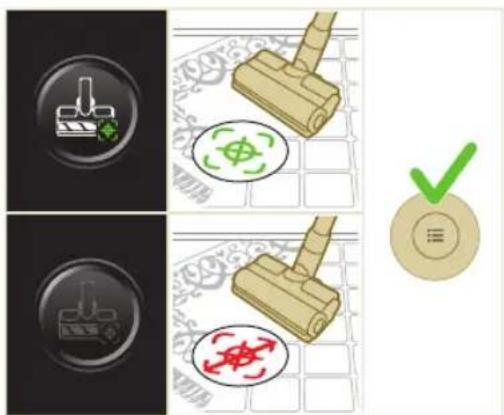
i Note: Floor Type Recognition can only be enabled or disabled when the motorized nozzle is attached to the handheld. As a result, when no motorized nozzle in combination with the main brush is attached to the main appliance, there will be one item less in your menu. Attach the motorized nozzle to see this Floor Type Recognition item in your menu.
i Note: When you first receive your appliance, Floor Type Recognition is enabled.
i Note:The Floor Type Recognition function becomes active when the nozzle identifies different cleaning surfaces while in motion.
i Floor Type Recognition does not work in combination with the Delicate Floor Brush (included in model XC7067).
Additional information
Press the menu button and toggle to the "additional information" option. Confirm by pressing the menu button again.
In the "additional information" screen, you can check the filter health, battery health, total usage time, model of your appliance, and access of a QR code for additional online information.

natural_image
Gray circular button with a white lowercase 'i' in the center, no additional text or symbols.
Return
To exit the menu and return to the previous screen, select the "Return" option.

natural_image
Circular button with a white U-turn arrow icon, no text or symbols present.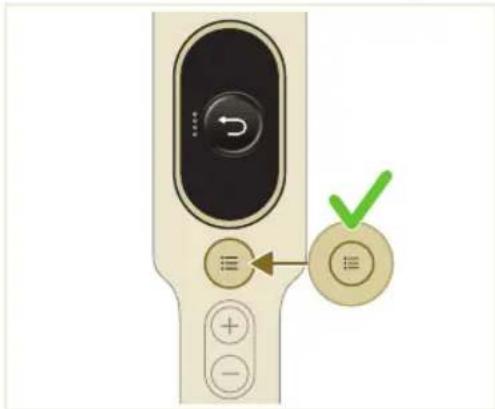
After use – Maintenance
Frequent maintenance after each cleaning cycle
Dust management system maintenance
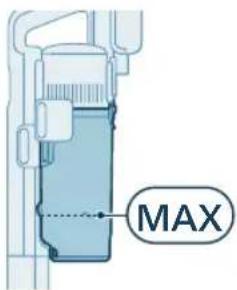
Empty the dust bucket after each use or when the dust is reaching the MAX level indicator.
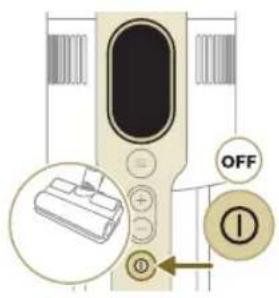
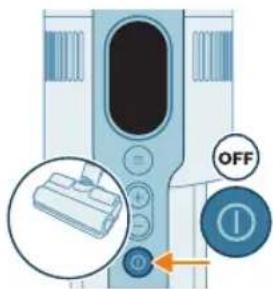
1 Switch off the appliance.
natural_image
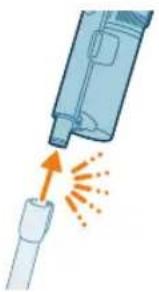
Illustration of a syringe emitting orange light from a tube (no text or symbols)2 Remove the handheld include the dust bucket from the tube.
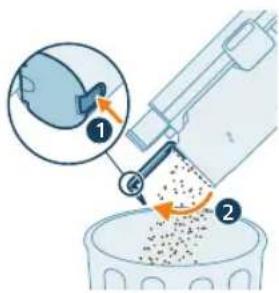
3 Hold the dust bucket above a trash bin and press the Easy Empty Button (1) to empty the bucket (2).
natural_image
3D illustration of a green mechanical component with an arrow indicating upward motion, no text or symbols presentAqua tank maintenance
Clean the aqua tank after each use.
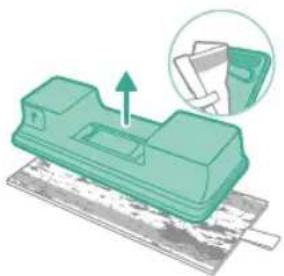
1 Remove the microfiber mopping pad.
20
English
natural_image
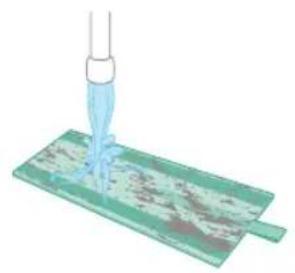
Illustration of a pipette dispensing liquid onto a green circuit board (no text or symbols)2 Rinse the mopping pad under the tap and wash it by hand or in a washing machine.
natural_image
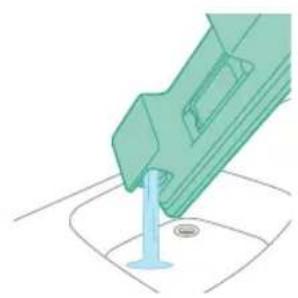
Illustration of a green mechanical component inserted into a blue cylindrical rod, with no visible text or symbols.3 Pour out any remaining water in the aqua tank.
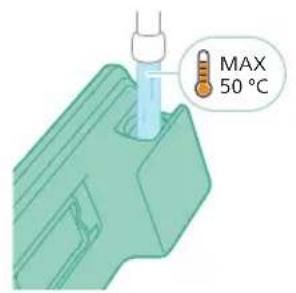
4 Fill the aqua tank with water.
natural_image
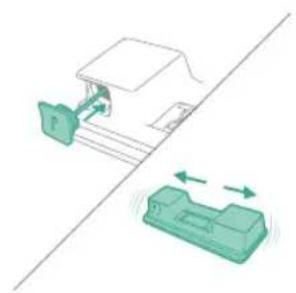
Diagram showing a device with a green connector and a green device with directional arrows, no text or symbols present.5 Close the aqua tank properly and shake the aqua tank to remove detergent residuals.
natural_image
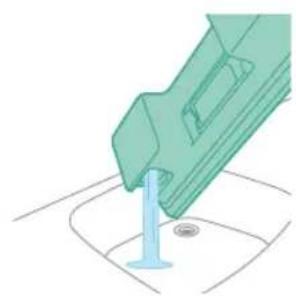
Illustration of a green mechanical component with a blue rod inserted into a surface (no text or symbols)6 Empty the aqua tank and leave it open to dry.
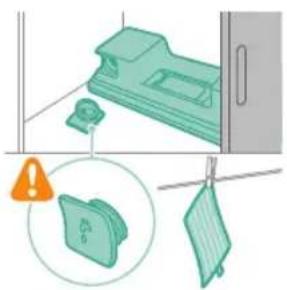
natural_image
Illustration of a cleaning or installation process with a green plastic component and a warning icon (no text or symbols)7 Make sure to not lose the tank cap during storage. Hang the microfiber mopping pad dry.
Periodic maintenance intermittently
Cleaning the filter
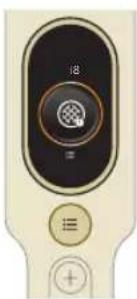
natural_image
Close-up of a beige remote control with a black dial and circular button (no visible text or symbols)Clean the filter at least once every month or when you see the notification for filter cleaning (i8).
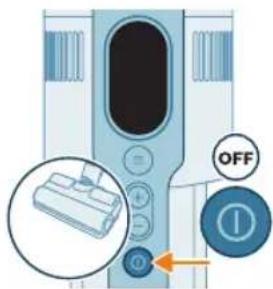
1 Turn off appliance.
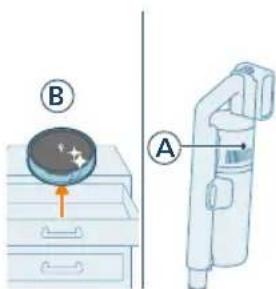
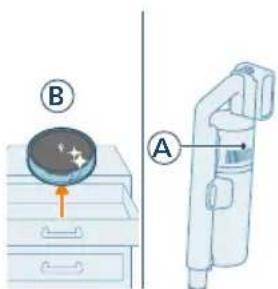
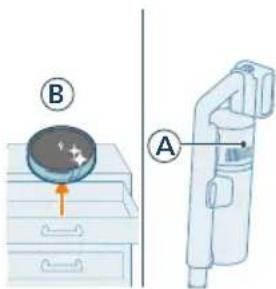
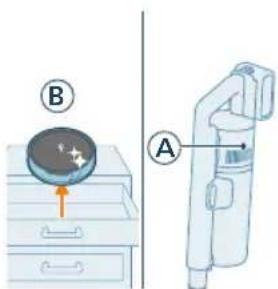
2 While the dirty filter (A) is still in the appliance, make sure to have your replacement filter (B) ready on the side.
22 English
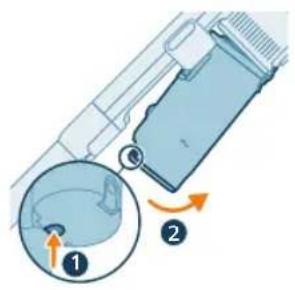
3 Remove the bucket by pressing the bucket release button.
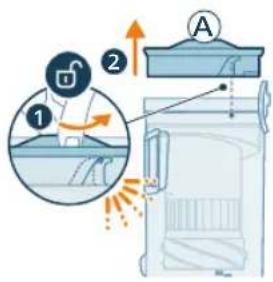
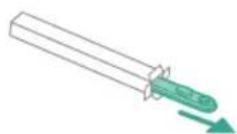
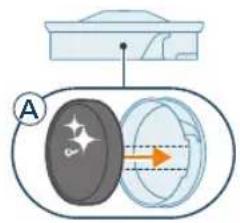
4 Rotate the filter (A) counter-clockwise to remove it from the dust bucket.
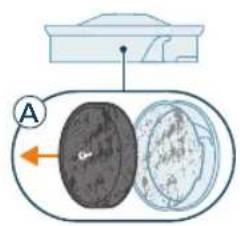
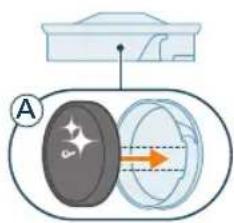
5 Remove the foam filter (A) from the plastic filter case.
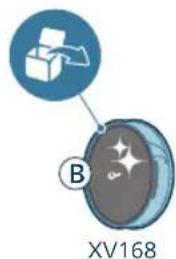
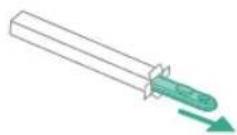
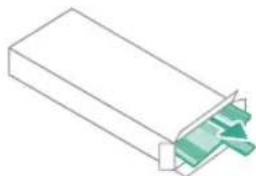
6 Unpack the replacement filter (B).
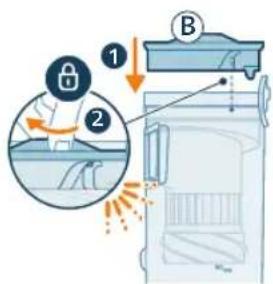
7 Install the clean filter (B) in the dust bucket. Rotate the filter clock-wise to fix it in place.
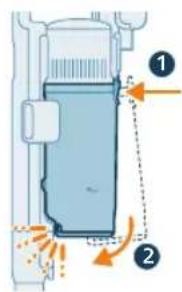
8 Place the dust bucket back onto the handheld First align the filter side of the bucket before hinging it in place.
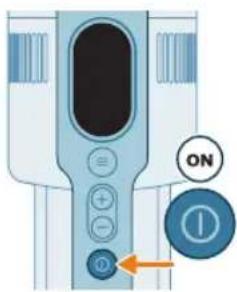
9 Turn on the appliance.
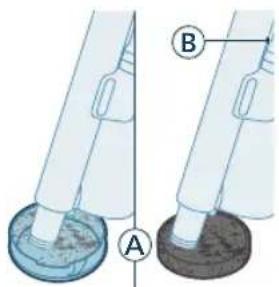
10 Vacuum the polluted filter case and foam filter (A).
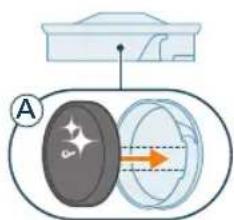
11 Reassemble the clean foam filter (A) in the clean filter case.
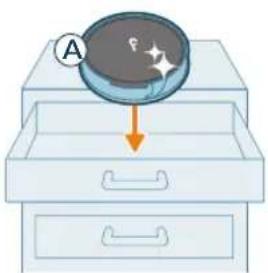
i Note: The filter (A) is now cleaned thoroughly and can be stored for future use when the current filter (B) needs to be cleaned.
24 English
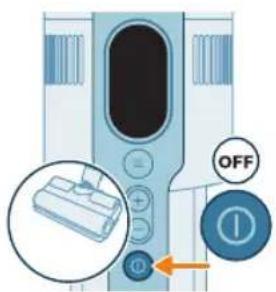
Cleaning the bucket and cyclone
1 Turn off appliance.
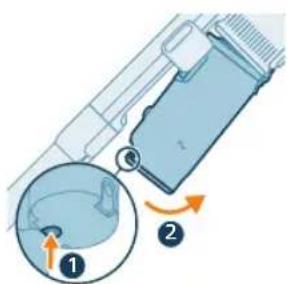
2 Remove the bucket by pressing the bucket release button.
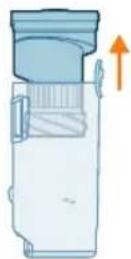
3 Hold onto the black grip. Remove the cyclone from the dust bucket by lifting it out from the bucket.
natural_image
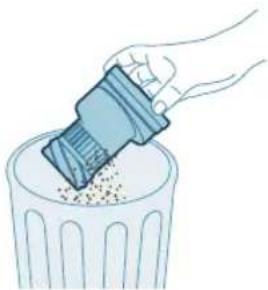
Illustration of a hand pouring granular material into a trash bin (no text or symbols)4 Tap the cyclone against a bin to remove remaining dust & dirt.
natural_image
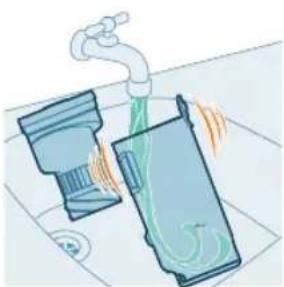
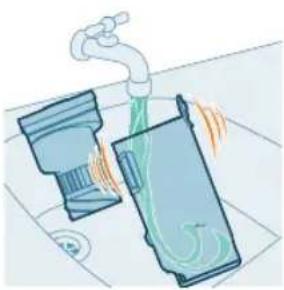
Illustration of a faucet spraying water onto a surface with two containers (no text or symbols)5 For thorough maintenance, clean the dust bucket and cyclone under a running tap or in warm soapy water.
natural_image
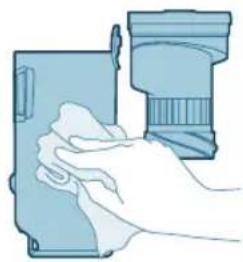
Illustration of a hand holding a device next to a camera lens (no text or symbols)6 Wipe the cleaned dust bucket and cyclone dry.
Caution: Make sure all parts are completely dry before you reassemble them.
Note: all parts cannot be cleaned in the dishwasher.
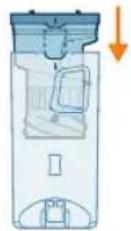
7 Reassemble the cyclone in the dust bucket.
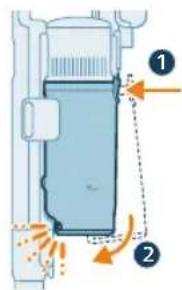
8 Place back the assembled bucket. First align the filter side of the bucket before hinging it in place.
Note: After maintenance, always make sure the filter is assembled in the appliance before using it.
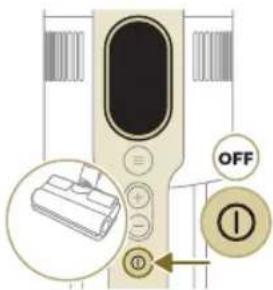
PrecisionPower Smart Nozzle maintenance
1 Always switch off the appliance before cleaning the nozzle brush roll.
natural_image
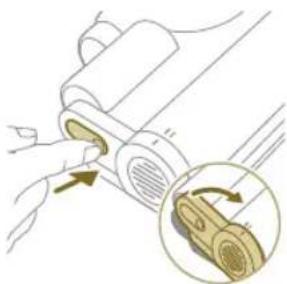
Illustration of a mechanical component with a magnified inset showing a close-up of a component (no text or symbols)2 To access the brush roll, locate the button on the side of the nozzle. Press it and rotate to open.
26
English
natural_image
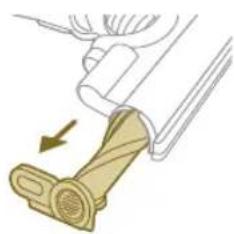
Illustration of a mechanical device with a lever and handle, showing a force or movement indicator (no text or symbols present)3 Gently remove the brush roll and the side cap of the nozzle.
natural_image
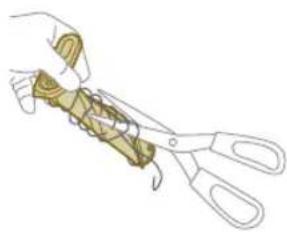
Illustration of hands using scissors to cut a piece of paper or tape (no text or symbols visible)4 Carefully detach any tangled hair from the brush roll. Support the removal of pollution with a pair of scissors.
natural_image
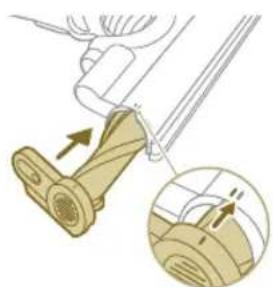
Mechanical assembly diagram showing a lever mechanism with an inset close-up of the component (no text or symbols)5 When reassembling, ensure proper alignment of the brush roll.
natural_image
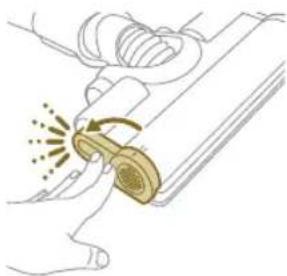
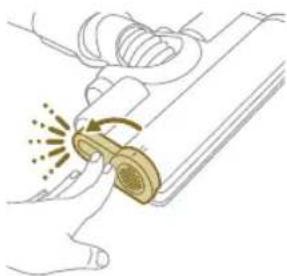
Illustration of a hand using a tool to lift a car, showing motion and angle (no text or symbols)6 Lock the nozzle brush roll by securing it until you hear a "CLICK" sound.
natural_image
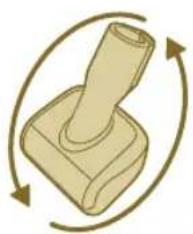
Illustration of a mechanical component with rotational arrows indicating cycle (no text or symbols)PetPro Nozzle maintenance
1 Turn the brush over to access the cleaning area.

2 Slide the side button to release the brush from its position.
3 Use your hands or a pair of scissors to remove any pollution from the brush.
4 When reassembling the brush, start by placing one side in position before attaching the other side. When the brush is properly assembled, you will hear a "CLICK" sound.
Delicate Floor brush maintenance (for XC7067)
1 To access the brush, locate the button on the side of the nozzle. Press it and rotate to open. Gently remove the brush and the side cap of the nozzle.
2 Pull the brush out of the side cover with force.
English
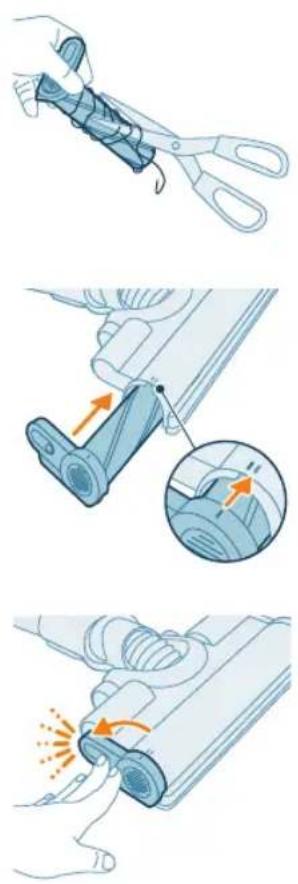
3 Carefully detach any tangled hair from the brush roll. Support the removal of pollution with a pair of scissors.
4 Insert the brush back to the side cover with force, please make sure the brush is firmly installed. When reassembling, ensure proper alignment of the brush.
5 Lock the brush by securing it until you hear a "CLICK" sound.
Aqua tank maintenance
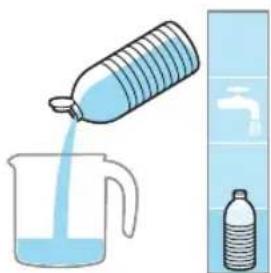
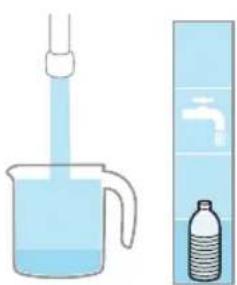
Descale the aqua tank once every month to avoid limescale build-up.
natural_image
Illustration of a plastic bottle pouring liquid from a water bottle into a glass beaker, next to a vertical water tank (no text or symbols)1 Add some descaling liquid to a measuring cup.
natural_image
Illustration of a beaker with liquid being inverted and a water dispenser with a bottle beside it (no text or symbols)2 Add the correct amount of water in the measuring cup.
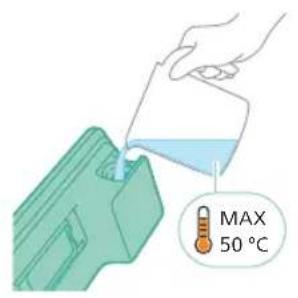
3 Add the mixed liquid in the aqua tank.
natural_image
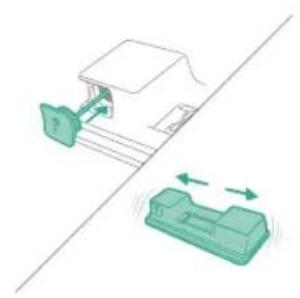
Diagram showing a mechanical device with green components and directional arrows, no text or symbols present4 Close the Aqua tank properly before shaking the tank for the descaling liquid to spread evenly.
natural_image
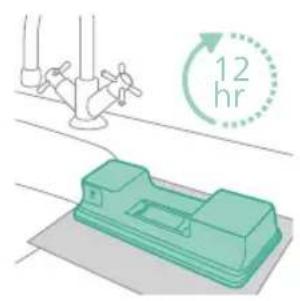
Illustration of a green mechanical device on a flat surface with a 12-hour circular arrow indicating rotation (no text or symbols on the device itself)5 Leave the aqua tank (without the microfiber mopping pad) upright over 12 hours. Water is expected to slowly come out from the bottom of the aqua tank. We recommend to place the aqua tank inside the sink or over a cloth.
natural_image
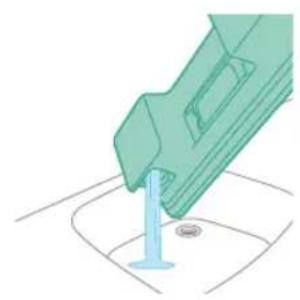
Illustration of a green mechanical component with a blue rod inserted into a circular base (no text or symbols)6 Rinse and remove any remaining liquid inside the aqua tank.
natural_image
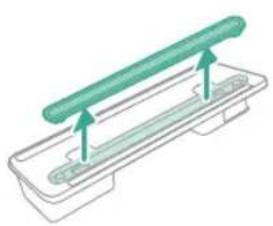
Diagram of a green cylindrical object with arrows pointing upward, placed on a rectangular base (no text or symbols)Water strip maintenance
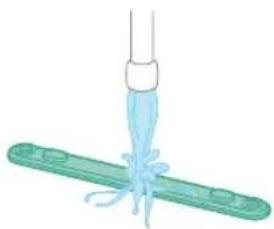
1 Remove the water strip from the bottom of the aqua tank for a thorough cleaning.
30
English
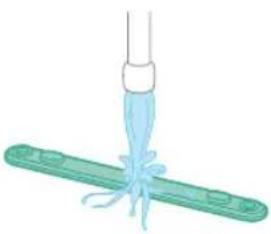
natural_image
Illustration of a medical procedure with a needle inserted into a green plastic tube (no text or symbols)2 Rinse the water strip under the tap.
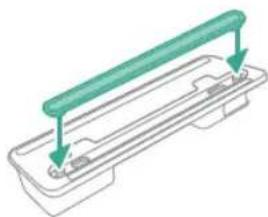
natural_image
Diagram of a green horizontal bar mounted on a rectangular base with two small components, no text or symbols present.3 Attach the water strip back to the aqua tank after cleaning.
Replacement
To buy accessories or spare parts, visit www.philips.com/parts-and-accessories or go to your Philips dealer. You can also contact the Philips Consumer Care Center in your country.
Replacement parts and type numbers:
Replacement filter XV1681/01
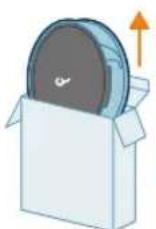
XV1681/01
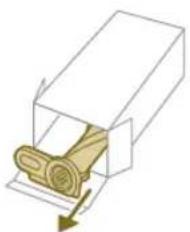
Brush roll CP0667/01
natural_image
Diagram of a mechanical component inside a transparent housing, showing a shaft and directional arrow (no text or symbols)CP0667/01
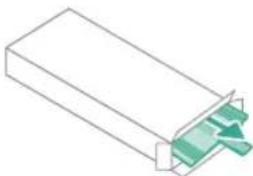
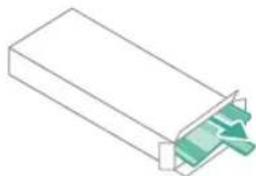
Microfiber mopping pad XV1670/02
natural_image
Isometric view of a rectangular block with a green arrow pointing to its edge (no text or symbols)XV1670/02
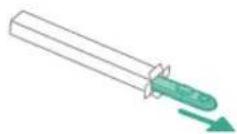
Water strip CP0381/01
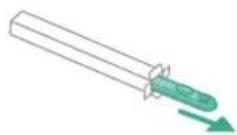
CP0381/01
i Note: Replace the filter and the microfiber mopping pad every 6 months to ensure maximum performance.
User interface signals and their meaning
Signal Meaning of signal
E1 Malfu
opliance.
Remove the battery, wait 10 seconds, and then put the battery back. If this does not work, please take the appliance to a Philips service center or contact the Consumer Care Center.
E2 The a
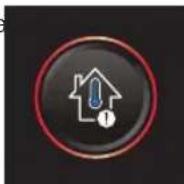
rated below the functioning temperature.
Move the appliance to a warmer room. Do not store, charge or use the appliance at a temperature below 5 °C or above 40 °C.
E3 The a
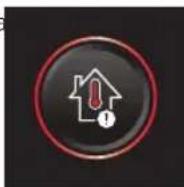
rated above the functioning temperature.
Move the appliance to a cooler room. Do not store, charge or use the appliance at a temperature below 5 °C or above 40 °C.
E5 The b
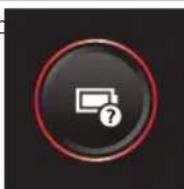
ed.
Take the appliance to a Philips service center or contact the Consumer Care Center.
32 English
Signal Meaning of signal
| E9 The n | 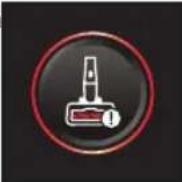 | d above the functioning temperature.Switch off the appliance and wait 15 minutes. Touch the upper housing of the nozzle to feel if it is still warm. If the nozzle is still warm, wait longer for the nozzle to cool down. Once the nozzle has cooled down, try switching the appliance back on. |
| i4 The no |  | Make sure the appliance is switched off. Clean the nozzle according to the user manual and check the tube by removing the tube from the main appliance.Remove the object in the nozzle or tube and restart the appliance. |
| i5 Foreign |  | in the airflow passage.Make sure the appliance is switched off. Clean the nozzle according to the user manual and check the tube by removing the tube from the main appliance.Remove the object in the nozzle, tube, or handheld and restart the appliance. |
| i6 The ad |  | noved.Remove the adapter before operating the appliance. |
| i7 A wro |  | ed.Only use the original adapter to charge the appliance. |
| i8 The fil |  | Clean the filter. Follow the instructions on the screen or in the users manual.You can buy new filters in the online Philips shop atwww.philips.com/supportor at your Philips dealer.If you keep getting an i8 information code after cleaning the filter, check the troubleshooting table below. |
| i10 The k |  | operly inserted.Remove the battery, and then put the battery back. If this does not work, please take the appliance to a Philips service center or contact the Consumer Care Center. |
 | The battery level is low and needs to be charged. Charge the appliance or the battery via the suggested charging method. |
Troubleshooting
This chapter summarizes the most common problems you could encounter with the appliance. If you are unable to solve the problem with the information below, visit www.philips.com/support for a list of frequently asked questions or contact the Consumer Care Center in your country.
Dry cleaning
Problem Possible cause Solution
| The appliance does not respond when the on/off button is pushed. | The display shows the battery empty icon. | To charge the battery, connect the appliance to the charging station or attach the handheld vacuum cleaner directly to the power plug of the adapter. |
| The charging station is not stable on the wall. | The screws holding the charging station are loose. | Tighten the screws. |
| The screws are not the right size. | Mount the charging station with the supplied screws. | |
| The charging station is not attached to a stable wall. | Check that the wall on which the charging station will be mounted is stable. | |
| The appliance suddenly stops working. | When the appliance has an internal malfunction, the buttons will not respond and the screen will remain blank. | Connect the appliance to the charging station or attach the handheld vacuum cleaner directly to the adapter. Check the display. If an error code appears, you can find its meaning in the user manual. |
| (code: E2, E3) The appliance is not working at a suitable temperature. | Make sure the appliance is used at a temperature of 5-40 °C. | |
| (code: i4, i5) The brush roll is stuck or objects are stuck in the air flow channel. | Make sure the appliance is switched off. Clean the nozzle according to the user manual and check the tube by removing the tube from the main appliance. Remove the object in the nozzle or tube and restart the appliance. | |
| (code: E9) The motorized nozzle is overheated. | Switch off the appliance and wait 15 minutes. Touch the upper housing of the nozzle to feel if it is still warm. If the nozzle is still warm, wait longer for the nozzle to cool down. Once the nozzle has cooled down, try switching the appliance back on. | |
| The appliance has a lower suction power than usual. | The filter and the cyclone are dirty. | Empty the dust bucket. Clean the filter and the cyclone. Make sure the filter is washed at least once a month, when using the appliance regularly. Make sure hair and dirt stuck in the cyclone are removed. |
Problem Possible cause Solution
| The dust container is not attached properly to the appliance. | Make sure the dust container is attached properly. | |
| Dust escapes from the appliance. | The filter is dirty. Clean the filter. See also the user manual. | |
| The filter is not present in the appliance. | Make sure that the filter is in the appliance and assembled correctly. | |
| Something is blocking the cyclone. | Check the cyclone for stuck objects and remove any object blocking the cyclone. Also ensure all hair and dirt stuck in the cyclone are removed. | |
| The dust container is not properly attached to the appliance. | Empty the dust container and attach the dust container correctly to the appliance. | |
| The appliance is rotated or flipped when the power is off. | Keep the appliance upright when the power is off. | |
| The appliance does not move smoothly across the floor when cleaning a carpet. | The floor type recognition function is not on. | Switch on the floor type recognition function in the digital menu. |
| The selected suction power has been too high. | Decrease the suction power. See also the user manual. | |
| The brush does not turn anymore. | The brush is clogged with hair or dirt. | Clean the brush by hand or with a pair of scissors. |
| (code i4) The brush may stop turning when it encounters too much resistance from a high-pile carpet. | Switch off the appliance and then switch it back on again. | |
| The roller brush has not been assembled properly into the nozzle after cleaning. | Follow the instructions in the cleaning chapter of the user manual to slide the roller brush into the nozzle properly. Secure the roller brush inside the nozzle by snapping the locking lever in place. | |
| (code: E9) The motorized nozzle is overheated. | Switch off the appliance and wait 15 minutes. Touch the upper housing of the nozzle to feel if it is still warm. If the nozzle is still warm, wait longer for the nozzle to cool down. Once the nozzle has cooled down, try switching the appliance back on. | |
| The LEDs in the nozzle do not come on. | The nozzle has not been attached to the tube or appliance properly. | Attach the nozzle to the appliance or handheld properly. |
| The lighting feature is disabled. Enable this feature in the menu. Adjust the brightness of nozzle LEDs in the menu. | ||
Problem Possible cause Solution
| The LEDs in the handheld do not come on. | The lighting feature is disabled. Enable this feature in the menu. Adjust the brightness of handheld LEDs in the menu. | |
| The light in the accessory does not come on. | The accessory is attached to the tube. | Remove the tube and attach the accessory directly to the handheld. |
| The accessory is not attached to the appliance properly. | Attach the accessory to the appliance properly. | |
| The lighting in my nozzle, handheld, and accessories is not bright enough. | The brightness is dimmed. Adjust the brightness of lighting in the menu. | |
| The appliance is not charging. | The power plug is not connected properly to the appliance or the adapter is not inserted into the wall socket properly. | Make sure that the power plug is connected properly to the appliance and that the adapter is inserted into the wall socket properly. |
| The power plug is not placed properly in the charging station. | Make sure the plug is fixed properly in the charging station. Check if the plug is angled and the charging station is holding the plug in place. | |
| (code i7) An adapter other than the supplied adapter is being used. | Make sure that you use the adapter supplied. | |
| (code i10) The battery is not properly installed. | Make sure that the battery is pushed all the way in the slot and properly installed. | |
| (code E5) The battery malfunctions. | The battery has failed. Replace the battery. | |
| If you have checked the above and the appliance still does not charge, take it to a Philips service center or contact the Consumer Care Center. | ||
| The appliance is charging very slow. | An external adapter or an adapter from other appliances is used. | Charge the appliance with the supplied adapter. |
| The battery is charged and attached, but the appliance cannot be switched on. | The appliance is still connected to the adapter. | Remove the appliance from the adapter before restarting it. |
| (code: E1) Something is wrong with the appliance. | Remove the battery, wait 10 seconds, and then put the battery back. If this does not work, please take the appliance to a Philips service center or contact the Consumer Care Center. | |
| The display shows the filter icon (code: i8). | The filter is dirty. Clean the filter. | Follow the instructions on the screen or in the users manual. |
Problem Possible cause Solution
| If you keep getting an i8 information code after cleaning the filter, you can consider the following solutions:- If you have a spare clean filter, you can replace the old filter with the new one. Then, use the handheld to carefully clean the old foam filter and the filter case.- Alternatively, if you have access to another vacuum cleaner or a mini vacuum, you can use it to easily clean both the foam filter and the filter case.Note: Always ensure that a filter is present in the appliance before switching it on. | ||
| The filter is old. You can buy new filters in the online Philips shop at www.philips.com/support or at your Philips dealer. | ||
| If you have checked the above and the appliance still shows the error, take it to a Philips service center or contact the Consumer Care Center. | ||
| The mini Turbo brush does not function properly. | The roller brush is blocked. Remove hairs from the brush with a pair of scissors. Follow the instructions in the user manual. | |
| The roller brush is blocked by fabric or surfaces during cleaning. | Keep the mini Turbo brush aligned with the surface and do not push the Turbo brush into soft surfaces. | |
| The roller brush is not properly inserted into the mini Turbo brush. | Make sure that roller brush and the mini Turbo brush are properly connected and that there is no gap between the parts. Follow the instructions in the manual. | |
| The suction power does not feel stable. | Nothing is wrong. This is the feature of "Floor Type Recognition" being triggered. Your appliance is detecting the floor type and cleaning with an optimized performance for that floor. | No action needed. If you prefer to clean with a consistent power of your choice, disable this smart feature in the menu of your appliance. |
| The Floor Type Recognition is not reacting logically. | The brush is clogged with hair or dirt. | Clean the brush with a pair of scissors or by hand. See the instructions in the user manual. |
Problem Possible cause Solution
| The appliance delivers static shocks. | The appliance builds up static electricity. The lower the air humidity, the more state electricity is build up. | Discharge the appliance by frequently holding the tube against other metal objects in the room (for example the legs of a table or chair, etc.). Or raise the air humidity level in the room. |
| The dust and dirt that is vacuumed up is static. | Empty the dust container and clean the filter according to the instructions in the user manual. |
Wet cleaning
Problem Possible cause Solution
| The water flow from the water tank is reduced. | The wetting strip is blocked by dirt. | Remove the wetting strip and clean it. Place the clean wetting strip back. |
| The microfiber mopping pad is not placed correctly and blocks the wetting strip as a result. | Make sure that you place the mopping pad correctly. Check the user manual for proper placement. | |
| The water tank is empty or nearly empty. | Refill the water tank. | |
| A microfiber mopping pad is used that is not supplied by Philips. | Only use an original Philips microfiber mopping pad. The mopping pads can be bought in the online Philips shop at www.philips.com/support or at your Philips dealer. | |
| Lime scale has build up in the wetting strip. | Buy a new wetting strip in the online Philips shop at www.philips.com/support or at your Philips dealer. | |
| Too much water flows out of the water tank at a too high speed. | The water tank cap is not attached properly. | Check the cap and make sure it is fully and properly closed. |
| The strip is not placed properly in the bottom of the water tank. | Check the strip and make sure that it is fitted properly in the bottom plate of the water tank. | |
| The floor dries with stripes. Too much liquid cleaner has been added to the water. | Use only a few drops of liquid cleaner or use a cleaner that foams less. | |
| The microfiber mopping pad is not placed correctly. | Make sure that the mopping pad is placed correctly. Check the user manual for proper placement. | |
| An incorrect mopping pad is used. | Only use Philips XV1670/02 microfiber mopping pad for the 7000 series. The mopping pads can be bought in the online Philips shop at www.philips.com/support or at your Philips dealer. | |
Obsah
Úvod 38
Všeobecný popis 38
www.philips.com/mycordlessvacuum-7000s.
Všeobecný popis
1 Digitální displej
natural_image
Diagram of a mechanical device with internal components and airflow indicators (no text or symbols)natural_image
Illustration of a car interior with a device and a magnified inset showing the interior lighting effect (no text or symbols)natural_image
Diagram of a mechanical device with a close-up inset showing a pipe connection (no text or symbols)natural_image
Illustration of a hand holding a tool with an arrow pointing to a small mechanical component (no text or symbols present)natural_image
Illustration of a vacuum cleaner emitting exhaust plume (no text or symbols)natural_image
Illustration of a person using a vacuum cleaner on tiled floor (no text or symbols)natural_image
Illustration of a wooden stamping tool with a green circular symbol and a compass icon, set against a patterned background (no text or symbols)natural_image
Illustration of an eye with a warning sign and a red X mark, no text or symbols presentnatural_image
Illustration of a faucet spraying green liquid into a blue container (no text or symbols)natural_image
Illustration of a mechanical component with an inset showing a close-up of its parts (no text or symbols present)natural_image
Illustration of a mechanical component being inserted into a housing (no text or symbols visible)natural_image
Illustration of a mechanical device with a lever and base, showing motion or force direction (no text or symbols)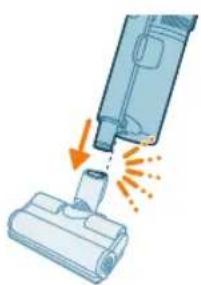
natural_image
Illustration of a vacuum cleaner emitting exhaust smoke from a bottle (no text or symbols)Používání hubice
natural_image
Illustration of a vacuum cleaner emitting exhaust from a bottle (no text or symbols)natural_image
Illustration of a screwdriver and a cylindrical component (no text or symbols)natural_image
Illustration of a handheld electronic device emitting sound waves from a tip (no text or symbols)natural_image
Illustration of a spiderweb being held by two tools, showing step-by-step assembly (no text or symbols)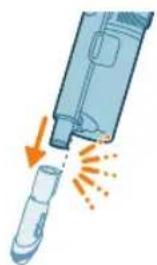
natural_image
Illustration of a hand holding a pen or tool with an arrow indicating motion (no text or symbols)natural_image
Illustration of a laptop with a pen and eraser, no text or symbols present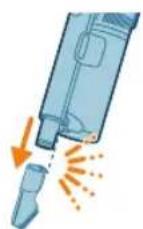
natural_image
Illustration of a medical device with a magnified inset showing a cylindrical object (no text or symbols)natural_image
Illustration of a blue vacuum cleaner emitting exhaust flames, with no text or symbols present.natural_image
Three-step diagram showing mechanical assembly steps with arrows indicating motion (no text or symbols)natural_image
Illustration of a hand pressing a button on a device with an orange arrow indicating motion (no text or symbols)natural_image
Gray circular icon with a white lightbulb symbol and radiating lines, representing an idea or illumination (no text or symbols)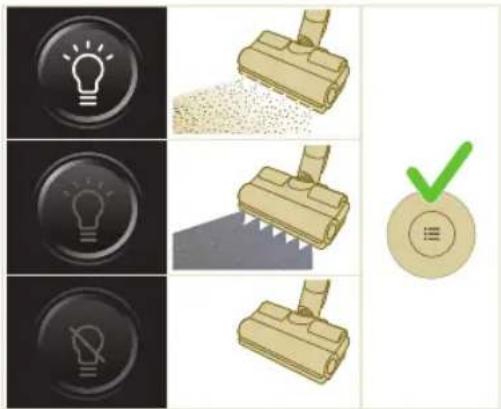
natural_image
Circular icon with a white lightning bolt symbol and green '电' (electricity) text, no readable text or numbers present.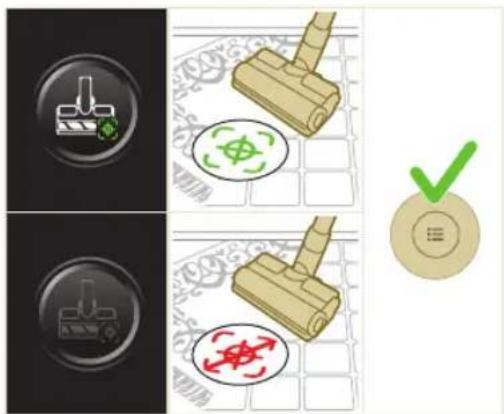
natural_image
Gray circular button with a white lowercase 'i' in the center, no additional text or symbols.
52 Čeština

natural_image
Circular button with a white up-turn arrow icon (no text or symbols)Návrat
Po použití – údržba
natural_image
Illustration of a green mechanical component with a blue rod inserted into a square base (no text or symbols)natural_image
Diagram showing a mechanical device with directional arrows indicating motion or force, no text or symbols presentnatural_image
Illustration of a green plastic component inserted into a blue cylindrical part, with no visible text or symbols.natural_image
Illustration of a cleaning or laundry system with a green plastic bag, hanging clothes, and warning symbols (no text or labels)natural_image
Close-up of a beige remote control with a circular dial and plus button (no text or symbols visible)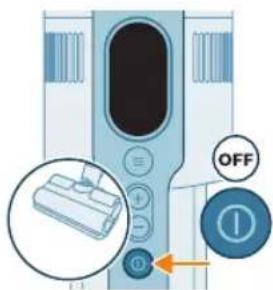
1 Vypněte přístroj.
natural_image
Illustration of a hand holding a circular object with a starburst effect, placed on a drawer with arrows indicating direction (no text or symbols)natural_image
Illustration of a hand pouring granular material into a trash bin (no text or symbols)natural_image
Illustration of two blue containers with a pipe and swirling green liquid, no text or symbols presentnatural_image
Illustration of a hand cleaning a device with a magnified view (no text or symbols)natural_image
Illustration of a hand inserting a component into a device, with an inset showing the internal mechanism (no text or symbols present)natural_image
Illustration of a mechanical device with a lever and belt, showing a hand pressing down on a golden belt (no text or symbols)natural_image
Illustration of a hand using scissors to cut a piece of paper or tape (no text or symbols visible)natural_image
Illustration showing two-step car climbing process: one with hand placement and angle, the other with foot and wheel assembly (no text or symbols)natural_image
Illustration of a mechanical lever with rotational arrows indicating motion (no text or symbols)natural_image
Illustration of a hand performing a rope manipulation technique on a rolled-up cable (no text or symbols)natural_image
Illustration of a hand pressing down on a device with a magnifying glass (no text or symbols)natural_image
Illustration of a plastic bottle pouring liquid into a glass beaker next to a water dispenser (no text or symbols)natural_image
Illustration of a beaker with liquid being inverted and a water bottle beside it (no text or symbols)natural_image
Diagram showing a device with a green component and a green box, no text or symbols presentnatural_image
Diagram of a mechanical component inside a transparent housing, showing internal components and directional arrow (no text or symbols)CP0667/01
natural_image
Simple line drawing of a rectangular block with a green internal component, no text or symbols present.XV1670/02
Smáčecí pásek CP0381/01
CP0381/01
natural_image
Diagram of a mechanical device with internal components and airflow indicators (no text or symbols)natural_image
Illustration of a spray gun with a magnified inset showing the impact of light (no text or symbols present)natural_image
Diagram of a mechanical device with a close-up inset showing a pipe connection (no text or symbols)natural_image
Illustration of a spray gun dispensing liquid into a tube with an arrow indicating motion (no text or symbols)natural_image
Illustration of a robotic arm cutting a component with motion lines indicating motion (no text or symbols)natural_image
Illustration of a person using a vacuum cleaner on tiled floor (no text or symbols)natural_image
Illustration of a wooden stamping tool with a green circular symbol and a compass icon, set against a patterned background (no text or symbols)natural_image
Illustration of an eye with warning symbols (anxiety, no protection) and a red X mark, no text or labels present.natural_image
Illustration of a faucet pouring liquid into a blue rectangular tank (no text or symbols)natural_image
Illustration of a mechanical component with arrows indicating force or movement, no text or symbols presentnatural_image
Illustration of a mechanical component being inserted into a base, showing a downward arrow (no text or symbols present)natural_image
Illustration of a mechanical device with a handle and base, showing fluid flow or material movement (no text or symbols)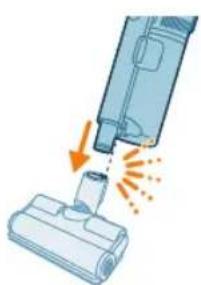
natural_image
Illustration of a vacuum cleaner emitting exhaust smoke from a bottle (no text or symbols)Brug af mundstykket
natural_image
Illustration of a vacuum cleaner emitting exhaust smoke from a bottle (no text or symbols)natural_image
Illustration of a screwdriver and a cylindrical component (no text or symbols)natural_image
Illustration of a handheld device emitting exhaust heat, showing airflow direction (no text or symbols)natural_image
Illustration of a spiderweb being held by two tools, showing step-by-step assembly (no text or symbols)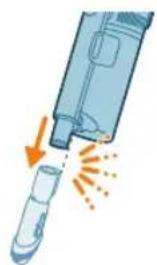
natural_image
Illustration of a hand holding a pen or tool with an arrow indicating motion (no text or symbols)natural_image
Illustration of a laptop with a pen writing on it, no text or symbols presentnatural_image
Illustration of a medical device with a magnified inset showing a cylindrical object (no text or symbols)natural_image
Illustration of a blue vacuum cleaner emitting exhaust flames, with no text or symbols present.natural_image
Illustration of a mechanical component with an arrow indicating force or movement, and a magnified inset showing a blue component with rotational arrows (no text or symbols)natural_image
Illustration of a mechanical device with a lever and rolled sheet, showing no text or symbolsnatural_image
Illustration of a mechanical device with arrows indicating motion or assembly (no text or symbols)natural_image
Illustration of a hand pressing down on a device with a glowing arrow indicating motion (no text or symbols)natural_image
Circular icon with a white lightbulb symbol and radiating lines, no text or numbers present.
natural_image
Circular icon with a white downward arrow and green checkmark, no text or symbols present.natural_image
Gray circular button with a white lowercase 'i' in the center, no additional text or symbols.
Retur
natural_image
Circular button with a white up-turn arrow icon (no text or symbols)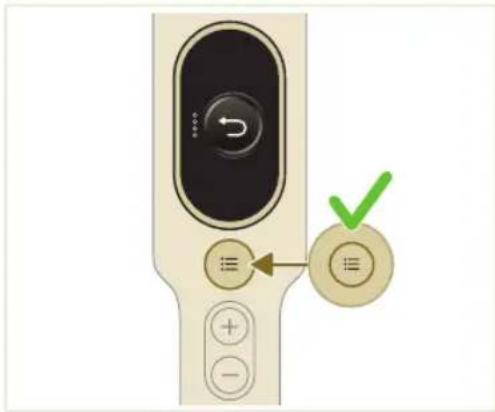
natural_image
Illustration of a medical or laboratory procedure showing a tool emitting particles from a tube (no text or symbols present)3 Hold støvbeholderen over en skraldespand, og tryk på knappen til nem tømning (1) for at tømme beholderen (2).

natural_image
3D illustration of a green mechanical component with an arrow indicating upward motion, no text or symbols presentnatural_image
Illustration of a pipette dispensing liquid into a green circuit board (no text or symbols)natural_image
Illustration of a green mechanical component inserted into a blue cylindrical rod, with no visible text or symbols.natural_image
Diagram showing a device with a green connector and directional arrows, no text or symbols presentnatural_image
Illustration of a green mechanical component with a blue rod inserted into a surface (no text or symbols)natural_image
Illustration of a cleaning or installation process with a green plastic component and a warning icon (no text or symbols)natural_image
Close-up of a beige remote control with a black dial and circular button (no visible text or symbols)Rens filteret mindst en gang om måneden, eller når du ser meddelelsen om filterrensning (i8).
1 Sluk for apparatet.
10 Støvsug det snavsede filterkabinet og skumfilter (A).
natural_image
Illustration of a hand holding a circular object with a starburst effect, placed on a drawer (no text or symbols)natural_image
Illustration of a hand pouring granular material into a trash bin (no text or symbols)4 Bank cyklonen mod en skraldespand for at fjerne resterende støv og snavs.
natural_image
Illustration of a faucet spraying water onto a surface with a plastic bag (no text or symbols)natural_image
Illustration of a hand holding a device next to a camera lens (no text or symbols)natural_image
Illustration of a hand inserting a cable into a device, with an inset showing the cable being inserted (no text or symbols present)natural_image
Illustration of a mechanical device with a lever and handle, showing motion direction (no text or symbols)natural_image
Illustration of a hand using scissors to cut a piece of paper or tape (no text or symbols visible)natural_image
Mechanical assembly diagram showing a lever mechanism with an inset close-up of the component (no text or symbols)5 Sørg for at justere børsterullen korrekt, när du samler den igen.
natural_image
Illustration of a hand using a tool to lift a car, showing motion and angle (no text or symbols)natural_image
Illustration of a mechanical component with rotational arrows indicating cycle (no text or symbols)natural_image
Diagram showing a device with green components and directional arrows, no text or symbols presentnatural_image
Illustration of a green mechanical device on a flat surface with a 12-hour circular arrow indicating rotation (no text or symbols on the device itself)natural_image
Illustration of a green mechanical component with a blue rod inserted into a circular base (no text or symbols)natural_image
Diagram of a green cylindrical object with arrows pointing upward, placed on a rectangular base (no text or symbols)natural_image
Illustration of a medical procedure with a blue needle inserted into a green strip (no text or symbols)2 Skyl vandstrimlen under rindende vand.
natural_image
Diagram of a green horizontal bar mounted on a rectangular base with two small components, no text or symbols present.natural_image
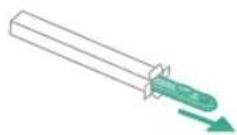
Diagram of a mechanical component inside a transparent housing, showing internal components and directional arrows (no text or symbols)CP0667/01
Mikrofibermoppeptide XV1670/02
natural_image
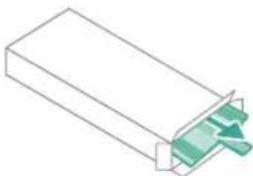
Isometric view of a rectangular block with a green arrow pointing to its corner (no text or symbols)XV1670/02
Vandstrimmel CP0381/01
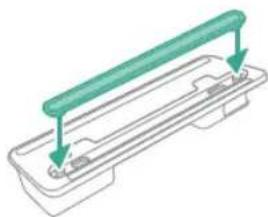
CP0381/01
www.philips.com/mycordlessvacuum-7000s.
natural_image
Diagram of a mechanical device with internal components and airflow indicators (no text or symbols)natural_image
Illustration of a spray gun with a magnified inset showing the impact of light (no text or symbols present)natural_image
Diagram of a mechanical device with a close-up inset showing a pipe connection (no text or symbols)natural_image
Illustration of a spray gun dispensing liquid into a tube with an arrow indicating motion (no text or symbols)natural_image
Illustration of a robotic arm cutting a component with motion lines indicating motion (no text or symbols)natural_image
Illustration of a person using a vacuum cleaner on tiled floor, with directional arrows indicating motion (no text or symbols)natural_image
Illustration of a wooden screwdriver with a green circular symbol on a grid background (no text or symbols)natural_image
Illustration of an eye with warning symbols (anxiety, no protection) and a red X mark, no text or labels present.natural_image
Illustration of a faucet pouring liquid into a blue rectangular container (no text or symbols)natural_image
Illustration of a mechanical component with arrows indicating force or movement, and an inset magnified view showing documents (no text or symbols present)natural_image
Illustration of a mechanical component being inserted into a housing (no text or symbols visible)natural_image
Illustration of a handheld device with a handle and spout, emitting powder from a surface (no text or symbols)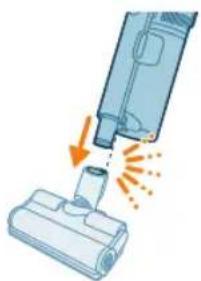
natural_image
Illustration of a vacuum cleaner emitting exhaust smoke from a bottle (no text or symbols)Verwenden der Düse
natural_image
Illustration of a vacuum cleaner emitting exhaust smoke from a bottle (no text or symbols)natural_image
Illustration of a screwdriver and a cylindrical component (no text or symbols)natural_image
Illustration of a handheld electronic device emitting sound waves from a tip (no text or symbols)natural_image
Illustration of a spiderweb being held by two hands, showing structural changes (no text or symbols)natural_image
Illustration of a medical or laboratory device with an arrow indicating compression or disassembly (no text or symbols present)natural_image
Illustration of a laptop with a pen and eraser, no text or symbols presentnatural_image
Illustration of a medical device with a magnified inset showing a cylindrical object (no text or symbols)natural_image
Illustration of a vacuum cleaner emitting exhaust flames, showing airflow direction (no text or symbols)natural_image
Illustration of a hand pressing down on a device with a glowing arrow indicating motion (no text or symbols)natural_image
Circular icon with a white lightbulb symbol and radiating lines, no text or numbers present.
natural_image
Circular icon with a white downward arrow and a green checkmark, no text or symbols present.Bodenarterkennung
natural_image
Gray circular button with a white lowercase 'i' in the center, no additional text or symbols.
Zurückkehren
natural_image
Circular button with a white up-turn arrow icon (no text or symbols)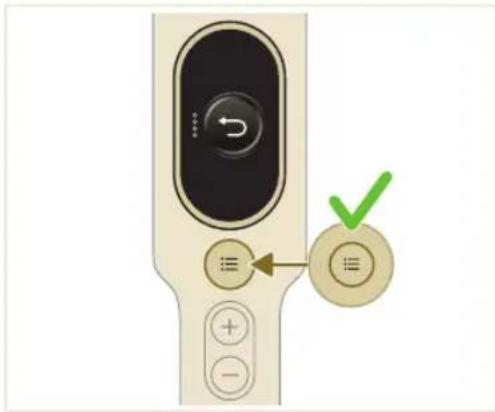
natural_image
Illustration of a syringe emitting orange light from a plug (no text or symbols)natural_image
3D illustration of a green mechanical component with an arrow indicating upward motion, no text or symbols presentnatural_image
Illustration of a cleaning or installation process with a green plastic component and a warning icon (no text or symbols)natural_image
Close-up of a beige remote control with a black dial and circular button (no visible text or symbols)natural_image
Illustration of a magnifying glass inspecting a drawer with arrows indicating process (no text or symbols)natural_image
Illustration of a hand pouring granular material into a trash bin (no text or symbols)natural_image
Illustration of a faucet spraying water onto a surface with a plastic bag (no text or symbols)natural_image
Illustration of a hand holding a device next to a camera lens (no text or symbols)natural_image
Illustration of a hand inserting a component into a device, with an inset showing a close-up of the component (no text or symbols present)natural_image
Diagram of a mechanical device with a lever and handle, showing motion direction (no text or symbols)natural_image
Illustration of a hand using scissors to cut a piece of paper or tape (no text or symbols visible)natural_image
Mechanical assembly diagram showing a lever mechanism with an inset close-up of the component (no text or symbols)natural_image
Illustration of a hand using a tool to lift a car, showing motion and angle (no text or symbols)natural_image
Simple line drawing of a mechanical component with rotational arrows (no text or symbols)natural_image
Illustration of a plastic bottle pouring liquid from a water bottle into a beaker, next to a vertical water tank (no text or symbols)natural_image
Illustration of a beaker with liquid and a water bottle connected to a vertical tube (no text or symbols)natural_image
Diagram showing a mechanical device with green components and directional arrows, no text or symbols presentnatural_image
Illustration of a green mechanical component with a blue rod inserted into a base, no text or symbols presentnatural_image
Diagram of a green cylindrical object with arrows pointing upward, placed on a rectangular base (no text or symbols)natural_image
Illustration of a medical procedure with a needle inserted into a green plastic band (no text or symbols)natural_image
Diagram of a mechanical component with a green rod inserted into a housing, showing alignment arrows (no text or symbols)natural_image
Diagram of a mechanical component inside a transparent housing, showing a shaft and directional arrow (no text or symbols)CP0667/01
134
Deutsch
natural_image
Isometric line drawing of a rectangular block with a green arrow pointing to its side (no text or symbols)XV1670/02
Wasserspender CP0381/01
CP0381/01
natural_image
Diagram of a mechanical device with internal components and airflow indicators (no text or symbols)natural_image
Illustration of a medical device with an arrow indicating direction and a magnified inset showing light emission (no text or symbols)natural_image
Diagram of a mechanical device with a close-up inset showing a pipe connection (no text or symbols)natural_image
Illustration of a spray gun dispensing liquid into a tube with an arrow indicating motion (no text or symbols)natural_image
Illustration of a mechanical component being inserted into a housing, with an arrow indicating the process (no text or symbols present)natural_image
Illustration of a person using a vacuum cleaner on tiled floor (no text or symbols)natural_image
Illustration of a mechanical component with a circular green symbol and a magnified inset showing a crosshair (no text or symbols present)natural_image
Illustration of an eye with warning symbols (anxiety, no protection) and a red X mark, no text or labels present.natural_image
Illustration of a faucet pouring liquid into a blue rectangular container (no text or symbols)natural_image
Illustration of a mechanical component with an inset showing a close-up of its parts (no text or symbols present)natural_image
Illustration of a mechanical component being inserted into a base, showing a downward arrow (no text or symbols present)natural_image
Illustration of a mechanical device with a lever and base, showing fluid flow or material movement (no text or symbols)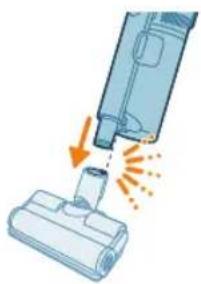
natural_image
Illustration of a vacuum cleaner emitting exhaust smoke from a bottle (no text or symbols)Otsaku kasutamine
natural_image
Illustration of a vacuum cleaner emitting exhaust smoke from a bottle (no text or symbols)natural_image
Illustration of a screwdriver and a cylindrical component (no text or symbols)Piluotsaku kasutamine
natural_image
Illustration of a handheld electronic device emitting exhaust flames (no text or symbols)natural_image
Illustration of a spiderweb being held by two hands, showing structural changes (no text or symbols)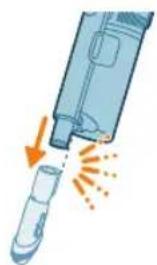
natural_image
Illustration of a hand holding a pen or tool with an arrow indicating motion (no text or symbols)natural_image
Illustration of a laptop with a pen and eraser, no text or symbols present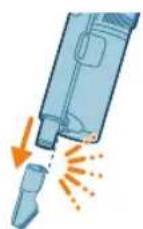
natural_image
Illustration of a medical device with a magnified inset showing a cylindrical object (no text or symbols)Polstriotsaku kasutamine
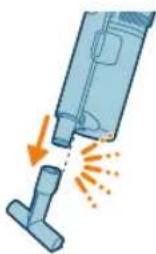
Polstriotsakuga saab puhastada tekstiilkattega mööblit, nagu diivanid, padjad ja toolid. See on kaasas mudelitega XC7065, XC7067 ja XC7167.
natural_image
Illustration of a vacuum cleaner emitting exhaust flames (no text or symbols)natural_image
Three-step diagram showing a mechanical assembly with arrows indicating motion, no text or symbols present.natural_image
Illustration of a hand pressing a button on a device with an orange arrow indicating motion (no text or symbols)natural_image
Gray circular icon with a white lightbulb symbol and radiating lines, representing an idea or illumination (no text or symbols)natural_image
Circular icon with a white lightning bolt symbol and green '电' (electricity) text, no readable text or numbers present.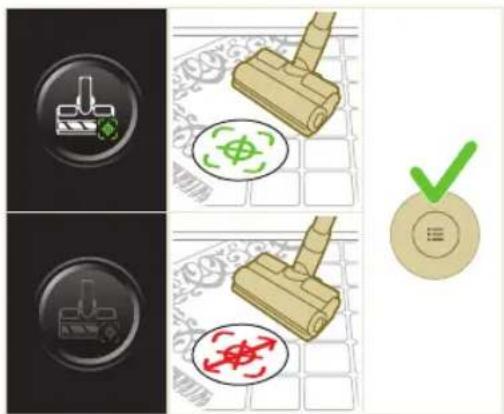
natural_image
Gray circular button with a white lowercase 'i' in the center, no additional text or symbols.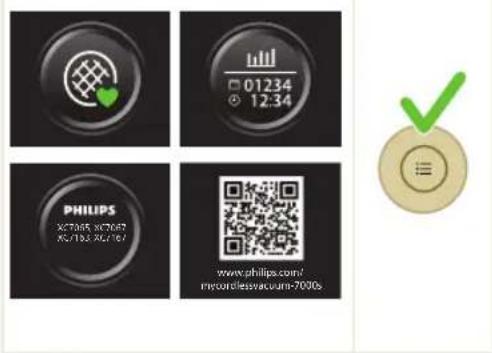
Tagasi
natural_image
Circular button with a white up-turn arrow icon (no text or symbols)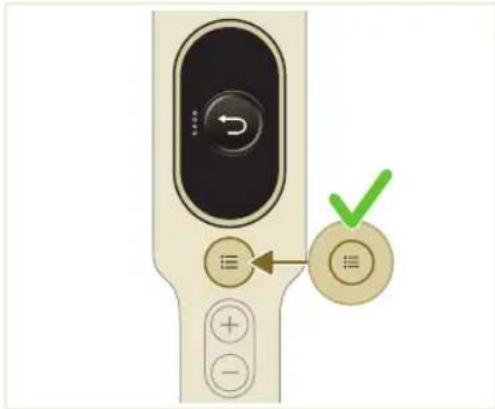
natural_image
Illustration of a medical or laboratory procedure showing a tool emitting particles from a tube (no text or symbols present)natural_image
Green mechanical component with a paper sheet base and an arrow indicating upward motion, accompanied by a magnified inset showing a printer (no text or symbols)Veepaagi hooldus
natural_image
Illustration of a pipette dispensing liquid onto a green circuit board (no text or symbols visible)natural_image
Illustration of a green mechanical component dispensing liquid into a small cylindrical object (no text or symbols visible)natural_image
Diagram showing a mechanical assembly with a housing and a clamping device, both without any text or symbols.natural_image
Illustration of a green mechanical component dispensing liquid into a blue cylindrical tank (no text or symbols)natural_image
Illustration of a kitchen appliance with a hanging bag, a warning icon, and a hanging sheet (no text or symbols)natural_image
Close-up of a beige remote control with a circular dial and plus button (no text or symbols visible)160
Eesti
10 Puhastage tolmuimejaga tolmune filtrikorpus ja vahtfilter (A).
Eesti
natural_image
Illustration of a magnifying glass pouring liquid into a drawer (no text or symbols)natural_image
Illustration of a hand using a tool to remove granular material from a trash bin (no text or symbols)natural_image
Illustration of two industrial tanks emitting steam from a pipe, no text or symbols presentnatural_image
Illustration of a hand cleaning a device with a magnified view of the lid (no text or symbols)natural_image
Illustration of a hand using a tool to lift a car wheel (no text or symbols)natural_image
Illustration of a mechanical component with rotational arrows indicating motion (no text or symbols)PetPro otsaku hooldus
natural_image
Illustration of hands tying a rope knot around a rolled-up cable (no text or symbols)natural_image
Illustration of a plastic bottle pouring liquid from a water bottle into a beaker, next to a vertical diagram showing a faucet and a plastic bottle (no text or symbols)natural_image
Illustration of a beaker with liquid being inverted and a water dispenser with a bottle beside it (no text or symbols)2 Lisage mööteanumasse vajalik kogus vett.
natural_image
Diagram showing a mechanical assembly with green arrows indicating motion or force direction (no text or symbols)natural_image
Illustration of a hand valve and a green mechanical device with a 12-hour cycle indicator (no text or symbols on the device itself)natural_image
Illustration of a green plastic tool inserted into a blue cylindrical component, with a small circular base and a dot on the surface (no text or symbols)natural_image
Diagram of a green rod placed on a rectangular tray with two side supports (no text or symbols)2 Loputage niisutusriba kraani all.
natural_image
Illustration of a medical procedure with a pipette inserted into a green plastic band (no text or symbols)natural_image
Diagram of a mechanical component with green and gray parts, no text or symbols presentOsade vahetamine
natural_image
Diagram of a mechanical component inside a transparent housing, showing a rolled part being inserted (no text or symbols)CP0667/01
Mikrokiust puhastuslapp XV1670/02
natural_image
Isometric illustration of a rectangular block with a green internal component and a small arrow pointing to it (no text or symbols)XV1670/02
Niisutusriba CP0381/01
CP0381/01
www.philips.com/mycordlessvacuum-7000s.
Descripción general
1 Pantalla digital
natural_image
Diagram of a mechanical device with internal components and directional arrows, no readable text or symbols present.natural_image
Mechanical diagram showing a valve mechanism with directional arrows and a magnified inset (no text or labels)natural_image
Diagram of a mechanical or fluid system with directional arrows and flow indicators (no text or symbols)natural_image
Diagram of a medical or laboratory device with a plus button and a checkmark (no text or symbols present)natural_image
Illustration of a spray gun with a magnified inset showing the impact of light (no text or symbols present)natural_image
Diagram of a mechanical device with a close-up inset showing a pipe connection (no text or symbols)natural_image
Illustration of a spray gun dispensing liquid into a tube with an arrow indicating motion (no text or symbols)natural_image
Illustration of a vacuum cleaner emitting powder from a nozzle (no text or symbols)natural_image
Illustration of a person using a vacuum cleaner on tiled floor (no text or symbols)natural_image
Illustration of a wooden stamping tool with a green circular symbol and a compass icon, set against a patterned background (no text or symbols)natural_image
Illustration of an eye with warning symbols (anxiety, no protection) and a red X mark, no text or labels present.natural_image
Illustration of a faucet pouring liquid into a blue container with green liquid flowing out (no text or symbols)natural_image
Illustration of a mechanical component with arrows indicating force or movement, and an inset magnified view showing document binding (no text or symbols present)natural_image
Illustration of a mechanical component being inserted into a housing (no text or symbols visible)natural_image
Illustration of a mechanical device with a handle and base, showing motion or force direction (no text or symbols)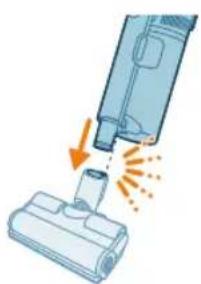
natural_image
Illustration of a vacuum cleaner emitting exhaust smoke from a bottle (no text or symbols)Uso de la boquilla
natural_image
Illustration of a vacuum cleaner emitting exhaust smoke from a bottle (no text or symbols)natural_image
Illustration of a screwdriver and a cylindrical component (no text or symbols)natural_image
Illustration of a handheld device emitting exhaust heat, showing airflow direction (no text or symbols)natural_image
Illustration of a spiderweb being held by two hands, showing structural changes (no text or symbols)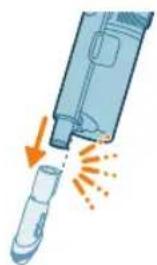
natural_image
Illustration of a medical or laboratory device with an arrow indicating compression or disassembly (no text or symbols present)natural_image
Illustration of a laptop with a pen and eraser, no text or symbols present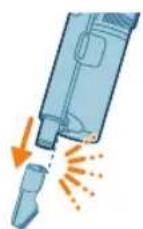
Uso del cepillo suave
natural_image
Illustration of a medical device with a magnified inset showing a cylindrical object (no text or symbols)natural_image
Illustration of a blue vacuum cleaner emitting exhaust flames, with no text or symbols present.natural_image
Three-step diagram showing mechanical assembly steps with arrows indicating motion (no text or symbols)natural_image
Illustration of a hand pressing down on a device with a glowing arrow indicating motion (no text or symbols)natural_image
Circular icon with a white lightbulb symbol and radiating lines, representing an idea or illumination (no text or symbols)natural_image
Four-panel image showing icons of lightbulb, a vacuum cleaner, and a green checkmark (no text or symbols)
natural_image
Circular icon with a white downward arrow and green leaf symbol (no text or numbers)natural_image
Gray circular button with a white lowercase 'i' in the center, no additional text or symbols.
Volver
natural_image
Circular button with a white up-turn arrow icon (no text or symbols)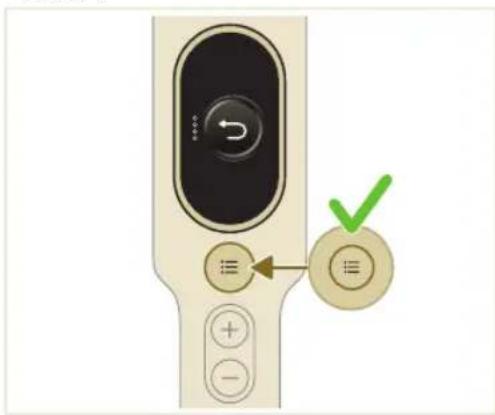
natural_image
Illustration of a syringe emitting orange light from a plug (no text or symbols)natural_image
3D illustration of a green mechanical component with an arrow indicating upward motion, no text or symbols presentnatural_image
Illustration of a kitchen appliance with a warning icon and hanging clothes (no text or symbols)natural_image
Close-up of a beige remote control with a black dial and circular button (no visible text or symbols)natural_image
Illustration of a hand pouring granular material into a trash bin (no text or symbols)natural_image
Illustration of a faucet spraying water into a container with visible steam and bubbles (no text or symbols)natural_image
Illustration of a hand holding a device next to a camera lens (no text or symbols)natural_image
Illustration of a hand pressing down a mechanical component with a magnified inset showing the internal components (no text or symbols)natural_image
Diagram of a mechanical device with a lever and handle, showing motion direction (no text or symbols)natural_image
Illustration of a hand using scissors to cut a piece of paper or tape (no text or symbols visible)natural_image
Mechanical assembly diagram showing a lever mechanism with an inset close-up of the component (no text or symbols)natural_image
Illustration of a hand using a tool to lift a car, showing motion and angle (no text or symbols)natural_image
Illustration of a mechanical component with rotational arrows indicating cycle (no text or symbols)natural_image
Illustration of a robotic hand holding a cylindrical device with two directional arrows indicating motion (no text or symbols)natural_image
Illustration of a hand connecting wires to a cylindrical device with an arrow indicating motion (no text or symbols)natural_image
Illustration of a hand inserting a device into a device with an inset showing the internal components (no text or symbols)natural_image
Illustration of a mechanical component with a blue handle and orange arrow indicating force or movement (no text or symbols)natural_image
Illustration of a hand using scissors to cut a cylindrical object (no text or symbols)natural_image
Mechanical assembly diagram showing a lever mechanism with an inset close-up of the handle (no text or symbols)natural_image
Illustration of a hand pressing down on a device with a circular component and an orange arrow indicating motion (no text or symbols)natural_image
Illustration of a plastic bottle pouring liquid from a water bottle into a glass beaker, next to a water tap (no text or symbols)natural_image
Illustration of a laboratory setup with a beaker, a funnel, and a water bottle (no text or symbols)natural_image
Diagram showing a mechanical device with a green arrow indicating motion or force, alongside a smaller green component (no text or symbols)natural_image
Illustration of a green mechanical device on a mat with hands operating above, and a circular arrow indicating 12 hours (no text or symbols present)natural_image
Illustration of a green mechanical component dispensing liquid into a small circular object (no text or symbols)natural_image
Diagram of a green rod inserted into a rectangular container with two arrows indicating direction (no text or symbols)natural_image
Illustration of a medical procedure with a needle inserted into a green plastic band (no text or symbols)natural_image
Diagram of a mechanical component with a green rod inserted into a housing, showing alignment arrows (no text or symbols)natural_image
Diagram of a mechanical component inside a transparent housing, showing a cylindrical part inserted into a housing (no text or symbols)CP0667/01
204 Español
Almohadilla para fregar de microfibra XV1670/02
natural_image
Isometric view of a rectangular block with a green arrow pointing to its corner (no text or symbols)XV1670/02
Tira humectante CP0381/01
CP0381/01
Installation du support mural
natural_image
Diagram of a mechanical device with internal components and directional arrows, no visible text or symbolsnatural_image
Diagram of a mechanical or electrical component with directional arrows and a magnified inset showing internal flow paths (no text or symbols)natural_image
Diagram of a mechanical device with internal components and airflow indicators (no text or symbols)natural_image
Illustration of a spray gun with a magnified inset showing the impact of light (no text or symbols present)natural_image
Illustration of a car hood with a blue lever and an inset showing a valve assembly (no text or symbols)natural_image
Illustration of a spray gun dispensing liquid into a tube with an arrow indicating motion (no text or symbols)natural_image
Illustration of a robotic arm cutting a component with motion lines indicating motion (no text or symbols)natural_image
Illustration of a person using a vacuum cleaner on tiled floor (no text or symbols)natural_image
Illustration of a wooden stamping tool with a green circular symbol and a compass icon, set against a patterned background (no text or symbols)natural_image
Illustration of an eye with warning symbols (anxiety, no protection) and a red X mark, no text or labels present.natural_image
Illustration of a faucet spraying green liquid into a blue container (no text or symbols)natural_image
Illustration of a mechanical component with an inset showing a close-up of its parts (no text or symbols present)natural_image
Illustration of a mechanical component being inserted into a housing (no text or symbols visible)natural_image
Illustration of a mechanical device with a handle and base, showing motion or force direction (no text or symbols)natural_image
Illustration of a vacuum cleaner emitting exhaust flames (no text or symbols)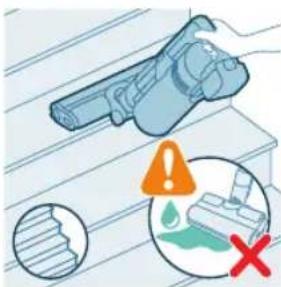
natural_image
Illustration of a vacuum cleaner emitting exhaust from a bottle (no text or symbols)natural_image
Illustration of a screwdriver and a cylindrical component (no text or symbols)natural_image
Illustration of a handheld electronic device emitting sound waves from a tip (no text or symbols)natural_image
Illustration of a robotic arm gripping a spiderweb, with no text or symbols present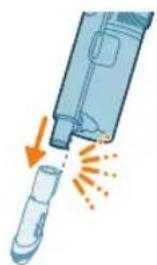
natural_image
Illustration of a hand holding a pen or tool with an arrow indicating motion (no text or symbols)natural_image
Illustration of a laptop with a pen and eraser, no text or symbols present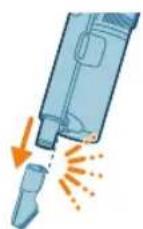
natural_image
Illustration of a medical device with a magnified inset showing a cylindrical object (no text or symbols)natural_image
Illustration of a vacuum cleaner emitting exhaust flames (no text or symbols)natural_image
Illustration of a hand pressing down on a device with a glowing arrow indicating motion (no text or symbols)natural_image
Circular icon with a white lightbulb symbol and radiating lines, no text or numbers present.
natural_image
Circular icon with a downward arrow and green checkmark symbol (no text or numbers)natural_image
Gray circular button with a white lowercase 'i' in the center, no additional text or symbols.
Retour
natural_image
Circular button with a white up-turn arrow icon (no text or symbols)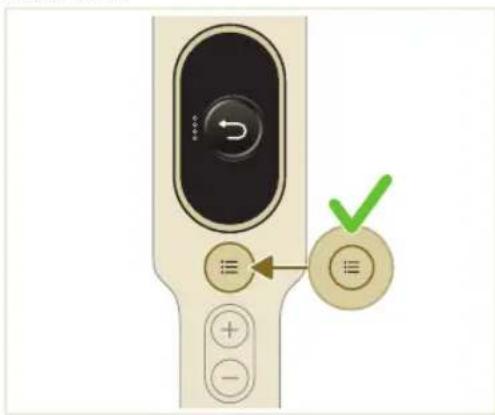
natural_image
Illustration of a syringe emitting orange light from a tube (no text or symbols)natural_image
3D illustration of a green mechanical component with an arrow indicating upward motion, no text or symbols presentnatural_image
Illustration of a pipette dispensing liquid into a green circuit board (no text or symbols)natural_image
Illustration of a green mechanical component inserted into a blue cylindrical rod, with no visible text or symbols.natural_image
Diagram showing a device with a green connector and a green box, both connected by directional arrows (no text or symbols)natural_image
Illustration of a green mechanical component with a blue rod inserted into a surface (no text or symbols)natural_image
Illustration of a cleaning or installation process with a green plastic component, warning symbol, and hanging clothes (no text or labels)natural_image
Close-up of a beige remote control with a black dial and circular button (no visible text or symbols)natural_image
Illustration of a coin being inserted into a drawer with an arrow indicating direction (no text or symbols)natural_image
Illustration of a hand using a tool to remove granular material into a trash bin (no text or symbols)natural_image
Illustration of two containers with a pipe and swirling green liquid, no text or symbols presentnatural_image
Illustration of a hand holding a device next to a camera lens (no text or symbols)natural_image
Illustration of a mechanical component with a magnified inset showing a close-up of a component (no text or symbols)natural_image
Diagram of a mechanical device with a lever and handle, showing motion direction (no text or symbols)natural_image
Illustration of a hand using scissors to cut a piece of paper or tape (no text or symbols visible)natural_image
Mechanical assembly diagram showing a lever mechanism with an inset close-up of the component (no text or symbols)natural_image
Illustration of a hand using a tool to lift a car, showing motion and angle (no text or symbols)natural_image
Illustration of a mechanical lever with rotational arrows indicating clockwise motion (no text or symbols)natural_image
Illustration showing three-step cleaning procedure: tool, step, and close-up of a mechanical component (no text or symbols)natural_image
Diagram showing a mechanical device with green components and directional arrows, no text or symbols presentnatural_image
Illustration of a green mechanical device on a flat surface with a 12-hour circular arrow indicating rotation (no text or symbols on the device itself)natural_image
Illustration of a green mechanical component with a blue rod inserted into a circular base (no text or symbols)natural_image
Diagram of a green cylindrical object with arrows pointing upward, placed on a rectangular base (no text or symbols)Entretien de la bandelette
natural_image
Illustration of a medical procedure with a pipette inserted into a green plastic band (no text or symbols)natural_image
Diagram of a mechanical component with a green rod inserted into a housing (no text or symbols)natural_image
Diagram of a mechanical component inside a transparent housing, showing a cylindrical part inserted into a housing (no text or symbols)CP0667/01
natural_image
Isometric view of a rectangular block with a green arrow pointing to its corner (no text or symbols)XV1670/02
Bandelette CP0381/01
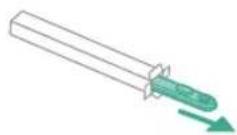
CP0381/01
c Odabrana razina snage
natural_image
Diagram of a mechanical device with internal components and directional arrows, no readable text or symbols present.natural_image
Mechanical diagram showing a valve mechanism with directional arrows and a magnified inset (no text or labels)2 Pravilno postavite kabel umetanjem u žlijeb koji je tome namijenjen.
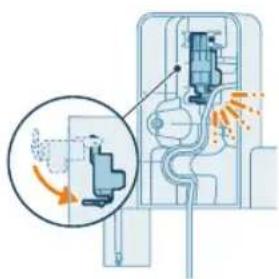
natural_image
Diagram of a mechanical or fluid system with directional arrows and flow indicators (no text or symbols)4 Sigurno pričvrstite zidni nosač na željeni položaj na zidu, pritom pazeći da se rupe za nosive vijke nalaze otprilike 110 cm iznad poda.
natural_image
Illustration of a medical device with an arrow pointing to a highlighted section showing light rays (no text or symbols present)Uređaj je opremljen litij-ionskom baterijom. Potpuno punjenje prazne baterije traje otprilike 6 sati.
1 Pričvrstite komplet baterija na glavno tijelo uređaja, pritom pazeći da je veza čvrsta, što će vam potvrditi zvuk „KLIK”.
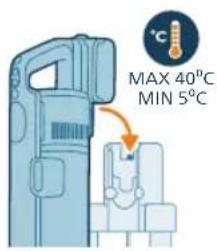
2 Napunite uredaj tako što ćete ga postaviti na sastavljeni zidni nosač.
⚠ Upozorenje: uredaj pohranite i punite pri temperaturi iznad 5 °C i ispod 40 °C.
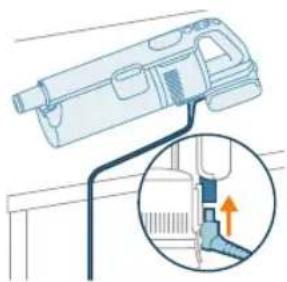
natural_image
Diagram of a mechanical device with a close-up inset showing a pipe connection (no text or symbols)natural_image
Illustration of a spray gun dispensing liquid into a tube with an arrow indicating motion (no text or symbols)natural_image
Illustration of a robotic arm cutting a component with motion lines indicating motion (no text or symbols)2 S pomoću gumba + i – prebacujte se između tri različite postavke snage.
T – turbo način rada
N – normalni način rada
E – ekološki način rada
252 Hrvatski
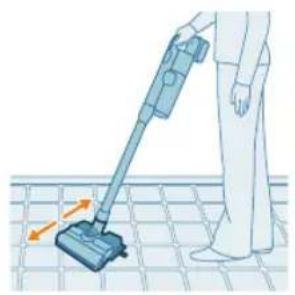
natural_image
Illustration of a person using a vacuum cleaner on tiled floor, with no text or symbols present3 Pomoću usisavača možete čistiti tvrde ili meke podove.
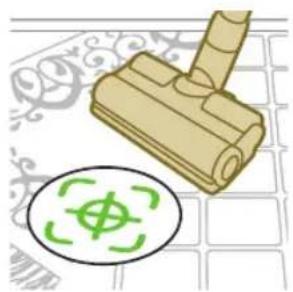
natural_image
Illustration of a mechanical component with a circular green symbol and a dollar sign, set on a patterned surface (no text or symbols)natural_image
Illustration of an eye with warning symbols (anxiety, no protection) and a red X mark, no text or labels present.natural_image
Illustration of a faucet pouring liquid into a blue container (no text or symbols)i Napomena: ne pomičite uređaj s montiranim spremnikom za vodu u stranu jer to ostavlja tragove vode. Pomičite samo naprijed i nazad.
natural_image
Illustration of a mechanical component with an inset showing a close-up of its parts (no text or symbols present)4 Pričvrstite jastučić za brisanje od mikrovlakana ispod spremnika za vodu. Poravnajte trake od čičak-materijala ispod spremnika za vodu s onima na stražnjoj strani krpe.
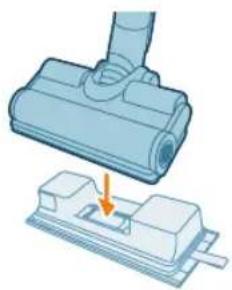
natural_image
Illustration of a mechanical component being inserted into a base, showing a downward arrow indicating force or movement (no text or symbols present)5 Spojite pripremljeni spremnik za vodu na mlaznicu za vodu i spremni ste početi.
254
Hrvatski
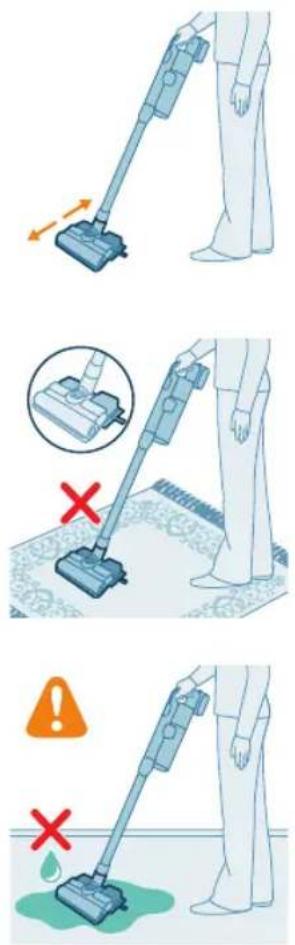
natural_image
Illustration of a mechanical device with a handle and base, emitting powder (no text or symbols visible)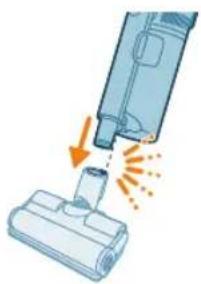
natural_image
Illustration of a vacuum cleaner emitting exhaust smoke from a bottle (no text or symbols)Uporaba mlaznice
Uporaba mlaznice PetPro
natural_image
Illustration of a vacuum cleaner emitting exhaust smoke from a bottle (no text or symbols)Za pričvršćivanje mlaznice PetPro umetnite cijev ručne jedinice u mlaznicu PetPro. Postavku snage prilagodite tako da odgovara vašim potrebama za čišćenje.
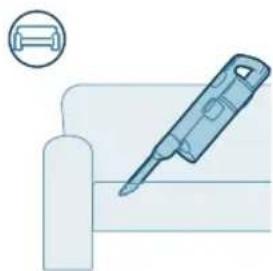
natural_image
Illustration of a screwdriver and a cylindrical component (no text or symbols)Uporaba nastavka za uske površine
Nastavak za proreze može poslužiti za čišćenje uskih, skučenih prostora, kao što su procjepi između jastuka na kauču, uz rubne letve ili u unutrašnjosti automobila.
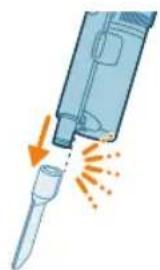
natural_image
Illustration of a handheld electronic device emitting exhaust flames (no text or symbols)natural_image
Illustration of a spiderweb being held by two hands, showing structural changes (no text or symbols)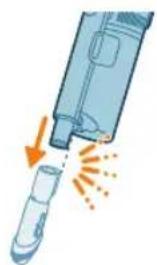
natural_image
Illustration of a hand holding a pen or tool with an arrow indicating motion (no text or symbols)Uporaba kombiniranog nastavka
natural_image
Illustration of a laptop with a pen and eraser, no text or symbols present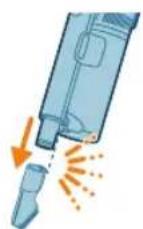
natural_image
Illustration of a medical device with a magnified inset showing a cylindrical object (no text or symbols)Uporaba nastavka za namještaj
Nastavak za namještaj čisti mekani namještaj od tkanine, kao što su naslonjači, jastuci i stolice. Isporučuje se uz modele XC7065, XC7067 i XC7167.
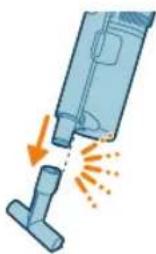
natural_image
Illustration of a vacuum cleaner emitting exhaust flames (no text or symbols)Za pričvršćivanje nastavka za namještaj umetnite u njega cijev ili držak.
natural_image
Illustration of a hand pressing a button on a device with an orange arrow indicating motion (no text or symbols)4 Četku učvrstite tako da je zatežete dok ne začujete zvuk „KLIK”.
Prilagodbe i dodatne informacije
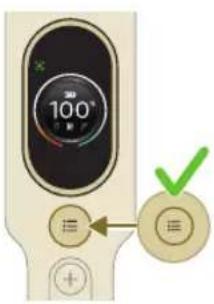
natural_image
Gray circular icon with a white lightbulb symbol and radiating lines, representing an idea or illumination (no text or symbols)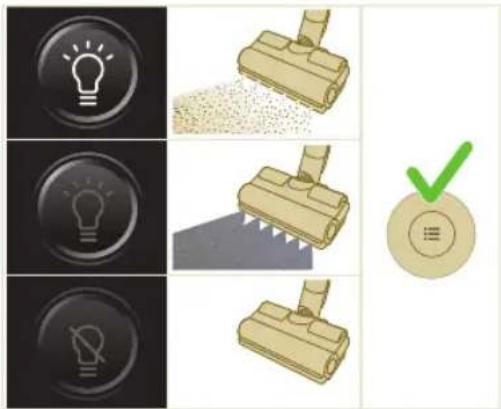
Prepoznavanje vrste poda
natural_image
Circular icon with a white lightning bolt symbol and green '电' (electricity) text, no readable text or numbers present.natural_image
Gray circular button with a white lowercase 'i' in the center, no additional text or symbols.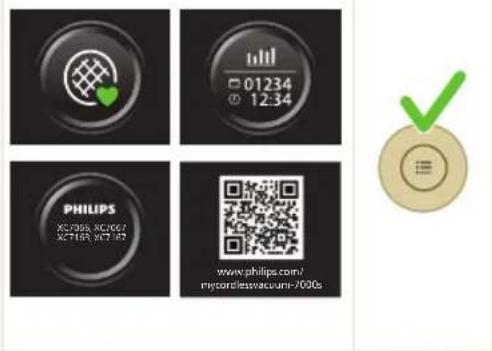
Povratak
natural_image
Circular button with a white up-turn arrow icon (no text or symbols)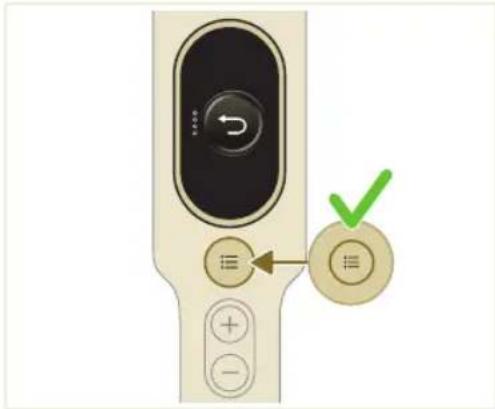
Nakon upotrebe – održavanje
natural_image
Illustration of a medical or laboratory procedure showing a device emitting particles from a tube (no text or symbols present)2 Izvadite ručni uređaj zajedno s spremnikom za prašinu iz cijevi.
262
Hrvatski
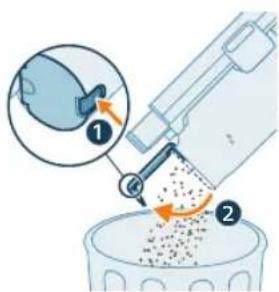
3 Držite spremnik za prašinu iznad kante za smeće i pritisnite tipku za lako pražnjenje (1) kako biste ga ispraznili (2).
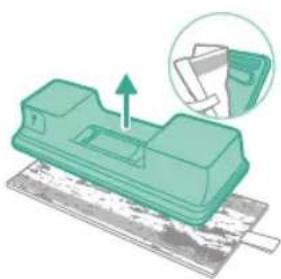
natural_image
Green mechanical component with a paper feeding into it, shown with an arrow and magnified inset (no text or symbols)Održavanje spremnika za vodu
Očistite spremnik za vodu nakon svake uporabe.
1 Uklonite jastučić za brisanje od mikrovlakana.
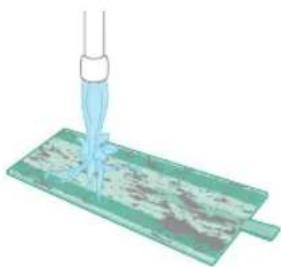
natural_image
Illustration of a pipette dispensing liquid onto a green circuit board (no text or symbols visible)2 Isperite jastučić za brisanje pod slavinom te ga operite ručno ili u perilici rublja.
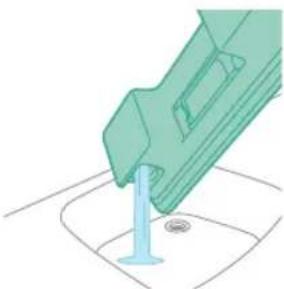
natural_image
Illustration of a green mechanical component inserted into a cylindrical part, with a small circular hole nearby (no text or symbols)3 Izlijte svu vodu preostalu u spremniku za vodu.
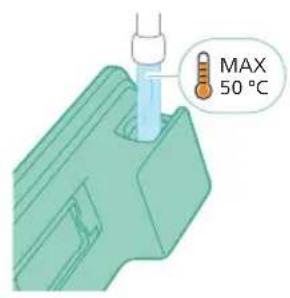
4 Napunite spremnik za vodu vodom.
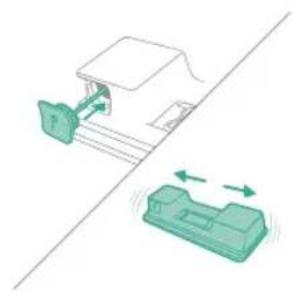
natural_image
Diagram showing a mechanical assembly with a housing and a component, both without any text or symbols.5 Pravilno zatvorite spremnik za vodu i protresite ga kako biste uklonili ostatke sredstva za čišćenje.
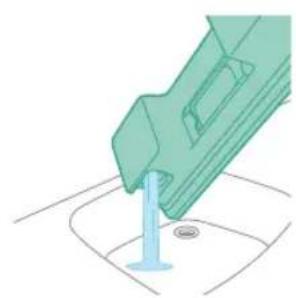
natural_image
Illustration of a green mechanical component dispensing liquid into a blue cylindrical tank (no text or symbols)6 Ispraznite spremnik za vodu i ostavite ga da se osuši.
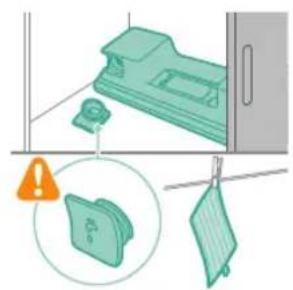
natural_image
Illustration of a kitchen appliance with a hanging bag, a warning icon, and a hanging dish (no text or symbols)natural_image
Close-up of a handheld electronic device with a circular button and indicator lights (no readable text or symbols)264 Hrvatski
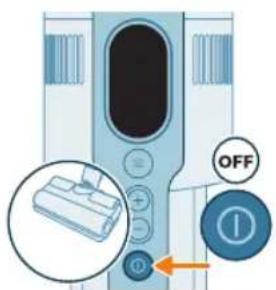
3 Uklonite spremnik pritiskom gumba za otpuštanje spremnika.
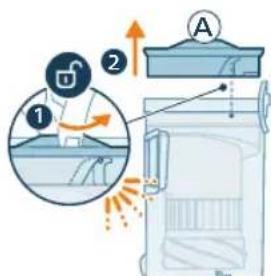
8 Vratite spremnik za prašinu na ručni uredaj. Prvo poravnajte stranu spremnika na kojoj se nalazi filtar, a zatim ga zakvačite na mjesto.
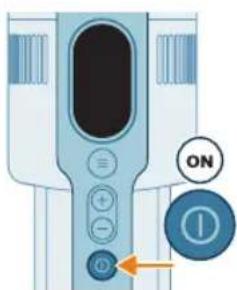
9 Uključite uredaj.
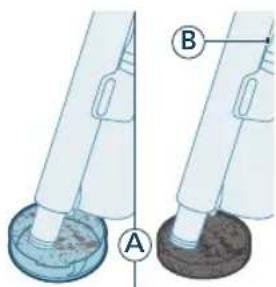
10 Usisajte zaprljano kućište filtra i pjenasti filtar (A).
266
Hrvatski
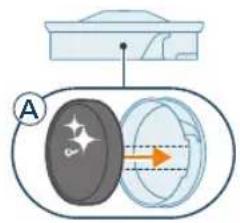
11 Ponovno sastavite čisti pjenasti filtar (A) u čistom kućištu filtra.
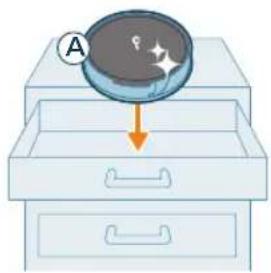
natural_image
Illustration of a magnifying glass pouring liquid into a drawer (no text or symbols)i Napomena: filtar (A) je sada temeljito očišćen i može se pohraniti za buduću upotrebu kada bude potrebno očistiti trenutni filtar (B).
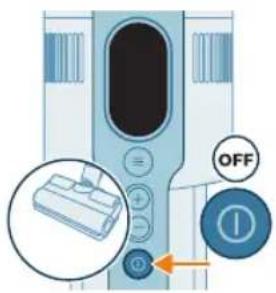
Čišćenje spremnika i ciklonske komore
2 Uklonite spremnik pritiskom gumba za otpuštanje spremnika.
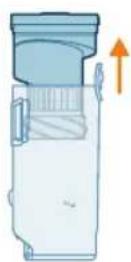
3 Držite crnu dršku. Uklonite ciklonsku komoru iz spremnika za prašinu podizanjem iz spremnika.
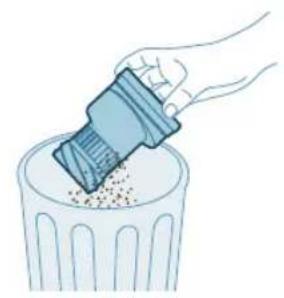
natural_image
Illustration of a hand using a plastic tool to lift granular material into a trash bin (no text or symbols)4 Istresite ciklonsku komoru iznad kante za smeće da biste uklonili prašinu i prljavštinu.
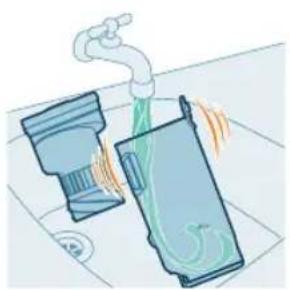
natural_image
Illustration of two industrial tanks emitting steam from a piping bag (no text or symbols)natural_image
Illustration of a hand cleaning a blue mechanical component (no text or symbols)6 Brisanjem osušite očišćeni spremnik za prašinu i ciklonsku komoru.
Održavanje pametne mlaznice PrecisionPower
1 Prije čišćenja valjkaste četke mlaznice obavezno isključite uredaj.
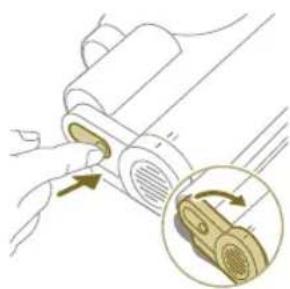
natural_image
Illustration of a hand inserting a component into a device, with an inset showing a close-up of the component (no text or symbols present)2 Za pristup valjkastoj četki pronadite gumb na bočnoj strani mlaznice. Pritisnite ga i zakrenite da biste ga otvorili.
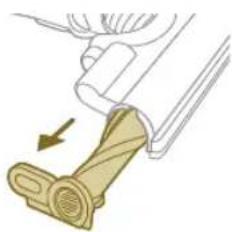
natural_image
Illustration of a mechanical device with a scroll wheel and lever, showing motion direction (no text or symbols)natural_image
Illustration of a hand using scissors to cut a piece of paper or tape (no text or symbols visible)4 Pažljivo uklonite zapetljanu kosu s valjkaste četke. Olakšajte si uklanjanje prljavštine škarama.
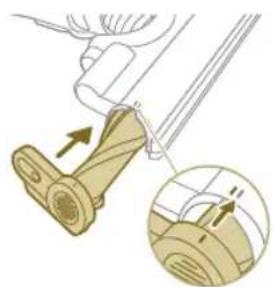
natural_image
Illustration of a mechanical component with an arrow indicating motion, showing a close-up view of the base and end (no text or symbols present)natural_image
Illustration of a hand using a tool to lift a car wheel (no text or symbols)natural_image
Illustration of a mechanical component with rotational arrows indicating motion (no text or symbols)Održavanje mlaznice PetPro
natural_image
Illustration of hands tying a rope knot around a rolled-up cable (no text or symbols)3 Rukom ili pomoću škara uklonite prljavštinu s četke.
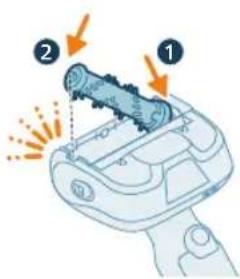
4 Kada ponovno postavljate četku, počnite postavljanjem jedne strane na mjesto prije nego što pričvrstite drugu stranu. Kada se četka pravilno sastavi čut ćete zvuk „KLIK”.
270 Hrvatski
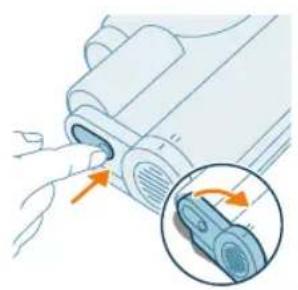
natural_image
Illustration of a hand inserting a component into a device, with an inset showing the internal structure (no text or symbols)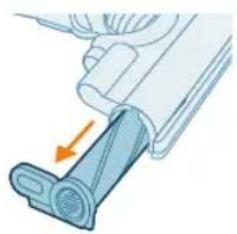
natural_image
Diagram of a mechanical component with a blue lever and orange arrow indicating force or direction (no text or symbols)natural_image
Illustration of a hand using scissors to cut a blue cylindrical object (no text or symbols visible)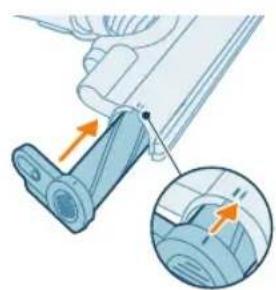
natural_image
Mechanical assembly diagram showing a lever mechanism with an inset close-up of the component (no text or symbols)natural_image
Illustration of a hand pressing a button on a device, with an orange arrow indicating motion (no text or symbols present)natural_image
Illustration of a plastic bottle pouring liquid from a water bottle into a beaker, next to a vertical diagram showing a faucet and a plastic bottle (no text or symbols)natural_image
Illustration of a beaker with liquid being inverted and a water bottle connected to a wall (no text or symbols)natural_image
Diagram showing a device with green arrows indicating motion or movement, no text or symbols presentnatural_image
Illustration of a green mechanical component inserted into a base, with no visible text or symbols.6 Isperite spremnik za vodu i izlijte svu preostalu tekućinu.
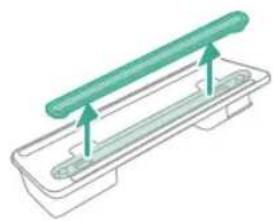
natural_image
Diagram of a green rod placed on a rectangular tray with two side supports (no text or symbols)natural_image
Illustration of a medical procedure with a pipette inserted into a green plastic band (no text or symbols)natural_image
Diagram of a mechanical component with green and gray parts, no text or symbols present3 Vratite traku za vlaženje natrag na spremnik za vodu nakon čišćenja.
Zamjena dijelova
Kako biste kupili dodatke ili rezervne dijelove, posjetite
www.shop.philips.com/parts-and-accessories ili se obratite distributeru tvrtke Philips. Također se možete obratiti centru za korisničku podršku tvrtke Philips u svojoj zemlji.
natural_image
Diagram of a mechanical component inside a transparent housing, showing a cylindrical part inserted into a housing (no text or symbols)CP0667/01
Jastučić za brisanje od mikrovlakana XV1670/02
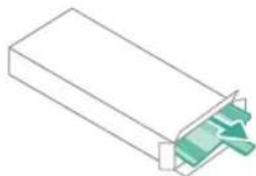
natural_image
Isometric illustration of a rectangular block with a green internal component and a small arrow pointing to it (no text or symbols)XV1670/02
Traka za vlaženje CP0381/01
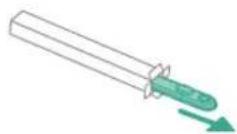
CP0381/01
natural_image
Diagram of a mechanical device with internal components and directional arrows, no readable text or symbols present.natural_image
Mechanical diagram showing a valve mechanism with directional arrows and a magnified inset (no text or labels)natural_image
Diagram of a mechanical device with airflow indicators and a magnified inset showing internal components (no text or symbols)natural_image
Diagram of a mechanical device with a plus button and a checkmark (no text or symbols present)natural_image
Illustration of a spray gun with a magnified inset showing the impact of light (no text or symbols present)natural_image
Diagram of a mechanical device with a close-up inset showing a pipe connection (no text or symbols)natural_image
Illustration of a spray gun dispensing liquid into a tube with an arrow indicating motion (no text or symbols)natural_image
Illustration of a robotic arm cutting a component with motion lines indicating motion (no text or symbols)natural_image
Illustration of a person using a vacuum cleaner on tiled floor (no text or symbols)natural_image
Illustration of a mechanical component with a circular green symbol and a dollar sign, set on a patterned surface (no text or symbols)natural_image
Illustration of an eye with warning symbols (anxiety, no protection) and a cross mark, no text or labels present.natural_image
Illustration of a faucet pouring liquid into a blue container with green tubing (no text or symbols)natural_image
Illustration of a mechanical component with arrows indicating direction, accompanied by an inset showing a document (no text or symbols present)natural_image
Illustration of a mechanical component being inserted into a housing (no text or symbols visible)natural_image
Illustration of a person using a vacuum cleaner with motion arrows indicating movement (no text or symbols)natural_image
Illustration of a mechanical device with a handle and base, partially submerged in liquid (no text or symbols visible)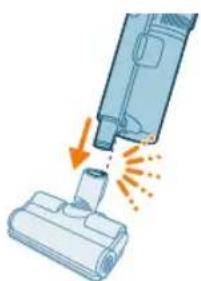
natural_image
Illustration of a vacuum cleaner emitting exhaust smoke from a bottle (no text or symbols)natural_image
Illustration of a vacuum cleaner emitting exhaust smoke from a bottle (no text or symbols)natural_image
Illustration of a screwdriver and a cylindrical component (no text or symbols)natural_image
Illustration of a handheld device emitting exhaust heat, showing airflow direction (no text or symbols)natural_image
Illustration of a spiderweb being held by two hands, showing structural changes (no text or symbols)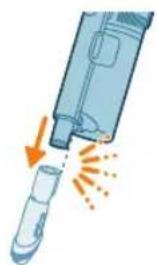
natural_image
Illustration of a hand holding a pen or tool with an arrow indicating motion (no text or symbols)natural_image
Illustration of a laptop with a pen and eraser, no text or symbols present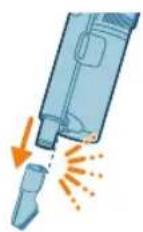
natural_image
Illustration of a medical device with a magnified inset showing a cylindrical object (no text or symbols)natural_image
Illustration of a vacuum cleaner emitting exhaust flames, showing airflow direction (no text or symbols)natural_image
Illustration of a hand pressing down on a device with a glowing arrow indicating motion (no text or symbols)natural_image
Circular icon with a white lightbulb symbol and radiating lines, no text or numbers present.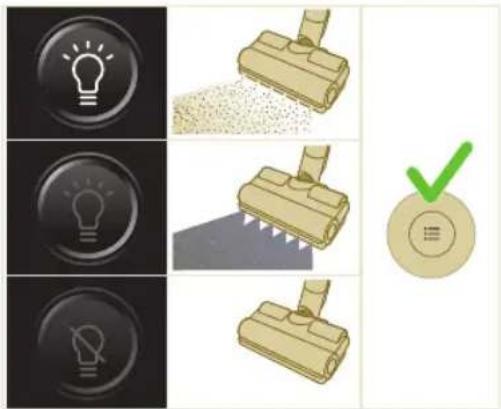
294 Italiano

natural_image
Circular icon with a downward arrow and green checkmark, no text or symbols present.natural_image
Gray circular button with a white lowercase 'i' in the center, no additional text or symbols.
Indietro
natural_image
Circular button with a white up-turn arrow icon (no text or symbols)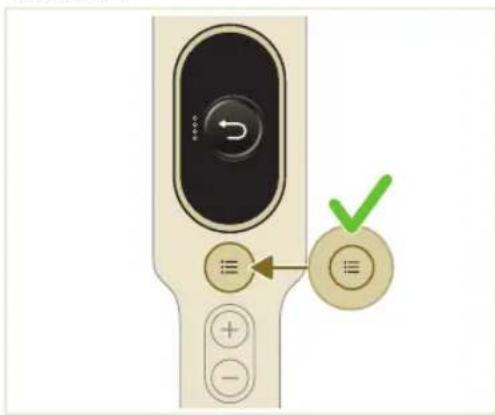
natural_image
Illustration of a syringe emitting orange light from a tube (no text or symbols)natural_image
3D illustration of a green mechanical component with an arrow indicating upward motion, no text or symbols presentnatural_image
Illustration of a kitchen appliance with a warning icon and hanging clothes (no text or symbols)natural_image
Close-up of a beige remote control with a black dial and circular button (no visible text or symbols)Pulizia del filtro
natural_image
Illustration of a magnifying glass inspecting a drawer with arrows indicating process (no text or symbols)natural_image
Illustration of a hand pouring granular material into a trash bin (no text or symbols)natural_image
Illustration of a faucet spraying water into a container with visible steam and bubbles (no text or symbols)natural_image
Illustration of a hand cleaning a device with a camera lens (no text or symbols)natural_image
Illustration of a hand inserting a component into a device, with an inset showing a close-up of the component (no text or symbols present)natural_image
Diagram of a mechanical device with a lever and handle, showing motion direction (no text or symbols)natural_image
Illustration of a hand using scissors to cut a piece of paper or tape (no text or symbols visible)natural_image
Mechanical assembly diagram showing a lever mechanism with an inset close-up of the component (no text or symbols)natural_image
Illustration of a hand using a tool to lift a car, showing motion and angle (no text or symbols)natural_image
Illustration of a mechanical component with rotational arrows indicating cycle (no text or symbols)natural_image
Illustration of a robotic hand holding a device with labeled parts (1, 2), no text or symbols present.natural_image
Illustration of a hand connecting wires to a cylindrical device with an arrow indicating motion (no text or symbols)natural_image
Illustration of a hand inserting a device into a device with an inset showing the internal components (no text or symbols)natural_image
Illustration of a mechanical device with a blue lever and orange arrow indicating force or movement (no text or symbols)natural_image
Illustration of a plastic bottle pouring liquid from a water bottle into a beaker, next to a vertical water tank (no text or symbols)natural_image
Illustration of a laboratory setup with a beaker, a funnel, and a water bottle (no text or symbols)natural_image
Diagram showing a mechanical device with green components and directional arrows, no text or symbols presentnatural_image
Illustration of a green mechanical component with a blue rod inserted into a base, no text or symbols presentnatural_image
Diagram of a green cylindrical object with arrows pointing upward, placed on a rectangular base (no text or symbols)natural_image
Illustration of a medical procedure with a needle inserted into a green plastic tube (no text or symbols)natural_image
Diagram of a mechanical component with a green rod inserted into a housing, showing alignment arrows (no text or symbols)natural_image
Diagram of a mechanical component inside a transparent housing, showing a cylindrical part inserted into a housing (no text or symbols)CP0667/01
308 Italiano
natural_image
Isometric view of a rectangular block with a green arrow pointing to its corner (no text or symbols)XV1670/02
natural_image
Diagram of a mechanical device with internal components and airflow indicators (no text or symbols)natural_image
Illustration of a spray gun with a magnified inset showing the impact of light (no text or symbols present)natural_image
Diagram of a mechanical device with a close-up inset showing a pipe connection (no text or symbols)natural_image
Illustration of a spray gun dispensing liquid into a tube with an arrow indicating motion (no text or symbols)natural_image
Illustration of a robotic arm cutting a component with motion lines indicating motion (no text or symbols)natural_image
Illustration of a person using a vacuum cleaner on tiled floor (no text or symbols)3 Ar puteklsüceju var tirit gan cietus, gan mikstus gridas segumus.
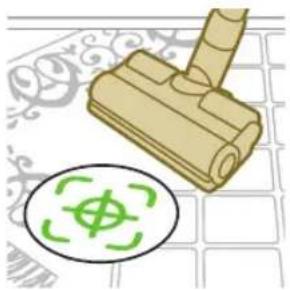
natural_image
Illustration of a wooden stamping tool with a green circular symbol and a compass icon, set against a patterned background (no text or symbols)natural_image
Illustration of an eye with warning symbols (anxiety, no protection) and a red X mark, no text or labels present.natural_image
Illustration of a faucet pouring liquid into a blue rectangular tank (no text or symbols)natural_image
Illustration of a mechanical component with arrows indicating motion, no text or symbols present4 Piestipriniet mikroškiedras mazgāšanas paliktni zem ūdens tvertnes. Salāgojiet "Velcro" aizdares zem ūdens tvertnes un aiz paliktņa.
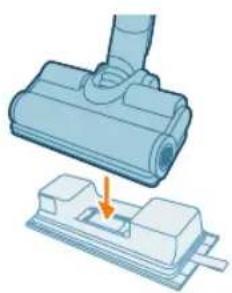
natural_image
Illustration of a mechanical component being inserted into a base, with an arrow indicating the insertion direction (no text or symbols present)5 Pievienojiet sagatavoto üdens tvertni üdens padeves sprauslai. Tagad varat säkt tirišanu.
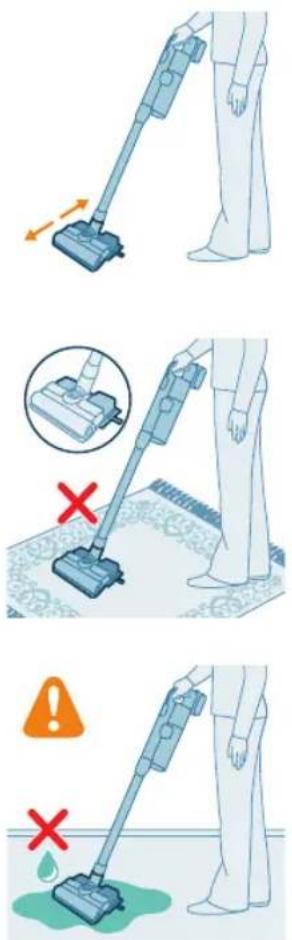
natural_image
Illustration of a mechanical device with a handle and base, partially submerged in liquid (no text or symbols visible)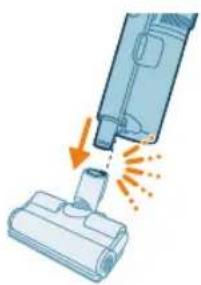
natural_image
Illustration of a vacuum cleaner emitting exhaust smoke from a bottle (no text or symbols)Uzgała lietošana
1 Pievienojiet uzgali tieši rokas modulim.
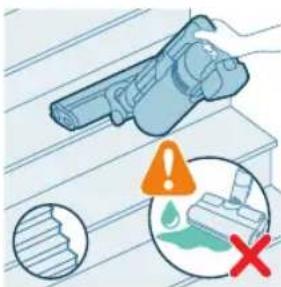
natural_image
Illustration of a vacuum cleaner emitting exhaust smoke from a nozzle (no text or symbols)natural_image
Illustration of a screwdriver and a cylindrical component (no text or symbols)natural_image
Illustration of a handheld electronic device emitting exhaust flames (no text or symbols)Lai pievienotu šauro uzgali, pievienojiet cauruli vai rokas moduli šaurajam uzgalim.

natural_image
Illustration of a robotic arm gripping a spiderweb, showing step-by-step assembly (no text or symbols)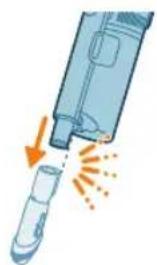
natural_image
Illustration of a hand holding a pen or tool with an arrow indicating motion (no text or symbols)natural_image
Illustration of a laptop with a pen writing on it, no text or symbols present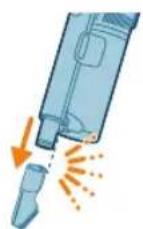
natural_image
Illustration of a medical device with a magnified inset showing a cylindrical object (no text or symbols)natural_image
Illustration of a vacuum cleaner emitting exhaust flames (no text or symbols)natural_image
Illustration of a hand pressing down on a device with a glowing arrow indicating motion (no text or symbols)natural_image
Circular icon with a white lightbulb symbol and radiating lines, no text or numbers present.natural_image
Illustration of three lightbulb icons and a vacuum cleaner with a green checkmark (no text or symbols)
natural_image
Circular icon with a downward arrow and a green leaf symbol (no text or numbers)natural_image
Gray circular button with a white lowercase 'i' in the center, no additional text or symbols.
Atgriešanās
natural_image
Circular button with a white U-turn arrow icon, no text or symbols present.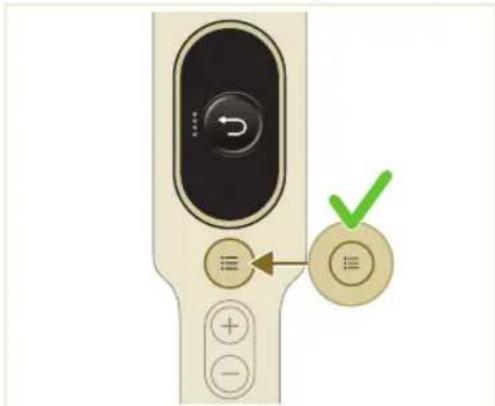
natural_image
Illustration of a syringe emitting orange light from a tube (no text or symbols)natural_image
3D illustration of a green mechanical component with an arrow indicating upward motion, no text or symbols presentÜdens tvertnes apkope
natural_image
Illustration of a pipette dispensing liquid into a green circuit board (no text or symbols)natural_image
Illustration of a green mechanical component inserted into a blue cylindrical rod, with no visible text or symbols.natural_image
Diagram showing a device with a green connector and a green box, both connected by directional arrows (no text or symbols)natural_image
Illustration of a green mechanical component with a blue rod inserted into a surface (no text or symbols)natural_image
Illustration of a cleaning or installation process with a green plastic component, warning icon, and hanging clothes (no text or symbols)natural_image
Close-up of a beige remote control with a black dial and circular button (no visible text or symbols)11 Atkal ievietojiet tiro putu filtru (A) tira filtra korpusa.
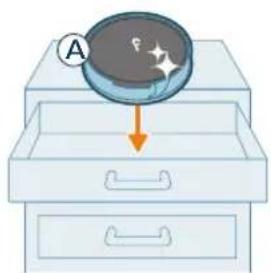
natural_image
Illustration of a hand holding a circular object with a starburst effect, placed on a drawer (no text or symbols)natural_image
Illustration of a hand pouring granular material into a trash bin (no text or symbols)4 Lai noņemtu atlikušos puteklus un netīrumus, viegli piesitiet piesitiet ciklonisko nodalījumu pie atkritumu tvertnes.
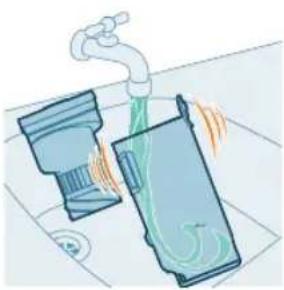
natural_image
Illustration of a faucet spraying water onto a surface with a plastic bag (no text or symbols)natural_image
Illustration of a hand holding a device next to a camera lens (no text or symbols)6 Noslaukiet sausu iztirito putekju grozu un ciklonisko nodalijumu.
natural_image
Illustration of a hand inserting a component into a device, with an inset showing a close-up of the component (no text or symbols present)natural_image
Diagram of a mechanical device with a lever and handle, showing motion direction (no text or symbols)natural_image
Illustration of a hand using scissors to cut a piece of paper or tape (no text or symbols visible)natural_image
Mechanical assembly diagram showing a lever mechanism with an inset close-up of the component (no text or symbols)natural_image
Illustration of a hand using a tool to lift a car, showing motion and angle (no text or symbols)natural_image
Illustration of a mechanical component with rotational arrows indicating cycle (no text or symbols)natural_image
Illustration of a plastic bottle pouring liquid from a water bottle into a beaker, next to a vertical water tank (no text or symbols)natural_image
Illustration of a laboratory setup with a beaker, a funnel, and a water bottle (no text or symbols)natural_image
Diagram showing a device with green components and directional arrows, no text or symbols presentnatural_image
Illustration of a green mechanical device on a flat surface with a 12-hour circular arrow indicating rotation (no text or symbols on the device itself)natural_image
Illustration of a green mechanical component with a blue rod inserted into a circular base (no text or symbols)natural_image
Diagram of a green cylindrical object with arrows pointing upward, placed on a rectangular base (no text or symbols)Üdens sloksnes apkope
natural_image
Illustration of a medical procedure with a pipette inserted into a green plastic band (no text or symbols)2 Skalojiet udens sloksni zem tekoša krana udens.
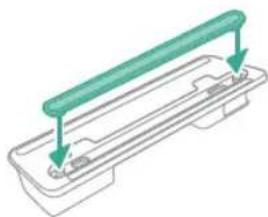
natural_image
Diagram of a mechanical component with a green rod inserted into a housing (no text or symbols)3 Kad udens sloksne ir notirita, piestipriniet to atpakal pie udens tvertnes.
Nomaina
natural_image
Diagram of a mechanical component inside a transparent housing, showing a cylindrical part inserted into a housing (no text or symbols)CP0667/01
natural_image
Isometric line drawing of a rectangular block with a green arrow pointing to its side (no text or symbols)XV1670/02
Üdens sloksne CP0381/01
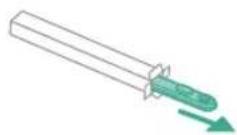
CP0381/01
natural_image
Diagram of a mechanical device with internal components and airflow indicators (no text or symbols)natural_image
Illustration of a spray gun with a magnified inset showing the impact of light (no text or symbols present)natural_image
Diagram of a mechanical device with a close-up inset showing a pipe connection (no text or symbols)natural_image
Illustration of a spray gun dispensing liquid into a tube with an arrow indicating motion (no text or symbols)natural_image
Illustration of a robotic arm cutting a component with motion lines indicating motion (no text or symbols)natural_image
Illustration of a person using a vacuum cleaner on tiled floor (no text or symbols)natural_image
Illustration of a mechanical component with a circular green symbol and a magnified inset showing a crosshair (no text or symbols present)natural_image
Illustration of an eye with warning symbols (anxiety, no protection) and a cross mark, no text or labels present.natural_image
Illustration of a faucet pouring liquid into a blue rectangular container (no text or symbols)natural_image
Illustration of a mechanical component with an inset showing a close-up of its parts (no text or symbols present)natural_image
Illustration of a mechanical component being inserted into a base, with an arrow indicating the insertion direction (no text or symbols present)natural_image
Illustration of a mechanical device emitting powder from a surface (no text or symbols)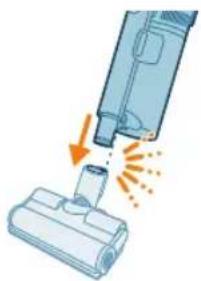
natural_image
Illustration of a vacuum cleaner emitting exhaust smoke from a bottle (no text or symbols)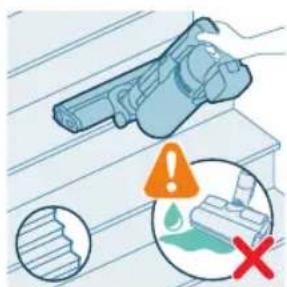
Antgalio naudojimas
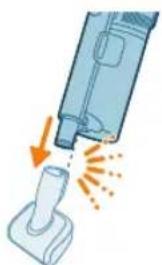
natural_image
Illustration of a vacuum cleaner emitting exhaust plume onto a base (no text or symbols)natural_image
Illustration of a screwdriver and a cylindrical object on a surface, with no visible text or symbols.natural_image
Illustration of a medical or laboratory device with a pointed tip and orange arrows indicating motion (no text or symbols)natural_image
Illustration of a robotic arm gripping a spiderweb, with no text or symbols presentnatural_image
Illustration of a handheld device emitting exhaust heat, showing internal components and airflow direction (no text or symbols)natural_image
Illustration of a laptop with a pen inserted into it, no text or symbols presentnatural_image
Illustration of a medical device with a magnified inset showing a cylindrical object (no text or symbols)natural_image
Illustration of a blue vacuum cleaner emitting exhaust flames from a nozzle (no text or symbols)natural_image
Illustration of a device being inserted into a component, with an inset showing the internal structure (no text or symbols)natural_image
Illustration of a mechanical device with a blue lever and orange arrow indicating motion (no text or symbols)natural_image
Mechanical assembly diagram showing a motor with highlighted parts and directional arrows (no text or symbols)natural_image
Illustration of a hand pressing a button on a device (no text or symbols visible)natural_image
Gray circular button with a white lightbulb icon and radiating lines, symbolizing an idea or illumination (no text or symbols)natural_image
Circular icon with a white lightning bolt symbol and green '电' (electricity) text, no readable text or numbers present.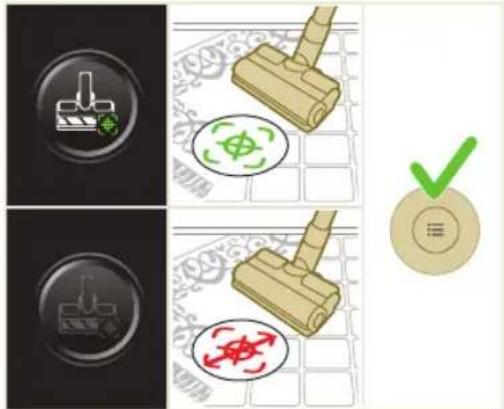
natural_image
Gray circular button with a white lowercase 'i' in the center, no additional text or symbols.
Grjžtis
natural_image
Circular button with a white up-turn arrow icon (no text or symbols)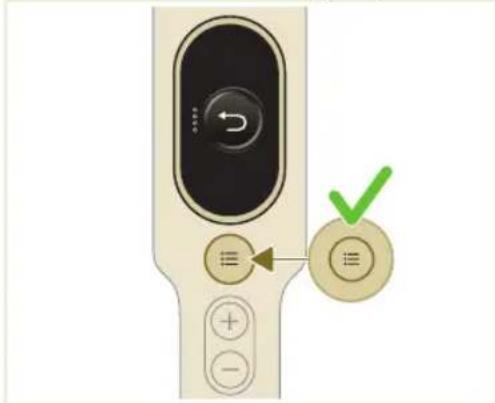
natural_image
Illustration of a medical or laboratory procedure showing a syringe connected to a tube with an upward arrow indicating motion (no text or symbols present)natural_image
Green mechanical component with a paperclip and arrow indicating assembly (no text or symbols)natural_image
Illustration of a pipette dispensing liquid into a green circuit board (no text or symbols)natural_image
Illustration of a green mechanical component inserted into a blue cylindrical part, with no visible text or symbols.natural_image
Diagram showing a device with green components and directional arrows, no text or symbols presentnatural_image
Illustration of a mechanical component with a blue rod inserted into a base, no text or symbols presentnatural_image
Illustration of a cleaning or laundry system with a plastic bag, hanging clothes, and warning symbols (no text or labels)natural_image
Close-up of a beige remote control with a black dial and circular button (no visible text or symbols)Filtro valymas
natural_image
Diagram of two mechanical components labeled A and B, showing alignment or assembly (no text or symbols beyond labels)natural_image
Illustration of a magnifying glass inspecting a drawer with arrows indicating process (no text or symbols)natural_image
Illustration of a hand pouring granular material into a trash bin (no text or symbols)natural_image
Illustration of a faucet spraying water onto a surface with two containers (no text or symbols)natural_image
Illustration of a hand cleaning a device with a magnified view (no text or symbols)natural_image
Illustration of a hand pressing down on a mechanical component with an inset showing a close-up of the component (no text or symbols)natural_image
Illustration of a mechanical device with a lever and handle, showing a yellow component being inserted (no text or symbols)natural_image
Illustration of a hand using scissors to cut a piece of wood or metal (no text or symbols present)natural_image
Mechanical assembly diagram showing a lever mechanism with an inset close-up of the component (no text or symbols)natural_image
Illustration of a hand using a tool to lift a car, showing motion and angle (no text or symbols)natural_image
Illustration of a mechanical component with rotational arrows (no text or symbols)natural_image
Illustration of a hand tying a rope knot around a rolled-up cable (no text or symbols)natural_image
Illustration of a hand inserting a component into a gun, with an inset showing the internal mechanism (no text or symbols)natural_image
Mechanical assembly diagram showing a blue component being inserted into a housing (no text or symbols visible)natural_image
Illustration of a hand using scissors to cut a blue cylindrical object (no text or symbols)natural_image
Mechanical assembly diagram showing a lever mechanism with an inset close-up of the handle (no text or symbols)natural_image
Illustration of a hand using a tool to press or install a device with an orange arrow indicating motion (no text or symbols present)natural_image
Illustration of a plastic bottle pouring liquid into a beaker with a tap, next to a water dispenser (no text or symbols)natural_image
Diagram of a green rod inserted into a transparent container with two arrows indicating direction (no text or symbols)natural_image
Illustration of a medical procedure with a surgical instrument and tubing (no text or symbols)natural_image
Diagram of a mechanical component with a green rod inserted into a housing, showing two downward arrows indicating force or movement (no text or symbols present)natural_image
Diagram of a mechanical component with a cylindrical shaft and directional arrow (no text or symbols)CP0667/01
Mikropluošto plovimo šluostė XV1670/02
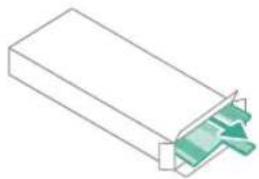
natural_image
Isometric line drawing of a rectangular electronic component with a green internal structure and a small triangular element inserted (no text or symbols)XV1670/02
Drékinimo juosta CP0381/01
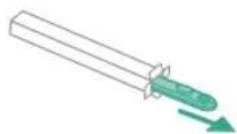
CP0381/01
natural_image
Diagram of a mechanical device with internal components and directional arrows, no readable text or symbols present.natural_image
Mechanical diagram showing a valve mechanism with directional arrows and a magnified inset (no text or labels)natural_image
Diagram of a mechanical device with airflow indicators and a magnified inset showing internal components (no text or symbols)natural_image
Illustration of a welding torch with a magnified inset showing the impact of welding (no text or symbols present)natural_image
Diagram of a mechanical device with a magnified inset showing a tool interacting with a component (no text or symbols present)natural_image
Illustration of a spray gun dispensing liquid into a tube with an arrow indicating motion (no text or symbols)natural_image
Illustration of a robotic arm cutting a component with motion lines indicating motion (no text or symbols)natural_image
Illustration of a person using a vacuum cleaner on tiled floor, with orange arrows indicating motion (no text or symbols)natural_image
Illustration of a wooden screwdriver with a green circular symbol on a grid background (no text or symbols)natural_image
Illustration of an eye with warning symbols (anxiety, no protection) and a red X mark, no text or labels present.natural_image
Illustration of a faucet pouring liquid into a blue container (no text or symbols)natural_image
Illustration of a mechanical component with an inset showing a close-up of its parts (no text or symbols present)natural_image
Illustration of a mechanical component being inserted into a base (no text or symbols visible)natural_image
Illustration of a blue handheld device with a pointed tip and textured surface (no text or symbols)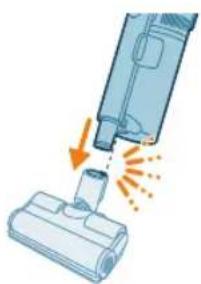
natural_image
Illustration of a vacuum cleaner emitting exhaust smoke from a bottle (no text or symbols)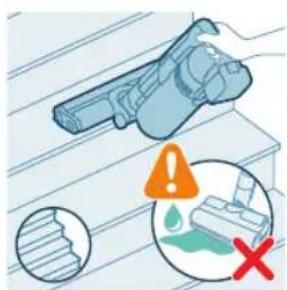
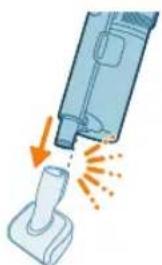
natural_image
Illustration of a vacuum cleaner emitting exhaust plume onto a base (no text or symbols)natural_image
Illustration of a screwdriver and a cylindrical object on a surface (no text or symbols)natural_image
Illustration of a syringe with an arrow indicating motion or force (no text or symbols)natural_image
Illustration of a medical procedure showing step-by-step steps of a surgical tool manipulation (no text or symbols present)natural_image
Illustration of a handheld device emitting exhaust heat, showing internal components and airflow direction (no text or symbols)natural_image
Illustration of a laptop with a pen inserted into it, no text or symbols presentnatural_image
Illustration of a medical device with a magnified inset showing a cylindrical object (no text or symbols)natural_image
Illustration of a vacuum cleaner emitting exhaust smoke from a pipe fitting (no text or symbols)natural_image
Gray circular button with a white lightbulb icon and radiating lines, symbolizing an idea or illumination (no text or symbols)natural_image
Circular icon with a white lightning bolt symbol and green '电' (electricity) text, no readable text or numbers present.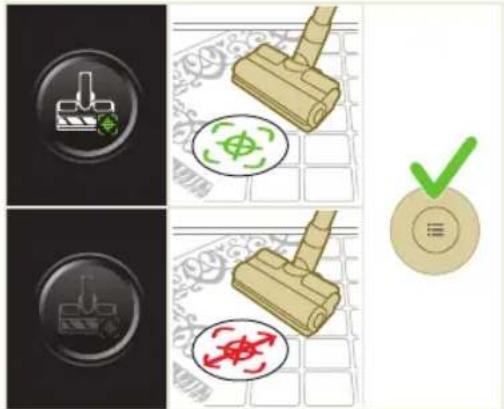
natural_image
Gray circular button with a white lowercase 'i' in the center, no additional text or symbols.



Kilépés
natural_image
Illustration of a medical or laboratory procedure showing a syringe connected to a tube with an upward arrow indicating motion (no text or symbols present)natural_image
Green mechanical component with a paperclip and arrow indicating assembly (no text or symbols)natural_image
Illustration of a pipette dispensing liquid into a green circuit board (no text or symbols)natural_image
Illustration of a green mechanical component inserted into a blue cylindrical part, with no visible text or symbols.natural_image
Diagram showing a device with green components and directional arrows, no text or symbols presentnatural_image
Illustration of a mechanical component with a blue rod inserted into a base, no text or symbols presentnatural_image
Illustration of a cleaning or laundry system with a plastic bag, hanging clothes, and warning symbols (no text or labels)natural_image
Close-up of a beige remote control with a circular dial and scroll icon (no text or symbols visible)A szűrő tisztítása
natural_image
Diagram of two mechanical components labeled A and B, showing alignment or assembly (no text or symbols beyond labels)natural_image
Illustration of a magnifying glass inspecting a drawer with arrows indicating process (no text or symbols)natural_image
Illustration of a hand pouring granular material into a trash bin (no text or symbols)natural_image
Illustration of a faucet spraying water into a trash can (no text or symbols)natural_image
Illustration of a hand cleaning a device with a magnified view of the lid (no text or symbols)natural_image
Illustration of a hand pressing down on a mechanical component with a magnified inset showing the internal mechanism (no text or symbols)natural_image
Illustration of a mechanical device with a lever and handle, showing a yellow component being inserted (no text or symbols)natural_image
Illustration of a hand using scissors to cut a piece of wood or metal (no text or symbols present)natural_image
Mechanical assembly diagram showing a lever mechanism with an inset close-up of the component (no text or symbols)natural_image
Illustration of a hand using a tool to lift a car, showing motion and angle (no text or symbols)natural_image
Illustration of a mechanical component with rotational arrows (no text or symbols)natural_image
Illustration of a hand tying a rope knot around a rolled-up cable (no text or symbols)natural_image
Illustration of a hand inserting a component into a device, with an inset showing a close-up of the component (no text or symbols present)natural_image
Mechanical assembly diagram showing a blue component being inserted into a housing (no text or symbols visible)natural_image
Illustration of a hand using scissors to cut a blue cylindrical object (no text or symbols)natural_image
Mechanical assembly diagram showing a lever mechanism with an inset close-up of the component (no text or symbols)natural_image
Illustration of a hand using a tool to lift a device, showing motion and flame (no text or symbols)natural_image
Illustration of a plastic bottle pouring liquid into a beaker with a tap, next to a water dispenser (no text or symbols)natural_image
Diagram of a green rod inserted into a rectangular container with two arrows indicating direction (no text or symbols)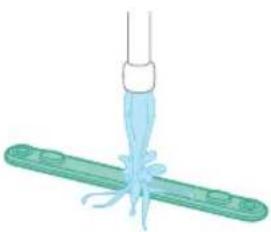
natural_image
Illustration of a medical procedure with a surgical instrument inserted into a green plastic tube (no text or symbols)natural_image
Diagram of a mechanical component with green and gray parts, no text or symbols presentnatural_image
Simple line drawing of a box with a rolled document inside, showing an arrow indicating direction (no text or symbols)CP0667/01
natural_image
Isometric line drawing of a rectangular block with a green internal component, no text or symbols present.XV1670/02
CP0381/01 vízadagoló lapka
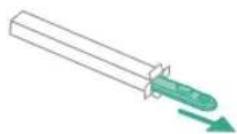
CP0381/01
natural_image
Diagram of a mechanical device with internal components and airflow indicators (no text or symbols)natural_image
Illustration of a spray gun with a magnified inset showing the impact of light (no text or symbols present)natural_image
Diagram of a mechanical device with a close-up inset showing a pipe connection (no text or symbols)natural_image
Illustration of a spray gun dispensing liquid into a tube with an arrow indicating motion (no text or symbols)natural_image
Illustration of a robotic arm cutting a component with motion lines indicating motion (no text or symbols)natural_image
Illustration of a person using a vacuum cleaner on tiled floor (no text or symbols)natural_image
Illustration of a mechanical component with a circular green symbol and a magnified inset showing a crosshair (no text or symbols present)natural_image
Illustration of an eye with warning symbols (anxiety, no protection) and a cross mark, no text or labels present.natural_image
Illustration of a faucet spraying green liquid into a blue container (no text or symbols)natural_image
Illustration of a mechanical component with an inset showing a close-up of its parts (no text or symbols present)natural_image
Illustration of a mechanical component being inserted into a housing (no text or symbols visible)natural_image
Illustration of a mechanical device with a handle and base, showing motion or force direction (no text or symbols)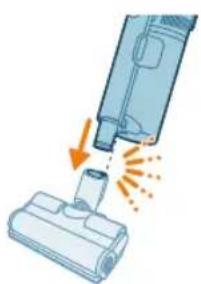
natural_image
Illustration of a vacuum cleaner emitting exhaust heat, showing airflow direction (no text or symbols)natural_image
Illustration of a vacuum cleaner emitting exhaust from a bottle (no text or symbols)natural_image
Illustration of a screwdriver and a cylindrical component (no text or symbols)natural_image
Illustration of a handheld electronic device emitting sound waves from a tip (no text or symbols)natural_image
Illustration of a robotic arm gripping a spiderweb, showing step-by-step assembly (no text or symbols)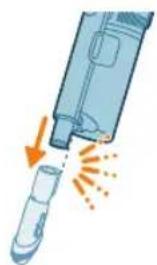
natural_image
Illustration of a handheld device emitting exhaust heat, showing internal components and airflow direction (no text or symbols)natural_image
Illustration of a laptop with a pen and eraser, no text or symbols present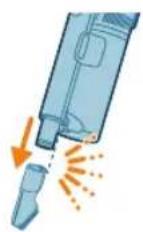
natural_image
Illustration of a medical device with a magnified inset showing a cylindrical object (no text or symbols)natural_image
Illustration of a vacuum cleaner emitting exhaust flames (no text or symbols)natural_image
Illustration of a hand pressing a button with an orange arrow indicating motion (no text or symbols)natural_image
Gray circular icon with a white lightbulb symbol and radiating lines, representing an idea or illumination (no text or symbols)
natural_image
Circular icon with a white downward arrow and green leaf symbol (no text or numbers)Vloertypeherkenning
natural_image
Gray circular button with a white lowercase 'i' in the center, no additional text or symbols.
Terug
natural_image
Circular button with a white up-turn arrow icon (no text or symbols)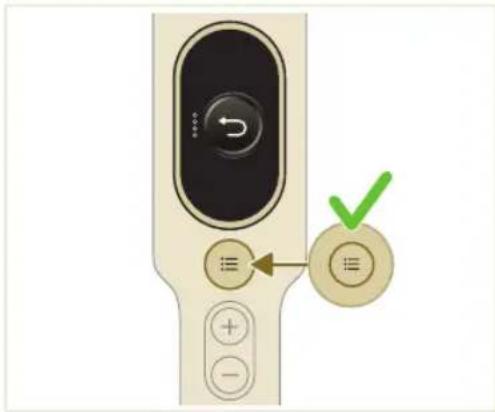
natural_image
Illustration of a syringe emitting orange light from a tube (no text or symbols)natural_image
Green mechanical component with an arrow indicating upward motion, shown on a flat base (no text or symbols)natural_image
Illustration of a pipette dispensing liquid into a green circuit board (no text or symbols)natural_image
Illustration of a green mechanical component inserted into a blue cylindrical rod, with no visible text or symbols.natural_image
Diagram showing a device with a green connector and a green box, both connected by directional arrows (no text or symbols)natural_image
Illustration of a mechanical component with a base and mounting hole (no text or symbols)natural_image
Illustration of a cleaning or installation process with a green plastic component and a warning icon (no text or symbols)natural_image
Close-up of a beige remote control with a black dial and circular button (no visible text or symbols)natural_image
Illustration of a magnifying glass over a drawer with an arrow indicating direction (no text or symbols)natural_image
Illustration of a hand pouring granular material into a trash bin (no text or symbols)natural_image
Illustration of a faucet spraying water onto a surface with a plastic bag (no text or symbols)natural_image
Illustration of a hand holding a device next to a camera lens (no text or symbols)natural_image
Illustration of a hand inserting a component into a device, with an inset showing a close-up of the component (no text or symbols present)natural_image
Diagram of a mechanical device with a lever and handle, showing motion direction (no text or symbols)natural_image
Illustration of a hand using scissors to cut a piece of paper or tape (no text or symbols visible)natural_image
Mechanical assembly diagram showing a lever mechanism with an inset close-up of the component (no text or symbols)natural_image
Illustration of a hand using a tool to lift a car, showing motion and angle (no text or symbols)natural_image
Illustration of a mechanical component with rotational arrows indicating cycle (no text or symbols)natural_image
Illustration of a plastic bottle pouring liquid into a glass beaker next to a water tap (no text or symbols)natural_image
Illustration of a beaker with liquid being inverted and a water dispenser with plastic bottle (no text or symbols)natural_image
Diagram showing a device with a green component and a green mechanical component, both connected by directional arrows (no text or symbols)natural_image
Illustration of a green mechanical component with a blue rod inserted into a base, no text or symbols present.natural_image
Diagram of a green cylindrical object with arrows pointing upward, placed on a rectangular base (no text or symbols)natural_image
Illustration of a medical procedure with a pipette inserted into a green bandage (no text or symbols)2 Spoel de watertuit af onder de kraan.

natural_image
Diagram of a green horizontal bar mounted on a rectangular base with two small components, no text or symbols present.natural_image
Diagram of a mechanical component inside a transparent housing, showing a shaft and directional arrow (no text or symbols)CP0667/01
Microvezeldweilmop XV1670/02
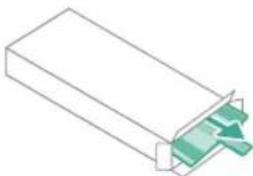
natural_image
Isometric line drawing of a rectangular block with a green arrow pointing to its corner (no text or symbols)XV1670/02
Watertuit CP0381/01
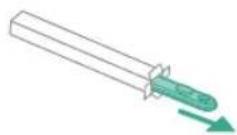
CP0381/01
natural_image
Diagram of a mechanical device with internal components and airflow indicators (no text or symbols)natural_image
Diagram of a medical device with a plus button and a checkmark (no text or symbols present)natural_image
Illustration of a spray gun with a magnified inset showing the impact of light (no text or symbols present)natural_image
Diagram of a mechanical device with a close-up inset showing a pipe connection (no text or symbols)natural_image
Illustration of a spray gun dispensing liquid into a tube with an arrow indicating motion (no text or symbols)natural_image
Illustration of a robotic arm cutting a component with motion lines indicating motion (no text or symbols)2 Fest slangen på munnstykket. Det skal kommen en "KLIKK"-lyd når den går i inngrep.
natural_image
Illustration of a person using a vacuum cleaner on tiled floor (no text or symbols)natural_image
Illustration of a mechanical component with a circular green symbol and a magnified inset showing a crosshair (no text or symbols present)Advarsel: Ikke sug opp vann eller andre væsker.
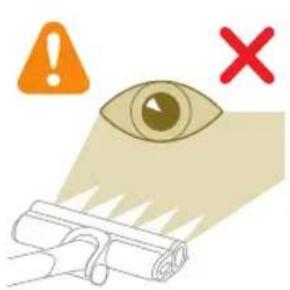
natural_image
Illustration of an eye with warning symbols (anxiety, no protection) and a red X mark, no text or labels present.natural_image
Illustration of a faucet pouring liquid into a blue rectangular container (no text or symbols)natural_image
Illustration of a mechanical component with an inset showing a close-up of its parts (no text or symbols present)natural_image
Illustration of a mechanical component being inserted into a base, with an arrow indicating the insertion direction (no text or symbols present)5 Fest den klargjorte vannbeholderen til munnstykket, så er alt klart.
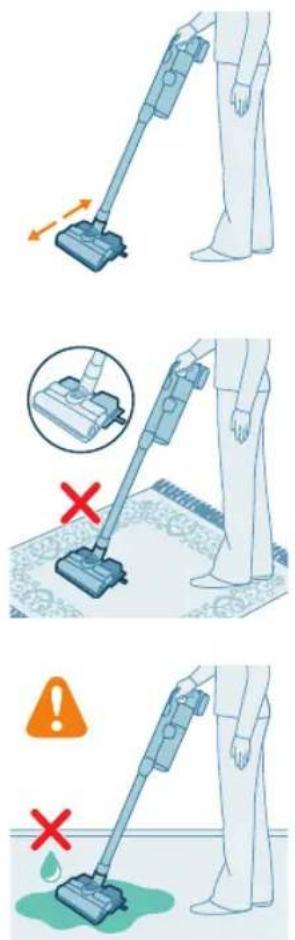
natural_image
Illustration of a mechanical device with a handle and base, emitting powder from a surface (no text or symbols)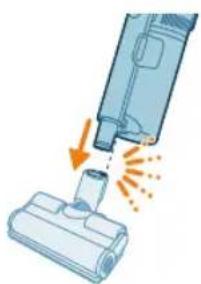
natural_image
Illustration of a vacuum cleaner emitting exhaust smoke from a bottle (no text or symbols)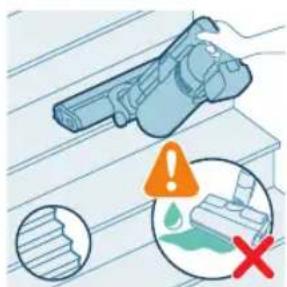
Bruke munnstykket
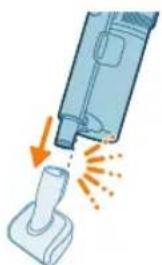
natural_image
Illustration of a vacuum cleaner emitting exhaust plume onto a base (no text or symbols)natural_image
Illustration of a tool and a cylindrical object on a surface, no text or symbols presentnatural_image
Illustration of a syringe with an arrow indicating airflow or explosion (no text or symbols)natural_image
Illustration of a medical procedure showing step-by-step steps of a surgical tool manipulation (no text or symbols present)natural_image
Illustration of a handheld device emitting exhaust heat, showing internal components and airflow direction (no text or symbols)natural_image
Illustration of a laptop with a pen inserted into it, no text or symbols presentnatural_image
Illustration of a medical device with a magnified inset showing a cylindrical object (no text or symbols)natural_image
Illustration of a vacuum cleaner emitting exhaust smoke from a pipe outlet (no text or symbols)natural_image
Circular icon with a lightbulb symbol and radiating lines, no text or symbols present.Endre styrke på belysningen
natural_image
Circular icon with a white lightning bolt symbol and green '电' (electricity) text, no readable text or numbers present.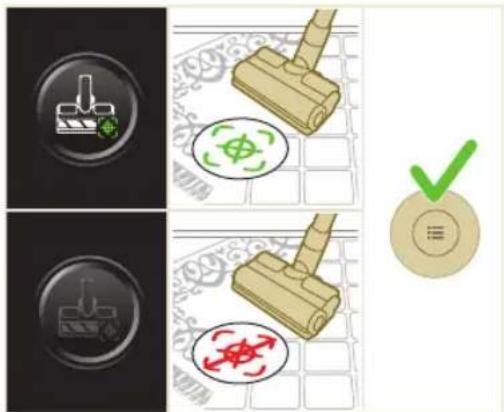
i Merk: Gulvtypegjenkjenning kan bare bli aktivert eller deaktivert när den motoriserte dysen er festet til den håndholdte enheten. Når en motorisert dyse kombinert med hovedbørsten ikke er festet til hovedapparatet, vil det derfor
natural_image
Gray circular button with a white lowercase 'i' in the center, no additional text or symbols.



natural_image
Circular button with a white up-turn arrow icon (no text or symbols)Tilbake
natural_image
Illustration of a medical or laboratory procedure showing a syringe connected to a tube with an upward arrow indicating motion (no text or symbols present)natural_image
Green mechanical component with a paperclip and arrow indicating assembly (no text or symbols)natural_image
Illustration of a pipette dispensing liquid into a green circuit board (no text or symbols)2 Skyll moppeputen under springen og vask den for hånd eller i vaskemaskin.
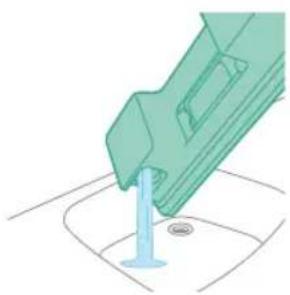
natural_image
Illustration of a green mechanical component inserted into a blue cylindrical part, with no visible text or symbols.natural_image
Diagram showing a device with green components and directional arrows, no text or symbols present5 Lukk vannbeholderen godt, og rist den for å få bort eventuelle rester av vaskemiddel.
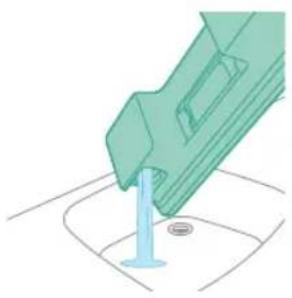
natural_image
Illustration of a mechanical component with a blue rod inserted into a base, no text or symbols presentnatural_image
Illustration of a cleaning or laundry system with a plastic bag, hanging clothes, and warning symbols (no text or labels)natural_image
Close-up of a beige remote control with a circular dial indicator (no text or symbols visible)Rengjøre filteret
1 Slå av apparatet.
472 Norsk
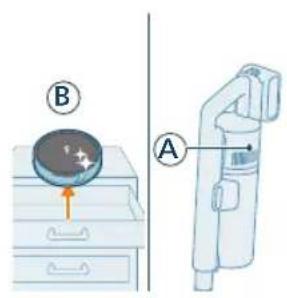
natural_image
Diagram of two mechanical components labeled A and B, showing alignment or assembly (no text or symbols beyond labels)natural_image
Illustration of a magnifying glass inspecting a drawer with arrows indicating process (no text or symbols)natural_image
Illustration of a hand pouring granular material into a trash bin (no text or symbols)natural_image
Illustration of a faucet spraying water into a trash can (no text or symbols)natural_image
Illustration of a hand cleaning a device with a magnified view of the lid (no text or symbols)6 Gå over den rengjorte støvbeholderen og syklonen med en tørr klut.
natural_image
Illustration of a hand pressing down on a mechanical component with a magnified inset showing the internal mechanism (no text or symbols)natural_image
Illustration of a mechanical device with a lever and handle, showing a yellow component being inserted (no text or symbols)natural_image
Illustration of a hand using scissors to cut a piece of wood or metal (no text or symbols present)natural_image
Mechanical assembly diagram showing a lever mechanism with an inset close-up of the component (no text or symbols)natural_image
Illustration of a hand using a tool to lift a car seatbelt, showing motion and angle (no text or symbols)natural_image
Illustration of a mechanical component with rotational arrows (no text or symbols)natural_image
Illustration of a hand tying a rope knot around a rolled-up cable (no text or symbols)natural_image
Illustration of a hand inserting a component into a gun, with an inset showing the internal mechanism (no text or symbols)Vedlikeholde den skånsomme gulvbørsten (gjelder XC7067)
natural_image
Mechanical assembly diagram showing a lever mechanism with an arrow indicating direction (no text or symbols present)natural_image
Illustration of a hand using scissors to cut a blue cylindrical object (no text or symbols)natural_image
Mechanical assembly diagram showing a lever mechanism with an inset close-up of the component (no text or symbols)natural_image
Illustration of a hand using a tool to press or install a device with an orange arrow indicating motion (no text or symbols present)natural_image
Illustration of a plastic bottle pouring liquid into a beaker with a tap, next to a water dispenser (no text or symbols)natural_image
Diagram of a green rod inserted into a transparent container with two arrows indicating direction (no text or symbols)natural_image
Illustration of a medical procedure with a surgical instrument inserted into tissue, supported by a green plastic plate (no text or symbols)2 Skyll vannstrimmelen under springen.
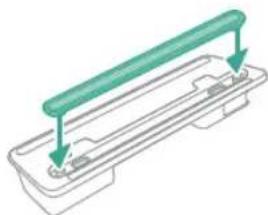
natural_image
Diagram of a mechanical component with a green rod inserted into a housing, showing two downward arrows indicating force or direction (no text or symbols present)natural_image
Simple line drawing of a mechanical component inside a transparent housing, with no text or symbols present.CP0667/01
Moppepute i mikrofiber XV1670/02
natural_image
Isometric line drawing of a rectangular block with a green internal component, no text or symbols present.XV1670/02
Vannstrimmel CP0381/01
CP0381/01
natural_image
Diagram of a mechanical device with internal components and airflow indicators (no text or symbols)natural_image
Illustration of a spray gun with a magnified inset showing the impact of light (no text or symbols present)natural_image
Diagram of a mechanical device with a close-up inset showing a pipe connection (no text or symbols)natural_image
Illustration of a spray gun dispensing liquid into a tube with an arrow indicating motion (no text or symbols)natural_image
Illustration of a robotic arm cutting a component with motion lines indicating motion (no text or symbols)natural_image
Illustration of a person using a vacuum cleaner on tiled floor, with no text or symbols presentnatural_image
Illustration of a mechanical component with a circular green symbol and a dollar sign, set on a patterned surface (no text or symbols)natural_image
Illustration of an eye with warning symbols (anxiety, no protection) and a red X mark, no text or labels present.natural_image
Illustration of a faucet pouring liquid into a blue container with green liquid flowing out (no text or symbols)natural_image
Illustration of a mechanical component with arrows indicating direction, no text or symbols presentnatural_image
Illustration of a mechanical component being inserted into a housing (no text or symbols visible)natural_image
Illustration of a person using a vacuum cleaner with motion arrows indicating movement (no text or symbols)natural_image
Illustration of a mechanical device emitting powder from a surface (no text or symbols)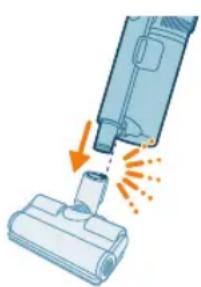
natural_image
Illustration of a vacuum cleaner emitting exhaust smoke from a bottle (no text or symbols)Używanie ssawki
natural_image
Illustration of a vacuum cleaner emitting exhaust smoke from a bottle (no text or symbols)natural_image
Illustration of a screwdriver and a cylindrical component (no text or symbols)natural_image
Illustration of a handheld electronic device emitting exhaust flames (no text or symbols)natural_image
Illustration of a robotic arm gripping a spiderweb, showing step-by-step assembly (no text or symbols)natural_image
Illustration of a hand holding a pen or tool with an arrow indicating motion (no text or symbols)natural_image
Illustration of a laptop with a pen inserted into it, no text or symbols presentnatural_image
Illustration of a medical device with a magnified inset showing a cylindrical object (no text or symbols)natural_image
Illustration of a blue vacuum cleaner emitting exhaust flames, with no text or symbols present.natural_image
Three-step diagram showing a mechanical assembly with arrows indicating motion, no text or symbols present.natural_image
Illustration of a hand pressing a button on a device with an orange arrow indicating motion (no text or symbols)natural_image
Gray circular icon with a white lightbulb symbol and radiating lines, representing an idea or illumination (no text or symbols)natural_image
Circular icon with a white lightning bolt symbol and green '电' (electricity) text, no readable text or numbers present.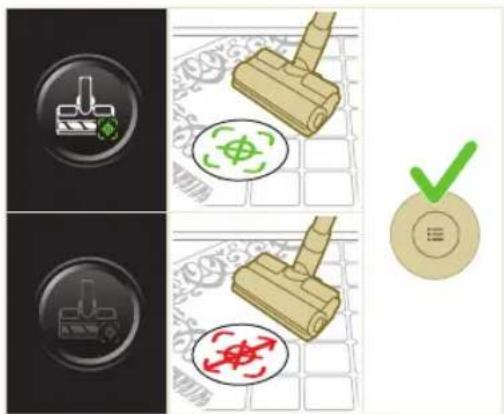
natural_image
Gray circular button with a white lowercase 'i' in the center, no additional text or symbols.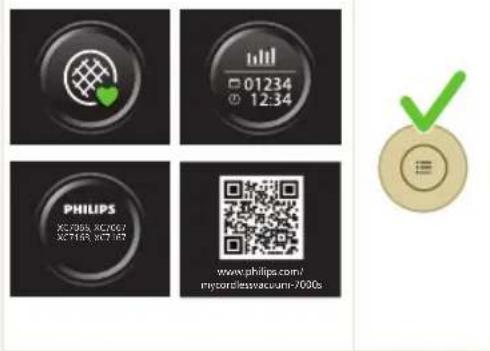

natural_image
Circular button with a white up-turn arrow icon (no text or symbols)Powrót
natural_image
Illustration of a syringe emitting orange light from a nozzle (no text or symbols)natural_image
Green mechanical component with an arrow indicating upward motion, placed on a textured base (no text or symbols visible)natural_image
Illustration of a pipette dispensing liquid onto a green circuit board (no text or symbols visible)natural_image
Illustration of a mechanical component pouring liquid into a small cylindrical object (no text or symbols visible)natural_image
Diagram showing a mechanical assembly with a housing and a clamping device, both without any text or symbols.natural_image
Illustration of a green mechanical component with a blue rod inserted into a base (no text or symbols)natural_image
Illustration of a kitchen drawer with hanging clothes and a warning icon (no text or symbols)natural_image
Close-up of a beige remote control with a circular dial and plus button (no text or symbols visible)506 Polski
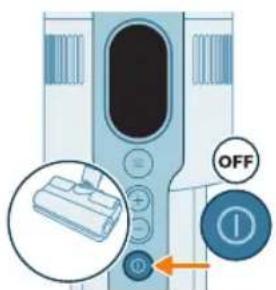
natural_image
Illustration of a download box with a circular icon labeled 'A' and an arrow pointing downward (no text or symbols on the box itself)natural_image
Illustration of a hand using a tool to remove granular material from a trash bin (no text or symbols)natural_image
Illustration of two containers with a pipe and swirling green liquid, no text or symbols presentnatural_image
Illustration of a hand cleaning a device with a magnified view of the lid (no text or symbols)natural_image
Illustration of a hand inserting a component into a device, with an inset showing a close-up of the component (no text or symbols present)natural_image
Diagram of a mechanical device with a lever and handle, showing motion direction (no text or symbols)natural_image
Illustration of a hand using scissors to cut a piece of paper or tape (no text or symbols visible)natural_image
Illustration of a mechanical component with an arrow indicating motion, showing a close-up view of the base and end (no text or symbols present)natural_image
Illustration of a hand using a tool to lift a car wheel (no text or symbols)natural_image
Illustration of a mechanical component with rotational arrows indicating motion (no text or symbols)natural_image
Illustration of hands tying a rope knot around a rolled-up cable (no text or symbols)natural_image
Illustration of a hand inserting a component into a device, with an inset showing a close-up of the component (no text or symbols present)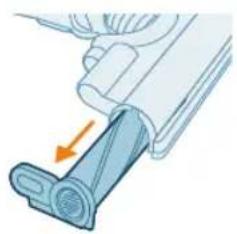
natural_image
Diagram of a mechanical component with a blue lever and orange arrow indicating force or direction (no text or symbols)natural_image
Illustration of a hand using scissors to cut a blue cylindrical object (no text or symbols visible)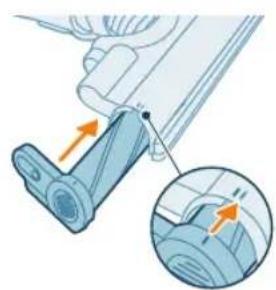
natural_image
Mechanical assembly diagram showing a lever mechanism with an inset close-up of the component (no text or symbols)natural_image
Illustration of a hand pressing a button on a device, with an orange arrow indicating motion (no text or symbols present)natural_image
Illustration of a plastic bottle pouring liquid from a water bottle into a beaker, next to a vertical diagram showing a faucet and a plastic bottle (no text or symbols)natural_image
Illustration of a beaker with liquid being inverted and a water dispenser with a bottle beside it (no text or symbols)natural_image
Diagram showing a mechanical assembly with green arrows indicating motion or force direction (no text or symbols)natural_image
Illustration of a green mechanical component inserted into a base, with no visible text or symbols.natural_image
Diagram of a green rod inserted into a rectangular container with two side supports (no text or symbols)natural_image
Illustration of a medical procedure with a pipette inserted into a green plastic band (no text or symbols)natural_image
Diagram of a mechanical component with green and gray parts, no text or symbols presentWymiana
natural_image
Diagram of a mechanical component inside a transparent housing, showing a cylindrical part inserted into a housing (no text or symbols)CP0667/01
natural_image
Isometric line drawing of a rectangular block with a green internal component, no text or symbols present.XV1670/02
www.philips.com/mycordlessvacuum-7000s.
Descrição geral
1 Visor digital
natural_image
Diagram of a mechanical device with internal components and airflow indicators (no text or symbols)natural_image
Illustration of a spray gun with a magnified inset showing the impact of light (no text or symbols present)natural_image
Illustration of a mechanical device with a close-up inset showing a pipe connection (no text or symbols)natural_image
Illustration of a hand holding a tool with an arrow pointing to a small mechanical component (no text or symbols present)natural_image
Illustration of a robotic arm cutting a component with motion lines indicating motion (no text or symbols)natural_image
Illustration of a person using a vacuum cleaner on tiled floor (no text or symbols)3 Pode limpar pavimentos ou superfícies macias com o aspirador.
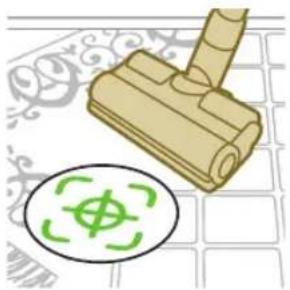
natural_image
Illustration of a wooden clamp with a green circular symbol and a compass icon, set against a patterned grid background (no text or symbols)natural_image
Illustration of an eye with warning symbols (anxiety, no protection) and a red X mark, no text or labels present.natural_image
Illustration of a faucet spraying green liquid into a blue container (no text or symbols)natural_image
Illustration of a mechanical component with an inset showing a close-up of its parts (no text or symbols present)natural_image
Illustration of a mechanical component being inserted into a housing (no text or symbols visible)natural_image
Illustration of a mechanical device with a handle and base, showing motion or force direction (no text or symbols)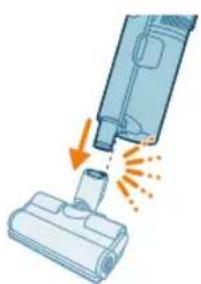
natural_image
Illustration of a vacuum cleaner emitting exhaust smoke from a bottle (no text or symbols)Utilizar o bocal
Utilizar o bocal PetPro
natural_image
Illustration of a vacuum cleaner emitting exhaust from a bottle (no text or symbols)natural_image
Illustration of a screwdriver and a cylindrical component (no text or symbols)natural_image
Illustration of a handheld electronic device emitting exhaust heat from a tip (no text or symbols)natural_image
Illustration of a robotic arm gripping a spiderweb, showing step-by-step assembly (no text or symbols)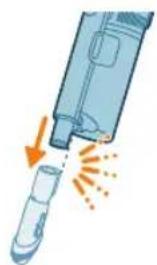
natural_image
Illustration of a hand holding a pen or tool with an arrow indicating motion (no text or symbols)natural_image
Illustration of a laptop with a pen and eraser, no text or symbols present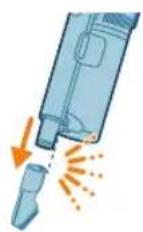
natural_image
Illustration of a medical device with a magnified inset showing a cylindrical object (no text or symbols)natural_image
Illustration of a vacuum cleaner emitting exhaust flames, showing airflow direction (no text or symbols)natural_image
Illustration of a hand pressing down on a device with a glowing arrow indicating motion (no text or symbols)natural_image
Circular icon with a white lightbulb symbol and radiating lines, no text or numbers present.
natural_image
Circular icon with a downward arrow and green checkmark, no text or symbols present.natural_image
Gray circular button with a white lowercase 'i' in the center, no additional text or symbols.
Regressar
natural_image
Circular button with a white up-turn arrow icon (no text or symbols)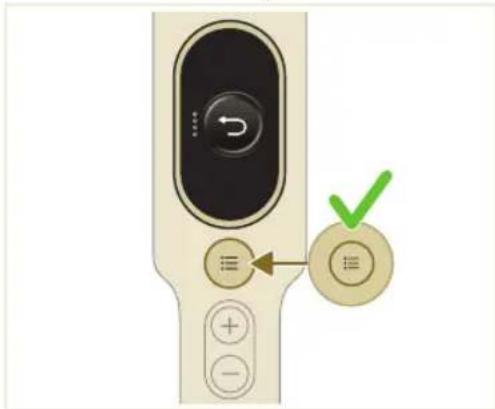
natural_image
Illustration of a syringe emitting orange light from a tube (no text or symbols)natural_image
Green mechanical component with an arrow indicating upward motion, shown on a flat base (no text or symbols)natural_image
Illustration of a pipette dispensing liquid into a green circuit board (no text or symbols)natural_image
Illustration of a green mechanical component inserted into a blue cylindrical rod, with no visible text or symbols.natural_image
Diagram showing a device with a green arrow indicating rotation or movement, alongside a green rectangular component (no text or symbols)natural_image
Illustration of a green mechanical component with a blue rod inserted into a surface (no text or symbols)natural_image
Illustration of a plastic door with a warning icon and hanging clothes (no text or symbols)natural_image
Close-up of a beige remote control with a black dial and circular button (no visible text or symbols)natural_image
Illustration of a hand holding a circular object with a starburst effect, placed on a drawer (no text or symbols)natural_image
Illustration of a hand pouring granular material into a trash bin (no text or symbols)natural_image
Illustration of a faucet spraying water onto a surface with a plastic bag (no text or symbols)natural_image
Illustration of a hand holding a device next to a camera lens (no text or symbols)natural_image
Illustration of a hand pressing down a mechanical component with an inset showing a close-up of the component (no text or symbols)natural_image
Illustration of a mechanical device with a lever and handle, showing motion direction (no text or symbols)3 Remova suavemente a escova rotativa e a tampa lateral do bocal.
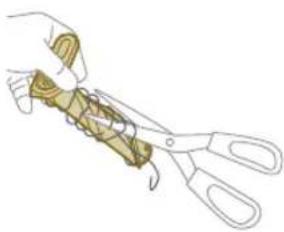
natural_image
Illustration of a hand using scissors to cut a piece of paper or tape (no text or symbols visible)natural_image
Mechanical assembly diagram showing a lever mechanism with an inset close-up of the component (no text or symbols)natural_image
Illustration of a hand using a tool to lift a car, showing motion and angle (no text or symbols)natural_image
Simple line drawing of a mechanical component with rotational arrows (no text or symbols)natural_image
Illustration of a plastic bottle pouring liquid from a water bottle into a beaker, next to a vertical water tank (no text or symbols)natural_image
Illustration of a laboratory setup with a beaker, a funnel, and a water bottle (no text or symbols)natural_image
Diagram showing a mechanical device with green components and directional arrows, no text or symbols present4 Feche devidamente o depósito Aqua, agitando-o de forma a distribuir uniformemente o líquido descalcificante.

natural_image
Illustration of a green mechanical device on a flat surface with a 12-hour circular arrow indicating rotation (no text or symbols on the device itself)natural_image
Illustration of a green mechanical component with a blue rod inserted into a circular base (no text or symbols)natural_image
Diagram of a green cylindrical object with arrows pointing upward, placed on a rectangular base (no text or symbols)natural_image
Illustration of a medical procedure with a pipette inserted into a green plastic band (no text or symbols)natural_image
Diagram of a mechanical component with a green rod inserted into a housing, showing alignment arrows (no text or symbols)natural_image
Diagram of a mechanical component inside a transparent housing, showing a cylindrical part inserted into a housing (no text or symbols)CP0667/01
natural_image
Isometric line drawing of a rectangular block with a green arrow pointing to its corner (no text or symbols)XV1670/02
natural_image
Diagram of a mechanical device with internal components and directional arrows, no visible text or symbolsnatural_image
Diagram of a mechanical or electrical component with directional arrows and a magnified inset showing internal flow paths (no text or symbols)natural_image
Diagram of a mechanical device with airflow indicators and a magnified inset showing internal components (no text or symbols)natural_image
Illustration of a spray gun with a magnified inset showing the impact of light (no text or symbols present)natural_image
Diagram of a mechanical device with a close-up inset showing a pipe connection (no text or symbols)natural_image
Illustration of a spray gun dispensing liquid into a tube with an arrow indicating motion (no text or symbols)natural_image
Illustration of a robotic arm cutting a component with motion lines indicating motion (no text or symbols)natural_image
Illustration of a person using a vacuum cleaner on tiled floor, with no text or symbols presentnatural_image
Illustration of a rubber pad with a green circular symbol and a dollar sign, placed on a patterned surface (no text or symbols)natural_image
Illustration of an eye with warning symbols (anxiety, no protection) and a red X mark, no text or labels present.natural_image
Illustration of a faucet pouring liquid into a blue rectangular container (no text or symbols)natural_image
Illustration of a mechanical component with an inset showing a close-up of its parts (no text or symbols present)natural_image
Illustration of a mechanical component being inserted into a base, with an arrow indicating the insertion direction (no text or symbols present)natural_image
Illustration of a blue mechanical device with a handle and base, partially submerged in water (no text or symbols visible)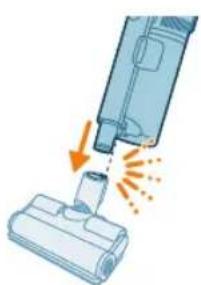
natural_image
Illustration of a vacuum cleaner emitting exhaust smoke from a bottle (no text or symbols)Utilizarea duzei PetPro
natural_image
Illustration of a vacuum cleaner emitting exhaust smoke from a nozzle (no text or symbols)natural_image
Illustration of a screwdriver and a cylindrical component (no text or symbols)natural_image
Illustration of a handheld electronic device emitting exhaust flames (no text or symbols)natural_image
Illustration of a robotic arm gripping a spiderweb, showing step-by-step assembly (no text or symbols)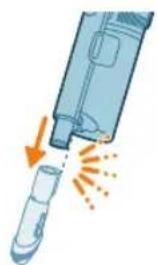
natural_image
Illustration of a hand holding a pen or tool with an arrow indicating motion (no text or symbols)Utilizarea accesoriiului mixt
natural_image
Illustration of a laptop with a pen inserted into it, no text or symbols present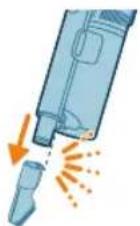
natural_image
Illustration of a medical device with a magnified inset showing a cylindrical object (no text or symbols)natural_image
Illustration of a blue vacuum cleaner emitting exhaust flames, with no text or symbols present.natural_image
Three-step diagram showing mechanical assembly steps with arrows indicating motion (no text or symbols)natural_image
Illustration of a hand pressing a button on a device with an orange arrow indicating motion (no text or symbols)natural_image
Gray circular button with a white lightbulb icon and radiating lines, symbolizing an idea or illumination (no text or symbols)natural_image
Circular icon with a white lightning bolt symbol and green '电' (electricity) text, no readable text or numbers present.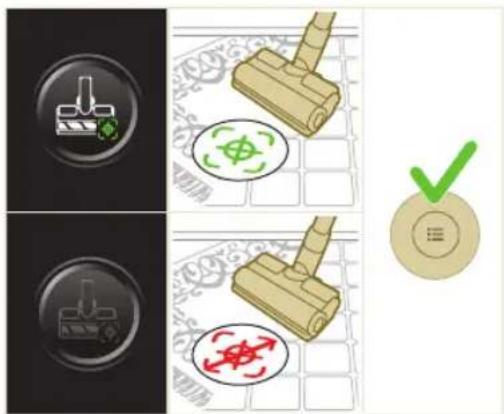
natural_image
Gray circular button with a white lowercase 'i' in the center, no additional text or symbols.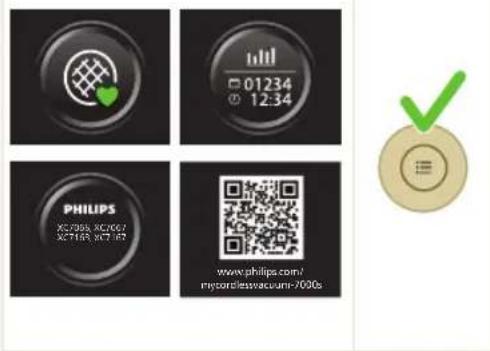

natural_image
Circular button with a white up-turn arrow icon (no text or symbols)Return (Revenire)
natural_image
Illustration of a medical device emitting particles from a tube (no text or symbols)natural_image
Green mechanical component with a paper holder and an arrow indicating upward motion, no text or symbols present.natural_image
Illustration of a pipette dispensing liquid into a green circuit board (no text or symbols)natural_image
Illustration of a green mechanical component inserted into a blue cylindrical part, with a circular base and dot on the surface (no text or symbols)natural_image
Diagram showing a mechanical device with green components and directional arrows, no text or symbols presentnatural_image
Illustration of a green mechanical component pouring liquid into a blue cylindrical tank (no text or symbols)natural_image
Illustration of a cleaning or laundry system with a green plastic bag, hanging clothes, and warning symbols (no text or labels)natural_image
Close-up of a beige electronic device control panel with a circular dial and plus button (no readable text or symbols)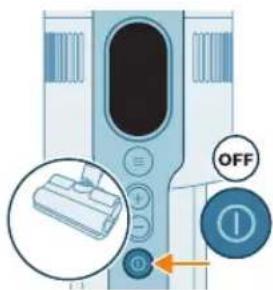
1 Opriti aparatul.
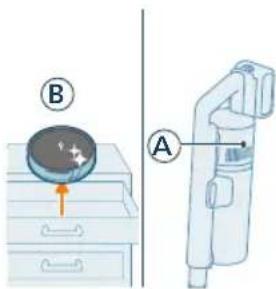
natural_image
Illustration of a hand holding a circular object with a starburst symbol, placed on a drawer with arrows indicating direction (no text or symbols)natural_image
Illustration of a hand using a tool to remove or brush into a trash bin (no text or symbols)natural_image
Illustration of a faucet spraying water onto a surface with two containers (no text or symbols)natural_image
Illustration of a hand cleaning a device with a magnified view (no text or symbols)natural_image
Illustration of a hand pressing down a mechanical component with an inset showing a close-up of the component (no text or symbols)natural_image
Illustration of a mechanical device with a lever and belt, showing a force or motion indicator (no text or symbols present)natural_image
Illustration of a hand using scissors to cut a piece of paper or tape (no text or symbols visible)natural_image
Illustration of a car seatbelt buckle being adjusted, showing step-by-step assembly (no text or symbols)natural_image
Illustration of a mechanical lever with rotating arrows indicating clockwise motion (no text or symbols)natural_image
Illustration of a hand tying a rope tied with a rolled-up cable, no text or symbols presentnatural_image
Illustration of a hand pressing down on a device with a magnifying glass (no text or symbols)natural_image
Illustration of a plastic bottle pouring liquid into a glass beaker next to a water tap (no text or symbols)natural_image
Illustration of a beaker with liquid being inverted and a water bottle beside it (no text or symbols)natural_image
Diagram showing a device with a green component and a green base, no text or symbols presentnatural_image
Illustration of a green mechanical device with a 12-hour circular arrow indicating speed (no text or symbols on the device itself)natural_image
Illustration of a green mechanical component with a blue rod inserted into a square base (no text or symbols)natural_image
Diagram of a green rod inserted into a rectangular container with two parallel plates (no text or symbols)natural_image
Illustration of a medical procedure with a pipette inserted into a green plastic tube (no text or symbols)natural_image
Diagram of a mechanical component with green arrows indicating direction (no text or symbols)natural_image
Diagram of a mechanical component inside a transparent housing, showing internal components and directional arrow (no text or symbols)CP0667/01
natural_image
Isometric illustration of a rectangular block with a green internal component and a small protrusion (no text or symbols)XV1670/02
natural_image
Diagram of a mechanical device with internal components and airflow indicators (no text or symbols)natural_image
Illustration of a spray gun with a magnified inset showing the impact of light (no text or symbols present)natural_image
Diagram of a mechanical device with a close-up inset showing a valve or actuator (no text or symbols present)natural_image
Illustration of a spray gun dispensing liquid into a tube with an arrow indicating motion (no text or symbols)natural_image
Illustration of a robotic arm cutting a component with motion lines indicating motion (no text or symbols)natural_image
Illustration of a person using a vacuum cleaner on tiled floor (no text or symbols)natural_image
Illustration of a wooden stamping tool with a green circular symbol and a compass icon, set against a patterned background (no text or symbols)natural_image
Illustration of an eye with warning symbols (anxiety, no protection) and a red X mark, no text or labels present.natural_image
Illustration of a faucet pouring liquid into a blue rectangular tank (no text or symbols)natural_image
Illustration of a mechanical component with an inset showing a close-up of its parts (no text or symbols present)natural_image
Illustration of a mechanical component being inserted into a base, with an arrow indicating the insertion direction (no text or symbols present)natural_image
Illustration of a handheld device emitting particles from a surface (no text or symbols)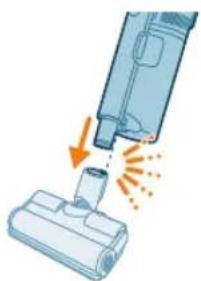
natural_image
Illustration of a vacuum cleaner emitting exhaust smoke from a bottle (no text or symbols)natural_image
Illustration of a vacuum cleaner emitting exhaust from a bottle (no text or symbols)natural_image
Illustration of a screwdriver and a cylindrical component (no text or symbols)natural_image
Illustration of a handheld electronic device emitting exhaust heat from a tip (no text or symbols)natural_image
Illustration of a spiderweb being held by two tools, showing step-by-step assembly (no text or symbols)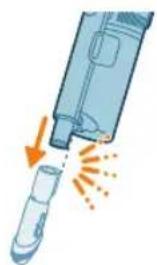
natural_image
Illustration of a hand holding a pen or tool with an arrow indicating motion (no text or symbols)natural_image
Illustration of a laptop with a pen and eraser, no text or symbols present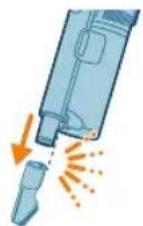
natural_image
Illustration of a medical device with a magnified inset showing a cylindrical object (no text or symbols)natural_image
Illustration of a vacuum cleaner emitting exhaust flames, showing airflow direction (no text or symbols)natural_image
Illustration of a hand pressing down on a device with a magnifying glass (no text or symbols)natural_image
Gray circular icon with a white lightbulb symbol (no text or numbers)Modifikoni nivelin e ndriçimit
natural_image
Circular icon with a white lightning bolt symbol and a green '电' (electricity) label, no readable text or numbers.natural_image
Gray circular button with a white lowercase 'i' in the center, no additional text or symbols.
608 Shqip

natural_image
Circular button with a white up-turn arrow icon (no text or symbols)Kthimi
natural_image
Illustration of a hand holding a tool with an arrow indicating motion or force (no text or symbols)natural_image
Green mechanical component with an arrow indicating upward motion, shown with a magnified inset of a paper sheet (no text or symbols)natural_image
Illustration of a pipette dispensing liquid into a green circuit board (no text or symbols)natural_image
Illustration of a green mechanical component inserted into a blue cylindrical part, with a small circular base (no text or symbols)natural_image
Diagram showing a mechanical device with directional arrows indicating motion or force, no text or symbols present.natural_image
Illustration of a green plastic component inserted into a blue cylindrical part, with no visible text or symbols.natural_image
Illustration of a cleaning or laundry system with a plastic bag, hanging clothes, and warning symbols (no text or labels)natural_image
Close-up of a beige remote control with a circular dial and plus button (no text or symbols visible)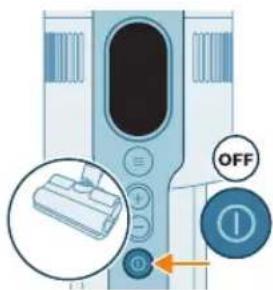
1 Fikeni pajisjen.
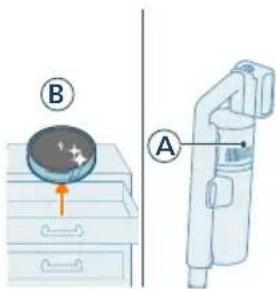
natural_image
Illustration of a hand holding a circular object with a starburst symbol, placed on a drawer with arrows indicating direction (no text or symbols)natural_image
Illustration of a hand pouring granular material into a trash bin (no text or symbols)natural_image
Illustration of two blue containers with a pipe and swirling green liquid, no text or symbols presentnatural_image
Illustration of a hand cleaning a device with a magnified view (no text or symbols)natural_image
Illustration of a hand inserting a component into a device, with an inset showing the internal mechanism (no text or symbols present)natural_image
Illustration of a mechanical device with a lever and belt, showing a force or motion indicator (no text or symbols present)natural_image
Illustration of a hand using scissors to cut a piece of paper or tape (no text or symbols visible)natural_image
Illustration of a mechanical device with an arrow indicating motion, showing a close-up of the component (no text or symbols present)natural_image
Illustration of a hand using a tool to lift a car wheel, showing motion and angle (no text or symbols)natural_image
Illustration of a mechanical component with rotational arrows indicating cycle (no text or symbols)natural_image
Illustration of a robotic arm with labeled parts (1, 2), showing motion arrows and no text or symbols beyond labelsnatural_image
Illustration of a hand holding wires over a blue cylindrical object with orange arrow indicating motion (no text or symbols)natural_image
Illustration of a hand pressing down on a device with a magnifying glass (no text or symbols)natural_image
Illustration of a plastic bottle pouring liquid into a glass beaker next to a water tap (no text or symbols)natural_image
Illustration of a beaker with liquid being inverted and a water bottle beside it (no text or symbols)natural_image
Diagram showing a device with a green component and a green base, no text or symbols presentnatural_image
Diagram of a mechanical component inside a transparent housing, showing a rolled part being inserted (no text or symbols)CP0667/01
natural_image
Isometric illustration of a rectangular block with a green internal component and a small triangular element inserted (no text or symbols)XV1670/02
Sinjali Kuptimi i sinjalit
Sinjali Kuptimi i sinjalit
natural_image
Diagram of a mechanical device with internal components and directional arrows, no readable text or symbols present.natural_image
Diagram of a mechanical or electrical component with directional arrows and a magnified inset showing internal flow paths (no text or symbols)natural_image
Diagram of a mechanical or fluidic device with internal components and airflow indicators (no text or symbols)4 Dobro pritrdite stenski nosilec na želeno mesto na steni in poskrbite, da bodo luknje za vijake približno 110 cm od tal.
Vso dodatno opremo lahko shranite na stenski nosilec z izjemo kombinacije nastavkov PetPro in nastavka za oblazinjeno pohištvo.
i Opomba: Upoštevajte, da nastavka PetPro in nastavka za oblazinjeno pohištvo istočasno ni mogoče shraniti na stenskem nosilcu.
632 Slovenščina
Priprava za uporabo
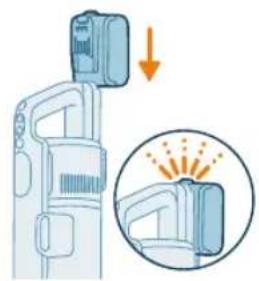
natural_image
Illustration of a spray gun with a magnified inset showing the impact of light (no text or symbols present)natural_image
Diagram of a mechanical device with a close-up inset showing a pipe connection (no text or symbols)natural_image
Illustration of a spray gun dispensing liquid into a tube with an arrow indicating motion (no text or symbols)natural_image
Illustration of a vacuum cleaner emitting powder from a nozzle (no text or symbols)1 Za vklop aparata pritisnite gumb za vklop/izklop.
i Opomba: Za izklop aparata ponovno pritisnite gumb za vklop/izklop.
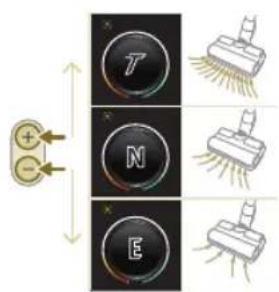
natural_image
Illustration of a person using a vacuum cleaner on tiled floor (no text or symbols)natural_image
Illustration of a wooden stamping tool and a green circular symbol on a patterned surface (no text or symbols present)natural_image
Illustration of an eye with warning symbols (anxiety, no protection) and a red X mark, no text or labels present.natural_image
Illustration of a faucet pouring liquid into a blue container (no text or symbols)natural_image
Illustration of a mechanical component with an inset showing a close-up of its parts (no text or symbols present)4 Mikrovlaknasto blazinico za mokro brisanje pritrdite pod posodo z vodo. Poravnajte ježke pod posodo za vodo in na spodnji strani krpe.
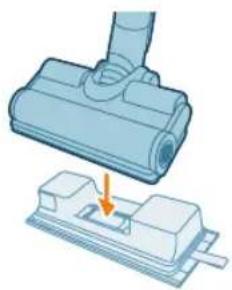
natural_image
Illustration of a mechanical component being inserted into a base, with an arrow indicating the insertion direction (no text or symbols present)natural_image
Illustration of a mechanical device emitting powder from a surface (no text or symbols)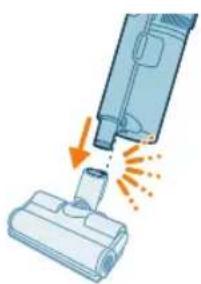
natural_image
Illustration of a vacuum cleaner emitting exhaust smoke from a bottle (no text or symbols)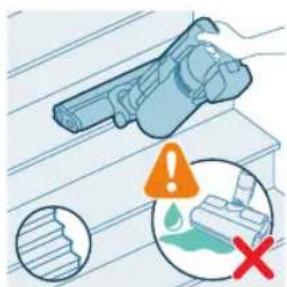
Uporaba nastavka
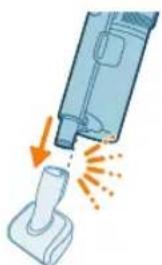
natural_image
Illustration of a vacuum cleaner emitting exhaust plume onto a base (no text or symbols)Uporaba nastavka PetPro
natural_image
Illustration of a screwdriver and a cylindrical object on a surface (no text or symbols)natural_image
Illustration of a syringe with an arrow indicating motion or force (no text or symbols)natural_image
Illustration of a robotic arm gripping a spiderweb, with no text or symbols presentUporaba kombiniranega nastavka
natural_image
Illustration of a handheld device emitting exhaust heat, showing internal components and airflow direction (no text or symbols)natural_image
Illustration of a laptop with a pen inserted into it, no text or symbols presentnatural_image
Illustration of a medical device with a magnified inset showing a cylindrical object (no text or symbols)Uporaba nastavka za oblazinjeno pohištvo
natural_image
Illustration of a vacuum cleaner emitting exhaust flames, with no text or symbols present.natural_image
Circular icon with a lightbulb symbol and radiating lines, no text or symbols present.natural_image
Circular icon with a white lightning bolt symbol and green '电' (electricity) text, no readable text or numbers present.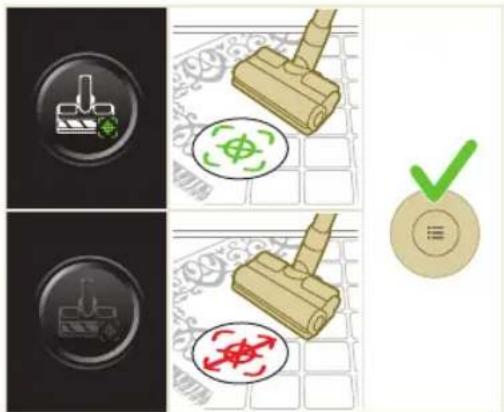
natural_image
Gray circular button with a white lowercase 'i' in the center, no additional text or symbols.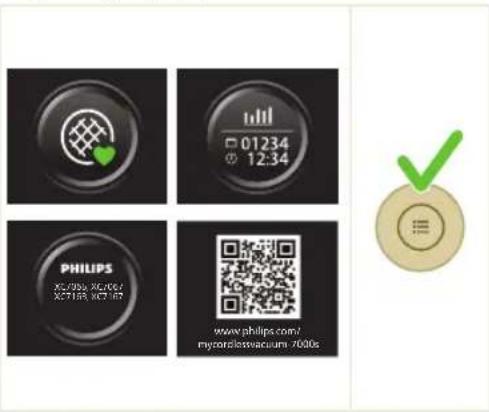
Vrnitev
natural_image
Circular button with a white up-turn arrow icon (no text or symbols)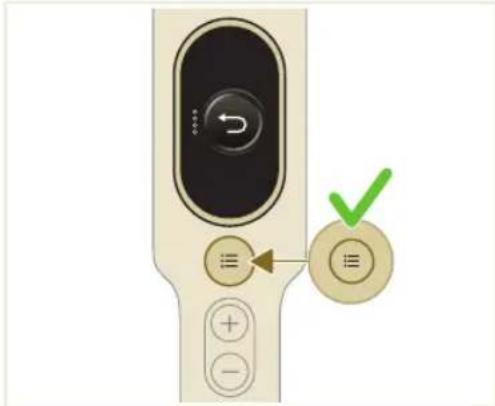
natural_image
Illustration of a medical or laboratory procedure showing a syringe connected to a tube with an upward arrow indicating motion (no text or symbols present)3 Posodo za prah držite nad košem za smeti in pritisnite gumb za enostavno praznjenje (1), da izpraznite posodo (2).
natural_image
Green mechanical component with a paperclip and arrow indicating assembly (no text or symbols)1 Odstranite mikrovlaknasto blazinico za mokro brisanje.
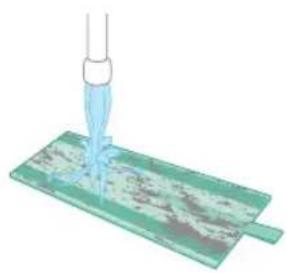
natural_image
Illustration of a pipette dispensing liquid into a green circuit board (no text or symbols)2 Mikrovlaknasto blazinico za mokro brisanje izperite pod tekočo vodo in jo operite ročno ali v pralnem stroju.
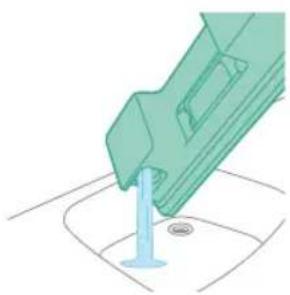
natural_image
Illustration of a green mechanical component inserted into a blue cylindrical part, with no visible text or symbols.3 Iz posode za vodo izlijte morebitno preostalo vodo.
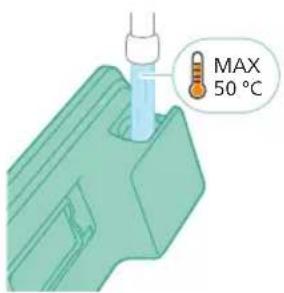
4 Posodo za vodo napolnite z vodo.
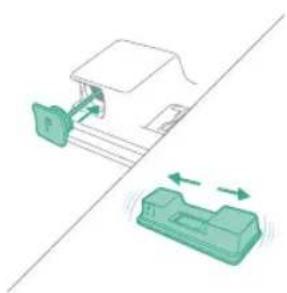
natural_image
Diagram showing a device with green components and directional arrows, no text or symbols presentnatural_image
Illustration of a mechanical component with a blue rod inserted into a base, no text or symbols presentnatural_image
Illustration of a cleaning or laundry system with a plastic bag, hanging clothes, and warning symbols (no text or labels)7 Pazite, da med shranjevanjem ne izgubite pokrovčka posode. Mikrovlaknasto blazinico za mokro brisanje obesite, da se posuši.
natural_image
Close-up of a beige remote control with a black dial and circular button (no visible text or symbols)1 Izklopite aparat.
646
Slovenščina
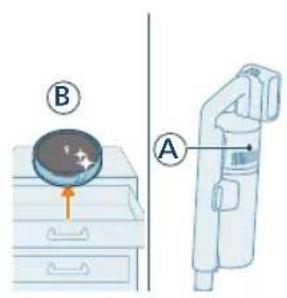
4 Filter obrnite (A) v levo in ga odstranite iz posode za prah.
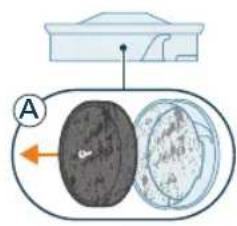
7 Namestite čisti filter (B) v posodo za prah. Filter zasučite v desno, da se zaskoči.
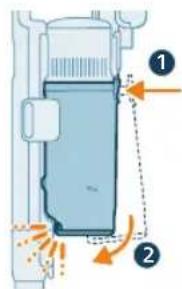
natural_image
Diagram of two mechanical components labeled A and B, showing alignment or assembly (no text or symbols beyond labels)10 Posesajte umazano ohišje filtra in penasti filter (A).
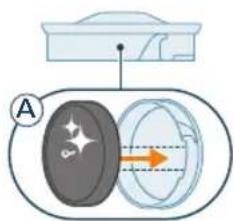
11 Čisti penasti filter (A) ponovno namestite v čisto ohišje filtra.
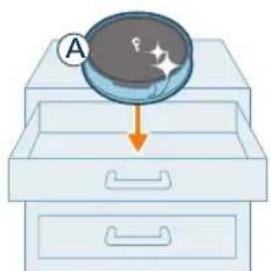
natural_image
Illustration of a magnifying glass inspecting a drawer with arrows indicating process (no text or symbols)natural_image
Illustration of a hand pouring granular material into a trash bin (no text or symbols)4 Ciklonski element narahlo potolcite ob koš za smeti, da odstranite preostali prah in umazanijo.
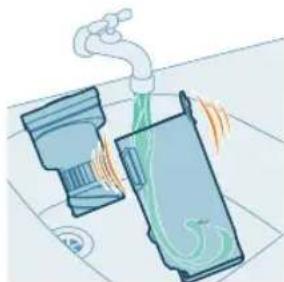
natural_image
Illustration of a faucet spraying water into a trash can (no text or symbols)natural_image
Illustration of a hand cleaning a device with a magnified view of the lid (no text or symbols)8 Sestavljeno posodo vstavite nazaj. Najprej poravnajte stran posode, na kateri je filter, nato jo pritrdite na mesto.
natural_image
Illustration of a hand pressing down on a mechanical component with an inset showing the same component (no text or symbols present)natural_image
Illustration of a mechanical device with a lever and handle, showing a yellow component being inserted (no text or symbols)3 Previdno odstranite vrtljivo krtačo in stranski pokrovček nastavka.
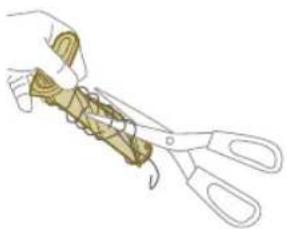
natural_image
Illustration of a hand using scissors to cut a piece of wood or metal (no text or symbols present)natural_image
Mechanical assembly diagram showing a lever mechanism with an inset close-up of the component (no text or symbols)5 Pri ponovnem sestavljanju poskrbite, da bo vrtljiva krtača pravilno poravnana.
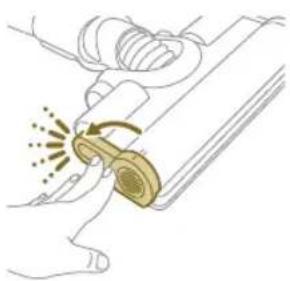
natural_image
Illustration of a hand using a tool to lift a car, showing motion and angle (no text or symbols)natural_image
Illustration of a mechanical component with rotational arrows (no text or symbols)2 Potisnite stranski gumb, da sprostite ščetko iz položaja.
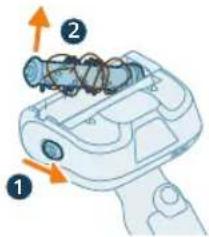
natural_image
Illustration of a hand connecting wires to a blue cylindrical object with an orange arrow indicating motion (no text or symbols)natural_image
Illustration of a hand inserting a component into a gun, with an inset showing the gun's internal structure (no text or symbols)652 Slovenščina
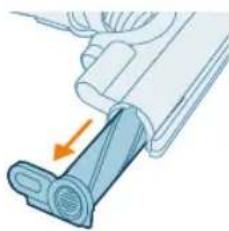
natural_image
Mechanical assembly diagram showing a blue component being inserted into a housing (no text or symbols visible)natural_image
Illustration of a hand using scissors to cut a blue cylindrical object (no text or symbols)natural_image
Mechanical assembly diagram showing a lever mechanism with an inset close-up of the component (no text or symbols)natural_image
Illustration of a hand using a tool to press or install a device with an orange arrow indicating motion (no text or symbols present)natural_image
Illustration of a plastic bottle pouring liquid into a beaker with a tap, next to a water bottle (no text or symbols)natural_image
Diagram of a green rod inserted into a transparent container with two arrows indicating direction (no text or symbols)natural_image
Illustration of a medical procedure with a surgical instrument inserted into tissue, supported by a green plastic plate (no text or symbols)natural_image
Diagram of a mechanical component with a green rod inserted into a housing, showing two downward arrows indicating force or movement (no text or symbols present)natural_image
Simple line drawing of a box with a rolled paper or scroll inside, showing an arrow indicating direction (no text or symbols)CP0667/01
Mikrovlaknasta blazinica za mokro brisanje XV1670/02
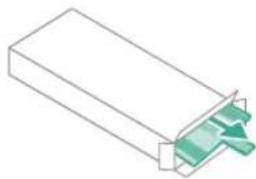
natural_image
Isometric line drawing of a rectangular block with a green internal component, no text or symbols present.XV1670/02
natural_image
Diagram of a mechanical device with internal components and airflow indicators (no text or symbols)3 Zatvorte sivú páku. Podl'a počutelného cvaknutia sa uistite, že sivá páka je na svojom mieste.
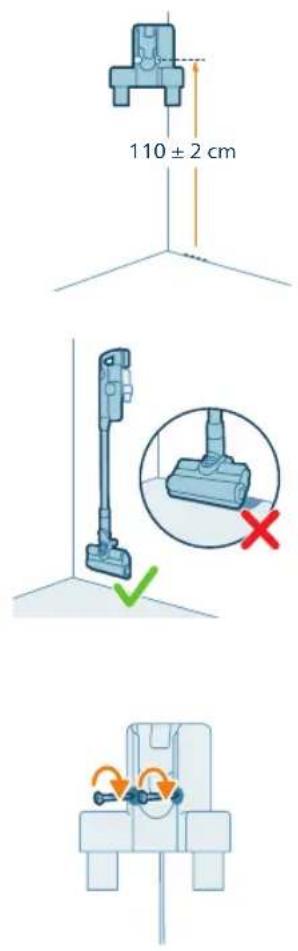
natural_image
Diagram of a medical or laboratory device with a plus button and checkmark indicating a confirmation (no text or symbols present)natural_image
Illustration of a spray gun with a magnified inset showing the impact of light (no text or symbols present)natural_image
Diagram of a mechanical device with a close-up inset showing a pipe connection (no text or symbols)natural_image
Illustration of a spray gun dispensing liquid into a tube with an arrow indicating motion (no text or symbols)natural_image
Illustration of a vacuum cleaner emitting powder from a nozzle (no text or symbols)2 Pripojte trubicu k hubici. Pripojenie overte podl'a počutelného cvaknutia.
natural_image
Illustration of a person using a vacuum cleaner on tiled floor, with arrows indicating motion (no text or symbols)natural_image
Illustration of a rubber pad with a green circular symbol and a dollar sign, placed on a patterned surface (no text or symbols)Varovanie: Nevysávajte vodu ani iné kvapaliny.
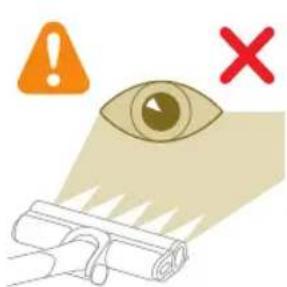
natural_image
Illustration of an eye with warning symbols (anxiety, no protection) and a cross mark, no text or labels present.natural_image
Illustration of a faucet pouring liquid into a blue container (no text or symbols)natural_image
Illustration of a mechanical component with an inset showing a close-up of its parts (no text or symbols present)natural_image
Illustration of a mechanical component being inserted into a base, with an arrow indicating the insertion direction (no text or symbols present)natural_image
Illustration of a person using a vacuum cleaner with motion arrows indicating movement (no text or symbols)natural_image
Illustration of a handheld device with liquid flowing through it (no text or symbols visible)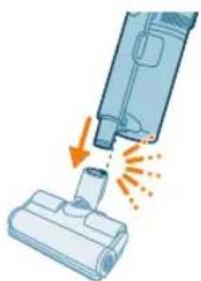
natural_image
Illustration of a vacuum cleaner emitting exhaust smoke from a bottle (no text or symbols)Používanie hubice
1 Hubicu pripojte priamo k ručnému vysávaču.
672 Slovensky
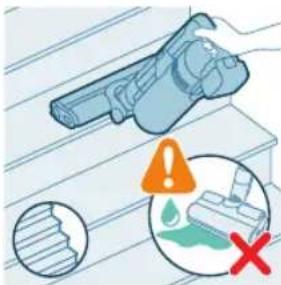
natural_image
Illustration of a vacuum cleaner emitting exhaust from a bottle (no text or symbols)natural_image
Illustration of a screwdriver and a cylindrical component (no text or symbols)natural_image
Illustration of a handheld device emitting powder from a tip, with an arrow indicating motion (no text or symbols)natural_image
Illustration of a robotic arm holding a spiderweb, with no text or symbols present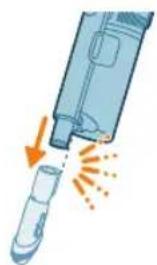
natural_image
Illustration of a handheld device emitting exhaust heat, showing internal components and airflow direction (no text or symbols)natural_image
Illustration of a laptop with a pen and eraser, no text or symbols present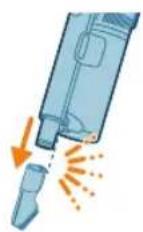
natural_image
Illustration of a medical device with a magnified inset showing a cylindrical object (no text or symbols)natural_image
Illustration of a blue vacuum cleaner emitting exhaust flames, with no text or symbols present.natural_image
Three-step diagram showing mechanical assembly steps with arrows indicating motion (no text or symbols)1 Ku kefe sa dostanete pomocou tlačidla na boku hubice. Stlačte ho a otáčaním otvorte. Jemne odstráňte kefu a bočné veko hubice.
natural_image
Illustration of a hand pressing a button on a device with an orange arrow indicating motion (no text or symbols)natural_image
Gray circular button with a white lightbulb icon and radiating lines (no text or symbols)Zmena jasu osvetlenia
natural_image
Circular icon with a white lightning bolt symbol and green '电' (electricity) text, no readable text or numbers present.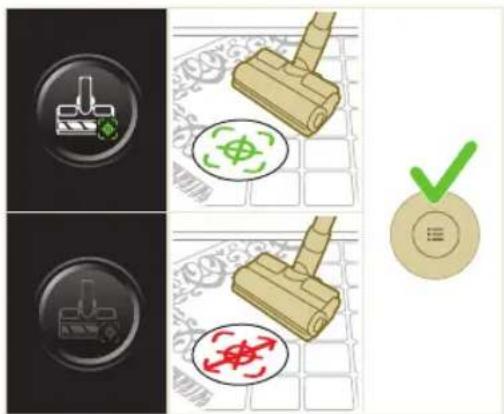
natural_image
Gray circular button with a white lowercase 'i' in the center, no additional text or symbols.

natural_image
Circular button with a white up-turn arrow icon (no text or symbols)Návrat
Po použití – údržba
natural_image
Illustration of a medical device emitting particles from a tube (no text or symbols)2 Vyberte ručný držiak vrátane nádoby na prach z trubice.
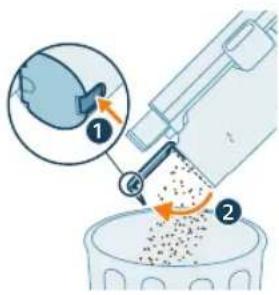
natural_image
Green mechanical component with an arrow indicating upward motion, shown on a base plate (no text or symbols)natural_image
Illustration of a pipette dispensing liquid into a green electronic component (no text or symbols visible)2 Opláchnite mopovaciu podušku pod tečúcou vodou a vyperte ju v ruke alebo v práčke.
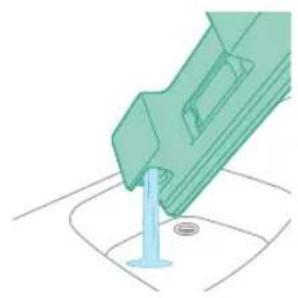
natural_image
Illustration of a green mechanical component inserted into a blue cylindrical part, with a circular base and dot on the surface (no text or symbols)natural_image
Diagram showing a mechanical device with green components and directional arrows, no text or symbols presentnatural_image
Illustration of a green mechanical component with a blue rod inserted into a square base (no text or symbols)natural_image
Illustration of a cleaning or laundry system with a green plastic bag, hanging clothes, and warning symbols (no text or labels)7 Dajte si pozor, aby ste počas skladovania nestratili veko nádoby. Mopovaciu podušku z mikrovlákna zaveste a nechajte uschnúť.
680 Slovensky
natural_image
Close-up of a beige remote control with a circular dial and plus button (no text or symbols visible)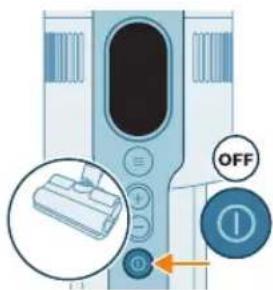
1 Vypnite spotrebič.
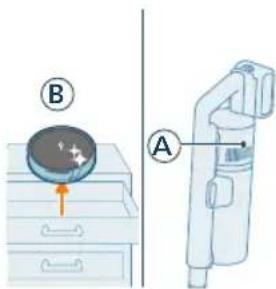
8 Umiestnite nádobu na prach spät na rukovät. Najprv zarovnajte stranu nádoby s filtrom a až potom ju upevnite na miesto.
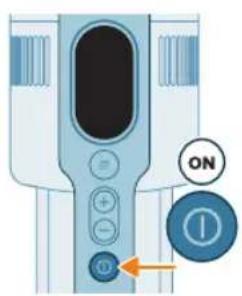
9 Zapnite spotrebič.
682 Slovensky
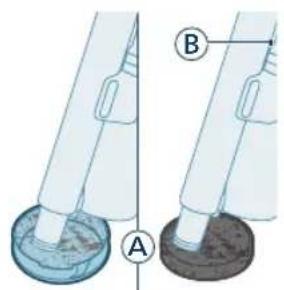
10 Znečistené puzdro filtra a penový filter (A) povysávajte.
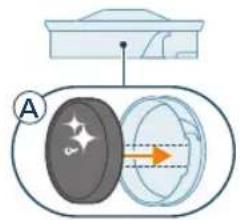
natural_image
Illustration of a hand inserting a coin into a drawer with an arrow indicating direction (no text or symbols)natural_image
Illustration of a hand using a tool to remove or brush into a trash bin (no text or symbols)natural_image
Illustration of a faucet spraying water onto a surface with two containers (no text or symbols)natural_image
Illustration of a hand cleaning a device with a magnified view (no text or symbols)6 Vyčistenú nádobu na prach a cyklón utrite dosucha.
natural_image
Illustration of a hand inserting a component into a device, with an inset showing the internal mechanism (no text or symbols present)natural_image
Illustration of a mechanical device with a lever and belt, showing a hand pressing down on a golden belt (no text or symbols)3 Jemne vyberte valček kefy a bočné veko hubice.
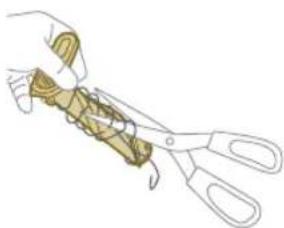
natural_image
Illustration of a hand using scissors to cut a piece of paper or tape (no text or symbols visible)natural_image
Illustration showing two-step car climbing process: one with hand placement and angle, the other with foot and ankle details (no text or symbols)natural_image
Illustration of a mechanical lever with rotational arrows indicating motion (no text or symbols)natural_image
Illustration of a hand performing a rope knot or manipulation technique on a blue cylindrical object (no text or symbols)Slovensky

natural_image
Illustration of a hand pressing down on a device with a magnifying glass (no text or symbols)natural_image
Illustration of a plastic bottle pouring liquid into a glass beaker next to a water tap (no text or symbols)natural_image
Illustration of a beaker with liquid being inverted and a water bottle beside it (no text or symbols)natural_image
Diagram showing a device with a green component and a green box, no text or symbols presentnatural_image
Illustration of a green mechanical device with a 12-hour circular arrow indicating speed (no text or symbols on the device itself)natural_image
Illustration of a green mechanical component dispensing liquid into a surface (no text or symbols)natural_image
Diagram of a green rod inserted into a transparent container with two arrows indicating direction (no text or symbols)natural_image
Illustration of a medical procedure with a pipette inserted into a green plastic tube (no text or symbols)natural_image
Technical line drawing of a mechanical component with green arrows indicating direction (no text or symbols)natural_image
Diagram of a mechanical component inside a transparent housing, showing internal components and directional arrow (no text or symbols)CP0667/01
Mopovacia poduška z mikrovlákna XV1670/02
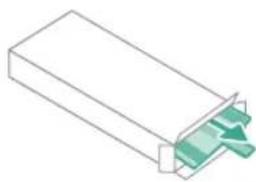
natural_image
Isometric illustration of a rectangular block with a green internal component and a small protrusion (no text or symbols)XV1670/02
natural_image
Diagram of a mechanical device with internal components and directional arrows, no readable text or symbols present.1 Okrenite zidni nosač naopačke i otkačite sivu ručicu. Postavite priključak za punjenje tako da metalni deo bude vidljiv i okrenut uspravno sa prednje strane zidnog nosača.
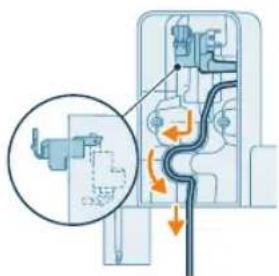
natural_image
Diagram of a mechanical or electrical component with directional arrows and a magnified inset showing internal flow (no text or symbols)natural_image
Diagram of a mechanical device with airflow indicators and a magnified inset showing internal components (no text or symbols)4 Čvrsto zakačite zidni nosač na željeni položaj na zidu i uverite se da su rupe za zavrtnje za montažu na zid udaljene približno 110 cm od poda.
A Oprez: Budite oprezni prilikom bušenja rupa u zidu za pričvršćivanje zidnog nosača kako biste izbegli opasnost od strujnog udara.
i Napomena: Uverite se da postavljanje zidnog nosača omogućava celom aparatu da visi na zidu tako da mlaznica ne dodiruje pod.
5 Kada utvrdite optimalni položaj i visinu za odlaganje i punjenje aparata, čvrsto pritegnite zavrtnje kako biste učvrstili zidni nosač.
Odlaganje dodataka na zidnom nosaču
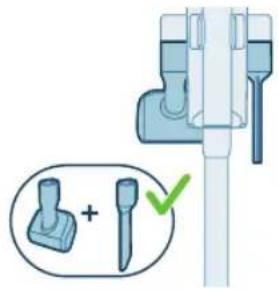
natural_image
Diagram of a medical device with a plus button and a checkmark (no text or symbols present)Svi dodaci mogu da se odlažu na zidnom nosaču, sa izuzetkom kombinovanja PetPro papučica i nastavka za tapacirani nameštaj.
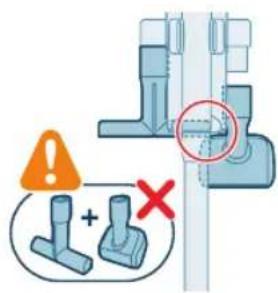
i Napomena: Pazite, jer PetPro papučica i nastavak za tapacirani nameštaj ne mogu zajedno da se odląžu na zidnom nosaču.
700 Srpski
Priprema za upotrebu
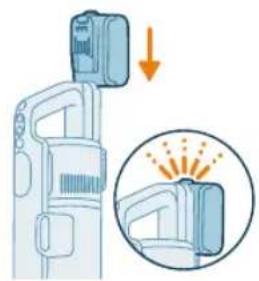
natural_image
Illustration of a spray gun with a magnified inset showing the impact of light (no text or symbols present)natural_image
Diagram of a mechanical device with a close-up inset showing a pipe connection (no text or symbols)i Napomena: Možete i da postavite dršku na ravnu i stabilnu površinu i da direktno povežete kabl za punjenje sa aparatom.
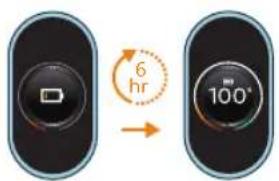
natural_image
Illustration of a spray gun dispensing liquid into a tube with an arrow indicating motion (no text or symbols)natural_image
Illustration of a robotic arm cutting a component with motion lines indicating motion (no text or symbols)2 Spojite cev sa mlaznicom. Potvrdite spajanje tako što ćete čuti klik kada postavljate.
Usisavanje podova od mekog i tvrdog materijala
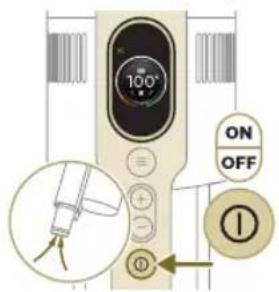
2 Pomoću dugmadi + i – prebacujte između tri različite postavke snage.
T - režim turbo
N – normalan režim
E – režim eco
702 Srpski
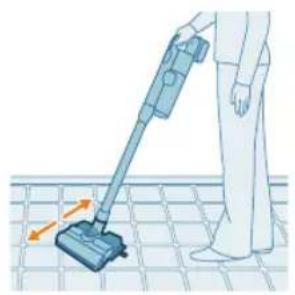
natural_image
Illustration of a person using a vacuum cleaner on tiled floor, with no text or symbols present3 Usisivačem možete čistiti tvrde ili mekane podne površine.
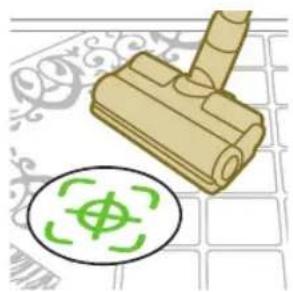
natural_image
Illustration of a rubber pad with a green circular symbol and a dollar sign, set on a patterned surface (no text or symbols)i Sa omogućenim prepoznavanjem vrste podne površine, aparat prepoznaje tip podne površine i automatski optimizuje svoj učinak unutar podešavanja snage koje ste izabrali. Da biste onemogućili ovu funkciju, u nastavku proverite kako da prilagodavate podešavanja.
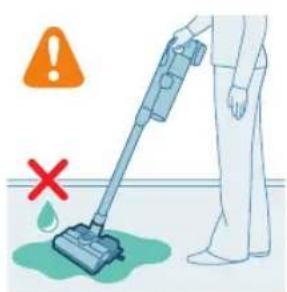
Upozorenje: Nemojte usisavati vodu niti neku drugu tečnost.
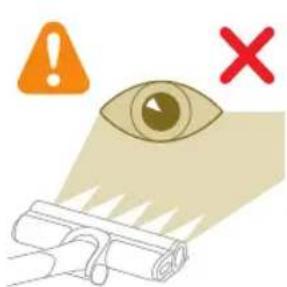
natural_image
Illustration of an eye with warning symbols (anxiety, no protection) and a cross mark, no text or labels present.A Oprez: Nemojte gledati direktno u uključene LED lampice niti usmeravati LED lampice u nečije oči. LED svetlo je vrlo blještavo.
Usisavanje tokom brisanja podova od tvrdog materijala
Oprez: Rezervoar za vodu koristite samo na tvrdim podovima s vodootpornom površinom (kao što su linoleum, pločice ili lakirani parket) i kamenim podovima (kao što je mermer). Ako vaš pod nije tretiran da postane vodootporan, proverite sa proizvodačem da li možete da koristite vodu za njegovo čišćenje. Nemojte da koristite rezervoar za vodu na tvrdim podovima na kojima je vodootporni sloj oštećen.
i Napomena: Nemojte da koristite rezervoar za vodu za čišćenje tepiha.
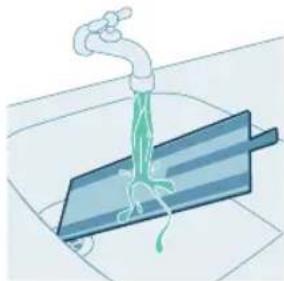
natural_image
Illustration of a faucet pouring liquid into a blue container (no text or symbols)natural_image
Illustration of a mechanical component with an inset showing a close-up of its parts (no text or symbols present)4 Pričvrstite uložak za čišćenje od mikrovlakana ispod rezervoara za vodu. Poravnajte čičak trake ispod rezervoara za vodu iza krpe.
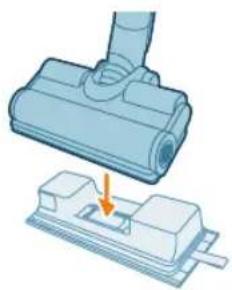
natural_image
Illustration of a mechanical component being inserted into a base, with an arrow indicating the insertion direction (no text or symbols present)natural_image
Illustration of a person using a vacuum cleaner with motion arrows indicating movement (no text or symbols)i Napomena: Vodeni modul nije pogodan za upotrebu na mekanim podovima poput tepiha.
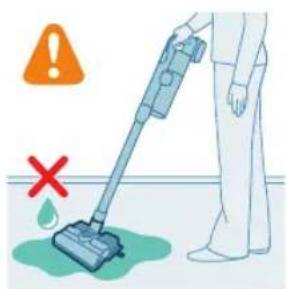
natural_image
Illustration of a blue mechanical device with a handle and base, partially submerged in water (no text or symbols visible)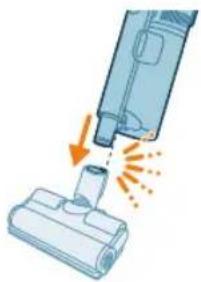
natural_image
Illustration of a vacuum cleaner emitting exhaust smoke from a bottle (no text or symbols)Korišćenje mlaznice
Korišćenje PetPro papučice
PetPro papučica efikasno uklanja dlake kućnih ljubimaca i male nerede poput mrvica, a idealna je za meke površine kao što su kreveti i kaučevi.
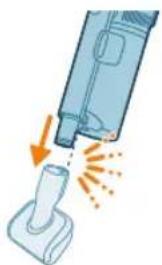
natural_image
Illustration of a vacuum cleaner emitting exhaust smoke from a bottle (no text or symbols)Za pričvršćivanje PetPro papučice umetnite cev drške u PetPro papučicu. Postavku snage možete prilagoditi tako da odgovara vašim potrebama za čišćenje.
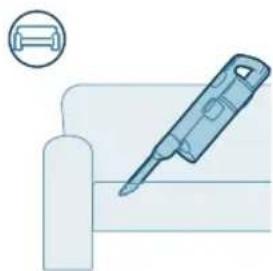
natural_image
Illustration of a screwdriver and a cylindrical component (no text or symbols)natural_image
Illustration of a handheld device emitting exhaust heat, showing airflow direction (no text or symbols)Za pričvršćivanje nastavka za uske površine umetnite u njega cev ili dršku.
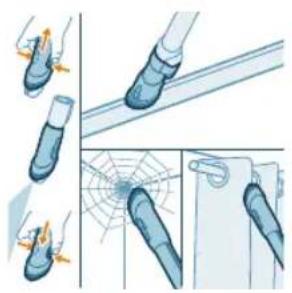
natural_image
Illustration of a spiderweb being held by two hands, showing structural changes (no text or symbols)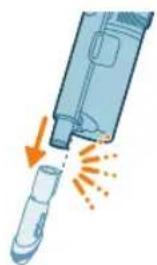
natural_image
Illustration of a hand holding a pen or tool with an arrow indicating motion (no text or symbols)Upotreba kombinovanog nastavka
natural_image
Illustration of a laptop with a pen and eraser, no text or symbols present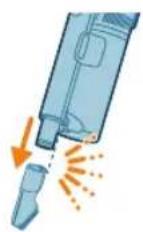
Za pričvršćivanje mekane četke, umetnite cev ili dršku u mekanu četku.
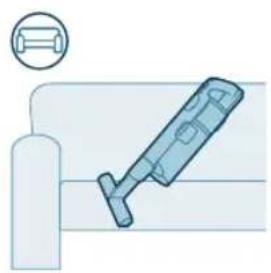
natural_image
Illustration of a medical device with a magnified inset showing a cylindrical object (no text or symbols)Upotreba nastavka za tapacirani nameštaj
Dodatak za tapacirane površine čisti nameštaj od meke tkanine kao što su sofe, jastuci i stolice. Uključeno je na modelima XC7065, XC7067 i XC7167.
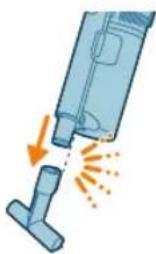
natural_image
Illustration of a vacuum cleaner emitting exhaust flames (no text or symbols)Za pričvršćivanje nastavka za tapacirani nameštaj, umetnite u njega cev ili dršku.
Korišćenje četke za delikatne podove
Četka za delikatne podove je meka četka sa sivim i narandžastim materijalom i može se koristiti za nežno čišćenje delikatnih tipova tvrdih podova kao što su pluta, tvrdo drvo i prirodni kamen. Uključena je u XC7067.
Da biste zamenili četku, pratite uputstva ispod:
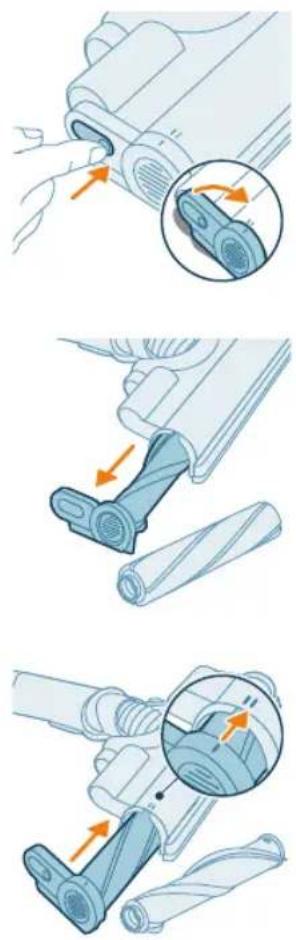
1 Da biste pristupili četki, pronadite dugme sa strane papučice. Pritisnite ga i okrenite da biste otvorili. Nežno skinite četku i bočni poklopac papučice.
natural_image
Illustration of a hand pressing a button on a device with an orange arrow indicating motion (no text or symbols)natural_image
Gray circular icon with a white lightbulb symbol and radiating lines, representing an idea or illumination (no text or symbols)Izmena jačine osvetljenosti
Pritisnite dugme menija i krećite se do funkcije osvetljenja. Potvrdite ponovnim pritiskanjem dugmeta menija.
Da biste izmenili jačinu osvetljenja, krećite se kroz dostupne nivoe i potvrdite pritiskom na dugme menija.
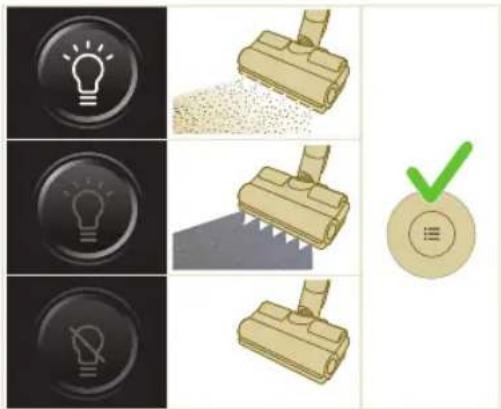
Prepoznavanje vrste poda
Pritisnite dugme menija i krećite se do prepoznavanja vrste poda. Potvrdite ponovnim pritiskanjem dugmeta menija.
U ekranu za prepoznavanje vrste poda, krećite se kroz ovu funkciju i potvrdite odluku pritiskom na dugme menija. Kada je uspešno omogućeno, zelena ikona će se pojaviti u gornjem levom uglu ekrana nakon što se vratite na glavni ekran.

natural_image
Circular icon with a white lightning bolt symbol and green '电' (electricity) text, no readable text or numbers present.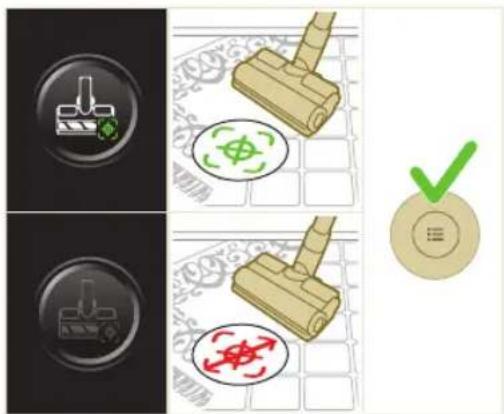
i Napomena: Prepoznavanje vrste poda može biti omogućeno ili onemogućeno samo kada je motorizovana mlaznica spojena za dršku. Kao rezultat toga, kada motorizovana papučica u kombinaciji sa glavnom četkom nije spojena za glavni aparat, u meniju će se nalaziti jedna stavka manje. Pričvrstite motorizovanu mlaznicu kako biste videli ovu stavku za prepoznavanje vrste poda u meniju.
i Napomena: Kada dobijete uređaj, prepoznavanje vrste poda je omogućeno.
i Napomena: Funkcija prepoznavanja vrste poda postaje aktivna kada mlaznica tokom kretanja identifikuje različite vrste podnih površina.
i Prepoznavanje tipa poda ne radi u kombinaciji sa četkom za delikatne podove (uključena u model XC7067).
Dodatne informacije
Pritisnite dugme menija i krećite se do opcije „dodatne informacije“. Potvrdite ponovnim pritiskanjem dugmeta menija.
Na ekranu „dodatne informacije“ možete proveriti ispravnost filtera, ispravnost baterije, ukupno vreme korišćenja, model aparata i pristupiti QR kodu za dodatne informacije na internetu.

natural_image
Gray circular button with a white lowercase 'i' in the center, no additional text or symbols.
Vraćanje
natural_image
Circular button with a white up-turn arrow icon (no text or symbols)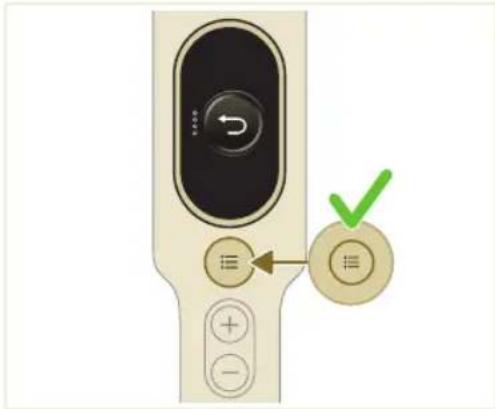
Nakon korišćenja – Održavanje
natural_image
Illustration of a syringe emitting orange light from a pipe (no text or symbols)2 Izvadite dršku, uključujući posudu za prašinu iz cevi.
712 Srpski
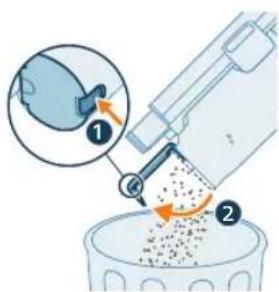
3 Držite posudu za prašinu iznad kante za smeće i pritisnite dugme za jednostavno pražnjenje (1) da biste ispraznili posudu (2).
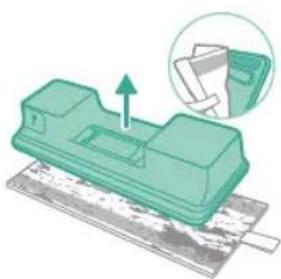
natural_image
Green mechanical component with a paper sheet base and an arrow indicating upward motion, inset shows a magnified view of the paper (no text or symbols)natural_image
Illustration of a pipette dispensing liquid onto a green circuit board (no text or symbols visible)2 Isperite i uložak za čišćenje ispod česme i ga operite ga ručno ili u mašini za pranje veša.
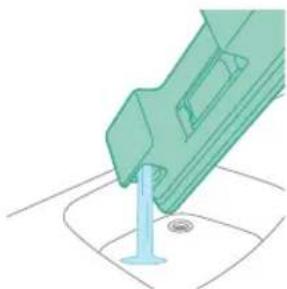
natural_image
Illustration of a green mechanical component dispensing liquid into a small circular object on a surface (no text or symbols)natural_image
Diagram showing a device with a green component and a green mechanical component, both connected by a diagonal line (no text or symbols)5 Pravilno zatvorite rezervoar za vodu i protresite ga kako biste uklonili ostatke deterdženta.
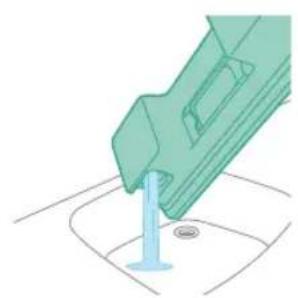
natural_image
Illustration of a green mechanical component inserted into a blue cylindrical part, with no visible text or symbols.6 Ispraznite rezervoar za vodu i ostavite da otvorenog da se osuši.
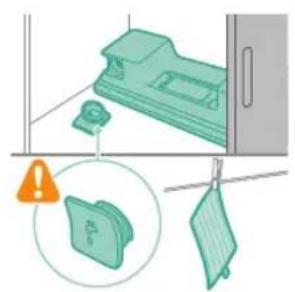
natural_image
Illustration of a mechanical device with a warning icon and a magnified inset showing a folder (no text or symbols present)7 Uverite se da čep nije odvrnut tokom odlaganja. Okačite uložak za čišćenje od mikrovlakana da se osuši.
Povremeno održavanje
Čišćenje filtera
natural_image
Close-up of a beige electronic device control panel with a circular dial and indicator buttons (no readable text or symbols)714 Srpski
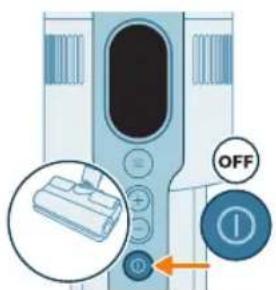
1 Isključite aparat.
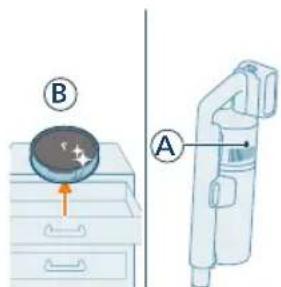
3 Uklonite posudu pritiskom dugmeta za otpuštanje posude.
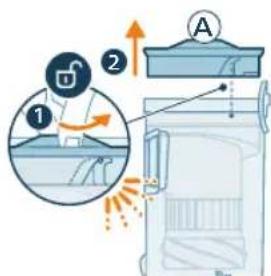
4 Okrenite filter (A) u smeru suprotnom od kretanja kazaljke na satu da biste ga odvojili od posude za prašinu.
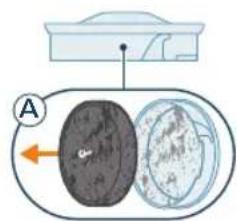
7 Postavite čisti filter (B) u posudu za prašinu. Okrenite filter u smeru suprotnom od kretanja kazaljki na satu kako biste ga pričvrstili.
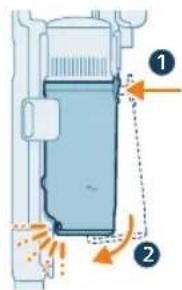
8 Postavite posudu za prašinu nazad na dršku. Prvo poravnajte stranu filtera posude pre nego što je zakačite na mesto.
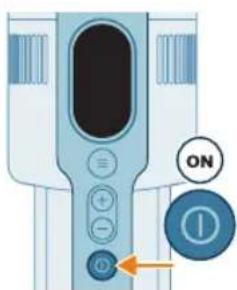
9 Uključite aparat.

10 Usisajte zaprljano kućište filtera i filter od pene (A).
Srpski
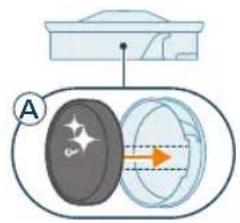
11 Ponovo sastavite čisti filter od pene (A) u čistom kućištu filtera.
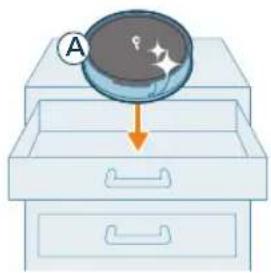
natural_image
Illustration of a magnifying glass pouring liquid into a drawer (no text or symbols)i Napomena: Filter (A) je sada temeljno očišćen i može se odložiti za buduću upotrebu kada je potrebno očistiti trenutni filter (B).
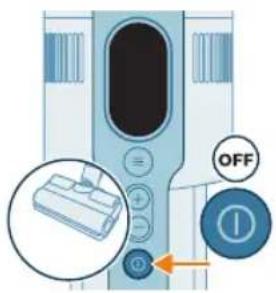
Čišćenje posude i ciklonske komore
1 Isključite aparat.
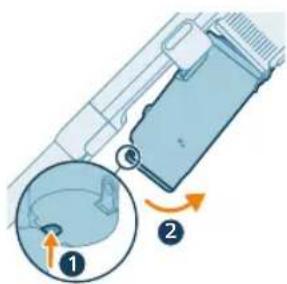
2 Uklonite posudu pritiskom dugmeta za otpuštanje posude.
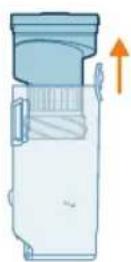
natural_image
Illustration of a hand using a tool to remove granular material from a trash bin (no text or symbols)4 Istresite ciklonsku komoru iznad kante za otpatke da biste uklonili preostalu prašinu i prljavštinu.
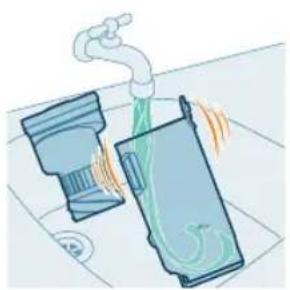
natural_image
Illustration of two industrial tanks emitting steam from a piping bag (no text or symbols)5 Za temeljno održavanje, očistite posudu za prašinu i ciklonsku komoru pod mlazom tekuće vode ili u toploj vodi sa sapunicom.
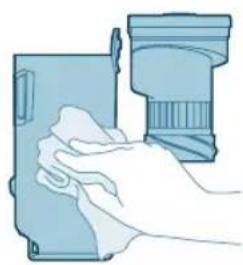
natural_image
Illustration of a hand cleaning a device with a magnified view of the lid (no text or symbols)6 Brisanjem osušite očišćenu posudu za prašinu i ciklonsku komoru.
8 Vratite sklopljenu posudu. Prvo poravnajte stranu sa filterom na posudi pre nego što je zakačite.
Napomena: Nakon održavanja, pre upotrebe uvek proverite da li je filter u aparatu sklopljen.
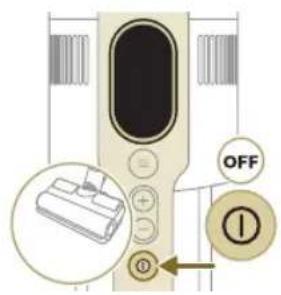
Održavanje PrecisionPower pametne mlaznice
1 Uvek isključite aparat pre nego čišćenja valjkaste četke mlaznice.
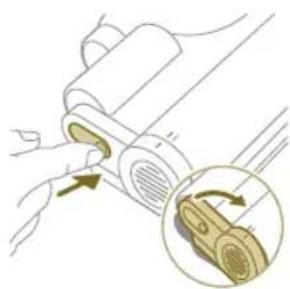
natural_image
Illustration of a hand inserting a component into a device, with an inset showing a close-up of the component (no text or symbols present)2 Da biste pristupili valjkastoj četki, pronadite dugme sa strane mlaznice. Pritisnite ga i okrenite da biste otvorili.
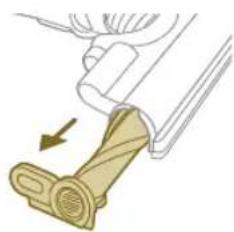
natural_image
Diagram of a mechanical device with a lever and handle, showing motion direction (no text or symbols)3 Nežno skinite valjkastu četku i bočni poklopac mlaznice.
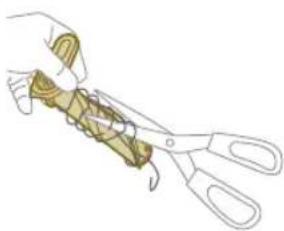
natural_image
Illustration of a hand using scissors to cut a piece of paper or tape (no text or symbols visible)4 Pažljivo otkačite svu zapetljanu kosu sa valjkaste četke. Makazama možete olakšati uklanjanje prljavštine.
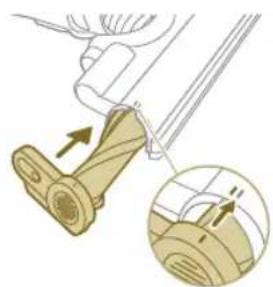
natural_image
Illustration of a mechanical component with an arrow indicating direction, showing a close-up of a pin or lever mechanism (no text or symbols present)5 Prilikom ponovnog sklapanja, uverite se da je valjkasta četka pravilno poravnata.
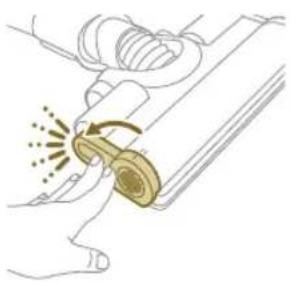
natural_image
Illustration of a hand using a tool to lift a car wheel (no text or symbols)natural_image
Illustration of a mechanical component with rotational arrows indicating motion (no text or symbols)Održavanje PetPro papučice
natural_image
Illustration of a hand tying a rope knot around a rolled-up cable (no text or symbols)3 Rukama ili makazama uklonite svu prljavštinu sa četke.
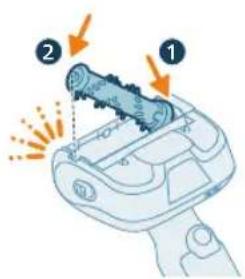
4 Prilikom ponovnog sklapanja četke, počnite tako što ćete postaviti jednu stranu u položaj pre nego što zakačite drugu stranu. Kada je četka pravilno sklopljena, čućete zvuk klika.
720 Srpski
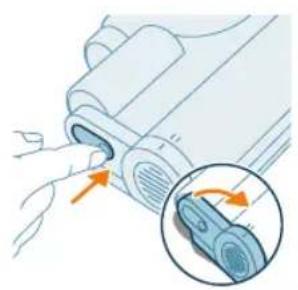
natural_image
Illustration of a hand inserting a component into a device, with an inset showing the internal structure (no text or symbols)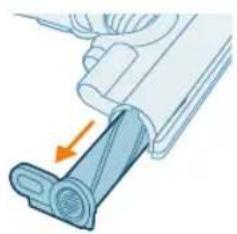
natural_image
Diagram of a mechanical component with a blue lever and orange arrow indicating force or direction (no text or symbols)Održavanje četke za delikatne podove (za XC7067)
1 Da biste pristupili četki, pronadite dugme sa strane papučice. Pritisnite ga i okrenite da biste otvorili. Nežno skinite četku i bočni poklopac papučice.
2 Snažno izvucite četku iz bočnog poklopca.
3 Pažljivo otkačite svu zapetljanu kosu sa valjkaste četke. Makazama možete olakšati uklanjanje prljavštine.
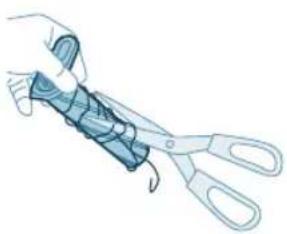
natural_image
Illustration of a hand using scissors to cut a cylindrical object (no text or symbols visible)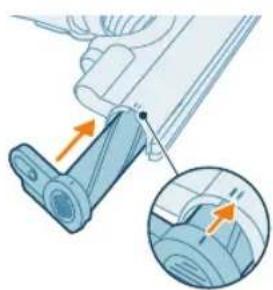
natural_image
Mechanical assembly diagram showing a lever mechanism with an inset close-up of the component (no text or symbols)4 Snažno umetnite četku nazad na bočni poklopac i proverite da li je četka čvrsto postavljena. Prilikom ponovnog sklapanja, uverite se da je četka pravilno poravnata.
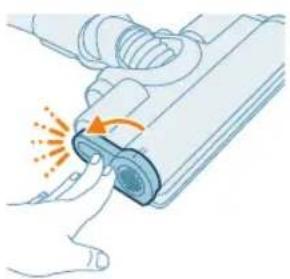
natural_image
Illustration of a hand pressing a button on a device with a circular motion indicator (no text or symbols)natural_image
Illustration of a plastic bottle pouring liquid from a water bottle into a beaker, next to a vertical diagram showing a faucet and a plastic bottle (no text or symbols)natural_image
Illustration of a beaker with liquid being inverted and a water dispenser with a bottle beside it (no text or symbols)2 Dodajte odgovarajuću količinu vode u posudu za merenje.
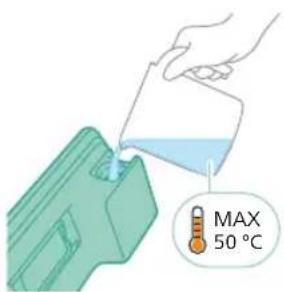
natural_image
Diagram showing a mechanical assembly with green arrows indicating motion or force direction (no text or symbols)4 Pravilno zatvorite rezervoar za vodu pre nego što ga protresete kako bise tečnost za uklanjanje kamenca ravnomerno rasporedila.
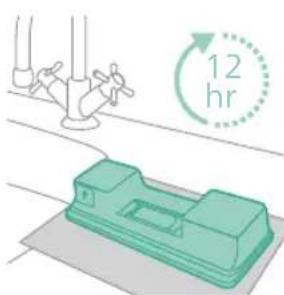
natural_image
Illustration of a hand valve and a green mechanical device with a 12-hour cycle indicator (no text or symbols on the device itself)5 Ostavite rezervoar za vodu (bez uloška za čišćenje od mikrovlakana) u uspravnom položaju 12 sati. Očekuje se da voda polako curi iz donjeg dela rezervoara za vodu. Preporučujemo da postavite rezervoar za vodu u lavabo ili na krpu.
722 Srpski
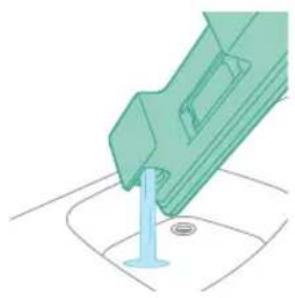
natural_image
Illustration of a green mechanical component inserted into a base, with no visible text or symbols.6 Isperite i uklonite preostalu tečnost u rezervoaru za vodu.
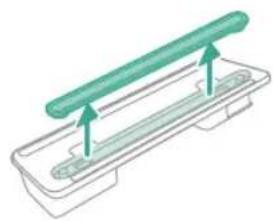
natural_image
Diagram of a green rod placed on a rectangular tray with two side supports (no text or symbols)natural_image
Illustration of a medical procedure with a pipette inserted into a green plastic band (no text or symbols)2 Isperite traku za vodu pod mlazom vode.
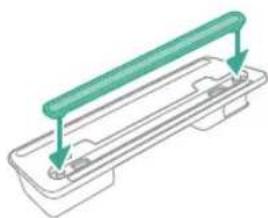
natural_image
Diagram of a mechanical component with green and gray parts, no text or symbols present3 Nakon čišćenja vratite traku za vodu u rezervoar za vodu.
Zamena
natural_image
Diagram of a mechanical component inside a transparent housing, showing a cylindrical part inserted into a housing (no text or symbols)CP0667/01
natural_image
Isometric illustration of a rectangular block with a green internal component and a small arrow pointing to it (no text or symbols)XV1670/02
Traka za vodu CP0381/01
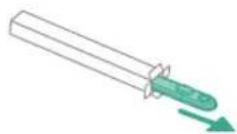
CP0381/01
www.philips.com/mycordlessvacuum-7000s.
Yleiskuvaus
natural_image
Diagram of a mechanical device with internal components and airflow indicators (no text or symbols)natural_image
Illustration of a spray gun with a magnified inset showing the impact of light (no text or symbols present)natural_image
Illustration of a mechanical device with a close-up inset showing a pipe connection (no text or symbols)natural_image
Illustration of a spray gun dispensing liquid into a tube with an arrow indicating motion (no text or symbols)natural_image
Illustration of a robotic arm cutting a component with motion lines indicating motion (no text or symbols)natural_image
Illustration of a person using a vacuum cleaner on tiled floor (no text or symbols)natural_image
Illustration of a mechanical component with a circular green symbol and a magnified inset showing a crosshair (no text or symbols present)natural_image
Illustration of an eye with warning symbols (anxiety, no protection) and a red X mark, no text or labels present.natural_image
Illustration of a faucet pouring liquid into a blue container with green liquid, no text or symbols presentnatural_image
Illustration of a mechanical component with arrows indicating direction, no text or symbols presentnatural_image
Illustration of a mechanical component being inserted into a housing (no text or symbols visible)natural_image
Illustration of a mechanical device emitting powder from a surface (no text or symbols)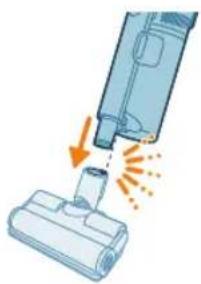
natural_image
Illustration of a vacuum cleaner emitting exhaust smoke from a bottle (no text or symbols)natural_image
Illustration of a vacuum cleaner emitting exhaust smoke from a nozzle (no text or symbols)natural_image
Illustration of a screwdriver and a cylindrical component (no text or symbols)natural_image
Illustration of a handheld electronic device emitting exhaust flames (no text or symbols)natural_image
Illustration of a spiderweb being held by two hands, showing structural changes (no text or symbols)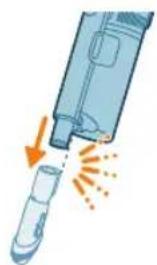
natural_image
Illustration of a hand holding a pen or tool with an arrow indicating motion (no text or symbols)natural_image
Illustration of a laptop with a pen and eraser, no text or symbols present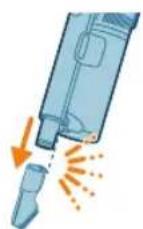
natural_image
Illustration of a medical device with a magnified inset showing a cylindrical object (no text or symbols)natural_image
Illustration of a vacuum cleaner emitting exhaust flames, showing airflow direction (no text or symbols)natural_image
Illustration of a hand pressing a button on a device with an orange arrow indicating motion (no text or symbols)natural_image
Gray circular icon with a white lightbulb symbol and radiating lines, representing an idea or illumination (no text or symbols)natural_image
Circular icon with a white lightning bolt symbol and green '电' (electricity) text, no readable text or numbers present.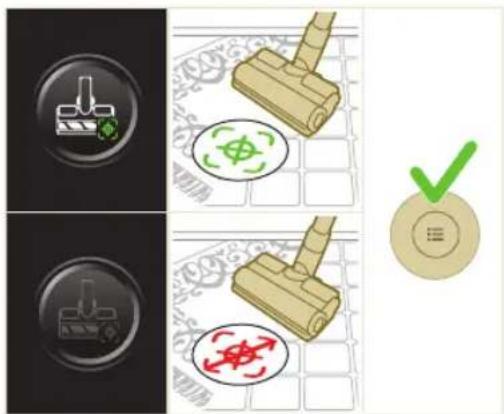
natural_image
Gray circular button with a white lowercase 'i' in the center, no additional text or symbols.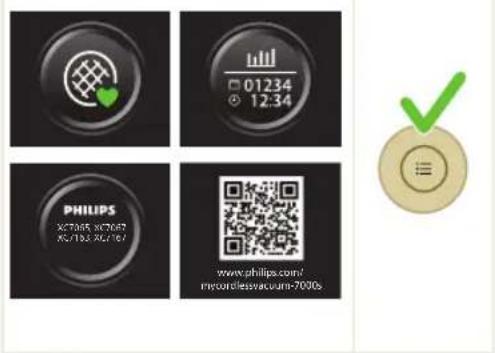
Palaa
natural_image
Circular button with a white up-turn arrow icon (no text or symbols)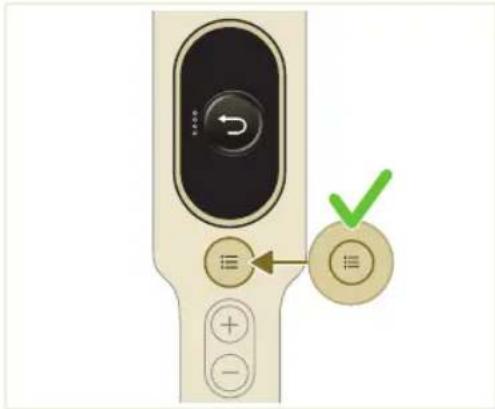
natural_image
Illustration of a medical device emitting particles from a tube (no text or symbols)natural_image
Green mechanical component with a paper holder and an arrow indicating upward motion, no text or symbols present.natural_image
Illustration of a pipette dispensing liquid into a green electronic component (no text or symbols visible)natural_image
Illustration of a green mechanical component inserted into a blue cylindrical part, with a small circular base and a central hole (no text or symbols)natural_image
Diagram showing a mechanical device with green components and directional arrows, no text or symbols presentnatural_image
Illustration of a green mechanical component with a blue rod inserted into a square base (no text or symbols)natural_image
Illustration of a cleaning or laundry system with a green plastic bag, hanging clothes, and warning symbols (no text or labels)natural_image
Close-up of a beige electronic device control panel with a circular dial and plus button (no readable text or symbols)natural_image
Illustration of a hand holding a circular object with a starburst effect, placed on a drawer with arrows indicating direction (no text or symbols)natural_image
Illustration of a hand pouring granular material into a trash bin (no text or symbols)natural_image
Illustration of two containers with a pipe and swirling green liquid, no text or symbols presentnatural_image
Illustration of a hand cleaning a device with a magnified view of the lid (no text or symbols)natural_image
Illustration of a hand inserting a component into a device, with an inset showing the internal mechanism (no text or symbols present)natural_image
Illustration of a mechanical device with a lever and belt, showing a hand pressing down on a golden belt (no text or symbols)natural_image
Illustration of a hand using scissors to cut a piece of wood (no text or symbols)natural_image
Illustration showing two-step car seat mounting technique: one with a hand holding a seatbelt, the other with a hand adjusting a seatbelt (no text or symbols present)natural_image
Illustration of a mechanical lever with rotational arrows indicating motion (no text or symbols)natural_image
Illustration of a hand performing a rope knot or manipulation technique on a rolled-up cable (no text or symbols)Suomi

natural_image
Illustration of a hand pressing down on a device with a magnifying glass (no text or symbols)natural_image
Illustration of a plastic bottle pouring liquid into a glass beaker next to a water tap (no text or symbols)natural_image
Illustration of a beaker with liquid being inverted and a water bottle connected to a wall (no text or symbols)natural_image
Diagram showing a device with a green component and a green box, no text or symbols presentnatural_image
Diagram of a mechanical component inside a transparent housing, showing a rolled part being inserted (no text or symbols)CP0667/01
Mikrokuitumoppi XV1670/02
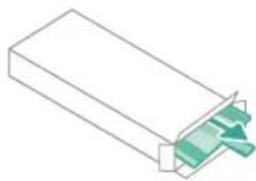
natural_image
Isometric illustration of a rectangular block with a green internal component, no text or symbols present.XV1670/02
Vesiliuska CP0381/01

CP0381/01
www.philips.com/mycordlessvacuum-7000s.
Allmän beskrivning
1 Digital skärm
natural_image
Diagram of a mechanical device with internal components and airflow indicators (no text or symbols)natural_image
Illustration of a spray gun with a magnified inset showing the impact of light (no text or symbols present)natural_image
Diagram of a mechanical device with a close-up inset showing a pipe connection (no text or symbols)natural_image
Illustration of a spray gun dispensing liquid into a tube with an arrow indicating motion (no text or symbols)natural_image
Illustration of a robotic arm cutting a component with motion lines indicating motion (no text or symbols)natural_image
Illustration of a person using a vacuum cleaner on tiled floor (no text or symbols)natural_image
Illustration of a wooden stamping tool with a green circular symbol and a compass icon, set against a patterned background (no text or symbols)natural_image
Illustration of an eye with a warning sign and a red X mark, no text or symbols presentnatural_image
Illustration of a faucet spraying liquid into a blue container (no text or symbols)natural_image
Illustration of a mechanical component with arrows indicating force or movement, no text or symbols presentnatural_image
Illustration of a mechanical component being inserted into a base, with an arrow indicating the insertion direction (no text or symbols present)natural_image
Illustration of a person using a vacuum cleaner with motion arrows indicating movement (no text or symbols)natural_image
Illustration of a mechanical device with a handle and base, partially submerged in liquid (no text or symbols visible)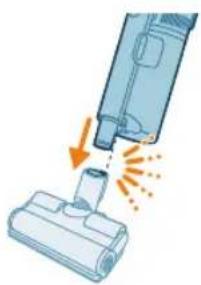
natural_image
Illustration of a vacuum cleaner emitting exhaust smoke from a bottle (no text or symbols)Använda munstycket
natural_image
Illustration of a vacuum cleaner emitting exhaust smoke from a bottle (no text or symbols)natural_image
Illustration of a screwdriver and a cylindrical component (no text or symbols)natural_image
Illustration of a handheld device emitting exhaust heat, showing airflow direction (no text or symbols)natural_image
Illustration of a spiderweb being held by two hands, showing structural changes (no text or symbols)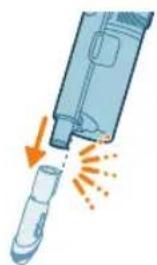
natural_image
Illustration of a handheld device emitting exhaust heat, showing internal components and airflow direction (no text or symbols)natural_image
Illustration of a laptop with a pen inserted, no text or symbols present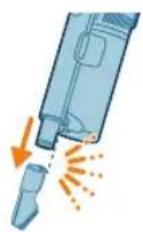
natural_image
Illustration of a medical device with a magnified inset showing a cylindrical object (no text or symbols)natural_image
Illustration of a vacuum cleaner emitting exhaust flames (no text or symbols)natural_image
Three-step diagram showing mechanical assembly steps with arrows indicating motion (no text or symbols)natural_image
Illustration of a hand pressing a button on a device with an orange arrow indicating motion (no text or symbols)natural_image
Gray circular button with a white lightbulb icon and radiating lines (no text or symbols)natural_image
Circular icon with a white lightning bolt symbol and green '电' (electricity) text, no readable text or numbers present.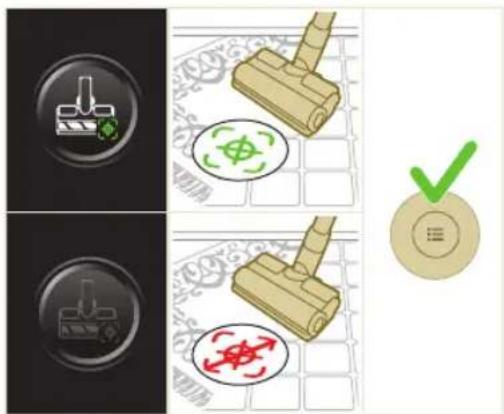
natural_image
Gray circular button with a white lowercase 'i' in the center, no additional text or symbols.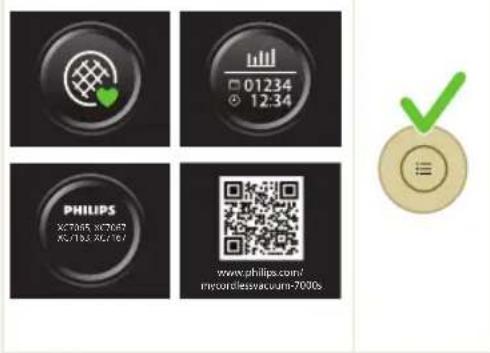
Retur
natural_image
Circular button with a white up-turn arrow icon (no text or symbols)
natural_image
Illustration of a syringe emitting orange light from a pipe (no text or symbols)natural_image
Green mechanical component with an arrow indicating upward motion, placed on a textured base (no text or symbols visible)natural_image
Illustration of a pipette dispensing liquid onto a green circuit board (no text or symbols visible)natural_image
Illustration of a green mechanical component dispensing liquid into a small cylindrical object (no text or symbols visible)natural_image
Diagram showing a device with a green component and a green mechanical component, both connected by a diagonal line (no text or symbols)natural_image
Illustration of a green mechanical component inserted into a blue cylindrical part, with no visible text or symbols.natural_image
Illustration of a mechanical device with a warning icon and hanging sheet, no text or symbols presentnatural_image
Close-up of a beige remote control with a black dial and circular button (no visible text or symbols)782
Svenska
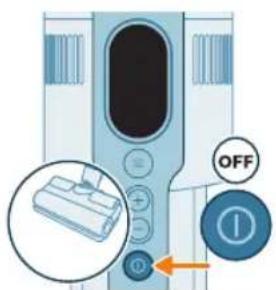
natural_image
Illustration of a magnifying glass pouring liquid into a drawer (no text or symbols)natural_image
Illustration of a hand using a tool to lift a trash bin with granular material (no text or symbols)natural_image
Illustration of two industrial equipment with a pipe and fan emitting steam (no text or symbols)natural_image
Illustration of a hand cleaning a blue cylindrical object with a cloth (no text or symbols)natural_image
Illustration of a hand inserting a component into a device, with an inset showing a close-up of the component (no text or symbols present)natural_image
Diagram of a mechanical device with a lever and handle, showing motion direction (no text or symbols)natural_image
Illustration of a hand using scissors to cut a piece of paper or tape (no text or symbols visible)natural_image
Illustration of a mechanical component with an arrow indicating motion, showing a close-up view of the base and end (no text or symbols)natural_image
Illustration of a hand using a tool to lift a car wheel (no text or symbols)natural_image
Illustration of a mechanical component with rotational arrows indicating motion (no text or symbols)natural_image
Illustration of hands tying a rope knot around a rolled-up cable (no text or symbols)natural_image
Illustration of a plastic bottle pouring liquid from a water bottle into a beaker, next to a vertical diagram showing a faucet and a plastic bottle (no text or symbols)natural_image
Illustration of a beaker with liquid being inverted and a water dispenser with a bottle beside it (no text or symbols)natural_image
Diagram showing a mechanical assembly with green arrows indicating motion or force direction (no text or symbols)natural_image
Illustration of a green plastic tool inserted into a blue cylindrical component, with a small circular base and a dot on the surface (no text or symbols)natural_image
Diagram of a green rod inserted into a rectangular container with two side supports (no text or symbols)natural_image
Illustration of a medical procedure with a pipette inserted into a green plastic band (no text or symbols)natural_image
Diagram of a mechanical assembly with a green rod and two gray components, no text or symbols presentnatural_image
Diagram of a mechanical component inside a transparent housing, showing a lever and force arrow (no text or symbols)CP0667/01
Mikrofibermoppdyna XV1670/02
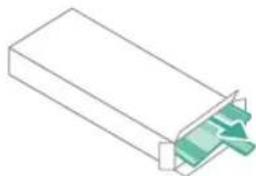
natural_image
Isometric line drawing of a rectangular block with a green internal component, no text or symbols present.XV1670/02
Vattendoserare CP0381/01
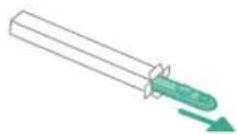
CP0381/01
natural_image
Diagram of a mechanical device with internal components and airflow indicators (no text or symbols)natural_image
Illustration of a spray gun with a magnified inset showing the impact of light (no text or symbols present)natural_image
Diagram of a mechanical device with a close-up inset showing a pipe connection (no text or symbols)natural_image
Illustration of a spray gun dispensing liquid into a tube with an arrow indicating motion (no text or symbols)natural_image
Illustration of a robotic arm cutting a component with motion lines indicating motion (no text or symbols)natural_image
Illustration of a person using a vacuum cleaner on tiled floor (no text or symbols)natural_image
Illustration of a mechanical component with a green circular symbol and a dollar sign, set against a patterned background (no text or symbols)natural_image
Illustration of an eye with warning symbols (anxiety, no protection) and a cross mark, no text or labels present.natural_image
Illustration of a faucet pouring liquid into a blue rectangular container (no text or symbols)natural_image
Illustration of a mechanical component with an inset showing a close-up of its parts (no text or symbols present)natural_image
Illustration of a mechanical component being inserted into a base, with an arrow indicating the insertion direction (no text or symbols present)natural_image
Illustration of a person using a vacuum cleaner with motion arrows indicating movement (no text or symbols)natural_image
Illustration of a mechanical device with a handle and base, partially submerged in liquid (no text or symbols visible)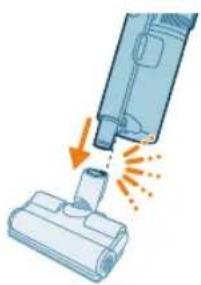
natural_image
Illustration of a vacuum cleaner emitting exhaust smoke from a bottle (no text or symbols)Başlığı kullanma
natural_image
Illustration of a vacuum cleaner emitting exhaust smoke from a nozzle (no text or symbols)natural_image
Illustration of a screwdriver and a cylindrical component (no text or symbols)natural_image
Illustration of a handheld electronic device emitting exhaust flames (no text or symbols)natural_image
Illustration of a spiderweb being held by two hands, showing structural changes (no text or symbols)natural_image
Illustration of a handheld device emitting exhaust heat, showing internal components and airflow direction (no text or symbols)natural_image
Illustration of a laptop with a pen and eraser, no text or symbols presentnatural_image
Illustration of a medical device with a magnified inset showing a cylindrical object (no text or symbols)natural_image
Illustration of a vacuum cleaner emitting exhaust flames (no text or symbols)natural_image
Three-step diagram showing mechanical assembly steps with arrows indicating motion (no text or symbols)natural_image
Illustration of a hand pressing a button on a device with an orange arrow indicating motion (no text or symbols)natural_image
Gray circular button with a white lightbulb icon and radiating lines (no text or symbols)Zemin Türü Tanıma
natural_image
Circular icon with a white lightning bolt symbol and green '电' (electricity) text, no readable text or numbers present.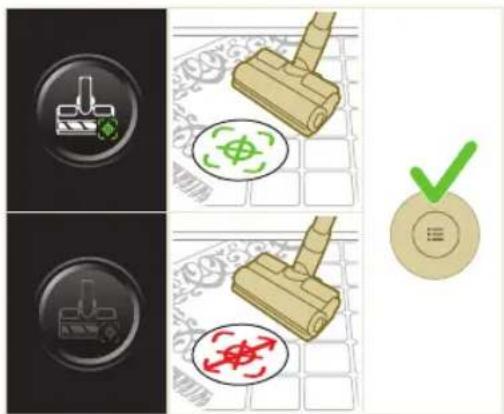
natural_image
Gray circular button with a white lowercase 'i' in the center, no additional text or symbols.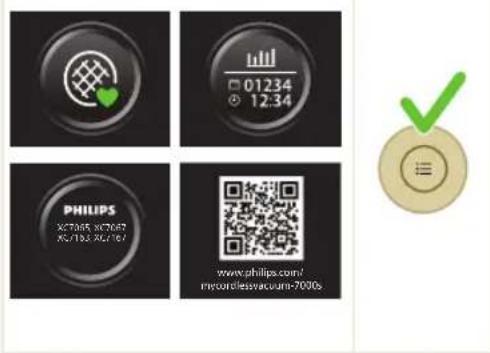
Geri Dön
natural_image
Circular button with a white up-turn arrow icon (no text or symbols)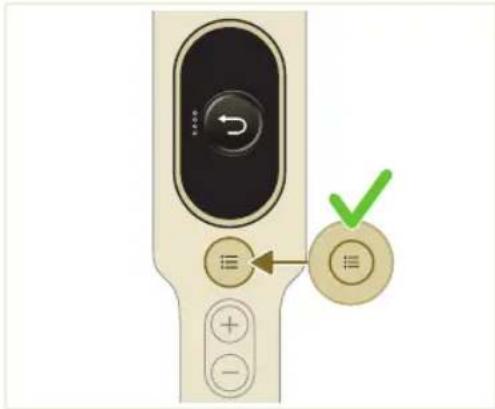
natural_image
Illustration of a syringe emitting orange light from a pipe (no text or symbols)natural_image
Green mechanical component with an arrow indicating upward motion, shown on a metal base (no text or symbols)Su haznesi bakımı
natural_image
Illustration of a pipette dispensing liquid onto a green circuit board (no text or symbols visible)natural_image
Illustration of a green mechanical component inserted into a fluid container with a circular hole (no text or symbols)natural_image
Diagram showing a device with a green component and a green mechanical component, both connected by a diagonal line (no text or symbols)natural_image
Illustration of a green mechanical component inserted into a blue cylindrical part, with no visible text or symbols.natural_image
Illustration of a mechanical device with a warning icon and hanging sheet, no text or symbols presentnatural_image
Close-up of a beige electronic device control panel with a circular dial and indicator buttons (no readable text or symbols)Filtreyi temizleme
natural_image
Illustration of a magnifying glass inspecting a drawer with arrows indicating process (no text or symbols)natural_image
Illustration of a hand using a tool to remove granular material from a trash bin (no text or symbols)natural_image
Illustration of two containers with a pipe and swirling green liquid, no text or symbols presentnatural_image
Illustration of a hand cleaning a blue device with a magnified view of the lid (no text or symbols)natural_image
Illustration of a hand inserting a component into a device, with an inset showing the internal structure (no text or symbols)natural_image
Diagram of a mechanical device with a lever and handle, showing motion direction (no text or symbols)natural_image
Illustration of a hand using scissors to cut a piece of paper or tape (no text or symbols visible)natural_image
Illustration of a mechanical component with an arrow indicating motion, showing a close-up view of the end (no text or symbols present)natural_image
Illustration of a hand using a tool to lift a car wheel (no text or symbols)natural_image
Illustration of a mechanical component with rotational arrows indicating motion (no text or symbols)natural_image
Illustration of a hand tying a rope knot around a rolled-up cable (no text or symbols)natural_image
Illustration of a hand inserting a component into a device, with an inset showing the internal structure (no text or symbols)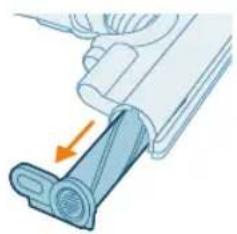
natural_image
Diagram of a mechanical component with a blue lever and orange arrow indicating force or direction (no text or symbols)natural_image
Illustration of a hand using scissors to cut a blue cylindrical object (no text or symbols visible)
natural_image
Mechanical assembly diagram showing a lever mechanism with an inset close-up of the component (no text or symbols)natural_image
Illustration of a hand pressing a button on a device, with an orange arrow indicating motion (no text or symbols present)natural_image
Illustration of a plastic bottle pouring liquid into a beaker, next to a water tap (no text or symbols)natural_image
Illustration of a beaker with liquid being inverted and a water dispenser with a bottle beside it (no text or symbols)natural_image
Diagram showing a device with green arrows indicating motion or movement, no text or symbols presentnatural_image
Illustration of a hand valve and a green mechanical device with a 12-hour cycle indicator (no text or symbols on the device itself)natural_image
Illustration of a green mechanical component inserted into a base, with no visible text or symbols.natural_image
Diagram of a green rod placed on a rectangular tray with two side supports (no text or symbols)natural_image
Illustration of a medical procedure with a pipette inserted into a green plastic band (no text or symbols)natural_image
Diagram of a mechanical assembly with a green rod inserted into a housing (no text or symbols)Değişim
natural_image
Diagram of a mechanical component inside a transparent housing, showing a cylindrical part inserted into a housing (no text or symbols)CP0667/01
Mikrofiber paspaslama bezi XV1670/02
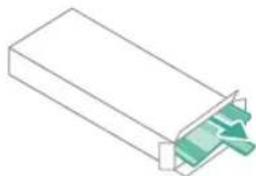
natural_image
Isometric illustration of a rectangular block with a green internal component and a small arrow pointing to it (no text or symbols)XV1670/02
Su şeridi CP0381/01
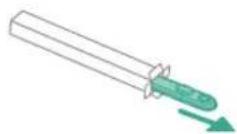
CP0381/01
natural_image
Diagram of a mechanical device with internal components and directional arrows, no readable text or symbols present.natural_image
Diagram of a mechanical or electrical component with directional arrows and a magnified inset showing internal flow paths (no text or symbols)natural_image
Diagram of a mechanical device with internal components and airflow indicators (no text or symbols)natural_image
Diagram of a medical or laboratory device with a plus button and a checkmark (no text or symbols present)natural_image
Illustration of a spray gun with a magnified inset showing the impact of light (no text or symbols present)natural_image
Diagram of a mechanical device with a close-up inset showing a valve or actuator (no text or symbols present)natural_image
Illustration of a spray gun dispensing liquid into a tube with an arrow indicating motion (no text or symbols)natural_image
Illustration of a robotic arm cutting a component with motion lines indicating motion (no text or symbols)natural_image
Illustration of a person using a vacuum cleaner on tiled floor, with orange arrows indicating motion (no text or symbols)natural_image
Illustration of a mechanical clamp and a circular green symbol on a grid background (no text or symbols)natural_image
Illustration of an eye with warning symbols (anxiety, no protection) and a red X mark, no text or labels present.natural_image
Illustration of a faucet pouring liquid into a blue container with green liquid flowing out (no text or symbols)natural_image
Illustration of a mechanical device with arrows indicating force or movement, and an inset showing a document (no text or symbols present)natural_image
Illustration of a mechanical device with a lever and base, showing fluid or material flow (no text or symbols)natural_image
Illustration of a vacuum cleaner emitting exhaust smoke from a bottle (no text or symbols)Χρήση του πέλματος
natural_image
Illustration of a vacuum cleaner emitting exhaust plume onto a base (no text or symbols)natural_image
Illustration of a screwdriver and a cylindrical component (no text or symbols)natural_image
Illustration of a soldering iron being inserted into a tip with motion arrows indicating force (no text or symbols)natural_image
Illustration of a robotic arm holding a wire, with three steps showing different positions (no text or symbols present)natural_image
Illustration of a hand holding a small electronic device with an arrow indicating motion (no text or symbols)natural_image
Illustration of a laptop with a pen inserted into it, no text or symbols presentnatural_image
Illustration of a medical device with a magnified inset showing a cylindrical object (no text or symbols)natural_image
Illustration of a vacuum cleaner emitting exhaust flames from a nozzle (no text or symbols)natural_image
Illustration of a hand inserting a device into a device, with an inset showing the internal components (no text or symbols)natural_image
Gray circular button with a white lightbulb icon and radiating lines (no text or symbols)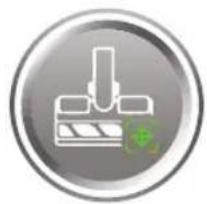
natural_image
Circular icon with a white lightning bolt symbol and green checkmark (no text or numbers)natural_image
Gray circular button with a white lowercase 'i' in the center, no additional text or symbols.natural_image
Circular button with a white up-turn arrow icon (no text or symbols)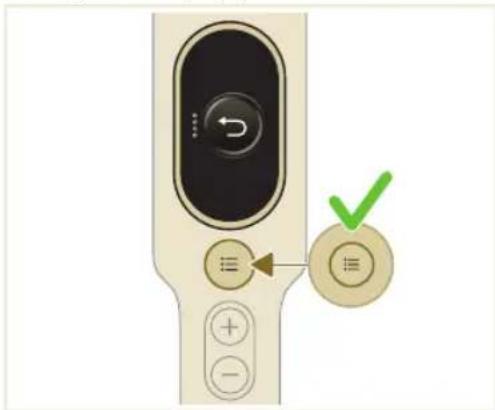
natural_image
Close-up of a remote control device with a green checkmark and directional arrow (no text or symbols)natural_image
Illustration of a medical or laboratory procedure showing a syringe connected to a tube with an upward arrow indicating motion (no text or symbols present)natural_image
Illustration of a green mechanical component with an arrow indicating upward motion, and a magnified inset showing a document (no text or symbols present)natural_image
Illustration of a pipette dispensing liquid into a green circuit board (no text or symbols)natural_image
Illustration of a green mechanical component inserted into a blue cylindrical part, with no visible text or symbols.natural_image
Diagram showing a device with green components and directional arrows, no text or symbols presentnatural_image
Illustration of a mechanical component with a blue rod inserted into a square base (no text or symbols)natural_image
Illustration of a cleaning or laundry system with a plastic bag, hanging clothes, and warning symbols (no text or labels)natural_image
Close-up of a beige electronic device control panel with buttons and a circular display (no readable text or symbols)natural_image
Diagram of two mechanical components labeled A and B, showing alignment or assembly (no text or symbols beyond labels)natural_image
Illustration of a magnifying glass pouring liquid into a drawer with arrows indicating flow (no text or symbols)natural_image
Illustration of a hand using a tool to lift granular material into a trash bin (no text or symbols)natural_image
Illustration of a faucet spraying water onto a surface with two containers, no text or symbols presentnatural_image
Illustration of a hand cleaning a device with a cloth (no text or symbols)natural_image
Illustration of a hand pressing down on a mechanical component with a magnified inset showing the internal mechanism (no text or symbols)natural_image
Illustration of a mechanical device with a lever and handle, showing a yellow component being inserted (no text or symbols)natural_image
Illustration of a hand using scissors to cut a piece of wood or metal (no text or symbols present)natural_image
Mechanical assembly diagram showing a lever mechanism with an inset close-up of the component (no text or symbols)natural_image
Illustration of a hand using a tool to lift a car seatbelt, showing motion and angle (no text or symbols)natural_image
Illustration of a mechanical component with rotational arrows (no text or symbols)natural_image
Illustration of hands connecting wires to a mechanical component (no text or symbols)natural_image
Illustration of a firearm component being inserted, with an inset showing the internal mechanism (no text or symbols)natural_image
Mechanical assembly diagram showing a lever mechanism with a blue handle and orange arrow indicating direction (no text or symbols)natural_image
Illustration of a hand using scissors to cut a blue cylindrical object (no text or symbols visible)natural_image
Mechanical assembly diagram showing a lever mechanism with an inset close-up of the component (no text or symbols)natural_image
Illustration of a hand using a device to press or install a component, with no visible text or symbols.natural_image
Illustration of a plastic bottle pouring liquid into a glass beaker with a water tap and another water bottle nearby (no text or symbols)natural_image
Diagram of a green rod inserted into a rectangular container with two arrows indicating direction (no text or symbols)natural_image
Illustration of a medical procedure with a surgical instrument inserted into tissue, supported by a green plastic plate (no text or symbols)natural_image
Diagram of a mechanical component with a green rod inserted into a housing, showing two downward arrows indicating force or movement (no text or symbols present)natural_image
Simple line drawing of a box with a rolled paper or scroll inside, showing an arrow indicating direction (no text or symbols)CP0667/01
natural_image
Isometric line drawing of a rectangular block with a green internal component, no text or symbols present.XV1670/02
Taivía vépou CP0381/01
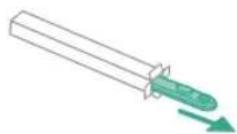
CP0381/01
natural_image
Diagram of a mechanical device with internal components and directional arrows, no readable text or symbols present.natural_image
Diagram of a mechanical or electrical component with directional arrows and a magnified inset showing internal flow paths (no text or symbols)natural_image
Diagram of a mechanical device with internal components and airflow indicators (no text or symbols)natural_image
Illustration of a spray gun with a magnified inset showing the impact of light (no text or symbols present)natural_image
Diagram of a mechanical device with a close-up inset showing a pipe connection (no text or symbols)natural_image
Illustration of a spray gun dispensing liquid into a tube with an arrow indicating motion (no text or symbols)natural_image
Illustration of a robotic arm cutting a component with motion lines indicating motion (no text or symbols)natural_image
Illustration of a person using a vacuum cleaner on tiled floor, with orange arrows indicating motion (no text or symbols)natural_image
Illustration of a rubber roller with a green circular symbol and a magnified view of the roller (no text or symbols present)natural_image
Illustration of an eye with a warning sign and a red X mark, no text or symbols presentnatural_image
Illustration of a faucet pouring liquid into a blue rectangular container (no text or symbols)natural_image
Illustration of a mechanical device with arrows indicating motion, accompanied by an inset showing documents (no text or symbols present)natural_image
Illustration of a mechanical device with a handle and base, showing motion lines (no text or symbols)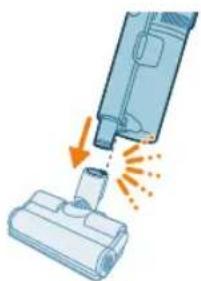
natural_image
Illustration of a vacuum cleaner emitting exhaust smoke from a bottle (no text or symbols)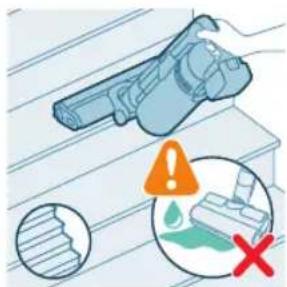
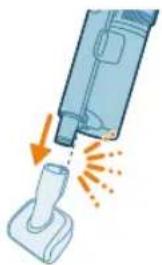
natural_image
Illustration of a vacuum cleaner emitting exhaust smoke from a bottle (no text or symbols)natural_image
Illustration of a screwdriver and a cylindrical object on a surface (no text or symbols)natural_image
Illustration of a soldering iron being inserted into a tip with motion arrows indicating force (no text or symbols)natural_image
Illustration of a spiderweb being held by two hands, showing structural changes (no text or symbols)natural_image
Illustration of a hand holding a small object with an arrow indicating motion or force (no text or symbols)natural_image
Illustration of a laptop with a pen tip inserted, no text or symbols presentnatural_image
Illustration of a medical device with a magnified inset showing a cylindrical object (no text or symbols)natural_image
Illustration of a hand inserting a component into a device, with an inset showing the internal structure (no text or symbols)natural_image
Illustration of a mechanical device with a lever and roller, showing no text or symbolsnatural_image
Mechanical assembly diagram showing a hand holding a tool with an inset close-up of a component (no text or symbols visible)natural_image
Illustration of a hand pressing down on a device with a glowing arrow indicating motion (no text or symbols)natural_image
Circular icon with a white lightbulb symbol and radiating lines, representing an idea or illumination (no text or symbols)
natural_image
Circular icon with a white downward arrow and green leaf symbol (no text or numbers)natural_image
Gray circular button with a white lowercase 'i' in the center, no additional text or symbols.
Връщане
natural_image
Circular button with a white up-turn arrow icon (no text or symbols)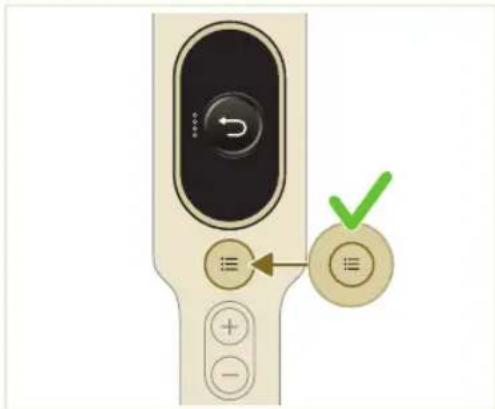
natural_image
Illustration of a syringe emitting orange light from a tube (no text or symbols)natural_image
3D illustration of a green mechanical component with an arrow indicating upward motion, no text or symbols presentnatural_image
Illustration of a pipette dispensing liquid into a green plastic sheet (no text or symbols)natural_image
Illustration of a green mechanical component inserted into a circular base, with no visible text or symbols.natural_image
Diagram showing a device with a green component and a green base, both connected by directional arrows (no text or symbols)natural_image
3D illustration of a mechanical component with a base and mounting hole (no text or symbols)natural_image
Illustration of a kitchen appliance with a warning icon and hanging clothes (no text or symbols)natural_image
Close-up of a beige remote control with a black dial and circular button (no visible text or symbols)1 Изключете уреда.
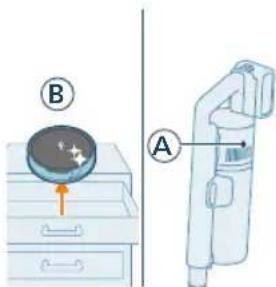
natural_image
Illustration of a magnifying glass inspecting a drawer with arrows indicating process (no text or symbols)natural_image
Illustration of a hand using a tool to lift granular material into a trash bin (no text or symbols)natural_image
Illustration of a faucet spraying water onto a surface with two containers (no text or symbols)natural_image
Illustration of a hand holding a device next to a camera lens (no text or symbols)natural_image
Illustration of a mechanical component being inserted into a housing, with an inset showing the close-up of the component (no text or symbols present)natural_image
Illustration of a mechanical device with a lever and handle, showing motion direction (no text or symbols)natural_image
Illustration of a hand using scissors to cut a piece of paper or tape (no text or symbols visible)natural_image
Mechanical assembly diagram showing a lever mechanism with an inset close-up of the component (no text or symbols)natural_image
Illustration of a hand using a tool to lift a car, showing motion and angle (no text or symbols)natural_image
Illustration of a mechanical lever with rotational arrows indicating clockwise motion (no text or symbols)natural_image
Illustration of a robotic hand holding a device with labeled parts (1, 2), no text or symbols present.natural_image
Illustration of hands connecting a cable to a rolled-up cable with a directional arrow (no text or symbols)natural_image
Illustration of a hand inserting a device into a housing, with an inset showing the internal components (no text or symbols)natural_image
Diagram of a mechanical device with a blue lever and orange arrow indicating force or movement (no text or symbols)natural_image
Illustration of a hand using scissors to cut a cylindrical object (no text or symbols)natural_image
Mechanical assembly diagram showing a lever mechanism with an inset close-up of the handle (no text or symbols)natural_image
Illustration of a hand pressing down on a device with a circular component and an arrow indicating motion (no text or symbols)natural_image
Illustration of a plastic bottle pouring liquid into a glass beaker next to a water dispenser (no text or symbols)natural_image
Illustration of a laboratory setup with a beaker, a funnel, and a water bottle (no text or symbols)natural_image
Diagram showing a mechanical device with a green component and a green base, connected by a diagonal line (no text or symbols)natural_image
Illustration of a green mechanical component with a blue screw and circular base (no text or symbols)natural_image
Diagram of a green rod inserted into a rectangular container with arrows indicating direction (no text or symbols)natural_image
Illustration of a medical procedure with a needle inserted into a green plastic tube (no text or symbols)natural_image
Diagram of a mechanical component with a green rod inserted into a housing, showing alignment arrows (no text or symbols)natural_image
Diagram of a mechanical component inside a transparent housing, showing a cylindrical part inserted into a housing (no text or symbols)CP0667/01
natural_image
Isometric line drawing of a rectangular block with a green arrow pointing to its side (no text or symbols)XV1670/02
Водна лента СР0381/01
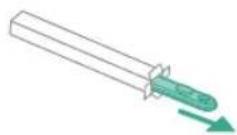
CP0381/01
natural_image
Diagram of a mechanical device with internal components and directional arrows, no readable text or symbols present.natural_image
Diagram of a mechanical or electrical component with directional arrows and a magnified inset showing internal flow paths (no text or symbols)natural_image
Diagram of a mechanical device with airflow indicators and a magnified inset showing internal components (no text or symbols)natural_image
Illustration of a spray gun with a magnified inset showing the impact of light (no text or symbols present)natural_image
Diagram of a mechanical device with a close-up inset showing a pipe connection (no text or symbols)natural_image
Illustration of a medical or laboratory procedure showing a tool injecting into a tube with an arrow indicating direction (no text or symbols present)natural_image
Illustration of a robotic arm cutting a component with motion lines indicating motion (no text or symbols)natural_image
Illustration of a person using a vacuum cleaner on tiled floor, with orange arrows indicating motion (no text or symbols)natural_image
Illustration of a wooden screwdriver with a green circular symbol on a grid background (no text or symbols)natural_image
Illustration of an eye with warning symbols (anxiety, no protection) and a cross mark, no text or labels present.natural_image
Illustration of a faucet pouring liquid into a blue container with green liquid, no text or symbols presentnatural_image
Illustration of a mechanical component with arrows indicating direction, no text or symbols presentnatural_image
Illustration of a mechanical component being inserted into a housing (no text or symbols visible)natural_image
Illustration of a mechanical device with a lever and base, showing fluid flow or material movement (no text or symbols)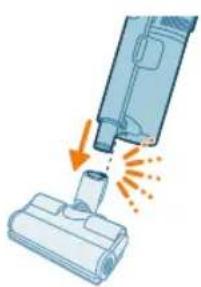
natural_image
Illustration of a vacuum cleaner emitting exhaust smoke from a bottle (no text or symbols)natural_image
Illustration of a vacuum cleaner emitting exhaust smoke from a nozzle (no text or symbols)natural_image
Illustration of a screwdriver and a cylindrical component (no text or symbols)natural_image
Illustration of a handheld electronic device emitting exhaust flames (no text or symbols)natural_image
Illustration of a robotic arm holding a spiderweb, with no text or symbols presentnatural_image
Illustration of a medical or laboratory device with an arrow indicating compression or disassembly (no text or symbols present)natural_image
Illustration of a laptop with a pen and eraser, no text or symbols presentnatural_image
Illustration of a medical device with a magnified inset showing a cylindrical object (no text or symbols)natural_image
Illustration of a vacuum cleaner emitting exhaust flames, showing airflow direction (no text or symbols)natural_image
Illustration of a hand pressing down on a device with a glowing arrow indicating motion (no text or symbols)natural_image
Gray circular icon with a white lightbulb symbol and radiating lines, representing an idea or illumination (no text or symbols)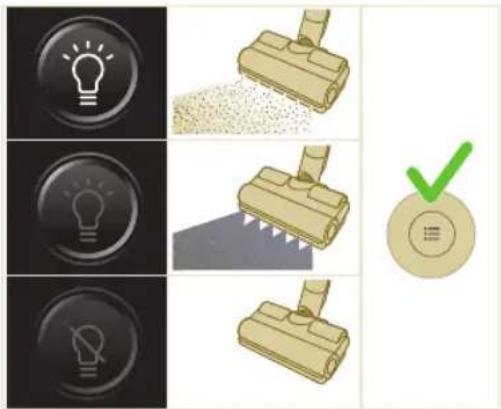

natural_image
Circular icon with a white downward arrow and green leaf symbol (no text or numbers)natural_image
Gray circular button with a white lowercase 'i' in the center, no additional text or symbols.
Врати се
natural_image
Circular button with a white up-turn arrow icon (no text or symbols)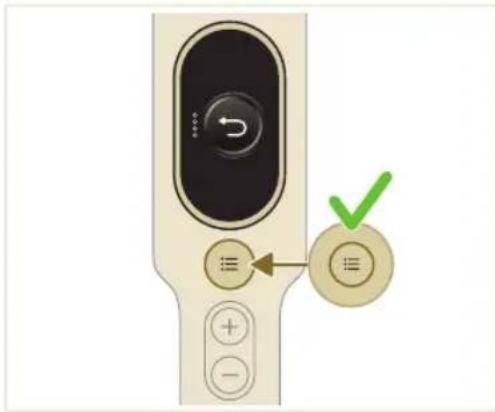
natural_image
Illustration of a medical or laboratory procedure showing a syringe connected to a connector with an upward arrow indicating motion (no text or symbols present)natural_image
Green mechanical component with an arrow indicating upward motion, shown on a flat base (no text or symbols)natural_image
Illustration of a cleaning or laundry system with a green plastic bag, hanging clothes, and an orange warning symbol (no text or labels)natural_image
Close-up of a beige remote control with a black dial and circular button (no visible text or symbols)natural_image
Illustration of a hand holding a circular object with a starburst effect, placed on a drawer (no text or symbols)natural_image
Illustration of a hand pouring granular material into a trash bin (no text or symbols)natural_image
Illustration of a faucet spraying water onto a surface with a plastic bag (no text or symbols)natural_image
Illustration of a hand holding a smartphone next to a camera lens (no text or symbols)natural_image
Illustration of a hand inserting a component into a device, with an inset showing the internal gear mechanism (no text or symbols)natural_image
Illustration of a mechanical device with a lever and handle, showing motion direction (no text or symbols)natural_image
Illustration of a hand using scissors to cut a piece of paper or tape (no text or symbols visible)natural_image
Mechanical assembly diagram showing a lever mechanism with an inset close-up of the component (no text or symbols)natural_image
Illustration of a hand using a tool to lift a car, showing motion and angle (no text or symbols)natural_image
Illustration of a mechanical component with rotational arrows indicating cycle (no text or symbols)natural_image
Illustration of a hand using scissors to cut a cylindrical object (no text or symbols)natural_image
Mechanical assembly diagram showing a lever mechanism with an inset close-up of the handle (no text or symbols)natural_image
Illustration of a hand pressing down on a device with a circular component and a glowing arrow (no text or symbols)natural_image
Illustration of a plastic bottle pouring liquid from a water bottle into a glass beaker, next to a water tap (no text or symbols)natural_image
Illustration of a beaker with liquid being inverted and a water bottle beside it (no text or symbols)natural_image
Diagram showing a mechanical device with green components and directional arrows, no text or symbols presentnatural_image
Illustration of a green mechanical component with a blue rod inserted into a base, no text or symbols presentnatural_image
Diagram of a green cylindrical object with arrows pointing upward, placed on a rectangular base (no text or symbols)natural_image
Illustration of a medical procedure with a needle inserted into a green plastic tube (no text or symbols)natural_image
Diagram of a mechanical component with a green rod inserted into a housing, showing alignment arrows (no text or symbols)natural_image
Diagram of a mechanical component inside a transparent housing, showing a cylindrical part inserted into a housing (no text or symbols)CP0667/01
natural_image
Isometric line drawing of a rectangular block with a green internal component and an arrow pointing to it (no text or symbols)XV1670/02
natural_image
Diagram of a mechanical or electrical component with directional arrows and a magnified inset showing internal flow paths (no text or symbols)natural_image
Diagram of a mechanical device with internal components and airflow indicators (no text or symbols)natural_image
Illustration of a spray gun with a magnified inset showing the impact of light (no text or symbols present)natural_image
Diagram of a medical device with an inset showing a catheter insertion into a tube (no text or labels)natural_image
Illustration of a spray gun dispensing liquid into a tube with an arrow indicating motion (no text or symbols)natural_image
Illustration of a robotic arm cutting a component with motion lines indicating motion (no text or symbols)natural_image
Illustration of a person using a vacuum cleaner on tiled floor (no text or symbols)natural_image
Illustration of a wooden stamping tool and a circular green symbol with crosshair, set against a patterned background (no text or symbols)natural_image
Illustration of an eye with warning symbols (anxiety, no protection) and a red X mark, no text or labels present.natural_image
Illustration of a faucet pouring liquid into a blue container with green liquid, no text or symbols presentnatural_image
Illustration of a blue office chair with a paper tray and a magnified inset showing a printer (no text or symbols)natural_image
Illustration of a handheld device with a handle and sensor array, no text or symbols present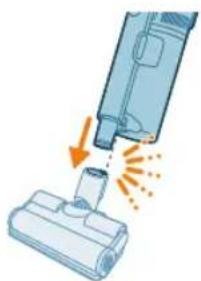
natural_image
Illustration of a vacuum cleaner emitting exhaust smoke from a bottle (no text or symbols)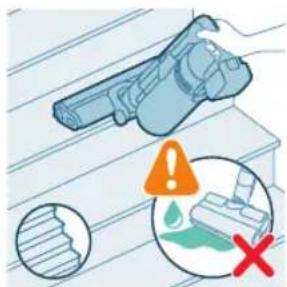
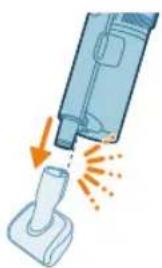
natural_image
Illustration of a vacuum cleaner emitting exhaust smoke from a small cylindrical component (no text or symbols)natural_image
Illustration of a screwdriver and a cylindrical object on a surface (no text or symbols)natural_image
Illustration of a handheld electronic device emitting exhaust heat, with no visible text or symbolsnatural_image
Illustration of a spiderweb being held by two hands, showing structural changes (no text or symbols)natural_image
Illustration of a hand holding a small object with an arrow indicating motion or force (no text or symbols)natural_image
Illustration of a laptop with a pen inserted into it, no text or symbols presentnatural_image
Illustration of a medical device with a magnified inset showing a cylindrical object (no text or symbols)natural_image
Illustration of a blue vacuum cleaner emitting exhaust flames, with no text or symbols present.natural_image
Illustration of a mechanical component with arrows indicating motion, showing internal structure and a magnified inset (no text or symbols)natural_image
Illustration of a mechanical device with a handle and roller, showing a yellow arrow indicating direction (no text or symbols)natural_image
Mechanical assembly diagram showing a lever and rolled document with an inset close-up of a component (no text or symbols)natural_image
Illustration of a hand pressing down on a device with a magnifying glass (no text or symbols)natural_image
Gray circular icon with a white lightbulb symbol and radiating lines, representing an idea or illumination (no text or symbols)
natural_image
Circular icon with a downward arrow and green checkmark, no text or symbols present.natural_image
Gray circular button with a white lowercase 'i' in the center, no additional text or symbols.
Возврат
natural_image
Circular button with a white up-turn arrow icon (no text or symbols)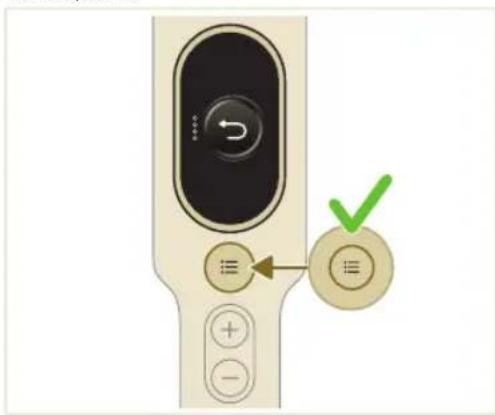
natural_image
Illustration of a syringe emitting orange light from a tube (no text or symbols)natural_image
3D illustration of a green mechanical component with an arrow indicating upward motion, no text or symbols presentnatural_image
Illustration of a kitchen appliance with a warning icon and hanging clothes (no text or symbols)natural_image
Close-up of a beige remote control with a black dial and circular button (no visible text or symbols)1 Выключите прибор.
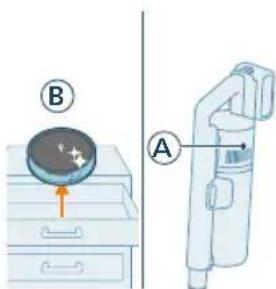
natural_image
Illustration of a magnifying glass inspecting a drawer with arrows indicating process (no text or symbols)natural_image
Illustration of a hand pouring granular material into a trash bin (no text or symbols)natural_image
Illustration of a faucet spraying water onto a surface with a plastic bag (no text or symbols)natural_image
Illustration of a hand holding a device next to a camera lens (no text or symbols)natural_image
Illustration of a hand pressing down a mechanical component with an inset showing a rotating component (no text or symbols)natural_image
Illustration of a mechanical device with a lever and handle, showing motion direction (no text or symbols)natural_image
Illustration of a hand using scissors to cut a piece of paper or tape (no text or symbols visible)natural_image
Mechanical assembly diagram showing a lever mechanism with an inset close-up of the component (no text or symbols)natural_image
Illustration of a hand using a tool to lift a car, showing motion and angle (no text or symbols)natural_image
Illustration of a mechanical component with rotational arrows indicating cycle (no text or symbols)natural_image
Illustration of a hand connecting wires to a cylindrical device with an arrow indicating motion (no text or symbols)natural_image
Illustration of a hand inserting a device into a device, with an inset showing the internal component (no text or symbols)natural_image
Illustration of a mechanical component with a blue lever and orange arrow indicating force or movement (no text or symbols)natural_image
Illustration of a hand using scissors to cut a cylindrical object (no text or symbols)natural_image
Mechanical assembly diagram showing a lever mechanism with an inset close-up of the component (no text or symbols)natural_image
Illustration of a hand pressing down on a device with a circular component and a glowing arrow (no text or symbols)natural_image
Illustration of a plastic bottle pouring liquid from a plastic bottle into a glass with a water droplet (no text or symbols)natural_image
Illustration of a beaker with liquid being inverted and a water dispenser with plastic bottle beside it (no text or symbols)natural_image
Diagram showing a device with a green component and a green mechanical component, both connected by directional arrows (no text or symbols)natural_image
Illustration of a green mechanical component with a blue rod inserted into a circular base (no text or symbols)natural_image
Diagram of a green cylindrical object with arrows pointing upward, placed on a rectangular base (no text or symbols)natural_image
Illustration of a medical procedure with a needle inserted into a green plastic tube (no text or symbols)natural_image
Diagram of a mechanical component with a green rod inserted into a housing, showing alignment arrows (no text or symbols)natural_image
Diagram of a mechanical component inside a transparent housing, showing a cylindrical part inserted into a housing (no text or symbols)CP0667/01
natural_image
Pure 3D diagram of a rectangular block with a green internal component, no text or symbols presentXV1670/02
natural_image
Diagram of a mechanical device with internal components and directional arrows, no visible text or symbolsnatural_image
Diagram of a mechanical or electrical component with directional arrows and a magnified inset showing internal flow paths (no text or symbols)natural_image
Diagram of a mechanical device with internal components and airflow indicators (no text or symbols)natural_image
Diagram of a medical or laboratory device with a plus button and a checkmark (no text or symbols present)natural_image
Illustration of a spray gun with a magnified inset showing the impact of light (no text or symbols present)natural_image
Diagram of a mechanical device with a close-up inset showing a pipe connection (no text or symbols)natural_image
Illustration of a spray gun dispensing liquid into a tube with an arrow indicating motion (no text or symbols)natural_image
Illustration of a robotic arm cutting a component with motion lines indicating motion (no text or symbols)natural_image
Illustration of a person using a vacuum cleaner on tiled floor, with orange arrows indicating motion (no text or symbols)natural_image
Illustration of a wooden screwdriver with a green circular symbol on a grid background (no text or symbols)natural_image
Illustration of an eye with warning symbols (anxiety, no protection) and a cross mark, no text or labels present.natural_image
Illustration of a faucet pouring liquid into a blue rectangular container (no text or symbols)natural_image
Illustration of a mechanical component with arrows indicating force or movement, and an inset showing a close-up of a sheet of paper (no text or symbols present)natural_image
Illustration of a mechanical component being inserted into a base, with an arrow indicating the insertion direction (no text or symbols present)natural_image
Illustration of a mechanical device with a handle and base, emitting powder from a surface (no text or symbols)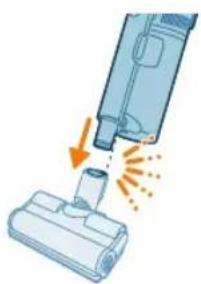
natural_image
Illustration of a vacuum cleaner emitting exhaust smoke from a bottle (no text or symbols)natural_image
Illustration of a vacuum cleaner emitting exhaust smoke from a bottle (no text or symbols)natural_image
Illustration of a screwdriver and a cylindrical component (no text or symbols)natural_image
Illustration of a handheld electronic device emitting exhaust flames (no text or symbols)natural_image
Illustration of a robotic arm holding a spiderweb, with no text or symbols presentnatural_image
Illustration of a hand holding a pen or tool with an arrow indicating motion (no text or symbols)natural_image
Illustration of a laptop with a pen tip inserted, no text or symbols presentnatural_image
Illustration of a medical device with a magnified inset showing a cylindrical object (no text or symbols)natural_image
Illustration of a vacuum cleaner emitting exhaust flames, showing airflow direction (no text or symbols)natural_image
Illustration of a hand pressing down on a device with a glowing arrow indicating motion (no text or symbols)natural_image
Circular icon with a white lightbulb symbol and radiating lines, representing an idea or illumination (no text or symbols)
natural_image
Circular icon with a white downward arrow and green plus sign, no text or symbols present.natural_image
Gray circular button with a white lowercase 'i' in the center, no additional text or symbols.
natural_image
Circular button with a white U-turn arrow icon (no text or symbols)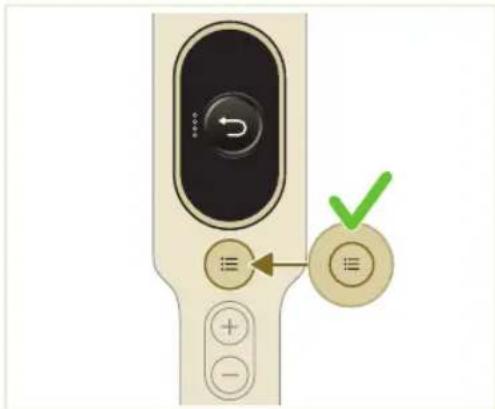
natural_image
Illustration of a medical or laboratory procedure showing a syringe connected to a connector with an upward arrow indicating motion (no text or symbols present)natural_image
Green mechanical component with an arrow indicating upward motion, shown on a flat base (no text or symbols)natural_image
Illustration of a mechanical component with a warning icon and hanging clothes (no text or symbols)natural_image
Close-up of a beige remote control with a black dial and circular button (no visible text or symbols)1 Вимкніть прилад.