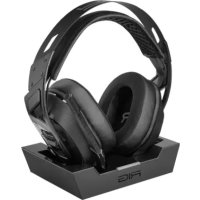
RIG 900 MAX HS - Headphones Nacon - Free user manual and instructions
Find the device manual for free RIG 900 MAX HS Nacon in PDF.



| Product type | Wireless gaming headset |
| Brand | Nacon |
| Model | RIG 900 MAX HS |
| Headset dimensions | 194 x 204 x 94 mm |
| Charging station dimensions | 160 x 110 x 35 mm |
| Headset weight | 294 g |
| Base station weight | 310 g (without USB dongle) / 320 g (with USB dongle) |
| Battery capacity | 850 mAh |
| Charging time (USB-C cable) | 2 hours |
| Charging time (base station) | 4 hours |
| Connectivity | Wireless USB (dongle) and Bluetooth (dual mode) |
| Connection modes | USB (game), Dual, Bluetooth |
| Radio frequency | 2,402 - 2,480 GHz, EIRP <13 dBm |
| Headset input | 5V, 800 mA |
| Charging station input | 5V, 500 mA |
| Microphone | With mute function (arm up/down) |
| Main functions | Rotary volume control, multi-function button, power on/off, USB and Bluetooth pairing |
| Compatibility | PlayStation 5, PC, Bluetooth devices |
| Companion app | RIG 900 MAX NAVIGATOR (Android/iOS) |
| Warranty | 1 year (North America, Australia, NZ) / 2 years (EU, UK) / 1 year (others) |
| Included accessories | USB-A to USB-C cable, wireless USB dongle, base station |
| Maintenance and cleaning | Use a soft, dry cloth |
| Safety | Ear protection (max volume limiter) via app |
| Spare parts and repairability | Contact Nacon customer service |
| General information | Manufacturer: NACON, France / Distributors: Belgium, Netherlands |
Frequently Asked Questions - RIG 900 MAX HS Nacon
User questions about RIG 900 MAX HS Nacon
0 question about this device. Answer the ones you know or ask your own.
Ask a new question about this device
Download the instructions for your Headphones in PDF format for free! Find your manual RIG 900 MAX HS - Nacon and take your electronic device back in hand. On this page are published all the documents necessary for the use of your device. RIG 900 MAX HS by Nacon.
USER MANUAL RIG 900 MAX HS Nacon
Charging your Headset 5
Power on or off 6
Adjust volume 6
Mute 6
Wireless modes 6
- USB (Game) mode 6
- Dual mode 6
- Bluetooth mode 6
How to switch modes? 6
How to pair your headset? 7
- USB-C Dongle 7
- Bluetooth 8
Multi-function button 8
How to customize your experience? 8
Safety 9
Support 10
Reporting Security Issues (UK only) 11
Technical specifications 12
Support 13
Ecodesign 15
1 Fit
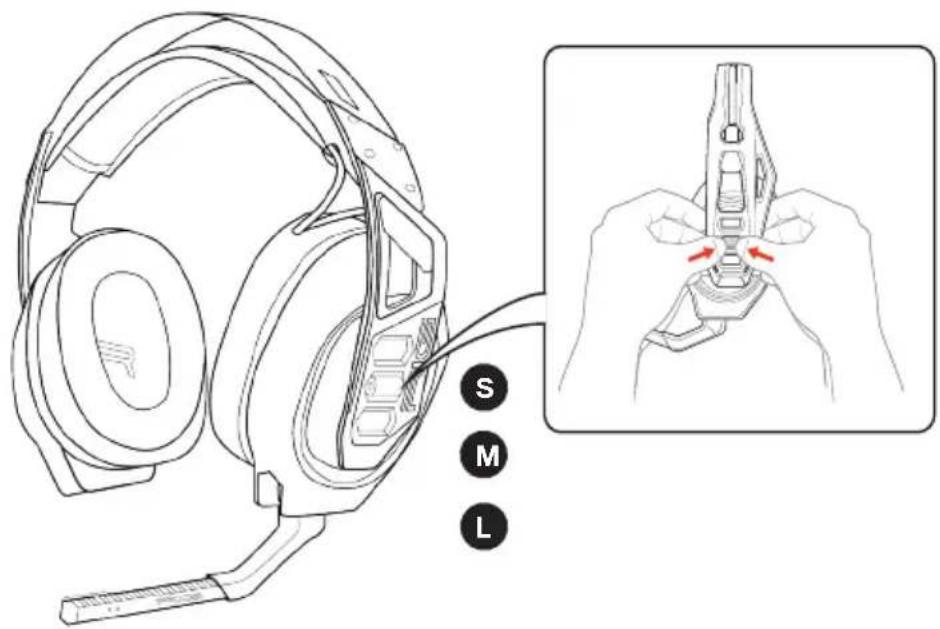
Snap the left and right earcups into the headband to configure the best fit and sound. The headband adjusts to three sizes (small, medium, large) by positioning the earcups. To remove an earcup, press the earcup post to detach it from the headband.
Setup PS5 ^® console / PC
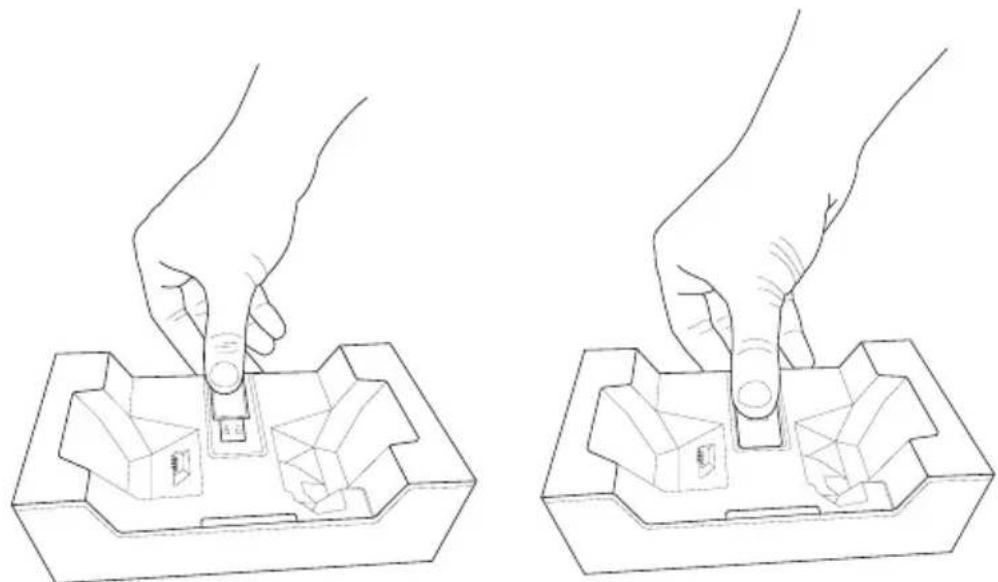
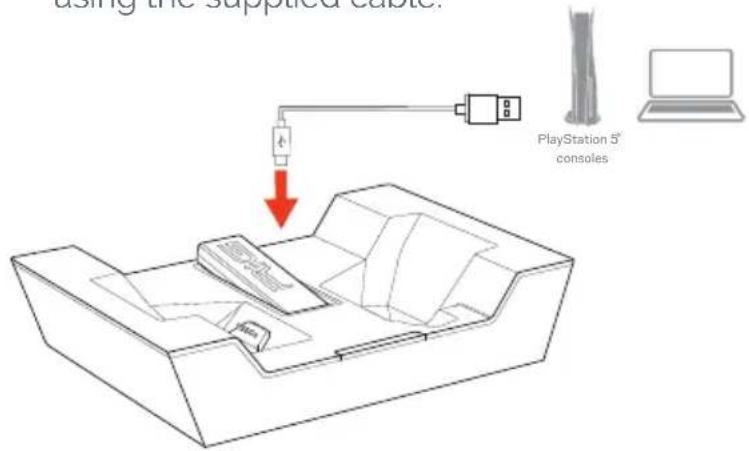
- Install the wireless USB dongle by sliding it into the USB-A port on top of the base station.
natural_image
Line drawing of two hands pressing a small object into a tray with geometric shapes (no text or symbols)EN/
- Then connect your base to a USB-A port of your console, using the supplied cable.
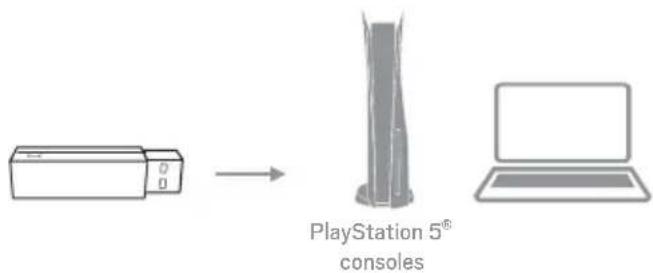
- Alternatively, connect the wireless USB dongle to one of the USB-A ports of your console or PC and use the base station only as a charge stand for the headset.
flowchart
graph LR
    A["Input"] --> B["Processing"]
    B --> C["PlayStation 5® consoles"]
    C --> D["Laptop"]
- Only connect the USB dongle, supplied, to the base station.
I Charging your Headset
You can charge your headset using the supplied USB-C cable or by using the base station.
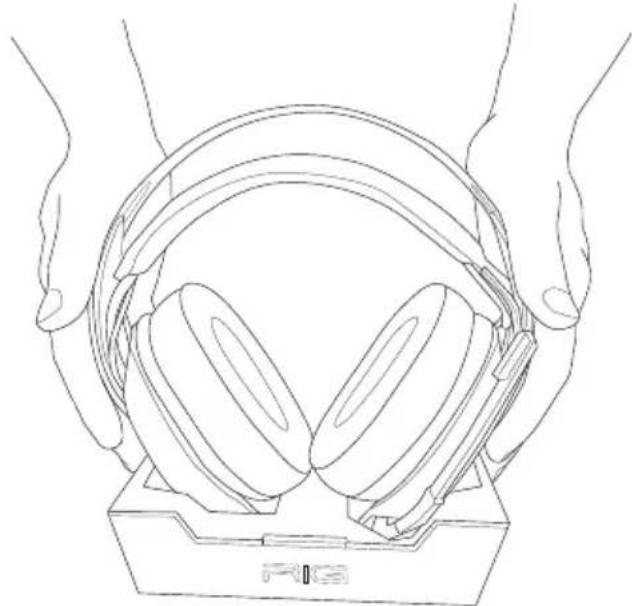
- After you have connected the base station to your console or PC, place the headset into the base as shown.
natural_image
Line drawing of two hands holding a hardcover headplate (no text or symbols)The LED of the base station will turn red to inform you the headset is connected to the base station and is charging. When charging is complete, the LED will turn off.
Fully charging the headset, using the base station, can take up to 4 hours.
natural_image
Line drawing of a headboard with earbuds and a connector, no text or symbols presentNote: If the base station is connected to a console or PC the headset will turn on automatically when it is removed from the base station.
EN/
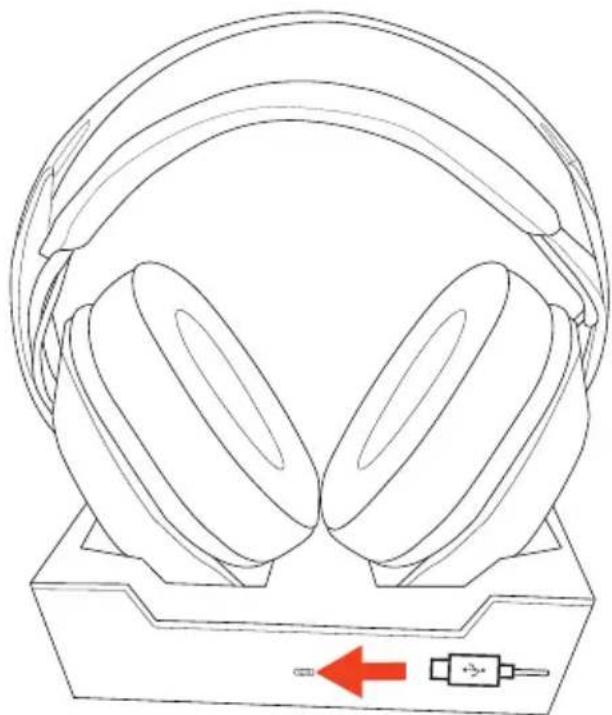
- You can also charge the headset by connecting the USB-C charging cable directly to the left earcup. Use ony the cable provided with the headset and charge the headset directly from your console or PC.
Using a cable, it takes just 2 hours to fully charge the headset. Note the following battery status indications on the left earcup: Red LED – low battery and charging Yellow LED – medium battery and charging Green LED – high battery and charging LED Off – the battery is fully charged
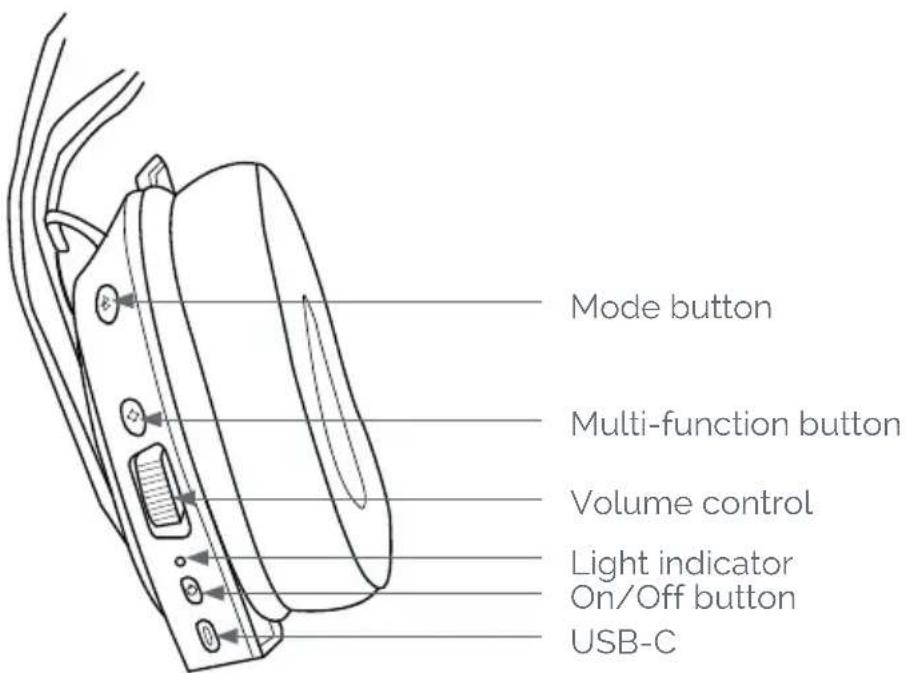
Power on or off
Press and hold the on/off button for 3 seconds.
I Adjust volume
Increase or decrease the volume using the rotary dial. When maximum volume is reached, you will hear a prompt tone indicator.
I Mute
The microphone has a flip-to-mute feature: If the microphone arm is down, the mic is active; If the microphone arm is up, the mic is muted.
I Wireless modes
Your headset has three different modes of wireless connection:
- USB (Game) mode:
This headset mode only connects with the wireless USB dongle. Bluetooth connections are disabled and you will not be disturbed while gaming.
- Dual mode:
This mode allows a dual connection with the wireless USB dongle and a Bluetooth device at the same time. Note that you can switch between console/PC and Bluetooth audio in this mode but you cannot hear both sources at the same time.
When you receive a call, audio from the wireless dongle will stop and you will hear the incoming call notification. Use the Multifunction button to answer and end calls.
- Bluetooth mode:
This mode allows communication only with a Bluetooth device. The connection to the wireless dongle is stopped.
I How to switch modes?
To switch from one mode to another, press the mode button once. After three single presses the headset mode will be back to the first mode.
I How to pair your headset?

- Wireless USB Dongle:
The Headset and wireless USB Dongle are already paired out of the box.
If you need to do a new pairing, for any reason, make sure:
- The USB-A wireless dongle is connected to your console or PC,
- Turn off the Headset.
Press and hold the power On/Off button for more than 6s until to hear the Prompt voice: "Pairing USB". The Headset LED will flash Purple during the pairing process.
When pairing is successful you will hear the prompt voice:
- "Connected" in USB mode; or
- "USB connected" in Dual mode
If pairing is unsuccessful, you will hear the prompt voice: "USB Pairing Failed". In this case repeat the pairing process again making sure the above conditions are followed.
- Bluetooth
To pair your headset with a Bluetooth device, make sure your headset power is on.
Press and hold the Mode button for more than 6s until to hear the Prompt voice: "Pairing Bluetooth". Headset LED will flash Blue during pairing process.
Open the 'Settings' menu on your mobile device, go to Bluetooth and turn ON the Bluetooth connection. Look for RIG 900 MAX in the list of devices and select it.
If pairing is successful, you will see the message on your device but will also hear a prompt voice, through the headset:
- "Bluetooth connected" in Dual mode; or
- "Connected" in Bluetooth mode
If Bluetooth pairing is unsuccessful, you will hear the prompt voice: "Bluetooth Pairing Failed".
In this case, turn off your device's Bluetooth connection, and power off the headset, and repeat the pairing process again making sure the above conditions are followed.
ATTENTION - when in Dual mode you are connected to two devices (wireless USB Dongle and a Bluetooth device) but note the USB Dongle has priority over the Bluetooth.
If you answer an incoming call, for instance, the communication with the USB Dongle will stop and the incoming call will be heard.
When the call is complete, the headset will automatically switch back to the USB Dongle.
- Multi-function button
With this button you can, with a single press:
- Play/Pause music or other audio/video apps,
- Answer an incoming call when your Bluetooth connection is active.
Your headset remembers the latest Bluetooth device connected so once you have set-up your device it will remember it even if you switch between modes or power on/off your headset.
With this button you can with, a Long press: 6 seconds.
- Activate your mobile device's voice assistant, when connected to Bluetooth,
- Reject a call.
How to customize your experience?
To fully customize your headset, please download the Companion APP RIG 900 MAX NAVIGATOR from the Google Play Store (for Android devices) and App Store (for iOS devices). The APP will enable you to:
- Customize up to three audio profiles quickly, using the Classic mode, or more precisely through the Expert mode:
- Your microphone gain,
- Your microphone monitoring level,
- Activate ear protection which limits the maximum volume of the headset,
- Your equalizer settings (with pre-set configurations),
- Define the default mode when you power on your headset,
- Reduce the prompt tones and voices interaction during headset use.
- Visualize tutorials to know how the APP and headset work.
- Test your headset via a test mode to check that all: buttons, microphone and speakers are working as they should.
- Choose your Voice Prompt language (from the 6 supported languages).
I Please note:
- This headset uses 2.4GHz radio-frequency bandwidth. When PlayStation ^ 5, and other products, use the 2.4GHz radio-frequency band width there is a possibility that wireless interference occurs.
- Nacon have validated this headset with PlayStation®5 1000&2000 series consoles including wireless testing.
- When using a PlayStation ^ 5 1000 series console, it is recommended to insert the USB dongle, of this headset, into the USB port on the front of the PlayStation ^ 5.
- Only connect the supplied RIG900MAX HS USB dongle to the charging cradle. & AU
Reporting Security Issues (UK & AU only)
Nacon is committed to ensuring the security of its customers by protecting their personal information from unwarranted disclosure. If you feel that there is, or has been, a security issue then please follow this process:
1) Information on how to report security issues
Please email Nacon at support.fr@nacongaming.com with the following information:
- Product name;
• Date of purchase; - Location of purchase;
• Details of the issue;
• The location the vulnerability, or security concern, was discovered; - The detailed description of the steps needed to reproduce the vulnerability or security concern which may include screen shots;
We will acknowledge at 7 working days and keep status update until the issue fixed.
You will receive an acknowledgement, of the security issue report, as soon as practicable and status updates until the resolution of the reported security issue.
Please use the email title: 'Security issue'
2) Information on minimum security periods
Security updates will be for 2 years from the date of purchase or follow the warranty stated on the packaging
This process is free of charge to the end user.
3) Disclosure to third parties
If the issue reported affects a third-party vendor, or library, then Nacon reserves the right to forward the relevant details to that party without giving prior notice.
I Technical specifications
• Product dimensions:
- Headset: 194x204x94mm
- Base station:160x110x35mm
• Net weight headset: 294g
- Net weight base station:310g without USB dongle / 320g with USB dongle
• Battery capacity: 850mAh
• Headset input: 5V -800mA
- Base station input: 5V = 500mA
• Approximate charging times:
- Directly to headset = 2hrs
• Via base station = 4hrs
We recommend that you use the cable provided to connect to the base station or to charge the headset directly. Connect the cable to a free USB port on your PlayStation®5 console or your PC.
If you are using an alternative power source then please respect the input voltage and current indicated here.
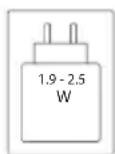
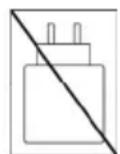
The power delivered by the charger must be between min 2.5 Watts required by the radio equipment, and max 4.25 Watts in order to achieve the maximum charging speed.
I Support
New Zealand), two years Limited (EU and UK) and one year Limited (all other countries and regions) warranty. Please be aware that you may have other rights depending on the laws of the state or country where the product was purchased. We strongly advise you to keep your receipt of purchase in order to prove the date of purchase of this product. For warranty terms and conditions, visit our web site at
www.nacongaming.com
Email: support.fr@nacongaming.com
EN. EN. The EIRP power values and the Frequency bands relating to this product, identified in the list below, comply with the requirements of Directive
2014/53/EU:
EIRP: RIG 900 Max - <13dBm
Frequency band: (2,402 \~ 2,480) GHz
This product is in compliance with ecodesign requirements of the commission regulation (EU) 2023/826.
| Max. Power Consumption | 5W |
| Power Consumption (Off Mode) | < 0.5W |
| Power Consumption (Low Power Mode) | < 0.5W |
| Off Mode / Standby Mode Activated | < 20 mins |
| Power Consumption (Networked Standby Mode) | < 2.0W |
| Networked Standby Mode Activated | < 20 mins |
| External Adapter Requirement | When using an external adapter, the output voltage/current of the external adapter should not exceed 5V 1A. |
| Activation and Deactivation of Wireless Network | Refer to user manual procedures for activation and deactivation of wireless network. |
MANUFACTURER / FABRICANT :
NACON - 396 - 466 Rue de la Voyette, CRT2 - 59273 Fretin, France
1124 8TH Street, Kirkland, WA 98033 USA
Nacon Pty. Ltd.
Level 2/20 Bond Street, Sydney NSW 2000 Australia
SUPPORT :
FRANCE, support.fr@nacongaming.com
UK, support@nacongaming.com
Tel: +44 08081010970
BELGIQUE, support.be@nacongaming.com
NEDERLAND, support.nl@nacongaming.com
ESPAÑA, support.es@nacongaming.com
Tel: +34 900993359
ITALIA, support.it@nacongaming.com
Tel:+39 800172494
USA/CANADA, support.us@nacongaming.com
AUSTRALIA, support.us@nacongaming.com
RIG
NACONGAMING.COM
RIG
900 MAX HS
GUIDE DE L'UTILISATEUR
Sommaire
Mise en place 3
natural_image
Line drawing of two hands using a tool to press or install a small object into a tray (no text or symbols)FR/
natural_image
Line drawing of two hands holding a hardcover headplate (no text or symbols)natural_image
Line drawing of a headboard with earbuds and a connector, no text or symbols presentEN. EN. The EIRP power values and the Frequency bands relating to this product, identified in the list below, comply with the requirements of Directive 2014/53/EU: EIRP: RIG 900 Max - <13dBm Frequency band: (2,402 \~ 2,480) GHz
1124 8TH Street, Kirkland, WA 98033 USA
Nacon Pty. Ltd.
Level 2/20 Bond Street, Sydney NSW 2000 Australia
SUPPORT :
FRANCE, support.fr@nacongaming.com
UK, support@nacongaming.com
Tel: +44 08081010970
BELGIQUE, support.be@nacongaming.com
NEDERLAND, support.nl@nacongaming.com
ESPAÑA, support.es@nacongaming.com
Tel: +34 900993359
ITALIA, support.it@nacongaming.com
Tel:+39 800172494
USA/CANADA, support.us@nacongaming.com
AUSTRALIA, support.us@nacongaming.com
RIG
NACONGAMING.COM
RIG
900 MAX HS
BEDIENUNGSANLEITUNG
Zusammenfassung
Fit 3
natural_image
Line drawing of two hands pressing a small object into a 3D block (no text or symbols)natural_image
Line drawing of two hands holding a pair of headphones on a base (no text or symbols)natural_image
Line drawing of a headboard with two earbuds and a connector, showing no text or symbolsEmail: support.de@nacongaming.com
Konformität
EN. EN. The EIRP power values and the Frequency bands relating to this product, identified in the list below, comply with the requirements of Directive
2014/53/EU:
EIRP: RIG 900 Max - <13dBm
Frequency band: (2,402 \~ 2,480) GHz
1124 8TH Street, Kirkland, WA 98033 USA
Nacon Pty. Ltd.
Level 2/20 Bond Street, Sydney NSW 2000 Australia
SUPPORT :
FRANCE, support.fr@nacongaming.com
UK, support@nacongaming.com
Tel: +44 08081010970
BELGIQUE, support.be@nacongaming.com
NEDERLAND, support.nl@nacongaming.com
ESPAÑA, support.es@nacongaming.com
Tel: +34 900993359
ITALIA, support.it@nacongaming.com
Tel:+39 800172494
USA/CANADA, support.us@nacongaming.com
AUSTRALIA, support.us@nacongaming.com
RIG
NACONGAMING.COM
RIG
900 MAX HS
GEBRUIKERSHANDLEIDING
Samenvatting
Pasvorm 3
PS5 ^® instellen 3
PC instellen 3
natural_image
Line drawing of two hands inserting a small object into a tray with geometric shapes (no text or symbols)natural_image
Line drawing of two hands holding a hardcover headplate (no text or symbols)natural_image
Line drawing of a headboard with earbuds and a connector, no text or symbols present- "Connected" in USB-modus; of
- "USB connected" in dubbele modus
EN. EN. The EIRP power values and the Frequency bands relating to this product, identified in the list below, comply with the requirements of Directive
2014/53/EU:
EIRP: RIG 900 Max - <13dBm
Frequency band: (2,402 \~ 2,480) GHz
1124 8TH Street, Kirkland, WA 98033 USA
Nacon Pty. Ltd.
Level 2/20 Bond Street, Sydney NSW 2000 Australia
SUPPORT :
FRANCE, support.fr@nacongaming.com
UK, support@nacongaming.com
Tel: +44 08081010970
BELGIQUE, support.be@nacongaming.com
NEDERLAND, support.nl@nacongaming.com
ESPAÑA, support.es@nacongaming.com
Tel: +34 900993359
ITALIA, support.it@nacongaming.com
Tel:+39 800172494
USA/CANADA, support.us@nacongaming.com
AUSTRALIA, support.us@nacongaming.com
RIG
NACONGAMING.COM
RIG
900 MAX HS
GUÍA DEL USUARIO
Resumen
Ajuste 3
Configuración PS5 ^® 3
Configurar PC 3
natural_image
Line drawing of two hands using a tool to press or install a small object into a tray (no text or symbols)natural_image
Line drawing of two hands holding a hardcover headplate (no text or symbols)natural_image
Line drawing of a headboard with earbuds and a connector, no text or symbols presentnatural_image
Line drawing of a device's rear panel with buttons and connectors (no text or symbols)Botón de modo
Botón multifunción
Control de volumen
Indicador luminoso
EN. EN. The EIRP power values and the Frequency bands relating to this product, identified in the list below, comply with the requirements of Directive
2014/53/EU:
EIRP: RIG 900 Max - <13dBm
Frequency band: (2,402 \~ 2,480) GHz
Nacon Gaming Inc. 1124 8TH Street, Kirkland, WA 98033 USA
Nacon Pty. Ltd. Level 2/20 Bond Street, Sydney NSW 2000 Australia
SUPPORT :
FRANCE, support.fr@nacongaming.com
UK, support@nacongaming.com Tel: +44 08081010970
BELGIQUE, support.be@nacongaming.com
NEDERLAND, support.nl@nacongaming.com
ESPAÑA, support.es@nacongaming.com Tel: +34 900993359
ITALIA, support.it@nacongaming.com Tel:+39 800172494
USA/CANADA, support.us@nacongaming.com AUSTRALIA, support.us@nacongaming.com
RIG
NACONGAMING.COM
RIG
900 MAX HS
GUIDA DELL'UTENTE
Sintesi
In forma 3
natural_image
Line drawing of two hands pressing a small object into a 3D block (no text or symbols)natural_image
Line drawing of two hands holding a hardcover headplate (no text or symbols)natural_image
Line drawing of a headboard with earbuds and a USB connector, no text or symbols presentnatural_image
Line drawing of a mechanical device with labeled buttons and ports (no text or symbols)natural_image
Line drawing of a device's rear panel with buttons and connectors (no text or symbols)- Dongle USB wireless:
EN. EN. The EIRP power values and the Frequency bands relating to this product, identified in the list below, comply with the requirements of Directive 2014/53/EU: EIRP: RIG 900 Max - <13dBm Frequency band: (2,402 \~ 2,480) GHz
1124 8TH Street, Kirkland, WA 98033 USA
Nacon Pty. Ltd.
Level 2/20 Bond Street, Sydney NSW 2000 Australia
SUPPORT :
FRANCE, support.fr@nacongaming.com
UK, support@nacongaming.com Tel: +44 08081010970
BELGIQUE, support.be@nacongaming.com
NEDERLAND, support.nl@nacongaming.com
ESPAÑA, support.es@nacongaming.com Tel: +34 900993359
ITALIA, support.it@nacongaming.com Tel:+39 800172494
USA/CANADA, support.us@nacongaming.com
AUSTRALIA, support.us@nacongaming.com
RIG
NACONGAMING.COM
natural_image
Line drawing of two hands using a tool to press or install a small object into a tray (no text or symbols)natural_image
Line drawing of two hands holding a headboard with earphones (no text or symbols)natural_image
Line drawing of a headboard with two earbuds and a USB connector, no text or symbols presentnatural_image
Line drawing of a device's rear panel with buttons and connectors (no text or symbols)Botão de modo
Botão multifunções
Controlo do volume
Indicador luminoso
New Zealand), two years Limited (EU and UK) and one year Limited (all other countries and regions) warranty. Please be aware that you may have other rights depending on the laws of the state or country where the product was purchased. We strongly advise you to keep your receipt of purchase in order to prove the date of purchase of this product. For warranty terms and conditions, visit our web site at
www.nacongaming.com
Email: support.fr@nacongaming.com
EN. EN. The EIRP power values and the Frequency bands relating to this product, identified in the list below, comply with the requirements of Directive
2014/53/EU:
EIRP: RIG 900 Max - <13dBm
Frequency band: (2,402 \~ 2,480) GHz
1124 8TH Street, Kirkland, WA 98033 USA
Nacon Pty. Ltd.
Level 2/20 Bond Street, Sydney NSW 2000 Australia
SUPPORT :
FRANCE, support.fr@nacongaming.com
UK, support@nacongaming.com
Tel: +44 08081010970
BELGIQUE, support.be@nacongaming.com
NEDERLAND, support.nl@nacongaming.com
ESPAÑA, support.es@nacongaming.com
Tel: +34 900993359
ITALIA, support.it@nacongaming.com
Tel:+39 800172494
USA/CANADA, support.us@nacongaming.com
AUSTRALIA, support.us@nacongaming.com
RIG
NACONGAMING.COM
RIG
900 MAX HS
PRZEWODNIK UŻYTKOWNIKA
Podsumowanie
Fit 3
natural_image
Line drawing of two hands pressing a small object into a tray, showing mechanical components (no text or symbols)PL/
natural_image
Line drawing of two hands holding a hardcover headplate (no text or symbols)natural_image
Line drawing of a headboard with earbuds and a USB connector, no text or symbols presentEN. EN. The EIRP power values and the Frequency bands relating to this product, identified in the list below, comply with the requirements of Directive
2014/53/EU:
EIRP: RIG 900 Max - <13dBm
Frequency band: (2,402 \~ 2,480) GHz
Nacon Gaming Inc. 1124 8TH Street, Kirkland, WA 98033 USA
Nacon Pty. Ltd. Level 2/20 Bond Street, Sydney NSW 2000 Australia
SUPPORT :
FRANCE, support.fr@nacongaming.com
UK, support@nacongaming.com Tel: +44 08081010970
BELGIQUE, support.be@nacongaming.com
NEDERLAND, support.nl@nacongaming.com
ESPAÑA, support.es@nacongaming.com Tel: +34 900993359
ITALIA, support.it@nacongaming.com Tel:+39 800172494
USA/CANADA, support.us@nacongaming.com AUSTRALIA, support.us@nacongaming.com
RIG
NACONGAMING.COM
RIG
900 MAX HS
UŽIVATELSKÁ PŘÍRUČKA
Obsah
Přizpůsobení 3
natural_image
Line drawing of two hands pressing a small object into a tray (no text or symbols)CZI
natural_image
Line drawing of two hands holding a hardcover headplate (no text or symbols)natural_image
Line drawing of a headboard with earbuds and a connector, no text or symbols presentnatural_image
Line drawing of a device's rear panel with buttons and connectors (no text or symbols)EN. EN. The EIRP power values and the Frequency bands relating to this product, identified in the list below, comply with the requirements of Directive
2014/53/EU:
EIRP: RIG 900 Max - <13dBm
Frequency band: (2,402 \~ 2,480) GHz
1124 8TH Street, Kirkland, WA 98033 USA
Nacon Pty. Ltd.
Level 2/20 Bond Street, Sydney NSW 2000 Australia
SUPPORT :
FRANCE, support.fr@nacongaming.com
UK, support@nacongaming.com
Tel: +44 08081010970
BELGIQUE, support.be@nacongaming.com
NEDERLAND, support.nl@nacongaming.com
ESPAÑA, support.es@nacongaming.com Tel: +34 900993359
ITALIA, support.it@nacongaming.com
Tel:+39 800172494
USA/CANADA, support.us@nacongaming.com
AUSTRALIA, support.us@nacongaming.com
RIG
NACONGAMING.COM
RIG
900 MAX HS
UŽÍVATELŠKÁ PRÍRUČKA
Obsah
Prispôsobenie 3
Pripojenie k PS5 ^® / PC 3
natural_image
Line drawing of two hands pressing a small object into a tray (no text or symbols)natural_image
Line drawing of two hands holding a stacked electronic device with headphones (no text or symbols)natural_image
Line drawing of a headboard with earbuds and a connector, no text or symbols presentnatural_image
Line drawing of a device's rear panel with buttons and connectors (no text or symbols)1124 8TH Street, Kirkland, WA 98033 USA
Nacon Pty. Ltd.
Level 2/20 Bond Street, Sydney NSW 2000 Australia
SUPPORT :
FRANCE, support.fr@nacongaming.com
UK, support@nacongaming.com
Tel: +44 08081010970
BELGIQUE, support.be@nacongaming.com
NEDERLAND, support.nl@nacongaming.com
ESPAÑA, support.es@nacongaming.com
Tel: +34 900993359
ITALIA, support.it@nacongaming.com
Tel:+39 800172494
USA/CANADA, support.us@nacongaming.com
AUSTRALIA, support.us@nacongaming.com
RIG
NACONGAMING.COM
- Fit
- Setup PS5 ® console / PC
- EN/
- I Charging your Headset
- Power on or off
- I Adjust volume
- I Mute
- I Wireless modes
- I How to switch modes?
- I How to pair your headset?
- - Bluetooth
- - Multi-function button
- How to customize your experience?
- I Please note:
- Reporting Security Issues (UK & AU only)
- 1) Information on how to report security issues
- 2) Information on minimum security periods
- 3) Disclosure to third parties
- I Technical specifications
- I Support
- MANUFACTURER / FABRICANT :
- SUPPORT :
- RIG
- MAX HS
- GUIDE DE L'UTILISATEUR
- Sommaire
- FR/
- BEDIENUNGSANLEITUNG
- Zusammenfassung
- GEBRUIKERSHANDLEIDING
- Samenvatting
- GUÍA DEL USUARIO
- Resumen
- GUIDA DELL'UTENTE
- Sintesi
- PRZEWODNIK UŻYTKOWNIKA
- Podsumowanie
- PL/
- UŽIVATELSKÁ PŘÍRUČKA
- Obsah
- CZI
- UŽÍVATELŠKÁ PRÍRUČKA
Brand : Nacon
Model : RIG 900 MAX HS
Category : Headphones