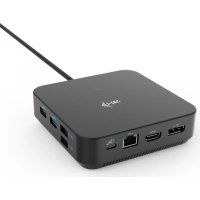
C31TRIPLE4KDOCKPDPRO - USB C Dock i-TEC - Free user manual and instructions
Find the device manual for free C31TRIPLE4KDOCKPDPRO i-TEC in PDF.



| Product Type | USB-C Docking Station |
| Brand | i-TEC |
| Model | C31TRIPLE4KDOCKPDPRO |
| Dimensions (product) | 113 x 113 x 31,2 mm |
| Weight | 340 g |
| Packaging Dimensions | 250 x 242 x 50 mm |
| Power Supply | USB-C PD power adapter (not included), up to 100 W |
| Power Consumption | 5-10 W |
| Integrated Cable | USB-C, 100 cm |
| Video Ports | 2x DisplayPort (DP++), 1x HDMI |
| Supported Resolutions | Up to 4K/60Hz (DP1.4), 5K/60Hz (DSC), etc. |
| USB Ports | 2x USB 3.2 Gen 1, 2x USB 2.0 |
| Network Port | Ethernet GLAN RJ-45 (up to 2,5 Gbit/s) |
| Audio Jack | Combined audio (headphone/mic) |
| Features | LED indicator, ON/OFF switch, MAC cloning, Kensington lock |
| Operating Systems | Windows 11/10, macOS, iPadOS, Android, Chrome OS, Linux |
| Maintenance | Clean with a dry cloth, avoid moisture and extreme temperatures |
| Safety | Use on a flat surface, do not expose to water, disconnect during storms |
| Recycling | Recycling symbol, dispose at an appropriate collection center (EU) |
Frequently Asked Questions - C31TRIPLE4KDOCKPDPRO i-TEC
User questions about C31TRIPLE4KDOCKPDPRO i-TEC
0 question about this device. Answer the ones you know or ask your own.
Ask a new question about this device
Download the instructions for your USB C Dock in PDF format for free! Find your manual C31TRIPLE4KDOCKPDPRO - i-TEC and take your electronic device back in hand. On this page are published all the documents necessary for the use of your device. C31TRIPLE4KDOCKPDPRO by i-TEC.
USER MANUAL C31TRIPLE4KDOCKPDPRO i-TEC
natural_image
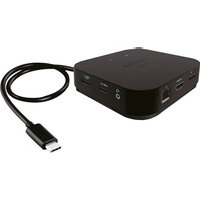
Black square electronic device with USB ports and a cable, no visible text or symbols on the device body.User guide • Gebrauchsanweisung • Mode d'emploi Manual de instrucciones • Manuale • Uživatelská příručka Instrukcje obsługi • Užívatel'ská príručka • Vartotojo vadovas • Handleiding
P/N: C31TRIPLE4KDOCKPDPRO
EN Please read the entire instruction manual carefully. Detailed manual is available on our website www.i-tec.cz/en/ in the tab „Manuals, drivers“. In case of any issues, please contact our technical support at: support@itecproduct.com
ENGLISH.... 06-10
DEUTSCH....11–15
FRANÇAIS....16-20
ESPAÑOL....21-25
ITALIANO....26-30
ČESKY.... 31–35
POLSKI 36-40
SLOVENSKY 41-45
LIETUVOS.... 46-50
NEDERLANDS.... 51-55
WEEE....56-57
Declaration of Conformity.... 58–59
FCC....50
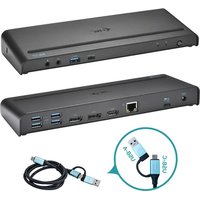
DESCRIPTION
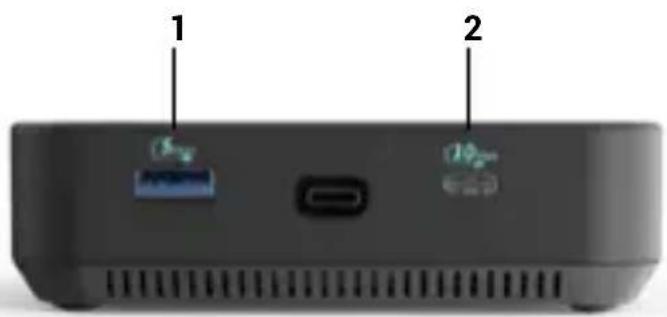
1 2
Front panel:
- USB-C 3.2 Gen.2 port
- USB 3.2 Gen.2 port
Right Panel:
345
- Audio combo jack
- Support for Kensington lock
- DisplayPort (with DP++ support)
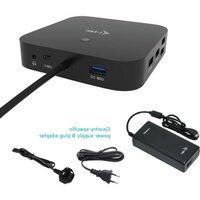
Back panel:
6789
- DisplayPort (with DP++ support)
- HDMI port
- Ethernet GLAN RJ-45 Port
- USB-C PD port.
Left panel:
11
- 2x USB 2.0 port
- 2x USB 3.2 port Gen.1
10
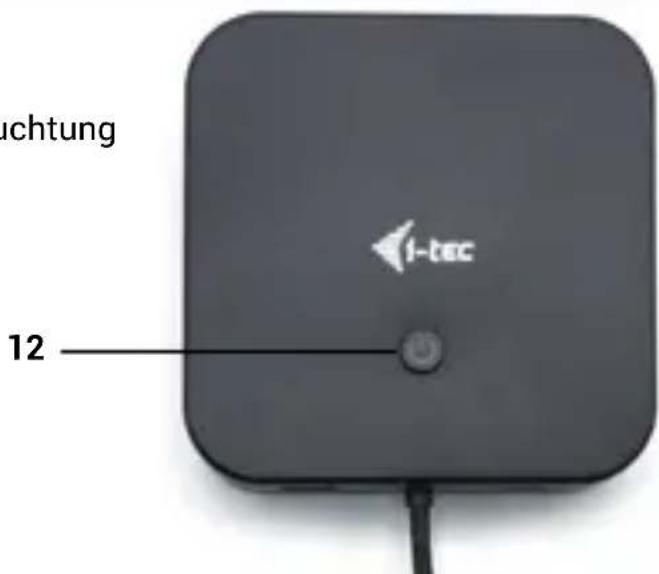
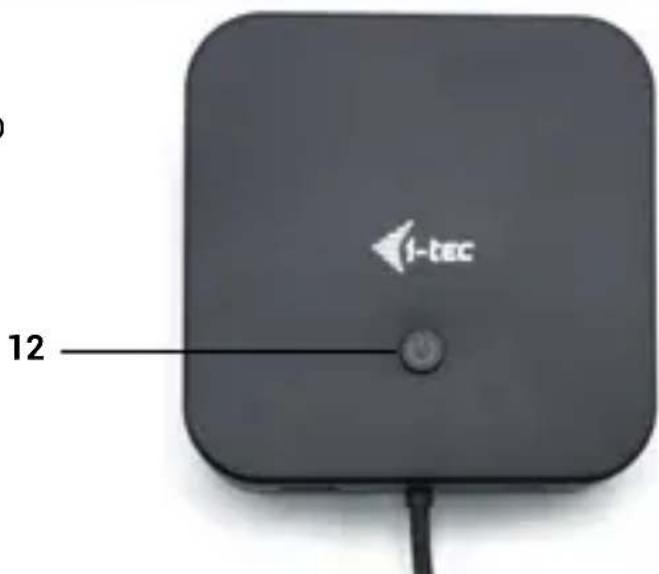
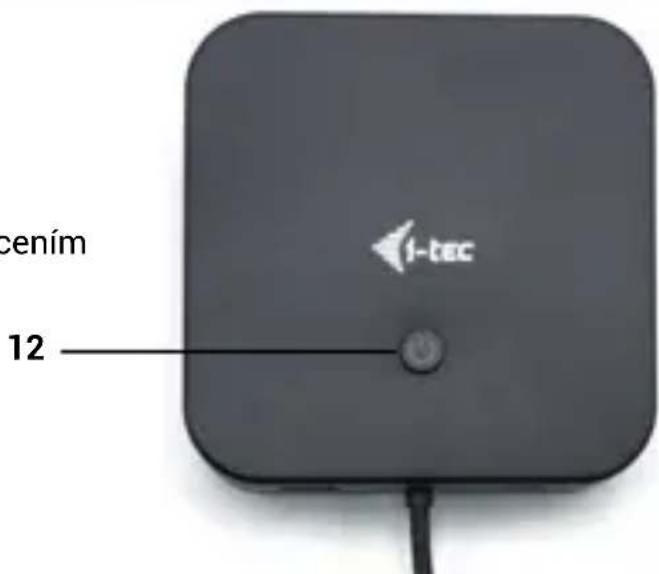
Top Panel:
- LED-backlit button to turn the docking station on and off.
12
SPECIFICATIONS
- 1x integrated USB-C cable for connection to the device (100 cm)
- Docking station technology: USB-C (MST)
• Power Delivery: up to 100 W - Internal power consumption: 5-10W (more info here)
• Video Ports: 2x DisplayPort (supporting DP++), 1x HDMI
Resolution:
- Host device with DisplayPort 1.2 support:
- 1 monitor - 1x HDMI or DP →up to 4K/30Hz
• 1 monitor - 1x HDMI or DP → up to 1080p/120Hz - 2 monitors - 1x DP + 1x HDMI → up to 2x 1080p/60Hz*.
- 2 monitors - 2x DP → up to 2x 1080p/60Hz*
- 3 monitors - 1x HDMI + 1x DP + 1x DP → up to 1x 1080p/60Hz + up to 2x 720p/60Hz*
- Host device with DisplayPort 1.4 support:
• 1 monitor - 1x HDMI → up to 4K/60Hz
• 1 monitor - 1x DP → up to 4K/60Hz
- 2 monitors - 1x DP + 1x HDMI → up to 2x 1440p/60Hz*
- 2 monitors - 1x DP + 1x HDMI → up to 2x 4K/30Hz*
- 2 monitors - 2x DP → up to 2x 4K/30Hz*
- 3 monitors - 1x HDMI + 1x DP + 1x DP → up to 3x 1080p/60Hz*
- DisplayPort 1.4 host device with DSC support:
• 1 monitor - 1x HDMI → up to 4K/60Hz
• 1 monitor - 1x DP → up to 5K/60Hz
- 1 monitor - 1x HDMI → up to 1440p/144Hz or 1080p/240Hz
- 1 monitor - 1x DP → up to 4K/144Hz or 1440p/240Hz or 1080p/360Hz
• 2 monitors - 1x DP + 1x HDMI → up to 2x 4K/60Hz*
- 2 monitors - 1x DP + 1x HDMI or DP → up to 2x 1440p/144Hz*
• 3 monitors - 1x HDMI + 1x DP + 1x DP → up to 3x 4K/30Hz*
• 1x USB-C 3.2 Gen.2 port (10 Gbps)
- 1x USB-C 3.2 port Gen.2 (10 Gbps) + PD (Power delivery)
• 3x USB-A 3.2 port Gen. 1 port (5 Gbps)
- 2x USB 2.0 port
• 1x Ethernet GLAN RJ-45 port
• 1x 3.5 mm Combo Audio port
- LED indication
- ON/OFF switch to turn the docking station on and off
- MAC address cloning: yes (using i-tec Docker Pro software)
• VOL: S1, S2, S3
• Support for Kensington lock
•Product dimensions: 113 x 113 x 31.2 mm
•Product weight: 340 g
•Package dimensions: 250 x 242 x 50 mm
- OS: Windows 11, Windows 10, macOS*, iPadOS**, Android**, Chrome OS and Linux with the latest updates
Specification notes:
* The macOS operating system doesn't support Multi Stream Transport (MST), which means that when connected to macOS, the same image will be projected on all connected monitors.
** iPadOS, Android do not support multi-screen video transfer technology, nor the extended screen option. This means that when connected to an external monitor, only the mirrored screen will be displayed. (Not valid for androids with DEX and Easy Projection extension)
The docking station can be used without a power adapter connected. In this case, the video outputs, LAN (RJ-45), audio/mic and both USB 2.0 ports will always be functional. However, the USB 3.2 ports and the USB-C data port may not work when connecting devices with higher power requirements (e.g. SSDs, especially NVMe drives). In this case, the docking station may shut down We recommend using the docking station with the power adapter connected to ensure that all ports are used and that maximum data transfer speeds are achieved.
Note: If connected to an Android device, the dock will only work with the power adapter connected. The adapter is not included.
SYSTEM REQUIREMENTS
Hardware requirements:
• Devices with a free USB-C, USB4 or Thunderbolt™ 3/4 port
Requirements for the Power Delivery function:
• Devices with a free USB-C, USB4 or Thunderbolt™ 3/4 port with Power Delivery support
Video output requirements:
- Devices with a free USB-C or USB4 port that supports DisplayPort Alternate Mode or Thunderbolt™ 3/4 port
Operating system:
- Windows 10 / 11, macOS*, iPadOS**, Android**, Chrome OS and Linux with the latest updates
* macOS does not support Multi Stream Transport (MST). Connecting two monitors to a macOS station will cause both monitors to display the same image.
** iPadOS, Android systems do not support multi-screen image transfer technology or the expanded screen option. This means that only the mirrored screen will be displayed when connected to an external monitor. (Not valid for Android devices with DEX and Easy Projection extensions).
INSTALLING DRIVERS
Windows:
Only if a problem is detected with the LAN adapter, e.g.:
In case of outages, slow network and in case of poor or no LAN detection.
You can download LAN drivers here in the Manuals, Drivers section:
https://i-tec.pro/produkt/c31triple4kdockpdpro/
MacOS:
No need to install drivers.
SAFETY INSTRUCTIONS FOR USING THE DOCKING STATION
- Do not expose to extreme temperatures and humidity.
- Use the device on flat pads to avoid slipping and falling on the ground. Keep the controls and manual for later use.
- Avoid straining the USB-C port or cable.
- Restart the product periodically using the ON/OFF button or by unplugging it from the mains.
- Do not plug USB-C PD adapters into USB-C ports that are not marked as ports to connect USB-C PD power adapter.
- It is recommended that you switch off the docking station at the end of the day.
In cooperation with the service department:
- Check functionality after falling into water or on the ground.
- Verify functionality when the cover is cracked.
- Complain about the device not working according to the manual.
FREQUENTLY ASKED QUESTIONS
Available on our website www-i-tec.pro under "FAQ" for this product
GLOSSARY OF TERMS
Interface / port / connector / input / slot - the place where two devices are physically connected.
Controller - a semiconductor component (called a chipset) in a notebook/tablet that ensures the operation of one of the ports.
Thunderbolt™ - is a fast hardware interface that allows you to connect devices (peripherals) to your computer via an expansion bus. Thunderbolt combines PCI-Express and DisplayPort into a serial data interface. It allows daisy chaining of up to 6 additional Thunderbolt™ devices, with Thunderbolt™ 3/4 transfer rates of up to 40Gbit/s.
USB-C / USB Type-C / USB4 / Thunderbolt™ 3/4 - is a symmetrical connector Allows faster charging, power, dual-role (not only host, but also guest), support for alternative modes - Alt Mode (DisplayPort, MHL, Thunderbolt 3, Power Delivery) and error notification via Billboard device.
USB-C Power Delivery (USB-C PD) - optional feature of the USB-C connector. A connector with this support can both charge and be charged, and supports loads from 10W to 240W
USB 3.2 / 3.1 / 3.0 / 2.0 - standard for USB interface / port for connecting various USB devices. Various USB devices can be connected to the docking station or adapter using USB Type-A interface. The USB Type B port is used to connect the docking station or adapter to a laptop/tablet.
HDMI / Display Port - A standard for a digital graphics interface/port used to connect monitors and other graphic display devices.
LAN (Local Area Network) - a local computer network, now the most common is the so-called Ethernet, which at the docking station reaches a theoretical transfer rate of up to 2.5 Gbit/s.
Audio - a term for an audio input (microphone) or output device (headphones/speakers).
BESCHREIBUNG
Frontplatte:
SPEZIFIKATIONEN
- Port USB-C 3.2 Gen.2
- Port USB 3.2 Gen.2
Panneau de droite:
• 1x port USB-C 3.2 Gen.2 (10 Gbps)
- 1x port USB-C 3.2 Gen.2 (10 Gbps) + PD (Power delivery)
• 3x port USB-A 3.2 Gen. 1 (5 Gbps)
- 2 ports USB 2.0
• 1x Ethernet GLAN RJ-45 port
• 1x 3.5 mm Combo Audio port
- Puerto USB-C 3.2 Gen.2
- Puerto USB 3.2 Gen.2
Panel derecho:
• 1x puerto USB-C 3.2 Gen.2 (10 Gbps)
- 1x puerto USB-C 3.2 Gen.2 (10 Gbps) + PD (Power delivery)
• 3 puertos USB-A 3.2 Gen. 1 (5 Gbps)
• 2 puertos USB 2.0
• 1 puerto Ethernet GLAN RJ-45
- 1x puerto de audio combo de 3,5 mm
- Indicación LED
SPECIFICHE
- USB-C 3.2 port Gen.2
- USB 3.2 port Gen.2
Pravý Panel:
- Audio combo jack
- Podpora pro Kensington lock
- DisplayPort (s podporou DP++)
Zadní panel:
- DisplayPort (s podporou DP++)
- HDMI Port
- Ethernet GLAN RJ-45 Port
- USB-C PD port.
Levý panel:
- 2x USB 2.0 port
- 2x USB 3.2 port Gen.1
Vrchní Panel:
SPECIFIKACE
- Port USB-C 3.2 Gen.2
- Port USB 3.2 Gen.2
Prawy panel:
- Port USB-C 3.2 Gen.2
- Port USB 3.2 Gen.2
Pravý Panel:
- Kombinovaný audio konektor
- Podpora zámku Kensington
- DisplayPort (s podporou DP++)
Zadný panel:
- DisplayPort (s podporou DP++)
- Port HDMI
- Port Ethernet GLAN RJ-45
- Port USB-C PD.
L'avý panel:
- 2x port USB 2.0
- 2x port USB 3.2 Gen.1
Horný panel:
- 1x port USB-C 3.2 Gen.2 (10 Gb/s) + PD (Power delivery)
• 3x port USB-A 3.2 Gen. 1 (5 Gb/s)
- 2x port USB 2.0
• 1x port Ethernet GLAN RJ-45
• 1x USB-C 3.2 Gen.2 poort (10 Gbps)
- 1x USB-C 3.2 poort Gen.2 (10 Gbps) + PD (Power delivery)
• 3x USB-A 3.2 poort Gen. 1 (5 Gbps)
- 2x USB 2.0-poort
• 1x Ethernet GLAN RJ-45-poort
- 1x 3,5 mm Combo Audio-poort
- LED-indicatie
This equipment is marked with the above recycling symbol. It means that at the end of the life of the equipment you must dispose of it separately at an appropriate collection point and not place it in the normal domestic unsorted waste stream. This wil benefit the environment for all. (European Union only)
DEUTSCH
This equipment has been tested and found to comply within the limits of a Class B digital device pursuant to Part 15 of the FCC Rules. These limits are designed to provide reasonable protection against harmful interference in a residential installation.


- DESCRIPTION
- Front panel:
- Right Panel:
- Back panel:
- Left panel:
- Top Panel:
- SPECIFICATIONS
- Resolution:
- Specification notes:
- SYSTEM REQUIREMENTS
- Hardware requirements:
- Requirements for the Power Delivery function:
- Video output requirements:
- Operating system:
- INSTALLING DRIVERS
- Windows:
- MacOS:
- SAFETY INSTRUCTIONS FOR USING THE DOCKING STATION
- FREQUENTLY ASKED QUESTIONS
- GLOSSARY OF TERMS
- BESCHREIBUNG
- Frontplatte:
- SPEZIFIKATIONEN
- Panneau de droite:
- Panel derecho:
- SPECIFICHE
- Pravý Panel:
- Zadní panel:
- Levý panel:
- Vrchní Panel:
- SPECIFIKACE
- Prawy panel:
- Zadný panel:
- L'avý panel:
- Horný panel:
- DEUTSCH
Brand : i-TEC
Model : C31TRIPLE4KDOCKPDPRO
Category : USB C Dock