EKAIO 120 DRGB - Computer cooling system EK Water Blocks - Free user manual and instructions
Find the device manual for free EKAIO 120 DRGB EK Water Blocks in PDF.



User questions about EKAIO 120 DRGB EK Water Blocks
0 question about this device. Answer the ones you know or ask your own.
Ask a new question about this device
Download the instructions for your Computer cooling system in PDF format for free! Find your manual EKAIO 120 DRGB - EK Water Blocks and take your electronic device back in hand. On this page are published all the documents necessary for the use of your device. EKAIO 120 DRGB by EK Water Blocks.
USER MANUAL EKAIO 120 DRGB EK Water Blocks
natural_image
Orange background with a white abstract geometric logo resembling a stylized 'K' or cross (no text or symbols)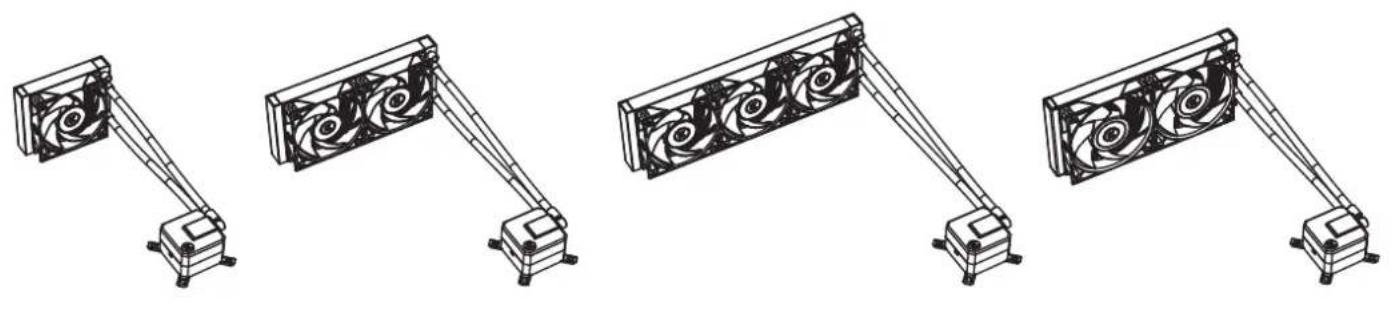
natural_image
Four technical line drawings of a mechanical device with four fans mounted on stands, shown from different angles (no text or symbols present)To ensure safe and easy installation, please carefully read this manual before starting with the installation process!
Compatible with:
Intel Socket 115X / 1200 / 20XX CPUs
AMD Socket AM4 CPU

INFORMATION TO THE USER
This equipment has been tested and found to comply with the limits for a class B digital device, pursuant to part 15 of the FCC Rules. These limits are designed to provide reasonable protection against harmful interference in a residential installation. This equipment generates, uses and can radiate radio frequency energy and if not installed and used in accordance with the instructions, may cause harmful interference to radio communications. However, there is no guarantee that interference will not occur in a particular installation. If this equipment does cause harmful interference to radio or television reception, which can be determined by turning the equipment off and on, the user is encouraged to try to correct the interference by one or more of the following measures:
• Reorient or relocate the receiving antenna.
- Increase the separation between the equipment and receiver.
- Connect the equipment into an outlet on a circuit different from that to which the receiver is connected.
- Consult the dealer or an experienced radio/TV technician for help.
The user is cautioned that changes and modifications made to the equipment without the approval of manufacturer could void the user's authority to operate this equipment.
TABLE OF CONTENT
- SAFETY PRECAUTIONS 4
- SPECIFICATIONS 4
- ENCLOSED IN THIS PACKAGE 5
MOUNTING KIT 5 - INSTALLATION - INTEL LGA-115X/1200 SOCKET 6
STEP 1: REMOVING THE MOTHERBOARD 6
STEP 2: ATTACHING THE BACKPLATE TO THE MOTHERBOARD 6
STEP 3: ATTACHING MOUNTING SCREWS 6
STEP 4: INSTALLING THE FANS TO THE RADIATOR 6
STEP 5: REMOVING THE COLD-PLATE PROTECTIVE COVER 6
STEP 6: MOUNTING BRACKETS INSTALLATION 6
STEP 7: PUMP UNIT INSTALLATION 6
STEP 8: INSTALLING THE RADIATOR AND FANS ASSEMBLY INTO THE PC CASE 7
STEP 9: PUMP - CONNECTING CABLES 7
STEP 10: FANS - CONNECTING CABLES 8
OPTIONAL STEP! APPLYING THE THERMAL COMPOUND 8 - INSTALLATION - INTEL LGA-20XX SOCKET 8
STEP 1: ATTACHING MOUNTING SCREWS (LGA-20XX) 8 - INSTALLATION - AMD AM4 SOCKET 9
STEP 1: REMOVING THE ORIGINAL PLASTIC HOLD-DOWN CLAMPS (AMD) 9
STEP 2: ATTACHING MOUNTING SCREWS [AMD] 9
STEP 3: INSTALLING THE FANS TO THE RADIATOR (AMD) 9
STEP 4: REMOVING THE COLD-PLATE PROTECTIVE COVER (AMD) 9
STEP 5: MOUNTING BRACKETS INSTALLATION [AMD] 9
STEP 6: PUMP UNIT INSTALLATION [AMD]
STEP 7: INSTALLING THE RADIATOR AND FANS ASSEMBLY INTO THE PC CASE [AMD] 10
STEP 8: PUMP - CONNECTING CABLES [AMD] 10
STEP 9: FANS - CONNECTING CABLES (AMD) 11
OPTIONAL STEPI APPLYING THE THERMAL COMPOUND 11 - SUPPORT AND SERVICE 11
- SOCIAL MEDIA 11
This product is intended for installation by expert users only. Please, consult with a qualified technician. Improper installation may result in damage to your equ assumes no liability whatsoever, expressed or implied, for the use of these products or their installation. The following instructions are subject to change without notice. Please visit our web site at www.ekwo.com for updates.

NOTE ON ENVIRONMENTAL PROTECTION:
After the implementation of the European Directive 2012/19/EU in the national legal system, the following applies:
- Electrical and electronic devices may not be disposed of with domestic waste.
- Consumers are obliged by law to return electrical and electronic devices at the end of their service lives to the public collecting points set up for this purpose or point of sale. Details to this are defined by the national law of the respective country. This symbol on the product, the instruction manual or the package indicates that a product is subject to these regulations. By recycling, reusing the materials or other forms of utilising old devices, you are making an important contribution to protecting our environment.
1. SAFETY PRECAUTIONS
- Keep and store the product away from the reach of children.
- Check the component list and condition of the product before installation. If you encounter a problem, contact the shop where you have purchased the product to get a replacement or a refund.
- ERWB d.o.o. is not responsible for any damages due to external causes, including but not limited to: improper use, problems with electrical power, accident, neglect, alteration, repair, improper installation, and improper testing.
- CPU and motherboard are subject to damage if the product is incorrectly installed.
- The excessive force exerted on the fan may cause damage to the fan and/or system.
- This product is a CPU liquid cooling solution kit, comprising of individual original EKWB parts. Combining this liquid cooling unit with parts, other than EK Water Block products, may lead to warranty loss.
- Product design and specifications may be revised to improve quality and performance.
-
You must not run the pump below 20% RPM. The pump must stay within a 20-100% PWM duty cycle at all times. We recommend to always run the pump at 100%.
-
SPECIFICATIONS
pment. EK Water Blocks
| Model EK-AIO 120 D-RGB EK-AIO 240 D-RGB | |||
| Radiator | Dimensions 157x120x27 mm 277x120x27 mm | ||
| Fin matorial (A/A) | |||
| Fan | Dimensions 120x120x25 mm 120x120x25 mm (2x) | ||
| Speed | 600-2200 RPM =10%(PWM: 25-100%) | 600-2200 RPM =10%(PWM: 25-100%) | |
| Life Expectancy | 50,000 hours | 50,000 hours | |
| Bearing Type | Fluid Dynamic bearing (FDB) | Fluid Dynamic bearing (FDB) | |
| Connector | 4-Pin | 4-Pin | |
| Rated Voltage | 12V | 12V | |
| Pump | Dimensions (mm) | 88x70x53 mm | 98x70x53 mm |
| RPM | 850-2600 RPM ±10%(PWM: 20-100%) | 850-2600 RPM =10%(PWM: 20-100%) | |
| Life Expectancy | 50,000 hours | 50,000 hours | |
| Noise Level 23 dB | 23 dB | ||
| Input Current | 0.65±10% A | 0.65±10% A | |
| Model EK-AIO 360 D-RGB EK-AIO 280 D-RGB | |||
| Radiator | Dimensions 397x120x27 mm 313x140x27 mm | ||
| Fin material (A/A) | |||
| Fan | Dimensions 120x120x25 mm (3x) 140x140x25 mm (2x) | ||
| Spood | 600-2200 RPM +10% (PWM: 75-100%) | 500-2000 RPM +10% (PWM: 75-100%) | |
| Life Expectancy | 50,000 hours | 50,000 hours | |
| Bearing Type | Fluid Dynamic bearing (FDB) | Fluid Dynamic bearing (FDB) | |
| Connector | 4-Pin | 4-Pin | |
| Rated Voltage | 12V | 12V | |
| Pumo | Dimensions (mm) | 88x70x53 mm | 88x70x53 mm |
| RPM | 850-2600 RPM ±10% (PWM: 70-100%) | 850-2600 RPM ±10% (PWM: 70-100%) | |
| Life Expectancy | 50,000 hours | 50,000 hours | |
| Noise Level 23 dB | 23 dB | ||
| Input Current | 0.65±10% A | 0.65±10% A | |
3. ENCLOSED IN THIS PACKAGE
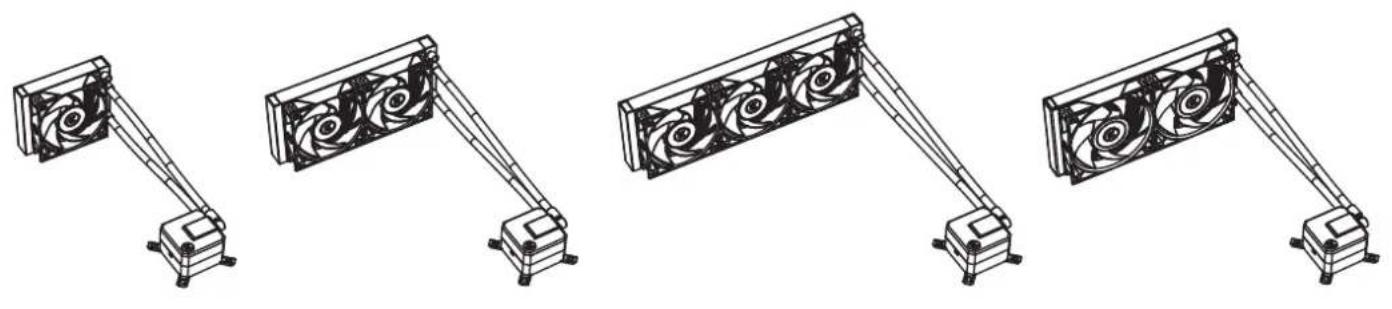
EK-AIO 120 D-RGB unit / EK-AIO 240 D-RGB unit / EK-AIO 360 D-RGB unit / EK-AIO 280 D-RGB unit (1x)
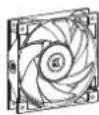
natural_image
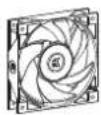
Pure mechanical bracket diagram without any text, numbers, or symbolsEK-Vardar S 120ER D-RGB Fan (1x / 2x / 3x - number of fans depends on the AIO version) / EK-Vardar S 140ER D-RGB Fan (2x)
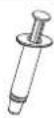
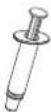
A tube of Thermal Paste (3830046998446 - EK-TIM Ectotherm (1g)) (1x)
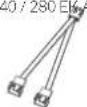
Fan Cable Y-splitter
EK-AIO 240 / 280 EK-AIO 360
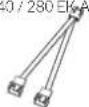
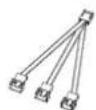
Mounting Kit (1x)
User Manual (1x)
MOUNTING KIT
| Phillips Head Screw UNC 6-32 x 30 mm(5 mm thread length)4x / 8x / 12x | (TT56) | Phillips Head ScrewUNC 6-32 x 6 mm4x / 8x / 12x | (+02) |
| Phillips Head Screw UNC 6-32 x 34 mm4x / 8x / 12x | (20C1) |
| Thumb nut (Intel /AMD)4x | [4658] | Mounting thumb screw for INTEL LGA 115x / AMD AW4 socket4x | [057W]- |
| Mounting thumb screw for Intel LGA 20XX socket4x | [0624] | Spring4x | [052H] |
| Mounting Plate Phillips HeadM4 x 4 mm (for the installation of mounting brackets)4x | [0016] | ||
| Intel LGA 115x Backplate1x |  | Intel mounting bracket2x | [023H] |
| AMD mounting bracket2x |  |
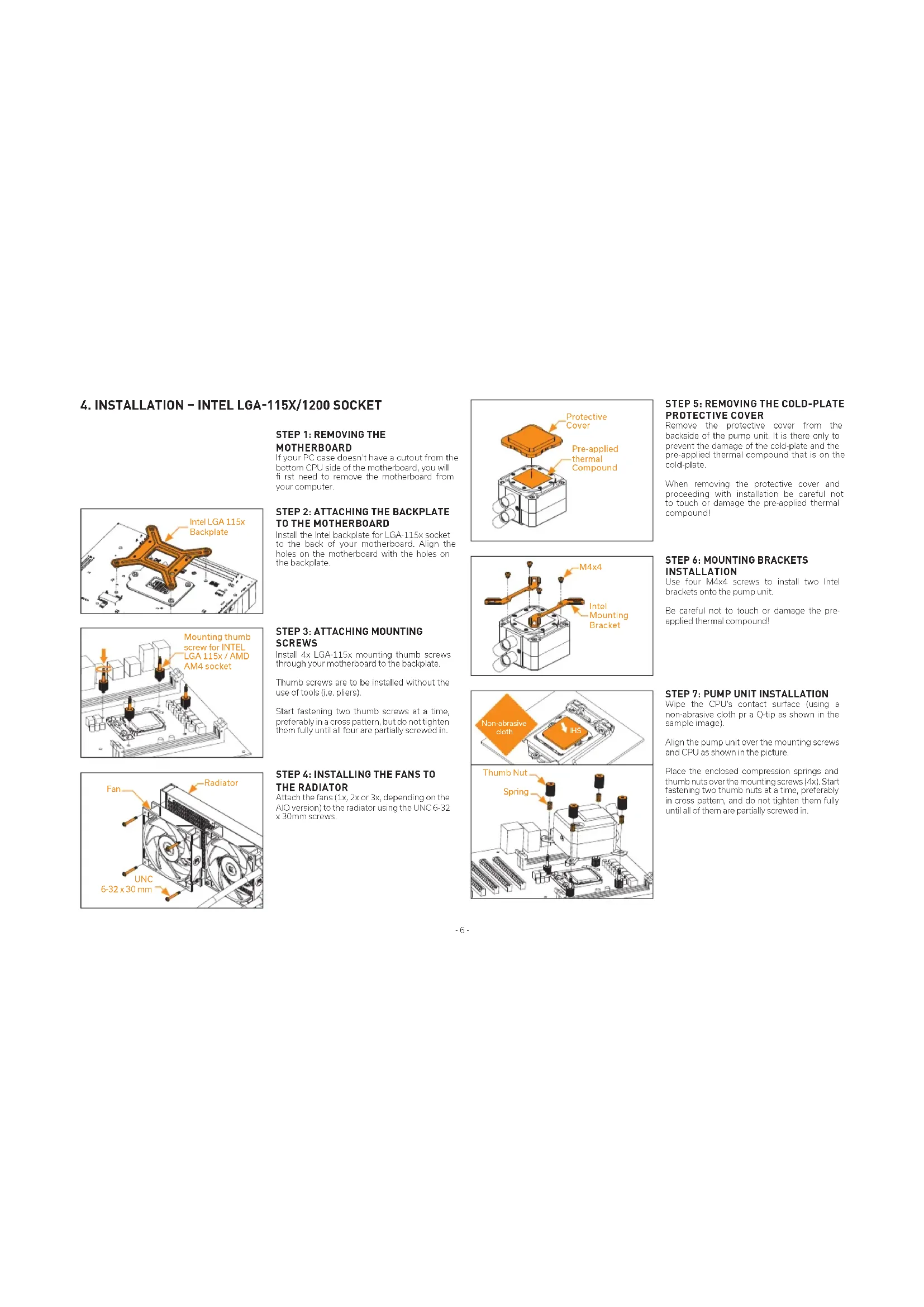
4. INSTALLATION - INTEL LGA-115X/1200 SOCKET
STEP 1: REMOVING THE MOTHERBOARD
If your PC case doesn't have a cutout from the bottom CPU side of the motherboard, you will first need to remove the motherboard from your computer.
text_image
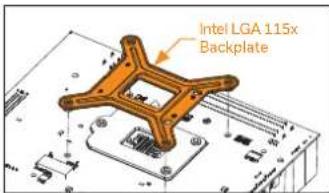
Intel LGA 115x BackplateSTEP 2: ATTACHING THE BACKPLATE TO THE MOTHERBOARD
Install the Intel backplate for LGA-115x socket to the back of your motherboard. Align the holes on the motherboard with the holes on the backplate.
text_image
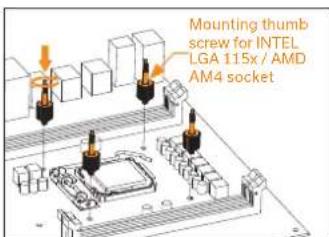
Mounting thumb screw for INTEL LGA 115x / AMD AM4 socketSTEP 3: ATTACHING MOUNTING SCREWS
Install 4x LGA-115x mounting thumb screws through your motherboard to the backplate.
Thumb screws are to be installed without the use of tools (i.e. pliers).
Start fastening two thumb screws at a time, preferably in a cross pattern, but do not tighten them fully until all four are partially screwed in.
text_image
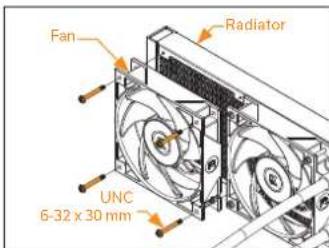
Fan Radiator UNC 6-32 x 30 mmSTEP 4: INSTALLING THE FANS TO THE RADIATOR
Attach the fans (1x, 2x or 3x, depending on the AIO version) to the radiator using the UNC 6-32 x 30mm screws.
text_image
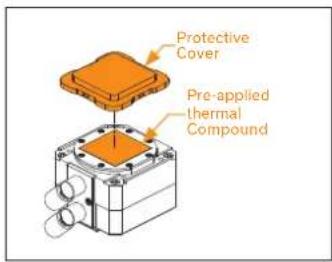
Protective Cover Pre-applied thermal CompoundSTEP 5: REMOVING THE COLD-PLATE PROTECTIVE COVER
Remove the protective cover from the backside of the pump unit. It is there only to prevent the damage of the cold-plate and the pre-applied thermal compound that is on the cold-plate.
When removing the protective cover and proceeding with installation be careful not to touch or damage the pre-applied thermal compound!
text_image
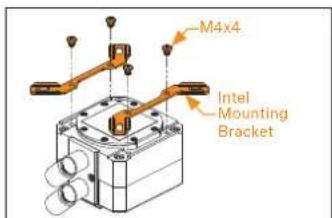
M4x4 Intel Mounting BracketSTEP 6: MOUNTING BRACKETS INSTALLATION
Use four M4x4 screws to install two Intel brackets onto the pump unit.
Be careful not to touch or damage the pre-applied thermal compound!
text_image
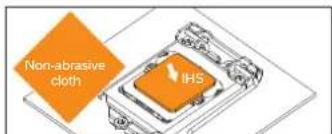
Non-abrasive cloth IHSSTEP 7: PUMP UNIT INSTALLATION
Wipe the CPU's contact surface (using a non-abrasive cloth pr a Q-tip as shown in the sample image).
Align the pump unit over the mounting screws and CPU as shown in the picture.
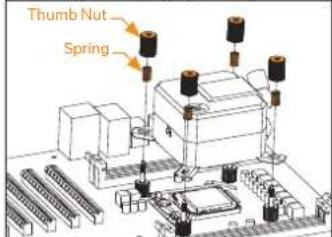
text_image
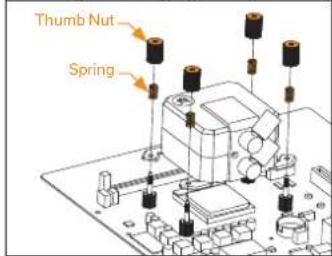
Thumb Nut SpringPlace the enclosed compression springs and thumb nuts over the mounting screws (4x). Start fastening two thumb nuts at a time, preferably in cross pattern, and do not tighten them fully until all of them are partially screwed in.
text_image
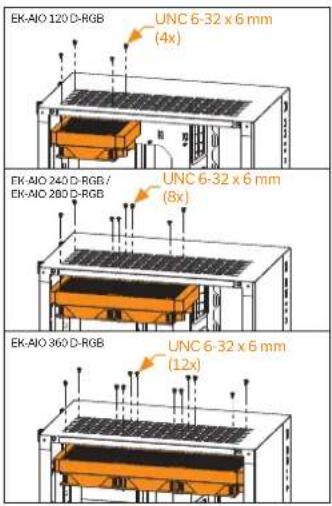
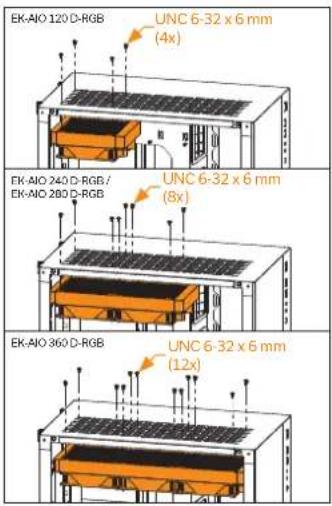
EK-AIO 120 D-RGB UNC 6-32 x 6 mm (4x) EK-AIO 240 D-RGB / UNC 6-32 x 6 mm (8x) EK-AIO 360 D-RGB UNC 6-32 x 6 mm (12x)STEP 8: INSTALLING THE RADIATOR AND FANS ASSEMBLY INTO THE PC CASE
Attach the assembly of the radiator and the fan(-s) to the PC case with the UNC 6-32 x 6mm screws.
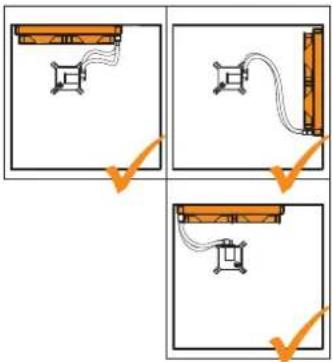
text_image
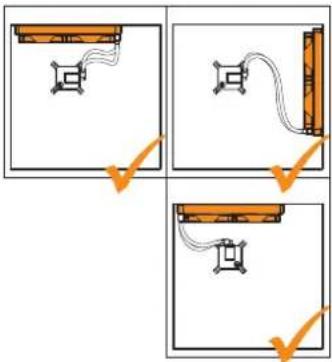
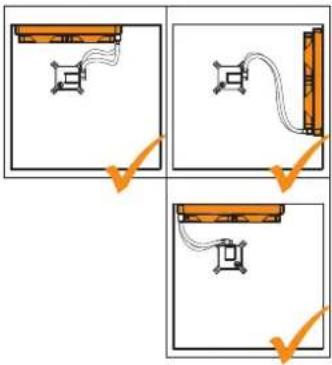
Diagram showing three sequential steps of a mechanical or electrical setup with orange arrows indicating direction and change.Radiator on top (recommended)
Vertical placement of the radiator with tubing at the bottom (recommended)
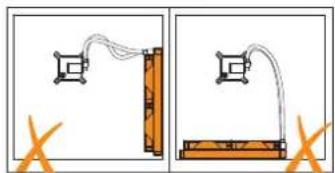
natural_image
Two diagrams showing a cable installation with a wall-mounted component and a suspended platform, both without any text or symbols.Vertical placement of the radiator with tubing at the top (not optimal)
Radiator at the bottom (should be avoided)
text_image
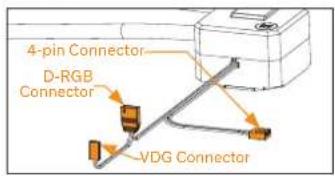
4-pin Connector D-RGB Connector VDG ConnectorSTEP 9: PUMP - CONNECTING CABLES
natural_image
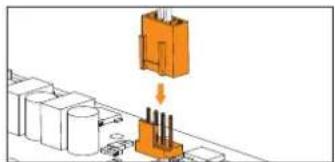
Diagram showing a component being inserted into a terminal block, with no visible text or symbols.STEP A:
Plug the 4-pin PWM connector of the pump to the motherboard.
text_image
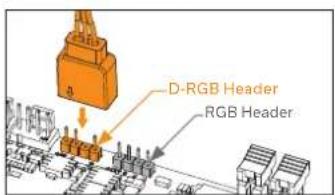
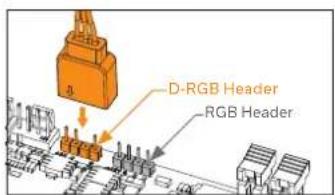
D-RGB Header RGB HeaderSTEP B:
Plug the 3-pin connector of the pump's D-RGB LED light to the D-RGB HEADER on the motherboard. The LED will work if the pin layout on the header is as follows: +5V, Digital, Empty, Ground. With a motherboards, you can alternatively use a VDG connector instead of a D-RGB to connect the LED.

Please ensure that the arrow indicated on the connector is plugged into the +5V line as indicated on your motherboard. If you put LED Diode to the 12V RGB HEADER you can damage the LEDs.

Connector is the same on D-RGB and RGB versions, but D-RGB version has 3 cables from connector to PCB; RGB version has 4 cables. If you connect D-RGB led to ordinary RGB header you can damage your motherboard or LED strip.

text_image
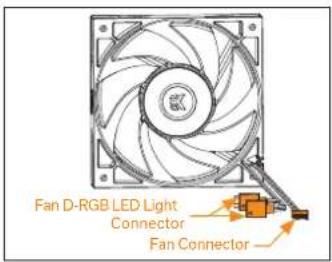
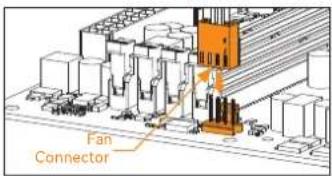
Fan D-RGB LED Light Connector Fan ConnectorSTEP 10: FANS - CONNECTING CABLES
text_image
Fan ConnectorSTEP A:
OPTION 1
Connect the 4-pin PWM connector from the fan cable directly to the CPU fan-header on the motherboard. Always use the CPU fan-header if possible.
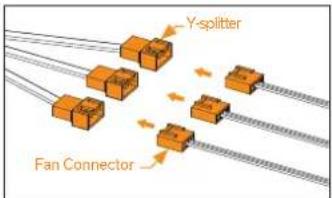
text_image
Y-splitter Fan ConnectorOPTION 2:
In the case of EK-AIO 240 / 280 D-RGB and EK-AIO 360 D-RGB versions (with 2 or 3 fans), you may connect the connectors from each of the fans with the connectors on the Y-splitter cable and then connect the Y-splitter connector to the fan header on the motherboard. Always use the CPU fan-header if possible.
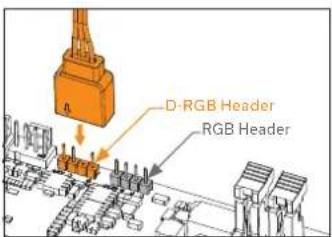
text_image
D-RGB Header RGB HeaderSTEP B:
OPTION 1:
Plug the 3-pin connector for D-RGB LED light of the fan(-s) to the D-RGB HEADER on the motherboard.
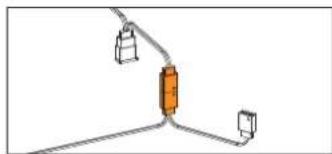
natural_image
Simple line drawing of a mechanical or electrical component with three vertical supports and a central orange block (no text or symbols)OPTION 2:
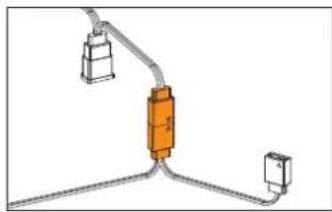
In the case of EK-AIO 240 / 280 D-RGB and EK-AIO 360 D-RGB versions, you may first connect 2 or 3 fans together in a "daisy-chain" connection and then connect them all together to a D-RGB header on the motherboard.
text_image
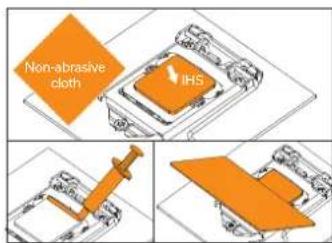
Non-abrasive cloth IHSOPTIONAL STEP! APPLYING THE THERMAL COMPOUND
This step is relevant only in the case of second installation of AIO or if you damaged the pre-applied paste on the backside of the pump unit! For the first installation, you don't need to apply the additional thermal compound to the CPU's contact surface!
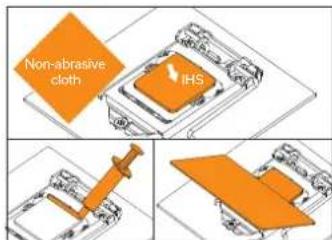
Wipe the CPU's contact surface (using a non-abrasive cloth or a Q-tip as shown in the sample image). On a clean IHS, apply a line of thermal compound and spread it over the whole CPU heat spreader (IHS) with a credit card or something similar.
5. INSTALLATION INTEL LGA 20XX SOCKET
text_image
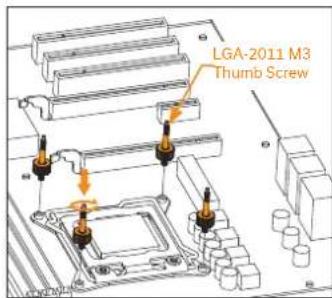
LGA-2011 M3 Thumb ScrewSTEP 1: ATTACHING MOUNTING SCREWS (LGA-20XX)
LGA-20xx (2066 / 2011 V3 / 2011) socket, motherboards do not require backplate installation. Install 4x LGA-20XX mounting thumb screws into M4 threaded stubs on the integrated latch mechanism (ILM) of the LGA-20XX socket.
Thumb screws are to be installed without the use of tools (i.e. pliers).

Continue installation by following the instructions from Step 4 on page 6
6. INSTALLATION - AMD AM4 SOCKET
text_image
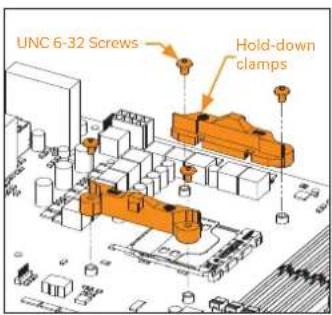
UNC 6-32 Screws Hold-down clampsSTEP 1: REMOVING THE ORIGINAL PLASTIC HOLD-DOWN CLAMPS (AMD)
Using Philips-head screwdriver, remove the 4 UNC 6-32 screws securing the original plastic hold-down clamps around the socket as shown in the image. Keep the original AMD® backplate and remove the hold-down clamps to store them away. See the image for further part identification.
text_image
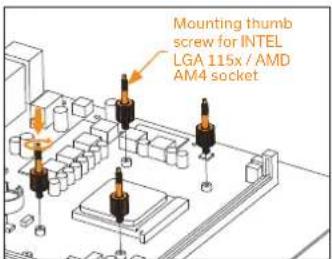
Mounting thumb screw for INTEL LGA 115x / AMD AM4 socketSTEP 2: ATTACHING MOUNTING SCREWS (AMD)
Install 4x mounting thumb screw for AMD AM4 socket onto your motherboard. The screws are to be installed without the use of tools (i.e. pliers).
text_image
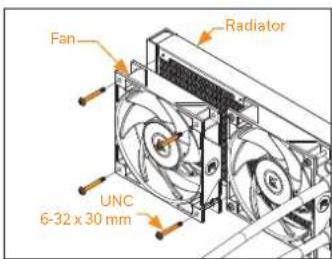
Fan Radiator UNC 6-32 x 30 mmSTEP 3: INSTALLING THE FANS TO THE RADIATOR (AMD)
Attach the fans (1x, 2x or 3x, depending on the AIO version) to the radiator with the UNC 6-32 x 30mm screws.
text_image
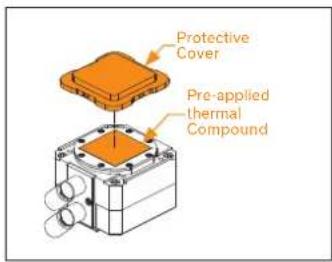
Protective Cover Pre-applied thermal CompoundSTEP 4: REMOVING THE COLD-PLATE PROTECTIVE COVER (AMD)
Remove the protective cover from the backside of the pump unit. It is there only to prevent the damage of the cold-plate and the pre-applied thermal compound that is on the cold-plate.
When removing the protective cover and proceeding with installation be careful not to touch or damage the pre-applied thermal compound!
text_image
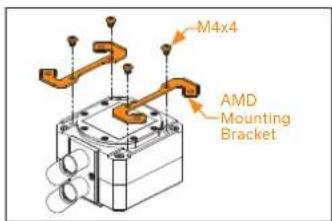
M4x4 AMD Mounting BracketSTEP 5: MOUNTING BRACKETS INSTALLATION (AMD)
Use four M4x4 screws to install two AMD brackets onto the pump unit.
Be careful not to touch or damage the pre-applied thermal compound!
text_image
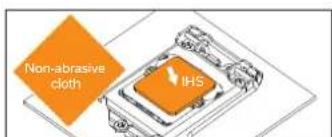
Non-abrasive cloth IHSSTEP 6: PUMP UNIT INSTALLATION (AMD)
Wipe the CPU's contact surface (using a non-abrasive cloth pr a Q-tip as shown in the sample image).
Align the pump unit over the mounting screws and CPU as shown in the picture.
text_image
Thumb Nut SpringPlace the enclosed compression springs and thumb nuts over the mounting screws (4x). Start fastening two thumb nuts at a time, preferably in cross pattern, and do not tighten them fully until all of them are partially screwed in.
text_image
EK-AIO 120 D-RGB UNC 6-32 x 6 mm (4x) EK-AIO 240 D-RGB / UNC 6-32 x 6 mm (8x) EK-AIO 360 D-RGB UNC 6-32 x 6 mm (12x)STEP 7: INSTALLING THE RADIATOR AND FANS ASSEMBLY INTO THE PC CASE [AMD]
Attach the assembly of the radiator and the fan(-s) to the PC case with the UNC 6-32 x 6mm screws.
![EK Water Blocks EKAIO 120 DRGB - STEP 7: INSTALLING THE RADIATOR AND FANS ASSEMBLY INTO THE PC CASE [AMD] - 1](/content/2026/03/523717/images/c92fc4ec6b94338eac7e5c391b92341dbe8a959c3b26e4d3b8e36956d7bcd71d.jpg)
natural_image
Two diagrams showing a cable installation with a vertical panel and a horizontal block, both without any text or symbols.Vertical placement of the radiator with tubing at the top (not optimal)
Radiator at the bottom (should be avoided)
![EK Water Blocks EKAIO 120 DRGB - STEP 7: INSTALLING THE RADIATOR AND FANS ASSEMBLY INTO THE PC CASE [AMD] - 2](/content/2026/03/523717/images/8bb18c0944f94fc09208f139aeadbbd02ce8516a45634e3ea4d9519e0e0a88ab.jpg)
text_image
4-pin Connector D-RGB Connector VDG ConnectorSTEP 8: PUMP - CONNECTING CABLES (AMD)
![EK Water Blocks EKAIO 120 DRGB - STEP 7: INSTALLING THE RADIATOR AND FANS ASSEMBLY INTO THE PC CASE [AMD] - 3](/content/2026/03/523717/images/72c26b2263eec7b6247b95ca87d819d9fa0e33dab685e53c5e41ad10c9238f5b.jpg)
natural_image
Diagram showing a mechanical assembly with orange components and a downward arrow indicating motion (no text or symbols)STEP A:
Plug the 4-pin PWM connector of the pump to the motherboard.
text_image
Diagram showing three sequential steps of a mechanical or electrical setup with orange arrows indicating direction of movement.Radiator on top (recommended)
Vertical placement of the radiator with tubing at the bottom (recommended)
text_image
D-RGB Header RGB HeaderSTEP B:
Plug the 3-pin connector of the pump's D-RGB LED light to the D-RGB HEADER on the motherboard. The LED will work if the pin layout on the header is as follows: +5V, Digital, Empty, Ground. With a motherboards, you can alternatively use a VDG connector instead of a D-RGB to connect the LED.

Please ensure that the arrow indicated on the connector is plugged into the +5V line as indicated on your motherboard. If you put LED Diode to the 12V RGB HEADER you can damage the LEDs.

Connector is the same on D-RGB and RGB versions, but D-RGB version has 3 cables from connector to PCB; RGB version has 4 cables. If you connect D-RGB led to ordinary RGB header you can damage your motherboard or LED strip.
text_image
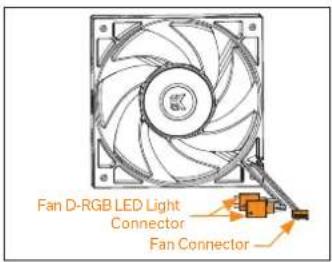
Fan D-RGB LED Light Connector Fan ConnectorSTEP 9: FANS - CONNECTING CABLES (AMD)
text_image
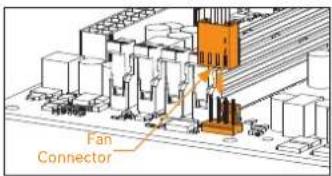
Fan ConnectorSTEP A:
OPTION 1
Connect the 4-pin PWM connector of the fan cable directly to the CPU fan-header on the motherboard. Always use the CPU fan-header if possible.
text_image
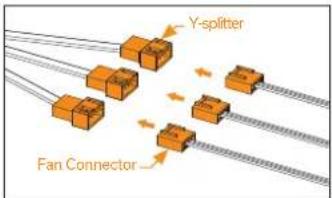
Y-splitter Fan ConnectorOPTION 2:
In the case of EK-AIO 240 / 280 D-RGB and EK-AIO 360 D-RGB versions (with 2 or 3 fans), you may connect the connectors from each of the fans to the connectors on the Y-splitter cable and then connect the Y-splitter connector to the fan header on the motherboard. Always use the CPU fan header if possible.
text_image
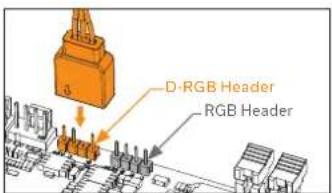
D-RGB Header RGB HeaderSTEP B:
OPTION 1
Plug the 3-pin connector for D-RGB LED light of the fan(-s) to the D-RGB HEADER on the motherboard.
natural_image
Pure electrical circuit lines without any symbolsOPTION 2:
In the case of EK-AIO 240 / 280 D-RGB and EK-AIO 360 D-RGB versions, you may first connect 2 or 3 fans together in a "daisy-chain" connection and then connect them all together to a D-RGB header on the motherboard.
text_image
Non-abrasive cloth IHSOPTIONAL STEP! APPLYING THE THERMAL COMPOUND
This step is relevant only in the case of second installation of AIO or if you damaged the pre-applied paste on the backside of the pump unit! For the first installation, you don't need to apply the additional thermal compound to the CPU's contact surface!
Wipe the CPU's contact surface (using a non-abrasive cloth or a Q-tip as shown in the sample image). On a clean IHS, apply a line of thermal compound and spread it over the whole CPU heat spreader (IHS) with a credit card or something similar.
7. SUPPORT AND SERVICE
For assistance please contact http://support.ekwb.com/
EKWBd.o.o
Pod lipami 18
1218 Komenda
Slovenia - EU
8. SOCIAL MEDIA


EK-AIO
120 D-RGB / 240 D-RGB / 360 D-RGB / 280 D-RGB
natural_image
Four technical line drawings of a mechanical device with four fans mounted on rods, shown from different angles (no text or symbols present)SCHRITT 6: INSTALLATION DER PUMPENEINHEIT (AMD) 19
SCHRITT 7: FINBAU DER LUFTERBAUGRUPPE UND DES KUHLERS IN EIN PCGEHÄUSE (AMD) 20
natural_image
Pure mechanical bracket diagram without any text, numbers, or symbolstext_image
Diagram showing three sequential steps of a mechanical or electrical setup with orange components and arrows indicating direction.natural_image
Two diagrams showing a cable installation with a wall-mounted component and a suspended platform, both without any text or symbols.natural_image
Diagram showing a mechanical assembly with orange components and a base component, no visible text or symbolsnatural_image
Pure diagram of a mechanical or electrical component with no text, numbers, or symbolsOPTION 2:
SCHRITT 6: INSTALLATION DER PUMPENEINHEIT (AMD)
text_image
Diagram showing three sequential steps of a mechanical or electrical system with orange arrows indicating direction of movement.natural_image
Two-panel diagram showing a cable installation setup with a vertical panel and a horizontal support structure (no text or symbols)natural_image
Diagram showing a mechanical assembly with orange components and a downward arrow, no visible text or symbolsnatural_image
Pure electrical circuit lines without any symbolsOPTION 2:
natural_image
Four technical line drawings of a mechanical device with four fans mounted on stands, shown from different angles (no text or symbols present)natural_image
Pure mechanical bracket diagram without any text, numbers, or symbolstext_image
Diagram showing three sequential steps of a mechanical or electrical setup with orange components and arrows indicating direction.natural_image
Simple line drawing of a mechanical or electrical component with three vertical supports and a central orange block (no text or symbols)OPCIÓN 2:
natural_image
Two diagrams showing a cable installation with a suspended component and a submerged block, both without any text or symbols.natural_image
Diagram showing a mechanical assembly with orange components and a downward arrow, no visible text or symbolsPASO A:
text_image
Diagram showing three sequential steps of a mechanical or electrical setup with orange arrows indicating direction of movement.natural_image
Pure electrical circuit lines without any symbolsOPCIÓN 2:
natural_image
Four technical line drawings of a mechanical device with four fans mounted on rods, shown from different angles (no text or symbols present)natural_image
Pure mechanical bracket diagram without any text, numbers, or symbolsVentilateur EK-Vardar S 120ER D-RGB
natural_image
Two diagrams showing a cable installation with a wall-mounted component and a suspended platform, both without any text or symbols.natural_image
Diagram showing a mechanical assembly with orange components and arrows indicating motion (no text or symbols)ÉTAPE A:
text_image
Diagram showing three sequential steps of a mechanical or electrical setup with orange components and arrows indicating direction.natural_image
Simple line drawing of a mechanical or electrical component with three vertical supports and a central orange block (no text or symbols)OPTION 2:
ÉTAPE 6: FIXATION DE LA POMPE (AMD)
natural_image
Two-panel diagram showing a cable installation setup with a vertical panel and a horizontal support structure (no text or symbols)natural_image
Diagram showing a mechanical assembly with orange components and a downward arrow, no visible text or symbols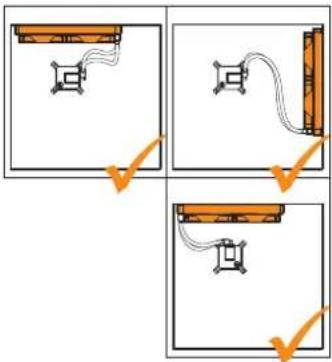
text_image
Diagram showing three sequential steps of a mechanical or electrical setup with orange arrows indicating direction of motion.natural_image
Pure electrical circuit lines without any symbolsOPTION 2:
natural_image
Four technical line drawings of a mechanical device with four fans mounted on rods, shown from different angles (no text or symbols present)natural_image
Four identical mechanical bracket components arranged in a row, no text or symbols visiblenatural_image
Two-panel diagram showing a cable installation setup with a wall-mounted component and a horizontal block, no text or symbols present.text_image
Diagram showing three sequential steps of a mechanical or electrical setup with orange components and arrows indicating direction.上部にラジエーター(推奨)
natural_image
Diagram showing a mechanical assembly with orange components and arrows indicating motion (no text or symbols)natural_image
Pure diagram of a mechanical or electrical component with no text, numbers, or symbolstext_image
Diagram showing three sequential steps of a mechanical or electrical setup with orange arrows indicating direction of movement.natural_image
Pure electrical circuit lines without any symbolsnatural_image
Four technical line drawings of a mechanical device with four fans mounted on stands, shown from different angles (no text or symbols present)- INCLUÍDO NESTE PACOTE
natural_image
Four identical mechanical bracket components arranged in a row, no text or symbols visibleVentoinha EK-Vardar S 120ER D-RGB
text_image
Diagram showing three sequential steps of a mechanical or electrical setup with orange arrows indicating direction and change.natural_image
Two diagrams showing a cable installation with a wall-mounted cable and a suspended platform, both without any text or symbols.text_image
Conetor 4-pin Conetor D-RGB Conetor VDGnatural_image
Diagram showing a mechanical assembly with orange components and a downward arrow indicating motion (no text or symbols)PASSO A:
natural_image
Pure electrical circuit lines without any symbolsOPÇÃO 2:
PASSO 4: REMOVER A PELÍCULA PROTETORA DA COLD-PLATE (AMD)
Remover a película protetora da parte de trás da unidade da bomba, que se destina a evitar danifi car a cold-plate o o composto térmico pré-aplicado na cold-plate.
text_image
Diagram showing three sequential steps of a mechanical or electrical setup with orange arrows indicating direction of movement.natural_image
Two diagrams showing a cable installation with a wall-mounted cable and a suspended platform, no text or symbols present.text_image
Conetor 4-pin Conetor D-RGB Conetor VDGnatural_image
Diagram showing a mechanical assembly with orange components and a downward arrow, no visible text or symbolsPASSO A:
natural_image
Pure electrical circuit lines without any symbolsOPÇÃO 2:
natural_image
Four technical line drawings of a mechanical device with four fans mounted on rods, shown from different angles (no text or symbols present)natural_image
Pure mechanical bracket diagram without any text, numbers, or symbolsВентилятор ЕК-Valdar S 120ER D-RGB
text_image
Bentilator Radiator UNC 6-32 x 30 mmnatural_image
Simple line drawing of a mechanical or electrical component with three vertical supports and a central orange block (no text or symbols)ВАРИАНТ 2:
text_image
Heat Treatment IHStext_image
Benzilator Padiator UNC 6-32 x 30 mmtext_image
Diagram showing three sequential steps of a mechanical or electrical setup with orange arrows indicating direction of movement.natural_image
Two-panel diagram showing a cable installation with a suspended cable and a submerged block, no text or symbols present.natural_image
Diagram showing a mechanical assembly with orange components and a downward arrow, no visible text or symbolsnatural_image
Pure electrical circuit lines without any symbolsВАРИАНТ 2:
natural_image
Four technical line drawings of a mechanical device with four fans mounted on rods, shown from different angles (no text or symbols present)natural_image
Pure mechanical bracket diagram without any text, numbers, or symbolsEK-Vardar S 120ER D-RGB风扇 (1个/2个/3个-风扇数量取决于AIO版本)/ EK-Vardar S 140ER D-RGB风扇 (2个)
一管导热膏(3830046998446-EK-TIM Ectotherm (1g))(1个)
风扇电缆Y型分配器
EK-AIO 240 / 280 EK-AIO 360
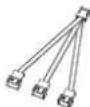
安装工具包(1件)
用户手册(1本)
安装工具包
| 十字头螺钉UNC 6-32 x 30 mm(5 mm螺纹长度)4x/8x/12x | twed | 十字头头螺钉UNC 6-32 x 6 mm4x/8x/12x | [4276] |
| 十字头头螺钉UNC 6-32 x 34 mm4x/8x/12x | twed |
natural_image
Two diagrams showing a cable installation with a wall-mounted component and a suspended platform, both without any text or symbols.natural_image
Diagram showing a mechanical assembly with orange components and a downward arrow indicating motion (no text or symbols)text_image
Diagram showing three sequential steps of a mechanical or electrical setup with orange components and arrows indicating direction.natural_image
Pure diagram of a mechanical or electrical component with no text, numbers, or symbolsnatural_image
Two diagrams showing a cable installation between two platforms, one with a connecting rod and the other with a curved tube (no text or symbols)natural_image
Diagram showing a mechanical assembly with orange components and a downward arrow indicating motion (no text or symbols present)