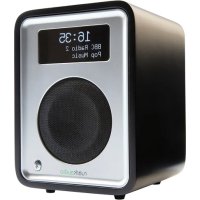
R1 Mk3 - Radio Ruark Audio - Free user manual and instructions
Find the device manual for free R1 Mk3 Ruark Audio in PDF.



| Product type | DAB/DAB+/FM tabletop radio with Bluetooth |
| Brand | Ruark Audio |
| Model | R1 Mk3 |
| Dimensions | 175 × 130 × 133 mm |
| Weight | 1.5 kg |
| Power supply | Mains adapter 100-240 VAC, 50-60 Hz, output 14 VDC 1.5 A |
| Power consumption | 0.75 A max. |
| Speaker | 3.5 inch extended range, bass-reflex enclosure |
| Rated output power | 9 W |
| Connectivity | Bluetooth 3.0, 3.5 mm line input, 3.5 mm headphone jack, charging USB port 5 W 1 A |
| Antenna | Removable DAB/FM telescopic antenna with F-type connector |
| Display | High contrast OLED |
| Main features | DAB/DAB+ radio, FM RDS, Bluetooth audio, dual alarm, snooze, equalizer (bass/treble), loudness, brightness adjustment, 10 DAB and 10 FM presets, compatible with optional portable battery |
| Interface languages | Multilingual |
| Security | Security slot |
| Care and cleaning | Clean with a lint-free or slightly damp cloth. Do not spray any product. Avoid exposure to sunlight, humidity, dust, extreme vibrations. |
| Warranty | 2 years |
| Supplied accessories | Mains adapter with interchangeable plugs, antenna key, telescopic antenna, user guide |
Frequently Asked Questions - R1 Mk3 Ruark Audio
User questions about R1 Mk3 Ruark Audio
0 question about this device. Answer the ones you know or ask your own.
Ask a new question about this device
Download the instructions for your Radio in PDF format for free! Find your manual R1 Mk3 - Ruark Audio and take your electronic device back in hand. On this page are published all the documents necessary for the use of your device. R1 Mk3 by Ruark Audio.
USER MANUAL R1 Mk3 Ruark Audio
Thank you for choosing our R1 tabletop radio.
Please take the time to read this user guide as it will help you get the best from your radio.
With due care, we're confident your R1 will give you many years of listening pleasure but, should you need help or advice, please do not hesitate to contact us. As a British, family-run company, we pride ourselves on our customer service and will always do our utmost to help.
Once again, thank you for choosing Ruark Audio.
Alan O'Rourke
Founder and managing director
What's in the box 3
Overview 4
Controls 5
Getting started 6
Specifications 7
Common functions and system settings 8
Alarms, snooze and sleep 11
Bluetooth 12
DAB radio 14
FM radio 16
Line in 17
Headphones 17
Using a Backpack battery 17
Charge port 17
Safety and regulatory information 18
Guarantee information 20
General care 20
Copyright and trademarks 20
What's in the box
Ensure that all the parts listed below are in the box.
If any part is missing, do not use the R1. If purchased in the UK, contact us directly. If purchased outside the UK, please contact your Ruark Audio dealer.
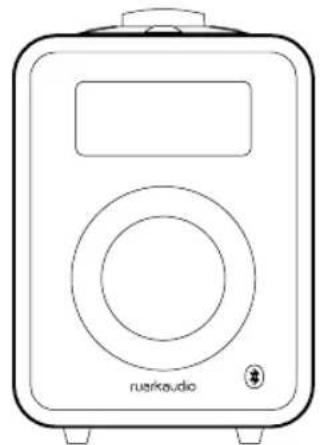
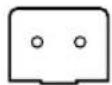
- R1 Bluetooth radio
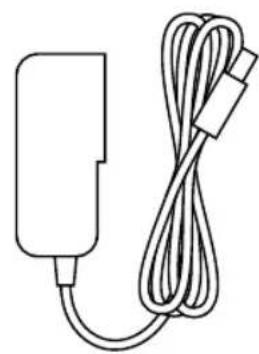
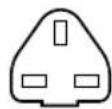
- AC power adaptor
- Plug(s) for AC power adaptor*
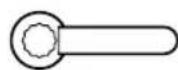
- Aerial spanner
- Telescopic aerial
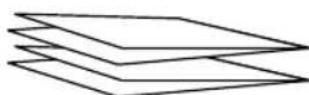
- User guide
If possible, please retain carton and all packing materials.
1
2
3
4

5
6
- The number and type of plug adapters supplied will vary according to region.
EN-3
Overview
- Controls
- Display
- Full range 3.5" speaker
- Aerial socket
- 5W 1.0A USB power output for charging external devices
- DC power socket (14V 1.5A)
- Line in socket (3.5mm jack)
- Headphone socket (3.5mm jack)
- Security slot
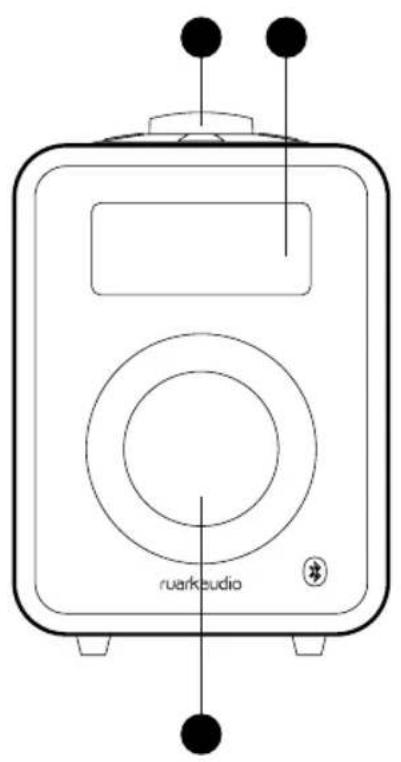
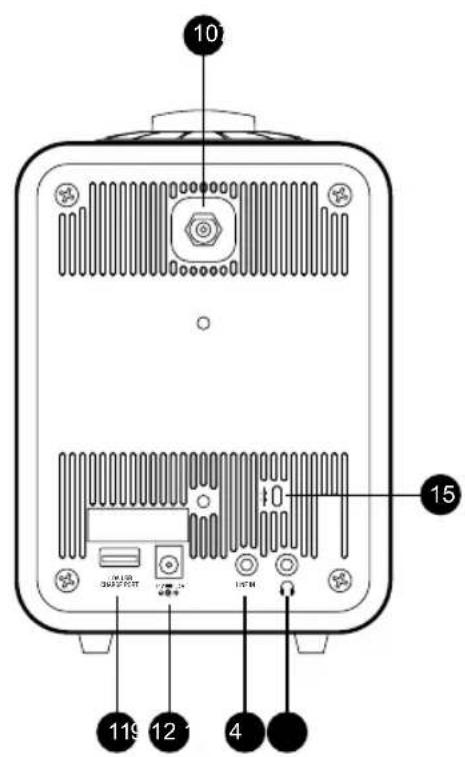
Controls
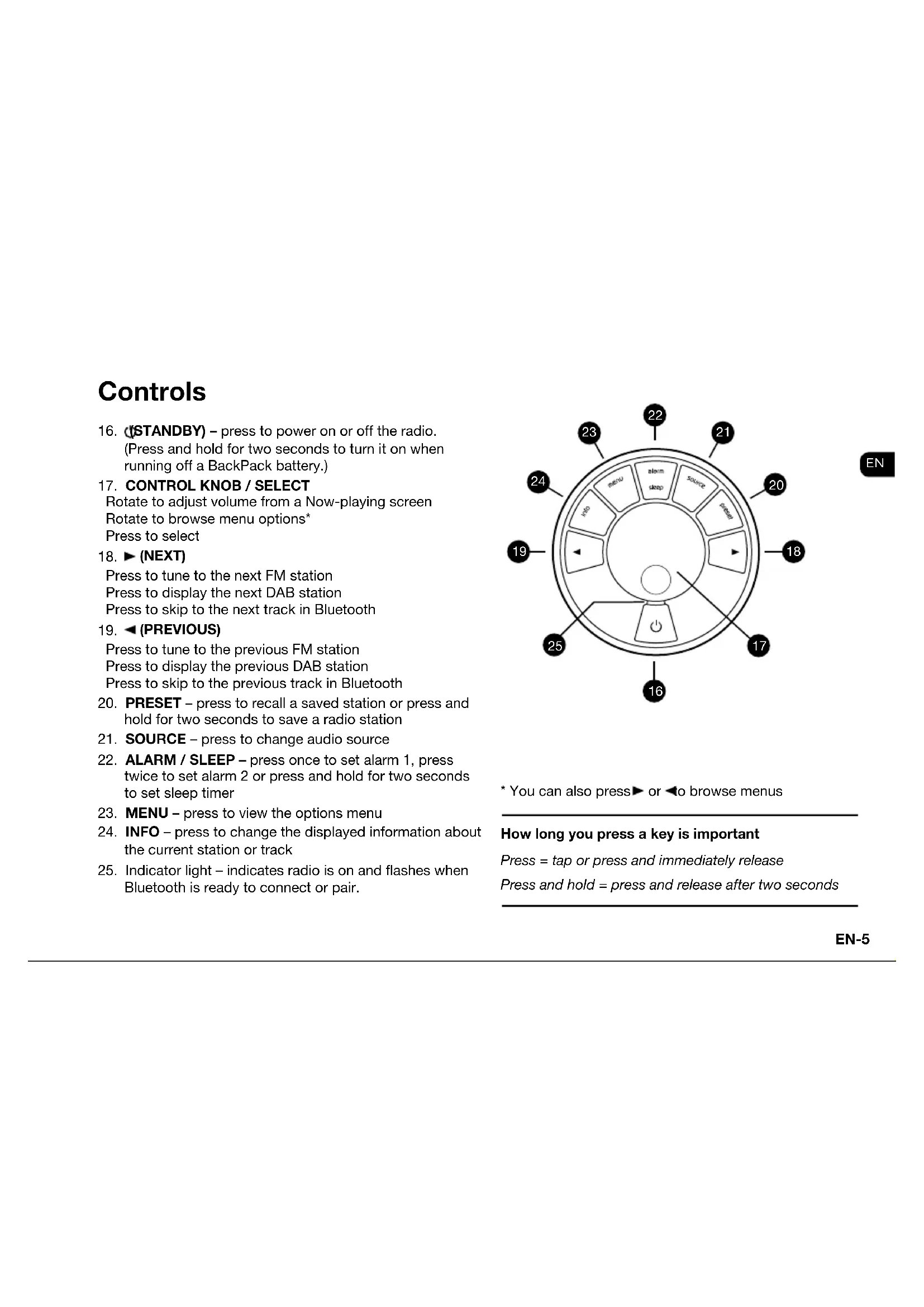
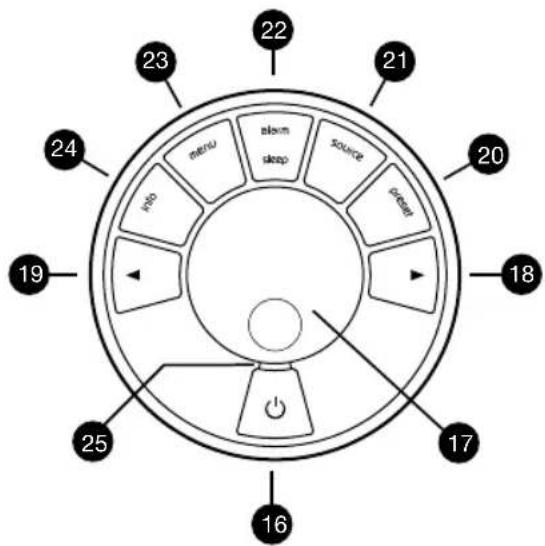
- (STANDBY) - press to power on or off the radio. (Press and hold for two seconds to turn it on when running off a Backpack battery.)
- CONTROL KNOB / SELECT
Rotate to adjust volume from a Now-playing screen
Rotate to browse menu options*
Press to select - (NEXT) Press to tune to the next FM station Press to display the next DAB station Press to skip to the next track in Bluetooth
- (PREVIOUS) Press to tune to the previous FM station Press to display the previous DAB station Press to skip to the previous track in Bluetooth
- PRESET - press to recall a saved station or press and hold for two seconds to save a radio station
- SOURCE - press to change audio source
- ALARM / SLEEP - press once to set alarm 1, press twice to set alarm 2 or press and hold for two seconds to set sleep timer
- MENU - press to view the options menu
- INFO - press to change the displayed information about the current station or track
- Indicator light - indicates radio is on and flashes when Bluetooth is ready to connect or pair.
EN
- You can also press▶ or ← to browse menus
How long you press a key is important
Press = tap or press and immediately release
Press and hold = press and release after two seconds
EN-5
Getting started
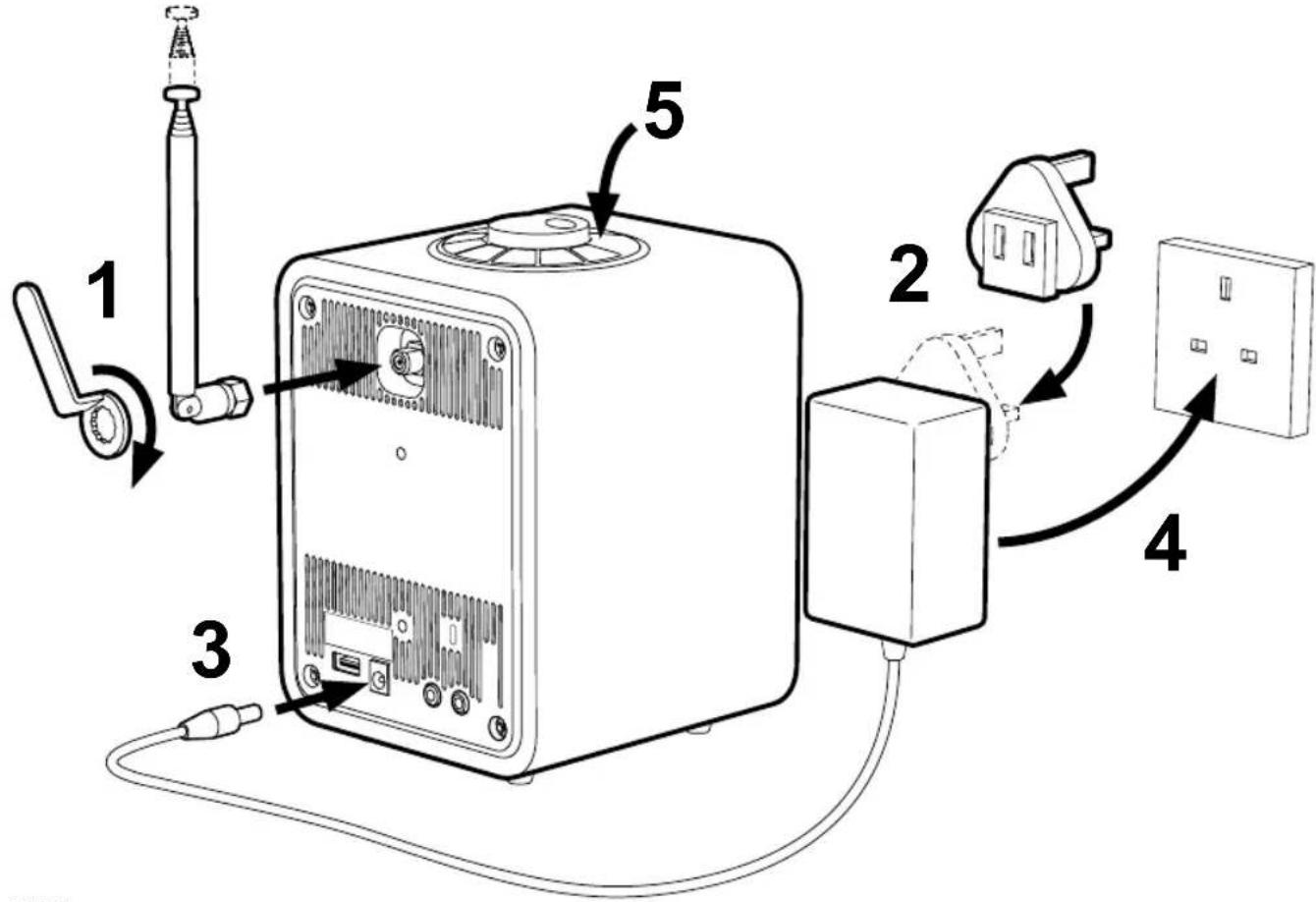
1. Fit aerial
Connect the aerial to the socket on the back of your R1 and tighten the nut with the spanner. If you do not tighten the nut, the aerial may come lose when moving the aerial.
Place your R1 on a suitable shelf or table and fully extend the aerial to ensure you get the best possible radio reception.
2. Fit the plug to the AC power adapter
Fit the correct plug for your region to the mains power supply. When you fit the plug adapter, it will "click" into place.
3. Connect the DC cable
Connect the DC cable from the power supply to the DC power socket on the back of your R1.
4. Connect to AC mains
Plug the AC power adapter into a mains power socket.
5. Turn on
Press STANDBY to turn the radio on.
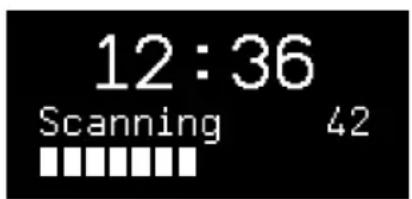
The first time you turn it on, your R1 will automatically scan for DAB stations and adjust the time and date. It will then tune to the first available DAB station.
Specifications
R1 Tabletop Radio
DAB/DAB+/FM with RDS
- Bluetooth 3.0
- Multilanguage user interface
- Headphone output (3.5mm jack)
Line in input (3.5mm jack)
- Custom 3.5" loudspeaker in tuned bass reflex cabinet
9W nominal power output
- Removable telescopic DAB / FM aerial with F-Type connector
- 5W USB charge port output
Security slot
High contrast OLED display
- Backpack battery compatible
- Dimensions: 175 × 130 × 133 mm (6.9 x 5.1 x 5.3 ins)
Weight: 1.5kg (3.3 lbs)
Power supply
Input power 100V to 240VAC 50-60Hz 0.75A max
Output power 14VDC 1.5A
Specification and design subject to modification without notice
Common functions and system settings
Switch on and to standby
Press STANDBY to turn your radio on. Press again to switch to standby. To switch it on when running off a Backpack battery, press and hold STANDBY until the Ruark Audio logo is displayed. See Backpack section for more details.
Now-playing screens
Unless you're adjusting a setting, the screen will look like the example below.
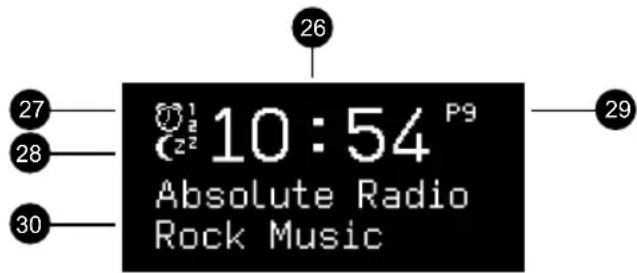
- Clock
- Alarm 1 & 2 icon
- Sleep timer icon
- Preset number
- Station / track information
Menu screens
The menus enable you to set the various options such as adjusting the bass and treble. To change a setting, press MENU to display the list of available options, rotate the CONTROL KNOB to scroll through the list, and then press the knob to confirm your selection.
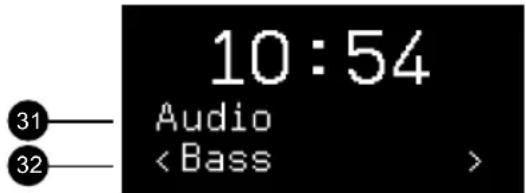
- Menu title
- Menu option
To change settings - press MENU
To scroll through options - rotate CONTROL KNOB
To select option - press CONTROL KNOB
To exit menu - press MENU or wait for a few seconds
Adjust volume
Rotate the CONTROL KNOB from any Now-playing screen.
Speaker volume and headphone volume are adjusted separately, so when headphones are plugged in the volume is shown as Volume (HP).
Please note that rotating the CONTROL KNOB when a menu or station list is displayed will scroll through the options or stations and not change the volume.
Change audio source
Press SOURCE to view the current source, rotate the CONTROL KNOB to scroll through the list of sources, then press the knob to select a source. (You can also press SOURCE repeatedly to cycle through the list of sources instead of rotating the knob.)
Change DAB radio station
Press to scroll through the stations in the station list, then press the CONTROL KNOB to tune to the new station. See DAB section for more details.
Change FM radio station
Press to eek the next or previous station. See FM section for more details.
Save preset
Press and hold PRESET for two seconds, rotate the CONTROL KNOB to choose the preset number, then press the knob to save the current station. Presets are either marked with the station name, frequency or as 'Empty').
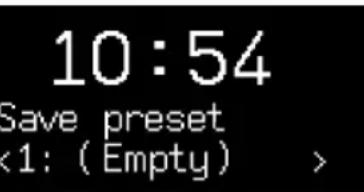
If you save a station over an existing preset, the new station will replace it.
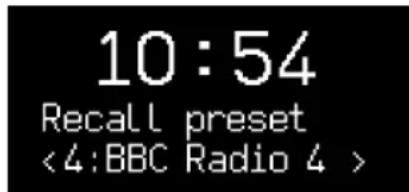
Recall preset
Press PRESET, rotate the CONTROL KNOB to scroll through the preset station list, then press the knob to select a station. (You can also scroll through the presets by repeatedly pressing PRESET.)
Connect a Bluetooth device
Your R1 will attempt to automatically connect to the last connected device. If you have not yet paired your device or the previous device is not available, your R1 will enter into pairing mode. See Bluetooth section for more details.
Station or track information
Press INFO to cycle through the different station / track information available.
Bass and treble
MENU > System > Audio > Bass or Treble
Adjust the bass and treble levels using the CONTROL
KNOB then press it to save the setting.
Loudness
MENU > System > Audio > Loudness
Loudness automatically boosts the treble and bass frequencies at lower volumes.
Display brightness
MENU > System > Brightness
You can independently adjust the brightness of the display when the radio is on (On level) and in standby (Standby level). When in standby and the standby brightness is set to Off, pressing any key will briefly illuminate the display.
EN-10
Date and time
MENU > System > Date and time
The time and date are automatically synchronised with national time signals broadcast over DAB and FM (when available).
You can also set the time manually by turning off auto update and you can select the time format (12 or 24 hour) and date format (dd-mm-yyyy or mm-dd-yyyy).
Language
MENU > System > Language
Change the user interface.
Factory reset
MENU > System > Factory reset
Resetssall settings and clears presets.
Please note that MEN > System > Audio > Bass means press MEN , select System , select Audio and finally select Bass
Alarms, snooze and sleep
Setting an alarm
An active alarm is indicated by the alarm icon (27) and when it sounds, the icon flashes.
Press ALARM once to set or change alarm 1 and twice for alarm 2, then press the CONTROL KNOB to select.
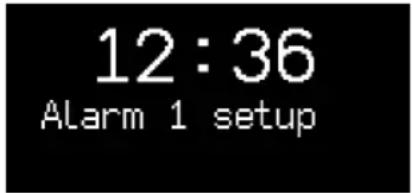
Follow the on-screen instructions to set the alarm time, duration, source and volume by using the CONTROL KNOB. Rotate it to scroll through options and press it to select.
You will also be prompted to choose if and when the alarm repeats (daily, once, weekends or weekdays) and you can choose to have the alarm play a radio station or sound a tone. Please note that it is not possible to use a Bluetooth source for the alarm.
IMPORTANT: the alarms will not work when running off a Backpack battery. To use the alarm function, your R1 must be plugged into mains power.
Quickly turn alarms on and off
Press ALARM once for alarm 1 and twice for alarm 2, then rotate the CONTROL KNOB to choose On or Off, and finally press the knob to save the setting.
Snoopze
Press the CONTROL KNOB to temporarily silence a sounding alarm, press it again to increase the snooze period (5, 10, 15 or 30 minutes).
To cancel an alarm that is sounding or snoozing, press and hold the CONTROL KNOB for two seconds or press ALARM.
Sleep timer
To set the time after which your R1 will automatically switch to standby, press SLEEP for two seconds. Then press the CONTROL KNOB, rotate it to choose the delay in minutes (Off, 15, 30, 45, 60, 90) and finally press the knob again to confirm your selection. The display then returns to the Now-playing screen and displays the sleep icon (28).
Alarms can also be set with your R1 radio in standby
Bluetooth
Your R1 radio is Bluetooth enabled and can receive music streamed from a Bluetooth smartphone, tablet or laptop.
Press SOURCE and rotate the CONTROL KNOB or repeatedly press SOURCE until Bluetooth is displayed, then press the knob to select it.
To connect your device you must first establish a secure connection to your R1, a process called pairing.
Pairing your Bluetooth device
When you have changed the source to Bluetooth, wait untilAwaiting connection... is shown and the indicator light (25) on top flashes.
12:36
Awaiting connection...
Use the Bluetooth setup on your streaming device to pair and connect it to your R1. It will appear in the list of paired devices as Ruark R1.
When connected the display shows connected: your device name (eg Archie's phone) and the indicator light stops flashing.
EN-12
It may take a few seconds for your R1 to appear in the list on your device, and in some cases you may need to input "0000" as the pairing password.
If you do not connect within a few minutes, your R1 will stop attempting to connect and show No connection. To connect, select MENU > Connect device.
Connecting your Bluetooth device
As soon as you switch to Bluetooth, your R1 will display Connecting as it attempts to connect to the first device in its paired devices list.
If that device isn't available, it displaysAwaiting connection... To connect to your R1, ensure the Bluetooth function on your device is on, and select Ruark R1 from the list of available devices.
If you have more than one device paired to your R1, you can choose which device to connect to from the list of paired devices by selecting MENU > Paired devices.
When you choose a device in this way, it will become first in the paired devices list and so become the device your R1 will try to automatically connect to.
Play audio
Once connected, audio from your Bluetooth device will play through your R1. For more information on playing audio from your Bluetooth device, refer to your device's documentation.
Please note that you may need to select Ruark R1 or Bluetooth as your audio output on your device.
Skip track
Press or skip to the next or previous track.
Now-playing information
Artist, album and track name will show if your Bluetooth device and app support Bluetooth metadata. To change what is shown press INFO.
Operating range
This is typically up to 10 metres (30 feet) from your R1, although obstructions such as walls may reduce this.
Adjust volume
The volume of your R1 and Bluetooth device are linked so you can control the volume of your R1 during Bluetooth playback by adjusting the volume on your device.
This function may not be supported by all devices.
Disconnect current device
To disconnect the current device and connect a new one, select MENU > Connect device.
Pairing additional devices
You can pair up to 7 devices, although you will only be able to play audio from one device at a time.
Clearing the paired devices list
If you are having trouble connecting your Bluetooth device, we recommend you clear all pairing information. To do this, select MENU > Forget devices.
You will also need to delete Ruark R1 from the paired devices list on your Bluetooth device before pairing it to your R1 again. For more information, refer to your device's documentation.
For help with using Bluetooth, please visit www.ruarkaudio.com/support
Note: You cannot use the Bluetooth function on your R1 to connect to Bluetooth headphones
DAB radio
Your R1 radio receives DAB / DAB+ digital radio and displays information about the station and programme being broadcast.
Press SOURCE and rotate the CONTROL KNOB or repeatedly press SOURCE until DAB radio is displayed, then press the knob to select it.
The first time you use your R1, or if the station list is empty, it will automatically perform a full scan to find what stations are available.
Change station
Press or show the station list. Pressing it again shows the next or previous station, to tune to a station, select it by pressing the CONTROL KNOB.
10:54
Station List
<BBC Radio 4
If you do not select the station by pressing the knob your radio will return to the current station.
Once the station list is displayed, you can scroll through the list by rotating the CONTROL KNOB and selecting a station by pressing the knob.
You can also show the station list by selecting MENU > Station list.
DAB radio text (DLS)
DLS (Dynamic Label Segment) is information broadcast by the station. Each time you press INFO, the next set of information is displayed, cycling through radio text, programme type, signal strength, signal format and date.
Save preset
You can store 10 DAB stations in your preset list. See 'Common functions and system settings' section.
Recall preset
See Common functions and system settings' section.
Secondary services
Some DAB radio stations have one or more secondary stations associated with them. If a secondary station is available is shown after the current station name. The secondary station will then appear as the next station in the station list so you can select it like you would any other DAB station.
Secondary stations are indicated with << before the station name.
Station order
The DAB station list can be ordered by Alphanumeric or Ensemble. Alphanumeric puts the stations in alphabetical order, Ensemble groups stations from the same broadcaster together.
To change station order, select Menu > Station order and select Alphanumeric (default), Ensemble or Valid. Valid shows available stations first and places invalid stations (marked with '?') last.
Station scan
If the station list is empty the radio will automatically perform a full scan as soon as you switch to DAB.
In any case, we recommend you do a full scan from time to time to update the station list because:
New stations sometimes become available
Stations close or may no longer be received
- Reception was poor during the original scan (for example the aerial wasn't extended)
- You move the radio to a different region
To do a full scan, select MENU > Scan .
Remove weak or invalid stations
Weak (burbling) or invalid stations have a '?' in front of the station name. They can all be removed by selecting MENU > Prune .
For optimal reception, fully extend the aerial and adjust its position.
FM radio
Your R1 radio receives analogue radio from the FM band and, when available, displays the station name and radio text using RDS (Radio Data System) information.
Press SOURCE and rotate the CONTROL KNOB or repeatedly press SOURCE until FM radio is displayed, then press the knob to select it.
Change station
Press or automatically tune to the next available FM station.
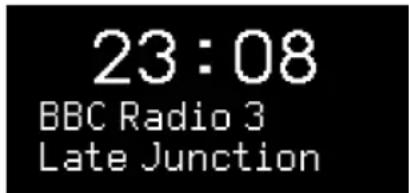
If RDS is unavailable the frequency is displayed instead.
The scan sensitivity is set to All stations by default so your R1 will stop at any available station. If this results in poor audio from weak stations, you can change the scan setting so it only stops at stations with a strong signal by selecting Menu > Scan setting > Strong stations only.
FM radio text (RDS/RBDS)
Each time you press INFO, the next set of information is displayed, cycling through radio text, programme type, frequency, signal strength and date.
Manual tune
Select MENU > Manual tune then rotate the CONTROL KNOB to change the frequency.
Save preset
See 'Common functions and system settings' section.
You can store 10 FM stations in your preset list. If RDS data is not available, your R1 will store the frequency instead of the station name in the preset list.
Recall preset
See Common functions and system settings' section.
For optimal reception, fully extend the aerial and adjust its position.
Line in Charge port
Listen to an external audio device such as a portable music player using a 3.5mm stereo jack cable connected to the Line in socket (13) on the back of your R1.
Press SOURCE and rotate the CONTROL KNOB or repeatedly press SOURCE until Line in is displayed, then press the knob to select it.
If your external audio source has a volume control you may need to adjust it for best performance. If it's too high the sound may distort; if it's too low the playback volume may be too low.
Headphones
Connect your headphones to the 3.5mm stereo jack socket (14) on the back of your R1.
Headphone volume is adjusted independently from speaker volume, so when headphones are plugged in the volume is shown as Volume (HP).
Your R1 has a 5W, 1.0A USB power output on the back.
Connect a USB cable compatible with your device to the charge port (11) on your R1 to charge most smartphones including iPhones and most Android and Windows phones.
Please note that the charge port is not compatible with Apple iPad or iPad mini or any other device that requires a charger with an output greater than 5W.
Using a Backpack battery
Your R1 is fully compatible with the Ruark R1 Backpack battery. See www.ruarkaudio.com
To save power, your R1 will switch off completely rather than go into standby when running on battery. To turn it back on, press and hold STANDBY until the Ruark Logo is displayed.
IMPORTANT: the alarms will not work when running off battery. To use the alarm function, your R1 must be plugged into mains power.
Please note that charging a device when your R1 is powered by a Backpack will significantly reduce the run time of your R1.
Safety and regulatory information
- Read this user guide and follow all instructions, it will help you set up and operate your product properly.
Heed all warnings and keep this user guide for future reference. - Do not attempt to use a damaged device as this could result in a dangerous electric shock.
- Do not open the unit or remove any panels to expose the electronics. No user serviceable parts inside.
Refer all servicing to qualified service personnel. Servicing is required when the device has been damaged in any way, such as power-supply cord or plug is damaged, liquid has been spilled or objects have fallen into the device, the device has been exposed to rain or moisture, does not operate normally, or has been dropped. - This device is intended to be operated ONLY from the AC Voltages listed on the back panel or included power supply. Operation from other voltages other than those indicated may cause irreversible damage to the device and void the product warranty.
- Use only the power supply provided with the device or an approved alternative.
- Ensure that the power adapter, mains plug or mains connector into the unit is readily accessible in case disconnection from the mains is required.
- The mains adapter, mains plug or mains connector must be removed from the socket to completely disconnect the system from mains power.
-
Do not place any naked flame sources, such as lighted candles, on or near the device. Do not install near any heat sources such as radiators, stoves, or other devices (including amplifiers) that produce heat.
-
Avoid exposure to extreme heat or cold.
- Only use attachments/accessories specified for this device. Make no modifications to the system or accessories. Unauthorised alterations may compromise safety, regulatory compliance, and system performance.
- Only use the supplied aerial or an approved replacement.
- To reduce the risk of fire or electrical shock, do not expose the device to rain or moisture. Do not expose this device to dripping or splashing, and do not place objects filled with liquids, such as vases, on or near the device. As with any electronic products, use care not to spill liquids into any part of the system. Liquids can cause a failure and/or a fire hazard.
- Unplug this device during lightning storms or when unused for long periods of time to prevent damage to this device.
- To prevent risk of fire or electric shock, avoid overloading wall outlets, extension cords, or integral convenience receptacles.
- Long-term exposure to loud music may cause hearing damage. It is best to avoid extreme volume when using headphones, especially for extended periods.
- Do not install this device in a confined space. Always leave a space of at least 10cm around the device for ventilation and ensure that curtains or other objects never cover ventilation openings on the device.
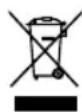
This device is labelled in accordance with European Directive 2012/19/EU concerning waste electrical and electronic equipment. This symbol indicates that the product or associated batteries should not be disposed of as general household waste. As with any electrical equipment, please dispose of it according to local regulations.

CE COMPLIANCE INFORMATION
This product conforms to all EU Directive requirements as applicable by law. You may obtain a free copy of the Declaration of Conformity by contacting your dealer, distributor, or Ruark Audio.
Hereby, Ruark Audio, declares that this device complies with the essential requirements and other relevant provisions of the European Radio Equipment Directive 2014/53/EU.
You can download the full CE Declaration of Conformity at www.ruarkaudio.com/doc/R1mk3doc.pdf
Guarantee information
We guarantee this product to be free from defects for a period of two years from date of purchase, providing due care and attention has been paid. Product failure through accidental damage (however caused), excessive wear and tear, negligence or unauthorised modification will void your guarantee.
Should you experience a problem please contact us via our website www.ruarkaudio.com or by calling directly on 01702 601410 where we will advise the course of action. If your product needs to be returned it should be packaged in its original packing along with proof of purchase. If it is not possible to return the product by hand, then it should be sent carriage prepaid by a reputable parcel carrier. If the original packing is not available, replacement packing can be purchased from us.
Guarantee for overseas sales
The distributor in the country of purchase guarantees products purchased outside the UK. For details, please contact your local Ruark distributor or outlet.
THIS GUARANTEE IN NO WAY VARIOUS OR REMOSES THE PURCHASER'S STATUTORY RIGHTS. E&OE
ruarkaudio
59 Tailors Court, Temple Farm Industrial Estate, Southend on Sea, Essex, SS2 5TH, UK +44 (0) 1702 601 410 www.ruarkaudio.com
General care
- Clean with a soft, lint-free duster or slightly dampened cloth. Do not use wax sprays or other substances as these may damage the surface finish or impair performance.
- Do not expose your unit to direct sunlight, high humidity, dust, excessive vibration or extreme temperatures, all of which can affect the finish, performance and reliability of the unit.
- Recommended operating temperature range is 5^ to 40^ .
- Natural wood finish cabinets will vary and lighten or darken with age, particularly when exposed to sunlight.
Copyright and trademarks
© 2019 Ruark Audio. All rights reserved. Ruark Audio, the Ruark Audio logo, and other Ruark Audio marks are owned by Ruark Audio and may be registered. All other trademarks are the property of their respective owners. Ruark Audio assumes no responsibility for any errors that may appear in this manual and the information contained in it may change without notice.
Bluetooth® and associated logos are registered trademarks owned by Bluetooth SIG, Inc.
All other trademarks are the property of their respective owners.
Designed in
Great Britain

20190314.1
R
Bordradio R1 mk3
User guide EN
Brugervejledning DA
Awaiting connection...
När det er tikkoblet vil displayet vise connected to:
your device name (fx Archies Telefon) og indicatorlyset vil holde op med at blinke.
Changer de station radio DAB
Changer de station radio FM
Awaiting connection...
INFORMATIONS SUR LA CONFORMITE A LA CE
Testo radio FM (RDS/RBDS)
FM radio 16
Line-in 17
Koptelefoons 17