TetraView - Microscope CELESTRON - Free user manual and instructions
Find the device manual for free TetraView CELESTRON in PDF.



User questions about TetraView CELESTRON
0 question about this device. Answer the ones you know or ask your own.
Ask a new question about this device
Download the instructions for your Microscope in PDF format for free! Find your manual TetraView - CELESTRON and take your electronic device back in hand. On this page are published all the documents necessary for the use of your device. TetraView by CELESTRON.
USER MANUAL TetraView CELESTRON
natural_image
Three hexagonal images showing different leaf and cellular structures: green vein, white oval, and blue-green (no text or symbols)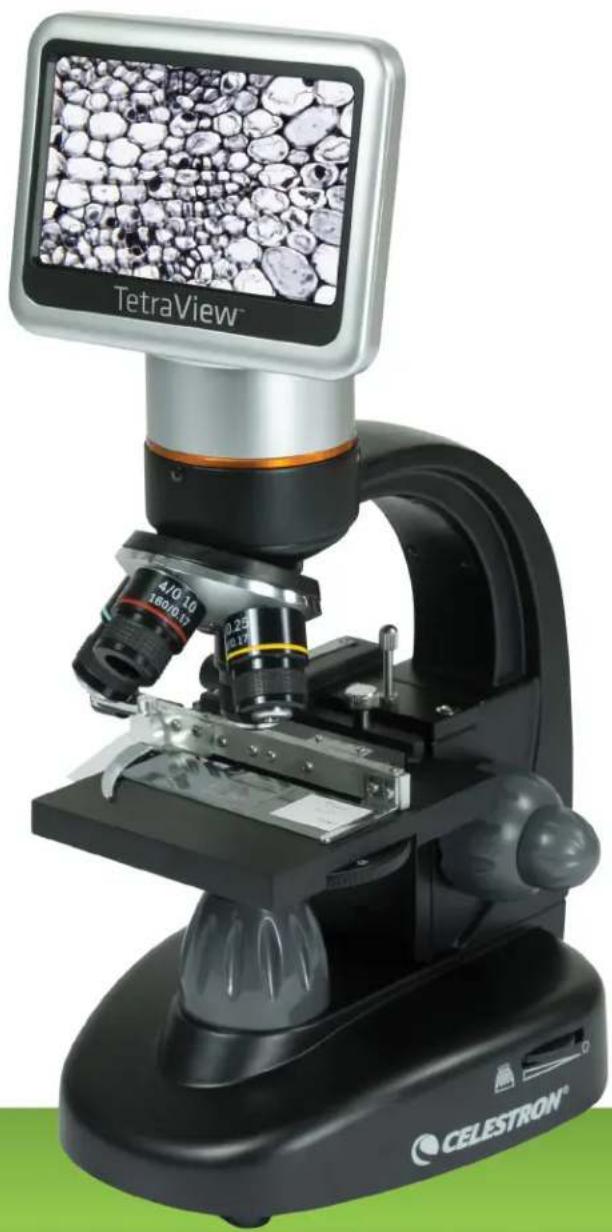
natural_image
Close-up of a CETRAView microscope with embedded screen displaying a textured material (no visible text or symbols on the device itself)INTRODUCTION
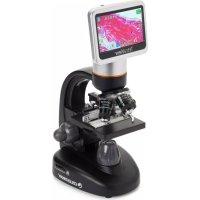
Thank you for purchasing the Celestron TetraView™ LCD Digital Microscope with a 4.3-inch touch screen monitor. Your microscope is a precision optical instrument, made of the highest quality materials. It is designed to give you a lifetime of enjoyment with minimal maintenance.
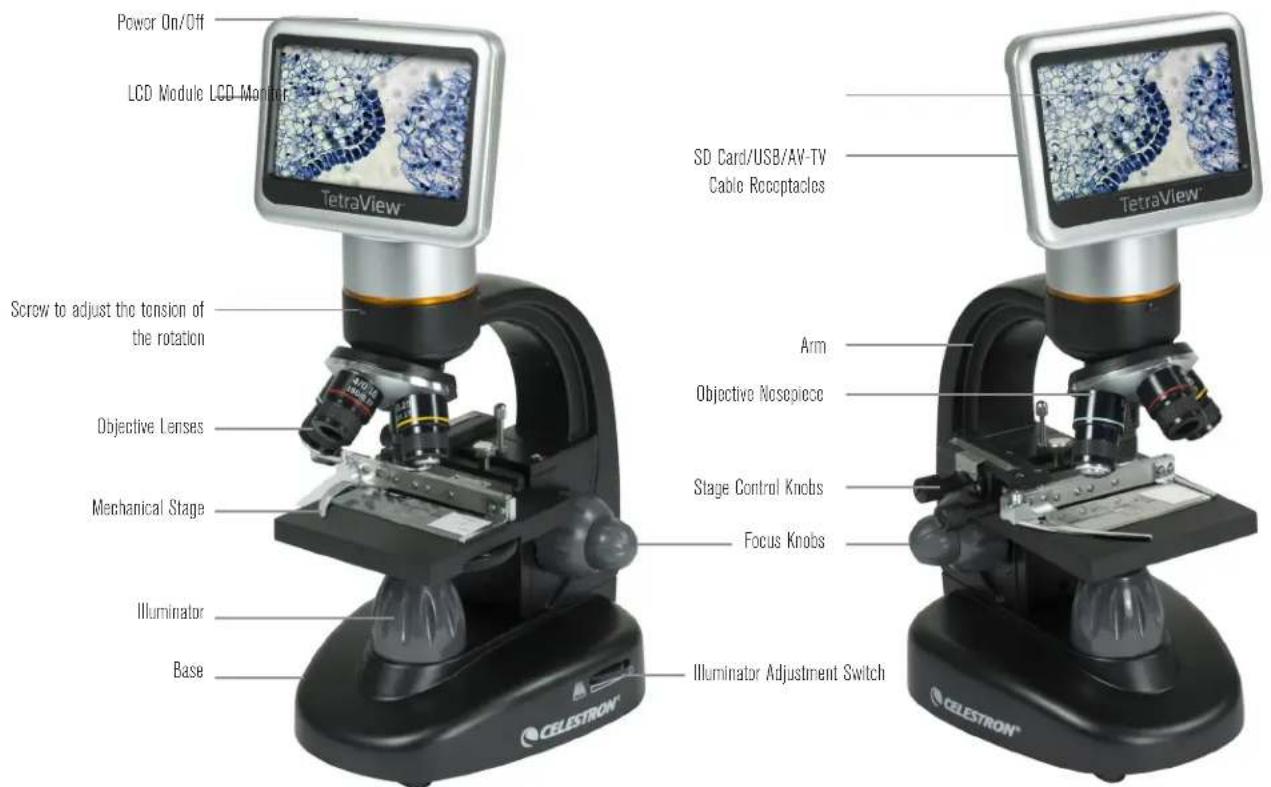
Before attempting to use your microscope, please read through the instructions to familiarize yourself with its functions and operations. See the microscope diagram to locate the parts discussed in this manual.
This microscope provides high powers from 40x up to 400x (up to 1600x with digital zoom). This microscope is mainly suited for examining specimen slides of yeasts and molds, cultures, plant and animal parts, fibers, bacteria, and more.
Unlike traditional microscopes, the Celestron TetraView™ LCD Digital
Microscope does not use eyepieces. You will view specimens on the LCD screen. In addition, you can take snapshots or short videos with the built-in digital camera. Plus, you can view on most TV screens with the AV/TV cable.
The final sections of this manual provide simple care, maintenance and troubleshooting tips to ensure that your microscope provides you with years of quality performance and enjoyment.
text_image
Power On/Off LCD Module LCD Monitor SD Card/USB/AV-TV Cable Receptacles TetraView® Screw to adjust the tension of the rotation Objective Lenses Mechanical Stage Illuminator Base Arm Objective Nosepiece Stage Control Knobs Focus Knobs Illuminator Adjustment Switch CELESTRON®Fig 1
STANDARD ACCESSORIES INCLUDED WITH YOUR MICROSCOPE
• Built-in Digital Camera
- 4x Objective Lens
- 10x Objective Lens
- 20x Objective Lens
- 40x Objective Lens
• LCD Touch Screen Monitor
- Illuminator
• 6 Position Filter Wheel / Diaphragm - USB Cable 2.0
• AV / TV Cable - 10 Prepared Slides
-
Touch Pen
-
Hard Case
- Dust Cover
- SD Card Slot
- AC Adapter
- 2GB SD Card
SPECIFICATIONS
Stage Mechanical Stage 3.5 in x 3.5 in (88 mm x 88 mm)
| Digital Camera 5 MP | 1⁄2.5" CMOS; 10x Magnification in lieu of an eyepiece |
| LCD Monitor digital TFT display Resolution - 480 x 272 pixels | 4.3 inch (109 mm) with 4x Digital Zoom - High definition touch |
| Focuser Dual - Coarse/Fine | |
| Objectives Achromatic, glass type - 4x, 10x 20x, 40x | |
| Memory 2 GB SD Card (approximately 550+ snapshots @ 5 MP | |
| LCD Rotation 180° - 90° left / 90° right | |
| Filter Wheel Red/Green/Blue/1 mm hole/3 mm hole/6 mm hole (default) | |
| Nosepiece Quad with click stop | |
| Illuminator | Built-in electric - LED 6 Volt and 6 Watt |
| Condenser | N.A. 0.65 |
| AC Adapter | Input Universal 100 to 240 Volt 50/60HZ |
| Batteries | User supplied 4 AA - (optional - up to 3 hours usage) |
| Weight/Dimensions | 67 oz/1.9 kg 7.0" (178 mm) x 5.5 in (140 mm) x 13.0 in (330 mm) |
SETTING UP YOUR MICROSCOPE
- Carefully remove the microscope and other parts from the carton and set them on a table, desk, or other flat surface.
- Remove the plastic cover from the microscope.
- Plug the small cable from the AC adapter into the socket on the back of the base (see Figure 2).
- Insert the plug you need (see note below) into the AC adapter and then plug the adapter into the proper power source.
NOTE: The AC Adapter supplied with this microscope has an interchangeable plug system that can work in the USA, UK, Europe, Australia, and many other parts of the world.
You can easily change plugs for your particular power requirement:
A. You may have one of two different types of adapters. One is shown in Figure 3A and another one is somewhat similar shown in Figure 3B. Each has a different means of changing plugs.
B. For the Figure 3A type, push down on the small button labeled "PUSH" and hold it down while at the same time holding the prongs of the plug. Rotate it slightly counterclockwise and pull up to remove it. Then release the "PUSH" button down.
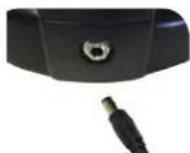
Fig 2
Take the plug style that you want to use and center it over the AC adapter and rotate it until it falls into the opening. Rotate it clockwise until you hear a click, which lets you know the plug is installed correctly.
C. For the Figure 3B type, pull the plug up and away while holding the base of the AC adapter. The plug will come off. Take the plug style that you want to use and align the two holes in the bottom of the plug with the two pins in the AC adapter. Then, push the plug into the AC adapter all the way.
Battery Operation – You can use your microscope without AC power if you choose. This gives you the freedom to operate the microscope outdoors or indoors anywhere you please. You'll need 4 AA batteries (user supplied). Open the battery door on the bottom of the microscope and insert the batteries according to the battery polarity shown in the battery compartment (Figure 4). After the batteries are installed, close the battery door. Battery life will typically be three hours.
MAGNIFICATION (POWER)
Use the following table to determine the magnification of the different objective lenses in combination with your microscope using the normal mode of the digital image on the LCD screen and using the digital zoom feature.
| Objective Lens | 4x | 10x | 20x | 40x |
| Digital Image | 40x | 100x | 200x | 400x |
| Maximum with 4xdigital zoom feature | 160x | 400x | 800x | 1600x |
WORKING DISTANCE
| Objective Lens | 4x | 10x | 20x | 40x |
| Working Distance (mm) - est. | 35.3 | 7.8 | 1.9 | 0.7 |
TOUCH PEN
You can keep the touch pen handy in the receptable behind the Power ON/OFF button.
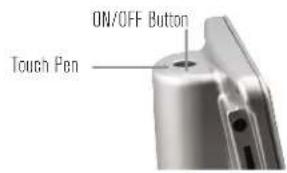
text_image
ON/OFF Button Touch Pen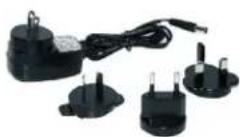
Fig 3A
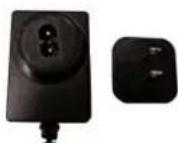
Fig 3B
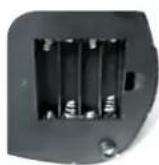
Fig 4
The TetraView ^™ comes with a 2 GB SD card, which you can use to capture images (snapshot or video). SD cards are inserted into the SD card slot in the LCD monitor (Figure 1).
MICROSCOPE OPERATION
Follow these instructions to turn on the LCD and adjust the microscope's stage and illumination before you begin observing. Remove the protective film from the LCD screen.
LCD MODULE
This digital microscope is different than traditional microscopes because it uses an LCD instead of eyepeices with an LCD, you can view specimens on the screen by yourself or share them with others. To begin turn on the LCD monitor by pushing the power button (see Figure 1). You will see “Celestron Digital Microscope” on the screen. The touch screen functions on the LCD module are mainly used for taking images (snapshots and video) and performing other functions that will be discussed later in this manual.
ILLUMINATION
To get the sharpest and best views. You'll need to choose the proper illumination (lighting):
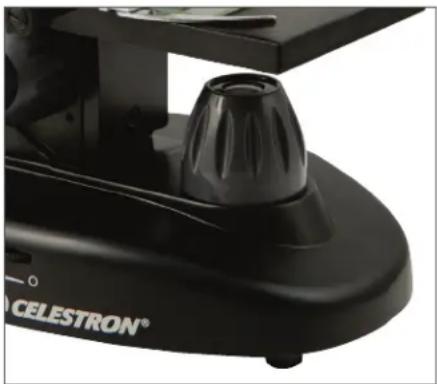
- To turn the illuminator on, see Figures 5 & 6 and turn one of the switches as shown.
- The illuminator (Figure 1) is used mainly for specimen slides where the light shines up through the hole in the stage through the slide.
ADJUSTING THE LIGHTING
Specimens of different sizes, widths, and color variations will require different levels of illumination. Normally, you adjust the brightness by turning the switches shown in Figure 5 & 6. Another way to adjust brightness is by changing the EV function on the touch screen. The EV (exposure value) function increases or decreases the brightness level by using the (+) or (-) buttons on the screen.
When viewing a dark colored specimen, you may need to increase the amount of light to resolve certain features or details. This is best done by increasing the brightness of the illuminator by rotating the brightness control dial to its highest setting. Experiment with adjustments to find optimum lighting settings. Each specimen and magnification may require slightly different illumination.
VIEWING A SPECIMEN
Your instrument is provided with a mechanical stage with a stage holder clamp and directional knobs (see Figure 7).
- Use the clamp lever to open the clamping arm of the stage holder clamp.
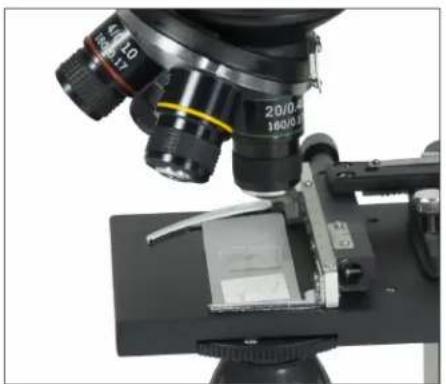
- Place a specimen slide (1 in x 3 in / 25.4 mm x 76.2 mm size) inside the holder and gently close the clamping arm against the slide.
- Use the stage movement knobs to position the specimen over the opening in the stage. The rear stage movement knob moves the X axis (forward and backward), while the front stage movement knob moves the Y axis (side to side). For first time microscope users, it will take some time to get used to the movements, but soon you will be able to center objects easily.
NOTE: A vernier scale on both axes allows the exact marking and replication of an object in the field of view.
- Use the objective nosepiece (Figure 1) to rotate the objective lenses (Figure 1) until the 4x objective lens is directly over the specimen. Always start with the lowest power objective (4x with this microscope), which gives you 40 power, and work your way up to higher powers. At 40 power, you will have the widest field of view and the brightest image.
natural_image
Close-up of a black CELESTRON microscope with a knob and base (no visible text or symbols on the device itself)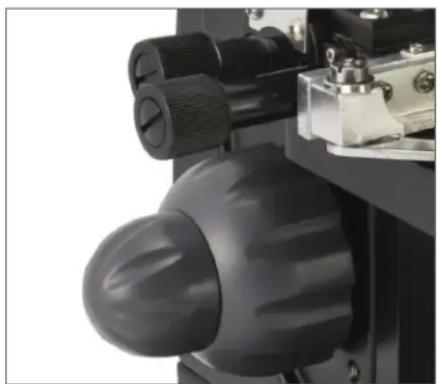
natural_image
Close-up of a mechanical device with a black knob and adjustment knobs (no visible text or symbols)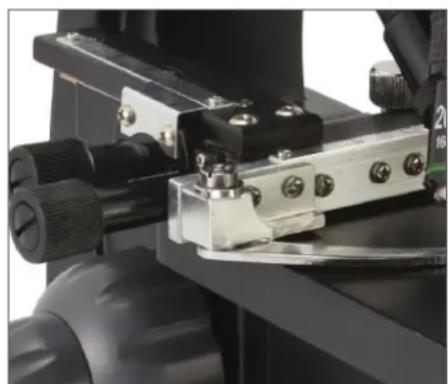
natural_image
Close-up of a mechanical clamp or measuring device with black components and metallic parts (no visible text or symbols)Fig 6 Fig 5 Fig 7
-
Look at the LCD screen while turning the focus knob (Figures 1 & 7) until the specimen comes into view. You may need to adjust the stage movement knobs (Figure 7) slightly to center the specimen in the field of view. The larger focus knob is the coarse focus and the smaller knob is for fine (exact) focusing.
-
With the 4x objective lens, you can also vary the power anywhere from 40x to 160x by using the digital zoom.
-
For higher powers, you will need to rotate the objective nosepiece to the 10x or 20x and to the 40x objective for the maximum power. You will have to refocus when changing the power of the objective lenses. While using any of these objective lenses, you also can increase power by using the digital zoom. Note that using a higher power objective lens will yield sharper images than a lower power objective lens and digital zoom for the same magnification.
-
To use the digital zoom, touch the screen icons on the right side of the screen to increase or decrease the power from 1x to 4x.
NOTE: When changing objective lenses, lower the stage to its lowest position so you do not hit anything during the rotation. At the higher powers, be careful when raising the stage close to the objective lens so that the objective does not hit the slide specimen (or other object) and cause damage.
USING FILTERS & THE DIAPHRAGM
Normally, most viewing or imaging can be done without colored filters. Before using the microscope, check to make sure no filters are in the optical path. To bring out different levels of detail, experiment with changing the color of the back lighting of the specimen especially for very bright transparent specimens. To change the lighting color, rotate the wheel (Figure 8) to the desired color – Red (R), Green (G), Blue (B). Each color is centered when you hear/feel the faint click stop. You may need to refocus by adjusting the focus knob (Figure 1) slightly for best viewing. You should experiment with each of the colors to see what works best.
Diaphragm – Within the wheel are holes with three different diameters, (1) 1 mm, (3) 3 mm, (6) 6 mm that limit the amount of light passing through to the specimen. These holes are part of the diaphragm. Changing the hole opening size helps you maximize the contrast, brightness, etc.
The default setting is (6) for the 6 mm hole, which should be used for most viewing. You can look under the stage (see Figure 9) to make sure the proper setting is actually being used.
ROTATING THE LCD SCREEN
You can rotate the viewing position of the LCD screen 180°: 90° to the right and 90° to the left. You can view any position you choose along the 180° rotation. This function allows you to share the view with others without actually moving the complete microscope. To move the LCD screen, hold the top of the arm (see Figure 1) with one hand, hold the LCD module with the other, and move it to the position you desire.
You can adjust the tension of the rotation of the monitor by tightening/loosening the adjustment screws as shown in Figure 1. It is best to have the tension somewhat tight so the monitor is rigid.
Turn the LCD screen on and you are now ready to use your microscope for viewing. If any problems arise, check the troubleshooting section.
AV/TV CABLE
To view specimens or images on a larger format screen, connect the AV/TV cable in the receptable (see Figure1) on one end and the other end into the socket on the monitor (if your monitor has a socket for this purpose).
natural_image
Close-up of a microscope with visible lens and eyepiece (no text or symbols)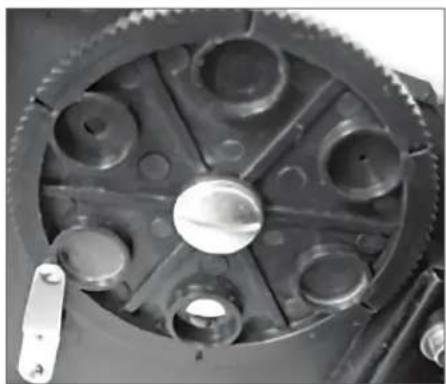
natural_image
Close-up of a mechanical gear with multiple holes and a central hub (no text or symbols visible)Fig 8
Fig 9
You can take snapshots or a short video with your microscope using the built-in digital camera. With the SD card memory, you do not need to use a PC or any other devices to do imaging. Transferring images to your PC for saving or printing is easy and will be discussed later in this manual.
NOTE: If you are going to take images, do not connect the USB cable to your PC or damage could occur to the equipment. The USB cable is not used for taking images.
SETTINGS AND INFORMATION FOR THE DIGITAL CAMERA AND THE TOUCH SCREEN
The touch screen icons and their functions are quite easy to use. Below we'll discuss the general use of the icons. Typically, you use your fingers with the touch screen, but you can use the included touch pen as well. You will find the following twelve icons/ when in the viewing/ snapshot mode:
NOTE: After turning the LCD Monitor off, most settings will revert to the default settings.

text_image
VIEWING/SNAPSHOT MODE 12 11 0 0530 SD 10 9 8 S4072 1738 AWB Fig 10- Increase EV function
7Settings
- Decrease EV function
8.Shutter Trigger-take snapshot
- Selection mode
9-10. Digital zoom indicator ±
- Pixel setting
11.SD card storage
-
Snapshot selection
-
Snapshots remaining
-
Color special effect
Settings Icon (7)
Time & Date – Year, month, date, and time
Language – Choose from Chinese (simple or traditional), English, French, German, Italian, Japanese, Korean, Portuguese, Russian, and Spanish
Beep – Beeps with each touch of the screen (can be disabled)
Default Factory Settings – Revert to factory settings
Format- Format the SD card
TV OUT - Sends a signal to an external monitor
Pixel setting icon (4)
Lightly tap the icon to change the pixel setting from 640x360, 1920x1080, 2048x1152, 2560x1440, 3072x1728, and 3648x2048. 3072x1728 is the sensor resolution and 3648x2048 gives you higher resolution through interpolation.
Snapshot selection (5)
The default setting is single shot, but you can set for timed shots.
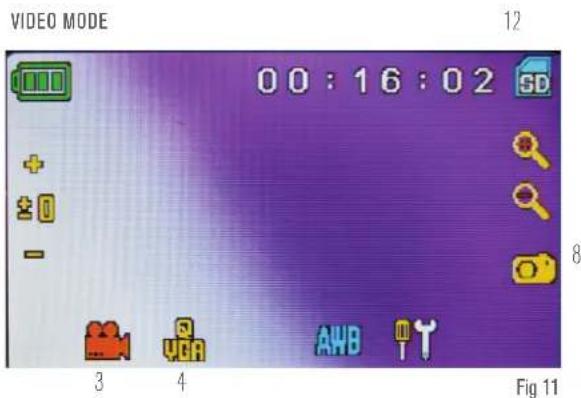
VIDEO MODE
To take videos, change the "video" setting first. The icons on this image (Figure 11) work the same way as in the snapshot mode with the following exceptions:
text_image
VIDEO MODE 00:16:02 SD 8 3 4 AWB Fig 11- Touch to go to viewing mode.
- Set the pixel size to 640x360 (the highest resolution for videos) by touching the screen. In both resolutions (high 640x360 or low - QVGA), the frame specifications is 20fps.
- Record Video - Touch to begin video and touch again to stop the video.
- Indicate recording time remaining.
SNAPSHOT OR VIDEO REVIEW
From the video mode, touch the video icon in the lower left of the screen to go to the review mode. In this mode, you can review the snapshots and videos you have taken. Touch the arrows and touch/ scroll the screen to navigate and view your videos and snapshots. You can also delete them if you choose.
NOTE: Inserting or removing an SD card while the LCD is on may cause the LCD to shut down and/or could damage the SD card.
TRANSFERRING YOUR IMAGES
To transfer images to a PC or Mac, you need to have a free USB port on your PC and have an imaging program for snapshots and/or video.
NOTE: Do not disconnect the USB cable while transferring images or damage may occur.
- You can transfer images from the SD card to your PC by using the supplied USB cable. The small plug end of the cable plugs into the LCD monitor (see Figure 1) and the large plug end of the cable plugs into your PC. When connected properly, you will see "MSDC" or similar on the screen. Your PC will automatically recognize the new hardware. Then you will choose a program on your PC to use for transferring images.
- You can take the SD card out and use the SD card slot on your PC (if available) to transfer the images as well. Either way, your PC will ask you to choose which program you want to transfer the images to.
Deleting all Snapshots/Video Images - To delete all images use the memory format function, select Settings / Memory / Format and choose SD card or Flash memory.
TROUBLESHOOTING
If you do not see an image on your LCD screen, here are a few things to check:
- Make sure the AC adapter is plugged in to an AC power source and attached to the microscope securely and correctly.
- Make sure you have the illuminators turned on with maximum brightness adjustment.
- Make sure the objective lens you have chosen is set correctly and it has clicked in the right position.
- Make sure that the diaphragm (filter wheel) is set correctly at a click position so that the illuminated light comes up properly.
The normal position is the 6 position (6 mm hole) for most applications.
- Make sure the specimen slide is correctly inserted into the clamp on the mechanical stage and properly centered.
- Make sure the SD card is inserted properly. If icon does not display, then remove and insert again.
- If the touch screen icons are not working properly, turn the microscope OFF and ON.
CARE, MAINTENANCE, AND WARRANTY
Your Celestron microscope is a precision optical instrument and should be treated with care at all times. Follow these care and maintenance suggestions and your microscope will need very little maintenance throughout its lifetime.
- When you are done using your microscope, remove any specimens left on the stage.
- Turn off the illuminator switches.
- Turn off the LCD monitor – push the on/off button until you see "Shutting Power Off."
- Unplug the power cord.
- Always place the plastic bag or dust cover over the microscope when not in use to help keep it clean.
- Store the microscope in a dry and clean place.
- Be very careful if using your microscope in direct sunlight to prevent damage to the microscope or your eyes.
-
When moving your microscope, carry it by the "arm" with one hand and not by the focuser knob, LCD monitor, etc. Then, put your other hand under the base for support.
-
Clean the outside surfaces (metal and plastic) with a moist cloth.
• Always unplug any cords before cleaning. - Never clean optical surfaces with cloth or paper towels as they can scratch optical surfaces easily.
- To clean optical surfaces, use an air blower or camel hair brush.
- To clean fingerprints off of optical surfaces, use a lens cleaning agent and lens tissue available at most photo outlets and when cleaning do not rub in circles as this may cause sleeks or scratches to occur.
- Never disassemble or clean internal optical surfaces. This should be done by qualified technicians at the factory or other authorized repair facilities.
- When handling glass specimen slides, use care as the edges can be sharp.
YOUR MICROSCOPE HAS A TWO YEAR LIMITED WARRANTY.
FOR MORE DETAILED INFORMATION, PLEASE VISIT
celestron.com

CELESTRON®
celestron.com
CE FC RoHS

2835 Columbia Street • Torrance, CA 90503 U.S.A.
Telephone: 800-421-9649
©2014 Celestron
All rights reserved. • Printed in China • 04-13
Product design and specifications are subject to change without prior notification.
This product is designed and intended for use by those 14 years of age and older.
TetraView™
natural_image
Close-up of a green leaf with visible vein patterns (no text or symbols)
natural_image
Microscopic view of cellular or granular structure with no visible text or symbols
natural_image
Close-up of a textured, mottled surface with blue and white patterns (no text or symbols)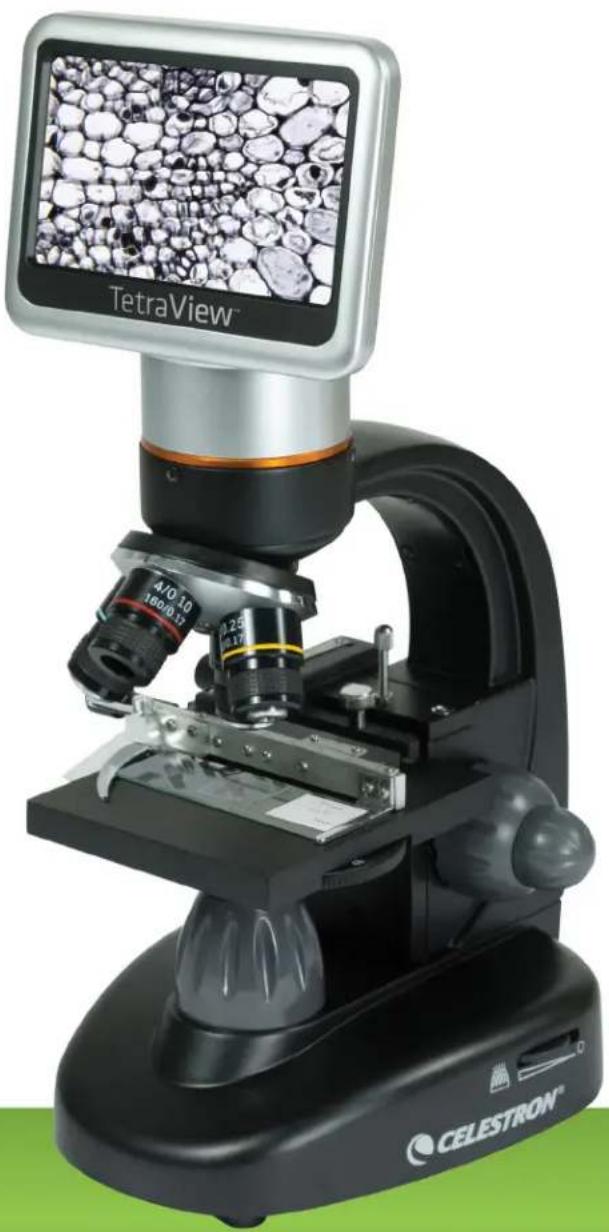
natural_image
Close-up of a TetraView microscope with embedded cellular image display (no text or symbols on the device itself)INTRODUCTION
natural_image
Close-up of a black CELESTRON microscope with a knob and base mount (no visible text or symbols on the device itself)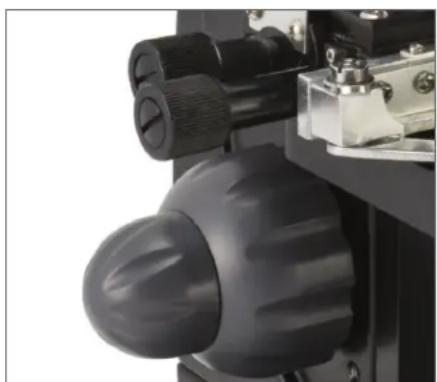
natural_image
Close-up of a mechanical device with black adjustment knobs and a glossy knob (no visible text or symbols)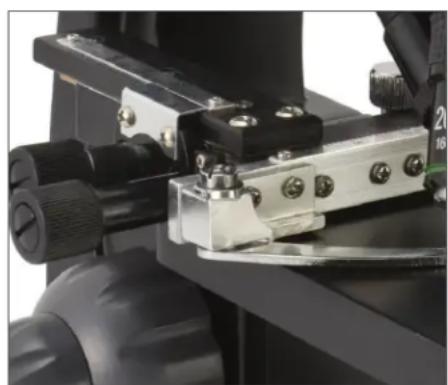
natural_image
Close-up of a mechanical clamp or actuator component with black and metallic parts, no visible text or symbolsFig 6 Fig 5 Fig 7
natural_image
Close-up of a microscope with visible lens and optical components (no text or symbols)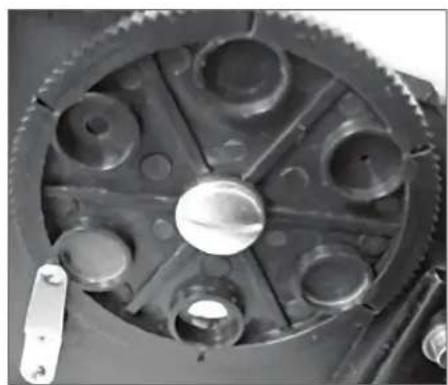
natural_image
Close-up of a mechanical gear assembly with multiple circular components and a central hub (no visible text or symbols)Fig 8
Fig 9
text_image
MODE VIDÉO 12 00:16:02 SD 8 3 4 AWB Fig 11TRANSFERT DES IMAGES
REMARQUE: Do not disconnect the USB cable while transferring images or damage may occur.
natural_image
Close-up of a green leaf with visible vein structure (no text or symbols)
natural_image
Microscopic view of cellular or granular structures with no visible text or symbols
natural_image
Close-up of a textured, mottled surface with blue and white patterns (no text or symbols)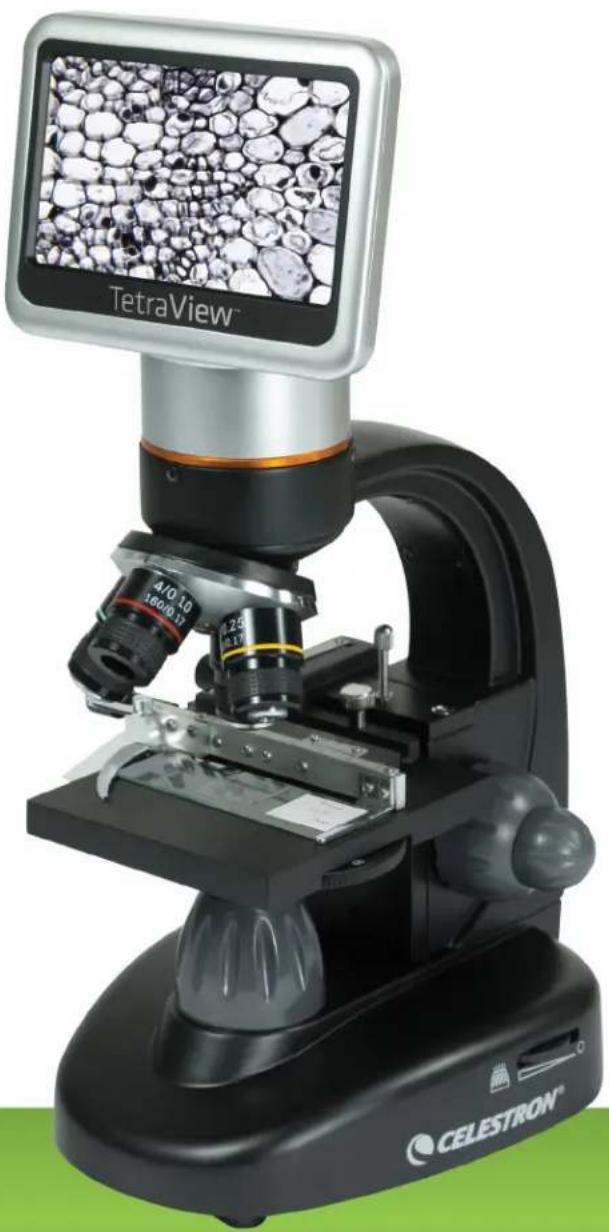
natural_image
Close-up of a TetraView microscope with embedded cellular image display (no text or symbols on the device itself)INTRODUCTION
| Objective Lens | 4x | 10x | 20x | 40x |
| Digital Image | 40x | 100x | 200x | 400x |
| Maximum with 4xdigital zoom feature | 160x | 400x | 800x | 1600x |
ARBEITSABSTAND
| Objektivlinse | 4x | 10x | 20x | 40x |
| Arbeitsabstand (mm) | 35.3 | 7.8 | 1.9 | 0.7 |
TOUCH-PEN
To get the sharpest and best views. You'll need to choose the proper illumination (lighting):
natural_image
Close-up of a black CELESTRON microscope with a knob and handle (no visible text or symbols on the device itself)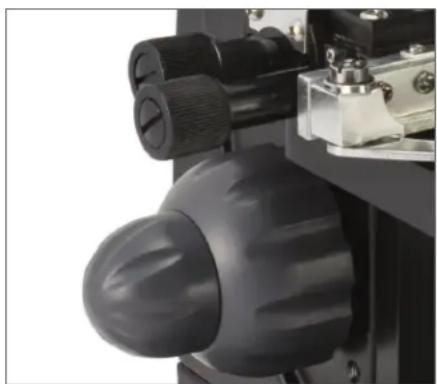
natural_image
Close-up of a mechanical device with a black knob and adjustment knobs (no visible text or symbols)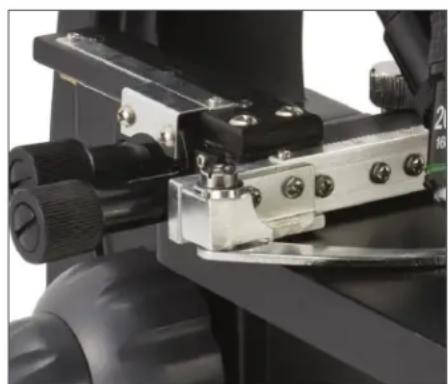
natural_image
Close-up of a mechanical device with black components and metallic parts, no visible text or symbolsAbb 6Abb 5 Abb 7
natural_image
Close-up of a microscope with visible lens and eyepiece (no text or symbols)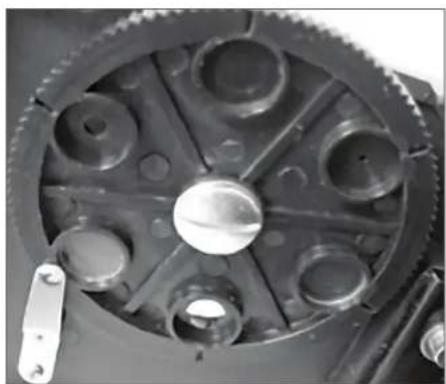
natural_image
Close-up of a mechanical gear assembly with multiple circular components and central hub (no visible text or symbols)Abb 8
Abb 9
text_image
VIDEO-MODUS 00:16:02 SD + 左 0 - 3 4 AWB Fig 11 8natural_image
Three hexagonal images showing leaf venation, cellular structures, and plant tissue (no text or symbols)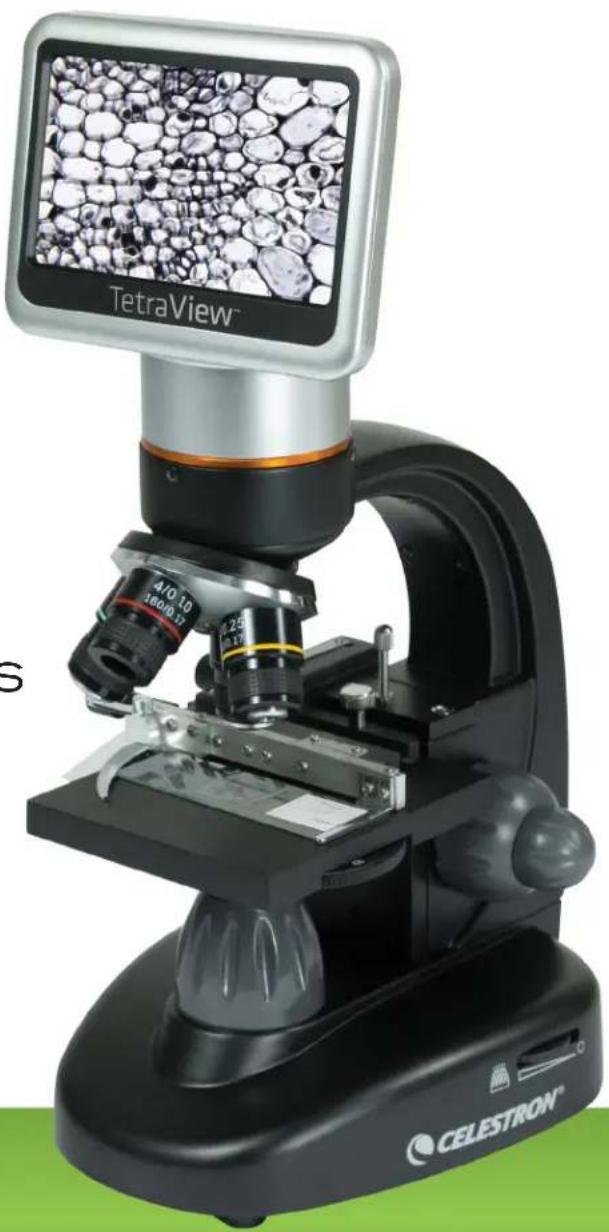
natural_image
Black and white photo of a TetraView microscope with embedded cellular image display (no text or symbols on the device itself)INTRODUCCIÓN
The TetraView ^™ comes with a 2 GB SD card, which you can use to capture images (snapshot or video). SD cards are inserted into the SD card slot in the LCD monitor (Figure 1).
natural_image
Close-up of a black CELESTRON microscope with a knob and base mount (no visible text or symbols)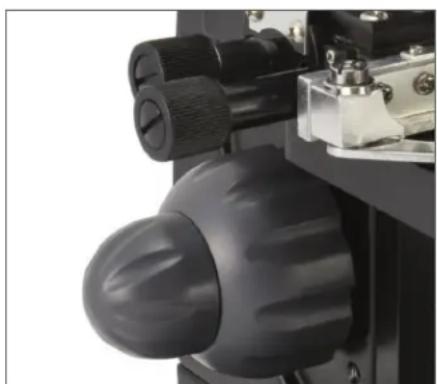
natural_image
Close-up of a mechanical device with a black knob and adjustment knobs (no visible text or symbols)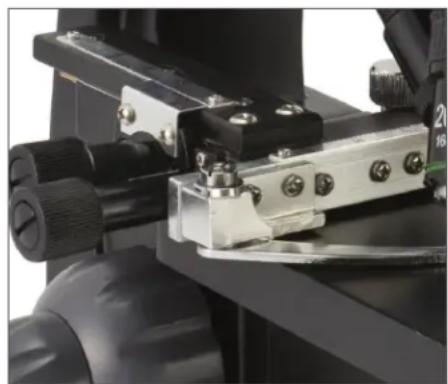
natural_image
Close-up of a mechanical optical device with black components and metallic parts (no visible text or symbols)Fig 6 Fig 5 Fig 7
natural_image
Close-up of a microscope with visible lens and eyepiece (no text or symbols)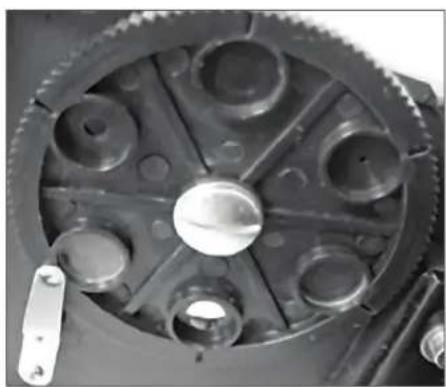
natural_image
Close-up of a mechanical gear assembly with multiple circular components and a central hub (no visible text or symbols)Fig 8
Fig 9
natural_image
Three hexagonal images showing different leaf and cellular structures: green venet, white oval cells, and teal branching lines (no text or symbols)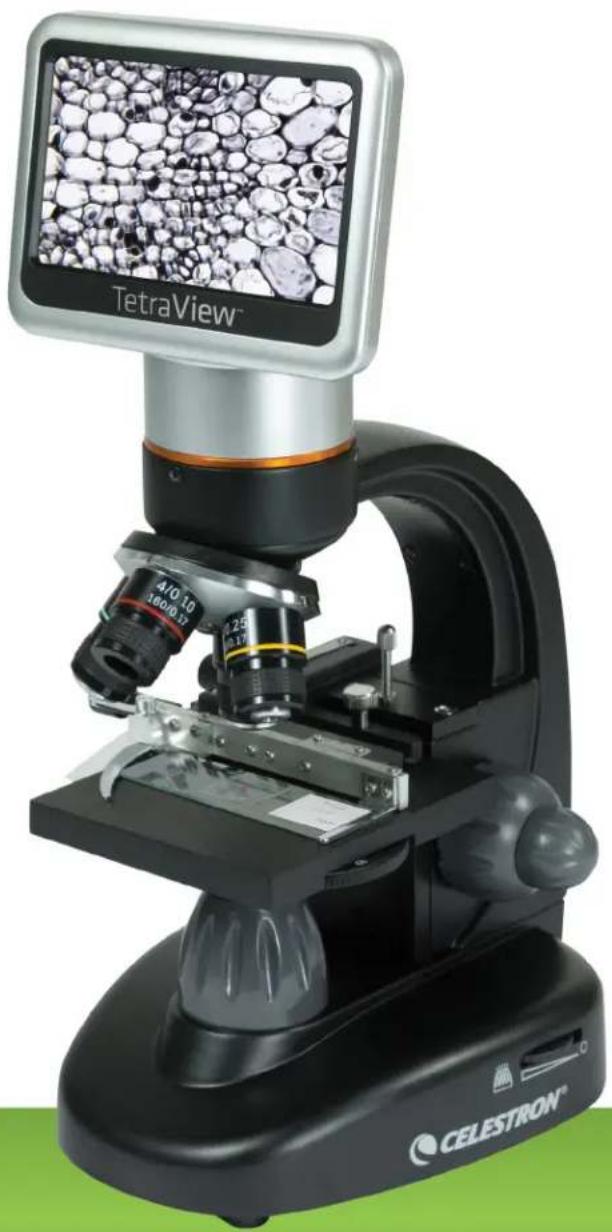
natural_image
Close-up of a TetraView microscope with embedded screen displaying granular material (no text or symbols on the device itself)INTRODUZIONE
To get the sharpest and best views. You'll need to choose the proper illumination (lighting):
natural_image
Close-up of a black CELESTRON microscope with a knob and base mount (no visible text or symbols)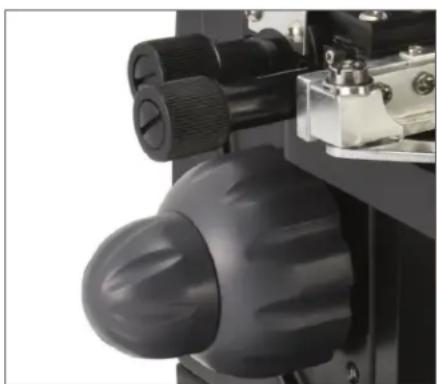
natural_image
Close-up of a mechanical device with a black knob and adjustment knobs (no visible text or symbols)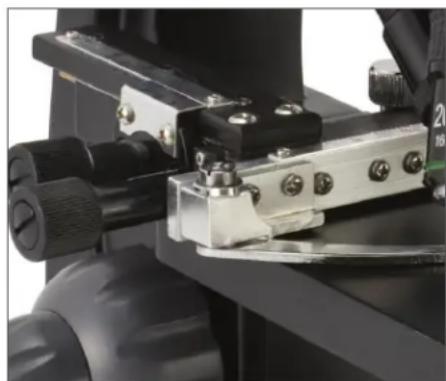
natural_image
Close-up of a mechanical clamp or fixture with black components and metallic parts (no visible text or symbols)Fig 6 Fig 5 Fig 7
natural_image
Close-up of a microscope with visible objective lens and eyepiece (no text or symbols)
natural_image
Close-up of a mechanical gear with multiple holes and a central hub (no text or symbols visible)Fig 8
Fig 9