44301 - Microscope CELESTRON - Free user manual and instructions
Find the device manual for free 44301 CELESTRON in PDF.


| Product type | Portable digital microscope |
| Brand | Celestron |
| Model | 44301 |
| Magnification | 15x to 30x on a 19-inch monitor |
| Sensor | 1.3 MP CMOS (interpolation up to 5 MP) |
| Lighting | 6 built-in white LEDs |
| Power supply | Via computer USB 2.0 port |
| Weight | 82 g (2.9 oz) |
| Dimensions | 89 mm x 32 mm (3.5 x 1.25 in) |
| Main functions | Observation of solid objects, image and video capture, measurement function |
| Software compatibility | Windows 7/XP/Vista (DMS suite), Mac OS X 10.4.9+ (capture software) |
| Included accessories | USB cable, CD-ROM with DMS software, user manual |
| Care and cleaning | Clean external surfaces with a damp cloth; optical surfaces with a camel hair brush; do not disassemble |
| Safety | Do not point at the sun; use on a flat surface; minimum age 13 years |
| Warranty | 2-year limited |
| Repairability | Refer to a qualified technician; do not disassemble yourself |
Frequently Asked Questions - 44301 CELESTRON
User questions about 44301 CELESTRON
0 question about this device. Answer the ones you know or ask your own.
Ask a new question about this device
Download the instructions for your Microscope in PDF format for free! Find your manual 44301 - CELESTRON and take your electronic device back in hand. On this page are published all the documents necessary for the use of your device. 44301 by CELESTRON.
USER MANUAL 44301 CELESTRON
MINI HANDHELD DIGITAL MICROSCOPE
INSTRUCTION MANUAL
MODEL #44301
ENGLISH

natural_image
Black CELESTRON device with orange handle and transparent base, no visible text or symbols on bodyINTRODUCTION
Congratulations on your Celestron microscope purchase. Your new microscope is a precision optical instrument made of high quality materials to ensure durability and long life, and is designed to give you a lifetime of pleasure with minimal maintenance.
This microscope can be used for virtually anything that traditional microscopes are used for: Hobbyists, Educators, Medical Labs, Industrial Inspection, Engineering Applications, Teachers, Students, Science Applications, Doctor's Offices, Police Agencies, Government Testing, and general use by consumers.
Before attempting to use your microscope, please read through the instructions to familiarize yourself with the functions and operations to make usage easier for you. See the microscope diagram to locate the parts discussed in this manual.
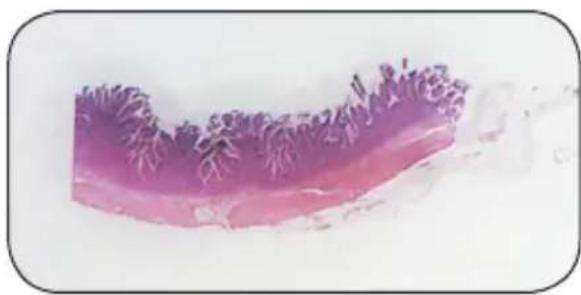
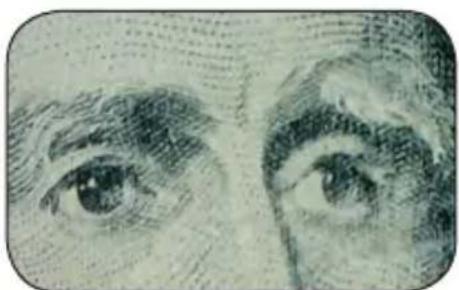
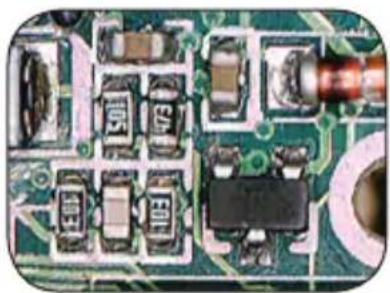
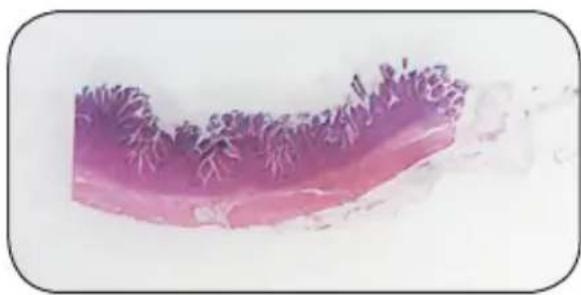
The microscope provides powers from 15x to 30x (powers with a 19" monitor). It is ideally suited for examining solid objects such as coins, stamps, rocks, relics, insects, plants, skin, gems, circuit boards, various materials, and many other objects. You can also examine specimen slides.
With the included software, you can observe the magnified images or capture video or take snapshots with Microsoft Windows 7, XP and Vista operating systems. You can also use the microscope with most image capture software that you may have on Windows 7, XP & Vista Os's. If you are using a MAC, you can take videos and snapshots but you need image/photo capture software for MAC (like a combination of iChat with Photo Booth, etc.). You will also need a CD/DVD drive as well as an open USB port.
Note: This product was designed and intended for ages 13 and older!
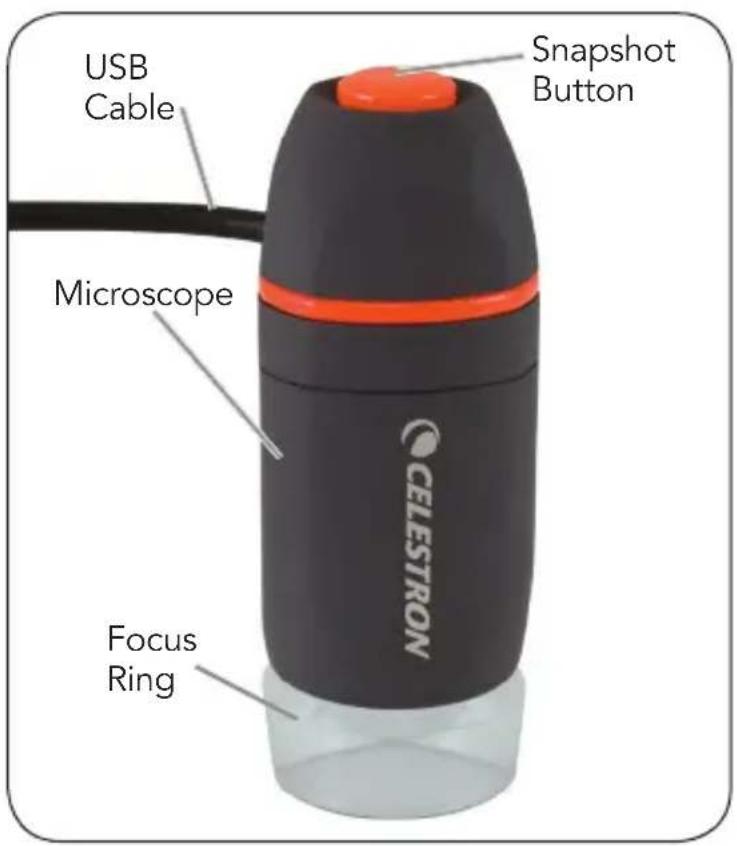
text_image
USB Cable Snapshot Button Microscope CELESTRON Focus RingStandard Accessories Included with your Microscope
• Digital Camera with USB Cable — Built-in
• LED Illuminator — Built-in
• CD-ROM — Digital Microscope Suite
- Instruction Manual
SPECIFICATIONS — MODEL # 44301
| Power 15 to 30x using a 19" Monitor |
| USB Cable 2.0 for power from a computer |
| Illuminator 6 White LEDs |
| Digital Camera 1.3MP CMOS Sensor – 1280x1024 pixel array (snapshots up to 5MP with interpolation) |
| Weight and Dimensions 2.9 oz (82 g) 3.5" x 1.25" (89 mm x 32 mm) |
SETTING UP YOUR MICROSCOPE
- Carefully remove the microscope from the box and set it on a table, desk, or other flat surface.
- Remove the plastic bag covering the microscope.
MICROSCOPE OPERATION
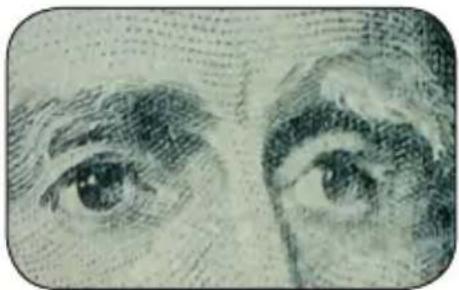
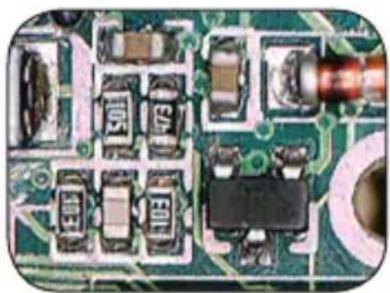
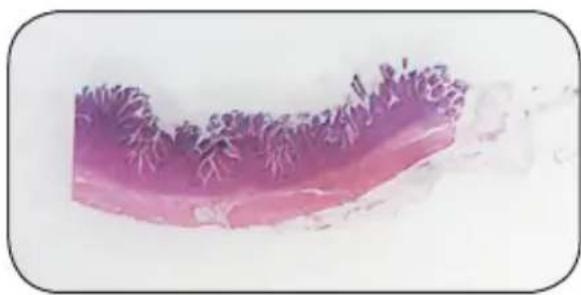
Viewing Objects and Slides — You can view coins, stamps, currency, gems, plants, foods, circuit boards, specimen slides, and many other things. You need to read the information about focusing, power, and illumination below before proceeding.
Focusing & Changing Power (Magnification) —
When the microscope is placed directly on/over the object or slide; use the focus ring to obtain a sharp focus. The focus ring takes some getting used to – rotate past the focus and then back as you will see how to obtain the best focus position. After some usage the sharp focus position will be easy to find.

natural_image
Close-up of a black cylindrical device with red lid and metallic base, partially submerged in a light-colored liquid (no visible text or symbols)-
Always start with the higher power (30x) which is obtained when the focus ring is on/over the
object. Focus should be sharp if using for the first time but if not you need to turn the focus ring slightly to obtain a sharp focus. -
If you hold the microscope slightly above the object the power will decrease gradually to 15x as you move further away (up to about 14 mm). You will have to refocus at each position.
Illumination —The LEDs of the microscope are automatically turned on when the USB cable is inserted into the USB port on your computer. There is no illumination adjustment on this microscope but you may be able to position the microscope over the object you are viewing at different angles (or positions) to give the optimum illumination.
USING THE MICROSCOPE FOR VIEWING AND/OR IMAGING
Before using your microscope for viewing or imaging on your computer screen, you will have to ensure the driver is recognized by your computer. Your microscope is a “Plug and Play” type where the computer should automatically recognize the driver type on Microsoft Windows 7, XP & Vista operating systems as well as Apple MAC version 10.4.9 and later operating systems.
Plug the USB cable of the microscope into the USB port of your computer. Each computer system will have slightly different messages. For example, on some Vista OSs when plugged in the message may say "Installing Device Driver Software" and shortly thereafter you may see a message "Your Devices Are Ready to Use." Just follow any instructions shown on the screen.
You will need to install the Digital Microscope Suite software (on Windows OS's) to actually view and/or image. Prior to doing this you will need to unplug the USB cable until the installation is complete. You can also use most other image/photo capture software that you may have on your Windows system if you desire.
To use the microscope with MAC operating systems you will need to have MAC Version 10.4.9 and higher – must use a MAC compatible image/photo capture program (iChat with Photo Booth, etc). To find
Photo Booth on a Mac, go to your hard drive and click on Applications. Choose Photo Booth from the list of applications. If a camera is already attached to computer, Photo Booth will show up as your default. You will need to change this to "Celestron Microscope." You will then be able to take photos with your microscope using the capture button. Please note: Many keyboards on Macs have a USB port. The microscope will not work through this USB port because it does not have enough power. You will have to connect the USB directly to your computer tower.
When viewing or imaging, you can change the orientation of the image on the computer screen by rotating the microscope to the position you desire.
INSTALLING THE DIGITAL MICROSCOPE SUITE (DMS) SOFTWARE
Your microscope comes with the Digital Microscope Suite CD-ROM which allows you to use your microscope for visual purposes and for imaging with your computer when using Microsoft Windows OS's.
Before installing the software, remove the USB cable of the Digital Camera from your computer and do not connect it until the software installation is complete. Insert the CD-ROM into your CD-ROM drive and it should automatically begin. Messages will appear (each operating system may show something somewhat different) to guide you through the installation process.
If the software did not begin automatically, double click on "My Computer" and right click the CD-ROM icon and it should start.
- You will see "Files Currently on the CD" and notice "Digital Microscope Suite" as a folder. Double click on it and then among the choices double click on "Setup" (InstallShield Setup Launcher).
- InstallShield Wizard will appear. Next, select the default choices, "Next," etc. until "Finish" is seen and click on it.
Your software was properly installed. You will have a desktop icon called "Digital Microscope Suite," if not that will be the program you select from your installed programs when you want to use the digital microscope.
USING THE DIGITAL MICROSCOPE SUITE (DMS) SOFTWARE
Plug in the USB cable of the Microscope to your computer and then start DMS
The DMS contains basic image capture and organization for your photos (snapshots) and videos. Click on the DMS icon to begin.
The software is very intuitive and easy to use. You can change settings by using File and Settings – the Video Device should have as a default "Celestron Digital Microscope," if not please change it so the DMS will function properly.
You can take snapshot images by using the snapshot button on the microscope (only with Windows OS's) or you can also use the keyboard by clicking enter on "Capture an Image." For videos you need to start/stop on the icon shown on the screen. If the image delays or starts/stops, you should lower the video resolution in the "Settings."
Measuring Function — DMS has a simple measuring function which measures the distance between two points in millimeters. Click the “Measure” button on the bottom right of the screen. Click where you want your starting point and then click again to set the ending point and it will display the distance between the two points. You can adjust either point by dragging the pin. You can click “Clear” to start over.
The measurement function works accurately when the microscope is directly on the object.
You are now ready to begin your digital adventure!
CARE, MAINTENANCE, AND WARRANTY
Your microscope is a precision optical instrument and should be treated with care at all times. Follow these care and maintenance suggestions and your microscope will need very little maintenance throughout its lifetime.
- Store the microscope in a dry and clean place.
- Be very careful if using your microscope in direct sun light to prevent damage to the microscope or your eyes.
- Never point the microscope towards the sun or the camera can be damaged and cease working.
- Clean the outside surfaces with a moist cloth.
- Blow dust off the optical surfaces with a camel's hair brush or an air blower.
- Never disassemble or clean internal optical surfaces. This should be done by qualified technicians at the factory or other authorized repair facilities.
- Do not disassemble or take apart the microscope or damage can occur.
- When handling glass specimen slides, use care as the edges can be sharp.
YOUR MICROSCOPE HAS A TWO YEAR LIMITED WARRANTY. PLEASE VISIT THE CELESTRON WEBSITE FOR DETAILED INFORMATION ON ALL CELESTRON MICROSCOPES AT WWW.CELESTRON.COM.

natural_image
Close-up of the U.S. 1801 American Union JPY 1843, showing the sun and profile (no text beyond coin design)Coin @ 20x
natural_image
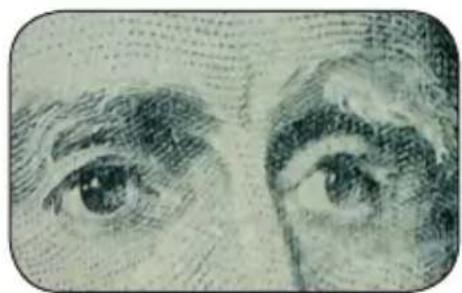
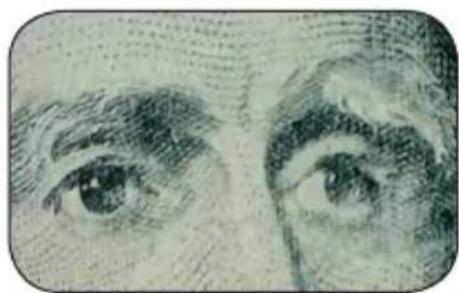
Close-up sketch of human eyes with detailed brushstrokes (no text or symbols)Currency @ 20x
natural_image
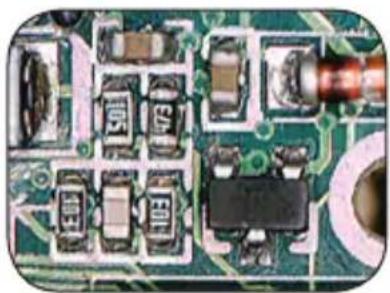
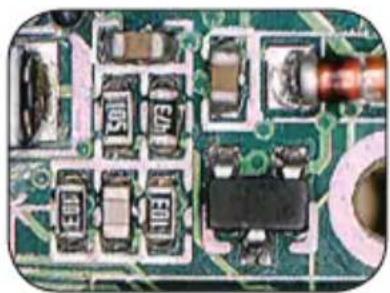
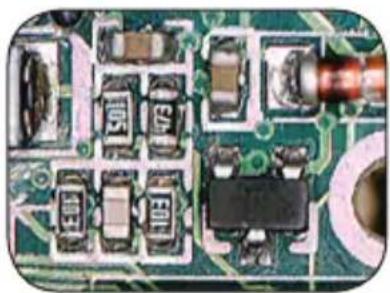
Close-up of a green printed circuit board with various electronic components (no visible text or symbols)Circuit Board @ 30x
natural_image
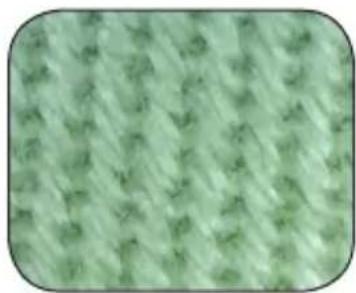
Close-up of a light green textured surface with no visible text or symbolsTextile @ 20x
natural_image
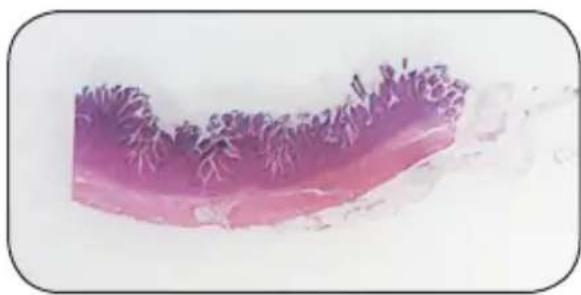
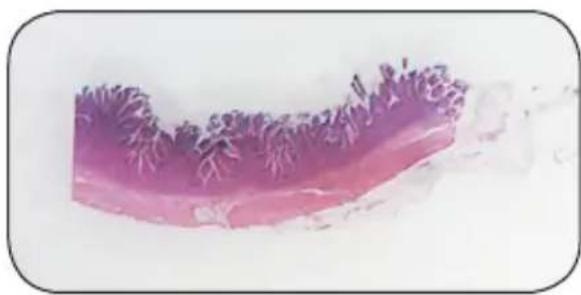
Microscopic tissue section stained with purple and pink hues, showing cellular structures (no text or labels visible)Specimen Slide @ 25x

CELESTRON®
www.celestron.com
CE FC
RoHS

FCC Statement
This device complies with Part 15 of FCC Rules. Operation is subject to the following two conditions:
- This device may not cause harmful interference, and
- This device must accept any interference received, including interference that may cause undesired operation.
2835 Columbia Street • Torrance, CA 90503 U.S.A.
Telephone: 310.328.9560 • Fax: 310.212.5835
©2011 Celestron Designed and intended
All rights reserved. • Printed in China • 01-11 for those 13 years of age and older.

CELESTRON®
MINI MICROSCOPE NUMÉRIQUE PORTABLE
GUIDE DE L'UTILISATEUR
MODÈLE N° 44301
FRANÇAIS

natural_image
Black and red CELESTRON device with orange handle, shown against white background (no text or symbols on body)INTRODUCTION
natural_image
Close-up of a CELESTRON brand lipstick with a red cap and silver cup (no visible text or symbols)natural_image
Close-up of a U.S. 1861 American Gold coin showing the sun and profile (no text or symbols beyond coin design)Pièce à 20x
natural_image
Close-up sketch of human eyes with detailed eyelashes and eyebrow (no text or symbols)Billet à 20x
natural_image
Close-up of a green printed circuit board with various electronic components (no visible text or symbols)natural_image
Close-up of a textured green fabric with no visible text or symbolsTextile à 20x
natural_image
Microscopic tissue section stained with purple and pink hues, showing layered cellular structure (no text or symbols)natural_image
Black CELESTRON device with orange handle and transparent base, no visible text or symbols on bodyINTRODUCCIÓN
natural_image
Close-up of a CELSTM 4 smartphone with a red strap and blue body, partially covered by a transparent lens (no visible text or symbols on the device itself)natural_image
Close-up of the United States 1861 silver coin showing the profile and design (no text or symbols beyond coin number)Moneda a 20x
natural_image
Close-up sketch of human eyes with detailed brushstrokes (no text or symbols)Billete a 20x
natural_image
Close-up of a green printed circuit board with various electronic components (no visible text or symbols)natural_image
Close-up of a textured green fabric with no visible text or symbolsTextil a 20x
natural_image
Microscopic tissue section stained with purple and pink hues, showing cellular structures (no text or labels visible)Muestra a 25x

CELESTRON®
www.celestron.com


Declaración FCC
DIGITALES HANDHELD-MINI-MIKROSKOP
BEDIENUNGSANLEITUNG
MODELL 44301
DEUTCSH

natural_image
Black and orange CELESTRON device with a transparent base, no visible text or symbols on the device body.EINFÜHRUNG
natural_image
Close-up of a black cylindrical device with red lid and metallic base, partially submerged in a light-colored liquid (no visible text or symbols)INSTALLATION DER DIGITAL MICROSCOPE SUITE (DMS)-SOFTWARE
natural_image
Close-up of the United States 1861 silver coin showing the profile and design (no text or symbols beyond coin number)Münze mit 20x
natural_image
Close-up sketch of human eyes with detailed fur texture and shading (no text or symbols)Geldschein mit 20x
natural_image
Close-up of a green printed circuit board with various electronic components (no visible text or symbols)Platine mit 30x

natural_image
Close-up of a textured green fabric with no visible text or symbolsStoff mit 20x
natural_image
Microscopic tissue section stained with purple and pink hues, showing cellular structures (no text or labels visible)natural_image
Black and orange CELESTRON device with a transparent base, no visible text or symbols on the device body.INTRODUZIONE
natural_image
Close-up of a CELESTRON brand lipstick with a red cap and silver cup (no visible text or symbols)natural_image
Close-up of the United States 1861 silver coin showing the profile and design (no text or symbols beyond coin number)Moneta a 20x
natural_image
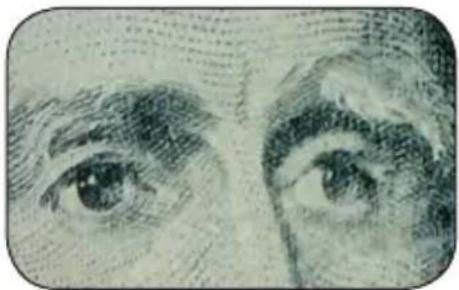
Close-up sketch of two eyes with textured surfaces (no text or symbols)Banconota a 20x
natural_image
Close-up of a green printed circuit board with various electronic components (no visible text or symbols)natural_image
Close-up of a textured green fabric with no visible text or symbolsTessuto a 20x