
TMH6000iii - Printer EPSON - Free user manual and instructions
Find the device manual for free TMH6000iii EPSON in PDF.
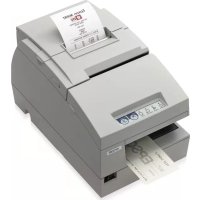



| Product Type | Multifunction printer for receipt, slip, and endorsement |
| Print Technology | Thermal (receipt); 9-pin dot matrix impact (slip); 8-pin shuttle impact (endorsement) |
| Print Font | Receipt: 9x17 / 12x24; Slip: 5x9 / 7x9; Endorsement: 5x7 |
| Dimensions (H x W x D) | 185 x 186 x 298 mm |
| Weight | Approx. 5.3 kg |
| Power Supply | +24 V DC ± 10% |
| Power Consumption | Slip: 1.7 A (avg.); Receipt: 1.8 A (avg.) |
| Operating Temperature | 5 to 45 °C |
| Operating Humidity | 10 to 90% without condensation |
| Interface | RS-232C, bidirectional parallel, RS-485 (optional) |
| Data Buffer | 45 bytes or 4 KB (selectable by DIP) |
| Number of copies (slip) | 1 original + 3 copies |
| Ink Ribbon (slip) | ERC-32(P) - life 6 million characters |
| Ink Ribbon (endorsement) | ERC-41(P) - life 1 million characters |
| Receipt paper (roll) | Thermal paper 79.5 ±0.5 x 83 mm |
| Paper size slip/endorsement | Width 70-148 mm, length 150-210 mm |
| Paper thickness slip/endorsement | 0.09 to 0.2 mm |
| Reliability (MTBF) | Receipt: 360,000 hours; Slip: 180,000 hours |
| Special Features | Magnetic character reading (MICR), endorsement printing, cash drawer (D.K.D) |
| Recommended Cleaning | Thermal head: every 3 months; MICR reader: every 12 months |
| Safety Instructions | Do not disassemble, use on a stable surface, unplug if smoke or odor |
Frequently Asked Questions - TMH6000iii EPSON
User questions about TMH6000iii EPSON
0 question about this device. Answer the ones you know or ask your own.
Ask a new question about this device
Download the instructions for your Printer in PDF format for free! Find your manual TMH6000iii - EPSON and take your electronic device back in hand. On this page are published all the documents necessary for the use of your device. TMH6000iii by EPSON.
USER MANUAL TMH6000iii EPSON
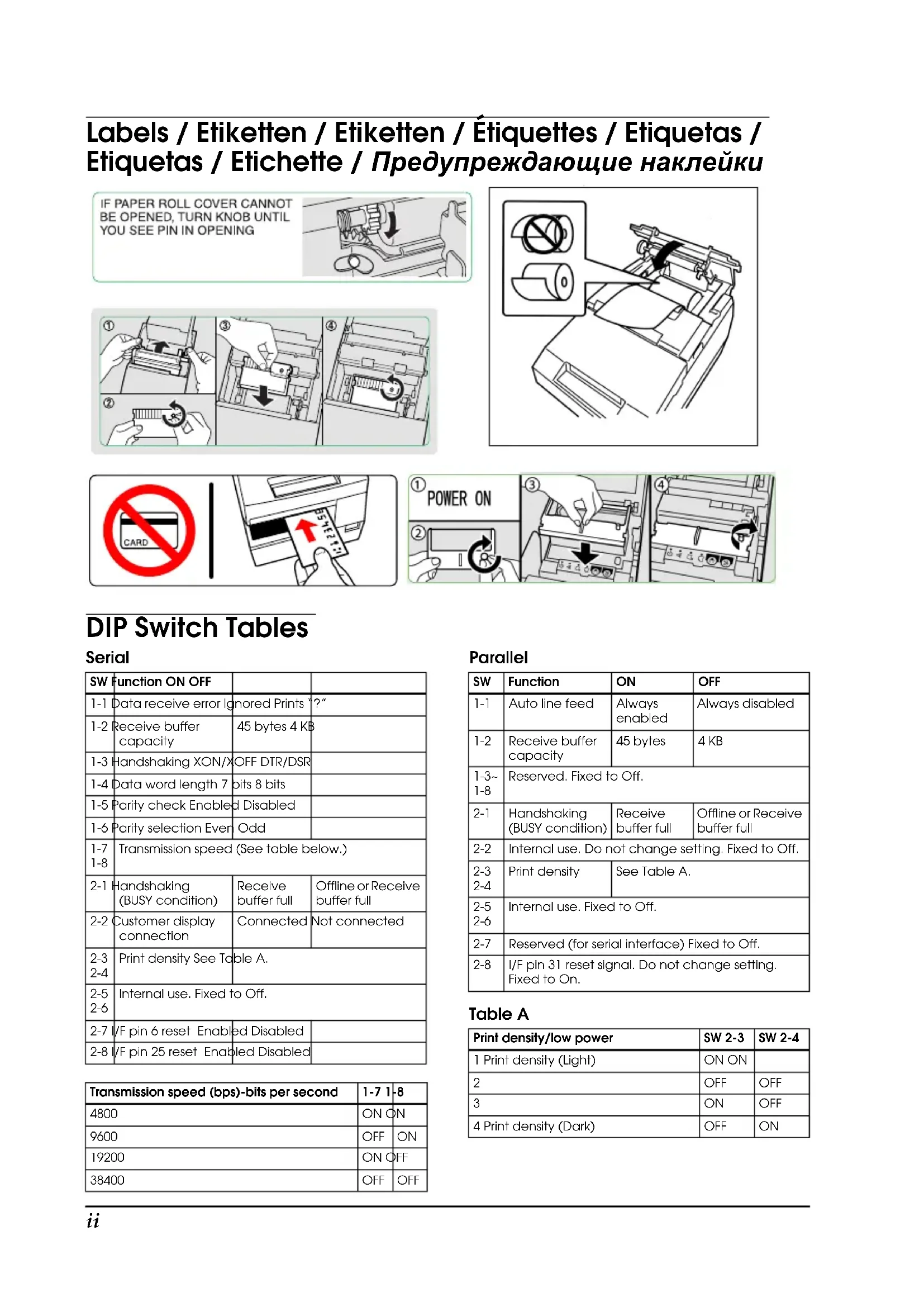
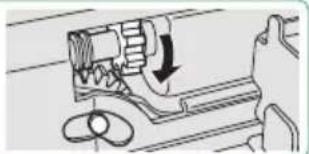
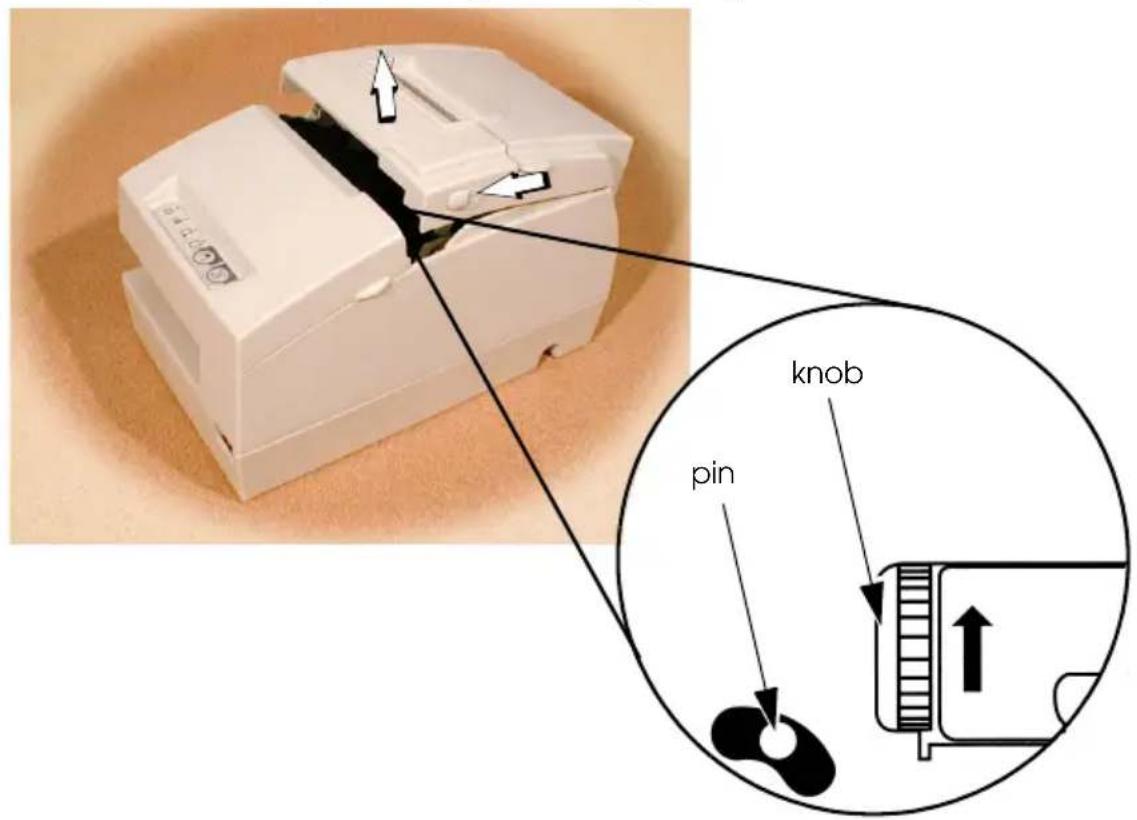
IF PAPER ROLL COVER CANNOT BE OPENED, TURN KNOB UNTIL YOU SEE PIN IN OPENING
DIP Switch Tables
Serial
| SW Function ON OFF | |||
| 1-1 Data receive error Ignored Printed ?" | |||
| 1-2 Receive buffer capacity | 45 bytes 4 KB | ||
| 1-3 Handshaking XON/X OFF DTR/DSR | |||
| 1-4 Data word length 7 bits 8 bits | |||
| 1-5 Parity check Enabled Disabled | |||
| 1-6 Parity selection Ever Odd | |||
| 1-7 Transmission speed (See table below.) | |||
| 1-8 | |||
| 2-1 Handshaking (BUSY condition) | Receive buffer full | Offline or Receive buffer full | |
| 2-2 Customer display connection | Connected | Not connected | |
| 2-3 Print density See Table A. | |||
| 2-5 Internal use. Fixed to Off. | |||
| 2-7 /F pin 6 reset Enabled Disabled | |||
| 2-8 /F pin 25 reset Enabled Disabled | |||
| Transmission speed (bps)-bits per second | 1-7 1-8 |
| 4800 | ON ON |
| 9600 | OFF ON |
| 19200 | ON OFF |
| 38400 | OFF OFF |
Parallel
| SW | Function | ON | OFF |
| 1-1 | Auto line feed | Always enabled | Always disabled |
| 1-2 | Receive buffer capacity | 45 bytes | 4 KB |
| 1-3~1-8 | Reserved. Fixed to Off. | ||
| 2-1 | Handshaking (BUSY condition) | Receive buffer full | Offline or Receive buffer full |
| 2-2 | Internal use. Do not change setting. Fixed to Off. | ||
| 2-32-4 | Print density | See Table A. | |
| 2-52-6 | Internal use. Fixed to Off. | ||
| 2-7 | Reserved (for serial interface) Fixed to Off. | ||
| 2-8 | I/F pin 31 reset signal. Do not change setting. Fixed to On. | ||
Table A
| Print density/low power | SW 2-3 | SW 2-4 |
| 1 Print density (Light) | ON ON | |
| 2 | OFF | OFF |
| 3 | ON | OFF |
| 4 Print density (Dark) | OFF | ON |
TM-H6000III
User's Manual
All rights reserved. No part of this publication may be reproduced, stored in a retrieval system, or transmitted in any form or by any means, electronic, mechanical, photocopying, recording, or otherwise, without the prior written permission of Seiko Epson Corporation. No patent liability is assumed with respect to the use of the information contained herein. While every precaution has been taken in the preparation of this book, Seiko Epson Corporation assumes no responsibility for errors or omissions. Neither is any liability assumed for damages resulting from the use of the information contained herein.
Neither Seiko Epson Corporation nor its affiliates shall be liable to the purchaser of this product or third parties for damages, losses, costs, or expenses incurred by purchaser or third parties as a result of: accident, misuse, or abuse of this product or unauthorized modifications, repairs, or alterations to this product, or (excluding the U.S.) failure to strictly comply with Seiko Epson Corporation's operating and maintenance instructions.
Seiko Epson Corporation shall not be liable against any damages or problems arising from the use of any options or any consumable products other than those designated as Original Epson Products or Epson Approved Products by Seiko Epson Corporation.
Epson and ESC/POS are registered trademarks of Seiko Epson Corporation.
NOTICE: The contents of this manual are subject to change without notice.
Copyright © 2005 by Seiko Epson Corporation, Nagano, Japan.
EMC and Safety Standards Applied
Product Name: TM-H6000III
Model Name: M147G
The following standards are applied only to the printers that are so labeled. (EMC is tested using the Epson power supply.)
Europe: CE marking
Safety: EN 60950
North America: EMI: FCC/ICES-003 Class A
Safety: UL 1950/CSA C22.2 No. 950
Japan: EMI: VCCI Class A
Oceania: EMC: AS/NZS CISPR22 Class B
WARNING
The connection of a non-shielded printer interface cable to this printer will invalidate the EMC standards of this device.
You are cautioned that changes or modifications not expressly approved by Seiko Epson Corporation could void your authority to operate the equipment.
CE Marking
The printer conforms to the following Directives and Norms:
Directive 89/336/EEC EN 55022
Class B
EN 55024
IEC 61000-4-2
IEC 61000-4-3
IEC 61000-4-4
IEC 61000-4-5
IEC 61000-4-6
IEC 61000-4-8
IEC 61000-4-11
FCC Compliance Statement For American Users
This equipment has been tested and found to comply with the limits for a Class A digital device, pursuant to Part 15 of the FCC Rules. These limits are designed to provide reasonable protection against harmful interference when the equipment is operated in a commercial environment.
This equipment generates, uses, and can radiate radio frequency energy and, if not installed and used in accordance with the instruction manual, may cause harmful interference to radio communications.
Operation of this equipment in a residential area is likely to cause harmful interference, in which case the user will be required to correct the interference at his own expense.
FOR CANADIAN USERS
This Class A digital apparatus complies with Canadian ICES-003.
Safety Precautions
This section presents important information intended to ensure safe and effective use of this product. Please read this section carefully and store it in an accessible location.
WARNING:
Shut down your equipment immediately if it produces smoke, a strange odor, or unusual noise. Continued use may lead to fire. Immediately unplug the equipment and contact your dealer or a Seiko Epson service center for advice.
Never attempt to repair this product yourself. Improper repair work can be dangerous.
Never disassemble or modify this product. Tampering with this product may result in injury or fire.
Be sure to use the specified power source. Connection to an improper power source may cause fire.
Do not allow foreign matter to fall into the equipment. Penetration by foreign objects may lead to fire.
If water or other liquid spills into this equipment, unplug the power cord immediately, and then contact your dealer or a Seiko Epson service center for advice. Continued usage may lead to fire.
CAUTION:
Do not connect cables in ways other than those mentioned in this manual. Different connections may cause equipment damage and burning.
Be sure to set this equipment on a firm, stable, horizontal surface. Product may break or cause injury if it falls.
Do not use in locations subject to high humidity or dust levels. Excessive humidity and dust may cause equipment damage or fire.
Do not place heavy objects on top of this product. Never stand or lean on this product. Equipment may fall or collapse, causing breakage and possible injury. To ensure safety, unplug this product before leaving it unused for an extended period.
Do not touch the thermal head or paper feed motor. Wait for the head and the motor to be cool. The head and the motor can be very hot after printing for a long time. Touching them may cause burns.
Labels
WARNING:
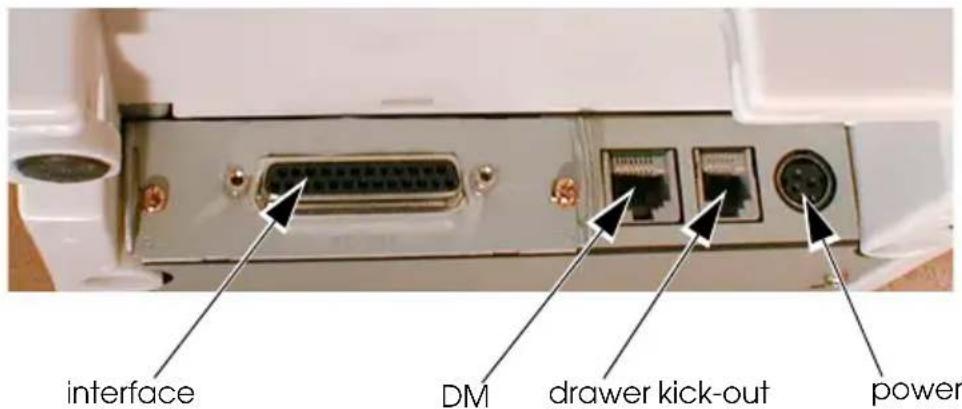
Do not connect a telephone line to the drawer kick-out connector or the display module connector; otherwise the printer and the telephone line may be damaged.
CAUTION:
Thermal head and paper feed motor for the thermal section are hot.
CAUTION:
Caution label for autocutter blade.
Unpacking
The following items are included with the standard specification printer. If any item is damaged, contact your dealer.
□Printer Thermal roll paper Dedicated ribbon cassette [ERC-32 (P)] Power switch cover User's manual (This manual)
Connectors
Important Installation Notes
For a serial interface, use a null modem cable. For a parallel interface, use an IEEE 1284 cable. For a USB interface, install the driver before connecting the printer.
Downloading Drivers, Utilities, and Manuals
Drivers, utilities, and manuals can be downloaded from one of the following URLs.
For customers in North America, go to the following web site:
http://www.epsonexpert.com/ and follow the on-screen instructions.
For customers in other countries, go to the following web site:
http://www.epson-pos.com/
Select the product name from the "Select any product" pulldown menu.
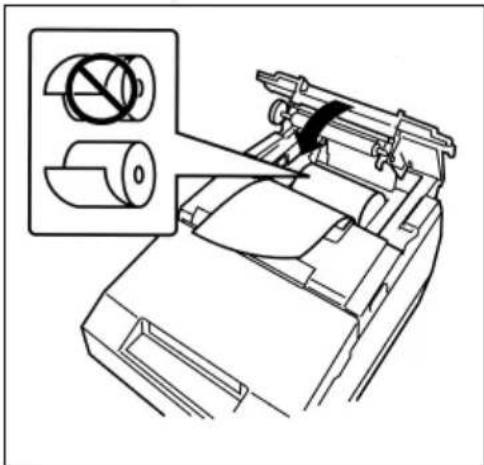
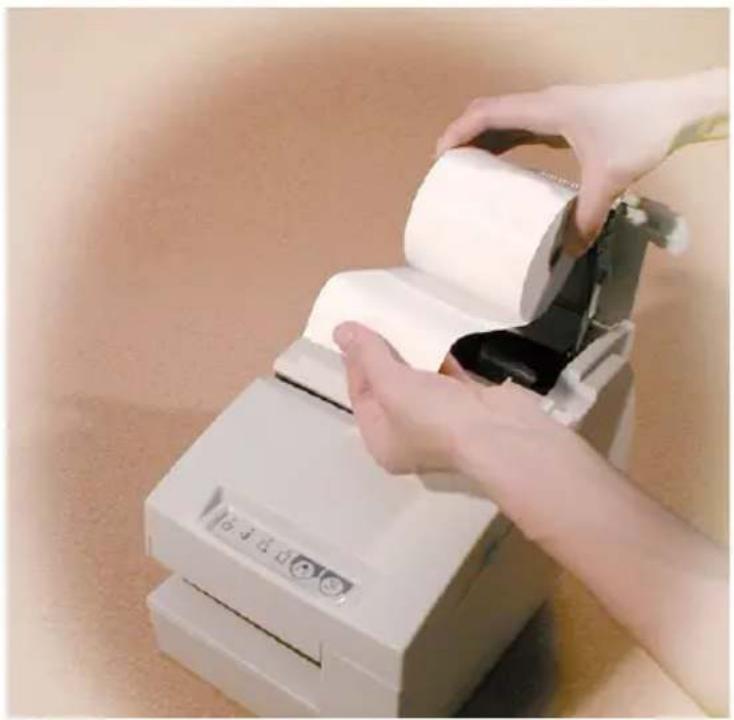
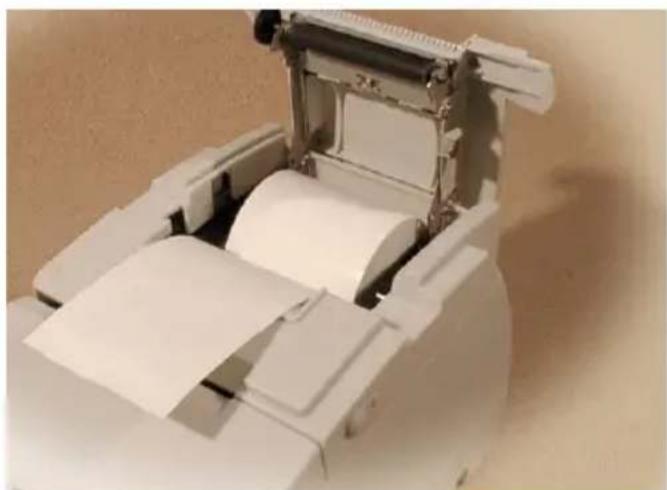
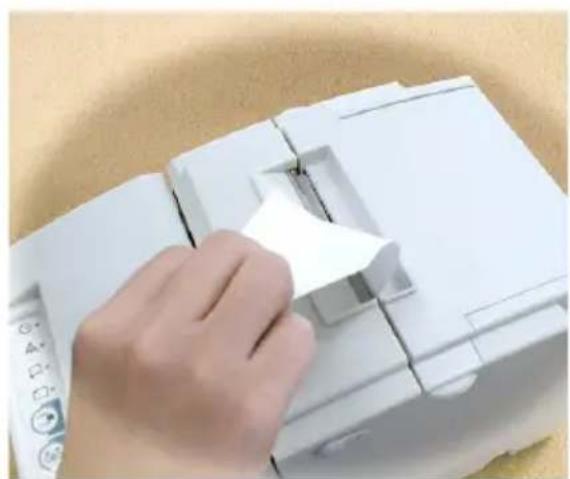
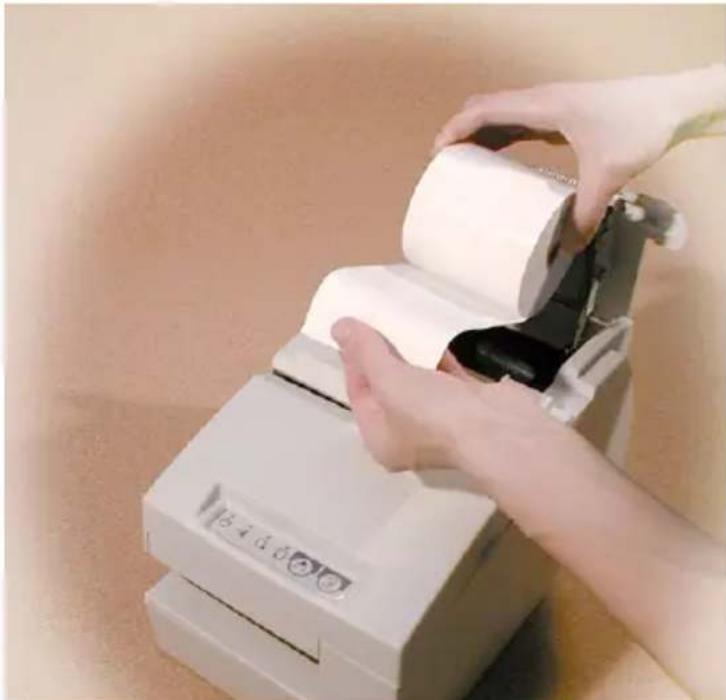
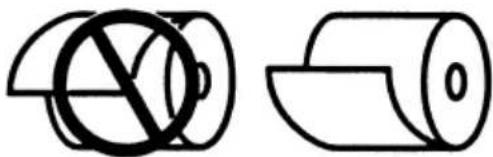
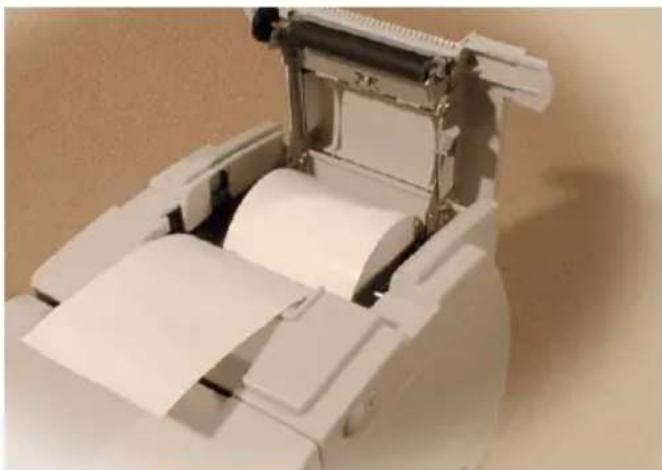
Installing the Paper Roll
Note:
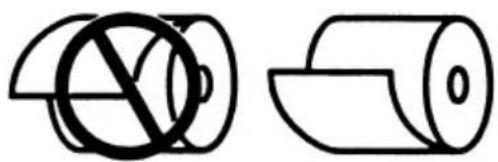
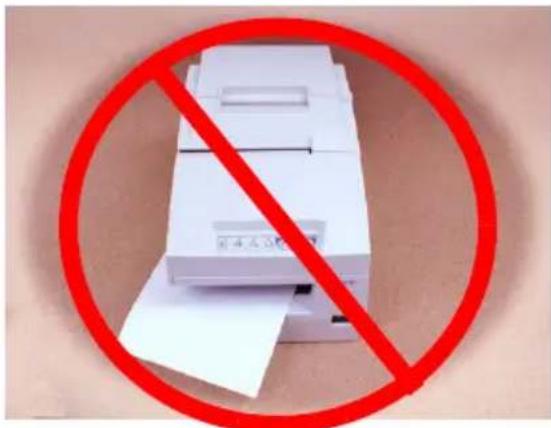
Do not use paper rolls that have the paper glued or taped to the core because they might cause a paper jam.
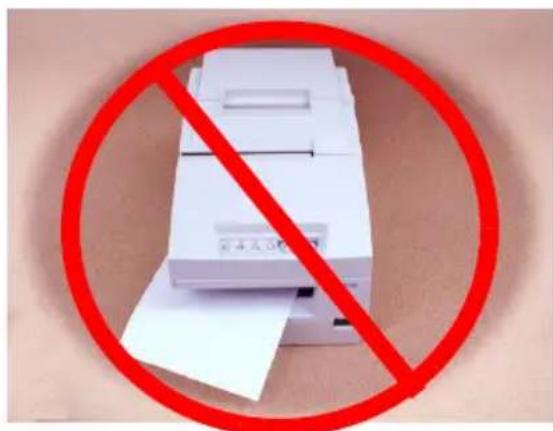
To prevent paper jams, make sure that nothing obstructs paper coming out of the paper exit, and do not pull the paper out of the printer.
Installing the Ribbon
Epson recommends the use of genuine Epson ribbon cassettes.
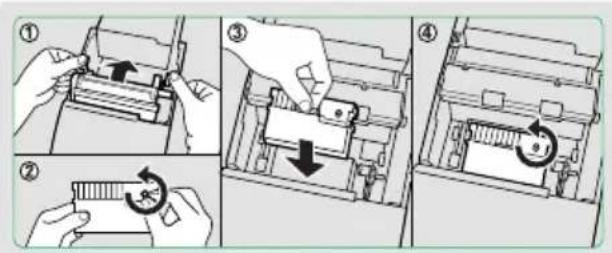
- Turn on the printer. Turn the knob on the ribbon cartridge. Open the front cover of the printer, and insert the new ribbon.
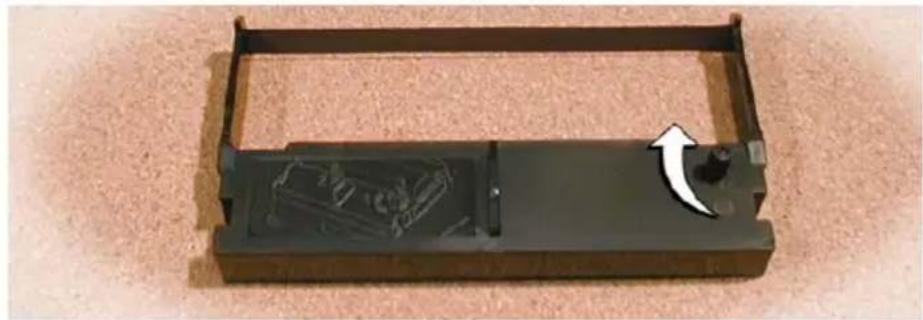
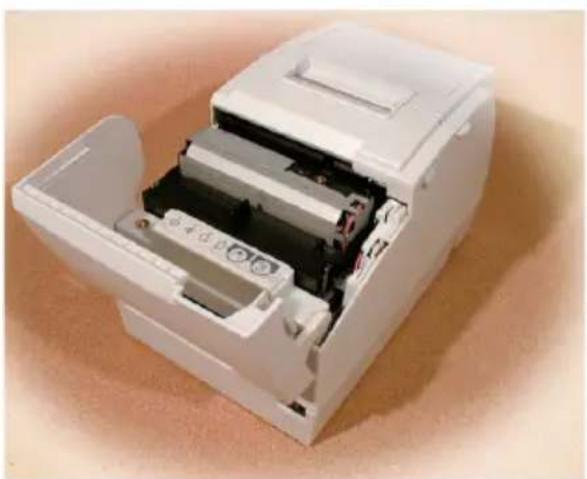
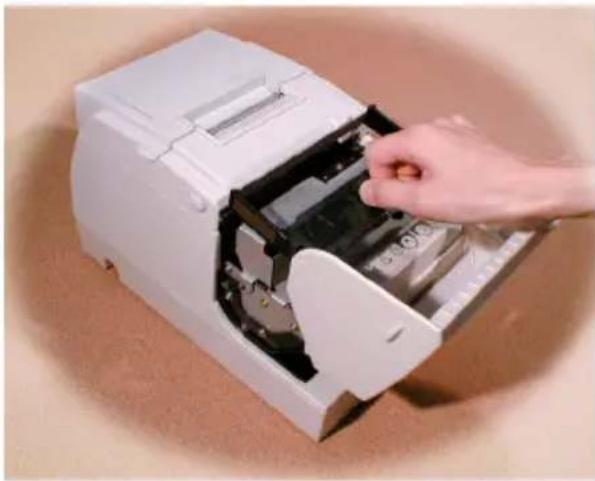
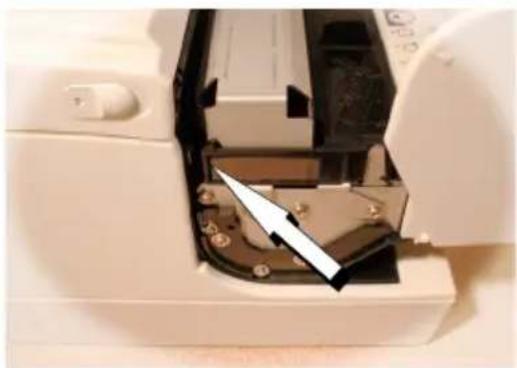
- Turn the knob 2 or 3 times and check the ribbon position.
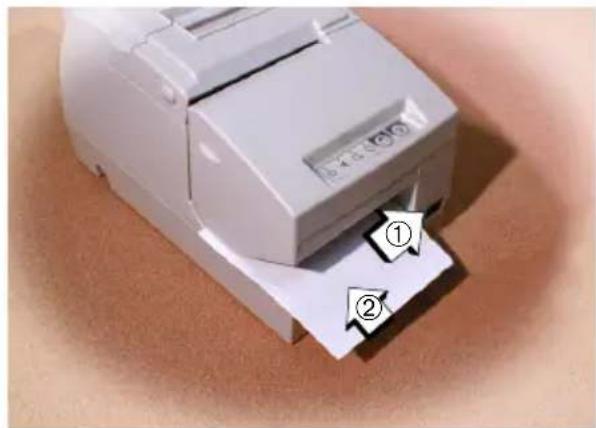
Inserting Slip Paper
Troubleshooting
Error light on or blinking.
Make sure that the printer cover is properly closed.
Turn off the printer and check for a paper jam.
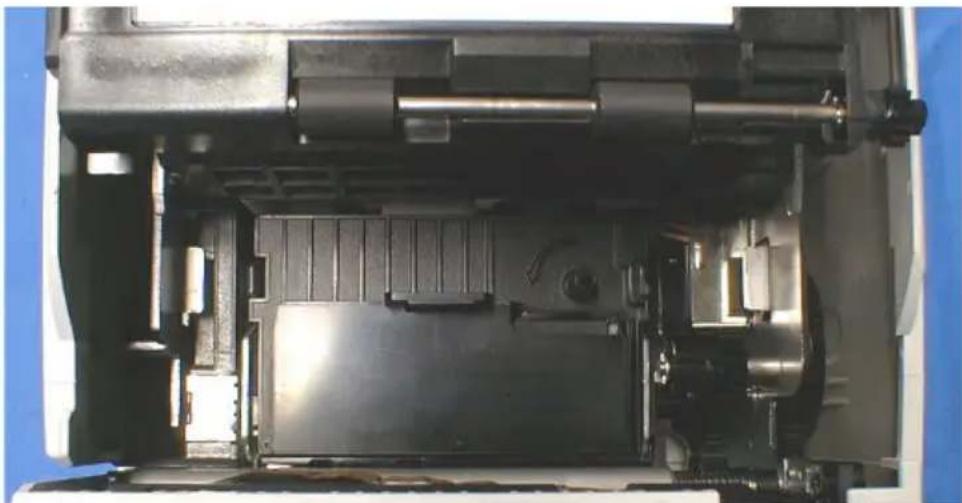
The autocutter is jammed or the paper roll cover will not open.
- Turn off the printer and open the unit cover.
- Then turn the knob until you see a pin in the opening.
Cleaning the Print Head


CAUTION:
After printing, the print head can be very hot. Be careful not to touch it. Also let it cool before you clean it. Do not damage the print head by touching it with your fingers or any hard object.
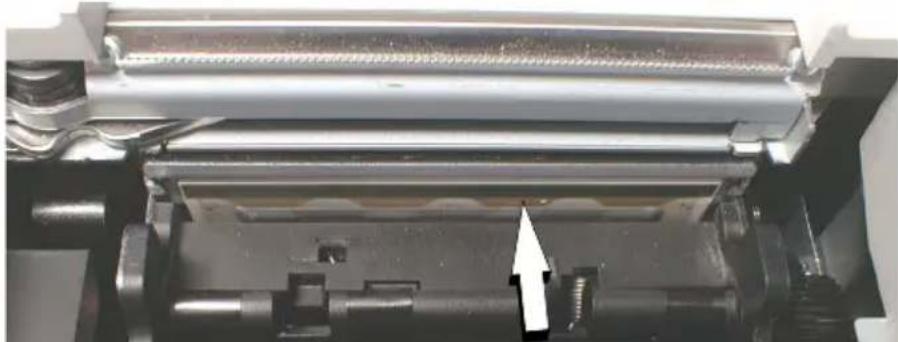
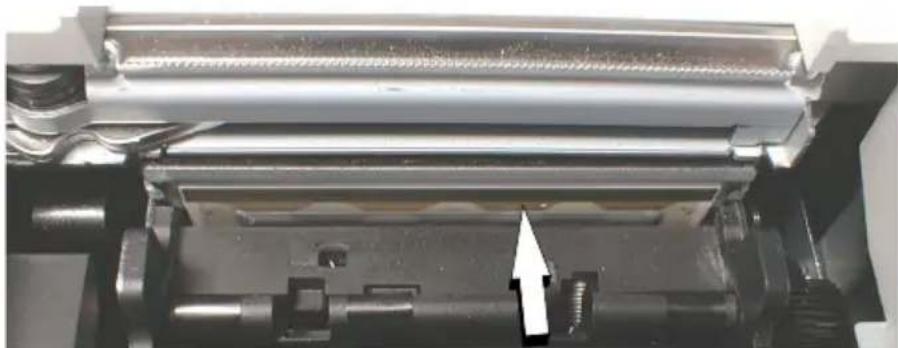
Open the paper roll cover, and clean the thermal element (the green part) of the print head with a cotton swab moistened with an alcohol solvent (ethanol, methanol, or IPA).
Clean the thermal head periodically (generally every 3 months) to maintain receipt print quality.
MICR and Endorsement Printing (Factory installed options) Reading MICR Characters On Personal Checks

CAUTION:
Do not insert checks with staples in them. This may cause paper jams, MICR reading errors, and damage to the MICR head.
Be sure the checks are flat, without curls, folds, or wrinkles.
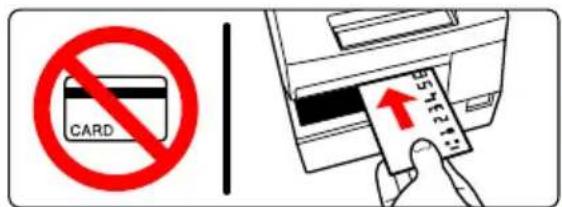
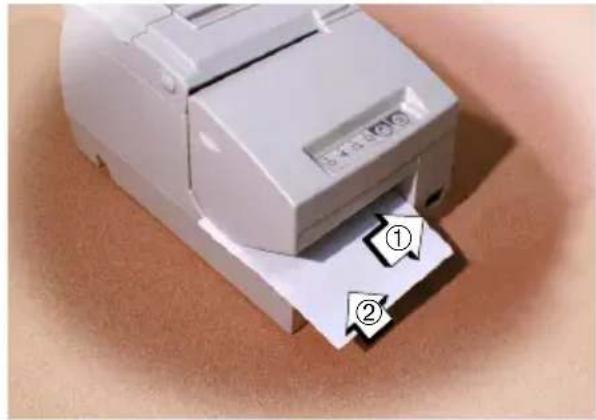
- Wait until the SLIP light blinks. Then insert the check face up with the right side of the check against the right side of the paper guide as far as it will go. Be sure that the MICR characters are on the right.
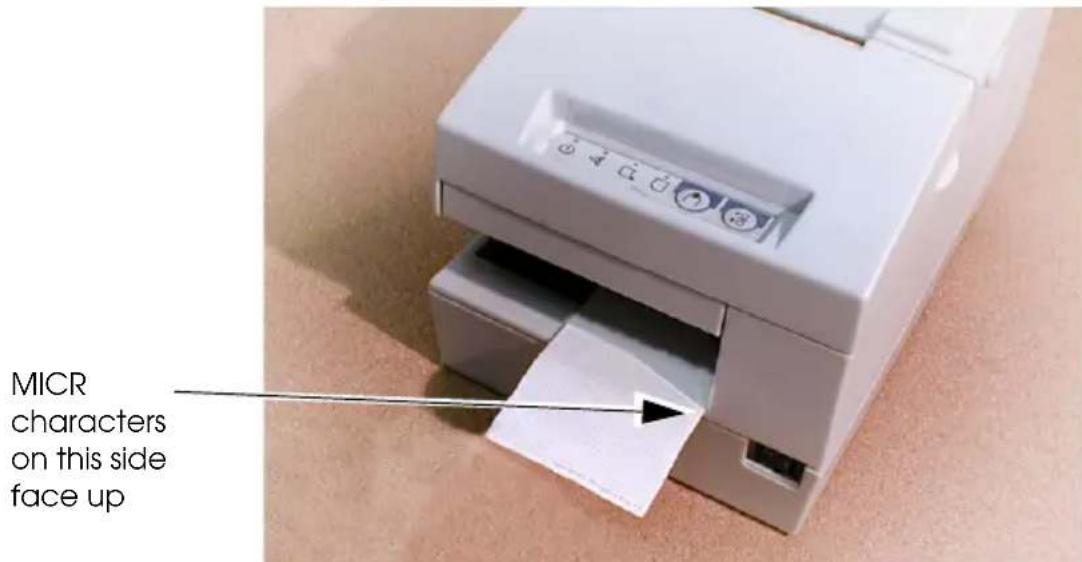
- The printer will detect the check and start drawing it in. When the printer starts drawing it in, let go of the check immediately. When the printer ejects the check and the SLIP light starts blinking again, remove the check by pulling it straight up; do not pull it at an angle.
Cleaning the MICR Mechanism
Approximately every 12 months, clean the MICR head with a moistened cleaning sheet.
Use the following or an equivalent commercially available cleaning sheet:
PRESAT brand (KIC) "CHECK READER CLEANING CARD."
Note:
Be sure not to use an adhesive cleaning sheet.
Follow the steps below:
- Load a paper roll in the printer; turn off the power; then open the paper roll cover and turn the power back on while holding down the RELEASE button.
- Press the RELEASE button 7 times; then close the paper roll cover. The printer prints the following message on receipt paper and the SLIP light flashes.
* RECOGNITION MODE *
Please set check.
- Insert the cleaning sheet like a standard check.
CAUTION:
Be sure that the sheet is inserted with the correct side up and that it is inserted in the correct direction.
Use a cleaning sheet only one time; then discard it.
- When the sheet is ejected, press the RELEASE button, and remove the sheet from the printer.
Notes on using the MICR reader
Do not install the printer near any magnetic fields. Be especially careful where you install your display device and be sure to check the recognition rate of the MICR reader with the display device in place.
Make sure that the printer is not subjected to any impact or vibration when it is performing a MICR reading.
Endorsement Printing
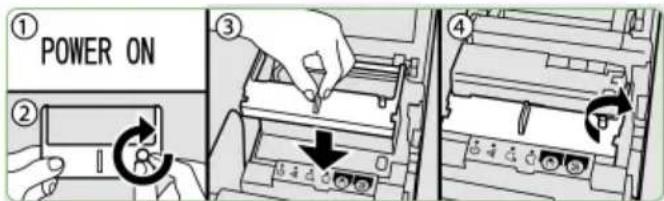
If your printer has the optional endorsement printing mechanism, install the endorsement ribbon following the steps below:
Note:
Be sure to turn on the power before installing a ribbon cassette.
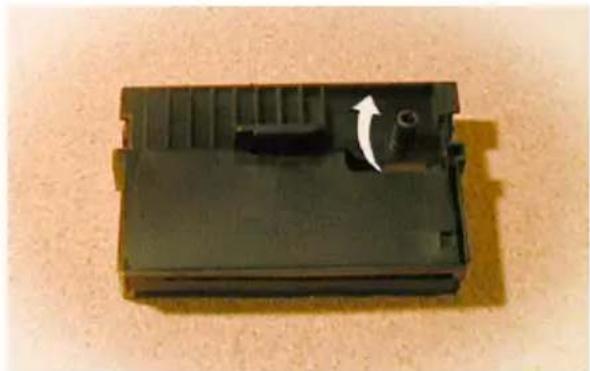
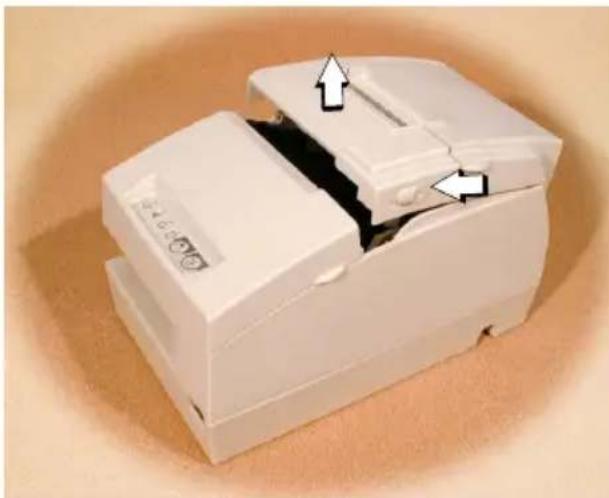
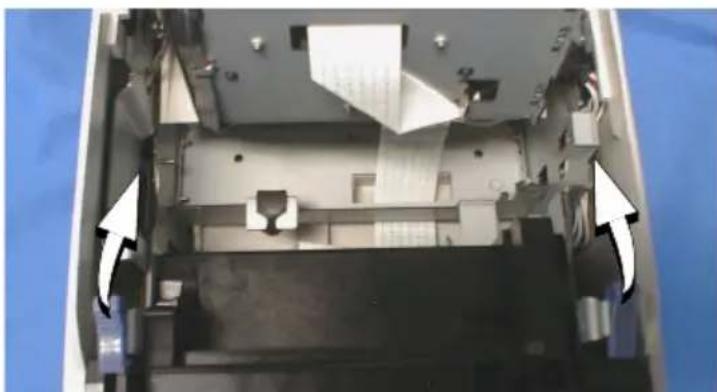
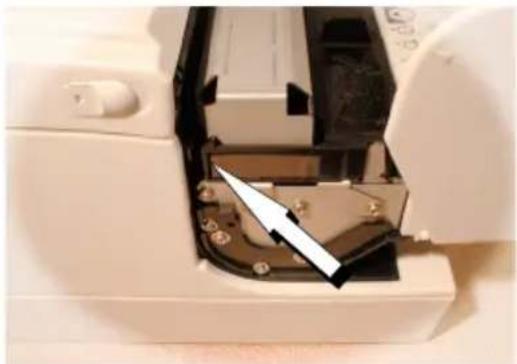
- Turn the ribbon cassette knob. Then open the unit cover. Inside the printer, push the levers backward to open the unit.
Note:
Do not open the unit during printing.
- Insert the ribbon into the printer in the position shown and turn the knob again to seat the ribbon. Then close the printer.
Epson Ecology Label
This product is in compliance with the Epson ecology label requirements. Please see the following link for detailed information on label criteria: http://www.epson.co.jp/e/

TM-H6000III Specifications
| Print method Receipt: Thermal line Slip: 9-pin serial impact dot matrix Endorsement: 8-pin shuttle impact dot matrix | |
| Print font Receipt: 9 × 17 | 12 × 24 Slip: 5 × 9 / 7 × 9 Endorsement: 5 × 7 |
| Columns Receipt: 56/42 | Slip: 60/45 Endorsement: 40 |
| Character size (W × H) | Receipt: 0.99 × 2.40 mm {0.04 × 0.09"} 1.41 × 3.39 mm {0.06 × 0.13"} Slip: 1.56 × 3.1 mm {0.06 × 0.12"} 1.24 × 3.1 mm {0.05 × 0.12"} Endorsement: 1.1 × 2.42 mm {0.04 × 0.10"} |
| Character sets 95 alphanumeric, 37 international characters 128 × 11 (slip: 12) pages extended graphic characters | |
| Print speed Receipt: 63, Slip: 5.14, Endorsement: 1.9 (lines per second) | |
| Paper dimensions | Receipt: Thermal roll paper 79.5 ± 0.5 × 83 mm {3.1 ± 0.02 × 3.3"} Slip/endorsement: 70 ~ 148 × 150 ~ 210 mm {2.8 ~ 5.8 × 5.9 ~ 8.3" (W × L) |
| Paper thickness Slip (single-ply): 0.09 ~ 0.2 mm {0.0035 ~ 0.0079"} Endorsement: 0.09 ~ 0.2 mm {0.0035 ~ 0.0079" | |
| Copy capability Receipt/Endorsement: Single-ply Slip: 1 original + 3 copies | |
| Inked ribbon Slip: ERC-32(P) Endorsement: ERC-41(P) | |
| Ribbon life Slip: 6 million characters Endorsement: 1 million characters | |
| Interface (compatible) | RS-232C/Bi-directional parallel/RS-485 (dealer option) |
| Data buffer Selectable for 45 bytes or 4 KB using DIP switch | |
| D.K.D. function | 2 drives |
| Power supply | +24 VDC ± 10% |
| Current consumption Slip: | Approximately 1.7 A (mean) Receipt: Approximately 1.8 A (mean) |
| Temperature Operating: | 5 to 45°C {41 to 113°F} Storage: -10 to 50°C {14 to 122°F} |
| Humidity 10 to 90% without condensation | |
| Reliability Receipt: MTBF: | 360,000 hours, MCBF: 72 million lines Slip: MTBF: 180,000 hours, MCBF: 18 million lines |
| Overall dimensions 185 × | 186 × 298 mm {7.28 × 7.32 × 11.73" (H × W × D) |
| Mass Approximately 5.3 kg {11.7 lb} | |
TM-H6000III
User's Manual
Copyright © 2005 Seiko Epson Corporation, Nagano, Japan.
Directive 89/336/EEC EN 55022
Class B
EN 55024
IEC 61000-4-2
IEC 61000-4-3
IEC 61000-4-4
IEC 61000-4-5
IEC 61000-4-6
IEC 61000-4-8
IEC 61000-4-11
NOISE LEVEL
PRESAT brand (KIC) "CHECK READER CLEANING CARD"
Copyright 2005, Seiko Epson Corporation, Nagano, Japan.
Copyright © 2005 Seiko Epson Corporation, Nagano, Japan.
Directive 89/336/EEC EN 55022
Class B
EN 55024
IEC 61000-4-2
IEC 61000-4-3
IEC 61000-4-4
IEC 61000-4-5
IEC 61000-4-6
IEC 61000-4-8
IEC 61000-4-11
FOR CANADIAN USERS
See the illustrations on page 5.
Installing the ribbon
See the illustrations on page 7.
Copyright © 2005 Seiko Epson Corporation, Nagano, Japan.
Copyright © 2005, Seiko Epson Corporation, HaraHO, IIOHNA.
Compliance with electromagnetic compatibility (EMC) and safety standards
Product name: TM-H6000III
Model name: M147G
The following standards apply only to printers marked with the corresponding labels. (EMC compatibility testing is conducted using an EPSON power supply).
In Europe: CE marking
Safety EN 60950
In North America: EMC interference
FCC/ICES-003, Class A
Safety UL 1950/ CSA C22.2 No. 950
In Japan: EMC interference
VCCI, Class A
For the Asian region: EMC compatibility AS/NZS CISPR22, Class B
WARNING
Connecting an unshielded interface cable to this device and printer may result in non-compliance with the electromagnetic compatibility standards applicable to this device.
Note that any changes made to the equipment design without the special permission of Seiko Epson Corporation may result in the user losing the right to warranty service.
CE marking
The device complies with the requirements of the following directives and standards: Directive 89/336/EEC: EN 55022
Class B
EN 55024
IEC 61000-4-2
IEC 61000-4-3
IEC 61000-4-4
IEC 61000-4-5
IEC 61000-4-6
IEC 61000-4-8
IEC 61000-4-11
GOST R 51318.22-99 (Class B)
GOST R 51318.24-99
GOST R IEC 60950-2002
http://www.cpson-pos.com/
http://support.epson.ru
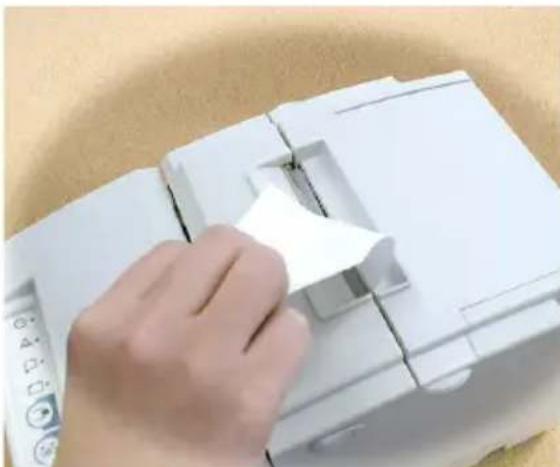
Installing the paper roll
Note
Do not use paper rolls in which the paper is glued or attached to the core of the roll, as this may cause paper jams. To prevent paper jams, make sure there are no obstacles that could impede paper feeding, and do not pull the paper out of the printer.
Installing the ribbon
EPSON recommends using cassettes with ribbons manufactured by EPSON.
- Turn on the printer. Turn the ribbon tension knob on the cassette with the ribbon. Open the front cover of the printer and insert the new ribbon.
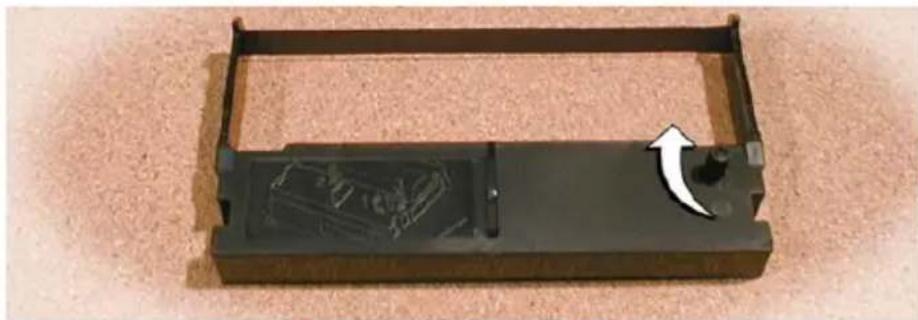
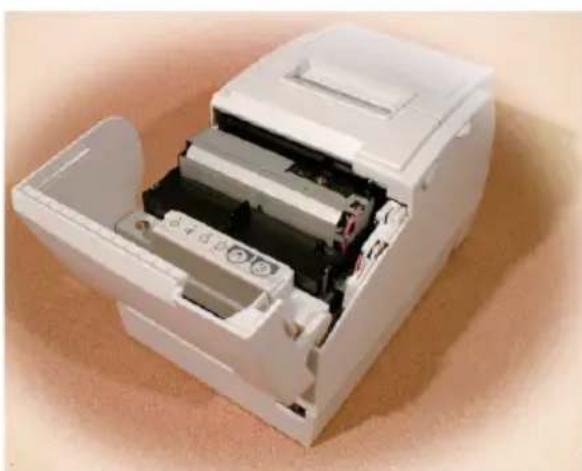
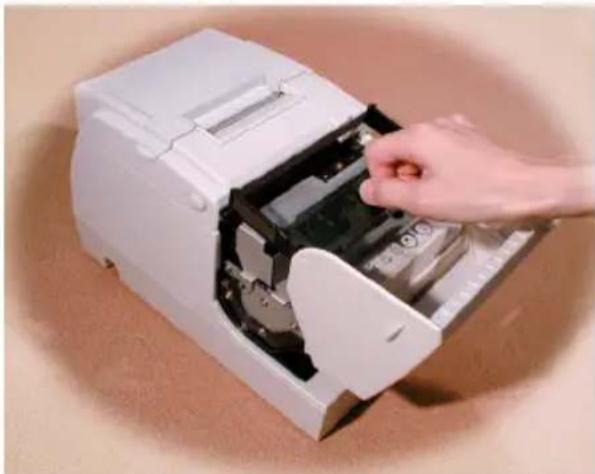
- Turn the tension knob two or three times and check that the ribbon is positioned correctly.
Loading paper and additional features
Troubleshooting
The error indicator is constantly on or blinking.
Make sure the printer cover is closed properly.
Turn off the printer and check that the paper is not jammed.
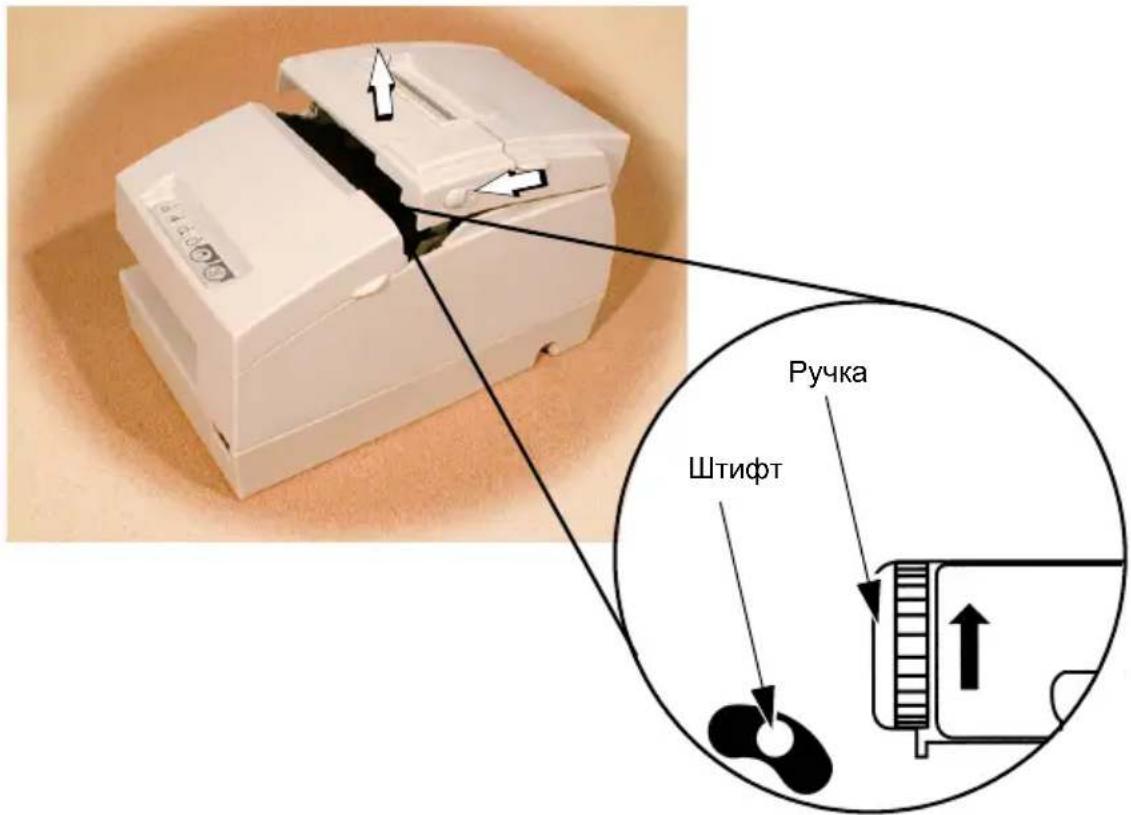
The automatic cutter is jammed, or the roll paper cover does not open.
- Turn off the printer and open the printer cover.
- After this, turn the knob until you see the paper in the slot.
Cleaning the print head

CAUTION!
During printing, the print head can become very hot. Be careful, do not touch the print head! Let the print head cool down before cleaning it. Touching the print head may damage it.
Open the roll paper cover and wipe the thermal print head with a soft cloth dampened with a solution based on ethyl or isopropyl alcohol.
Periodically (usually every 3 months) wipe the thermal print head to maintain print quality.
Checking magnetic stripe cards and printing endorsements (on the back of personal checks, drafts) (factory configuration options)
Checking magnetic stripes on personal checks

CAUTION!
Do not insert checks with staples for paper removal - this may cause paper jams, damage when reading magnetic stripes, and damage to the magnetic stripe reading head.
Insert only clean, uncreased checks without folds or creases.
- Wait until the «SLIP» indicator starts blinking, then insert the check with the magnetic stripe facing up so that its right edge is aligned with the right side of the paper guide and pressed firmly against it. Make sure that the characters printed with magnetic ink are on the right side.
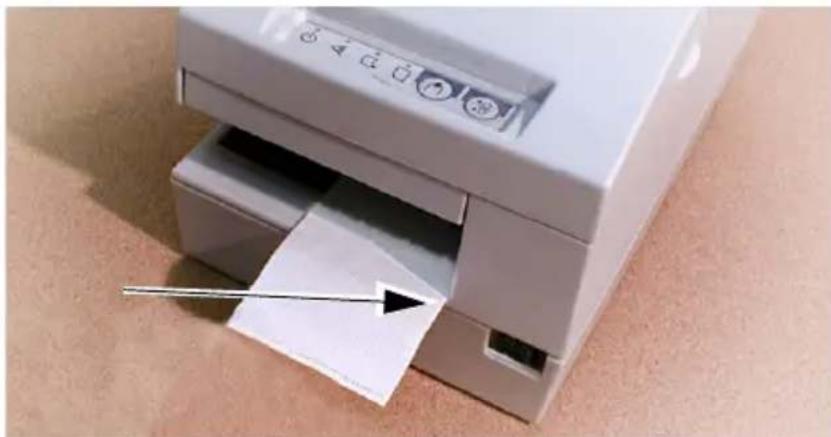
- The printer will register the inserted check and begin to pull it in. As soon as the printer starts pulling the check, release it. When the printer has processed the check and the «SLIP» indicator starts blinking again, remove the check by pulling it straight up; do not pull the check toward you at an angle.
Cleaning the magnetic ink character reader mechanism
Approximately once a year, clean the magnetic ink character reader surface with a special cleaning card supplied for cleaning the check reading device.
Use the PRESAT card (KIC) for cleaning the check reading device (CHECK READER CLEANING CARD) or an equivalent cleaning card available on the market.
Note
Do not use cleaning cards that are sticky or have rough surfaces!
Perform the following sequence of operations.
- Insert a roll of paper into the printer and turn off the printer power. Then open the paper roll cover and turn the power back on while holding down the «RELEASE» button.
- Press the «RELEASE» button seven times, then close the paper roll cover. The printer will print a message on the paper for a receipt and the «SLIP» indicator will start blinking.
* RECOGNITION MODE *
Please set check.
- Insert the cleaning card in the same way as a standard check.

ATTENTION!
Do not forget that the cleaning card must be inserted with the correct orientation, so that the top side of the card faces up. The cleaning card is used only once; the used card should be discarded.
- After the printer prints the test card, press the RELEASE button and remove the card from the printer.
Notes on using the device for reading magnetic characters
Do not install the printer near sources of any electromagnetic fields. Be especially careful when installing the reader; check that the reader continues to correctly recognize magnetic characters after installation.
Make sure that during reading of magnetic characters the printer is not subjected to any shock loads or vibrations.
Installing the ribbon cassette
If the printer has an optional ribbon cassette mechanism, install the ribbon cassette by performing the following sequence of operations.
Note
Do not forget to turn off the printer power before starting the ribbon cassette installation!
Environmental information from EPSON
The equipment described in this manual complies with the environmental requirements of EPSON. Detailed information about these requirements can be found on the website at http://www.epson.co.jp/e/.

Technical specifications of the TM-H6000III printer
Printed on Recycled Paper
Printed in China
2005.06
- DIP SWITCH TABLES
- TM-H6000III
- USER'S MANUAL
- EMC AND SAFETY STANDARDS APPLIED
- WARNING
- CE MARKING
- FCC COMPLIANCE STATEMENT FOR AMERICAN USERS
- FOR CANADIAN USERS
- SAFETY PRECAUTIONS
- CAUTION
- LABELS
- UNPACKING
- CONNECTORS
- IMPORTANT INSTALLATION NOTES
- DOWNLOADING DRIVERS, UTILITIES, AND MANUALS
- INSTALLING THE PAPER ROLL
- INSTALLING THE RIBBON
- INSERTING SLIP PAPER
- TROUBLESHOOTING
- ERROR LIGHT ON OR BLINKING
- THE AUTOCUTTER IS JAMMED OR THE PAPER ROLL COVER WILL NOT OPEN
- CLEANING THE PRINT HEAD
- MICR AND ENDORSEMENT PRINTING (FACTORY INSTALLED OPTIONS) READING MICR CHARACTERS ON PERSONAL CHECKS
- CLEANING THE MICR MECHANISM
- NOTE
- NOTES ON USING THE MICR READER
- ENDORSEMENT PRINTING
- EPSON ECOLOGY LABEL
- NOISE LEVEL
- COMPLIANCE WITH ELECTROMAGNETIC COMPATIBILITY (EMC) AND SAFETY STANDARDS
- LOADING PAPER AND ADDITIONAL FEATURES
- CHECKING MAGNETIC STRIPE CARDS AND PRINTING ENDORSEMENTS (ON THE BACK OF PERSONAL CHECKS, DRAFTS) (FACTORY CONFIGURATION OPTIONS)
- CHECKING MAGNETIC STRIPES ON PERSONAL CHECKS
- CLEANING THE MAGNETIC INK CHARACTER READER MECHANISM
- ATTENTION
- NOTES ON USING THE DEVICE FOR READING MAGNETIC CHARACTERS
- INSTALLING THE RIBBON CASSETTE
- ENVIRONMENTAL INFORMATION FROM EPSON
Brand : EPSON
Model : TMH6000iii
Category : Printer