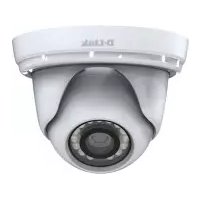
DCS4802E - Surveillance Camera D-LINK - Free user manual and instructions
Find the device manual for free DCS4802E D-LINK in PDF.



| Product Type | Outdoor Mini Dome Surveillance Camera |
| Resolution | Full HD (1920x1080) |
| Night Vision | Yes, with IR LEDs |
| Power Supply | PoE (802.3af) or 12V / 1.5A AC adapter (optional) |
| Connectivity | Ethernet RJ-45 |
| Protection | Outdoor (weatherproof connectors) – waterproof installation possible |
| Sensor | Built-in light sensor |
| Main Functions | Live video surveillance, access via web browser, motion detection, configuration via D-Link setup wizard |
| Installation | Wall or ceiling mount, optional brackets DCS-37-1 and DCS-37-2 |
| Reset | Reset button to restore factory settings |
| Network Configuration | DHCP or static IP (default IP 192.168.0.20) |
| Default Username/Password | admin / (blank) |
| Maintenance | Clean the lens with a soft non-abrasive cloth; do not use solvents |
| Safety | Installation by a qualified technician in compliance with local codes; Class A product |
| Spare Parts Available | 12V 1.5A power adapter (optional), mounting brackets, weatherproof connectors |
| Repairability | Contact D-Link technical support or an authorized reseller |
| Warranty | See warranty.dlink.com for terms based on region |
| Brand | D-Link |
| Model | DCS4802E |
Frequently Asked Questions - DCS4802E D-LINK
User questions about DCS4802E D-LINK
0 question about this device. Answer the ones you know or ask your own.
Ask a new question about this device
Download the instructions for your Surveillance Camera in PDF format for free! Find your manual DCS4802E - D-LINK and take your electronic device back in hand. On this page are published all the documents necessary for the use of your device. DCS4802E by D-LINK.
USER MANUAL DCS4802E D-LINK
Quick Installation Guide
Vigilance Full HD Outdoor PoE Mini Dome Camera
This document will guide you through the basic installation process for your new D-Link Network Camera.
DCS-4802E
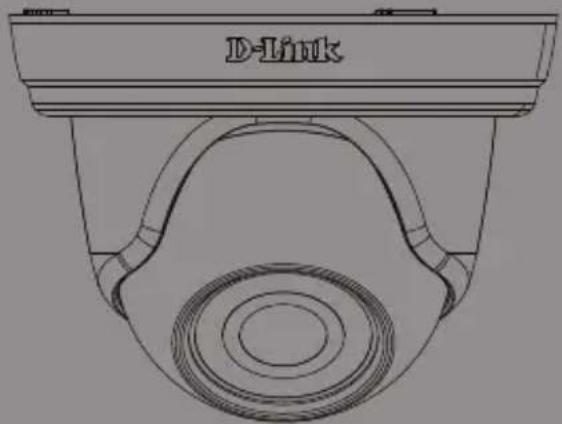
natural_image
Technical line drawing of a mechanical component with concentric circles and a labeled D-Link (no other text or symbols)Quick Installation Guide
This installation guide provides basic instructions for installing the DCS-4802E on your network. For additional information about how to use the camera, please see the User Manual, which is available on the CD included in this package, or you can download it from the D-Link support website.
Package Contents
■ DCS-4802E Vigilance Full HD Outdoor PoE Mini Dome Camera
■ Cable Waterproofing Connector
■ Rubber Power Connector Plug
- Mounting Kit
■ Manual and Software on CD-ROM
■ Quick Installation Guide
If any of the above items are missing, please contact your reseller.
Safety Notice:
Installation and servicing should be done by certified technicians so as to conform to all local codes and prevent voiding your warranty.
Hardware Overview
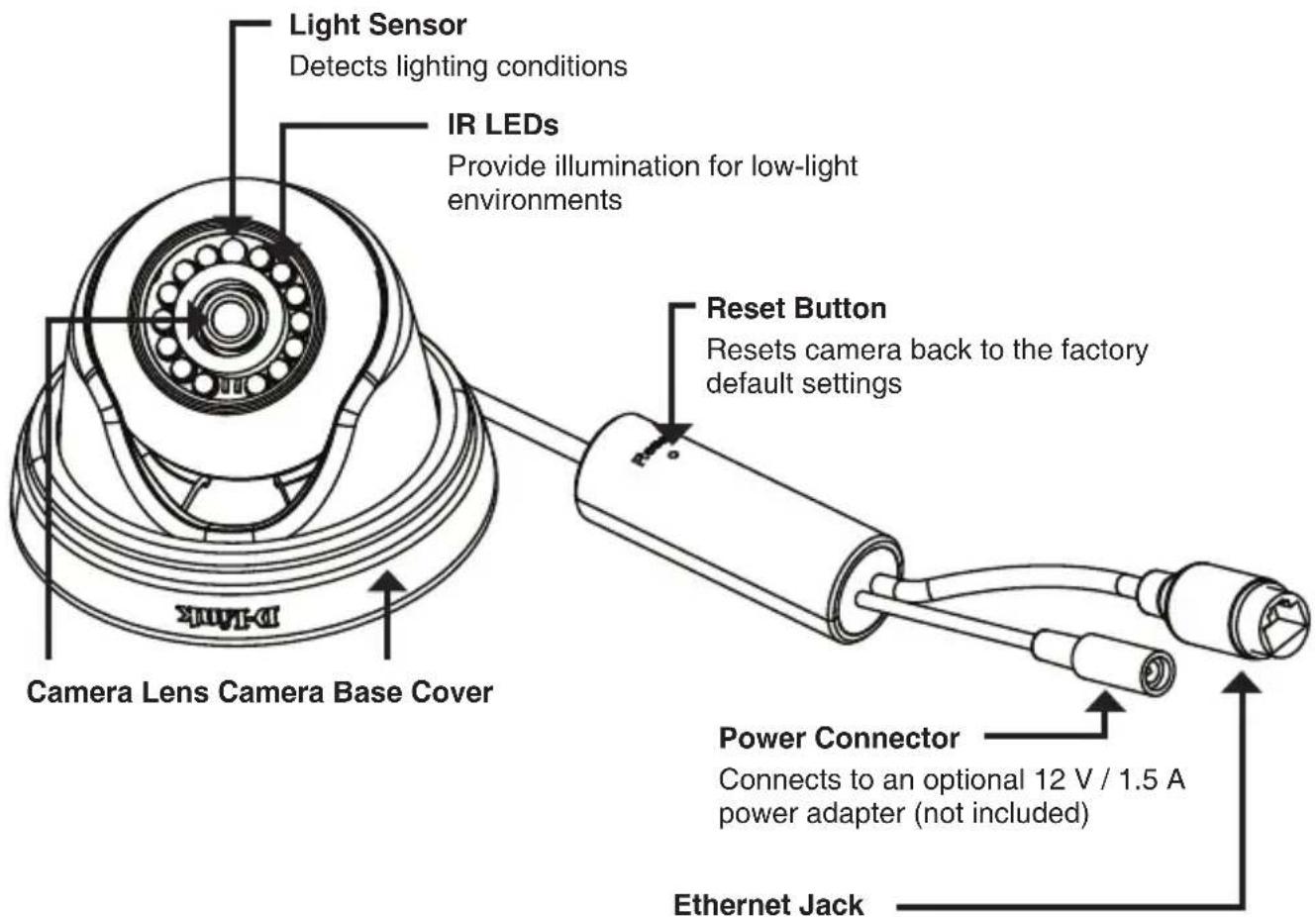
RJ-45 connector for Ethernet which can also be used to power the camera using Power over Ethernet (PoE)
Connecting the Camera
You can power the DCS-4802E two different ways: Power over Ethernet (PoE) or with a power adapter.
Powering the camera using PoE (Class 2):
Connect an Ethernet cable to the Ethernet jack on the camera. Connect the other end of the cable to your PoE switch or PoE injector.
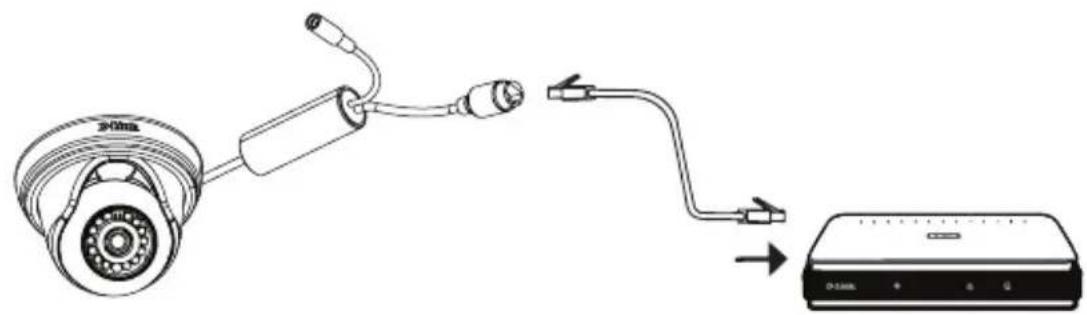
Powering the camera with a power adapter (not included):
Connect a 12 V, 1.5 A power adapter to the power connector.
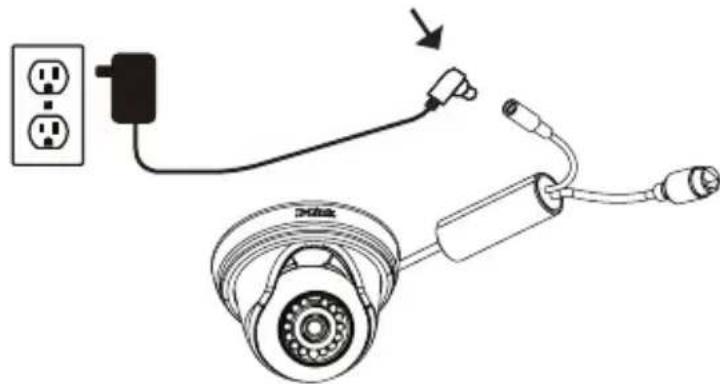
natural_image
Diagram showing connections between a power outlet, cable, and connector (no text or symbols)Connect an Ethernet cable to the Ethernet jack on the camera. Connect the other end of the cable to your network.
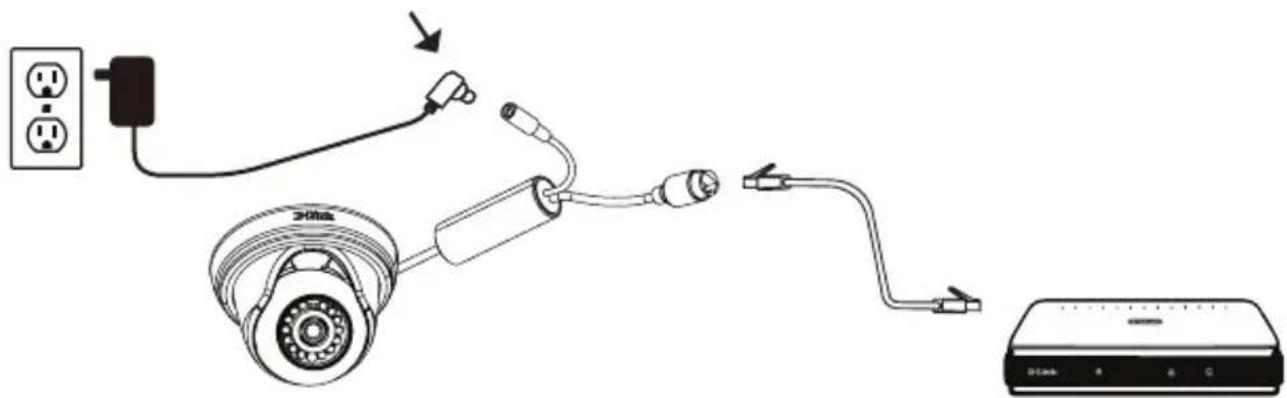
Configuring the Camera
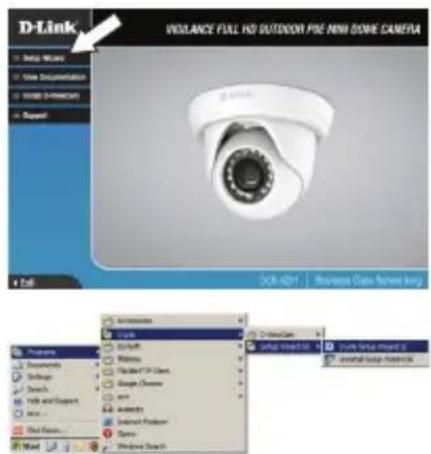
Insert the DCS-4802E CD into your computer's CD-ROM drive to begin the installation. If the Autorun function on your computer is disabled, or if the D-Link Launcher fails to start automatically, click the Start button and type D:\autorun.exe (where D: represents the drive letter of your CD-ROM drive) and press Enter.
Click Setup Wizard and follow the instructions to install the Setup Wizard.
Click on the D-Link Setup Wizard SE icon that was created in your Windows Start menu (Start > D-Link > Setup Wizard SE).
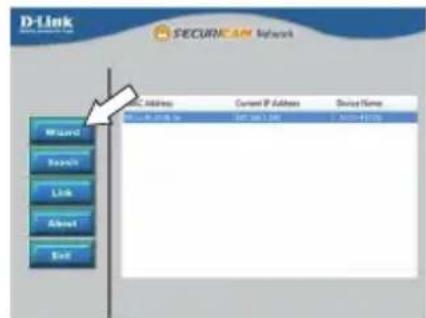
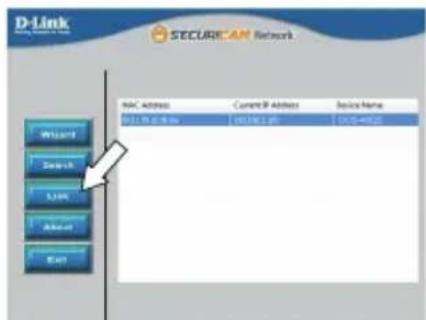
The Setup Wizard will appear and display the MAC address and IP address of your camera(s). If you have a DHCP server on your network, a valid IP Address will be displayed. If your network does not use a DHCP server, the network camera's default static IP 192.168.0.20 will be displayed.
Select your camera, then click the Wizard button to continue.
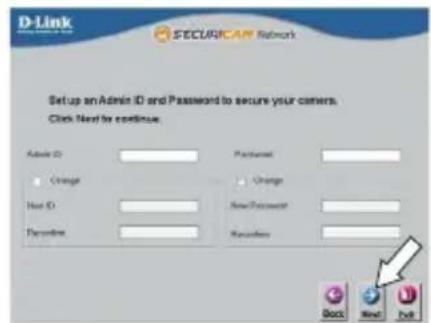
Enter the Admin ID and password. When logging in for the first time, the default Admin ID is admin with the password left blank.
Click the checkboxes if you wish to change the admin ID and password for the camera, and enter the new ID and password you wish to use.
Click Next to continue.
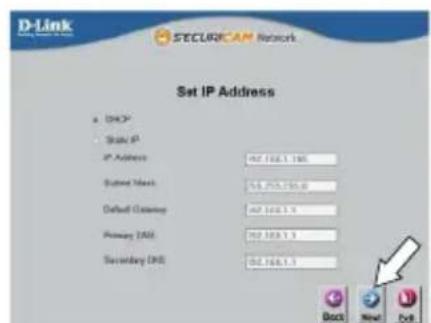
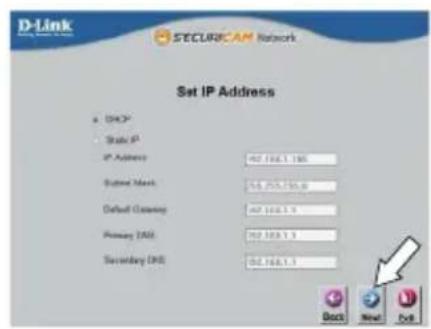
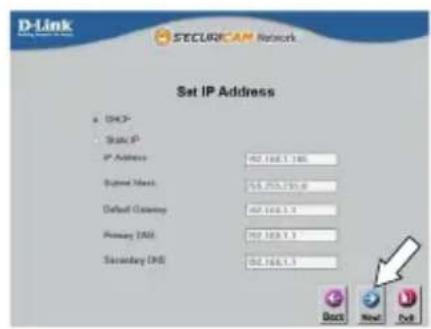
Select DHCP if your camera obtains an IP address automatically from a DHCP server such as a router. Select Static IP if you want to manually enter the IP settings for the camera.
Click Next to continue.
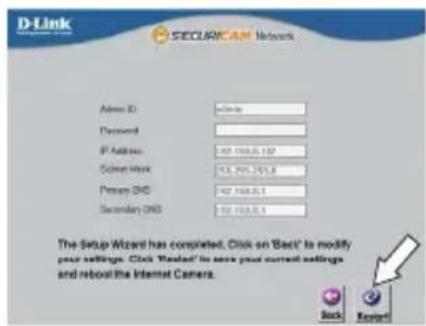
Take a moment to confirm your settings and click Restart.
Viewing Your Camera via Web Browser
Click on the D-Link Setup Wizard SE icon that was created in your Windows Start menu (Start > D-Link > Setup Wizard SE).
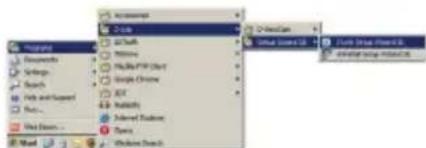
Select the camera and click Link to access the web configuration.
The Setup Wizard will automatically open your web browser to the IP address of the camera.
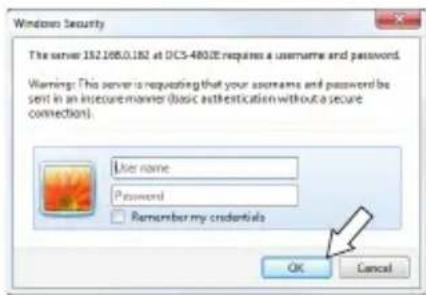
Enter your username (default is admin) and your password (default is blank). Click OK to continue.
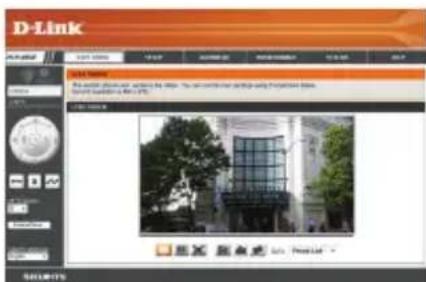
This section displays your camera's live video. You can select your video profile and view or operate the camera. For additional information about web configuration, please refer to the user manual included on the CD-ROM or the D-Link website.
Mounting Instructions
It is highly recommended that you configure and test your camera before mounting it.
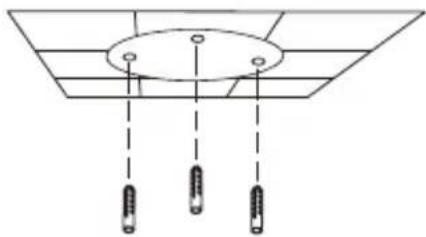
Place the mounting sticker where you want to position the camera.
Use a 6 mm drill bit to make the required holes approximately 25 mm deep, then insert the wall anchors into the holes.
natural_image
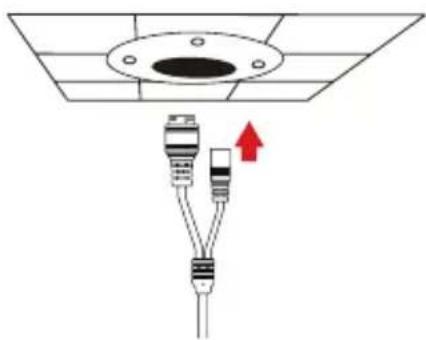
Pure diagram of a ceiling structure with three hanging components and connecting lines (no text or symbols)If you are running the camera cables through the wall or ceiling, drill a hole in the center and pull the cables through the hole. If not, then guide the camera cables through the cable channel on the base after mounting to the wall or ceiling.
natural_image
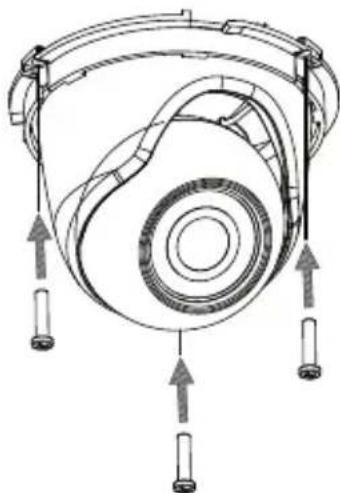
Diagram of a mechanical or electrical component with three connectors and a central hub, no text or symbols present.Use the screws provided to mount the camera to the wall or ceiling.
natural_image
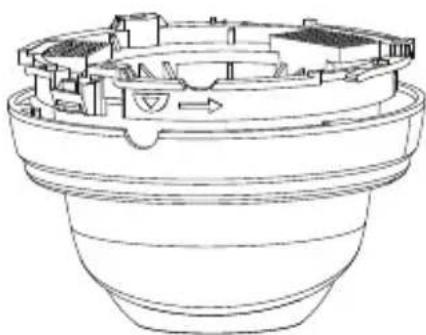
Technical line drawing of a mechanical component with multiple rings and fasteners (no text or symbols)Attach the camera base cover by lining up the cable channel with the mark on the camera base, then turn the camera base cover clockwise until it clicks.
natural_image
Technical line drawing of a mechanical component with internal cavities and a central arrow (no text or symbols)Using the DCS-37-1 Mount (optional)
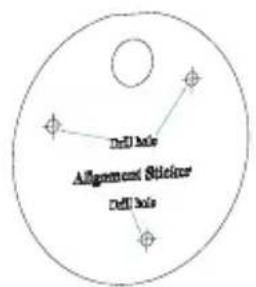
Place the DCS-37-1 mounting sticker in the desired location, then use a 6 mm drill bit to drill the required holes 25 mm deep and insert the wall anchors into the holes. If you plan to pass cables through the wall, you will also need to drill a hole for the cable channel.
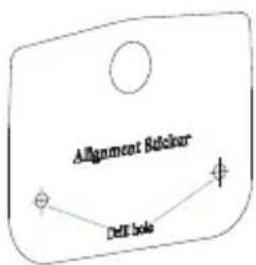
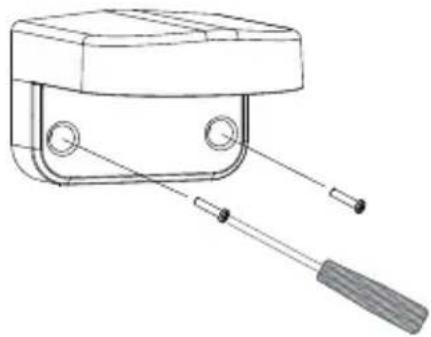
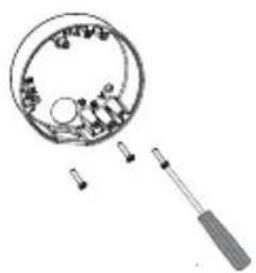
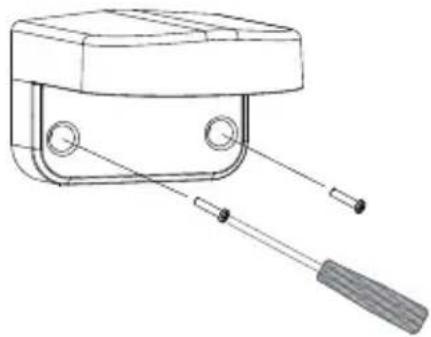
Use the provided screws to mount the DCS-37-1 to the wall.
natural_image
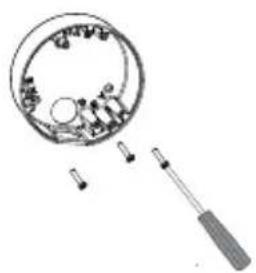
Technical line drawing of a mechanical device with two sensors and a handle (no text or symbols)Remove the cover from the camera.
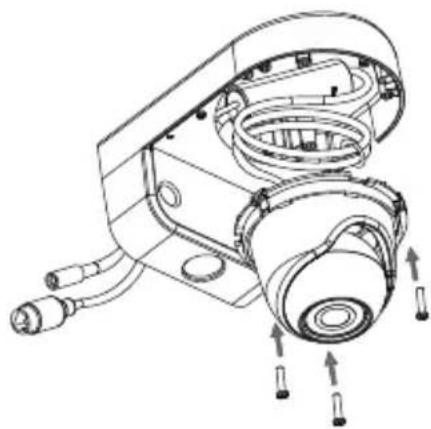
Pass the camera connectors through the back or bottom cable channel on the DCS-37-1. Use the provided screws to mount the camera to the DCS-37-1 using the set of mounting holes marked B.
natural_image
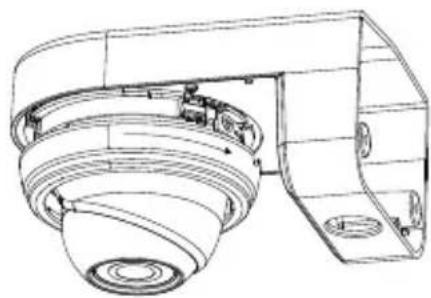
Technical line drawing of a mechanical assembly with no visible text or symbolsAdjust the angle of the camera as desired, then put the cover back on the camera and rotate it clockwise to lock it in place.
natural_image
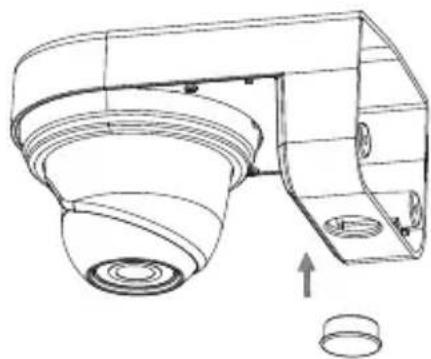
Technical line drawing of a mechanical component with no visible text or symbolsIf you are passing the camera cables through the wall, place the rubber stopper into the bottom cable channel to seal it.
natural_image
Technical line drawing of a mechanical component with no visible text or symbolsUsing the DCS-37-2 Mount (optional)
Place the DCS-37-2 mounting sticker in the desired location, then use a 6 mm drill bit to drill the required holes 25 mm deep and insert the wall anchors into the holes. If you plan to pass cables through the wall, you will also need to drill a hole for the cable channel.
Use the provided screws to mount the DCS-37-2 to the wall using the inner mounting holes.
Remove the cover from the camera.
Pass the camera connectors through the back or side cable channel on the DCS-37-2. Use the provided screws to mount the camera to the DCS-37-2 using the set of mounting holes marked B.
Adjust the angle of the camera as desired, then put the cover back on the camera and rotate it clockwise to lock it in place.
If you are passing the camera cables through the wall, place the rubber stopper into the side cable channel to seal it.
natural_image
Diagram of a magnifying glass with internal components and a tool inserted (no text or symbols)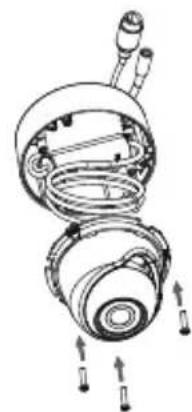
natural_image
Exploded view diagram of a mechanical assembly showing internal components and motion arrows (no text or labels)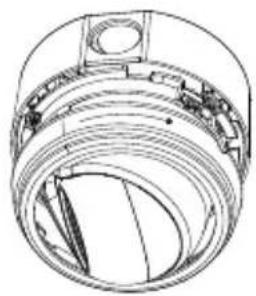
natural_image
Technical line drawing of a mechanical component with concentric rings and mounting holes (no text or symbols)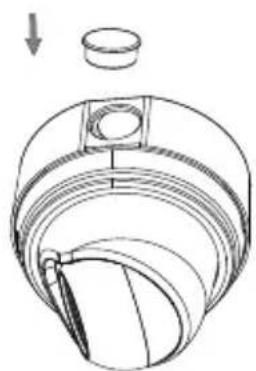
natural_image
Technical line drawing of a mechanical component with a cylindrical part and internal layered structure (no text or symbols)Waterproofing Your Installation
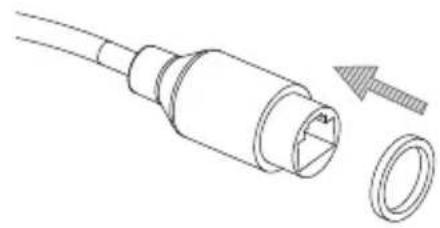
To waterproof your camera installation, follow the instructions below. Round Ethernet cable, a crimping tool, and RJ-45 plugs are required for this procedure.
Place the washer around the base of the Ethernet connector as shown.
Thread bare Ethernet cable through the waterproof connector as shown, then crimp an RJ-45 plug onto the cable.
natural_image
Diagram of a cable connector with a separate ring and a separate screw (no text or symbols)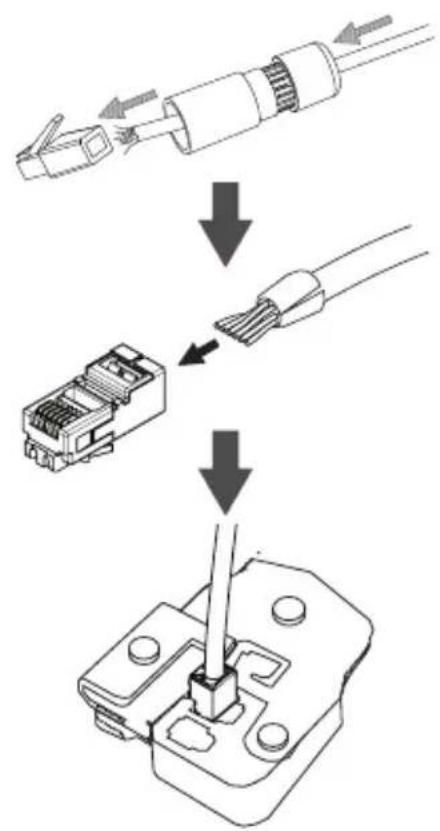
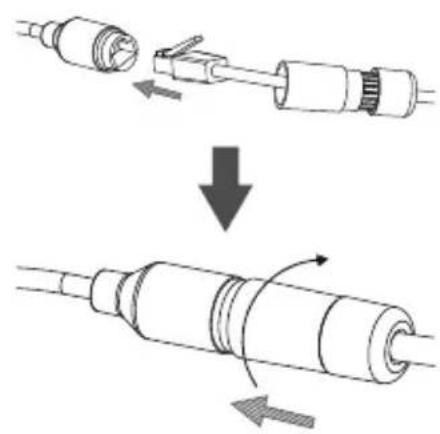
Connect the RJ-45 plug into the Ethernet connector, then screw the waterproof connector to the Ethernet connector by turning it about a half-turn clockwise.
natural_image
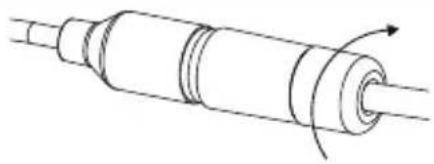
Diagram showing a cable being inserted into a connector, with arrows indicating the process (no text or symbols present)Turn the back part of the waterproof connector clockwise until there is a tight seal around the Ethernet cable.
natural_image
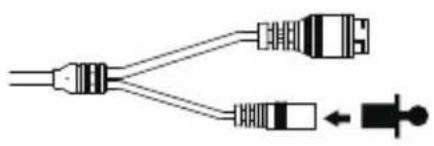
Pure mechanical diagram of a cylindrical component with internal grooves and a rotating arrow (no text or symbols)If you are using PoE to power your camera, attach the included rubber power connector plug to the power connector.
natural_image
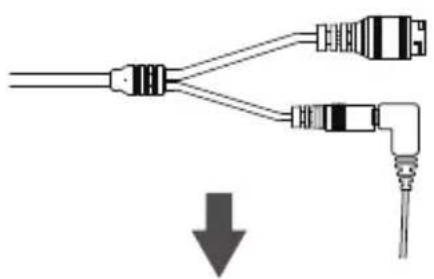
Pure electrical connector diagram showing two connectors and a meter (no text or symbols)If you are using a power adapter (not included) to power your camera, wind waterproof tape around the connection in an overlapping manner to cover it.
natural_image
Pure diagram of two connected electrical connectors with a downward arrow indicating direction (no text or symbols)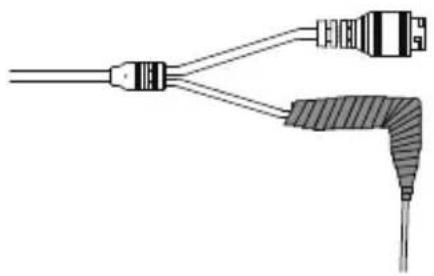
natural_image
Pure electrical connector diagram without any text, numbers, or symbolsAdditional Information
Additional help and product information is available online at http://www.dlink.com.
Warranty Information
Please visit http://warranty.dlink.com/ for warranty information for your region.
natural_image
Diagram showing connections between a power outlet, cable, and connector (no text or symbols)natural_image
Pure diagram of ceiling fixtures with three hanging components and dashed lines indicating hidden connections (no text or symbols)natural_image
Diagram of a mechanical or electrical component with three connectors and a central hub, no text or symbols present.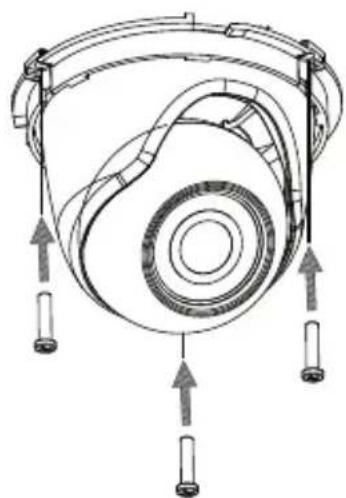
natural_image
Technical diagram of a mechanical component with multiple curved arms and mounting holes, no visible text or symbolsnatural_image
Technical line drawing of a mechanical component with internal cavities and a central valve (no text or symbols)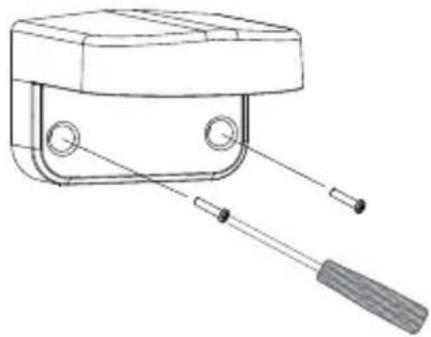
natural_image
Technical line drawing of a mechanical device with two sensors and a handle (no text or symbols)natural_image
Technical line drawing of a mechanical assembly with no visible text or symbolsnatural_image
Technical line drawing of a mechanical component with no visible text or symbolsnatural_image
Technical line drawing of a mechanical component with no visible text or symbols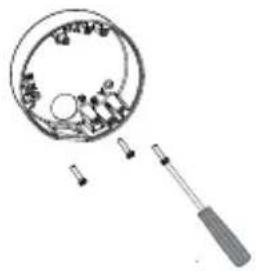
natural_image
Diagram of a magnifying glass inspecting internal components with screwdriver (no text or symbols)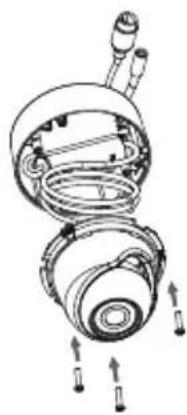
natural_image
Exploded view diagram of a mechanical assembly showing internal components and motion arrows (no text or labels)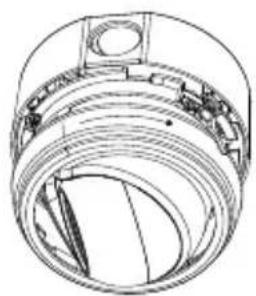
natural_image
Technical line drawing of a mechanical component with concentric layers and mounting holes (no text or symbols)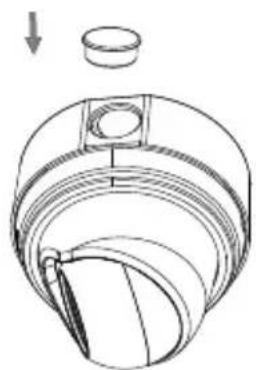
natural_image
Technical line drawing of a mechanical component with a cylindrical part and a downward arrow indicating motion (no text or symbols)natural_image
Diagram of a cable connector with a separate ring and arrow indicating direction (no text or symbols)natural_image
Diagram showing a cable being inserted into a plug, then being twisted down with arrows indicating rotation (no text or symbols present)natural_image
Pure technical line drawing of a cylindrical mechanical component with internal channels and a curved arrow indicating rotation (no text or symbols)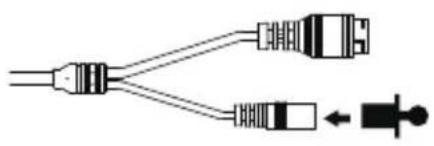
natural_image
Pure electrical connector diagram showing two connectors and a power plug, without any text or symbols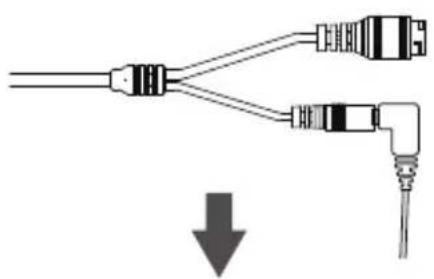
natural_image
Pure diagram of two connected audio/video cables with a downward arrow indicating compression or disassembly (no text or symbols)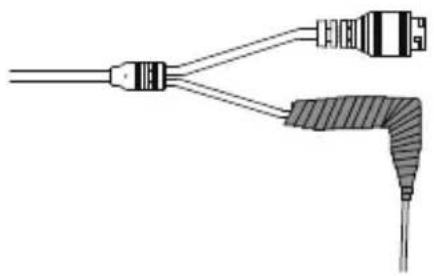
natural_image
Pure electrical connector diagram without any text, numbers, or symbolsnatural_image
Diagram showing a power outlet connected to a cable with a plug, and a motor drive assembly (no text or labels)natural_image
Pure diagram of a ceiling lamp with three hanging components, no text or symbols presentnatural_image
Diagram of a mechanical or electrical component with two connectors and a central hub, no text or symbols present.natural_image
Technical line drawing of a mechanical component with multiple rings and fasteners (no text or symbols)natural_image
Technical line drawing of a mechanical component with internal cavities and a central arrow (no text or symbols)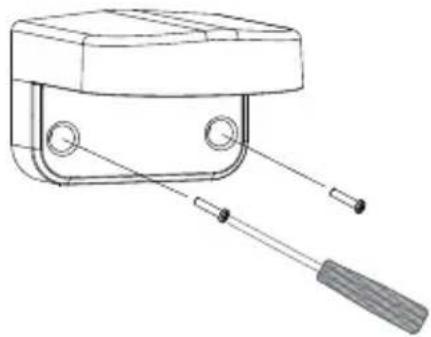
natural_image
Technical line drawing of a mechanical device with two sensors and a handle (no text or symbols)natural_image
Technical line drawing of a mechanical assembly with no visible text or symbolsnatural_image
Technical line drawing of a mechanical component with no visible text or symbolsnatural_image
Technical line drawing of a mechanical component with no visible text or symbols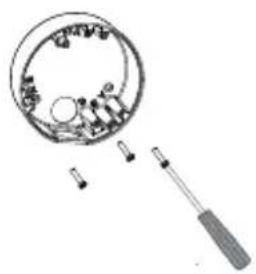
natural_image
Diagram of a magnifying glass with internal components and a tool inserted (no text or symbols)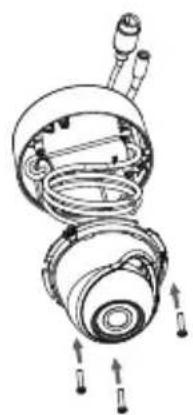
natural_image
Exploded view diagram of a mechanical assembly showing internal components and motion arrows (no text or labels)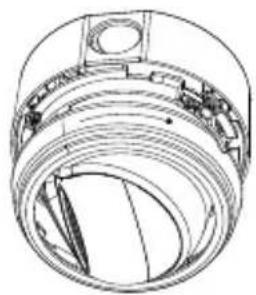
natural_image
Technical line drawing of a mechanical component with concentric rings and mounting holes (no text or symbols)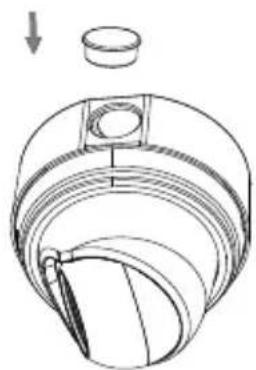
natural_image
Technical line drawing of a mechanical component with a cylindrical part and a downward arrow indicating motion (no text or symbols)natural_image
Diagram showing a cable being welded or disassembled, with arrows indicating direction of movement (no text or symbols present)natural_image
Technical line drawing of a cylindrical mechanical component with internal channels and a curved arrow indicating rotation (no text or symbols)natural_image
Pure electrical connector diagram showing two connectors and a connector (no text or symbols)natural_image
Pure diagram of two connected cable connectors with a downward arrow indicating direction (no text or symbols)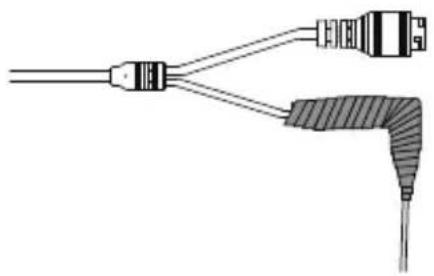
natural_image
Pure electrical connector diagram without any text, numbers, or symbolsnatural_image
Diagram showing connections between a power outlet, cable, and earplifier (no text or symbols)natural_image
Pure diagram of ceiling fixtures with three hanging components and dashed lines indicating hidden connections (no text or symbols)natural_image
Diagram of a mechanical or electrical component with three connectors and a central hub, no text or symbols present.natural_image
Technical line drawing of a mechanical component with multiple curved arms and mounting holes (no text or symbols)natural_image
Technical line drawing of a mechanical component with no visible text or symbols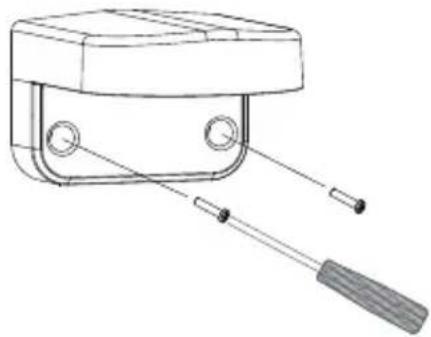
natural_image
Technical line drawing of a mechanical device with two sensors and a handle (no text or symbols)natural_image
Technical line drawing of a mechanical assembly with no visible text or symbolsnatural_image
Technical line drawing of a mechanical component with no visible text or symbolsnatural_image
Technical line drawing of a mechanical component with no visible text or symbols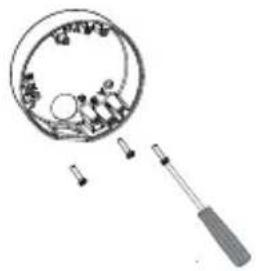
natural_image
Diagram of a magnifying glass inspecting internal components with tool holders (no text or labels)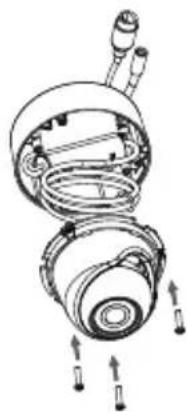
natural_image
Technical line drawing of a mechanical assembly with no visible text or symbols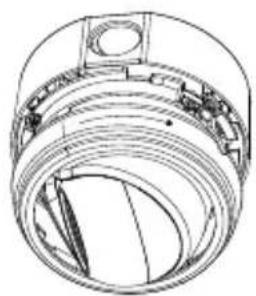
natural_image
Technical line drawing of a mechanical component with concentric grooves and mounting holes (no text or symbols)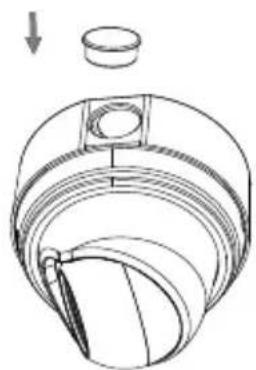
natural_image
Technical line drawing of a mechanical component with a cylindrical part and a downward arrow indicating motion (no text or symbols)natural_image
Technical line drawing of a plug with a separate inset showing a screw and plastic component (no text or symbols)natural_image
Diagram showing a cable being inserted into a connector, then being twisted with arrows indicating rotation (no text or symbols present)natural_image
Pure mechanical diagram of a cylindrical component with internal grooves and a rotating arrow (no text or symbols)natural_image
Pure electrical connector diagram showing two USB cables connected to a terminal block (no text or symbols)natural_image
Diagram showing two connected cables with connectors and a downward arrow indicating compression or dislocation (no text or symbols)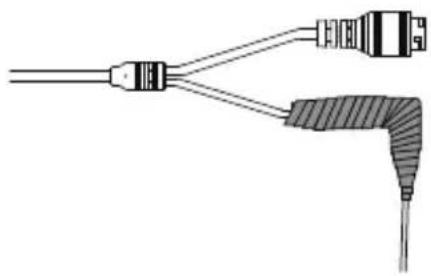
natural_image
Pure electrical connector diagram showing two connectors and a separate plug (no text or symbols)natural_image
Diagram showing a plug inserted into a power outlet connected to a device with cable, no text or symbols presentnatural_image
Pure diagram of a ceiling structure with three hanging components and dashed lines indicating hidden connections (no text or symbols)natural_image
Diagram of a mechanical or electrical component with three connectors and a central hub, no text or symbols present.natural_image
Technical line drawing of a mechanical component with multiple curved arms and mounting holes (no text or symbols)natural_image
Technical line drawing of a mechanical component with no visible text or symbols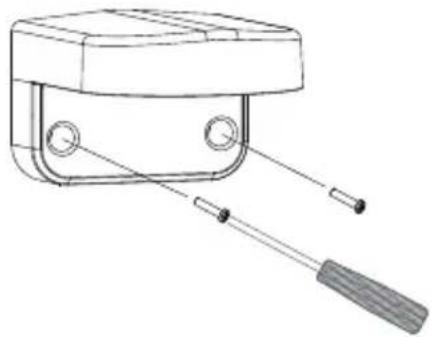
natural_image
Technical line drawing of a mechanical device with two sensors and a handle (no text or symbols)natural_image
Technical line drawing of a mechanical assembly with no visible text or symbolsnatural_image
Technical line drawing of a mechanical component with no visible text or symbolsnatural_image
Technical line drawing of a mechanical component with no visible text or symbols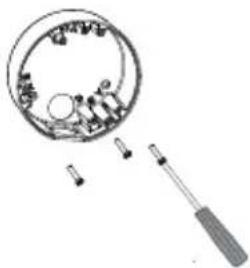
natural_image
Diagram of a magnifying glass inspecting internal components with tool holders (no text or labels)natural_image
Exploded view diagram of a mechanical assembly showing internal components and motion arrows (no text or labels)natural_image
Technical line drawing of a mechanical component with concentric layers and mounting holes (no text or symbols)natural_image
Technical line drawing of a mechanical component with a cylindrical part and a downward arrow indicating motion (no text or symbols)natural_image
Diagram of a cable connector with a separate ring and arrow indicating direction (no text or symbols)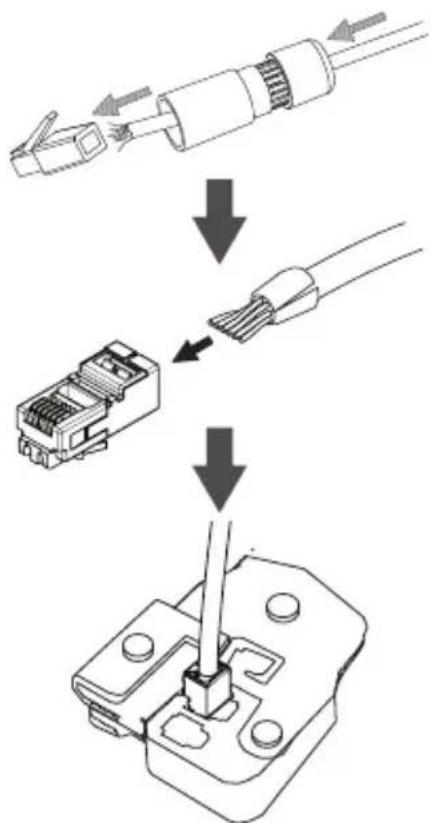
natural_image
Diagram showing a cable being inserted into a connector, then being twisted with arrows indicating rotation (no text or symbols present)natural_image
Pure technical line drawing of a cylindrical mechanical component with internal channels and a rotation arrow (no text or symbols)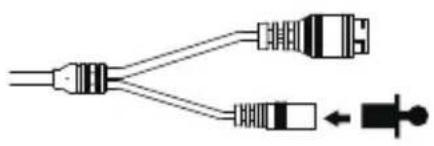
natural_image
Pure electrical connector diagram showing two USB connectors and a connector (no text or symbols)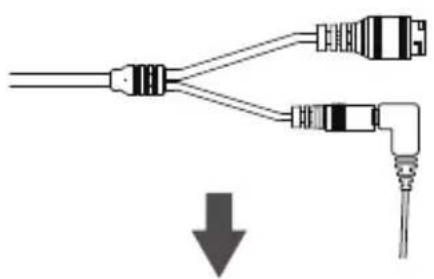
natural_image
Pure diagram of two connected cables with a downward arrow indicating connection (no text or symbols)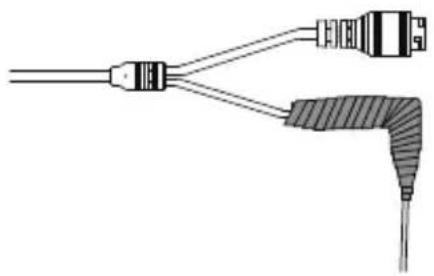
natural_image
Pure electrical connector diagram without any text, numbers, or symbolsnatural_image
Diagram showing connections between a power outlet, plug, cable, and connector (no text or symbols)
natural_image
Pure diagram of a ceiling lamp with three hanging components, no text or symbols presentnatural_image
Diagram of a mechanical or electrical component with two connectors and a central hub, no text or symbols present.natural_image
Technical line drawing of a mechanical component with multiple curved arms and mounting holes (no text or symbols)natural_image
Technical line drawing of a mechanical component with no visible text or symbols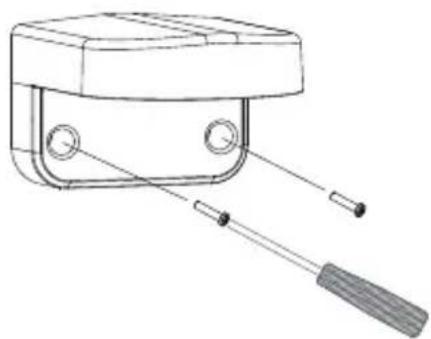
natural_image
Technical line drawing of a mechanical device with two tools (no text or symbols)natural_image
Technical line drawing of a mechanical assembly with no visible text or symbolsnatural_image
Technical line drawing of a mechanical component with no visible text or symbolsnatural_image
Technical line drawing of a mechanical component with no visible text or symbols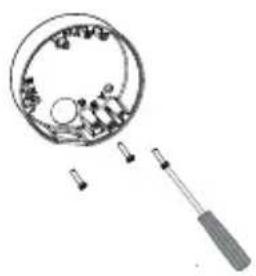
natural_image
Diagram of a magnifying glass with internal components and a tool inserted (no text or symbols)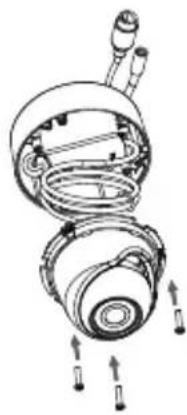
natural_image
Technical line drawing of a mechanical assembly with no visible text or symbols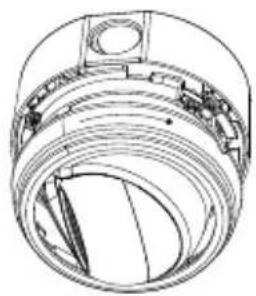
natural_image
Technical line drawing of a mechanical component with concentric rings and mounting holes (no text or symbols)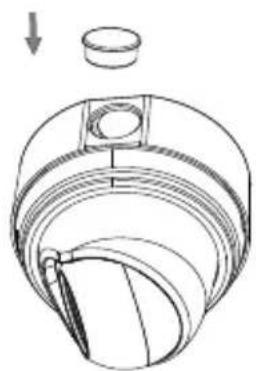
natural_image
Technical line drawing of a mechanical component with a cylindrical part and a downward arrow indicating motion (no text or symbols)natural_image
Technical line drawing of a plug with a separate inset showing a screw and plastic component (no text or symbols)natural_image
Diagram showing a cable being inserted into a connector, then being twisted with arrows indicating rotation (no text or symbols present)natural_image
Pure mechanical diagram of a cylindrical component with internal grooves and a rotating arrow (no text or symbols)natural_image
Pure electrical connector diagram showing two USB cables connected to a terminal block (no text or symbols)natural_image
Pure diagram of two connected cables with a downward arrow indicating connection (no text or symbols)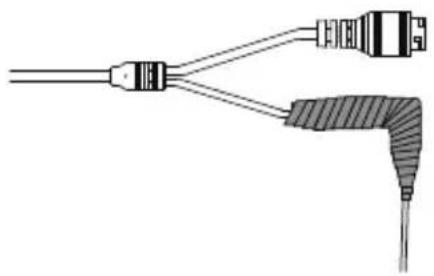
natural_image
Pure electrical connector diagram showing two connected wires with a shaded terminal block (no text or symbols)natural_image
Diagram showing connections between a power outlet, cable, and connector (no text or symbols)natural_image
Pure diagram of a ceiling structure with three hanging components and dashed lines indicating connections (no text or symbols)natural_image
Diagram of a mechanical or electrical component with three connectors and a central hub, no text or symbols present.natural_image
Technical line drawing of a mechanical component with multiple rings and fasteners (no text or symbols)natural_image
Technical line drawing of a mechanical component with no visible text or symbolsUsando o Mount DCS-37-1 (opcional)
natural_image
Technical line drawing of a mechanical device with two sensors and a handle (no text or symbols)Remova a tampa da câmara
natural_image
Technical line drawing of a mechanical assembly with no visible text or symbolsnatural_image
Technical line drawing of a mechanical component with no visible text or symbolsnatural_image
Technical line drawing of a mechanical component with no visible text or symbolsUsando o Mount DCS-37-2 (opcional)
natural_image
Diagram of a magnifying glass inspecting internal components with a tool inserted (no text or symbols)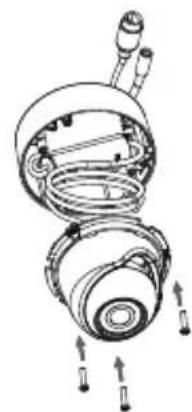
natural_image
Exploded view diagram of a mechanical assembly showing internal components and motion arrows (no text or labels)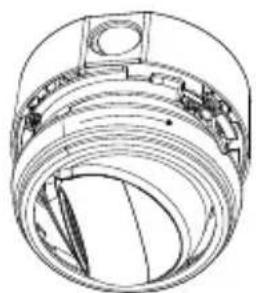
natural_image
Technical line drawing of a mechanical component with concentric rings and mounting holes (no text or symbols)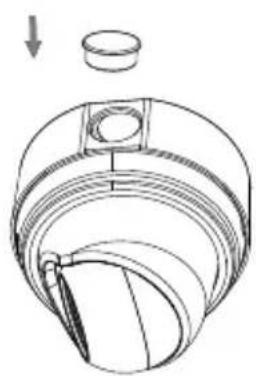
natural_image
Technical line drawing of a mechanical component with a cylindrical part and a downward arrow indicating motion (no text or symbols)natural_image
Technical line drawing of a cable connector with a separate ring and arrow indicating direction (no text or symbols)natural_image
Diagram showing a cable being welded or reuscribed, with arrows indicating direction of movement (no text or symbols present)natural_image
Technical line drawing of a cylindrical mechanical component with internal channels and directional arrows (no text or symbols)natural_image
Pure electrical connector diagram showing two connectors and a meter (no text or symbols)natural_image
Pure diagram of two connected audio/video cables with a downward arrow indicating compression or disassembly (no text or symbols)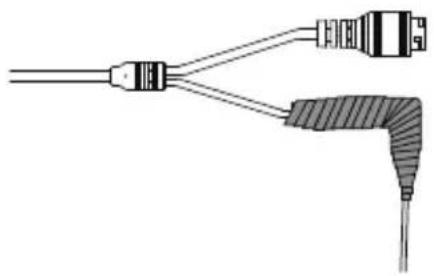
natural_image
Pure electrical connector diagram without any text, numbers, or symbols使用電源轉接器(未附)供電至攝影機:
natural_image
Diagram showing connections between a power outlet, cable, and ear device (no text or symbols)使用精靈來設定攝影機
透過網路瀏覽器來觀看攝影機影像
壁掛方式
natural_image
Pure diagram of a ceiling lamp with three hanging components, no text or symbols presentnatural_image
Diagram of a mechanical or electrical component with two connectors and a circular top fixture, no text or symbols present.natural_image
Technical line drawing of a mechanical component with multiple curved arms and mounting holes (no text or symbols)natural_image
Technical line drawing of a mechanical component with internal structure and mounting features (no text or symbols)使用DCS-37-1安装(依需求)
natural_image
Technical line drawing of a mechanical device with two sensors and a handle (no text or symbols)將攝影機底座蓋取下
natural_image
Technical line drawing of a mechanical assembly with no visible text or symbolsnatural_image
Technical line drawing of a mechanical component with no visible text or symbolsnatural_image
Technical line drawing of a mechanical component with no visible text or symbols使用DCS-37-2安装(依需求)

natural_image
Diagram of a magnifying glass inspecting internal components with screwdriver (no text or labels)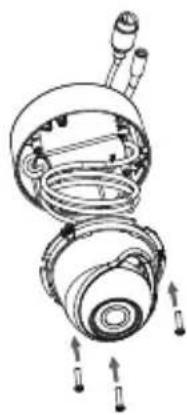
natural_image
Exploded view diagram of a mechanical assembly showing internal components and motion arrows (no text or labels)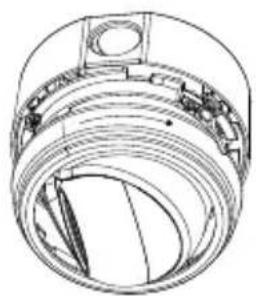
natural_image
Technical line drawing of a mechanical component with concentric layers and mounting holes (no text or symbols)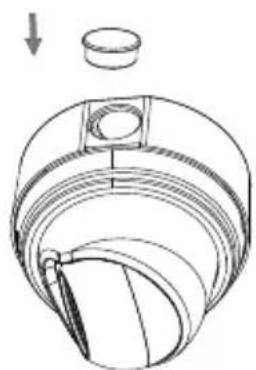
natural_image
Technical line drawing of a mechanical component with a cylindrical part and a downward arrow indicating motion (no text or symbols)防水安裝方式
natural_image
Technical line drawing of a plug with a separate inset showing a screw and plastic component (no text or symbols)natural_image
Diagram showing a cable being inserted into a connector, then being twisted with arrows indicating rotation (no text or symbols present)natural_image
Diagram of a cylindrical mechanical component with internal grooves and a rotating arrow indicating rotation (no text or symbols)natural_image
Pure electrical connector diagram showing two USB cable links and a connector (no text or symbols)natural_image
Pure diagram of two connected audio/video cables with a downward arrow indicating compression (no text or symbols)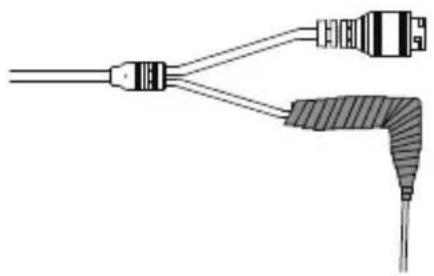
natural_image
Pure electrical connector diagram without any text, numbers, or symbols其他資訊
natural_image
Diagram showing connections between a power outlet, cable, and ear device (no text or symbols)Mengkonfigurasi Kamera
Melihat Camera Anda melalui Web Browser
natural_image
Pure diagram of a ceiling lamp with three hanging components, no text or symbols presentnatural_image
Diagram of a mechanical or electrical component with two connectors and a central hub, no text or symbols present.natural_image
Technical line drawing of a mechanical component with multiple rings and fasteners (no text or symbols)natural_image
Technical line drawing of a mechanical component with no visible text or symbols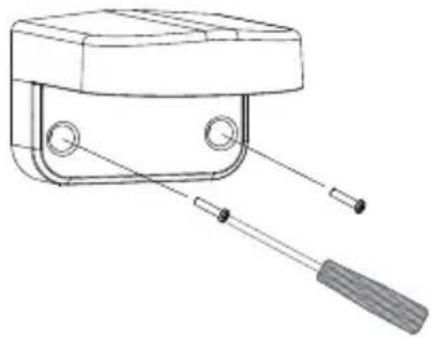
natural_image
Technical line drawing of a mechanical device with two sensors and a handle (no text or symbols)natural_image
Technical line drawing of a mechanical assembly with no visible text or symbolsnatural_image
Technical line drawing of a mechanical component with no visible text or symbolsnatural_image
Technical line drawing of a mechanical component with no visible text or symbols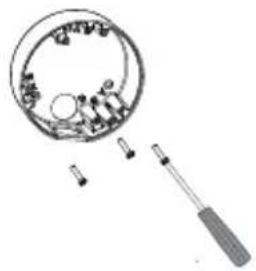
natural_image
Diagram of a magnifying glass with internal components and a tool inserted, showing no text or symbols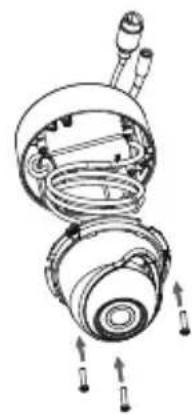
natural_image
Exploded view diagram of a mechanical device showing internal components and mounting features (no text or labels)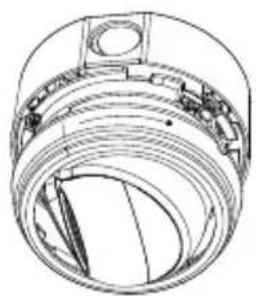
natural_image
Technical line drawing of a mechanical component with concentric rings and mounting holes (no text or symbols)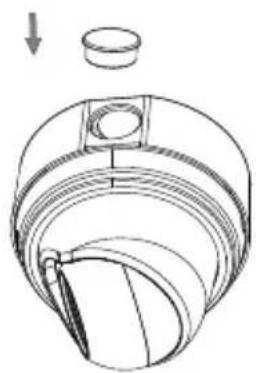
natural_image
Technical line drawing of a mechanical component with a cylindrical part and internal layered structure (no text or symbols)natural_image
Technical line drawing of a plug with a side view showing internal components (no text or symbols)natural_image
Diagram showing a mechanical assembly process: disassembly of a cable into a connector, then reassembly with rotation arrows (no text or symbols)natural_image
Pure mechanical diagram of a cylindrical component with internal grooves and a rotating arrow (no text or symbols)natural_image
Pure electrical connector diagram showing two USB connectors and a connector (no text or symbols)natural_image
Pure diagram of two connected cables with a downward arrow indicating connection (no text or symbols)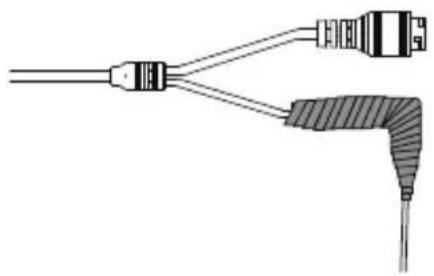
natural_image
Pure electrical connector diagram showing two leads and a cable, without any text or symbolsInformasi Tambahan
This equipment has been tested and found to comply with the limits for a Class A digital device, pursuant to Part 15 of the FCC Rules. These limits are designed to provide reasonable protection against harmful interference when the equipment is operated in a commercial environment. This equipment generates, uses, and can radiate radio frequency energy and, if not installed and used in accordance with this manual, may cause harmful interference to radio communications. Operation of this equipment in a residential area is likely to cause harmful interference in which case the user will be required to correct the interference at his own expense.
CE Mark Warning
This is a Class A product. In a domestic environment, this product may cause radio interference in which case the user may be required to take adequate measures.
Warnung!
Any changes or modifications not expressly approved by the party responsible for compliance could void the user's authority to operate this equipment.
This transmitter must not be co-located or operating in conjunction with any other antenna or transmitter.
IMPORTANT NOTICE:
FCC Radiation Exposure Statement:
This equipment complies with FCC radiation exposure limits set forth for an uncontrolled environment. This equipment should be installed and operated with minimum distance 20cm between the radiator & your body.
The availability of some specific channels and/or operational frequency bands are country dependent and are firmware programmed at the factory to match the intended destination. The firmware setting is not accessible by the end user.
For detailed warranty information applicable to products purchased outside the United States, please contact the corresponding local D-Link office.
Industry Canada Statement:
This device complies with RSS-210 of the Industry Canada Rules. Operation is subject to the following two conditions: (1) This device may not cause harmful interference, and (2) this device must accept any interference received, including interference that may cause undesired operation.
IMPORTANT NOTE:
Radiation Exposure Statement:
This equipment complies with IC radiation exposure limits set forth for an uncontrolled environment. This equipment should be installed and operated with minimum distance 20cm between the radiator & your body.
Warranty Information
The D-Link Limited Lifetime Warranty information is available at http://warranty.dlink.com/
SAFETY INSTRUCTIONS
Please adhere to the following safety guidelines to help ensure your own personal safety and protect your system from potential damage. Any acts taken that are inconsistent with ordinary use of the product, including improper testing, etc., and those not expressly approved by D-Link may result in the loss of product warranty.
Unless expressly approved by an authorized representative of D-Link in writing, you may not and may not permit others to:
- Disassemble or reverse engineer the device or attempt to derive source code (underlying ideas, algorithms, or structure) from the device or from any other information provided by D-Link, except to the extent that this restriction is expressly prohibited by local law.
- Modify or alter the device.
- Remove from the device any product identification or other notices, including copyright notices and patent markings, if any.
To reduce the risk of bodily injury, electrical shock, fire, and damage to the device and other equipment, observe the following precautions:
Power Sources
- Observe and follow service markings.
- Do not push any objects into the openings of your device unless consistent with the authorized operation of the device. Doing so can cause a fire or an electrical shock by shorting out interior components.
- The powering of this device must adhere to the power specifications indicated for this product.
- Do not overload wall outlets and/or extension cords as this will increase the risk of fire or electrical shock.
- Do not rest anything on the power cord or on the device (unless the device is made and expressly approved as suitable for stacking).
- Position system cables and power cables carefully; route cables so that they cannot be stepped on or tripped over. Be sure that nothing rests on any cables.
- Operate the device only from the type of external power source indicated on the electrical ratings label.
- To help avoid damaging your device, be sure the voltage selection switch (if provided) on the power supply is set to match the power available at your location.
- Also be sure that attached devices are electrically rated to operate with the power available in your location.
-
Use only approved power cable(s). If you have not been provided a power cable for your device or for any AC-powered option intended for your device, purchase a power cable that is approved for use in your country and is suitable for use with your device. The power cable must be rated for the device and for the voltage and current marked on the device's electrical ratings label. The voltage and current rating of the cable should be greater than the ratings marked on the device.
-
To help prevent an electrical shock, plug the device and peripheral power cables into properly grounded electrical outlets. These cables are equipped with three-prong plugs to help ensure proper grounding. Do not use adapter plugs or remove the grounding prong from a cable. If you must use an extension cable, use a 3-wire cable with properly grounded plugs.
- Observe extension cable and power strip ratings. Ensure that the total ampere rating of all products plugged into the extension cable or power strip does not exceed 80 percent of the ampere ratings limit for the extension cable or power strip.
- To help protect your device from sudden, transient increases and decreases in electrical power, use a surge suppressor, line conditioner, or uninterruptible power supply (UPS).
- Do not modify power cables or plugs. Consult a licensed electrician or your power company for site modifications. Always follow your local/national wiring rules.
- When connecting or disconnecting power to hot-pluggable power supplies, if offered with your device, observe the following guidelines:
• Install the power supply before connecting the power cable to the power supply. - Unplug the power cable before removing the power supply.
- If the system has multiple sources of power, disconnect power from the device by unplugging all power cables from the power supplies.
Servicing/Disassembling
- Do not service any product except as expressly set forth in your system documentation.
- Opening or removing covers that are marked with the triangular symbol with a lightning bolt may expose you to an electrical shock. Only a trained service technician should service components inside these compartments.
- To reduce the risk of electrical shock, never disassemble this device. None of its internal parts are user-replaceable; therefore, there is no reason to access the interior.
- Do not spill food or liquids on your system components, and never operate the device in a wet environment. If the device gets wet, see the appropriate section in your troubleshooting guide or contact your trained service provider.
- Use the device only with approved equipment.
- Move products with care; ensure that all casters and/or stabilizers are firmly connected to the system. Avoid sudden stops and uneven surfaces.
Environment
- Do not use this device near water (e.g. near a bathtub, sink, laundry tub, fish tank, in a wet basement or near a swimming pool).
- Do not use this device in areas with high humidity.
- This device must not be subjected to water or condensation.
- Keep your device away from radiators and heat sources. Also, do not block cooling vents.
Cleaning
• Always unplug the power before cleaning this device.
- Do not use liquid or aerosol cleaners of any kind. Use only compressed air that is recommended for electronic devices.
- Use a dry cloth for cleaning.
PROTECTING AGAINST ELECTROSTATIC DISCHARGE
Static electricity can harm delicate components inside your system. To prevent static damage, discharge static electricity from your body before you touch any of the electronic components, such as the microprocessor. You can do so by periodically touching an unpainted metal surface on the chassis.
You can also take the following steps to help prevent damage from electrostatic discharge (ESD):
- When unpacking a static-sensitive component from its shipping carton, do not remove the component from the antistatic packing material until you are ready to install the component in your system. Just before unwrapping the antistatic packaging, be sure to discharge static electricity from your body.
- When transporting a sensitive component, first place it in an antistatic container or packaging.
- Handle all sensitive components in a static-safe area. If possible, use antistatic floor pads, workbench pads, and an antistatic grounding str
EUROPEAN COMMUNITY DECLARATION OF CONFORMITY
| Česky [Czech] | D-Link Corporation tímto prohlašuje, že je tento produkt v souladu se směrnicí 2014/53/EU. Kompletní text prohlášení o shodě EU lze stáhnout z webové stránky produktu na adrese www.dlink.com. |
| Dansk [Danish] | D-Link Corporation erklærer herved, at dette produkt er i overensstemmelse med direktiv 2014/53/EU. Den fulde tekst af EU-konformitetserklæringen kan downloades fra produktsiden i www.dlink.com. |
| Deutsch [German] | Hiermit erklärt die D-Link Corporation, dass dieses Produkt der Richtlinie 2014/53/EU entspricht. Der vollständige Text der Konformitatätserklärung der Europäischen Gemeinschaft steht Ihnen zum Herunterladen von der Produktseite unter www.dlink.com zur Verfügung. |
| Eesti [Estonian] | Käesolevaga kinnitab D-Link Corporation, et see toode on kooskõlas direktiiviga 2014/53/EL. Euroopa Liidu vastavusdeklaratsiooni täisteksti saab alla laadida toote lehelt www.dlink.com. |
| English | Hereby, D-Link Corporation, declares that this product is in compliance with Directive 2014/53/EU. The full text of the EU declaration of conformity is available for download from the product page at www.dlink.com. |
| Español [Spanish] | Por la presente, D-Link Corporation declara que este producto cumple con la Directiva 2014/53/UE. El texto completo de la declaración de conformidad de la UE está disponible y se puede descargar desde la página del producto en www.dlink.com. |
| Ελληνική [Greek] | Με την παρούσα, η D-Link Corporation δηλώνει ότι αυτό το προϊόν συμμορφώνεται με την Οδηγία 2014/53/EE. Το πλήρες κείμενο της δήλωσης συμμόρφωσης ΕΕ είναι διαθέσιμο για λήψη από τη σελίδα του προϊόντος στην τοποθεσία www.dlink.com. |
| Français [French] | Par les présentes, D-Link Corporation déclare que ce produit est conforme à la directive 2014/53/UE. Le texte complet de la déclaration de conformité de l'UE est disponible au téléchargement sur la page des produits à www.dlink.com. |
| Italiano [Italian] | Con la presente, D-Link Corporation dichiara che questo prodotto è conforme alla Direttiva 2014/53/UE. Il testo completo della dichiarazione di conformità UE è disponibile per il download sulla pagina del prodotto all'indirizzo www.dlink.com. |
| Latviski [Latvian] | Ar šo D-Link Corporation paziņo, ka šis izstrādājums atbilst Direktīvā 2014/53/ES noteiktajām prasībām. Pilnu ES atbilstības deklarācijas tekstu var lejupielādēt izstrādājuma lapā www.dlink.com. |
| Lietuvių [Lithuanian] | Šiuo dokumentu „D-Link Corporation“ patvirtina, kad šis gaminys atitinka Direktyvos 2014/53/ES nuostatas. Visą ES atitikties deklaracijos tekstą galima atsisiųsti jėjus į gaminio puslapį www.dlink.com. |
| Nederlands [Dutch] | Hierbij verklaart D-Link Corporation dat dit product voldoet aan Richtlijn 2014/53/EU. De volledige tekst van de EU conformiteitsverklaring kan gedownload worden van de productpagina op www.dlink.com. |
| Malti [Maltese] | B'dan, D-Link Corporation, tiddikjara li dan il-prodott huwa konformi mad-Direttiva 2014/53/UE. It-test sħiħ tad-dikjarazzjoni ta' konformità tal-UE huwa disponibbli biex jitniżżel mill-pagna tal-prodott fuq www.dlink.com. |
| Magyar [Hungarian] | A D-Link Corporation ezennel kijelenti, hogy a termék megfelel a 2014/53/EU sz. Rendeletnek. Az EU megfelelőségi nyilatkozat teljes szövege letölthető a termék weboldaláról a www.dlink.com címen. |
| Polski [Polish] | Spółka D-Link niniejszym oświadcza, że ten produkt spełnia wymagania określone w Dyrektywie 2014/53/UE. Pełną treść deklaracji zgodności UE można pobrać ze strony produktu pod adresem www.dlink.com. |
| Português Portuguese] | Por este meio, a D-Link Corporation declara que este produto está em conformidade com a Diretiva 2014/53/UE. O texto completo da declaração de conformidade da UE está disponível para decarregar a partir da página do produto em www.dlink.com. |
| Slovensko [Slovenian] | Podjetje D-Link Corporation s tem izjavlja, da je ta izdelek skladen z direktivo 2014/53/EU. Celotno besedilo izjave o skladnosti EU je na voljo za prenos na strani izdelka na www.dlink.com. |
| Slovensky [Slovak] | Spoločnosť D-Link Corporation týmto vyhlasuje, že tento výrobok je v súlade so smernicou 2014/53/EÚ. Úplný text vyhlásenia EÚ o zhode je k dispozícii na prevzatie na stránke výrobku na adrese: www.dlink.com. |
| Suomi [Finnish] | Täten D-Link Corporation ilmoittaa, että tämä tuote on direktiivin 2014/53/EU vaatimusten mukainen. EU-vaatimustenmukaisuusilmoituksen koko teksti on ladattavissa tuotesivulta osoitteesta www.dlink.com. |
| Svenska [Swedish] | D-Link Corporation försäkrar härmed att denna produkt överensstämmer med direktiv 2014/53/EU. Hela texten i EU-försäkran om överensstämmelse kan hämtas från produktsidan på www.dlink.com. |
| Íslenska[Icelandic] | Hér með lýsir D-Link Corporation því yfir að þessi vara sé í samræmi við tilskipun 2014/53/ESB.Heildartexta Evróputilskipunarinnar er hægt að sækja á vörusíðunni á www.dlink.com. |
| Norsk[Norwegian] | D-Link Corporation erklærer herved at dette produktet er i samsvar med direktiv 2014/53/EU.Den fullstendige teksten i EU-samsvarserklæringen er tilgjengelig for nedlasting fra produktsiden på www.dlink.com. |
WARNING STATEMENT
The power outlet should be nearby the device and easily accessible.
NOTICE OF WIRELESS RADIO LAN USAGE IN THE EUROPEAN COMMUNITY (ONLY FOR WIRELESS PRODUCT)
- At the time of writing this addendum, some countries such as Italy, Greece, Portugal and Spain have not allowed operation of radio devices in the 5Ghz bands, although operation of 2.4Ghz radio devices are allowed. Please check with your local authority to confirm.
- This device is restricted to indoor use when operated in the European Community using channels in the 5.15-5.35 GHz band to reduce the potential for interference.
- This device is a 2.4 GHz wideband transmission system (transceiver), intended for use in all EU member states and EFTA countries, except in France where restrictive use applies.
This device may not be used for setting up outdoor radio links in France and in some areas the RF output power may be limited to 10 mW EIRP in the frequency range of 2454 – 2483.5 MHz. For detailed information the end-user should contact the national spectrum authority in France.
This equipment may be operated in AL, AD, BE, BG, DK, DE, FI, FR, GR, GW, IS, IT, HR, LI, LU, MT, MK, MD, MC, NL, NO, AT, PL, PT, RO, SM, SE, RS, SK, ES, CI, HU, CY
Usage Notes:
- To remain in conformance with European National spectrum usage regulations, frequency and channel limitations will be applied on the products according to the country where the equipment will be deployed.
- This device is restricted from functioning in Ad-hoc mode while operating in 5Ghz. Ad-hoc mode is direct peer-to-peer communication between two client devices without an Access Point.
- Access points will support DFS (Dynamic Frequency Selection) and TPC (Transmit Power Control) functionality as required when operating in 5Ghz within the EU.
CE
5GHz wireless frequency and channel operation in EEC countries
| Allowable 802.11a Frequencies and Channels Countries | |
| 5.15-5.25 GHz(Channels 36, 40, 44, 48) | Liechtenstein, |
| 5.15-5.25 Ghz & 5.725-5.875 Ghz(Channels 36, 40, 44, 48, 149, 153, 157, 161, 165, 169) | Austria |
| 5.15-5.35 GHz(Channels 36, 40, 44, 48, 52, 56, 60, 64) | France |
| 5.15-5.35 & 5.47-5.725 GHz(Channels 36, 40, 44, 48, 52, 56, 60, 64, 100, 104, 108, 112, 116, 120, 124, 128, 132, 136, 140) | Denmark, Germany, Iceland, Finland, Netherlands, Norway, Poland, Sweden, Slovenia, Luxembourg, U.K., Ireland, Slovak, Switzerland, Hungary, Italy |
| 5.15-5.35 Ghz & 5.725-5.875 Ghz(Channels 36, 40, 44, 48, 52, 56, 60, 64, 149, 153, 157, 161, 165, 169) | Czech Republic |
CE
2.4GHz wireless frequency operation in EEC countries
| Region Frequency band Max output power (EIRP) | |
| Metropolitan 2400-2454MHz 100mW | |
| Guadeloupe, Martinique, St Pierre et Miquelon, Mayotte | 2454-2483.5MHz 100mW indoor, 10mW outdoor |
| Reunion et Guyane 2400-2483.5MHz 100mW | |
| Rest of EU community 2420-2483.5MHz 100mW |
RED 2014/53/EU
| WLAN 2.4 – 2.4835 GHz | |||
| IEEE 802.11b/g/n | |||
| Spectrum regulation MHz, Europa (ETSI) max. EIRP Innenbereich | max. EIRPAußenbereich | ||
| Europa 2400-2483,5 MHz 100 mW 100mW | |||
| Frankreich | 2400-2454 MHz 100 mW 100mW | ||
| 2454–2483,5 MHz 100 mW 10 mW | |||
AVERTISSEMENT AUX UTILISATEURS
CE EMI CLASS A WARNING [only for class A product]
CE
This is a Class A product. In a domestic environment, this product may cause radio interference, in which case the user may be required to take adequate measures.
DISPOSING AND RECYCLING YOUR PRODUCT

ENGLISH
EN
natural_image
Symbol of a trash bin crossed with no text or labels
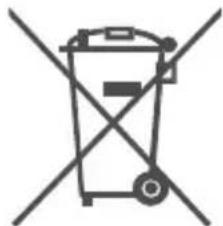
This symbol on the product or packaging means that according to local laws and regulations this product should be not be disposed of in the household waste but sent for recycling. Please take it to a collection point designated by your local authorities once it has reached the end of its life, some will accept products for free. By recycling the product and its packaging in this manner you help to conserve the environment and protect human health.
D-Link and the environment
At D-Link, we understand and are committed to reducing any impact our operations and products may have on the environment. To minimise this impact D-Link designs and builds its products to be as environmentally friendly as possible, by using recyclable, low toxic materials in both products and packaging.
D-Link recommends that you always switch off or unplug your D-Link products when they are not in use. By doing so you will help to save energy and reduce CO2 emissions.
To learn more about our environmentally responsible products and packaging please visit www.dlinkgreen.com
DEUTSCH
DE
natural_image
Symbol of a trash bin crossed with a diagonal line, representing waste or discharge (no text or labels)
natural_image
Symbol of a trash bin crossed with a diagonal line, representing no waste or discharge (no text or labels)
natural_image
Symbol of a trash bin crossed with two diagonal lines, representing no waste or discharge (no text or labels)
natural_image
Symbol of a trash bin crossed with no text or numbers, representing waste sorting or restriction (no text present)
natural_image
Symbol of a trash bin crossed with two crossed lines, representing no waste or restriction (no text present)
natural_image
Symbol of a trash bin crossed with no text or numbers, representing waste sorting or restriction (no text present)natural_image
Symbol of a trash bin crossed with two diagonal lines, no text or numbers presentnatural_image
Symbol of a trash bin crossed out by two crossed lines (no text or numbers present)natural_image
Symbol of a trash bin crossed with no visible text or labelsnatural_image
Symbol of a trash bin crossed with two crossed lines, no text or numbers presentnatural_image
Symbol of a trash bin crossed with two crossed lines, no text or numbers presentnatural_image
Symbol of a trash bin crossed out by two diagonal lines (no text or numbers present)
natural_image
Symbol of a trash bin crossed out by two diagonal lines (no text or numbers present)
natural_image
Symbol of a trash bin crossed with two diagonal lines, representing no waste or discharge (no text or labels)
This D-Link product includes software code developed by third parties, including software code subject to the GNU General Public License (“GPL”) or GNU Lesser General Public License (“LGPL”). As applicable, the terms of the GPL and LGPL, and information on obtaining access to the GPL code and LGPL code used in this product, are available to you at:
http://tsd.dlink.com.tw/GPL.asp
The GPL code and LGPL code used in this product are distributed WITHOUT ANY WARRANTY and is subject to the copyrights of one or more authors. For details, see the GPL code and the LGPL code for this product and the terms of the GPL and LGPL.
WRITTEN OFFER FOR GPL AND LGPL SOURCE CODE
Where such specific license terms entitle you to the source code of such software, D-Link will provide upon written request via email and/or traditional paper mail the applicable GPL and LGPL source code files via CD-ROM for a nominal cost to cover shipping and media charges as allowed under the GPL and LGPL.
Technical Support: For product support, please visit http://support.dlink.com for further assistance.
General Public License (“GPL”) Inquiries: Please direct all GPL inquiries to the following email/address. Note that technical support inquiries will not be supported at the below address.
Email:
GPLCODE@DLink.com
Snail Mail:
Attn: GPLSOURCE REQUEST
D-Link Systems, Inc.
Fountain Valley, CA 92708
GNU GENERAL PUBLIC LICENSE
Version 2, June 1991
Copyright (C) 1989, 1991 Free Software Foundation, Inc.
51 Franklin Street, Fifth Floor, Boston, MA 02110-1301, USA
Everyone is permitted to copy and distribute verbatim copies of this license document, but changing it is not allowed.
PREAMBLE
The licenses for most software are designed to take away your freedom to share and change it. By contrast, the GNU General Public License is intended to guarantee your freedom to share and change free software--to make sure the software is free for all its users. This General Public License applies to most of the Free Software Foundation's software and to any other program whose authors commit to using it. (Some other Free Software Foundation software is covered by the GNU Library General Public License instead.) You can apply it to your programs, too.
When we speak of free software, we are referring to freedom, not price. Our General Public Licenses are designed to make sure that you have the freedom to distribute copies of free software (and charge for this service if you wish), that you receive source code or can get it if you want it, that you can change the software or use pieces of it in new free programs; and that you know you can do these things.
To protect your rights, we need to make restrictions that forbid anyone to deny you these rights or to ask you to surrender the rights. These restrictions translate to certain responsibilities for you if you distribute copies of the software, or if you modify it. For example, if you distribute copies of such a program, whether gratis or for a fee, you must give the recipients all the rights that you have. You must make sure that they, too, receive or can get the source code. And you must show them these terms so they know their rights.
We protect your rights with two steps: (1) copyright the software, and (2) offer you this license which gives you legal permission to copy, distribute and/or modify the software.
Also, for each author's protection and ours, we want to make certain that everyone understands that there is no warranty for this free software. If the software is modified by someone else and passed on, we want its recipients to know that what they have is not the original, so that any problems introduced by others will not reflect on the original authors' reputations.
Finally, any free program is threatened constantly by software patents. We wish to avoid the danger that redistributors of a free program will individually obtain patent licenses, in effect making the program proprietary. To prevent this, we have made it clear that any patent must be licensed for everyone's free use or not licensed at all.
The precise terms and conditions for copying, distribution and modification follow.
GNU GENERAL PUBLIC LICENSE
TERMS AND CONDITIONS FOR COPYING, DISTRIBUTION AND MODIFICATION
- This License applies to any program or other work which contains a notice placed by the copyright holder saying it may be distributed under the terms of this General Public License. The "Program", below, refers to any such program or work, and a "work based on the Program" means either the Program or any derivative work under copyright law: that is to say, a work containing the Program or a portion of it, either verbatim or with modifications and/or translated into another language. (Hereinafter, translation is included without limitation in the term "modification".) Each licensee is addressed as "you".
Activities other than copying, distribution and modification are not covered by this License; they are outside its scope. The act of running the Program is not restricted, and the output from the Program is covered only if its contents constitute a work based on the Program (independent of having been made by running the Program). Whether that is true depends on what the Program does.
- You may copy and distribute verbatim copies of the Program's source code as you receive it, in any medium, provided that you conspicuously and appropriately publish on each copy an appropriate copyright notice and disclaimer of warranty; keep intact all the notices that refer to this License and to the absence of any warranty; and give any other recipients of the Program a copy of this License along with the Program.
You may charge a fee for the physical act of transferring a copy, and you may at your option offer warranty protection in exchange for a fee.
- You may modify your copy or copies of the Program or any portion of it, thus forming a work based on the Program, and copy and distribute such modifications or work under the terms of Section 1 above, provided that you also meet all of these conditions:
a) You must cause the modified files to carry prominent notices stating that you changed the files and the date of any change.
b) You must cause any work that you distribute or publish, that in whole or in part contains or is derived from the Program or any part thereof, to be licensed as a whole at no charge to all third parties under the terms of this License.
c) If the modified program normally reads commands interactively when run, you must cause it, when started running for such interactive use in the most ordinary way, to print or display an announcement including an appropriate copyright notice and a notice that there is no warranty (or else, saying that you provide a warranty) and that users may redistribute the program under these conditions, and telling the user how to view a copy of this License. (Exception: if the Program itself is interactive but does not normally print such an announcement, your work based on the Program is not required to print an announcement.)
These requirements apply to the modified work as a whole. If identifiable sections of that work are not derived from the Program, and can be reasonably considered independent and separate works in themselves, then this License, and its terms, do not apply to those sections when you distribute them as separate works. But when you distribute the same sections as part of a whole which is a work based on the Program, the distribution of the whole must be on the terms of this License, whose permissions for other licensees extend to the entire whole, and thus to each and every part regardless of who wrote it.
Thus, it is not the intent of this section to claim rights or contest your rights to work written entirely by you; rather, the intent is to exercise the right to control the distribution of derivative or collective works based on the Program.
In addition, mere aggregation of another work not based on the Program with the Program (or with a work based on the Program) on a volume of a storage or distribution medium does not bring the other work under the scope of this License.
- You may copy and distribute the Program (or a work based on it, under Section 2) in object code or executable form under the terms of Sections 1 and 2 above provided that you also do one of the following:
a) Accompany it with the complete corresponding machine-readable source code, which must be distributed under the terms of Sections 1 and 2 above on a medium customarily used for software interchange; or,
b) Accompany it with a written offer, valid for at least three years, to give any third party, for a charge no more than your cost of physically performing source distribution, a complete machine-readable copy of the corresponding source code, to be distributed under the terms of Sections 1 and 2 above on a medium customarily used for software interchange; or,
c) Accompany it with the information you received as to the offer to distribute corresponding source code. (This alternative is allowed only for noncommercial distribution and only if you received the program in object code or executable form with such an offer, in accord with Subsection b above.)
The source code for a work means the preferred form of the work for making modifications to it. For an executable work, complete source code means all the source code for all modules it contains, plus any associated interface definition files, plus the scripts used to control compilation and installation of the executable. However, as a special exception, the source code distributed need not include anything that is normally distributed (in either source or binary form) with the major components (compiler, kernel, and so on) of the operating system on which the executable runs, unless that component itself accompanies the executable.
If distribution of executable or object code is made by offering access to copy from a designated place, then offering equivalent access to copy the source code from the same place counts as distribution of the source code, even though third parties are not compelled to copy the source along with the object code.
-
You may not copy, modify, sublicense, or distribute the Program except as expressly provided under this License. Any attempt otherwise to copy, modify, sublicense or distribute the Program is void, and will automatically terminate your rights under this License. However, parties who have received copies, or rights, from you under this License will not have their licenses terminated so long as such parties remain in full compliance.
-
You are not required to accept this License, since you have not signed it. However, nothing else grants you permission to modify or distribute the Program or its derivative works. These actions are prohibited by law if you do not accept this License. Therefore, by modifying or distributing the Program (or any work based on the Program), you indicate your acceptance of this License to do so, and all its terms and conditions for copying, distributing or modifying the Program or works based on it.
-
Each time you redistribute the Program (or any work based on the Program), the recipient automatically receives a license from the original licensor to copy, distribute or modify the Program subject to these terms and conditions. You may not impose any further restrictions on the recipients' exercise of the rights granted herein. You are not responsible for enforcing compliance by third parties to this License.
-
If, as a consequence of a court judgment or allegation of patent infringement or for any other reason (not limited to patent issues), conditions are imposed on you (whether by court order, agreement or otherwise) that contradict the conditions of this License, they do not excuse you from the conditions of this License. If you cannot distribute so as to satisfy simultaneously your obligations under this License and any other pertinent obligations, then as a consequence you may not distribute the Program at all. For example, if a patent license would not permit royalty-free redistribution of the Program by all those who receive copies directly or indirectly through you, then the only way you could satisfy both it and this License would be to refrain entirely from distribution of the Program.
If any portion of this section is held invalid or unenforceable under any particular circumstance, the balance of the section is intended to apply and the section as a whole is intended to apply in other circumstances.
It is not the purpose of this section to induce you to infringe any patents or other property right claims or to contest validity of any such claims; this section has the sole purpose of protecting the integrity of the free software distribution system, which is implemented by public license practices. Many people have made generous contributions to the wide range of software distributed through that system in reliance on consistent application of that system; it is up to the author/donor to decide if he or she is willing to distribute software through any other system and a licensee cannot impose that choice.
This section is intended to make thoroughly clear what is believed to be a consequence of the rest of this License.
-
If the distribution and/or use of the Program is restricted in certain countries either by patents or by copyrighted interfaces, the original copyright holder who places the Program under this License may add an explicit geographical distribution limitation excluding those countries, so that distribution is permitted only in or among countries not thus excluded. In such case, this License incorporates the limitation as if written in the body of this License.
-
The Free Software Foundation may publish revised and/or new versions of the General Public License from time to time. Such new versions will be similar in spirit to the present version, but may differ in detail to address new problems or concerns. Each version is given a distinguishing version number. If the Program specifies a version number of this License which applies to it and "any later version", you have the option of following the terms and conditions either of that version or of any later version published by the Free Software Foundation. If the Program does not specify a version number of this License, you may choose any version ever published by the Free Software Foundation.
-
If you wish to incorporate parts of the Program into other free programs whose distribution conditions are different, write to the author to ask for permission. For software which is copyrighted by the Free Software Foundation, write to the Free Software Foundation; we sometimes make exceptions for this. Our decision will be guided by the two goals of preserving the free status of all derivatives of our free software and of promoting the sharing and reuse of software generally.
NO WARRANTY
- BECAUSE THE PROGRAM IS LICENSED FREE OF CHARGE, THERE IS NO WARRANTY FOR THE PROGRAM, TO THE EXTENT PERMITTED BY APPLICABLE LAW. EXCEPT WHEN OTHERWISE STATED IN WRITING THE COPYRIGHT HOLDERS AND/OR OTHER PARTIES PROVIDE THE PROGRAM "AS IS" WITHOUT WARRANTY OF ANY KIND, EITHER EXPRESSED OR IMPLIED, INCLUDING, BUT NOT LIMITED TO, THE IMPLIED WARRANTIES OF MERCHANTABILITY AND FITNESS FOR A PARTICULAR PURPOSE. THE ENTIRE RISK AS TO THE QUALITY AND PERFORMANCE OF THE PROGRAM IS WITH YOU. SHOULD THE PROGRAM PROVE DEFECTIVE, YOU ASSUME THE COST OF ALL NECESSARY SERVICING, REPAIR OR CORRECTION.
- IN NO EVENT UNLESS REQUIRED BY APPLICABLE LAW OR AGREED TO IN WRITING WILL ANY COPYRIGHT HOLDER, OR ANY OTHER PARTY WHO MAY MODIFY AND/OR REDISTRIBUTE THE PROGRAM AS PERMITTED ABOVE, BE LIABLE TO YOU FOR DAMAGES, INCLUDING ANY GENERAL, SPECIAL, INCIDENTAL OR CONSEQUENTIAL DAMAGES ARISING OUT OF THE USE OR INABILITY TO USE THE PROGRAM (INCLUDING BUT NOT LIMITED TO LOSS OF DATA OR DATA BEING RENDERED INACCURATE OR LOSSES SUSTAINED BY YOU OR THIRD PARTIES OR A FAILURE OF THE PROGRAM TO OPERATE WITH ANY OTHER PROGRAMS), EVEN IF SUCH HOLDER OR OTHER PARTY HAS BEEN ADVISED OF THE POSSIBILITY OF SUCH DAMAGES.
END OF TERMS AND CONDITIONS
HOW TO APPLY THESE TERMS TO YOUR NEW PROGRAMS
If you develop a new program, and you want it to be of the greatest possible use to the public, the best way to achieve this is to make it free software which everyone can redistribute and change under these terms.
To do so, attach the following notices to the program. It is safest to attach them to the start of each source file to most effectively convey the exclusion of warranty; and each file should have at least the "copyright" line and a pointer to where the full notice is found.
Copyright (C)
This program is free software; you can redistribute it and/or modify it under the terms of the GNU General Public License as published by the Free Software Foundation; either version 2 of the License, or (at your option) any later version.
This program is distributed in the hope that it will be useful, but WITHOUT ANY WARRANTY; without even the implied warranty of MERCHANTABILITY or FITNESS FOR A PARTICULAR PURPOSE. See the GNU General Public License for more details.
You should have received a copy of the GNU General Public License along with this program; if not, write to the Free Software Foundation, Inc., 51 Franklin Street, Fifth Floor, Boston, MA 02110-1301, USA.
Also add information on how to contact you by electronic and paper mail.
If the program is interactive, make it output a short notice like this when it starts in an interactive mode:
Gnomovision version 69, Copyright (C) year name of author Gnomovision comes with ABSOLUTELY NO WARRANTY; for details type 'show w'.
This is free software, and you are welcome to redistribute it under certain conditions; type `show c' for details.
The hypothetical commands `show w' and `show c' should show the appropriate parts of the General Public License. Of course, the commands you use may be called something other than `show w' and `show c'; they could even be mouse-clicks or menu items--whatever suits your program.
You should also get your employer (if you work as a programmer) or your school, if any, to sign a "copyright disclaimer" for the program, if necessary. Here is a sample; alter the names:
Yoyodyne, Inc., hereby disclaims all copyright interest in the program 'Gnomovision' (which makes passes at compilers) written by James Hacker.
Ty Coon, President of Vice
This General Public License does not permit incorporating your program into proprietary programs. If your program is a subroutine library, you may consider it more useful to permit linking proprietary applications with the library. If this is what you want to do, use the GNU Library General Public License instead of this License.
D-Link®

Ver. 1.10(WW)_90x130
2016/03/08
RMN0101791A
- Quick Installation Guide
- Vigilance Full HD Outdoor PoE Mini Dome Camera
- Package Contents
- Safety Notice:
- Hardware Overview
- Connecting the Camera
- Powering the camera using PoE (Class 2):
- Powering the camera with a power adapter (not included):
- Configuring the Camera
- Viewing Your Camera via Web Browser
- Mounting Instructions
- Using the DCS-37-1 Mount (optional)
- Using the DCS-37-2 Mount (optional)
- Waterproofing Your Installation
- Additional Information
- Warranty Information
- Usando o Mount DCS-37-1 (opcional)
- Usando o Mount DCS-37-2 (opcional)
- 使用電源轉接器(未附)供電至攝影機:
- 使用精靈來設定攝影機
- 透過網路瀏覽器來觀看攝影機影像
- 壁掛方式
- 使用DCS-37-1安装(依需求)
- 使用DCS-37-2安装(依需求)
- 防水安裝方式
- 其他資訊
- Mengkonfigurasi Kamera
- Melihat Camera Anda melalui Web Browser
- Informasi Tambahan
- CE Mark Warning
- Warnung!
- IMPORTANT NOTICE:
- Industry Canada Statement:
- IMPORTANT NOTE:
- SAFETY INSTRUCTIONS
- Power Sources
- Servicing/Disassembling
- Environment
- Cleaning
- PROTECTING AGAINST ELECTROSTATIC DISCHARGE
- EUROPEAN COMMUNITY DECLARATION OF CONFORMITY
- WARNING STATEMENT
- NOTICE OF WIRELESS RADIO LAN USAGE IN THE EUROPEAN COMMUNITY (ONLY FOR WIRELESS PRODUCT)
- Usage Notes:
- CE
- 2.4GHz wireless frequency operation in EEC countries
- AVERTISSEMENT AUX UTILISATEURS
- CE EMI CLASS A WARNING [only for class A product]
- DISPOSING AND RECYCLING YOUR PRODUCT
- ENGLISH
- EN
- D-Link and the environment
- DEUTSCH
- DE
- WRITTEN OFFER FOR GPL AND LGPL SOURCE CODE
- GNU GENERAL PUBLIC LICENSE
- Version 2, June 1991
- PREAMBLE
- TERMS AND CONDITIONS FOR COPYING, DISTRIBUTION AND MODIFICATION
- NO WARRANTY
- HOW TO APPLY THESE TERMS TO YOUR NEW PROGRAMS
- D-Link®
Brand : D-LINK
Model : DCS4802E
Category : Surveillance Camera