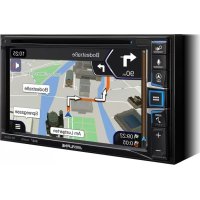
INEW611D - Browser ALPINE - Free user manual and instructions
Find the device manual for free INEW611D ALPINE in PDF.



| Product Type | Multimedia car radio with GPS navigation |
| Brand | Alpine |
| Model | INEW611D |
| Weight | 2.05 kg (unit only) |
| Power supply | 14.4 V DC (11-16 V allowed) |
| Screen size | 6.5 inches |
| Screen resolution | 800 × 480 pixels |
| FM receiver | Range 87.5-108 MHz, sensitivity 9.3 dBf |
| AM receiver | Range 531-1602 kHz |
| DAB+ receiver | Band III and L-Band |
| Smartphone compatibility | Apple CarPlay, Android Auto |
| Bluetooth | Version 4.0, profiles HFP, PBAP, A2DP, AVRCP |
| GPS navigation | Built-in (TomTom) |
| USB input | USB 2.0, 1.5 A max, FAT16/32 |
| Supported audio formats | MP3, WMA, AAC, FLAC, OGG, APE, MP2 |
| Supported video formats | AVI, MKV, MP4, ASF, WMV, MPG, 3GP, MOV, FLV |
| DVD player | Yes |
| Output power | 50 W × 4 max |
| Preamp outputs | Front, rear, subwoofer (4V/10 kΩ) |
| Safety | Handbrake required for video, volume limited while driving |
| Dual screen | Navigation and audio simultaneously |
Frequently Asked Questions - INEW611D ALPINE
User questions about INEW611D ALPINE
0 question about this device. Answer the ones you know or ask your own.
Ask a new question about this device
Download the instructions for your Browser in PDF format for free! Find your manual INEW611D - ALPINE and take your electronic device back in hand. On this page are published all the documents necessary for the use of your device. INEW611D by ALPINE.
USER MANUAL INEW611D ALPINE
DAB/DAB+/DMB Audio 11
USB Flash drive Operation.... 12
DISC-DVD....13
iPod Music....14
Bluetooth Audio 15
Map Functions 17
Navigation Menu.... 18
Setting a Destination 19
Specifications....20
IMPORTANT
Please record the serial number of your unit in the space provided below and keep it as a permanent record.
SERIAL NUMBER :
ISO SERIAL NUMBER : ____
INSTALLATION DATE : ____
Works with Apple CarPlay
HDMI ^TM
HIGH-DEFINITION MULTIMEDIA INTERFACE
androidauto™

Bluetooth®



DOLBY AUDIO™

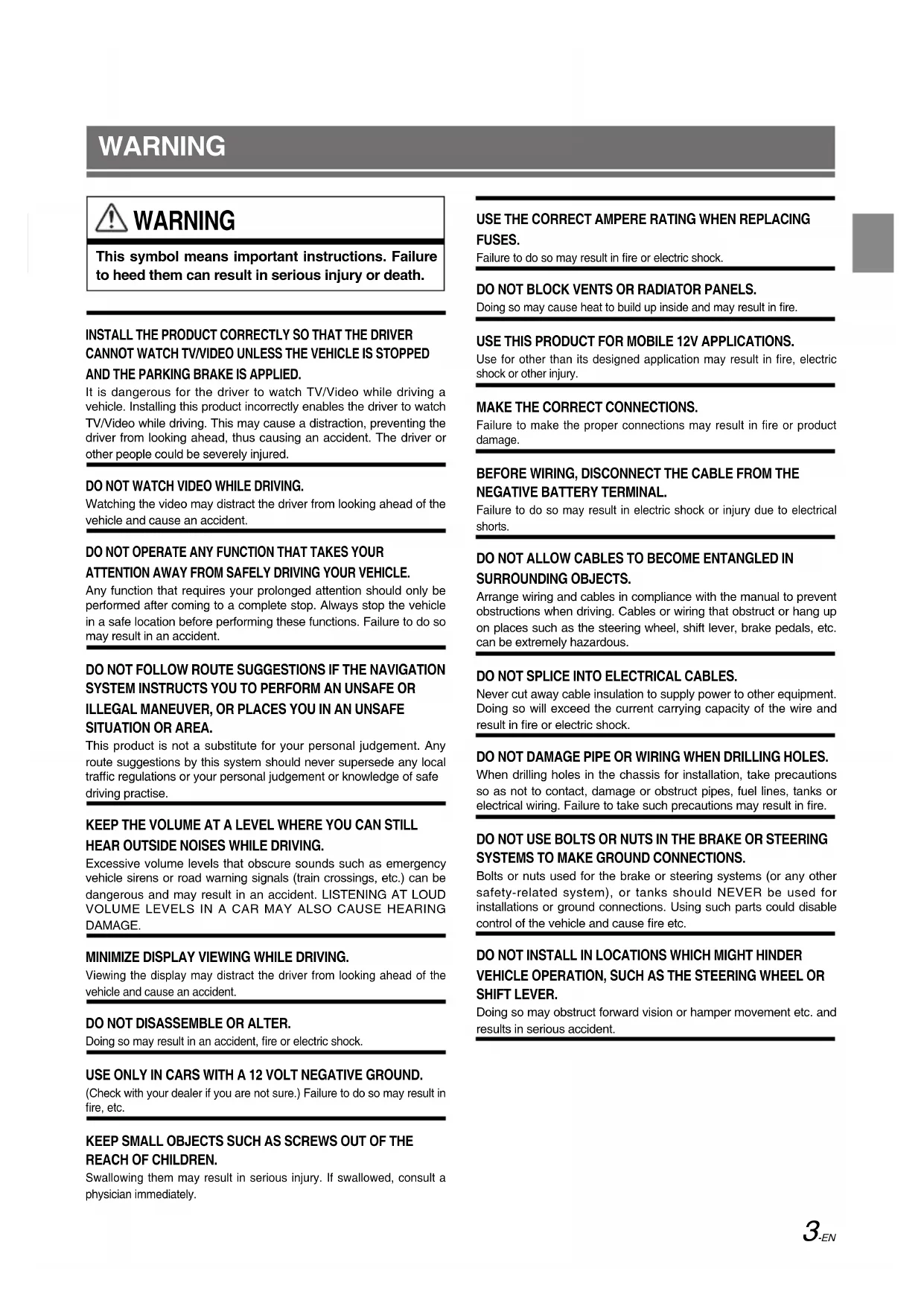
WARNING

WARNING
This symbol means important instructions. Failure to heed them can result in serious injury or death.
INSTALL THE PRODUCT CORRECTLY SO THAT THE DRIVER CANNOT WATCH TV/VIDEO UNLESS THE VEHICLE IS STOPPED AND THE PARKING BRAKE IS APPLIED.
It is dangerous for the driver to watch TV/Video while driving a vehicle. Installing this product incorrectly enables the driver to watch TV/Video while driving. This may cause a distraction, preventing the driver from looking ahead, thus causing an accident. The driver or other people could be severely injured.
DO NOT WATCH VIDEO WHILE DRIVING.
Watching the video may distract the driver from looking ahead of the vehicle and cause an accident.
DO NOT OPERATE ANY FUNCTION THAT TAKES YOUR ATTENTION AWAY FROM SAFELY DRIVING YOUR VEHICLE.
Any function that requires your prolonged attention should only be performed after coming to a complete stop. Always stop the vehicle in a safe location before performing these functions. Failure to do so may result in an accident.
DO NOT FOLLOW ROUTE SUGGESTIONS IF THE NAVIGATION SYSTEM INSTRUCTS YOU TO PERFORM AN UNSAFE OR ILLEGAL MANEUVER, OR PLACES YOU IN AN UNSAFE SITUATION OR AREA.
This product is not a substitute for your personal judgement. Any route suggestions by this system should never supersede any local traffic regulations or your personal judgement or knowledge of safe driving practise.
KEEP THE VOLUME AT A LEVEL WHERE YOU CAN STILL HEAR OUTSIDE NOISES WHILE DRIVING.
Excessive volume levels that obscure sounds such as emergency vehicle sirens or road warning signals (train crossings, etc.) can be dangerous and may result in an accident. LISTENING AT LOUD VOLUME LEVELS IN A CAR MAY ALSO CAUSE HEARING DAMAGE.
MINIMIZE DISPLAY VIEWING WHILE DRIVING.
Viewing the display may distract the driver from looking ahead of the vehicle and cause an accident.
DO NOT DISASSEMBLE OR ALTER.
Doing so may result in an accident, fire or electric shock.
USE ONLY IN CARS WITH A 12 VOLT NEGATIVE GROUND.
(Check with your dealer if you are not sure.) Failure to do so may result in fire, etc.
KEEP SMALL OBJECTS SUCH AS SCREWS OUT OF THE REACH OF CHILDREN.
Swallowing them may result in serious injury. If swallowed, consult a physician immediately.
USE THE CORRECT AMPERE RATING WHEN REPLACING FUSES.
Failure to do so may result in fire or electric shock.
DO NOT BLOCK VENTS OR RADIATOR PANELS.
Doing so may cause heat to build up inside and may result in fire.
USE THIS PRODUCT FOR MOBILE 12V APPLICATIONS.
Use for other than its designed application may result in fire, electric shock or other injury.
MAKE THE CORRECT CONNECTIONS.
Failure to make the proper connections may result in fire or product damage.
BEFORE WIRING, DISCONNECT THE CABLE FROM THE NEGATIVE BATTERY TERMINAL.
Failure to do so may result in electric shock or injury due to electrical shorts.
DO NOT ALLOW CABLES TO BECOME ENTANGLED IN SURROUNDING OBJECTS.
Arrange wiring and cables in compliance with the manual to prevent obstructions when driving. Cables or wiring that obstruct or hang up on places such as the steering wheel, shift lever, brake pedals, etc. can be extremely hazardous.
DO NOT SPLICE INTO ELECTRICAL CABLES.
Never cut away cable insulation to supply power to other equipment. Doing so will exceed the current carrying capacity of the wire and result in fire or electric shock.
DO NOT DAMAGE PIPE OR WIRING WHEN DRILLING HOLES.
When drilling holes in the chassis for installation, take precautions so as not to contact, damage or obstruct pipes, fuel lines, tanks or electrical wiring. Failure to take such precautions may result in fire.
DO NOT USE BOLTS OR NUTS IN THE BRAKE OR STEERING SYSTEMS TO MAKE GROUND CONNECTIONS.
Bolts or nuts used for the brake or steering systems (or any other safety-related system), or tanks should NEVER be used for installations or ground connections. Using such parts could disable control of the vehicle and cause fire etc.
DO NOT INSTALL IN LOCATIONS WHICH MIGHT HINDER VEHICLE OPERATION, SUCH AS THE STEERING WHEEL OR SHIFT LEVER.
Doing so may obstruct forward vision or hamper movement etc. and results in serious accident.

CAUTION
This symbol means important instructions. Failure to heed them can result in injury or material property damage.
HALT USE IMMEDIATELY IF A PROBLEM APPEARS.
Failure to do so may cause personal injury or damage to the product. Return it to your authorized Alpine dealer or the nearest Alpine Service Centre for repairing.
HAVE THE WIRING AND INSTALLATION DONE BY EXPERTS.
The wiring and installation of this unit requires special technical skill and experience. To ensure safety, always contact the dealer where you purchased this product to have the work done.
USE SPECIFIED ACCESSORY PARTS AND INSTALL THEM SECURELY.
Be sure to use only the specified accessory parts. Use of other than designated parts may damage this unit internally or may not securely install the unit in place. This may cause parts to become loose resulting in hazards or product failure.
ARRANGE THE WIRING SO IT IS NOT CRIMPED OR PINCHED BY A SHARP METAL EDGE.
Route the cables and wiring away from moving parts (like the seat rails) or sharp or pointed edges. This will prevent crimping and damage to the wiring. If wiring passes through a hole in metal, use a rubber grommet to prevent the wire's insulation from being cut by the metal edge of the hole.
DO NOT INSTALL IN LOCATIONS WITH HIGH MOISTURE OR DUST.
Avoid installing the unit in locations with high incidence of moisture or dust. Moisture or dust that penetrates into this unit may result in product failure.
- The following screen examples of INE-W611D used in this manual are for reference only. They may differ from the actual screen displays.
Getting Started
Location of Controls
The screen design used in the Owner's Manual may differ from the actual screen.
For INE-W611D
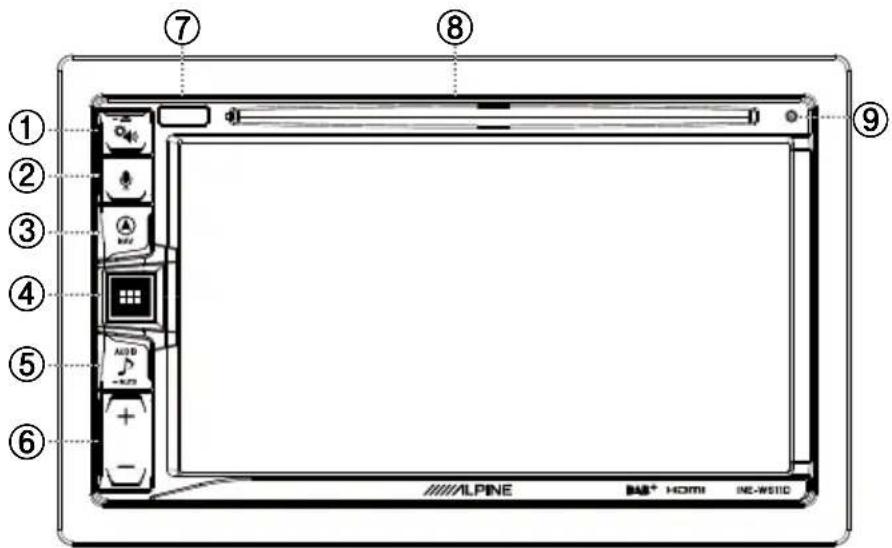
① Sound Settings or Eject button
Displays the [Tone/Fader/Balance] settings screen.
Press and hold this button to eject Disc.
② or VOICE button
Depending on the connected smartphone, press to recall Siri function or voice recognition mode.
③ ⚠ (NAV) button
Recalls the navigation map screen.
Press again to switch to Navigation menu screen.
Press and hold this button for at least 2 seconds to change to Go Home route screen. (If Home is not set yet, it will change to the Home setting screen.)
For details of navigation operations, refer to "Navigation System OM (Owner's Manual)" in the CD-ROM.
Recalls the connected smartphone's map screen.
Depending on the smartphone, this function may not be available.
④ ALL MENUS or (Power Off) button
Recalls the All Menus screen.
Press and hold this button for at least 2 seconds to turn the power off.
⑤ ♪ (AUDIO) or -MUTE (MUTE) button
Displays the Audio/Visual screen.
When pressed and held, mutes the volume.
⑥ A- button
Press to adjust the volume.
⑦ Remote Sensor
Point the remote control transmitter towards the remote sensor within a range of 2 metres.
⑧ Disc insert slot
Inserts/ejects discs
⑨ RESET switch
The system of this unit is reset.
Turning Power On/Off
Some of this unit's functions cannot be performed while the is vehicle is in motion. Be sure to stop your vehicle in a safe location and apply the parking brake, before attempting these operations.
1 Turn the ignition key to the ACC or ON position. The system turns on.
2 Press and hold the All Menus/ (Power Off) button for more than 2 seconds to turn the power off.
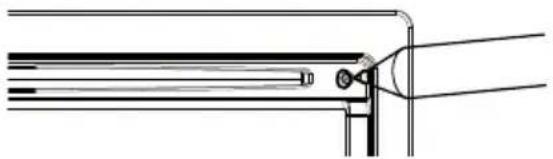
Resetting the System
Be sure to press the RESET switch when using the unit for the first time, after changing the car battery, etc.
1 Turn off the unit power.
2 Press the RESET switch with a ballpoint pen or similar pointed object.
natural_image
Pure technical line drawing of a mechanical assembly without any text, numbers, or symbolsAll Menus Screen
The All Menus Screen displays all of the available modes that can be selected to operate the system.
Press the All Menus button. The All Menus Screen is displayed.
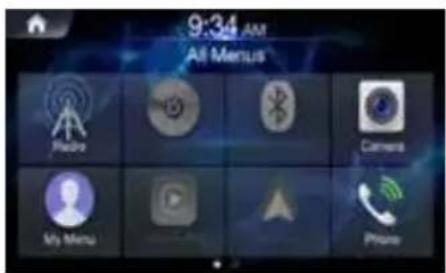
■All Menus Screen example
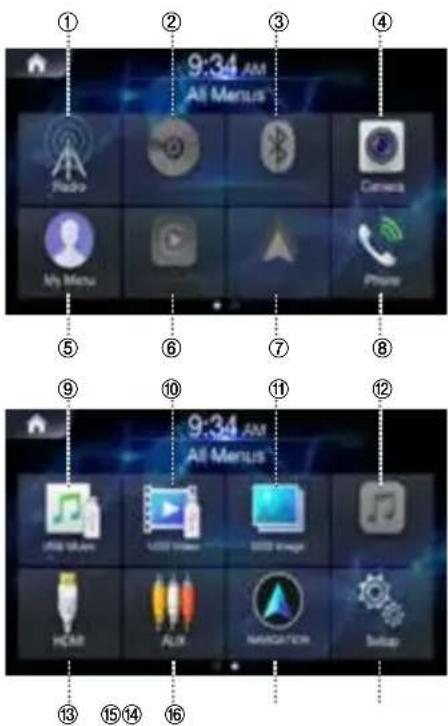
① Radio button
② DISC button
③ Bluetooth Audio button
④ Camera button
⑤ My Menu button
⑥ Apple CarPlay
⑦ Android Auto
⑧ Phone button
⑨ USB Music button
⑩ USB Video button
⑪ USB Image button
⑫ iPod button
⑬ HDMI
⑭ AUX button
⑮ Navigation button
⑯ Setup button
Key Features
About Dual Screen
Dual Screen allows you to display the Navigation and Audio/Visual screens simultaneously.
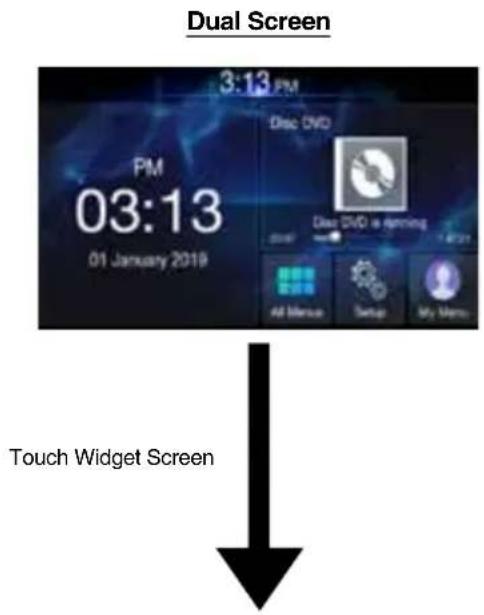
Navigation full Screen
My Menu
Frequently used functions such as the Audio or Navigation mode can be easily recalled by adding them to the My Menu screen. For details, see "My Menu Function"
■My Menu Screen Example
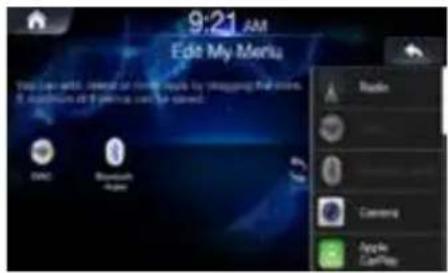
- Frequently used functions and useful functions can be customised for your convenience.
- You can register up to 8 menus.
- You cannot add the same feature more than once.
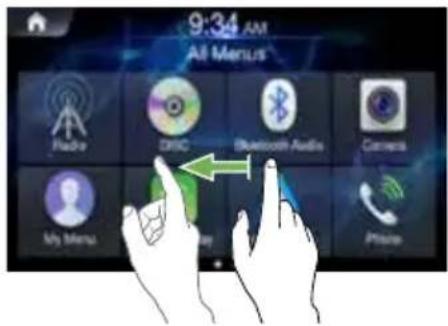
Swiping the Touch Screen
You can change a screen or a page by swiping the touchscreen vertically or horizontally with your finger. For details, see "Touch Screen Operation".
Swipe the display with your finger lightly.
Android Auto
Android Auto is designed to make it easier to use apps from your phone while you're on the road. Navigate with Google Maps, listen to playlists or podcasts from your favourite apps, and more. Download the Android Auto App from the Google Play store before continuing. Connect your Android compatible Phone to begin using Android Auto.
1 Press the All Menus button. The All Menus screen is displayed.
2 Touch [Android Auto]. The Android Auto screen is displayed.
- For details operation of Android Auto, refer to "Android Auto" in the Owner's Manual (CD-ROM).
Owner's manual Apple CarPlay
Apple CarPlay
Apple CarPlay is a smarter, safer way to use your iPhone in the car. Apple CarPlay takes the things you want to do with your iPhone while driving and puts them right on this unit. You can get directions, make calls, send and receive messages, and listen to music, all in a way that allows you to stay focused on the road. Just plug in your iPhone to this unit and go. For details, refer to Owner's Manual (CD-ROM).
Press 📋 or VOICE to activate Siri function of the iPhone. You can make a call, play music, etc., by using Siri function of the iPhone. You can also control Apple CarPlay on touchscreen.
Radio/RDS
FM Radio Main Screen
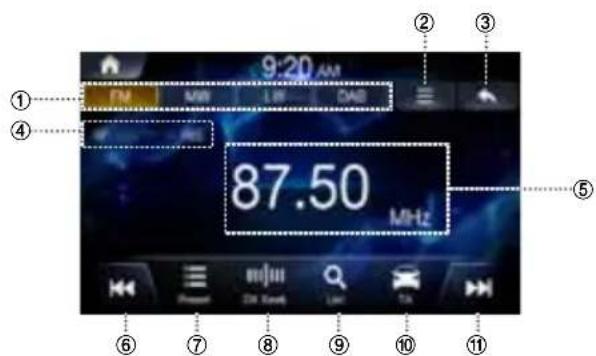
① Radio Band Tab
If you select the desired tab, the selected Radio mode will operate.
② Menu (AF/Regional/Sound Settings)
③ Displays the Previous Screen
④ RDS Indicator (AF/EON/TP/TA/REG)
Displays the ON/OFF state of the features.
⑤ Information Display
Displays information such as frequency, station name, preset number, radio text.
⑥ Decreases Frequency
⑦ Displays the preset screen
⑧ Changes Tuning Mode
Switches the tuning mode used to search radio broadcasts between Manual, Preset, or DX Seek.
⑨ Displays the list screen
⑩ Traffic Announcement On/Off
⑪ Increases Frequency
- The RDS digital data includes the following: AF List of Alternative Frequencies EON Enhanced Other Networks TP Traffic Programme TA Traffic Announcement REG Regional
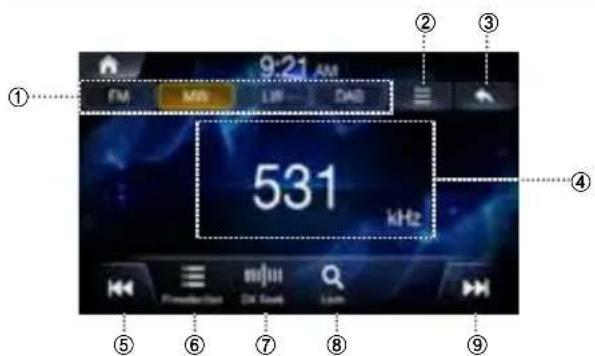
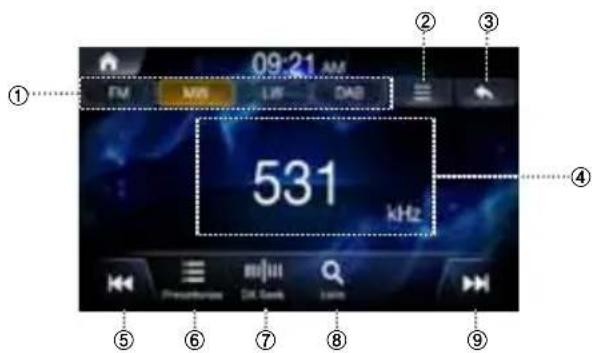
MW/LW (AM) Radio Main Screen
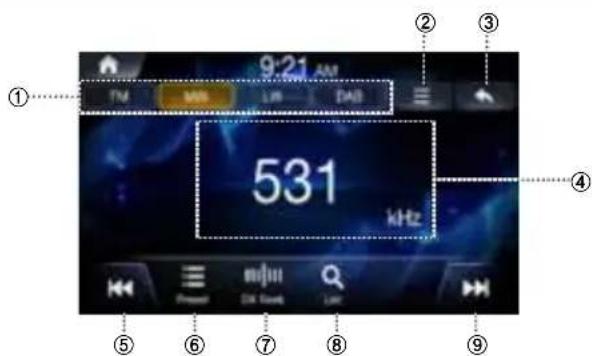
① Radio Band Tab
If you select the desired tab, the selected Radio mode will operate
② Menu (Sound Settings)
③ Displays the Previous Screen
④ Information Display
preset number and frequency
⑤ Decreases Frequency
⑥ Displays the preset screen
⑦ Changes Tuning Mode
Switches the tuning mode used to search radio broadcasts between Manual Tune, Preset, or DX Seek.
⑧ Displays the list screen
⑨ Increases Frequency
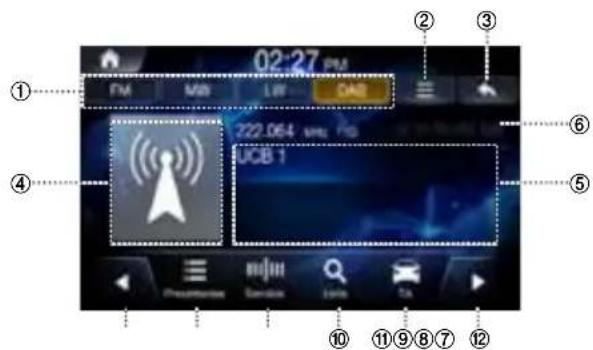
DAB/DAB+/DMB Audio
DAB main screen
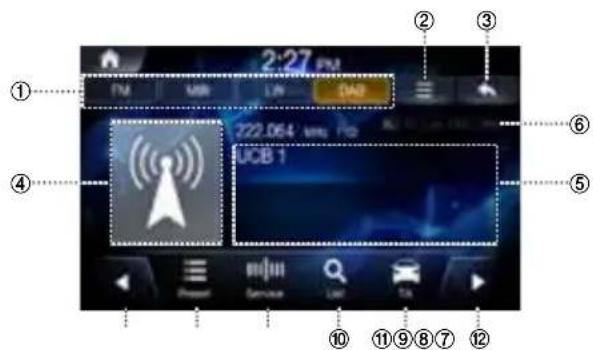
① Radio Band Tab
If you select the desired tab, the selected Radio mode will operate.
② Menu (DRC, DAB Antenna, Soft link, Sound Settings)
③ Displays the Previous Screen
④ Slide Show
Displays the program information, artist photos, and advertisements that are synchronised with the Service component currently being received.
⑤ Information Display
Displays information such as frequency, station name, preset number, radio text.
⑥ DAB indicator (SL, TA, FM, DRC, DAB)
Displays the ON/OFF state of the features.
⑦ Decreases Frequency
⑧ Displays the preset screen
⑨ Changes Tuning Mode
Switches the tuning mode used to search radio stations between Service or Preset.
⑩ Displays the list screen
⑪ Traffic Information mode On/Off
⑫ Increases Frequency
Selecting DAB Station
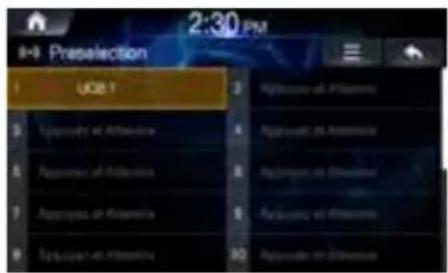
■Selecting station from Presets
1 Touch Preset
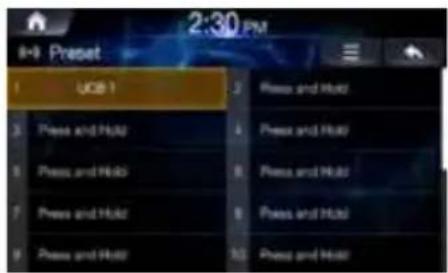
2 From the presets, select the station you want to listen to.
■Selecting station from List
1 Touch List
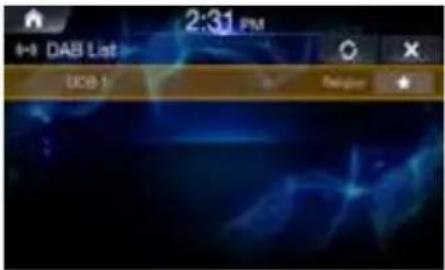
2 From the lists, select the station you want to listen to.
Press the Refresh 📄 update the list.
USB Flash drive Operation
You can play back music files (MP3/WMA/AAC/FLAC/OGG/APE/MP2) and video files (AVI/MKV/MP4/ASF/WMV/MPG/3GP/MOV/FLV) stored in a USB flash drive on the internal player of this system.
USB Music main screen example
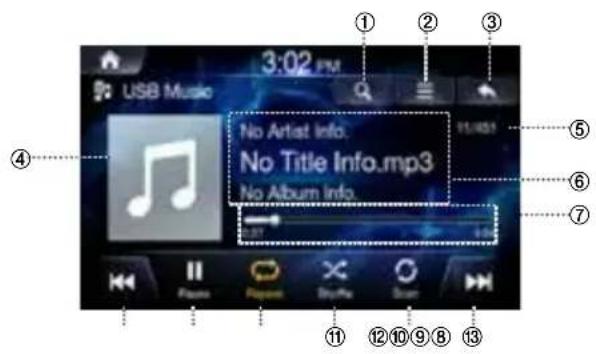
① Displays the list screen
② Menu (Album Cover, Add to Playlist, Sound Settings)
③ Displays the Previous Screen
④ Artwork Display
⑤ Current Song no./Total Song no.
⑥ Information Display
⑦ Play Time and Play Bar
⑧ Previous File
⑨ Play/Pause
⑩ Repeat
⑪ Shuffle
⑫ Scan
⑬ Next File
Playing USB Music Files
1 Press the All Menus button → touch [USB Music]. Or in the Home screen, touch [All Menus] → [USB Music].
2 Touch of and select the desired file.
If play time is over 3 seconds, pressing will play the current file from the beginning.
3 Touch ▶ to play USB music.
While playing, touch ▶ to pause USB music.
Searching USB Music Files
You can search the music file in the List screen.
1 Touch 🔒 display USB Music list screen.
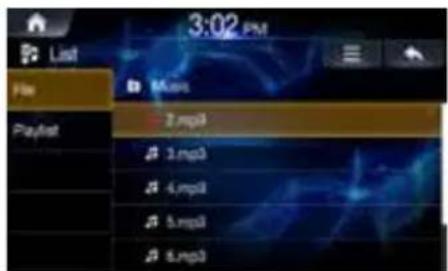
2 Search the desired category and file. It is possible to search by File, Playlist, Artist, Song and Album.
3 Touch the desired file to play.
- In the List screen, it is possible to add current song to playlist by touching 3 → [Add to Playlist].
DISC-DVD
Disc DVD Main Screen
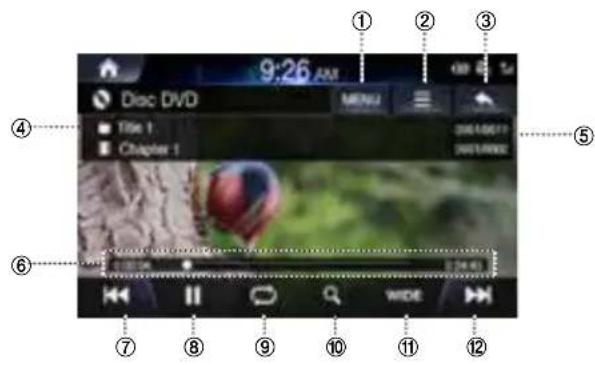
① Displays the list screen
② Menu
③ Displays the Previous Screen
④ Chapter and Title Information
⑤ Chapter and Title Index
⑥ Play Time and Play Bar
⑦ Previous Chapter
⑧ Play/Pause
⑨ Repeat
⑩ Top menu
⑪ 16:9/4:3 LB/4:4 PS
⑫ Next Chapter
Playing a DVD
1 Press the All Menus button → touch [Disc Video]. Or in the Home screen, touch [All Menus] → [DISC].
2 Touch | or or select the desired Chapter.
3 Touch ▶ to play a DVD.
While playing, touch ▶ to pause a DVD.
Viewing in Full Screen
Touch the screen in a non-menu area to view the DVD in full screen.
If you want to display the menu, touch the screen.
- If there are no operations for 10 seconds, the menu will automatically disappear.
Searching Titles/Chapters
1 Touch List
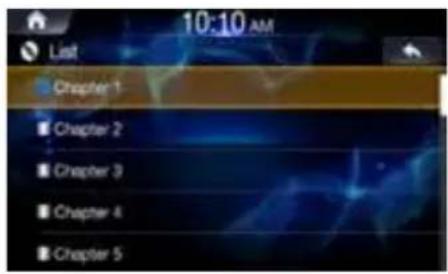
2 Search the desired title and chapter.
3 Touch the desired title and chapter to play.
Searching from Top Menu
1 Touch to display Top Menu screen.
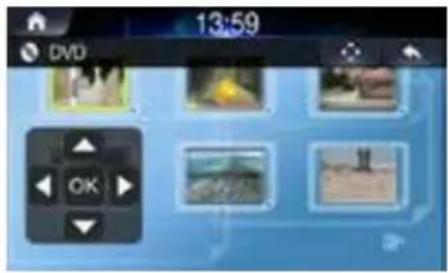
2 Touch
3 Search the desired chapter and title. Touch the controller up/down/left/right directions to select the desired menu and touch Enter OK.
- The Top menu and DVD menu options can only be used within DVDs that support these features.
iPod Music
A separately sold Lightning to USB cable (KCU-471i), etc., is required depending on the type of iPod/iPhone.
iPod Music Main Screen
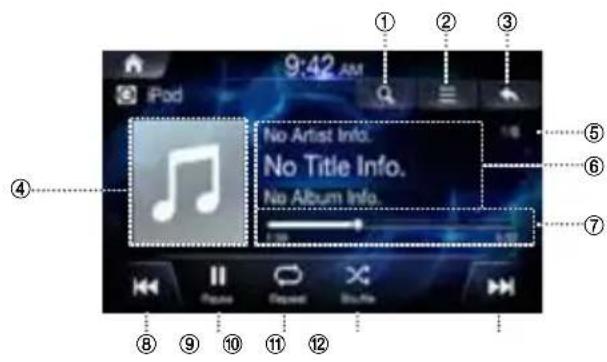
① Displays the list screen
② Menu
③ Displays the Previous Screen
④ Artwork Display
⑤ Current Song no./Total Song no.
⑥ Information Display
⑦ Play Time and Play Bar
⑧ Previous File
⑨ Play/Pause
⑩ Repeat
⑪ Shuffle
⑫ Next File
Playing iPod Music
1 Press the All Menus button → touch [iPod Music]. Or in the Home screen, touch [All Menus] → [iPod Music].
2 Touch or and select the desired file. If play time is over 3 seconds, pressing will play the current file from the beginning.
3 Touch ▶ to play iPod music.
While playing, touch ▶ to pause iPod music.
The feature may operate differently depending on the iPod specification.
Searching iPod Music Files
You can search the files in the List screen.
1 Touch 📄 display iPod Music list screen.
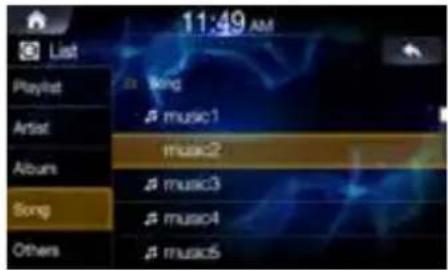
2 Search the desired category and file. It is possible to search by Playlist, Artist Album, song and others.
3 Touch the desired file to play.
Bluetooth Audio
Music saved in the mobile phone, portable player, etc. can be played in the car through Bluetooth audio streaming.
- Bluetooth audio can be played only when a Bluetooth phone or Bluetooth audio device has been connected. To play Bluetooth audio, connect the Bluetooth phone to the car system. For more information on connecting Bluetooth, please refer to the user's manual [Pairing and connecting the unit and a Bluetooth phone].
- The feature may operate differently depending on the Bluetooth device.
Bluetooth Audio Main Screen
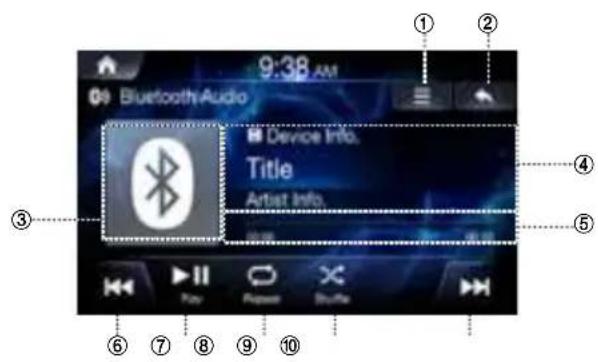
① Menu
② Displays the Previous Screen
③ Bluetooth Icon
④ Information Display
⑤ Play Time and Play Bar
⑥ Previous File
⑦ Play/Pause
⑧ Repeat
⑨ Shuffle
⑩ Next File
Playing Bluetooth Audio
1 Press all menus button → touch [Bluetooth Audio] Or in the Home screen, touch [All Menus] → [Bluetooth Audio].
2 Touch of and select the desired file. If play time is over 3 seconds, pressing will play the current file from the beginning.
3 Touch ▶ to play Bluetooth Audio. While playing, touch ▶ II to pause Bluetooth Audio.
- The title/artist info may not be supported in some devices. When it is not supported, only the symbol will be displayed.
- The play/pause feature may operate differently depending on the device.
Connection Settings
Touch Menu → [Connections Settings] to set connections.
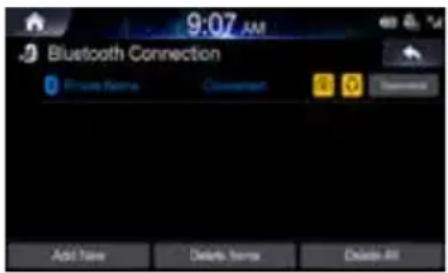
When a Device is Already Paired
■Connecting a Bluetooth Device
- Touch [Connections Settings].
- Touch the device name to connect.
■Disconnecting a Bluetooth Device
- Touch [Connections Settings].
- Touch the device name to disconnect.
Changing a Bluetooth Device
If multiple Bluetooth devices are registered in this system, you can change the connection from the registered devices.
If you want to connect a another device, first disconnect the connected Bluetooth device.
- Touch [Connections Settings].
- Disconnect the connected device.
- Touch the device name to pair.
Fast-forwarding or Rewinding File
Using | or .
1 While playing, touch and hold ◄or . ▶▶▶
Touch and hold for more than 1 second to rewind or fast-forward at 4x speed. Keep touching to switch the speed to 20x.
2 Release | or to play the track at normal speed.
Repeat
1 Touch 📊
Each time the button is touched, the mode is changed.
Select the desired mode.
- One File : repeats play of currently playing file.
- On : repeats the all files in the Bluetooth Audio.
- Off : turns the Repeat feature off.
Shuffle
1 Touch ✗
Each time the button is touched, the mode is changed.
Select the desired mode.
- On ✗ : plays files in the current category in random order.
- Off ✗ : turns the shuffle feature off.
Sound Settings
Touch →[Sound Settings]
Map Functions
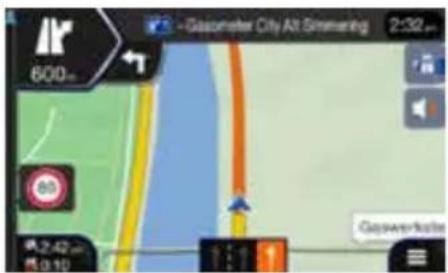
Below is an overview of different buttons and icons on the map display. For more detailed information about this screen, please see the Owner's Manual.
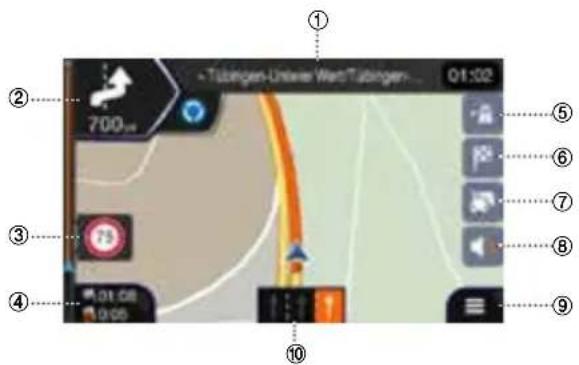
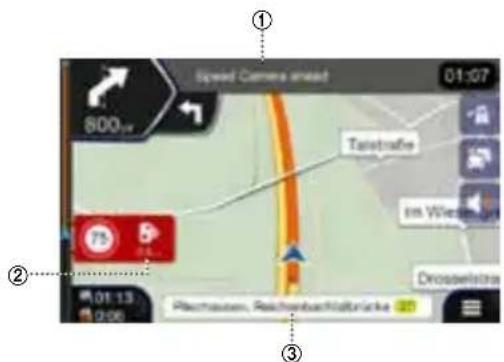
① Next street
② Next turn preview
③ Speed limit warning
④ Data fields
⑤ Motorway services
⑥ Destination Menu
⑦ Traffic
⑧ Sound settings
⑨ Access to Main Menu
⑩ Lane information
① Speed camera warning
② Speed camera Alert
③ Street name
Navigation Menu
To access the Navigation Menu, touch on the icon on the right lower corner of the map screen.

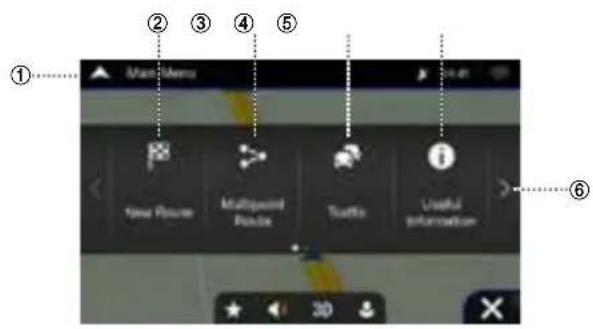
① Access the Map
Click on the arrow
② New Route
Select your destination by entering an address or its coordinate, or by selecting a Place, a Saved Location, or a Saved Route. You can also look up your recent destinations from the History.
③ Multipoint Route
Build your route from one or more route points. You can also plan a route independently of your current GPS position by setting a new starting point.
④ Traffic
Access to check the traffic summary
⑤ Useful Information
Access additional options and check navigation-related information.
⑥ Next Menu
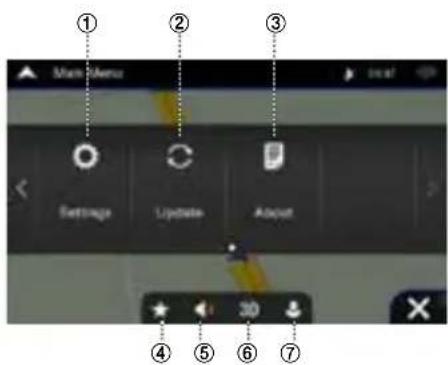
① Settings
Customise the way the navigation works
② Update
Enable Map updates for users
③ About
Version Information, Contents, Legal, credits and etc
④ Favorites
Saved favorite location
⑤ Volume
Change the volume settings to Alerts Only/Muted/volume On
⑥ View
Change the views to 2D/2DNorth-Up/3D
⑦ User Profiles
New user profiles can be added and customized
Setting a Destination
The following example describes how to search for a destination when choosing [Town/Postcode] from [Address].
- You can search and narrow down the Country/State by starting from [Country/State].
1 Touch [New Route] from the Navigation Menu.
2 Touch [Address].
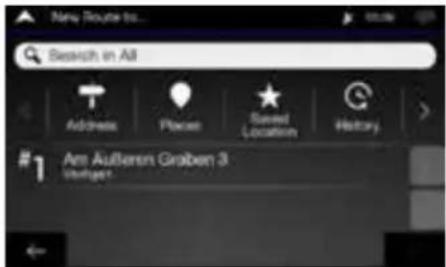
3 Touch [Town/Postcode].
4 Enter the town name or postcode. Touch to display the candidate list.
5 Enter the desired street name.
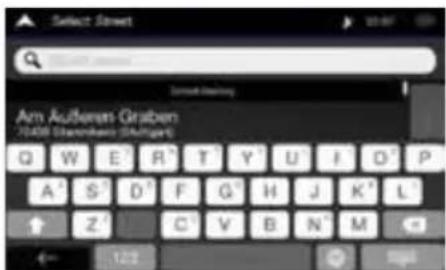
Touch to display the candidate list.
6 Enter the house number or crossing street.
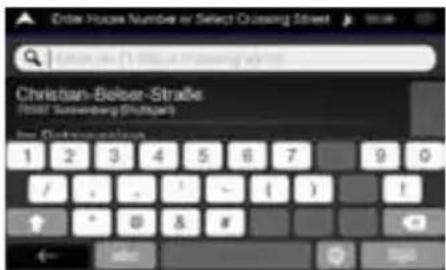
7 Select your destination
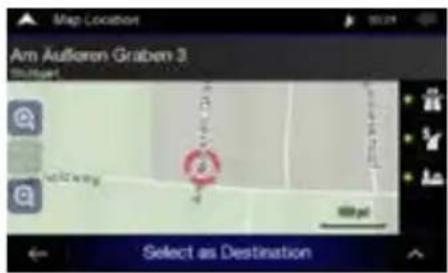
Confirm the location of your destination or click 📂 for more detailed information
8 Route Summary
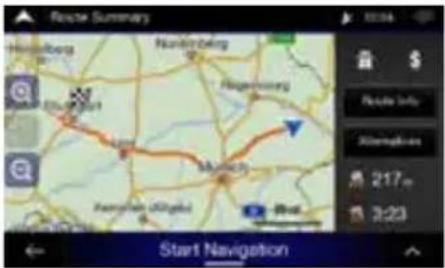
The route is calculated, and a map appears, showing the entire route. Here you can check route information and route alternatives
9 Touch ☐ modify the route parametres, or touch [Start Navigation] to start your journey.
Specifications
MONITOR SECTION
Screen Size 6.5" (INE-W611D)
LCD Type Transparent type TN LCD
Operation System TFT active matrix
Number of Picture Elements 1,152,000 pcs. (800 × 480 × 3
(RGB))
Effective Number of Picture Elements
99% or more
Illumination System LED
FM TUNER SECTION
Tuning Range 87.5 - 108.0 MHz
Mono Usable Sensitivity 9.3 dBf (0.8 μV/75 ohms)
50 dB Quieting Sensitivity 13.5 dBf (1.3 μV/75 ohms)
Alternate Channel Selectivity 80 dB
Signal-to-Noise Ratio 65 dB
Stereo Separation 35 dB
AM TUNER SECTION
Tuning Range 531 -1,602KHz
Usable Sensitivity 25.1 μV/28 dBf
MW TUNER SECTION
Tuning Range 531 - 1,602 kHz
Usable Sensitivity 25.1 μV/28 dBf
LW TUNER SECTION
Tuning Range 153 - 281 kHz
Sensitivity (IEC Standard) 31.6 μV/30 dBf
DAB SECTION
Tuning Range BAND III 174.928 - 239.2 MHz
Tuning Range L-BAND 1,452.96 - 1,490.624 MHz
Usable Sensitivity -101 dBm
Signal-to-Noise Ratio 85 dB
USB SECTION
USB requirements USB 2.0
Max. Power Consumption 1,500 mA (CDP Support)
USB Class USB (Mass Storage Class)
File System FAT16/32
Decoding Format MP3/WMA/AAC/FLAC/OGG/APE/MP2
Number of Channels 2-Channels (Stereo)
Frequency Response*1 5 – 20,000 Hz (±1 dB)
Total Harmonic Distortion 0.016% (at 1 kHz)
Dynamic Range 95 dB (at 1 kHz)
Signal-to-Noise Ratio 85 Db
Channel Separation 75 dB (at 1 kHz)
*1 Frequency response may differ depending on the encoder software/bit rate.
HDMI SECTION
Input Format
480p/720p
GPS SECTION
GPS Reception frequency
1,575.42 ±1 MHz
GPS Reception sensitivity -130 dBm max.
Bluetooth SECTION
Bluetooth Specification
Bluetooth v4.0
Frequency band
2,402 - 2,480 MHz
Output Power
-6\~+4 dBm Ave. (Power class 2)
Profile
HFP (Hands-Free Profile)
PBAP (Phone Book Access Profile)
A2DP (Advanced Audio
Distribution Profile)
AVRCP (Audio/Video Remote
Control Profile)
GENERAL
Power Requirement
14.4 V DC
(11–16 V allowable)
Operating temperature
-4°F to +140°F
(-20^ to +60^)
Maximum Power Output
50 W × 4
• Power output: measured at 4 Ohms and ≤ 1% THD+N
• S/N: 80 dBA (reference: 1 W into 4 Ohms)
Audio output level
Preout (Front, Rear):
4V/10k ohms (max.)
Preout (Subwoofer):
4V/10k ohms (max.)
Weight(unit only)
2.05 kg
CHASSIS SIZE
Width
178 mm
Height
100 mm
Depth
142 mm
NOSE SIZE
Width
178 mm
Height
100 mm
Depth
21.3 mm
- Due to continuous product improvement, specifications and design are subject to change without notice.
- The LCD panel is manufactured using an extremely high precision manufacturing technology. Its effective pixel ratio is over 99.99%. This means that there is a possibility that 0.01% of the pixels could be either always ON or OFF.
Copyrights and Trademarks
- Apple, iPhone, iPod, and iPod touch are trademarks of Apple Inc., registered in the U.S. and other countries. Apple CarPlay is a trademark of Apple Inc.
- Use of the Apple CarPlay logo means that a vehicle user interface meets Apple performance standards. Apple is not responsible for the operation of this vehicle or its compliance with safety and regulatory standards. Please note that the use of this product with iPhone, or iPod may affect wireless performance.
- “Made for iPod,” and “Made for iPhone,” mean that an electronic accessory has been designed to connect specifically to iPod, or iPhone, respectively, and has been certified by the developer to meet Apple performance standards. Apple is not responsible for the operation of this device or its compliance with safety and regulatory standards. Please note that the use of this accessory with iPod, or iPhone may affect wireless performance.
- Google, Android, Android Auto, Google Play and other marks are trademarks of Google Inc.
- Manufactured under license from Dolby Laboratories. Dolby and the double-D symbol are trademarks of Dolby Laboratories.
- The Bluetooth ^® word mark and logos are registered trademarks owned by the Bluetooth SIG, Inc. and any use of such marks by Alpine Electronics, Inc. is under license.
- The terms HDMI and HDMI High-Definition Multimedia Interface, and the HDMI Logo are trademarks or registered trademarks of HDMI Licensing, LLC in the United States and other countries.
- ©2006-2018 TomTom. All rights reserved. This material is proprietary and the subject of copyright protection, database right protection and other intellectual property rights owned by TomTom or its suppliers. The use of this material is subject to the terms of a license agreement. Any unauthorised copying or disclosure of this material will lead to criminal and civil liabilities.
• DVD is a trademark of DVD Format/Logo Licensing Corporation.
About the Rules of Bluetooth Electromagnetic Radiation Regulation

Declaration of Conformity
Inhaltsverzeichnis
WARNUNG....4
Erste Schritte....6
Hauptfunktionen 8
Android Auto....9
Apple CarPlay....9
Radio/RDS....10
DAB/DAB+/DMB Audio 11
USB-Wiedergabe.... 12
DISK DVD....13
iPod Music....14
Bluetooth Audio 15
Kartenfunktionen 17
Navigationsmenü.... 18
natural_image
Pure technical line drawing of a mechanical assembly without any text, numbers, or symbolsDekodierformate MP3/WMA/AAC/FLAC/OGG/APE/MP2
PBAP (Phone Book Access Profile /
A2DP (Advanced Audio
Distribution Profile / Hochwertiger Audio-
AVRCP (Audio/Video Remote
Control Profile / Audio/Video-
About the Rules of Bluetooth Electromagnetic Radiation Regulation

Declaration of Conformity
Contenu
AVERTISSEMENT 4
DAB/DAB+/DMB Audio 11
Works with Apple CarPlay
HDMI ^TM
HIGH-DEFINITION MULTIMEDIA INTERFACE
androidauto™

Bluetooth®



DOLBY AUDIO™


AVERTISSEMENT
natural_image
Pure technical line drawing of a mechanical assembly without any text, numbers, or symbolsÉcran Tous menus
Écran principal Radio OM/OL (AM)
1 Effleurez Preselection
DIMENSIONS DU CHÂSSIS
Largeur 178 mm
Hauteur 100 mm
Profondeur 142 mm
DIMENSIONS DE LA PARTIE AVANT
Largeur 178 mm
Hauteur 100 mm
Profondeur 21,3 mm
Audio DAB/DAB+/DMB 11
Works with Apple CarPlay
HDMI ^TM
HIGH-DEFINITION MULTIMEDIA INTERFACE
androidauto™

Bluetooth®



DOLBY AUDIO™


ADVERTENCIA
natural_image
Pure technical line drawing of a mechanical assembly without any text, numbers, or symbolsPantalla Menú
Pantalla principal de radio MW/LW (AM)
Pantalla principal DAB
Audio DAB/DAB+/DMB 11
Works with Apple CarPlay
HDMI ^TM
HIGH-DEFINITION MULTIMEDIA INTERFACE
androidauto™

Bluetooth®



DOLBY AUDIO™


AVVERTENZA
natural_image
Pure mechanical diagram showing a lever and pivot mechanism without any text or symbolsIl mio menu
① Impostazioni
File system FAT16/32
PBAP (Phone Book Access Profile)
A2DP (Advanced Audio
Distribution Profile)
AVRCP (Audio/Video Remote
Control Profile)
DAB/DAB+/DMB-radio 11
Works with Apple CarPlay
HDMI ^TM
HIGH-DEFINITION MULTIMEDIA INTERFACE
androidauto™

Bluetooth®



DOLBY AUDIO™


WARNING
ANVÄND DENNA PRODUKT FÖR MOBILA 12V-APPLIKATIONER.
SKARVA INTE ELKABLAR.
natural_image
Pure technical line drawing of a mechanical assembly without any text, numbers, or symbolsSkärmen All Menus
Android Auto
① Komma till kartan
Klicka på pilen
② Ny rutt
① Inställningar
DAB/DAB+/DMB-audio.... 11
Bediening van de USB-flash drive....12
DISC-DVD 13
iPod-muziek.... 14
Bluetooth-audio 15
Kaartfuncties....17
Navigatiemenu....18
Works with Apple CarPlay
HDMI ^TM
HIGH-DEFINITION MULTIMEDIA INTERFACE
androidauto™

Bluetooth®



DOLBY AUDIO™


WAARSCHUWING
④ Alle menu's- of (UIT)-toets
⑤ ♪ (AUDIO)- of -MUTE (DEMPEN)-toets
natural_image
Pure technical line drawing of a mechanical assembly without any text, numbers, or symbolsScherm Alle menu's
Apple CarPlay
PBAP (Phone Book Access Profile)
A2DP (Advanced Audio
Distribution Profile)
AVRCP (Audio/Video Remote
Control Profile)
ALGEMEEN
DAB/DAB+/DMB Audio.... 11
natural_image
Pure technical line drawing of a mechanical joint or bracket assembly without any text, numbers, or symbolsЭкран главного меню
① Кнопка Радио
② Кнопка Диск
③ Кнопка Bluetooth Audio
④ Кнопка Камера
⑤ Кнопка Мое меню
⑥ Apple CarPlay
⑦ Android Auto
⑧ Кнопка Телефон
⑨ Кнопка USB музыка
⑩ Кнопка USB видео
Android Auto
PBAP (Phone Book Access Profile)
A2DP (Advanced Audio
Distribution Profile)
AVRCP (Audio/Video Remote
Control Profile)
ОБЩИЕ
DAB/DAB+/DMB Audio 11
⑤ ⋅ Przycisk (AUDIO) lub - MUTE (MUTE)
natural_image
Pure technical line drawing of a mechanical assembly without any text, numbers, or symbolsEkran Menu
① Dostęp do mapy
Kliknij strzałkę
② Nowa trasa
PBAP (Phone Book Access Profile)
A2DP (Advanced Audio
Distribution Profile)
AVRCP (Audio/Video Remote
Control Profile)