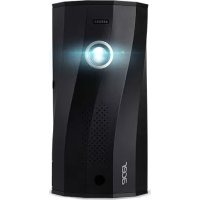
C250i - Projector ACER - Free user manual and instructions
Find the device manual for free C250i ACER in PDF.



| Product type | Portable LED video projector |
| Brand | Acer |
| Model | C250i |
| Native resolution | 1280 x 720 pixels (HD) - estimate |
| Brightness | 200 ANSI lumens (estimate) |
| Contrast ratio | 1000:1 (estimate) |
| Light source | LED |
| Light source life | 30,000 hours (estimate) |
| Power supply | AC adapter 19V/3.42A; built-in rechargeable lithium-ion battery |
| Battery life | Approximately 2-3 hours (estimate) |
| Connectivity | Wi-Fi (2.4/5 GHz), Bluetooth 5.0, HDMI, USB-C (video input), USB-A (charging), MicroSD, headphone jack |
| Wireless features | Miracast, AirPlay, Google Cast, EZCast, Plug and Play (via USB cable) |
| Supported formats | Audio: MP3, WMA, AAC; Video: MPEG-4, H.264; Image: JPEG, BMP |
| Power bank function | Yes, USB-A output 5V/0.6A and USB-C output 5V/1A (with battery) |
| Automatic portrait mode | Yes (with compatible smartphone, via USB-C and EZCast) |
| Operating temperature | 5°C to 35°C |
| Projection ratio | 0.8:1 to 2.7:1 (estimate) |
| Maintenance and cleaning | Clean the lens with a soft dry cloth. Do not use chemicals, water, or solvents. Avoid moisture and dust. |
| Safety | Do not look directly at the lens during operation. Keep out of reach of children. Do not expose to extreme temperatures or moisture. Do not disassemble the device. |
| Spare parts and repairability | Not applicable. In case of failure, contact Acer customer support. Do not attempt to repair yourself. |
| Warranty | 2 years (estimate) |
Frequently Asked Questions - C250i ACER
User questions about C250i ACER
0 question about this device. Answer the ones you know or ask your own.
Ask a new question about this device
Download the instructions for your Projector in PDF format for free! Find your manual C250i - ACER and take your electronic device back in hand. On this page are published all the documents necessary for the use of your device. C250i by ACER.
USER MANUAL C250i ACER
natural_image
Two black cylindrical objects with no visible text or markingsQuick Start Guide
C250i / LB350R / LC-F50i
快速使用指南
快速入门指南
Guide de lémorage rapide
Schwaltungleitung
How to use the device properly:
Do not turn the lens toward human eyes when in operation, to avoid damaging the eyes caused by the high intensity light source.
Do not block the device ventilation to avoid damage to the internal electronic devices due to overheating.
Do not use chemicals, cleaning agents or clean water to clean the device, and prevent rain water, moisture and mineral-containing liquids from corroding circuit boards.
Please keep the device and its parts and accessories out of reach of children.
Please ensure that the device is operated in a dry and ventilated environment.
Do not store the device in extreme hot or cold conditions. High and low temperatures may shorten the lifespan of electronic devices. The normal operating environment is between 5^ C\~ 35^ C.
Do not put the device into any drying equipment (such as dryer, microwave oven, etc.).
Do not squeeze or place heavy objects over the device to avoid damage to the device.
Do not throw, knock or shake the device violently, which may damage the internal circuit boards.
Do not attempt to disassemble the device without permission. If there is any problem, please contact customer support.
Do not repair any product by yourself. If the device or any part does not work properly, you should consult customer support or return the device for repair.
As the device is a high intensity light source, do not stare or look directly at the lens during operation, which may damage your eyes. This warning applies to children as well.
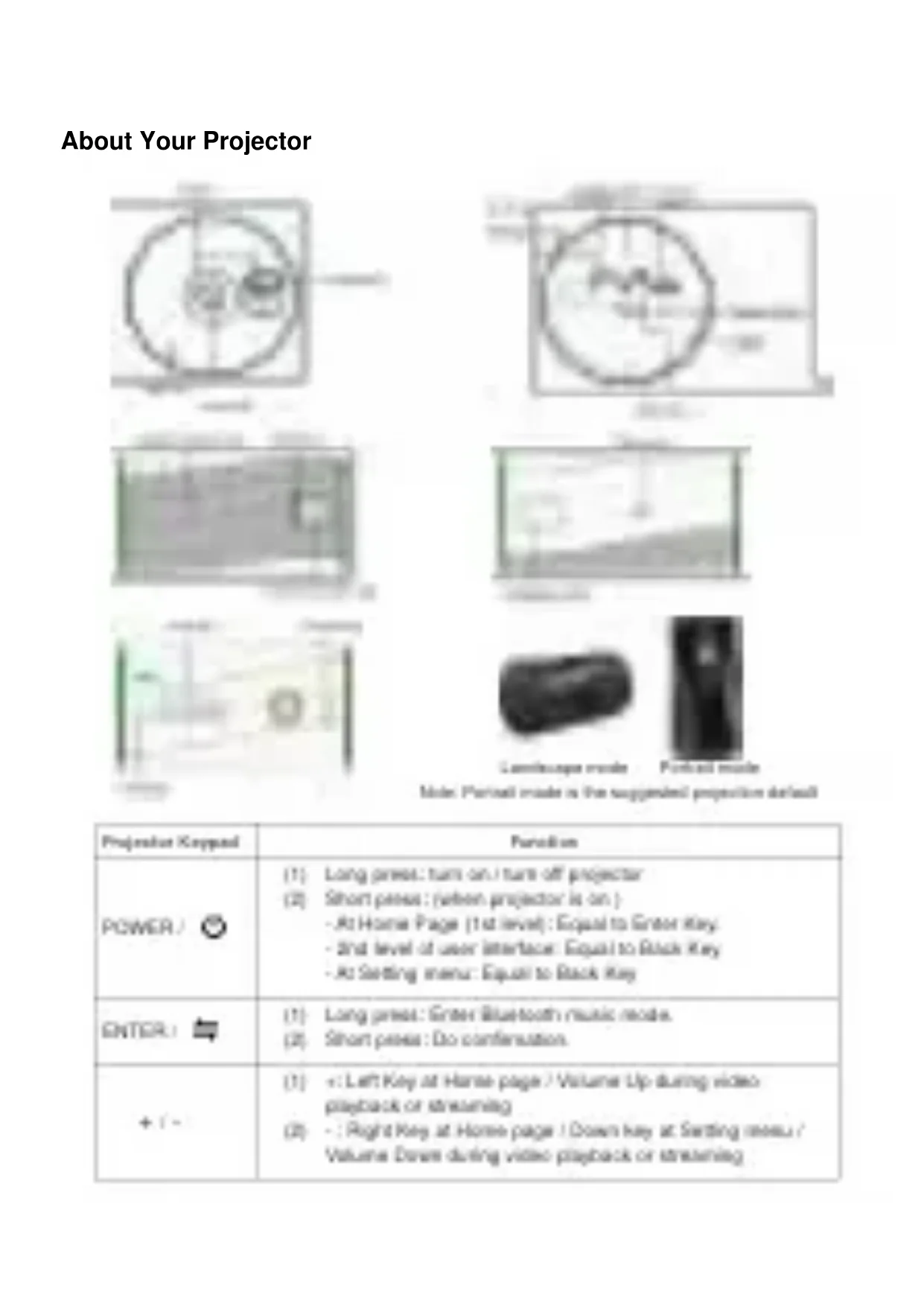
About Your Projector
natural_image
Simple circular diagram with a central crosshair and two small figures inside, enclosed in a square frame (no text or symbols)
natural_image
Blurred image with no discernible text, numbers, or symbols
natural_image
Blurred image with no discernible text, numbers, or symbols
natural_image
Pure electrical circuit lines without any symbols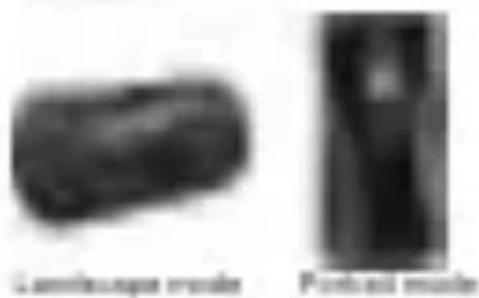
Mode: Portrait iranda is the suggestable proposition default
| Projector Keypad | Paradition |
POWER :  | (1) Long press: turn on / turn off projector(2) Short press: (when projector is on):- At Home Page (1st level): Equal to Enter key- 2nd level of user interface: Equal to Back Key- At Setting menu: Equal to Back key |
ENTER :  | (1) Long press: Enter Bluetooth music mode.(2) Short press: Do confirmation. |
| + / - | (1) +: Left Key at Home page / Volume Up during video playback or streaming(2) -: Right Key at Home page / Down key at Setting menu /Volume Down during video playback or streaming |
About Your Remote Controller
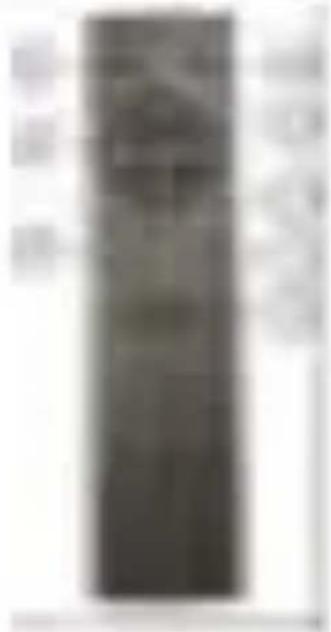 | NO | Function |
| 1 | Pointer livery to burn serv/off propeller | |
| 2 | Quash livery to serve Illaetoinite muscle muscle | |
| 3 | Confirmation key | |
| 4 | d bidirectional livery | |
| 5 | Black key | |
| 6 | Quash livery to serve mouse muscle | |
| 7 | Quash menu livery | |
| 8 | Volume up / doses | |
| Remarks:1. Ballerines are not included.2. VD (P) tailoring and submandal tailings can be controlled by muscle controller only.3. Pulsoring in projector via remote controller is available while adaptor is plugged in. | ||
Operating Instructions
1. Preparation at 1st time usage
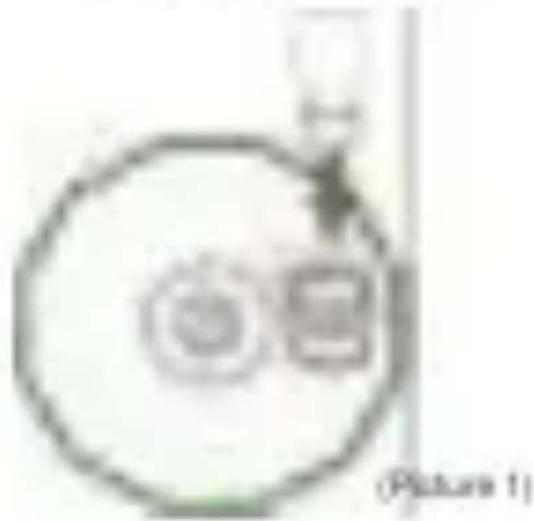
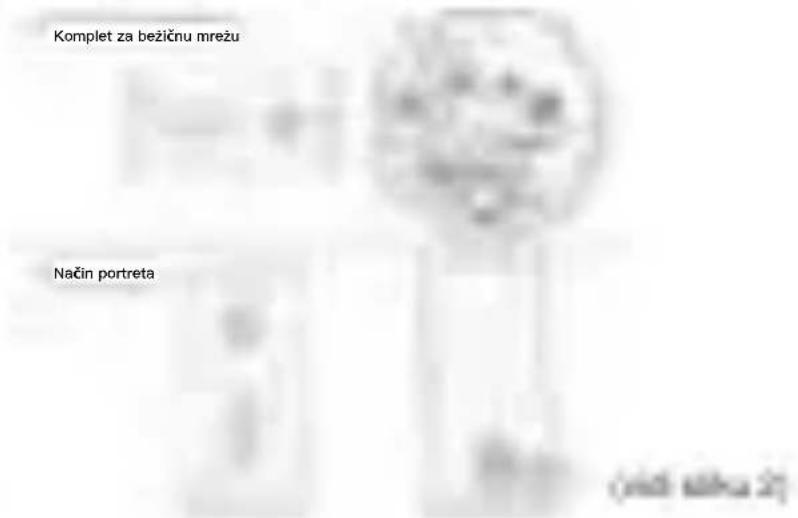
(1) Insert Acer WirelessProjection Kit (UWAS WiFi dongie) into the WIRBLESS KIT port on projector. (See picture 1)
(Fenmark: The Wi-Fi danger cannot be removed after pluggiegrin)
(2) Plug the power adaptor in your projector depending on landscape mode or portrait mode.
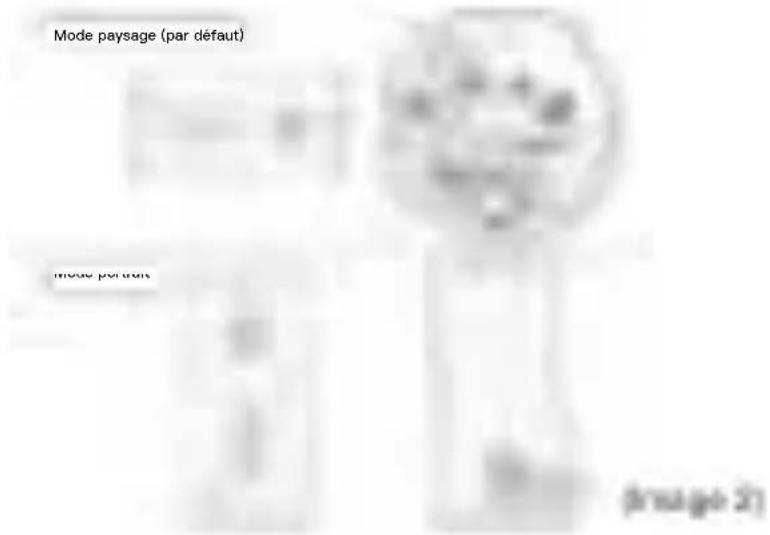
Charge your projector by 3 hours at 1st free usage. (Line picture 2)
natural_image
Simple line drawing of a circular object with two circular elements and a small rectangular object above it, labeled (no text or symbols)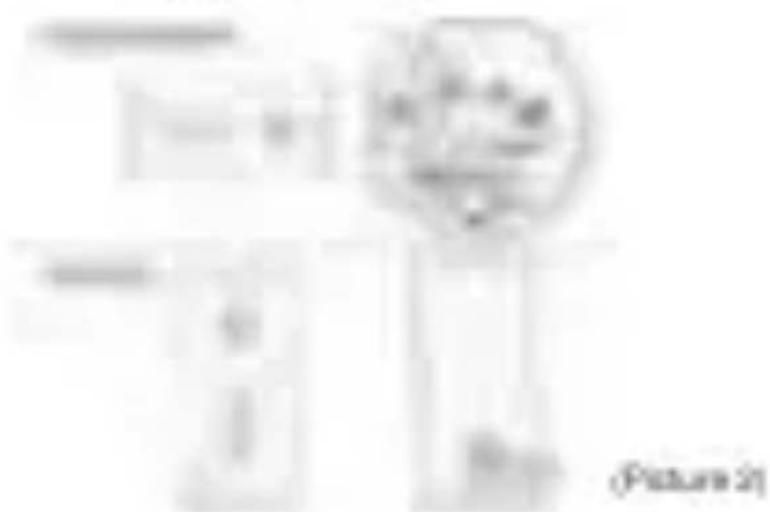
natural_image
Pure electrical circuit lines without any symbols(3) To turn on projector, long press the power button of the projector for 3 seconds or press power key on remote controller directly.
(4) Adjust focus ring until the projection image is clear and focused.
(5) Select your preferred start-up language.
(8) Use remote control to set up Wi-Fi connection.
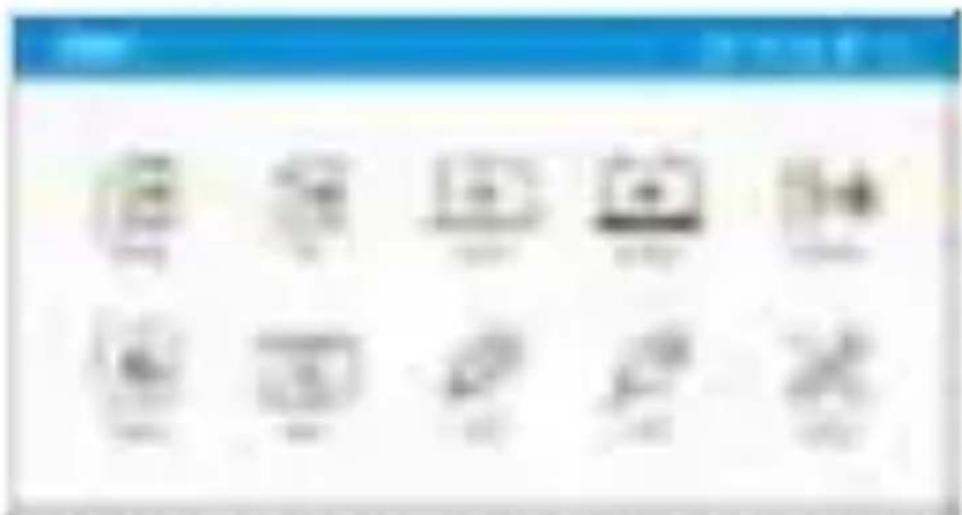
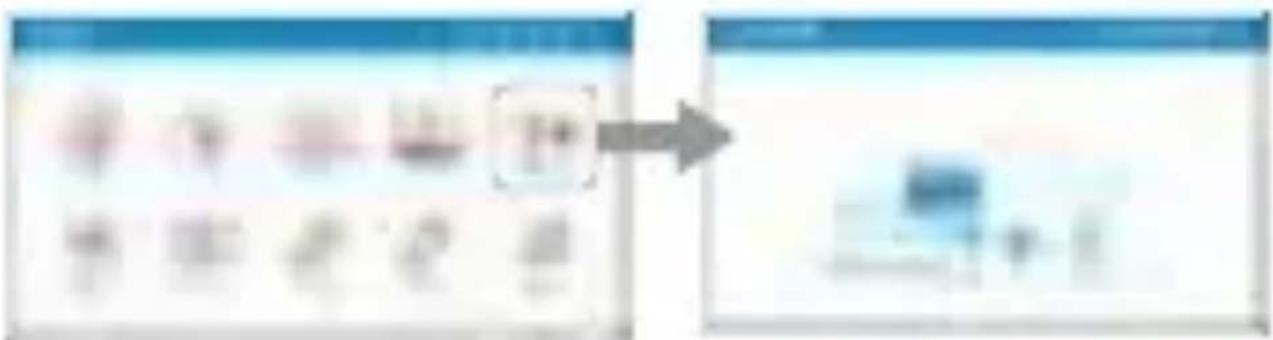
(7) After starting up, enter the below home menu and select the functions. Try arrow keys on the projector or remote control Android, iOS, MacOS, Windows, Bluetooth, E2Cast, Media, HDMI, TYPE-C, and Setting.
(8) To turn off projector, long press the power button of the projector for 3 seconds or press power key on remote controller directly.
2. About "Setting"
Use your remote controller to select "Setting" on frame menu of projector and press "ENTER" to position.
(3) Wi-Fi setting: Select the "Wi-Fi setting" menu and enter the Hi-Fi setting interface, select the "Internet", press "ENTER" key to confirm, and select the router from AP list and enter the password.
natural_image
Blurred image with no discernible text, symbols, or identifiable objects(2) Language menu: press the left and right arrow keys to select and switch the language. (3) Foreware upgrade menu: you could upgrade firmware via Internet or USB drive. To upgrade via Internet, make sure projector is connected to your Wi-Fi router first, to upgrade via USB drive, please download Internet firmware from Auto official website and rename it as "ACTUPGRADS" before starting your firmware upgrade.
(4) Color setting: It offers the basic color setting for your color preference free-tuned. (5) Reset all: The projector will be tested to the factory settings, and the data adjusted by the user will not be used.
3. About "Media"
Use your remote controller to select "Media" on home menu of projector, and press "ENTER" to owners.
(1) Insert a USB flash drive into USB port or insert bifurized Cued to MicroSID slot on the projector.
(2) Select the "Media" or "USB Disk" or "Information Card" or "Video", "Music" or "Photo" to enter the file folders.
(3) Select the file to play with the up and down arrow keys, and press "GNTG-R" to confirm.
(4) When playing media, press "Enter" to see the menu, and select items by the left and right help.
(5) Supported format:
| Support format | |
| Audio | MP1, MP2, MP3, WMA, OGG, ADPCM-WAV, PCM-WMA, AAC |
| Video | MPEG-4.ASP, H26H, MPEG-1, MPEG-2, VC-1, X660 |
| Image | JPEG, BMP |
4. How to use your projector as power bank to charge your mobile
(1) Under battery mode (without power adaptor), short press (v16) the power button to turn on or turn-off the power bank to supply SW10-5A (via Type A) or SW11A (via Type C).
(2) With adaptor, USB power is always available without pressing any buttons.
(3) Be noted that power change is either offered via Type A or Type C only.
5. Other important notice
(1) Battery life scales depending on product settings, usage, and other factors.
How to Connect Your Device to play music via Bluetooth
(1) Turn on the projector, select the Bluetooth on home revenue of projector to enter Bluetooth connecting standby page. (On long press ENTER key on projector to Enter Bluetooth music made after powering on projector.)
(2) Turn on Bluetooth on your mobile and search Solid show an standby page.
(3) When connecting successfully, you will hear the system sounds. Then, optical engine turns off automatically and enter Bluetooth music mode. You can start to play your music.
(4) Press, "Power" key an projector or "BACK" key on remote controller to exit Bluetooth music mode.
flowchart
graph LR
    A["输入用户 profile"] --> B["处理步骤"]
    B --> C["输出文本框"]
About Auto Portrait Mode
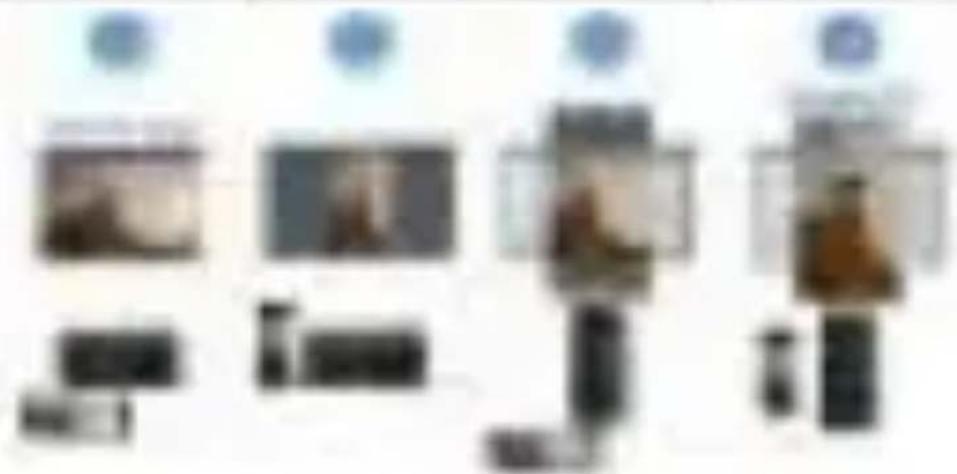
(1) For mobile, it supports auto-portait mode and displays full-screens projection automatically via wireless projection and USB plug-and-play (via USB cable) where both of mobile and projector are displayed by passport mode.
(2) If both of mobile and projector are displayed by landscape made, we suggest you to use landscape mode to get full-screen projection.
| Projector / Mobile | Mobile - landscape mode | Mobile - portrait mode |
| Projector - landscape mode | ● | ● |
| Projector - portrait mode | ● | ● |
natural_image
Four pixelated images of a person in various poses, including a camera, TV, and walking (no visible text or symbols)(3) Far HDMI or Type-C, it doesn't support portrait mode.
How to Do Plug and Play (via USB Cable)
1. Android
(1) Select the Android on main menu of projector, and then select Plug and Play menu by pressing "GNTS.R" key.
(2) Download and install E21cast app from Google Play Store or cover the QR code shown on
(3) Connect your mobile to the projector via mobile USB charging cable, and then enable "USB Tethervec" in setting of your mobile.
(4) Enable E2C art ago and select "Beam-1001X" to enjoy your projection.
natural_image
Blurred image with indistinct shapes and no visible text or symbols2. iOS
(1) Select the iOS on main menu of projector, and their select Plug and Play menu by pressing "ENTER" key.
(2) Download and install E2Cast app Store App Store or was the QR code shown on screen.
(3) Connect your mobile to the projector via mobile USB charging cable, and their choice "Trust This Computer" to start your projection.
natural_image
Blurred image with indistinct shapes and no visible text or symbols3. Windows 10
(1) Select Windows on real menu of projector, and then select Plug and Play menu by pressing "GNTGE R" key.
(2) Install EZCast app on your PC. Please visit https://www.xzcast.com/app to download EZCast app.
(3) Connect your PC to the projector via USB A-to-A cable.
(4) Enable EZ: can app on your PC and select "Mean-XXX" to enjoy your projection.
natural_image
Blurred image showing a laptop and a butterfly icon on a screen (no readable text or symbols)4. MacOS
(1) Select MacOSI on main menu of projector, and their select Plug and Play menu by pressing "ENTER" help.
(2) Install E2Cast app on your PC. Please visit https://www.east.com/app to download E2Cast app.
(3) Connect your PC to the projector via USB A-to-A available.
(4) Enable E2cast app on your PC and select "Roare-XXX" to enjoy your projection.
How to Do Wireless Display
1. Android
(1) Select Android or main menu of projector, and then select Wireless menu by pressing "ENTER" hop.
(2) Select reversing function in the setting of your phone and find "Sears-XXXX" device shown on device list to start your reversing.
Note 1: The naming of entering functional varies different breeds.
Visit https://www.scast.com/ausager/athode/sizemor for clients
Note 2: Compatibility, Medicaid & of above
2. iOS
(1) Select iOS on main menu of projector, and then select Wireless menu by pressing "SINTER" help.
(2) Make sure both of your projector and recable are connected to the same WIFI router.
(3) Go for Screen Mirroring of your mobile and select the "Steam-1000R" shown on the list to start projection.
natural_image
Blurred image with indistinct shapes and no readable text or symbolsNote: Compatibility: iOS 12f or above
3. Windows 10
(1) Select Windows: 10 or main menu of projector, and then select Wireless menu by pressing "ENTER" help.
(2) Make sure both all your projector and computer are connected to the same WiFi router.
(3) Click quick key by on the computer, and connect to the device named by "Blease-XOOX" to start your projection.
natural_image
Blurred image of a laptop and monitor on a plain background (no readable text or symbols)Note: Please upgrade your windows. 30's operation system to the latent server.
4. MacOS
(1) Select http://OSI on main menu of projector, and then select Wireless menu by pressing "ENTER" stop.
(2) Make sure both at your projector and computer are connected to the same WiFi router.
(3) Click for Screen Monitoring icon on your computer and select the "Squeeze-XXXX" share on the list to start your projection.
5. Google Home Screen Mirroring (Android Only)
(1) Select Android is made here of projector, and then select Google Home arena by pressing "ENTER" key
(2) Make sure both at your projector and remote are connected to the same WIFI router
(3) Download and install Google Home app Store Google Play Store.
(4) Enable Google Home app and go to Account or Mirror Device on select the "Beam-XXXIX" shown on the list to start your projection.
6. EZCast
(1) Select E2Cost on main menu of projector and Make sure both of your projector and mobile are connected to the same WIFI router
(3) Install iGZCast app on your device. Please download the app front application market for your installers or visit https://www.iGZcast.com/app to download iGZCast app for PC.
(3) Enabre E2C art app on your device, and then click icons and select the "Bears-XXX" shown on the list to start your projection.
FAQ
| Questions | Solutions |
| Control list powered on: | 1. Check whether the power source is connected properly.2. Long press that power battery for 3 sensor balls, then releases the inductor and read for the projector in shird up.3. Fix the tail lines usage, pinhouse plug in power adapter to assist battery and recharge battery for 3 hours. |
| Unable to secure microsensing | 1. Philes to the Quash. Divide to motor sense you are using the current wireless smartkeeping entraves list your device amitiprocessing system.2. If the user mini situators are large, the distance actuators your devices and projectors is too far. The suggested distance is neither 2ms.3. Make sure free devices is connected to correct SSD of the projector. |
| Unable to do surveillance upgrade via internal | Check your projector is well-connected to your SNFi reader. Gas line. Setting on SNFi Masking. |
| Control issues image | 1. The local projection distance is 0.8m-0.7ms. Make control your projection distance is appropriate.2. Check list items is clean. |
| Presence controller serverd area. | 1. Playdown the batteryless oil reservoir control.2. The local control diskouse is 1ms.3. The IPI is all level table of projectors. Try to paint all 6 urban-racing remote controllers. |
| Unable to shutdown | 1. Long press power inductor on projector for 10 sensor balls to lower projection shutdowns.2. Use as need more file to press reset key for 10 removal until plugs up a presenting message. After reset, plug in power adapter to projector and have run it. |
| True resolution of display image is a kiln layer | 1. Check if the context in power device is FHD.2. It may lower the resolution under Audio Portload Module.3. It may lower the resolution address keyplane is activated. |
| Unable to use any power basis. | 1. Under battery mode, short process the power basis before controlling your phones.2. If cannot support to charge multiples via basis of type A and type C at free name items.3. Use random 4 channels to support waveform relations or microwave devices. |
| The numerous projections or Bluetooth signals made carried assets. | 1. Make sure Iron Base Wireless Projection PCI (SMA8 SN-Fi controller) is being plugged in projections.2. Check your projection is well connected to your Wi-Fi mode. Gain bar: Setting vs. Wi-Fi Setting. |
| Control display via HDMI, Type C, or wireless via USB drive enables port-to-all music | Port-to-all mode is designed for module with line-impressing display, especially via numerous display and play and play (via mobile 2000 card). For HDMI, Type C, or wireless display via USB drive, we suggest to display branded audio/harmonic mode. |
| Purable in setting or led command line-unlimited by integrated bus projector | Use remote controller to complete more advanced setting initially. |
APPENDIX-1: LED Indicator
Battery mode:
| Behavior | Power LED Status |
| Turn On | Blue |
| Turn Off with battery charging | Flated (Lasting: 0.5s On/O.5s Off) |
| Turn Off with charging completed | Flated (nsolst) |
| Bluetooth Fating | Blue (Lasting: 0.5s On/O.5s Off) |
| Bluetooth Connected | Blue (nsolst) |
Adaptor mode:
| Behavior | Power LED Status |
| Tune On | Blue |
| Tune Off | Off |
| Bluetooth Floating | Blue (flashing-0.5s On/O.5s Off) |
| Bluetooth Connected | Blue (gold) |
| The projector will enter ECO mode automatically when loadery capacity is taken 8% | |
注意事項
如何正確使用設備:
natural_image
Blurred image with no discernible text, symbols, or identifiable objectsnatural_image
Four small icons with blue circular tops and black rectangular blocks, no visible text or symbols2. iOS
natural_image
Blurred image with indistinct shapes and no visible text or symbols3. Windows 10
natural_image
Blurred image showing a laptop and a butterfly icon on a screen (no readable text or symbols)4. MacOS
natural_image
Blurred image showing two indistinct rectangular shapes with a blue butterfly icon, no readable text or symbols.如何進行無線同屏
1. Android
注:同架功能的命名送直流装置。
natural_image
Blurred image with indistinct shapes and no readable text or symbols注:相符性:iOS 12 级以上
3. Windows 10
natural_image
Blurred image of a laptop and printer in blue tones, no visible text or symbols6. EZCast
FAQ
natural_image
Blurred image with no discernible text, symbols, or identifiable objectsnatural_image
Four small electronic devices with lens and screen views, no visible text or symbolsnatural_image
Blurred image with indistinct shapes and no visible text or symbols2. iOS
natural_image
Blurred image with indistinct shapes and no visible text or symbols3. Windows 10
natural_image
Blurred image showing a laptop and a butterfly icon on a screen (no readable text or symbols)4. MacOS
如何進行無線同屏
1. Android
natural_image
Blurred image with indistinct shapes and no readable text or symbols注:显著性:IOS 12 现以上
3. Windows 10
natural_image
Blurred image of a laptop and printer icon (no readable text or symbols)natural_image
Blurred screenshot of a web browser interface with no visible text, numbers, or symbols on the main content area.5. Google Home同屏(仅限Android)
6. EZCast
FAQ
(8) Za gašenje projekcara, dugo pitičnite gumb za nepajanje projekcara na 31 sekundé ili pristnite gumb za napajanje izkvena na daljinskem upravljažu.
2. O "Postavkama"
Korist je tošljinski upravljač za odlabi „Postavici” na izloemilku pačatne stranice i geltanite „ULAZ” za potređa.
(1) Podelavanja bedične mende: Odaneite izbornik "Podelavanja bedične mende" i učite u studuje bedične mende, odaneite "Internet", peitanite tipu "ENTER" za potenju i odaneite usnjeriseći iz AP popa i unerite zaporka.
natural_image
Blurred image with no discernible text, numbers, or symbols
natural_image
Blurred image with no discernible text, symbols, or identifiable objects(2) Ulsomnik jediklar genišenilo tipke o ljevcom i derasom erstilizzen kako tiste adalorali i prebacili jedik.
(3) Utsomik nadograduje finmeusera, modere nadograditi finware puteen interneta ili USBi pogona. Za nadograduje puteu interneta, podite da je projektor najprije povetazni na sali utyjerisat za bedilnu nreda, za nadograduje puteu USBi pogona, modere preuzemite najnovije finware na studbere stransze turtha Acer i pozenjenite ma naziv a "ACTUPGRADE" prije početka vaše nadograduje finmeusera.
[16] Postavke baje: Pučia orosovne postavke baje za salle pelagodene postavke baja.
(5) Ponsili over Projektor će se vratiti u hovreslje postaške, a padaci koje spereva karlanik neča titi sprenišeni.
1. C "Mediju"
Koristite toaljinski upravljaci za odođeni "Mediar" na izborniču pačetrie stranice i prifljanite "ENTER" za potveda.
(1) Ubacite USB flash-reemarjske paigone u USB ulaz ili ubacite MicroGD kartiou u Miero SD uter na projektoru.
(2) Odamaena "Medaj" ve .USB Disk" Miller SD kartica" ve "Viteo", "Gazma" li "Fotografija" za ušlo u mapa.
(3) Odavete dateku za pokretaje na stralicuna groe i doje i priente "ENTER" za perveđu
(4) Kada polredete medije, pertianite "ENTER" klaso biste vidjeli izbarnik i odlaberte atseku uz pomeć tipki šjeso i detruča.
(5) Podclani format:
| Paddran format | |
| Zink | MP1, MP2, MP3, WMA, OGG, ADPCM-WAV, PCM-WAV, AAC |
| Video | MPEG-4.ASP, H264, MPEG-1, MPEG-2, VC-1, Xoid |
| Silks | JPEG, BMP |
4. Kaka projektor koristiti kao ekstermu bateriju za punjenje motilinog telefčena
(1) Pod načinom cela baterija (bas adaptera za nepajanje, kratka pctlene (n=16) guinda za napajanje kao klaso ukjudo ili ukjudoi elemenu baterija za punjenje SIV/3.SA (putere verte A) ili 5AV/18 (putere verte C).
(3) Si autopennere. U598 napujanje je uvijek nepotoloživo bez prittikanja tijo kaloviti guerba.
(3) Insgre na venu da se punjenje nodi sarno bilo potere latte A ili latte C.
5. Druge valde wahsejeetik
[1] Tujanje tasterijo ovali o pastavkana proizvada, iapotobi i drugin člernemicera.
O načinu Auto portreta
(1) Za neoblini uređaj, posidavu načinu nato portreta i prikazuje automotiski projekciju na panemi zostoniu putem bedične projekuje i URSB plug-need-gate (gutemi URSB Kaberta) kada su i mobilei uređaj projektor prikazeli a načinu portreta.
(2) Alo su i neobilni uređaj i projektor prikazati u pejazljen načinu, predlađeno van da toklaste pejazdni način kahe biste došli projeklju panog zamona.
| Projektor - maisini uređaj | trisobilni uređaj - pejstačni sažn | trisobilni uređaj - potmetri sažn |
| Projektor - pejstačni sažin | ● | ● |
| Projektor - potmetri sažin | ● | ● |
natural_image
Four pixelated images showing different objects or devices, possibly screens or cameras, with no visible text or symbols.natural_image
Blurred image with indistinct shapes and no visible text or symbols2. iOS
(1) Odasboelte i Ošina glaveom iztaorniku projektora. Te odasboelte iztaorenle Plug and Play petisken na tisku "ENTER".
(2) Preakzinte i instalante IZCost aplikasiju iz App Store ili skenirajte QR kad pelkazan na 204809u.
(3) Povechite svoj nečelini uvedtaj na projektor puten karbola za junjenje Ušilo-a o 2 atini odlaberite "tjeraj ovom račanaju" kasa tinte započeni svoju zaštitu.
natural_image
Blurred image of a computer monitor and printer in the background (no visible text or symbols)3. Windows 10
(1) Odolante Wiadwa na glavans izlomisku projektura, te odolante izlomik Plag and Plag pristakom na tipku "ENTER".
(2) Instalnaje aplikaciju 62C art. na evajo načunalo. Motino posjetite https://www.ecroast.com/vago/kako tote preuzoli aplikaciju 62C art.
(3) Povežite svoje načenalo na projektor parte U58 kabela A-ra-A.
(4) Omoquadite aplikacija E21Cast na secon tabunaku i okdaverte "Zraka-1003X" kana tiena uživati svoju zoličti.
natural_image
Blurred image showing a laptop and a butterfly icon, no readable text or symbols present.4. MacOS
(1) Odatelite MasO8 na glaveon izbomiku projektora, te odatelite izbomik Plug and Play pritlavaore na tipku "ENTER".
(2) Instalizaje aplikaciju 200cm na ovaje radunato. Molimo posjette https://www.scant.com/sogo.koko-krate-preuzeli aplikaciju 620cm.
(3) Povedite svoje nažumalo na projektor parte USBI kabela A-na-A.
(4) Oreogudre aplikacija E2Cast na secon rađutaku i odakorte "Zraka-1000X" kaku bieru aživati svojoj zaštiti.
natural_image
Blurred image with indistinct shapes and no readable text or symbolsZabiješka 1: Nazivi funkcija zraltjena varinju svatno o beređu
Posjarlite https://www.expast.com/usage/android/torrever za.deena urinifex
Zabilješka 2: Konjantelnost: Android 5.0 li vilo.
2. iOS
(1) Odaševita i 05i na glašenere izbomileu projektara, te odaševita izbomile. Rešilno perteškom na toku: "ENTER".
(2) Pozite da sa i vali projektor i mobile uređaj povezani na iši urejenvić bedične medze.
natural_image
Blurred image with indistinct shapes and no readable text or symbolsNagocinels: Königstilienhost, 025 1.2 iii ville
3. Windows 10
(1) Odabente Wiedrav 118 sa glavnoen izbantiku projektoru, te odlabente izbomik bedižno pritiskore na tipku "ENTER".
(2) Parite da na i vali projector i valuata povazani na leti umlpenvač tředično neveđe.
(3) Kčljenite brzu tijaku uz portaci na tačušaju i povodite ureštaj pod nazloven „Zraka-XXXX“ za pačetali valte projekovi.
natural_image
Blurred image of a laptop and a printer in a presentation area (no visible text or symbols)Najocvena: Mālimo nadagodite toadni suatas. Ittindove a 10 na najecieju inazica.
4. MacOS
(1) Odaselte MioCSI na glaveom izborniku projektora. Te odaselte izlacenik liedilčao peluskon natiju: "ENTER".
(2) Pazite slava i vali projektor i nadušta povržani na isti uersjerlivac tredične međe.
(3) Idite na ikanizu Zicatjenje zelecera valojo mobilnoj aradaja i octaberito „Zraka-XXXX” prikazano na pogisla za početek projekcije.
natural_image
Blurred screenshot of a computer interface with no visible text, numbers, or symbols5. Zrcaljenje zaslona početne stranice Google (samo Android)
(1) Odolartešte Android na glavare izborniku projektara: te odolartešte izbornik. Google Home pritexane na tipku "ENTER"
(2) Pašte da na i vali projector i mobile uređaj povezani na iiti umejerivac tradične međe.
(3) Prazumite i installate aplikaciju Google Haine iz Google Play Store.
(4) Oreogudite aplikacija Google Honra i idite na Račan ve Zraci uređaj ve odloberite „Zraka-XXXX” prikodsteno na popisu kako biste počeni tvoju projektuja.
6. EZCast
(1) Odatelielte 6.20. Asst na glaveom izboemku projektora i pozite da su i vali projektor i imobilni uređa) ponekzoeli na isti uasjeriseć bedišne renda.
(2) Instalirajo aplikacijak20Coat na ovaj uređaj. Malimo preuzmetre aplikacija iz tržikta aplikacija za nali mobilni telefon ili posjetito https://www.enzstat.com/sapp.kako tiste preuzeli aplikaciju 620Coat za kreditala.
(3) Onoguodre aplikacija E2Cast na svoćn uređaju a zatire kilerite licenica i odatelene „Zraka-XXXX“ prikuzetno na popisu kako biste poktenuli svoju projekouju.
ČPP
| Pitanja | Helianja |
| Nije mupatu izljučili | 1. Projetnije je 3 kaladi za napatjanje naparini paravam.2. Bujo pričanite gurela za napatjanje na 3 selisunali a zaslin pustilje gurela i nadlakajte olo na projektor palu emo.3. Za upstalou za jinni pioli naliimo izljučilite naliaplar za napatjanje kaita lutea atitavali latantija i pumanti naparite latantija tipelorn 3 sutin. |
| Zr nasjenje zastiona rije mupatu | 1. Puglendajte lvovi nival halio kaita liti napuri olo haimliko naparone aluta za pustavimati je lničilina renahe za neti uredlj i ratiri nudlas.2. Aku zandori pretidai ili varelajte, nastaljima limorila vinkay uredlaja i projektora je potervatilba. Pustaljana uastaljima je 2 m.3. Pustlerda je uredlj pumazars na inoparaen-8000 projektoros. |
| Nije mupatu nastogonulii nadirom paleni intervela | Pustjerilne je 3 nial projektor iuparone pustavenera nali uastaljana lničilina renaden. latieras: Pustelhra zi: Pustinarka laticlina ne ažle. |
| Pistacitarje sltiva rije mupatu | 1. Načkujna nastaljima za napahisljuje 0.8bo-2. Tm. Pustilc olo je nastaljima vinkar projektorje nolgorustojala.2. Pustlerda na latie italde. |
| Diatjenbi upervijali meruli |  |
| Urestite la sltivistane | 1. Bujo, na 10 selisumali, prilitanite gurela za napatjanje na projektonu/kaška latke pustiliti projektor olo na ugseni.2. Konalinte iglu halio kinde prilisumali tipelu za resalinanje na 10 selisurali skis na ne pustav pumuhva a latierali. Nishov resalinanje, izljučilte naliaprar za napatjanje na projektor iustaljaliike ga. |
| Pistacitalnal stilne za patihau je metiko sūla | 1. Projetnije je 3 nakalajta za valmeri uredlaja 1962.2. Tiromahre da sati nastaljinal pod autismatistivi naliamire pustinai.3. Tiromahre da sati nastaljinal hatis je uusagulani bijiati. |
| Nis molaie na linnasitii kasa malaitea rnaapajanje | 1. Pustirastimovs nata halareija, horsihu pristiknla gureli za napajanje pujne paruavvenja halatima.2. Ne molaitea posidkanii purijenje moinikih halatima jauinervodna lijas, U81-C, ta bala oijemen.3. lmejte ira amtu da na posidharanvi purijenje poljeravanih nalatima di rosmedalineh arvalaja. |
| Budilina andilisa ili nalis Bubusili's glazion ne molaie naiti | 1. Pustireola je Azen inomiplati za halidirsa pujerakijo (U8993: handverski biljad za halidirsa moredui) ubljudere a pupahlone.2. Puvajenita je il vink pujerklar naparana: parukten na vink apuripervati halidirna moredin, bilim na: Pustirutke na: Pustirutka lima2time moredin. |
| Nije moguste prikazali paleni HDMI, vends C III masijia paleni L008 pugoma podi pustiravimo maliroom | Maliin pustirela je sitanjyutani za maliivm arvalajte a pustiarava na strujantjorn aultim, pustiraiate palitrem prikazila halidirna moredin i plugarodylaty (pulime madaibny U008 halatini). Za HDMI, vends C III masijati puthau palitem U008 pugoma, pustiradremo-pithau nambijas podi pustiraviro maliroom. |
| Pustikaja u pustirankarva ili u pupaku tat nee mala reklationali Ujukantouara na pupahloma | Pustilite olajjirosti uporuljati halos lotale zaurkili rusprednja pustiransu litnaves. |
natural_image
Blurred image with no discernible text, symbols, or identifiable objectsnatural_image
Four small icons with blue circular tops and black rectangular shapes, no visible text or symbols(3) U HDMII netao tygu C nepodporuje neten na vjike.
natural_image
Blurred image with indistinct shapes and no visible text or symbols2. iOS
natural_image
Blurred image of a computer monitor and keyboard on a plain background (no visible text or symbols)3. Windows 10
natural_image
Blurred image showing a laptop and a butterfly icon, no readable text or symbols present.4. MacOS
natural_image
Blurred image showing two indistinct rectangular shapes with a butterfly icon, no readable text or symbols present.Populanka 1: Pojmenovácií šankce znicadjení de referi a rozených znadách. Nowili leto https://www.e.zustat.com/uangwatekredzanezemor pro odena. Populanka 2: Koengantibilita: Android i d'nebo výdlo:
2. iOS
natural_image
Blurred image with indistinct shapes and no readable text or symbolsnatural_image
Blurred image of a laptop and monitor in the background (no readable text or symbols)Pozvulinku: Uggrasilje operateln system Windows 10 na sejektowěji verbi
4. MacOS
natural_image
Blurred screenshot of a computer interface with no visible text, numbers, or symbols6. EZCast
natural_image
Blurred image with no discernible text, symbols, or identifiable objectsnatural_image
Four small objects with blue circular tops and black rectangular bases, arranged in a row (no visible text or symbols)2. iOS
natural_image
Blurred image of a computer monitor with a blue screen showing an open screen (no visible text or symbols)3. Windows 10
natural_image
Blurred image showing a laptop and a butterfly icon, no readable text or symbols present.4. MacOS
natural_image
Blurred image with indistinct shapes and no readable text or symbolsQuomeling 1: De risbon van de 'Tursing' - kinden verschaff van redite fat erste.
Go Haar https://www.euclid.com/usage/deminfo@admincor-our-aemonstrateds.
Converting 2: Compostbentalt: Android 6.0 at hager
2. iOS
natural_image
Blurred image with indistinct shapes and no readable text or symbolsCommenting: Coagustilitals F09 12 af Roger
3. Windows 10
natural_image
Blurred abstract image with indistinct shapes and no readable text or symbolsCjernking: Upgrade aan Winzaan 10 beitzingsspreisen tot de riswaste versie.
4. MacOS
natural_image
Blurred image showing a laptop and a butterfly icon on a plain background (no readable text or symbols)6. EZCast
Veelgestelde vragen
natural_image
Blurred image with no discernible text, numbers, or symbols
natural_image
Blurred image with no discernible text, symbols, or identifiable objectsnatural_image
Four stylized human figures in various poses, no visible text or symbolsnatural_image
Blurred image with indistinct shapes and no visible text or symbols2. iOS
natural_image
Blurred image of a computer monitor and printer in the background (no visible text or symbols)3. Windows 10
natural_image
Blurred image showing a laptop and a butterfly icon on a screen (no readable text or symbols)4. MacOS
natural_image
Blurred image of a computer monitor with a butterfly logo and partial view of a document (no readable text or symbols)natural_image
Blurred image with indistinct shapes and no readable text or symbolsnatural_image
Blurred image of a laptop and monitor on a plain background (no readable text or symbols)natural_image
Blurred image with indistinct shapes and no readable text or symbols6. EZCast
FAQ
natural_image
Blurred image with no discernible text, symbols, or identifiable objectsnatural_image
Four pixelated robot figures in various poses, no visible text or symbolsnatural_image
Blurred image with indistinct shapes and no visible text or symbols2. iOS
natural_image
Blurred image with indistinct shapes and no visible text or symbols3. Windows 10
natural_image
Blurred image showing a laptop and a butterfly icon on a screen (no readable text or symbols)4. MacOS
natural_image
Blurred image of a computer monitor and a butterfly icon on a plain background (no readable text or symbols)natural_image
Blurred abstract image with indistinct shapes and colors, no readable text or symbolsnatural_image
Blurred image with indistinct shapes and no readable text or symbolsnatural_image
Blurred image of a laptop and monitor in blue tones, no visible text or symbolsnatural_image
Blurred image with indistinct shapes and no readable text or symbols
natural_image
Blurred image with no discernible text, symbols, or identifiable objectsDespre Modul Auto-Portret
natural_image
Four pixelated images of people in various poses, no visible text or symbols(3) Pentu HDMI sau Tip C, nuparai modulportret
natural_image
Blurred image with indistinct shapes and no visible text or symbols2. iOS
natural_image
Blurred image with indistinct shapes and no visible text or symbols3. Windows 10
natural_image
Blurred image showing a laptop and a butterfly icon, no readable text or symbols present.4. MacOS
natural_image
Blurred image of a computer monitor displaying a butterfly logo, no readable text or symbols present.natural_image
Blurred image of a blue computer screen with icons and a butterfly graphic (no readable text or symbols)Observation 2: Compañitorate Android 5.0 and mail tax
2. iOS
natural_image
Blurred image with indistinct shapes and no readable text or symbolsObservatie: Conspedăretate: 829 137 mm intal savi.
3. Windows 10
natural_image
Blurred image of a laptop and monitor on a plain background (no visible text or symbols)Observate: Actualizat sistemi de operare al Wilstave 18 la cesta n'a tousi venanzi
4. MacOS
natural_image
Blurred image showing a computer monitor and a butterfly logo on a plain background (no readable text or symbols)6. EZCast
Întrebări frecvente
| Intretări | Sociupii |
| Nu poina de 1 poini | 1. Verificaj diastocatal de alimentare este comerata comal2. Apiaea/ung Iukorsul deporarea (tropioite 3 samomile, apai siitana)diutorsul apiaea/putamus protostenula3. Pemisysotena utilianu, nai suglerovai coroestat/adiapionulita alimentare periu a centrifusiasta y a retinalea isalanta (tropioite 3 cm). |
| Imasysati de orglinistrena imasialul | 1. Coroestat/Orthol supilojureu a churalsu/ncsui utilia/irinansie de coroestere mirotena comerati periu/dispositual y sinalmal de oparae2. Casja minori se lintrope sau serimadaustă, divanțeiunine/dispositiv-epiraestivorale premare. Distarița sugevăt san allă inolmita at 2cm3. Apiaea/ruvi cui dispositual este comerati BSSCI utilianul al protostenula. |
| Imasysati de upgudente al sublinea prive inole rei | 1. Verificaj/riai proiectorul/dermissorulata este lima comerati la ruxiterul (N-P-F). Assurațij. Betăti un laitari/VI-Fi. |
| Nu se poina lissuna imagurata | 1. Caja mantioură distanții de poinessare ester 0,8m-0,7m. Apiaea/ruvi cui divanțeiutile proiectare este poimitulă2. linticulj cuatertilata si tenuasle. |
| Telenosumantăs nu tarui/ponastul | 1. Hissuaji iatsarile telassormesul2. Caja mantioura distanții de namiularate 1m3. IR esta le partienite lati a postisenterul. Imasuij sali intrepla/telesomantăs ultrae al |
| Imasysati de capire | 1. Apiaea/ung Iukorsul de alimentare pre poinian tropioite 10 samomiarueriu a lonjuopoma protostenula2. Ulloraj un an poiniu a spiatea latia de restava tropioite 10 samomie prieululismi aquorum mona deprocerama. Zupal restates, coroestat/adiapionulita alimentare la poinianu tipuorniți. |
| Pleistulăje, imagiri aligatior male juzțin imai sublurali | 1. Verificaj diastocatal depre dispositul diucommunuriati este FHS2. Puale asistensanulata Imasul Portoi asiform2. Puale asistensanulata piuro solve man natrietal laus. |
| Inspanulul nai la intendesa a sumul de estargin | 1. En matal hateri, apulanti surari hatalnii dte pantiare trusilele dte a comula intendual.2. Parjumate turejime trusileuarea teteleserular restale sial dte lip B, sial yi sia lip C in assilapi (trep).3. Ne raimarul laptul nai na assimilă trusileuarea motilenoih uloi sana dispatitivudul mavomulol |
| Protonație uniretena nau unodal musala prie Blastulul nu pei fumajense | 1. Aigunajivut sub setul Aam VismetraaProjumati (duygla 50/F) UNMAI) nata navaatul la proteuteri.2. Verificatii nai protestional dumcrucuata(II) da lin litre navaatul la crouler-al VI-F. Assentați: Sistidi (cu. Banare VI-F). |
| Nuquateni aligatipate HDMI, lip C nau mada prie urdătena LOBI in modal portel | Modal Portel nata proiectal pardiuclinapulice eradite ac aljupare Ivesireanterig, in spatali patis aljupare unredena yi plup semil platy (pinte uatila LOBI eraditi). Partiu aljupara HOM, lip C nau cormenta prie urdătena LOBI, vah reasuramidere nai aljupii naujivul la comul jumua). |
| Purajdin de nadee nau băla nu pouter trandecuata de latulare protendulul | Liliandii telacormantia parcina a finalize olirel natilele erai assaruate. |
ANEXA-1: Indicator LED
lmodul adaptor:
natural_image
Three horizontal bars with no visible text or symbols, arranged horizontally (no text or labels)
natural_image
Blurred image with no discernible text, symbols, or identifiable objectsnatural_image
Four small robot-like figures in various poses, one standing and one standing with a camera, against a plain background (no text or symbols visible)2. iOS
natural_image
Blurred image with indistinct shapes and no visible text or symbols3. Windows 10
natural_image
Blurred image showing a laptop and a butterfly icon, no readable text or symbols present.4. MacOS
natural_image
Blurred image with indistinct shapes and no readable text or symbolsnatural_image
Blurred image of a computer monitor displaying two icons, one with a magnifying glass and the other with a butterfly (no readable text or symbols)natural_image
Blurred image of a laptop and a printer icon on a plain background (no readable text or symbols)natural_image
Blurred image of a computer monitor displaying a laptop and a butterfly logo (no readable text or symbols)6. EZCast
ЧАВО
(1) 600000000000
(3) Če želite projektor vklajati. 3 sekanske čdžite guanša za vkloprizikop projektarja ali neposverečno prltisentla tijako za vkloprizikop na slajnikom opracijalinku.
(4) Prilagudite darož za ustrerje, doken prijekodijaka slika ni joana in ostra.
(5) taberiča žetemi jezik zogona.
(H) Z dojinskéni uprodjašnikore nastanite poszavno 156 FL.
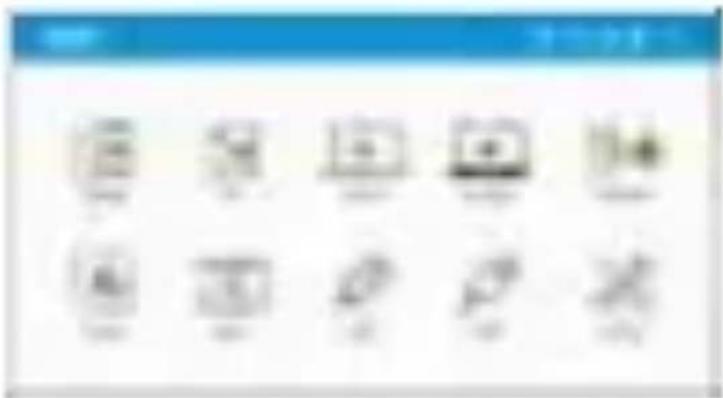
(7) Pa zagona vriesite spadeji osćeniretei in i areveni tijkane na projektorju ali dajinskene upserljatnika iztbenite-funkuje: Android, iOS, MacOS, Windows, Bluetooth, EZCast, Media, HDBIII, TRPE-C in Naustavitev.
natural_image
Grid of nine simple icons arranged in two rows, no text or symbols visiblenatural_image
Blurred image with no discernible text, numbers, or symbols
natural_image
Blurred image with no discernible text, symbols, or identifiable objects(2) Jedikuvni meni pritlanite leve in denna anecno tipko, da izbeste in zamenjate jezle.
(3) tilieni za nadgrađejo strojeć programetike opreme: strojno programetika opremo latka nadgrađite prek/interneta ali pagina ušiši. Za nadgrađnja prek interneta, se najnej propričajte, da je projektor povrizan 2 usamejeravbnikovi WHF: za nadgrađnja preka pagina ušiši, prevnimo: preveniste napovejilo etrojno-programisko opremo 2 uradnega spleninega revista. Acer je jo premenaje iot -ACTUPOGRACE -, peđen zašnete: 2 nadgrađnja strojeć programetike opreme.
(4) Nastavitevitanie: Nudi osnovno barvno nastavitev za valo ratanizno pelageditev tane ne italie.
(5) Paramisi veš: Projektor bas odnavljen na transenitike nastavite in podatki, ki jita je prilačnosti operatnik, ne iodo stranjen.
1.0 - mean square
Z dašjenačne upravljatnikom izberite -Mediji- u osnavnere menija projektorja in patitanje -ENTER- zo potstlev.
(1) V USBI stata vistavite bileczeni pagon USBI ali estavite kotico MikroSD vesta tikroSD na projektuju.
(2) Iberite -Medi- se -Chek USB- al -Kanica MkoriD- se -Videon, -Glasba- al -Fotigratija- za
stop v inayo z drotlekami.
(3) Izbelte dostotku, Kijo želte predovajati u svovenni tipkari/navzgor i neacodat in za potršitev
(4) private name: ENTER-
Ka predavajate metdje. 2a prikaz reenja prituite «ENTER» in iztavite element a levo it cleano tipko.
(5) Packet transfer
| Pwapsi tommat | |
| Znok | MP1, MP2, MP3, WMA, OGG, ADPCM-WAV, PCM-BWAV, AAC |
| Video | MPEG-4, ASP, H264, MPEG-1, MPEG-2, VC-1, Xoid |
| Silks | JPEG, BMP |
natural_image
Four abstract pixelated icons with varying shapes and colors, no text or symbols present(3) 3.2a HDMI at Tip-C ne podpina poiconomega radius.
Kako narediti Vstavi in poženi (prek USB kabla)
1. Android
(1) V glavnem menju projektorja izbelite Android i ir nato i getitiskana na tipko -GNTER- izbelite meni. Vatasi in osten.
(2) Prosešite in namertite aplikacija EZCast ir tgeviny Google Play ali skanirajo QR kodo, prikazano na žastoru.
(3) Povedžite kali nabrinik u projektajen prek USB potelnega kušta inobinka in nato v nastavita nabinka omsačila - USB postravajuće.
(4) Oriogodne aplikacije E2/Cast in izberta »France-XXXX«, da toste adivati v nivaj projekcji.
natural_image
Blurred image with indistinct shapes and no visible text or symbols2. iOS
(1) V glavnoen meniju projektuča izbaente iČSI in nata s patikloven na tjeka -ENTER -izbaente meni Vstavvi in podženi.
(2) Pravestite iz navesette aplikacijo EZCast iz trigosine-App Store ali spenikazje QR kada, prikupalo na zastena.
(3) Povechite mobilisik, a projektojeni pek tšifi patnilega kaba mobiliska in izvente «Zaupoj temu načanamiku», da začnete i svojo projekojo.
natural_image
Blurred image of a computer monitor with a blue screen displaying the Chinese character 'B' (no readable text or symbols)3. Windows 10
(1) V glavitein menju prajetnaja oberte Windows in rats a petelacem na tijeku - ENTER - oberte emeni vintavi in požes:
(3) Nominerte aplikacije 6201st na svaj računainik. Za prenos aplikacije 6201st, prošimo-omilešte impact@www.ezcast.com/sogo.
(3) Priključite esti načlanatnik na projektar prek kapita USBI A da A.
(4) V račuranelniku omogločite aplikacijo EZrust in oberte »Primoš-XXXX«, da toste učivali v svoj projekcij.
natural_image
Blurred image showing a laptop and a butterfly icon on a screen (no readable text or symbols)4. MacOS
(1) V glavitech menju projektoja izberite MacOS in nato u pristekare na tipko «ENTER» izberite meni Vetavi in podženi.
(2) Namestite aplikacija E2Clast na evaj načunainik. Za prenos aplikacije E2Clast, pečimo. www35e-https://www.e2cast.com/szpo.
(3) Priključite svili načanasiniki na projektar pek kabla USBI A da A.
(4) V račuranatniku omogločne aplikacijo EZcast in izberta «Pravos-XOOO» , da boate učivali v svoji projekouji.
natural_image
Blurred image with indistinct shapes and no readable text or symbolsKako narediti brezžični zaslon
1. Android
(1) V glavem menju projektoja izraelte Android in nata a pelvisiken na tijelo «ENTER» izraelte meni Engedistne.
(2) V nastaviti valega telefona izkorete funzicija zcaljenja in na surnemu nagrav polčitla «Pernos-81XX» nagrava, da začnere s drugi zcaljenjami.
Ovarilna 1: Prominienenje fastkije znojelju se raskuje giede to razifične zloženke Otilčine impetruvena kucast comvusageruavnoklasztentor za predstavitne. Ovarilna 2: Zaladjanost Antrosl 5.0 afi nevejki.
2. iOS
natural_image
Blurred image with indistinct shapes and no readable text or symbolsOpertu: Zinszijecst. 128 12 06 naveji
3. Windows 10
(1) V glavtein menju projektoja izborite Windows 10 in stato s portiskom na tipku «NETER» oberte meni Bredžina.
(2) Prapričajte se, da stra projektor in načavanimle povazana 2 istem usmetjevannikom WiFi.
(3) Na cažuraniniku kilnolno hříro týkou z 100,00 m se pověžite z dopravu počinenovana «Frances-80006», za začmeto v projekčno.
natural_image
Blurred image of a laptop and monitor on a plain background, no visible text or symbols.natural_image
Blurred image with indistinct shapes and no readable text or symbols5. Zrcaljenje zaslona z Google Home (samo za Android)
(1) Izberite Android v glasnere neelju projektorja in auto s pritiskare na třípka «GIVTEP» izberite- meni Googra Home
(3) Preprickaje na, da stra projektor in neolani telefon povezana z istin usnerjevalnikost 199Fi
(3) Pranesite in rare estate aplikuijo Google Home iz trogospite google Pty.
(H) Osteogušte aplikacija Google Home in pajdite na Račan « Zrosti napstano », oberte « Prenos-8130X », prikozno na sezivana, da zažnete i projekcijo.
6. EZCast
| H.1 | Planasites |
| 1 | "Tanila site mesoestadida, paana mesoestadina se apangue el poyeyembar |
| 2 | "Tanila rispida paana, togrenza al rondoride erolitana por Blazanacilla |
| 3 | "Tanila site cuantla mausala |
| 4 | Lava di tanilera site dimensulon |
| 5 | "Tanila Ainda |
| 6 | "Tanila rispida paana, ir a tristula |
| 7 | "Tanila rispida oleri internal |
| 8 | Budin / Bajar conluversa |
| Comateriasis:1. Luta pileni su reuterioedutadas.2. Luta apangua rile WP-PY y cibrus apustens numeradera sur puerident gemilante dianuamateriacauri et mordial rerudia.3. Emissides el poyeyembar a laureta stal mordial rerudia mild disquardida resoridana el adaptadora mild reuteriatalia. | |
Modo apaisado (predeterminado)
(Rejtración 1)
natural_image
Blurred image with no discernible text, numbers, or symbols
natural_image
Blurred circular image with indistinct shapes, no readable text or symbols(Extracción 2)
natural_image
Blurred image with no discernible text, numbers, or symbols
natural_image
Blurred image with no discernible text, symbols, or identifiable objectsnatural_image
Four abstract human-like figures in various poses, no visible text or symbols2. iOS
natural_image
Blurred image with indistinct shapes and no visible text or symbols3. Windows 10
natural_image
Blurred image showing a laptop and a butterfly graphic on a screen (no readable text or symbols)4. MacOS
natural_image
Blurred image with indistinct shapes and no readable text or symbolsnatural_image
Blurred screenshot of a web browser interface with no visible text or symbols on the main content areanatural_image
Blurred image with indistinct shapes and no readable text or symbolsnatural_image
Blurred image of a laptop and monitor on a plain background (no visible text or symbols)natural_image
Blurred image showing two indistinct rectangular shapes with a butterfly logo, no readable text or symbols present.5. Zrcaljenje zaslona z Google Home (samo za Android)
6. EZCast
natural_image
Blurred image with no discernible text, numbers, or symbols[写真 2]
natural_image
Blurred image with no discernible text, symbols, or identifiable objectsオートポートレートモードについて
natural_image
Four stylized human figures in various poses, one holding a device, with no visible text or symbols.2. iOS
natural_image
Blurred image of a computer monitor and keyboard (no visible text or symbols)3. ウィンドウズ10
natural_image
Blurred image showing a laptop and a butterfly icon on a screen (no readable text or symbols)4. マックOS
natural_image
Blurred image of a computer monitor displaying a butterfly logo, no readable text or symbols present.ワイヤレスディスプレイの実行方法
1. アンドロイド
natural_image
Blurred screenshot of a web browser interface with navigation tabs and a small icon (no readable text or symbols)natural_image
Blurred image with indistinct shapes and no readable text or symbolsnatural_image
Blurred image of a laptop and monitor on a plain background (no readable text or symbols)natural_image
Blurred image showing two indistinct rectangular shapes with a butterfly logo, no readable text or symbols present.natural_image
Blurred abstract image with indistinct shapes and colors, no readable text or symbols6. EZCast
よくあるご質問




- Quick Start Guide
- How to use the device properly:
- About Your Projector
- About Your Remote Controller
- Operating Instructions
- Preparation at 1st time usage
- About "Setting"
- About "Media"
- How to use your projector as power bank to charge your mobile
- Other important notice
- How to Connect Your Device to play music via Bluetooth
- About Auto Portrait Mode
- How to Do Plug and Play (via USB Cable)
- Android
- iOS
- Windows 10
- MacOS
- How to Do Wireless Display
- Google Home Screen Mirroring (Android Only)
- EZCast
- APPENDIX-1: LED Indicator
- 注意事項
- 如何正確使用設備:
- 如何進行無線同屏
- Google Home同屏(仅限Android)
- O "Postavkama"
- C "Mediju"
- Kaka projektor koristiti kao ekstermu bateriju za punjenje motilinog telefčena
- Druge valde wahsejeetik
- O načinu Auto portreta
- Zrcaljenje zaslona početne stranice Google (samo Android)
- ČPP
- Veelgestelde vragen
- Despre Modul Auto-Portret
- ANEXA-1: Indicator LED
- - mean square
- Kako narediti Vstavi in poženi (prek USB kabla)
- Kako narediti brezžični zaslon
- Zrcaljenje zaslona z Google Home (samo za Android)
- オートポートレートモードについて
- ウィンドウズ10
- マックOS
- ワイヤレスディスプレイの実行方法
- アンドロイド
Brand : ACER
Model : C250i
Category : Projector