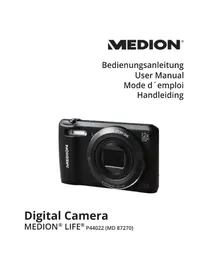
LIFE S42008 (MD 86852) - Camera MEDION - Free user manual and instructions
Find the device manual for free LIFE S42008 (MD 86852) MEDION in PDF.


| Product type | Waterproof digital camera |
| Brand | Medion |
| Model | LIFE S42008 (MD 86852) |
| Sensor resolution | CMOS 8 megapixels |
| Digital zoom | 4x |
| Focal length | f = 4.8 mm |
| Aperture | F2.8 |
| Screen | LCD 6.1 cm (2.4 inches) |
| Photo file formats | JPEG (EXIF 2.2) |
| Video file formats | AVI (with audio) |
| Max photo resolution | 3264 x 2448 pixels |
| Max video resolution | 640 x 480 pixels (VGA) |
| Memory | microSD/microSDHC card (no internal memory) |
| Connectivity | Mini USB 2.0 |
| Power supply | 2 AAA 1.5 V batteries |
| Dimensions (W x H x D) | 90 x 63 x 25 mm |
| Weight (with batteries) | Approx. 121 g |
| Waterproof | Up to 3 meters depth, 30 minutes max |
| Built-in flash | Modes: auto, forced, off |
| Focus modes | Normal (from 40 cm) and Macro (close-up) |
| Self-timer | 10 seconds |
| Included accessories | 2 AAA batteries, USB cable, wrist strap, software CD, documentation |
| Maintenance | Soft dry cloth, lens brush; do not use solvents |
| Repairability | Do not open yourself; contact Medion after-sales service |
Frequently Asked Questions - LIFE S42008 (MD 86852) MEDION
User questions about LIFE S42008 (MD 86852) MEDION
0 question about this device. Answer the ones you know or ask your own.
Ask a new question about this device
Download the instructions for your Camera in PDF format for free! Find your manual LIFE S42008 (MD 86852) - MEDION and take your electronic device back in hand. On this page are published all the documents necessary for the use of your device. LIFE S42008 (MD 86852) by MEDION.
USER MANUAL LIFE S42008 (MD 86852) MEDION
natural_image
Blue medical camera with a sea turtle inside, displayed on a screen (no visible text or symbols on the device body)Bedienungsanleitung
Inhaltsverzeichnis
text_image
Technical diagram of a camera with numbered parts labeled 1, 2, and 3text_image
Technical diagram of a device with labeled parts, showing top and side views with numbered annotations.text_image
Technical diagram of a device showing two views with labeled components, numbered 1 and 2.natural_image
Technical line drawing of a handheld electronic device with ports and a screen (no text or symbols)natural_image
Line drawing of a handheld electronic device with control panel and handle (no text or symbols)LCD Monitor: 6,1 cm/2.4" LC - Display
Waterproof digital camera
MEDION® LIFE® S42008 (MD 86852)
natural_image
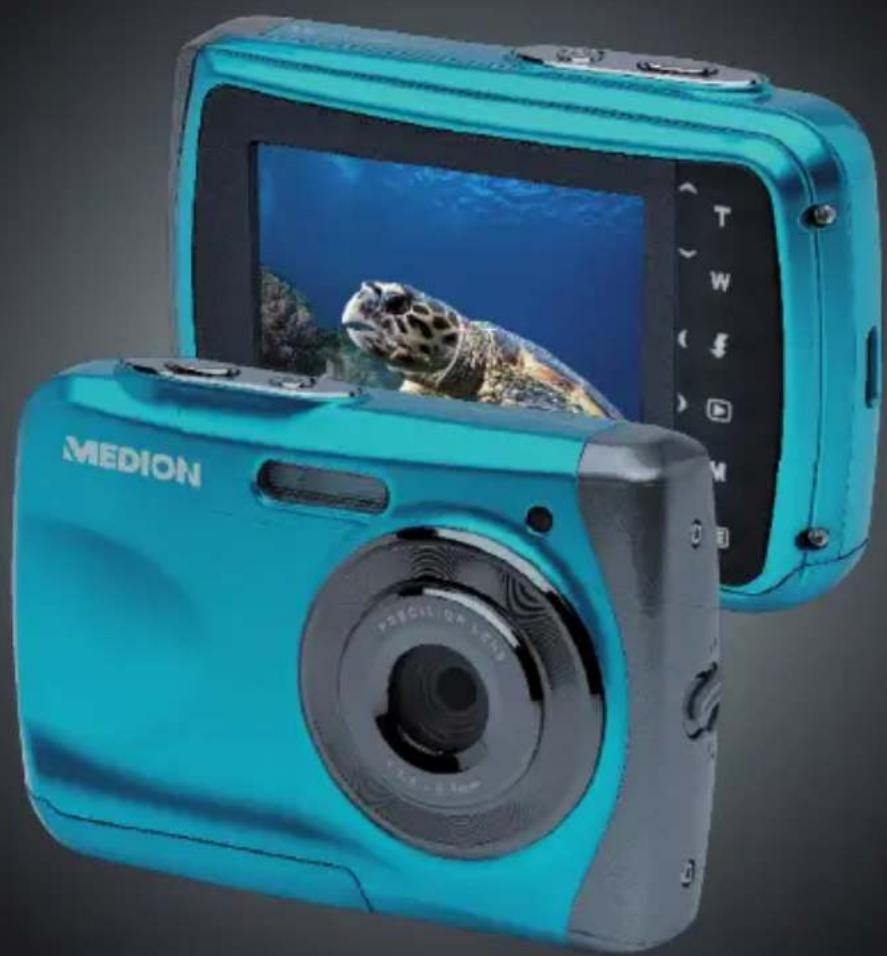
Blue MEDION digital camera with a sea turtle on its screen, shown from front and back angles (no text or symbols on device body)User Manual
Contents
1. About these instructions ....5
1.1. Symbols and keywords used in these instructions ..... 6
1.2. Proper use 7
2. Safety instructions ......9
2.1. Dangers for children and people with reduced capability 9
2.2. Warnings 10
2.3. Battery information 10
2.4. Never carry out repairs yourself ....16
2.5. Water resistance 16
3. Product parts ......18
3.1. Front view 18
3.2. Rear view 19
3.3. Top and bottom 21
3.4. Side views 22
4. Purchased parts package ....23
5. Start of operation ......24
5.1. Inserting batteries 24
5.2. Inserting and removing microSD cards ....26
5.3. Fitting the carrying strap....28
2 of 66
5.4. Removing the protective film from the lens .....28
6. First steps ......29
6.1. Switching on the camera .....29
6.2. Switching off the camera .....29
6.3. Setting the language, date and time ....30
6.4. Display features ......32
7. Starting to take photographs ....34
7.1. Setting shooting mode ....34
7.2. Tips for taking good shots ....34
7.3. Taking photographs 35
7.4. Recording videos 38
8. Recording menu 39
9. Video menu 48
10. Settings menu ....50
11. Shooting and playback mode ....53
11.1. Video playback....53
11.2. Zooming in on photograph sections .....54
11.3. Deleting photos....54
12. PC connection....55
12.1. Transferring data to a computer ....55
12.2. DCF memory standard ....56
12.3. Card drive....56
3 of 66
12.4. Memory folder structure .....57
- Installing the software....58
- Troubleshooting ....60
- Maintenance and care 63
- Disposal 64
- Technical data......65
1. About these instructions

Read the safety instructions carefully before use. Note the warnings on the product and in the operating instructions.
Always keep the operating instructions close to hand. If you sell the product or give it away, make sure you also hand over these instructions and the warranty card.
1.1. Symbols and keywords used in these instructions
 | DANGER!Warning of immediate risk of fatal injury!WARNING!Warning of possible risk of fatal injury and/or serious irreversible injuries!CAUTION!Please follow the instructions to prevent injuries and property damage! |
 | CAUTION!Please follow the instructions to avoid property damage! |
 | PLEASE NOTE!Additional information on using the product. |
 | PLEASE NOTE!Please follow the instructions in the operating manual! |
 | WARNING!Warning of risk of electric shock! |
| • | Bullet point / information on occurrences during operation |
| ▶ Instructions to be carried out | |
1.2. Proper use
The product is suitable for taking pictures in digital format.
The product is intended for private use only and not for industrial or commercial use.
Please note that we shall not be liable in cases of improper use:
- Do not modify the product without our consent and do not use any auxiliary equipment which we have not approved or supplied.
- Use only spare parts and accessories which we have supplied or approved.
- Heed all the information in these operating instructions, especially the safety information. Any other use is deemed improper and can cause personal injury or damage to the product.
- Do not use the product in extreme environmental conditions.
2. Safety instructions
2.1. Dangers for children and people with reduced capability
- This product is not intended for use by people (including children) with reduced physical, sensory or mental abilities or for those without experience and/or knowledge, unless they are supervised by a person responsible for their safety or they have been instructed in its use.
- Children should be supervised to ensure that they do not play with the product. Children should not be allowed to use this product without supervision.
- Keep the product and accessories out of reach of children.

DANGER!
Keep plastic packaging out of reach of children. There is a risk of suffocation.
2.2. Warnings
In order to avoid injury, please heed the following warnings while using the product:
- Do not trigger the flash too close to the eyes. This can cause damage to the eyes of the person being photographed.
- Keep at least one metre away from children when you are working with the flash.
- Do not open or dismantle the camera.
- If you are not going to use the camera for a relatively long period of time, remove the batteries to prevent leakage
2.3. Battery information
Batteries may contain combustible materials. If not handled properly, batteries may leak, heat up excessively, ignite or even explode, which could result in damage to the camera and to your health.

WARNING!
Risk of explosion if batteries are replaced incorrectly.
Replace batteries only with the same or equivalent type.
Please note the following general instructions for handling batteries:
- Keep batteries away from children. Seek medical attention immediately if a battery is swallowed.
- Before inserting the batteries, check that the contacts in the product and on the batteries are clean and, if necessary, clean them.
- Pay attention to the polarity (+/−) when inserting the battery.
-
Store batteries in a cool, dry place. Strong, direct heat can damage the battery. Therefore keep the product away from strong heat sources.
-
Avoid contact with skin, eyes and mucous membranes. If any of these areas come into contact with battery acid, rinse them immediately with plenty of clean water and consult a doctor as soon as possible.
- Never throw batteries into a fire, short-circuit them or dismantle them.
- Never expose the batteries to excessive heat, such as sunlight, fire or similar sources of heat.
- Only replace batteries in dry conditions!
- Remove worn out batteries from the product immediately. Clean the contacts before inserting a new battery. There is a risk of skin irritations from battery acid!
2.3.1. Safety precautions
Take the following safety precautions in order to avoid damage to the camera and to keep it in perfect condition.
- Keep away from salt and dust Wipe off any salt and dust with a light, damp cloth if you have been using the camera on the beach or at the seaside. Carefully dry the camera afterwards.
- Keep the product away from strong magnetic fields Never place the camera too close to appliances which generate strong electromagnetic fields, such as electric motors. Strong electromagnetic fields may cause the camera to malfunction or interfere with data recording.
- Avoid excessive heat Do not use or store the camera in sunlight or at high temperatures. This can wear the battery out or cause the casing to warp.
- Avoid extreme fluctuations in temperature If you take the camera from a cold environment into a warm one or vice versa, drops of water can form outside and inside the camera which can
cause malfunctions and can damage the camera. Wait until the camera has reached room temperature before switching it on. Using a carrying case or plastic case offers a certain amount of protection against fluctuations in temperature.
- Do not drop the camera
Jarring or vibrations resulting from a fall can cause malfunctions. Loop the carrying strap around your wrist when you carry the camera.
- Do not remove batteries while data are being processed
Switching off the power supply while data are being saved or deleted from memory cards can result in data loss or damage to the internal circuit or the memory.
- Treat the lens and all moving parts carefully Do not touch the lens or the lens barrel. Take care when handling the memory card and the batteries. These parts are not designed for high levels of impact.
- Batteries At low temperatures there can be a sharp drop in battery capacity.
- Memory cards Switch off the power supply before you insert or remove the memory card otherwise data could be lost. Memory cards may heat up during use. Always take care when removing the memory cards from the camera.
- Underwater operation The camera is suitable for underwater operation up to a maximum depth of 3 metres/30 minutes of diving. Please ensure that you do not dive deeper than 3 metres or for longer than 30 minutes.
2.4. Never carry out repairs yourself
WARNING!
Never try to open or repair the product yourself. There is a risk of electric shock!
- If there is a fault, contact the Medi-on Service Centre or another authorised specialist workshop in order to avoid risks and hazards.
2.5. Water resistance
- The camera is watertight to a depth of 3 metres.
- The camera should only be used for a maximum of 30 minutes under water.
- The accessories supplied with the product are not watertight.
2.5.1. Important information to note before diving:
- Check the area around the battery compartment. Remove any dirt, sand or other particles with a dry cloth.
- Ensure that the battery compartment is not scratched or cracked.
- Ensure that there are no cracks in the camera.
- Check that the battery compartment cover is firmly closed.
- Do not throw the camera into the water or jump into the water while holding the camera as the force of such movements may cause water to penetrate inside the camera.
3. Product parts
3.1. Front view
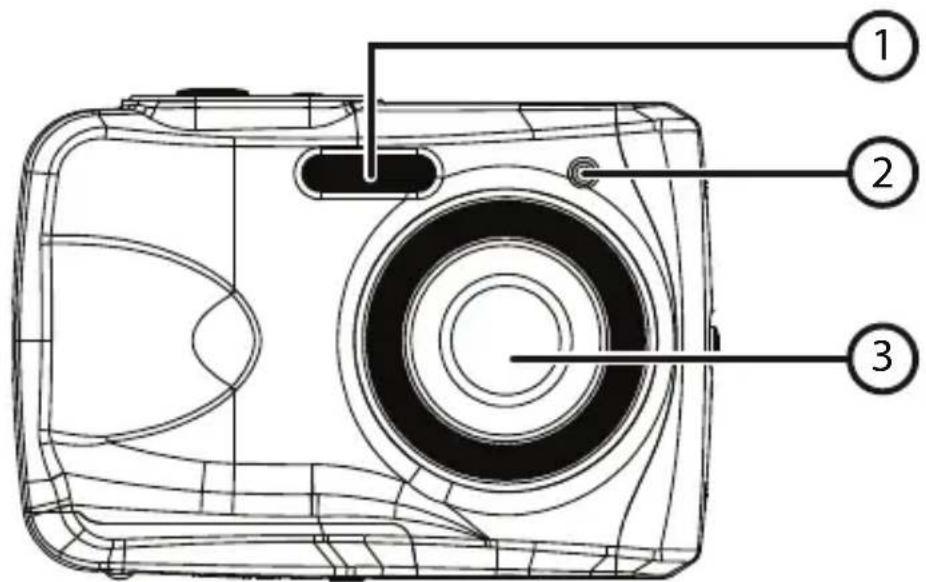
text_image
Technical diagram of a camera with numbered parts labeled 1, 2, and 31) Flash
2) Operating LED
3) Lens
3.2. Rear view
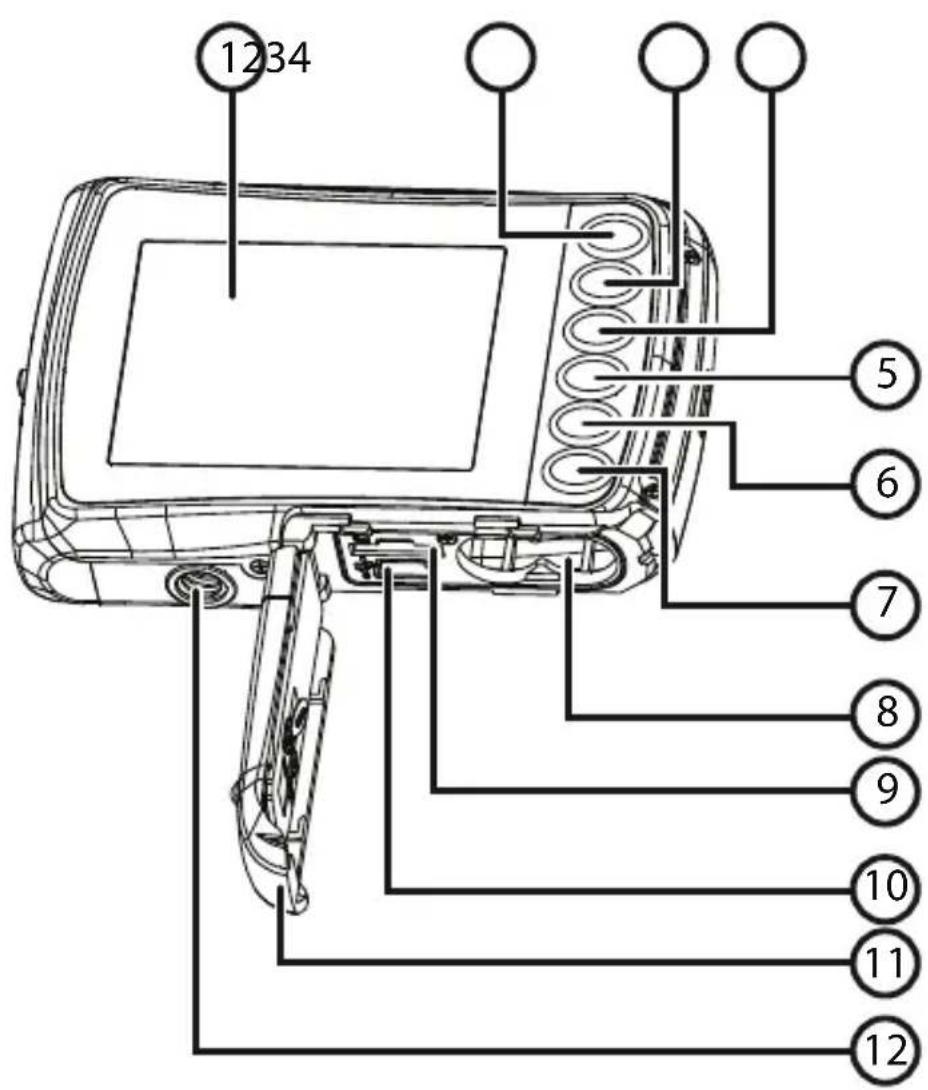
text_image
1234 5 6 7 8 9 10 11 121) LC display
2) ▲-/T button: Zoom out/Scroll up in menu
3) ▼ -/W button: Zoom in/Scroll down in menu
4) ◀ -/Flash button: Select flash mode/Scroll left in menu
5) ▶ -/Playback button: Select playback mode/Scroll right in menu
6) Mode button
7) Menu button
8) Battery compartment
9) MicroSD card slot
10) USB socket
11) Battery/memory card compartment cover
12) Tripod socket
20 of 66
3.3. Top and bottom
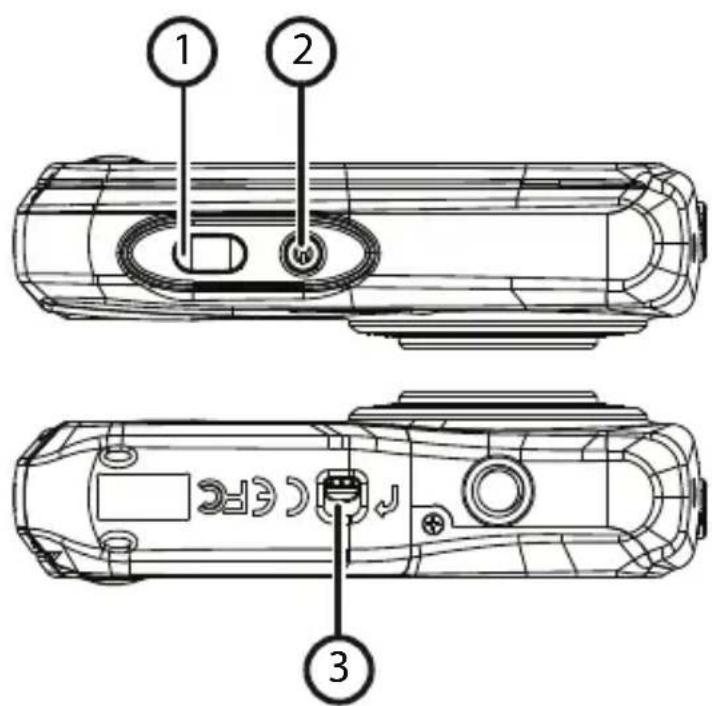
text_image
Technical diagram of a device with labeled parts, showing top, front, and side views with numbered annotations.1) Shutter release/In menu Confirm entries
2) On/Off button
3) Battery/memory card compartment catch
3.4. Side views
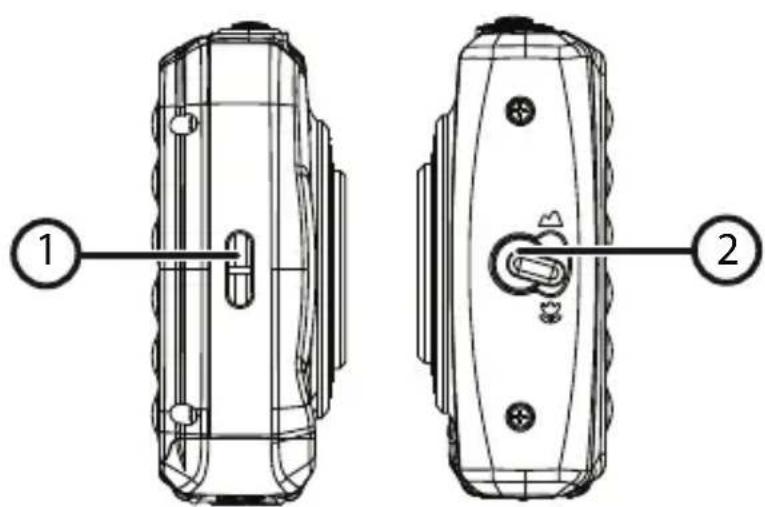
text_image
Technical diagram of a door switch with labeled parts 1 and 21) Loop for carry strap
2) Macro controller
22 of 66
4. Purchased parts package
Please check your delivery to ensure all items are included and contact us within 14 days of purchase if parts are missing from the delivery.
The following items are supplied with your product:
- Camera
- 2 x AAA 1.5 V batteries
- USB cable
- Carrying strap
- Software CD
- Documentation
5. Start of operation
5.1. Inserting batteries

CAUTION!
There may still be water on the battery compartment cover after diving. Dry the camera after diving and open the compartment cover, following the steps carefully in the correct sequence..
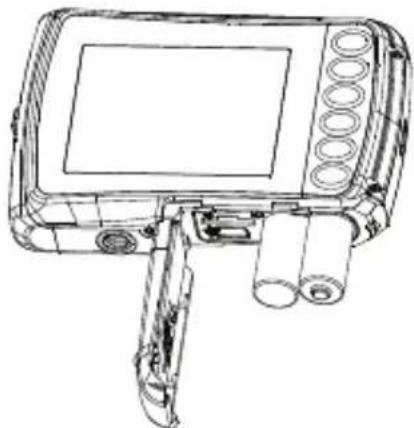
Two AAA 1.5 V batteries are required to operate the camera.
▶ Switch the camera off, if applicable.
▶ Move the battery compartment catch in the direction shown by the arrow.
▶ Hold the camera so that the battery compartment is facing downwards, allowing any residual water to drip off.
▶ Slide the battery compartment in the direction of the arrow and the cover will pop open.
▶ Use a dry cloth to wipe away any remaining water droplets then you can turn the camera around as required.
Insert the batteries as shown. Note the polarity (as shown).
natural_image
Line drawing of a handheld electronic device with ports and a screen (no text or symbols)- Close the battery compartment and slide the cover back into position until it clicks into place.
5.2. Inserting and removing microSD cards

PLEASE NOTE!
The camera does not have an internal memory therefore it is necessary to use a microSD memory card. If you start using the camera without having inserted a memory card, you will be prompted to do so by the message „Please insert card“.

CAUTION!
There may still be water on the battery compartment cover after diving. Dry the camera after diving and open the compartment cover, following the steps carefully in the correct sequence.
5.2.1. Inserting the card
▶ Switch the camera off, if applicable.
▶ Move the battery compartment catch in the direction shown by the arrow.
▶ Hold the camera so that the battery compartment is facing downwards, allowing any residual water to drip off.
▶ Slide the battery compartment in the direction of the arrow and the cover will pop open.
▶ Use a dry cloth to wipe away any remaining water droplets then you can turn the camera around as required.
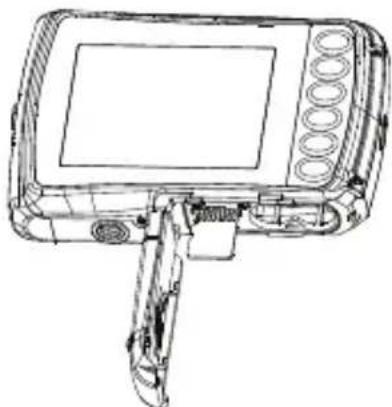
Insert the card in the slot as illustrated.
natural_image
Line drawing of a handheld electronic device with control panel and display screen (no text or symbols)▶ Close the battery compartment cover.
To remove the card, press it down briefly to release it. The card will then protrude slightly and can be removed.
5.3. Fitting the carrying strap
Attach the carrying strap to the camera for ease of handling and increased security.
▶ Feed the strap through the eye.
▶ Pull the other end of the carrying strap through the thin loop of the strap and pull tight.

CAUTION!
If you carry the camera by the strap, take care to ensure that the camera does not bang into anything.
While you are attaching the carrying strap, place the camera on a stable surface so it cannot fall down and get broken.
5.4. Removing the protective fi lm from the lens
Remove the protective film from the lens before using the camera for the first time.
6. First steps
6.1. Switching on the camera
▶ Press the ON/OFF button for 1 to 2 seconds to turn the camera on. The ON indicator LED turns red for a moment and the display comes on. The camera is then in operating mode.

PLEASE NOTE!
If the camera does not switch on, check whether the batteries are inserted properly and whether or not they are charged.
6.2. Switching off the camera
▶ Press the ON/OFF button down for a little longer to switch the camera off.
6.2.1. Energy-saving mode
If the camera is not used for 60 seconds, it switches off. You can also set the automatic switch-off time to 3 minutes or to switch off completely.
The energy-saving function is not enabled at the following times:
• While recording video clips;
- While viewing pictures or video clips;
- When the camera is connected to another device with the USB connector.
6.3. Setting the language, date and time
Before using the camera for the first time, select your preferred language from the menu and set the current date and time. Both settings are performed in the "SETTINGS" menu:
With the camera switched on, press the ☐ button to open the menus.
▶ Use the ↓ or ▶ buttons to select the "SETTINGS" menu.
In the "SETTINGS" menu, use the T or W buttons to select the "LANGUAGE" entry (English language) and press the shutter release. The language selection menu opens.
▶ Select the required language using the T or W buttons and save the setting by pressing the shutter release.
Now in the "SETTINGS" menu, use the T or W buttons to select the "DATE/TIME" entry and press the shutter release. The settings menu opens.
Using the ↩ or ▶ buttons, select the entry you wish to change.
▶ Use the T or W buttons to make the required setting.
Once the required setting has been made, press to navigate to the next entry and to return to the previous entry.
▶ Press the shutter release to save the settings.
▶ Press the button again to close the menu.
6.4. Display features
The following displays are possible in shooting mode:
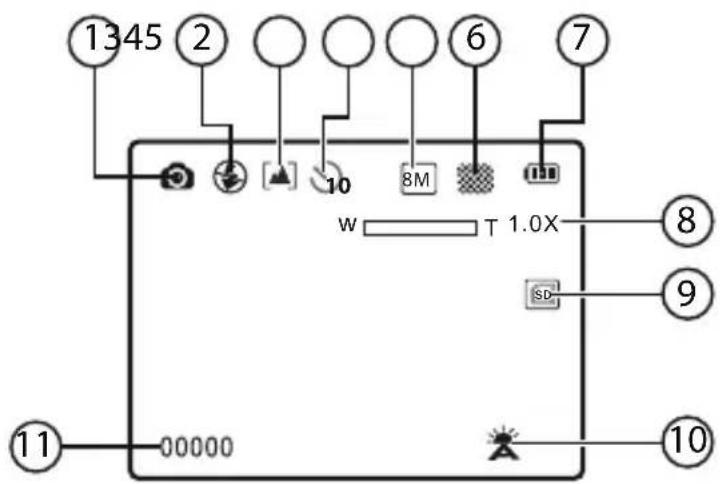
text_image
1345 2 6 7 w T 1.0X 8 SD 9 10 11 00000| Number Symbol Meaning | ||
1 Photo mo  | ||
2 Flash mod  | ||
| 3 |  | Macro mode 🎨normal mode [▲] |
| 4 |  | Self-timer |
| 5 8M Resolution | ||
6 Quality  | ||
7 Battery s'  | ||
| 8 1.0 X | Zoom factor | |
| 9 |  | Indicates that an SD card is being used |
| 10 |  | White balance |
| 11 00000 | Indicates the number of shots re- maining | |
7. Starting to take photographs
7.1. Setting shooting mode
When the camera is switched on, shooting mode is enabled automatically. If playback mode is enabled instead of shooting mode, press the mode button M.
7.2. Tips for taking good shots
- The camera should not move when pressing the shutter release. Do not move the camera directly after pressing the shutter release. Wait until the preview appears in the display.
- View the subject on the display before pressing the shutter release.
- Check the angle if the subject is lit from behind. Change your position to reduce the background lighting.
- In order to shoot good video clips, move the camera around slowly. If you pan too quickly, the video footage will be fuzzy and blurred.
7.3. Taking photographs
▶ Press the shutter release all the way down to take the photograph. A tone indicates that the photo has been taken.
The photos are saved as JPEG files.
7.3.1. Using the flash
If there is insufficient light for the photo, the built-in flash can provide the additional light required.
▶ Press the "Flash" button ✦ repeatedly to choose between the following flash settings:
| Setting Meaning | |
| A | AUTO: The flash is activated automatically when the shooting conditions require additional lighting |
| Flash always on | |
| Flash always off | |
The flash only works in single shot and self-timer mode. It cannot be used for macro shots and video recordings.
Using the flash increases battery usage. If the battery is almost flat, the flash requires longer to charge.

CAUTION!
Do not use the flash when taking close-ups of people and animals. Maintain a distance of at least one metre from your subject.
7.3.2. Zooming in and out
The camera has a 4x digital zoom function.
▶ Press the T and W buttons. The zoom factor appears in the bottom left-hand corner of the display.
W: The field of view is enlarged (wide angle); you can capture a larger section.
T: The field of view is reduced ("telephoto"); you can capture a smaller section.

PLEASE NOTE!
With the digital zoom, the field of view is enlarged by interpolation; the image quality can suffer as a result.
7.3.3. Focus mode setting
This function allows you to specify the focus type if you wish to take a photo or record a video clip.
▶ Move the macro controller to the required setting.
Your camera offers two different focus modes:

Normal
The focus range starts at 40 cm in Normal mode.

Macro
This mode is ideal for close-ups. In this mode you can capture details thanks to the fixed focus and you can get the subject in focus at much closer distances.

PLEASE NOTE!
The flash function is disabled in Macro mode!
7.4. Recording videos
▶ Press the Mode button until the 📋 symbol appears at the top left of the display.
▶ Press the shutter release to start the recording. The display will show the recording time.
▶ You can change the field of view by zooming in and out using the T and W buttons.
▶ Press the shutter release again to stop recording.

PLEASE NOTE!
During video recording, the microphone is enabled and the sound is also recorded.
The video clips are saved with the sound as AVI files.
8. Recording menu
The main settings for taking photographs can be changed quickly in this menu.
There is a separate menu for each shooting mode (filming mode or photography mode).
▶ Press the button to open the recording menu in operating mode (filming mode or photography mode).
▶ Select the submenu you would like to open using the T or W buttons.
▶ Press the shutter release to open the desired menu.
▶ Change the desired setting using the T or W buttons.
▶ Press the shutter release to save the setting.
▶ Press the button again to close the menu.
8.4.1. Resolution
The resolution basically determines the quality of the photos taken. The higher the resolution, the more memory an image requires. The highest resolutions are generally recommended for large prints (larger than A4).
| Setting Size in pixels | |
| VGA | 640 x 480 |
| 3M | 2048 x 1536 |
| 5M | 2592 x 1944 |
| 8M | 3264 x 2448 |
8.4.2. Quality
The quality determines how the data recorded are compressed. The higher the quality, the more memory space the images require.
| Setting Meaning | |
| SUPERFINE | Highest quality |
| FINE | Medium quality |
| NORMAL | Standard quality |
8.4.3. Metering
This function allows you to determine the range for measuring light for the photos or video recordings.
| Setting Meaning | |
| CENTRE | The light in the entire shooting range is measured but the measurement is weighted towards the values near the centre. |
| MULTIPLE | An exposure is selected on the basis of the measurements at several places in the shooting range. |
| POINT | An exposure is selected on the basis of one single measurement in the centre of the picture. |
8.4.4. White balance
The white balance can correct certain light conditions.
| Setting Meaning | |
| AUTO | The white balance is adjusted automatically. |
| DAYLIGHT | Suitable for shots in bright daylight. |
| CLOUDY | Suitable for shots in overcast conditions, at dusk or in the shade. |
| TUNGSTEN | Suitable for shots in electric light. |
| FLUORESCENT | Suitable for shots in fluorescent light.Corrects the green cast from fluorescent light and can save the flash. |
8.4.5. ISO (light sensitivity)
This setting changes the sensor's sensitivity to light. A higher value increases light sensitivity but generates more noise which can have a negative impact on the image quality. It is therefore important to select the lowest possible ISO value for the conditions.
| Setting Meaning | |
| AUTOM. | Automatic ISO value |
| 100 | Sets the sensitivity to ISO 100. |
| 200 | Sets the sensitivity to ISO 200. |
| 400 | Sets the sensitivity to ISO 400. |
| 800 | Sets the sensitivity to ISO 800. |
8.4.6. Exposure
By correcting the exposure value (EV) you can take pictures which would otherwise be too dark or too light.
There are 13 settings to choose from between +2.0 EV and -2.0 EV.
Use a positive value when light conditions are poor and a negative value in strong light.
Do not use the exposure correction when the subject is in a very bright or very dark area or if you are using the flash. In that case, use the automatic setting ("O").
8.4.7. Self-timer/operating mode
The delayed-action shutter release function allows you to take individual pictures or to make a recording using the self-timer.
| Setting Meaning | |
| OFF | Single photographs are taken. |
| ON | A single photograph is taken using a 10-second delayed-action shutter release function. |
8.4.8. Sharpness
A softer or sharper focus can be selected for photos/films.
| Setting Meaning | |
| HARD | The outlines in the picture are emphasised. The definition may be blurred when taking the photograph. |
| NORMAL | The outlines are defined. This setting is particularly suitable if the photographs will be printed out. |
| SOFT | The outlines are softer. This setting is particularly good for on-screen display. |
8.4.9. Effects
Photo effects can be used in shooting and playback mode to provide different colourings or artistic effects.
| Setting Meaning | |
| NORMAL | Photographs are taken without any special effects. |
| B&W | Photographs are taken in black and white. |
| SEPIA | Photographs are produced in nostalgic se-pia tones. |
| NEGATIVE | Photographs are produced as negatives. |
| LOMO | Artistic effect. |
| PENCIL SKETCH | Pencil-drawn effect. |
| RED | Photographs take on a red tone. |
| GREEN | Photographs take on a green tone. |
| BLUE | Photographs take on a blue tone. |
| VIVID | There is greater colour saturation in the pho-tographs. |
8.4.10. Date stamp
This function is used to specify whether the date and time should be printed on the photograph.
▶ Set the date stamp to ON or OFF.
8.4.11. Auto preview
The photo which has just been taken is displayed for a few seconds. You may switch this function on or off.
▶ Set the auto preview function to ON or OFF.
9. Video menu
The main settings for video clips can be changed quickly in this menu.
There is a separate menu for each shooting mode (filming or photography mode). This menu allows you to specify the settings for shooting videos.
▶ Select the submenu you would like to open using the T or W buttons.
▶ Press the shutter release to open the required menu.
▶ Select the required setting using the T or W buttons.
▶ Press the shutter release to save the setting.
9.4.1. Video resolution
The resolution basically determines the video quality. The higher the resolution, the more memory a recording requires.
| Setting Size in pixels | |
| QVGA | 320 x 240 |
| VGA | 640 x 480 |
The VGA setting is ideal for sending recordings by email, for example.
9.4.2. White balance
See "8.4.4. White balance" on page 42.
10. Settings menu
The main camera settings can be changed quickly in this menu.
10.4.1. Sound
▶ Use the T or W buttons to select ON or OFF depending on whether you wish to use the function or not.
10.4.2. Light frequency
▶ Use the T or W buttons to select 60 Hz or 50 Hz (depending on the supply frequency) and confirm your selection by pressing the shutter release.
10.4.3. Auto off
- Use the T or W buttons to select 3 minutes or 1 minute as the time after which the camera should automatically switch off, and confirm your selection by pressing the shutter release. - Select "OFF" to disable the power-saving function.
10.4.4. Language
▶ Select the required language using the T or W buttons and confirm the selection by pressing the shutter release.
10.4.5. Date / time
▶ Use the ↓ or ▶ buttons to select the entry you wish to change.
▶ Use the T or W buttons to make the required setting.
Once the required setting has been made, press to navigate to the next entry or ↘ to return to the previous entry.
▶ Press the shutter release to save the settings.
The time settings remain stored thanks to the internal battery. They will be lost, however, if the battery is removed from the camera for more than 48 hours.
10.4.6. Formatting
▶ Use the T or W buttons to specify whether you wish to format the microSD card and confirm your selection by pressing the shutter release.

CAUTION!
If you format the memory card, all the data stored on it will be deleted.
Make sure that there are no important data left on the memory card.
10.4.7. Reset all
▶ Select "RESET ALL" and press the shutter release. You will be prompted to confirm the command.
Using the T or W buttons, select "OK" in the menu to restore the camera's factory default settings. Confirm your selection by pressing the shutter release.
10.4.8. Version
In the "SETTINGS" menu, use the T or W buttons to select "VERSION" and press the shutter release. The version information for the camera software will then be displayed.
11. Shooting and playback mode
Shooting mode is enabled as soon as the camera is switched on. You can begin taking photos straight away. You can also record video clips.
In playback mode, you can view and delete photos and video clips.
▶ Press▶ to activate playback mode. The playback icon will appear at the top left of the display. The most recently taken image will be displayed.
▶ To return to shooting mode, press the mode button M.
11.1. Video playback
▶ Select the required clip in the relevant playback mode.
The active video playback mode is indicated by the symbol (video).
▶ You may also change the playback mode by repeatedly pressing the play button ▶
▶ Press the T button to start playback.
When playing video clips, hold down the ☐ or buttons to fast forward or rewind.
▶ If you wish to pause playback, press the shutter release.
▶ Press the shutter release again to resume playback.
11.2. Zooming in on photograph sections
You can zoom in on individual sections of photographs.
▶ Press the T button repeatedly in full size view to enlarge the image section up to four times.
▶ Use the T, W, ▶ and ↓ buttons to change the field of view within the image.
▶ Press the shutter release to return to full screen.
11.3. Deleting photos
You can delete photos in playback mode. The quickest way to delete an individual shot is to press the button.
▶ Select the shot in playback mode and press the button.
▶ Use the T and W buttons to specify whether the current image/video only should be deleted or all the images/videos.
▶ To cancel the function press the button again.
The next image is shown on the display.

PLEASE NOTE!
You cannot restore a file that has been deleted. You should therefore exercise caution when deleting files.
12. PC connection
12.1. Transferring data to a computer
You can copy your pictures and videos to a computer.
Supported operating systems:
Windows XP SP3
Windows Vista SP1
Windows 7
Windows 8
12.1.1. Using a USB cable
Connect the USB cable supplied to the USB output on the camera and to the USB port on the computer.
▶ Switch the camera on. The camera will then be detected by the computer as a removable storage device.
▶ Navigate to the "DCIM" directory and, where applicable, to the relevant subdirectories in order to view the files (*.jpg = photos; *.avi = sound recordings). See also the directory structure in the memory.
Press down the left mouse button and drag the relevant files to the directory provided on the computer, e.g. in the folder "My Documents". You can also highlight the files and use the Windows commands "Copy" and "Paste".
The files are transferred to the computer and stored there. You can display, view and process the files with a suitable software application.
12.2. DCF memory standard
The recordings on your camera are managed (saved, named, etc.) as specified by the DCF standard (DCF = Design Rule for Camera File System). Recordings on memory cards from other DCF cameras can also be played back on your camera.
12.3. Card drive
If your PC has a card drive or is connected to a card reader and you have saved your pictures and recordings on the memory card, you can also just use the card to copy the files to your PC. The card reader is also detected as a removable storage device on the Windows desktop (or in "Computer" if using Vista).
12.4. Memory folder structure
The camera saves the pictures and video recordings in two different directories on the memory card. The following folders are automatically created during the process:
DCIM: All the photographs and video recordings are saved in this folder.
Normal shots are located in the "100MEDIA" folder and automatically saved under the name "IMG_" and a four-digit number.
On reaching the highest number, "IMG_9999", the next folder "101DICAM" is created for the subsequent shots, and so on.
A maximum of 999 folders can be set up. If another shot is then taken, a message will appear informing you that it is not possible to create another folder.
▶ Insert a new memory card.
Do not try to change the folders and files in the camera's own directory structure (by renaming, etc.) as this might result in the loss of data.
13. Installing the software
There is a picture editing program called "CyberLink PhotoDirector" on the CD supplied with the product.
How to install the CyberLink PhotoDirector:
Insert the installation CD in the DVD/CD drive.
The CD is automatically executed and a selection screen appears.
▶ Select "Install CyberLink PhotoDirector".
▶ Follow the instructions to complete the installation.
▶ Start the program via the symbol on the desktop, where applicable.
When you start the program for the first time, it has to be activated. To activate the program, enter the serial number DE-HEU-G2BT5-7XT6GD2FFZ-3S9TH-D7VDQ.

PLEASE NOTE!
Help with using the program is available in the help system software which can be accessed by pressing F1.
If the CD is not automatically executed, follow the steps below to install the software:
▶ Double-click on Desktop.
▶ Move the cursor to the DVD/CD drive.
▶ Right-click, then click on Open.
▶ Double-click on Setup.exe.
▶ A wizard will then guide you through the installation process.
▶ Follow the instructions to complete the installation.
▶ Start the program via the symbol on the desktop.
When you start the program for the first time, it has to be activated. To activate the program, enter the serial number DE-HEU-G2BT5-7XT6GD2FFZ-3S9TH-D7VDQ.
14. Troubleshooting
Use the following checklist if the camera does not function correctly. If the problem persists, consult MEDION Service.
14.4.1. The camera will not switch on.
- The batteries are not inserted correctly.
• The batteries are flat. - The battery compartment door is not closed properly.
14.4.2. The camera will not take photos.
• The flash is still charging.
• The memory/memory card is full.
- The SD card is not correctly formatted or is defective.
- The maximum number of files has been exceeded. Reset the file numbering function.
- There is not enough light. Change the angle of the camera to pick up more light or use the flash.
14.4.3. The flash does not go off.
- The camera was moved during the shot.
• The flash is switched off. - The camera is in Burst, Macro or Video mode.
60 of 66
14.4.4. The image is blurred.
- The camera was moved during the shot.
- The digital zoom was used which increases the tendency to be out of focus.
- The subject was outside the camera's focal range. Use the Macro mode for close-up pictures, where applicable.
14.4.5. The image is not shown on the display.
- An SD card has been inserted which took pictures in non-DCF mode on another camera. The camera cannot display this type of image.
14.4.6. The period of time between shots is longer when taking pictures in the dark.
- The shutter usually works more slowly in poor light conditions. Change the angle of the camera, or improve the light conditions. Use a tripod.
14.4.7. The camera switches itself off.
- The camera switches itself off after a set period of time in order to save energy. Restart the camera.
14.4.8. The shot has not been saved.
- The camera was switched off before the shot could be saved.
14.4.9. Shots on other memory cards are not displayed.
- The shots on memory cards from other cameras will only be displayed if the other camera also uses the DCF memory system.
14.4.10. The shots cannot be transferred to the PC via the USB cable.
- The camera is not switched on.
14.4.11. When the camera is connected to the computer for the first time, no new hardware is found.
- The USB connection of the computer is deactivated in the BIOS settings.
- Enable the port in the computer's BIOS settings. Refer to the PC manual if necessary.
15. Maintenance and care
Clean the housing, lens and display as follows:
▶ Clean the camera housing using a soft, dry cloth.
▶ Do not use thinners or detergents which contain oil. This could damage the camera.
When cleaning the lens and the display, start by removing the dust with a lens brush. Then wipe the lens and display with a soft cloth. Do not apply any pressure to the display and do not use hard objects to clean it.
Do not use strong cleaning agents for the housing and lens (if there is dirt that cannot be removed, contact your dealer).
16. Disposal
PACKAGING

Your digital camera is packaged to protect it from damage in transit. The packaging materials can be reused or recycled.
PRODUCT
Do not dispose of the product in the household rubbish at the end of its service life. Take it to a local collection point for used appliances in order to comply with environmental regulations. Contact your local authority to find out where your nearest collection point is located.
BATTERIES
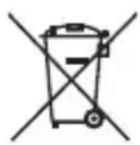
Do not dispose of used batteries in household rubbish. Take the batteries to a collection point for used batteries.
17. Technical data
Pixels:
8-megapixel
CMOS
Aperture:
F2.8
Focal distance: f = 4.8 mm
Digital zoom: 4x
LCD monitor: 6.1 cm/2.4" LC display
File formats: JPEG (EXIF 2.2), AVI
Max. resolution:
Camera mode: 3264 x 2448 pixels
Video mode: 640 x 480 pixels
Memory:
External:
microSD/microSDHC
card
Port: Mini USB 2.0
Dimensions: 90 x 63 x 25 mm (W x H x D)
Weight: Approx. 121 g (incl. batteries)
Subject to technical and optical changes and printing errors.

MEDION®
Medion Electronics Ltd.
120 Faraday Park, Faraday Road, Dorcan
Swindon SN3 5JF, Wiltshire
United Kingdom
Hotline: 0871 37 61 020
(Costs 7p/min from a BT landline,
mobile costs may be higher)
Fax: 01793 71 57 16
To contact us by email please visit the „Service and Support“ section of our website at www.medion.co.uk.
www.medion.co.uk
MEDION®
natural_image
Blue medical camera with a sea turtle inside, displayed on a screen (no visible text or symbols on the device body)Mode d'emploi
Sommaire
text_image
Technical diagram of a camera with numbered parts labeled 1, 2, and 3text_image
Technical diagram of a device with labeled parts including a battery, switch, and internal componentstext_image
Technical diagram of a device with labeled parts, showing front and side views with numbered annotations.natural_image
Technical line drawing of a handheld electronic device with ports and a screen (no text or symbols)natural_image
Technical line drawing of a handheld electronic device with ports and control panel (no text or symbols)▶ Puis refermez le couvercle.
natural_image
Blue medical camera with a sea turtle inside, displayed on a screen (no visible text or symbols on the device body)text_image
Technical diagram of a digital camera with numbered parts labeled 1, 2, and 3text_image
Technical diagram of a device with labeled parts including front, side, and top viewstext_image
Technical diagram of a device showing two views with labeled components, numbered 1 and 2.natural_image
Technical line drawing of a handheld electronic device with ports and a screen (no text or symbols)natural_image
Line drawing of a handheld electronic device with ports and a screen (no text or symbols)natural_image
Blue medical camera with a sea turtle inside, displayed on a screen (no visible text or symbols on the device body)text_image
Technical diagram of a digital camera with numbered parts labeled 1, 2, and 3text_image
Technical diagram of a device with labeled parts including internal components and numbered annotationstext_image
Technical diagram of a device showing two views with labeled components, numbered 1 and 2.natural_image
Technical line drawing of a handheld electronic device with ports and components (no text or symbols)natural_image
Line drawing of a handheld electronic device with control panel and display screen (no text or symbols)c/ Miguel Faraday, 6
natural_image
Blue medical camera with a sea turtle inside, displayed on a screen (no visible text or symbols on the device body)text_image
Technical diagram of a camera with numbered parts labeled 1, 2, and 3text_image
Technical diagram of a device with labeled parts including a battery, switch, and internal componentstext_image
Technical diagram of a door switch with labeled parts 1 and 2natural_image
Technical line drawing of a handheld electronic device with ports and a screen (no text or symbols)natural_image
Line drawing of a handheld electronic device with control panel and display screen (no text or symbols)▶ Luk batterirummets dæksel.