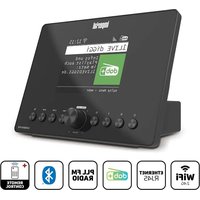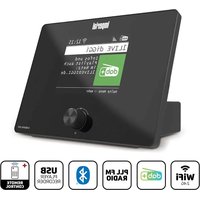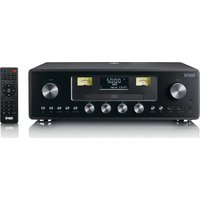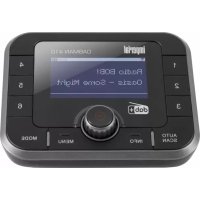
DABMAN 410 - Radio Imperial - Free user manual and instructions
Find the device manual for free DABMAN 410 Imperial in PDF.



| Product type | DAB+/FM radio receiver with Bluetooth |
| Frequency ranges | DAB/DAB+: Band III 174-240 MHz; FM: 87.5-108 MHz |
| Power supply | Power adapter 5 V / 500 mA (included); built-in rechargeable battery |
| Bluetooth | Version 4.2 with transmitter (TX) and receiver (RX) modes |
| Display | VA display |
| Audio input | LINE IN (3.5 mm jack) |
| Audio output | LINE OUT (3.5 mm jack) |
| Card reader | Micro SD card up to 32 GB |
| Antenna | Wired antenna included |
| Remote control | Yes, with batteries (2 x AAA 1.5 V) |
| Main features | DAB+ and FM reception, auto scan, 6 preset buttons, alarm, sleep timer, time and date setting, adjustable backlight, language selection |
| Operating temperature | -20 °C to +70 °C |
| Cleaning | Soft dry cloth; do not use liquids or solvents |
| Safety | Electrical and mechanical safety instructions; use only the supplied adapter; do not open the housing |
| Package contents | DABMAN 410, user manual, wired antenna, 5 V power adapter, 3.5 mm audio cable, remote control |
| Customer service | Hotline: +49 2676/9520101; email: service@telestar.de |
Frequently Asked Questions - DABMAN 410 Imperial
User questions about DABMAN 410 Imperial
0 question about this device. Answer the ones you know or ask your own.
Ask a new question about this device
Download the instructions for your Radio in PDF format for free! Find your manual DABMAN 410 - Imperial and take your electronic device back in hand. On this page are published all the documents necessary for the use of your device. DABMAN 410 by Imperial.
USER MANUAL DABMAN 410 Imperial
- Introduction. 32
2.SAFETYINSTRUCTIONS 33
2.1.Explanation of symbols 33
2.2.Intended Use. 34
2.3.Safety instructions.. 35
2.4. Operational safety 36
2.5. Connecting the device 37
2.6. Protecting the device against damages 37
2.7.Risk of injury 38
2.8. Handling the batteries 39
2.9.Cleaning the device 41
2.10. Actions in case of malfunction 41
3.Box Contents 42 - Controls and device functions 43
- Installation and initial setup. 46
5.1. Initial setup 46
5.2.DAB+reception 47
5.3.FM reception. 47
5.4. Bluetooth reception operating mode RX 48
5.5. Bluetooth Transmit operating mode TX 49
TABLE OF CONTENTS
- Menu and functions 50
6.1. Store favourite DAB+ radio stations. 51
6.2. Store favourite DAB+ radio stations 52
6.3.Setting the alarm clock. 52
7.Troubleshooting. 53 - Technical Specifications 55
- Disposal Instructions 56
- Service and Support 57
- CE Marking. 57
1. Introduction
Thank you for purchasing the DABMAN 65.
When you use the DABMAN for the first time, please read these
instructions carefully, and retain them for reference in future.
You will be able to fully enjoy the many functions of the radio only if you follow the instructions.
E
This operating manual will assist you with the
- correct
safe
optimal
use of the IMPERIAL DABMAN .
We assume the user of the radio has general knowledge related to the operation of consumer electronics products.
Any person
installing
- connecting
operating
cleaning
disposing of
this radio must first have taken notice of the entire contents of this operating manual. Always keep this operat- ing manual close to the radio.
Please read the safety notices carefully before operating the radio. Please note all warnings and instructions both on the product and in the operating manual.
2. SAFETY INSTRUCTIONS
2.1. Explanation of symbols
| Symbol | Meaning |
| DANGER | This signal word indicates a hazard with a high degree of risk, which, if ignored, results in death or serious injury. |
| WARNING | This signal word indicates a hazard with a medium degree of risk, which, if ignored, may result in death or serious injury. |
| CAUTION | This signal word indicates a hazard with a low degree of risk, which, if ignored, may result in minor or moderate injury. |
| NOTE! | This signal word warns of possible property damage. |
2. SAFETY INSTRUCTIONS
2.2. Intended Use
The device is used as a receiver for DAB/DAB+/VHF radio signals Any other operation or use of the device is considered improper and may result in personal injury or property damage.
E
Do not use the device for any other purpose.
Operate the device indoors only.
The device is only intended for private use and not for commercial use.
We assume that the person operating this device has general knowledge of how to use electronic entertainment devices.
There is no liability in the event of improper use.
Only use spare parts and accessories supplied or approved by us.
Do not modify the device and do not use any accessories or spare parts not explicitly approved or supplied by us.
Do not use the device in potentially explosive areas.
These include e.g. fuel storage areas, tank facilities, or areas where solvents are stored or processed.
Do not operate the device in areas with particle-contaminated air (e.g. flour or wood dust)
Do not expose the device to extreme conditions,
e.g.
direct sunlight,
high humidity, moisture, extremely high or low temperatures, open fire.
2. SAFETY INSTRUCTIONS
2.3. Safety instructions


Risk of injury!
Risk of injury to children and persons with reduced physical, sensory, or mental abilities (e.g. partially disabled, elderly persons with limited physical and mental abilities), or lack of experience and knowledge.
Please keep the device only in places that are inaccessible to children.
This device may be used by children over the age of 8 and by persons with reduced physical, sensory or mental abilities or lack of experience and/or knowledge, if they are supervised or have been instructed in the safe use of the device and have understood the resulting hazards.
Never let children use the device unattended.
Do not store the used packaging materials (bags, polystyrene pieces, etc.) within the reach of children.
Children are not allowed to play with the packaging.
2. SAFETY INSTRUCTIONS
2.4. Operational safety

DANGER
Risk of injury!
Risk of injury due to electric shock from live parts.
There is a risk of electric shock or fire due to an unintentional short circuit.
Please check the device for damages before every use.
If you notice any visible damage or if the device has visible damages, please stop operating it.
If you notice a technical or mechanical problem, please contact TELESTAR Service.
Use only the supplied power supply unit!
Never open the casing of the device.
In the event of a malfunction, disconnect the radio from the power source.
If you move the device from a cold to a warm environment, moisture may develop inside the device.
In such a case, wait for approximately one hour before using it.
In case of prolonged periods of absence or thunder storm, unplug the device from the wall socket.
2. SAFETY INSTRUCTIONS
If foreign bodies or liquids enter the device, immediately disconnect the power supply unit from the wall socket. Have the device inspected by a qualified person before using it again. Otherwise, you run the risk of an electric shock.
2.5. Connecting the device
Only connect the device to a professionally installed, earthed and electrically fused wall socket.
Make sure that the power source (wall socket) is easily accessible.
Do not bend or squeeze the cable connections.
Before operating the device, check that the voltage indicated on the device matches the local mains voltage.
2.6. Protecting the device against damages
NOTE!
Unfavorable environmental conditions such as humidity, excessive heat, or lack of ventilation can damage the device.
Use the device only in dry rooms.
2. SAFETY INSTRUCTIONS
Avoid the direct proximity of: heat sources, such as radiators, open flames, e.g. candles, devices with strong magnetic fields,
e.g. speakers.

Ensure that there is sufficient distance to other objects and that the device is not covered to always guarantee sufficient ventilation.
Avoid direct sunlight and places with excessive dust.
Make sure that contact with moisture, water, and splashing water is avoided and that there are no liquid filled items - e.g. vases - placed near the device.
Do not place any heavy objects on the device.
Make sure that the device is not exposed to dripping or splashing water, and that there are no open sources of fire (e.g. lighted candles) near the device.
2.7. Risk of injury

Excessive sound pressure when using earphones or headphones may result in damage or loss of hearing.
Listening with earphones or headphones with increased volume over a long period of time may cause damage to the user.
Please check the volume before inserting earphones into your ears, or
2. SAFETY INSTRUCTIONS
putting on headphones.
Set the volume to a low level and increase it only enough that it is still
comfortable for you.
2.8. Handling the batteries
The device comes with 2 batteries of the type LRO3/AAA/1.5V.
Only use this battery type for the remote control.

DANGER
If the batteries are swallowed, there is a risk of internal injury. The battery acid in the batteries may cause injury on contact with the skin.
Immediately seek medical attention after accidental swallowing or signs of skin burns.
Keep new and used batteries always away from children.
Immediately remove the leaked batteries from the device and clean the contacts before inserting new batteries.
2. SAFETY INSTRUCTIONS


WARNING!
Improper use of batteries results in a risk of explosion.

Use only new batteries of the same type.
Please do not use any new and old batteries together in one device.
When inserting the batteries, ensure the correct polarization.
Never charge batteries.
Batteries should only be stored in cool and dry locations.
Never throw batteries into a fire.
If the device will not be used for a long time, remove the batteries from the device.
Never expose batteries to extreme heat or direct sunlight.
2. SAFETY INSTRUCTIONS
2.9. Cleaning the device
Before cleaning, unplug the device from the wall socket.
Use a dry, soft cloth to clean the device. Please do not use liquids to clean the device.
Do not use solvents and cleaning agents as they may damage the surface and/or inscriptions of the device.
2.10. Actions in case of malfunction
If the device malfunctions, disconnect it from the power supply and wait for a few seconds.
Reconnect the device to the power supply.
It may be necessary to reset to the factory settings.
If this does not work, please contact your dealer or contact TELESTAR Digital GmbH directly.
Further information can be found on page 6.
3. Box Contents
Check the box contents are complete before first use.
The following items are included in the box:
- DABMAN 410
- User manual
- Aerial wire
4.5 volt power supply - 3.5 mm audio cable
- Remote control
4. Controls and device functions
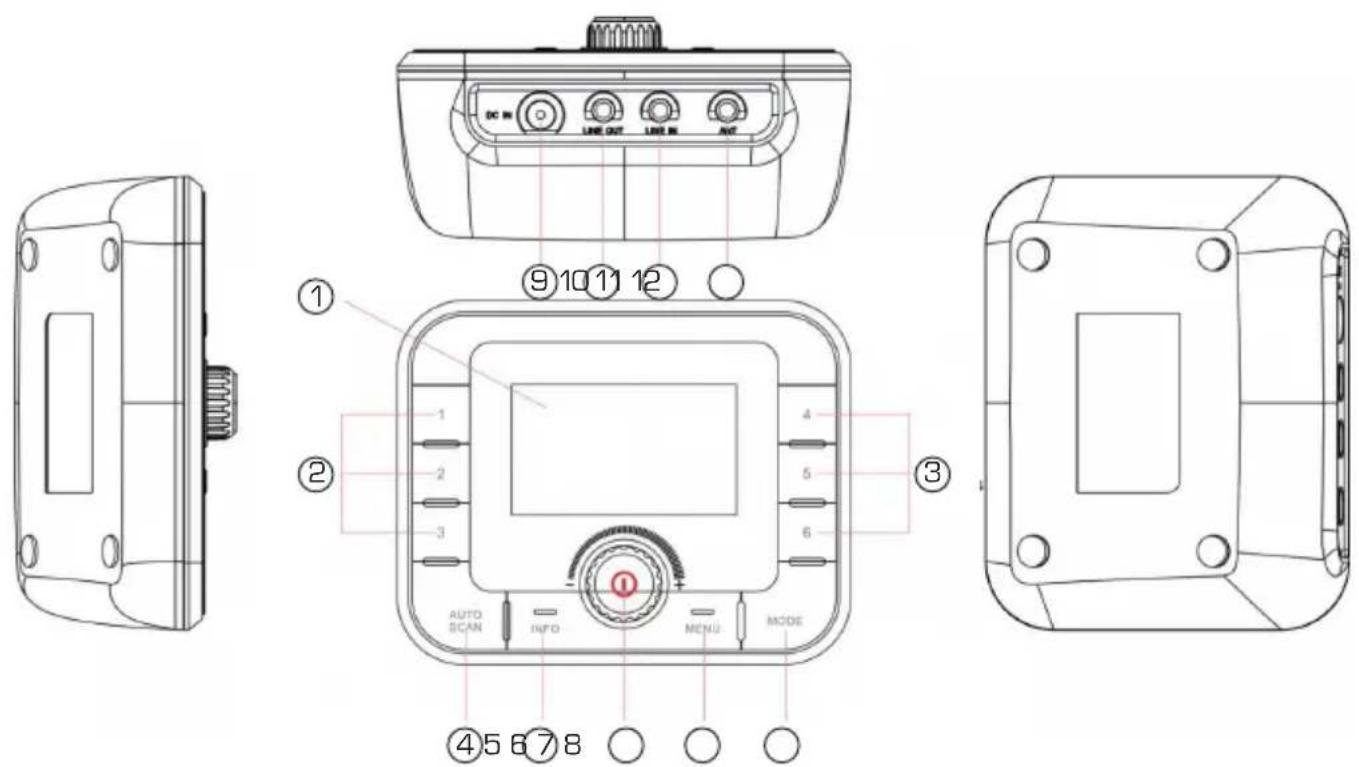
43 IMPERIAL DABMAN 410
4. Controls and device functions
- Display
- Station preset buttons 1-3
- Station preset buttons 4-6
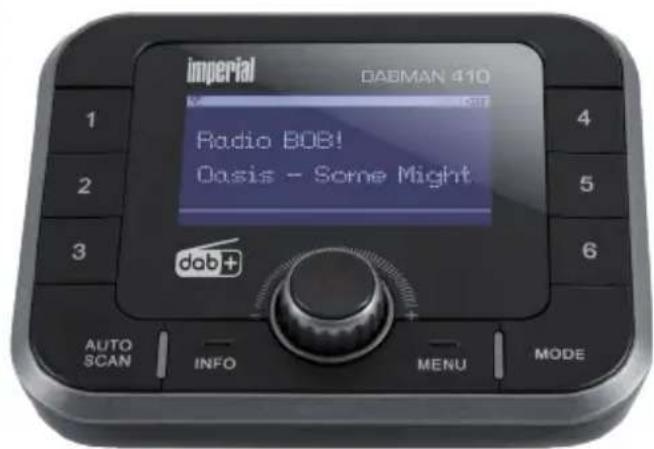
- AUTO SCAN: Press this button to scan automatically for DAB / DAB+ stations
- INFO: Press this button in DAB / FM mode to display broadcast information.
- OK/Track Selection/ON-OFF control
Press this button to select a menu option. Turn control to navigate back and forth in menu
Turn control to go to previous or next track if a Bluetooth enabled device is connected.
Press button to pause or start music playback in Bluetooth mode. Press and hold this button to turn power off. Press and hold this button to turn power on.
- MENU
Press and hold the button to display device menu.
- MODE
Use this button to switch between DAB and FM reception.
- Power supply input
Connect power supply here.
- LINE OUT
You can connect to your audio / hi-fi system from this output on the DABMAN if your audio system has an AUX audio input.
- LINE IN
If desired, connect an audio output device, e.g. MP3 player, to output music via the DABMAN 410 to an audio system.
Antenna connection
Connect the wire aerial supplied here.
4. Controls and device functions
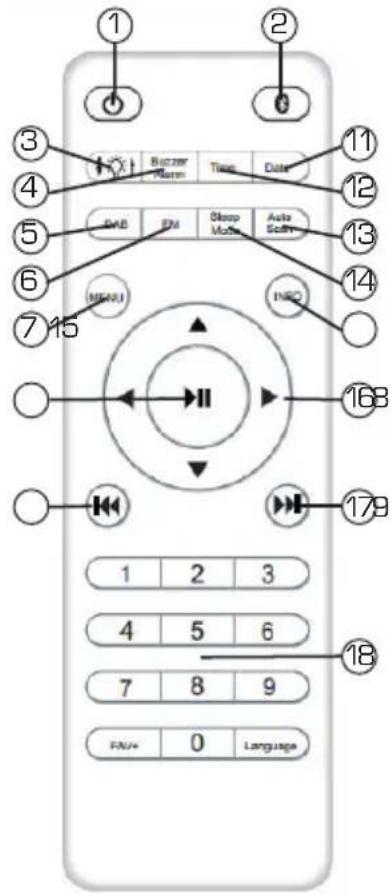
- Standby Switches the device on or off.
- Bluetooth mode
- Display dimmer Press this button to change display brightness.
- Alarm Set the alarm with this button.
- DAB Switches to DAB reception.
- FM Switches to FM reception.
- MENU: Press this button to display the settings menu.
- Play / Pause / ENTER Pauses or starts track in Bluetooth mode. Selects menu option.
- Previous Track Goes to previous track in Bluetooth mode
- FAV+ Switches to a favourite station.
- DATE Set the date.
- Time Set the sleep timer.
- AUTO SCAN: Press this button to scan automatically for DAB / DAB+ stations
- SLEEP mode
- INFO: Press this button in DAB / FM mode to display broadcast information.
- Arrow keys Use these keys to navigate back and forth in menu
- Next Track Goes to next track in Bluetooth mode.
- Numeric keypad
- Language Changes menu language
5. Installation and initial setup
The DABMAN 410 is a DAB+ / FM receiver and is ideally suited for upgrading your existing audio / hi-fi system with DAB + reception.
Digital DAB+ signals are received by the DABMAN 410 and transmitted via Bluetooth or audio cable to your hi-fi system. In addition, the can also be used to connect external devices to the hi-fi, e.g. to play music files from a smartphone (via Bluetooth or cable connection). The device can be used in 2 different operating modes as required. Please also refer to sections 5.4 and 5.5.
5.1. Initial setup
Connect the power supply to the DABMAN 410 and plug the power supply into a wall socket.
Note:
The DABMAN 410 is fitted with an internal battery, which also enables operation without mains power. When the power supply is connected, the battery starts charging automatically. Please charge the battery for about 2 hours prior to first use.
Press the rotary control on the device for approx. seconds. The device will switch on. The device can be used in 2 different operating modes. Transmit operating mode (TX)
In this mode the device functions as a Bluetooth transmitter and can transfer audio from DAB+ / FM or external sources via Bluetooth to Bluetooth receivers such as speakers or headphones. Bluetooth receive operating mode [RX]
In this mode, the device functions as a Bluetooth receiver and can receive audio content from mobile devices such as tablets or smartphones via Bluetooth for cable routing to an audio system. Please also refer to sections 5.4 and 5.5.
5. Installation and initial setup
5.2. DAB+ reception
A DAB+ station scan should be performed to receive DAB+ radio stations with the .
To do this, switch to DAB+ mode using the mode button.
Press the MODE button repeatedly until DAB is displayed.
The device is now in DAB+ mode.
Press the AUTO SCAN button.
The device starts a DAB+ scan and stores all receivable stations.
Once the scan is finished, the first available DAB station is played.
You can change the radio station using the rotary control.
Select the desired station by pressing the control.
Press the INFO/MENU button for more information on the current DAB radio programme.
5.3. FM reception
To switch between DAB+ and FM reception modes, follow these steps:
Press the MODE button on the device repeatedly until FM is displayed.
Alternatively, press the FM button on the remote control.
To scan the FM bandwidth, press the AUTO SCAN button.
The scan will start. The device stores all receivable stations.
Use the station memory buttons 1-6 on the device or the keypad on the remote control to select a station you want to receive.
5.4. Bluetooth reception operating mode RX

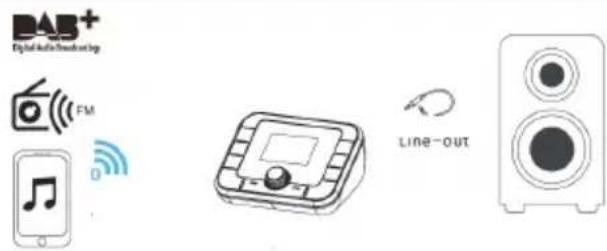
To transfer music from your mobile device, such as tablet or smartphone, to the DABMAN, follow these steps:
Audio signals can be transmitted to your audio system via the DABMAN LINE OUT jack. To do this, use the 3.5 mm jack audio cable supplied and plug it into the LINE OUT jack (fig. 10, section 4) on the DABMAN. Connect the other end of the cable to the LINE IN / AUX IN input on your audio system Select this input on your audio system.
Press MODE button, repeatedly if necessary, until the Bluetooth icon is displayed. The device attempts to connect to your mobile device via Bluetooth.
Activate Bluetooth on the device to be connected. DABMAN will appear in the available devices list. Select it on the mobile device. The devices will now connect. The status on the DABMAN display changes from Disconnected to Connected. Now you can transfer music files from your mobile device to the DABMAN.
You can go to the previous or next track using the Next Track [17] and Previous Track [9] buttons
NOTE:
Bluetooth reception is only available if the 3.5 mm audio cable is plugged into the device's LINE OUT jack. If the cable is removed from the socket, the device switches to the Bluetooth Transmit operating mode (Section 5.5).
5.5. Bluetooth Transmit operating mode TX
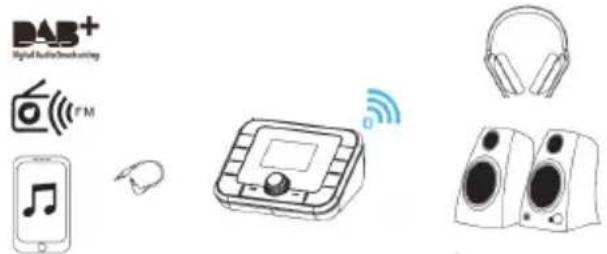
In the Bluetooth Transmit operating mode (TX) you can transmit music from a mobile device [e.g. MP3 player / smartphone] DAB+ radio station or FM radio stations via Bluetooth to Bluetooth enabled devices such as Bluetooth speakers or Bluetooth headphones. The DABMAN 410 functions as a Bluetooth transmitter.
To transfer music files from a mobile device such as tablet / smartphone or MP3 player via Bluetooth, please use the LINE IN jack on the DABMAN 410 (fig. 11, section 4) and connect it to the mobile device using the audio cable supplied.
If you wish to transmit DAB+ stations or FM stations to a Bluetooth enabled receiver, you do not need a cable connected to the LINE IN jack socket.
Turn the Bluetooth enabled device on. Once the device is turned on and recognised by the DABMAN, a connection is made.
If the connection cannot be made automatically, press the Menu button to display the DABMAN menu.
Select BT Device List from the menu.
The list now displays all Bluetooth receivers within range of the DABMAN.
Select the device to be connected to this device.
6. Menu and functions
You can choose various settings in the device menu.
Press the menu button on the device or on the remote control to display the settings menu.
Use the rotary control on the device or the arrow keys on the remote control to select from various menu items. To access a menu item, press the control on the device or button 8 on the remote control.
E
1. Manual
With this menu item, you can manually perform a DAB programme search and search for DAB stations on a specific frequency.
2. Automatic scan
Performs an automatic scan.
3. Backlight
Adjusts the display brightness.
4. Time settings
Adjust the device system time with this menu item.
Note: Adjusting the time is not usually necessary as the time is set on the transmitter side.
5. Date settings
Here you can set the current date.
Note: Changing the date is usually not necessary as the date is set on the broadcaster side.
6. BT Device List
This menu item displays all enabled Bluetooth devices within range of the Dabman 410. Select a Bluetooth device to pair with.
6. Menu and functions
7. Buzzer alarm
You can set the alarm tone with this item. To set an alarm, please also read section 1
8. Sleep
This menu item allows you to activate the sleep timer. If the sleep timer is activated, the device switches off after a set time, which you can set from this menu. Alternatively, you can also press the Sleep button on the remote control.
9. Language
You can change the device menu language here. Alternatively, you can also press the Language button on the remote control.
10. Factory settings
You can return all settings made on the radio to the factory default. This is useful if you have made changes that might subsequently have led to less than perfect functioning.
11. Version
Here you will find current software version details.
6.1. Store favourite DAB+ radio stations
You can save your favourite DAB+ radio stations to station preset buttons for quick access. To do this, please follow these steps:
Select a radio station that you want to store to a favourites preset using the rotary control and confirm your selection by pressing the rotary control.
Alternatively, select the radio station via the remote control using the right / left arrow keys.
Hold down the desired station preset button for approx. 2 seconds. The station is now stored on this button.
51 IMPERIAL DABMAN 410
6. Menu and functions
6.2. Store favourite DAB+ radio stations

You can save your favourite DAB+ radio stations to station memory buttons for quick access. To do this, please follow these steps:
Switch to FM mode using the device mode button.
Select a radio station that you want to store to a favourites preset using the rotary control and confirm your selection by pressing the rotary control.
Alternatively, select the radio station on the remote control using the right / left arrow keys.
Hold down the desired station memory button on the device for approx. 2 customers. The station is now stored on this button.
6.3. Setting the alarm clock
To set the alarm, follow these steps:
Press the Menu button.
Select the Buzzer menu item using the rotary control on the device or the arrow keys on the remote control.
Confirm selection by pressing the rotary control.
Switch the buzzer function on using the right / left arrow keys on the remote control or via the rotary control.
Confirm selection by pressing the rotary control or by pressing button 8 on the remote control.
Set alarm time. Use the right / left arrow keys on the
remote control or the rotary control on the device.
7. Troubleshooting
| Fault | Possible cause and solution |
| No display, radio does not respond | Battery not charged Connect device to the mains using the power supply included with the radio. |
| No sound over LINE OUT | Cable inserted incorrectly. Ensure 3.5 mm audio cable is plugged into the correct jack. Volume too low. Check volume settings on your audio system. Poor DAB+ reception In DAB+ mode, there must be good reception to get an audio signal. Change position, rescan DAB+. |
| No sound over LINE IN Volume on the mobile device is set too low. Check the volume settings on your mobile device and increase if necessary. Cable inserted incorrectly. Ensure 3.5 mm audio cable is plugged into the green LINE IN jack. | |
| Poor DAB+ reception No channels available. Perform a scan. Aerial not fully extended Bad position. Change position of the radio (possibly closer to a window), rescan | |
7. Troubleshooting
| Fault | Possible cause and solution |
| Weak FM reception Weak reception | |
| Change position of the aerial or the device. | |
| Alarm clock does not work properly | Clock set incorrectlyPlease make sure that DAB signal is strong enough. |
8. Technical Specifications
| DAB radio frequency range Band III 174 - 240 MHz | |
| FM frequency range | 87.5 - 108 MHz |
| Display Vertical Alignment LCD | |
| Input voltage 5 volts 500 mA | |
| Bluetooth version ATS v 4.2 | |
| Micro SD card reader Supports Micro SD cards up to 32 GB | |
| LINE IN / LINE Out Stereo 3.5 mm jack | |
| Operating temperature -20 | °C - +70°C |
9. Disposal Instructions
The packaging of your product consists exclusively of recyclable materials. Please return these materials, appropriately sorted, to the „Dual System" or appropriate recycling system in your country. At the end of its lifetime, this product may not be disposed of in your normal household waste, it must be handed in at a collection point for the recycling of electrical and electronic equipment.


The symbol on the product, packaging or operating manual indicates this requirement. The materials used are recyclable as indicated by their markings. By recycling or otherwise re-using old products or their components you are making an important contribution to the protection of our environment. Please enquire from your local authorities where the appropriate recycling centre is located. Please ensure that spent batteries as well as electronic waste are not disposed of in your domestic waste, and are professionally recycled.
10. Service and Support
Dear customer!
Thank you for choosing a product from our range. Our product complies with all legal requirements, and has been manufactured subject to constant quality controls. The technical data correspond with the current status at the time of printing. Subject to change without notice.
The warranty period for the DABMAN 65 corresponds with the legal requirements at the time of purchasing. In addition, we provide our telephonic Hotline service, offering professional assistance.
Professional, trained experts are available in our service area to answer your queries. Here you can pose any questions you may have with regard to IMPERIAL products, and obtain hints on finding possible causes of problems.
Our technicians are available from Monday-Friday, from
08h00 to 16h45 [CET] at the following telephone number:
+49[0]2676 / 95 20 101
or per E-Mail at: service@telestar.de
11. CE Marking
Your radio bears the CE mark, and complies with all required EU standards.
The CE mark on the product IMPERIAL DABMAN 410 gives you the assurance that the product complies with the CE regulations.
The conformity declaration for this product can be obtained at:
Please note that all technical data or any descripted functions are subject to change without notice.
Copy and reproduction only with authorization of the publisher TELESTAR Digital GmbH is not responsible for
printing errors.
TELESTAR-DIGITALGmbH
Am Weiher 14
56766 Ulmen

58Handleiding
imperial
DABMAN 410
Handleiding
D
E
NL
F
INHOU
9. AFVOERINSTRUCTIES
2. INDICATIONS DE SECURITÉ
2.1. Legende
2. INDICATIONS DE SECURITÉ
2. INDICATIONS DE SECURITÉ
2. INDICATIONS DE SECURITÉ
2. INDICATIONS DE SECURITÉ
9. INDICATIONS D'ELIMINATION
Chere cliente, cher client!