
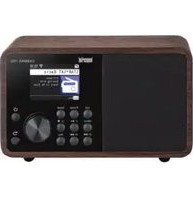
DABMAN 10 - Radio Imperial - Free user manual and instructions
Find the device manual for free DABMAN 10 Imperial in PDF.


| Product Type | Portable Radio with DAB+/FM and Bluetooth |
| Brand | Imperial |
| Model | DABMAN 10 |
| Dimensions (W x H x D) | 45 mm x 92 mm x 11 mm |
| Weight | 35 g |
| Power Supply | 5 V, 300 mA via Micro USB |
| Battery | Li-Polymer 3.7 V, 420 mAh |
| Radio Bands | DAB/DAB+ (Band III) and FM 87.5–108 MHz |
| Bluetooth | Bluetooth 2.1 with A2DP support |
| FM Transmitter | Yes, frequency range 87.5–108 MHz |
| Earphone Connection | 3.5 mm stereo jack |
| Display | LCD with station info, time, signal strength, battery status |
| Preset Channels | Yes, via menu |
| Sleep Timer | Yes, selectable time ranges |
| Service Following | Auto frequency change for DAB+ (if supported) |
| Language Settings | English, German |
| Firmware Update | Via USB (see manufacturer website) |
| Operating Temperature | 0 °C to 40 °C |
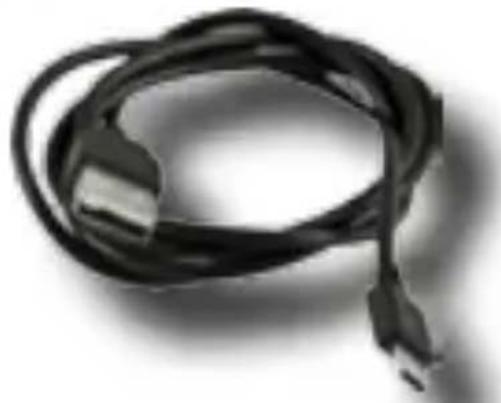
| In the Box | DABMAN 10, USB charging cable, audio cable, antenna cable, in-ear headphones, user manual |
| Cleaning | Use a dry cloth only |
| Safety | Do not expose to rain or moisture; keep away from children; use only supplied accessories |
| Repairability | Spare parts available from manufacturer; repairs only by qualified personnel |
| Disposal | Do not dispose with household waste; recycle at WEEE collection points |
| Warranty | Legal warranty period; hotline support available |
Frequently Asked Questions - DABMAN 10 Imperial
User questions about DABMAN 10 Imperial
0 question about this device. Answer the ones you know or ask your own.
Ask a new question about this device
Download the instructions for your Radio in PDF format for free! Find your manual DABMAN 10 - Imperial and take your electronic device back in hand. On this page are published all the documents necessary for the use of your device. DABMAN 10 by Imperial.
USER MANUAL DABMAN 10 Imperial
natural_image
Solid red background with faint abstract smudges and no visible text or symbolsBedienungsanleitung
Operating Manual
DABMAN 1
D
E


INHALTSVERZEICHNIS
natural_image
Black remote control device with a digital display and control knob, labeled with number 1 (no text or symbols on device body)
natural_image
Black cable with connectors, labeled with number 2 in top-left corner (no other text or symbols)

natural_image
Close-up of a black cable with connectors, labeled with circled number 3 (no text or symbols on the cable itself)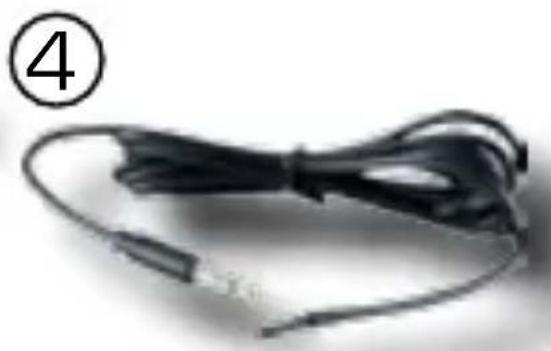
natural_image
Close-up of a black cable with a connector, labeled with circled number 4 (no text or symbols on the cable itself)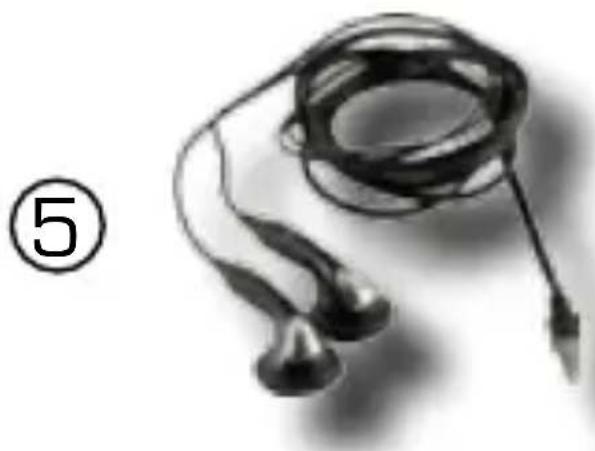
natural_image
Black-and-white photo of a cordless ear with two earphones, labeled with circled number 5 (no text or symbols on the ear itself)

4. ABBILDUNGEN
1. Display
6. BEDIENUNG
6.1. Display Information
6. BEDIENUNG

6.2. Senderauswahl
natural_image
Simple line drawing of a trash bin with no text or symbols
- INTRODUCTION....36
- SAFETY NOTICES....37
- ILLUSTRATIONS ....42
- ITEMS SUPPLIED ....40
- FIRST INSTALLATION....44
- OPERATION....47
6.1 Display Information 47
6.2 Station selection 48
6.3 Volume....48
6.4 Change the radio mode....48
6.5 FM channel search....49
6.6 Create a preset channel list....50
6.7 Call up the preset channel list....51
6.8 Establishing a Bluetooth connection....51
6.9 FM Transmitter 53 - SETTINGS....55
7.1 Channel search .... 55
7.2 Bluetooth....56
7.3 UKW Transmitter....56
7.4 Audio 56
7.5 Service Following 56
7.6 Sleep Timer....57
7.7 Language....57
7.8 System/ Firmware update 57 - TROUBLESHOOTING....58
- TECHNICAL SPECIFICATION....60
- DISPOSAL INSTRUCTIONS......61
- SERVICE UND SUPPORT....62
- CE MARKING....63
1. INTRODUCTION
Thank you for purchasing the DABMAN 1. When you use the DABMAN 1 for the first time, please read these instructions carefully, and retain them for reference in future. You will be able to fully enjoy the many functions of the radio only if you follow the instructions.
This operating manual will assist you with the
- correct
- safe
- optimal
use of the IMPERIAL DABMAN 1. We assume the user of the radio has general knowledge related to the operation of consumer electronics products.
Any person
- installing
- connecting
- operating
- cleaning
- disposing of
this radio must first have taken notice of the entire contents of this operating manual. Always keep this operating manual close to the radio.
2. SAFETY NOTICES
Please read the safety notices carefully before operating the radio. Please note all warnings and instructions both on the product and in the operating manual.
2.1 Basic Safety notices
- In case of operating problems, disconnect the radio from the USB power source.
- Do not expose the radio to rain or to very humid, wet conditions.
- Do not open the housing of the product.
- Only connect the radio to the mains current via a correctly installed USB power supply connected with 220-240 V\~, 50-60 Hz mains outlet.
- Should liquid or foreign objects fall into the radio, immediately disconnect the USB power supply. In this case the product checked by qualified personnel before resuming operation.
- Please ensure the electrical outlet (plug) is easily accessible.
- Do not squeeze or sharply bend cable connections.
- Never allow children to use the radio without supervision.
- Always leave maintenance or repair work to qualified personnel. Ignoring this may endanger yourself and others.
- Obtain spare parts exclusively from the manufacturer.
- Changes to the product will result in a termination of liability by the manufacturer.
2. SAFETY NOTICES
- Remove protective foils/films.
- Use only a dry cloth to clean the equipment
Distraction
Using the DABMAN 1 in some circumstances can distract you and may cause a dangerous situation (for example, using headphones while riding a bicycle or driving a car, while working on machines and so on.). Observe rules that prohibit or restrict the use of headphones. Don't use this device with headphones, if this will interfere the hearing of other things in your environment.
Hearing Loss
Listening to sound at high volumes espacially with headphones may damage your hearing. Background noise, as well as continued exposure to high volume levels, can make sounds seem quieter than they actually are. Turn on audio playback and check the volume before inserting the earphones in your ear.
Charging the device
In order to charge the device please use the charging cable of delivery content and connect it to an USB port only.
Radio frequency interference
Observe signs and notices that prohibit or restrict the use of electronic devices (for example, in health care facilities, airplanes or blasting areas).
2. SAFETY NOTICES
Although the DABMAN 1 is designed, tested, and manufactured to comply with regulations governing radio frequency emissions it might negatively affect the operation of other electronic equipment, causing them to malfunction.
Turn off the DABMAN 1 or when use is prohibited, such as while traveling in aircraft, or when asked to do so by authorities.
The hardware used in this device emits electromagnetic fields which may interfere with pacemakers, defibrillators or other medical devices. Please make sure to have a safe distance to this kind of medical devices.
If you suspect the DABMAN 1 is interfering with your pace-maker or any other medical device, turn off the DABMAN 1 immediately.
Choking hazard
Some accessories of DABMAN 1 may present a choking hazard to small children. Keep these accessories away from small children
Operating temperature
Please operate the DABMAN 1 in a temperature range between 0 °C and 35 °C.
3. ITEMS SUPPLIED
Please check the items supplied before first use.
The following components should be contained in delivery content:
E
1 DABMAN 1
2 USB charging cable USB - Micro USB
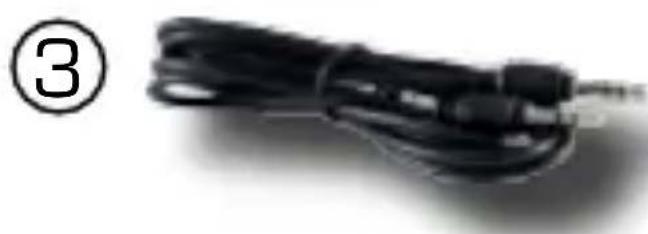
3 Audio Cable 3,5 mm Audio Jack
4 Antenna cable
5 In ear headphone
6 User Manual
3. ITEMS SUPPLIED

natural_image
Black remote control device with digital display and control knob, labeled with number 1 (no text or symbols on device body)②
natural_image
Black cable with a USB port, isolated on white background (no text or symbols)E
natural_image
Close-up of a black audio cable with a connector, labeled with circled number 3 (no text or symbols on the cable itself)④

natural_image
Close-up of a black cable with a small connector, no visible text or symbols
natural_image
Close-up of earphones with a black cable, no visible text or symbols6
4. ILLUSTRATIONS
11. Display
- VOLUME / FM Transmitter/navigation up Press this button to turn up the volume.
Hold this key pressed for 2 seconds to enter the FM transmitter menu.
Scroll up in menu with this key.
3. /6. Station selection
Select the next or previous station with this key.
- VOLUME / Bluetooth function / navigation down
Press this key to decrease the volume
Hold this key pressed for 2 seconds to enter the
Bluetooth menu.
Scroll up in menu with this key.
5. OK ENTER
Confirm any kind of selection you made in menu.
7. ON/OFF
Hold this key pressd to turn on/turn off the device.
8. Earphone connection
Connect the earphone or external antenna, included in delivery content to this plug.
9. Micro USB charging plug
Plug in the USB charging cable, included in delivery content.
4. ILLUSTRATIONS

5. FIRST INSTALLATION
Charching the device
We recommend to charge the device for about 2 hours before starting the first time.
Please use the charging cable included in delivery content and connect the radio to any kind of USB power supply like PC, Notebook or USB charger.
Once connected to an USB power supply, the charging process starts automatically
Earphone connection
Connect the earphone included in delivery conetent by plugging in the earphone.
Alternatively you can also use the external antenna included in delivery content, if you want to use the DABMAN 1 as DAB+ receiver transmitting the signal to an audio device.
Please note:
It is always necessary to connect the headphone or external antenna to receive any DAB+ or FM signal!
5. FIRST INSTALLATION
Power On
Hold the Power ON/OFF key pressed to switch on the radio. The DABMAN 1 starts to boot.

E
Language
Select the menu language and press OK to confirm.

5. FIRST INSTALLATION
Once confirmed the menu language, the device starts an automatic channel search


Please note:
In the first installation the device starts the channel search in DAB/ DAB+ mode.
If you want to search FM radio stations, please see chapter 6.5.
All available stations are stored automatically.
When channel search is complete, the device starts playing the first found DAB/DAB+ station.

6. OPERATION
6.1 Display Information
The Display of DABMAN 1 shows the following information
- Shows the current radio reception mode.
- The bars beside the antenna symbol indicate the signal strength of the currently selected radio stations.
- The color of this symbol changes from grey to white when Bluetooth is active.
(Please read chapter 6.8. also) - The color of this symbol changes from grey to white when the FM transmitter is active.
(Please read chapter 6.9. also) - This symbol indicates the state of charge of the battery.
- Shows the current time.
- This symbol is in red color if the selected radio station is already stored in the preset list.
- Name of the selected radio station.
- Title and artist name of current played song.

6. OPERATION
6.2 Station selection
With the station selection keys 3 / 6 you can select a radio station that was found during the automatic channel search. Holding this keys pressed for 2 seconds, you can select a radio station, stored in the preset list. (Please see chapter 6.6. also)
6.3 Volume
Change the volume with the keys 2 / 4.
6.4 Change the radio mode
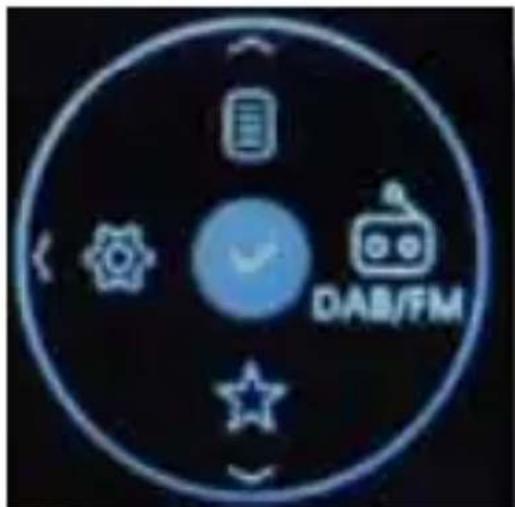
With this radio you can receive radio channels broadcasted in FM or digital radio DAB/DAB+. In order to change the radio mode press the OK key.
6. OPERATION
Press the P+> key and confirm with OK.
Select the wanted radio mode via the navigation keys up/down and confirm with OK.

E
6.5 FM channel search
Change the radio mode to FM, as described in chapter 6.4. Press the P+> to start the channel search. Once a radiostation with an adequate signal strength is found, the automatic search stops. Press the P+> again, to find the next radio station.
6. OPERATION
6.6 Create a preset channel list

You can store digital radio stations DAB/DAB+ as well as analogue radio FM stations in a preset channel list, which is available in the menu.
Select a radio station you want to store by pressing the channel selection keys P-/P+
Holding the OK key pressed for 2 seconds will store the selected radio station.
The favorite symbol changes its color from grey to red.

In order to delete an already stored radio station in preset channel list, please do the following:
Select a radio station you want to delete by using the
P-/P+ keys.
Holding the OK key pressed for 2 seconds will delete the selected radio station.
The favorite symbol changes the color from red to grey.

6. OPERATION
6.7 Call up the preset channel list
To call up a radio station stored in preset list please press the OK key to enter the menu.
Press the navigation key down.
Select one of the stored radio channels by pressing the up or down key and confirm with OK.
You can also select a stored radio channel without entering the menu.
Therefor please hold the P+> or <P- key pressed for 2 seconds. The radio switches to the next or previous radio station.
6.8 Establishing a Bluetooth connection
You can establish a Bluetooth connection to any kind of Bluetooth audio device like Bluetooth loudspeakers, headphones or car radio in order to stream the radio stations, received with DABMAN 1 to these kinds of devices.
Therefor it is neccesary to pair the DABMAN 1 with the Bluetooth device.
Holding the ⚡ key pressed for 2 seconds will start the search of Bluetooth devices.
6. OPERATION


6. OPERATION
Press the OK key to enter the menu. Press the
Power on the FM transmitter
6. OPERATION
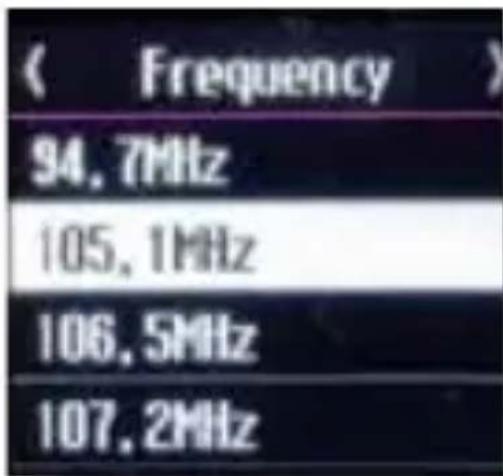
Select a FM frequency from the default frequency list, or input a new frequency in the FM frequency range.
Please set this frequency also on the FM radio, on which you want to hear the streamed radio stations.
7. SETTINGS
By entering the menu, you can make some individual settings Press the OK key.
Press the <P - key to enter the Settings menu.
You can exit the menu by pressing the <P - key at anytime.
7.1 Channel search
With this function, you can start a full DAB/DAB+ radio station search.
All available radio stations will be stored automatically. Once the auto search is complete, the first scanned radio channel will be active and is shown in display.
7. SETTINGS
7.2 Bluetooth
In this menu, you can activate or deactivate the Bluetooth function. Please see chapter 6.8 for detailed information.
7.3 UKW Transmitter
You can setup the FM transmitter function in this menu. Please see chapter 6.9 for detailed information.
7.4 Audio
You can set individual audio settings in this menu.
7.5 Service Following
The DABMAN 1 is able to follow a once stored radio station by an automatic frequency change in case of leaving the reception area.
Turn on this function, when you want DABMAN 1 to change the frequency automatically.
Please note:
The function SERVICE FOLLOWING for DAB/DAB+ is only available, when this service is supported by the radio station provider itself.
7. SETTINGS
7.6 Sleep Timer
The device is equipped with a sleep timer function.
In this menu you can select an time range, after which the device shuts down automatically.
There are 3 time ranges abailable.
7.7 Language
Please select the menu language.
7.8 System/ Firmware update
You can reset all settings you have done back to the factory default setting.
This is useful if you have made changes that subsequently prove to detract from the performance of the radio.
Please select the Reset all and confirm with OK.
Please note that the reset will also clear all radio channels and preset lists.
With the USB interface it is possible to do a firmware update. If there is any necessity to release a new firmware, you will find it on www.digitalbox.de. In this case, please download the firmware. Check the download file to get detailed information about this update procedure.
8. TROUBLESHOOTING

| Symptom | Possible cause and solution |
| No display, no function, no reaction on any key | Battery empty.Please connect the device via USB charging cable included in delivery content, in order to start charging the battery. |
| No sound on the earphones | No correct earphone connection.Please check the correct connection of earphone.Poor DAB+ Reception In DAB/DAB+ mode, a sufficient reception of signal is essential to get an audio signal. Change the position and start a new channel search in DAB/DAB+ mode.Bluetooth connection is active.The earphone output is muted, if Bluetooth stream is active. |
| Poor audio quality or heavy noise in FM mode. | Interference with another FM radio station. Change the FM frequency of FM transmitter and change the frequency on the FM radio to this frequency also. |
8. TROUBLESHOOTING
| Symptom | Possible cause and solution |
| No sound on a Bluetooth device | The paired Bluetooth device is not switched on.Volume to low.Turn up the volume on DABMAN 1.No headphone or external antenna connected.A connected headphone or external antenna is necessary to receive radio stations in DAB/DAB+ or FM mode. |
| No Bluetooth pairing possible | Pairing mode on the device you want to connect with is not active.Please make sure, that the pairing mode on the device you want to connect with is activated.The distance between the devices is too high.Please reduce the distance between both devices and try to pair the devices again. The distance should not be higher than 10 meters. |
9. TECHNICAL SPECIFICATION

System
| Radio system | DAB/DAB+UKW with RDS function |
| Frequenzbereich | DAB/DAB+ : Band IIIFM: 87,5 - 108,0 MHz |
| Earphone connection | 3,5 mm stereo jack |
| Bluetooth | Bluetooth 2.1compatible with A2DP components |
| Frequency range FM Transmitter | 87,5- 108,0 MHz |
| Battery | Lipolymer 3,7V 420 mAh |
| Power supply | 5V 300mA via Micro USB Port |
| Dimensions | 45mm x 92mm x 11mm |
| Weight | 35 g |
| Operating temperature | 0°C - 40°C |
10. DISPOSAL INSTRUCTIONS
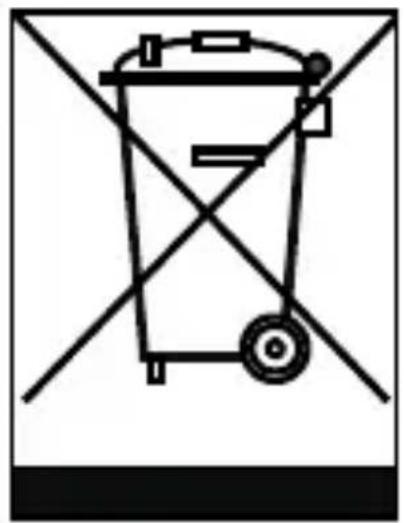
The packaging of your product consists exclusively of recyclable materials. Please return these materials, appropriately sorted, to the „Dual System“ or appropriate recycling system in your country. At the end of its lifetime, this product may not be disposed of in your normal household waste, it must be handed in at a collection point for the recycling of electrical and electronic equipment.
natural_image
Simple line drawing of a trash bin with no text or symbols
The symbol on the product, packaging or operating manual indicates this requirement.
The materials used are recyclable as indicated by their markings. By recycling or otherwise re-using old products or their components you are making an important contribution to the protection of our environment. Please enquire from your local authorities where the appropriate recycling centre is located. Please ensure that spent batteries as well as electronic waste are not disposed of in your domestic waste, and are professionally recycled.
11. SERVICE UND SUPPORT
Dear customer!
Thank you for choosing a product from our range. Our product complies with all legal requirements, and has been manufactured subject to constant quality controls. The technical data correspond with the current status at the time of printing. Subject to change without notice.
The warranty period for the DABMAN 1 corresponds with the legal requirements at the time of purchasing.
In addition, we provide our telephonic Hotline service, offering professional assistance.
Professional, trained experts are available in our service area to answer your queries. Here you can pose any questions you may have with regard to IMPERIAL products, and obtain hints on finding possible causes of problems.
Our technicians are available from Monday-Friday, from 08h00 to 16h45 (CET) at the following telephone number: +49(0)2676 / 95 20 101
or per E-Mail at: service@telestar.de
If the service hotline is unable to assist you, please send your DABMAN 1, if possible in the original packaging, and definitely securely packed, to the following address:
TELESTAR - DIGITAL GmbH
Service Center
Am Weiher 14 (Industrial zone)
D-56766 Ulmen/Germany
12. CE MARKING

E
Your radio bears the CE mark, and complies with all required EU
standards.
CE mark for European markets
The CE mark on the product IMPERIAL DABMAN 1 gives you the assurance that the product complies with the CE regulations.
The conformity declaration for this product can be obtained at:
Please note that all technical data or any described functions are subject to change without notice.
Copy and reproduction only with authorization of the publisher
TELESTAR Digital GmbH is not responsible for printing errors.
Correct as at: January 2016
TELESTAR - DIGITAL GmbH
Am Weiher 14
56766 Ulmen
- Bedienungsanleitung
- Operating Manual
- DABMAN 1
- INHALTSVERZEICHNIS
- ABBILDUNGEN
- Display
- BEDIENUNG
- Display Information
- Senderauswahl
- INTRODUCTION
- SAFETY NOTICES
- Basic Safety notices
- Distraction
- Hearing Loss
- Charging the device
- Radio frequency interference
- Choking hazard
- Operating temperature
- ITEMS SUPPLIED
- ILLUSTRATIONS
- Display
- /6. Station selection
- OK ENTER
- ON/OFF
- Earphone connection
- Micro USB charging plug
- FIRST INSTALLATION
- Charching the device
- Earphone connection
- Please note:
- Language
- OPERATION
- Display Information
- Station selection
- Volume
- Change the radio mode
- FM channel search
- Create a preset channel list
- Call up the preset channel list
- Establishing a Bluetooth connection
- FM Transmitter
- SETTINGS
- Channel search
- Bluetooth
- UKW Transmitter
- Audio
- Service Following
- Sleep Timer
- Language
- System/ Firmware update
- Please note that the reset will also clear all radio channels and preset lists.
- TROUBLESHOOTING
- TECHNICAL SPECIFICATION
- DISPOSAL INSTRUCTIONS
- SERVICE UND SUPPORT
- CE MARKING
Brand : Imperial
Model : DABMAN 10
Category : Radio